Warehouse is used to manage school's warehouse and store operations such as ordering of inventory from suppliers, picking/packing/shipping items to various school campus stores, and organizing inventory replenishment. Warehouse brings better visibility and organization to the entire school's warehouse operations.
Warehouse showcases;
- Warehouse item: list shows items entered for the school. A list of items the school have in stock in their warehouse,
- Categories: shows different item groupings for the items in the warehouse. A table list of items used in the school that are arranged into categories
- Supplier’s tab: is where all companies/Individuals who provide the items are compiled. A list of suppliers and their contact details
- Stock up requests: shows all requests for purchase of out of stock items. All stock up requests and supplies can be accessed and managed from here
Category
Warehouse category contains all items arranged in clusters. categories are created based on how items are similar or how they are related to each other. For example; Books category contains various kinds of books whether they are used in primary or secondary school respectively. In hierarchy, items comes under categories so before you can add an item you must first create a category for it and other items that might belong to the same category
How to Create Items Category in Warehouse
To create Category in warehouse follow these steps:
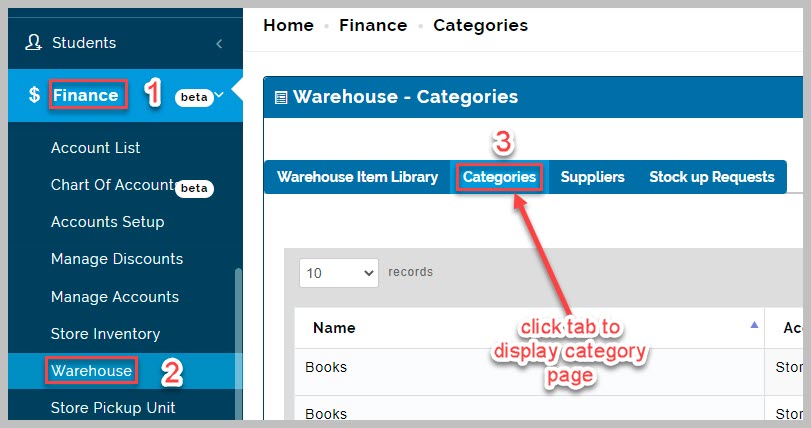
- Go to Finance and select Warehouse then click on Categories tab
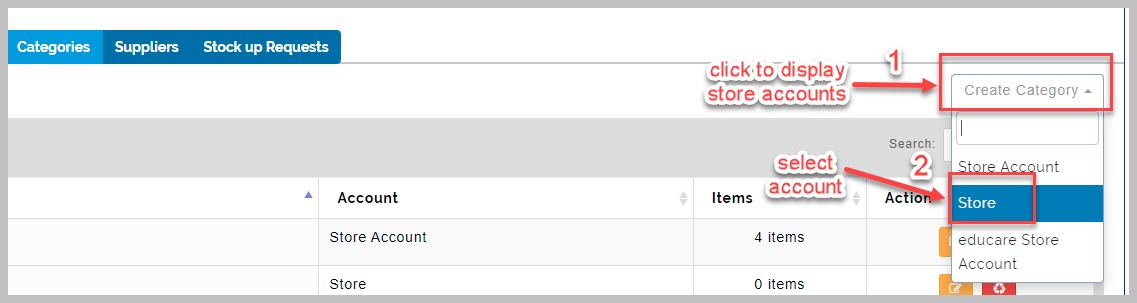
- Click on Create Category button to open up a drop-down menu where all store account types are displayed.
Select appropriate store account to display new page for category creation.
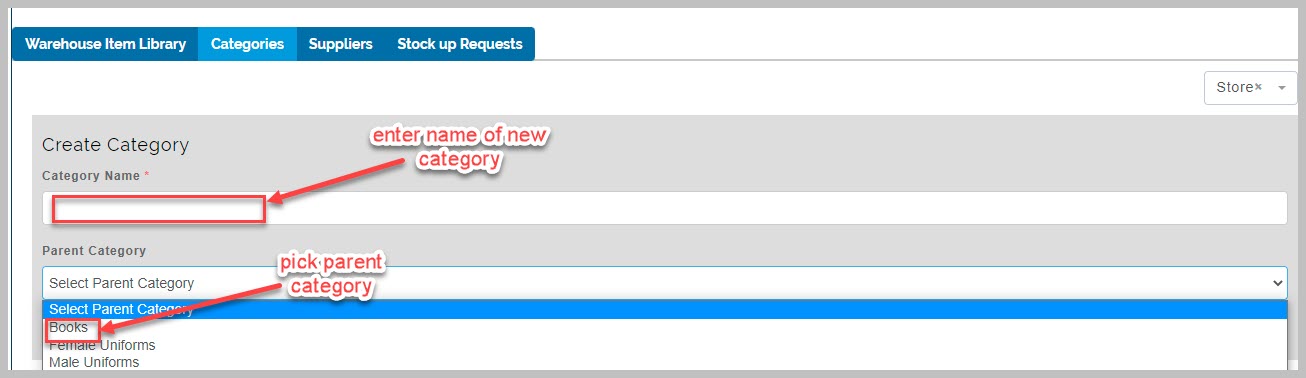
- Enter new category name and select parent category from drop-down list
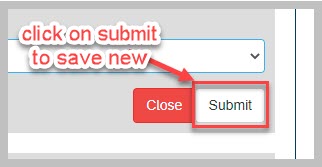
- click on Submit button to save new category.
How to edit and delete Category
To edit Category follow these steps:
- From Category tab, click the edit category button on the row of interest, to make changes
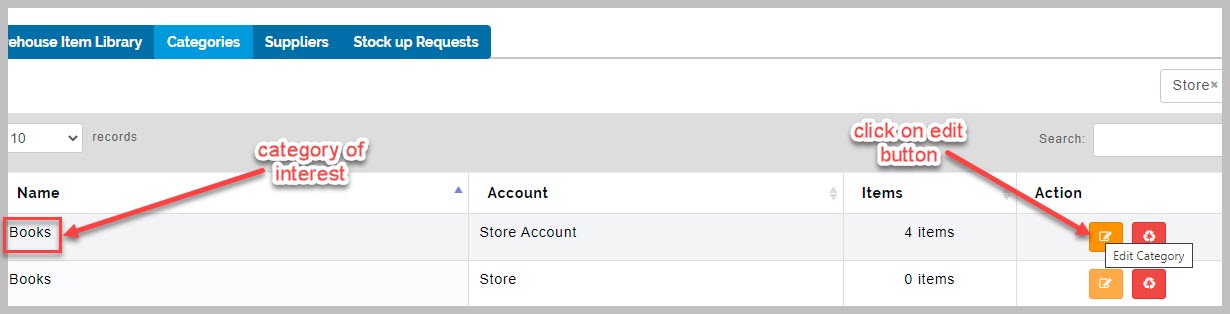
- From pop-up edit Dialog Box, edit category name and click on submit to save
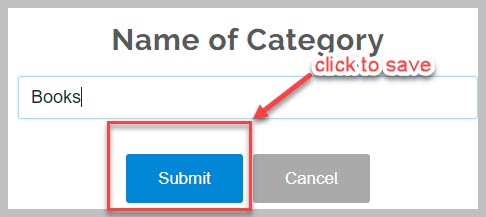
To delete category follow these steps:
- Click the delete button on the row of interest, to make changes
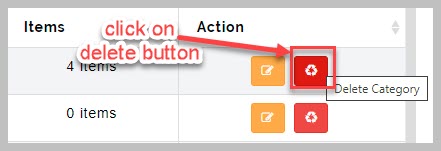
Delete category
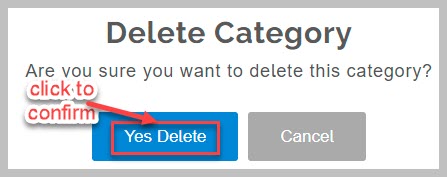
- This is an irreversible action. So the system requests your confirmation before this action is carried out.
- Confirm your action, by clicking the delete button again on prompt to complete
Warehouse item
Create Items
This button enables the store keeper to create new items available in the warehouse. Every item created in the warehouse is linked to a store account head.
How to Create Items in Warehouse
To Create items in warehouse follow these steps:
- Go to Finance and then select Warehouse. A list containing all warehouse items will appear.
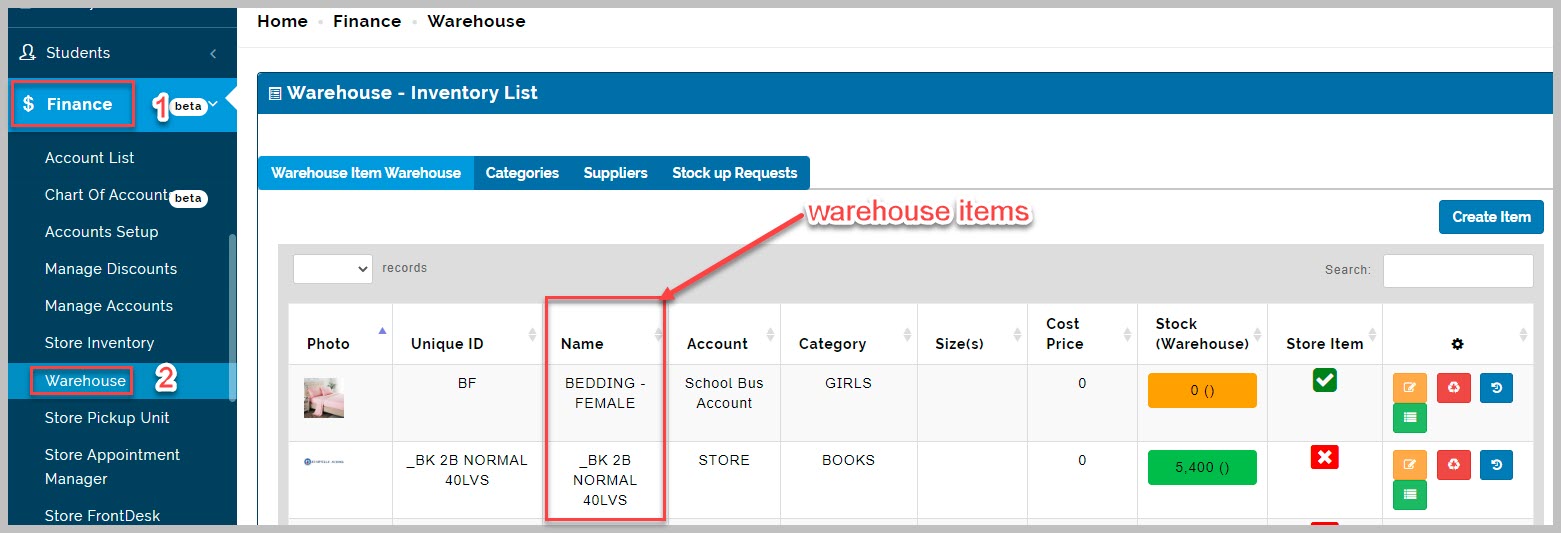
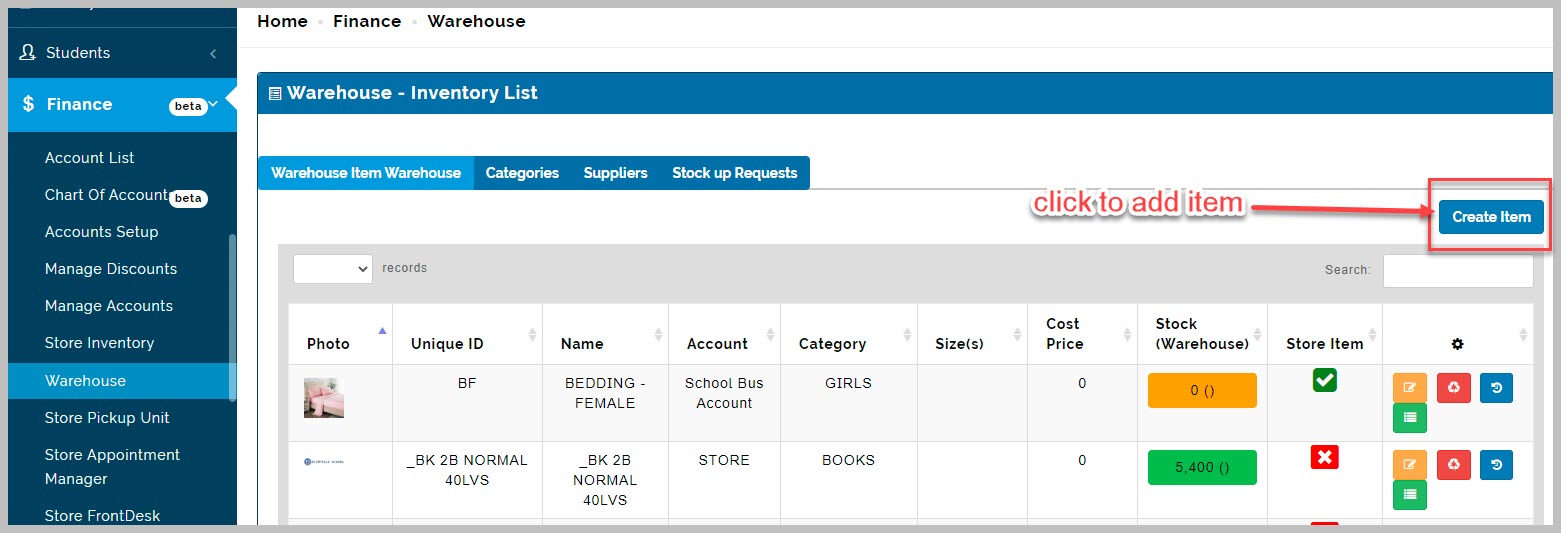
- Click on Create Item button to open up a new page where new item details can be added.
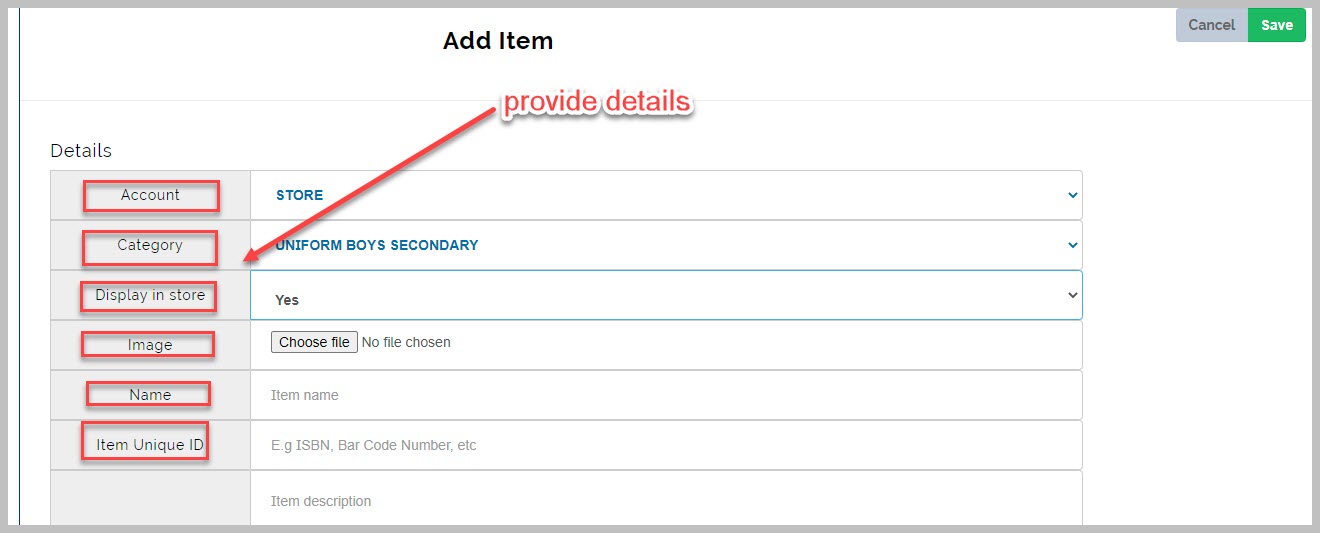
- From new page, provide details of new item to be added;
- select appropriate account for the item
- select appropriate item category
- choose whether to display item in school store (yes/no)
- select image of item from your device
- provide name of item
- provide item's unique ID which could be product number or Bar code number etc.
- give a brief description of the item
- select location where item will be available
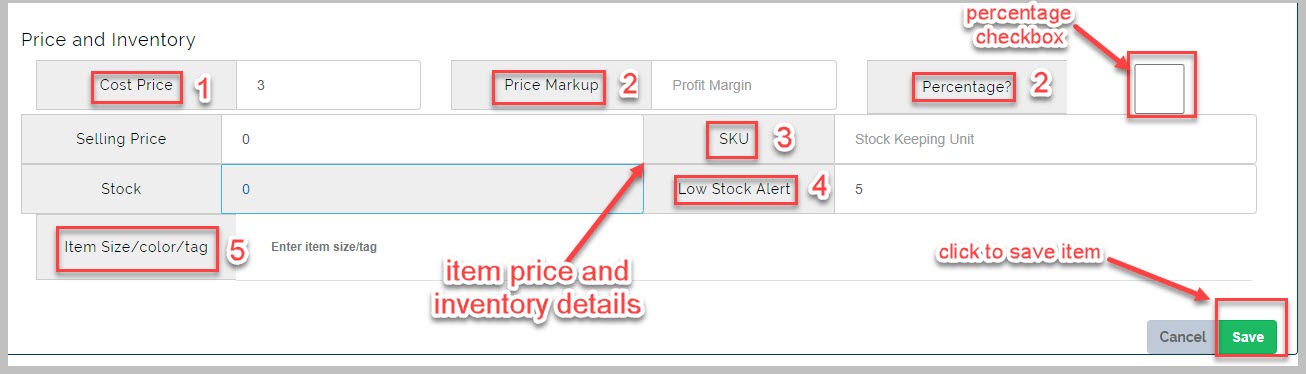
- Scroll to bottom of the new page and provide price and inventory details of new item to be added;
- provide item cost price
- provide price markup. If price markup should be a percentage of cost price, tick percentage checkbox instead and
provide percentage amount. this will compute and display item's selling price - provide item's SKU
- set low stock alert quantity i.e when the item is remaining set quantity, the system sends notification to admin
- provide item's size/color as tags for easy identification
Click on Save button to complete item creation
How to edit and delete warehouse item
To edit Warehouse Item follow these steps:
- click the edit button on the row of interest, to make changes
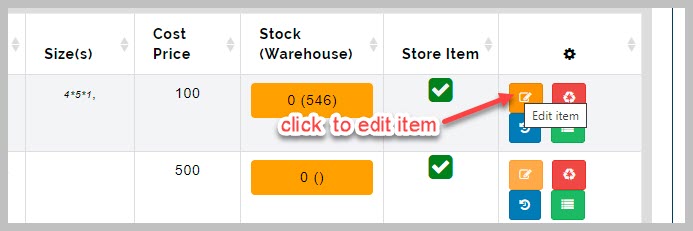
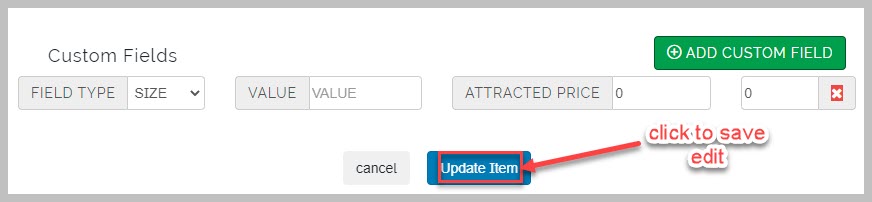
- In the row ( that is the Edit Dialog Box), edit the item entry and change cost price, selling price etc then click
on update item
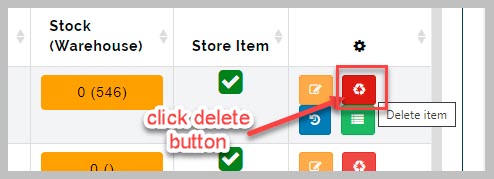
To delete Warehouse item follow these steps:
- Click the delete button on the row of interest to remove an item
Delete Warehouse item
- This is an irreversible action. So the system requests your confirmation before this action is carried out.
- Confirm your action, by clicking the delete button again on prompt to complete
Create Suppliers:
This table shows the list of different suppliers of items to the school and their contacts details
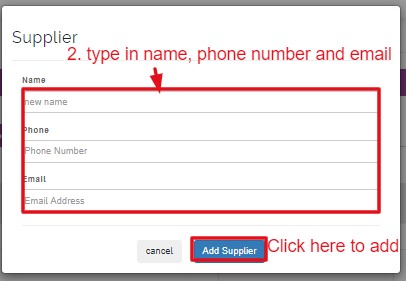
How to Create a Supplier Details
Click on suppliers tab
Select the Store account head to create the supplier under
Enter supplier name
Enter phone number and email
click on add supplier
To edit Supplier
- click the edit button on the row of interest, to make changes
- In the row ( that is the Edit Dialog Box), edit the name, email and phone number and save changes
To delete Supplier
- Click the delete button to erase already existing supplier created
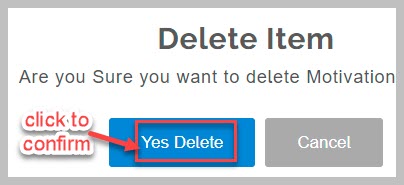
- This is an irreversible action. So the system requests your confirmation before this action is carried out.
- Confirm your action, by clicking the delete button again on prompt, and that is it!
How to stock up warehouse items
To stock Warehouse Items follow these steps:
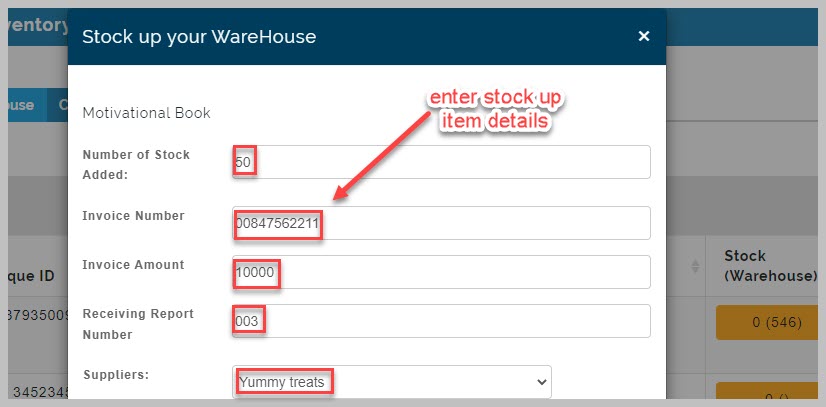
- From warehouse tab, navigate to warehouse item of interest and click on corresponding button under Stock (Warehouse) column. A pop-up page of desired item will appear.

-
Enter the number of stock supplied, Invoice Number of item, Invoice Amount, Receiving Report Number
-
Select the supplier name from the drop down
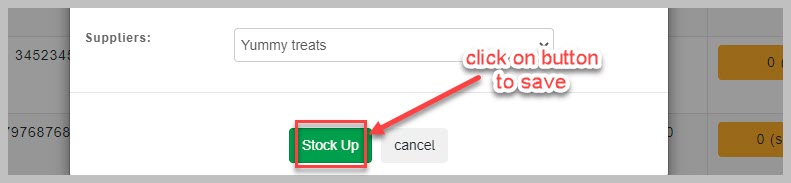
- Click on stock up to save stock up action
Item Running History
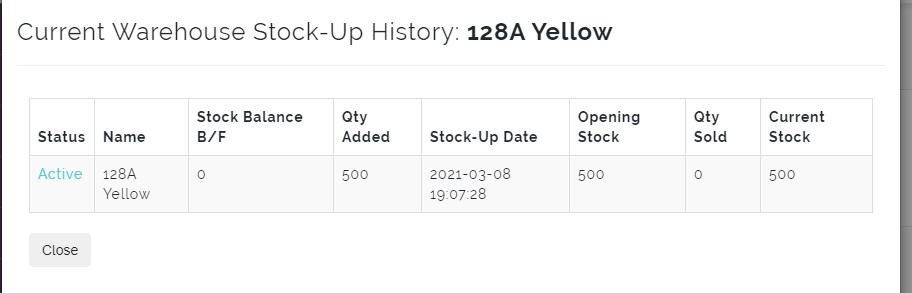
This is where the history of an Item in store is shown. It displays the opening and closing stock of an item and the quantity sold between the opening and closing time.
Item running history are generated when there is new stock up of item
How to View Item Running History
To View an Item's Running History follow these steps:
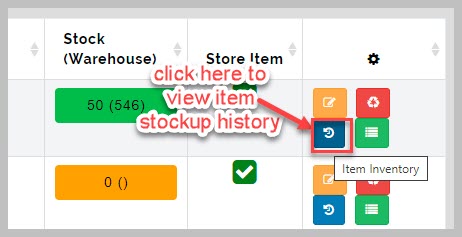
- From warehouse tab, navigate to warehouse item of interest and click on Item Inventory button.
- A pop-up page of the item's history will appear.
STOCK UP REQUEST TABLE
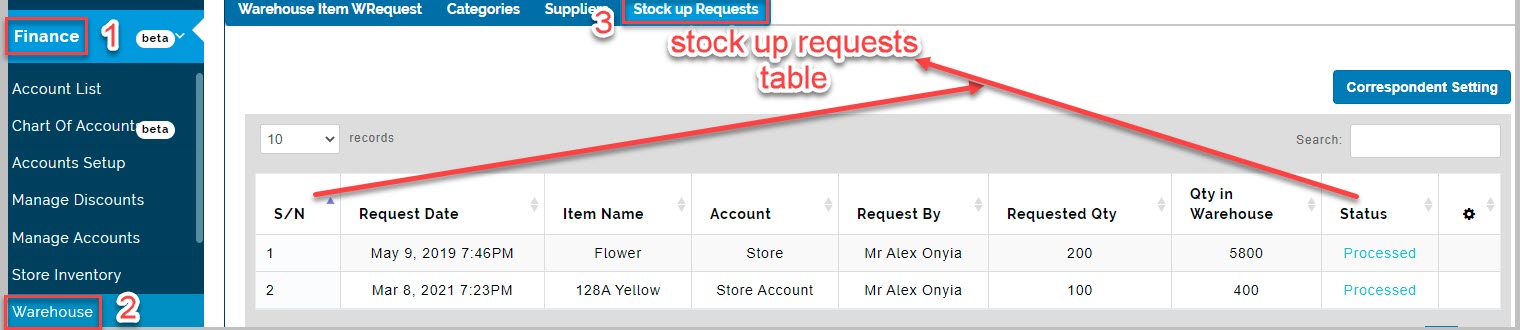
This page displays a table which shows all the requests made for warehouse items that have low/limited stock inventory
How to View Stock up Requests table
To View Stock up Requests follow these steps:
- Go to Finance and select Warehouse then click on Stock up Requests tab
Correspondent Setting
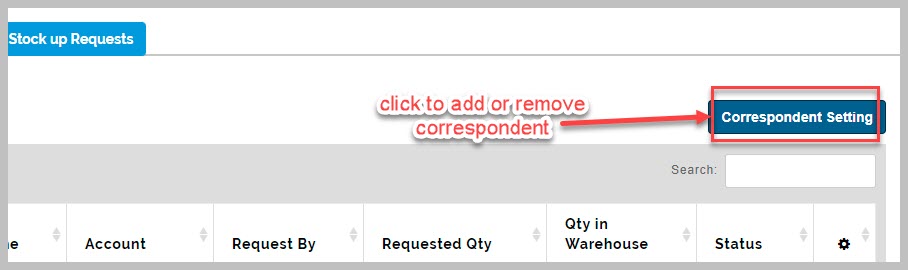
This is where contact details of individuals who are responsible for stocking up items in warehouse receives requests sent for stocking up the store in cases of low/limited stock in the school store.
How to Add Correspondent Setting
To Add Correspondent Setting follow these steps:
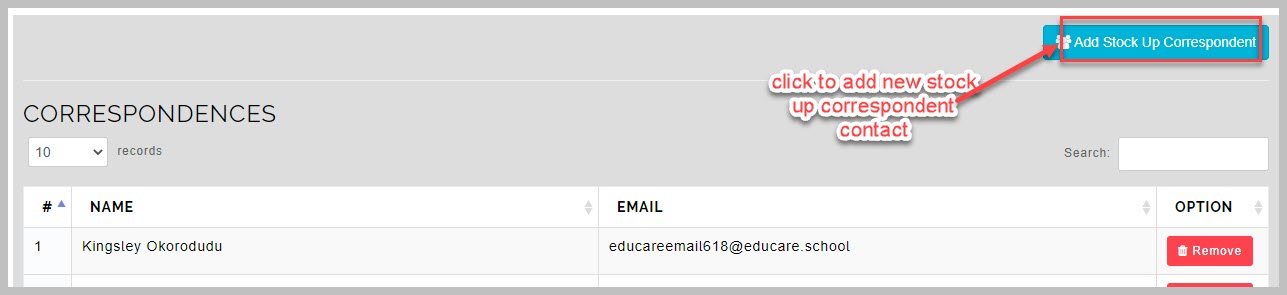
- From Stock up Requests tab, click on Correspondent Setting button. A correspondence page appears
- From correspondence page, click on Add stock up setting. An Add New Stock Up Request Correspondent page appears
-
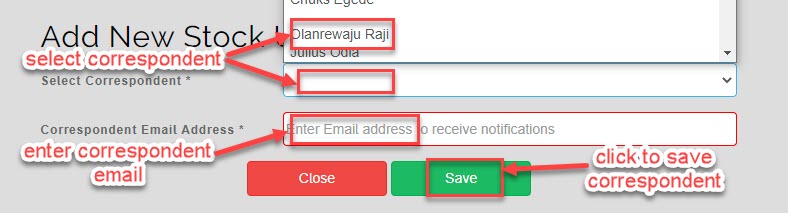
From Add New Stock Up Request Correspondent page, select correspondent's name from drop-down list. correspondent's email appears in space provided
-
Click Save button to complete add correspondent action.
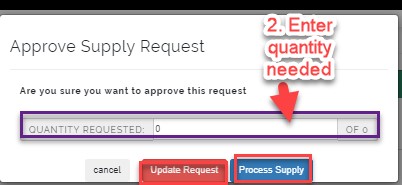
Click on Process Supply to complete requests for items available.
N/B:
By clicking update request, you will be showing the currently stock available in stock (eg if a request of 100 items was made and only 20 is available, you will need to enter 20 to update request before approving request.
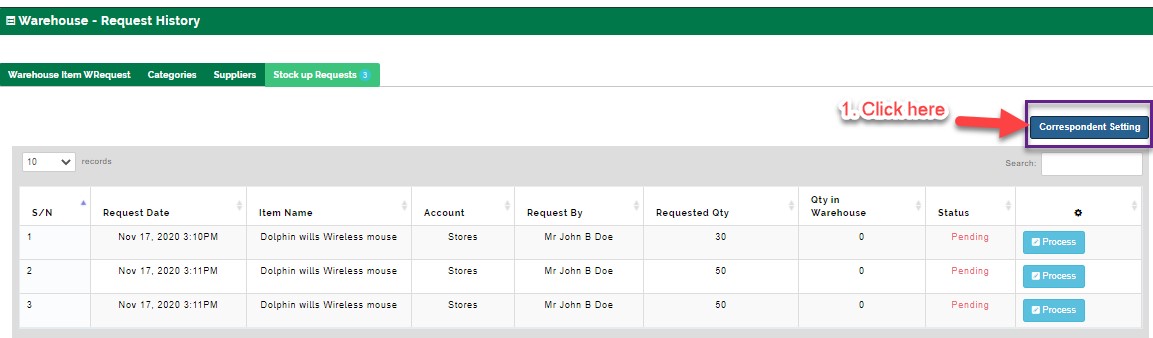
• Process request: To process a request, click on process as seen in the picture below