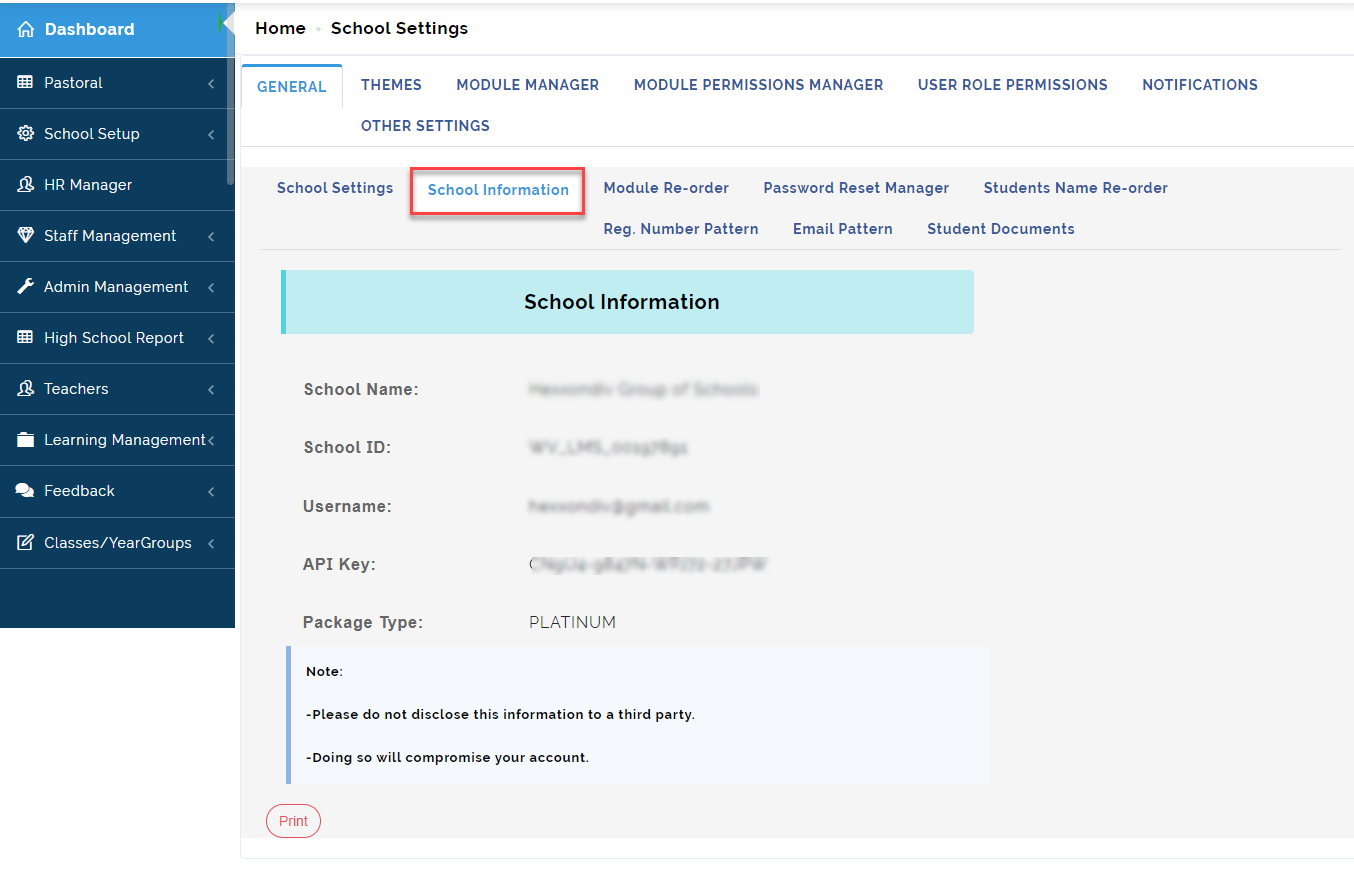
This contains all setups needed for customizing A school' s e-portal to suite the school's use case. Customization parameters include information like the schools logo, school's motto, email, phone etc.
Updating your school settings page is one of the first steps to take in customizing educare for your school's use. It is recommended you go through this area to provide all the information that would be required before you start.
Updating your School Settings
Follow these steps to update your school settings;
1. School Name: Provide your school's full name
2. School Email: Provide your school's email to serve as primary access email for your school's educare platform
3. Respondent Email: Provide an email for official email correspondence
4. School Phone No: Provide your school's official phone number
5. School Address: Provide your school's physical address
6. School Motto: Provide your school's motto
7. Calendar Url: Copy and paste your calendar web address from your email service provide
8. Google Play Store Url: Copy and paste your school's mobile app web address from the Android store
9. Apple Store Url: Copy and paste your school's mobile app web address from iOS App store
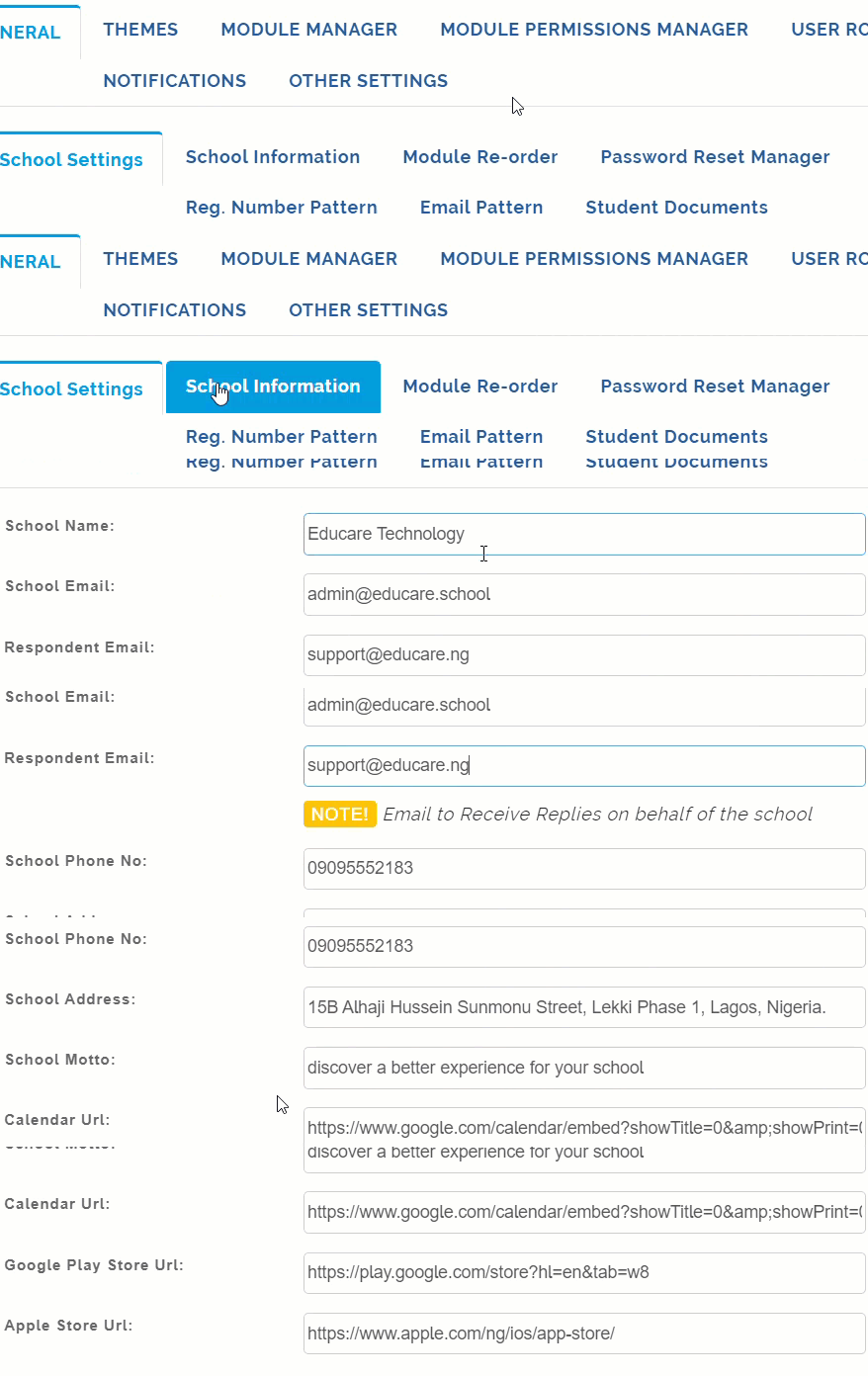
School Settings Update Note:
Respondent Email: is set to Receive email Replies on behalf of the school from members of the school community.
School Email: is set to be used as the primary login email (Super Admin email) for the school's educare platform.
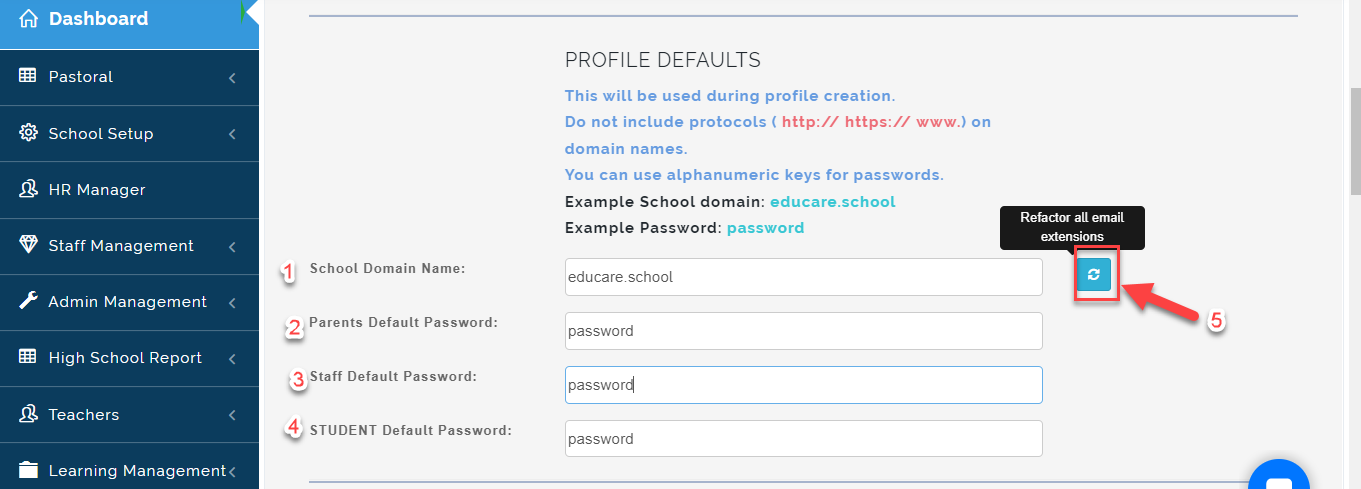
Updating School Profile Default Information
To update your school's profile default information, follow these steps;
1. School Domain Name: This will be used during profile creation. Do not include protocols ( http:// https:// www.)
on domain names. Example School domain: educare.school
2. Parents Default Password: Enter a default Password for all Parents to use as their login Password. Example Password: password
3. Staff Default Password: Set a default password for all Staff profile created on the portal .
4. STUDENT Default Password: Enter a default Password for all Students to use as their login Password.
5. Refactor All Email Extensions: By Clicking on this button, it Changes the email extensions for users on the portal.
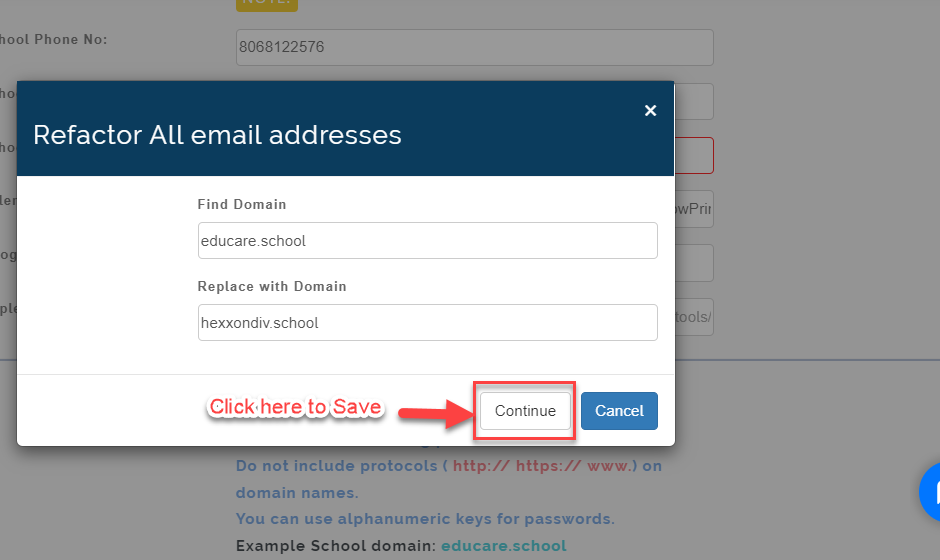
A Modal will appear once you click on Refactor all email extensions Icon. Make changes to the Domain name under the Replace with Domain option then Click on Continue to Save or Cancel to Ignore.
Turn Permissions ON/OFF
1. State Code: This a unique identity number assigned to every teacher in a school in all states of the federation.
This serves to synchronize all teachers in the country and makes for seamless transfer of teachers from one school to the next.
2. Email Notification: This sends out email notifications to parents and other users on the platform when certain operations have been done on their behalf. Example: generating invoices, approving leave request, publishing end of term reports etc.
3. Default Admission Date: This allows admin to define how and where their admission numbering system starts.
4. Admission Form on Sale: This opens up admission form sales window for prospective parents to purchase for their wards
5. Mark Previous Attendance: This makes it possible for class teachers to mark attendance of students in their class for days they missed taking the attendance record. This serves where attendance report appears in the school's end of term report
6. Enable Attendance Period: This button is enabled if school takes attendance twice a day. Example Morning and Afternoon. Once it is enabled, Class Teachers will be able to Take Class attendance two times per day.
7. Result Pay Lock: Enabling this feature ensures that parents who are still owing fees do not have access to their ward's end of term report until they clear all outstanding bills. This features works with fees payment setups
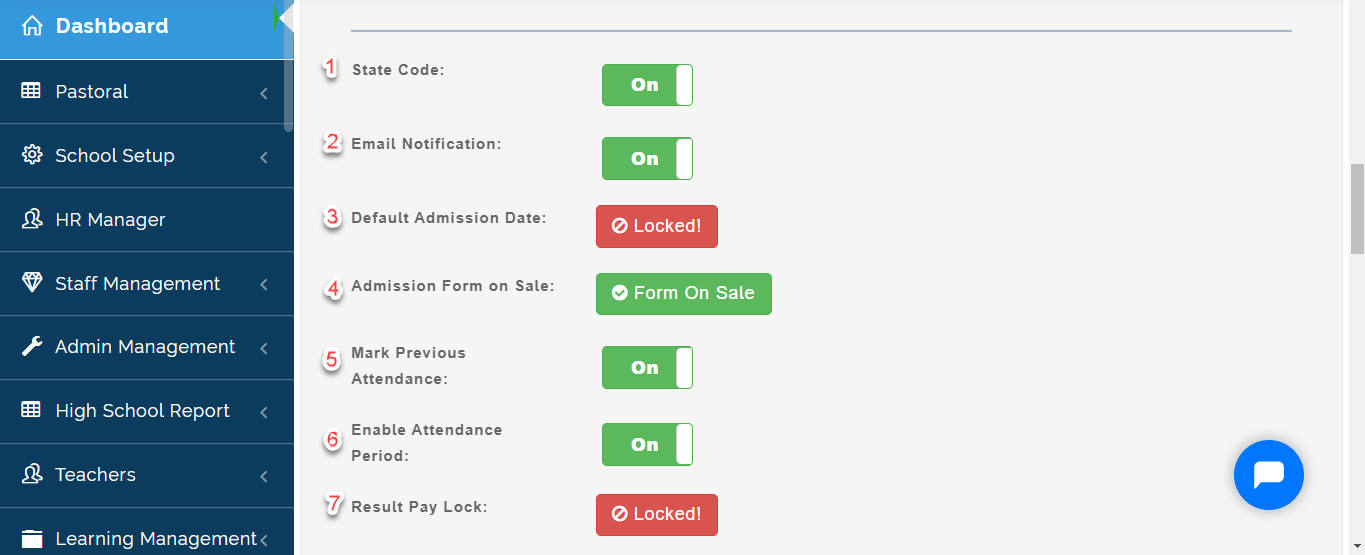
8. Online Transaction Charge Bearer: There are charges accrued for online transactions on the educare finance platform. example; payment gateway fees. This setting helps you set whether users of the educare platform will bear the cost during their individual transactions or whether the school will bear short costs. Who bears online Transaction Charge, School or users?
9. Invoice Phone Number: This setting when turned ON enables the phone number attached to the invoice recipient's profile to be engaged.
10. Show Wallet Balance on Invoice: The wallet system is linked to every parent profile and is used to store funds for future use in the school. Enabling this setting means that the current balance of every parent will be displayed in the invoices sent to them and the invoice can be cleared from the wallet balance.
11. Show Ebills Code: This code serves when virtual account number is activated in educare finance. Once it's turned on the system generates the code for users. It is used in making payments example: In-branch payments of school fees
12. Auto Instalment: When instalment payment of invoice is enabled, the number of instalments set here will be available.
Auto Invoice Instalment Note:
This setting is the Maximum number of Instalment for Automatically converted Invoices
13. Maximum Imprest Top Up (NGN): This is Maximum Imprest amount per child
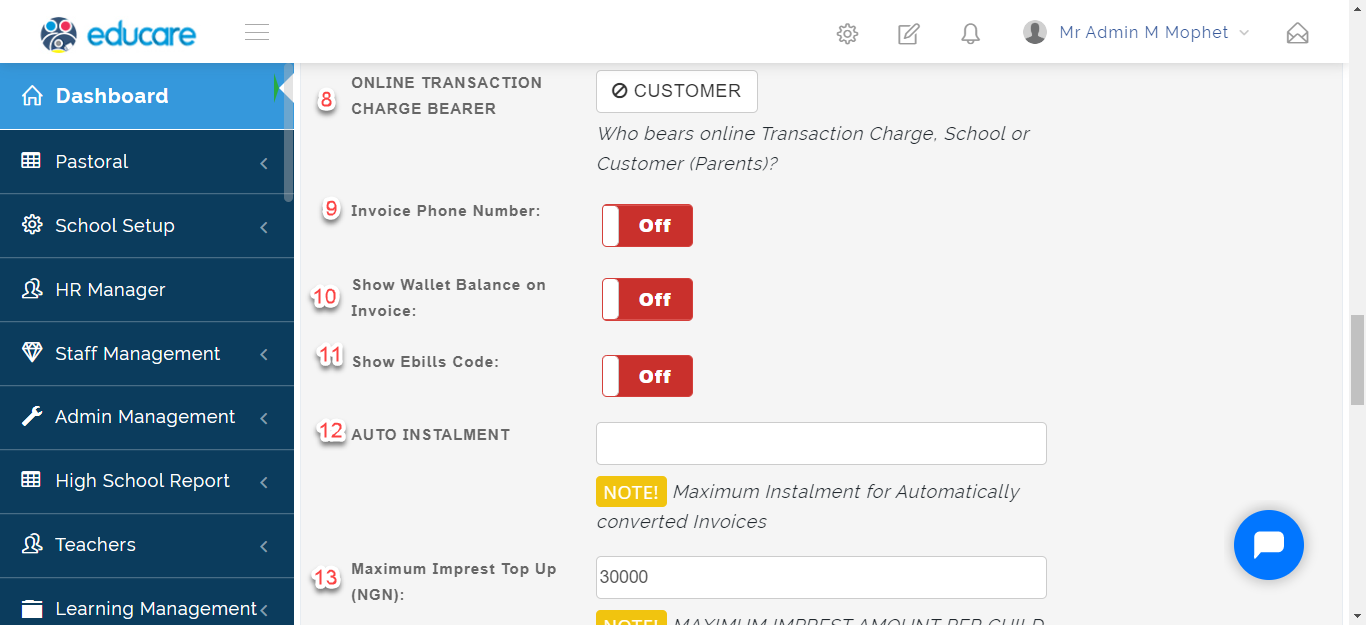
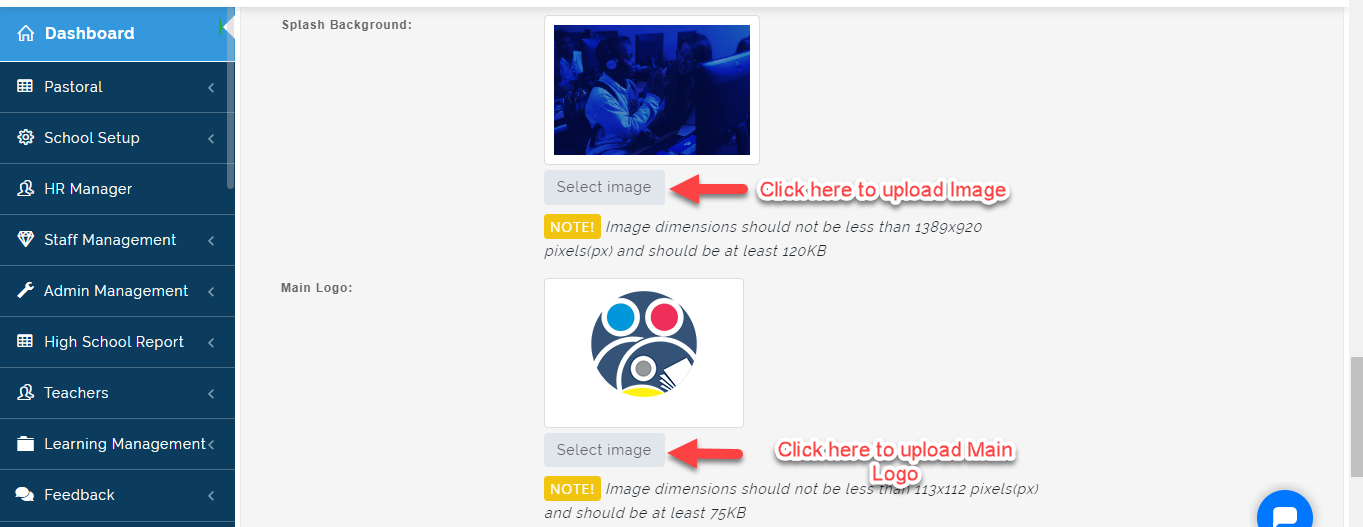
14. Splash Background: Upload Splash Image to be used for the Login Page.
Splash Background Note:
Image dimensions should not be less than 1389x920 pixels(px) and should be at least 120KB
15. Main Logo: Upload Main Logo which will appear on the Login Page
NOTE! Image dimensions should not be less than 113x112 pixels(px) and should be at least 75KB
16. General Logo: Upload General Logo which will appear on the Dashboard
NOTE! Image dimensions should not be less than 200x40 pixels(px) and should be at least 7KB
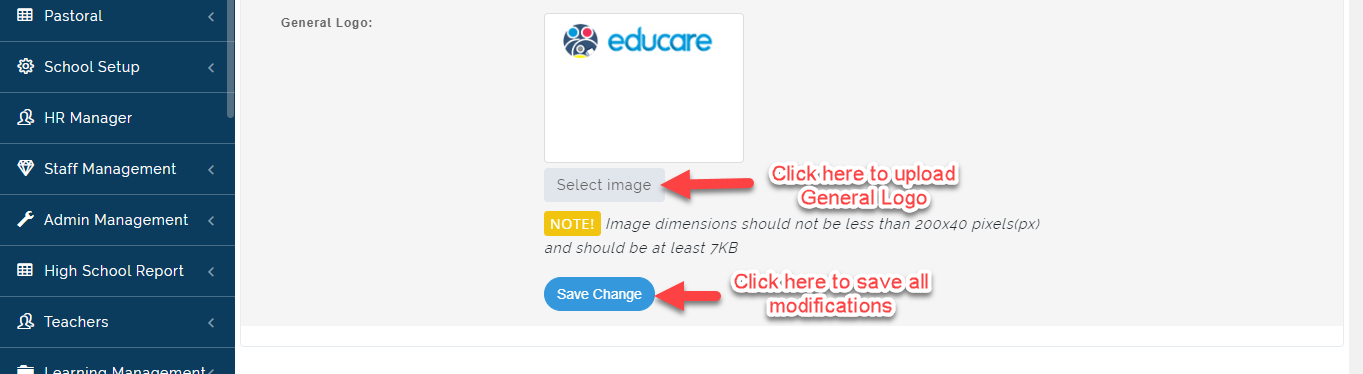
After you are done with all the modifications, Click on Save Change
School Information
This page provides you with Essential Login details for your school e-portal Subscription. You can print this page by Clicking on the Print icon as seen below.