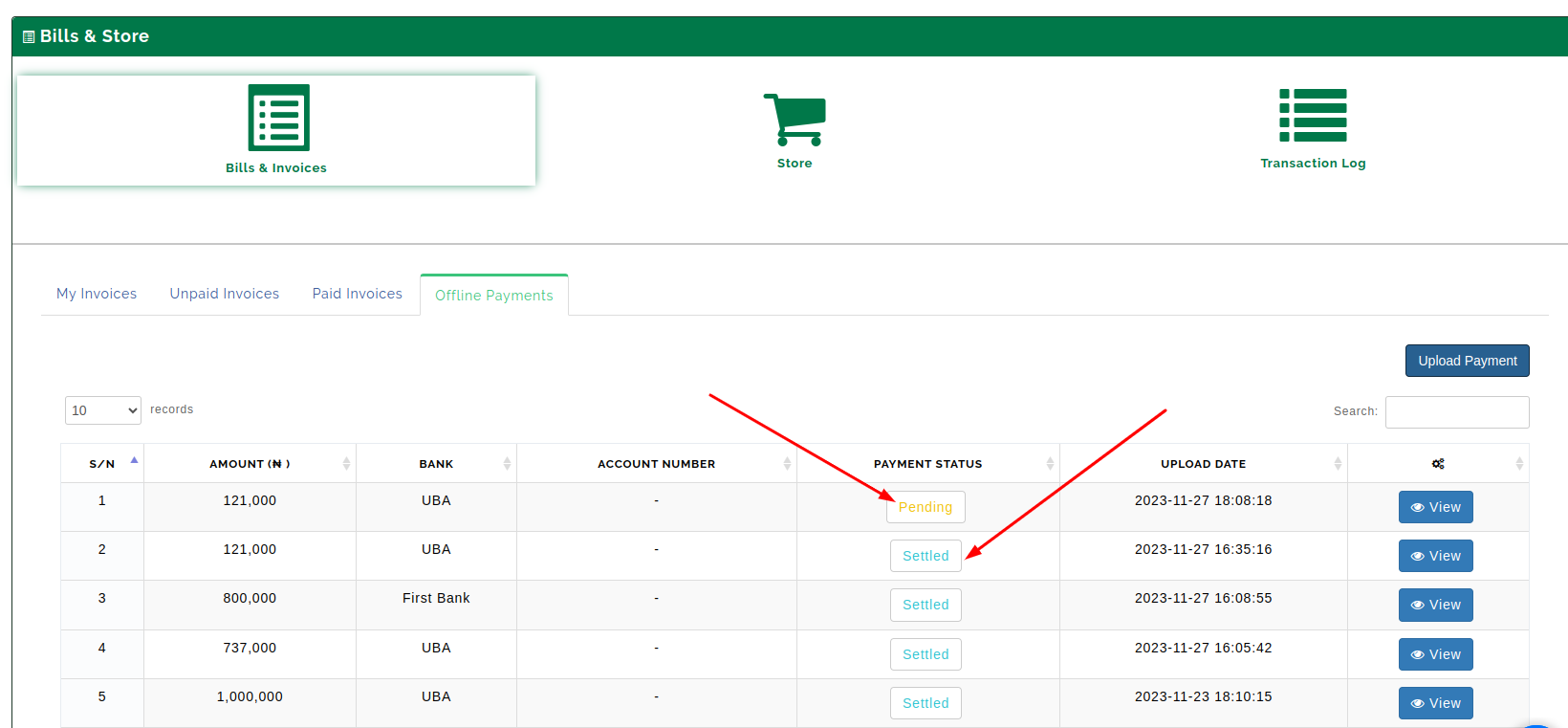
Offline invoices enable collection and rectification of Offline payments between parents and Accountants. When invoices are raised for a child/ward, and such invoice is published/sent to a parent, if the parent chooses to make a bank deposit, mobile transfer, or use any other means of payment, to clear such invoice, it becomes necessary for such parent to update the accountant, by furnishing them with the evidence/proof of payment. Most times these proofs are sent via whatsapp DMs and Channels/groups. Sourcing/sorting these evidence from mostly a ton of messages can be a daunting task for an admin/accountant. This is where Offline invoice Submission mode comes to rescue. With this module, you can now seamlessly submit your evidence of payment, and be sure that the accounts department will receive it, process it, and speedily attend to your child/ward's bill, while consistently maintaining an organized history and log of your submissions.
Getting Started: The Parents Dashboard
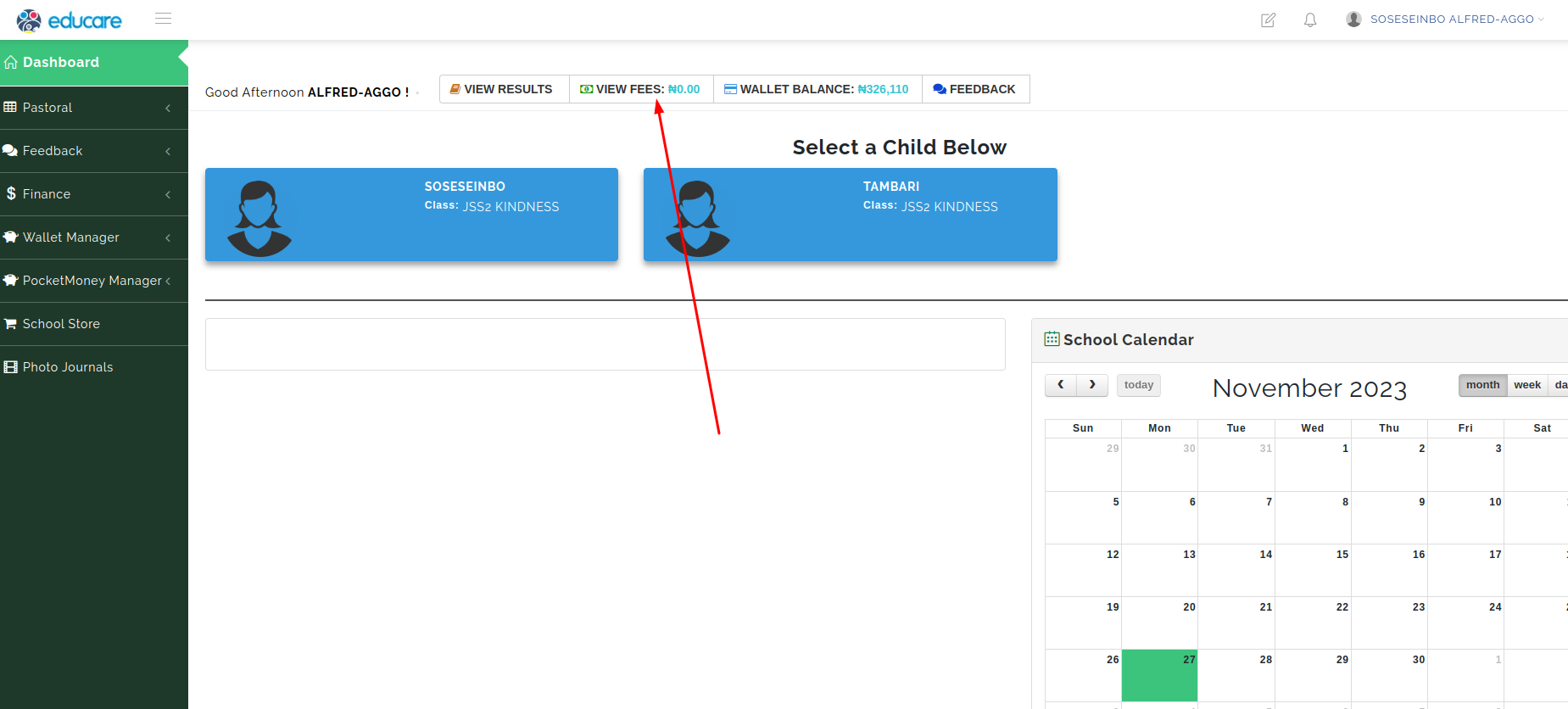
Once you have successfully logged in as a parent using your email address and password, you should see the 'View Fees' button at the top of your dashboard.The view fees button leads to the bills and invoices that have been generated for your child(ren). (See the picture below)
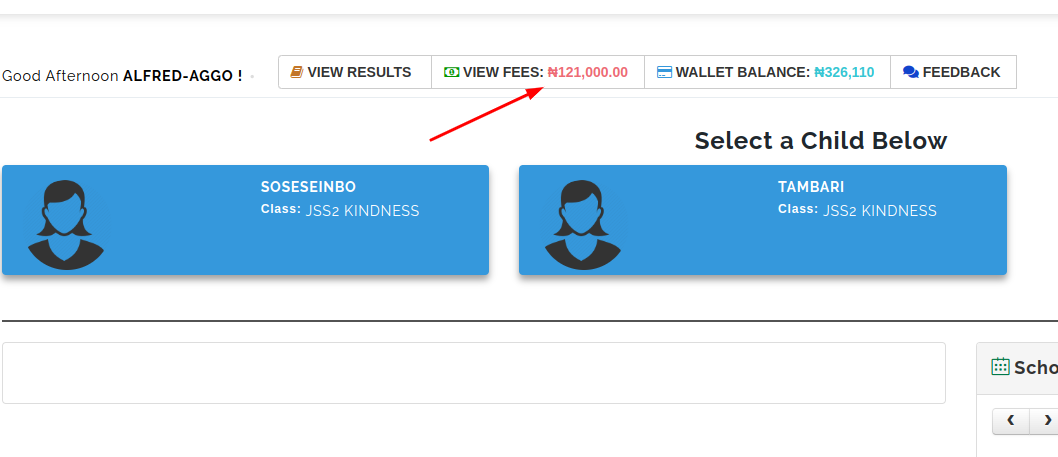
If you have have any outstanding debt (spanning from cumulation of all unpaid/uncleared invoices in respect of your child(ren)/ward(s), such outstanding debt will also be visible on the same 'View Fees' Button. (see picture below)
Uploading Proof of Payment
Assumption
This documentation assumes that
- you already have the account details of the school
- you have made the payment using such account number, and now wants to update/inform the accountant of such payment.
Step 1: Navigate to Bills and Invoices Page
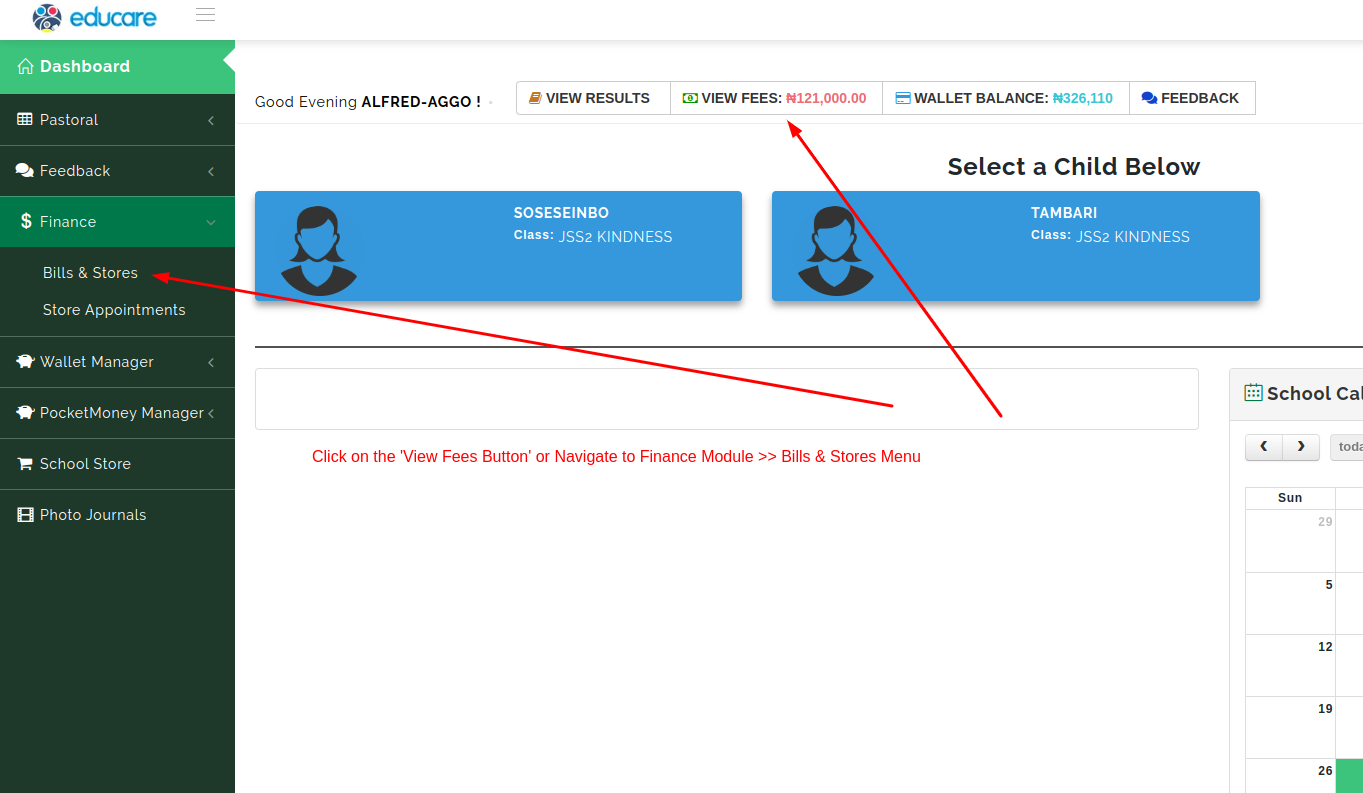
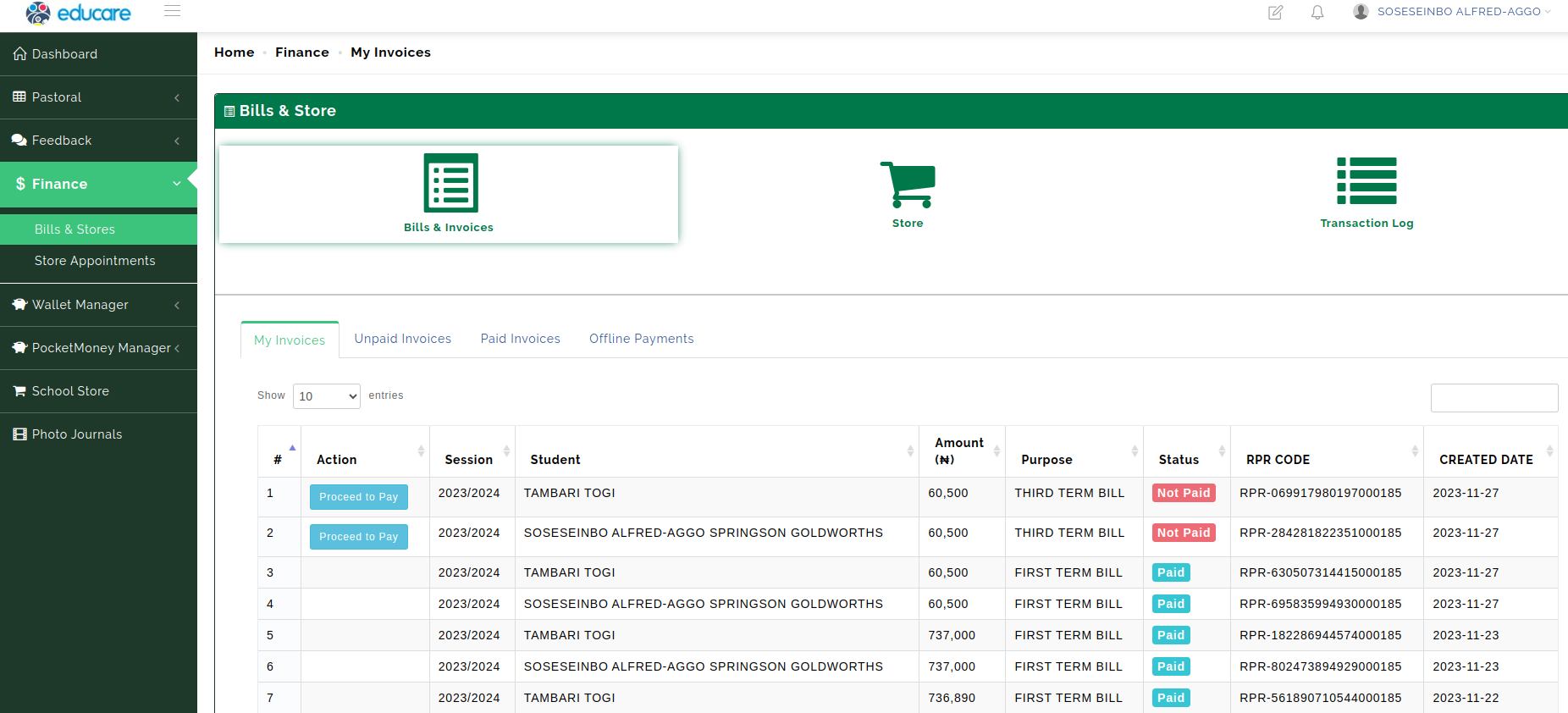
Click the 'View Fees' Button to Navigate to Bills and Invoices Page.
You can also get to the same page via the Finance Menu Finance >> Bills & Stores (see picture below)
Step 2: Upload Proof of Payment
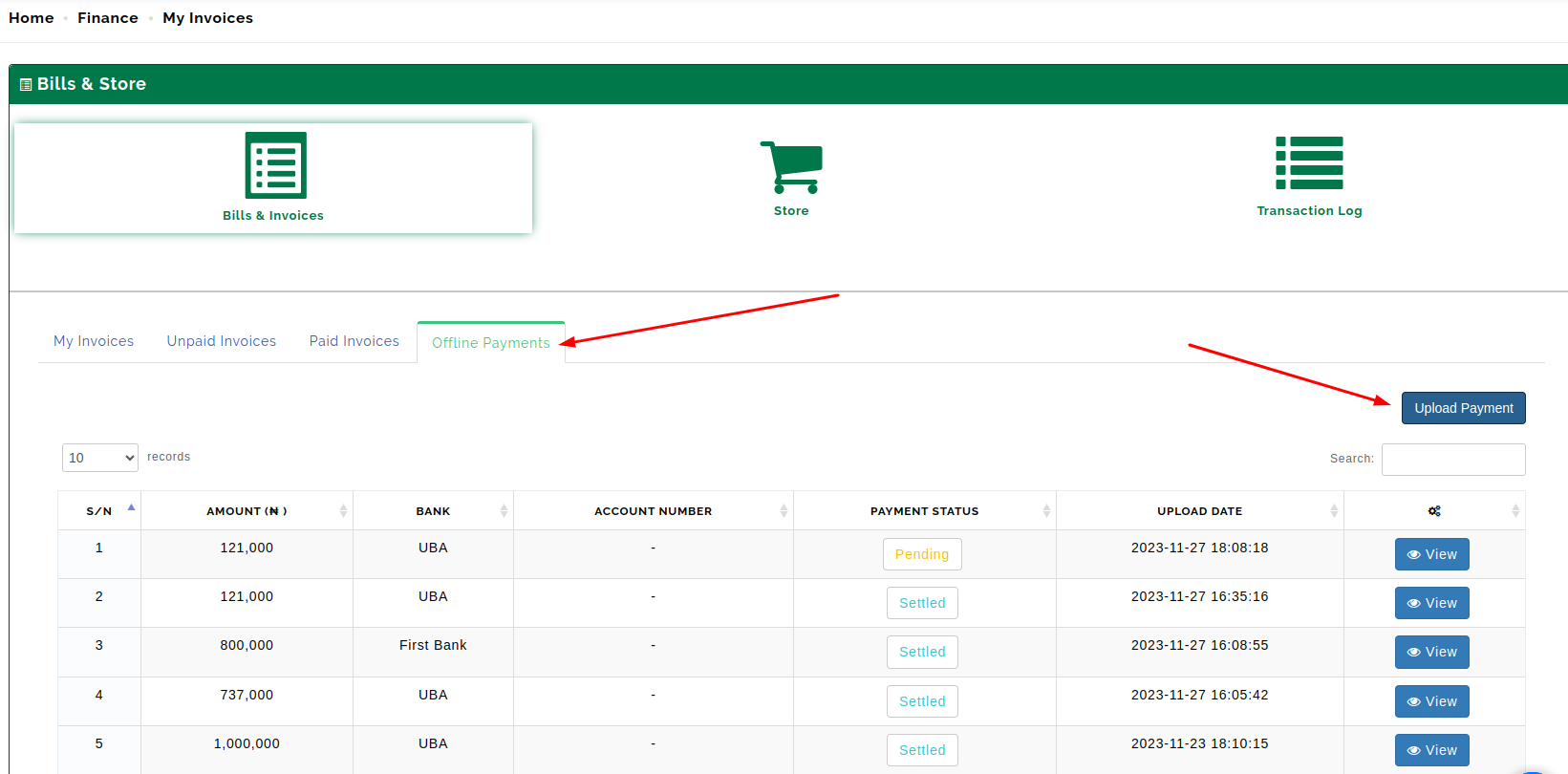
Go to Offline Payments Tab, and click the Upload Payment Button. (see picture below)
Step 3: Submit the Proof!
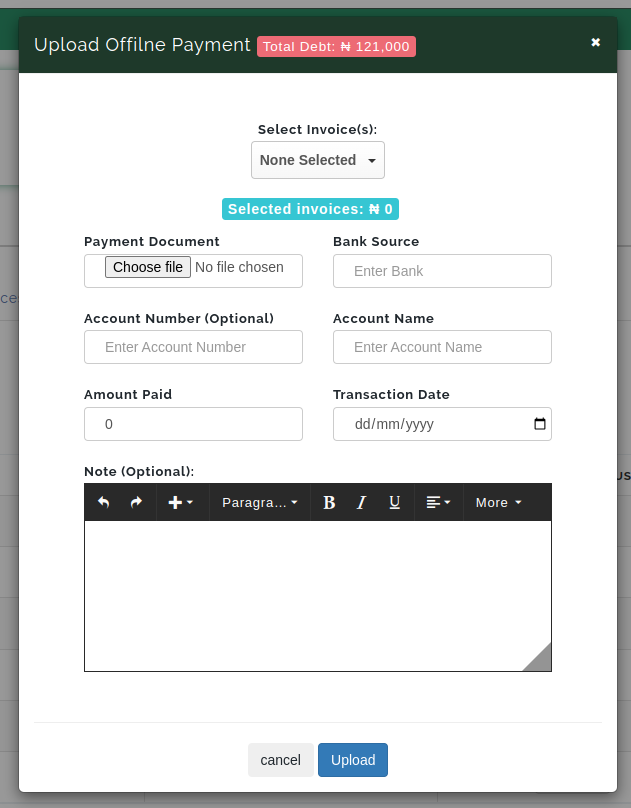
Fill the Offline payment form, and submit! Simple.
Just select the invoices represented in your proof of payment, upload or screenshot your payment document, fill up the bank source information, and if you want, you can fill the other optional fields. (see picture below)
That's it, Click the upload button to submit your evidence.
When your evidence is accepted and and processed, the payment status changes from pending to settled
Where your evidence is accepted, you will be notified by mail, and the status of the selected invoice(s) will also be updated to Paid (full or part). (see picture below)