
The leave module manages all employees leave Types, Leave application, leave assignment and leave reports. Employers use Leave management to allow employees to request leave and managers to assign leave to employees and approve requests made by employees.
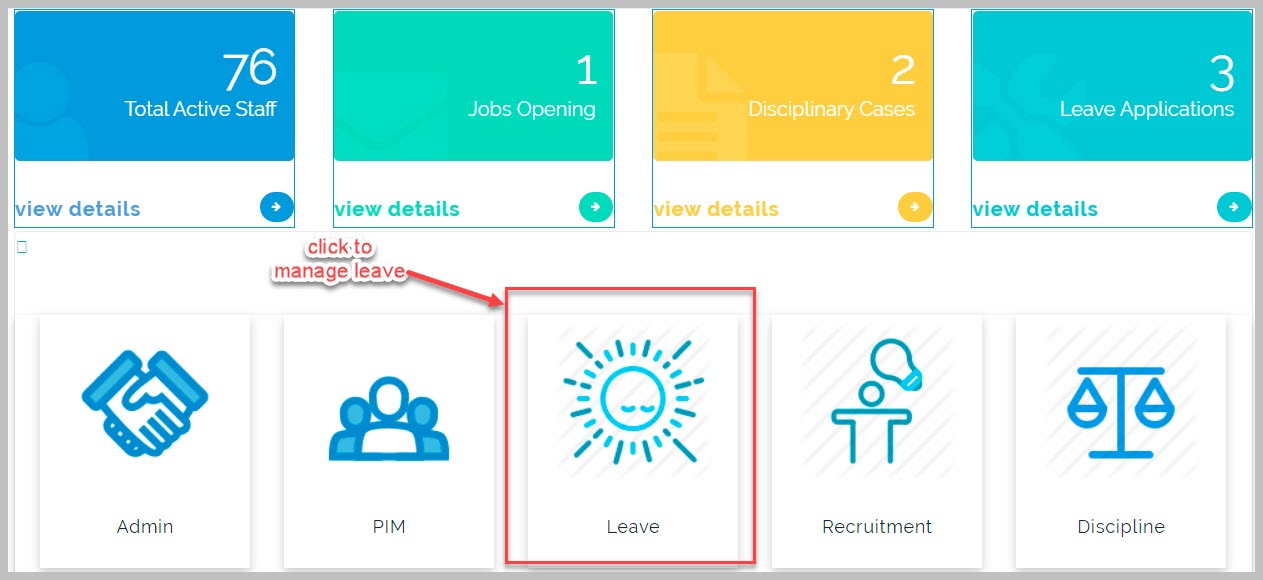
Leave management
Leave management streamlines time off requests for employees. Typically managed by HR Managers, an automated leave management system makes it easy to track, approve, or deny employee leave requests.
Leave Configurations Note:
To begin using Leave manager, ensure you have completed Leave Configurations.
Leave management is a HRM feature that employers use to allow employees to request leave and HR managers to approve/reject requests made by employees.
There are various types of leave used in organisations e.g. Paid Time Off work PTO, Maternity Leave, Sick Leave, Vacation Leave etc.
These are the various types of leave and duration of leave employees are entitled to in a working calendar year of an organisation.
An employee can be entitled to more than one type of leave in a calendar year for example; a pregnant employee is entitled to maternity leave and sick leave in the same calendar year.
Leave Note:
Employees can ONLY apply for leave from their profile on HRM entitlements menu after the HR manager has added their names to the Entitlement list.
Leave Configurations
This is where all the settings and setups that permit usage of all leave management features are seen.
Leave Period Configuration
This is where to set the leave time period for the calendar year.
How to set Leave period
To setup Leave period, follow these steps;
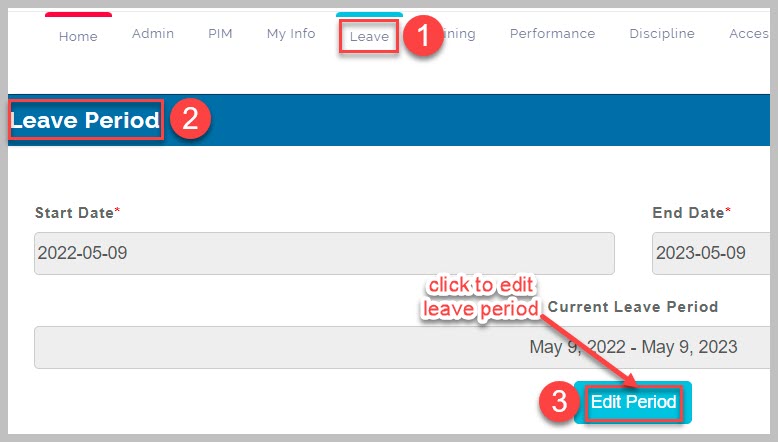
Step 1
From Leave Period page, click on the "edit" button to start
Step 2
Enter desired start date in the calendar menu
Step 3
Click "Save" to complete
Leave Types
This is where to add various types of leave that is applicable in your organisation.
How to add a Leave type
To add leave type follow these steps;
Step 1
From Leave Types page, click on "Create Type" at the top right corner of the page
Step 2
Enter name of leave
Step 3
Tick the applicable checkbox to set the right conditions for the leave
Step 4
Click on Add type button to complete
Work Week
Work Week allows HR manager to set the days of the week that constitute working days in the organization. This setup is done separately for all the sections in an organisation. For Schools, all the different school categories e.g. Primary and Nursery will have their Work week setup separately as well.
How to Configure Work Week
To configure work week, follow these steps;
Step 1
From Work Week configurations page,
Step 2
Select desired School category
Step 3
From drop-down menu under Monday, select applicable work day structure
Step 4
Repeat step 3 above for all days of the week
Step 5
Click on "Save" button to complete
Holiday Configurations
There are days of the year that are considered a holiday e.g. Christmas day, New Year day etc. in an organisation. For schools, there are days when the school has closed for the term/session that are designated as holidays for all employees. Such days are highlighted and exempted as working days from the Holiday configurations.
How to create Holiday
Step 1
From Holiday Configurations page, click on "Create Holiday" at the top right corner of the page
Step 2
From the pop-up page, enter the name of the holiday
Step 3
Select start date and time from date drop-down menu. ensure you select time greater than leave period set time.
Step 4
Span Days: If holiday lasts more than a day, select number of days it lasts
Step 5
Select if holiday is a full day holiday or not
Step 6
Tick repeat annually checkbox if the holiday repeats every year on the same day
Step 7
Click on "Add Holiday" to complete setup
Entitlement List
This is the list of employees that are entitled to leave, type of leave they are entitled to, duration of the leave and timeframe where the leave is valid.
How to create Entitlement list
To create Entitlement list, follow these steps;
Step 1
From Leave Entitlement list page, click on the plus (+) sign at the top right corner to start
Step 2
From employee drop-down list search and select desired employee name
Step 3
Select Leave type from drop-down list.
Step 4
Alternatively, click on the plus (+) sign below to create desired leave type if it's not available
Step 5
Select Leave period from drop-down list
Step 6
Input number of entitlement days
Step 7
Leave a comment
Step 8
Click on "Add" to complete
My Entitlement
This is where every employee views all leave types they are entitled to in a year
How to apply for leave
Step 1
Go to "Apply" page from Leave management menu list
Step 2
Select type of leave you are applying for from dropdown list
Step 3
Select duration for the leave request from date calendar menu
Step 4
Provide a comment for your application, usually a reason is given
Step 5
Click on "Apply" to complete
Leave List
This is the action central of leave management. Here the HR manager approves or rejects all pending leave types. All leave application from every employee MUST be approved by the HR manager.
How to Approve/Reject a Leave Application
To approve/reject leave application, follow these steps;
Step 1
From Leave List page, select Employee, Leave type, Leave period from their respective drop-down list
Step 2
Tick checkbox of desired action and click on "Search"
Step 3
From the Leave List at the bottom of the page, go to the Actions option and select desired action from the drop-down list i.e. Reject, Approve, Taken, Cancel options etc.
Assign Leave
This feature allows the HR manager to schedule leave for an employee. This leave usually does not require any approval because it is initiated by the HR manager.