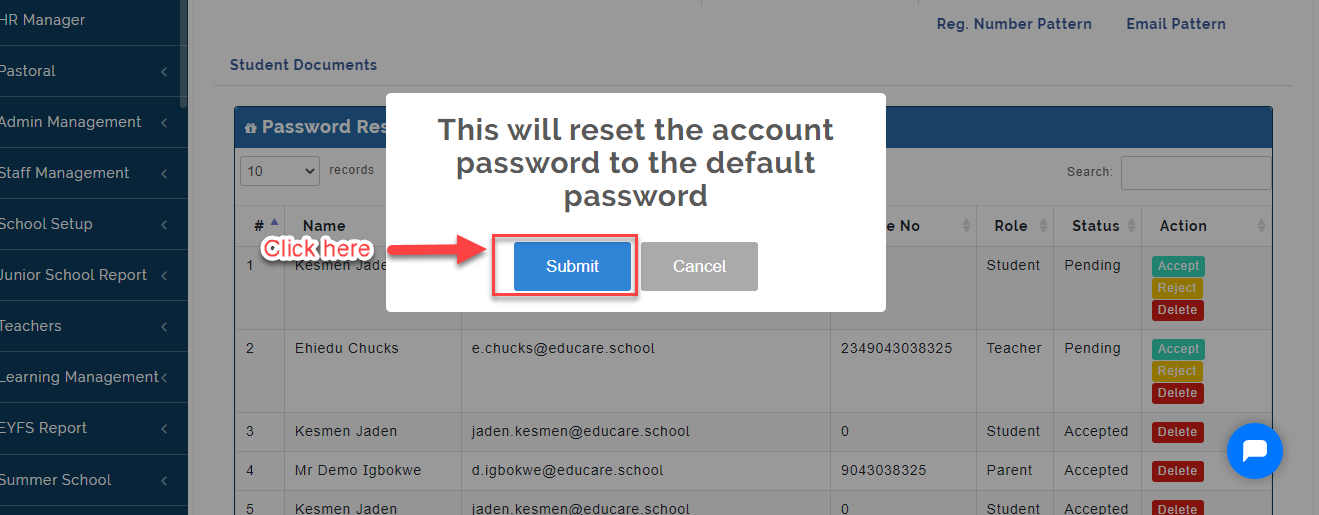
Here the admin can accept or decline password reset request sent by Users who have forgotten their password.
As a User- How to Request for reset Password
Follow Steps below to reset password:
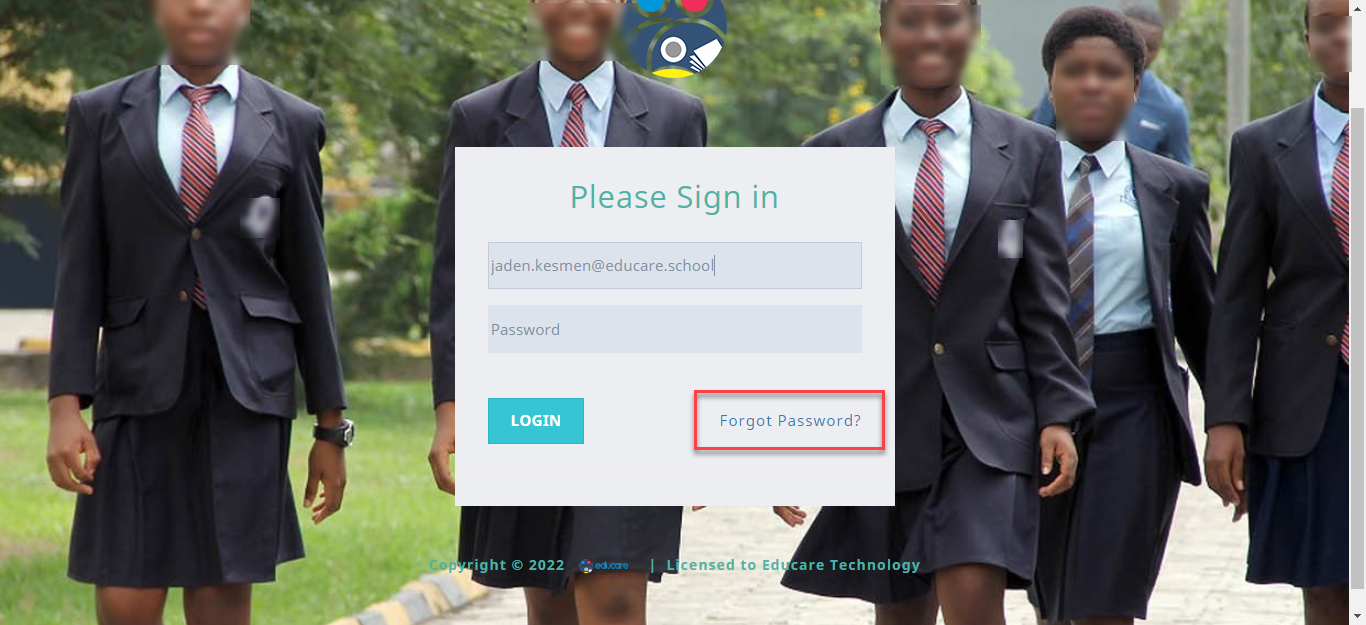
- From the Login Page, Enter the email address generated for you on the portal then Click on Forgot Password.
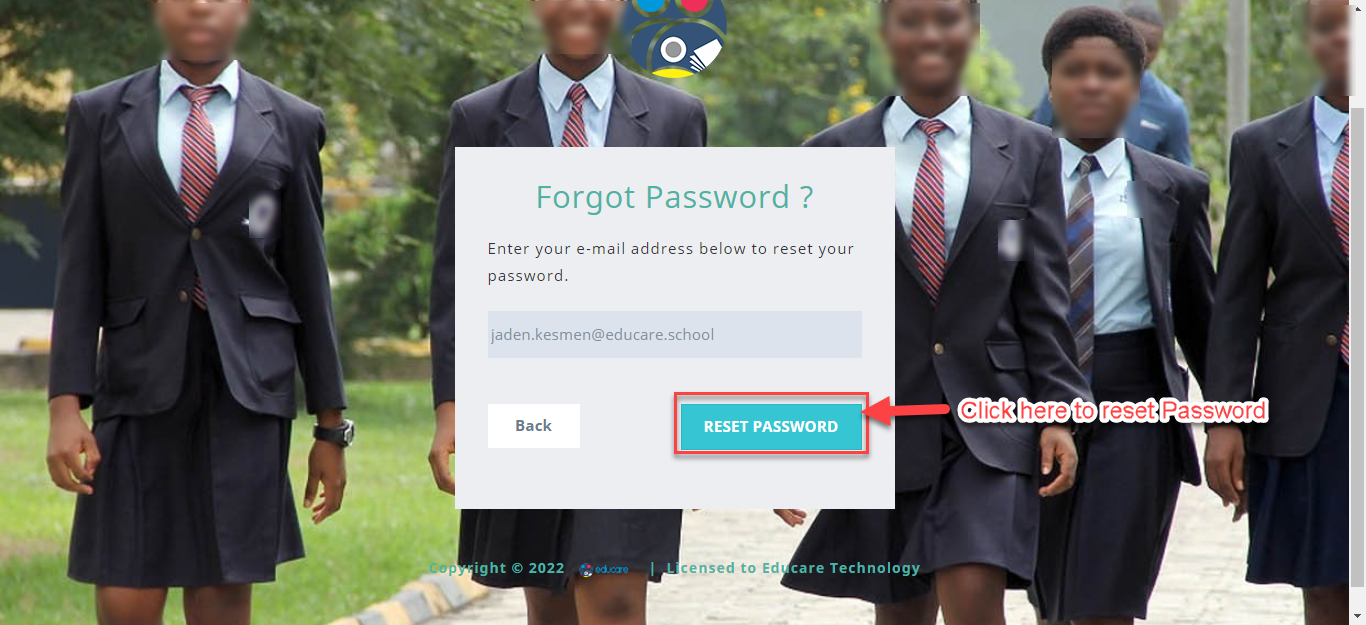
- Enter the Email generated for you on the School portal then Click on Reset Password.
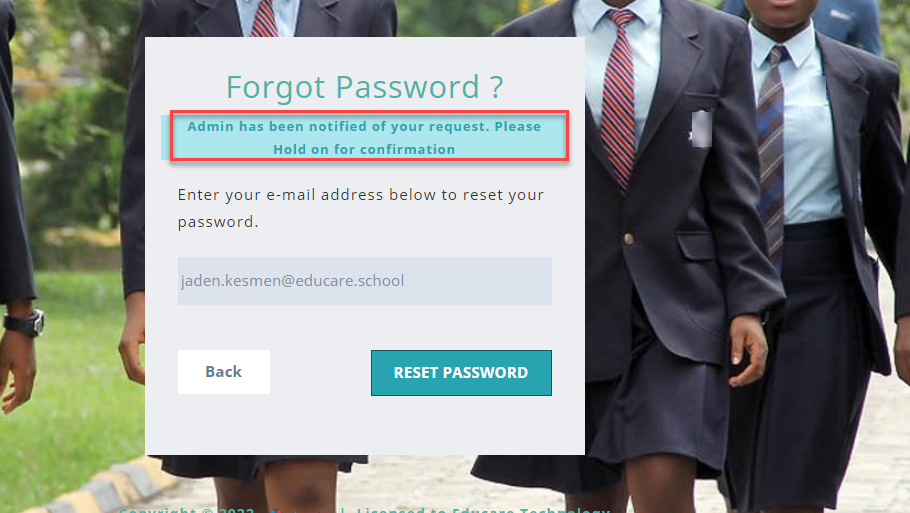
The Admin will Approve your password reset request; using the default password the admin will give you, Login to the portal.
- The System will prompt you to Create a New Password. Create one then Click on Save.

Login to the portal using the New Password you created.
Note on Password Reset
If you used your real time email address as your Login Username on the portal, A new password will be sent to your real time mail box. Use the password to Login.
Approve Password Request
When A User requests for a password reset, All the request will be seen in this Tab. Follow these Steps to approve Password Reset Request:
- From General Setting Tab, Click on Password Reset Manager.
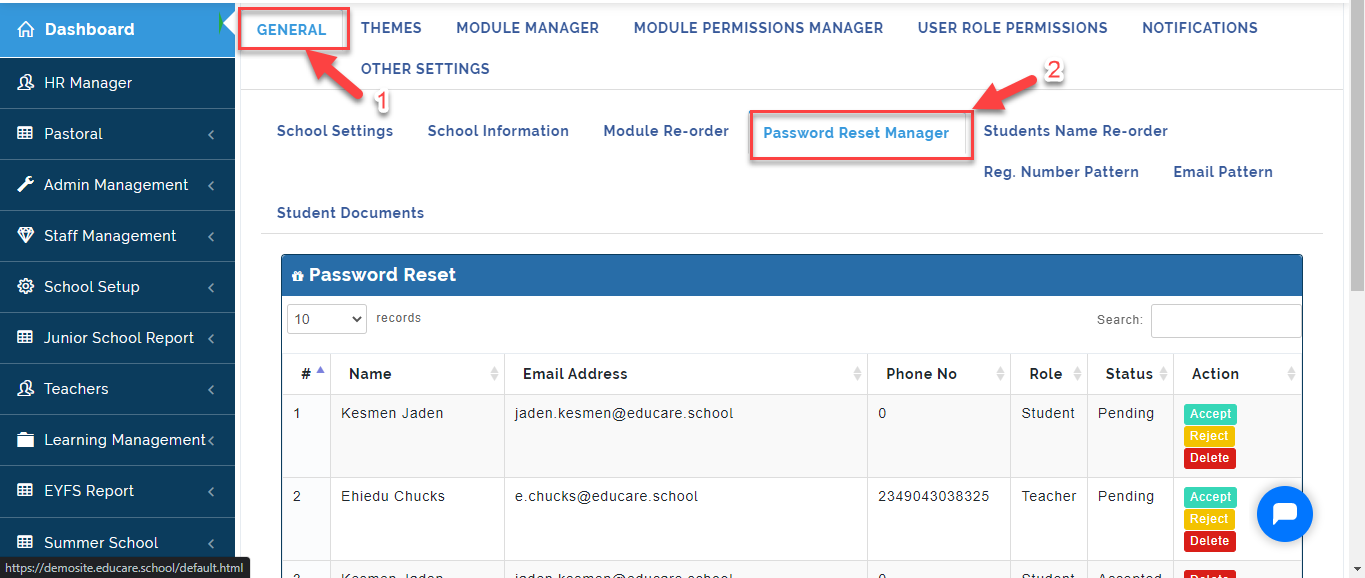
- This will list out the users that have requested for password reset, Click on the Accept under the Action column to accept, reject or Delete request as indicated below.
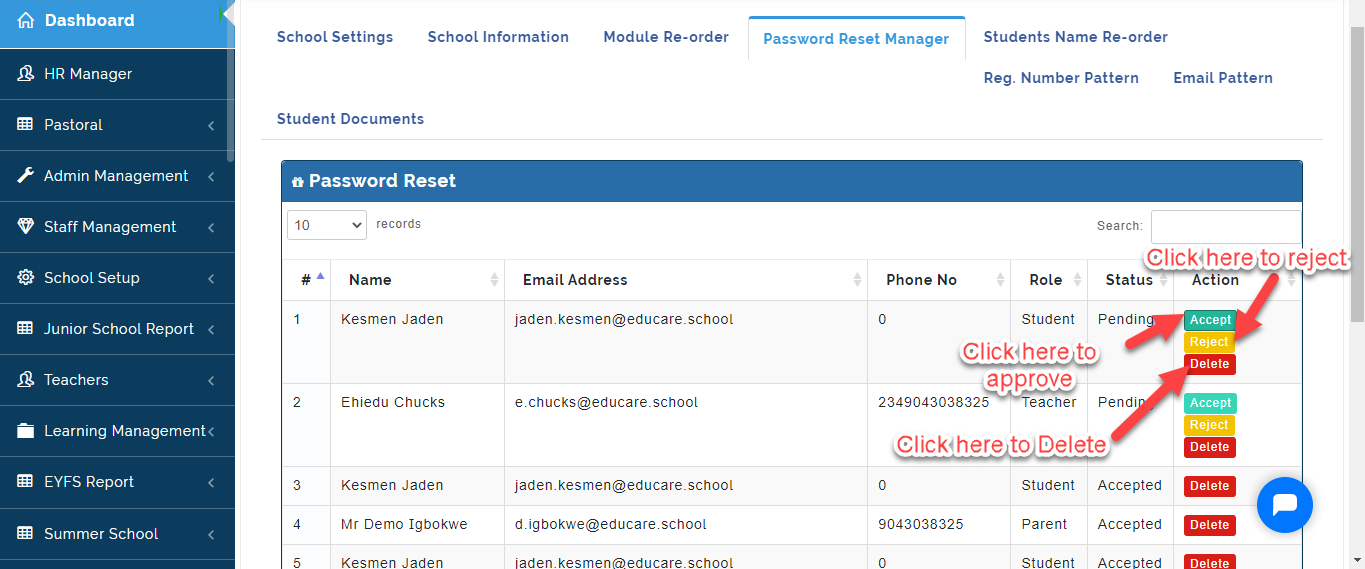
- Click on Submit, This is reset the account password to the default Password, Proceed to Login and Create a New Password or retain the default password. Click on Cancel to ignore.