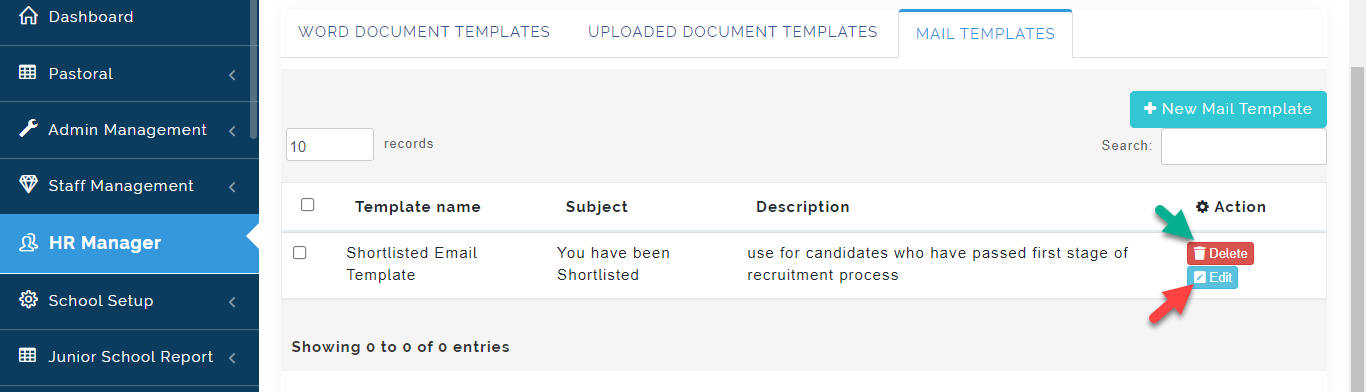
This Tab contains all documents required by the HR Manager to carry out all Human Resource Operations. Some Templates are Created Manually on the portal while others are uploaded.
WORD DOCUMENT TEMPLATES
These Templates can be applied during Recruitment (Staff Shortlisting and hiring etc.) and under PIM (Staff confirmation and transfer request).
Follow these Steps to create Word Document Templates:
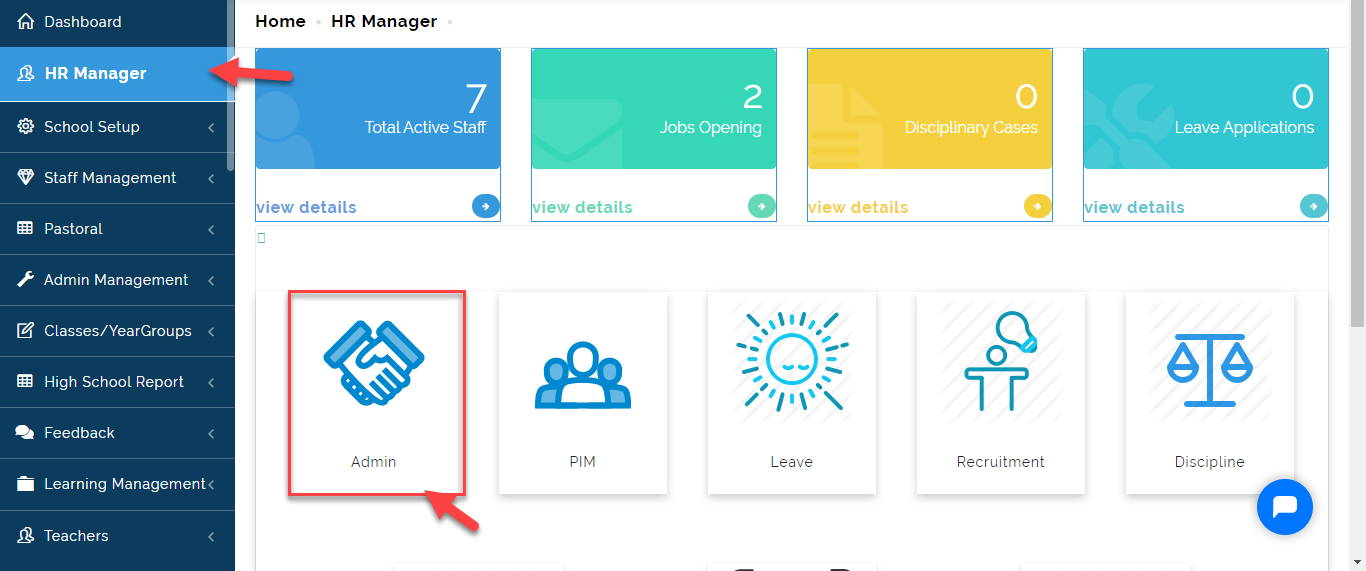
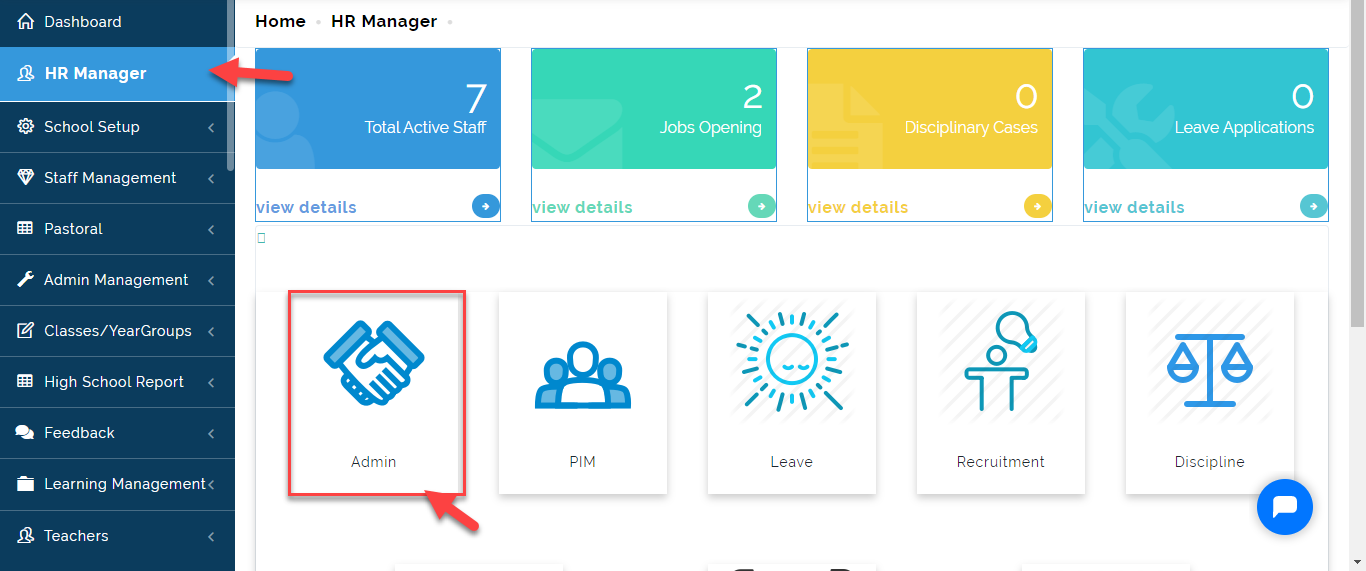
- Click on HR Manager then Click on Admin.
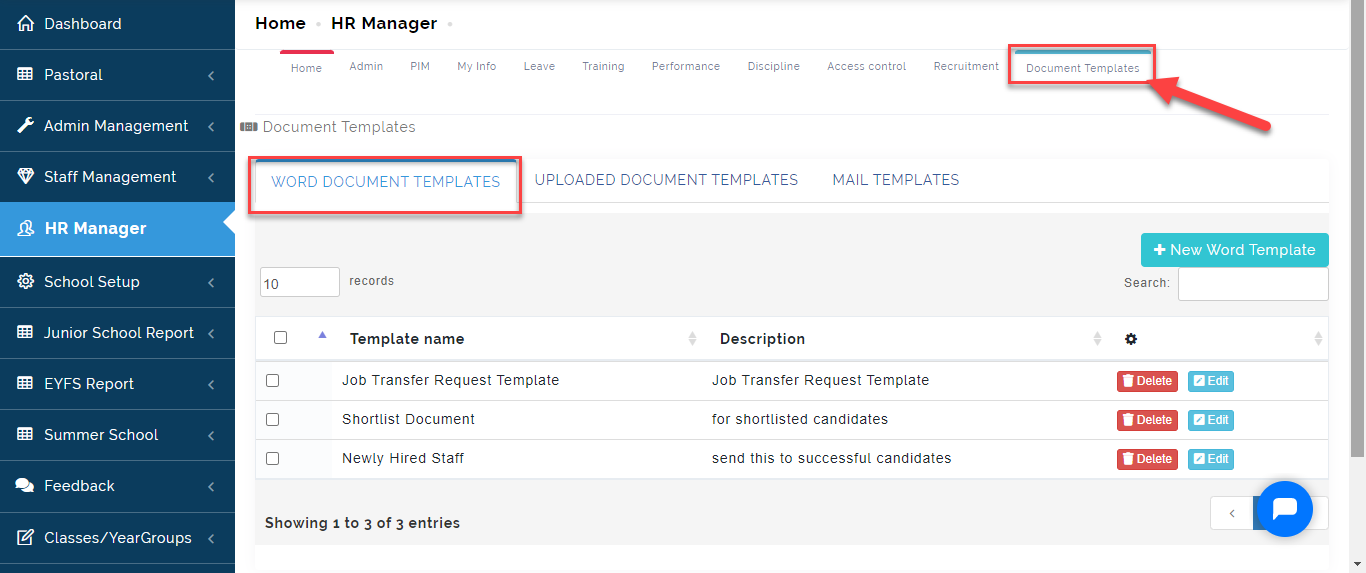
- Click on Document **Templates**, then Select Word Document Templates
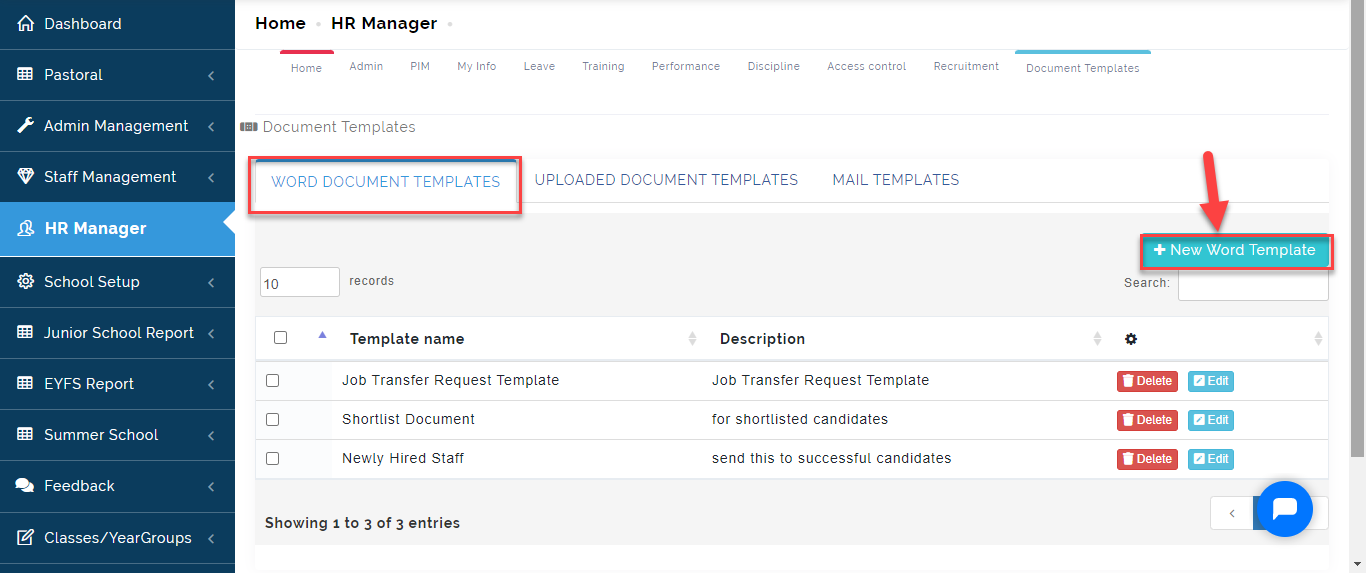
- Click on +New Word Template.
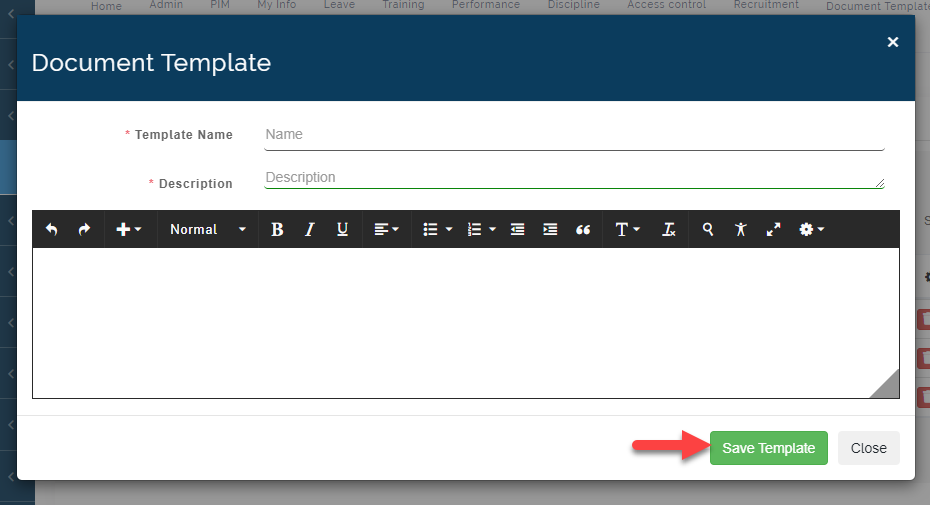
A modal will appear.
i. Type in the Template Name for example; Job Hiring Template.
ii. Type in a brief Description in the space provided to guide the User on the content of the template.
iii. Type in or Copy and Paste a Template you have for the template you are creating in the text box provided.
iv. Click on Save **Template when done or close to Exit **page.
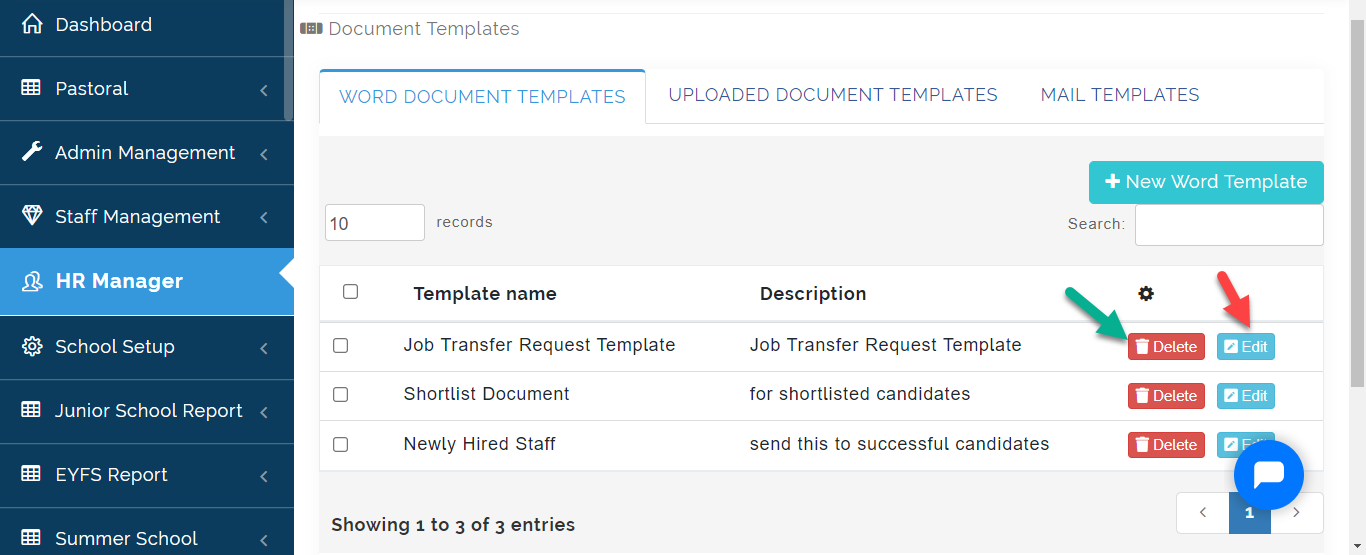
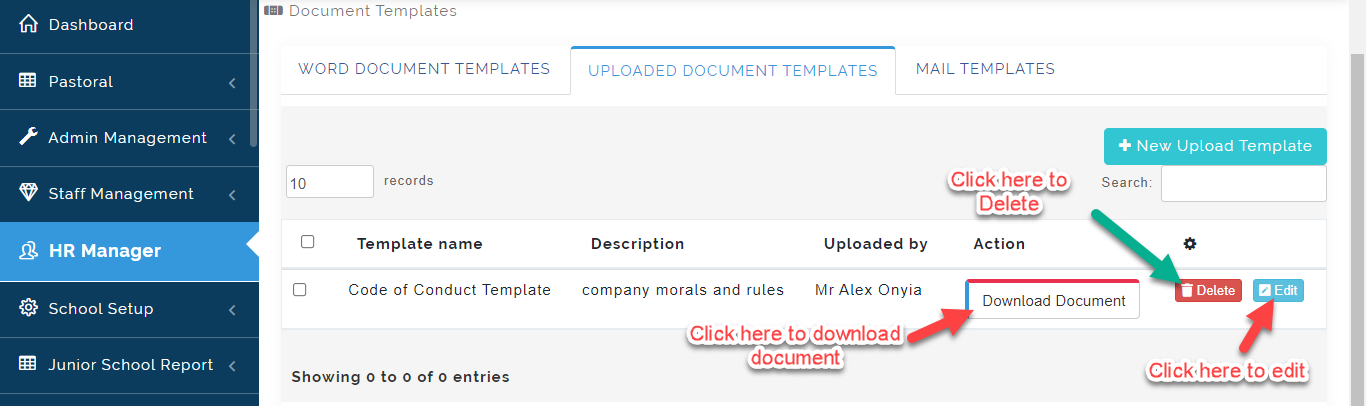
You can make changes to the Word Document Template by clicking on Edit button and click on Delete to Erase template from the list.
UPLOADED DOCUMENT TEMPLATE
This is where the Admin or HR Manager can upload Company documents and Employee Handbook. These documents can be used during Staff recruitment processes and Staff Confirmation.
Kindly follow these Steps to upload Document Templates:
- Click on HR Manager then Click on Admin.
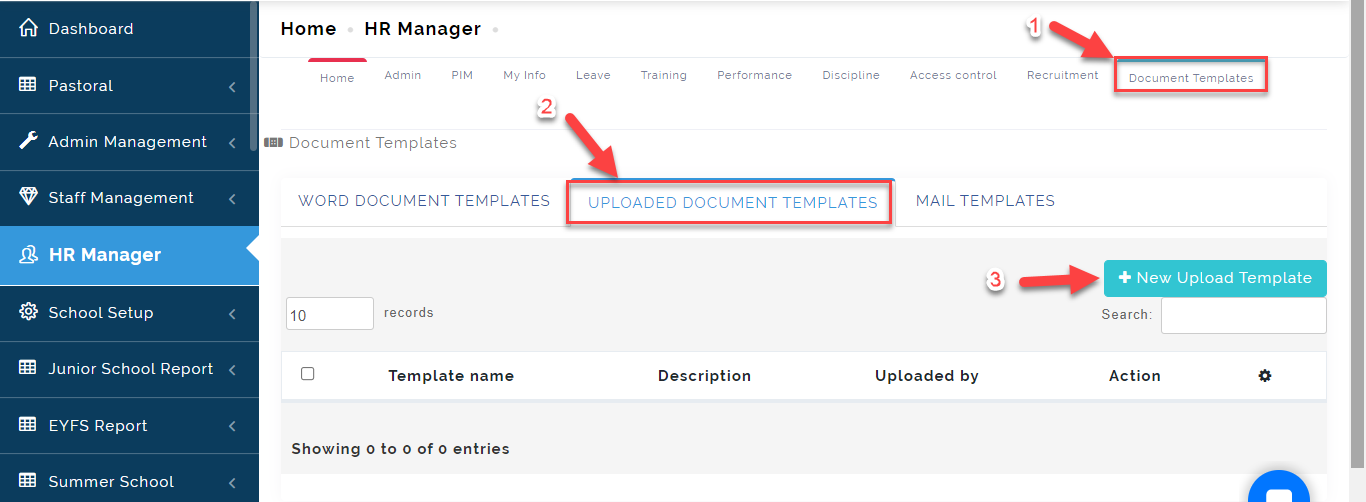
- Click on Word Document Template, Select Uploaded Document Templates then Click on "+New Upload Template".
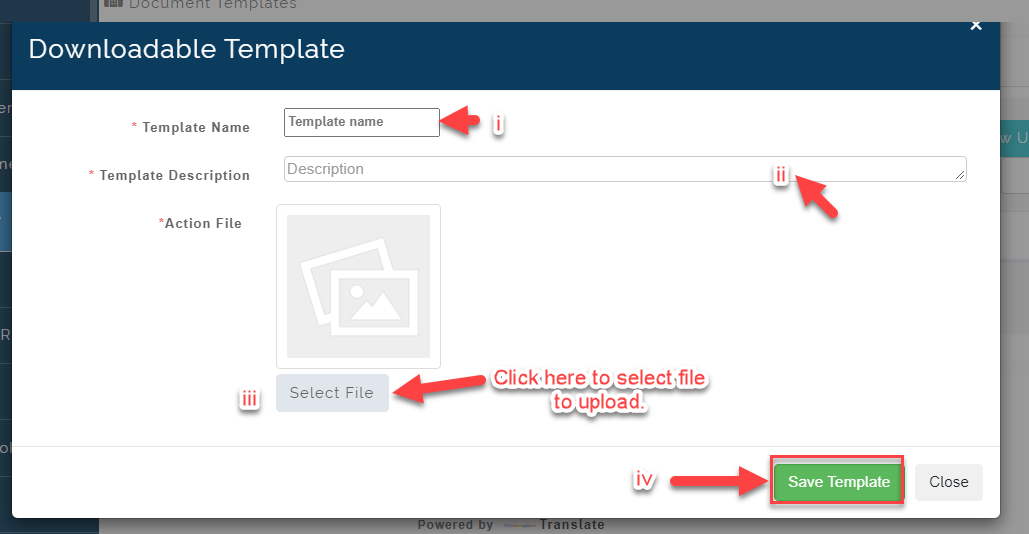
- A Modal will appear,
i. Enter the Title of the document you want to upload under Template Name. Example; Company Code of Conduct
ii. Type in a Brief description of the document you want to upload in space provided for Template Description. Example; Rules, Morals and Principles guiding the Company.
iii. Click on Select File to choose the file you want to upload
iv. Click on Save Template when you are done or Close to Exit.
You can make changes to the uploaded file by clicking on Edit button and click on Delete to Erase template from the list.
MAIL TEMPLATE
In this Tab, The admin or HR Manager can also create mail template which will be used for sending out mails to New Candidates who have applied for a certain vacancy in the school.
Follow these Steps to create Mail Template:
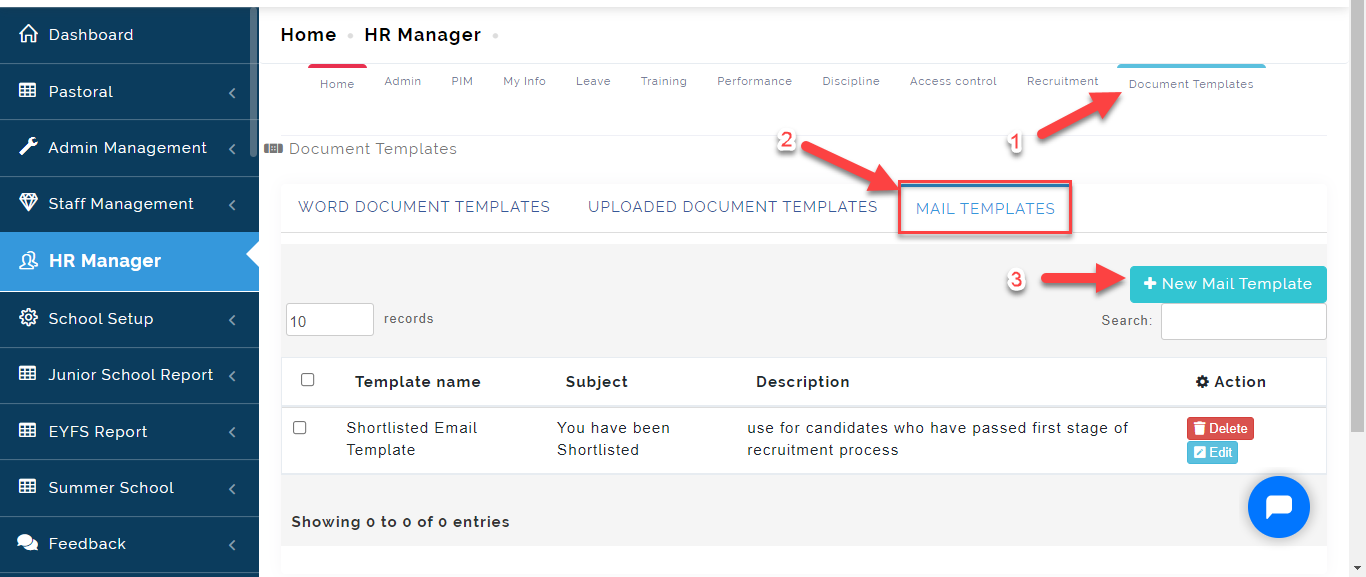
- Click on Document Template Tab from the Top Menu Tabs, Select Mail Templates then Click on +New Mail Template.
- A Modal will appear,
i. Type in the Template name in the space provided. Example; Job Hired Template
ii. Type in the Subject of the mail in the space provided
iii. Type in a Brief description of the document you want to upload in space provided for Template Description. To be used when a Candidate has been offered the job role.
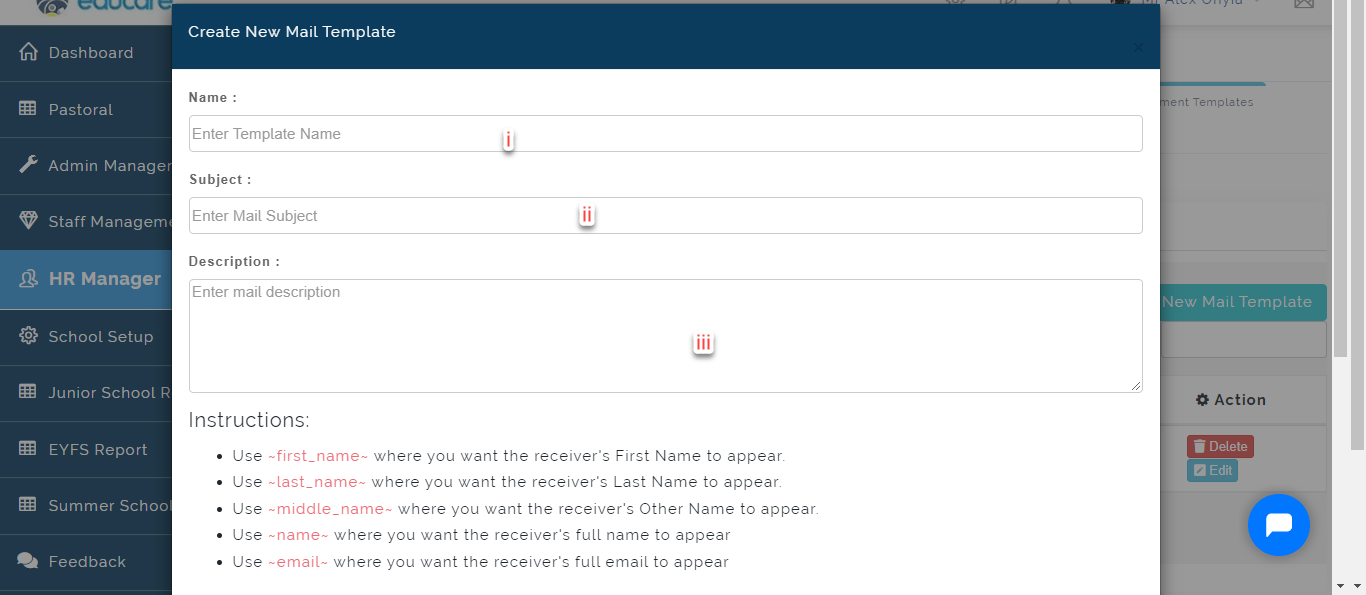
iv. Using the Instructions in the image below, Create a Formal hiring mail template to be sent out to New Candidates or Employee.
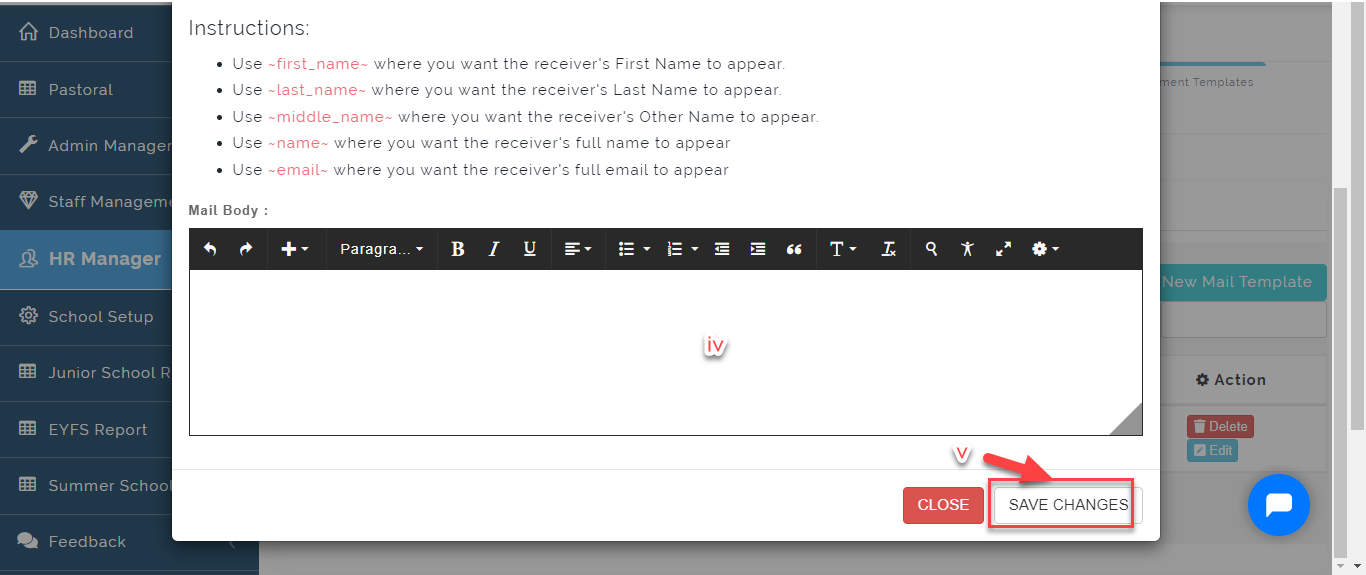
v. Click on Save Changes when you are done or Close to Exit.
You can make changes to the Mail by clicking on Edit button and click on Delete to Erase template from the list.