
Here is where the admin creates assessments using question from the question bank.
FOLLOW THE SIMPLE STEPS BELOW TO CREATE A TEST/ASSIGNMENT
Step 1:
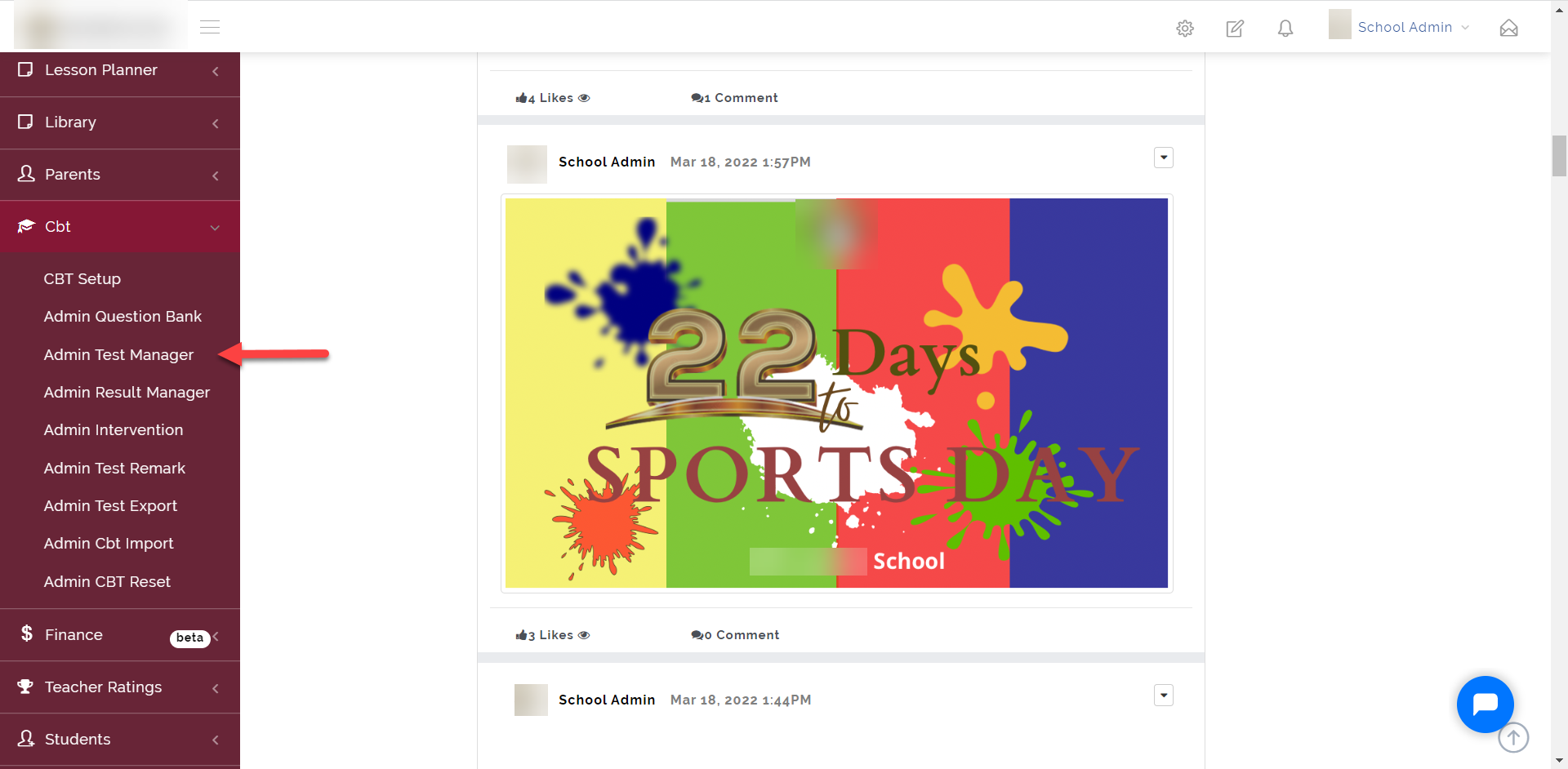
As indicated in the picture below, click on the “CBT” dropdown then select “Admin Test Manager”
Step 2:
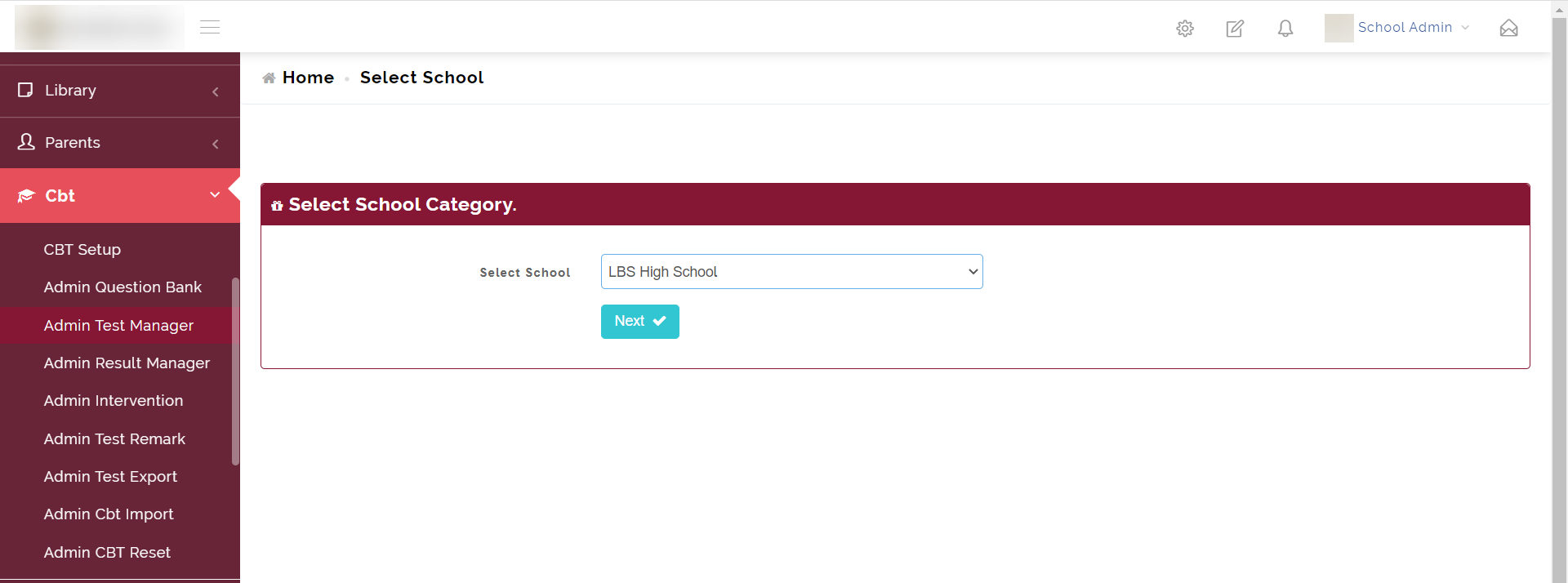
- Select the school and click on Next
Step 3:
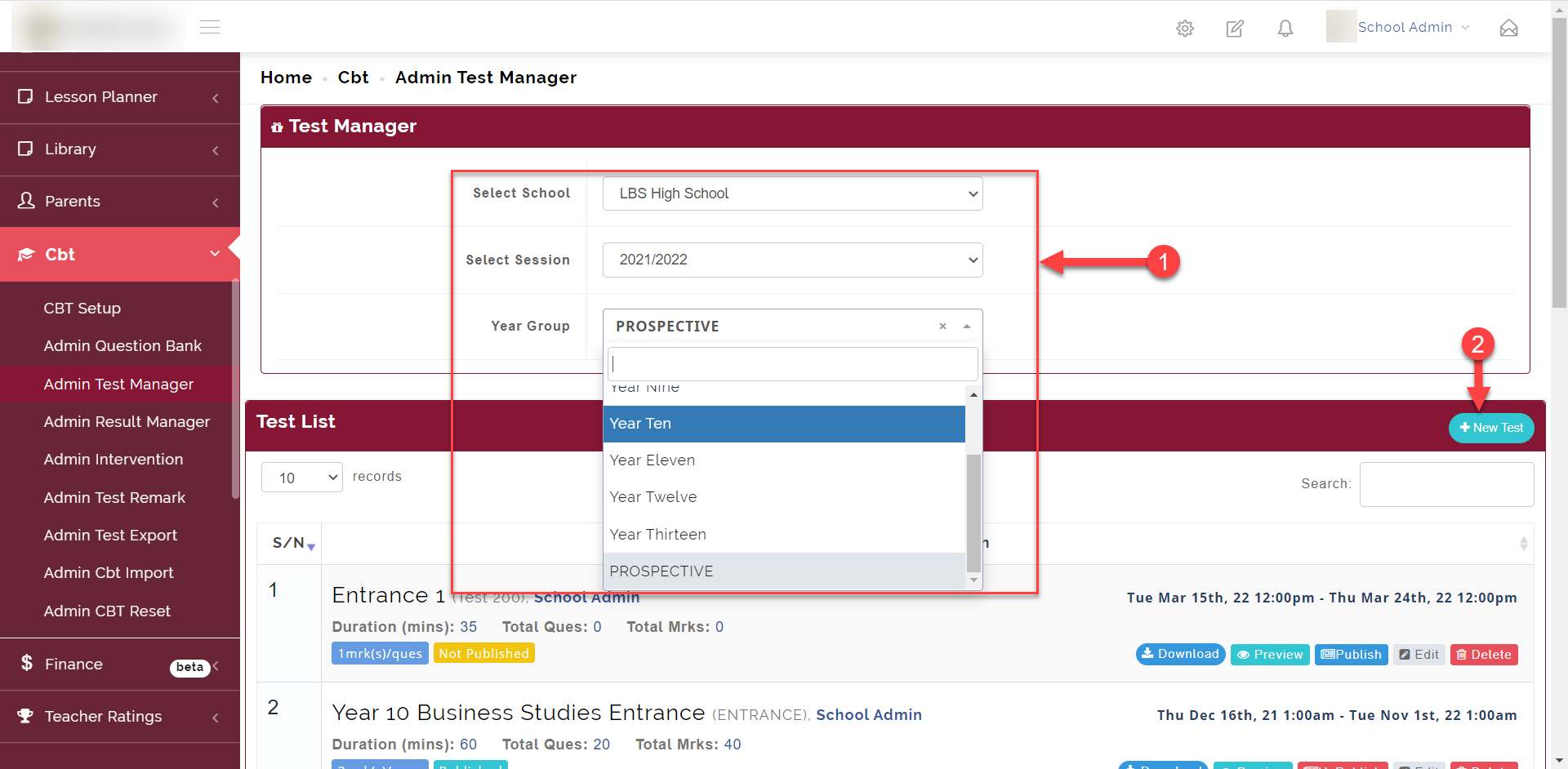
- Select the School, Session and the Year Group.
- Click on the "+ New Test" Button to add a new test.
Step 4:
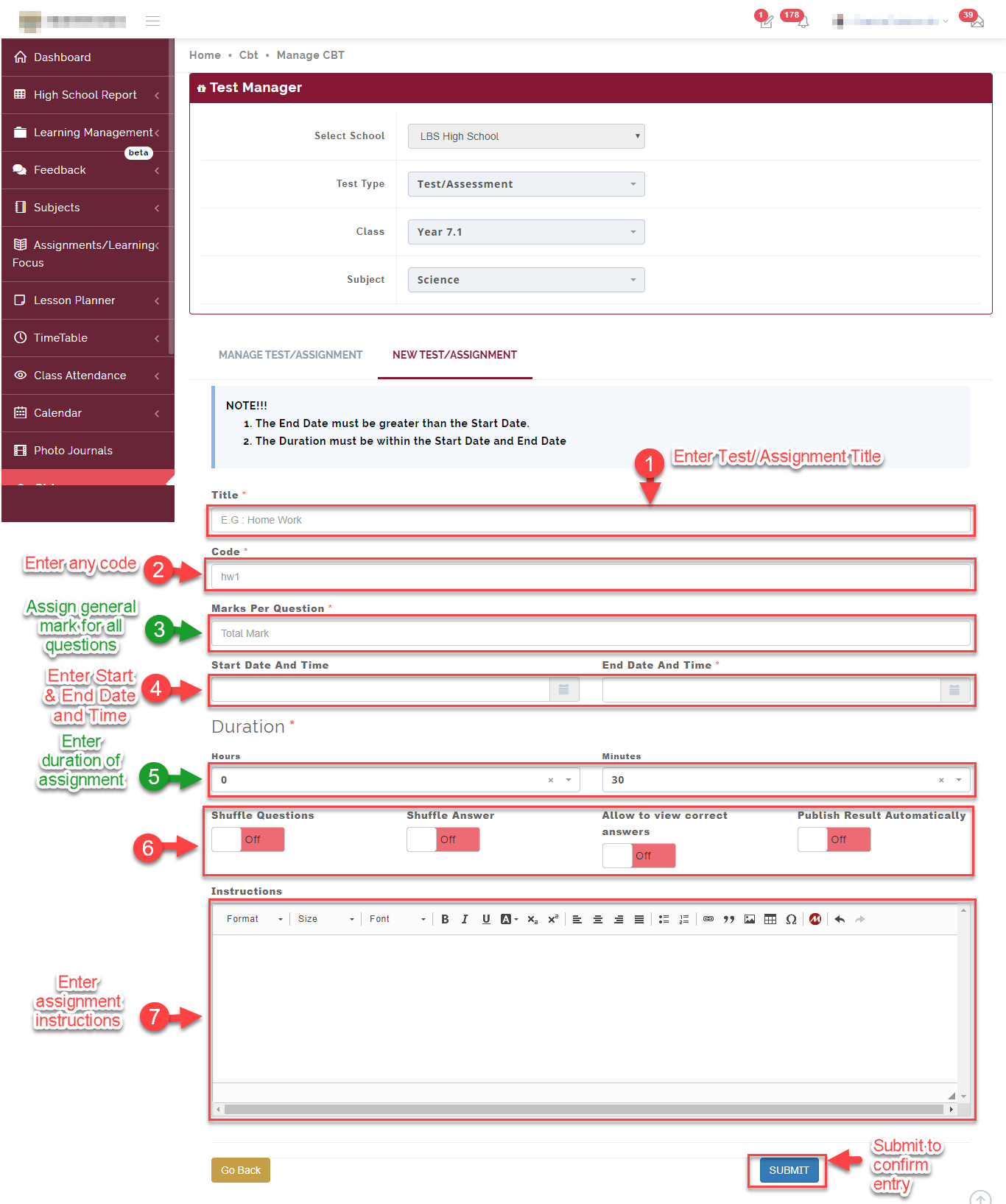
Follow the guide on the picture below to successfully add a question.
Points to Note!
Entry 4
Only enter the Start & End date and time if you want all students to start at the same time e.g all student will start next week Friday between 4:00 PM – 8 PM. Any student that tries taking the exam after this time range won’t be allowed to. It is important to note that this is an optional field.Entry 5
Duration is maximum time each student is expected to spend answering the test/assignment questions.Entry 6
You can shuffle or randomize quiz questions and answers. Shuffling is also an effective way of preventing cheating because no two learners get questions in the same order while taking the same quiz.
Simply put on the shuffle question and/or shuffle answer if you wish to enable this feature.Post Result Automatically is the same as a teacher marking a student script and giving it back to the student. So if you wish for your students to see their script and also know the questions they got wrong, toggle this option On.
Allow to view correct answers is allowing the student see the answer they chose alongside the correct answer.
Step 5:
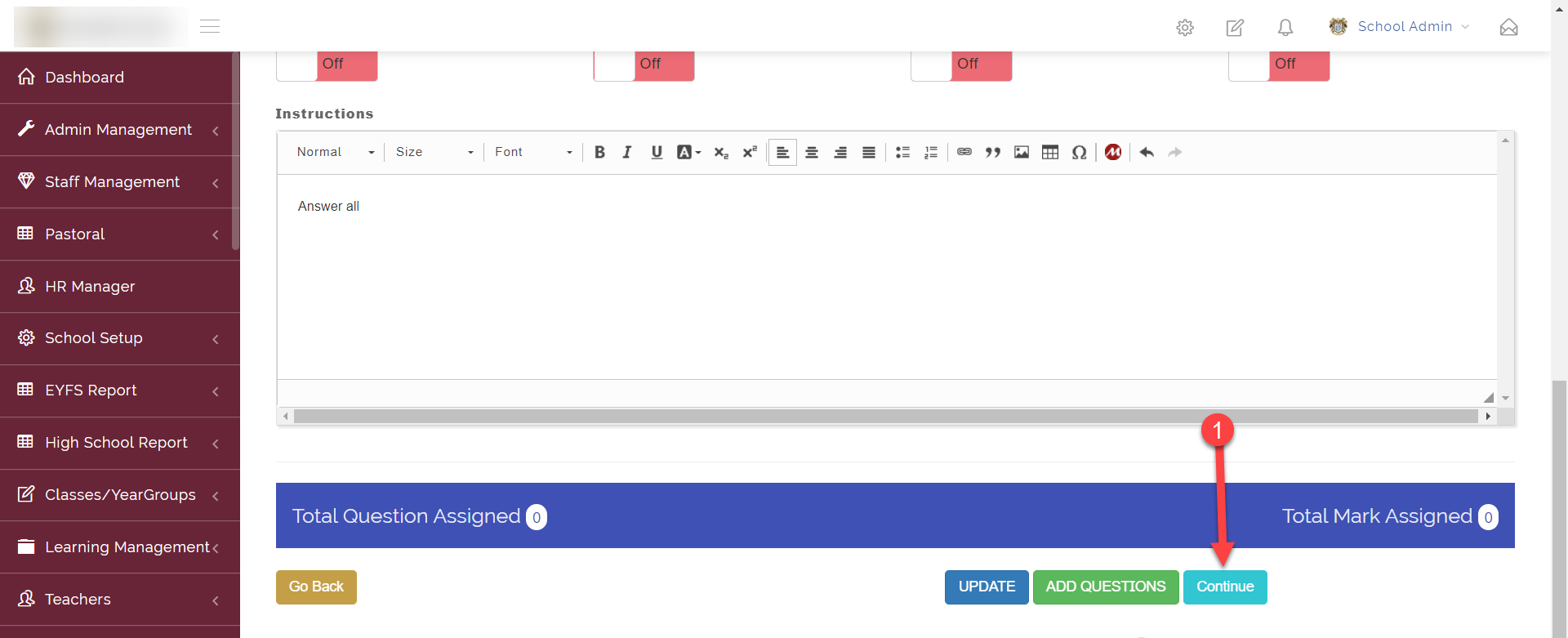
After clicking Submit in Step 4, Scroll down and click on *Continue as seen in the picture below
Step 6:
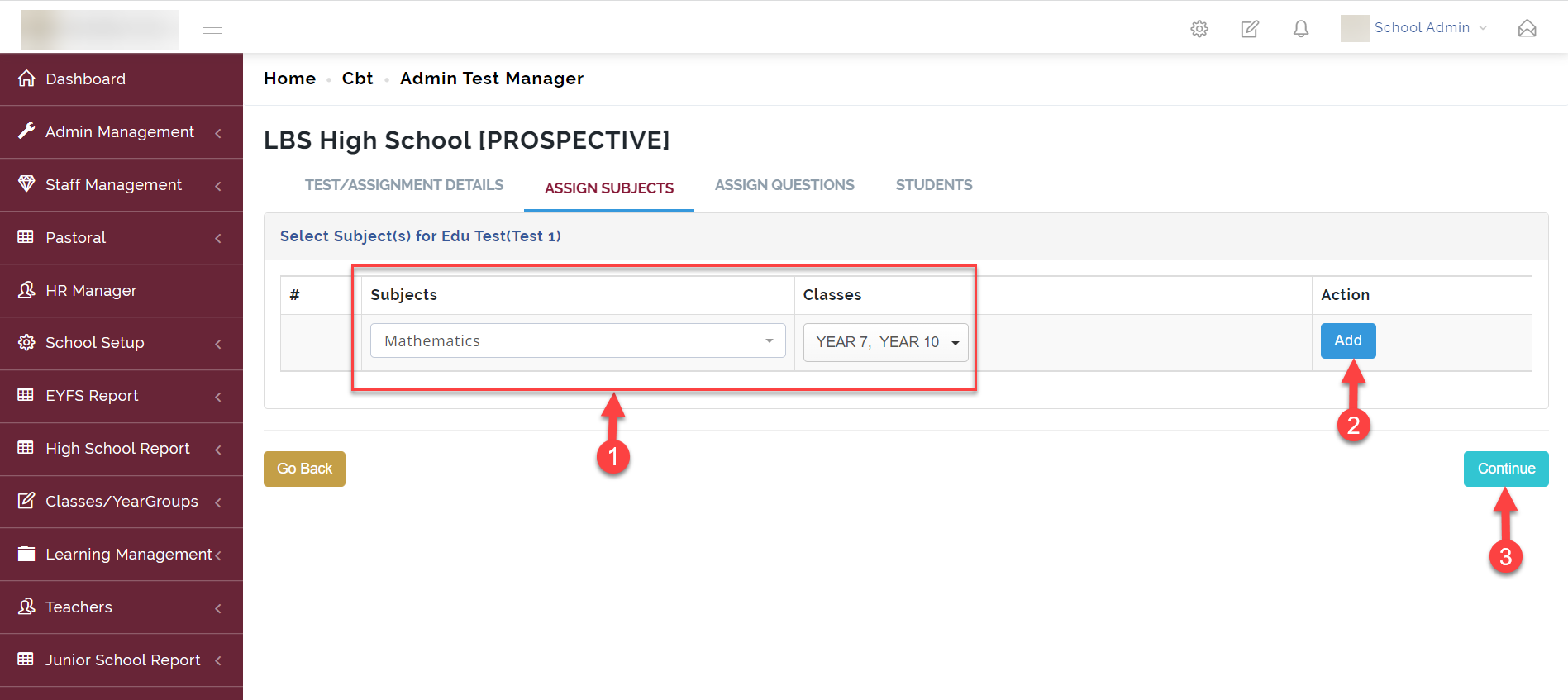
The next step is to Assign Subjects to the test.
to do this, select a Subject and select a Class or Classes then click on Add
Click on Continue to go to the next step
Step 7:
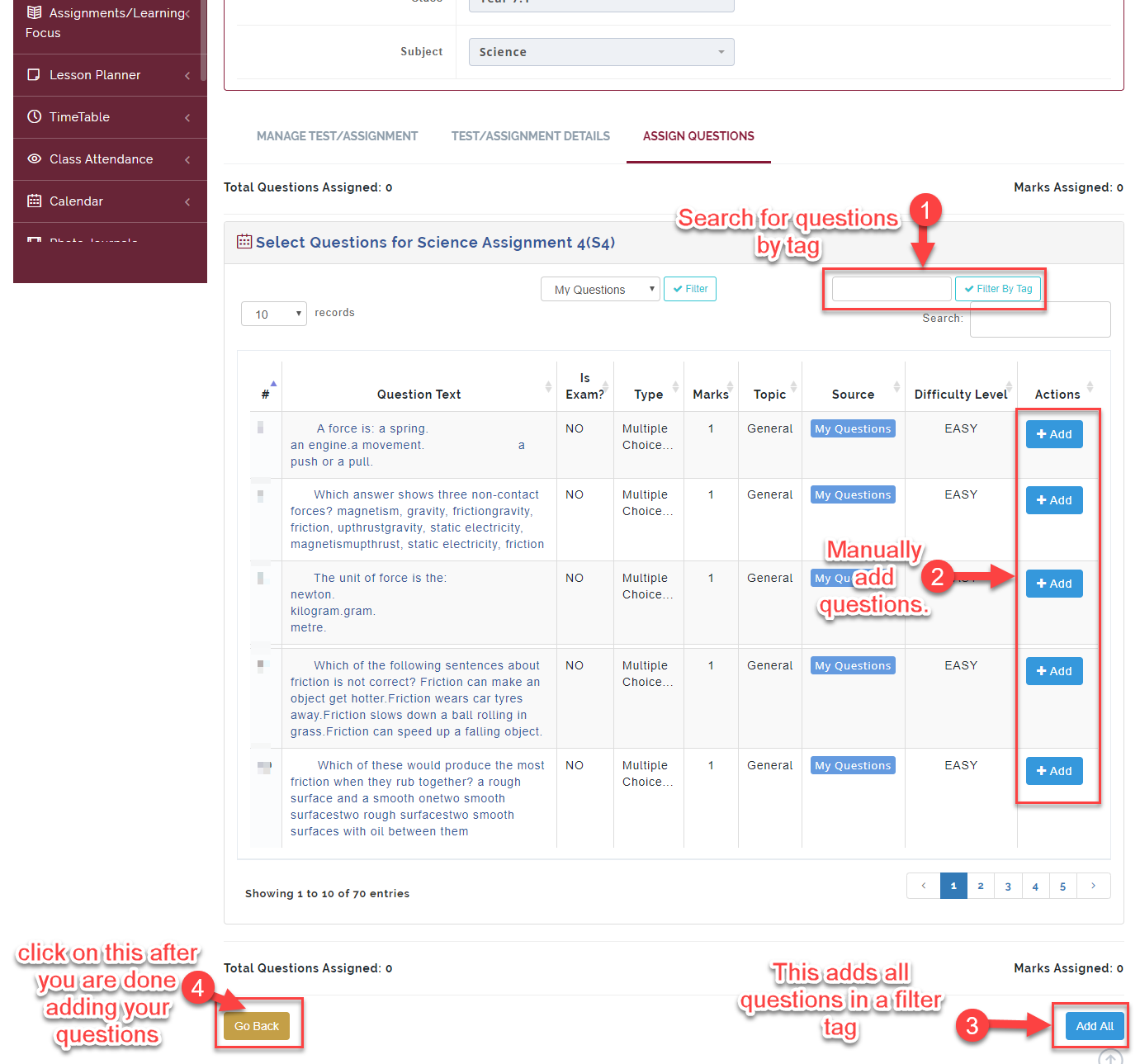
Clicking on “Continue” in STEP 6, takes you to where you can assign questions to this test from your question bank.
Step 8:
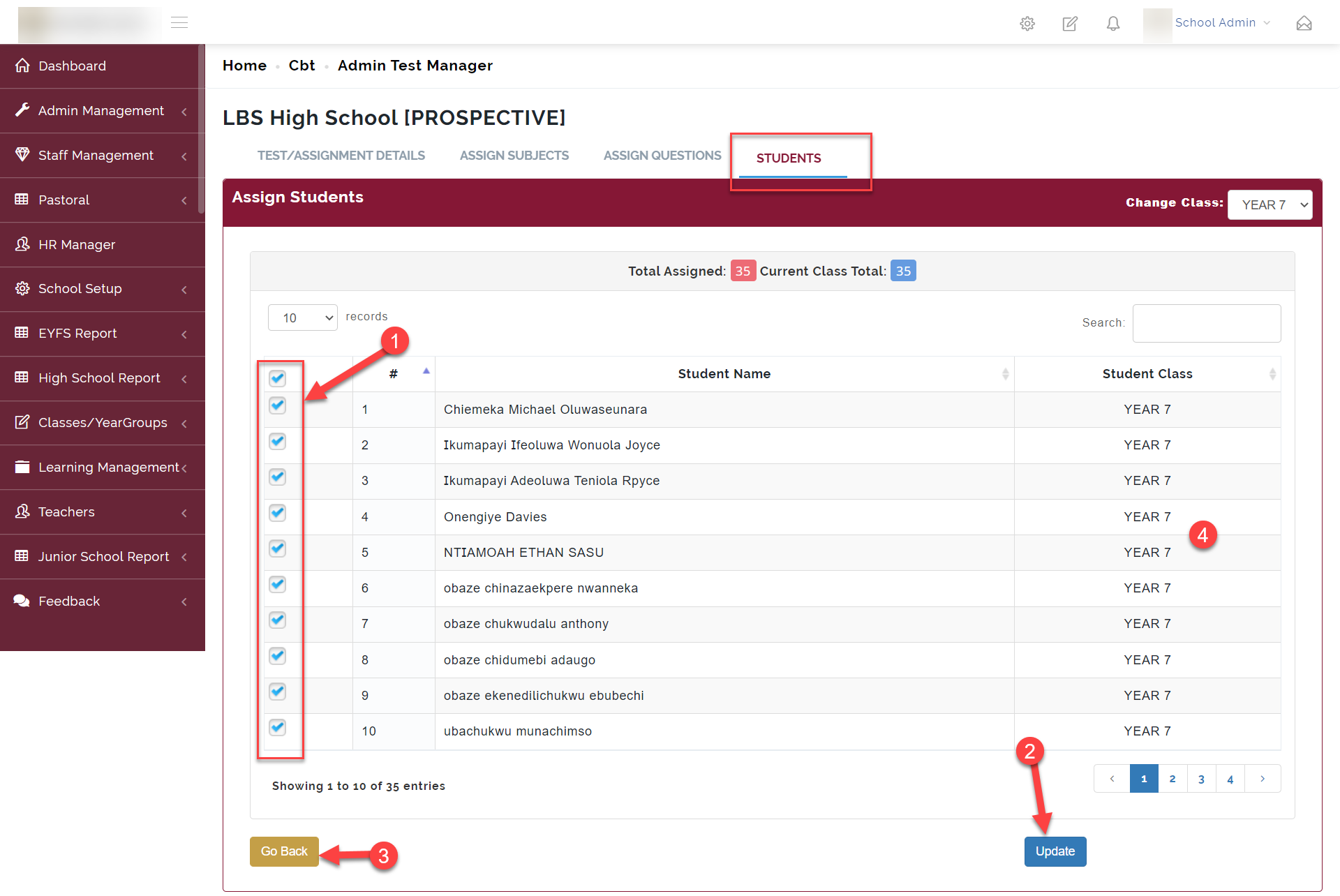
The next step is to select students who are to take the test. By default, all students in the class are selected. You can uncheck a student name if you do not want them to take the test.
Click on Update when you are done.
Step 9:
Review everything and click on update when done.
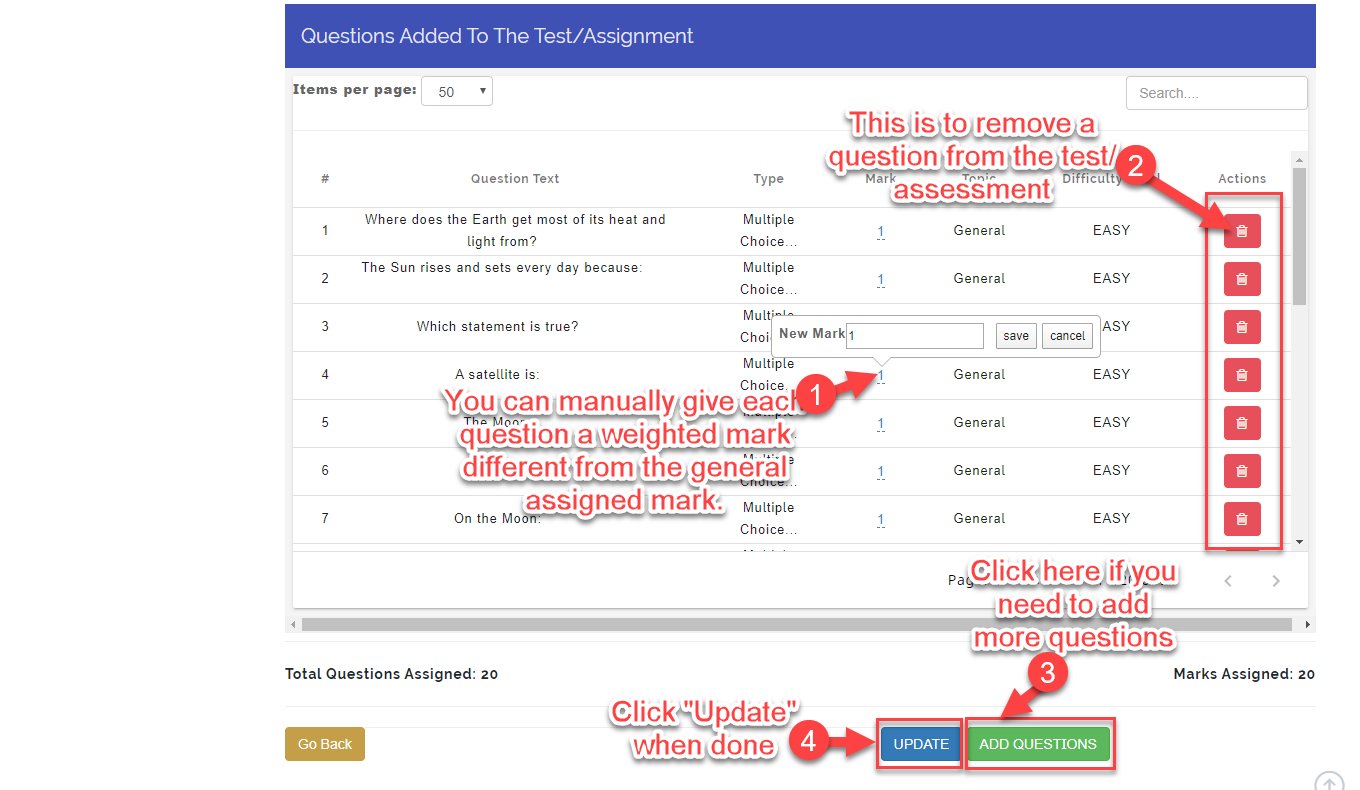
Step 10:
The test and assignment has been created, below are actions you can take
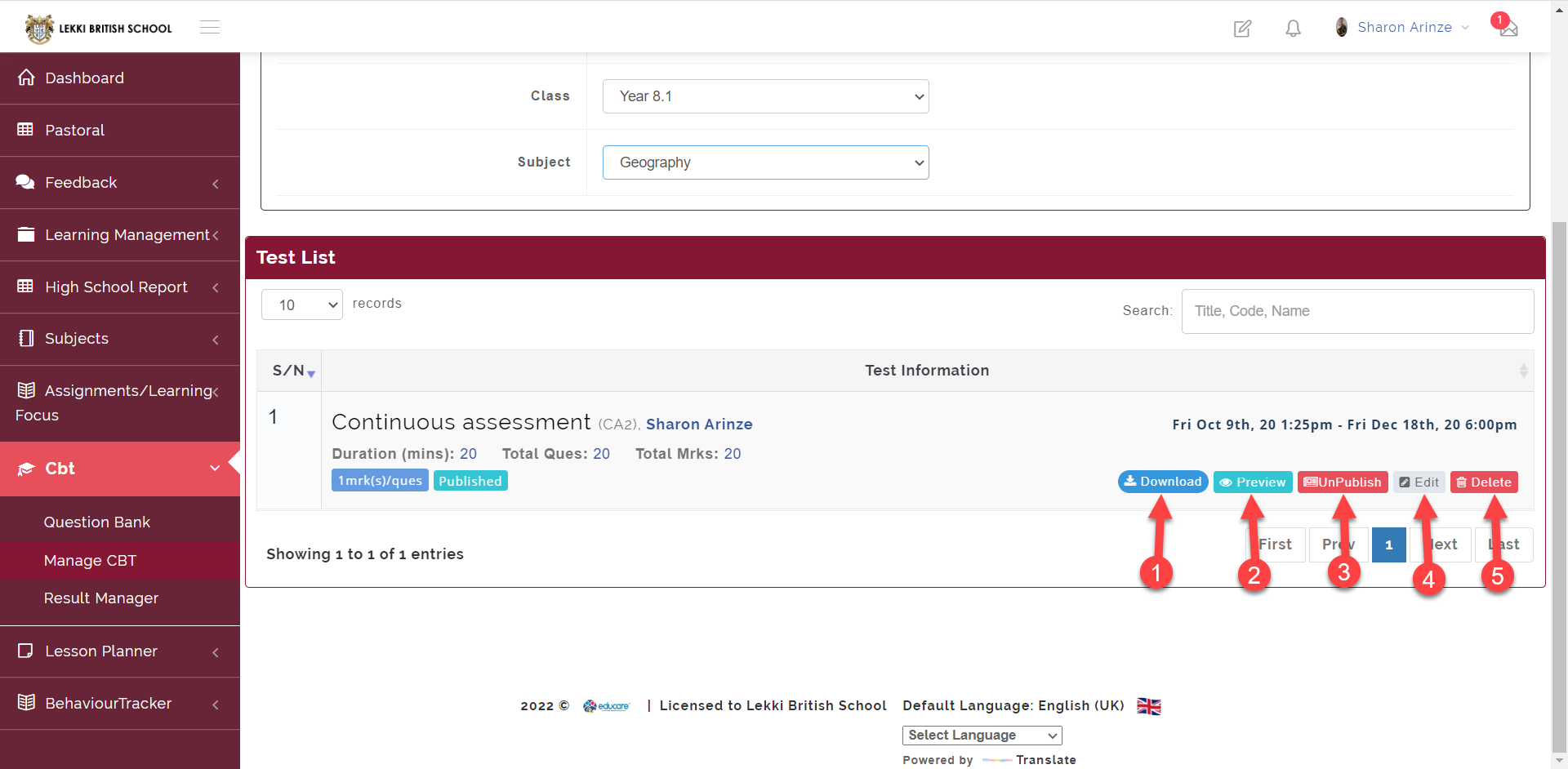
- Download: This is to download the assessment questions
- Preview: This gives the teacher a view on how students sees and take the assessment.
- Publish/Unpublish: This button is used to either Publish or Unpublish the assessment. Publish means that the student would be able to see the assessment while unpublish means they won't be able to see the assessment.
- Edit: As the name implies, it is used to edit created assessment.
- Delete: Used to delete created assessment.
NOTE!!!
- Questions added to the Test cannot be edited after publishing the Test. Please ensure that you have Previewed the Test before publishing.
- You can now edit questions from the Test manager.
- To edit questions after Test have been published, UnPublish the Test.
- Test cannot be unpublished if at least one student have written the Test.
- To edit the questions when Test cannot be unpublished, use Admin Intervention.