
educare Recruitment Module covers the automation of vacancy deployment, creation of application form, interviewing, selection, hiring and onboarding of candidates.
The Recruitment Process is an integral part of Human Resource Management (HRM). I will be taking you on the different recruitment process offered and showing you steps to achieve a seamless and efficient recruitment operation for your school.
Before you can utilize the recruitment feature, The HR Manager or Admin need do some configurations to setup usage.
CONFIGURATIONS- VACANCY TEMPLATE
Vacancy Template is where you create the vacancies other words known as the advert. This templates is created as the need arise for your school. Follow the steps below to complete setup for vacancy template:
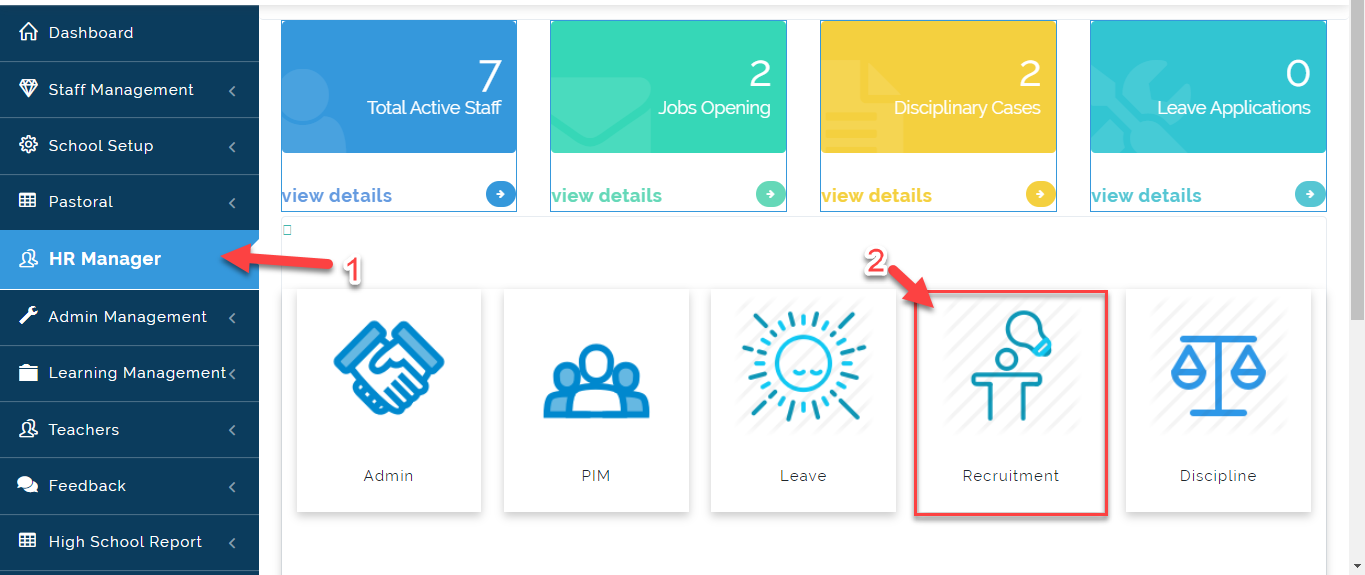
- Go to HR Manager and click on Recruitment.
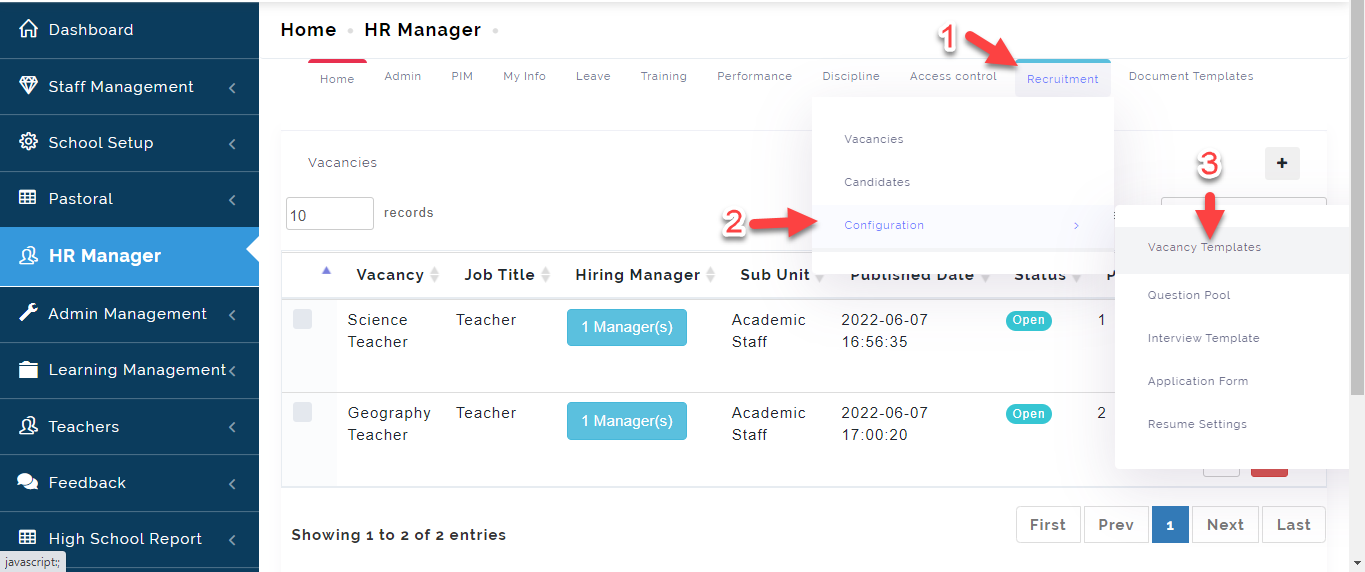
- Hover your cursor on Recruitment, A dropdown menu will appear, select Configuration then click on Vacancy Template.
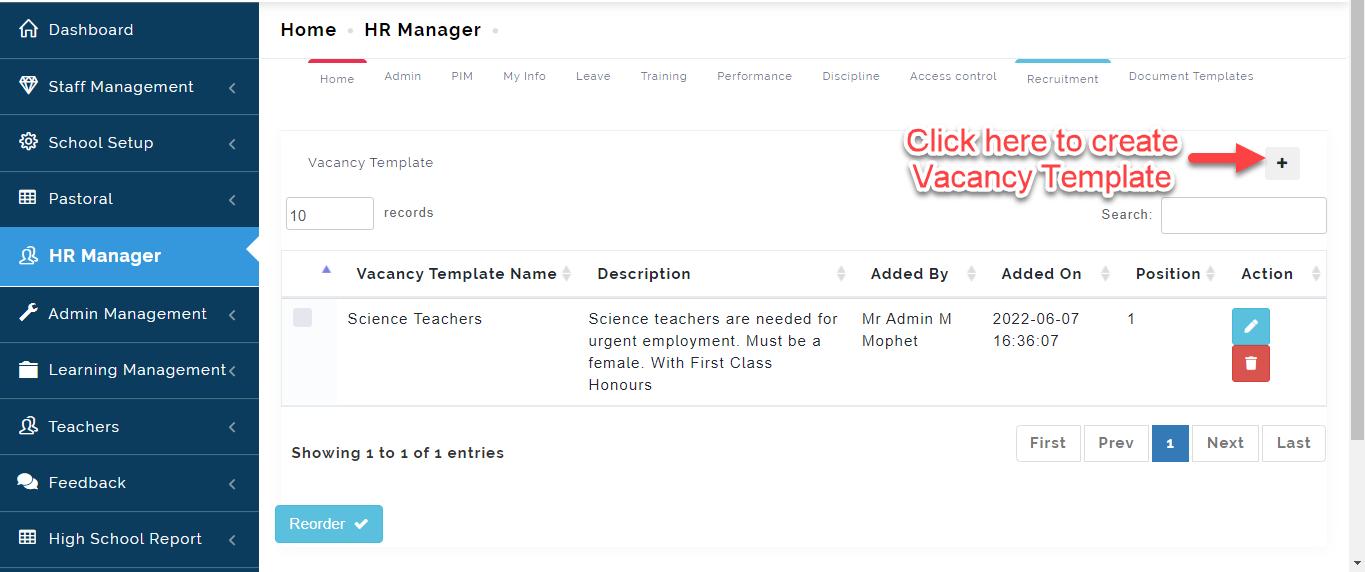
- All Vacancy Templates you created previously will appear here, click on the + Icon to create a one.
- See Clip to view how to to create Vacancy Template.
i. Type the Vacancy name in the textbox under the Template name e.g Vacancy for a Mathematics Teacher.
ii. Enter any additional notes for the candidates in the Description Text Box.
iii. Select the Job Title and Sub unit.
iv. Select the Hiring Manager name from the list
v. Type in the Job Posting in the textbox (i.e. all information about the type of candidate needed e.g. Female, with a Bachelors Degree etc.).
vi. Click on Save or Close to Exit.
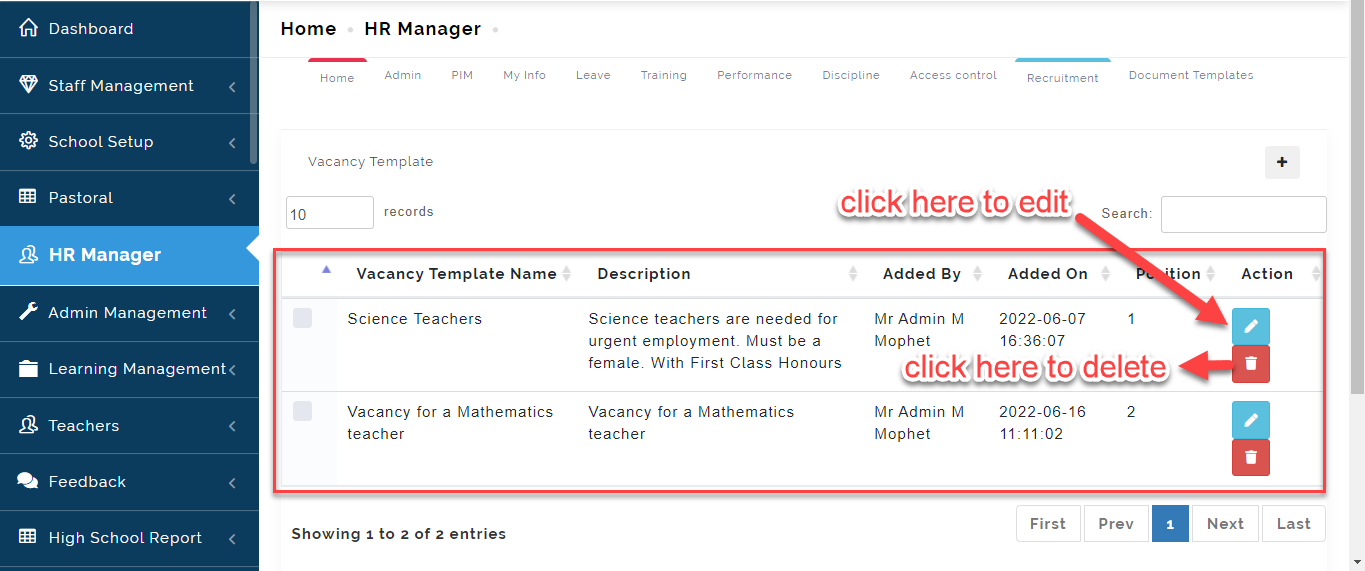
- The Vacancy Template will be saved. Click on the edit button to make changes and the delete button to erase a Vacancy Template from the list.
QUESTION POOL
This is where the HR Manager can create all questions to be used for interviews. This questions are tagged to the competencies created. Follow these steps to create questions:
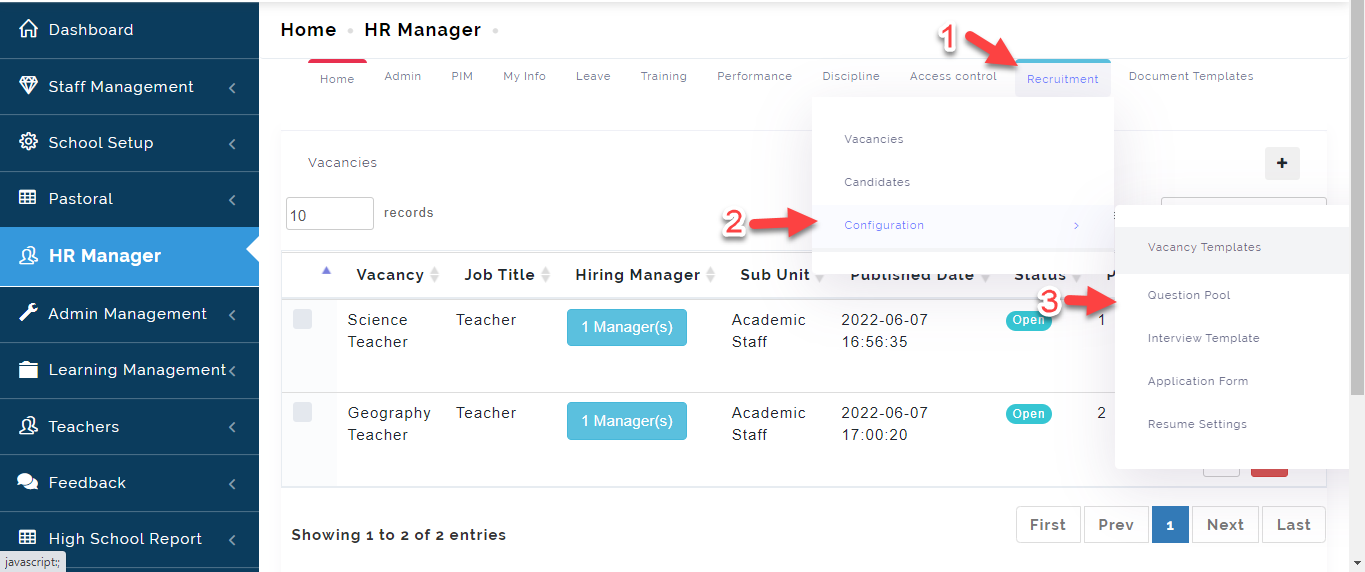
- Hover your cursor on Recruitment, A dropdown menu will appear, Select Configuration then click on Question Pool.
- Click on the + button to add questions
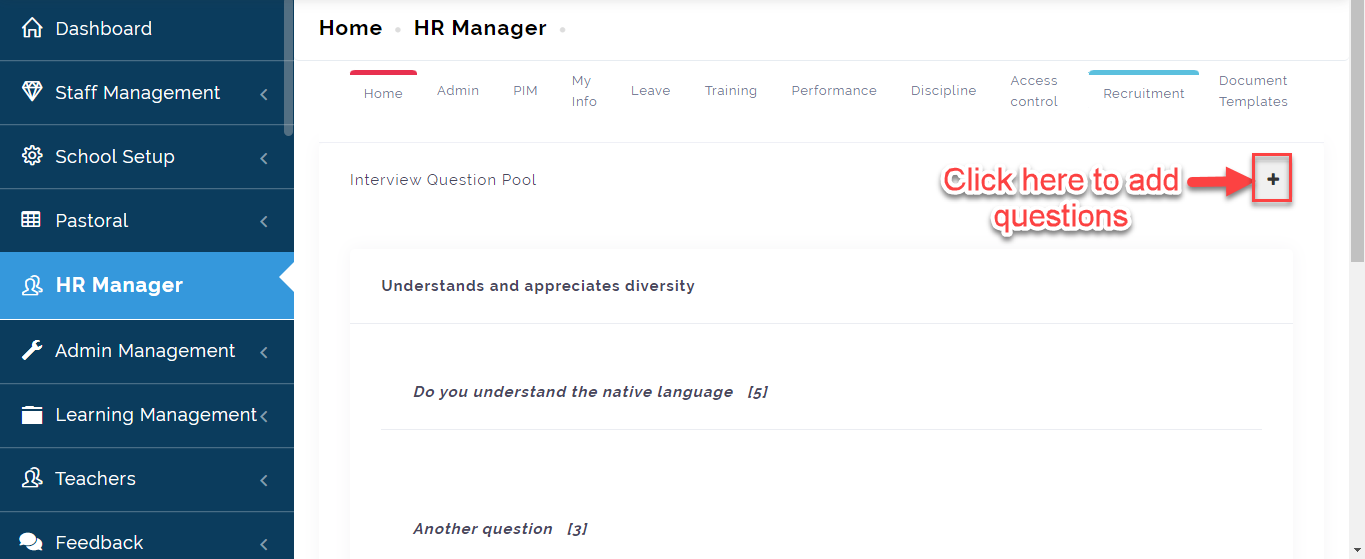
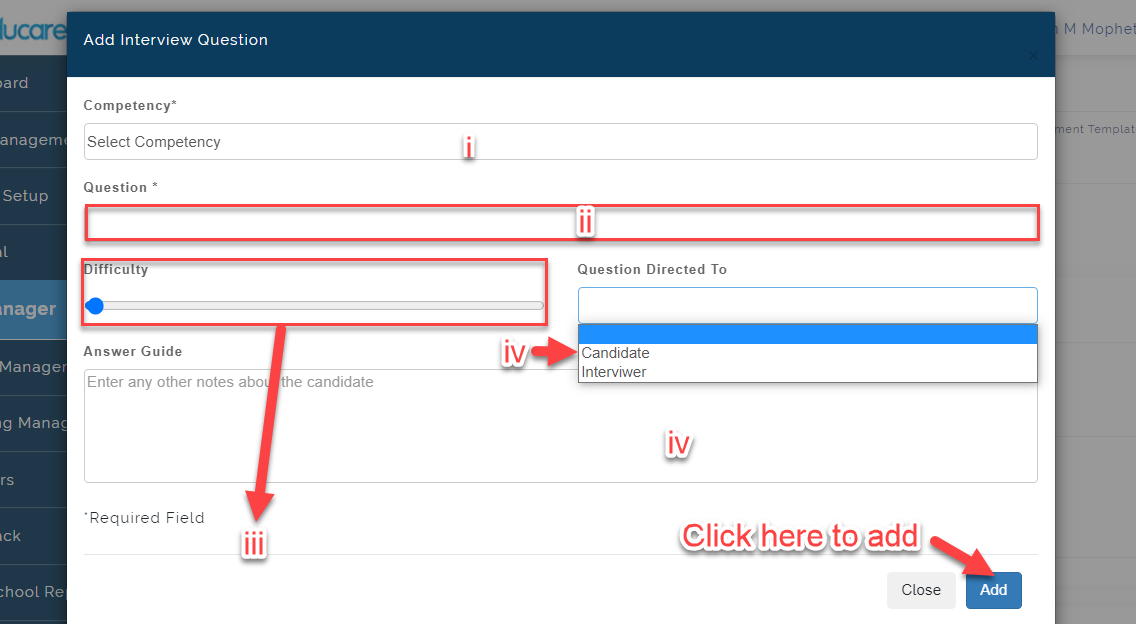
- A modal will appear
i. Select the Competency the question fall under.
ii. Enter your question in the textbox provided under question option.
iii. Adjust pointer to show difficulty level.
iv. Select the individual the question is directed to. Example; Candidate or Interviewer
v. Enter any notes for the candidate (e.g. If yes, give maximum obtainable point)
vi. Click on Add to save question or Close to Exit
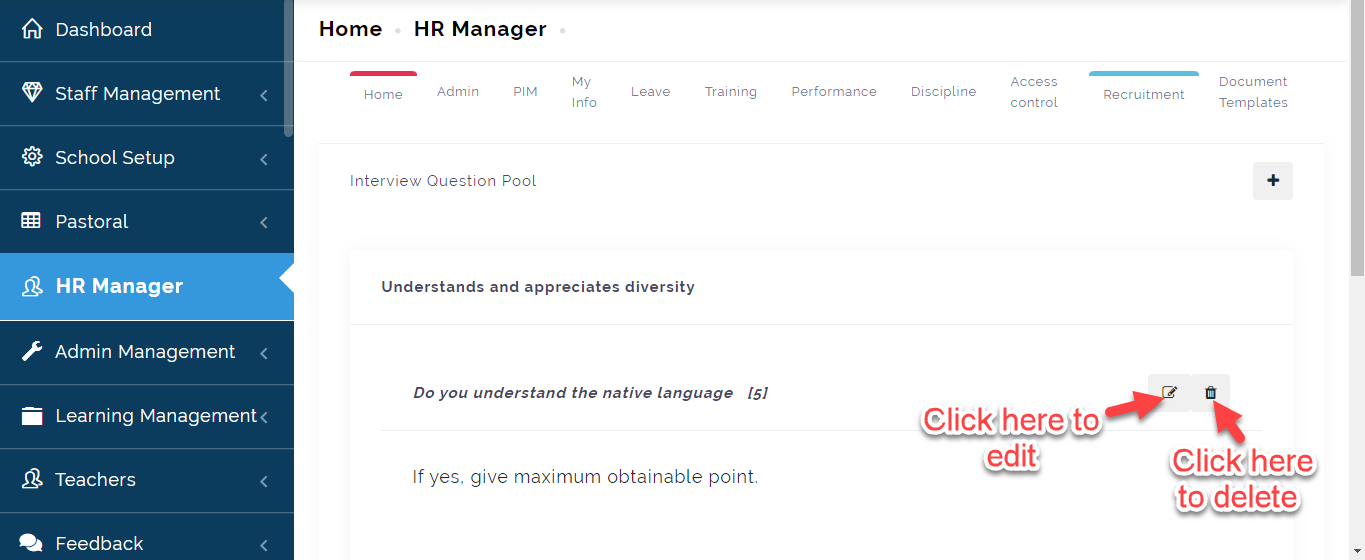
- The Questionwill be saved. Click on the edit button to make changes and the delete button to erase question from the list.
INTERVIEW TEMPLATE
This is where the HR Manager can create different interview templates for various Vacancies and role which will be used as a guide for interviewer when conducting an interview.
To Create an interview template, Follow these simple steps:
- Hover your cursor on Recruitment, A dropdown menu will appear, Select Configuration then click on Interview Template.
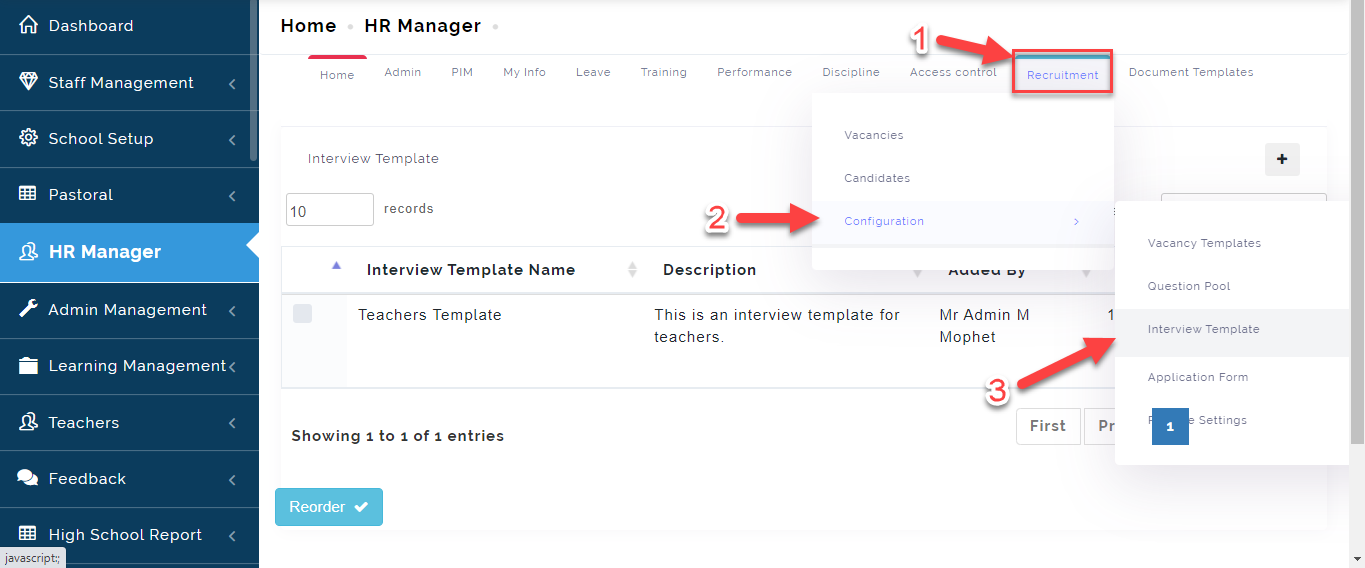
2 See Video to view how to create an Interview template.
- The Interview Templatewill be saved. Click on the edit button to make changes and the delete button to erase question from the list.
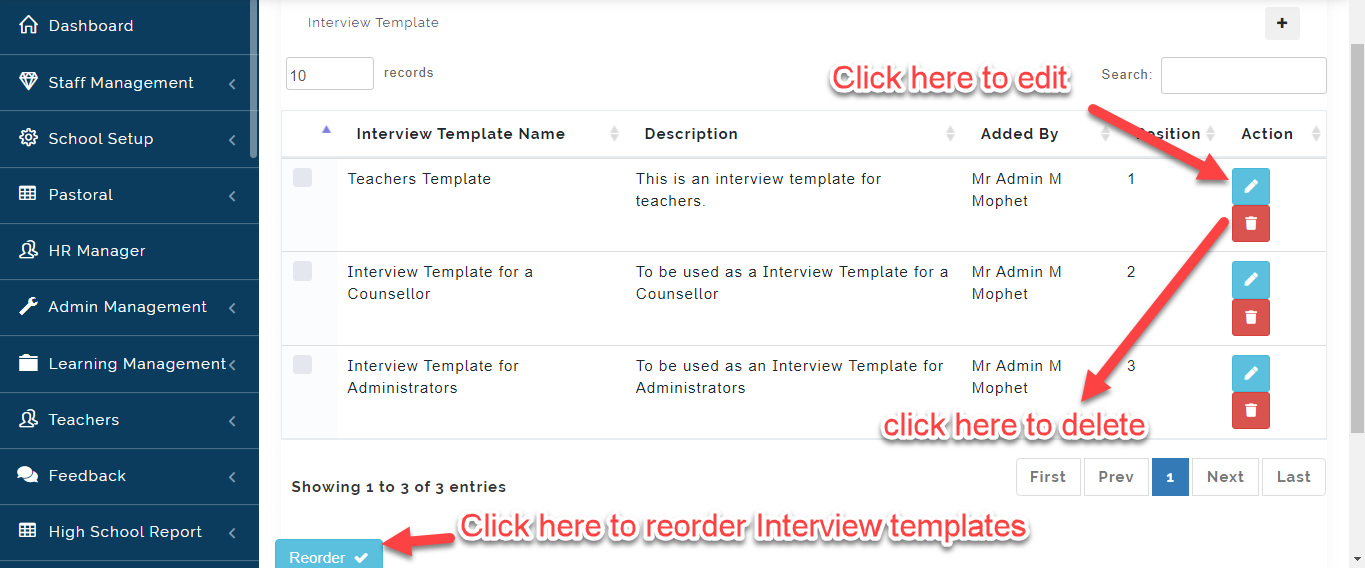
To reorder Interview templates, click on reorder as indicated in the image above.
APPLICATION FORM
Here, the HR Manager can create or edit existing application form to suite the content of the form used in the school to receive to candidates details.
To Create Application Form, Follow these simple steps:
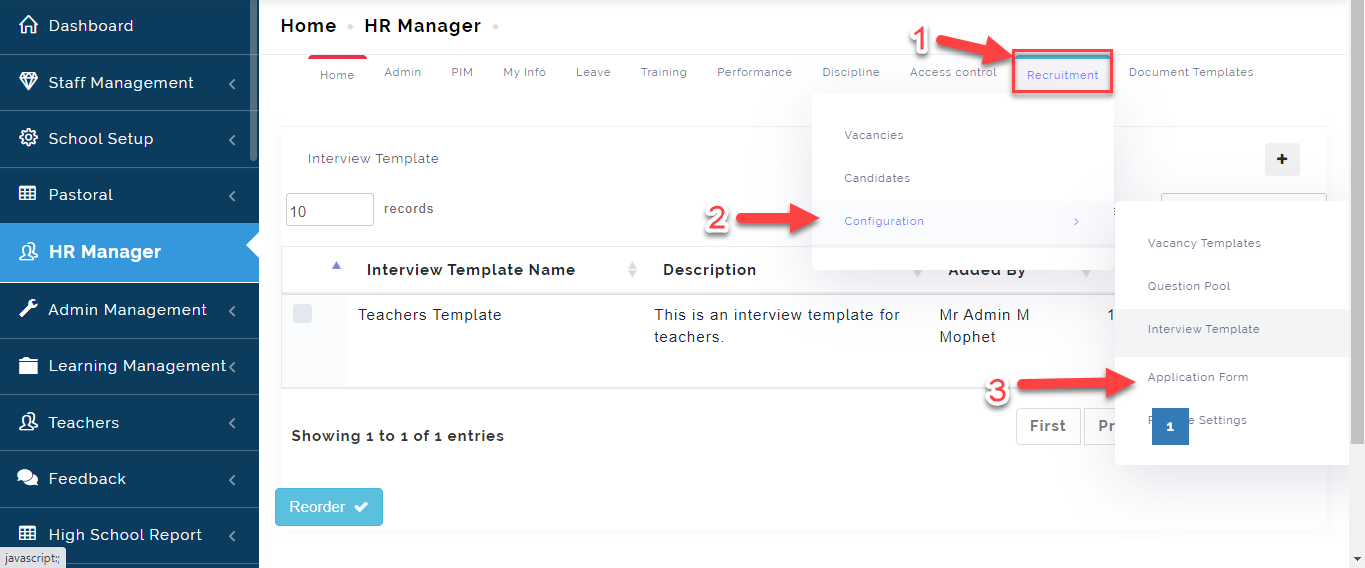
- Hover your cursor on Recruitment, A dropdown menu will appear, Select Configuration then click on Application Form.
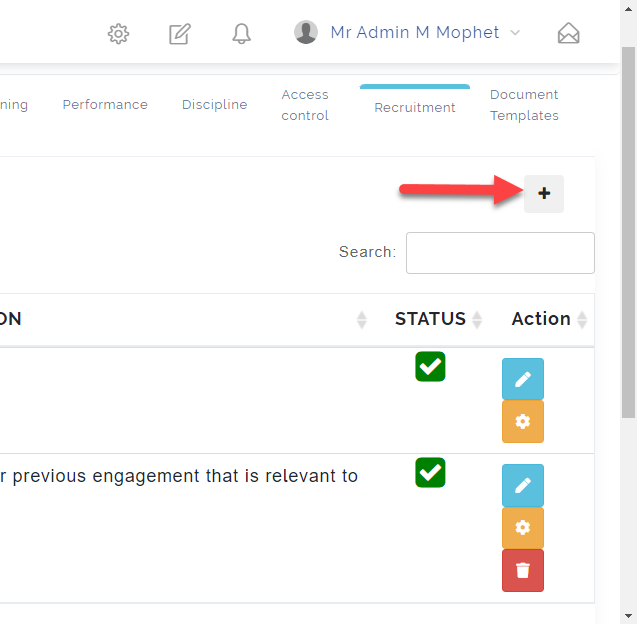
- This will open up a table where you can create the sections you have on the Application form. Click on the + button to add a New Form Section.
- A modal will appear showing the Application Section Form, Fill in the form with the required information.
i. Enter the Section Title (e.g. Previous Employment)
ii. Type in a brief description of the section you are creating
iii. In the Place holder, enter clues to guide the applicant in filling this section (e.g. Write in Block Letters).
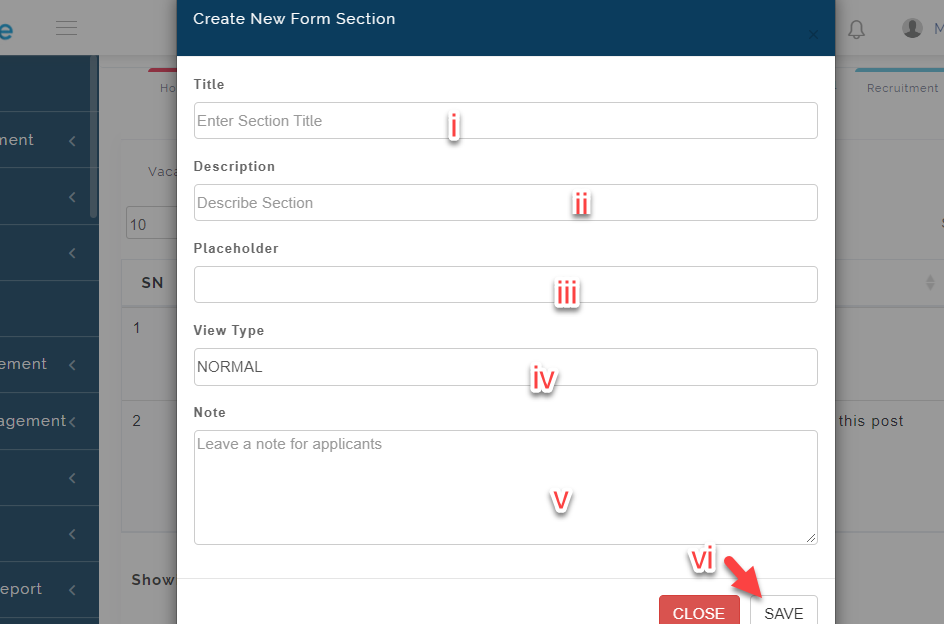
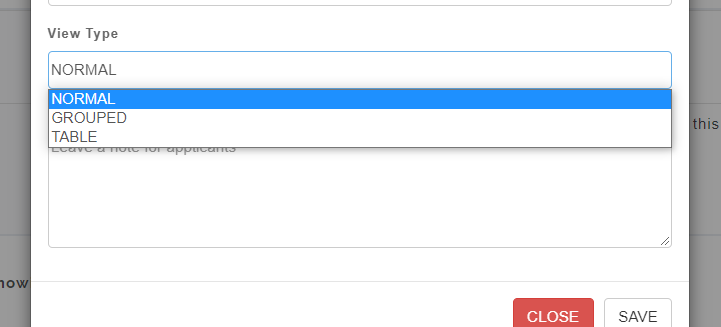
iv. The View Type shows the format you want the section to be written. (e.g. Normal, Grouped or Table format).
v. Leave a note for the applicant.
vi. Click on Save button when you are done or Close button to exit
- From the Action column, Click on the button as indicated in the image below to add contents to the sections you have created.
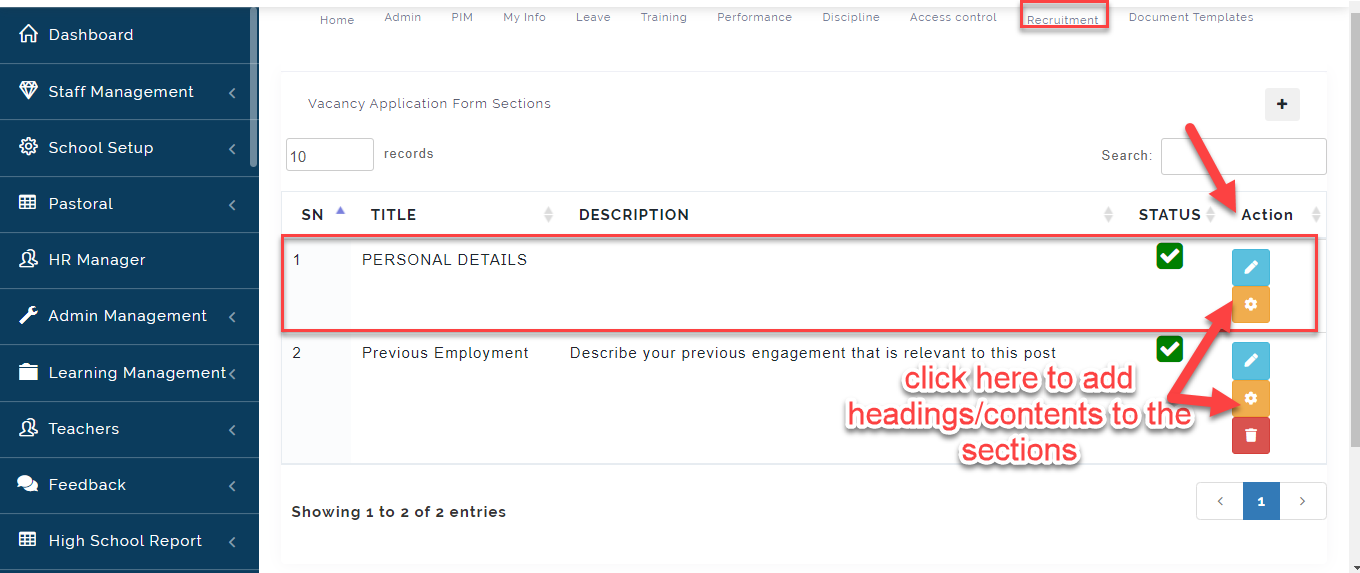
NOTE ON APPLICATION FORM
From the table, you can see that the Personal Details section does not have a delete button (This is because, it is a compulsory section in any application form; however, you can make changes to the content).
RESUME SETTINGS
This houses the resume template used by the school to populate information about the candidate after they have filled the application form.
The HR Manager can setup the resume template using information gotten from the applicants form to populate the resume of the candidate. To do this, kindly follow these simply steps:
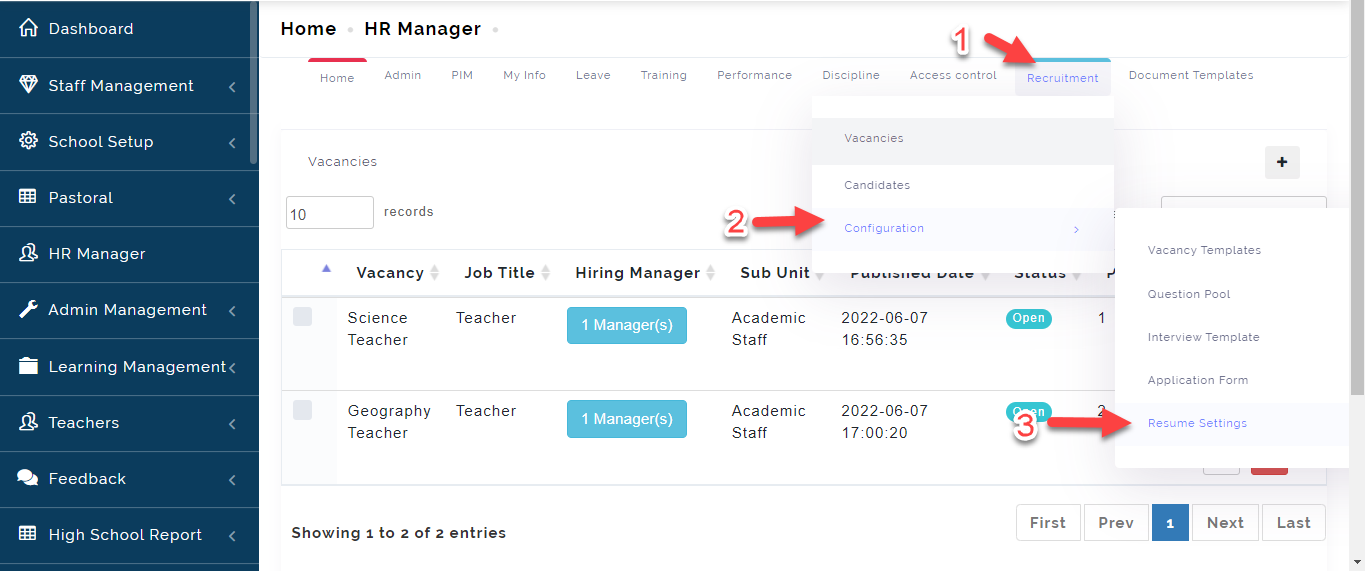
- Hover your cursor on Recruitment, A dropdown menu will appear, Select Configuration then click on Resume Settings.
-
Tick the box under the Status Column to active the template to be used for generating information from the application form.
-
Click on the edit button to setup resume for collating information.
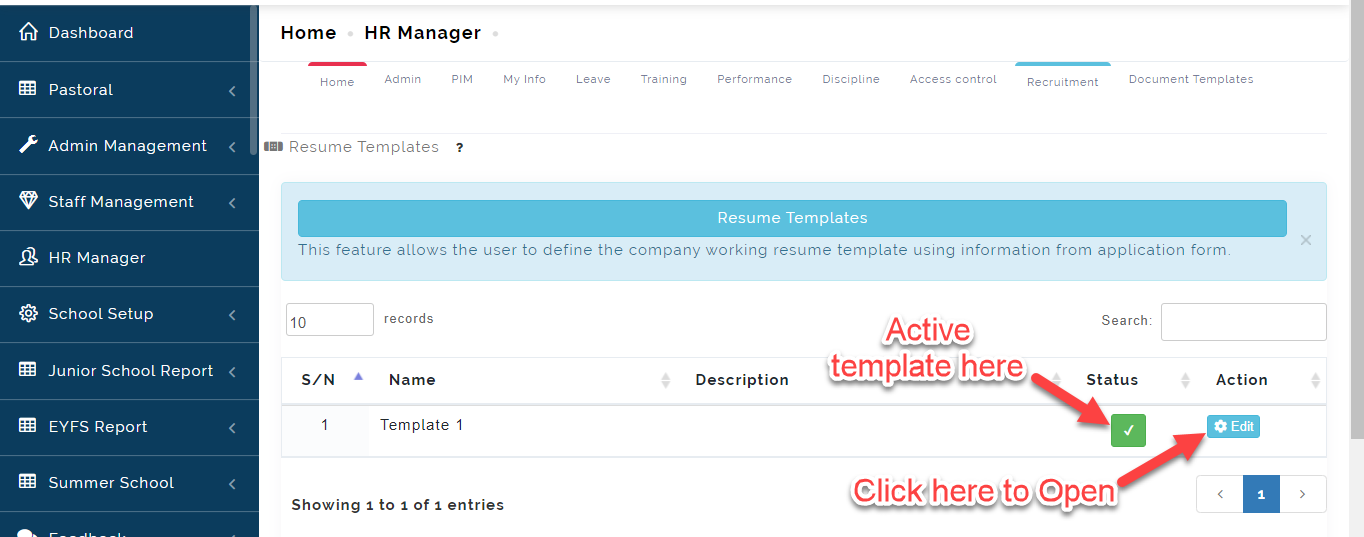
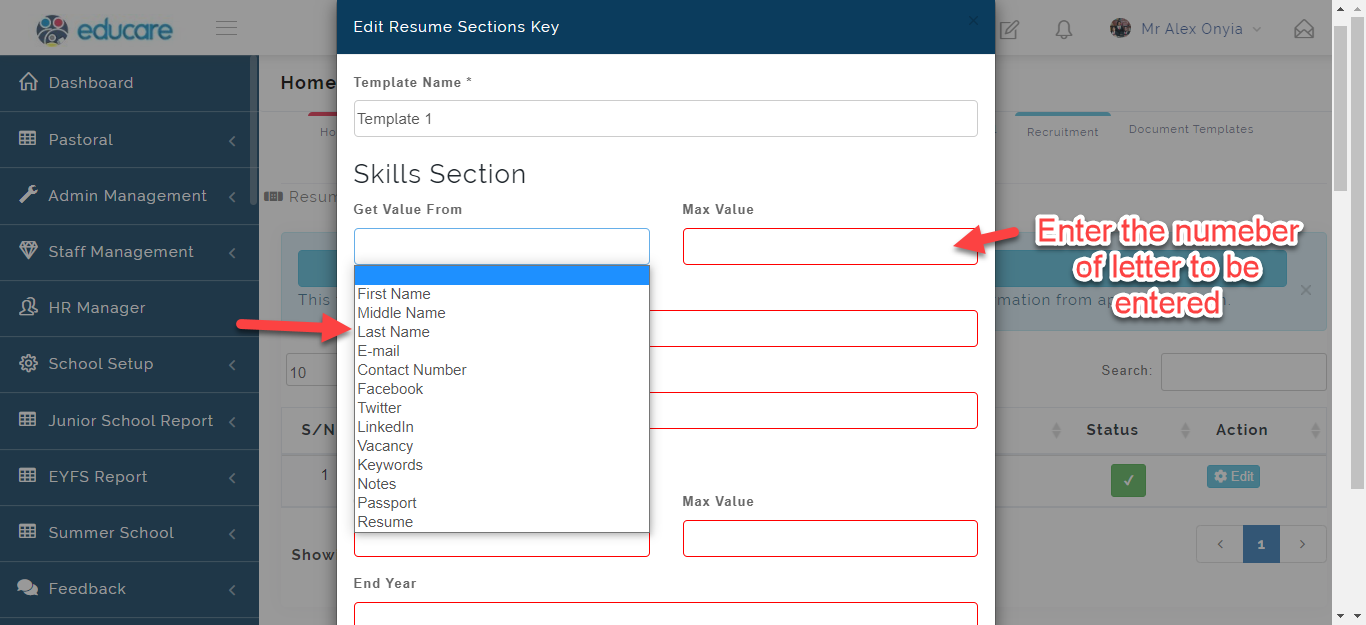
- A modal will appear, Fill in the required sections with fields from the application form where this information will be generated from.
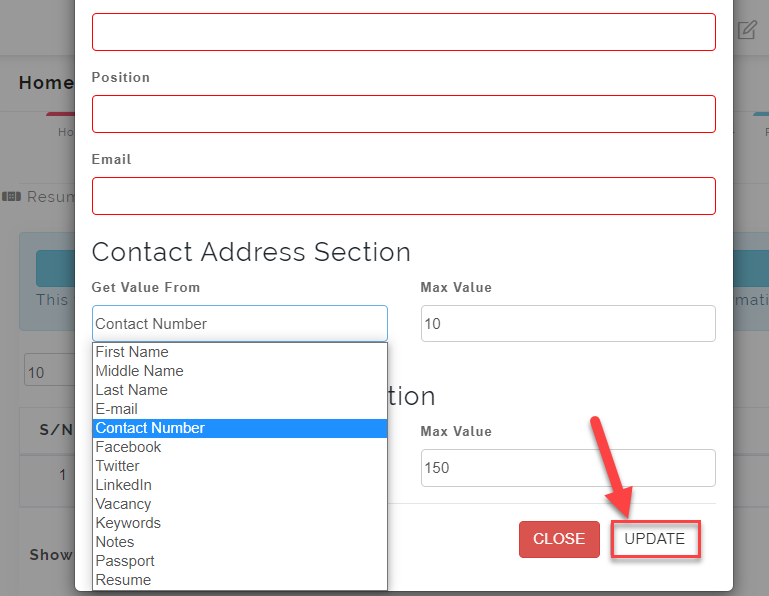
- Click on Update to effect changes and close to ignore.
INFO ON RESUME SETTING
- This feature allows the user to define the company' working resume template using information from application form.
- Information generated will form the resume of the Candidate.