
For Schools who have boarding section, this is where you set up the hostels you have in your school, assign hostel managers, hostel life comments, hostel life Grades, hostel life comment bank and result view settings if you issue hostel report on students behavior. In this section, I will be showing you how to setup all the features to manage hostel activities.
HOSTEL MANAGEMENT
Here, The admin can create different hostels you have in the boarding school, the rooms and capacity it can take. To make a new entry, do the following:
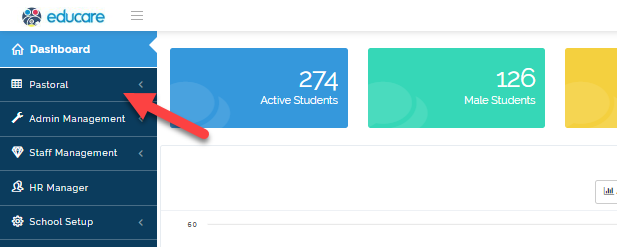
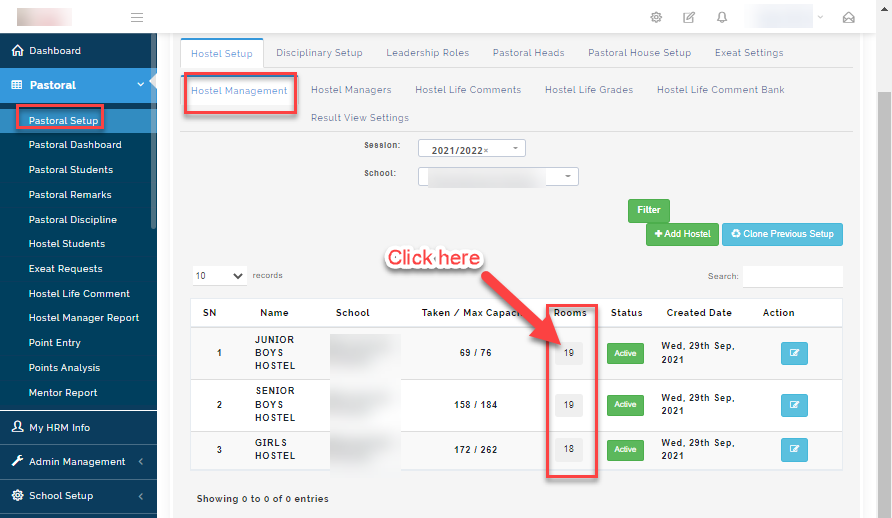
- Go to Pastoral module
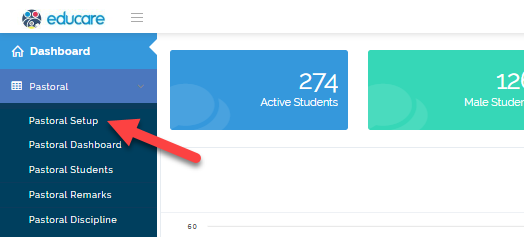
- Select Pastoral setup
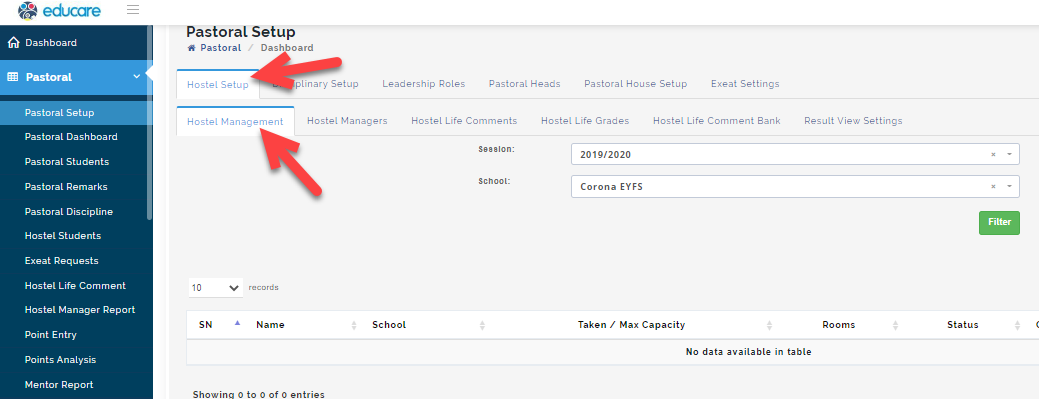
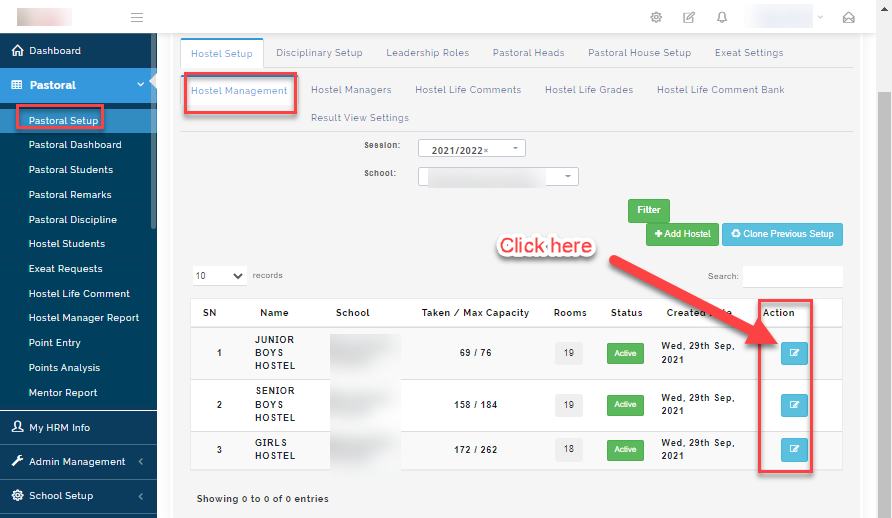
- Under the Hostel Setup, Select Hostel management
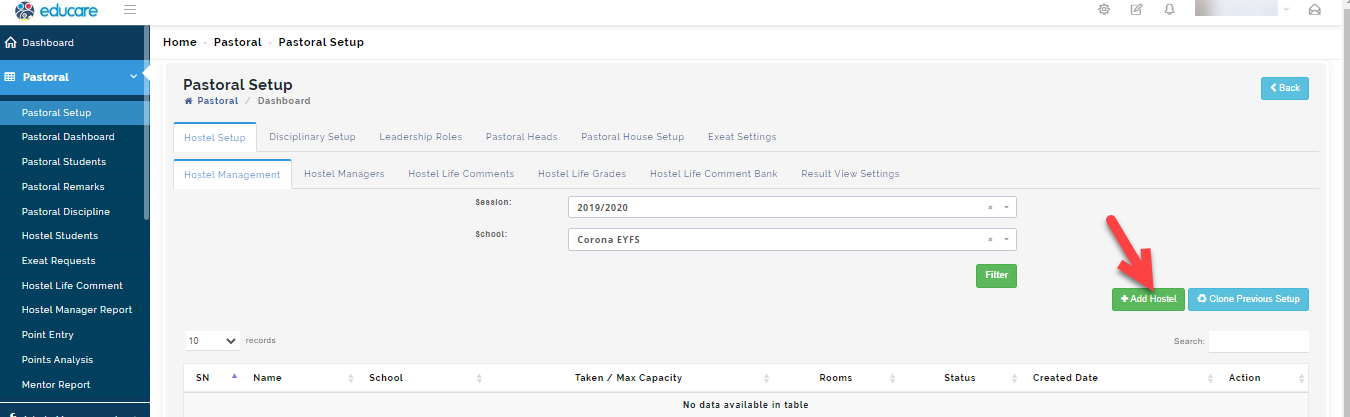
- Click on Add Hostel
- A modal will appear, Enter the Hostel name and Total number of person(s) it can accommodate under Hostel Capacity
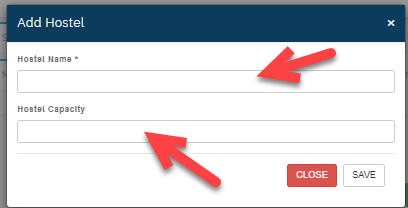
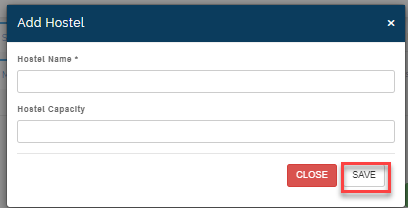
- Click on Save to effect entry and Close when you are done.
Step 2: How to Add Rooms to the Hostel
After creating the Hostel name, follow these steps to create the hostel rooms
- Under the rooms column, click on the text box for the room you want to add.
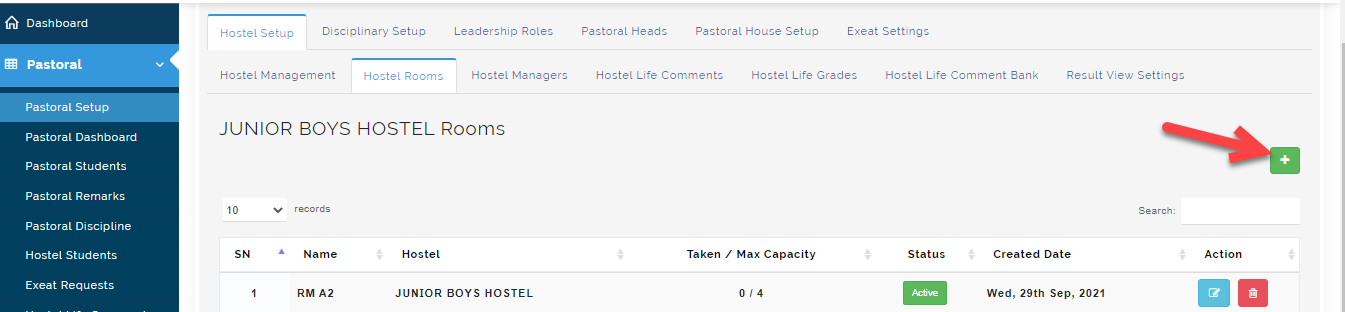
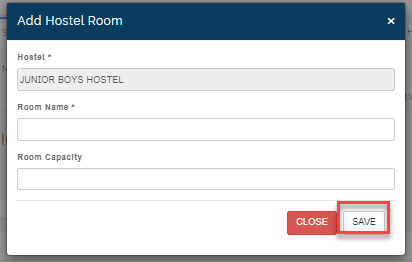
- Click on the + button to add the name of the room, number of person(s) it houses; then click on Save or close to ignore changes.
Info
As the the capacity of persons in a room adds, it reduces the hostel Maximum capacity. Once this is full, you will not be able to add more rooms except you increase the maximum capacity.
Step 3: How to Edit a Hostel
To edit a hostel information, Click on the edit button as seen below
A modal will appear
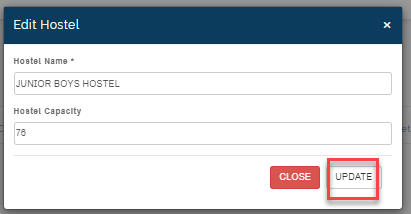
Make changes and click on Update to save changes or close to ignore changes.
Step 4: To Clone previous setup
Cloning previous setup allows you to replicate work done in a previous session to the current session of choice.
To Clone Previous hostel management setup, follow these simple steps:
- Click on "clone previous setup" button
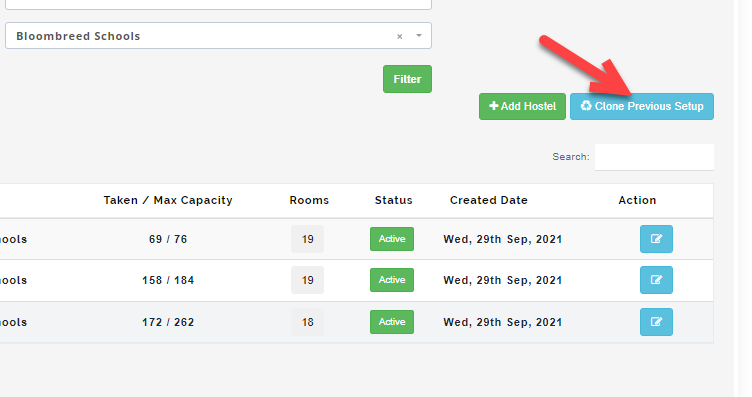
- Select the session you want to clone from then, under clone setup to option, Select the current session you want the content of the previous session to have and click on Start Cloning
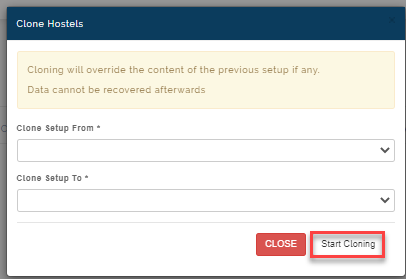
When cloning is done, hostel management information created in the previous session setup will appear on the chosen session.
HOSTEL MANAGERS
Here, the admin can add hostel parents to the portal. Follow these steps to add it correctly.
How to add Hostel Managers
- Go to Pastoral Module
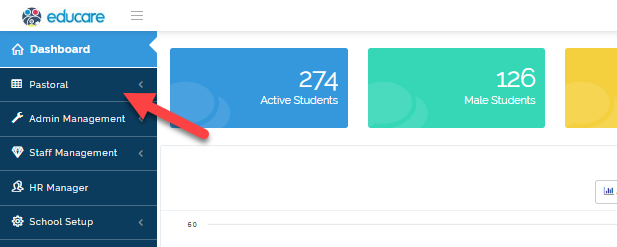
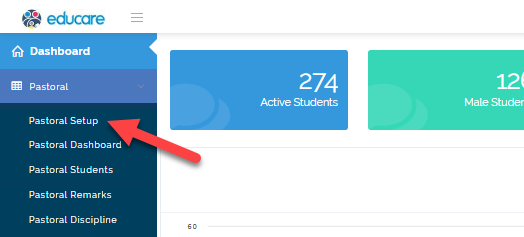
- Select Pastoral Setup then click on Hostel Setup Tab
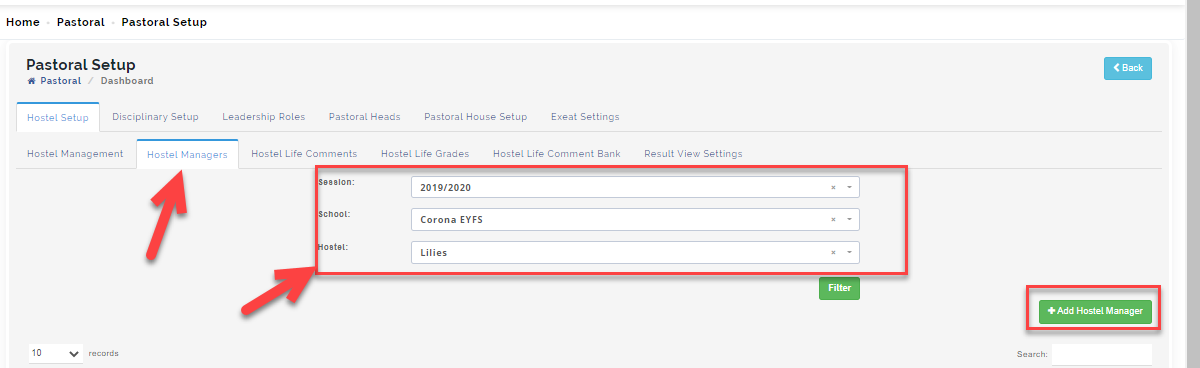
- Navigate to Hostel Managers, Select the session, School and hostel the select +Add Hostel Manager.
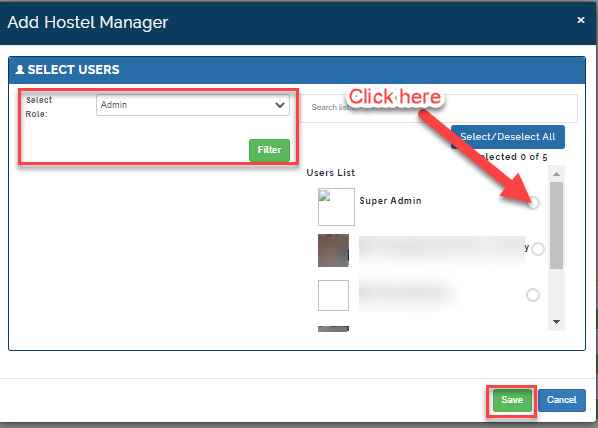
- A modal will appear; Select the role of the person you want to assign hostel manager to and click on filter.
The names of the people attach to selected role will appear on right under Users List.
Search or Select the name of the people you want to add as hostel managers.
Click on save or cancel to ignore.
How to view and assign Head of Managers/ Security
To view Hostel Managers, follow these steps:
- Go to Pastoral Module
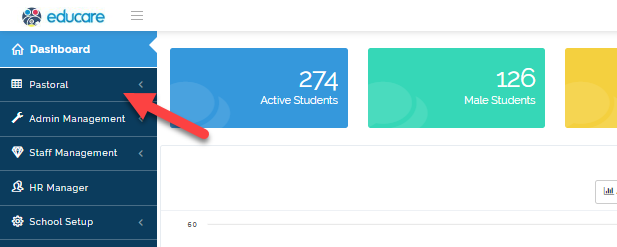
- Select Pastoral Setup
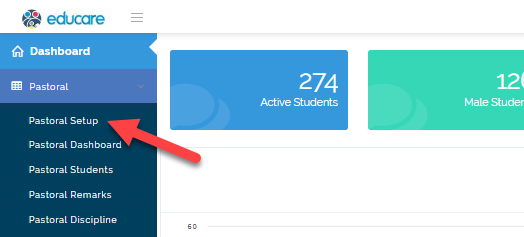
- Click on Hostel Setup then select Hostel Manager then Select the session, school and school you want to view and click on Filter.
A table showing the list of Hostel Manager created will appear.
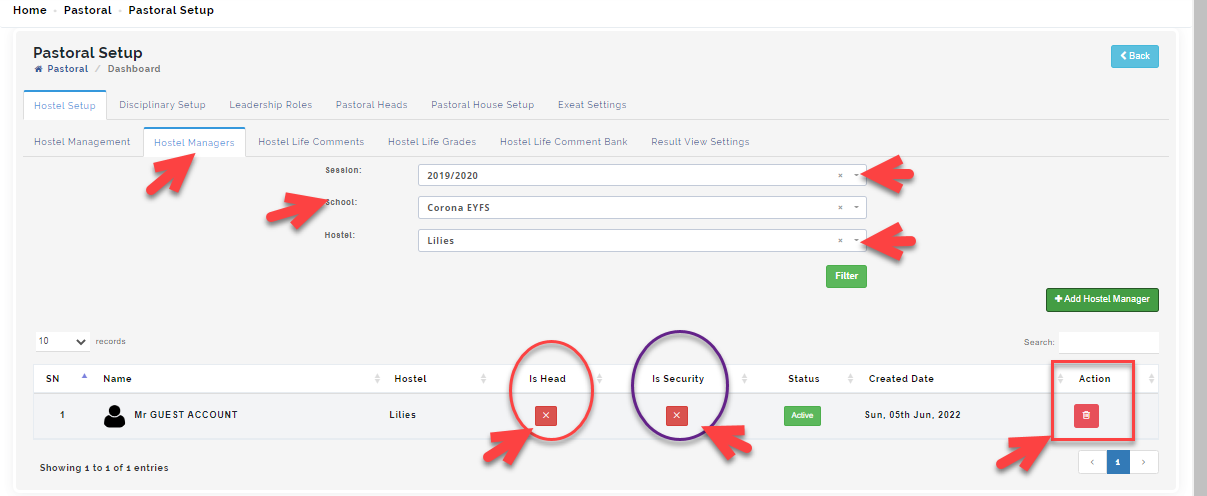
i. Tick Is head button to different Head of Hostel Managers from others on the list.
ii. Under the Action button, click on the delete button to remove an individual from the list.
iii. The Status active means that the individuals assigned are actively registered on the system. Toggle button from active to inactive when the user should not have access to this function for a period of time.
KEYNOTE
When adding hostel managers to the list, include the security officers to the list and click on Is security for the system to identify them as security agents.
The Security officers will be able to see the names of students whose exeat request was approved and grant them access to leave the school premises.
HOSTEL LIFE COMMENT
If your school gives out hostel performance report, this is where you create the assessments areas that the students are graded on. you can also clone previous set up done in the last session to the current if it is the same for all sessions.
Step 1: How to create a comment
To create a comment, follow these simple steps:
- Go to the Pastoral
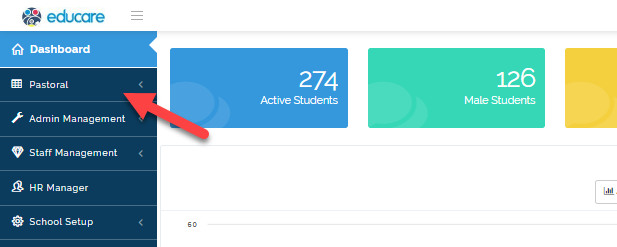
- Select to Pastoral setup
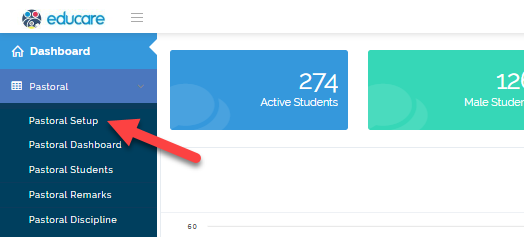
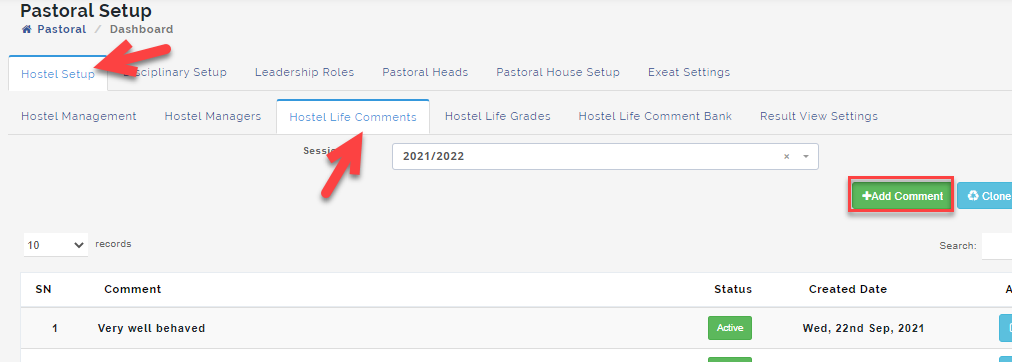
- Click on Hostel Setup, Select "Hostel life comments" tab then Click on +Add comment
A modal will appear
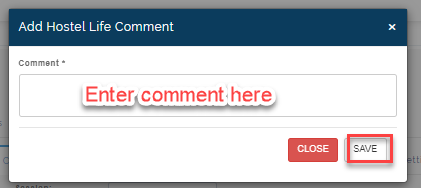
Enter the comment in the text box provided and click on Save or close to ignore.
Step 2: How to View, edit and delete Life comment
To view life comments follow these simply steps:
- Go to the Pastoral
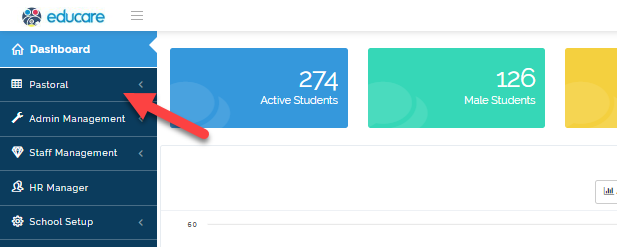
- Select to Pastoral setup
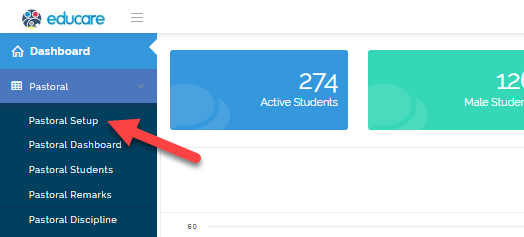
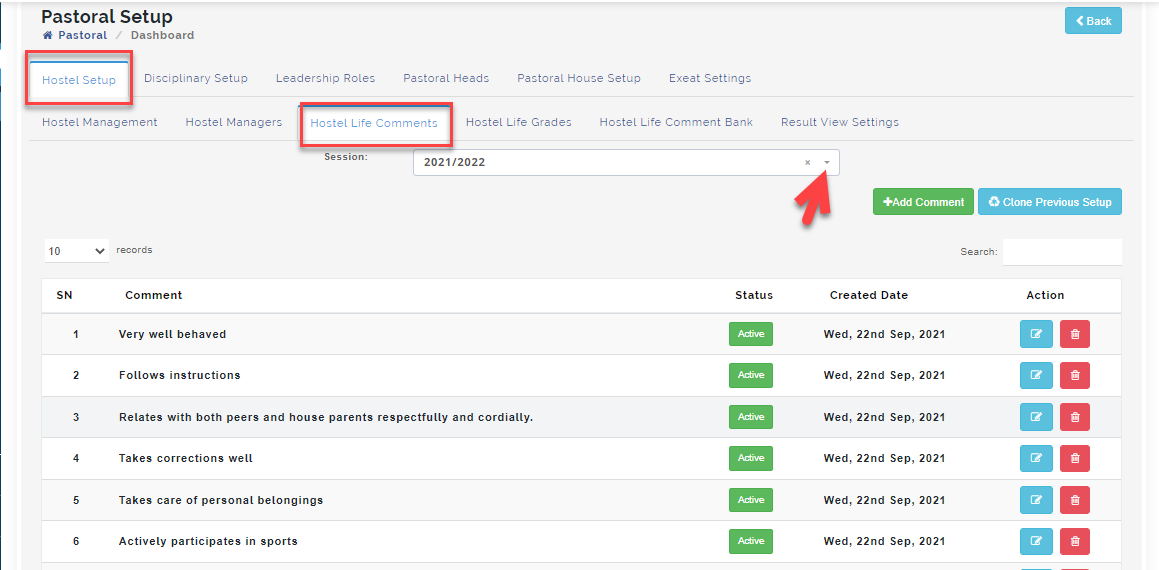
- Click on Hostel Setup, Select "Hostel life comments" tab Select the session you want to view.
You will see the list of comment(s) appear in the table.
- Click on the edit button to make changes to a comment you have created and Click on the delete button to remove a comment from the list
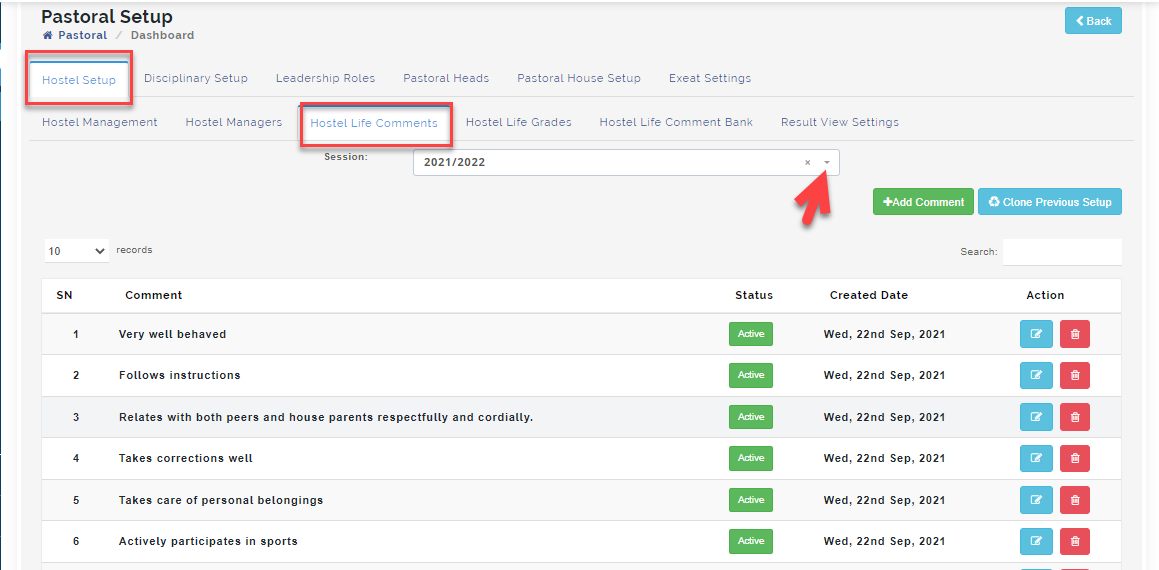
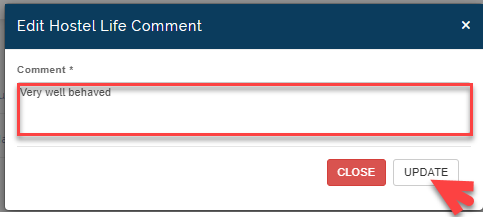
Enter the changes you want to make in the comment box and click on update to effect changes and close to ignore
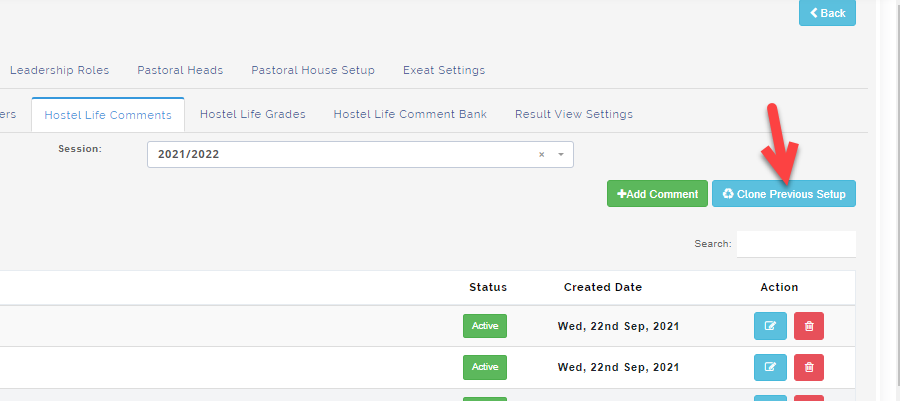
How to Clone Hostel Life previous comment Set up
- To Clone previous hostel life comment setup, Click on the "Clone previous comment" button
- Select the session you want to clone from. Under clone setup to option, Select the current session you want to implement and click on Start Cloning and close to ignore.
When cloning is done, hostel Life comments created in the previous session setup will appear on the chosen session.
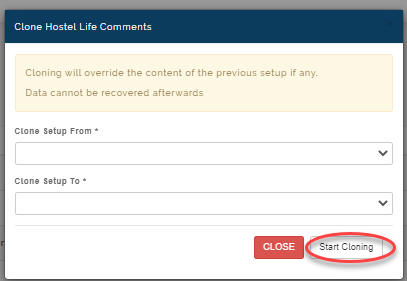
Please note
Cloning will override the content of the previous setup if any.
Data cannot be recovered afterwards
Hostel Life Grades
This is where the admin sets up the key to grade for the assessment areas.
To set up Hostel Life Grades, follow the following steps:
- Click on the Pastoral Module
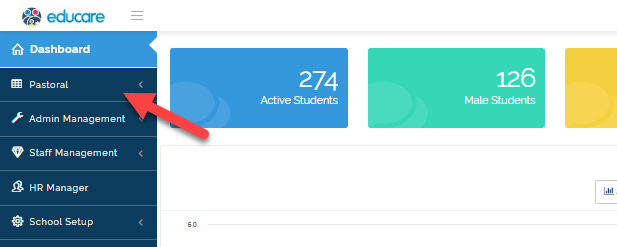
- Select Pastoral Setup. Click on Hostel setup then select the hostel life Grades.
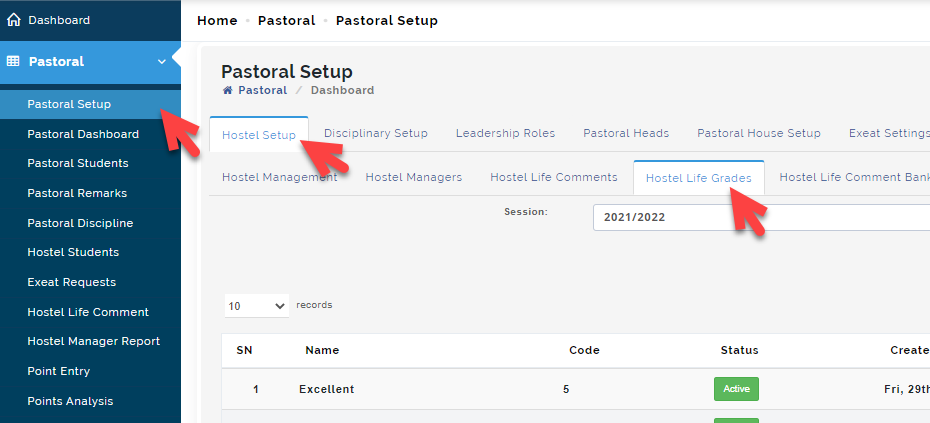
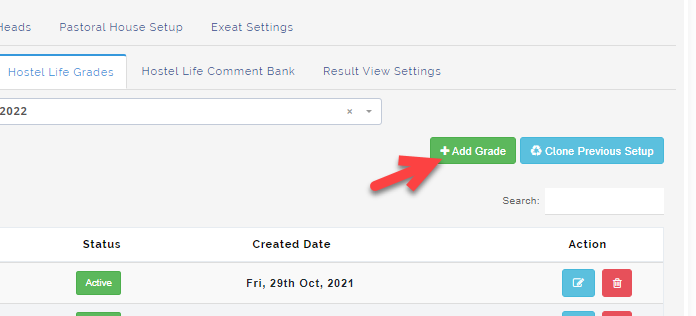
- Click on "+Add Grade"
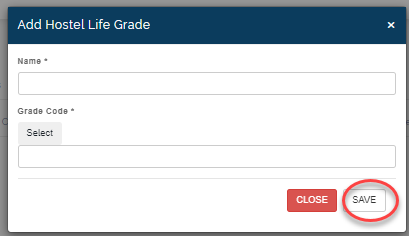
- A modal will appear, Enter the name of the grade for example: Excellent, Distinction, Good etc.
Enter the code for the grade name you are creating (e.g. A, B or C) and click on Save or close to exit
How to View, edit and delete a grade
To view a grade follow these simple steps:
- Go to the Pastoral
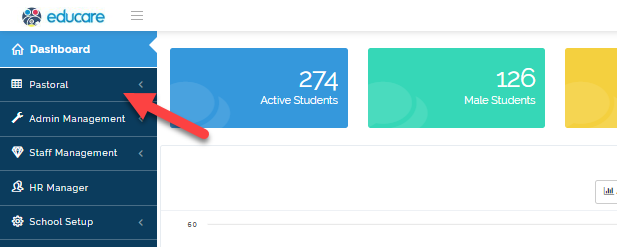
- Select Pastoral setup
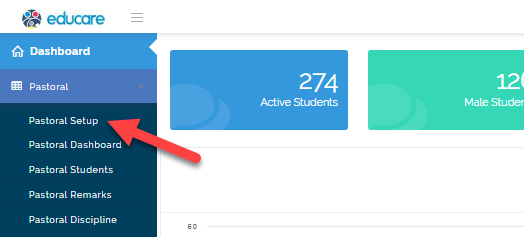
- Click on Hostel Setup; Select "Hostel life grades" tab then Select the session you want to view.
You will see the list of grades appear in the table.
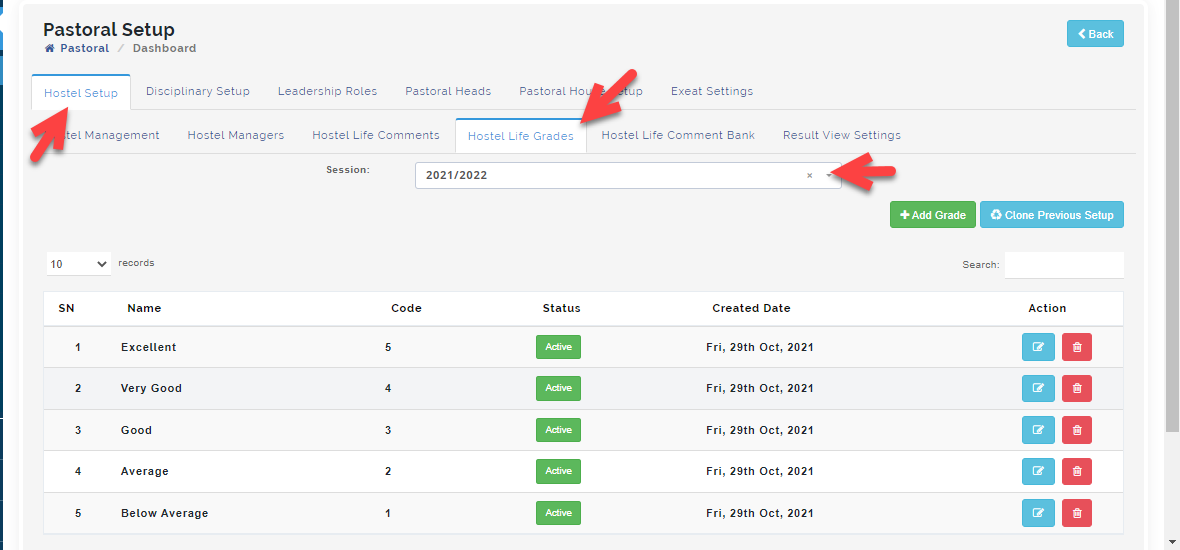
- Click on the edit button to make changes to the grade name.
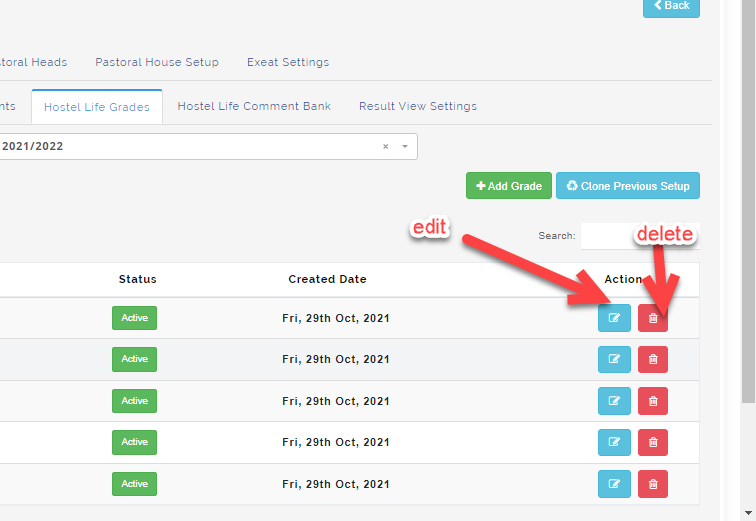
A modal will come up as seen in the image below; Click on Update after making the changes to the name and Grade code and Close to ignore.
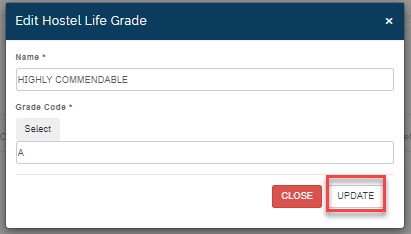
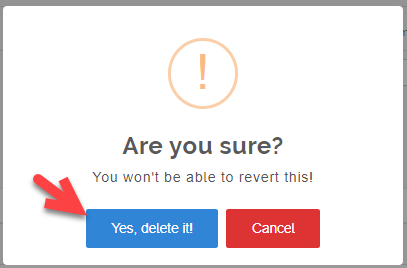
- To Delete a Grade, click on the Delete icon as seen above. click on "Yes, Delete it!" to confirm and Cancel to ignore.
How to Clone previous Hostel Life Grade
To Clone previous hostel life grade setup, follow steps below:
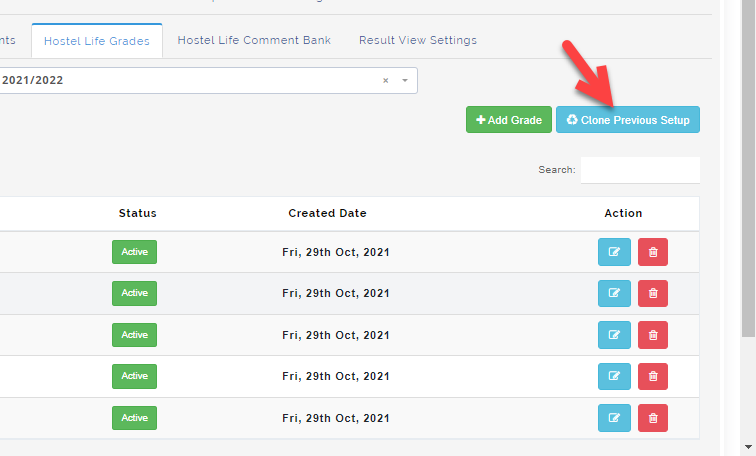
- Click on the "Clone previous setup" button.
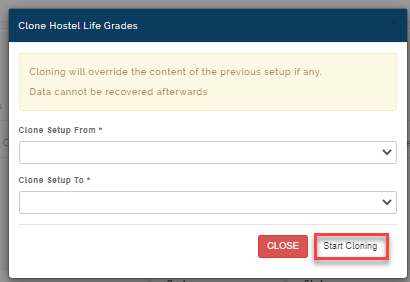
- Under Clone Setup from, Select the session you want to clone from and under Clone setup to option, Select the current session and click on "Start cloning" then close to ignore
When cloning is done, hostel Life grade setup created in the previous session will appear on the chosen session.
Kindly note
Cloning will override the content of the previous setup if any.
Data cannot be recovered afterwards
HOSTEL LIFE COMMENT BANK
The hostel life comment bank contains a list of remarks used by the pastoral heads on hostel student report. The admin in this section can create comments which will form as part of the remarks chosen by the pastoral head when making hostel report.
To create hostel life comment, follow these simple steps:
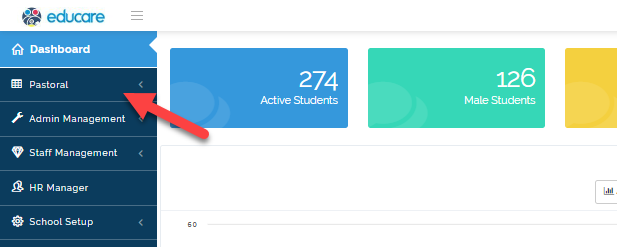
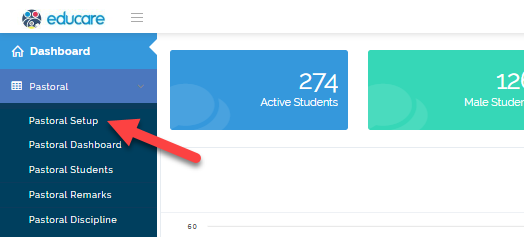
- Go to the Pastoral Module, Select Pastoral Setup
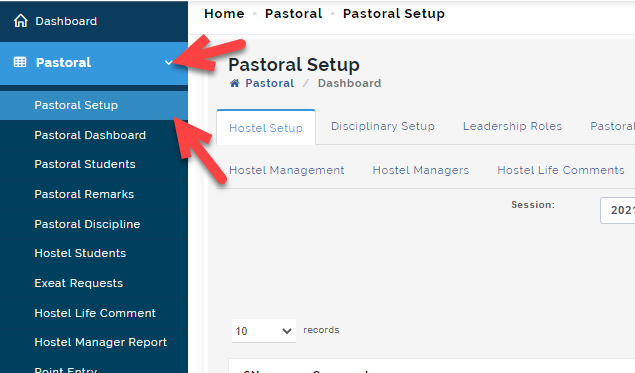
- Click on Hostel Setup, then select hostel life comment bank and Click on +Add comment
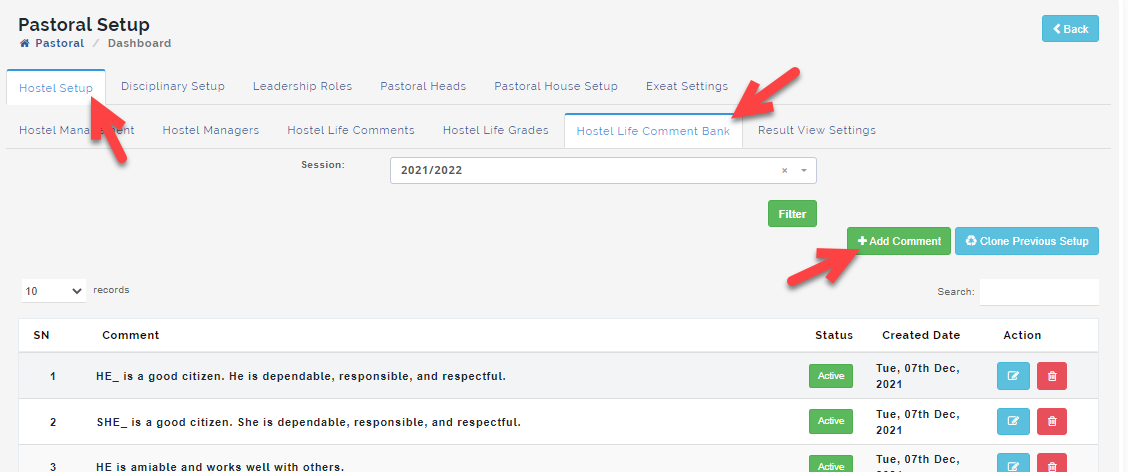
- A modal will appear, Enter the comment in the textbox as seen above and click on Save when done and Close to ignore
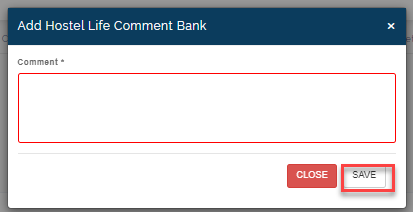
How to view, edit and delete Hostel life comment bank
- Go to the Pastoral
- Select to Pastoral setup
- Click on Hostel Setup, Select "Hostel life comment bank" tab, Select the session you want to view and click on filter.
You will see the list of comments appear in the table
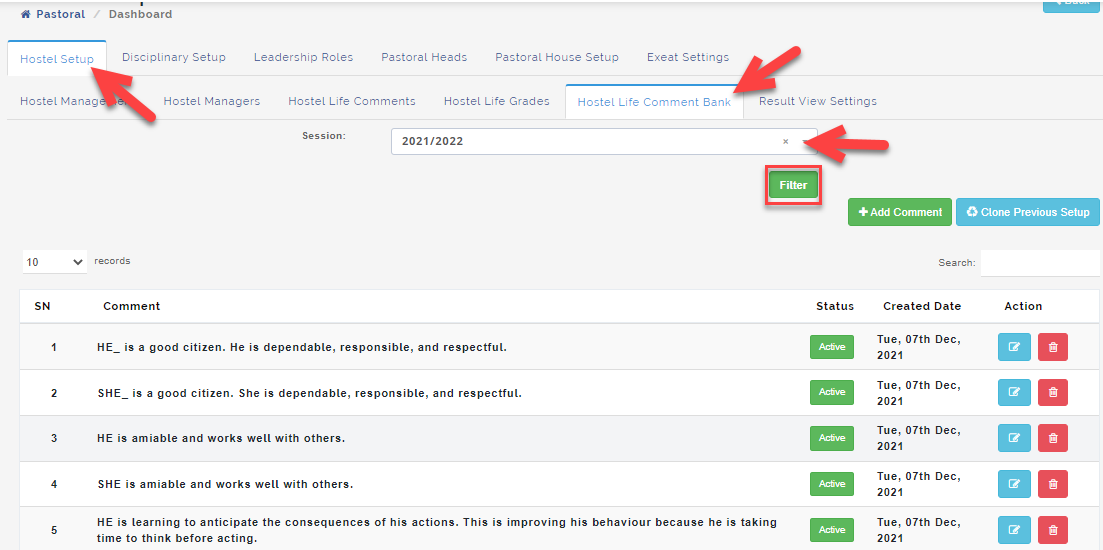
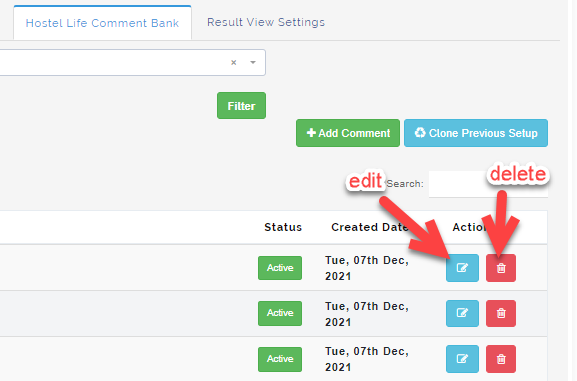
- To edit comment, click on the edit button.
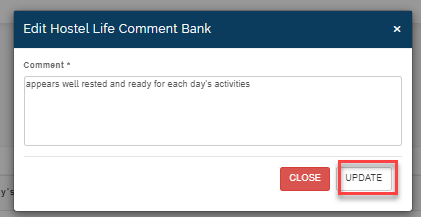
- A modal showing the comments will appear; Make your corrections in the textbox and click on UPDATE
- To Delete a comment, click on the delete button as seen above.
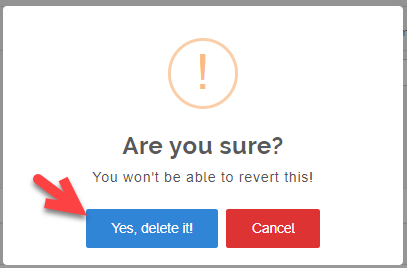
Click on "Yes, delete it!" to confirm or Cancel to ignore.
How to clone previous hostel life comment
- To Clone previous hostel life comment setup, Click on the "Clone previous setup" button.
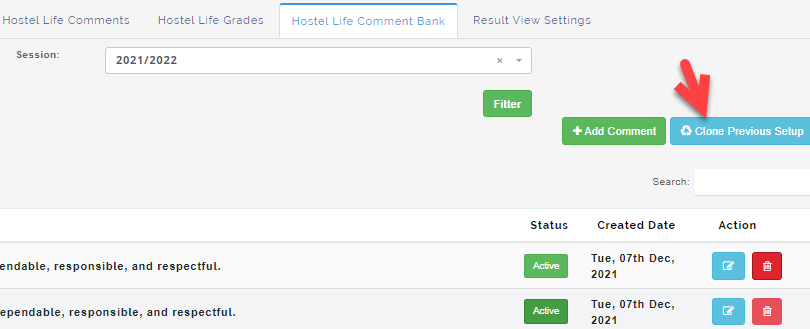
- Select the session you want to clone from under Clone setup From option and under clone setup to option, Select the current session you are in then click on "Start cloning"
When cloning is done, hostel Life comment setup created in the previous session will appear on the chosen session.
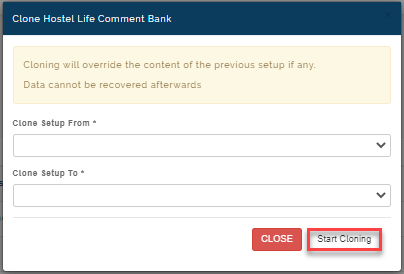
Click on Close to ignore.
Kindly note
Cloning will override the content of the previous setup if any.
Data cannot be recovered afterwards
RESULT VIEW SETTINGS
This is where the admin can implement the point system on the hostel report. If merit and demerit points appear on the report, the admin can enable it to be seen on the report by following these simply steps:
- Go to the Pastoral Module, Select Pastoral Setup
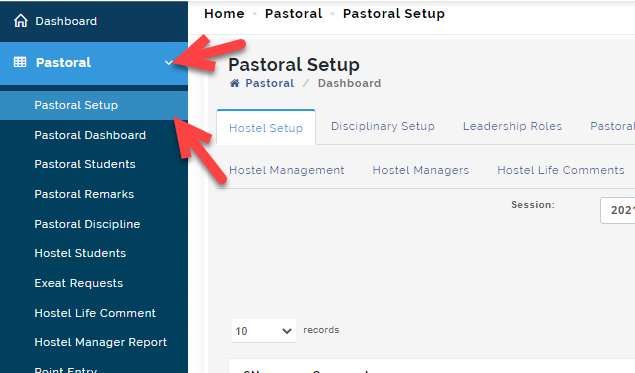
- Click on Hostel Setup, then select Result view settings Tab.
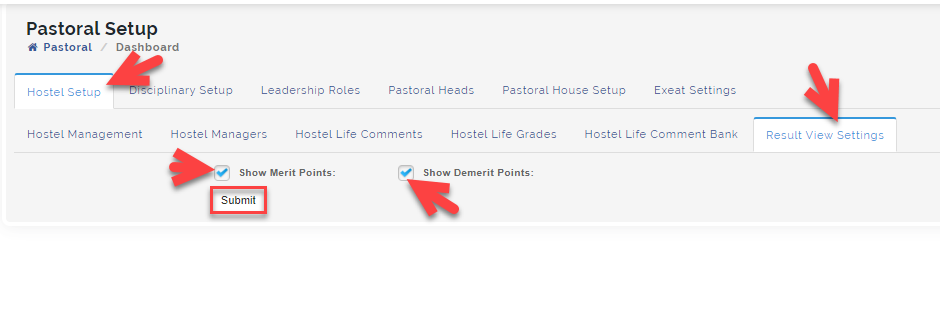
If merit and demerit points appears on your school hostel report, tick the box for the point that appears then click on Submit to save result settings. After this is done, it will appear in the student report under Hostel life comment once it is published.