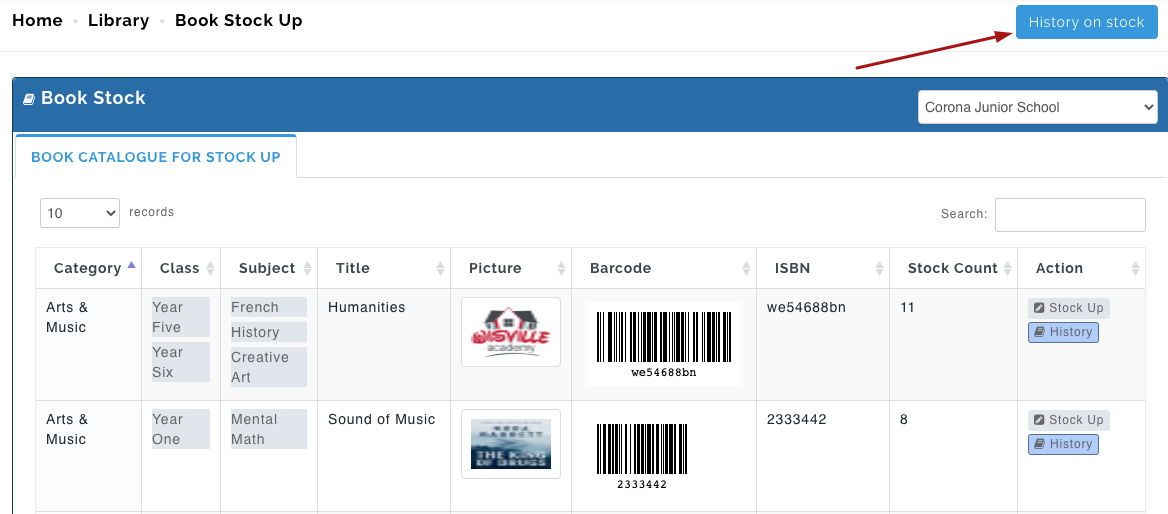
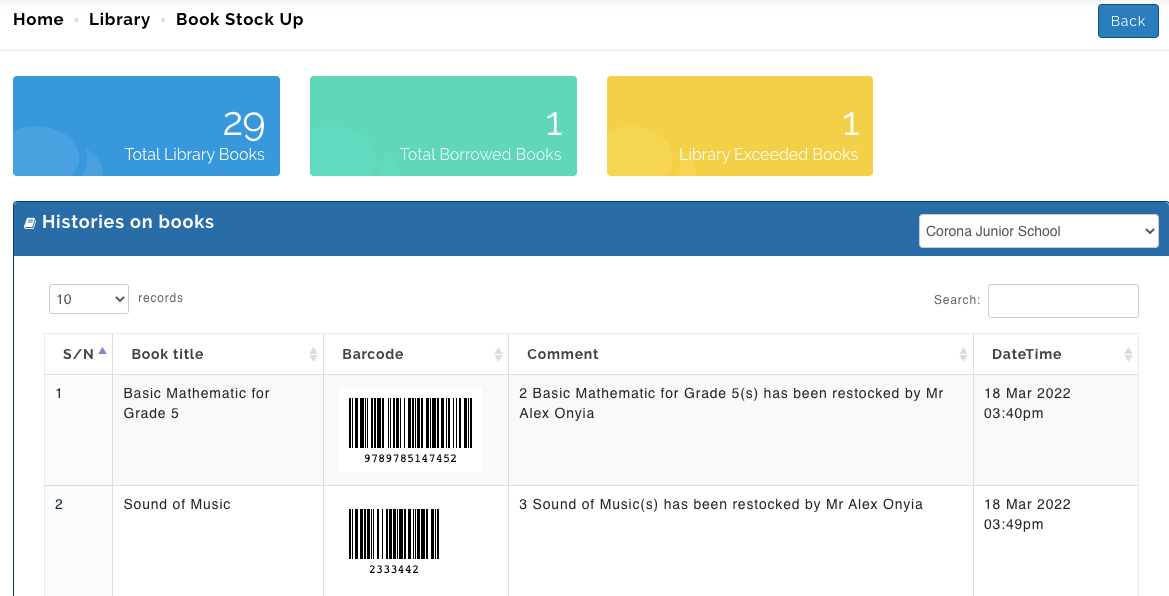
This shows all available book and the number of copies that have either been added or taken out. Book stock up is solely used to update number of copies of physical books in the school's library.
The steps below shows how to stock up physical books from school library. Book stock up could be addition or reduction of copies of physical books
To Stock up books in the library follow these steps:
- Go to the Library Module
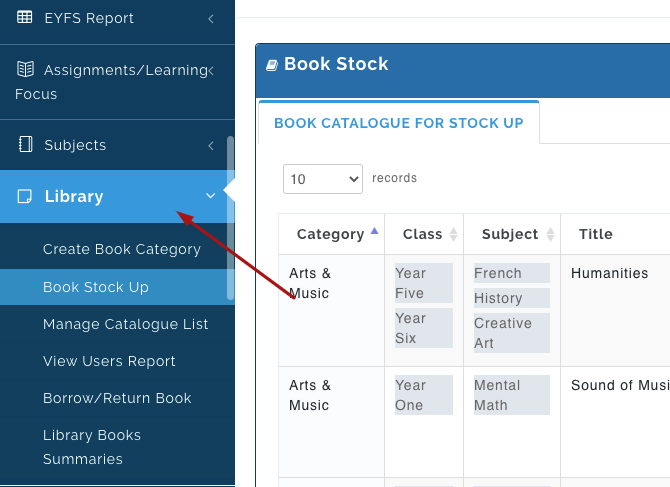
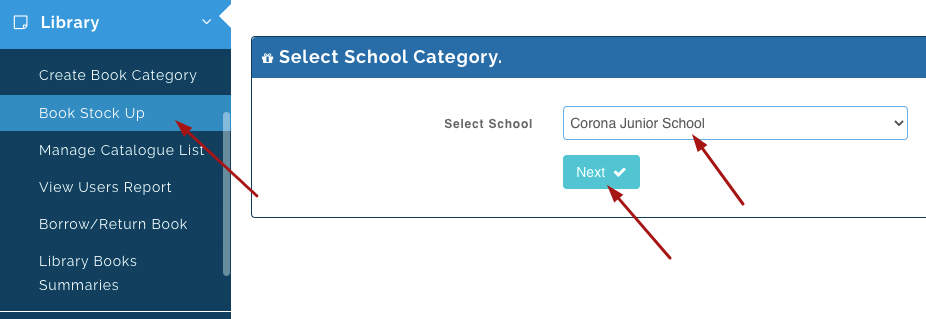
- Select Book Stock Up, then select the school you want to add books for, click Next
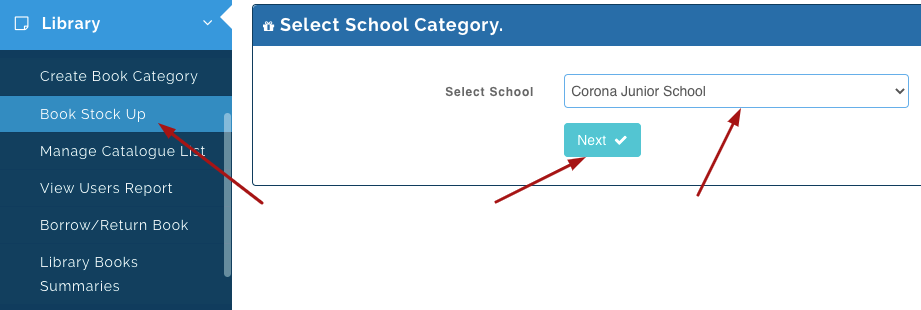
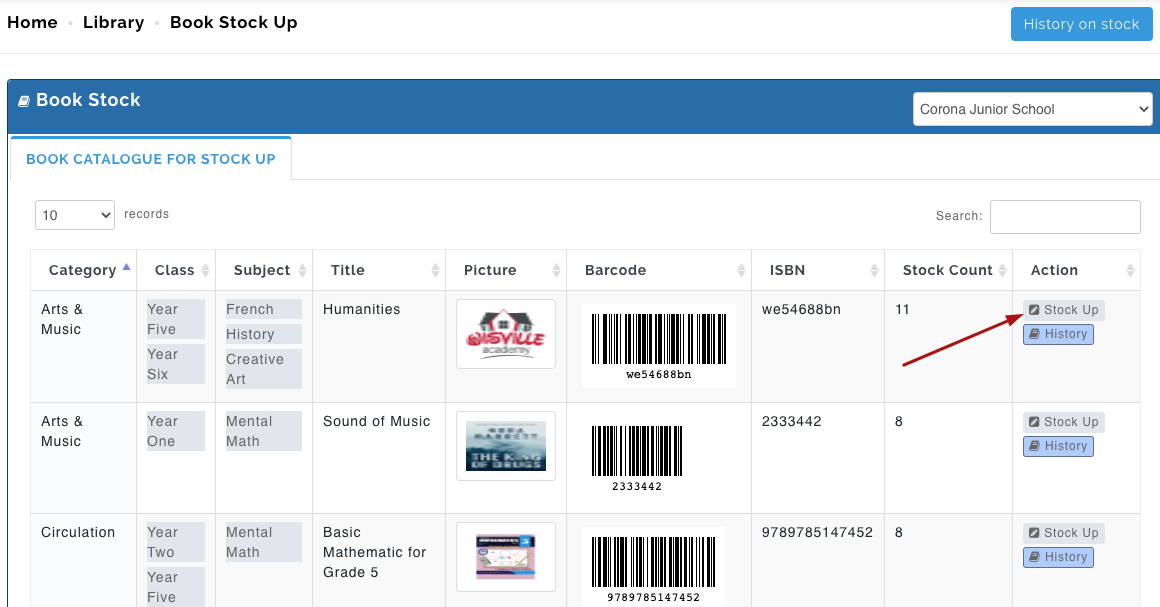
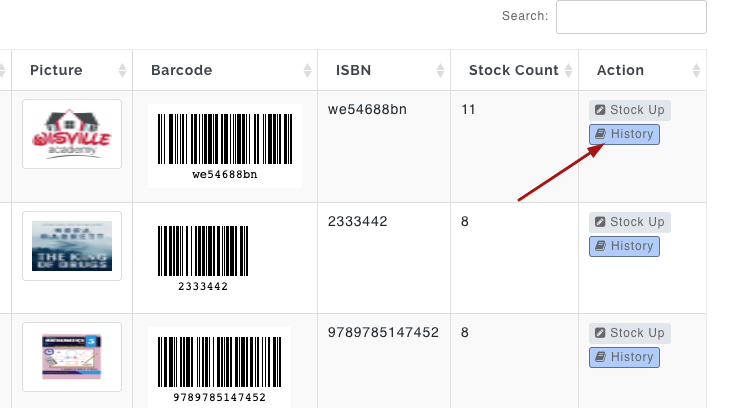
- A list of all available hard copy books will appear, click on stock up button under the action column
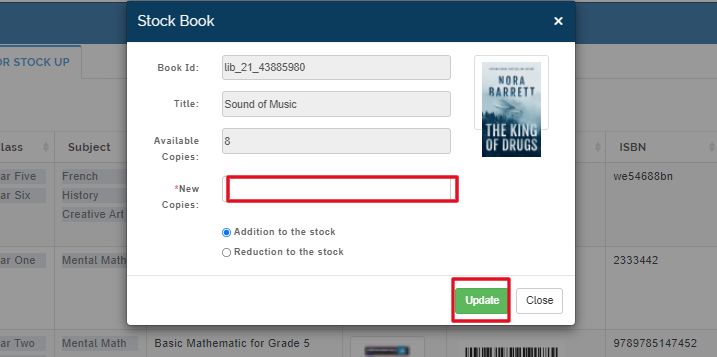
- A modal will appear, enter the number of copies you want to add and enable the Addition to stock button and click on Update.
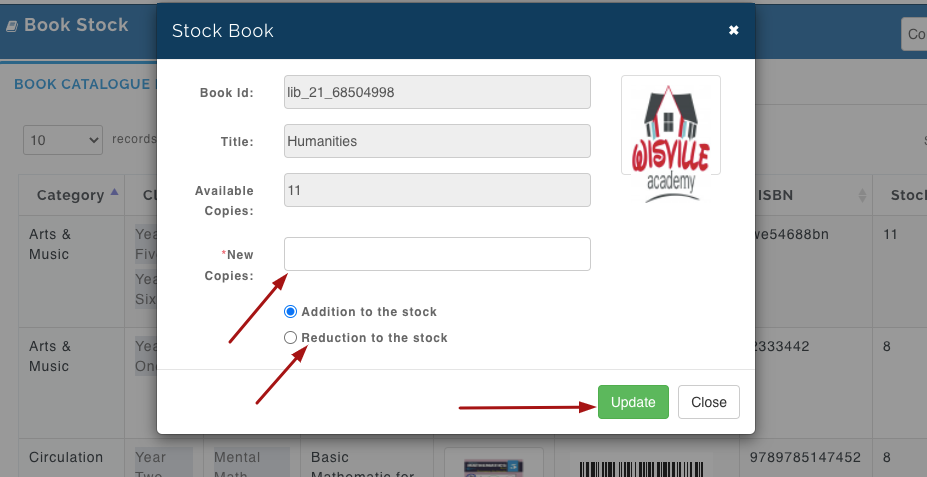
N/B: For reduction of book in stock, Enter the number of copies you want to remove and select the Reduction to stock button; then Click on Update.
How to View History of Book Stock
To View the history of your book stock follow these simple steps:
- Go to the Library Module
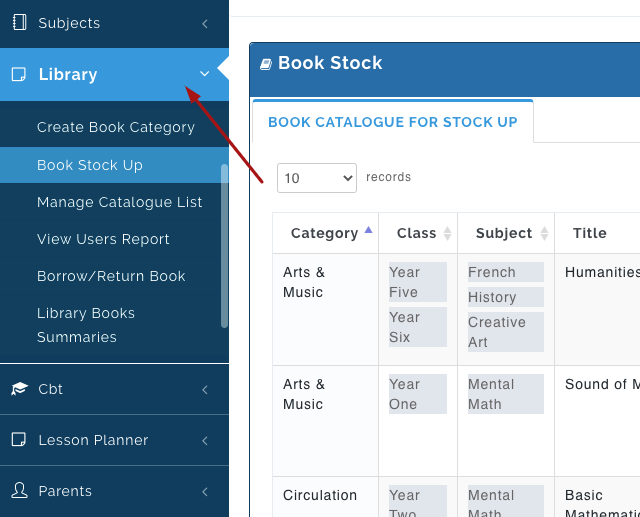
- Select Book stock up, then select the school you want to add books for, click Next
- A list of all available hard copy books will appear, click on History under the action column to view recent additions and reduction to the book you want to access.
- A modal will popup showing remarks with date and time.
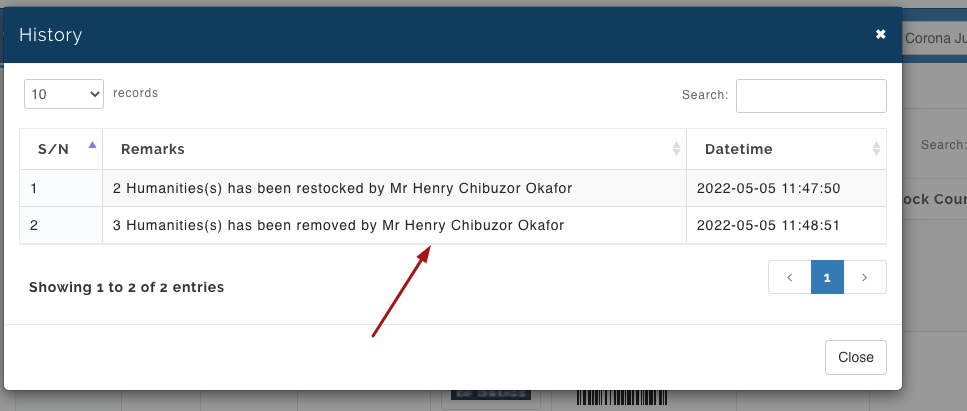
Book Stock up history
- To View the history on all Books at a glance, Click on History on Stock