
Here is where students access the different Test created by teachers
FOLLOW THE SIMPLE STEPS BELOW TO TAKE A TEST
Step 1:
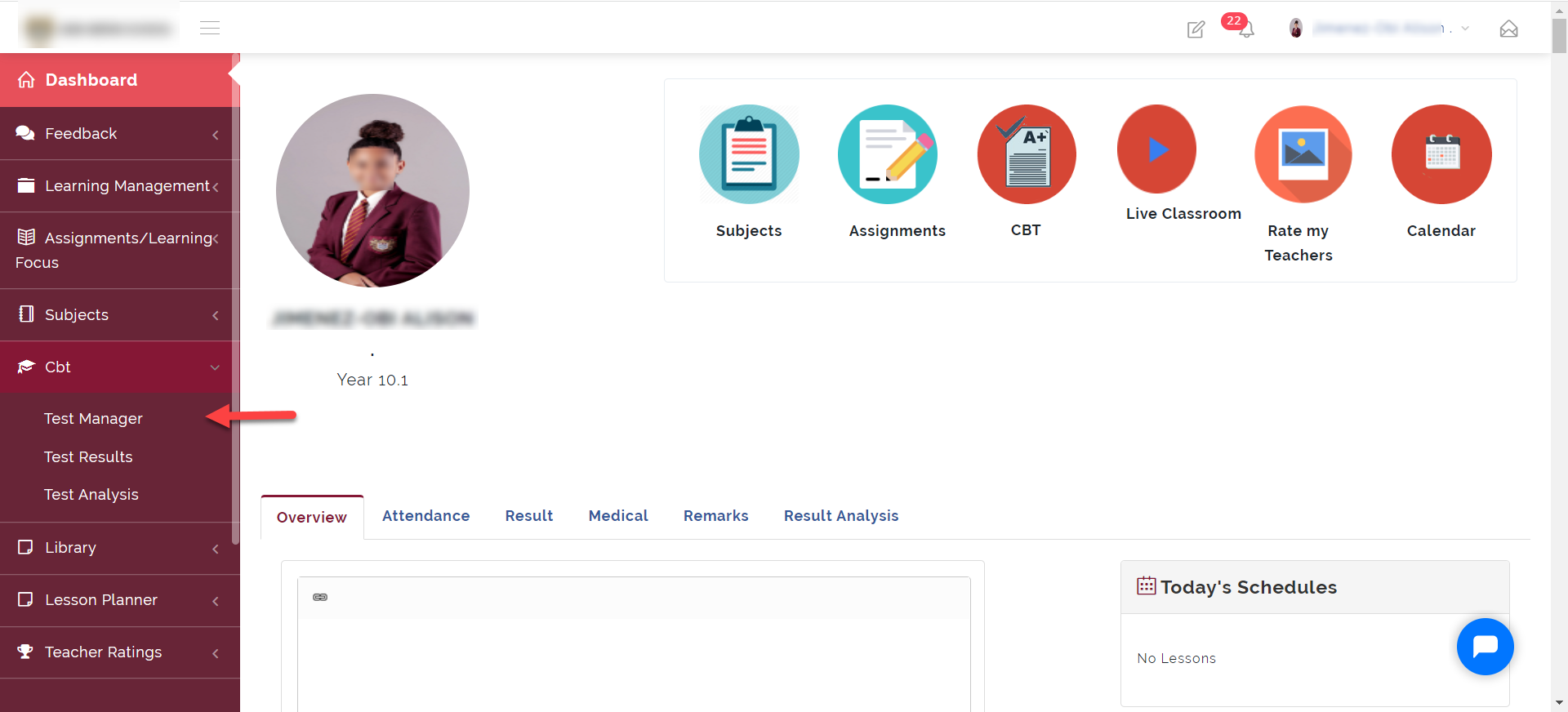
As indicated in the picture below, click on the “CBT” dropdown then select “Test Manager”
Step 2:
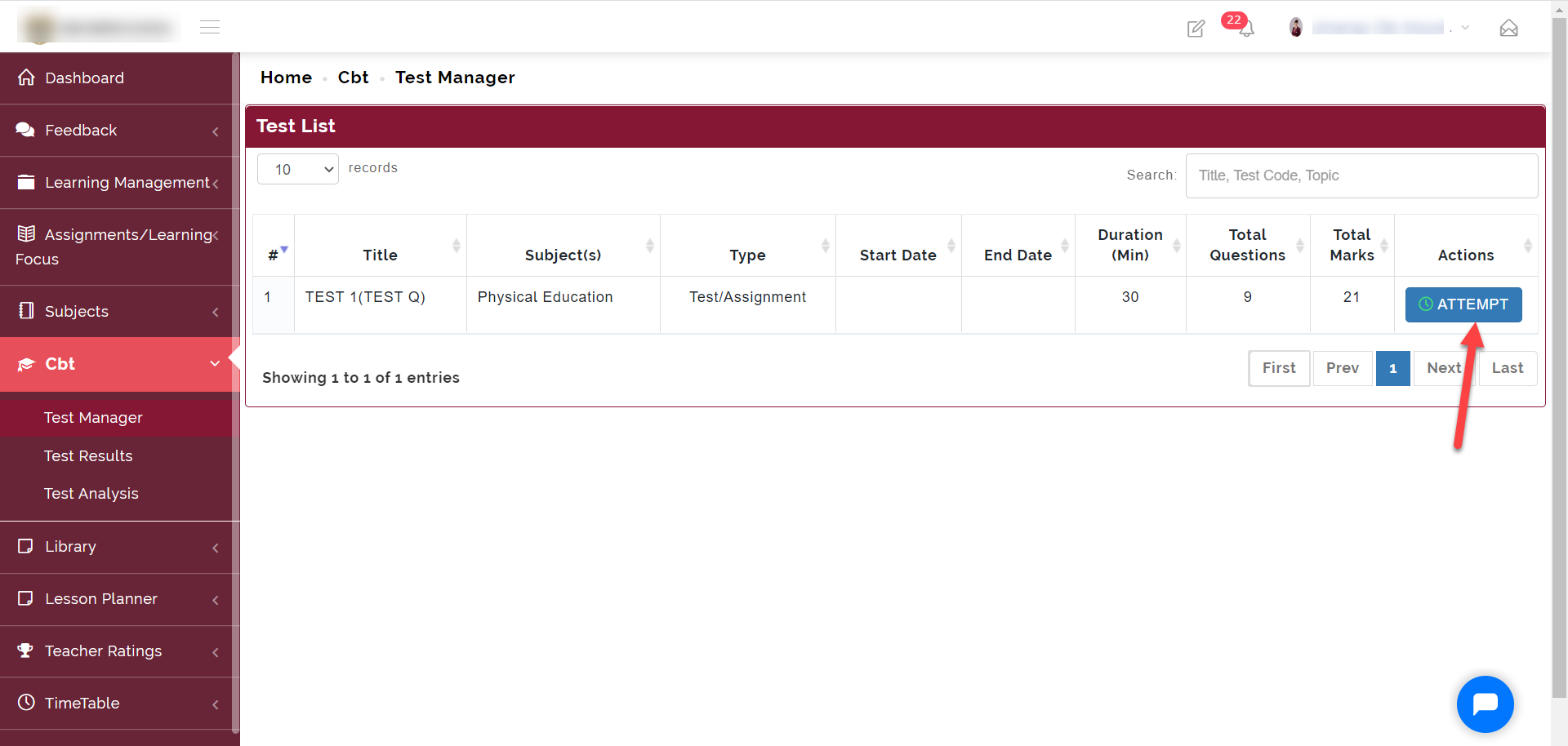
To attempt a test, click on the ATTEMPT button as indicated in the picture below.
Step 3:
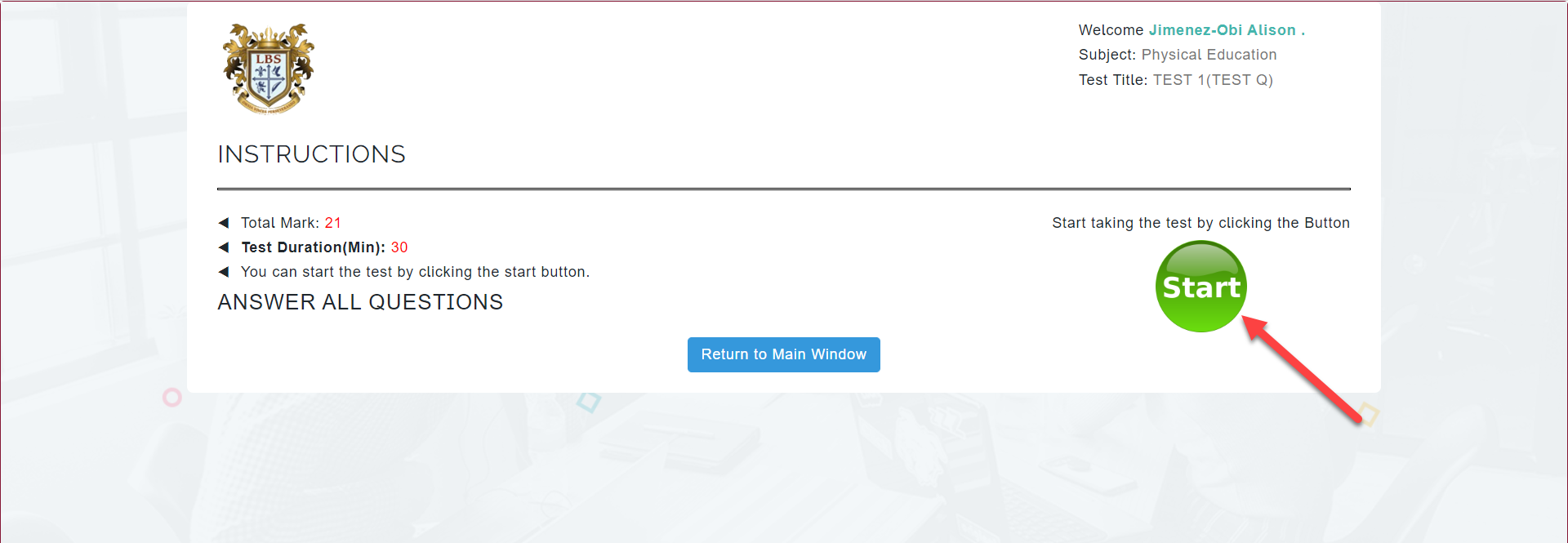
Read the instructions then click on the Start button.
Note that once you click on Start, the timer starts counting down.
Step 4:
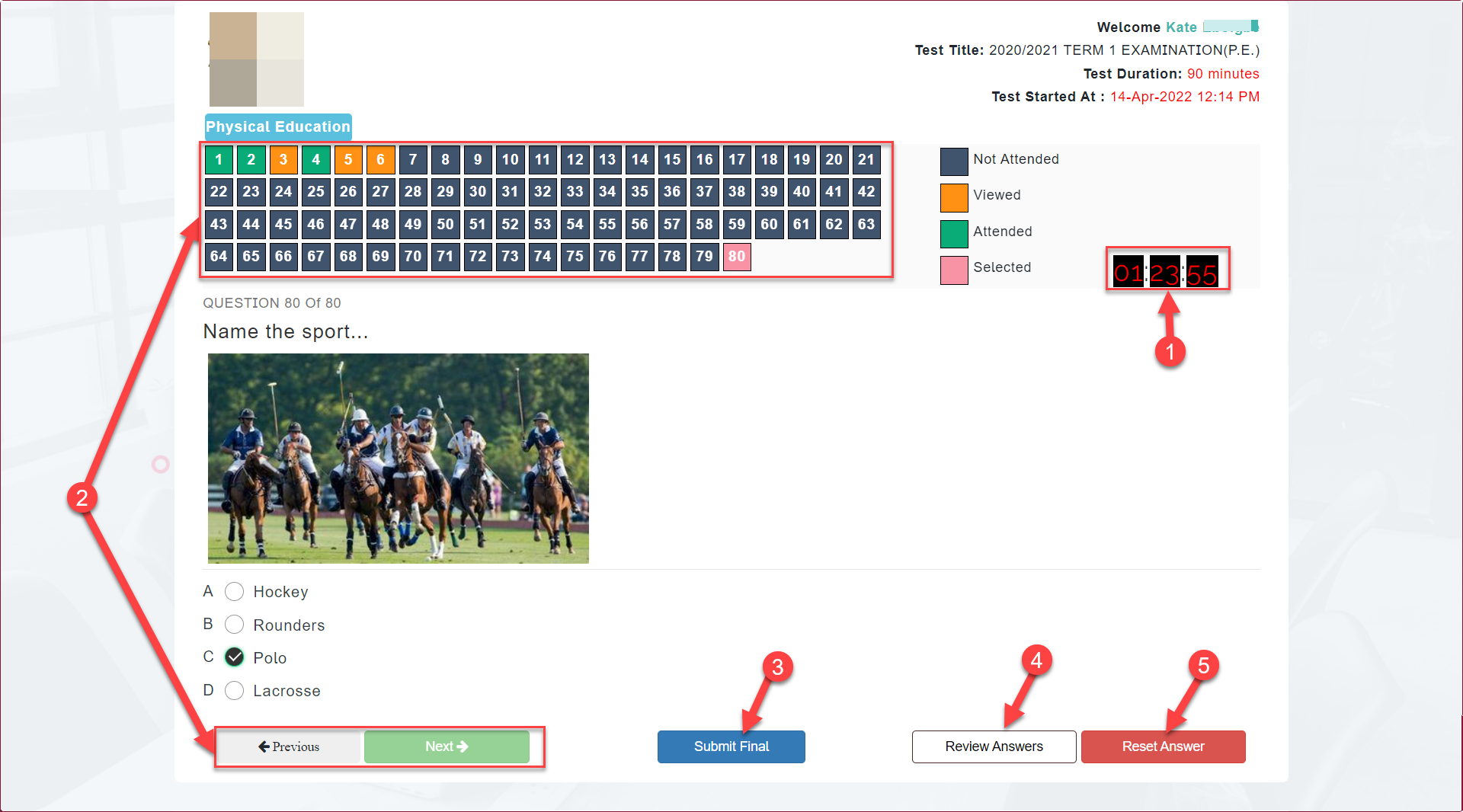
Clicking on “Start” in STEP 3, takes you to where you can see the test questions and start answering them.
1: The Timer
The timer starts counting down once the student click on the Start button in Step 3. Once the duration of the test is up and the student is yet to submit, the system automatically end the test and submits the student's progress .
2: Navigation
The questions can be navigated using the Next and Previous button as shown in the picture above. It can also be navigated by clicking directly on the numbers.
3: Submit Final
The Submit Final button is used to submit the test. This button shows up when you get to the last question.
4: Review Answers
This shows up all the questions in a single view and the user can easily review all questions and their answerers in a single view.
5: Reset Answer
This is used to erase answer(s) already selected for a question.