In this Section, The School Admin can create roles and give permission to what Modules Different users can access on the Portal.
How to Create A New Role
To add a New Role, follow these Steps:
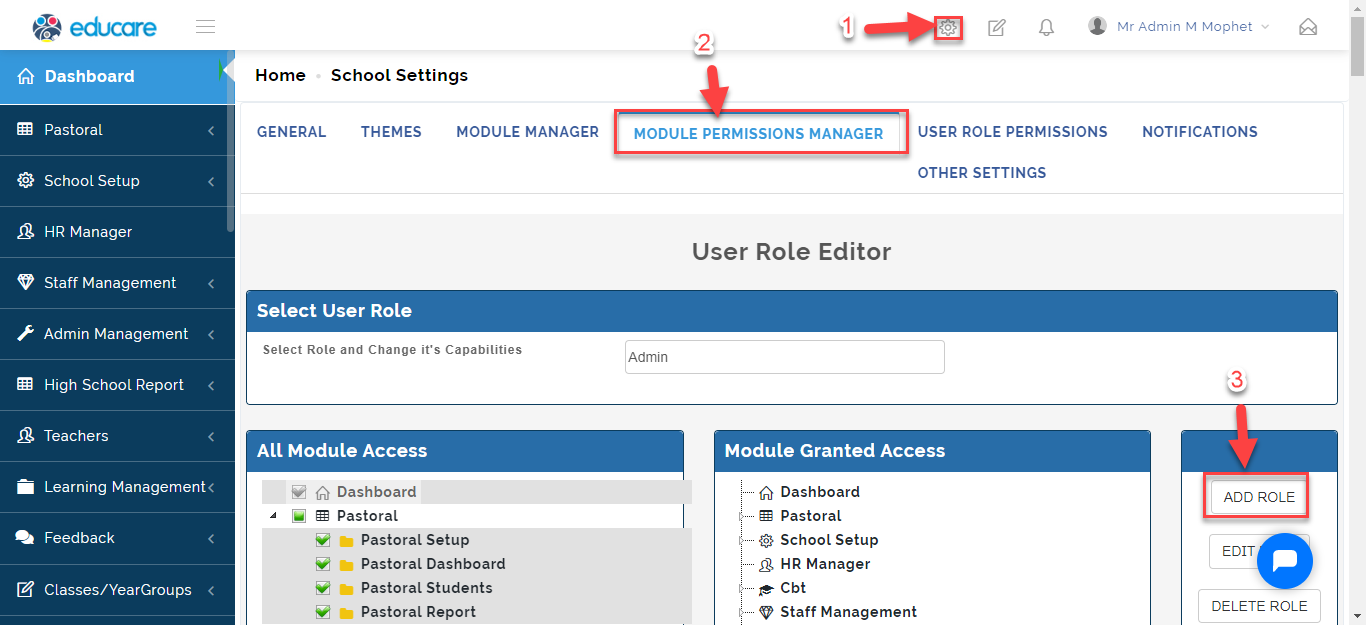
- From Settings, Select Module Permission Manager then Click on Add role.
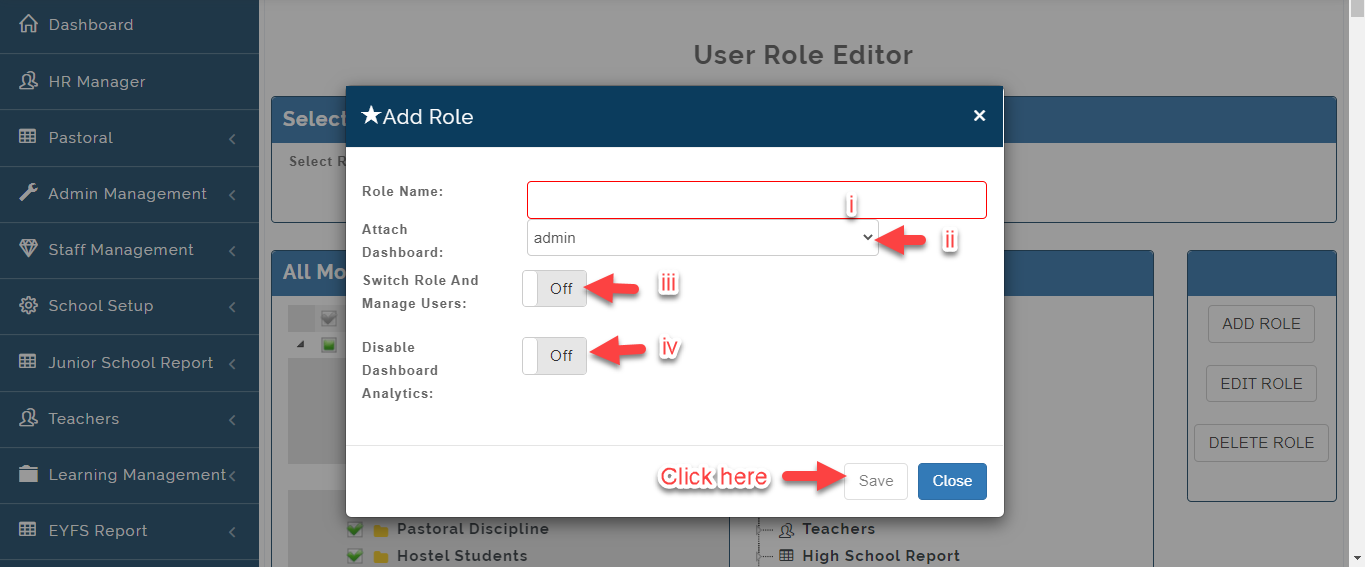
- A Modal will Appear, Fill in the data
i. Enter the name of the Role Under Role Name (Example Librarian )
ii. Select the Dashboard Type that will be available for the Role (i.e. Admin, Teacher or Manager)
iii. Enable Switch Role And Manage Users button on if the Role you are creating should have the right to make changes to the Students, Parents and Teachers Profile.
iv. Toggle the Disable Dashboard Analytics button on if the User should have access to all the Analytics on the Admin Dashboard.
Click on Save when you are done then Click on Close to Exit or Ignore.
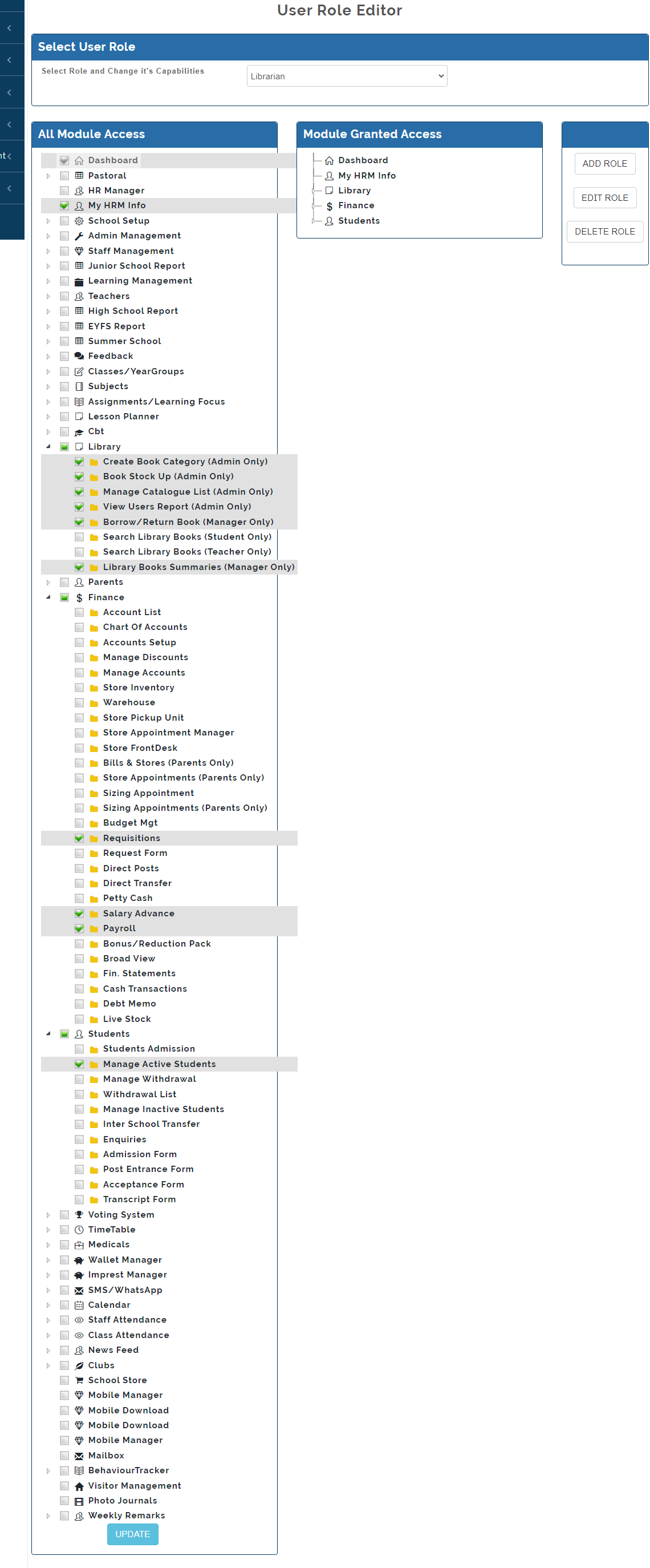
- Once this is created, The list of modules available on the educare portal will appear, Tick on the Modules the Role you are creating should have access to; depending on their duties in the School then click on Update (All the Modules you have Ticked will Appear under the Module Granted Access Tab)
Notes on Module Permission Manager
If you need to give an existing role Permissions, Simple Select the User role and Continue with Instructions on Step 3
How To Edit and Delete a Role
To Edit a Role, Kindly follow these Steps:
- From Settings, Select Module Permission Manager then Select the User role and Click on Edit role.
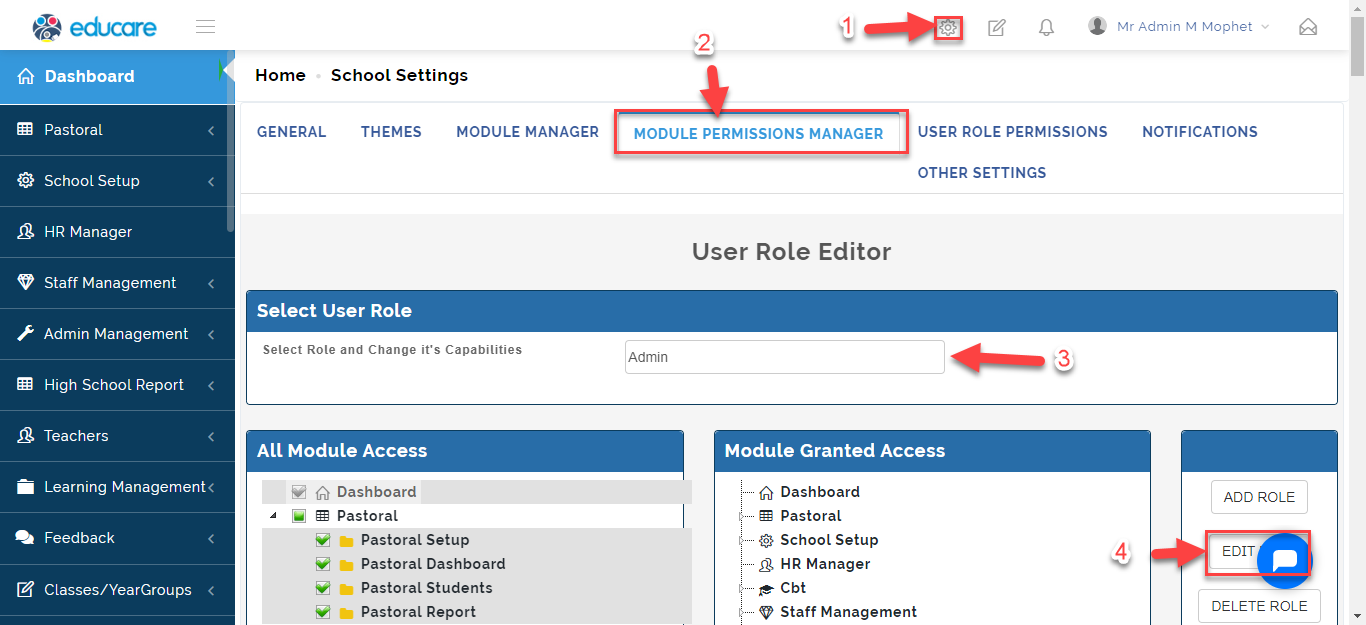
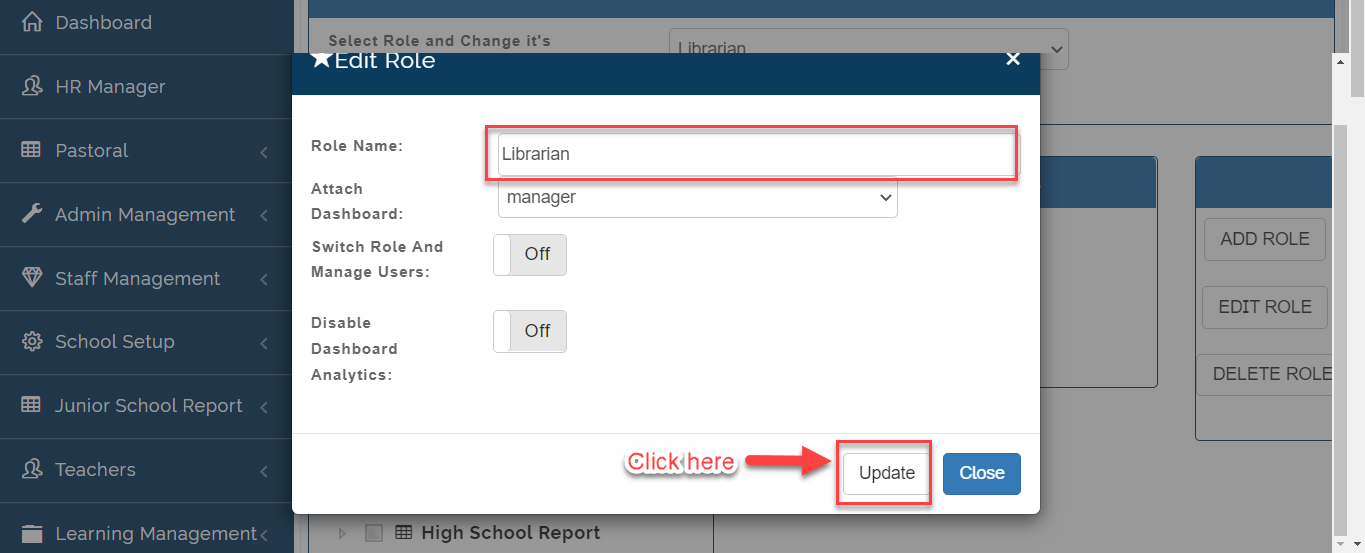
- A modal will appear, Make changes to the name of the role then Click on Update or Close to Exit.
To Delete a Role, Follow these Steps:
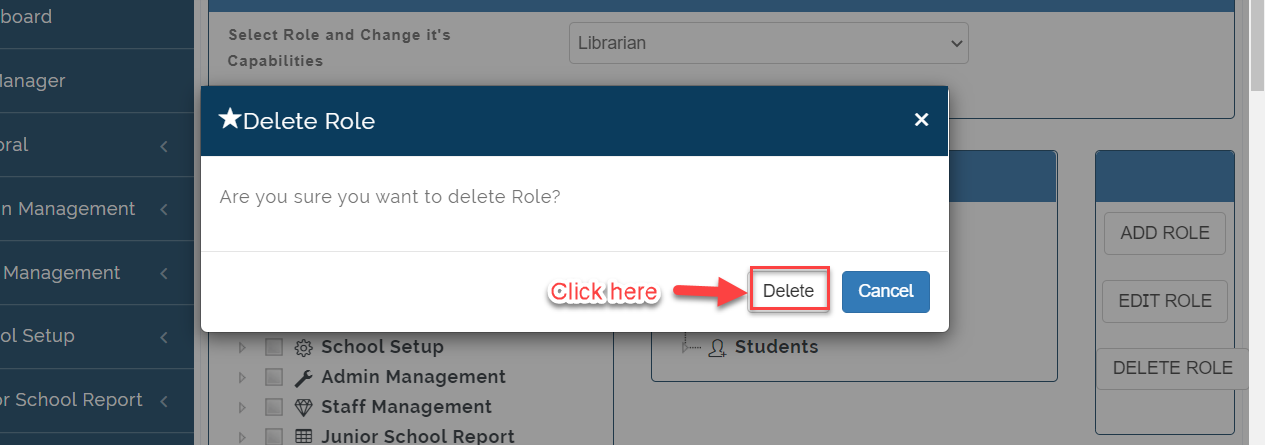
- From Settings, Select Module Permission Manager then Select the User role and Click on Delete role.
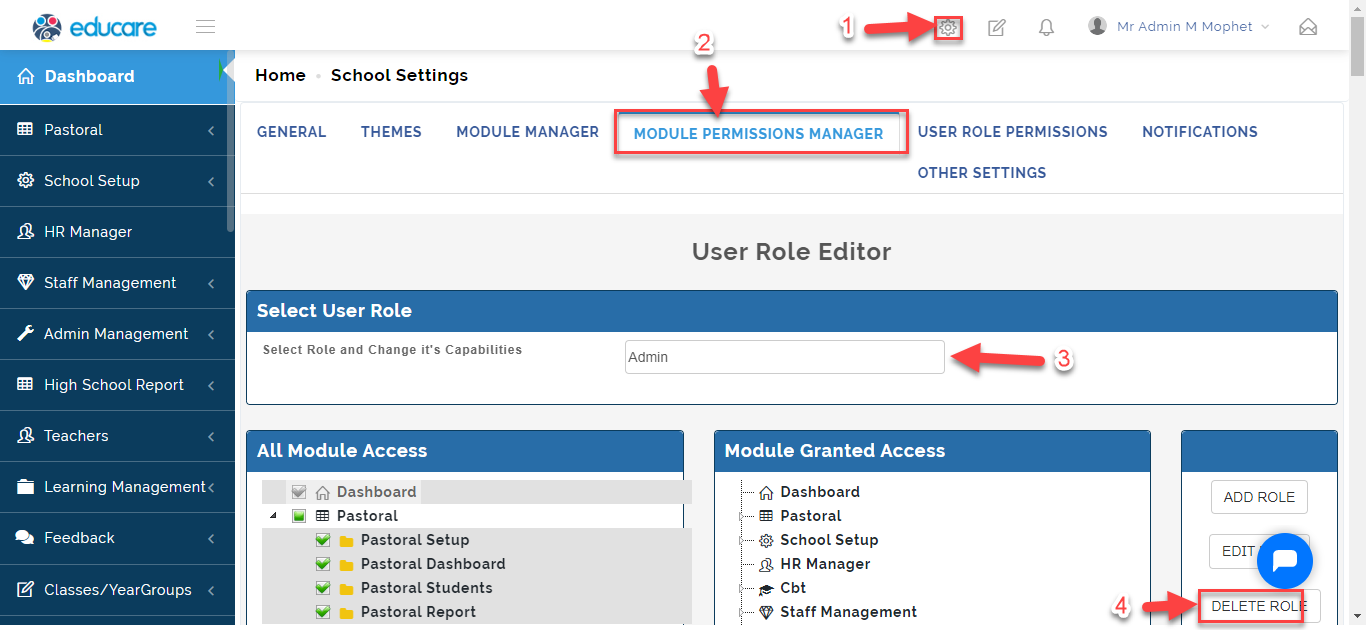
- A Modal will appear, Click on Delete or Cancel to Ignore.