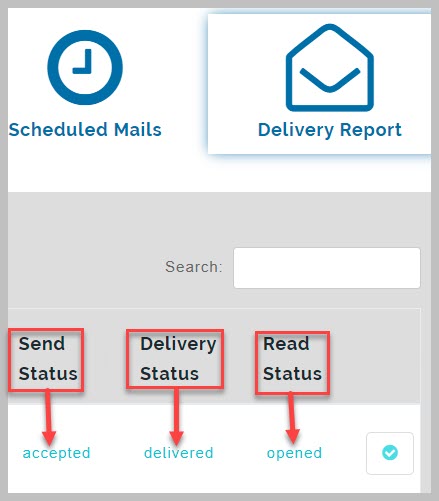
This service is used to send emails to users. educare mailbox service is not only used to send and receive emails, it generates delivery reports with insights and analysis. This unique feature gives educare mailbox an edge over email service providers.
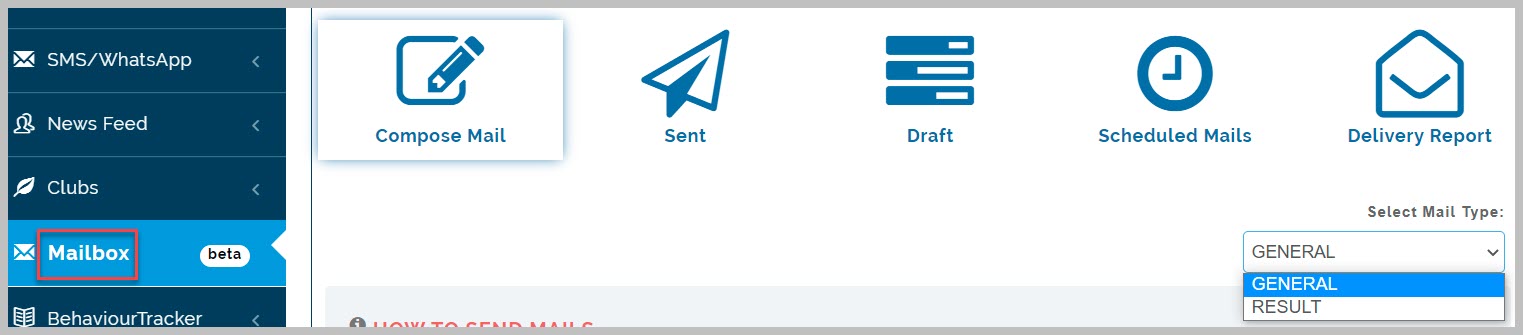
Compose Mail
Here you can compose email, send Bulk emails, Schedule emails, compose emails and save as a draft. There are two types of mails that can be sent from mailbox;
General mail type: This is used send all types of emails except school reports
Result mail type: This is used exclusively to send reports like end of term and mid term reports.
How to send email (General Mail Type)
To send email, follow these steps;
-
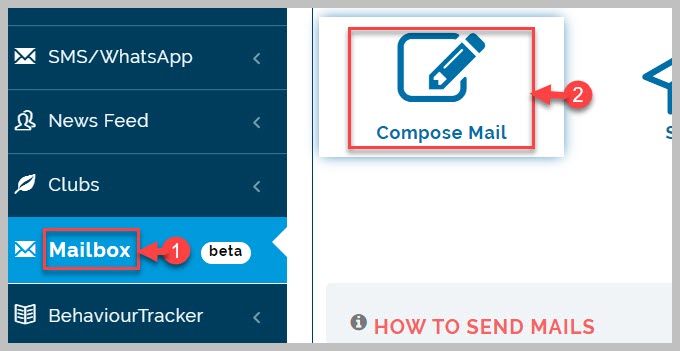
Go to Mailbox module
-
Navigate to Compose email tab and select general mail type from drop-down menu
-
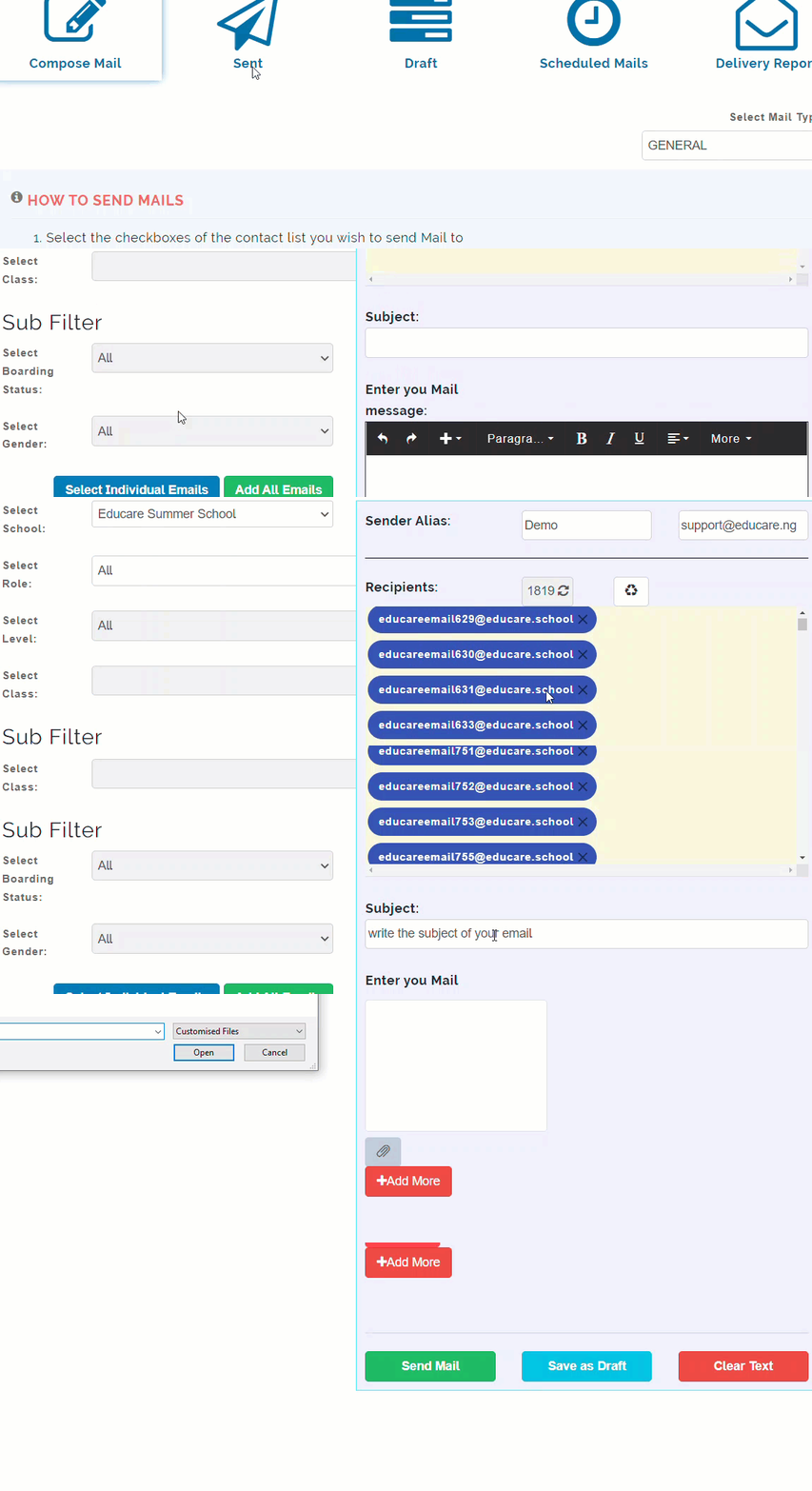
Read and follow the How to send mails instructions written on the page
-
Select school category you wish to send mail to from drop-down list
-
Select the role you wish to send mail to from drop-down list
-
Select Level and Class of the role selected to fetch applicable email addresses
-
Select sub filters if applicable
-
Click on Add All Emails to fetch all desired emails based on your selections. this brings out all the email addresses of selected users
-
Type in Subject title of message.
-
Type in desired message in the text box provided
-
Select attachment from your device if applicable
-
Click on Save as Draft to save message for future use or click on Send Mail to send out mail to selected users.
How to send email (Result Mail Type)
To send email, follow these steps;
-
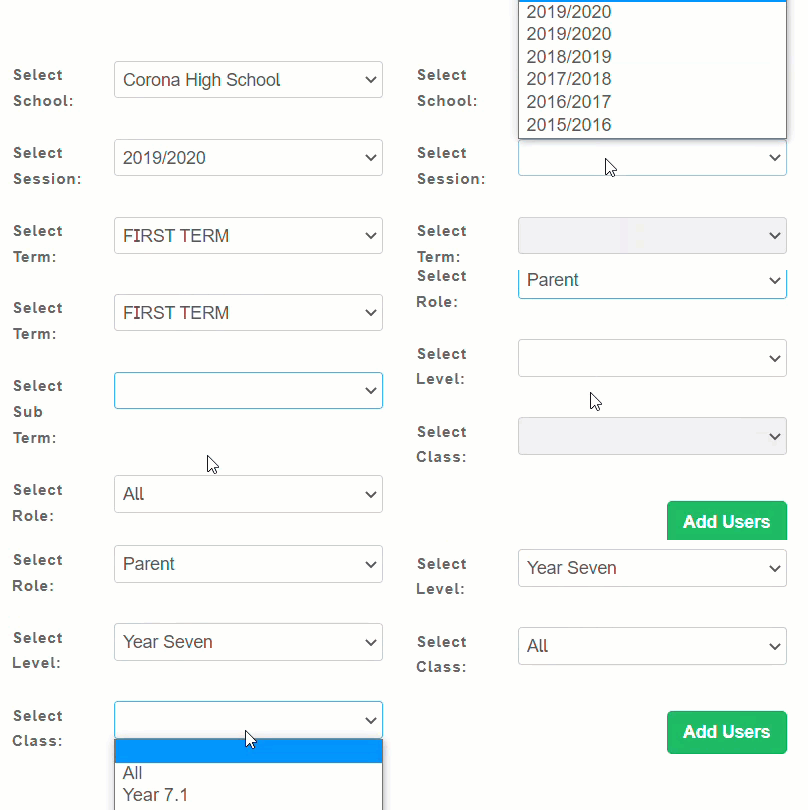
From step 2 above, select result mail type from drop-down menu
-
Select session you wish to send mail to from drop-down list
-
Select the term and sub-term you wish to send mail to from drop-down list
-
Select role you wish to send mail to from drop-down list
-
Select level and class which you wish to send their result through mail from drop-down list
-
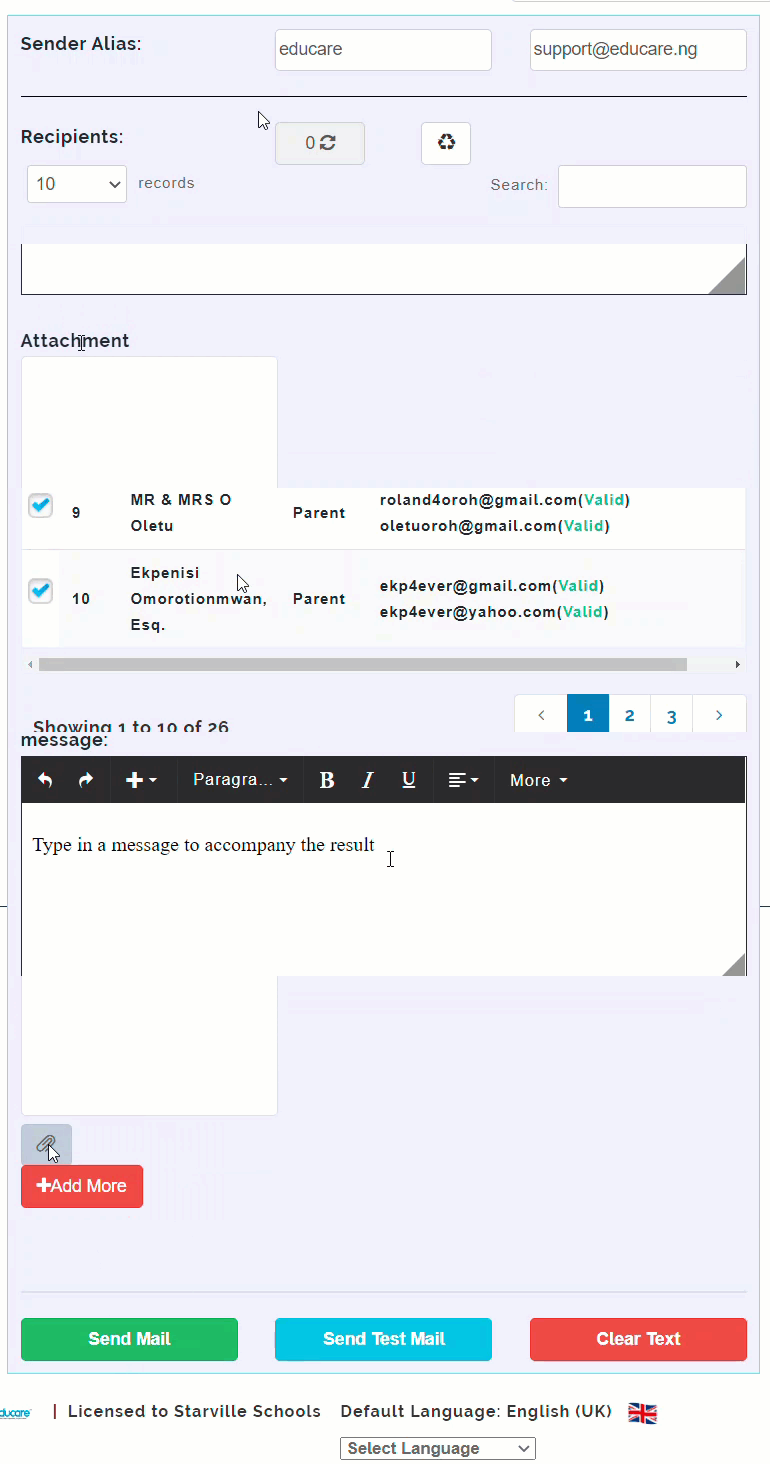
Click on Add Users to fetch all emails based on the role you selected. this brings out all the email addresses of selected users. This fetches all the applicable emails in the selected role and classes attached.
-
Type in Sender Alias details i.e. the name and return email address of the sender
-
Write down the Subject title of your mail
-
Write down a message to accompany the result you are sending in the box provided
-
Select an attachment to add from your device if applicable
-
Click on Send Mail to send the result
How to send email (Custom Mail Type)
To send email, follow these steps;
-
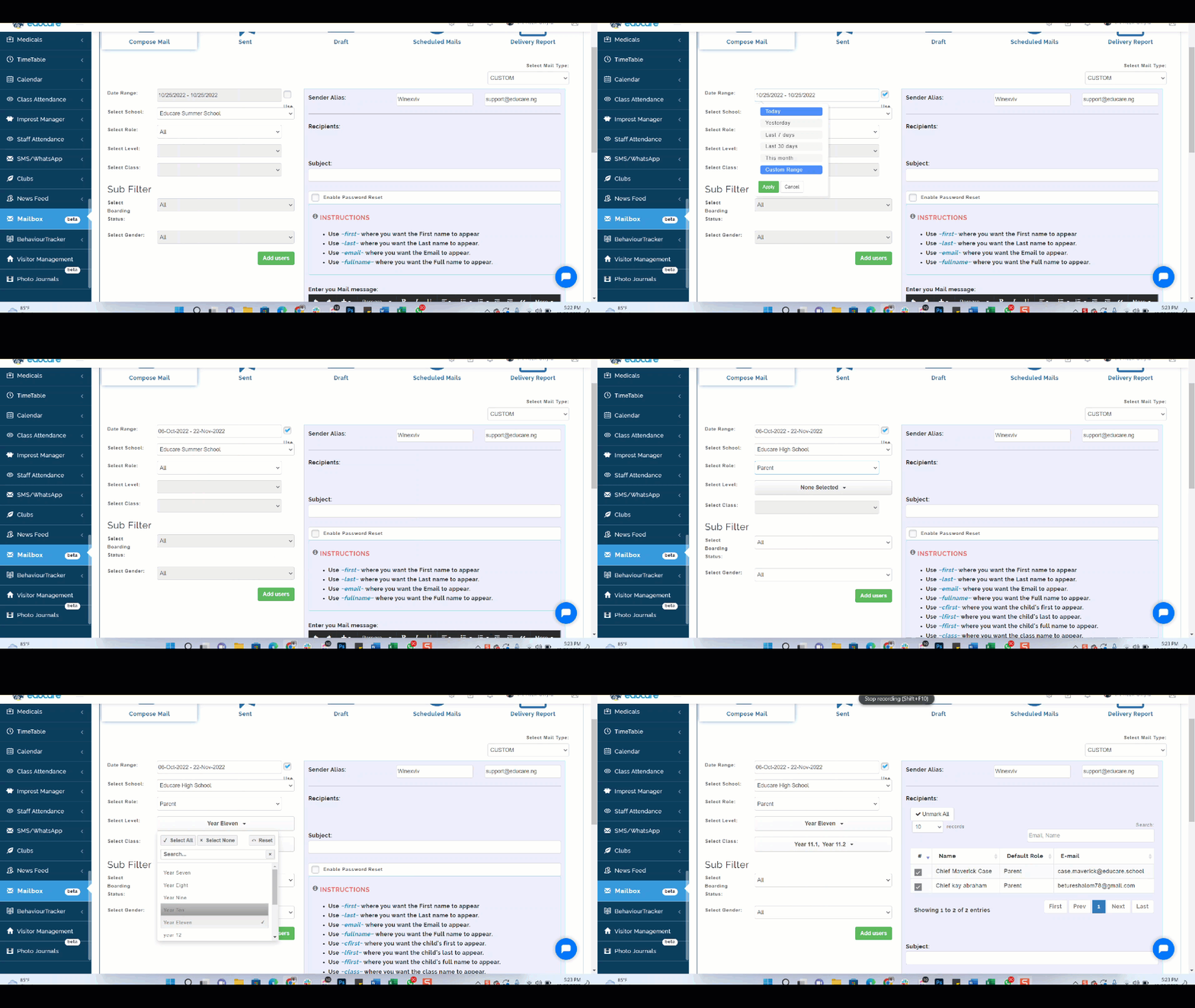
From step 2 above, select custom mail type from drop-down menu
-
Click date range and select the required date range from the drop-down list
-
Select school you wish to send mail to from drop-down list
-
Select role you wish to send mail to from drop-down list
-
Select Level and Class of the role selected to fetch applicable email addresses
-
Click on Add Users to fetch all emails based on the role you selected. This brings out all the email addresses of selected users. This fetches all the applicable emails in the selected role and classes attached.
-
Write down the Subject title of your mail
-
Write down a message and tag with the placeholders to accompany the message you are sending in the box provided
-
Select an attachment to add from your device if applicable
-
Click on Send Mail to send to users
** To enable password reset **
- Click on the Enable Password Reset button

- Follow all the processes stated above
Delivery Reports
educare Mailbox generates delivery report for every mail sent out which gives insight on;
Send Status - This tells you when your mail has been sent to the recipient email address successfully
Delivery Status - This tells you when your mail has been successfully delivered to the recipient email address
Read Status - This tells you when you delivered has been opened by the recipient