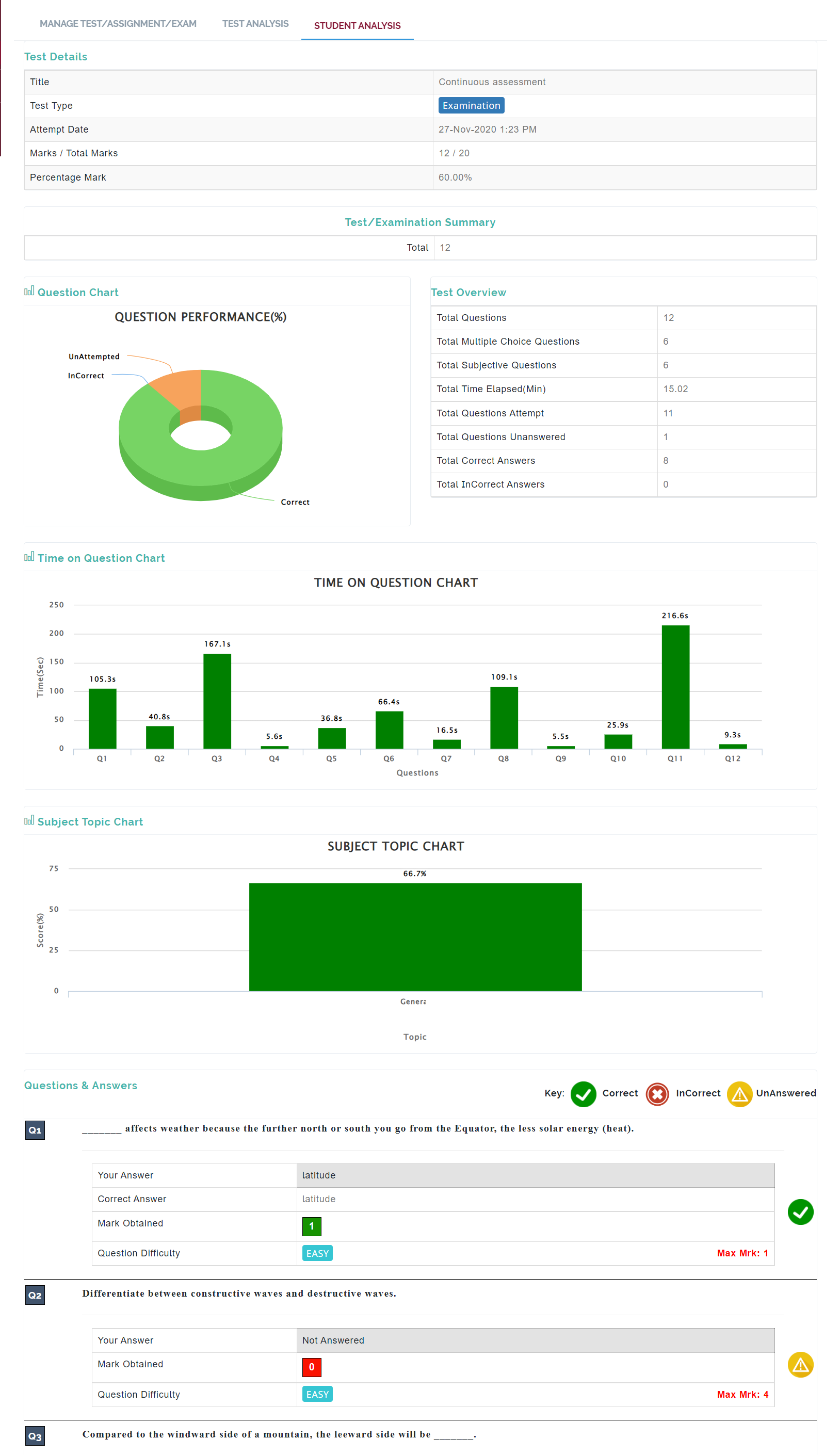
This is where the admin view the result/performance of the students.
FOLLOW THE SIMPLE STEPS BELOW TO VIEW STUDENTS CBT REPORT.
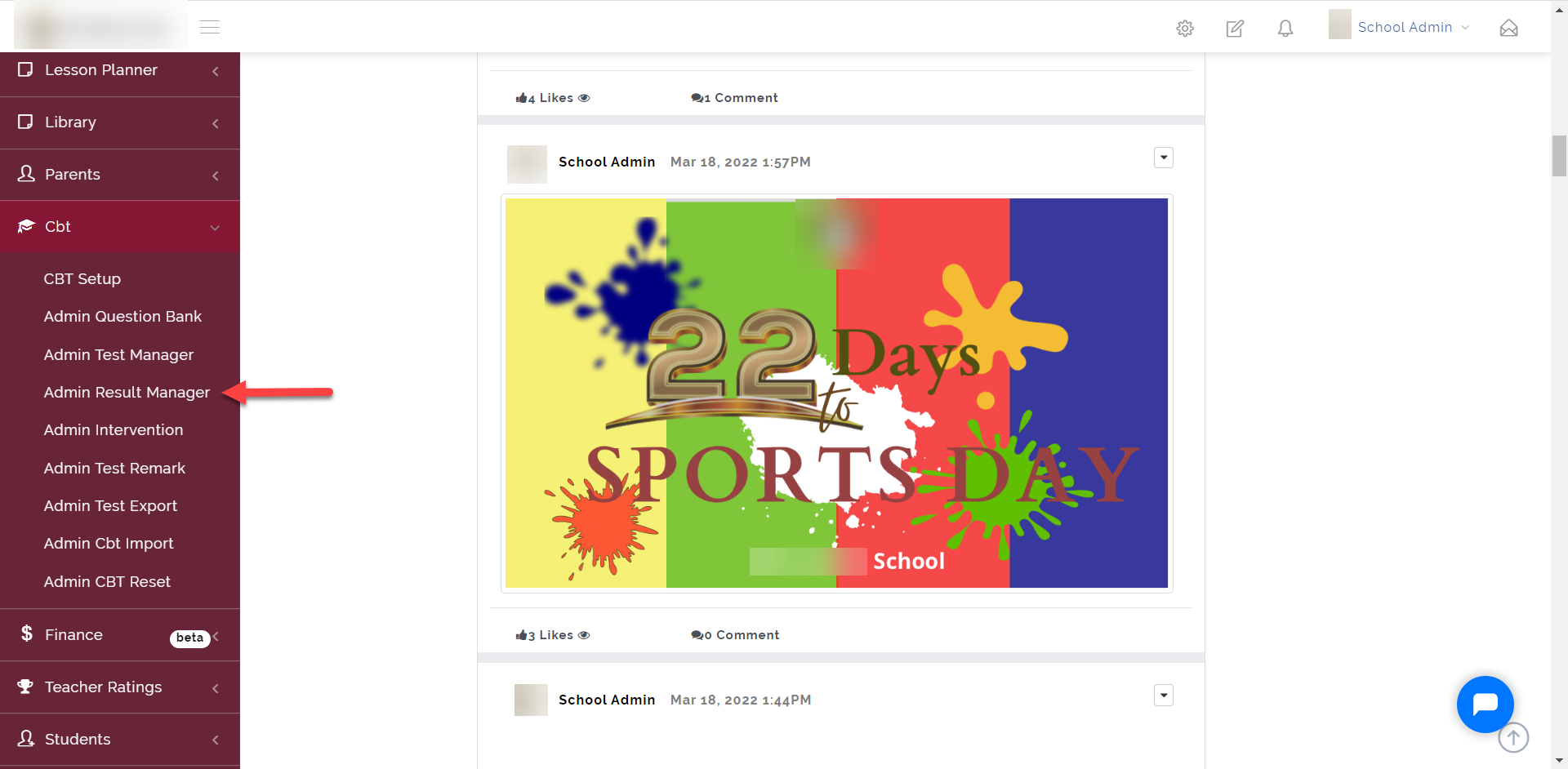
STEP 1: Result Manager
As indicated in the picture below, click on the “CBT” dropdown then select “Admin Result Manager”
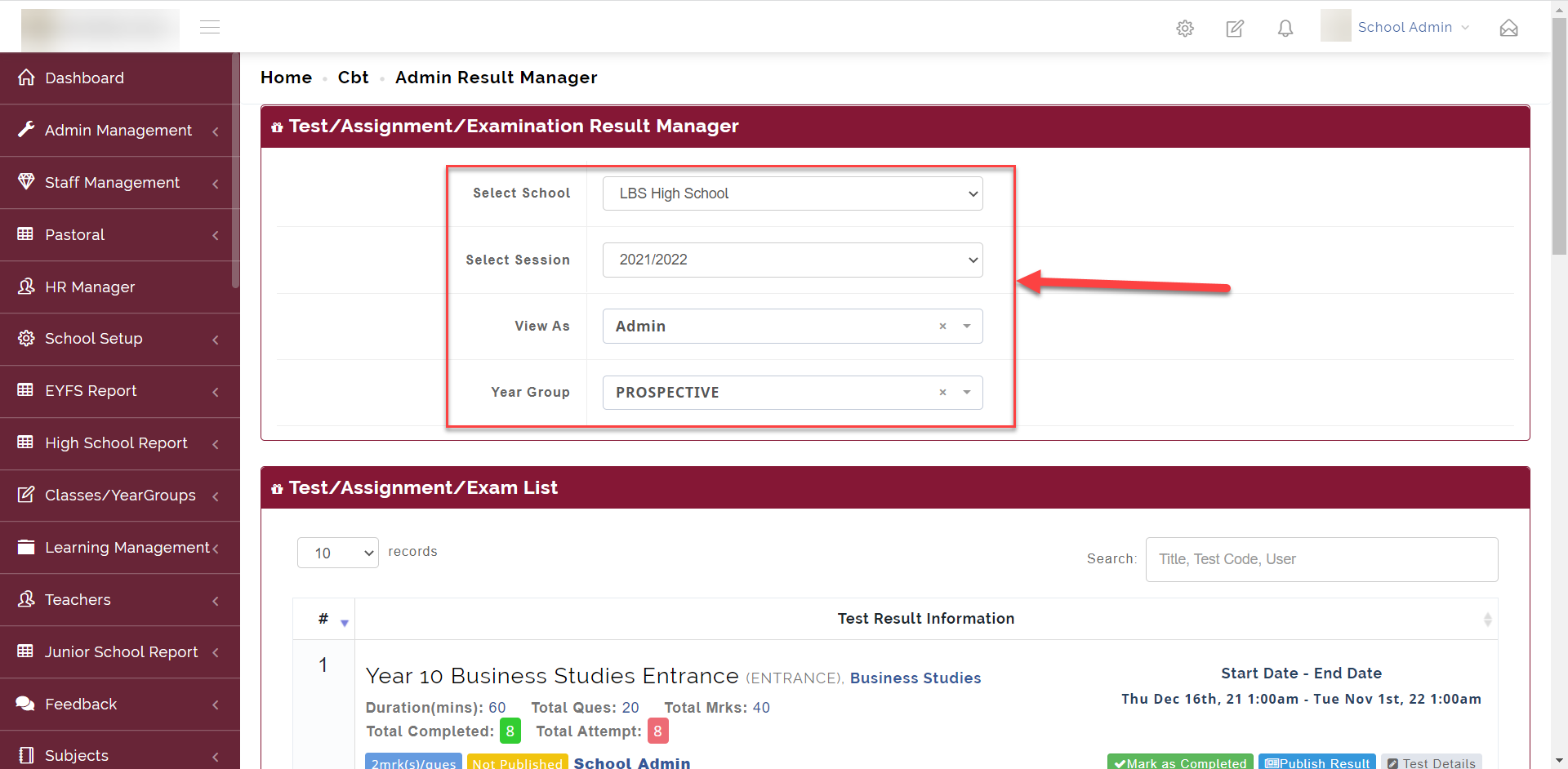
Step 2: Result Manager Filter
- Select the School, Session and Class of the result you want to view.
Step 3: Exam List
After going through Step 2, all the Assessments the teacher has created shows up as seen below
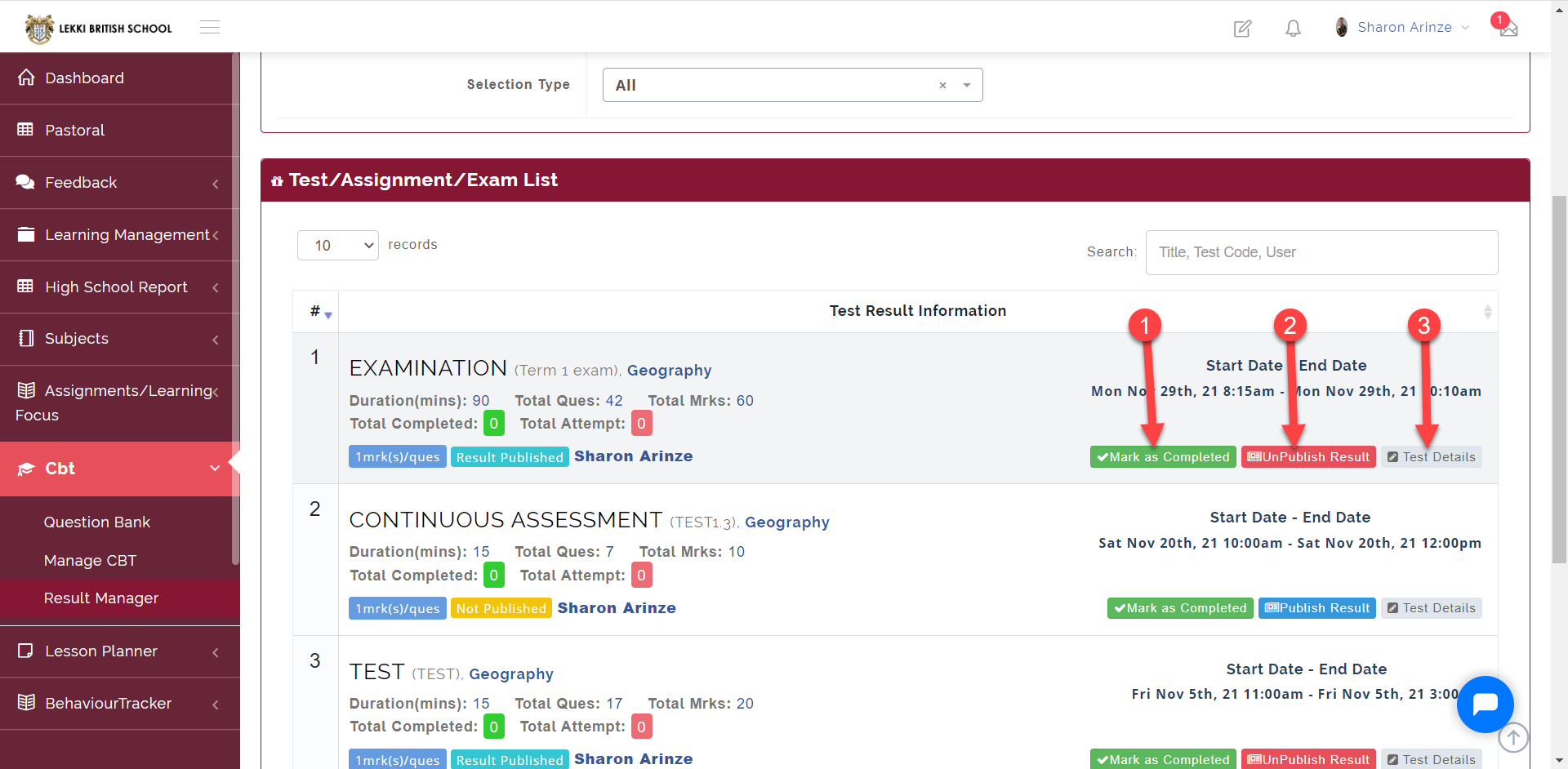
Mark as Completed: This removes the CBT assessment from the teacher's end (in Manage CBT) as well as on the student's end (i.e the assessment won't be available anymore to student that are yet to take it)
Unpublish Result: You can either Publish or Unpublish the report. Unpublishing the result prevents the students from having access to see their assessment result.
Test Details: This takes you to the view where you can view the details of the test and also the analysis of each student performance.
Step 4: Test Details
Clicking on the Test Details opens the Test Analysis as seen below.
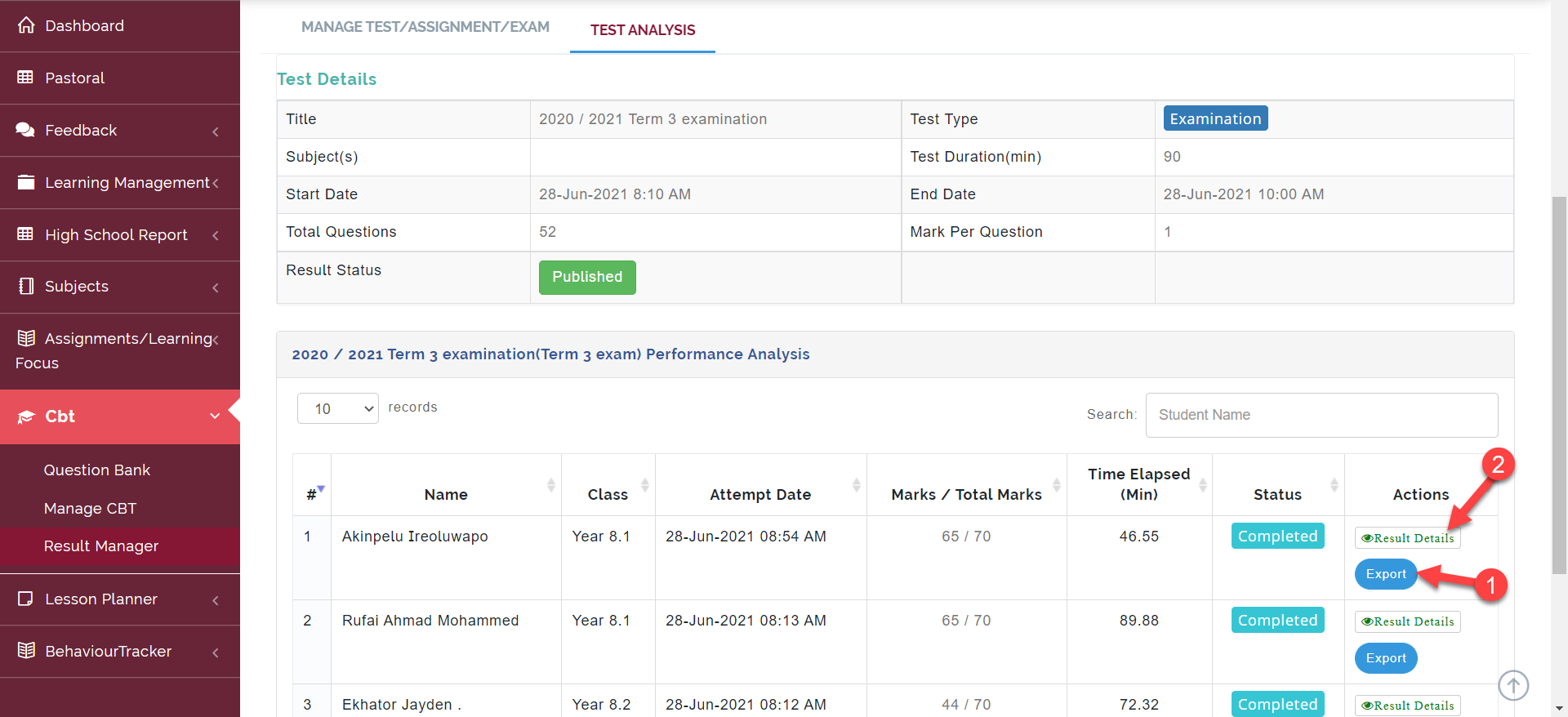
Export: This export a PDF copy of the student's marked script for the assessment.
Result Details: This shows the analysis into the selected child's result.
Step 5: Result Details
Clicking on the Result Details button in step 4 opens up the detailed analysis of the selected student report as seen below