
This is where the School Admin can view all the Applicants details and manage all Admission Processes; From Setting Interview to Issuing offer Letter to the Candidate.
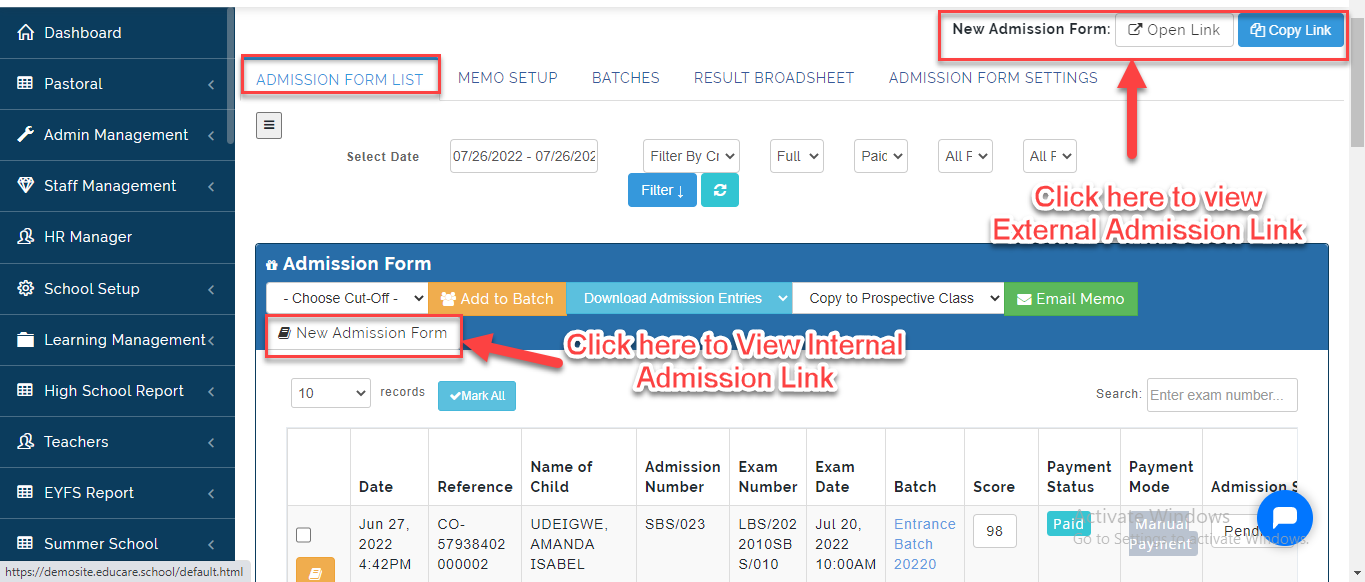
The Admission Form List is divided into two namely: External and Internal Admission. The Internal Link allows the School Admin to fill in the Application on the portal on behalf of the Applicant while the External Link is filled online by the Applicant. To view all Application Form, Follow these Steps:
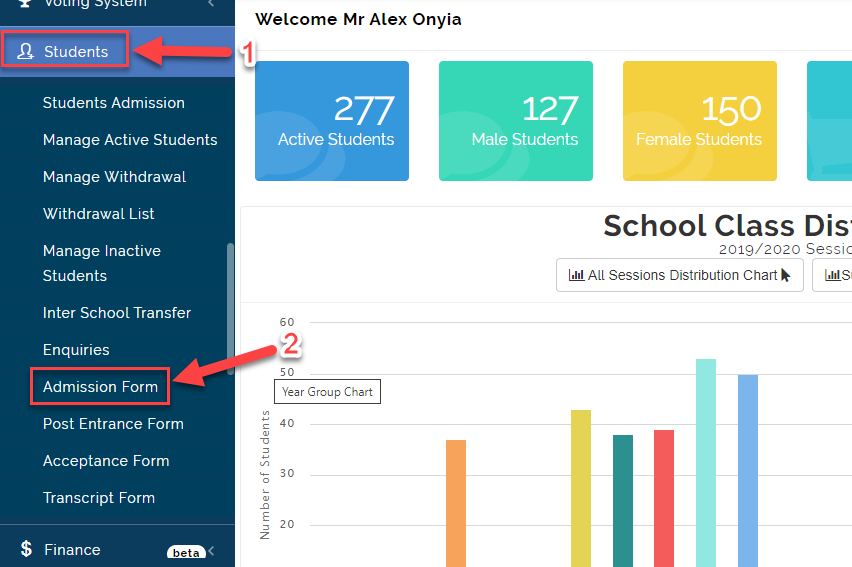
- Click on Students Module then Select Admission **Form** List.
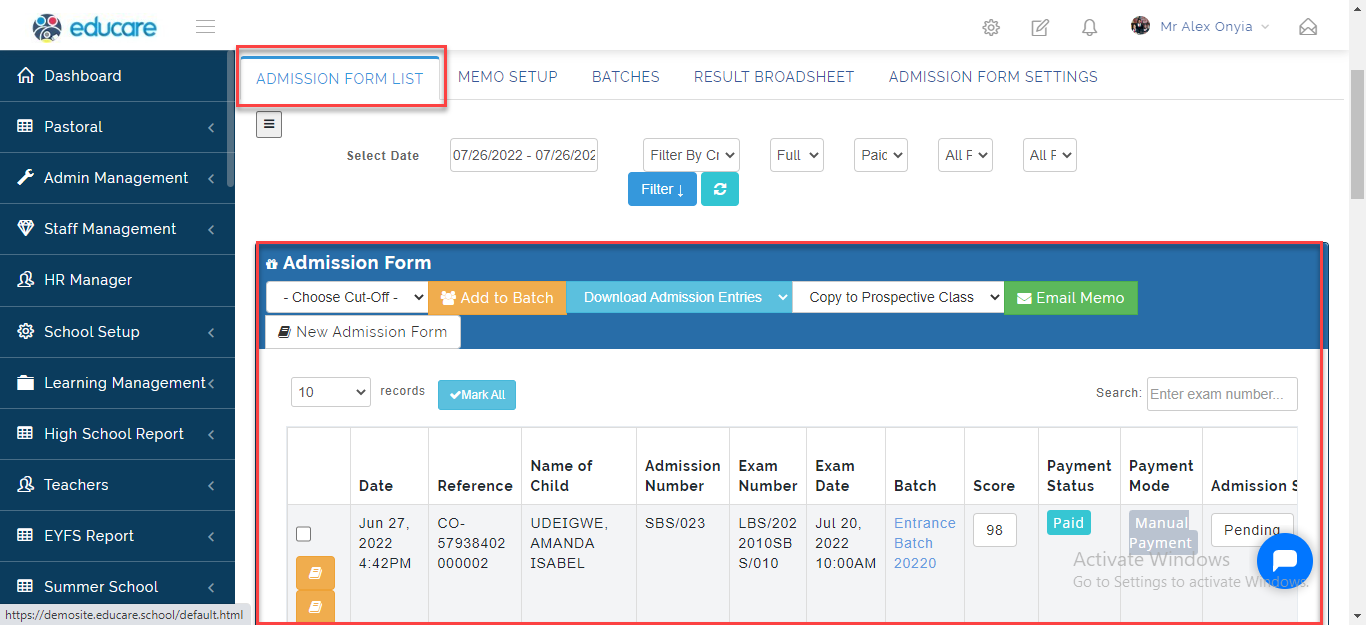
- Under the Admission Form List, You will see the list of all Application Form Entered.
- Click on the Icon below to view External and Internal Admission Link.
New Admission Form- Internal Admission Link Entry
Here, The School Admin can fill in the Admission Form on the portal. All Admission form filled by the School Admin is considered as Paid.
- Click on Admission List then Select New Admission **Form **as indicated below.
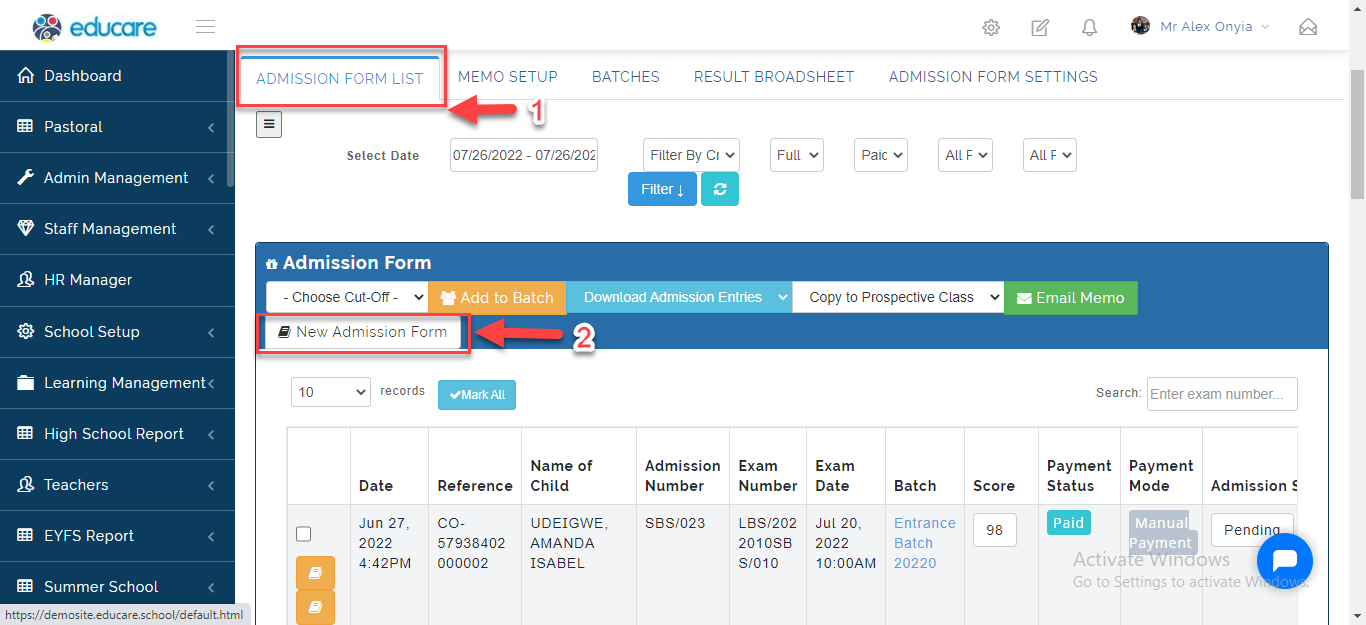
- This will open up the Admission Form to be filled. Complete the form with the required details then Click on Preview & **Save **Form to Save the Form.
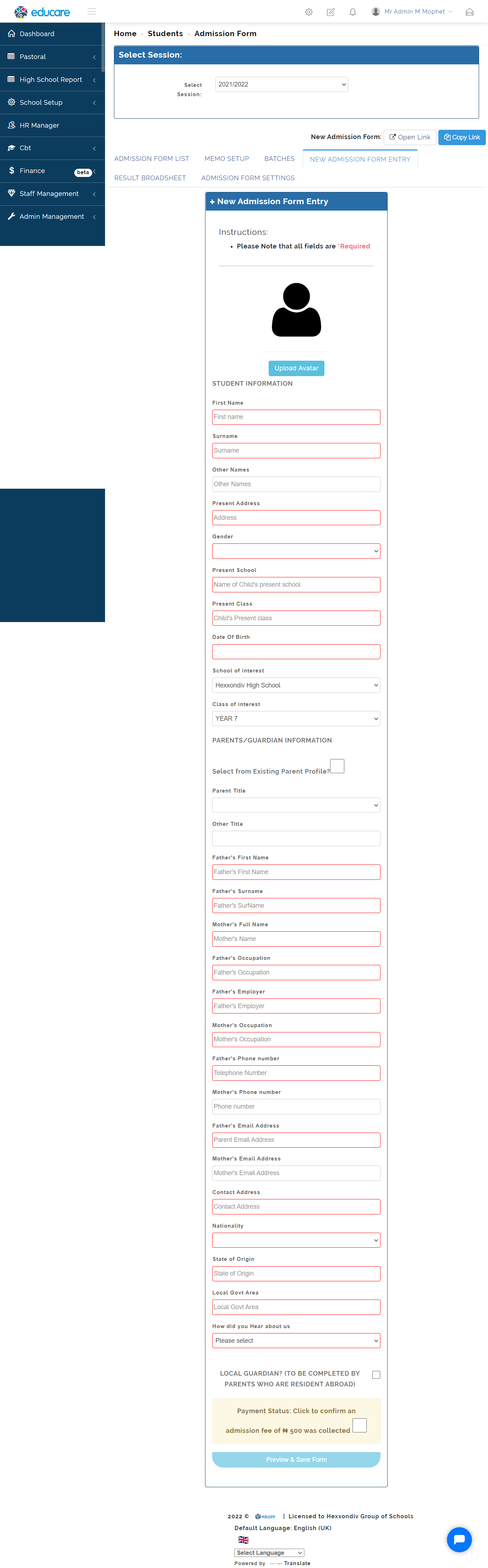
Edit Application Form
To Edit Application Form, Follow these Steps:
- From the Admission List, Click on the Edit icon as indicated below.
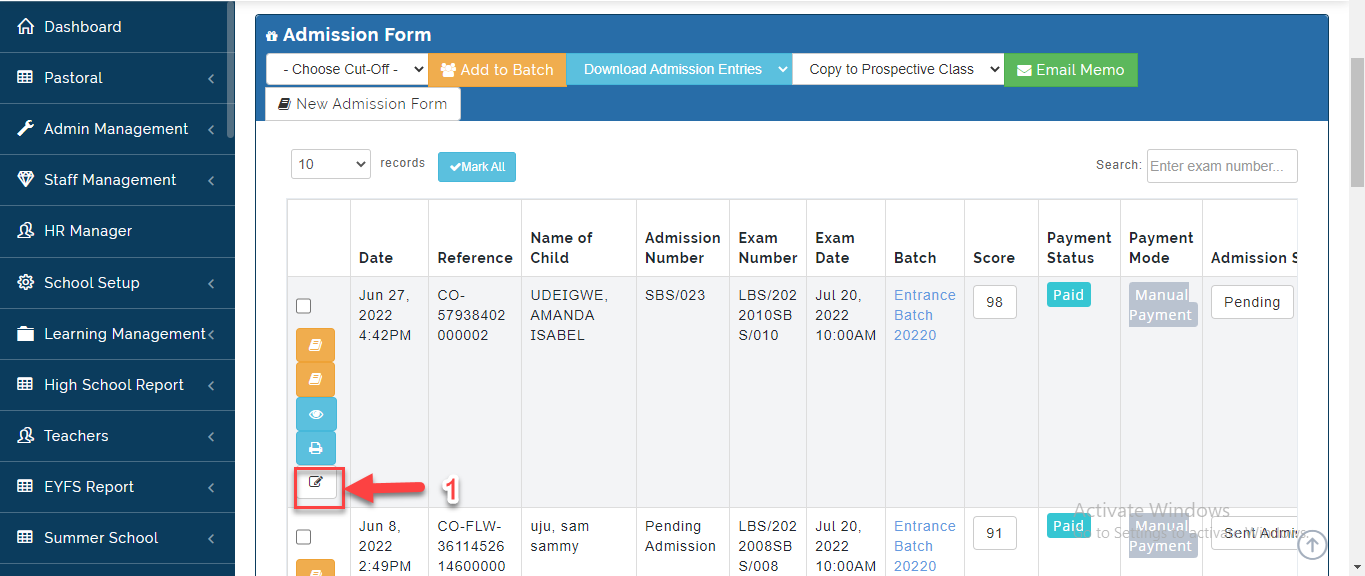
- Make your corrections then Click on Save & Preview Form.
Send Interview To Applicant
Follow these Steps to Send Interview to the Applicant:
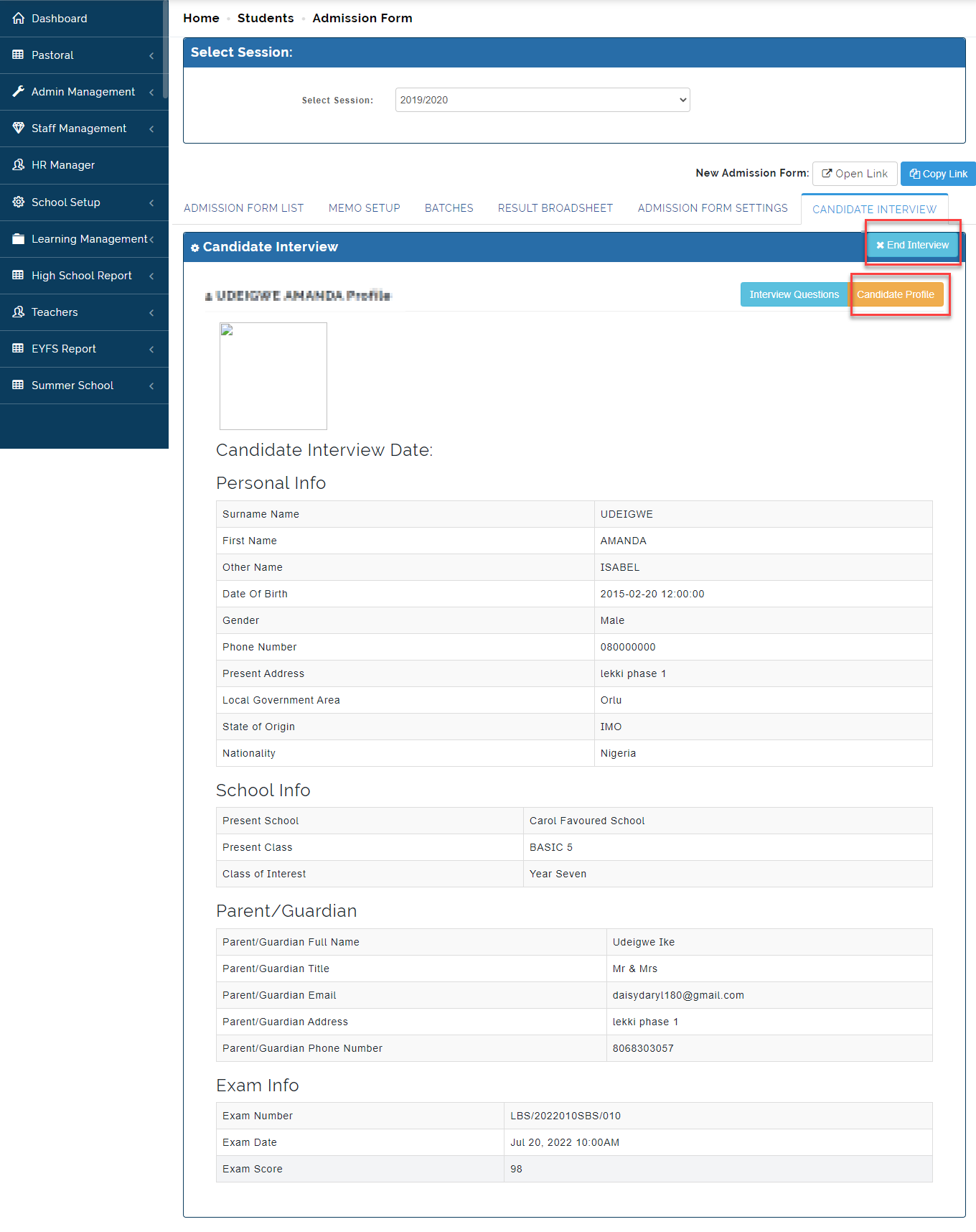
- From the Admission List, Select the Student you want to send Interview to then Click on Interview Candidate icon.
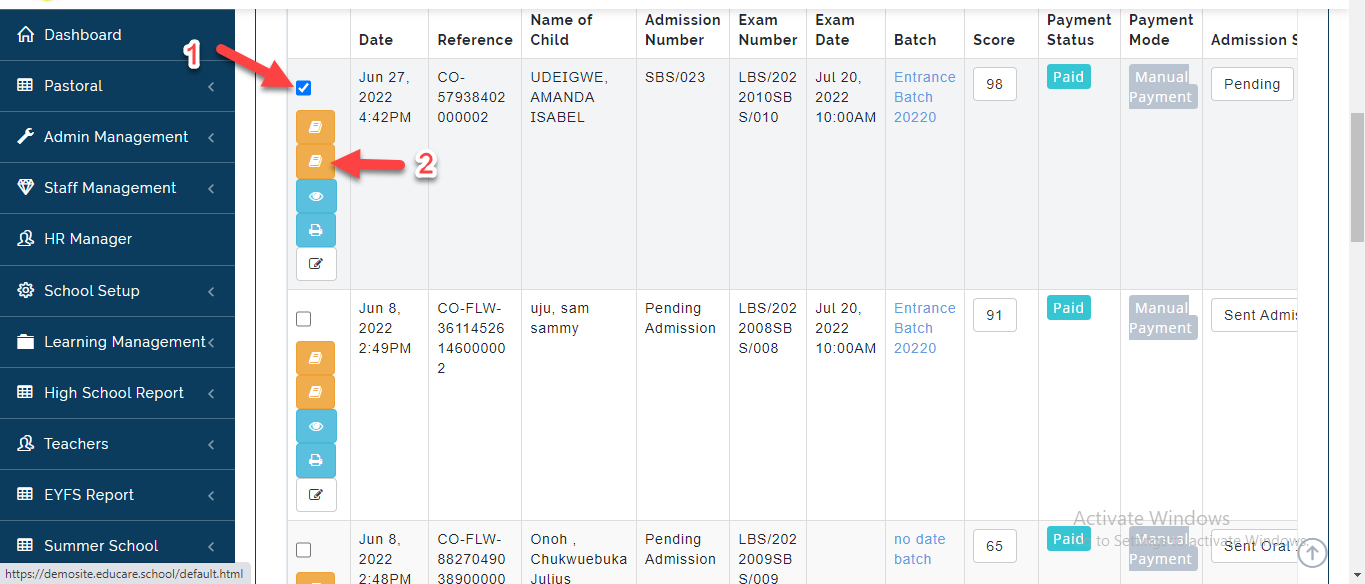
- This will open up a Tab for entering Interview Questions, Enter the Interview questions in the Text box provided and Click on Save.
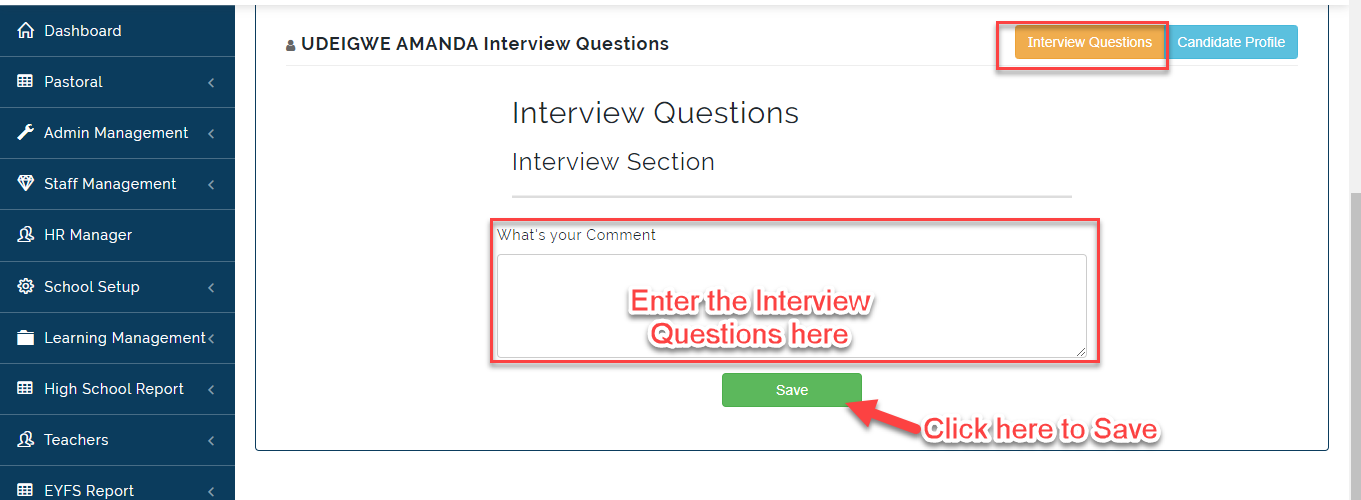
- Click on Candidate Profile to view all details of the Candidate.
How to Update Admission Status
To Send Oral Interview Questions, Follow these Steps:
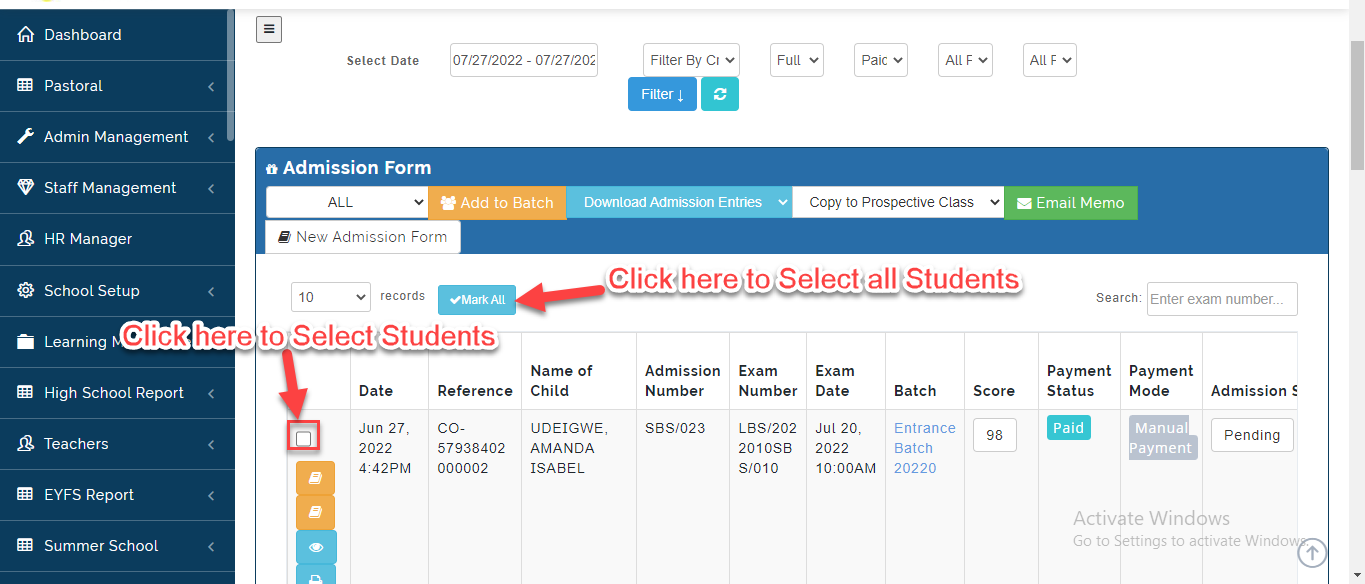
- All Applications Start at Pending until the Correspondent evaluates the Candidate. Click on the Student(s) you want to invite for either Entrance Exam, Interview or whatever admission process you take for your school.
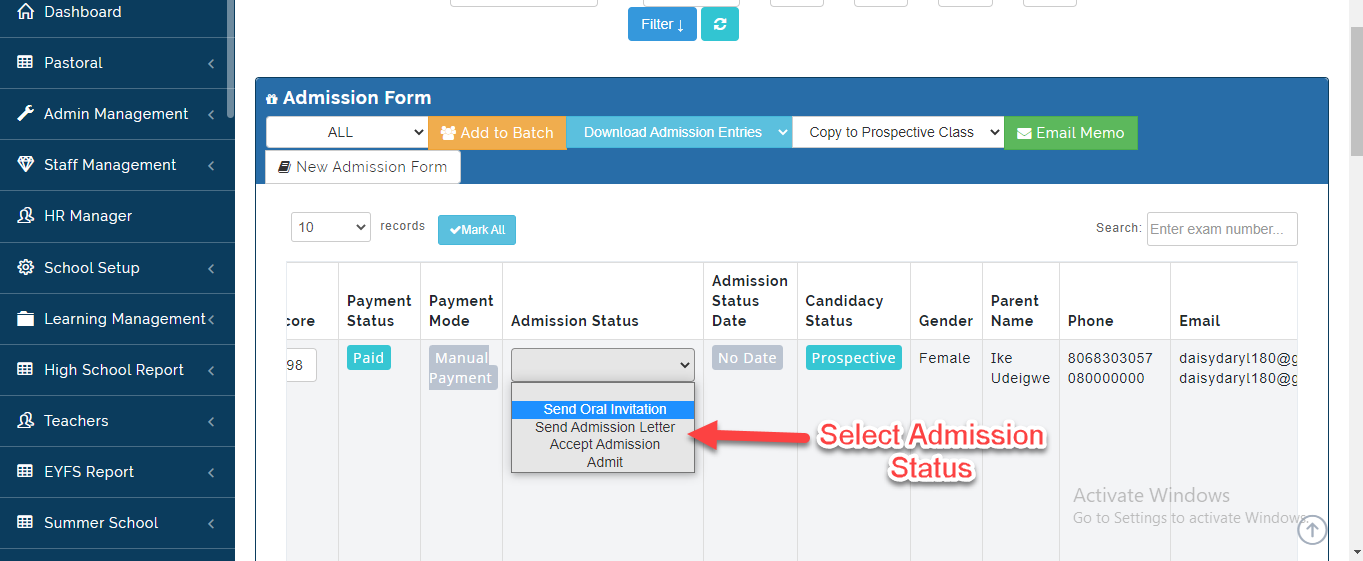
- Under the Admission Status Column, Select the Admission Status you want to move the Student to. Proceed to send mail to the Applicant to inform them of their progress.
How to Add Batch
Here the School Admin can group Applicants in batches. To create a Batch, Follow these Simple Steps:
- Click on Admission List then Select the Students you want to put in a Batch. Click on Add to Batch.
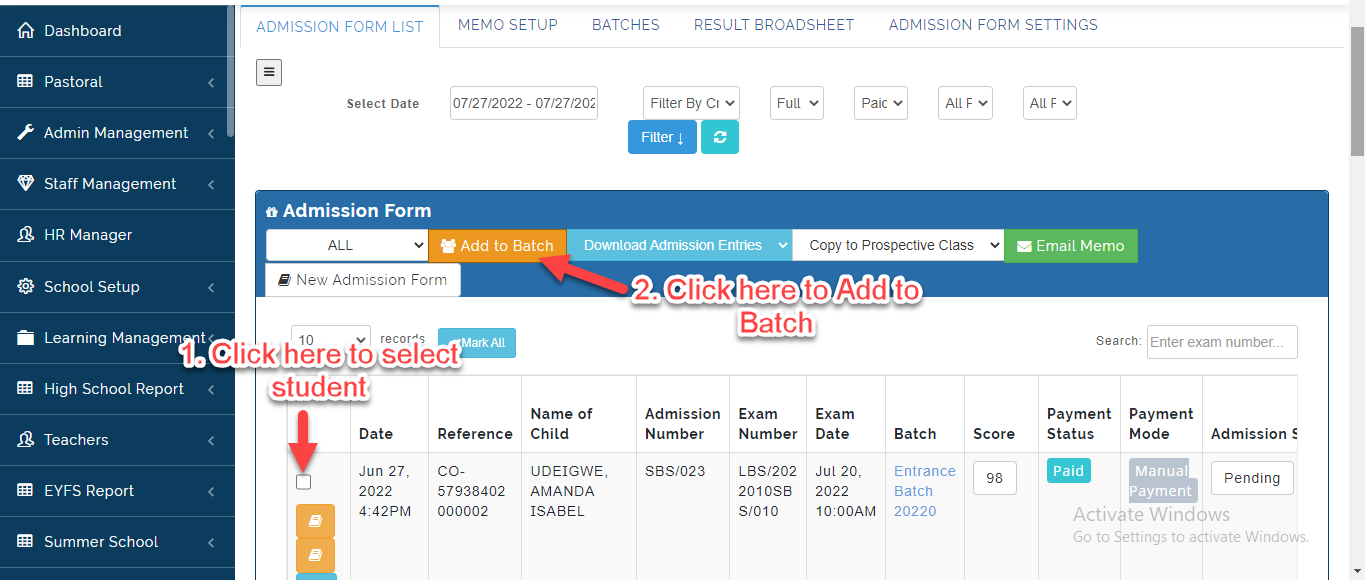
- Select the Session you want to create Candidate batch for. Enter the name of the Batch then set Date/ Time then click on Add to Batch or Cancel to Ignore
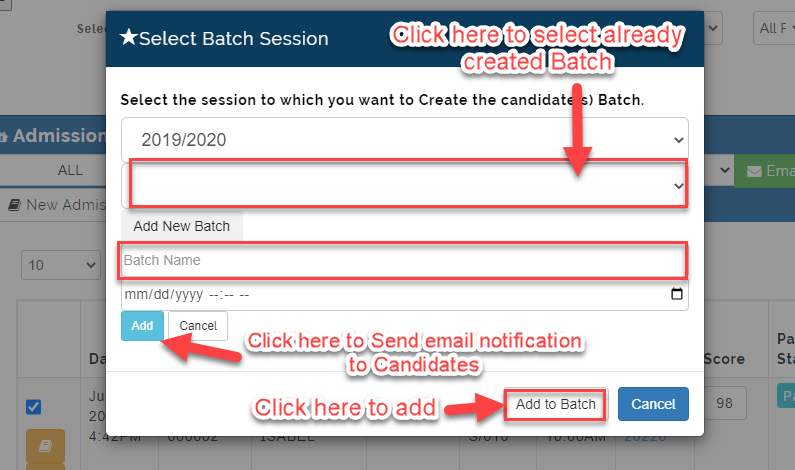
Notes on Add To Batch
By Setting up Date and Time when adding Candidates to a Batch, the system automatically send a mail to the Applicants.
Download Admission Entries
This is where the School Admin can download the Admission Entry Table in for Each session in a excel format. To do this, Follow these steps:
- From the Admission List, Click on Download Admission Entries to Select the Session you want to download.
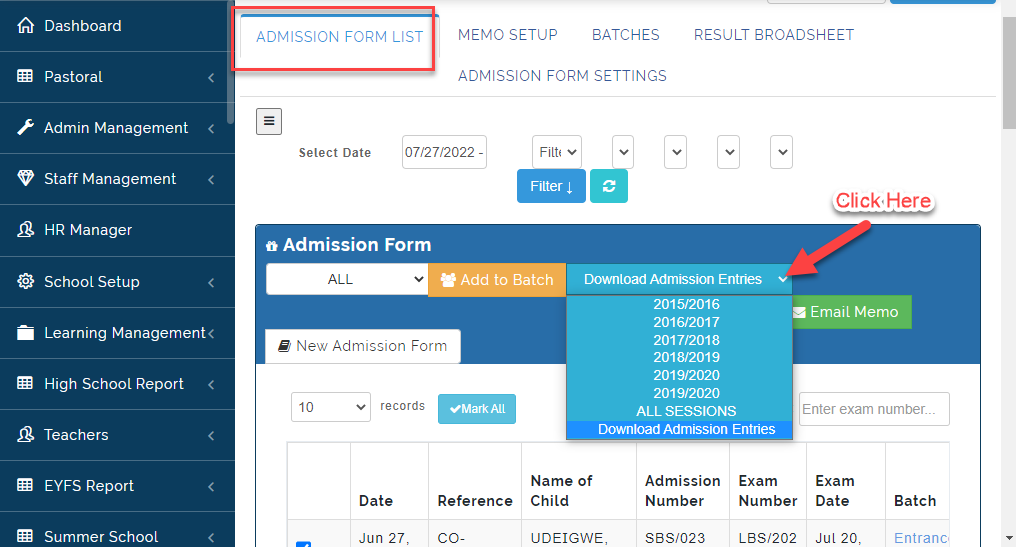
- Save the Document to view the admission Entry table in Excel Format.
Enter Exam Score for Candidates
To Enter Candidates exam Score, Follow these Steps:
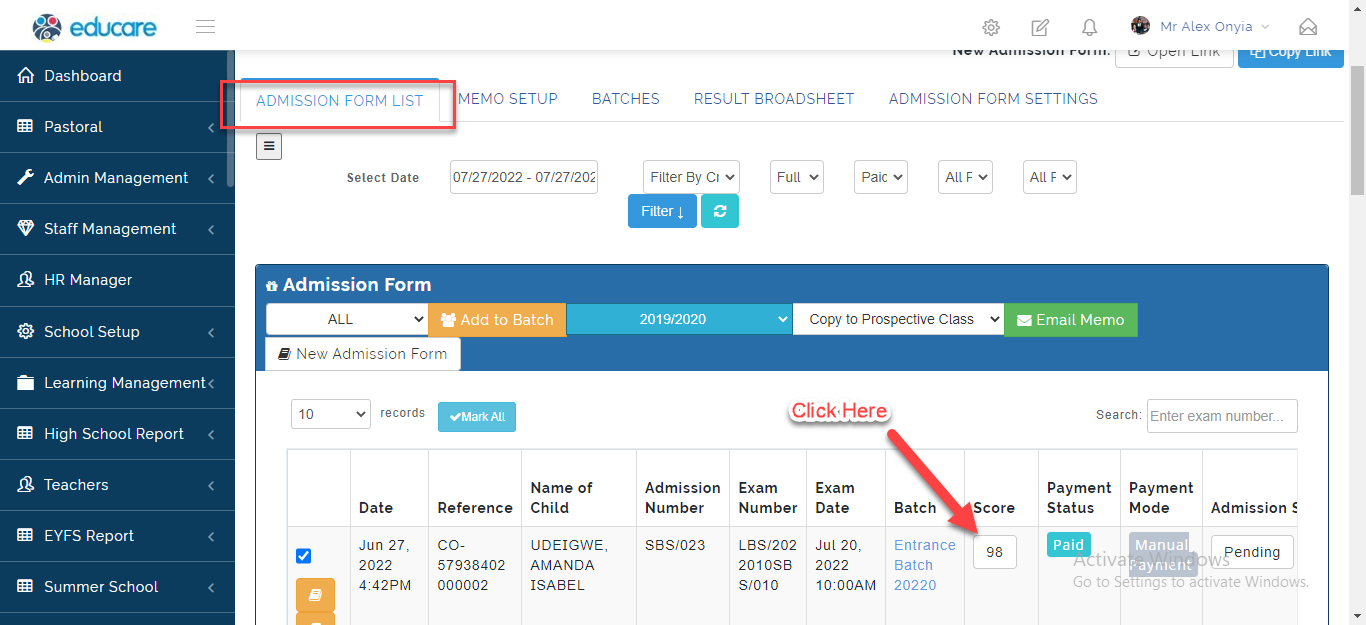
- Click on Admission List, The list of Candidates and personal profile will appear. Click on the textbox under the Score Column.
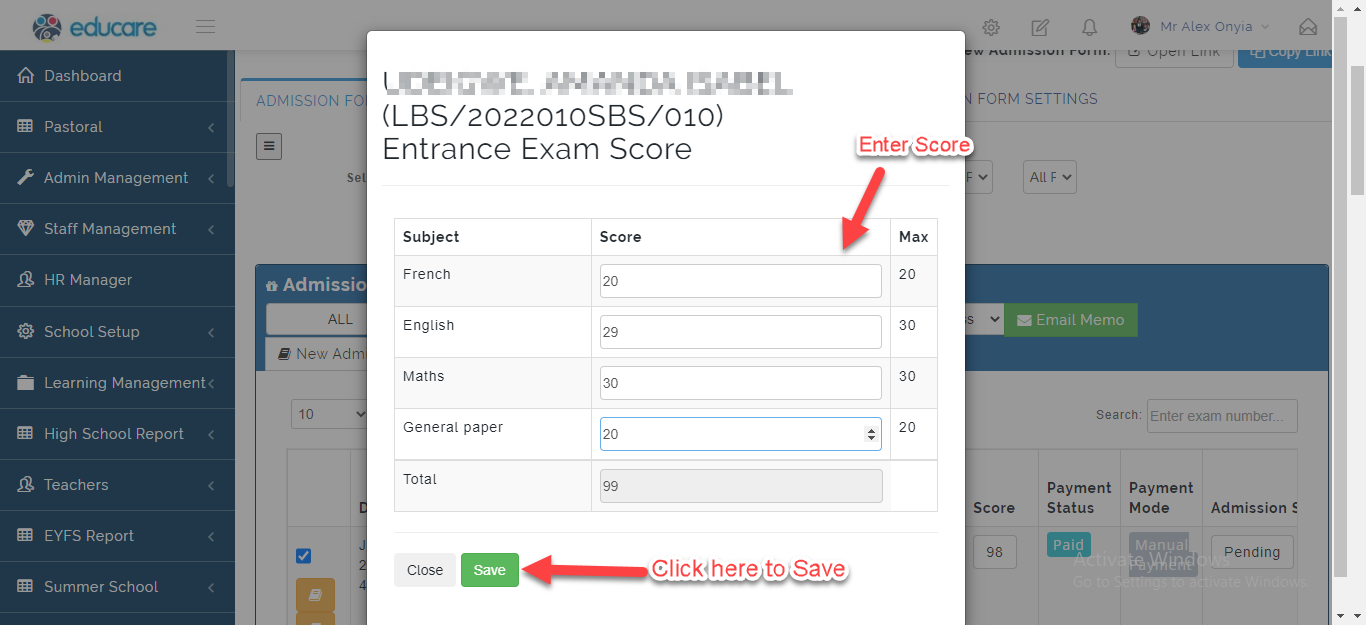
- A Modal will appear showing the list of Subjects taken by the Candidate. Enter the Scores the Candidate obtained for each subject. The System will automatically calculate the Total; Click on Save or Cancel to Ignore.
How to Move Candidates to Prospective Class
Follow these Steps to Move Candidates to Prospective Class:
- From Admission List, Select the Session you want to move Candidates to.
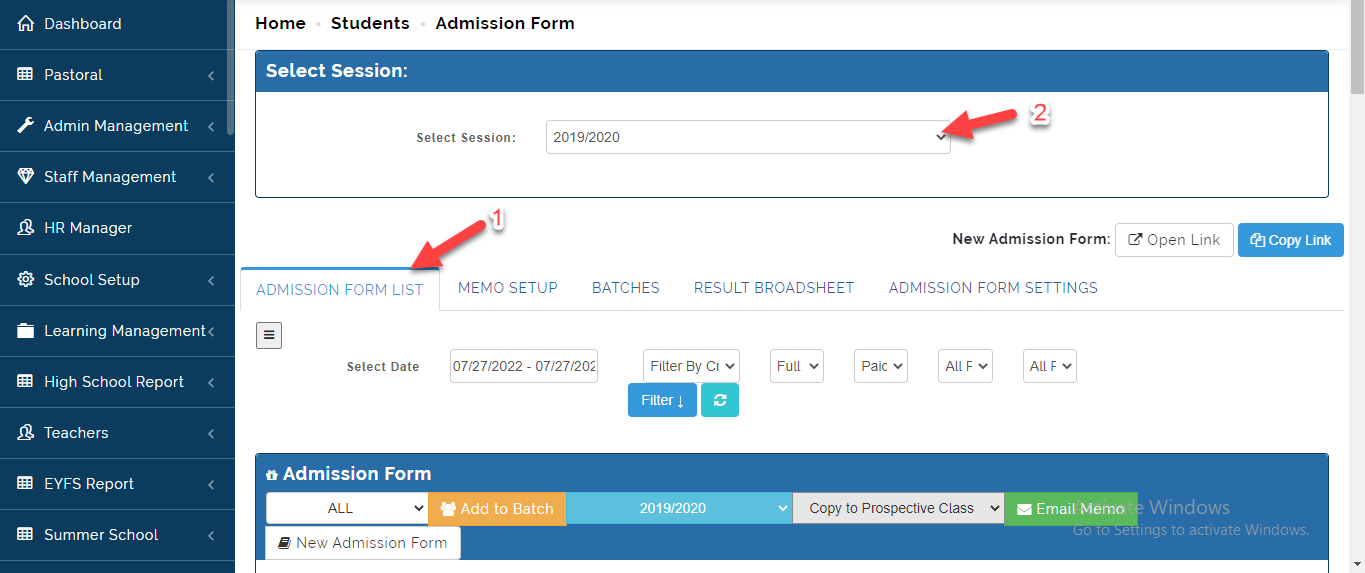
- Click on Mark All then Click on Copy to Prospective Class to Select the Class.
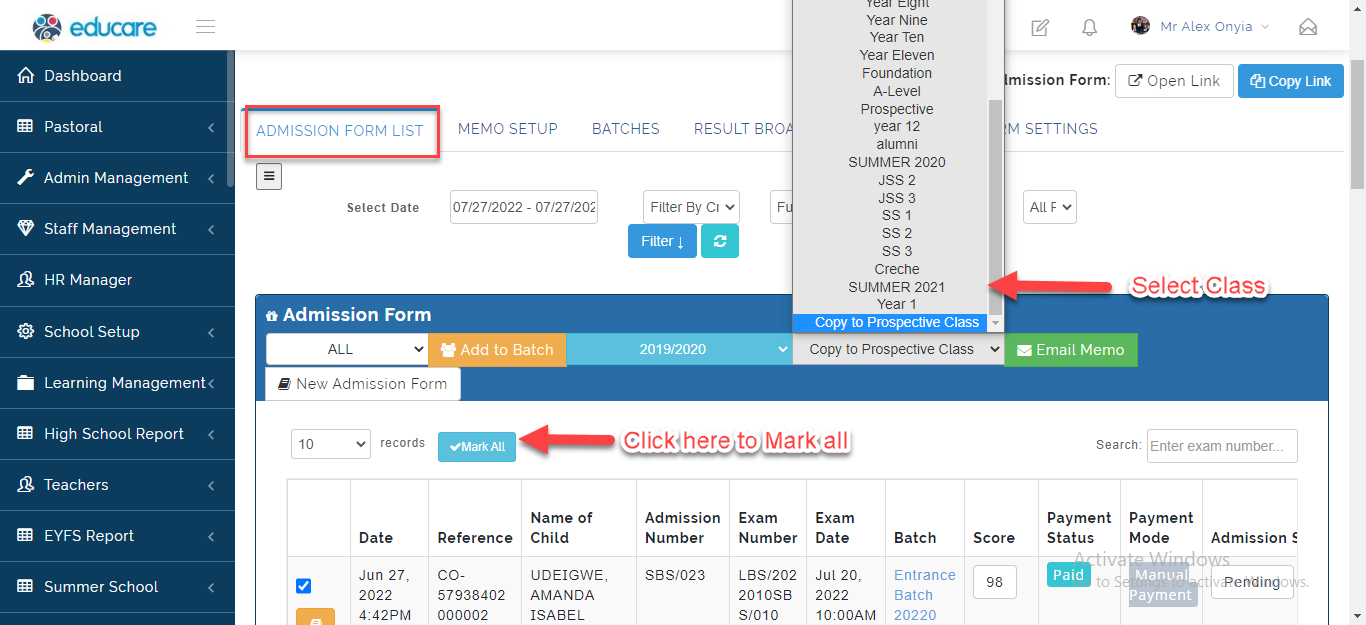
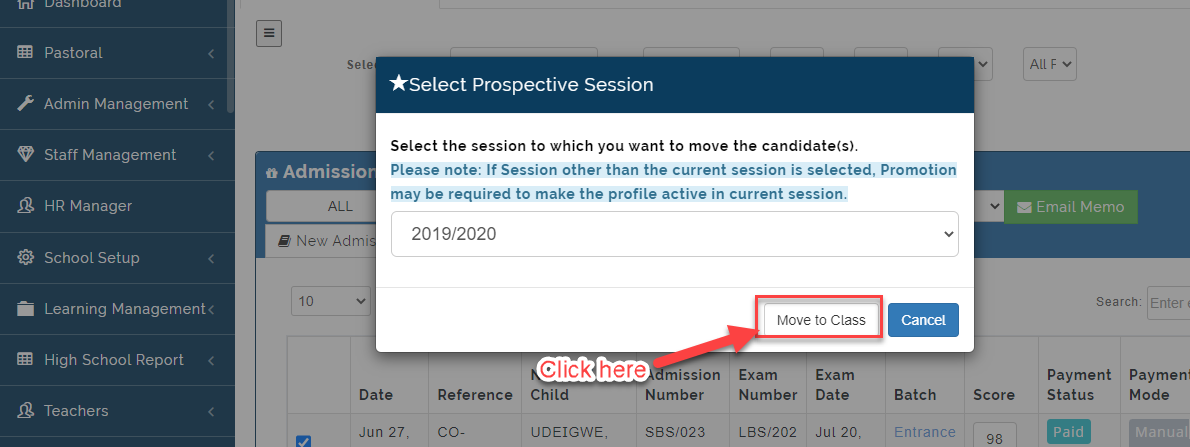
- If Session is different from what was selected earlier, promotion may be required to make the Profile active in current session. Click on Move to Class or Cancel.
Once you are done, The Candidates will appear under Active Students List on the Manage Students Module
How to Send Email Memo
To Send Email Memo, Follow these Steps:
- From Admissions List, Select the Students you want to send Memo to then Click on Email Memo.
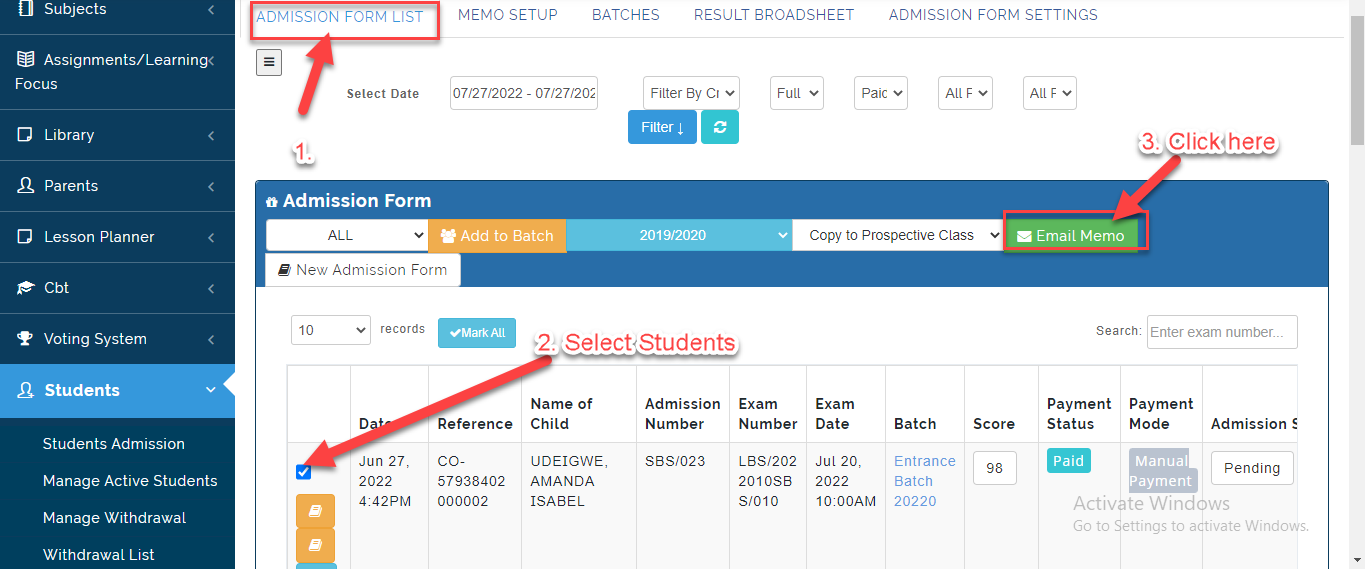
- A Modal will appear showing the Memo Template. Edit the Email using the instructions on the Place Holder. Click on Proceed to Send to Selected Candidate(s).
You can Select multiples Candidates and the number will show as indicated below.
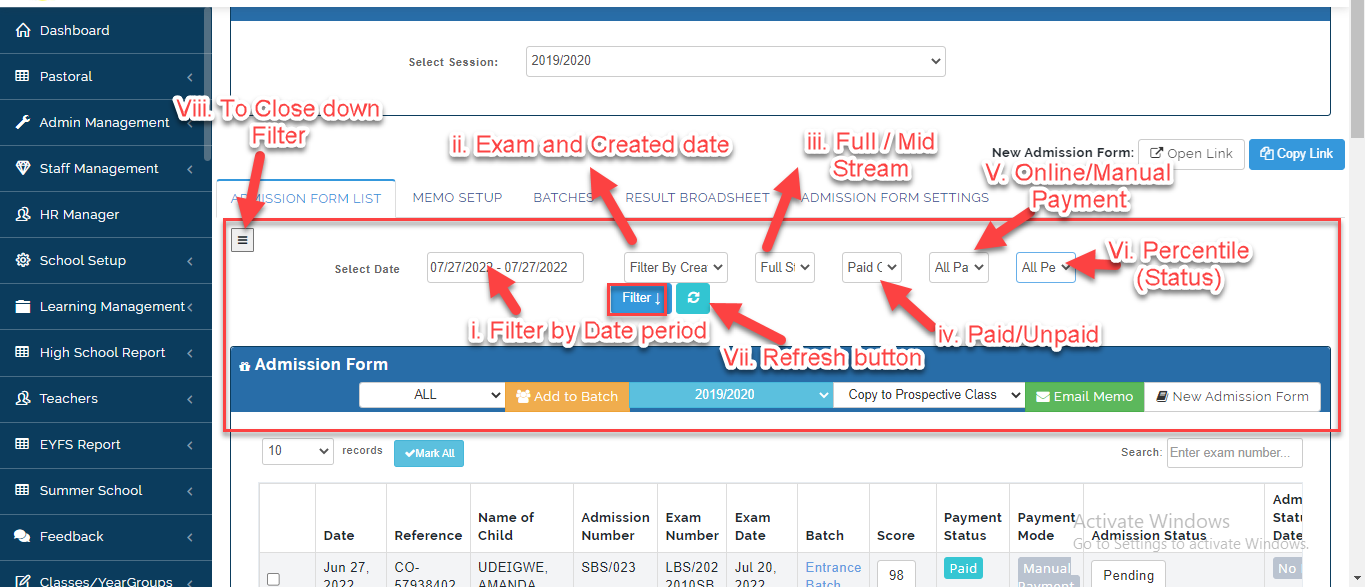
Filter Buttons For Admission Form List
Here, The School Admin can filter search using Cut off Mark, Dates, Full Stream, Exam Date, payment type and Status.
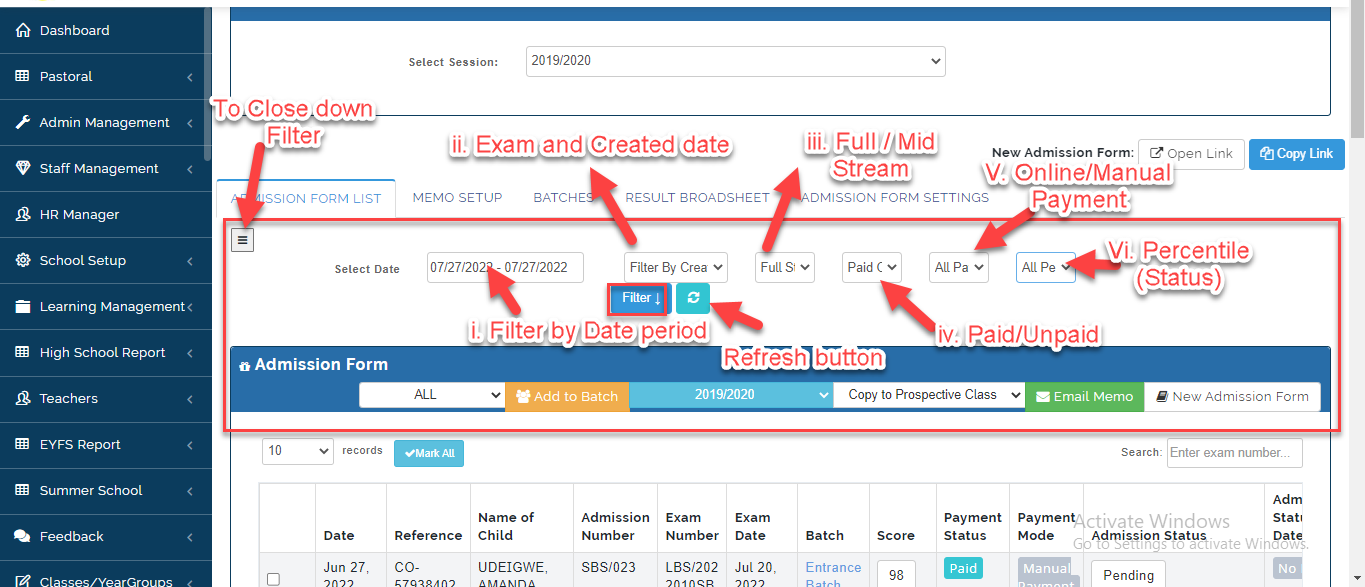
i. Click on the Date bar as indicated above to select a date period to view Candidates on Admission List.
ii. Click on the button above to filter Admission List by Exam date and the date Application was created.
iii. Click on the button as indicated above to filter Admission list by Candidates who have register at Full or Mid Stream.
iv. Click on the button as indicated above to filter Admission list by Candidates who have paid and not paid.
v. Click on the button as indicated above to filter Admission list by Candidates who have paid through online and manual paid.
vi. Click on the button as indicated above to filter Admission list by the Application stage of Candidates.
vii. Click on the button above to filter provide Admission List with most current data.
viii. Click on the Menu bar to Close down the Filter button.