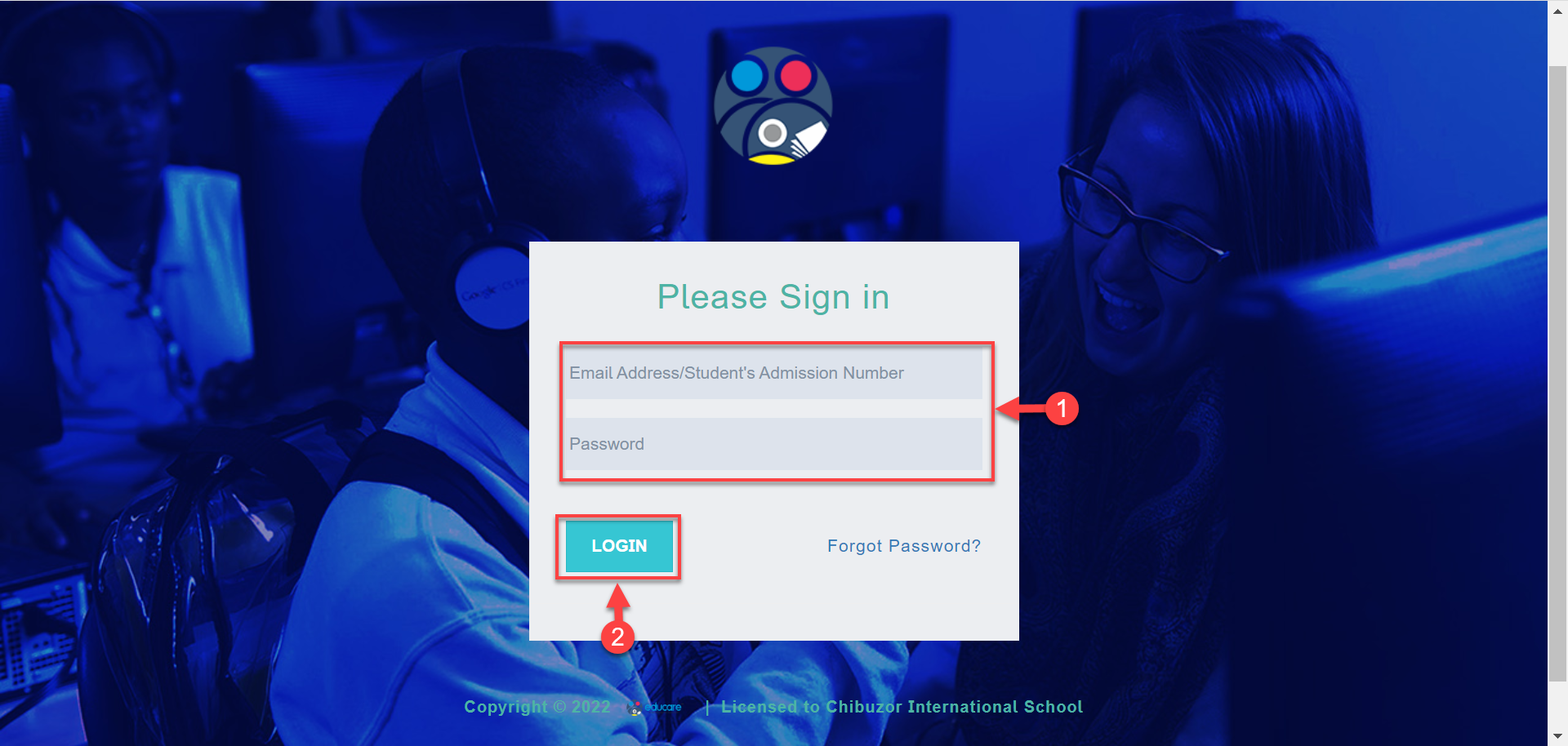
To get started onboarding your school on educare follow these simple steps below;
Step 1:
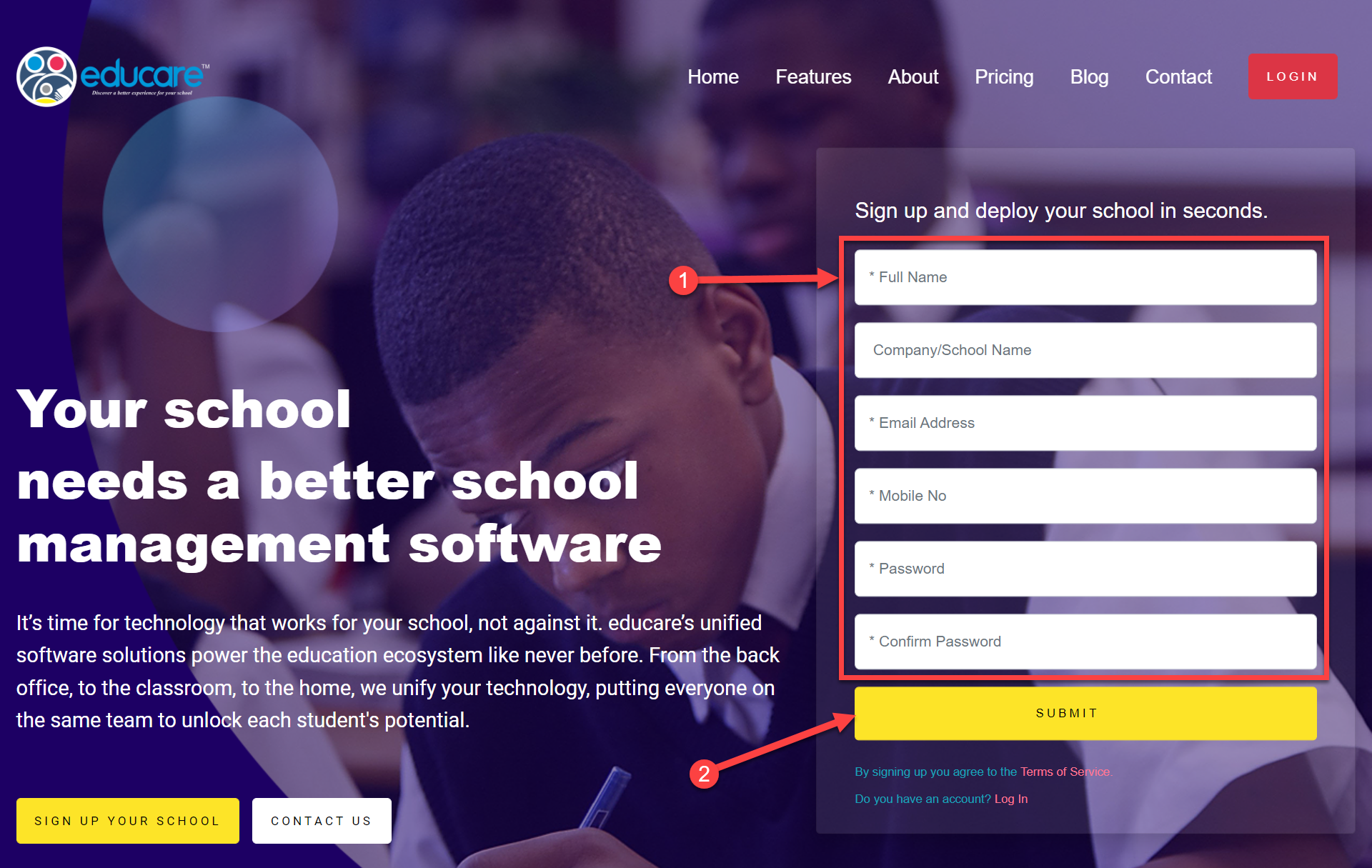
- Visit the website www.educare.school
- Fill the form and click on the SUBMIT button. This will send a verification code to your email.
Step 2:
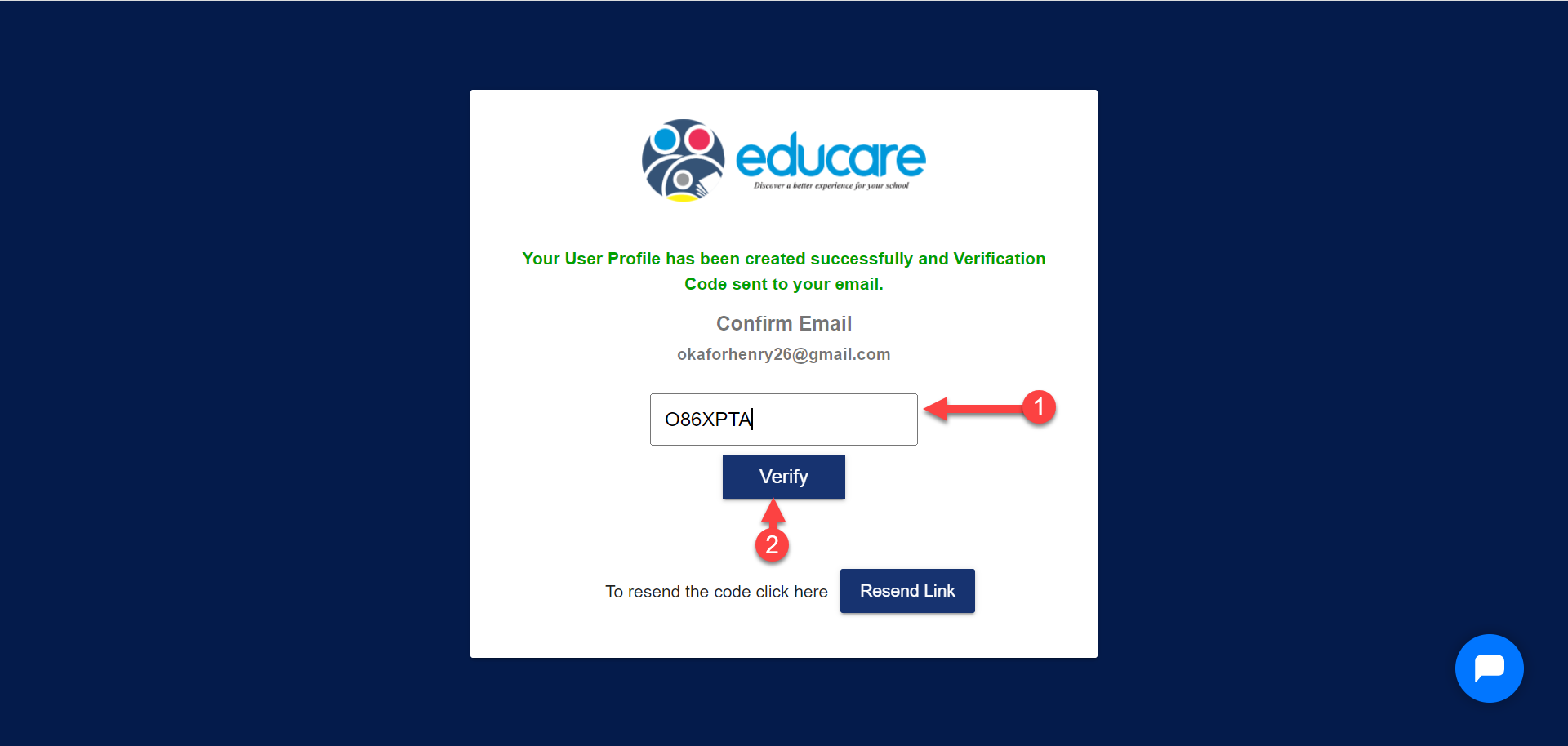
Clicking on SUBMIT in Step 1 opens the page below
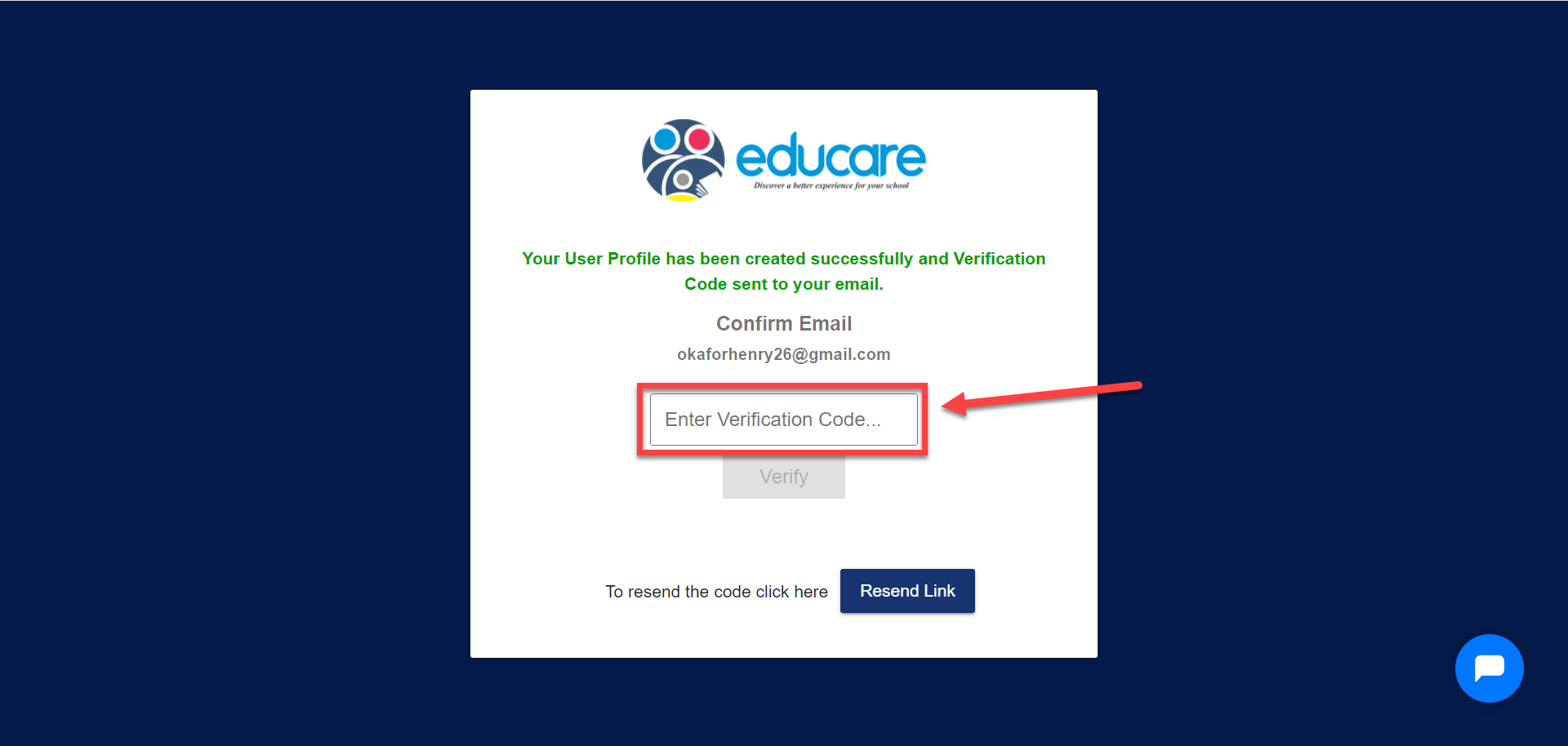
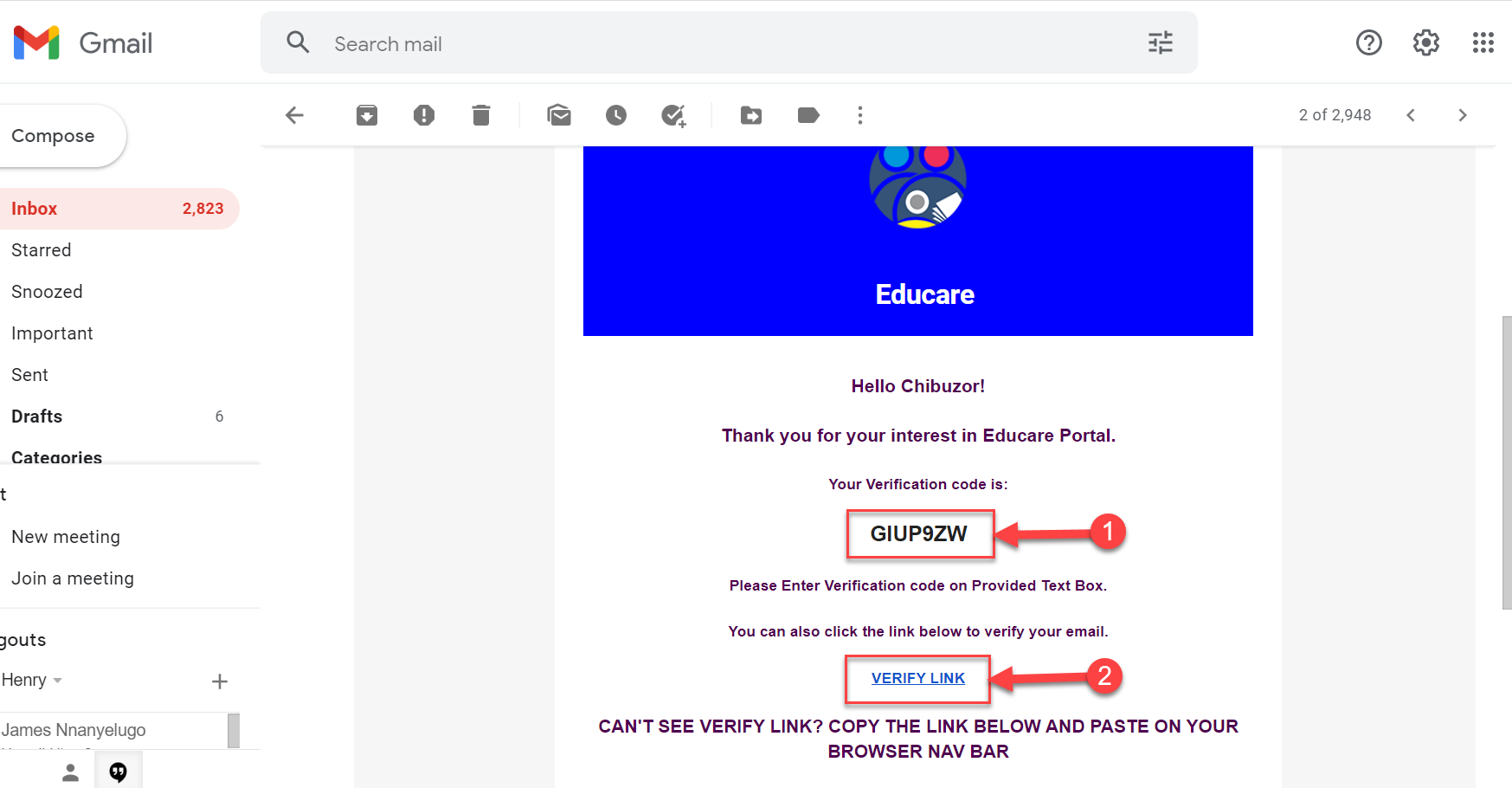
You are required to check your mail to get the Verification code or you can simply just click on the VERIFY LINK and it takes you to the next step.
Step 3: Your cPanel
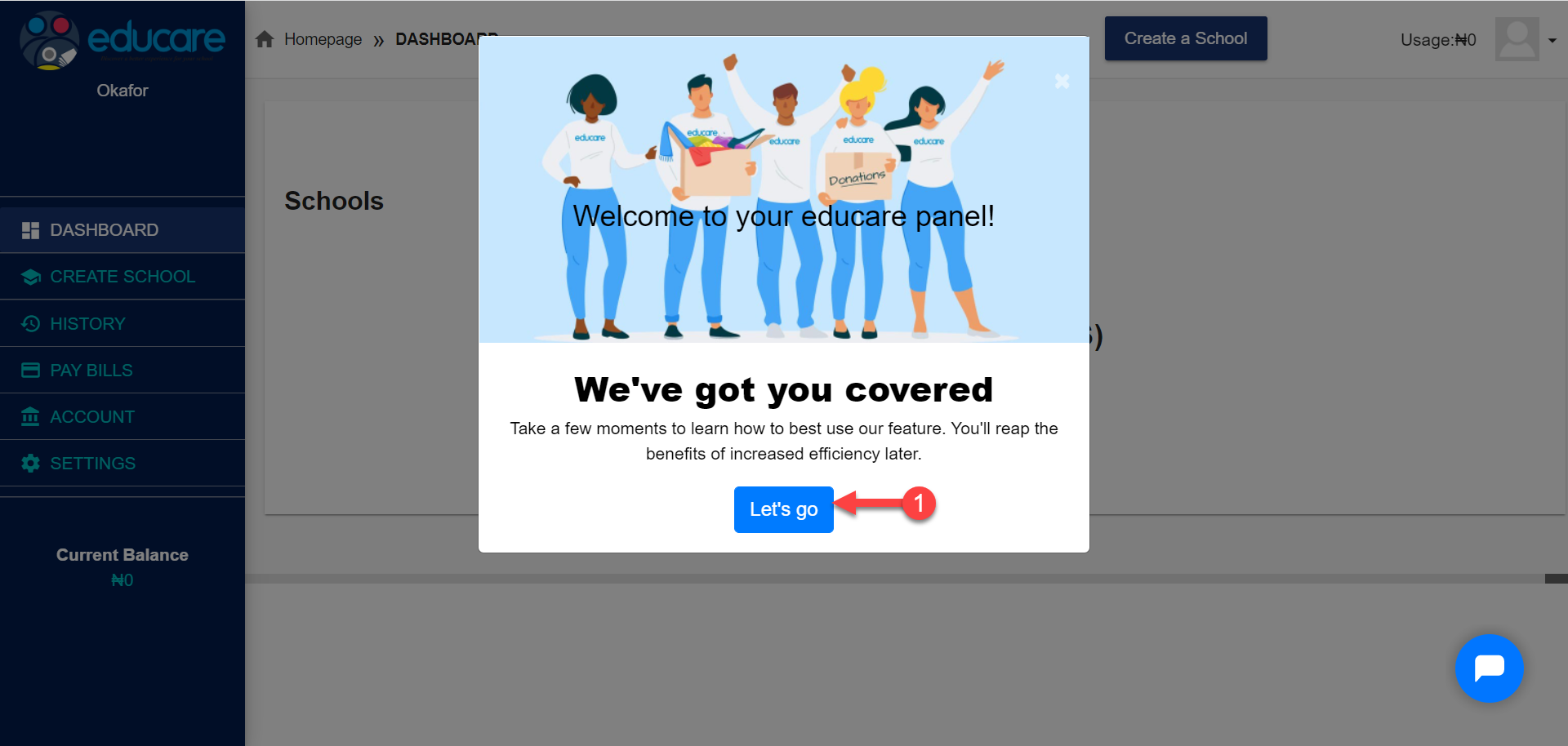
Once you are verified, you will be brought to your c-panel page as seen below.
Here you can create schools and manage subscription for the different schools you have created. A wizard is available to help you navigate through the process of creating a school.
Click on the Let's go button to proceed.
Step 4:
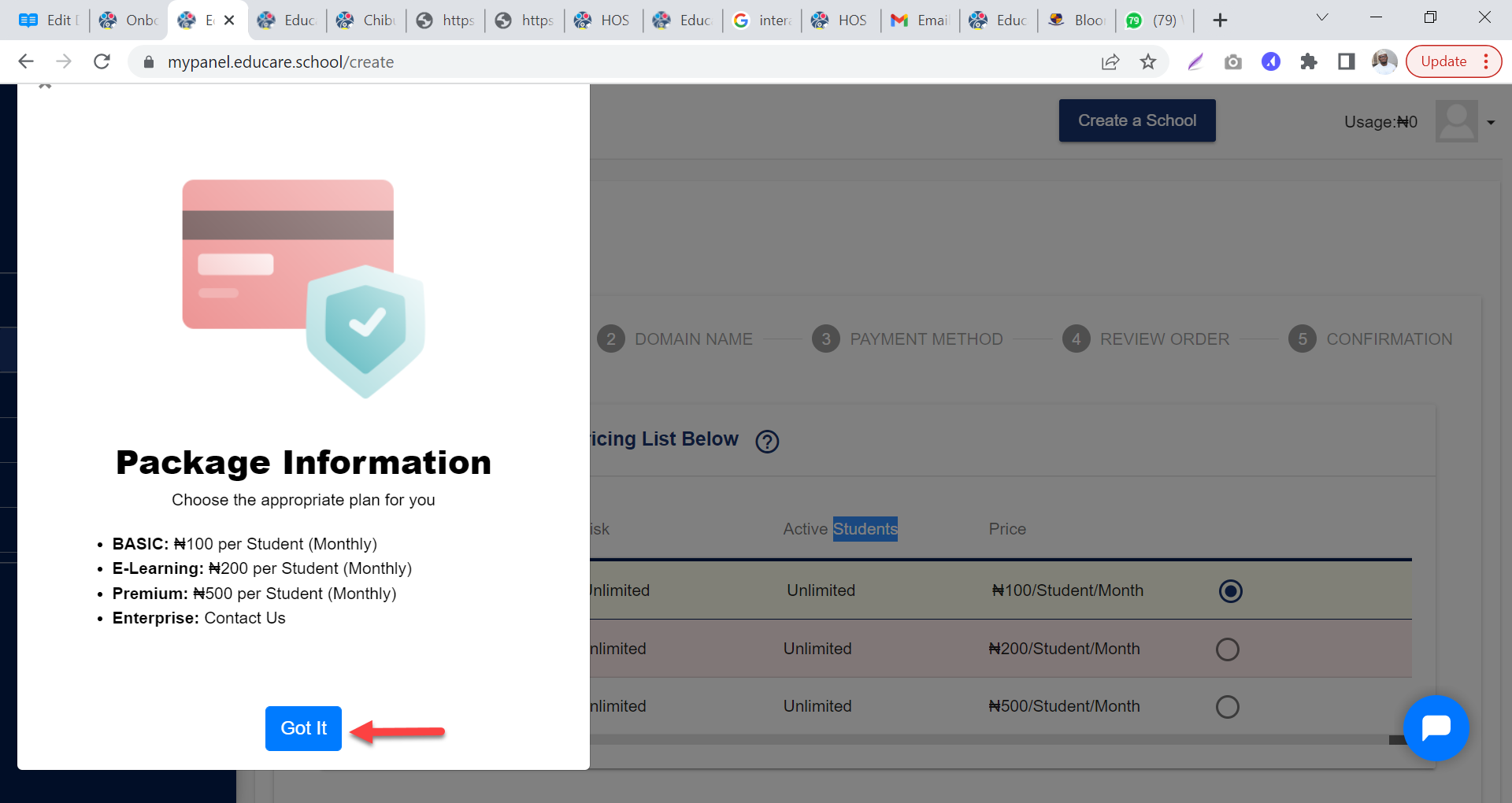
This shows the different packages which you can subscribe to.
Click on the Got It button to proceed.
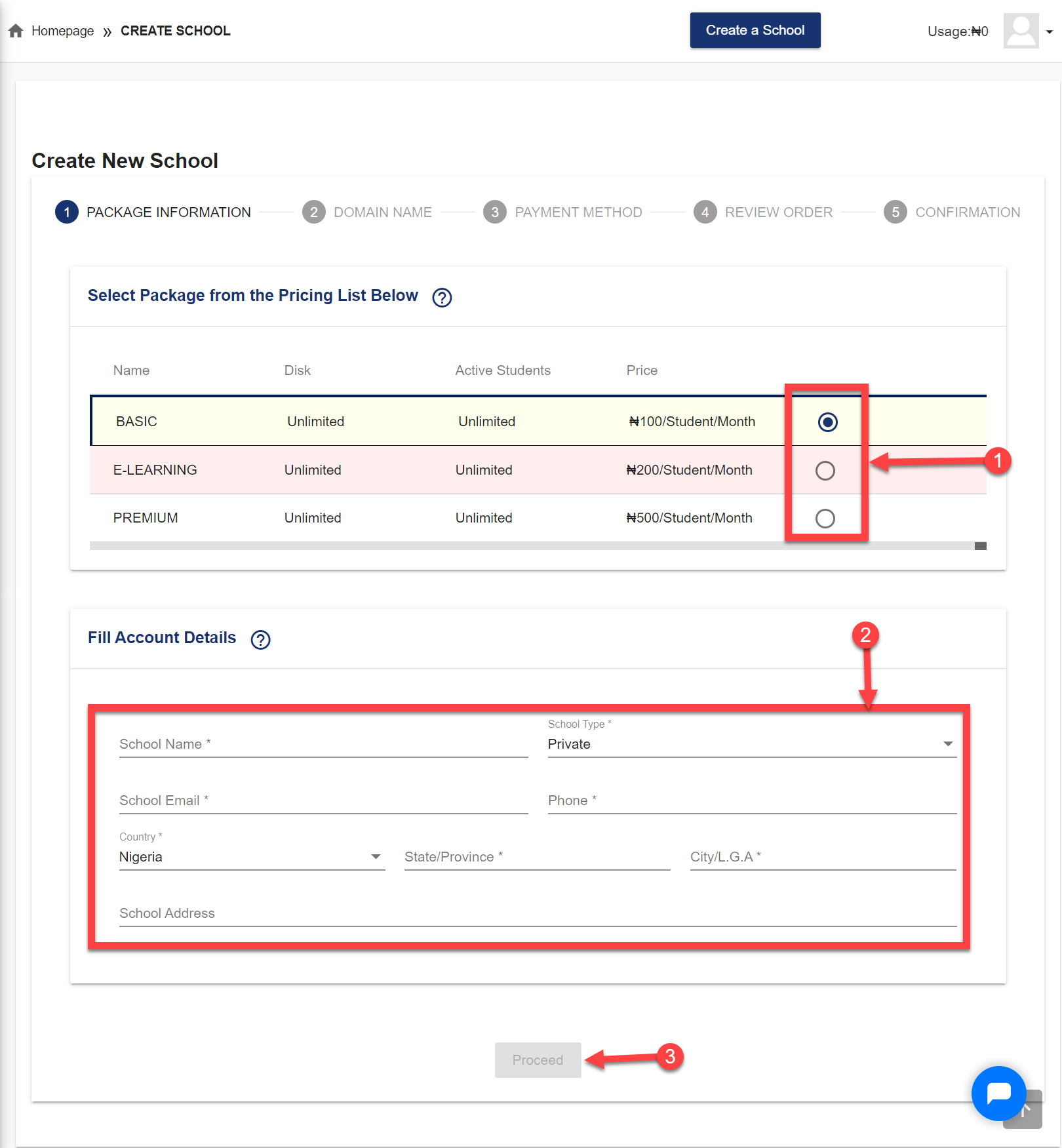
From the picture below;
- 1 - Select the payment package you wish to subscribe to.
- 2 - Fill the account details
- 3 - Click on Proceed to go to the next step
Step 5: Domain Name
Type the URL you want for the school. For example if the name of your school is Westminster School, you can just type westminster and the new URL will be westminster.educare.school
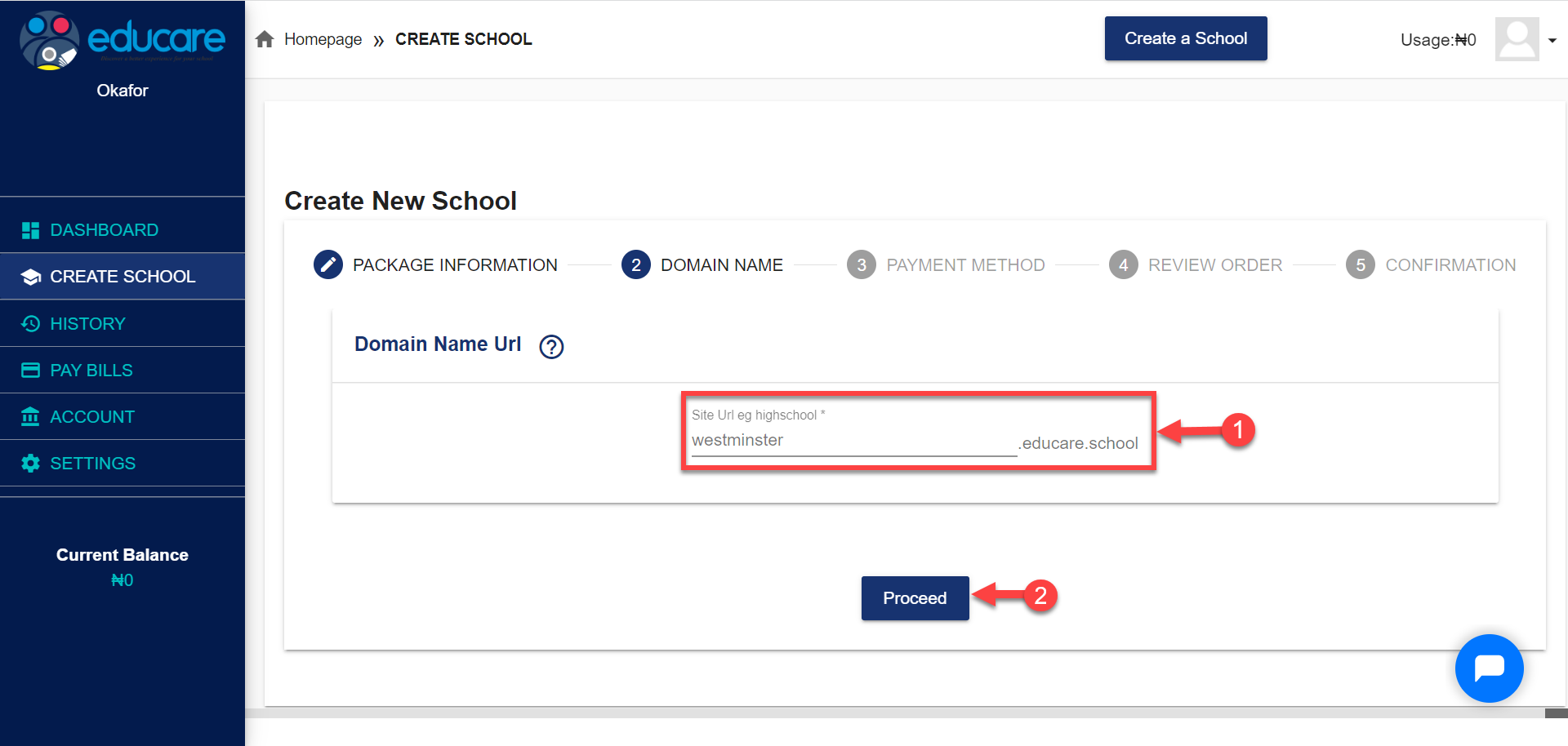
Click on Proceed to go to the next step.
Step 6: Payment Method
Here you are required to pay in an initial deposit of #5,000. To do this follow the steps below
- Fill in your bank card details
- Click on Confirm Card
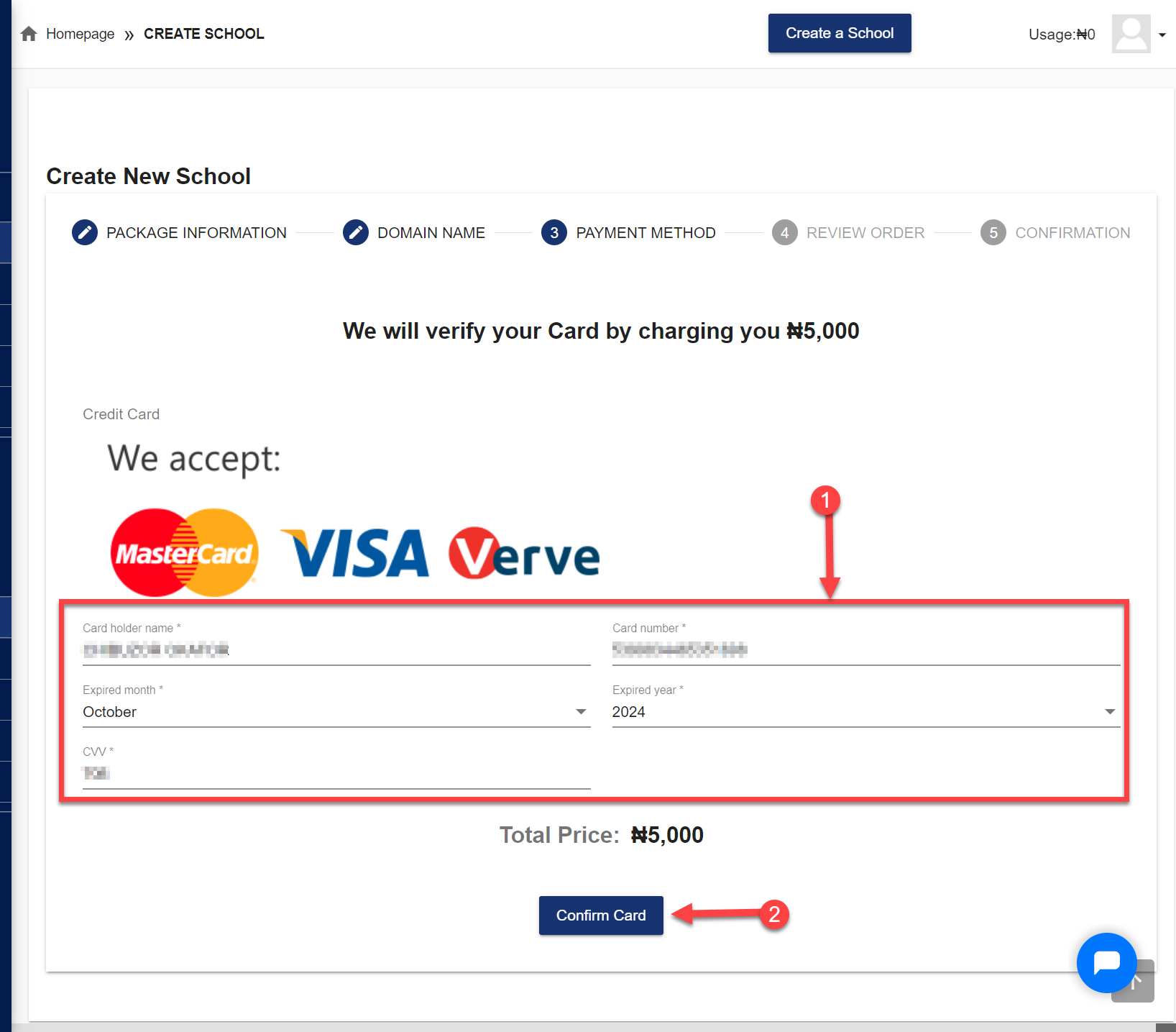
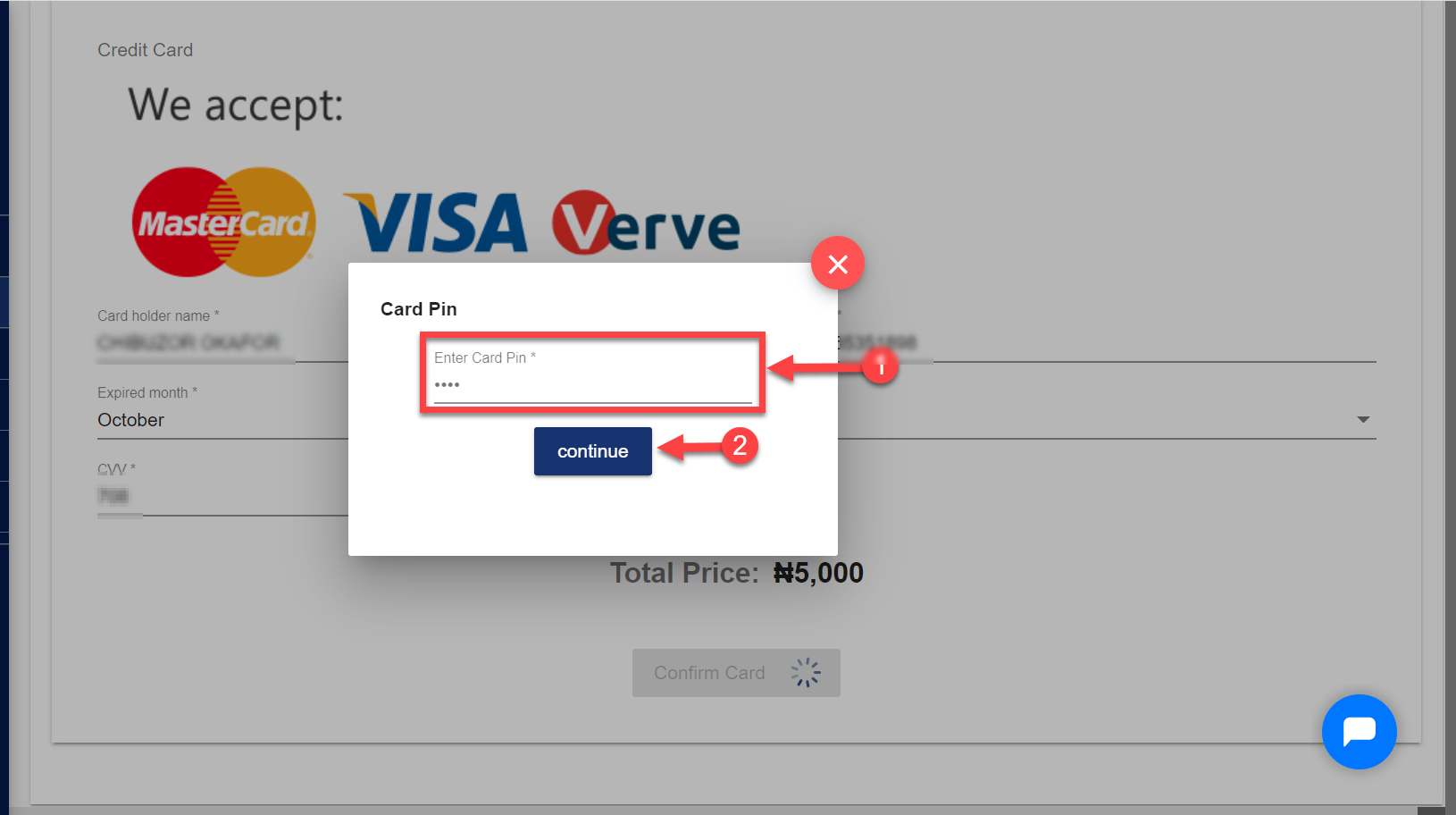
- You would be required to put in your Card Pin and click on the continue button.
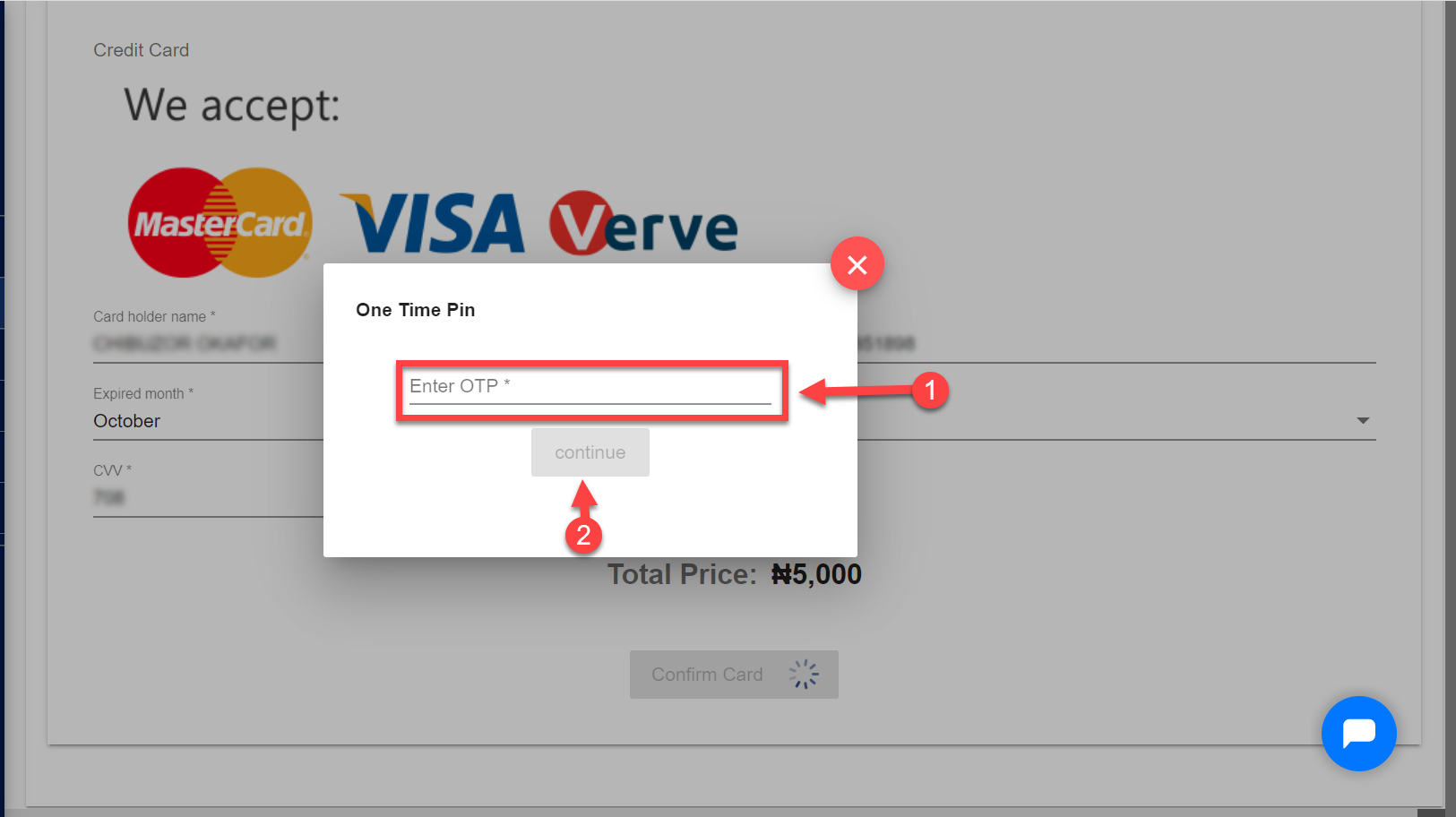
- Also you are to enter the OTP code sent to your mobile phone and click on continue button to complete payment.
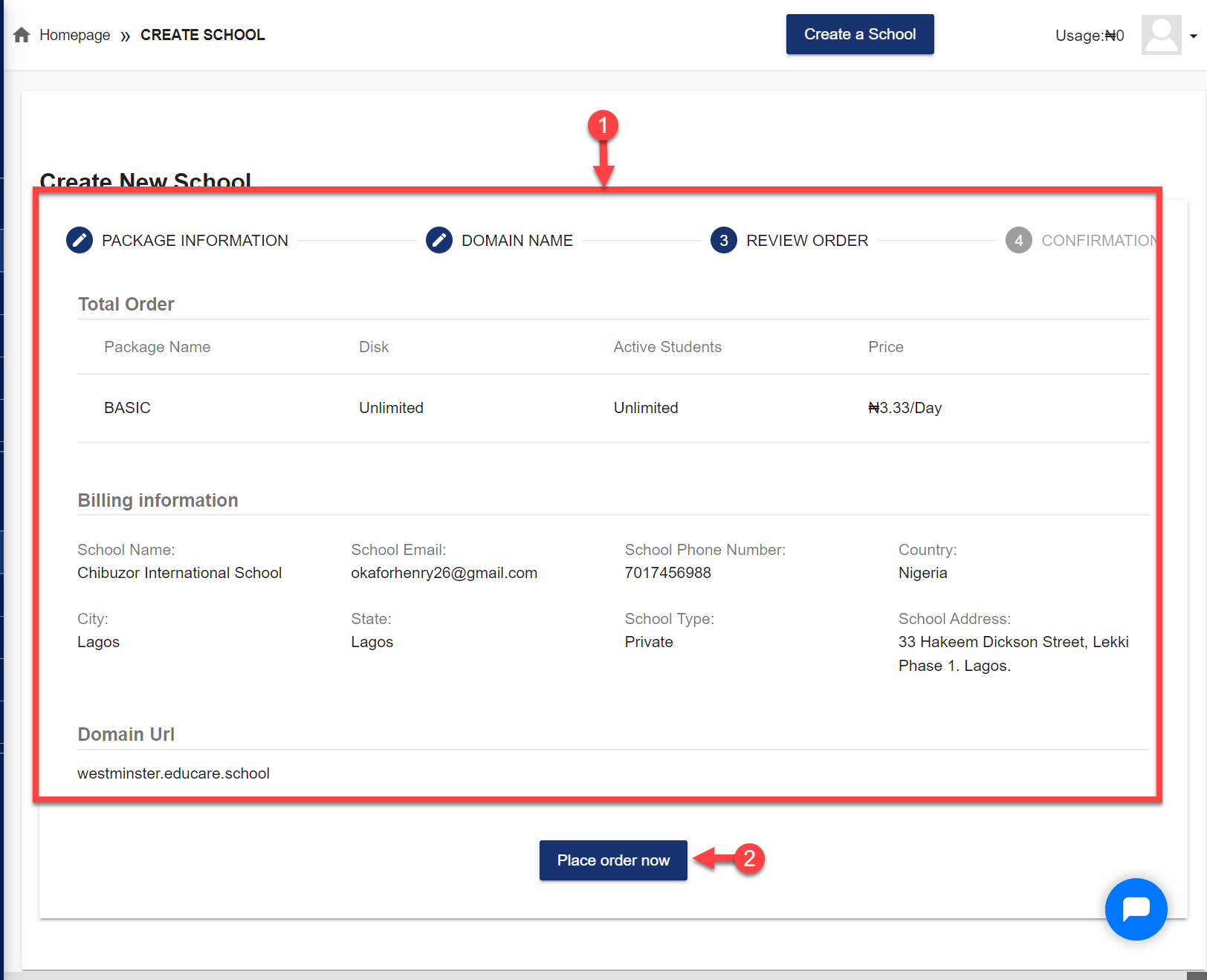
Step 7: Preview Order
Here you have a preview of every information you have filled.
Click on Place order now button to proceed.
Step 8:
Clicking on Place order now in Step 6 starts the process of onboarding your school.
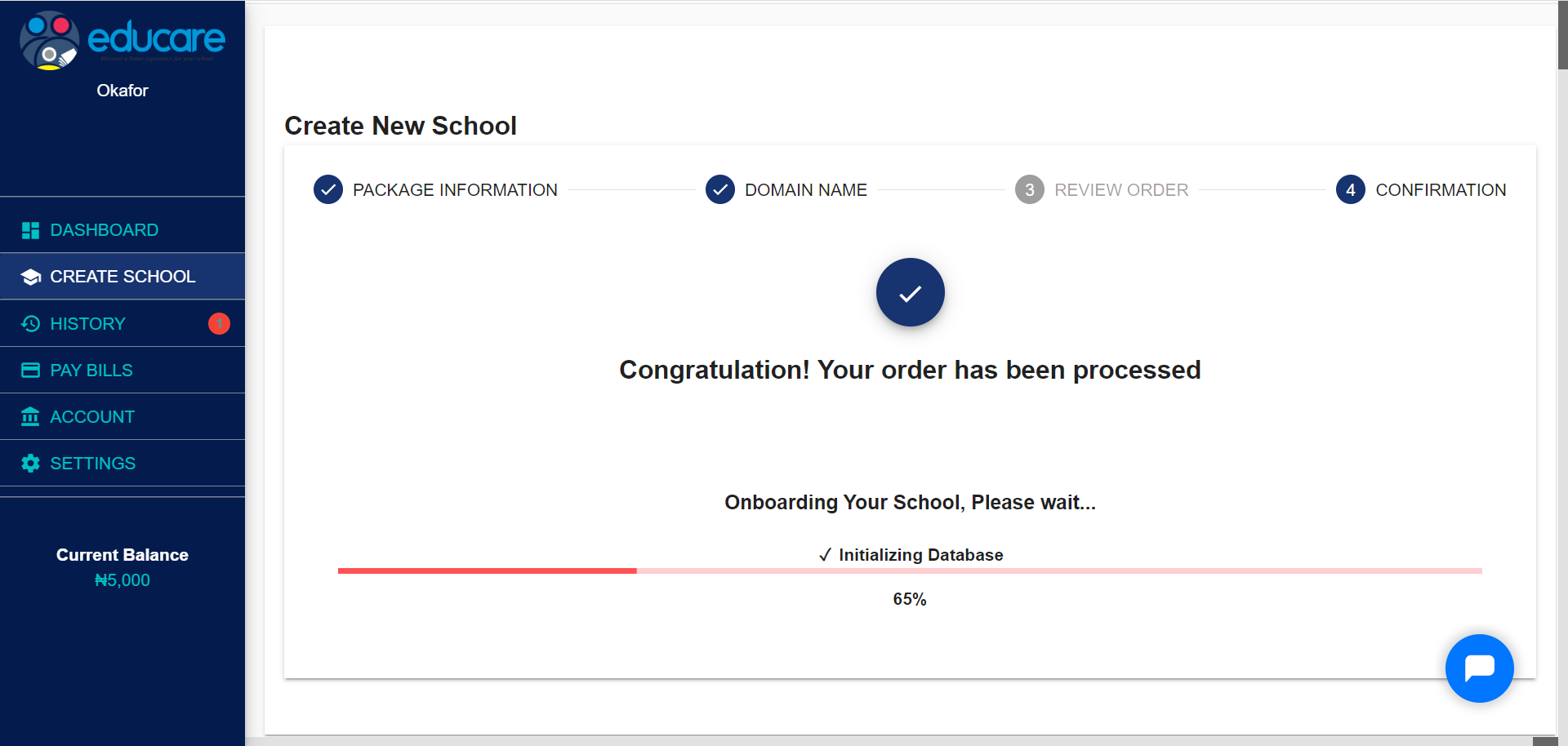
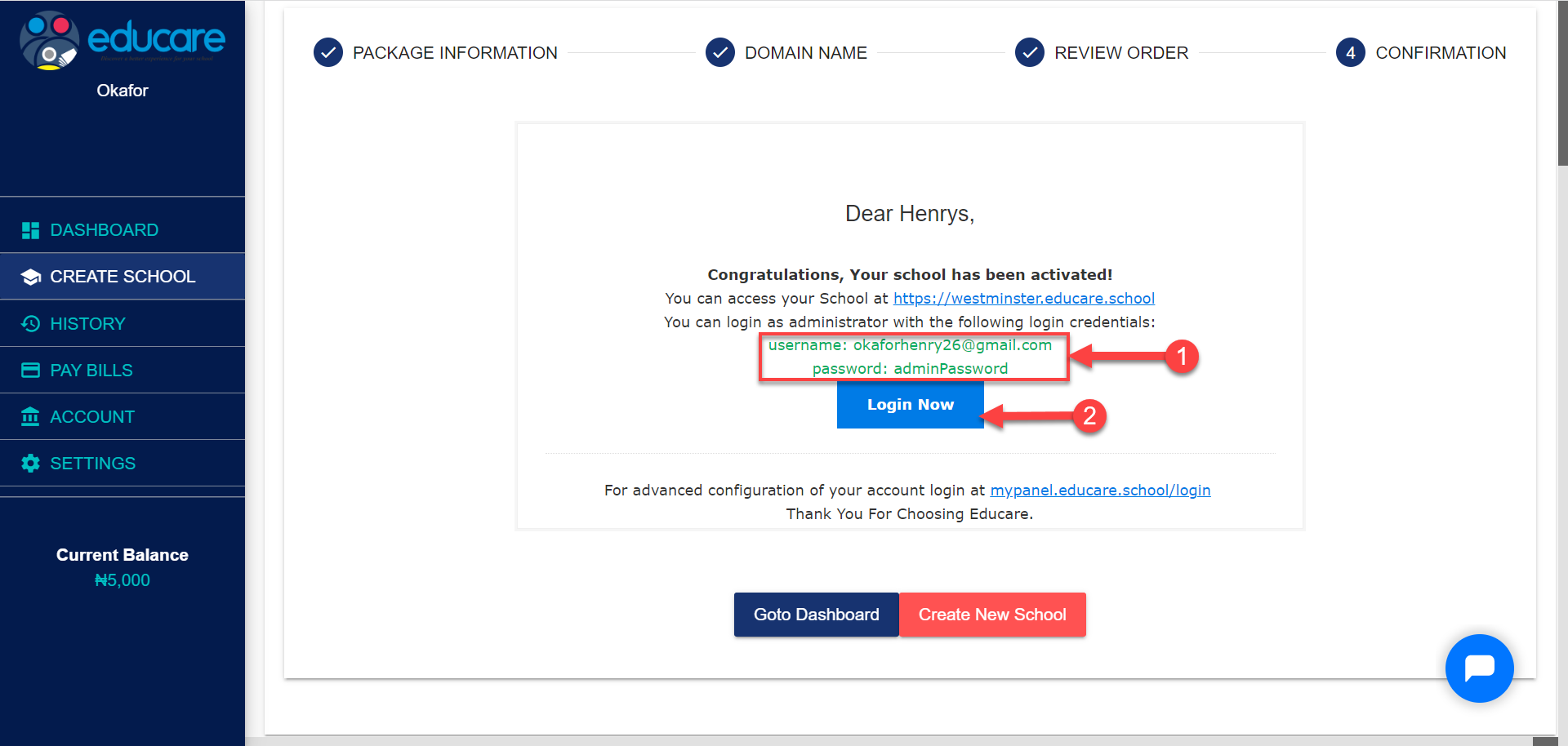
Once the onboarding process is done, your login information will be displayed as shown in the picture below.
- The username and password is displayed as labelled 1 in picture below
- Click on the Login Now button to take you to the login page for the school
Enter the your login details provided and click on Login.