This feature allows employees contract employees, and contractors to request for fund from an estimated budget plan set by the organization. Requisition is the process of creating, processing, authorizing, and tracking purchase/expense requests within an organization. Requisition helps in controlling costs. educare requisition aids in streamlining organization's requisition process and gives you visibility into your entire process.
Requisition follows a standardized process flow which are divided into 6 distinct parts;
- All requisitions
- Pending requisitions
- Approved requisitions
- Awaiting authorization
- Rejected requisitions
- My requisitions
Requisition Note:
Every staff is given permission to make requisition. Requisition sub-link is available for all staff on their dashboard
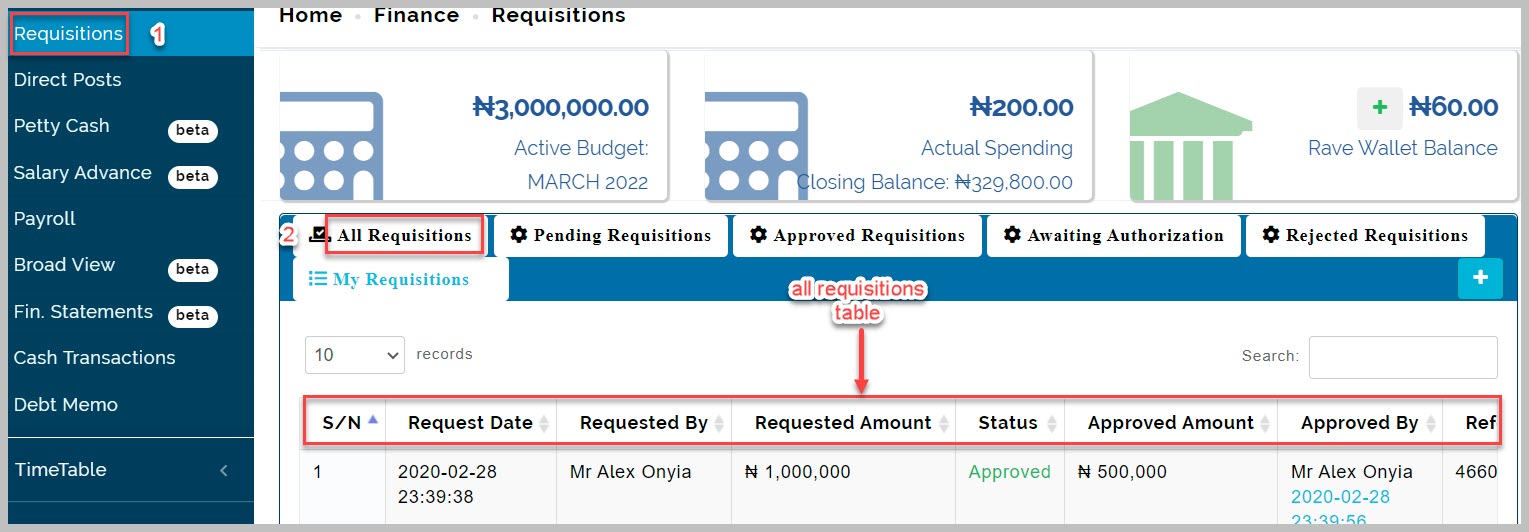
All Requisitions Table
This table shows the list of all those who made request of fund to purchase an item from the estimated budget. Details like name of individual requesting, amount requested, requisition status etc. are displayed.
How to add new requisition as a staff
To make new requisition as a staff follow these steps:
- Go to Finance and select Requisition then click on All requisitions tab as displayed above
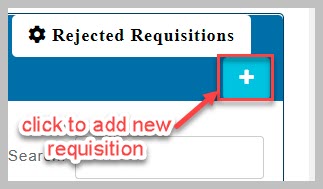
- Click on my requisition button (blue colored button with (+) on it)
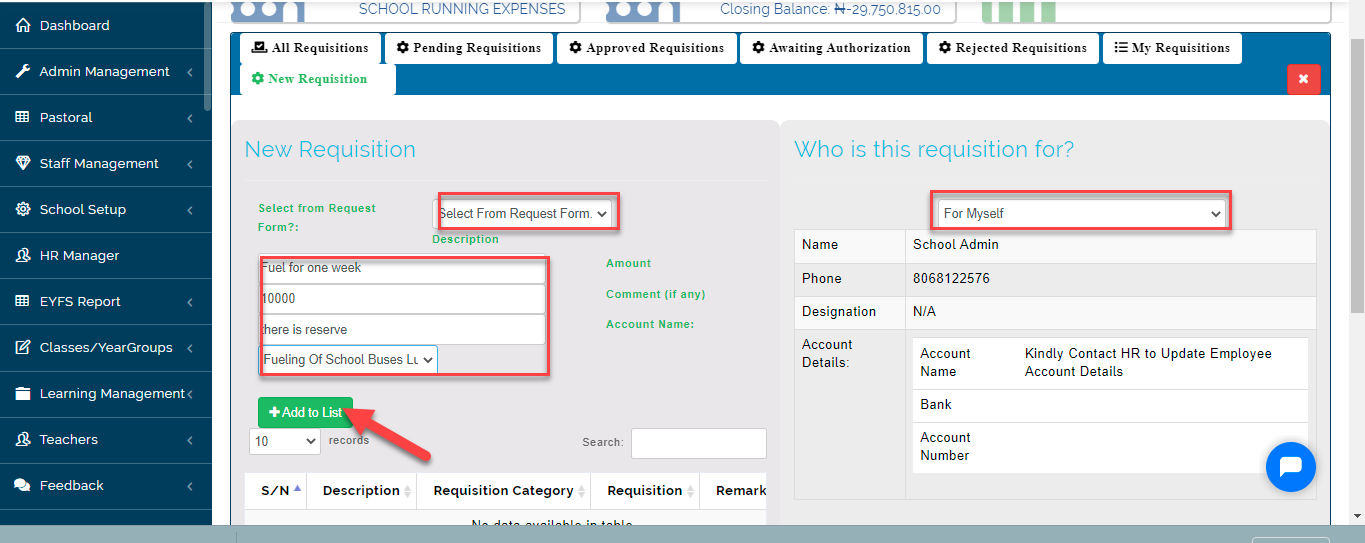
- Select who the requisition is for from drop-down list. From the dropdown select For Myself
The system automatically pulls the staff details name, number, account details
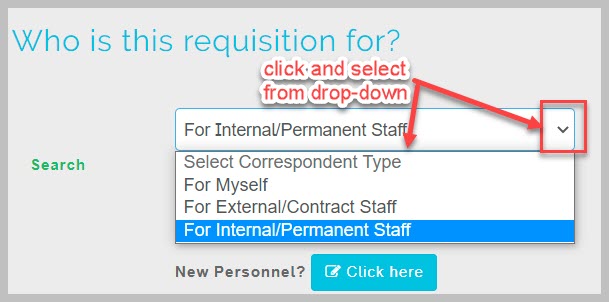
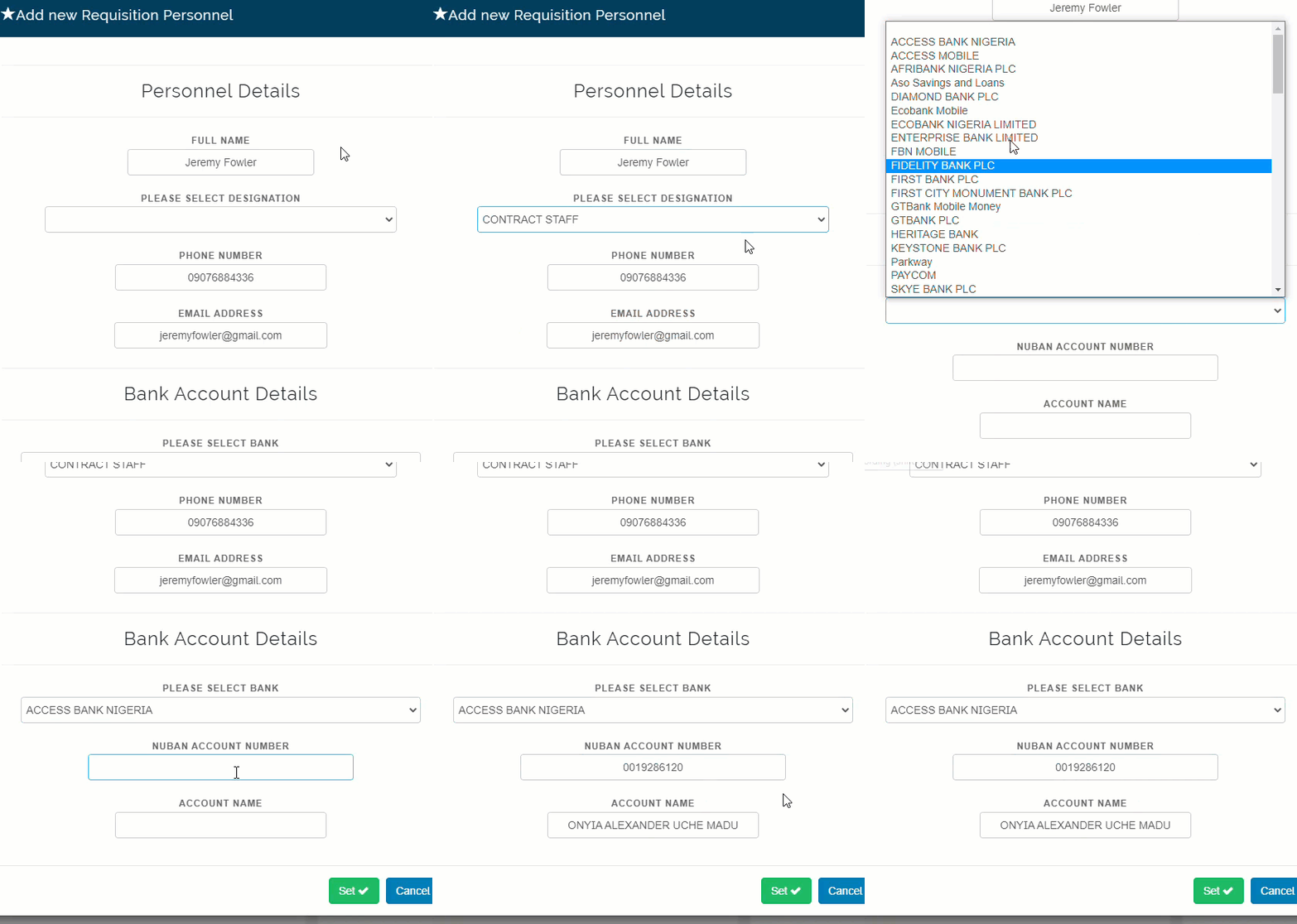
- Contract staff can be given permission to add requisition by the accountant or an admin. If the owner of the requisition is a new personnel/contractor etc. click on click here button to add new requisition personnel
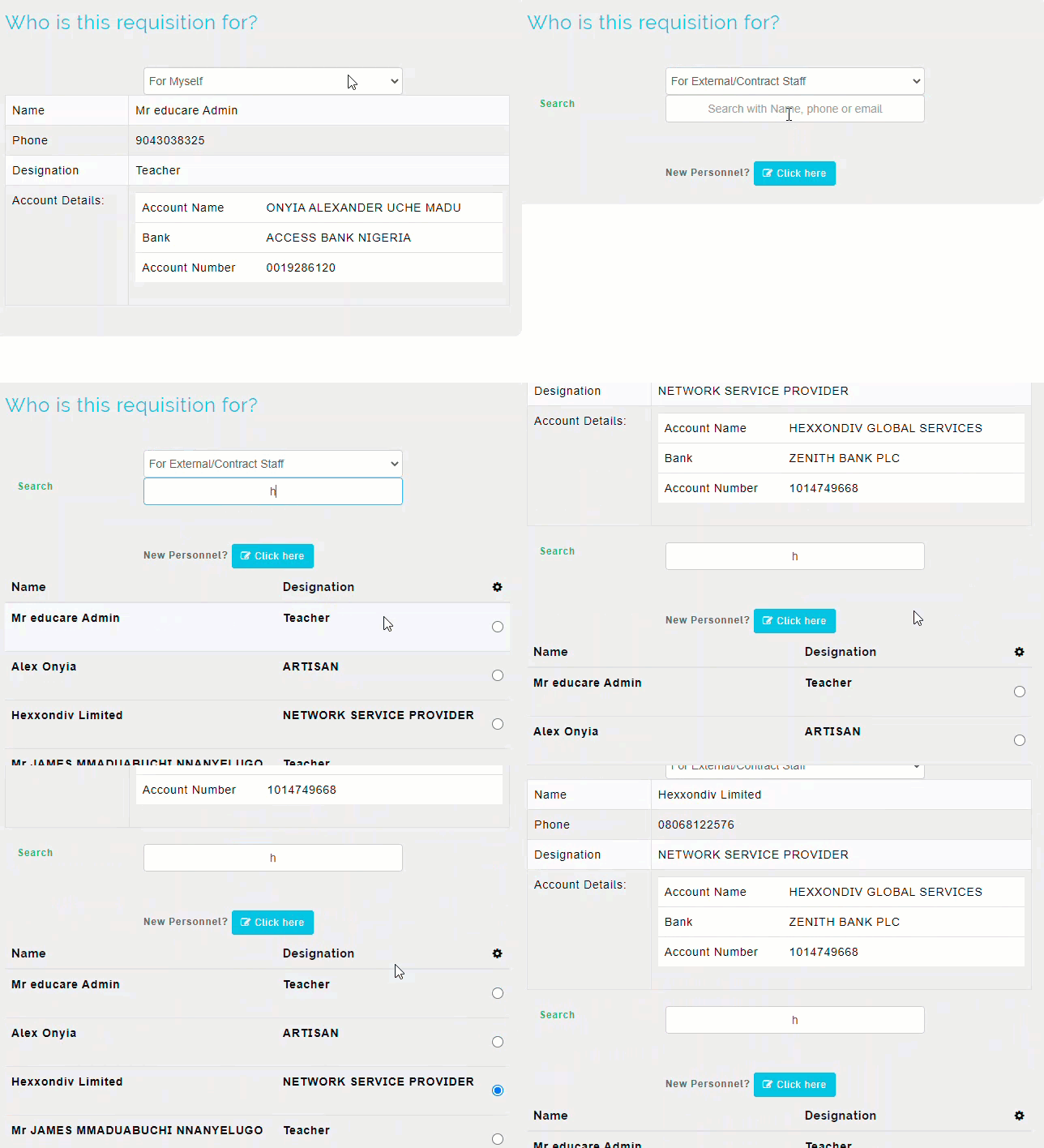
- If the requisition is for an already existing personnel, search and select name of desired requisition personnel from search list displayed.
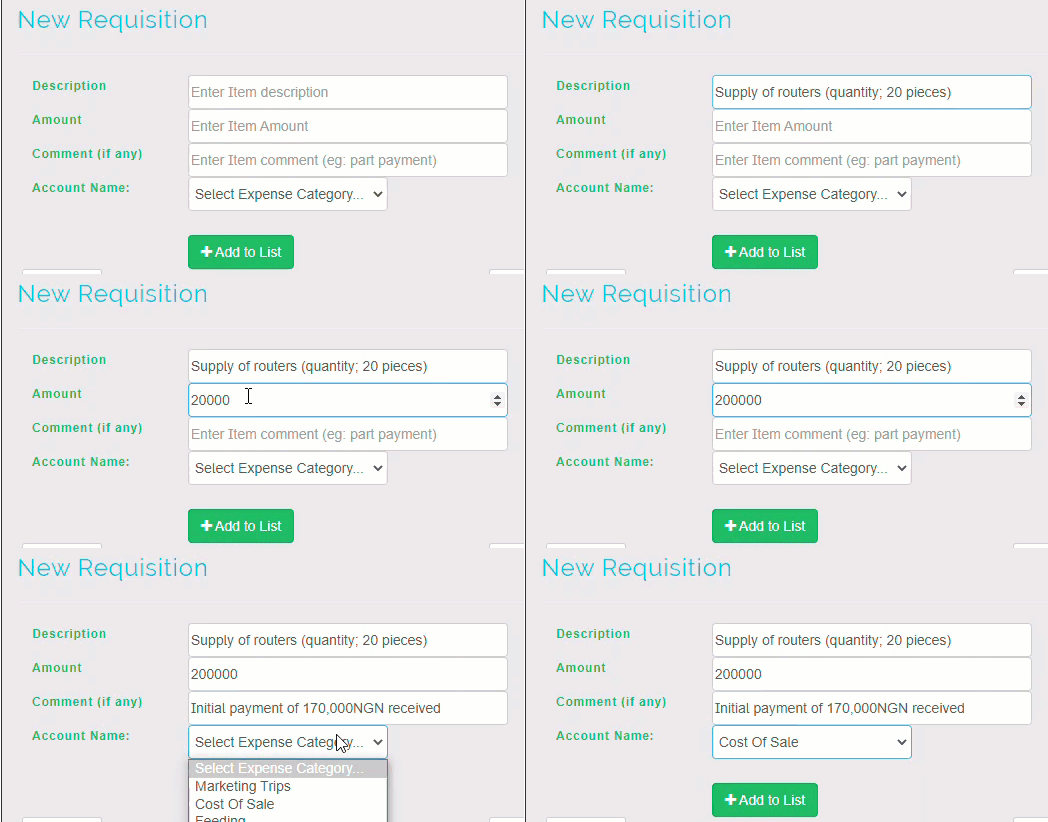
- Enter requisition item description name, amount, comment and account name that the item falls under. Click on add to list to save item. repeat this step for every other item.
- Chose invoice file from your device and upload then click on Submit Requisition button at the bottom of the page to save requisition
Pending Requisitions Table
This is where all pending requisition requests are displayed. pending requisition requests can either be deleted, approved or rejected. This table shows the list of requisitions that have not been approved by admin
How to approve/reject new requisition
Approve Requisition: The admin who has the permission to approve requisition, will view the requisition and
approve it
Reject Requisition: When admin views the requisition sent, if he is not satisfied with the list of items and the
amount attached to it, the requisition can be rejected.
To make approve/reject follow these steps:
-
Go to Finance and select Requisition then click on Pending requisitions tab
-
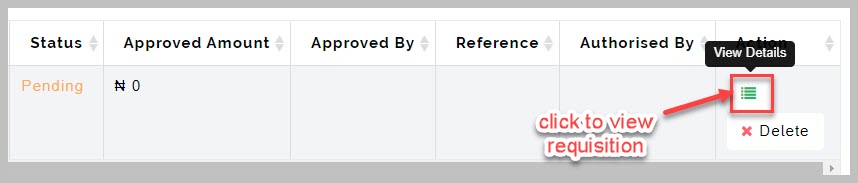
Navigate to requisition request of interest and click on view details button to approve/reject requisition
-
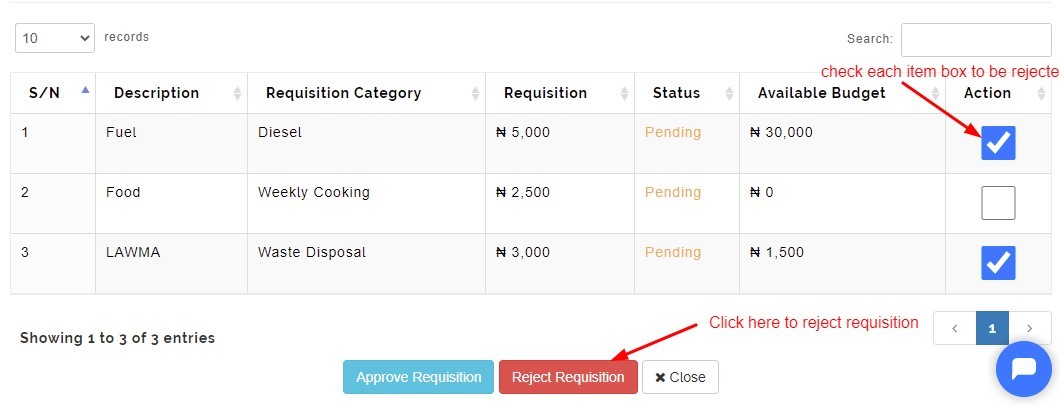
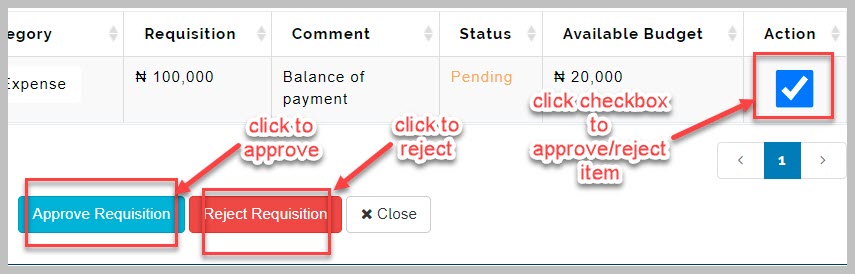
From the requisition details page, scroll to bottom and check the box under Action for the item to be approved
-
Click on Approve Requisition to approve and save action. Alternatively, click on Reject Requisition to reject requisition and save action
Delete Requisition
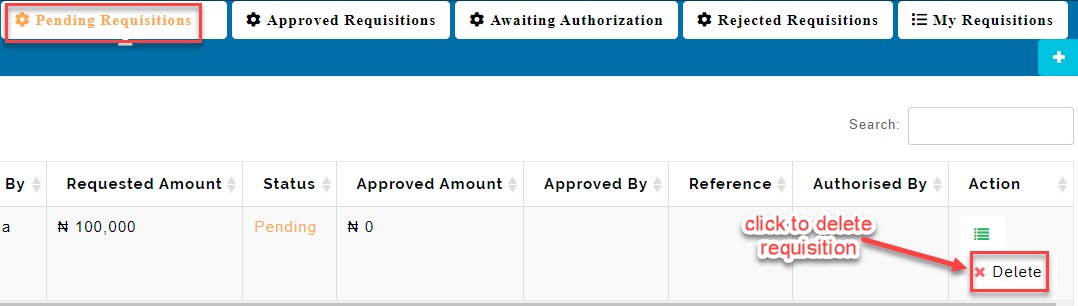
The red button under Action allows removing of item from the requisition list. Only new requisition can be deleted
Requisition Note:
A submitted requisition cannot be deleted. Only requisitions in the Pending requisitions table can be deleted
View Approved Requisition Table
This table shows the list of requisition that was approved and how much was approved from the requisition sent.
View Upload Returns
This button enables admin to view list of receipt uploaded by a staff whose requisition was approved and authorized. The receipt is from the item purchased or any other evidence of the item purchased
Click on the eye icon to view uploaded return
My Requisition Table
This table shows the list of requisition done by each individual who was given permission to create a requisition. It also shows individual requisition that is approved, pending and rejected
How to Upload Receipts
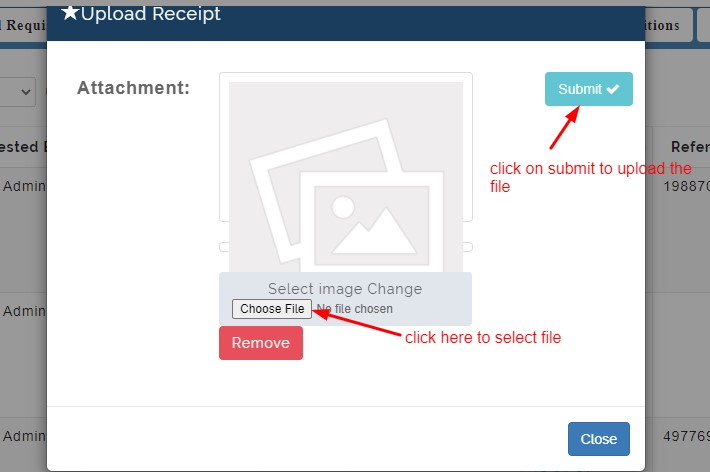
This button is used to upload receipt gotten from the item purchased for record purposes.
To Upload Receipts follow these steps;
- Click on upload button
- Click on choose file
- Click on submit button