In this Section, The School admin will be able to create subject for all school Types, Assign them to Class and their Subject teachers.
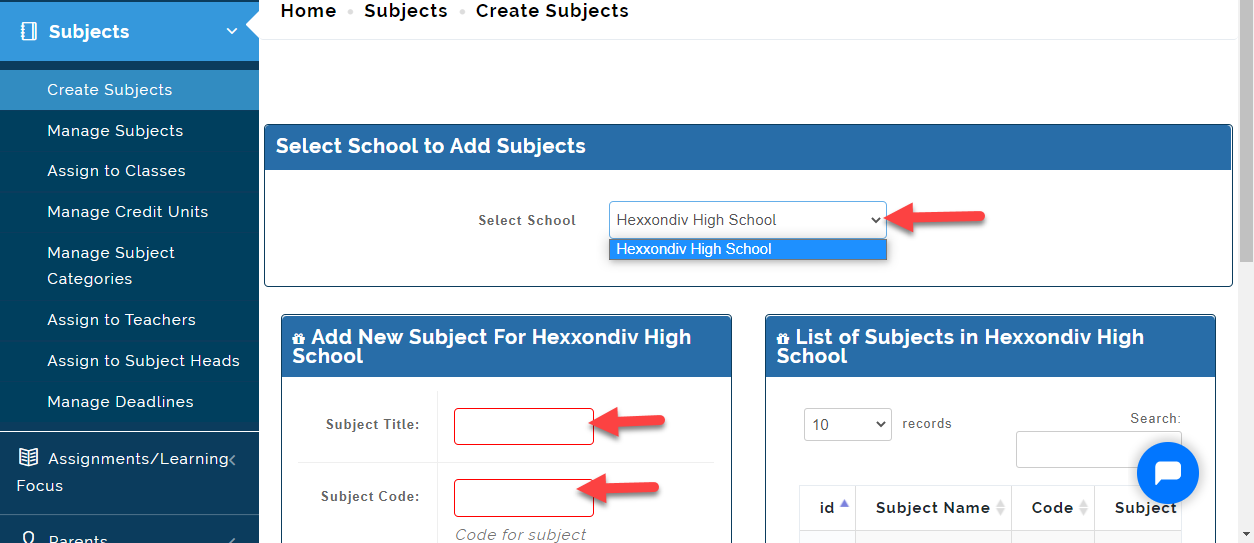
Create Subjects
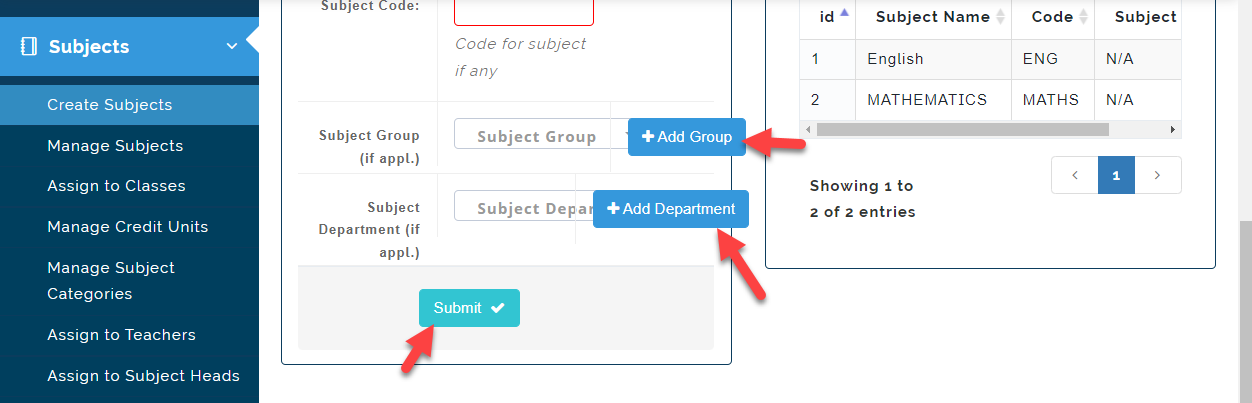
Follow these steps to create Subjects:
- Click on Select School you want to create subject for.
Enter name of the subject eg (Mathematics)
Enter a Subject code for the Subject you are creating. (e.g. Maths)
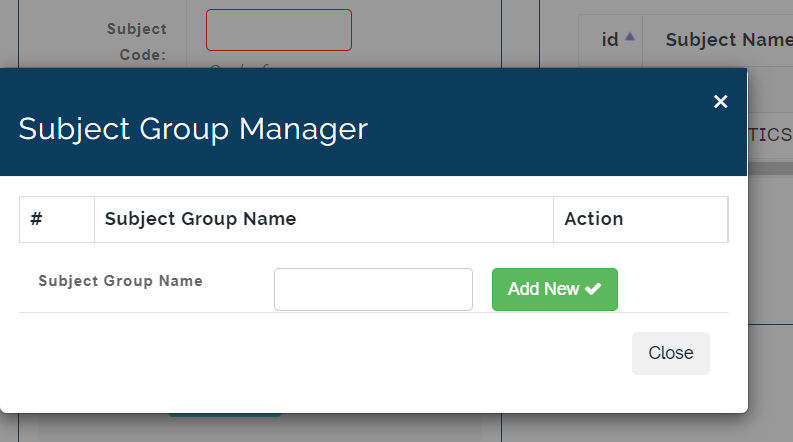
- Click on add group ; enter subject group name in the text box and click on Add New (e.g. Numeracy, Geometry for Mathematics).
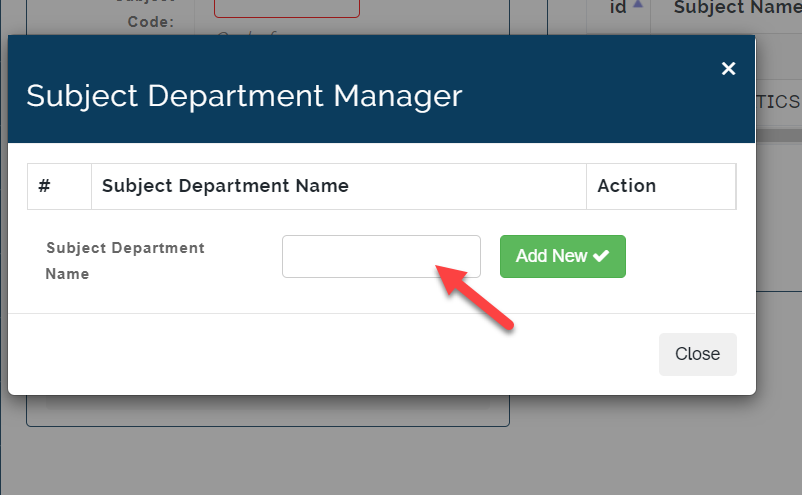
- Click on Add Department ; enter Subject Department name in the text box and click on Add New (e.g Humanities).
Click on **Submit **to save Subject
Manage Subjects
This is where the admin can, view edit and delete Subjects.
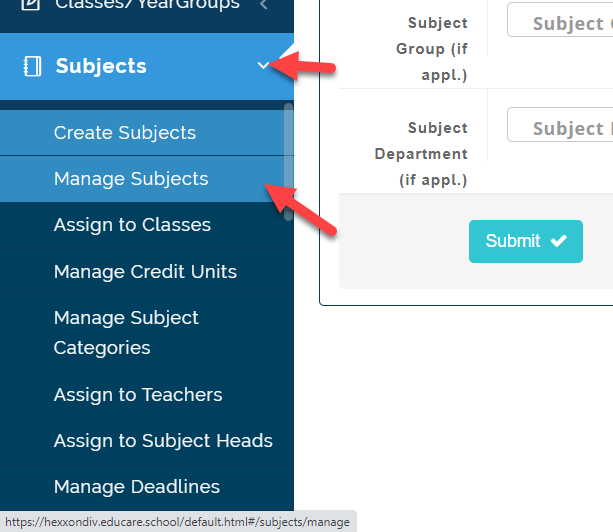
To View a Subject follow these steps:
- Click on Subjects then Manage Subjects
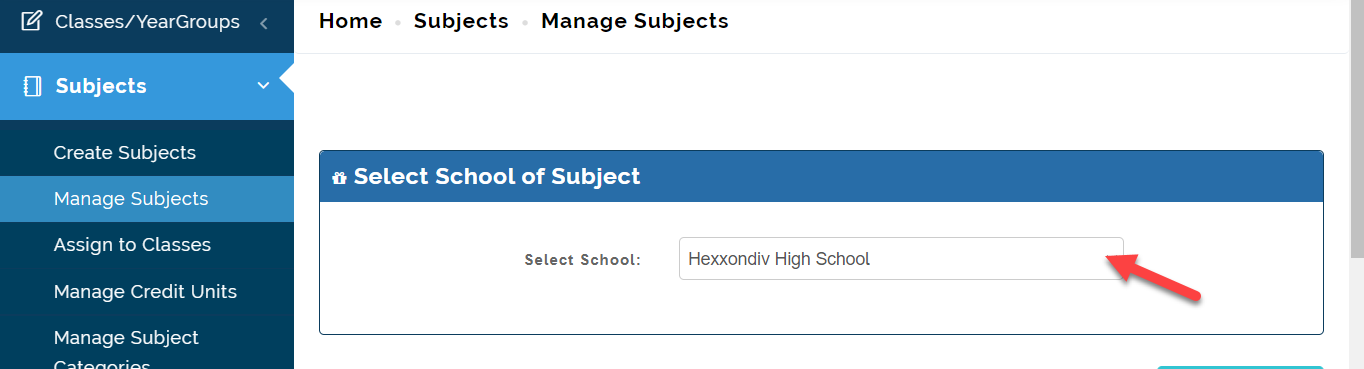
- Select the school type you want to view subjects for ; it will bring up all subjects taken for the selected school type
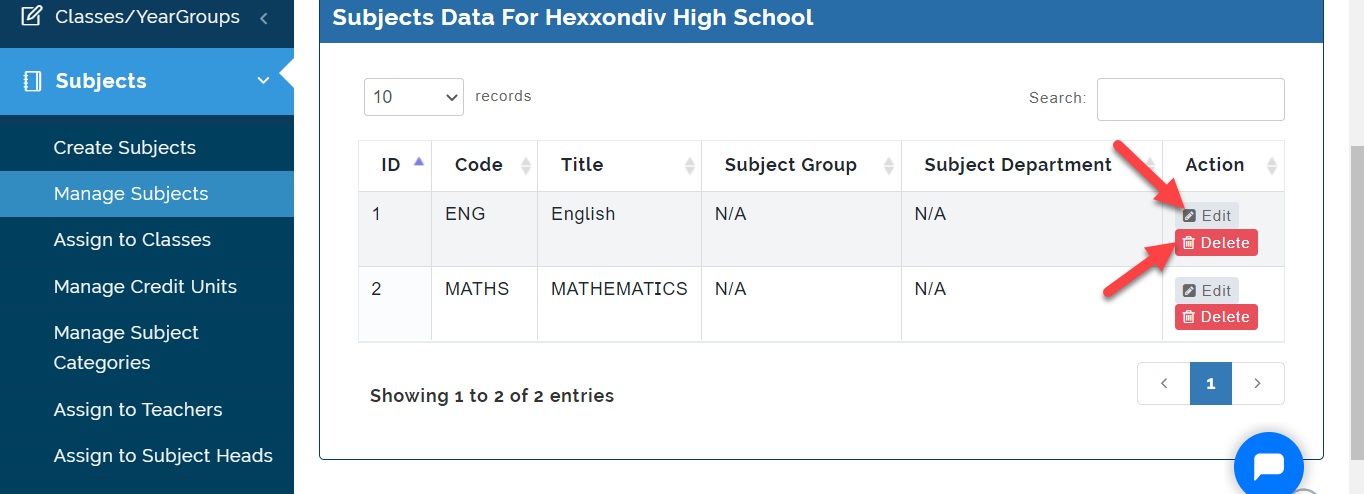
- Click on the edit button to make changes to a subject and Click on Delete to remove Subject.
Assign To Classes (How To Assign Subject To Classes)
After Creating Subjects, the next step is to assign the subjects to the class. Follow these steps below to assign Subjects to Classes:
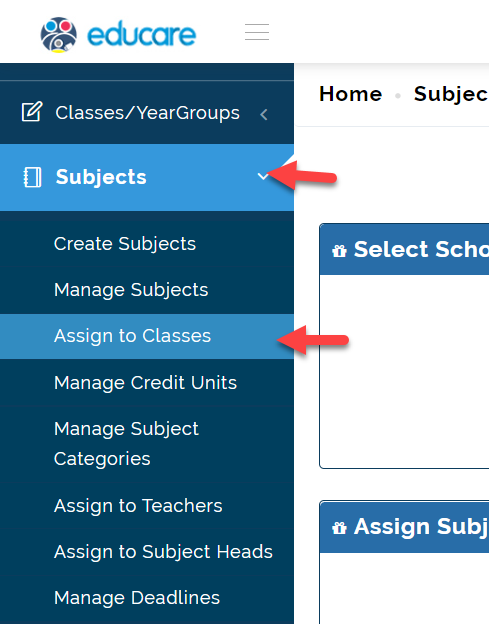
- Click on Subjects and then Select Assign to Classes .
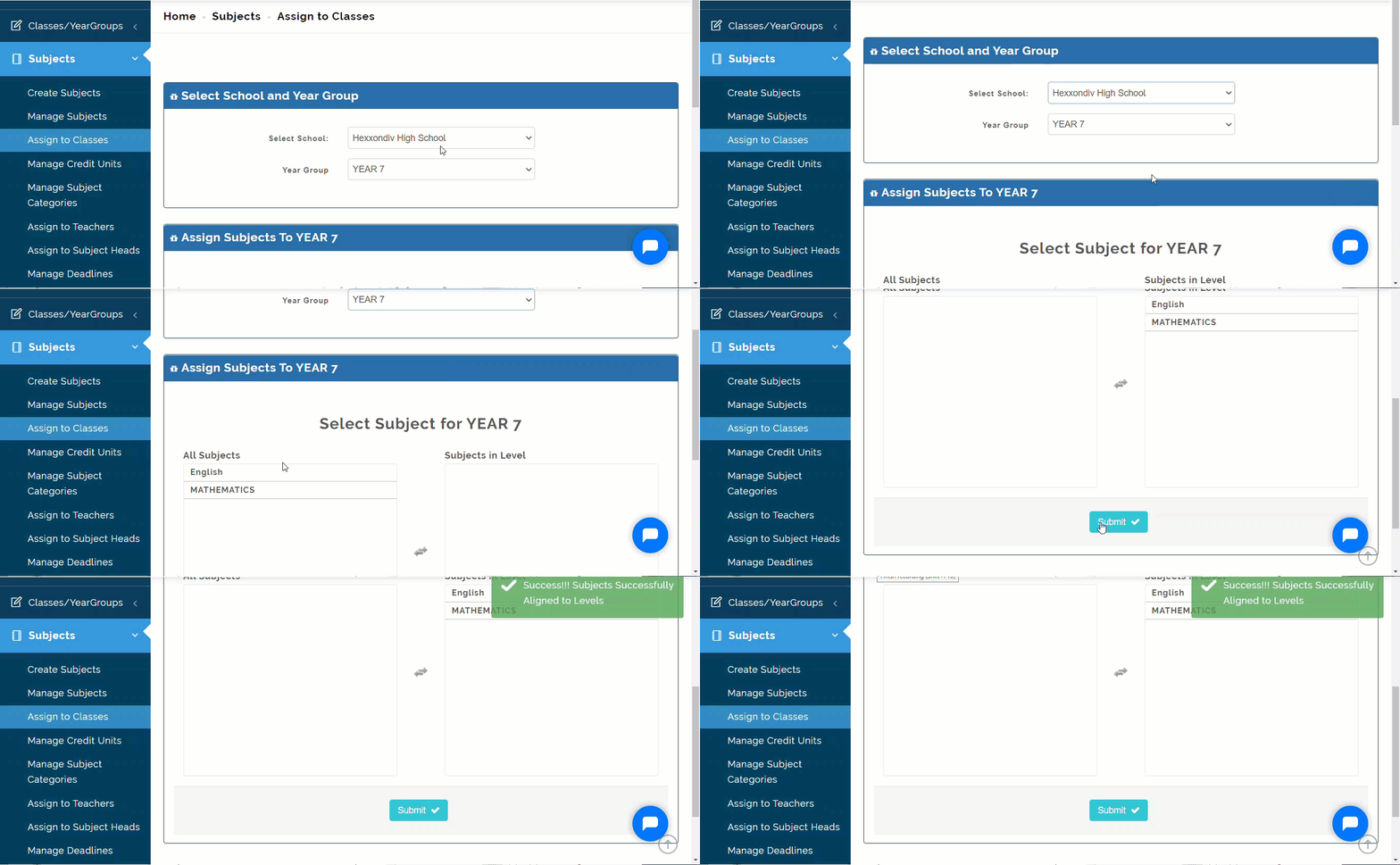
- Select the School and the Class **group**; All Subjects will be on the left column, Click on the Subjects offered by Students in that class to move them to Subjects in Level then click on Submit to Save Subjects for the chosen year group.
Assign To Teachers (How To Assign Subject To Teachers)
Here, The Admin can assign Subjects to the Subject Teacher for each Class they teach. Follow these Steps to assign teachers to class:
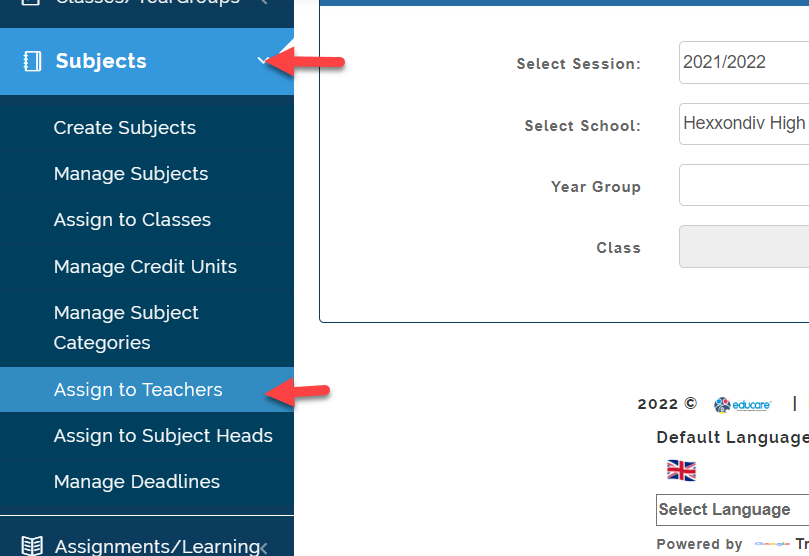
- Click on the Assign to Teachers under the Subjects Module.
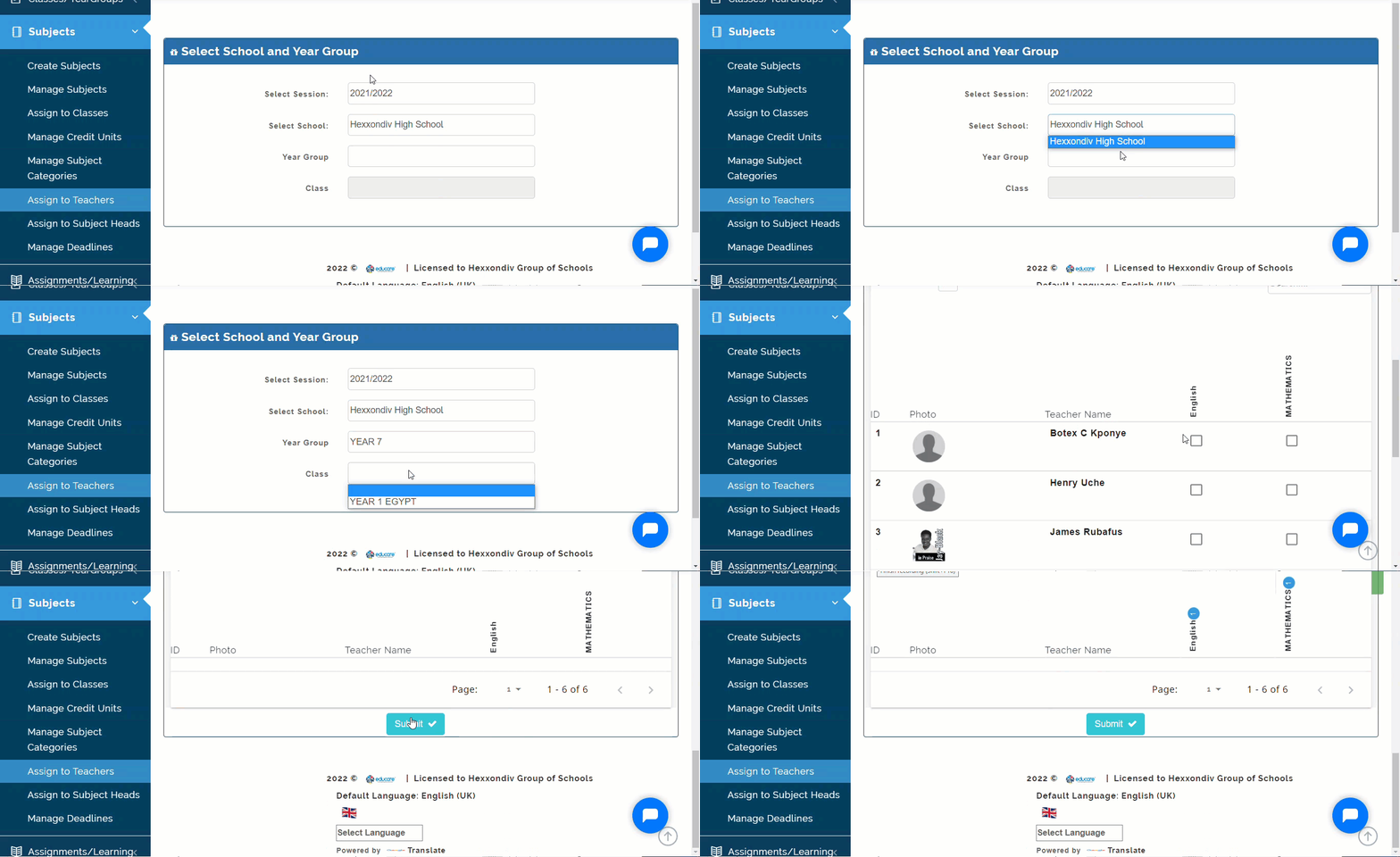
2 i. Select the Session, School Type, Year Group and Class
ii. This will show all the teachers and Subjects
iii. Tick on the box for the subject taken by teacher's in that class.
iv. Click on Submit to save.
Manage Deadline
This is where the Admin sets deadline for Subject Enrollment. When the Deadline is set up, Class Teachers will be able to enroll students into their Subject .
Follow These Steps to Set up Deadline:
- From the Subjects Module then Select Manage Deadline.
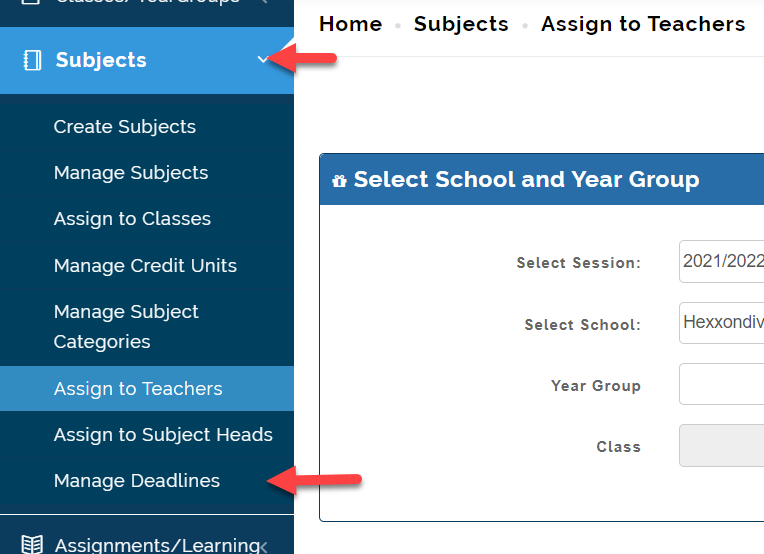
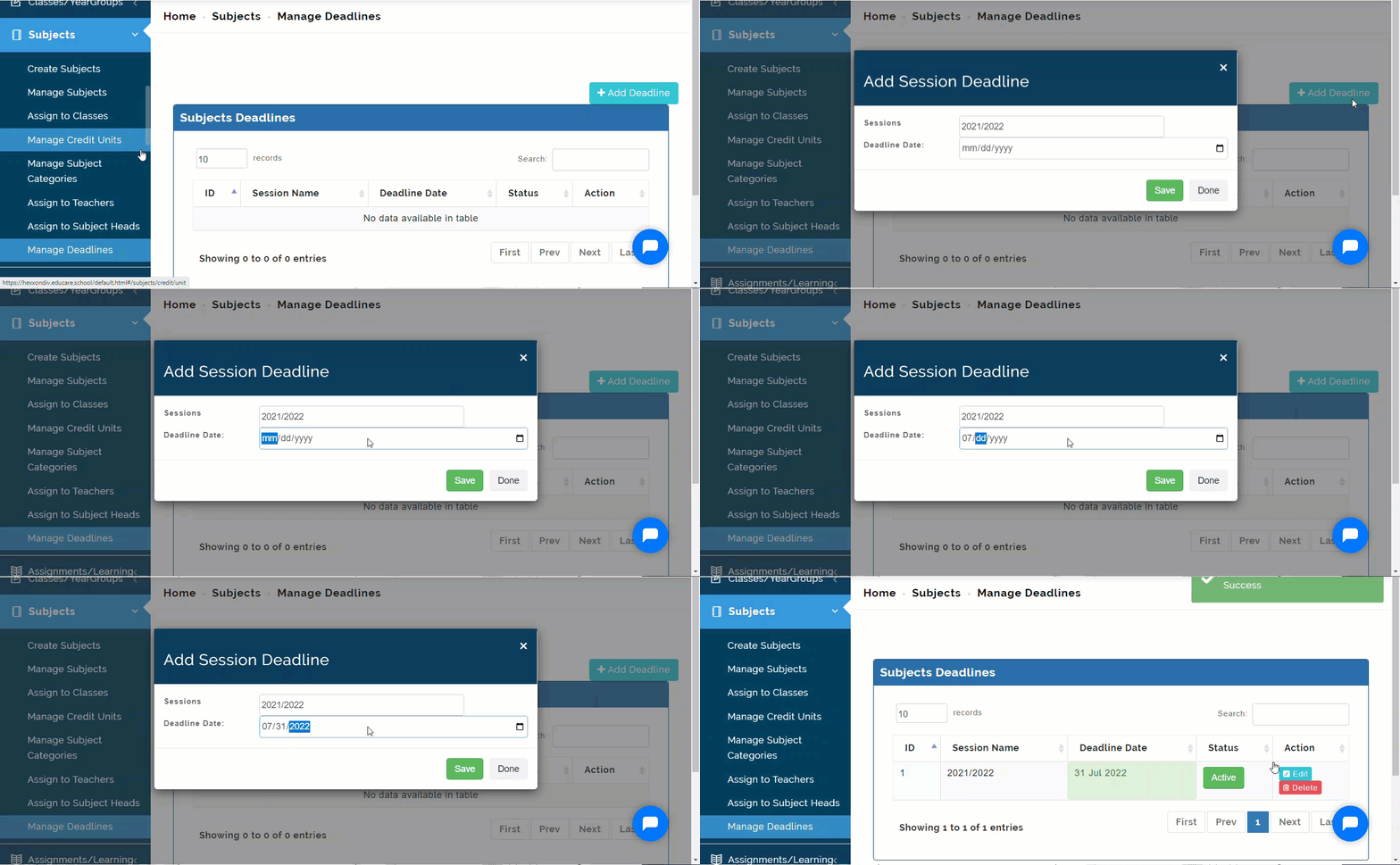
- i. Click on Manage **Deadline
ii. Select the Session and Create a Deadline Date (This is usually set to the End of the Session)
iii. Click on Save to Submit and Done **to exit page.
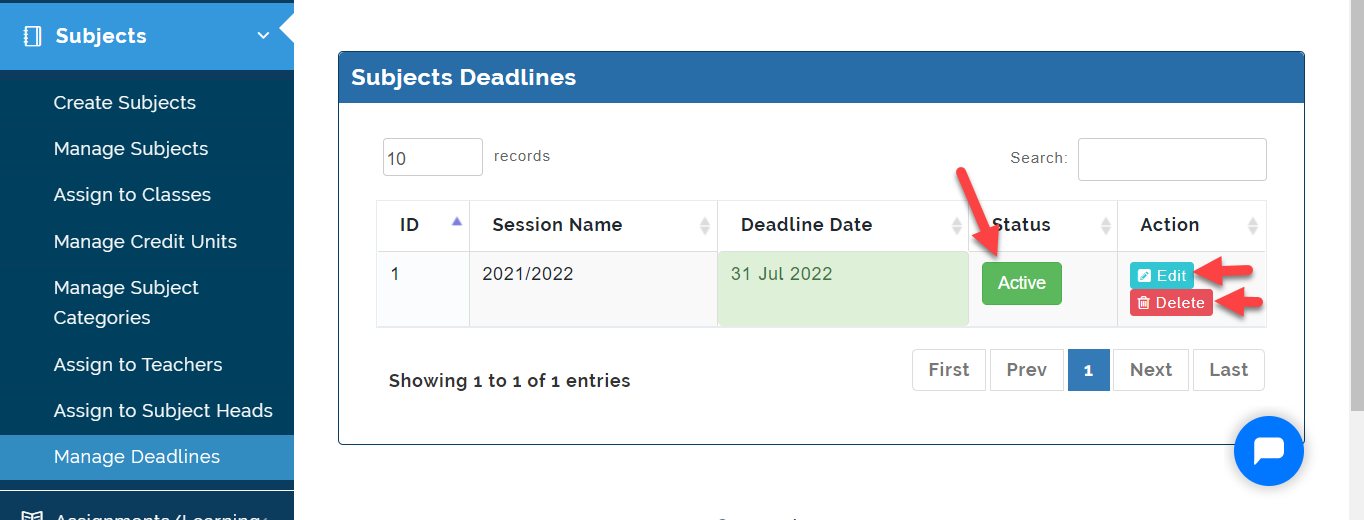
- Once Deadline is Set, It becomes Active as indicated in the image below. Click on the Edit icon to extend deadline date in the same session and Click on the Delete icon to remove Deadline setup.
NOTES ON MANAGE DEADLINES
Admin needs to Set up Subjects Deadlines at the start of every new session to allow Class Teachers enroll Students to their subjects. Subject Teachers will not be able to accept students into the classes they teach if this is not done.
Manage Subjects Categories
If you use Subject groupings in your school, This is where admin can categorize subjects on the portal as either as an Elective or a Core Subject. To do this follow these steps:
- From Subjects Module, Select Manage Subjects Categories.
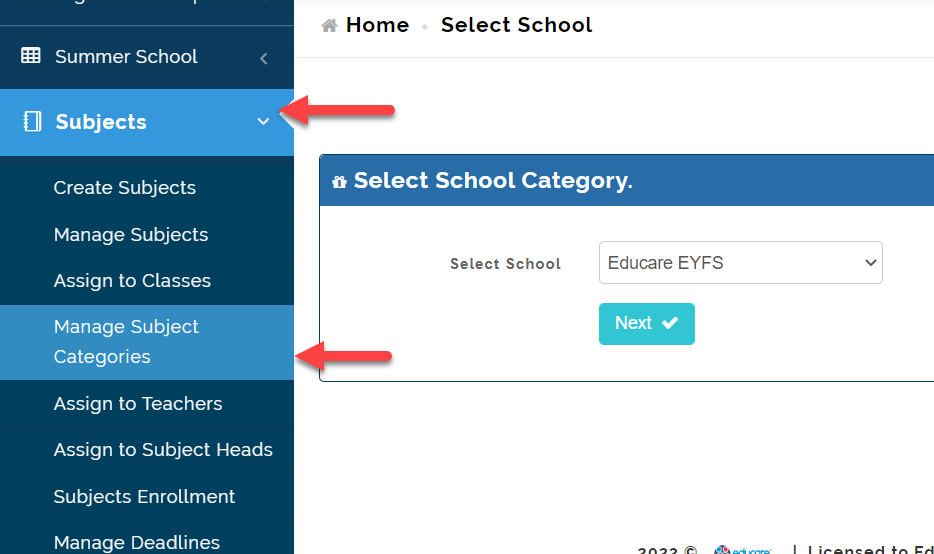
- Select the School Type (EYFS, Junior and High School) then click on Next. Select the Year group. This will list out the subjects offered in the selected level.
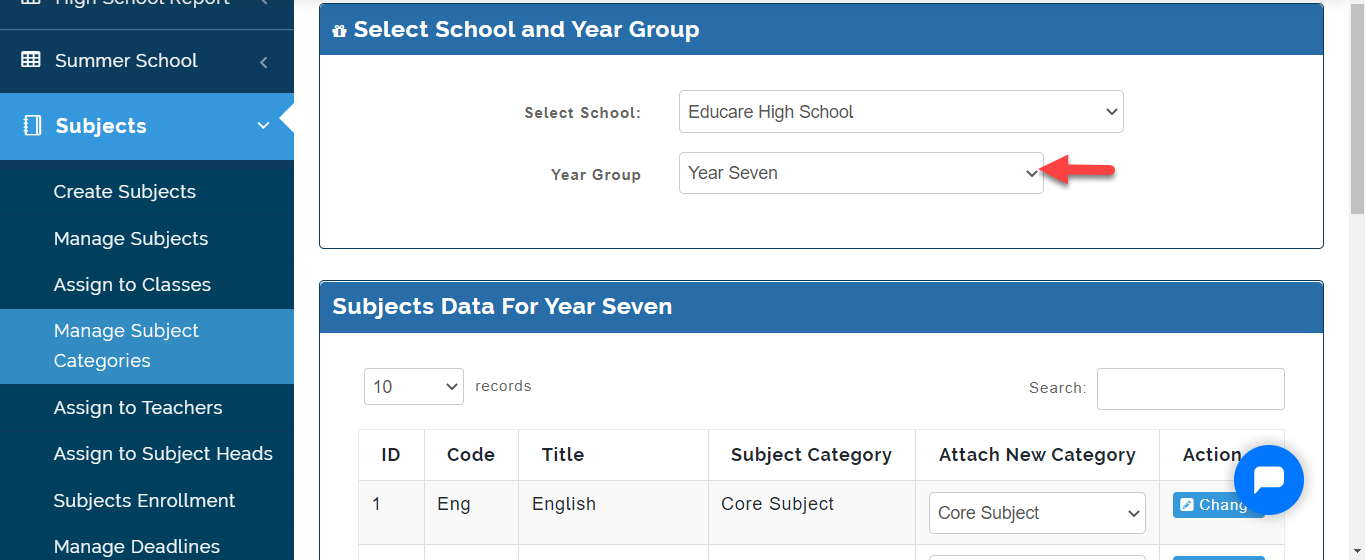
- At the first instance, All subjects will appear as Core Subjects. Under Attach New Category for the Subject that is not a Core Subject, Select Elective Subject then Click on Change Icon as indicated below.
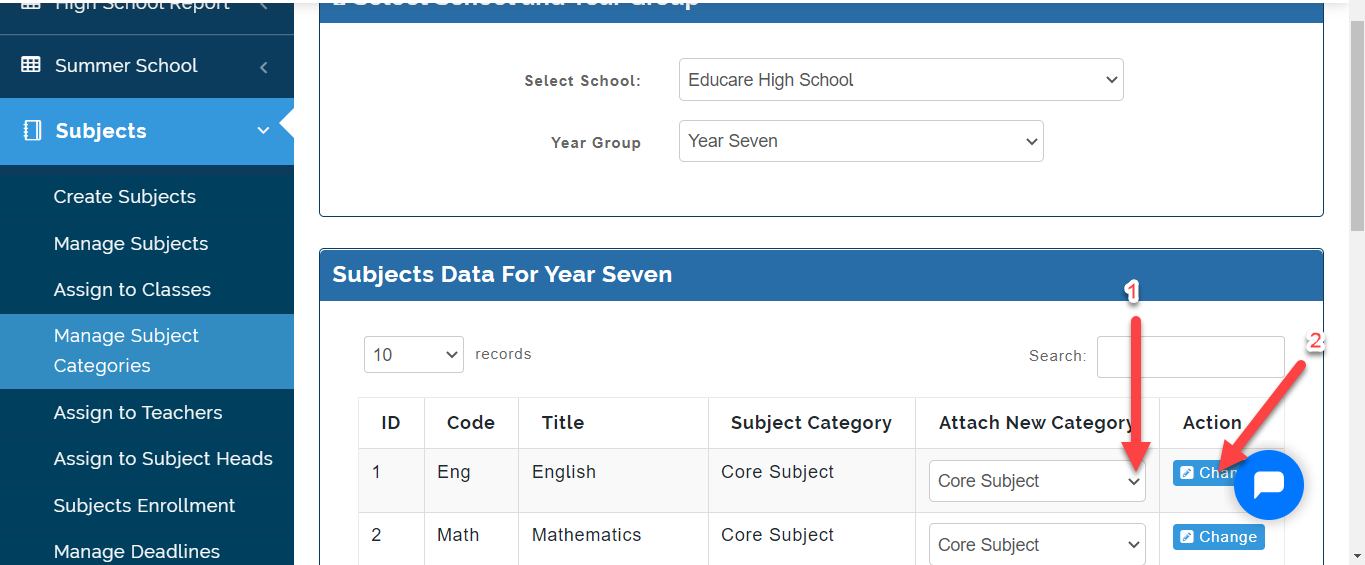
The Change will be effected automatically.
Assign To Subject Heads
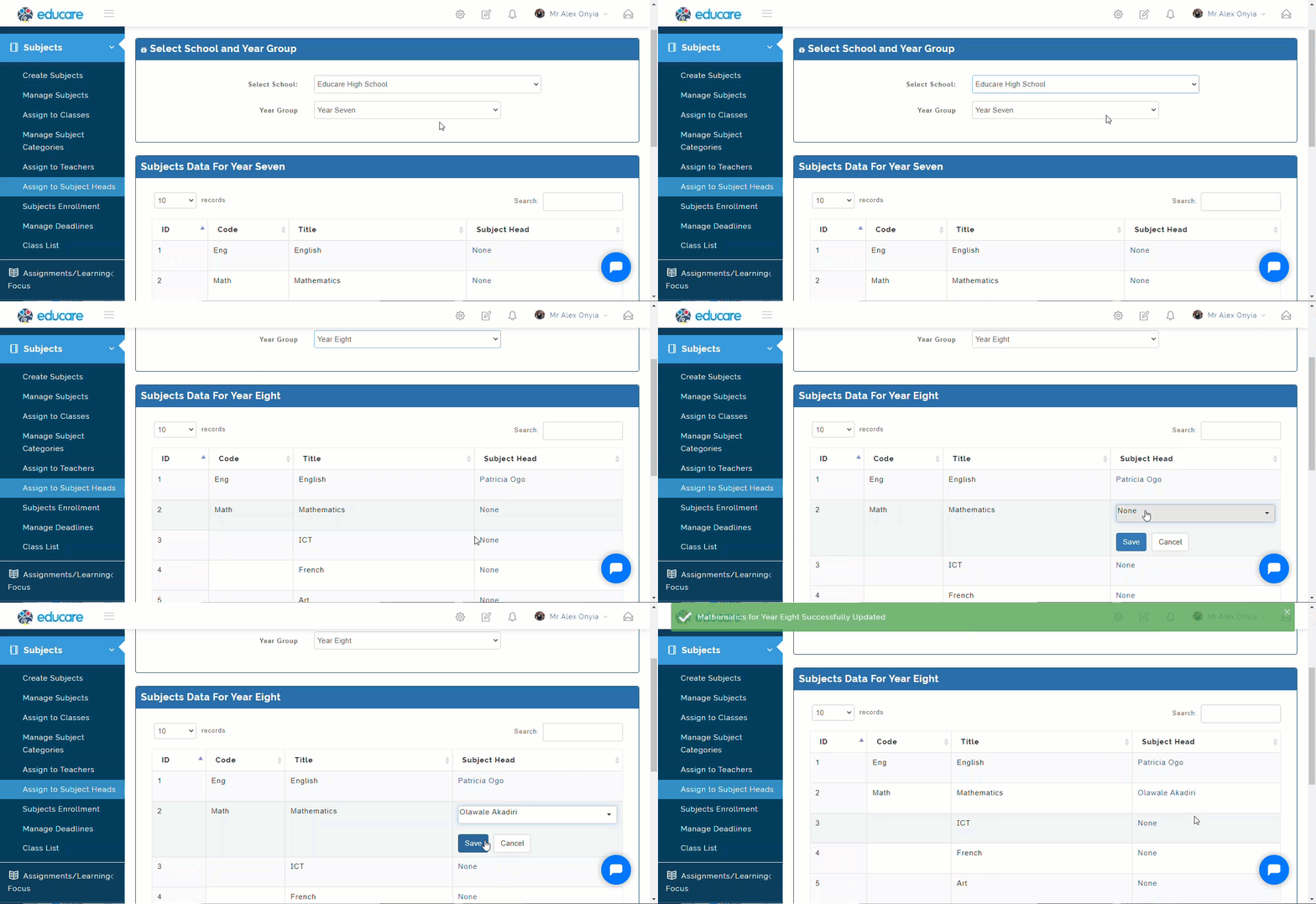
This is where admin can assign a Staff as the Subject Head. This allows the Teacher to set Exam Questions under Manage CBT for a year group at once. To do this, Follow these Steps:
- Click on Subjects then Select Assign To Subject Heads
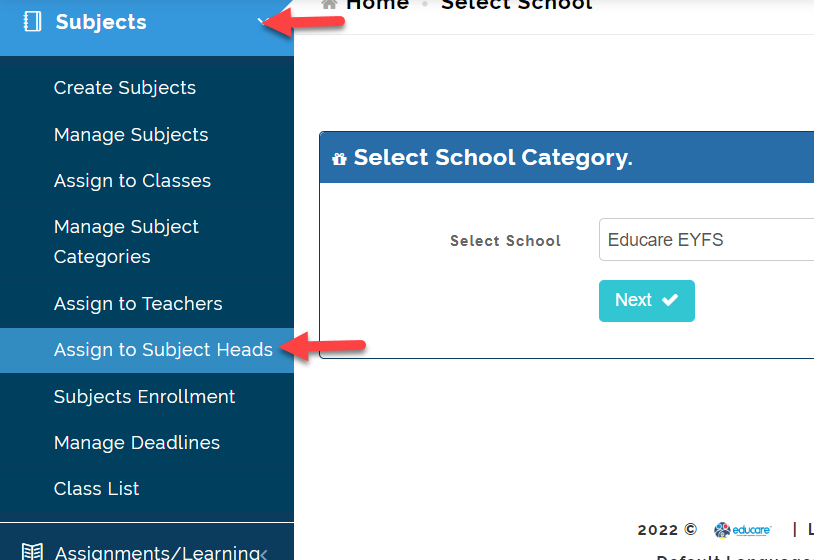
- Select the School Type (EYFS, Junior and High School) then click on Next. Select the Year group. This will list out the subjects offered in the selected level and a slot for assigning Subject Heads.
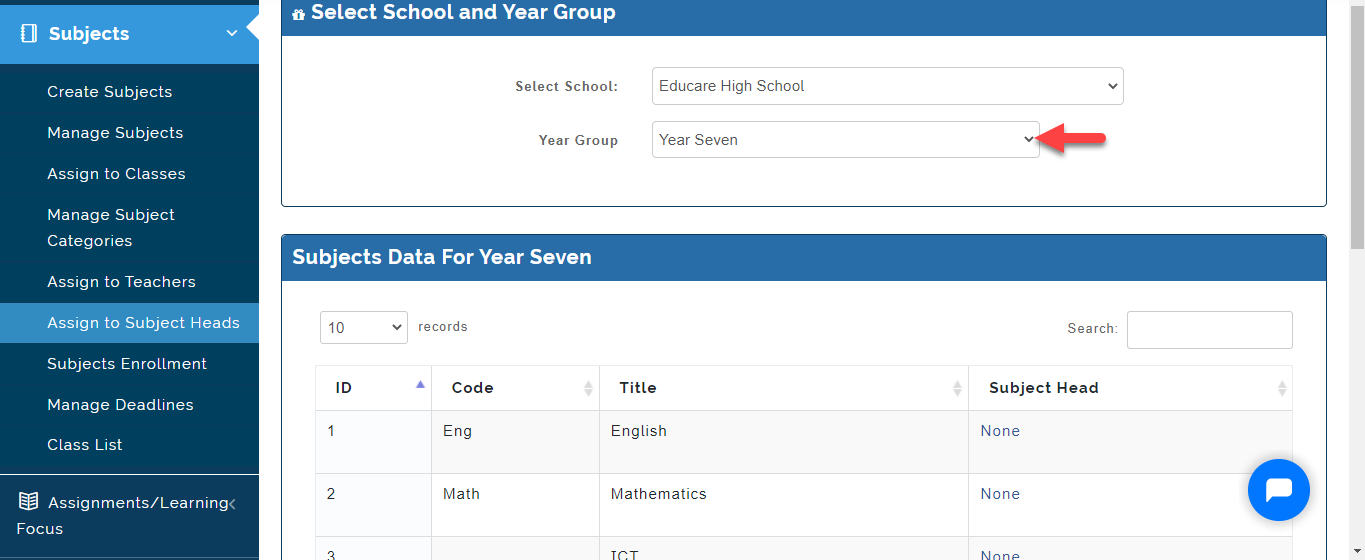
- Under Subject Head Column, Click on None to assign Subjects Heads then Click on Save or Cancel to Ignore
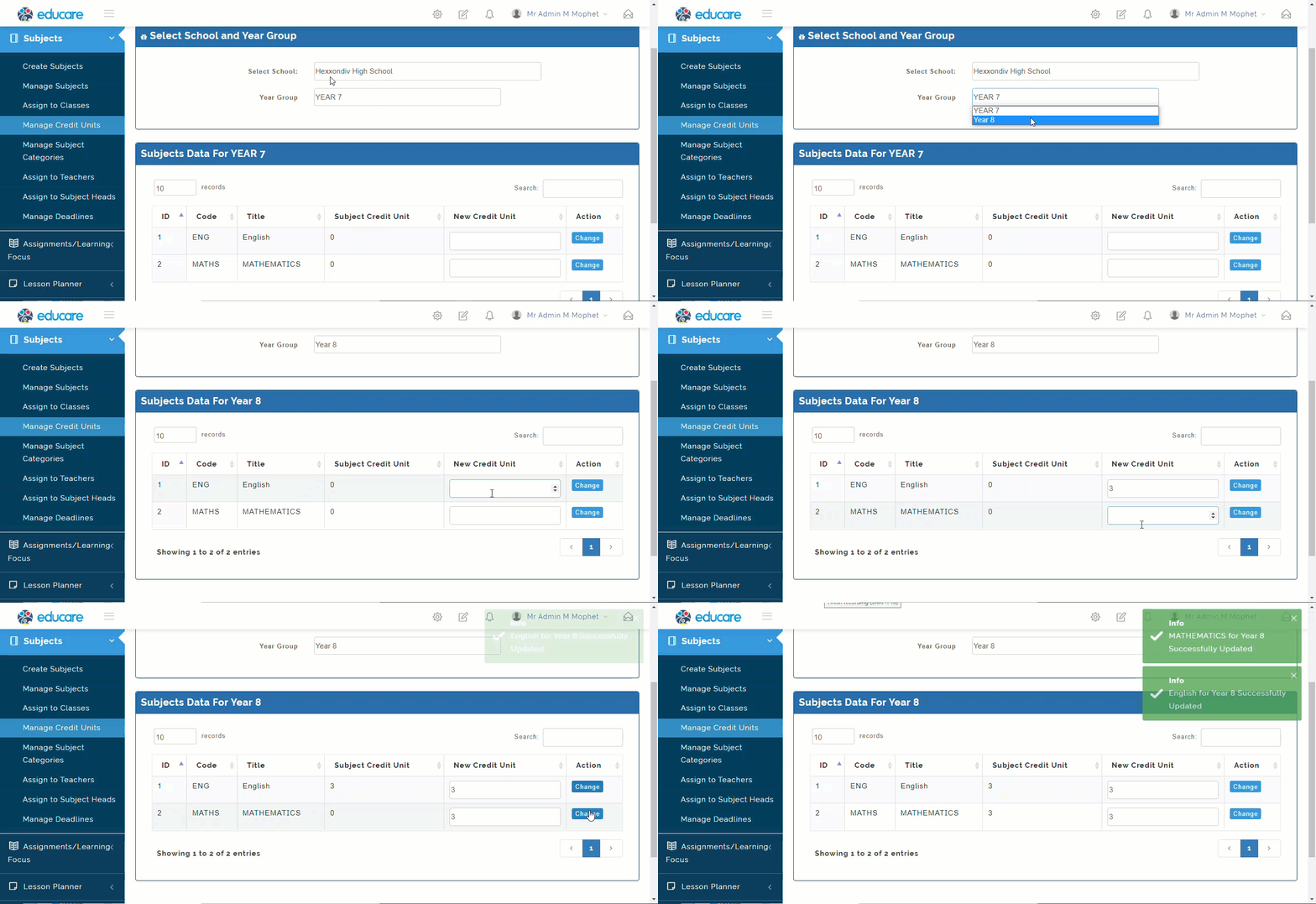
Manage Credit Units
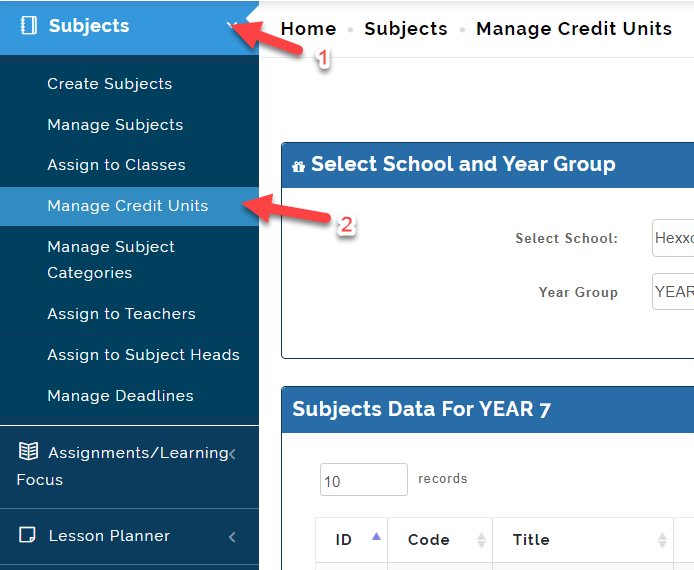
If your School use Subjects credit units for assessments, This is where the admin can input the credit units for all Subjects. To do this, follow these Steps:
- Click on Subjects, Select Manage Credit Units.
-
Select the School Type (EYFS, Junior and High School) then click on Next. Select the Year group. This will list out the subjects offered in the selected level and a slot for assigning Subject Credit Units.
-
All Subject Credit Unit will be recorded as 0, Enter the New Credit Unit(s) for each Subject in the text box and Click on Change to Save entry as seen below.