
This enables Admins to create live schedules for a whole school category without being limited to a class or a level in the selected school category
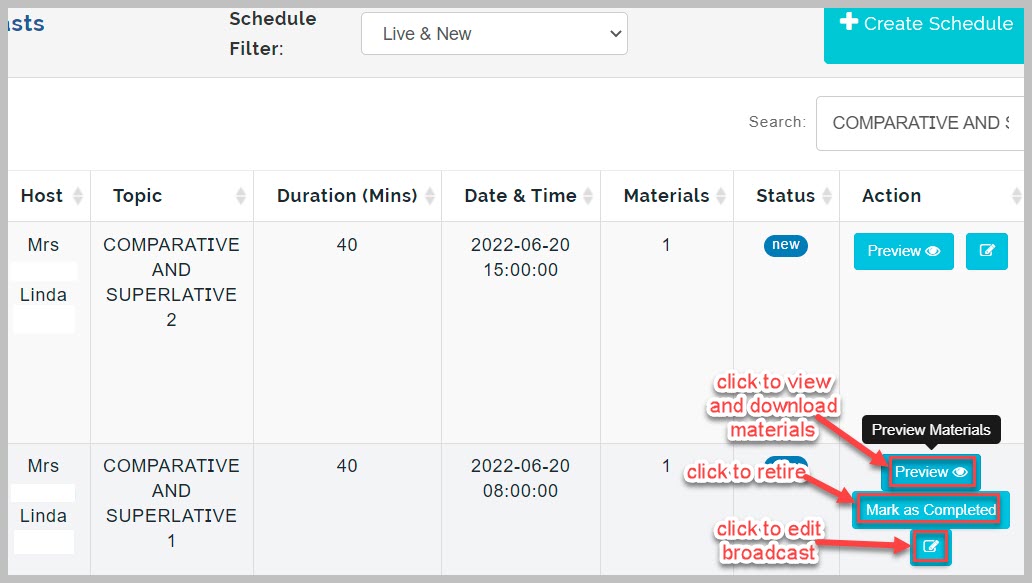
How to Create and Manage Admin Live Broadcast
Admin Live Broadcasts are used mainly for school wide activities like virtual assembly and moral/extra-curricular classes. It can also be used to create level-wide classes that would serve all class arms in a particular level.
To create Admin Live Broadcast, follow these steps;
-
Navigate to Admin live Broadcast sub-link
-
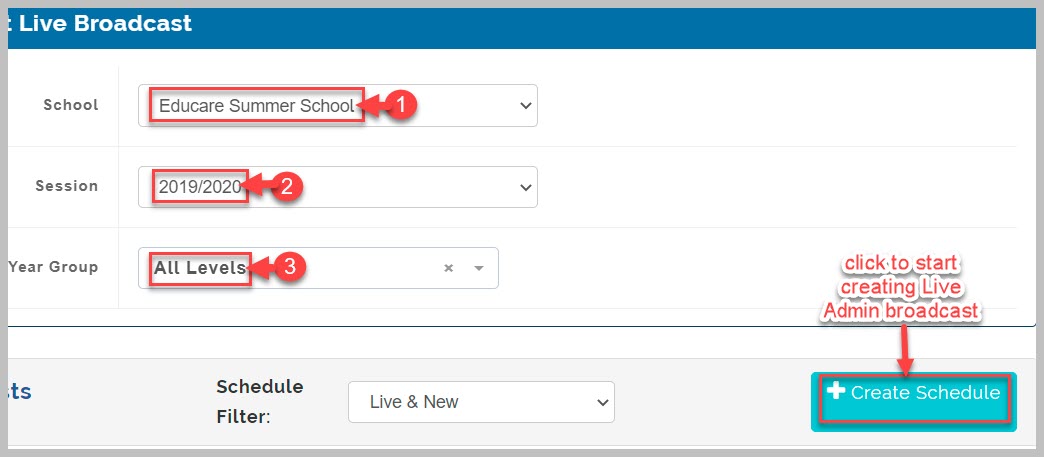
Select school category and session
-
Select target year group or select All Level to include all the levels and classes in the school category selected
-
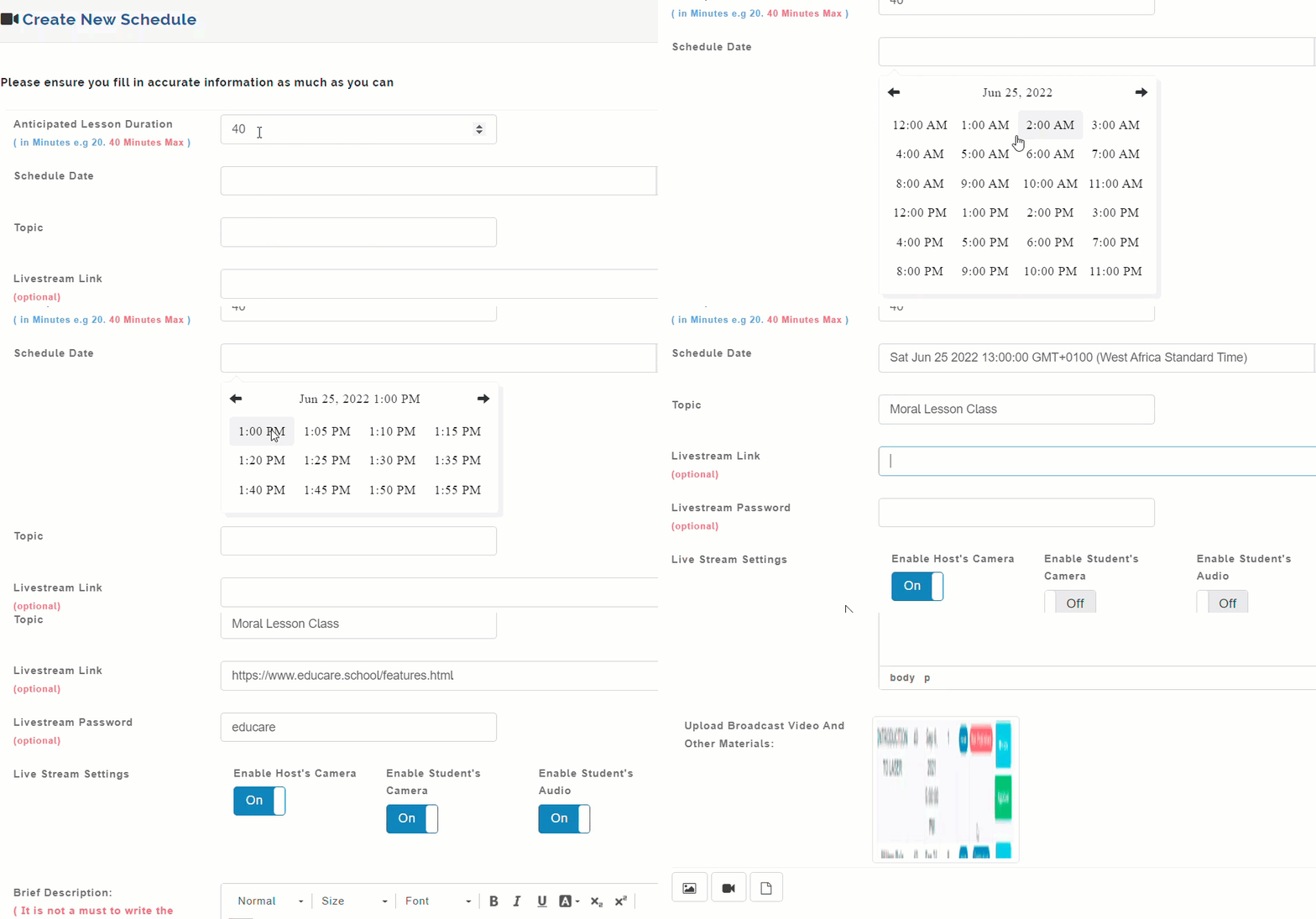
Provide duration of broadcast (in minutes)
-
Set date and time from date modal
-
Provide topic for the broadcast
-
Provide Live stream link and password if necessary
-
Toggle live stream settings ON/OFF as desired
-
Type in brief description of broadcast in space provided
-
Upload materials for broadcast if available from your device. Materials could be image, videos, documents file types.
-
Click on Create Schedule button to complete Live Broadcast creation.
Admin Live Broadcast Note
- We recommend always using Google Chrome version 69 and later, as the Learning Management features are
optimized for use with this version of Google Chrome browser.- Maximum broadcast duration is 40 minutes.