The Store inventory keeps record of all items available for sale in the school store. it helps to keep track of the amount of various items you have in your warehouse or store. Store inventory aids effective tracking of physical inventory of items both in the store and warehouse, you’ll know how many of each item you have, when you might be running low on items and whether you should replenish that item in order to keep selling it.
Categories
Store category contains all items arranged in clusters. categories are created based on how items are similar or how they are related to each other. For example; Books category contains various kinds of books whether they are used in primary or secondary school respectively. In hierarchy, items comes under categories so before you can add an item you must first create a category for it and other items that might belong to the same category
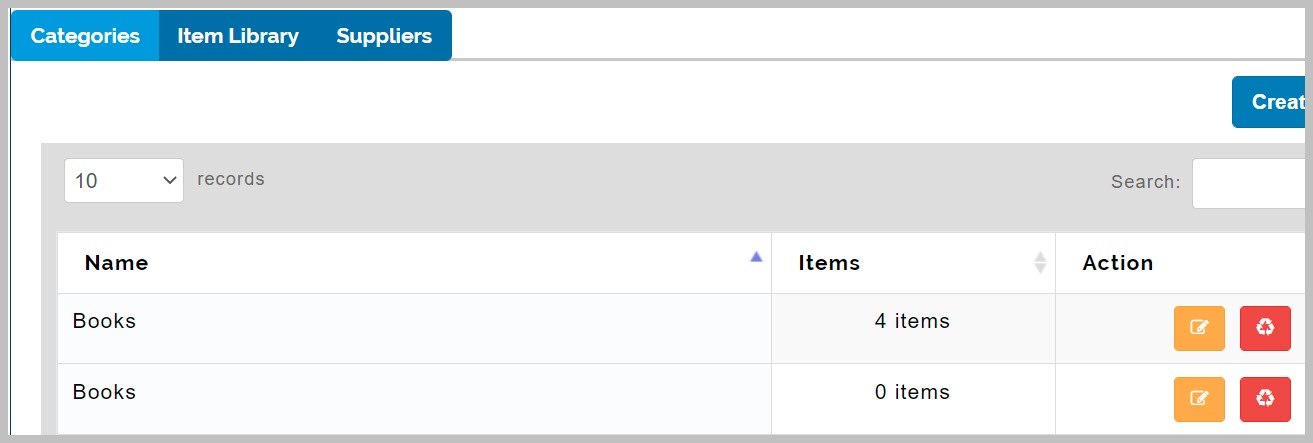
Store Inventory Category table
This shows all details pertaining to items in store. You can also see at a glance how many items are available or limited. See the picture below for description. This is where all categories of items in the store is entered.
How to Create Store Inventory Category
To create Category in store inventory follow these steps:
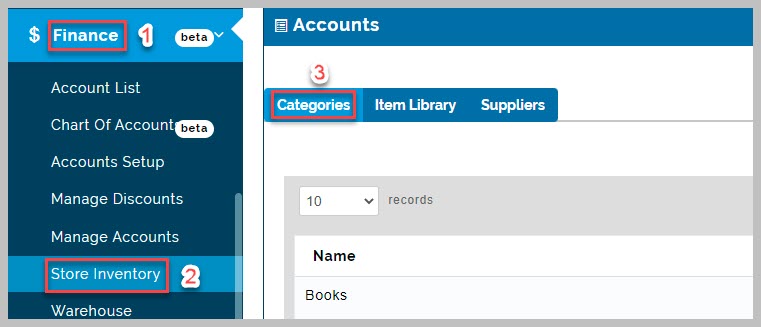
- Go to Finance and select Store inventory then click on Categories tab
- Click on Create Category button to open up a drop-down menu.
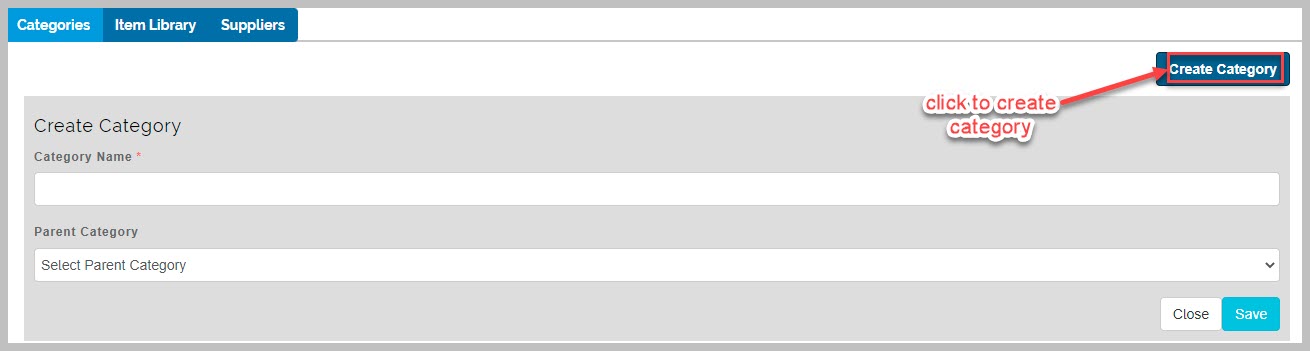
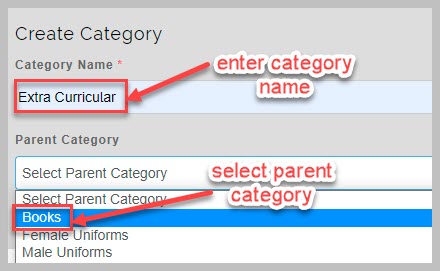
- Enter new category name and select parent category from drop-down list
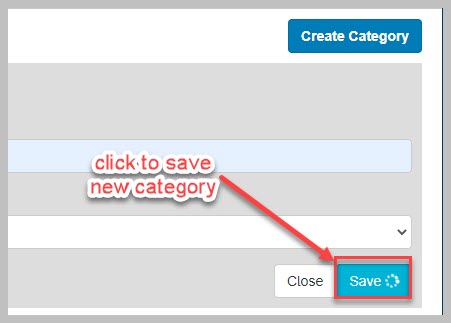
- click on Save button to save new category.
How to edit and delete Category
To edit Category follow these steps:
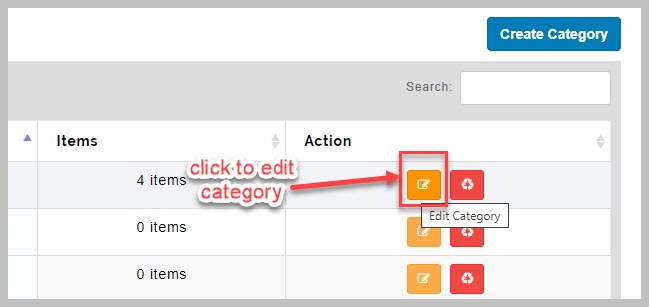
- From Category tab, click the edit category button on the row of interest, to make changes
- From pop-up edit Dialog Box, edit category name and select parent category
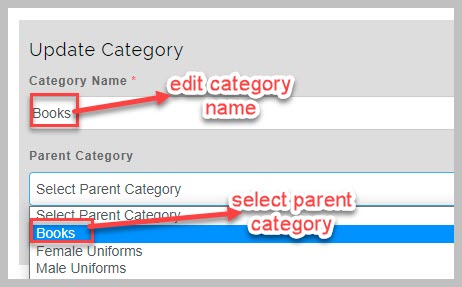
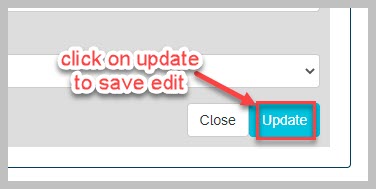
- Click on Update button to save edit action
To delete category follow these steps:
- Click the delete button on the row of interest, to make changes
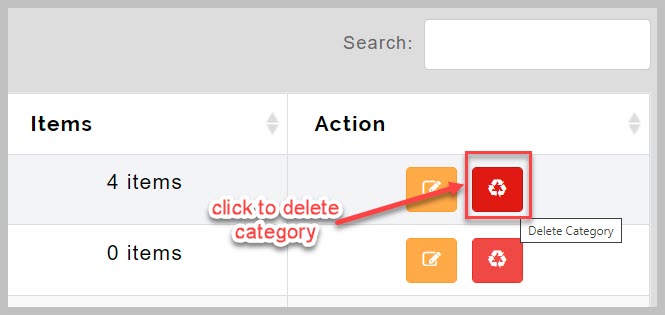
Delete category
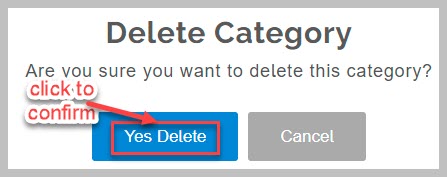
- This is an irreversible action. So the system requests your confirmation before this action is carried out.
- Confirm your action, by clicking the delete button again on prompt to complete
Item Library
View Item Library Table
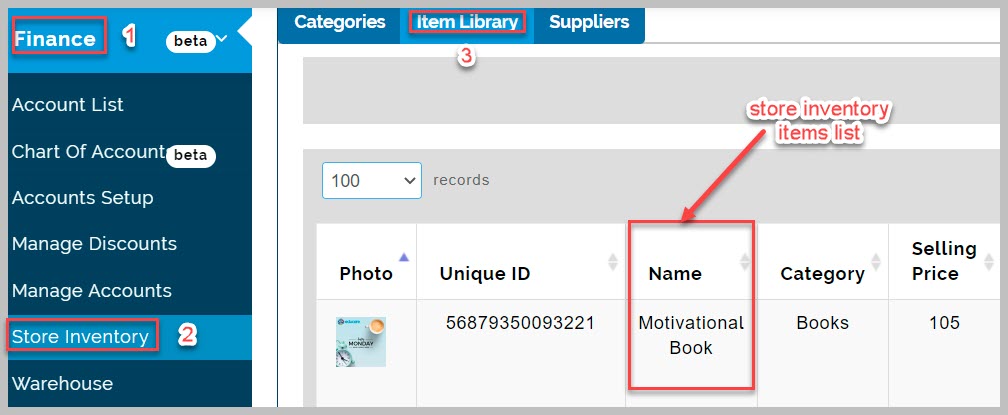
This table shows a list of all available items, quantity available and their prices in the school's store inventory.
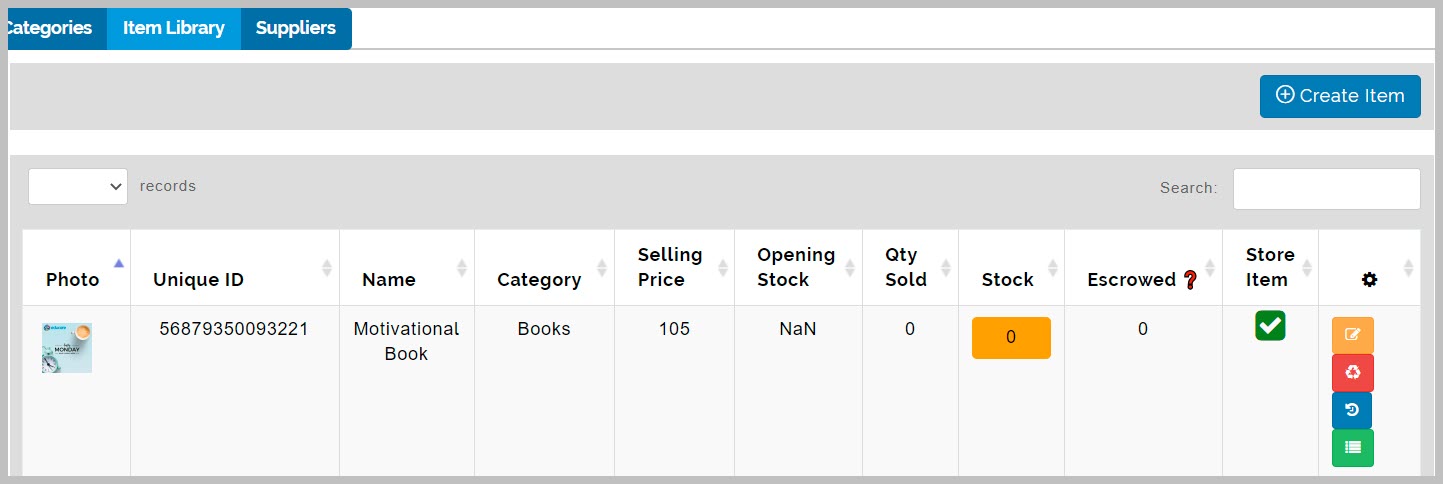
Create Item
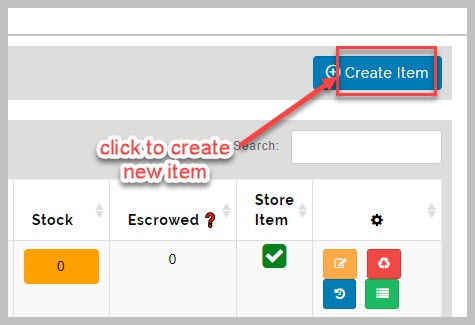
This button enables the store keeper to add new items available in the store inventory
How to Create Items in store inventory
To Create items in store inventory follow these steps:
- Go to Finance and then select Store inventory. A list containing all store inventory items will appear.
- Click on Create Item button to open up a new page where new item details can be added.
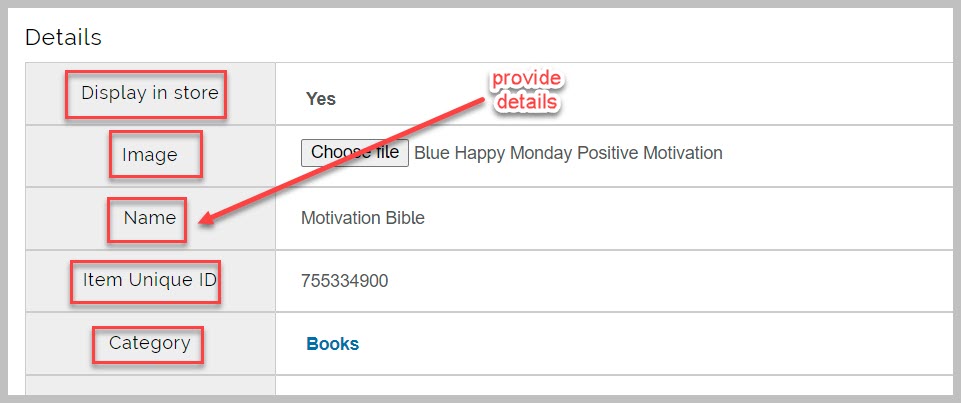
- From new page, provide details of new item to be added;
- choose whether to display item in school store (yes/no)
- select image of item from your device
- provide name of item
- provide item's unique ID which could be product number or Bar code number etc.
- select appropriate item category
- give a brief description of the item
- select location where item will be available
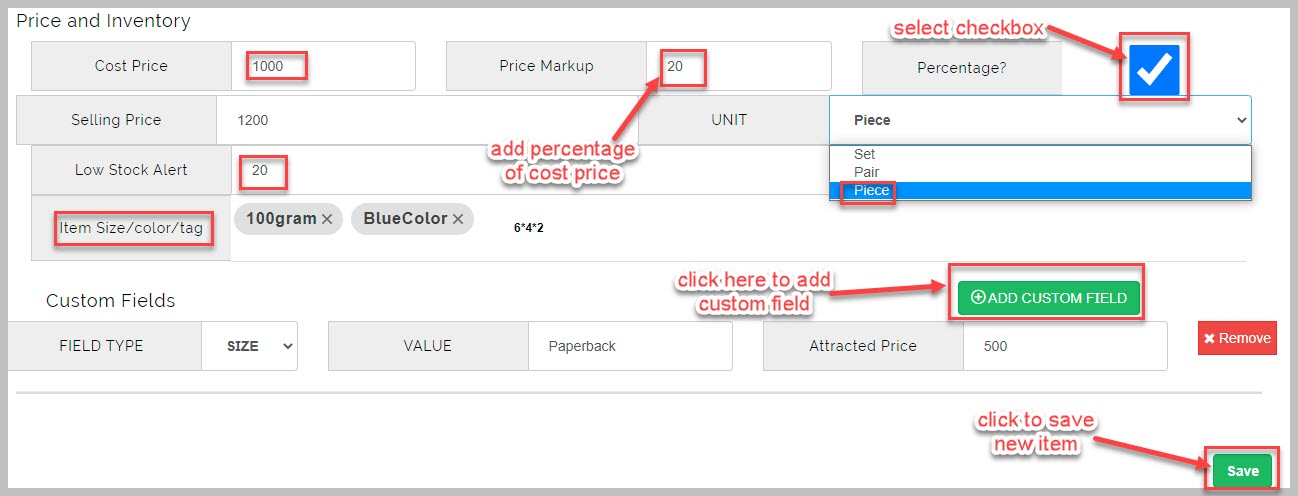
- Scroll to bottom of the new page and provide price and inventory details of new item to be added;
- provide item cost price
- provide price markup. If price markup should be a percentage of cost price, tick percentage checkbox instead and
provide percentage amount. this will compute and display item's selling price - select the unit of the item, if set, piece or pair
- set low stock alert quantity i.e when the item is remaining set quantity, the system sends notification to admin
- provide item's size/color as tags for easy identification
- Add Custom field: this is used for adding size and color to a store item, It is also used to attach extra price for a
particular item size or color - Click on Save button to complete item creation
How to edit and delete items from items library
To edit Items library follow these steps:
- click the edit button on the row of interest, to make changes
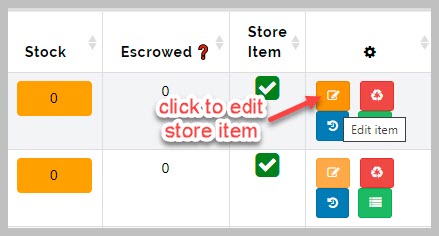
- In the row ( that is the Edit Dialog Box), edit the desired store item entry like change cost price, available stock etc then click on update button to save changes

To delete store items from Items library follow these steps:
- Click the delete button on the row of interest to remove an item
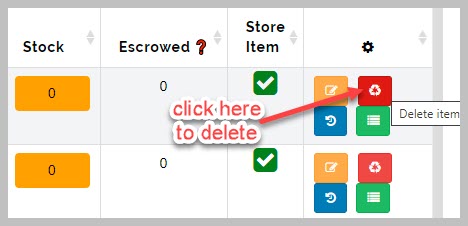
Delete item from item library
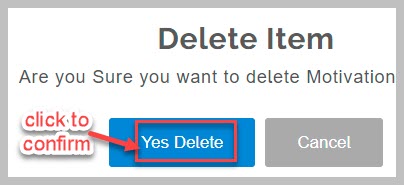
- This is an irreversible action. So the system requests your confirmation before this action is carried out.
- Confirm your action, by clicking the delete button again on prompt to complete
Item inventory
This is were we showcase item stocking list. This shows record of all item stock received into the store
You can also make changes if there was a mistake made at on the previously enter
How to View item inventory history
To View item inventory history list follow these steps:
- click the item inventory button on the row of interest, to view item inventory stockup history
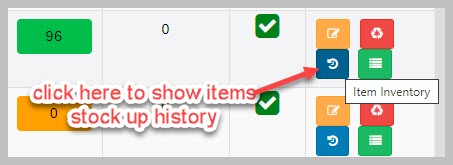
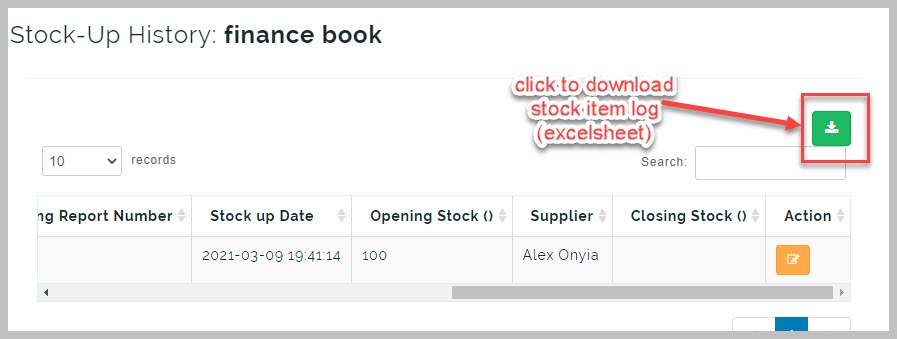
How to download inventory item's stock log (in excel format)
To download inventory item's stock log follow these steps:
- From the pop-up page, stock up history of inventory item is displayed. click on download button to get excel sheet copy of inventory item's stock log for store finance books
How to update Stock up item Inventory history
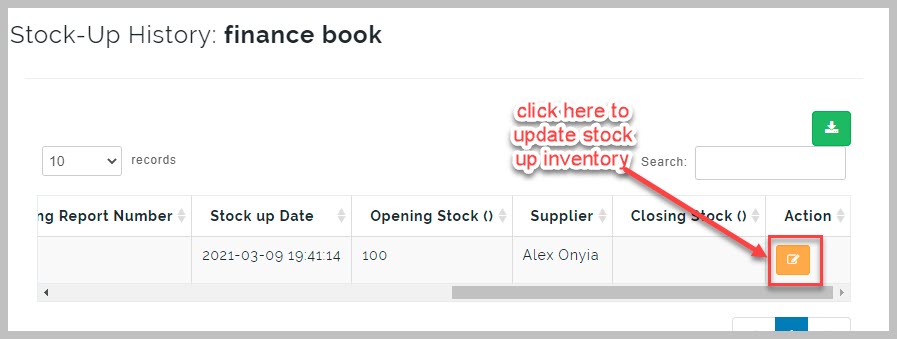
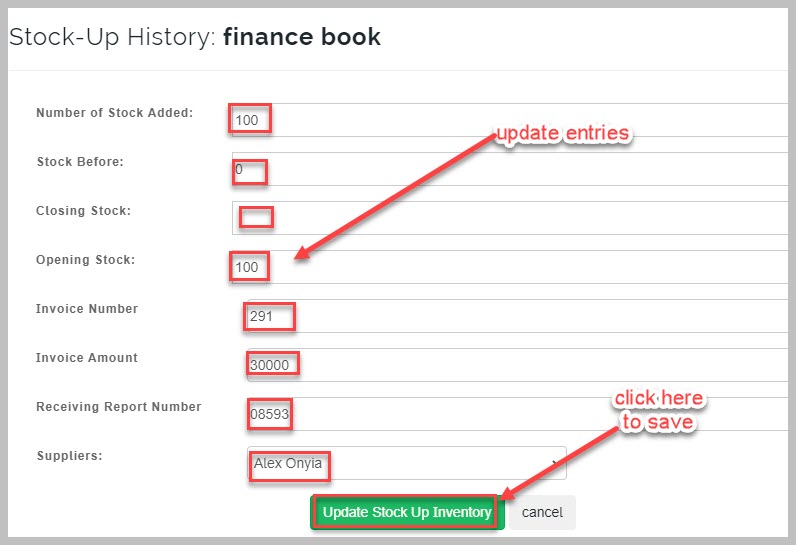
To update stock up item inventory history follow these steps:
- From the stock up history of inventory item pop-up page, click on edit button to update stock up inventory of the selected item
- From the stock up history of inventory item pop-up page, update entries like closing stock, opening stock, invoice number, supplier name etc. and click on Update Stock up Inventory button to save changes.
Item running history
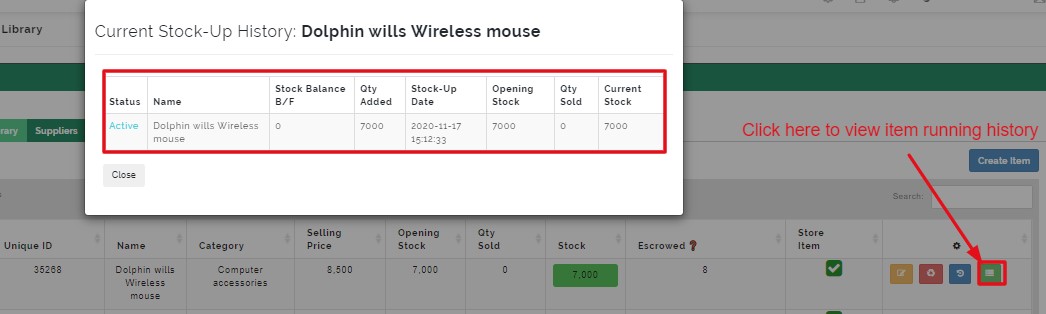
This shows the current active stock and the history of an Item in the store. Showing the opening and closing stock and the quantity sold between the opening and closing time. Item running history are generated when there is new stock up of item in the store
How to view item running history
To view running history follow these steps:
- click the running history button on the row of interest, a pop-up page appears that displays item running history
Suppliers
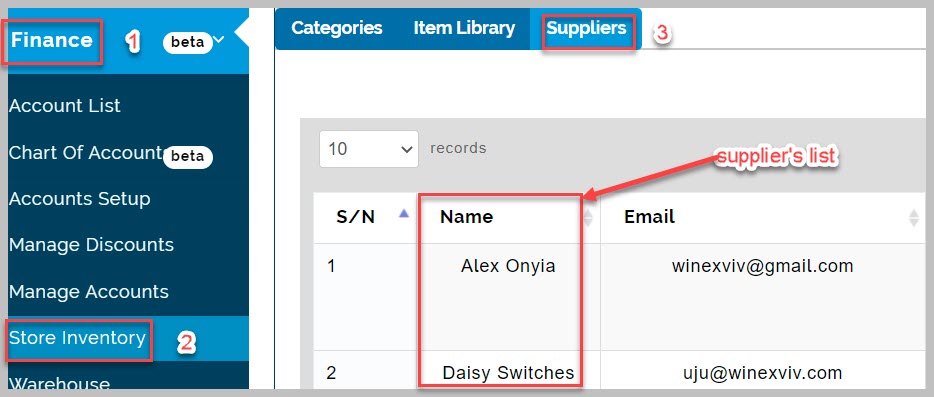
This table shows the list of different suppliers of items to the school and their contacts. The list contains all the suppliers the school works with, the various items they supply, quantity of items supplied, and contact details. This information becomes handy when trying to quickly reach out to a supply via call/text or email. It also gives a sense of dependency seeing the rich history of individual suppliers.
How to add Suppliers
To create new Suppliers follow these steps:
- Go to Finance, select Store inventory and then click on suppliers tab. A list containing all suppliers will appear.
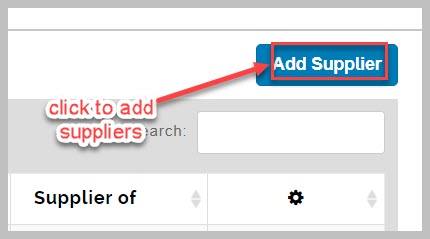
- Click on Add Supplier button
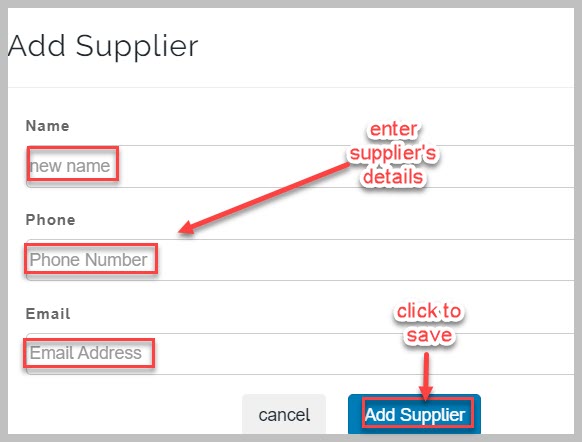
- From pop-up page, provide supplier's name, phone number and email then click on Add supplier to save
How to view/edit/delete Suppliers
To view Supplier details follow these steps:
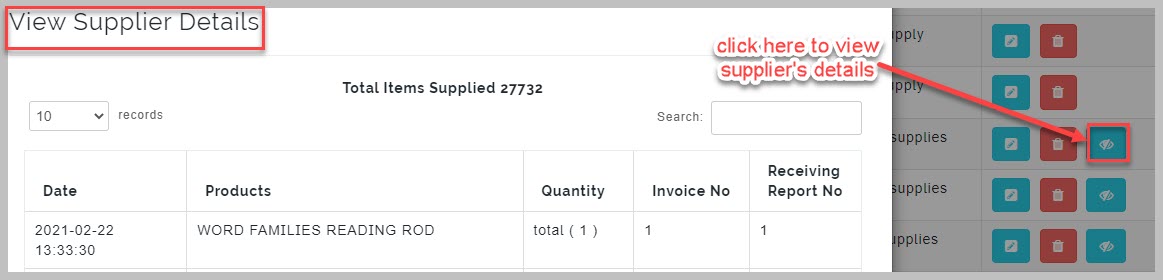
- From suppliers tab, click on Details button to show suppliers details
To edit Supplier details, follow these steps:
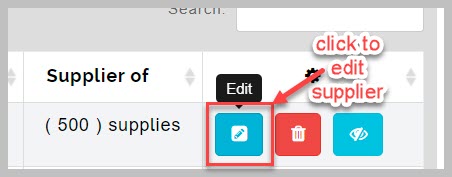
- From suppliers tab, click on edit button on the row of interest, to make changes
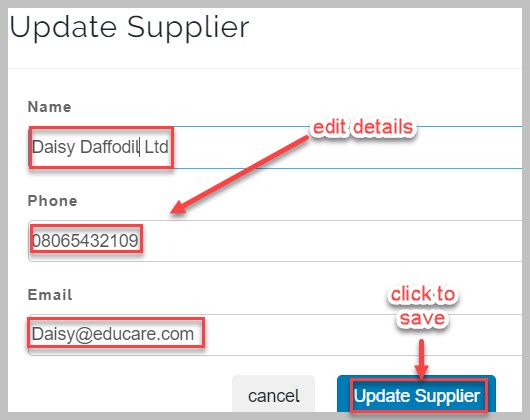
- In the row ( that is the Edit Dialog Box), edit the name, email and phone number and click on update supplier button to save changes
To delete Supplier, follow these steps:
- From suppliers tab, click on delete button to erase already existing supplier
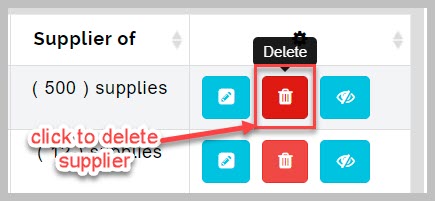
Delete Supplier
- This is an irreversible action. So the system requests your confirmation before this action is carried out.
- Confirm your action, by clicking the delete button again on prompt
Stock up item
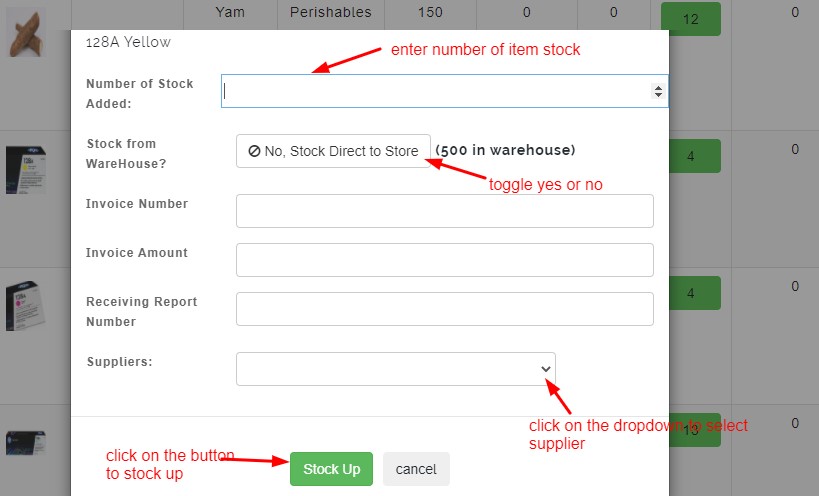
This is a button that allows the store manager to add more items to the school stores either directly or from the warehouse.
How to stock up items in the store
To stock up items in the store follow these steps:
- From suppliers tab, click on stock up button on the item row of interest, A pop-up appears
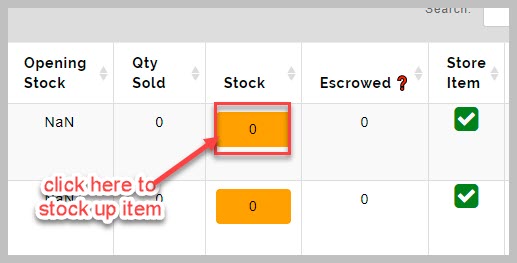
- From pop-up page, enter number of stock;
- Stock from warehouse( yes/no)
- Enter invoice number
- Enter invoice amount( that is amount the item was bought for i.e. cost price on the invoice
- Enter receiving report number
- Select suppliers name and click on stock up to save.
Stock up Note:
If you select "yes" to stock from the warehouse; a request is sent up to the warehouse