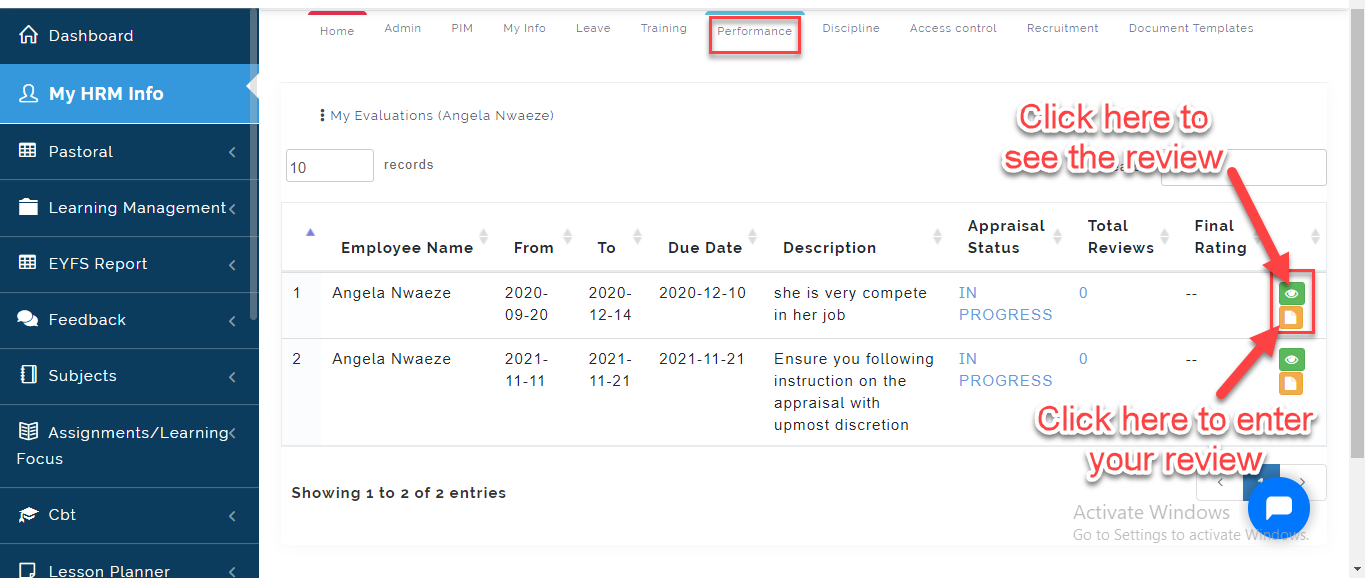
This Section contains the following; Appraisal Lists, My appraisals, My Evaluations and Appraisal Cycle. Now that the Setup is done, The next step is to create the Appraisal Cycle.
Appraisal Cycle
This is where the School Admin or HR Manager can set up the periods Appraisal are set to go out by. Follow these Steps to create Appraisal Cycle:
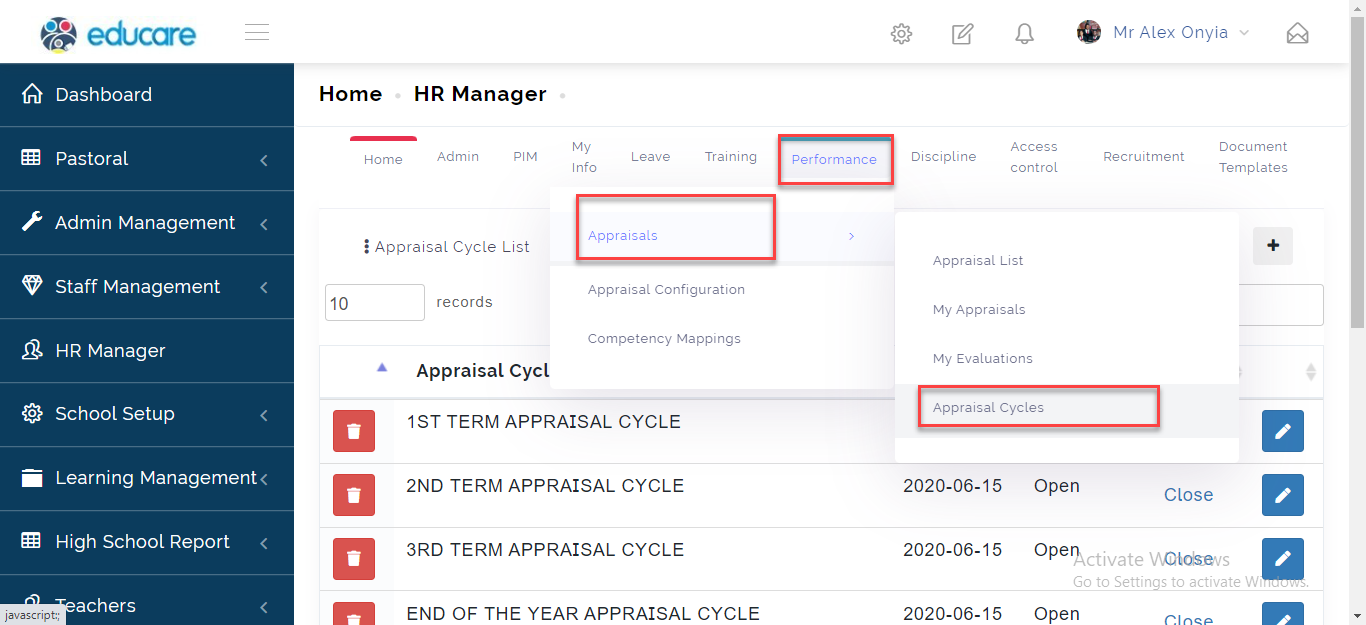
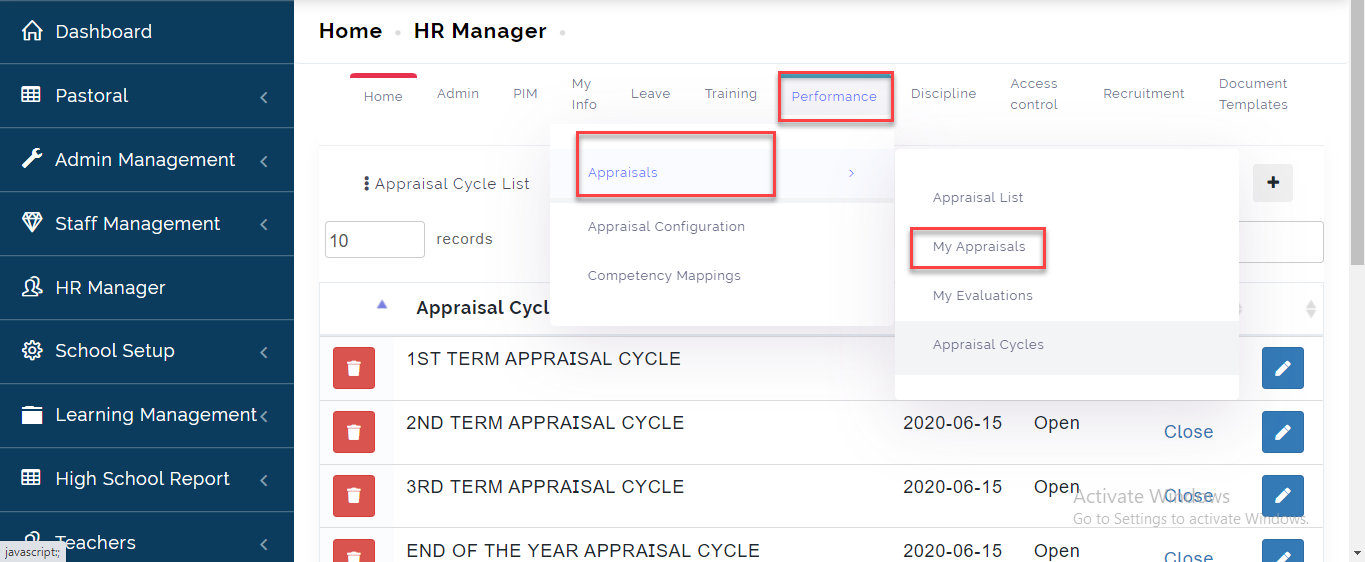
- Hover your cursor on Performance, Select Appraisals; A new tab will appear, Click on Appraisal Cycle .
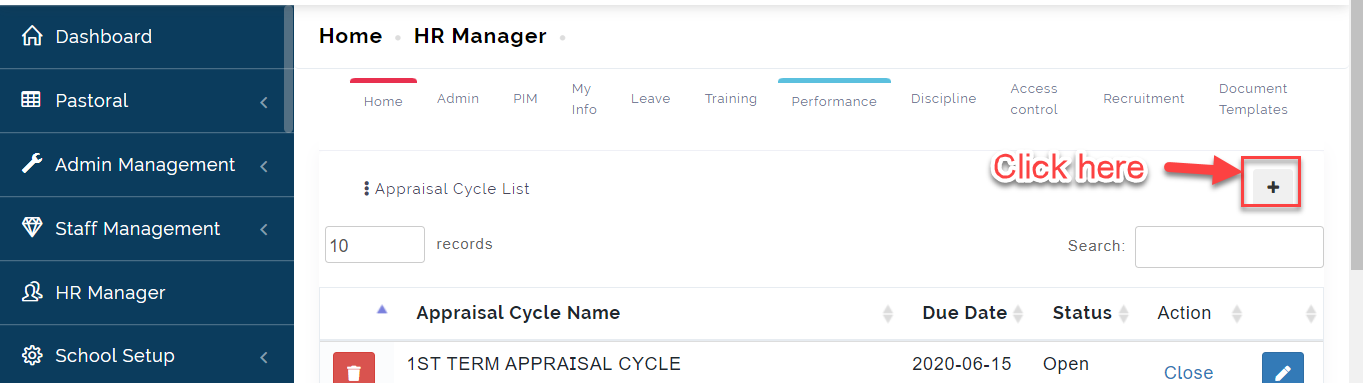
- Click on (+) Icon, A modal will appear for creating Appraisal
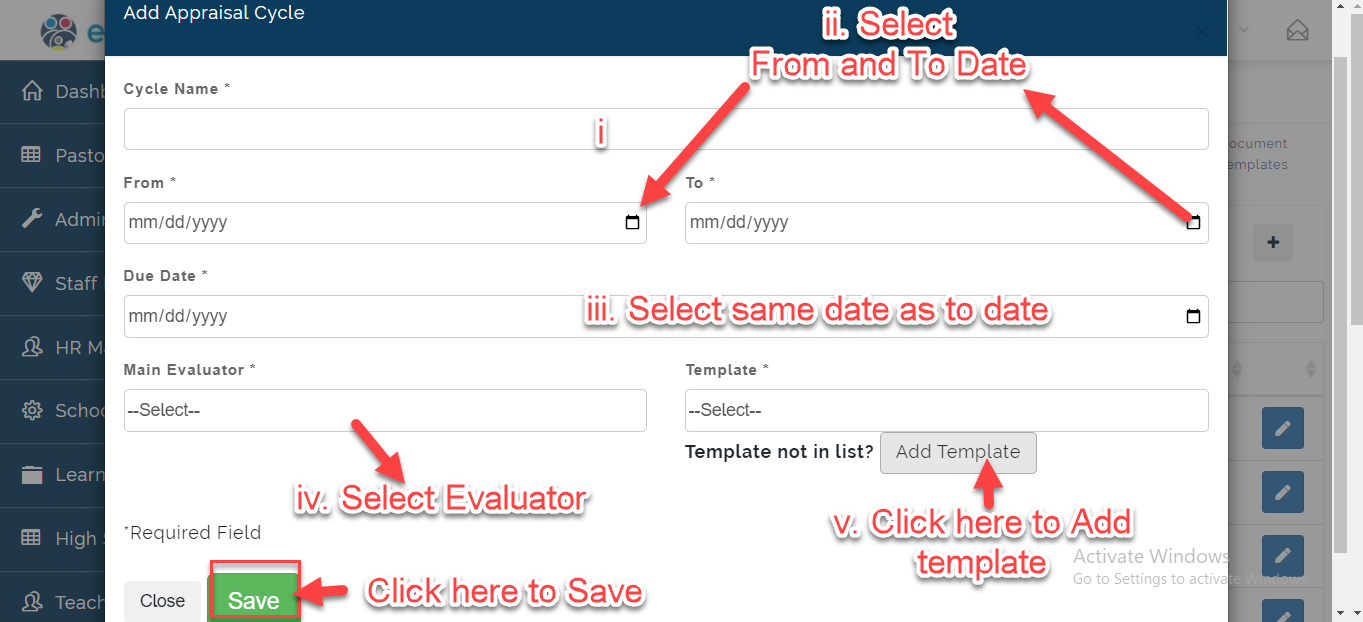
- Fill in the Add Appraisal Cycle
i. Enter the Cycle **Name (e.g. 3rd Term Appraisal Cycle)
ii. Select the timeframe for the cycle you are creating for.
iii. Set the due** date (should be the same as the end Date
you created earlier)
iv. Select the Main Evaluator
v. Select from the list of template you designed which will be used in this Cycle. (Add a New Template if you have not created it earlier)
Click on Save or Close to Exit.
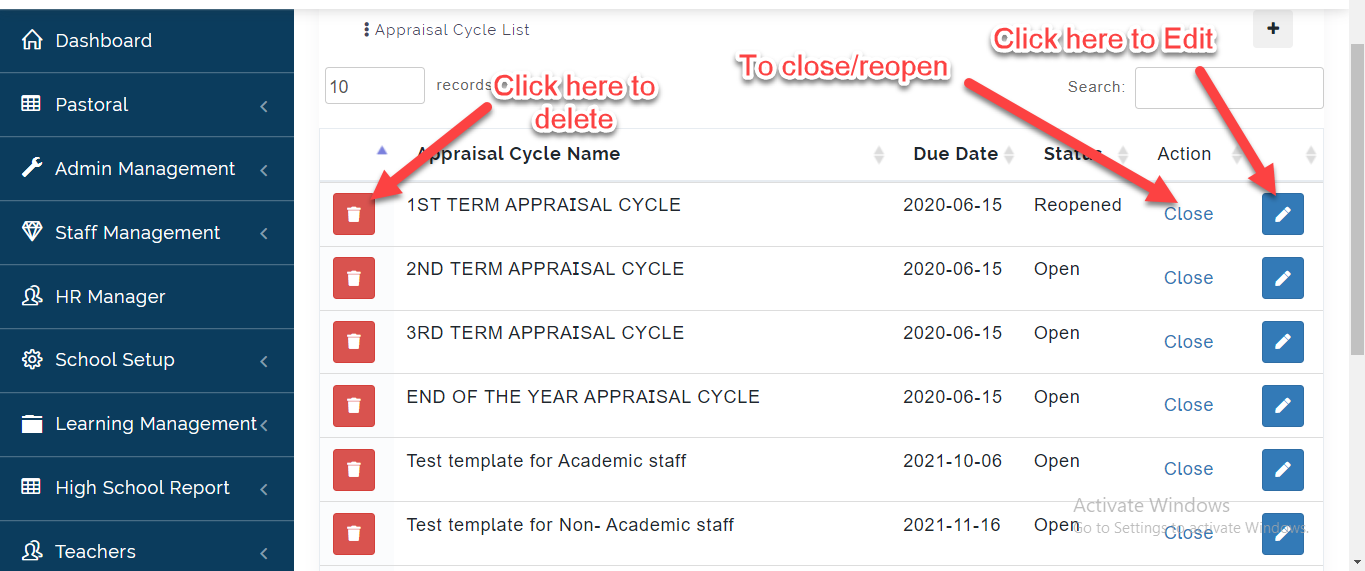
- To make changes to a cycle, click on the Edit icon or Click on Delete Icon to remove from the list.
- Click on Close to make a cycle inactive, click on it again to activate it.
Appraisal List
This is where the School Admin or the HR Manager create Appraisal for Staff on the Portal. To create appraisal, Follow these Steps:
- Hover your cursor on Performance, Select Appraisals; A new tab will appear, Click on Appraisal List .
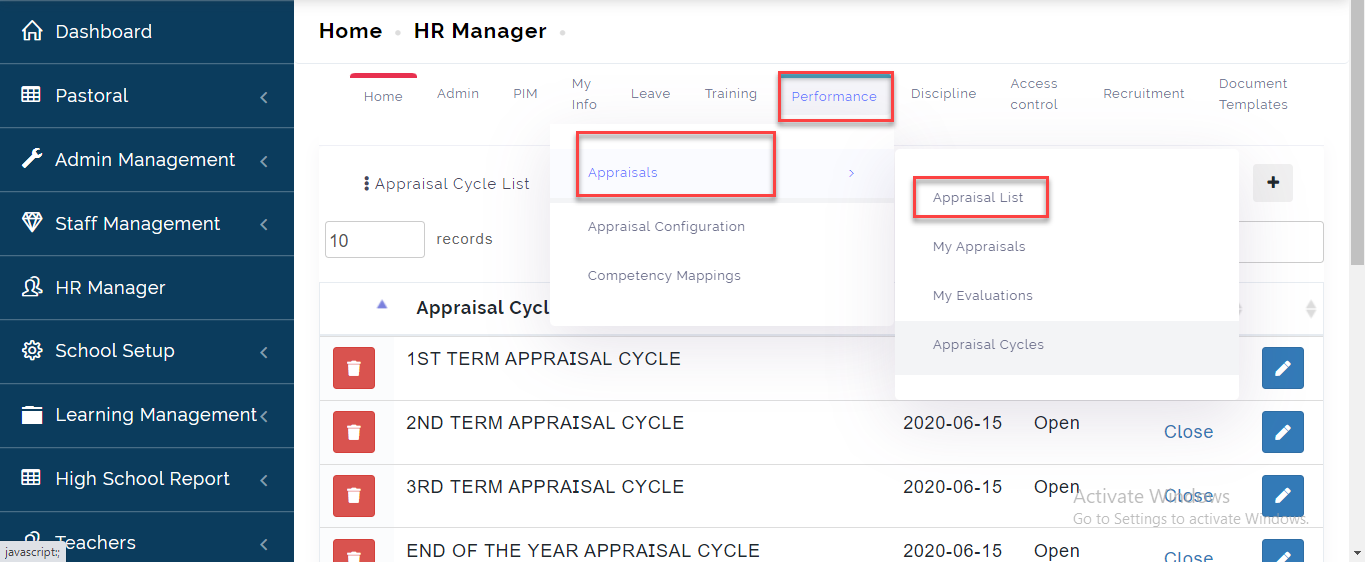
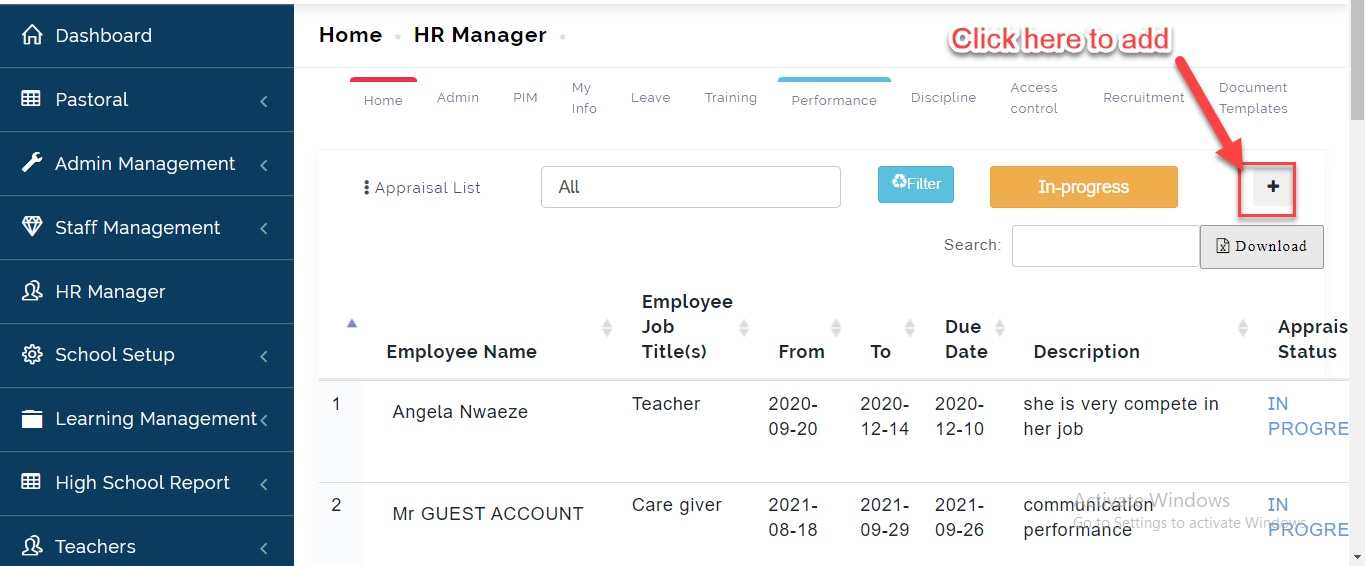
- This will bring up a table showing all Staff Appraisal record. Click on the (+) icon to create appraisal
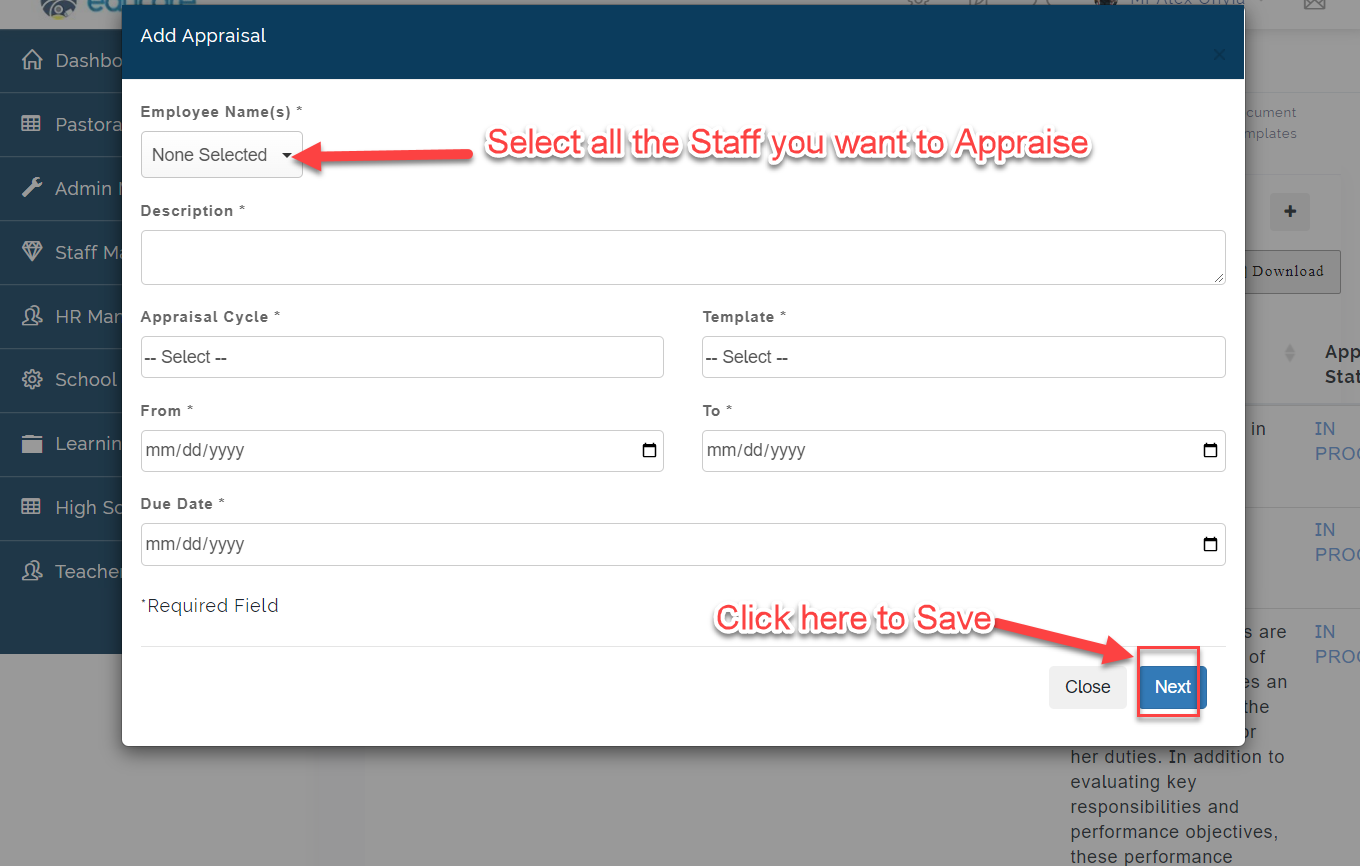
- A modal will appear, fill in the form as indicated below then Click on Next
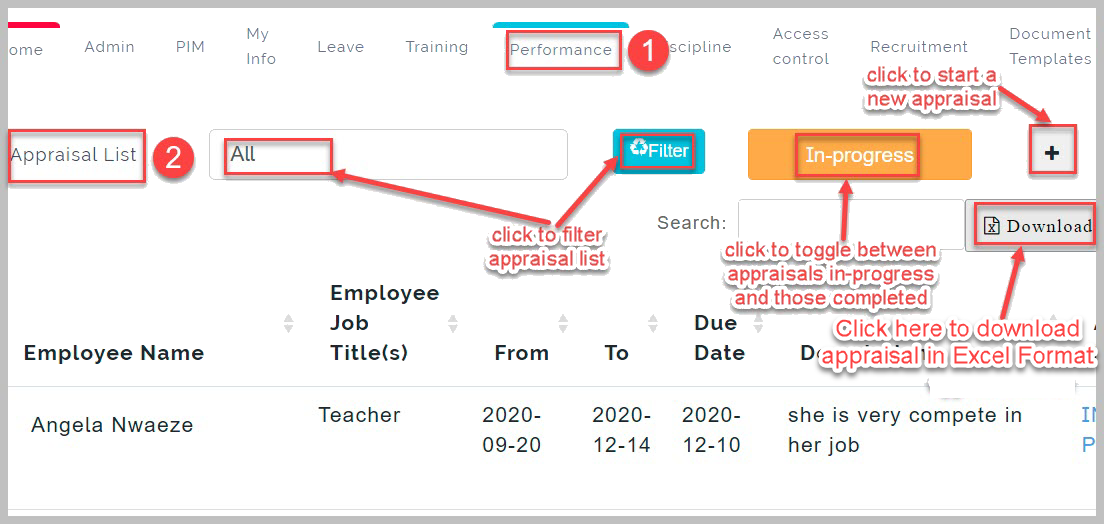
- See indications below to view, comment and Delete an Appraisal for a Staff.
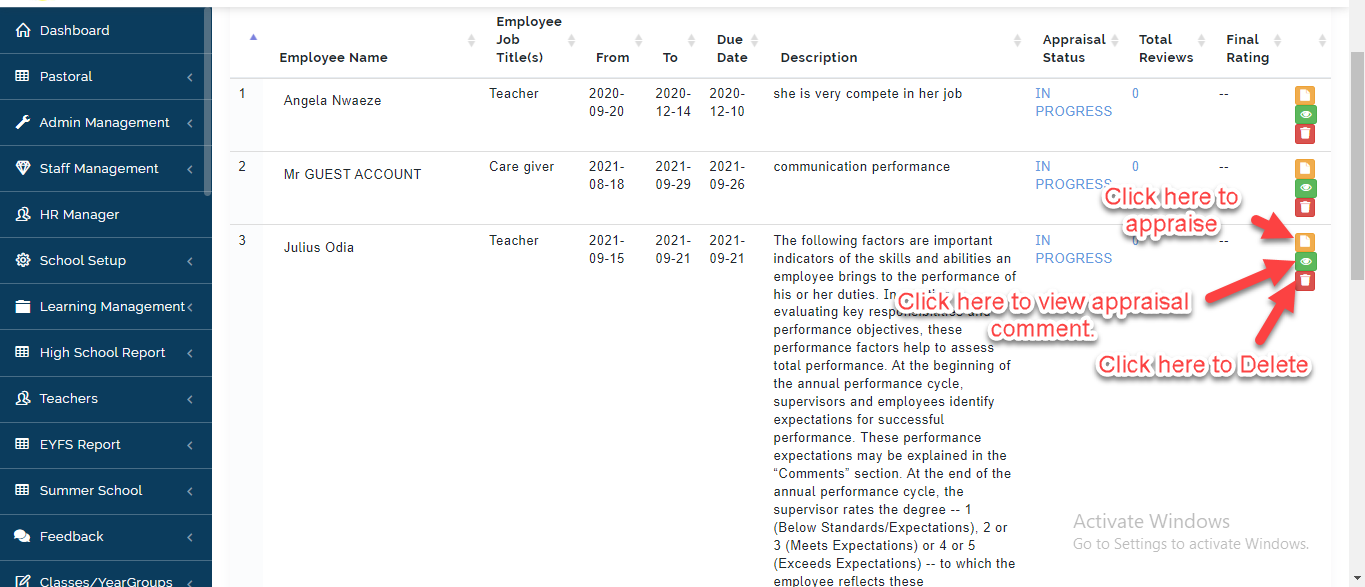
Notes on Appraisal List
You can delete an Appraisal if the Staff have not been appraised.
My Appraisals
This is where the School Admin can manage all appraisal written by the Staff. He or She can Review, Manage and Conclude an Appraisal for a Staff. To do this, follow these steps:
- Hover your cursor on Performance, Select Appraisals; A new tab will appear, Click on My Appraisal .
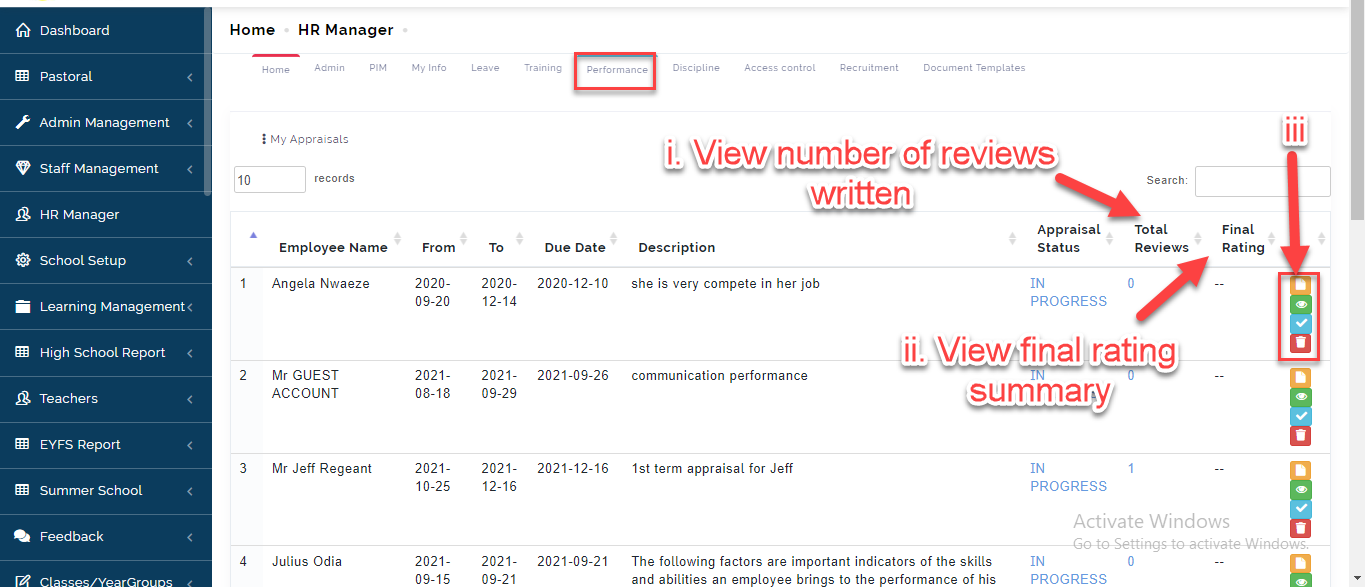
- This list of Staff who have written Appraisals will appear in the table as indicated below.
i. The Total Reviews Column shows the number of review written for each staff on the list.
ii. The Final Ratings Column shows the total rating after appraisal is done.
iii. The First Icon is where the HR Manager or School Admin can enter their reviews and final comments.
The Second Icon is where the School admin and HR Manager can view the appraisal written.
The Third Icon is where the Admin can conclude or Mark an Appraisal as Completed.
The Forth Icon is where you can remove an Staff Appraisal created in error from the list.
My Evaluations
This is where all Staff can view all Appraisals created for them. To do this, Follow these Steps:
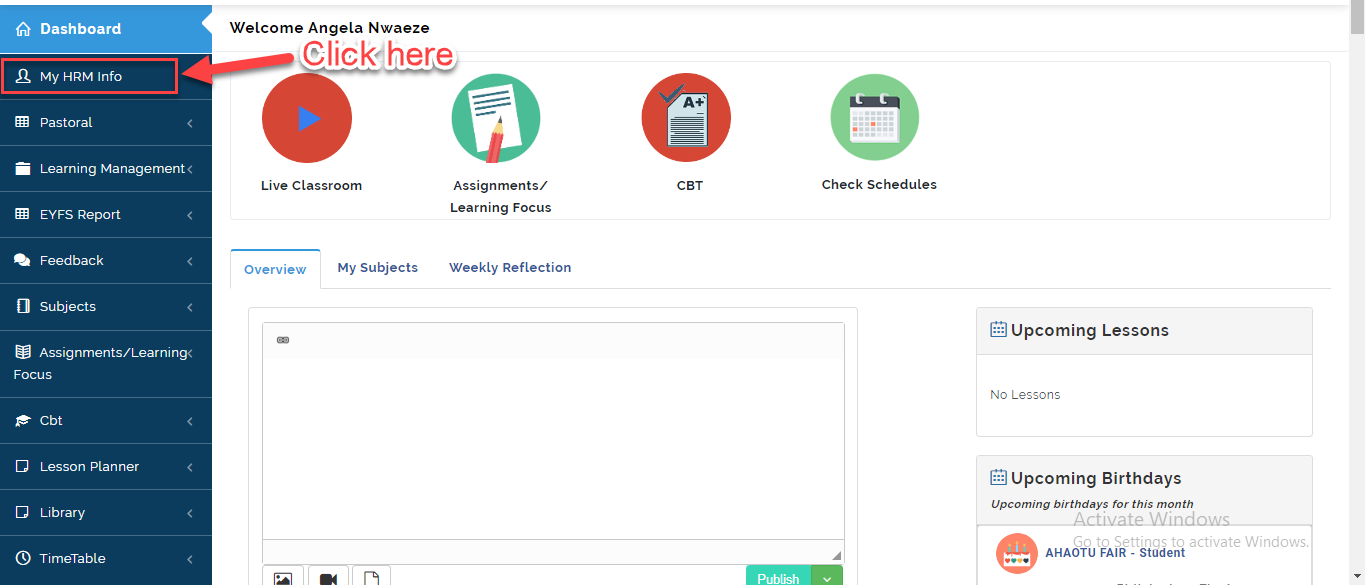
- When a Staff Logs into the portal, Click on My HR INFO.
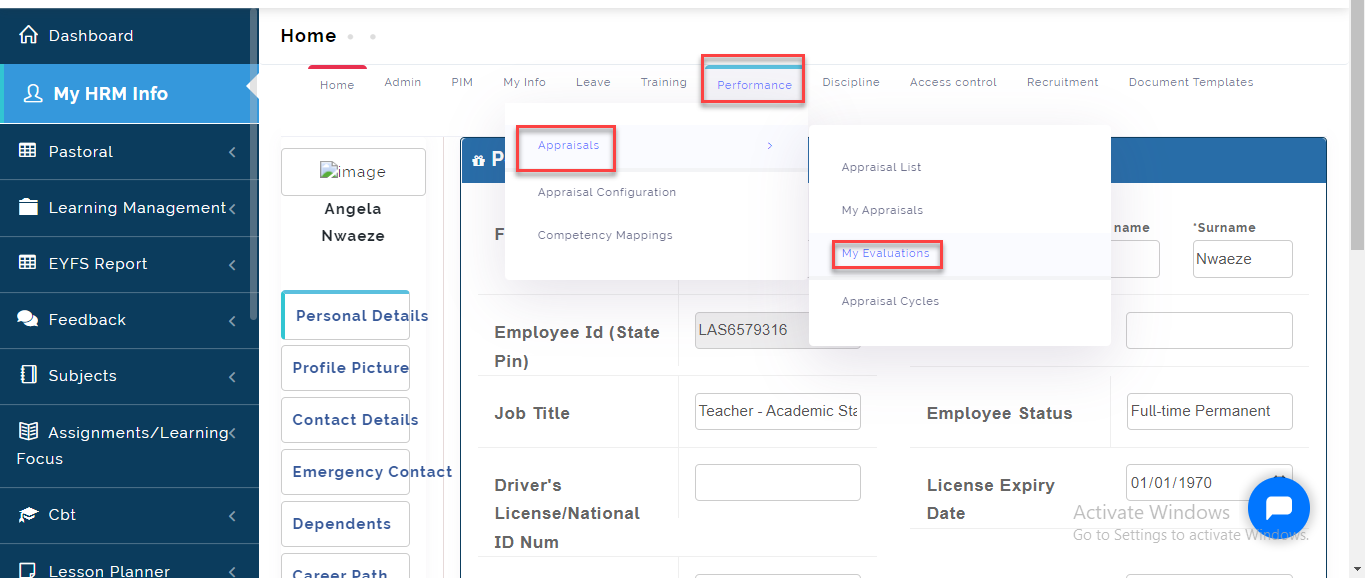
- Hover your cursor on Performance, Select Appraisals; A new tab will appear, Click on My Evaluation .
- This will bring up all the list of Appraisals created for you. Click on the Icon as indicated below to enter your review.