The School admin can view at a glance attendance taken by the class teacher and is aware of students that are absent.
educare Class Attendance makes it easier for both Teachers and School Heads to keep track on students who are present in school on a daily basis. As Class Teachers take attendance of students in their class, The admin can monitor the class attendance from the admin Dashboard.
How To View Class Attendance
Follow these steps to view Class Attendance:
- From the Dashboard, The admin is aware of attendance taken if the Total Attendance number increases from 0.
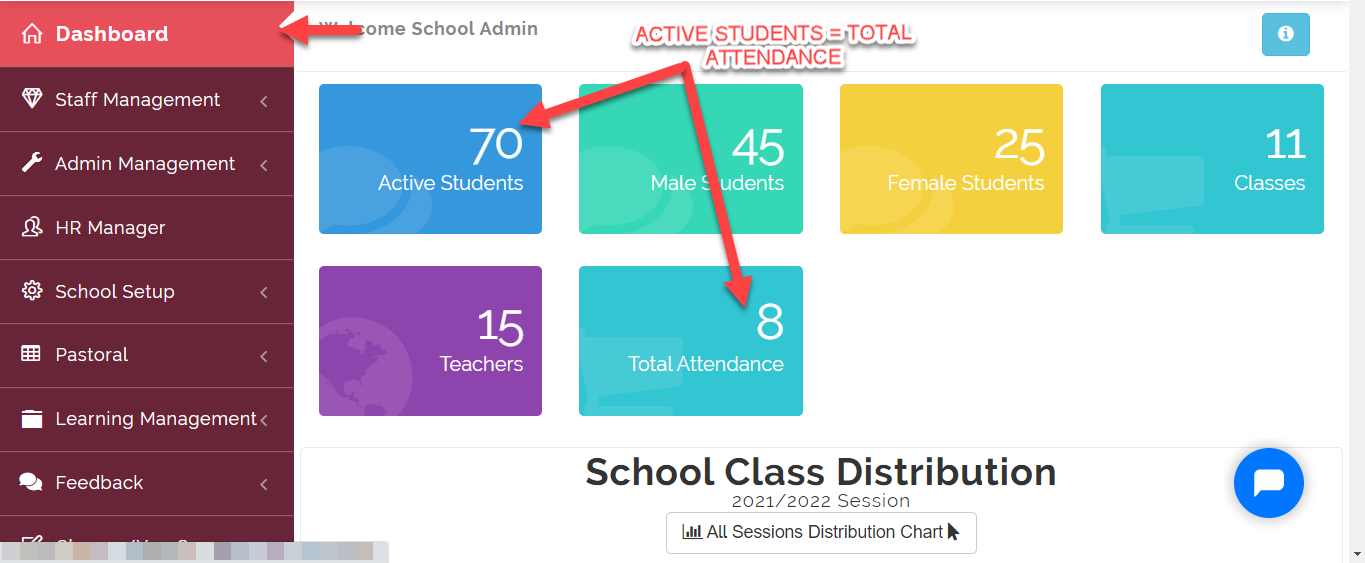
ATTENDANCE NOTE
If the Total Attendance tallies with number on the Active Student Tab, this means that all the students are in school for the day.
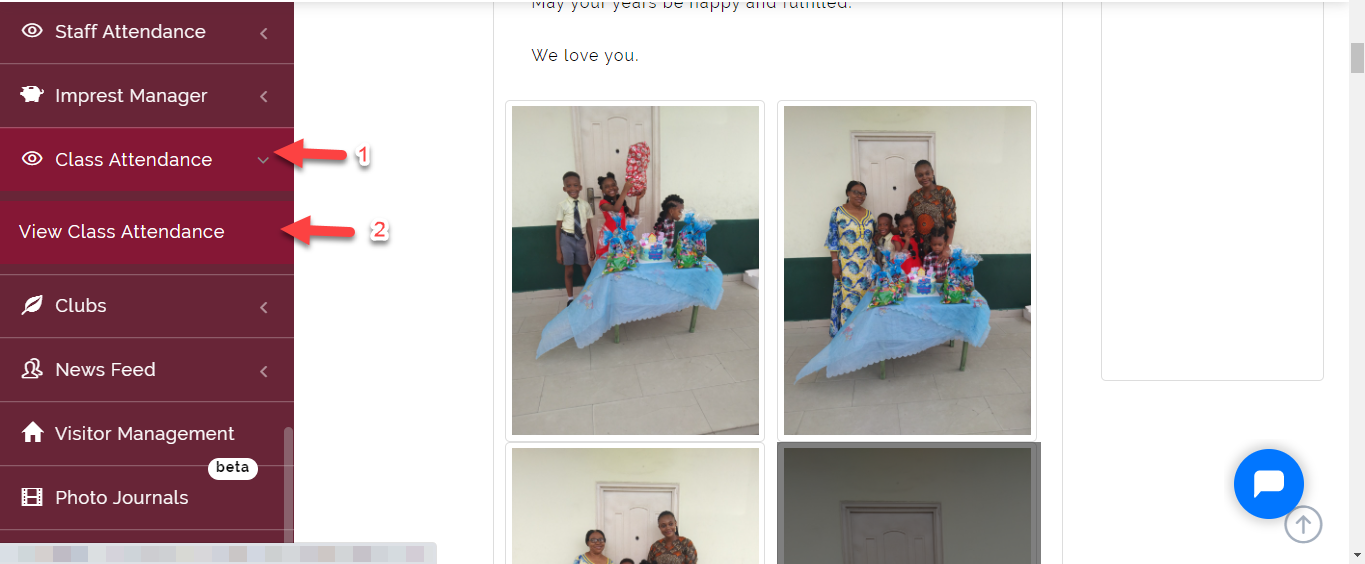
- Click on Class Attendance to view attendance record per class.
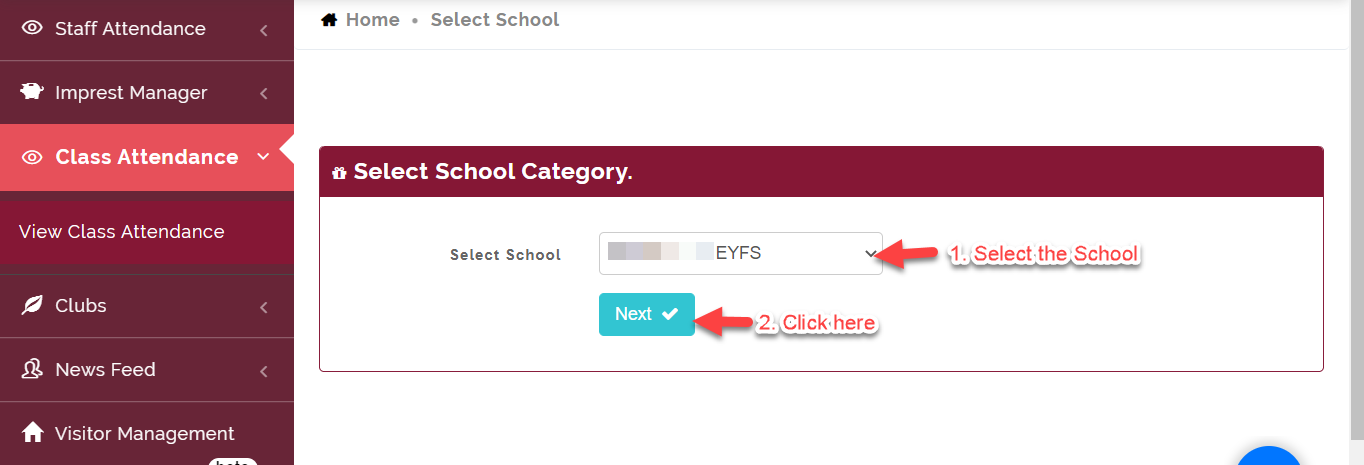
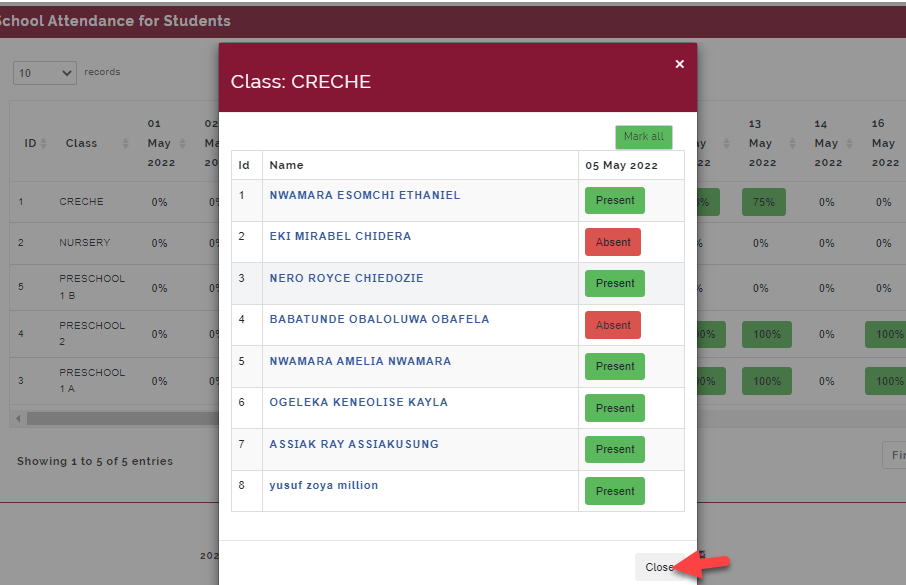
- Select the School you want to view attendance for, Click on Next.
- The List of Classes will appear, Click on percentage icon to view the attendance taken.
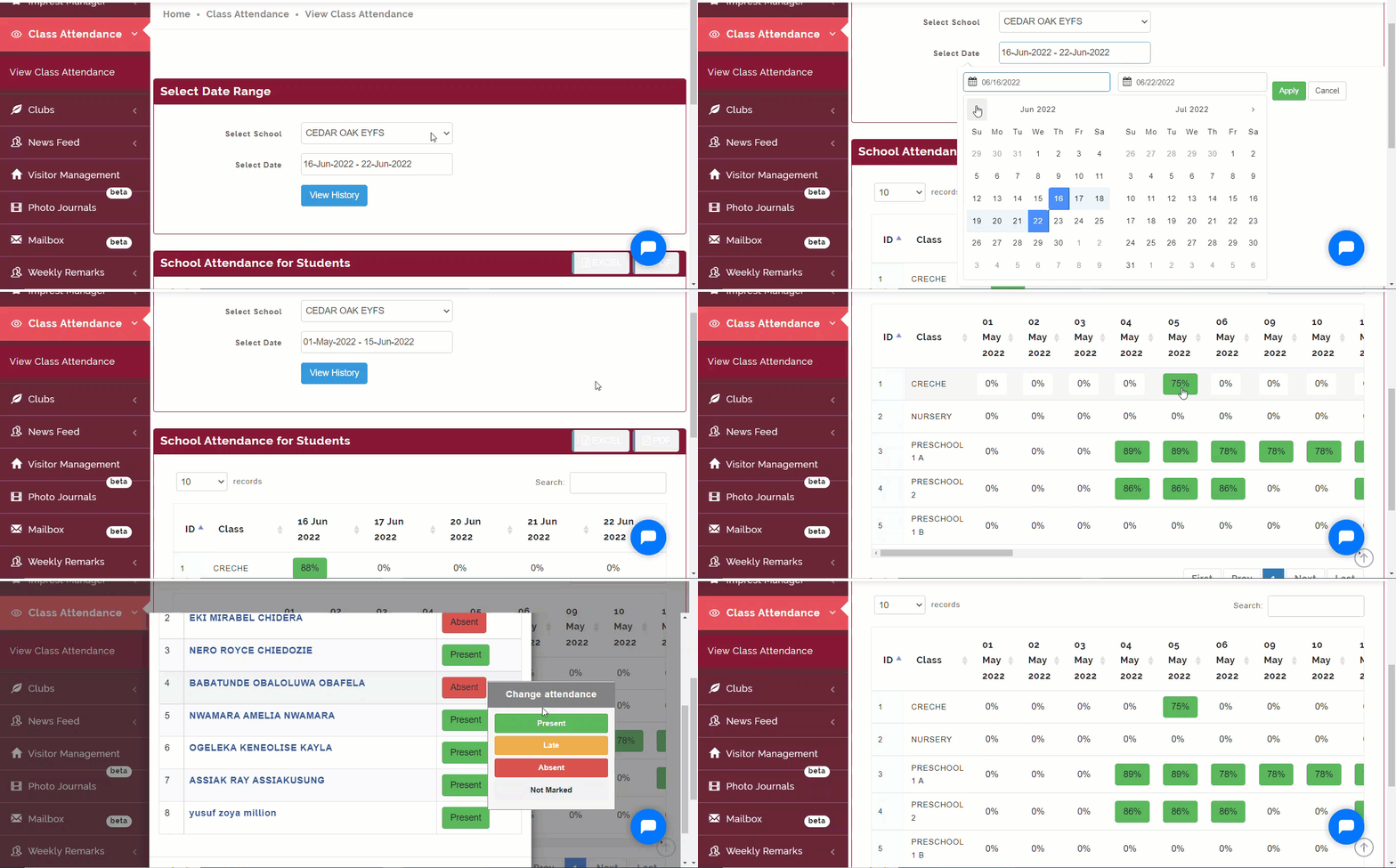
- View all the attendance for the class you have selected, then click on Close to exit
How To Download Class Attendance in PDF and Excel
To Download Class Attendance in Pdf and Excel, follow these steps:
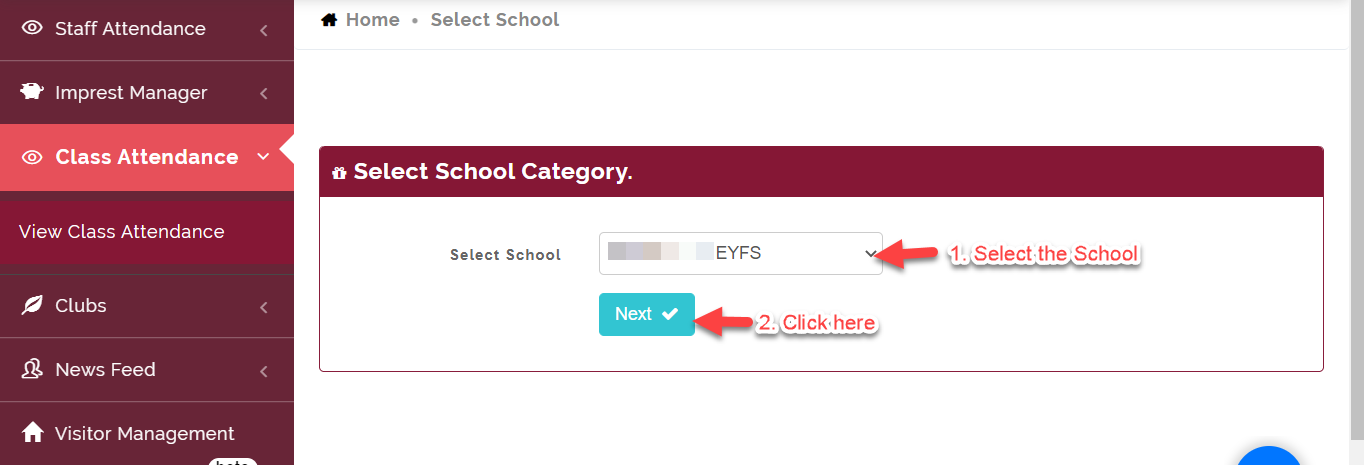
- Select the School you want to view attendance for, Click on Next.
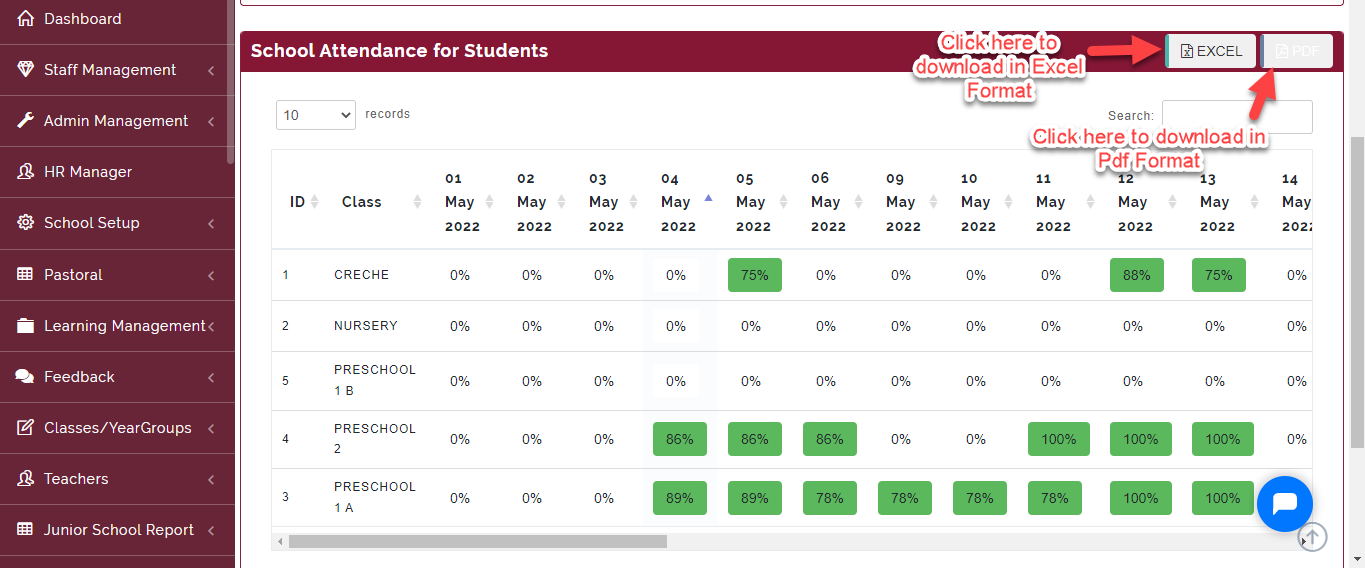
- Click on the EXCEL Button and PDF Button as indicated below to download in your desired format.
How To Enable Mark Previous Attendance Button
Follow Steps below to enable Mark Previous Attendance Option for Class Teachers:
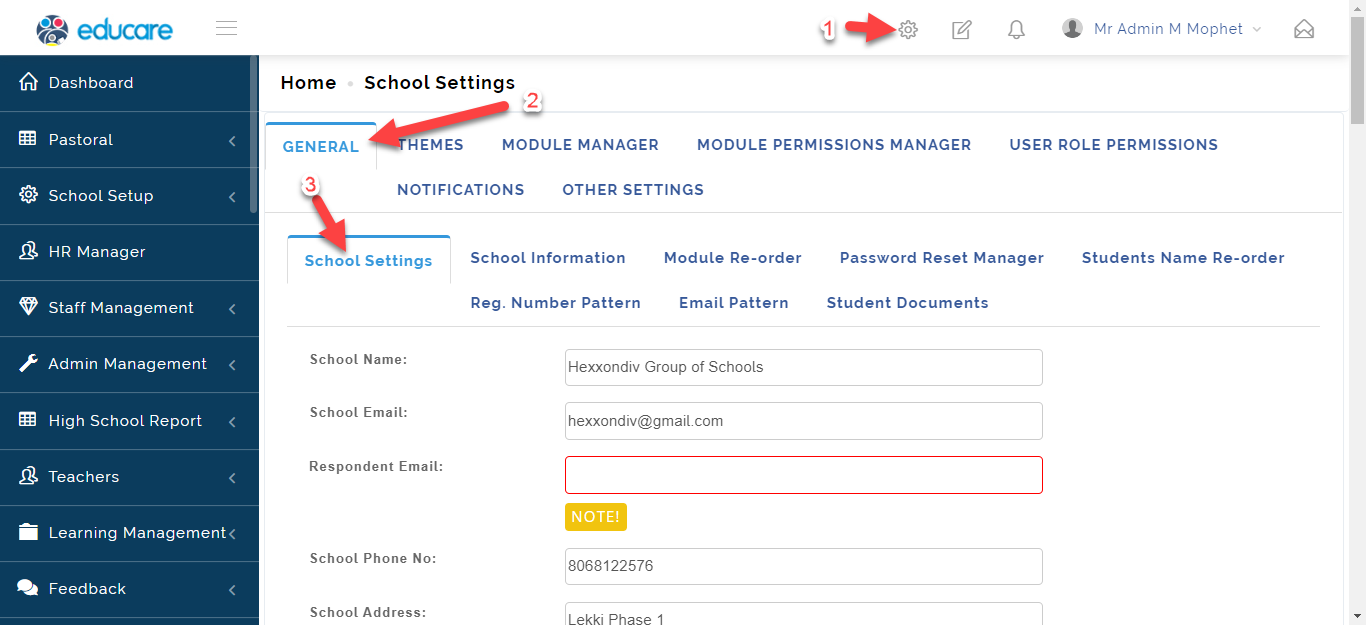
- Click on Setting Icon, Under the General Tab, Click on School Settings.
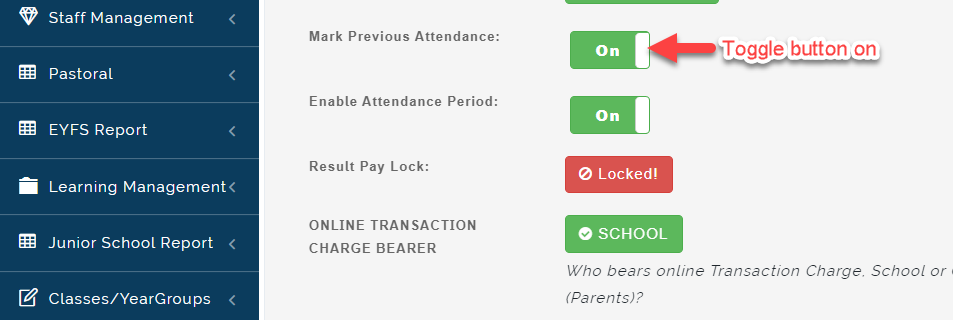
- Toggle Mark Previous Attendance "On"
How to Enable Attendance Period
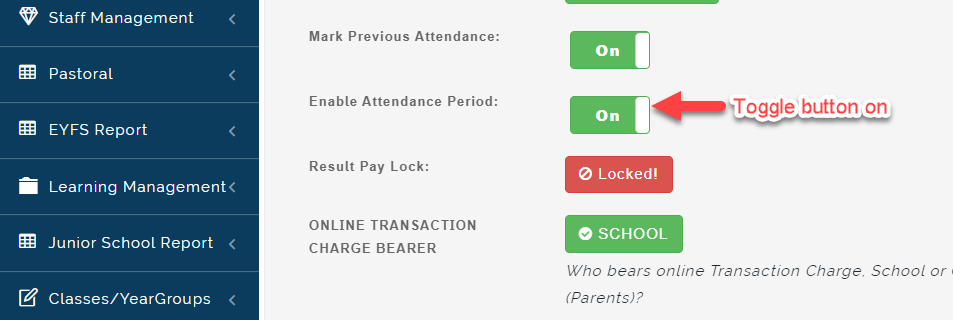
Enabling Attendance Period allows Class Teaches to Mark students attendance twice a day. Follow these steps to enable Attendance Period:
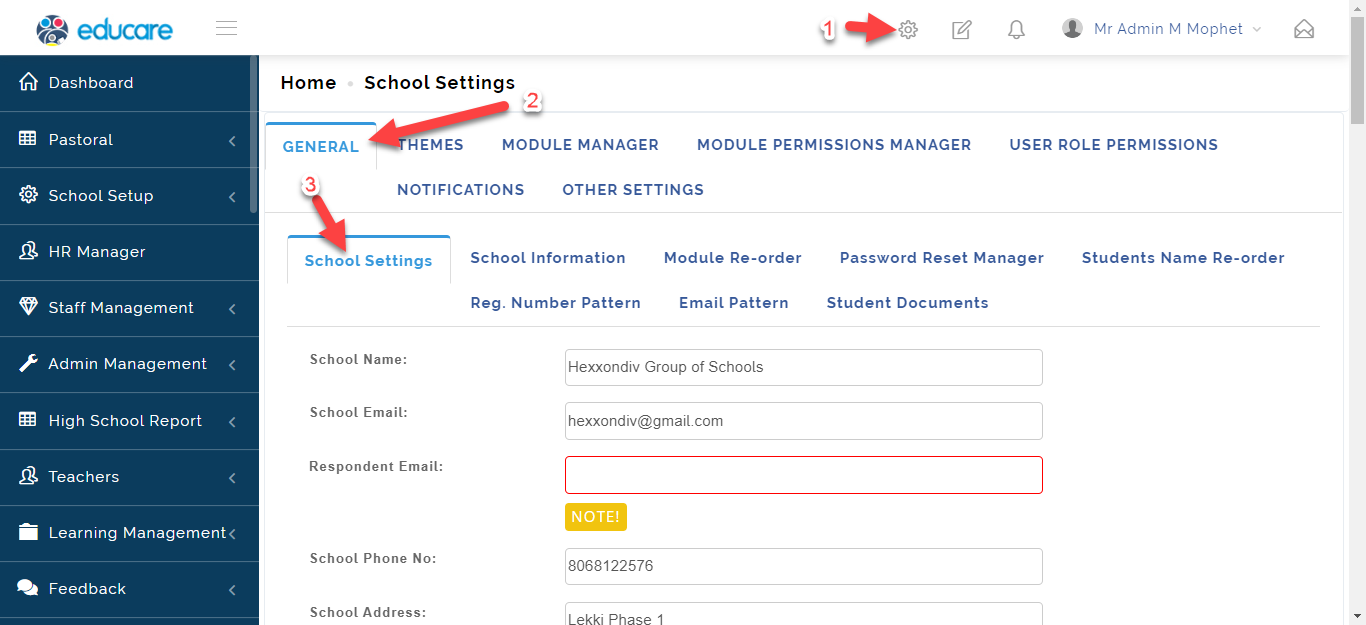
- Click on Setting Icon, Under the General Tab, Click on School Settings.
- Toggle Enable Attendance Period "On"