
Performance is all about appraisals. It measures how well employees in an organization (e.g. teachers, supervisors etc.) are performing in a school. Their performances are usually compared against their job description key performance indices (KPI)
Performance management
Performance assesses whether a person performs a job well. Performance is an important criterion for organizational outcomes and success. Performance is an integral part of HRM that helps measure organizational growth, development and investments in human resources.
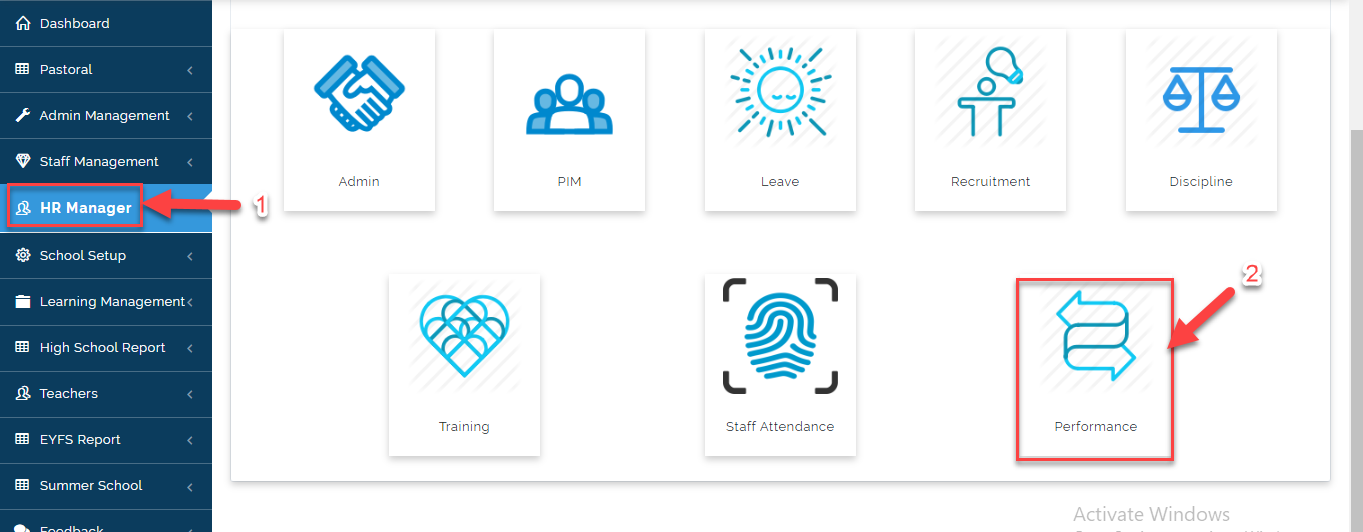
To Access Performance (Appraisal), Follow these Steps:
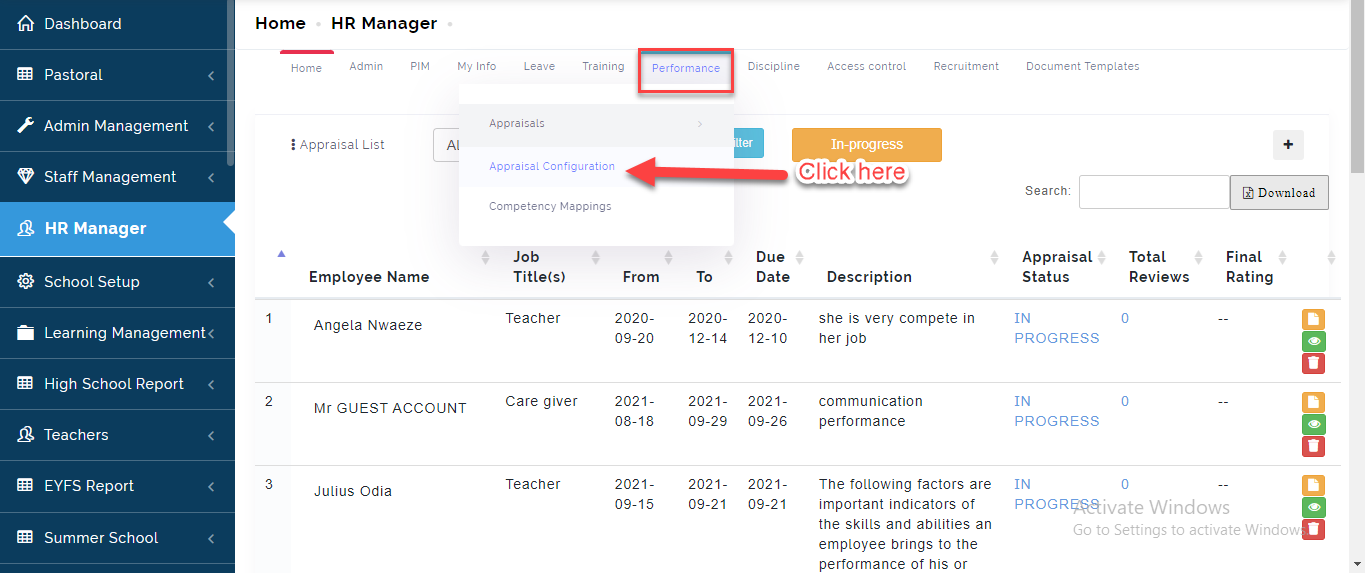
- Click on HR Manager then Select Performance from the Dashboard.
Appraisal Configurations
To Commence Appraisal, Some configurations need to be setup. This part of performance houses all setups and settings that enable various appraisal features to be used. Here you determine the evaluator groups, setup question bank for appraisals and interview amongst others.
Follow the Steps to set up Appraisal:
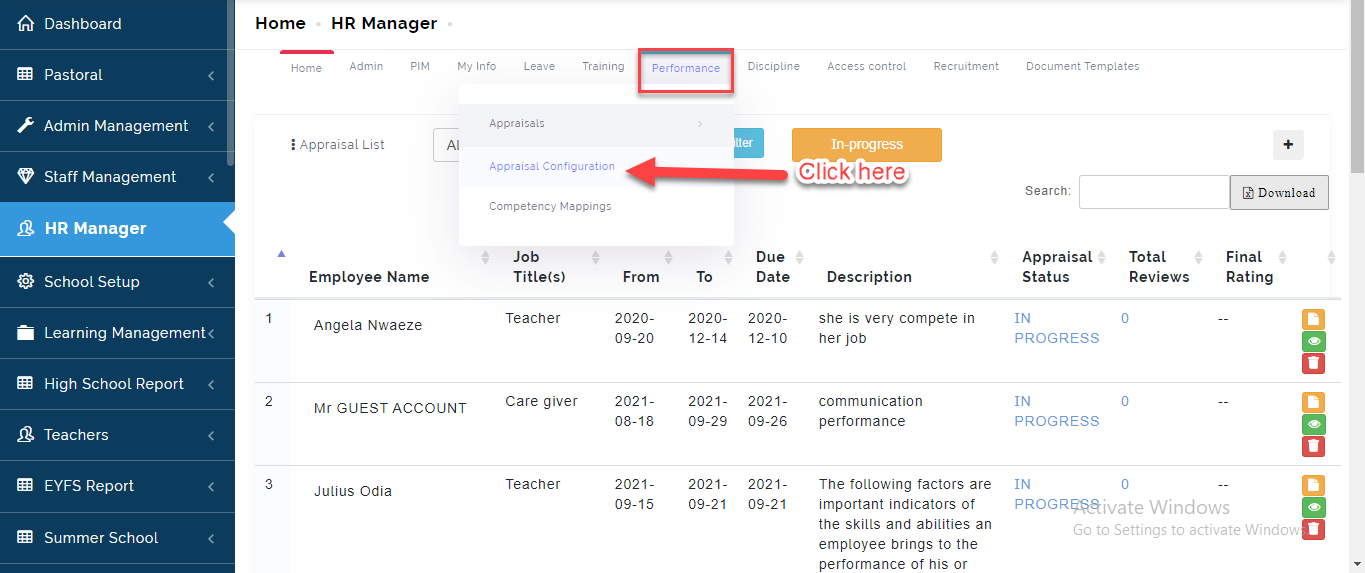
- Once the Performance page is open, Hover on Performance Tab, then Select Appraisal Configurations.
Evaluator Groups
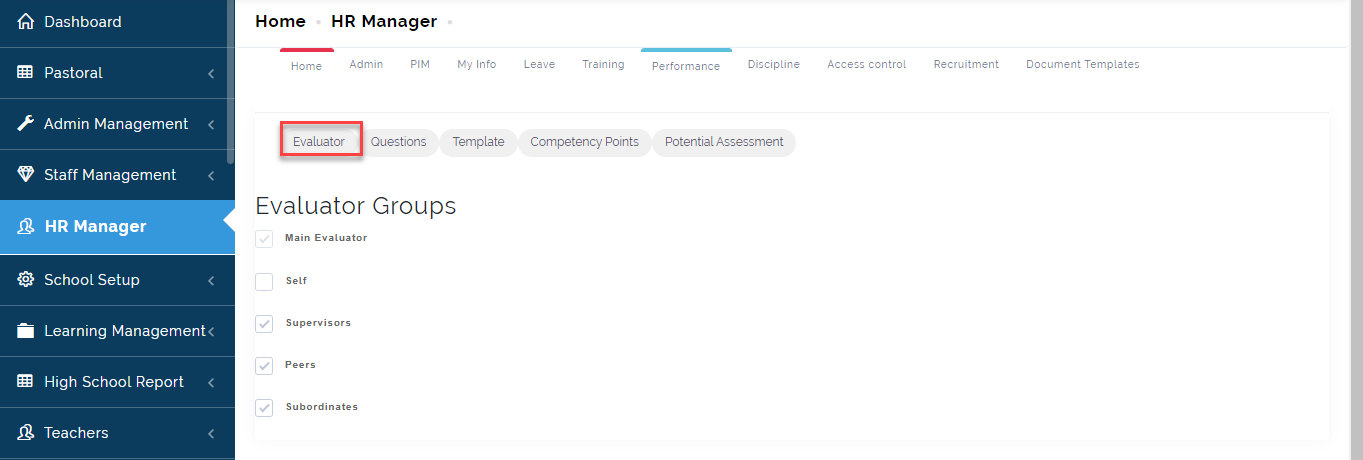
This is where we assign responsibility to groups that can perform appraisal checks on employees. Evaluator groups checks decides;
- who the evaluator group should be
- who should be able to evaluate others
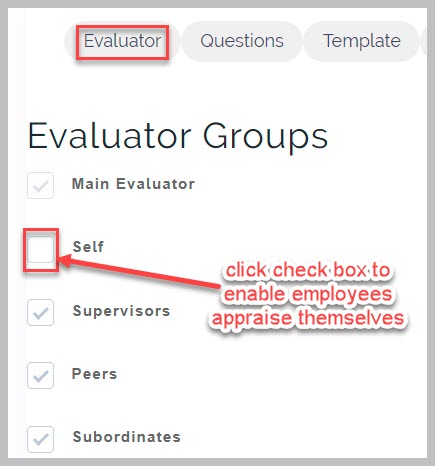
- can someone evaluate themselves
- can supervisors evaluate their subordinates
- can peers evaluate themselves
- can subordinates evaluate their superiors
- Click on the Checkbox to enable users that can evaluate.
Appraisal Question Bank
Here questions are grouped to various competency checks and can be attached to various groups of evaluation appraisal templates. Questions are created and applied in appraisal without linking them to competencies.
To add questions to appraisal questions, follow these steps;
- Go to Appraisal Configurations from Performance manager menu
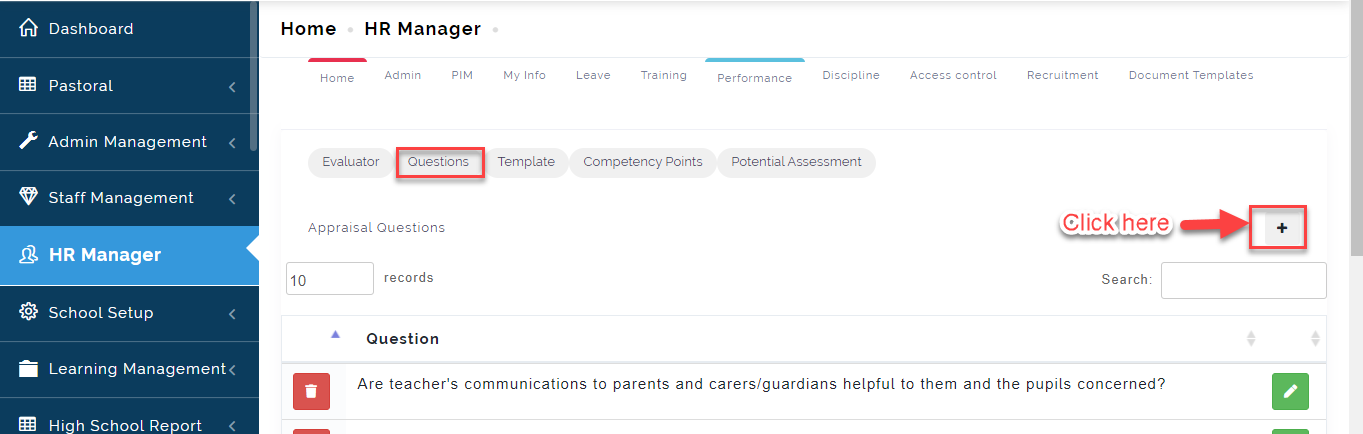
- Click on Questions tab and click on plus (+) to add question
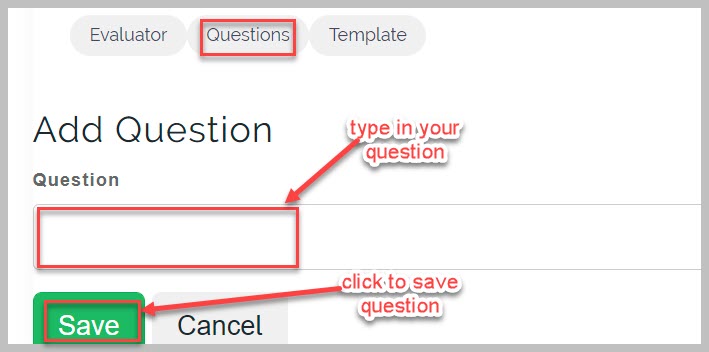
- From displayed page, type in your question and click on Save to complete
Appraisal Template
Templates are created independent of terms and sessions in schools. The appraisal template comprises competency sections or questions. whilst creating templates you need to decide whether the template will contain competency or questions.
How to Add new appraisal template
To add new template, follow these steps;
-
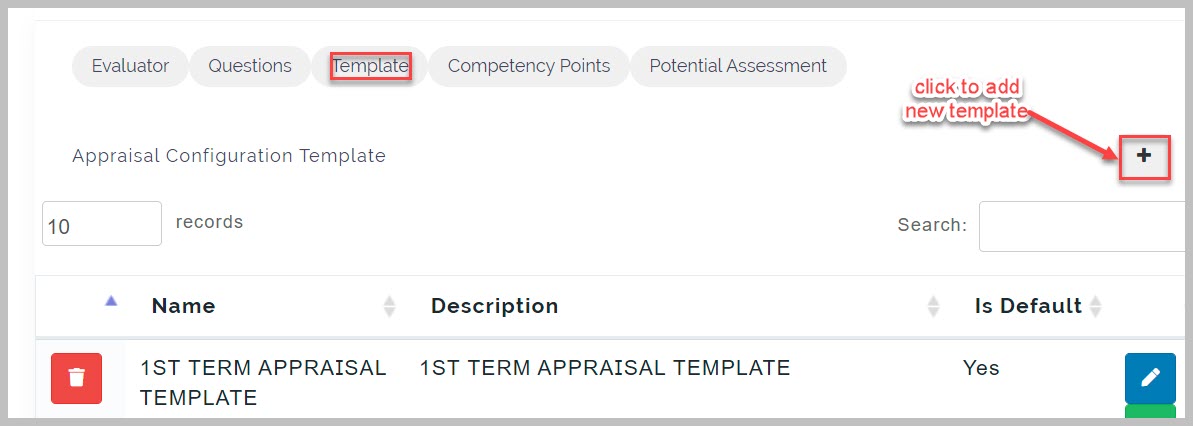
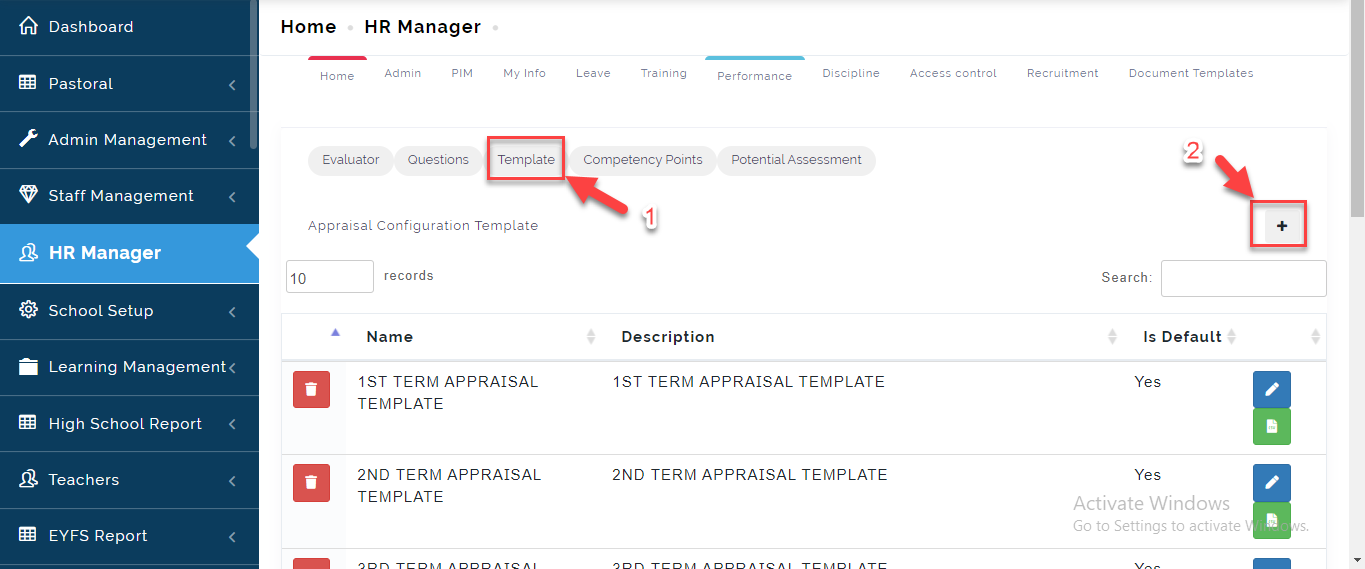
From Appraisal configurations, click on Template tab
-
Click on plus (+) button to open new template page
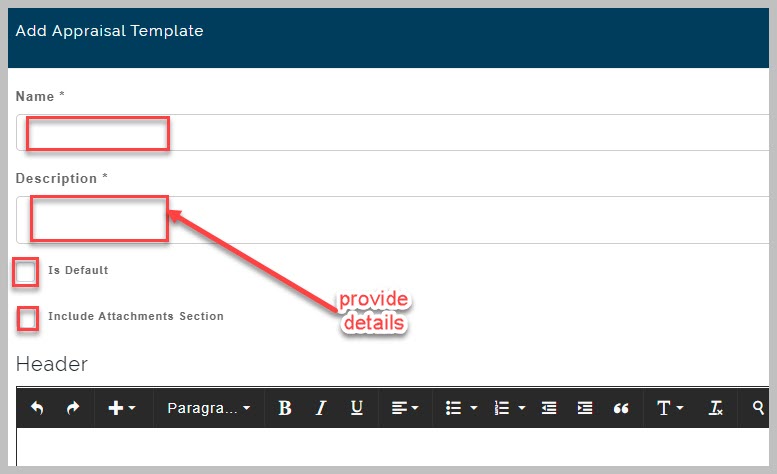
- Under Add Appraisal Template, Type in Name, Description and other details required.
-
Select file from device if "Include Attachments Section" checkbox is selected
-
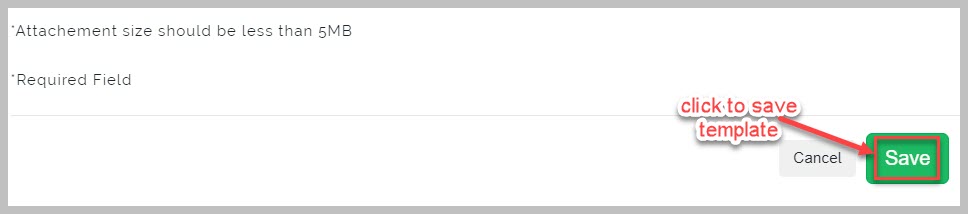
Click on save to complete template creation
Template
This allows The HR Manager to create a template to be used for Appraisal. To design a newly added appraisal template, follow these steps;
- From appraisal Configurations, click on Template button then click on the + Button.
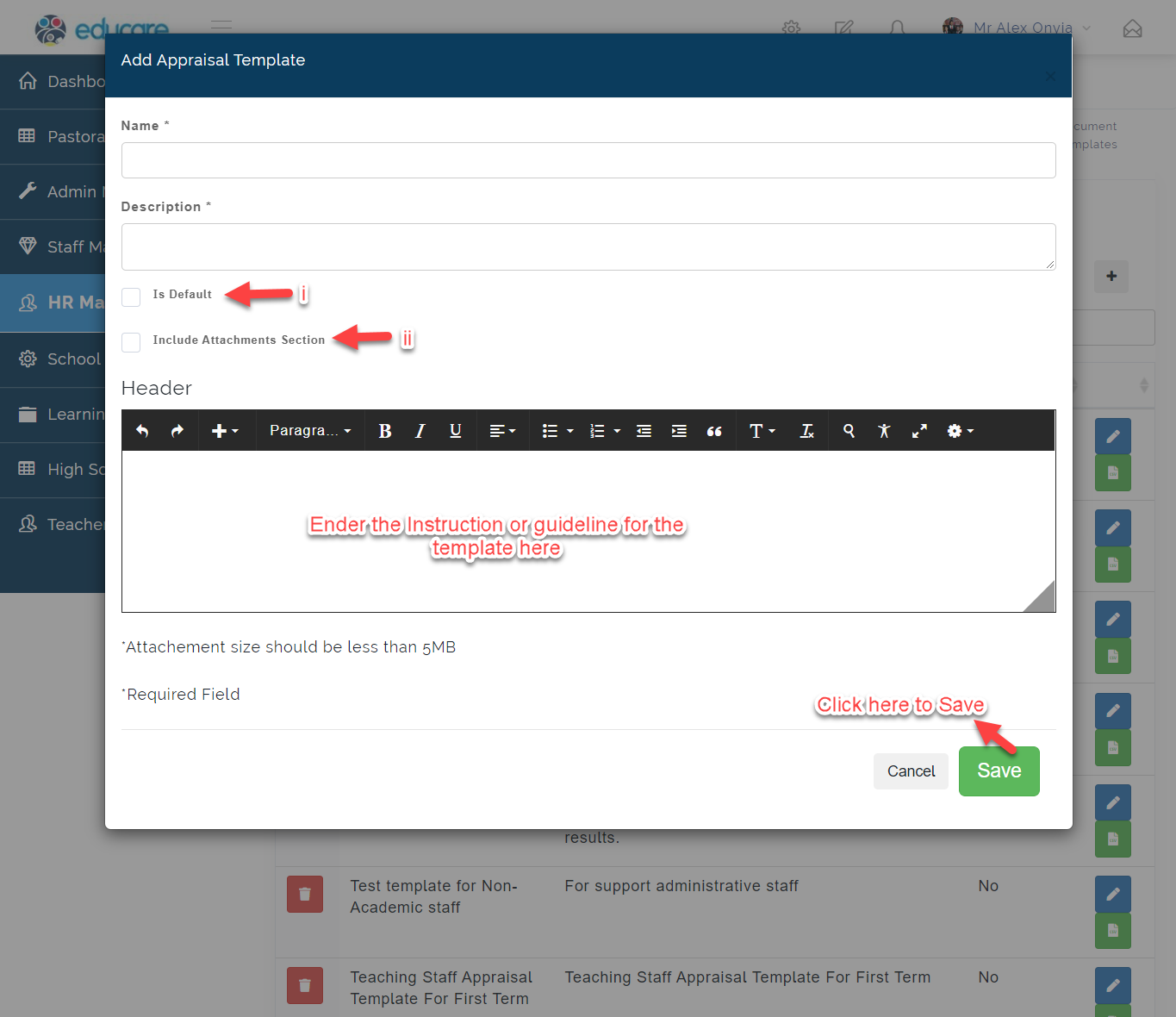
- Fill in the required template with the name and description of the template (e.gTeacher Appraisal for End of Term)
i. Tick the box Is Default if the template you are designing is the default one
ii. Tick the box include attachments Section if the template will require document attachment.
iii. Enter the header for the template you are creating.
iv. Click on the Save button or cancel to exit.
- Click on the icon indicated below to design the Template
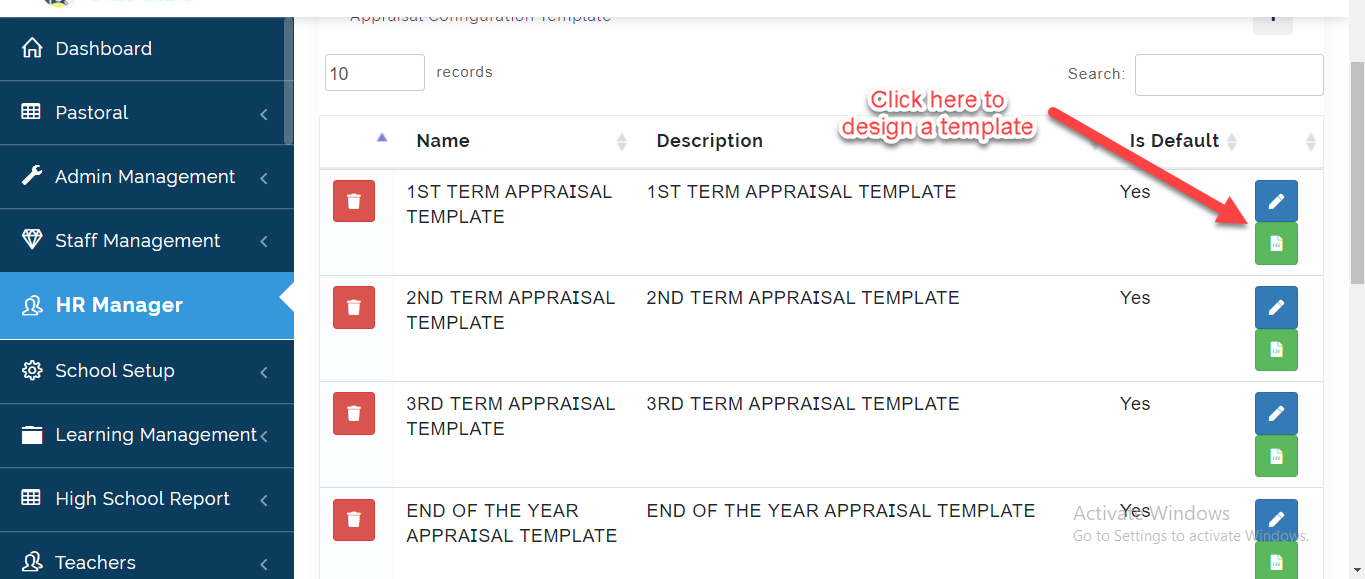
- From displayed page, click on plus (+) button to open appraisal template design page

- Enter the Title of the Section you are creating (you could retype the name of the Template if they are not on Sections).
Tick box if it's a competency or question appraisal type.
Enter the total score for the section or the template you are designing.
Click on Add or Close to Exit.
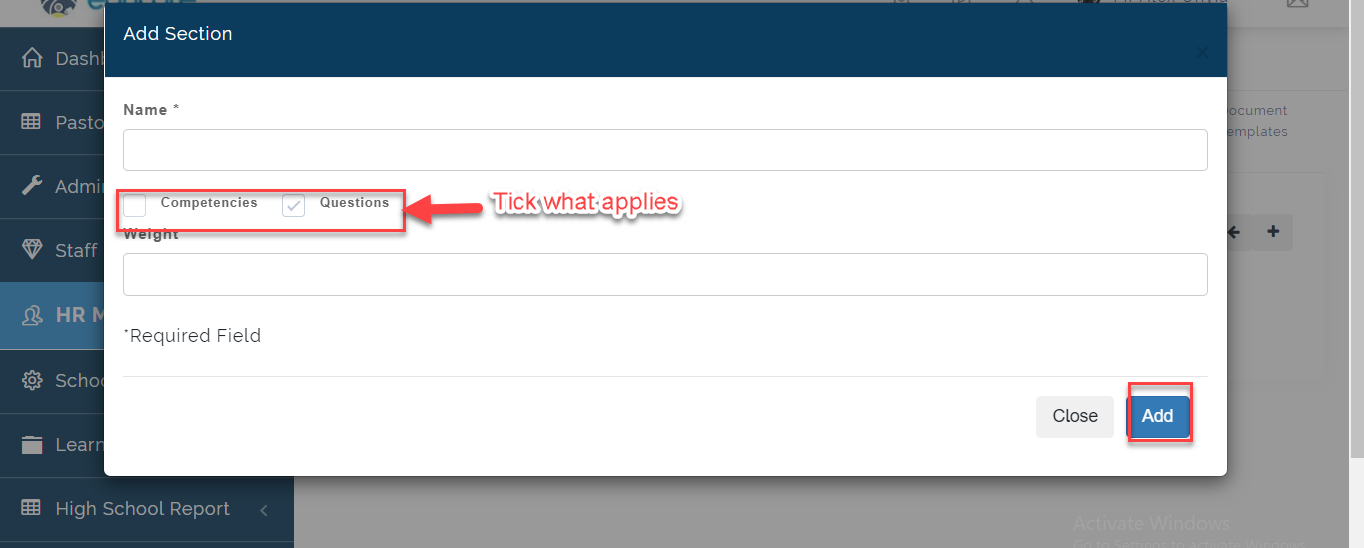
- Click on the icon indicated below to add questions
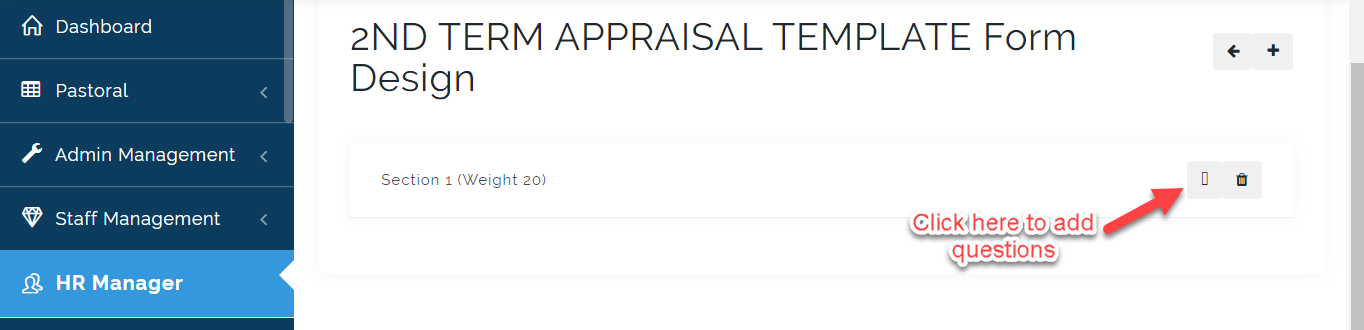
- Tick all questions you want added to that section. Keep in mind the total weight for that question. Click on Update to save or Close to Exit.
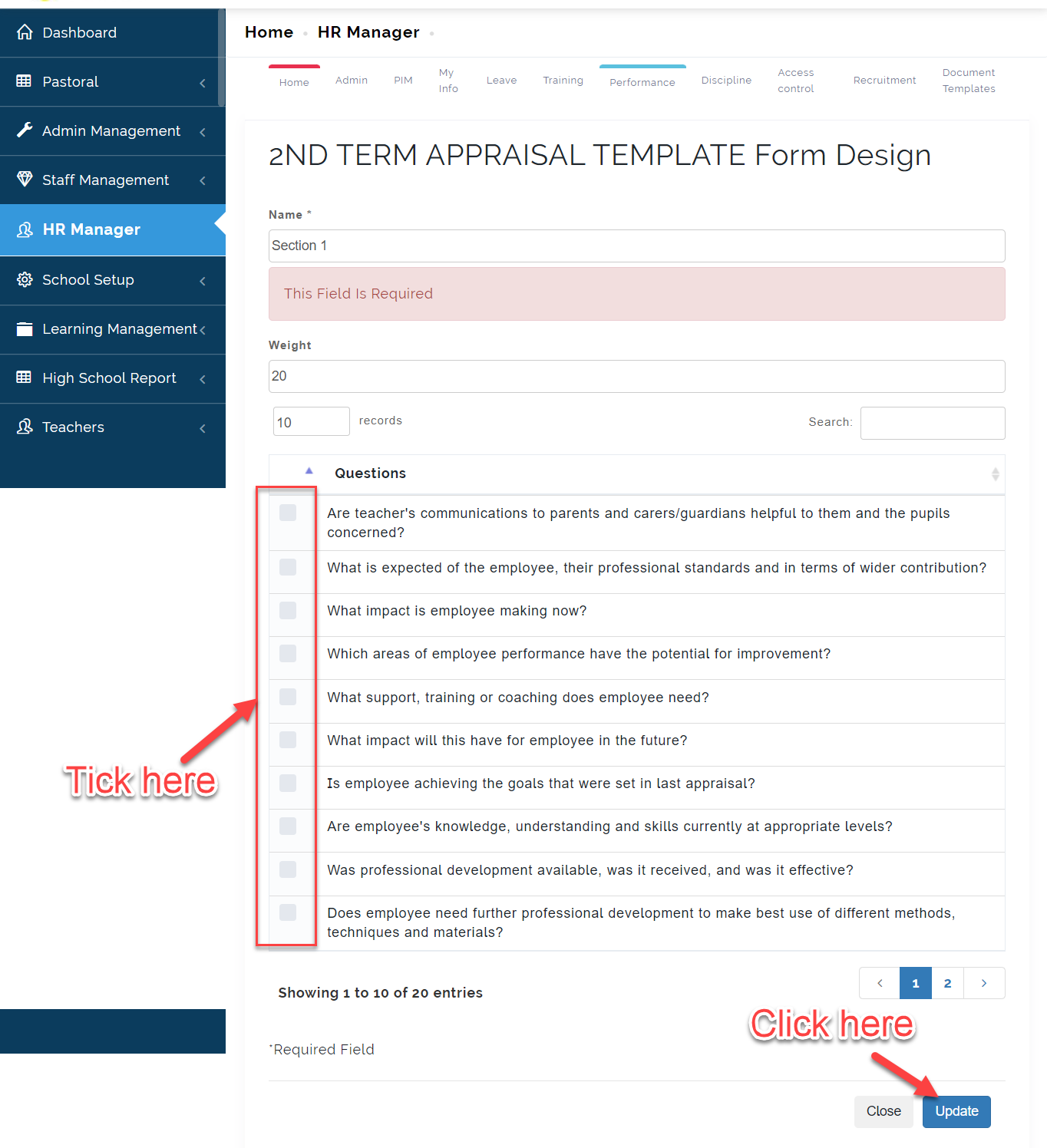
- Click on the icon indicated below to edit, design or Delete the template

Competency points
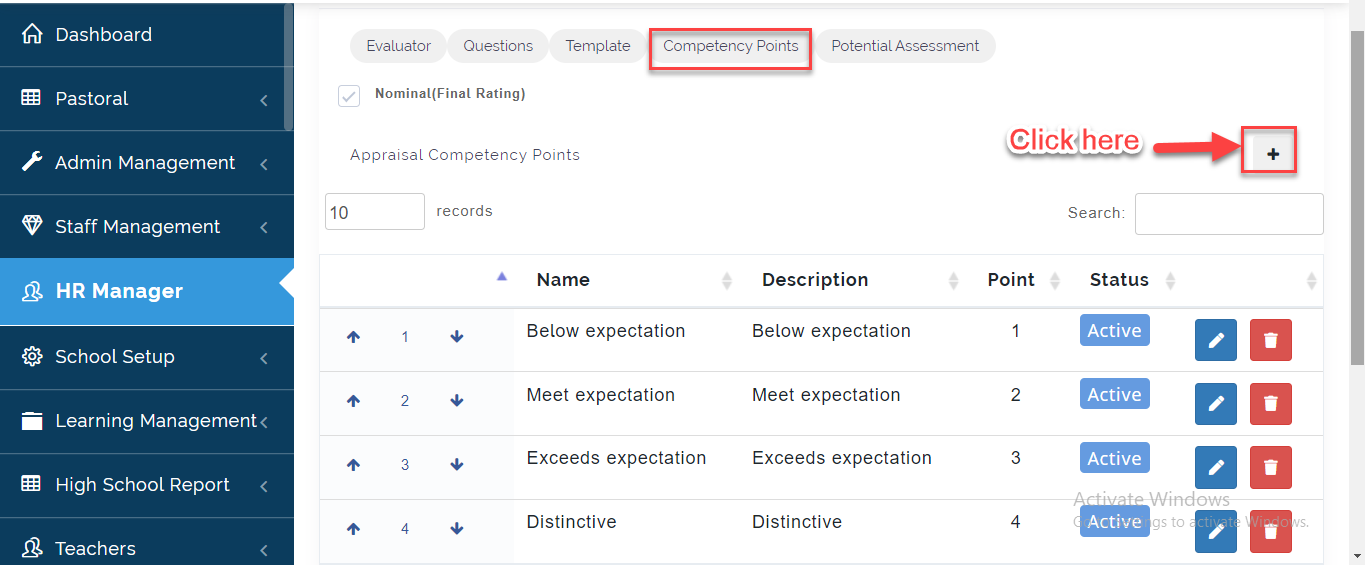
This is where the HRM or School Admin can set the Key to Grade for the Appraisal. To do this, Follow these Steps:
- From Appraisal configurations, click on Competency Points tab then click on the (+) icon as indicated below.
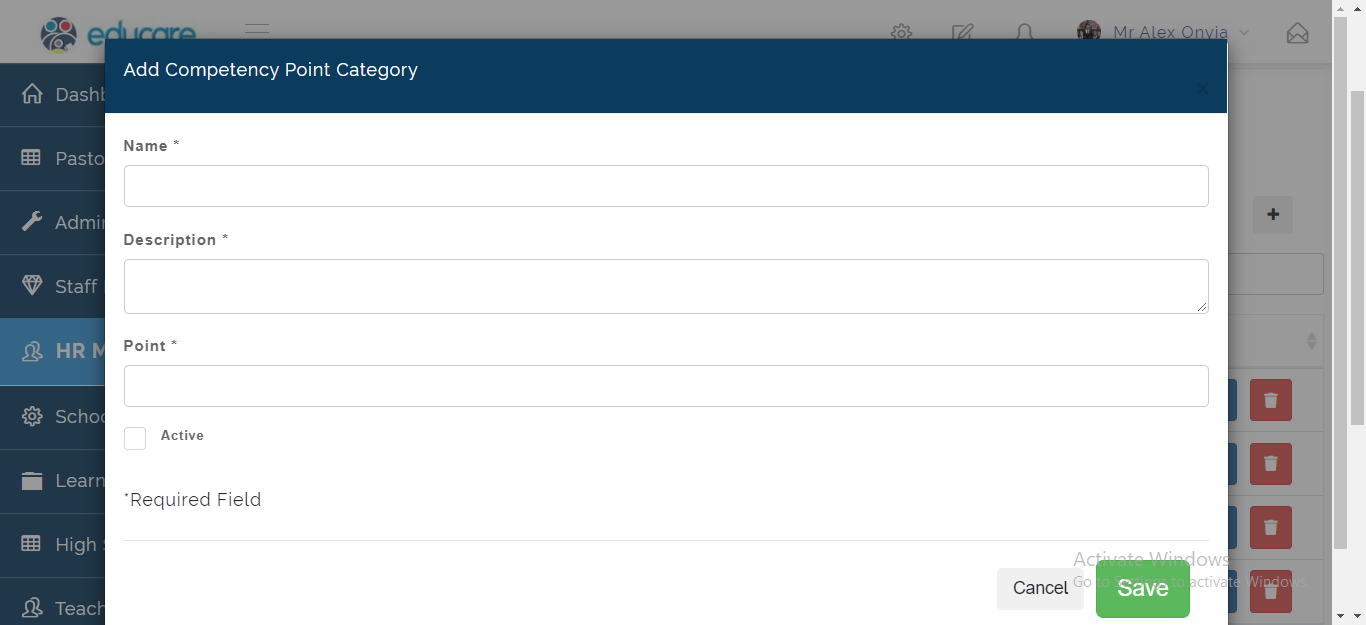
- Enter the name, Description and Point for the Appraisal. Click on Active to make it useable then Click on Save.
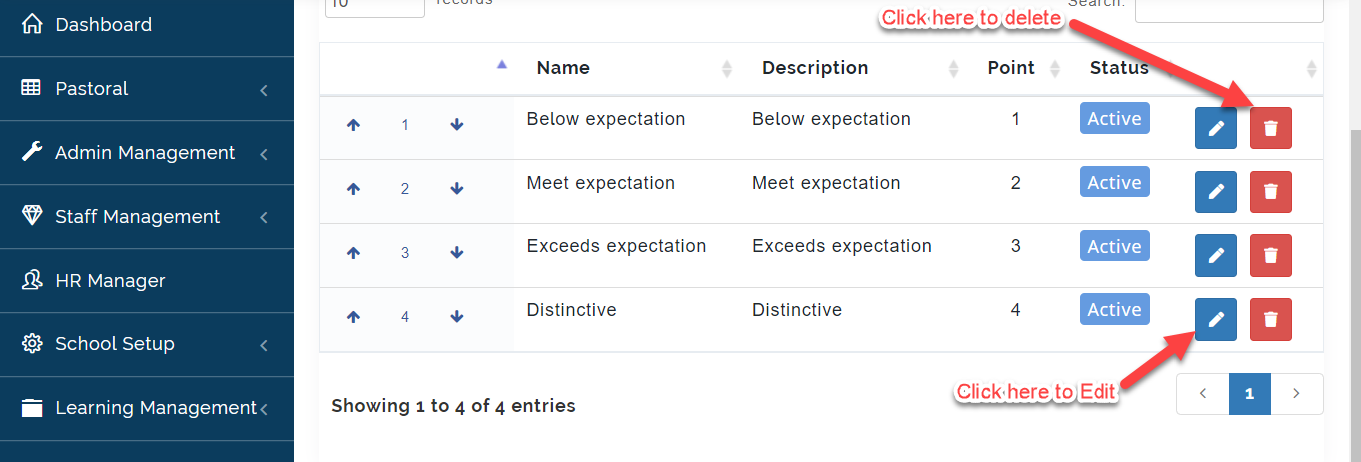
- Click on the edit button to make changes to the Competency Point and Click on the Delete Icon as indicated below to remove from the list.
Potential Assessment
This is where the School Admin can create final remarks Criteria when appraising a Staff. Follow these Steps to Create potential Assessment:
- From Appraisal configurations, click on Performance Assessment tab then click on the (+) icon as indicated below.
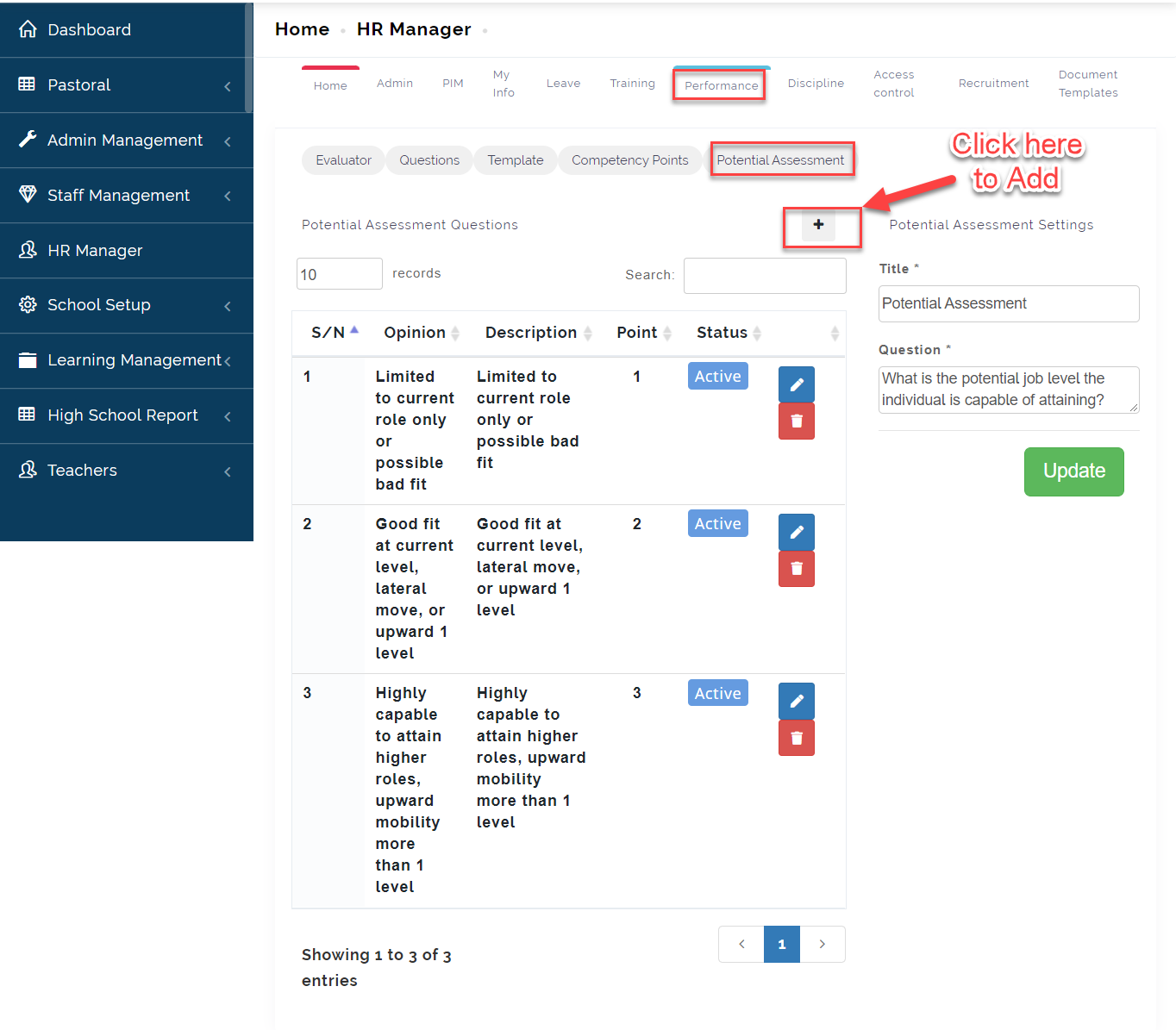
- Enter the Opinion, Description and Point for the Appraisal. Click on Active to make it useable then Click on Save or Cancel to Exit.
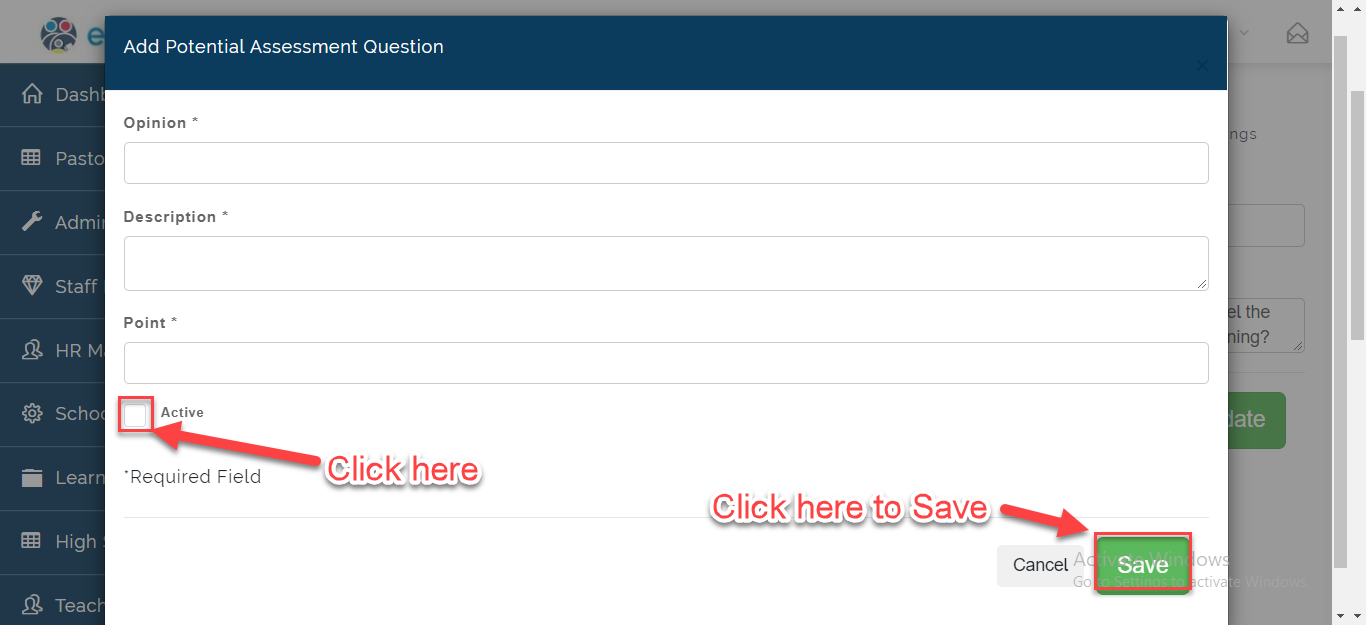
- Click on the edit button to make changes to the Assessment Question and Click on the Delete Icon as indicated below to remove from the list.
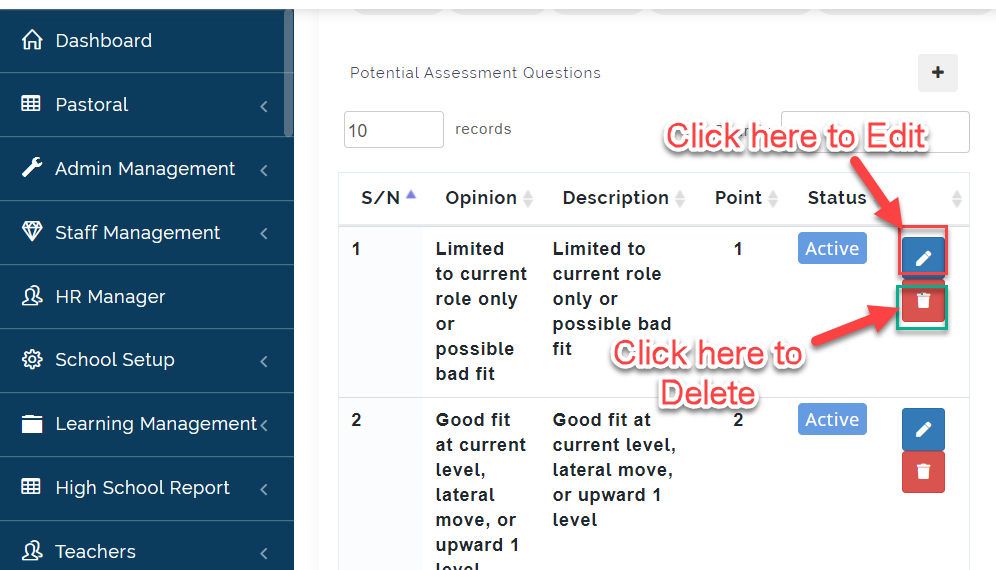
Potential **Assessment** Settings.
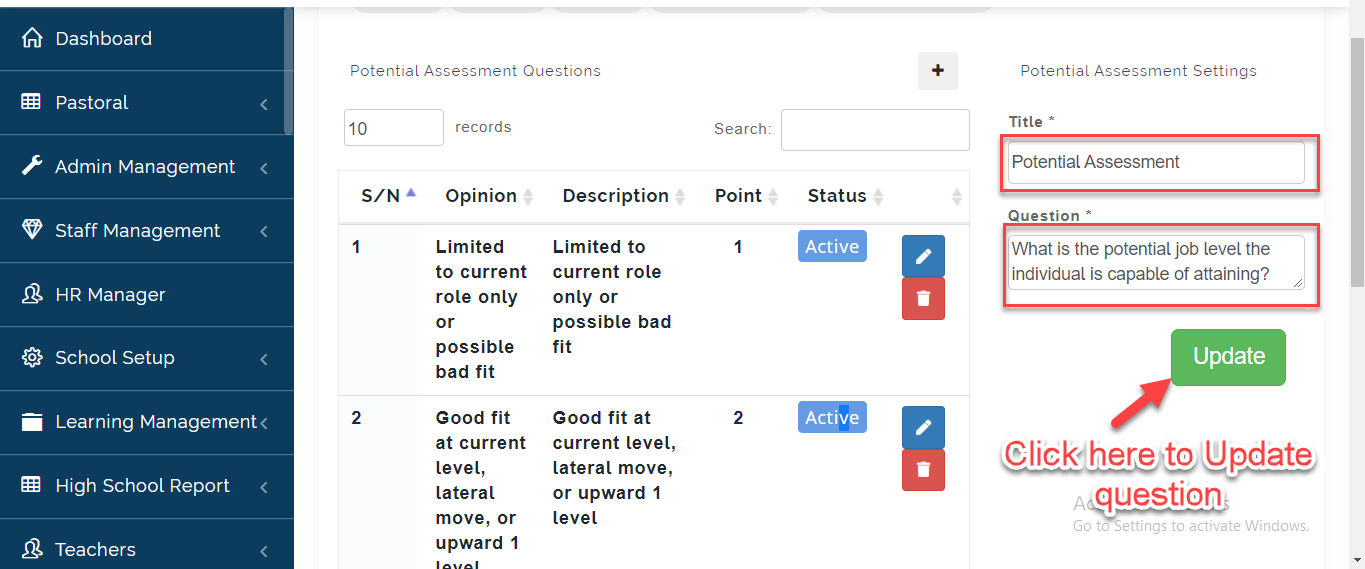
This is where the School Admin can write the Heading of the Assessment as it will show on the Appraisal. To do this, Follow these Steps:
- Under the Potential Assessment Column, Enter the Title and Question to used for Final Assessment Area then Click on Update.
Performance Appraisal Explained
Performance appraisal refers to the regular review of an employee's job performance and overall contribution to a company. Also known as an annual review, performance review or evaluation, or employee appraisal, a performance appraisal evaluates an employee's skills, achievements, and growth, or lack thereof.