
The Training Operations for HRM records all Courses and Training Sessions employees are required to attend to improve their teaching and personal growth.
COURSES
First, the HR Manager or Admin needs to list out the various courses the Staff can attend. To create Courses follow these Simple Steps:
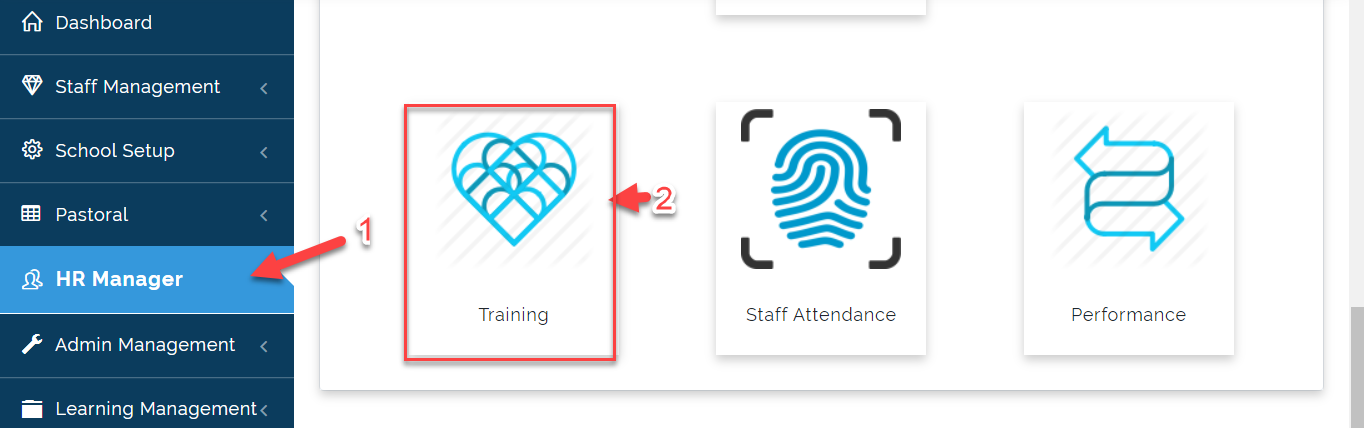
- Go to the HR Manager Module then Click on Training.
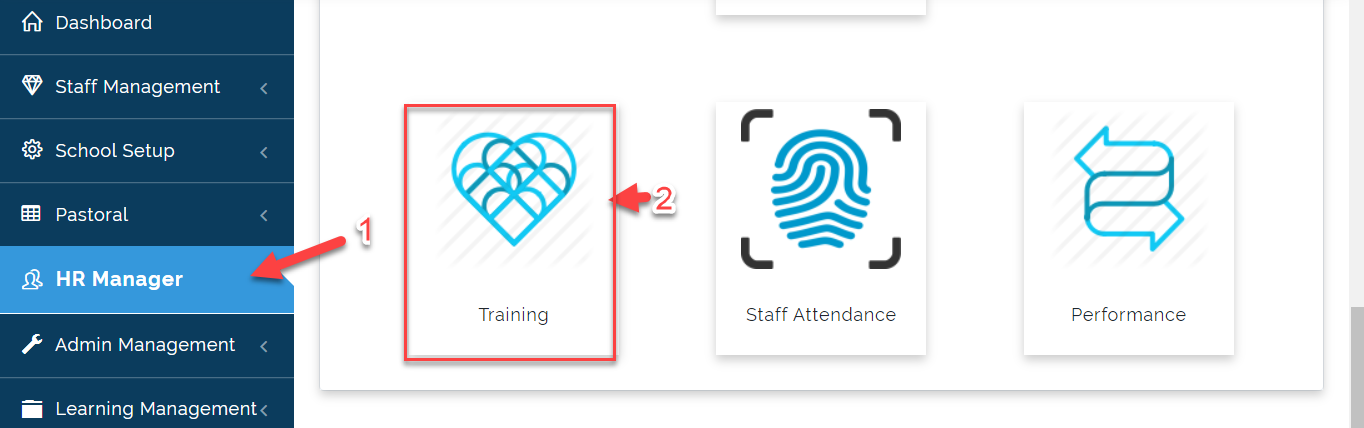
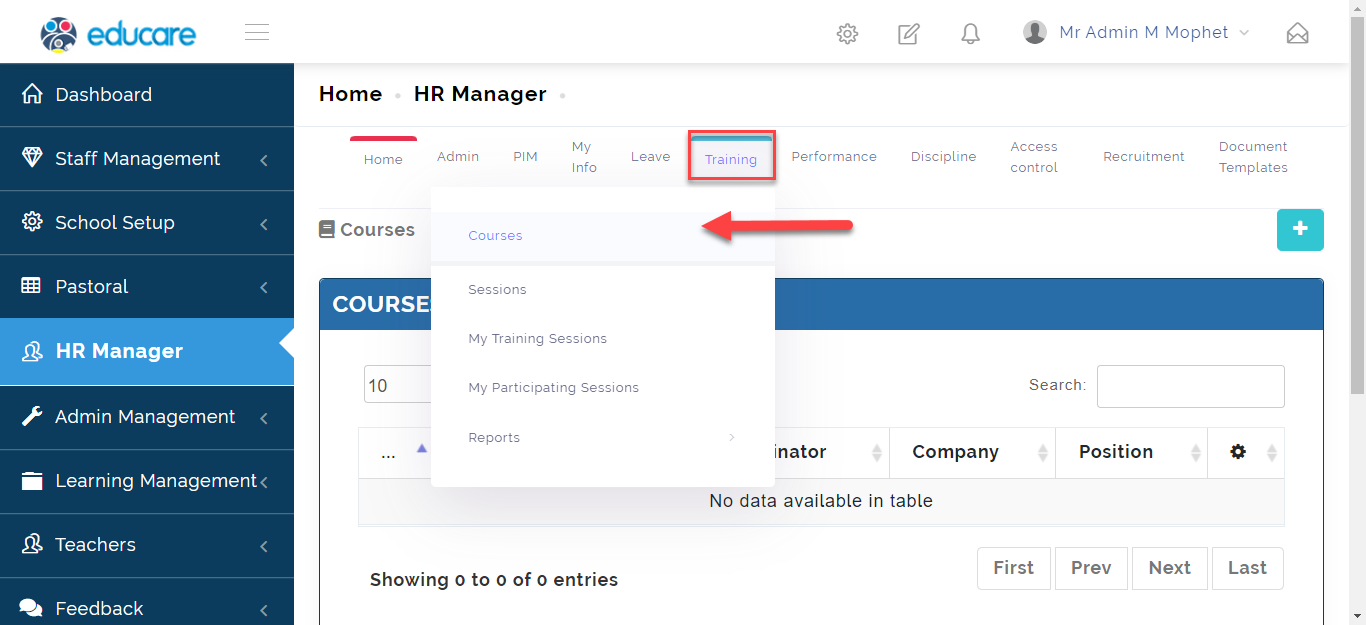
- Hover your Cursor on the Training tab at the top then Select *Courses
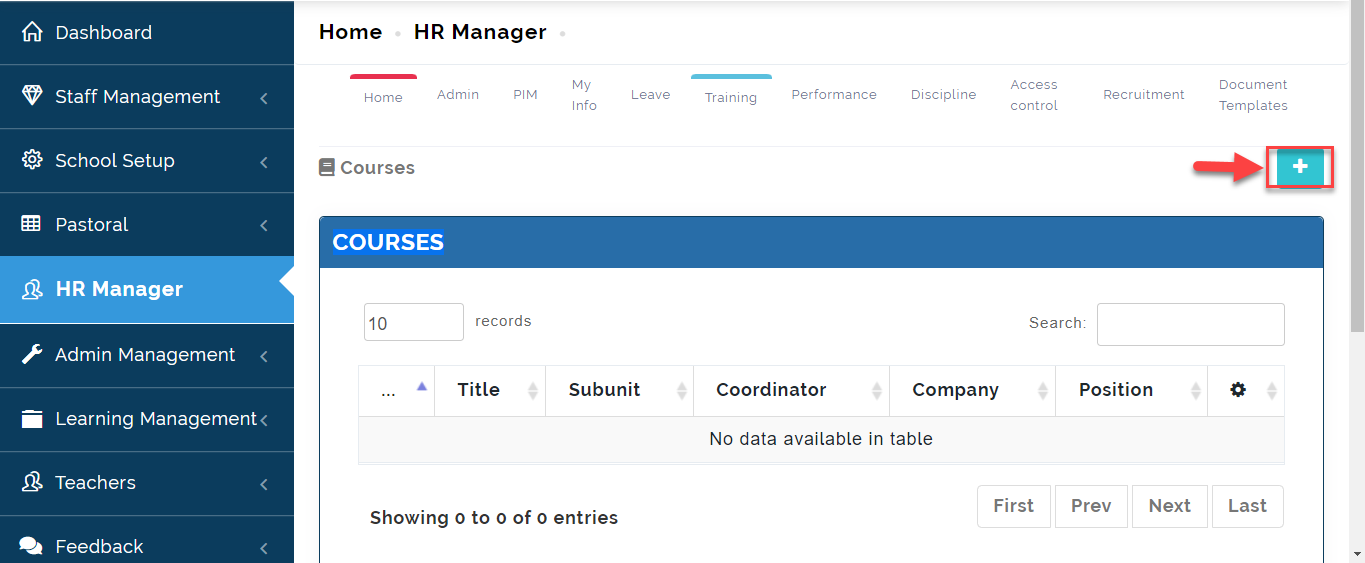
- Click on the + Icon to add a New Course.
- Follow theses steps:
i. Type in the Title of the Course.
ii. Select the name of the Coordinator
iii. Select the Sub Unit
iv. Type in the name of the company handling the Course
v. Select the Version and Sub-Version for the Course you are creating.
vi. Select the Currency and Cost of the course if applicable.
vii. Type in a brief description of the Course.
Viii. Click on Add to include Course to the list or Click on Cancel to ignore.
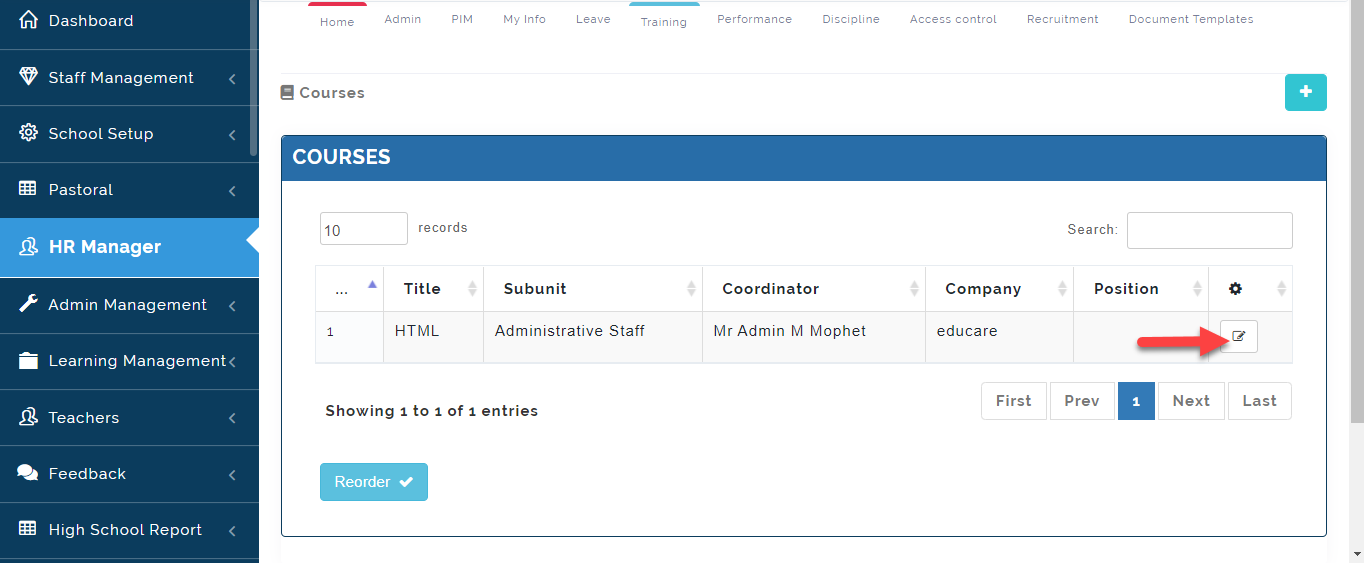
To make changes to a Course you have created, Click on the edit button as indicated below.
SESSIONS
The next thing is to create sessions for the Courses you created for the Staff. To Create sessions, follow these steps:
- From the Training Tab, Select Sessions.
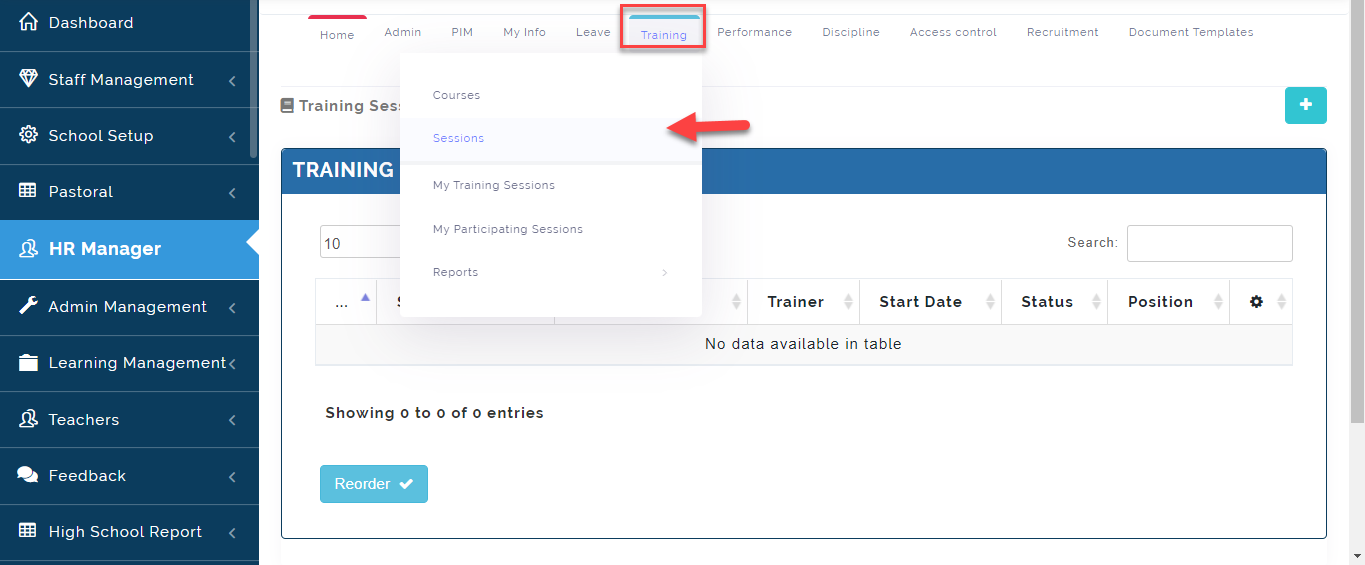
- Click on the +Icon to add a Course Session.
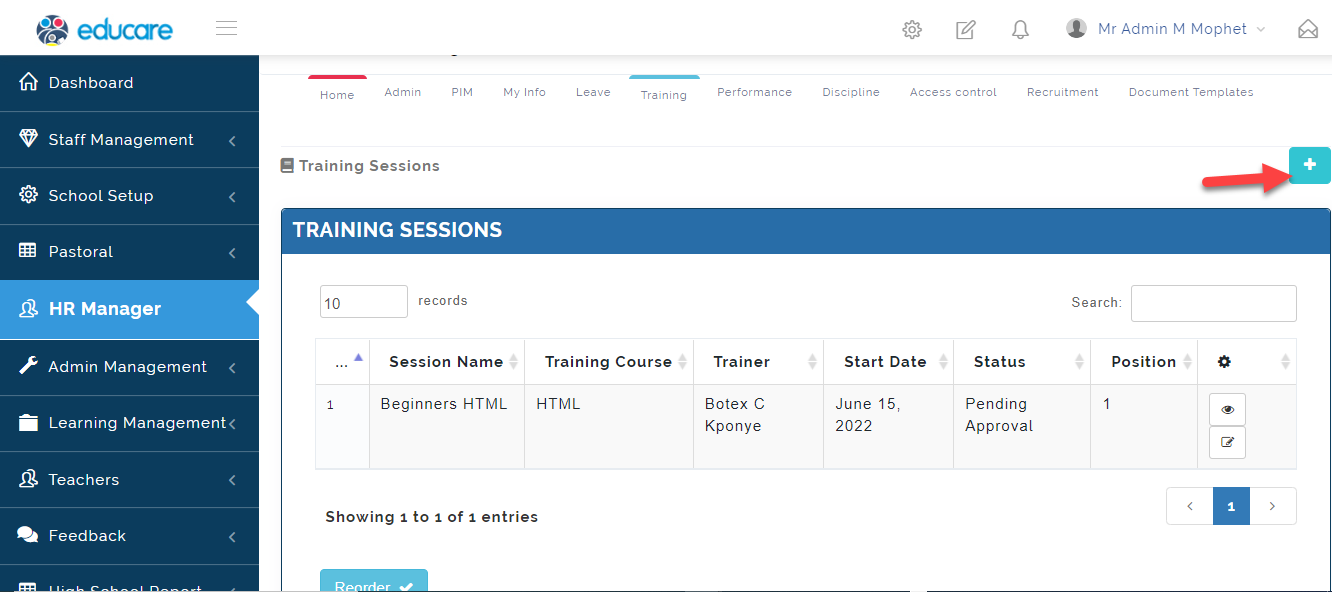
- See Video clip on how to create Training Session.
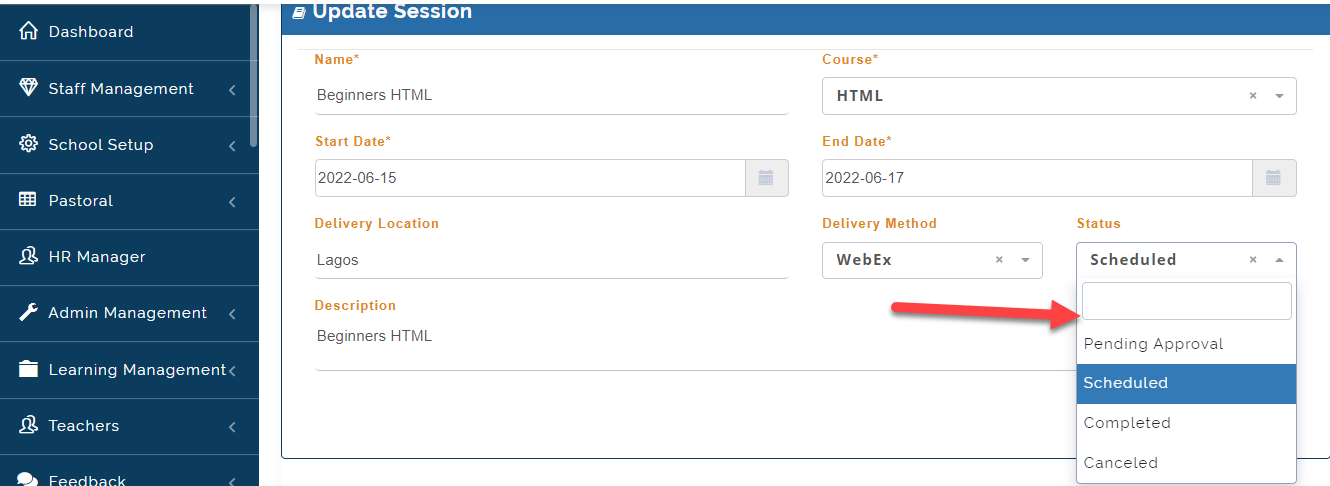
Pending Approval: When a training session is set, The status should read Pending Approval
Scheduled: Status should read Scheduled once training date has been confirmed.
Completed: Status should read Completed once training is done.
Canceled: Status should read Canceled if training is not confirmed.
TRAINING SESSION NOTE
Depending on your school structure, Both the Admin and HR Manager (plus other staff that have access to creating a Training Session) can change the status of the Training From Pending Approval to Scheduled or Canceled.
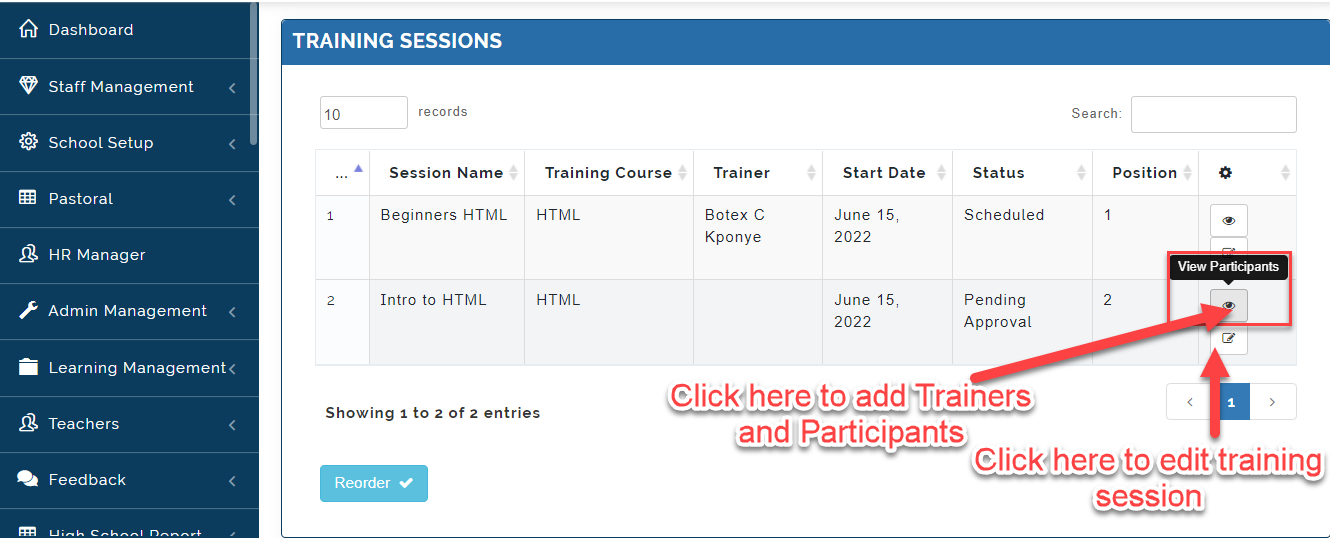
- Click on the Eye Icon as indicated below to add Participants and Trainers.
-
Click on the edit Icon as indicated in the image above to update status on the training and training session.
-
Under the Trainers Tab, Select the Trainers as indicted in the image below and click on the +ADD TRAINERS.
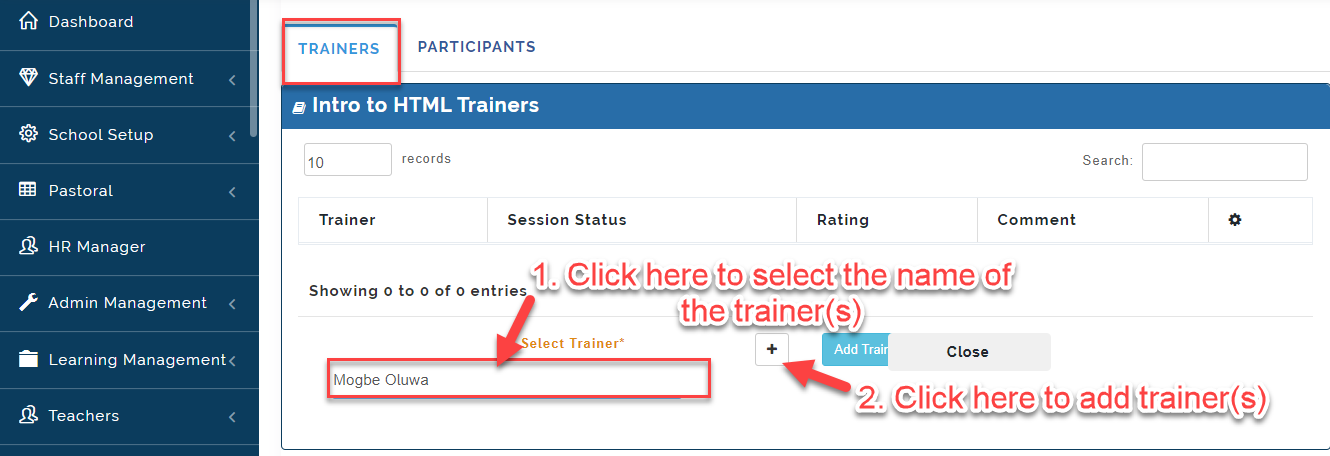
- To Add Participants, Click on Participants Tab then Select the PARTICIPANTS as indicted in the image below and click on the +ADD PARTICIPANTS.
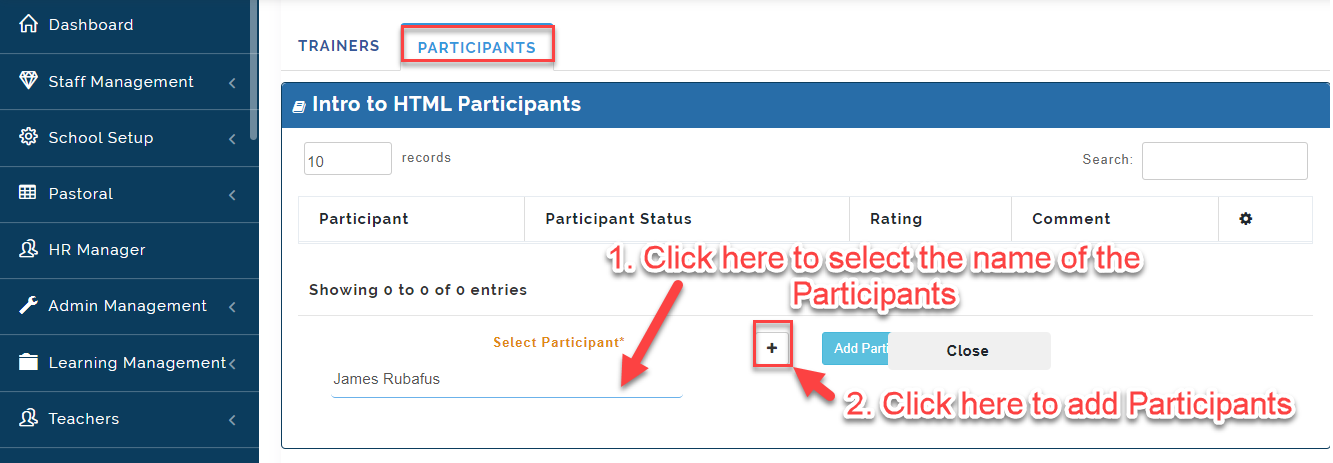
MY TRAINING SESSIONS
In this Tab, The School Admin and HR Manager can view his or her training sessions. Follow these steps to view your training sessions:
- From the Training Tab, Select MY TRAINING SESSION.
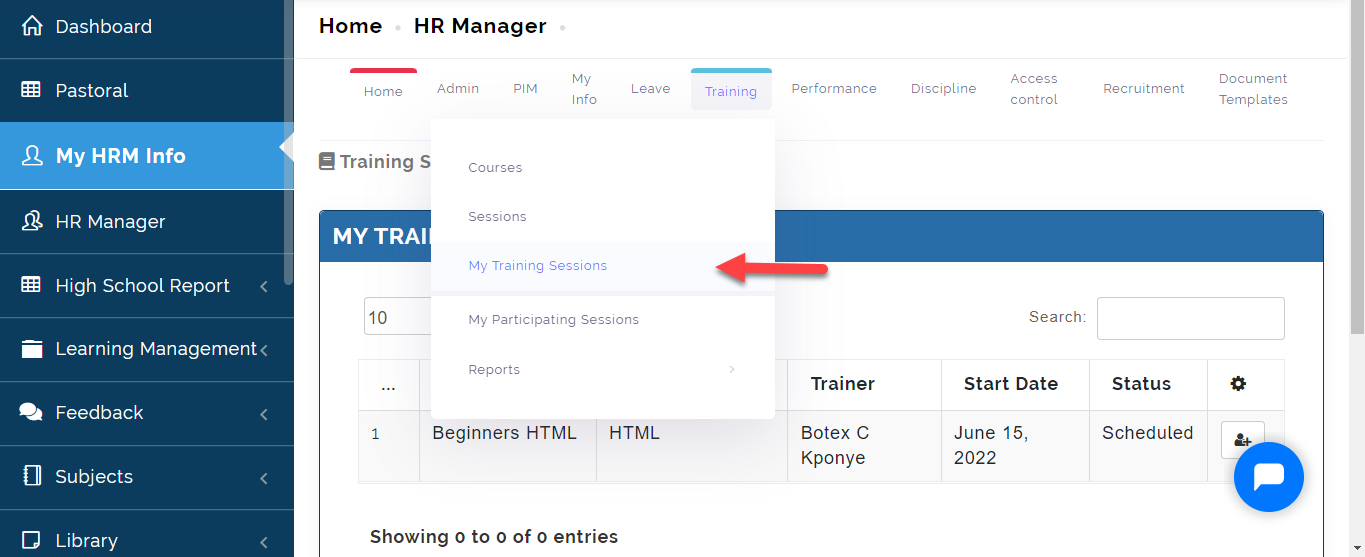
A Table showing the Trainings you have been assigned will show. Click here to attend Session.
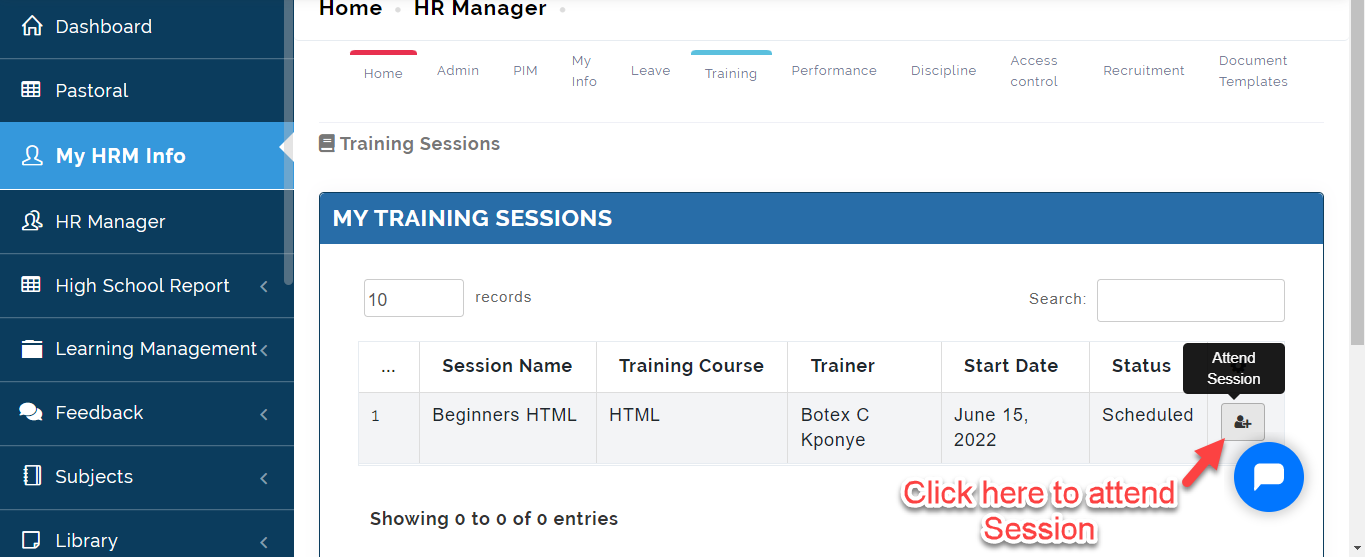
See video below to show how to give feedback on a training that you have done.
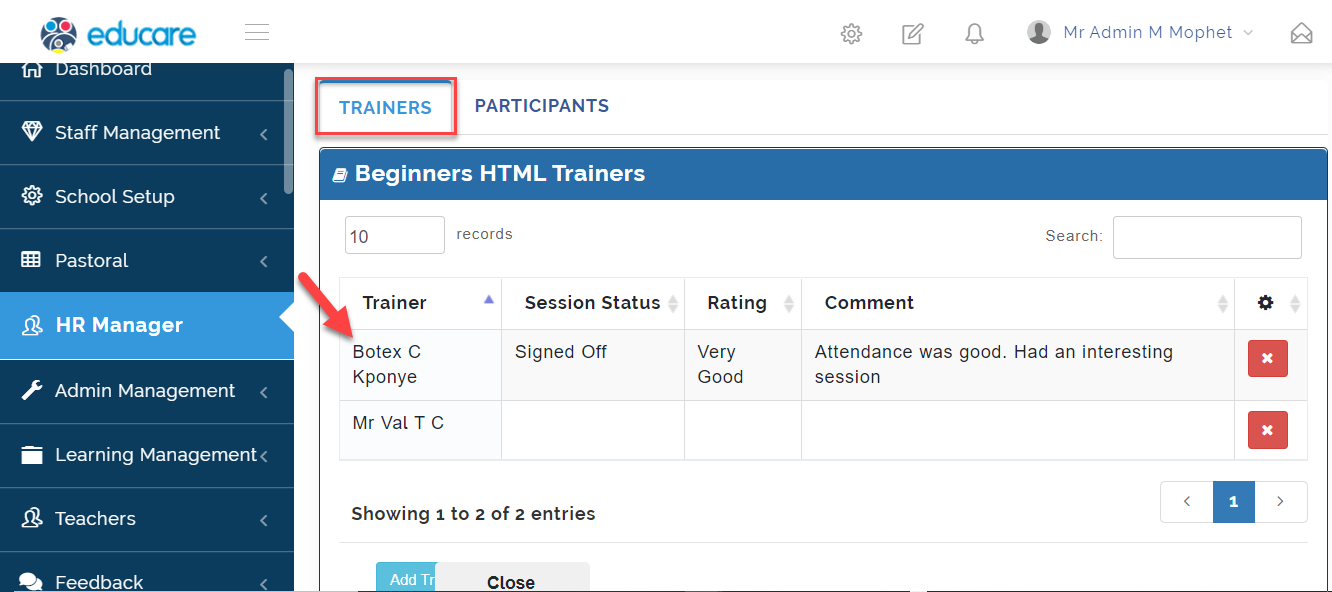
Once this is done, The admin can view the feedback of the trainers by doing the following:
- From HR Manager, Click on Training
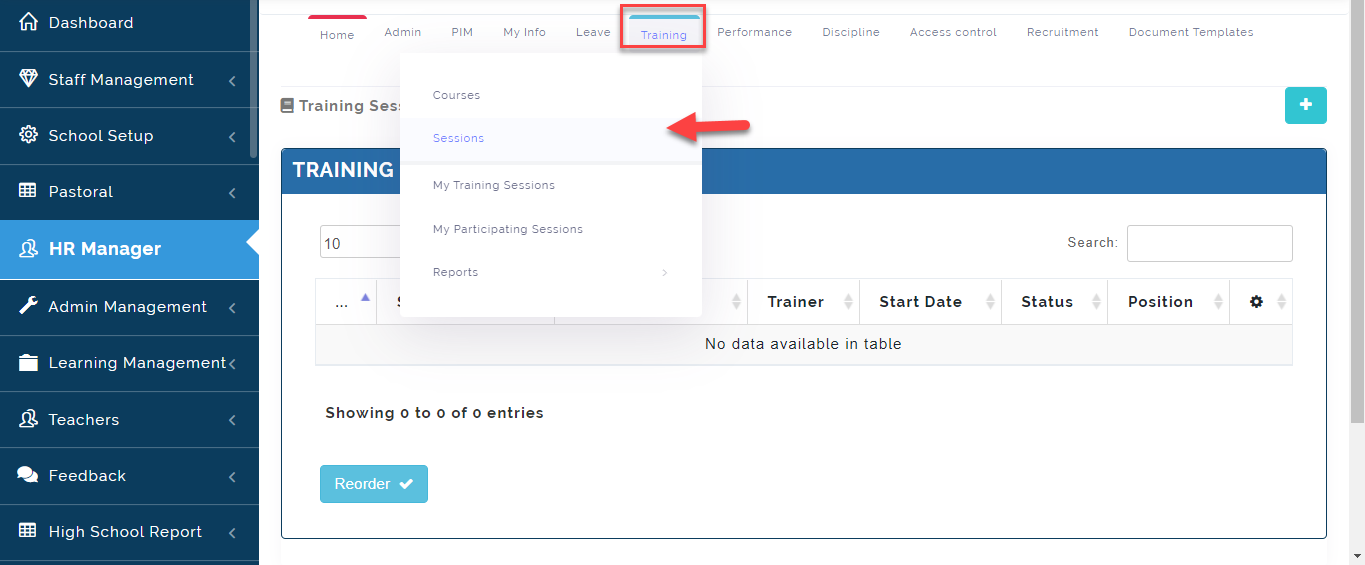
- From Training Tab at the Top, Select the Sessions Tab.
See the Video to view procedure on how to view Trainers Feedback.
MY PARTICIPATING SESSION
This is where participants can view, register attendance and give feedback on a training they took part in.
To participant session follow these simply steps:
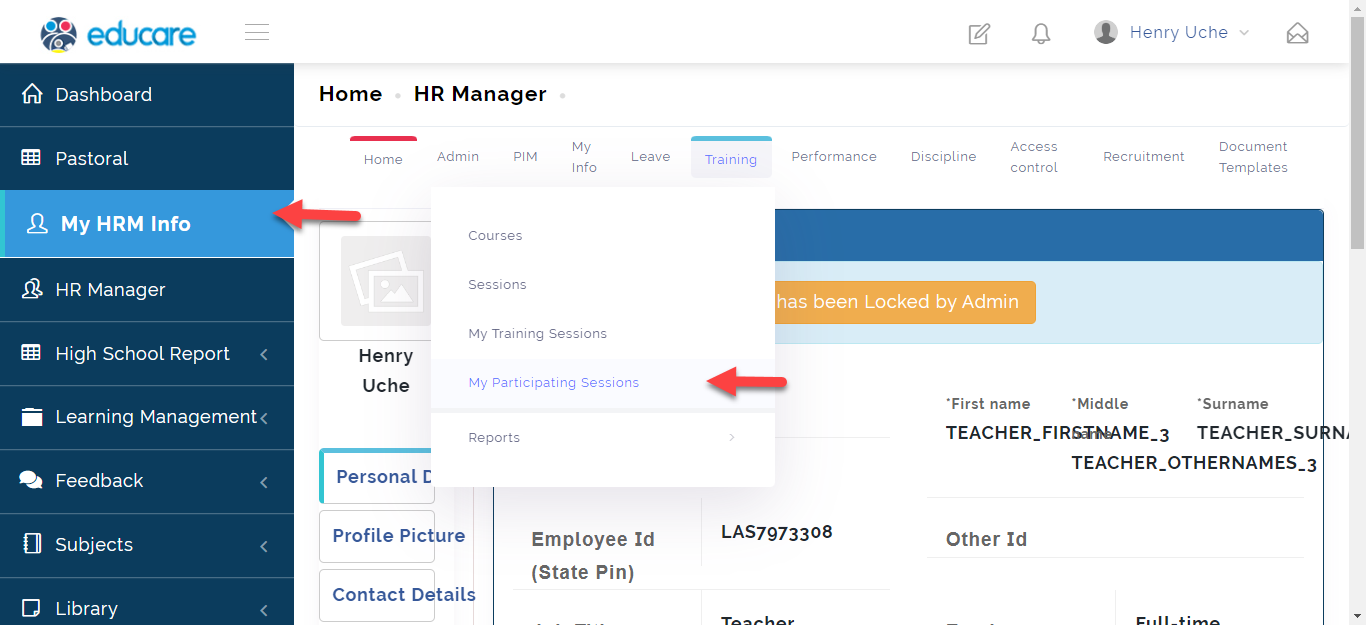
- Click on HR Info then Hover your Cursor on Training; Select My Participating Session
- The Table showing trainings you have been assigned to will appear. Click on the icon indicated below to attend Session and give feedback.
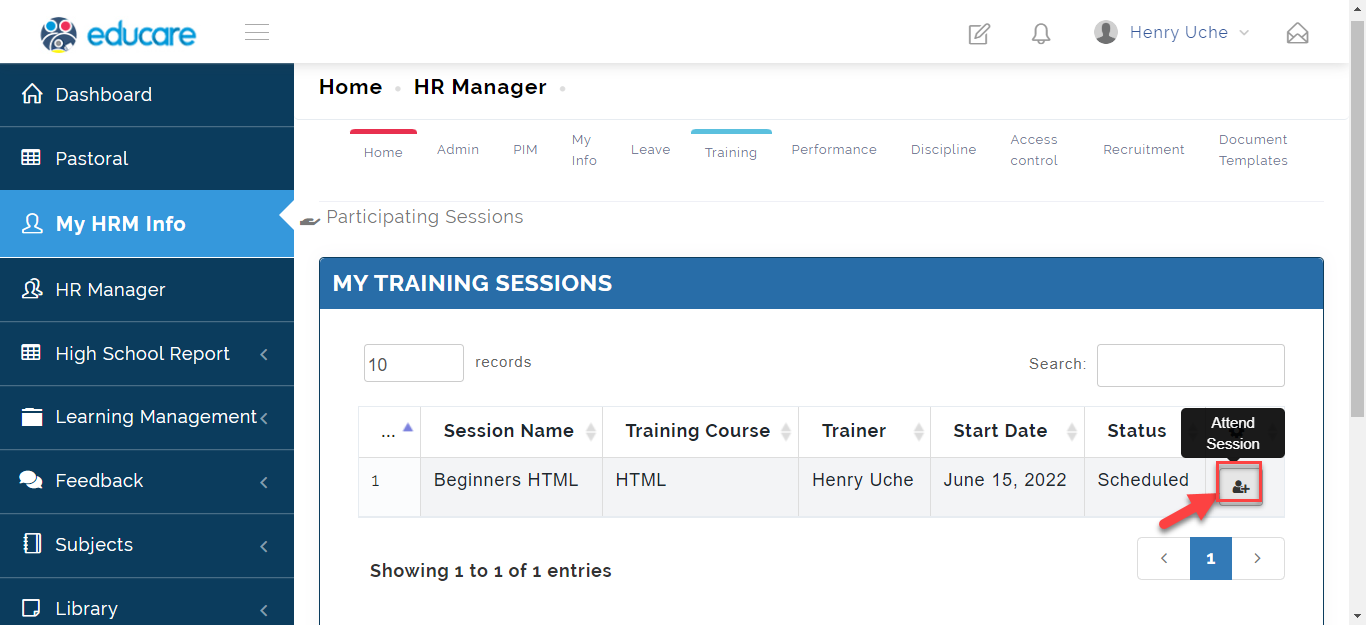
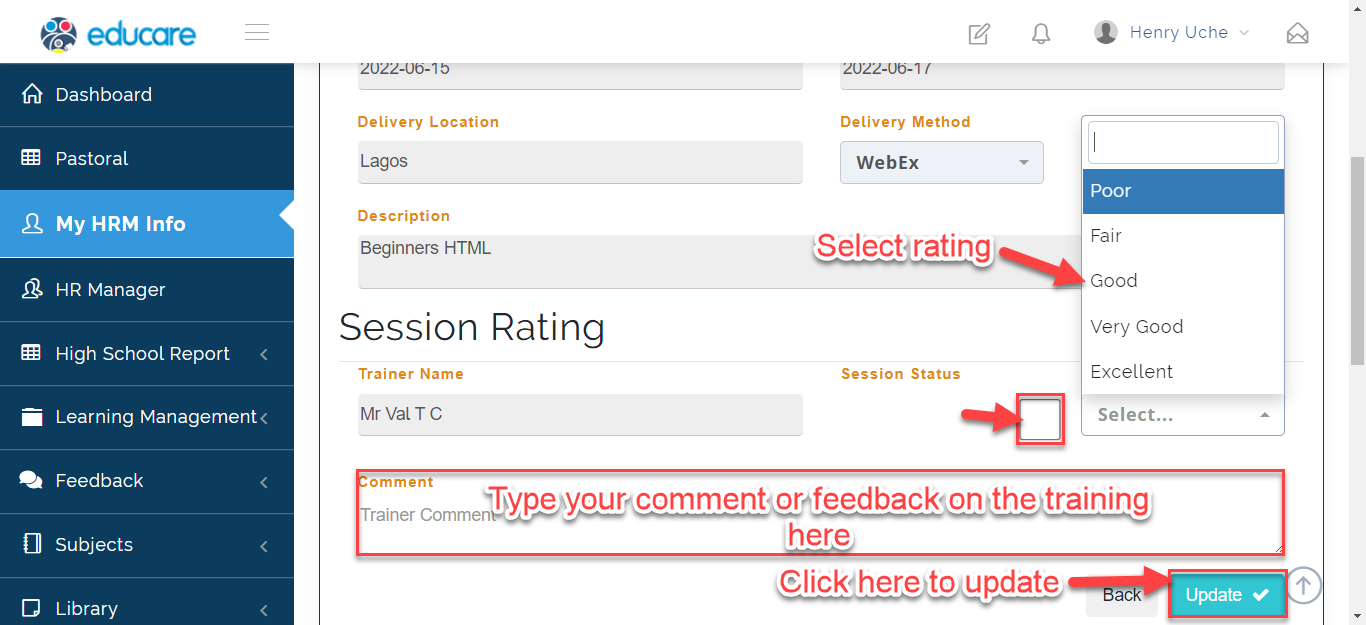
- The form showing the training details will appear,
i. Tick Session Status to give consent that you attended the training
ii. Rate the training if its poor, fair, good, very good and excellent.
iii. Give your comment or feedback on the training.
iv. Click on Update to save or Back to return to Training Session.
NOTE ON TRIANING AND PARTICIPANTS SESSION
Ensure to give access permission to all staff who have been assigned as Trainers and Participants. This can be done from HRM-ADMIN-HR PERMISSIONS PERMISSION.
REPORTS
In this section, The HR Manager can view the details of all Training scheduled and participants at a glance.
To do this Follow these Steps:
- From the Training Tab, Click on Reports then Select Participating Sessions Report or Training Session Report.
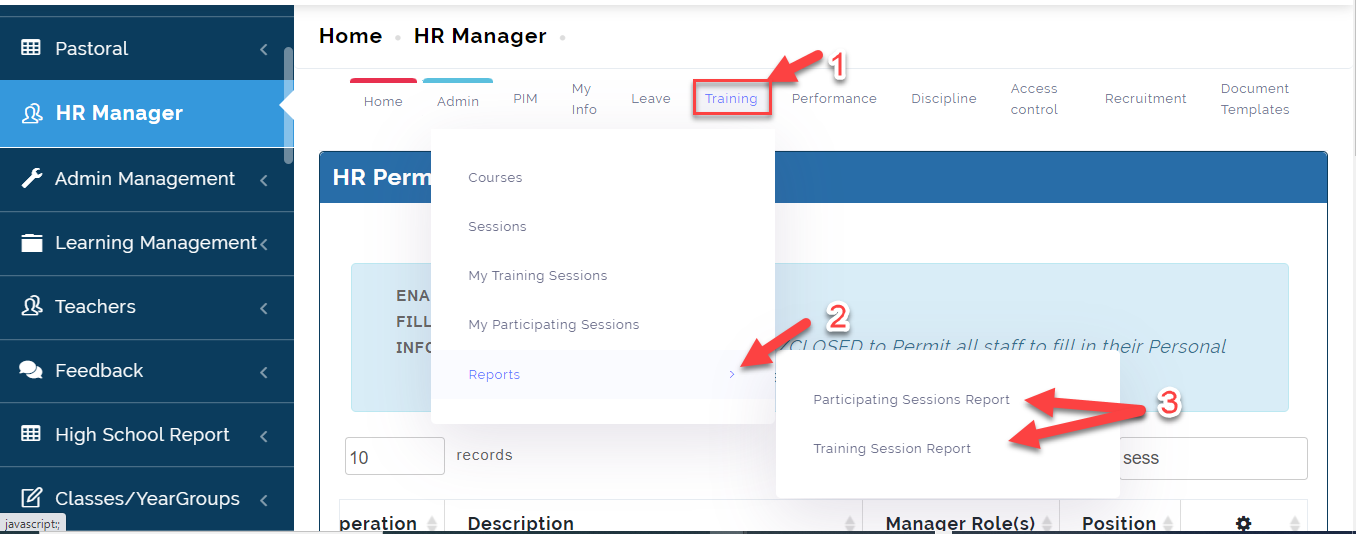
- Click on Participating Session Report if you want to view report on the Participants in a training session and Click on Training Session Report to view report on the trainers.
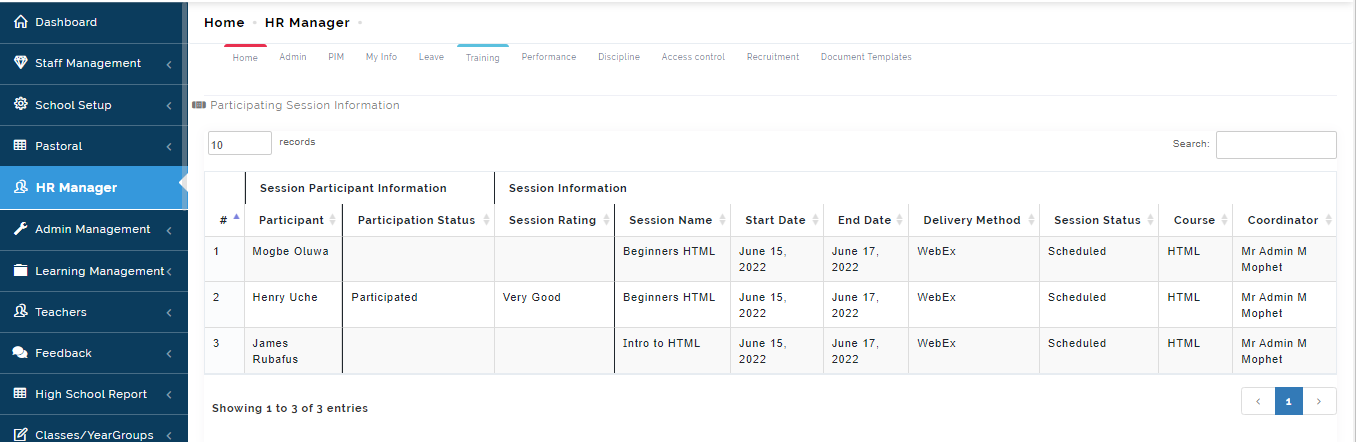
Participants Report
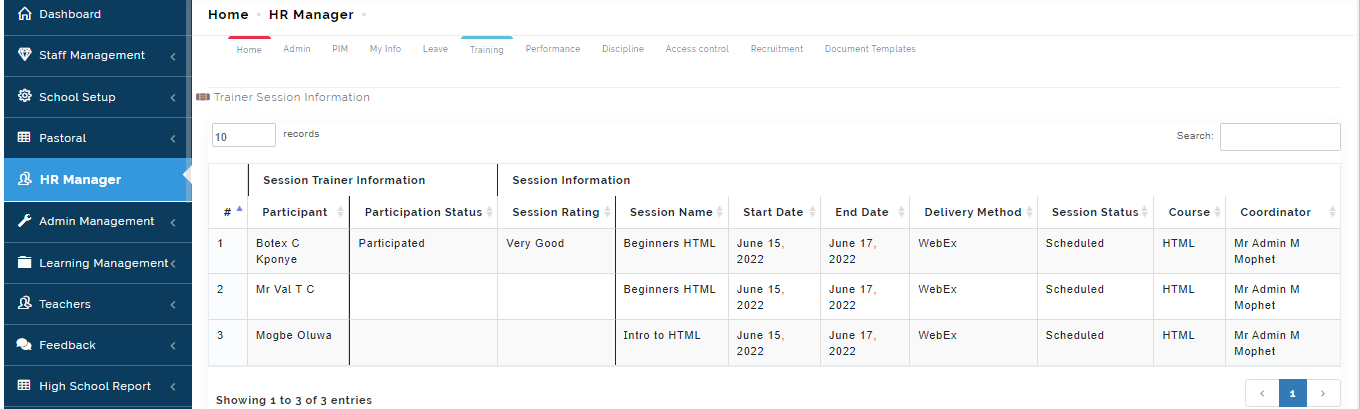
Trainers Report