
This section is where the admin can setup all activities required for managing disciplinary activities. Setup is divided into three parts namely; adding members of the disciplinary board, sanction and managerial access setting.
Disciplinary Committee Members
This is where the admin adds members of the disciplinary board. These individuals will be able to manage all cases entered under Pastoral Discipline.
How to add New members
To add a new member, follow these simple steps:
Step 1:
Go to Pastoral Module
Select Pastoral Setup
Click on Disciplinary Setup then select Disciplinary committee members.
For the current session, click on "+Add New Members"
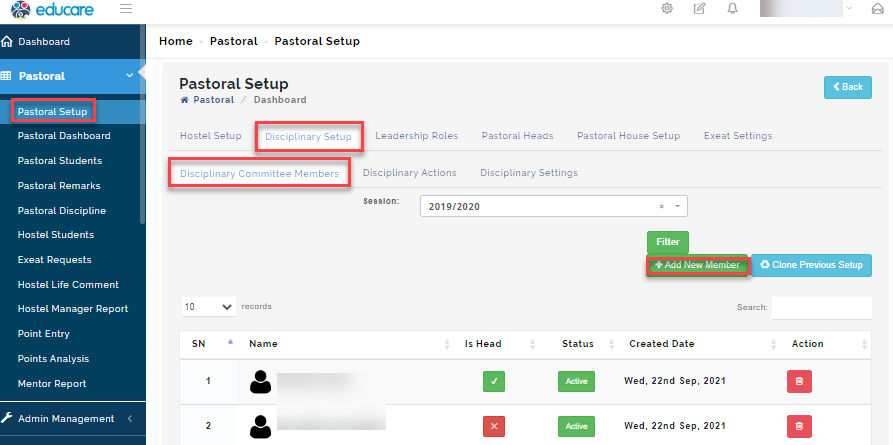
A modal will appear.
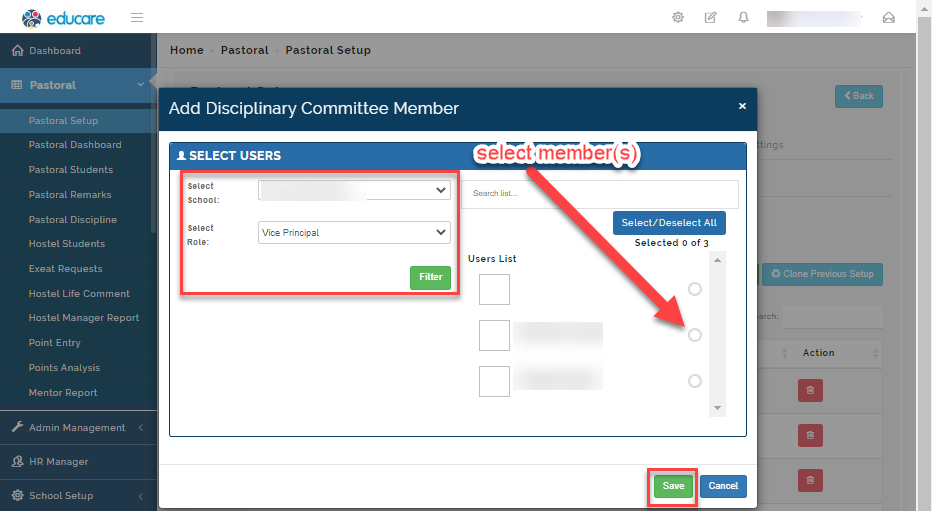
Select the school and role the individual takes in the school.
Click on Filter, this will bring up a list of members in the role you have chosen.
Search or select the members of the disciplinary committee and click on Save.
The names will appear in the table.
How to view Disciplinary Committee members
To view disciplinary committee members follow these steps:
Go to Pastoral Module
Select Pastoral Setup
Click on Disciplinary Setup then select Disciplinary committee members.
Select the session you want to view and click on Filter.
A table showing the list of disciplinary members will appear.
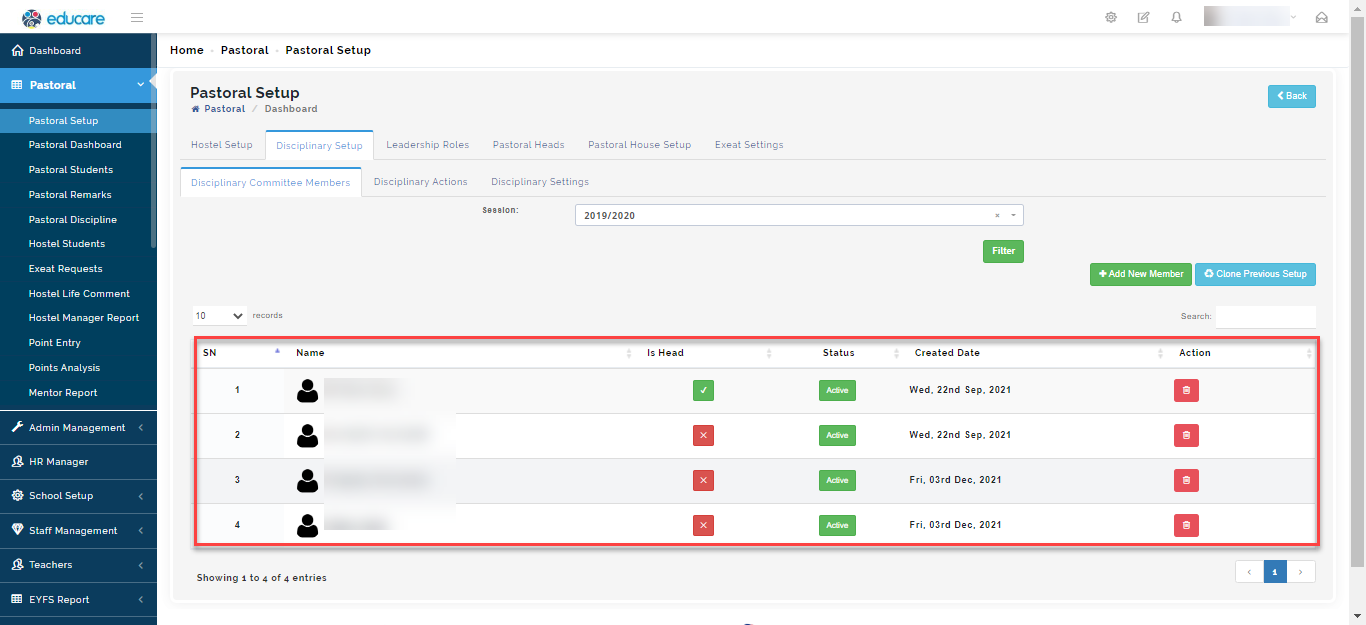
Under the Is Head Column, Click on the X button to assign a member as the head of Discipline.
Under Action column, Click on the Delete button to remove an individual from the list.
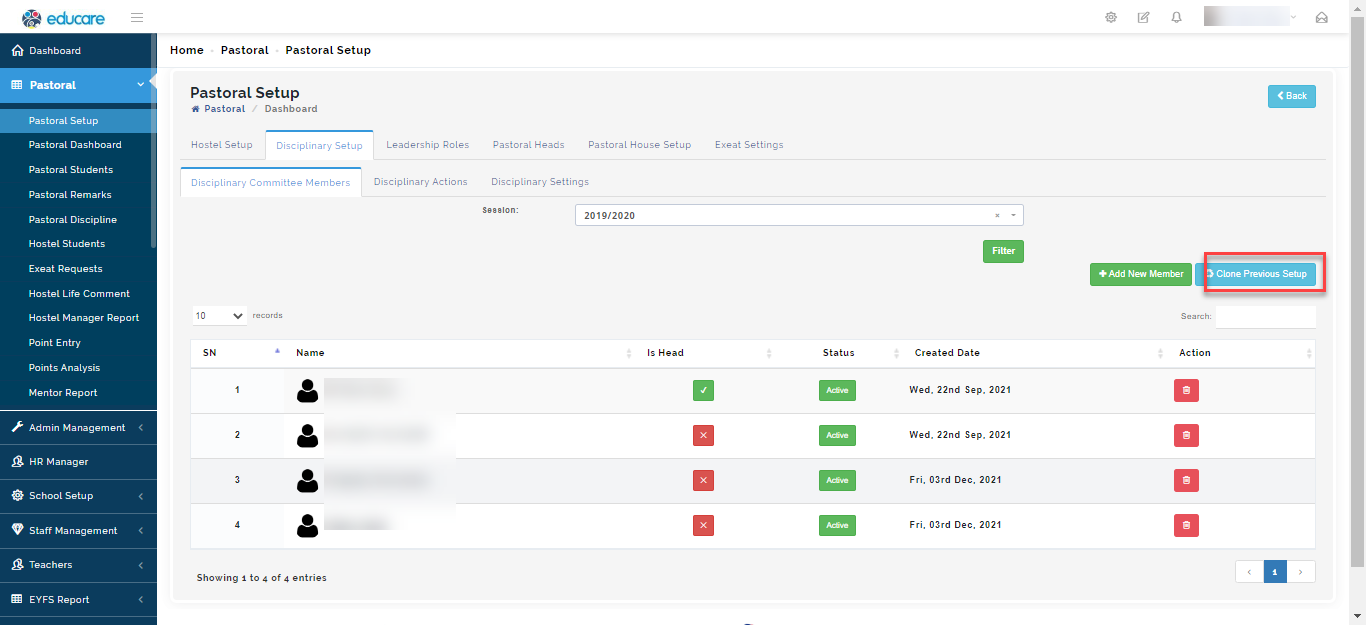
To Clone Previous Discipline Setup, follow these simple steps:
Click on clone pervious setup
Select the session you want to clone from
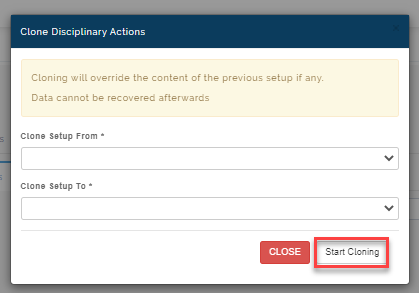
Then, under clone setup to option, Select the current session you want the content of the previous session to have and click on Start cloning
When cloning is done, Disciplinary members created in the previous session setup will appear on the chosen session.
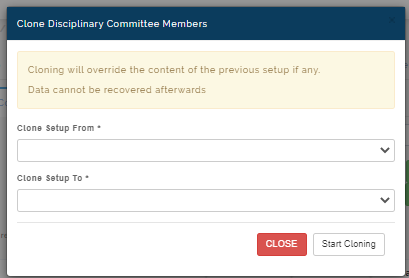
Please Note
Cloning will override the content of the previous setup if any.
Data cannot be recovered afterwards
Disciplinary Action
Here, The admin can add the different sanctions given to students depending on the level of case they are involved in.
To Add an action, follow these steps:
Go to Pastoral Module
Select Pastoral Setup
Click on Disciplinary Setup then select Disciplinary Action.
For the current session, click on "+Add New Action"
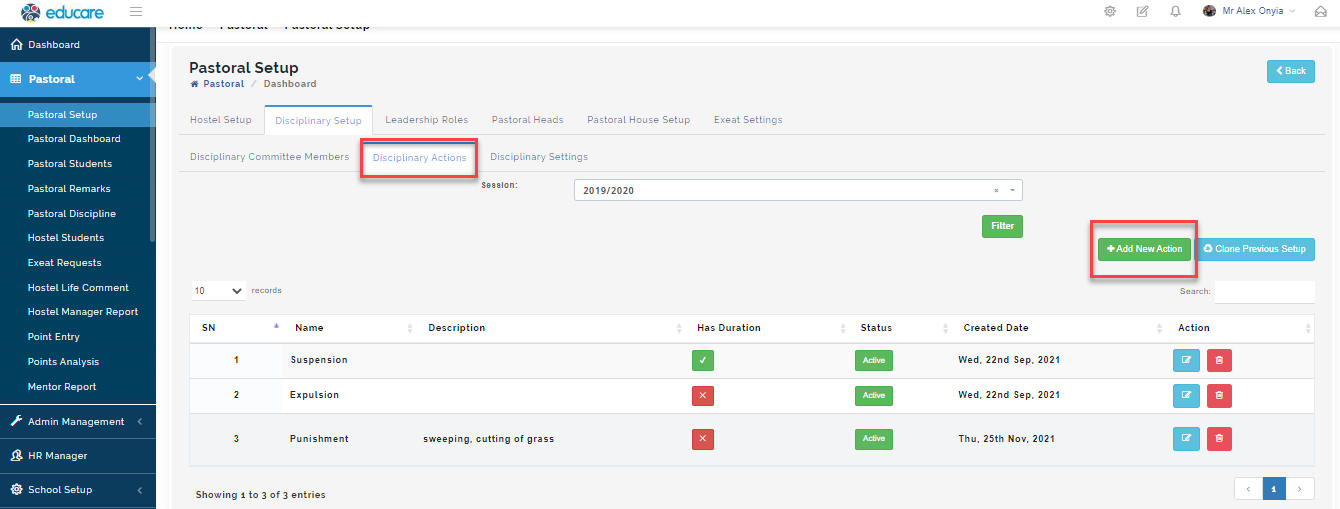
A modal will appear
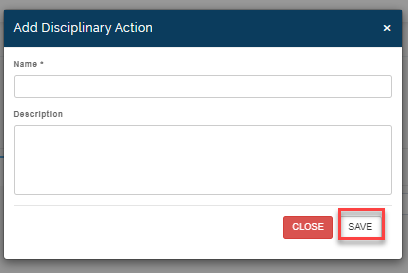
Enter the name of the disciplinary action e.g., Suspension, Washing plate, letter of apology etc.
Enter a brief description of the action entered and click on Save.
To view Disciplinary Action
You can view disciplinary action(s) by following these steps:
Go to Pastoral Module
Select Pastoral Setup
Click on Disciplinary Setup then select Disciplinary Action.
Select the session you want to view and click on Filter.
A table showing the list of disciplinary actions created will appear.
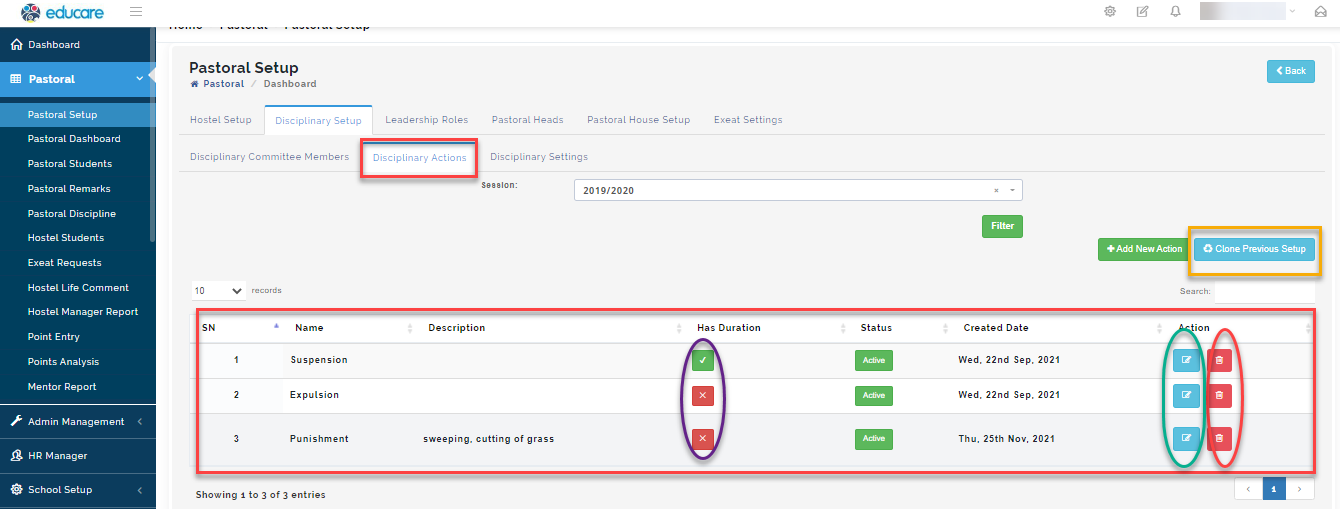
Under the Duration Column, Tick against the action that has a duration set
Under the Action button, click on the green selected to make changes to an action and the red circle to remove an action from the list.
To clone a previous Action setup
To Clone Previous Discipline setup, follow these simple steps:
Click on "clone previous setup"
Select the session you want to clone from
Then, under clone setup to option, Select the current session you want the content of the previous session to have and click on Start cloning
When cloning is done, Disciplinary action created in the previous session setup will appear on the chosen session.
Disciplinary Settings
Disciplinary Managerial Settings.
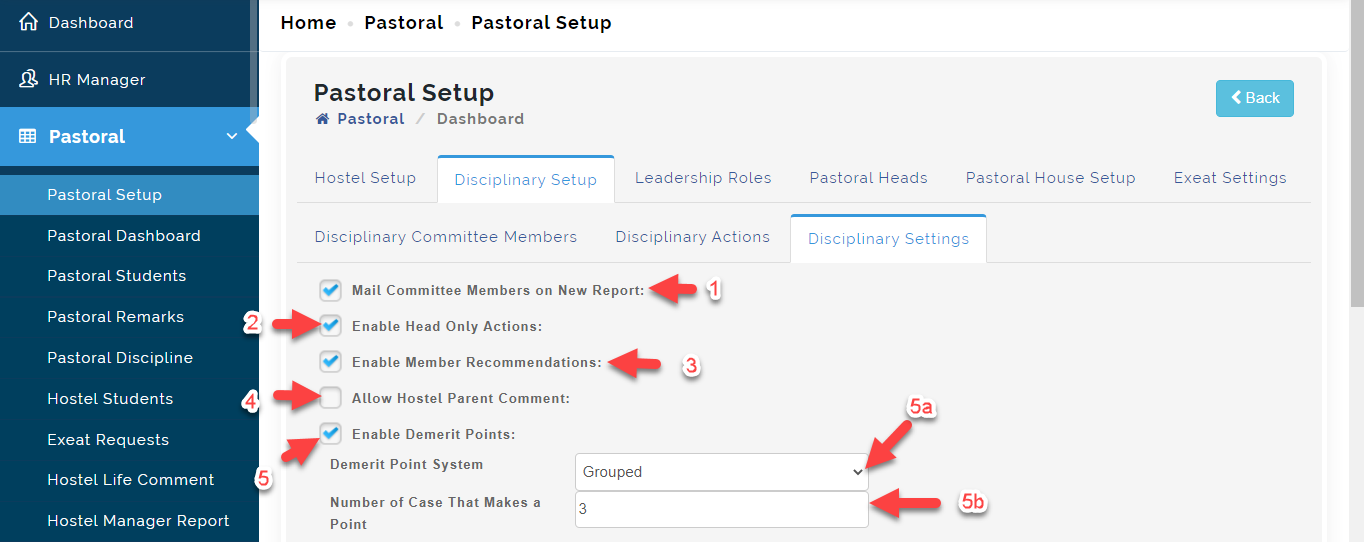
- Tick Mail committee Members on New Report to all the system automatically send out emails to members of the disciplinary committee when there is a new case.
- Enable Head Only Actions if the head of the committee is the only person to dictate actions on a case.
- Enable Members Recommendations to allow other members of the committee to make recommendations of disciplinary case actions
- Enable House Parent comment to give Hostel Parents permission to enter comments on a disciplinary case.
- Enable Demerit points if your school uses point system, this allows points to be deducted when a student has a case file.
5a.Select the Demerit Points System used in your School (i.e.. Single or Grouped). Select Single demerit point system if you deduct points per case file and select grouped if demerit point is treated as a group.
b. Enter the number of cases that makes up a Point in the text box.
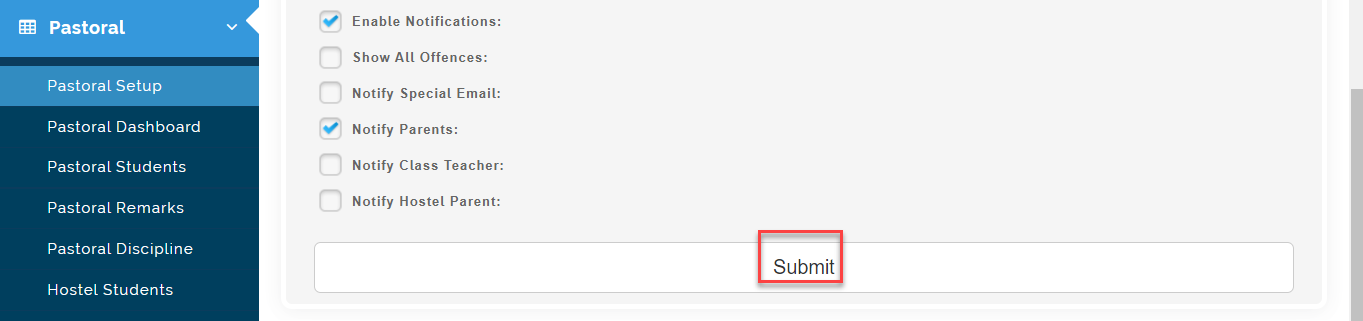
- Tick Enable Notification to open up the List of Users who should receive email notifications for disciplinary cases.
- Tick on show all Offences to receive both new and previous unresolved cases via email whenever a new case is created.

Under Special Email, Manually input the email(s) that should always receive all disciplinary cases.
Enter the Minimum and Maximum number of demerit Points a student can have before a mail is dispatched to members of the committee.

Tick on the box Notify Parents to inform a parent of their child's offense
Tick on the Notify Class Teachers to inform a Class teacher when a student in her class committed an offence.
Tick on the Notify Hostel Parent to inform Hostel parent when a boarder commits an offence.
Click on Submit after all selection is made to Save.