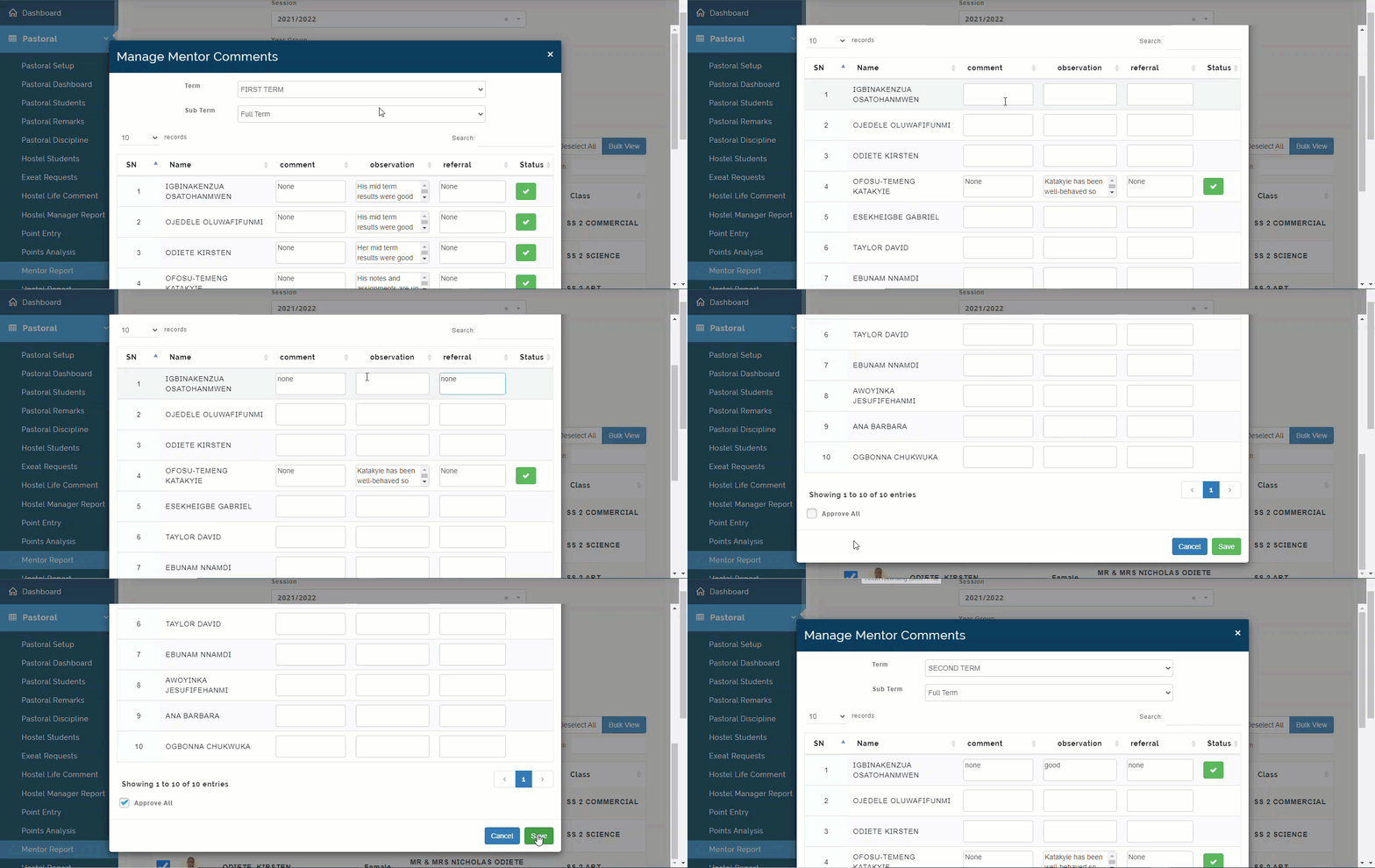
Mentor can enter comment on mentees academic and overall wellbeing. Admin can edit and approve Mentors report.
In this Section, I will be showing you how Mentors can enter comments for students they are mentoring. please follow these steps to enter comments:
STEP 1: How Mentors Enter Create Comments
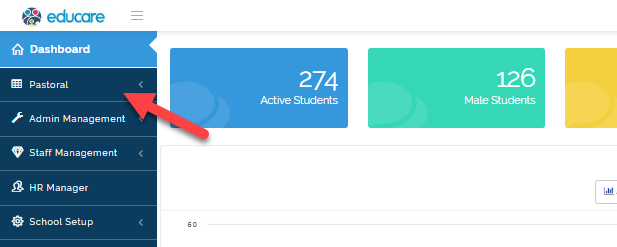
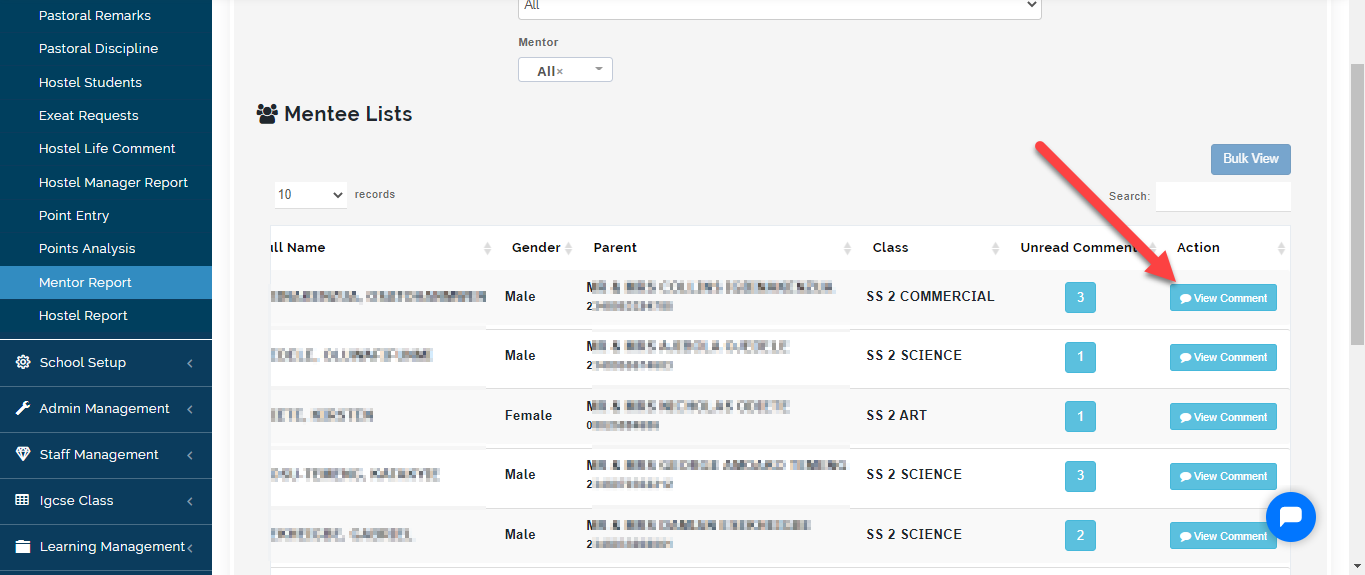
- To enter comment as a mentor, Go to the Pastoral module
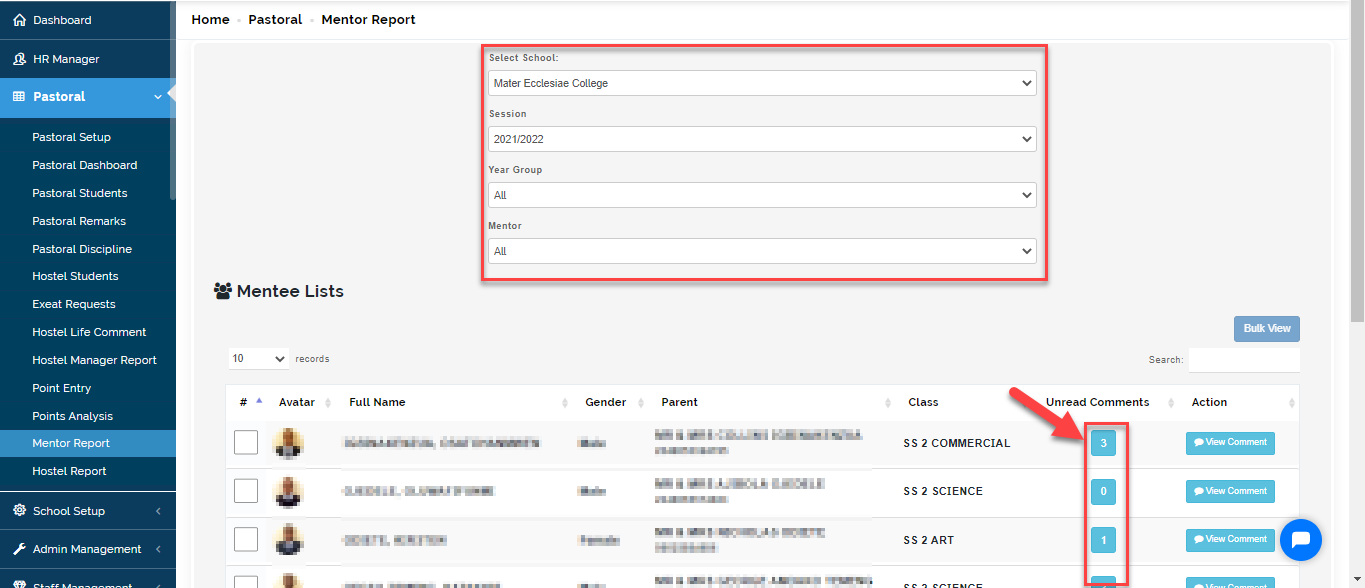
- Select Mentor report
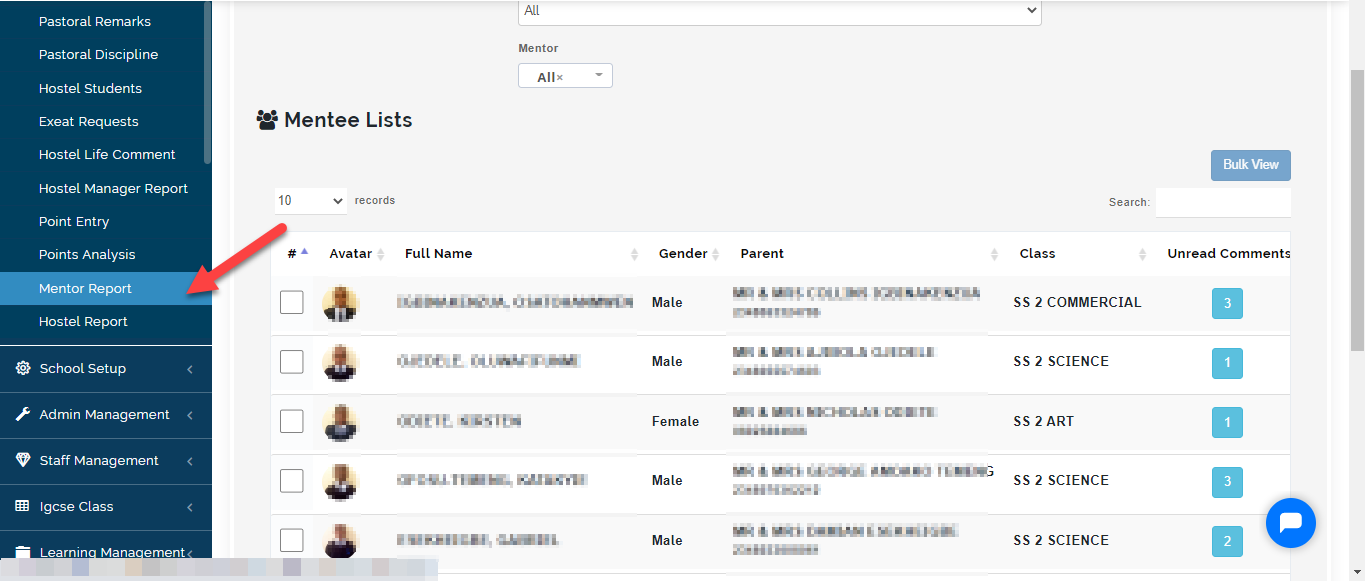
- Select the school, session, year group you want to enter comment for and your name
This will bring up the list of student(s) you have been assigned to mentor.
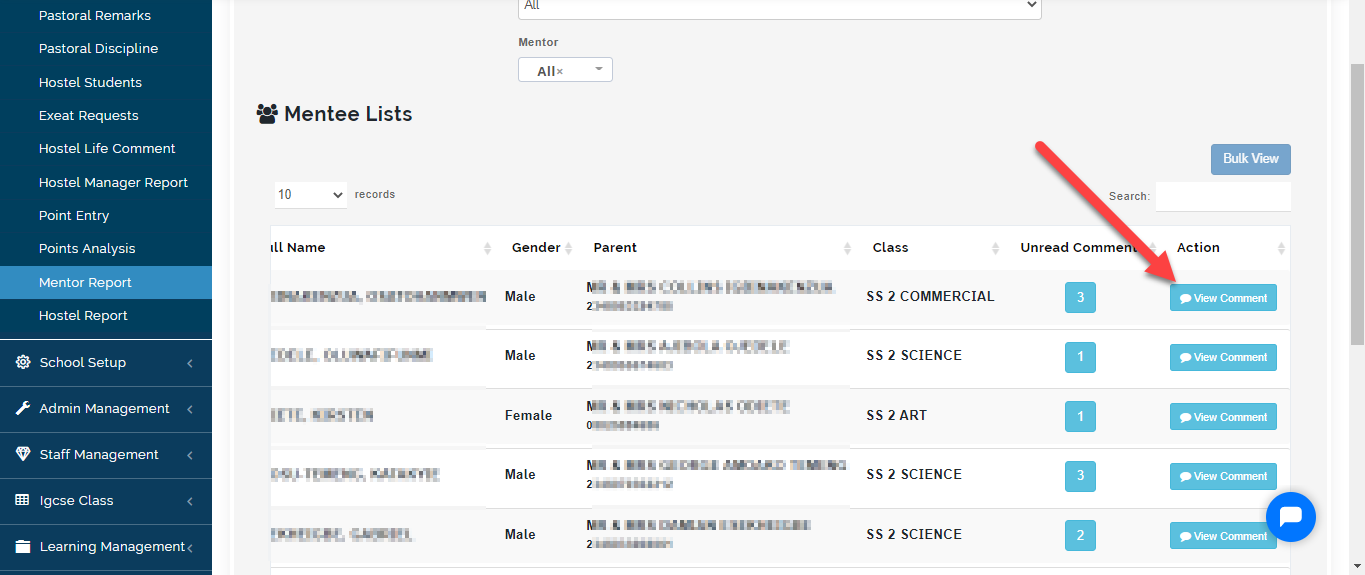
- Click on View comment for the student you want to evaluate.
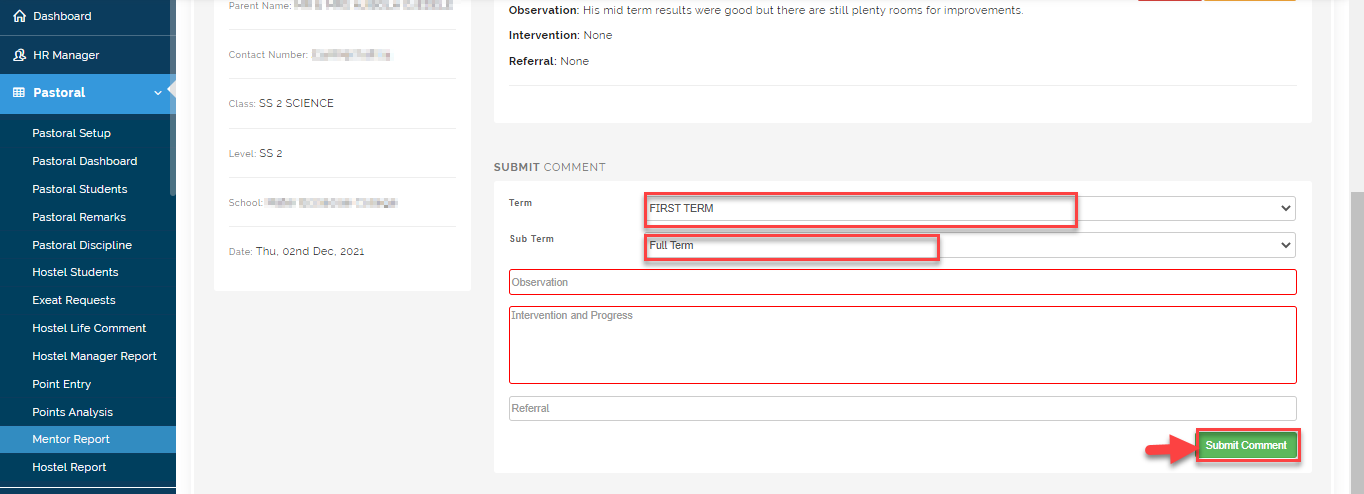
- Select the term you want to enter comment for and the sub term e.g Half or full term then Enter your observation, intervention and progress. fill in your referral and click on "Submit comment"
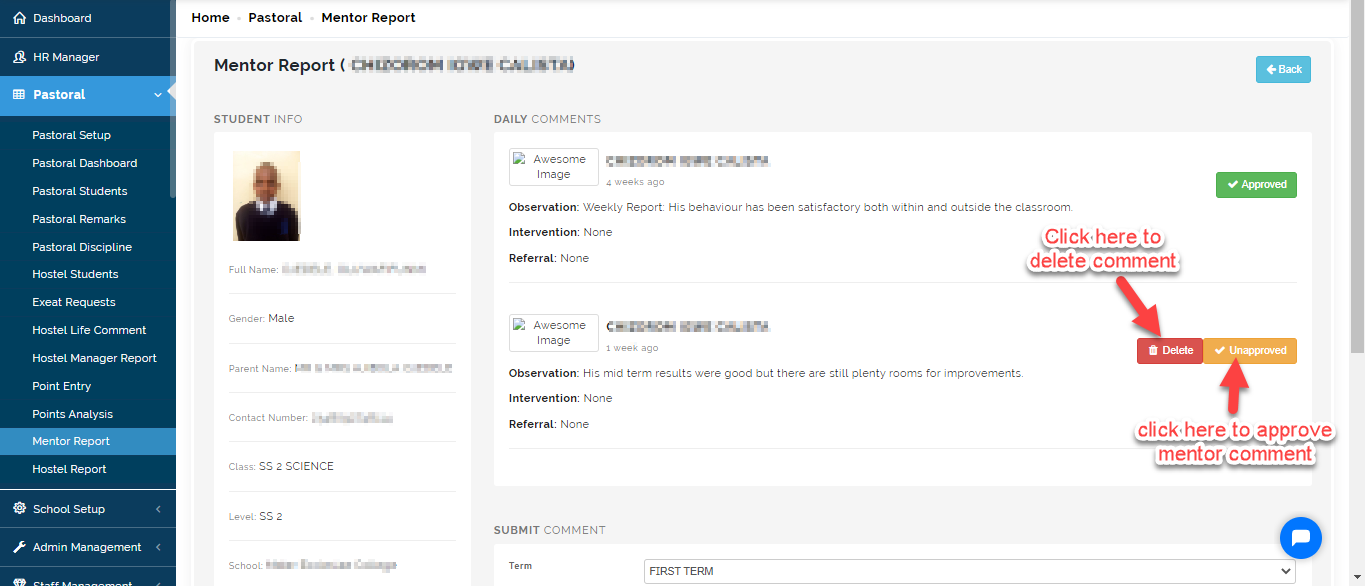
- Click on the Delete button to erase comment written in error. Once you enter comments, The Pastoral head is notified to approve or reject comment enter. Click on unapproved to approve.
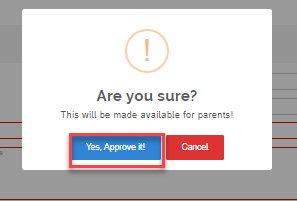
Click on Yes, Approve it ! or cancel if you do not want to approve the comment
Step 2: As a Pastoral Head- How To Approve Multiple Students Comment
The Pastoral head will be notified when mentors enter comment(s) for the students. To approve Multiple students mentor comment, do the following:
Step 1:
- Select the school, session, year group and name of the mentor you want to approve comment for
- This will bring up the list of student(s) and their mentors.
- If a mentor has written a comment, you will see the number of comment entries entered for each student under unread comments column.
Step 2: You can select all student(s) on a page at once by clicking on Select All then Click on Bulk View.
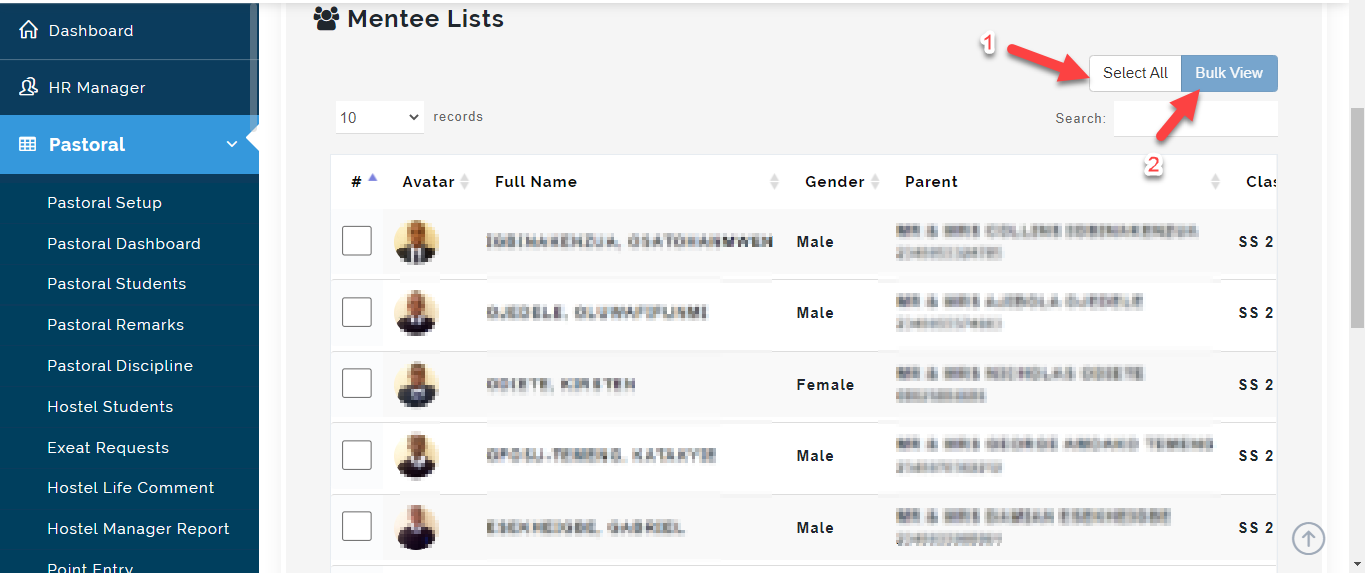
Step 3: A Modal will appear, you will see the entries of the Mentors, As an admin, you can edit the comments and approve the comments of many comments at once.
Step 4: Make changes to the comments, Observations and referral then Click on Approve all. Click Save to exit the page or Cancel to Ignore.