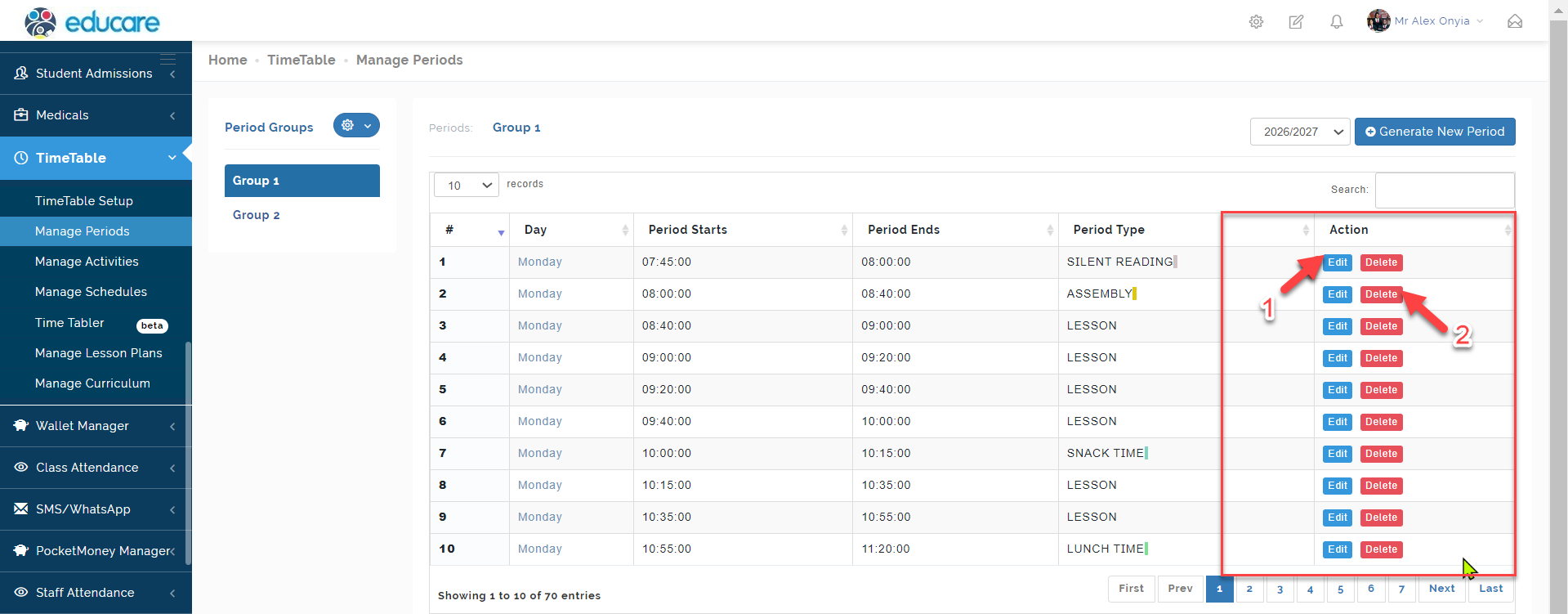
This is where you set the periods by adding day and time for each period. The periods added here in used to generate the time table.
Follow these steps to manage periods
Step 1
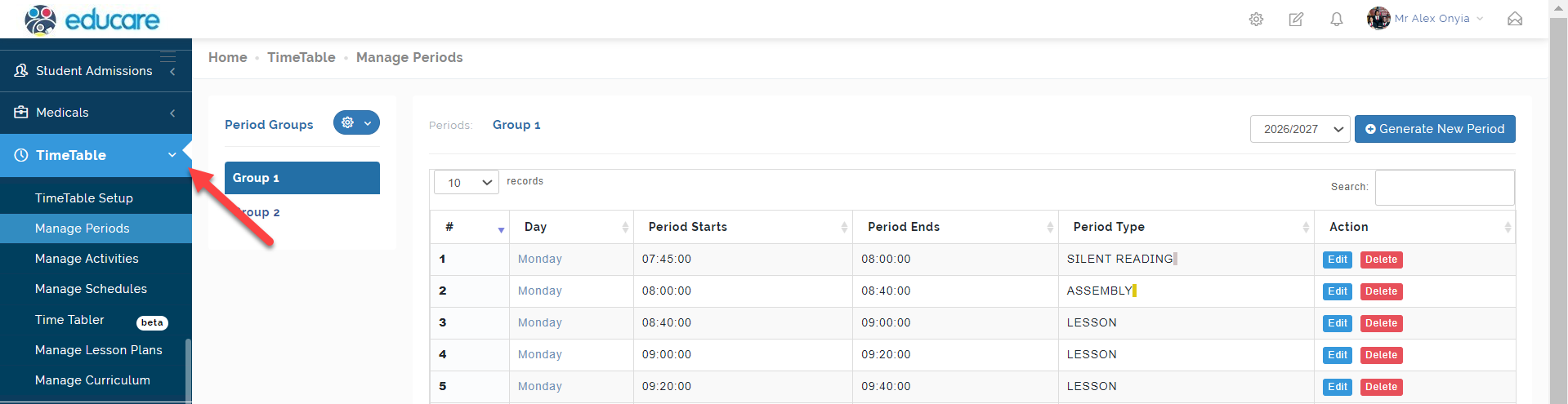
Click on Time table as indicated in the picture below.
Step 2
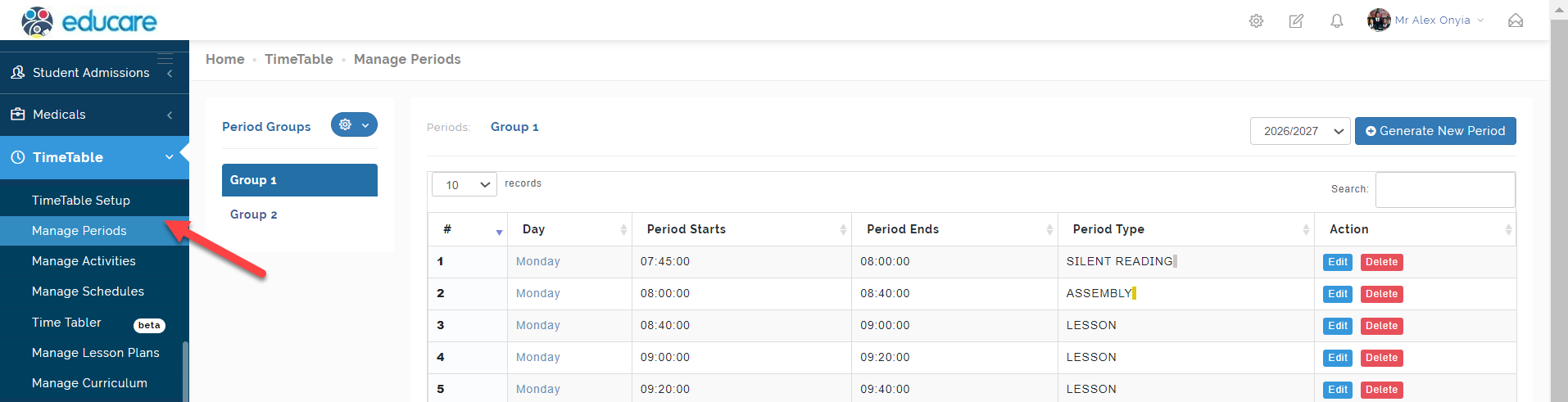
Select manage periods this opens up the page where you can add periods, edit periods and delete existing periods.
Step 3
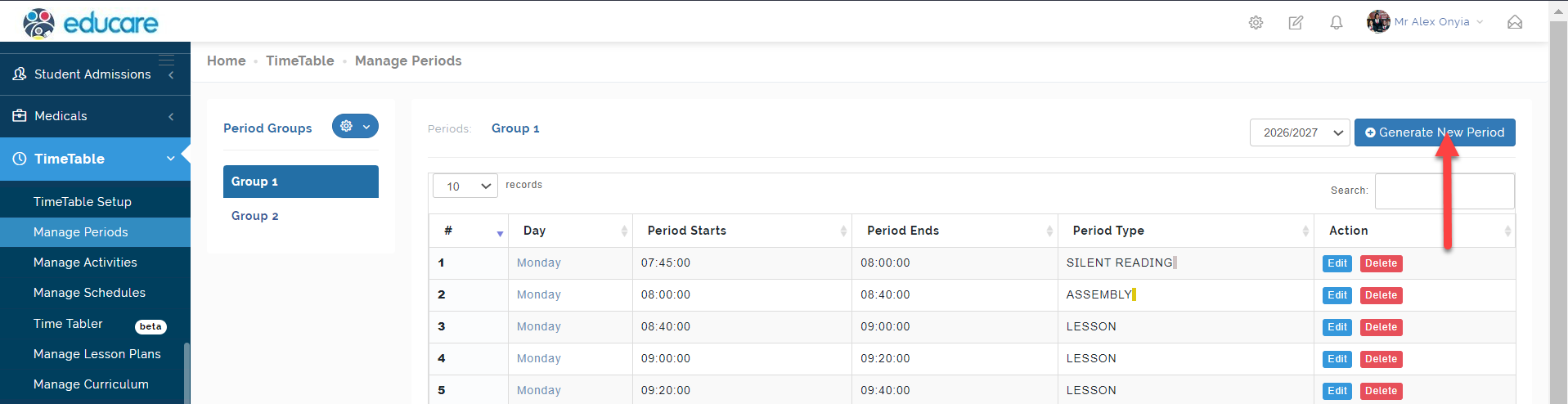
Click on generate new period as indicated below.
This will open where you can add new periods.
Step 4
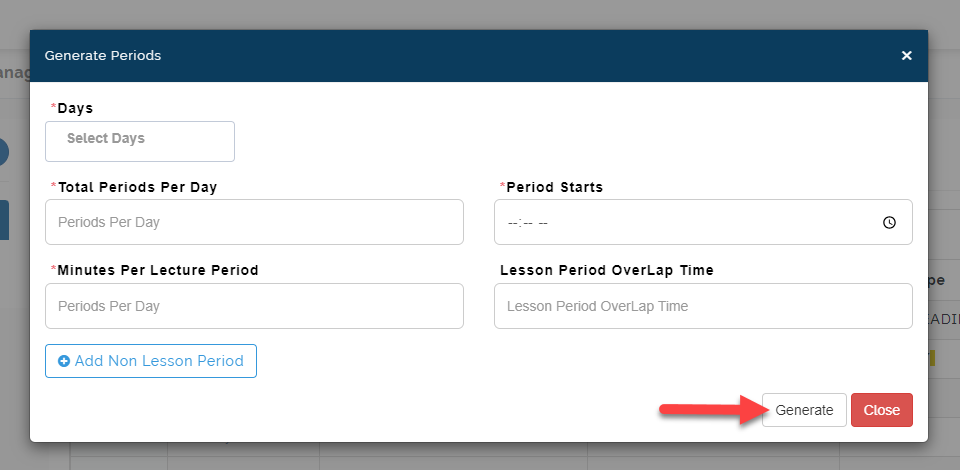
Create period clicked in step 4 opened the modal below.
You are required to
1 Select the days you want to add periods for.
2 Add the total periods per day
3 Add the time the period starts
4 Add minutes per lecture period
5 Add period overlap time, then click on generate
Step 5
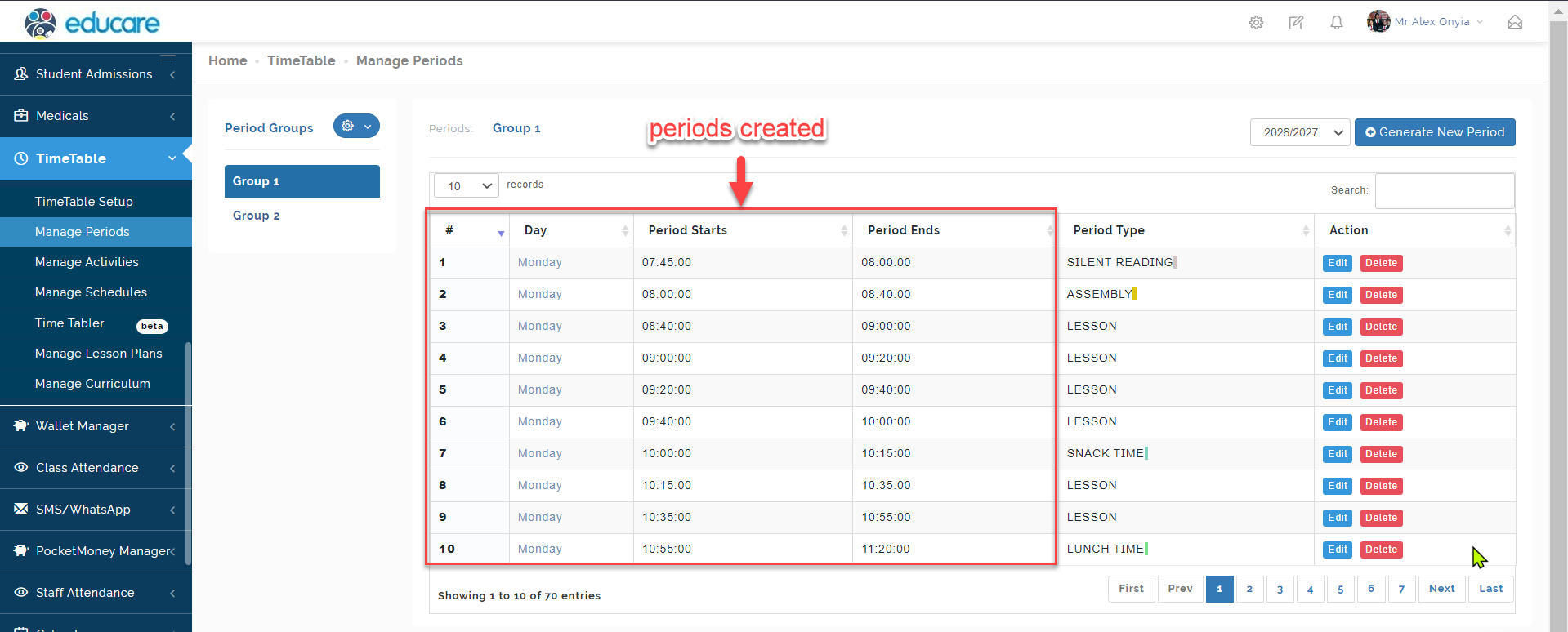
The image below indicates the periods created.
Repeat step 5 to create more periods.
Step 6
You can either
1 Edit Period
2 Delete Period
as indicated below