
This is where the HR Manager can create vacancies to recruit New Candidates.
Follow these Steps to create Vacancy:
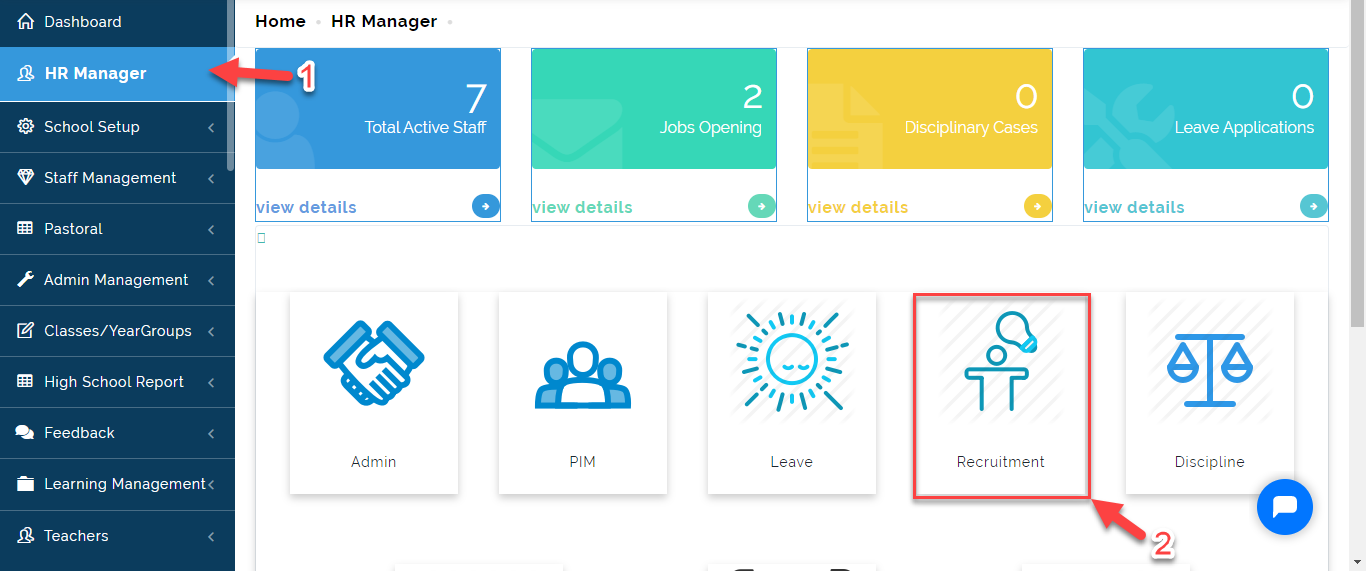
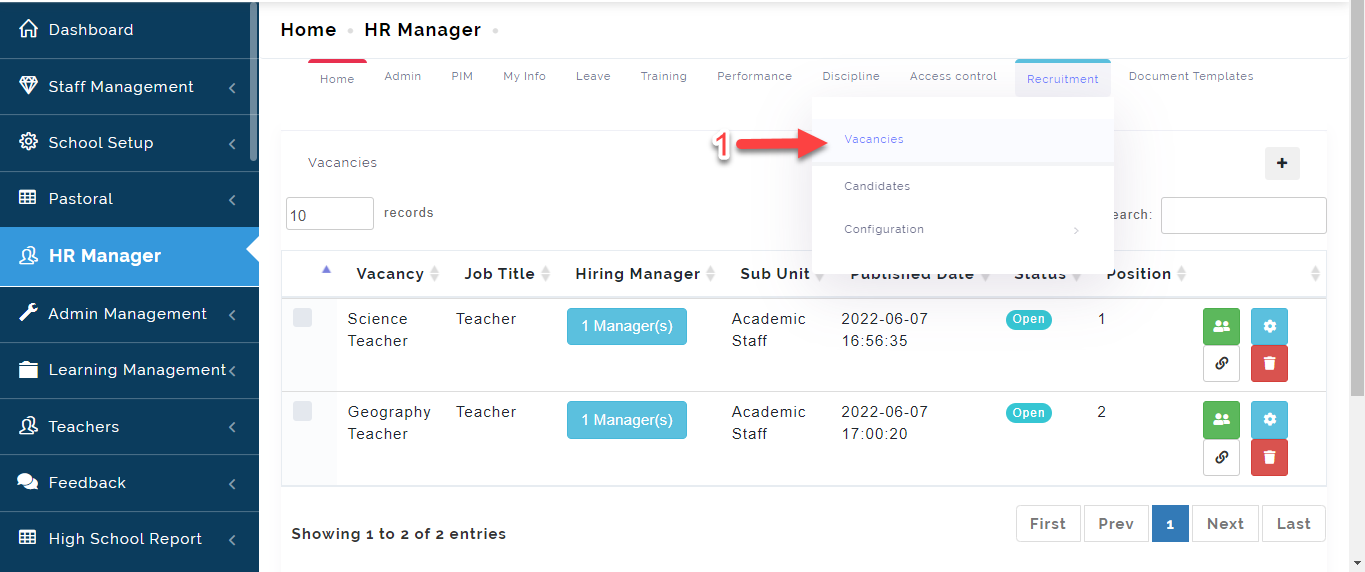
- Go to the HR Manager, Click on Recruitment.
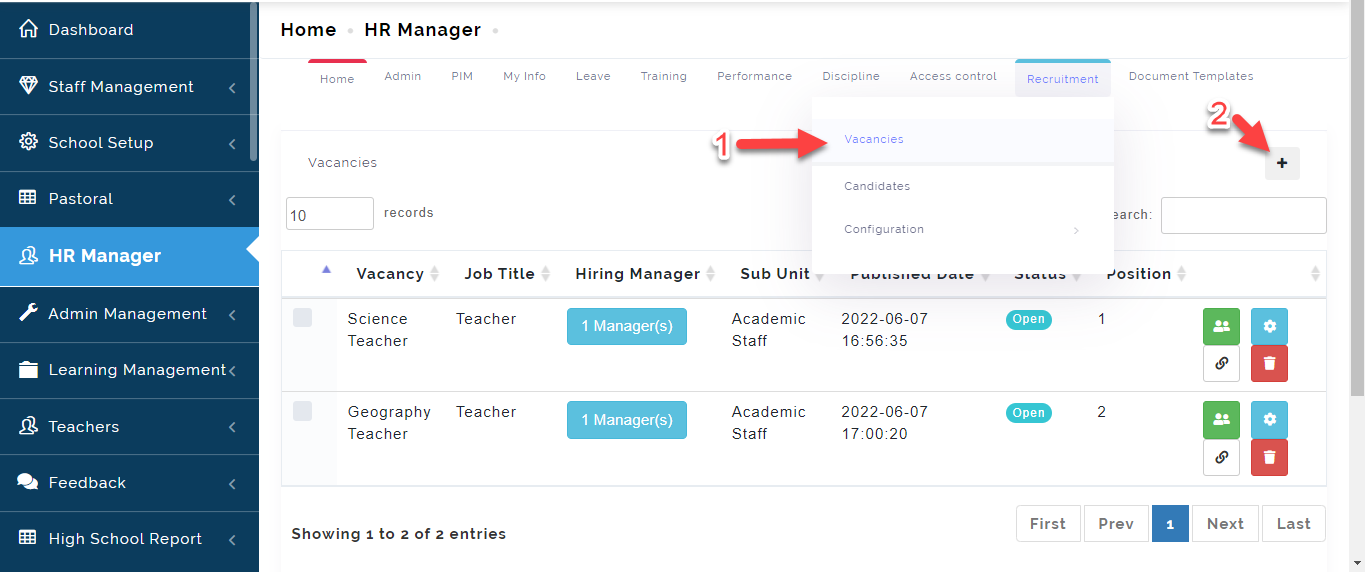
- From the Recruitment Tab, Select Vacancies. Click on + Icon to create Vacancies.
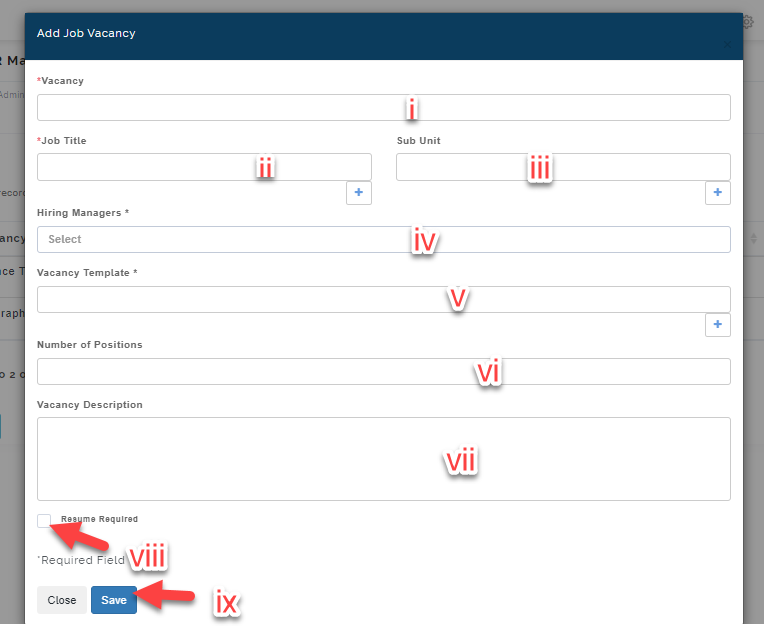
- Follow steps to create vacancy:
i. Type the Vacancy name in the textbox under Vacancy e.g Vacancy for a Mathematics Teacher.
ii & iii. Select the Job Title and Sub unit. (e.g. Teacher and Academic Staff)
iv. Select the Hiring Manager name from the list
v. Select the Vacancy Template you created from the list of vacancy templates you created.
vi. Enter the number of candidates required for this position.
vii. Type in the textbox the Vacancy Description (i.e. all information about the type of candidate needed e.g. Female, with a Bachelors Degree etc.).
viii. Tick Resume box if you require candidate to include their resume.
ix. Click on Save or Close to Exit.
- Once this is created, you will see the vacancies as indicated in the image below.
i. Click on Hiring Manager to add more individuals as Hiring Managers.
ii. This gives you access to the application Link.
iii. Click here to view candidates who have applied for this position.
iv. Click here to make changes to the vacancy
v Click here to delete.
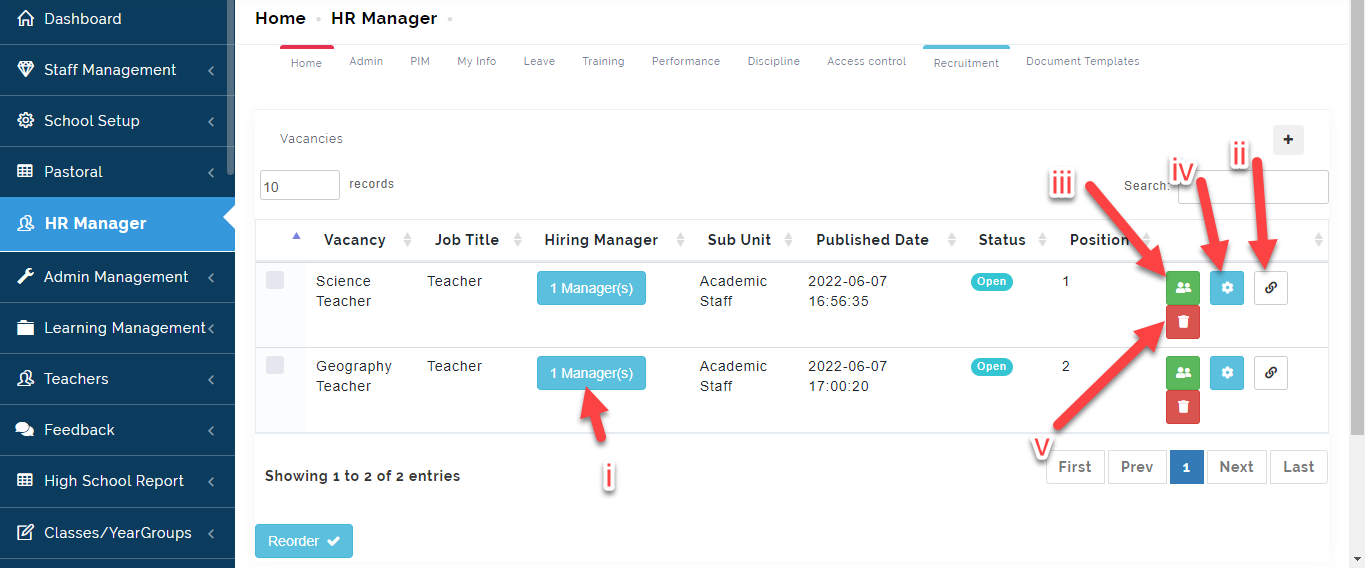
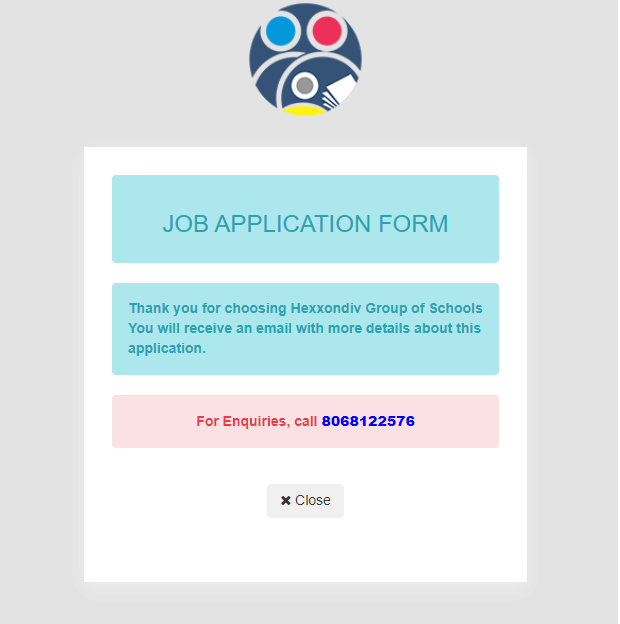
Once Application form is sent by the candidate, Click on the icon -(iii) as indicated in the picture above to view the Candidate(s). See below image on notification message for Job Application form **received.
HOW TO ADD A HIRING MANAGER
If you have more that one hiring Manager to partake in interviewing new candidates follow these steps to add them:
- From the Recruitment Tab, Select Vacancies
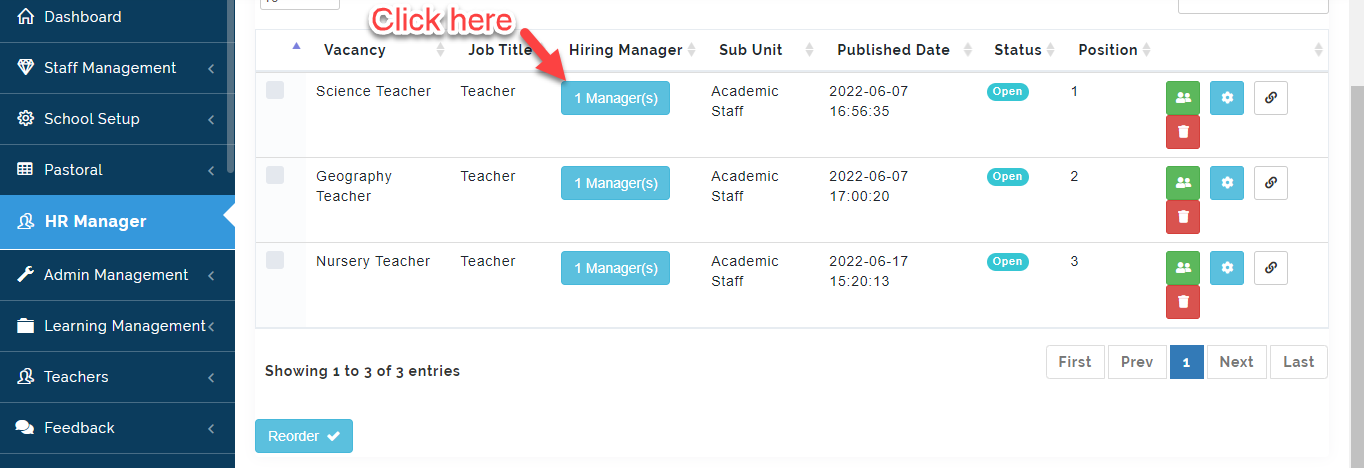
- Under the Hiring Manager column from the table, Click on Manager(**s) **button.
- Select the name of the staff who are hiring Manager**(s**) then click on AddManager.
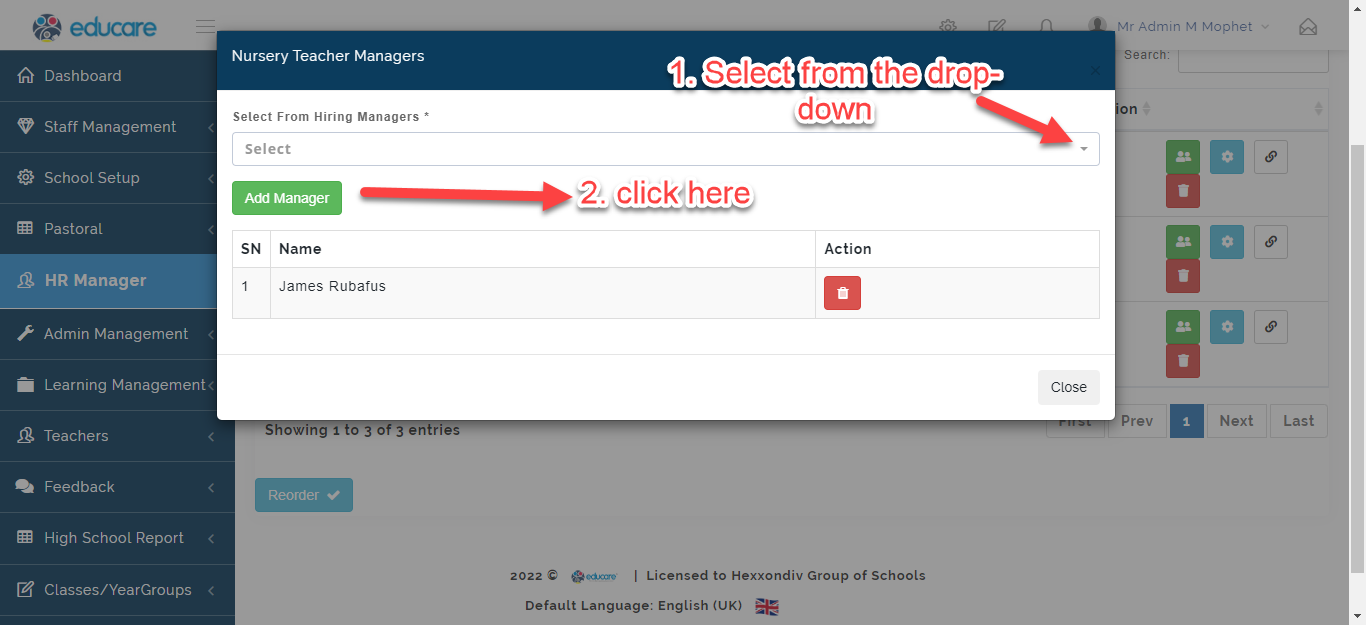
The name(s) you have chosen will be added to the list.