This process is done, once at the beginning of a new session
How to Create New Session
STEPS,
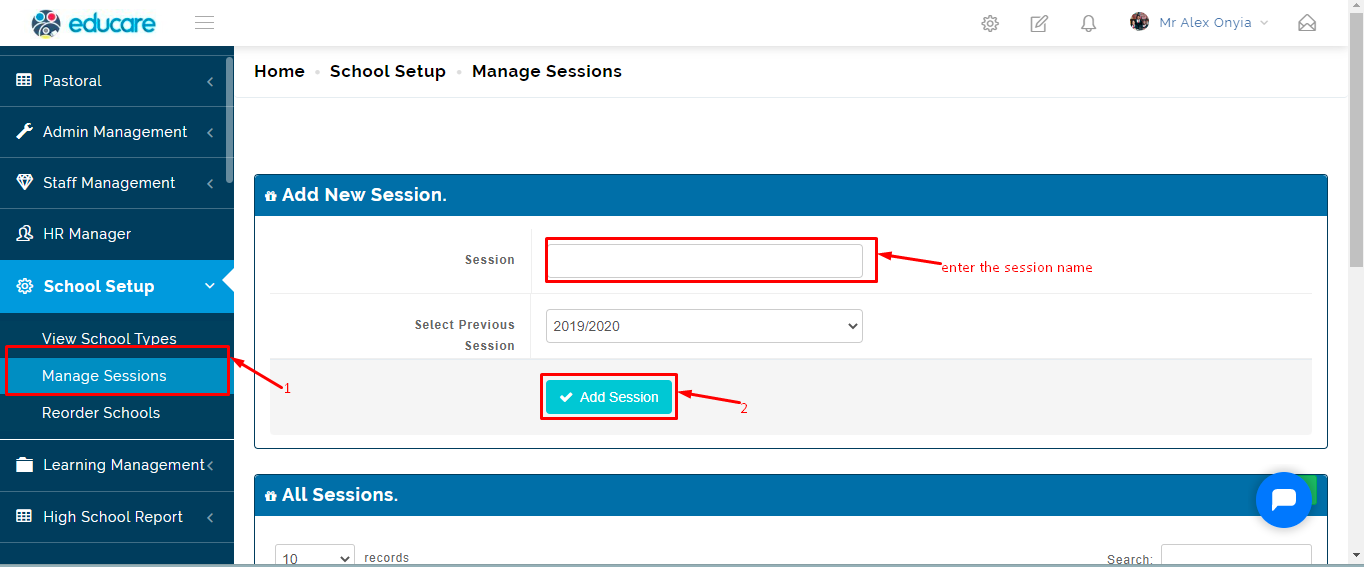
Go to school setup
Click on manage sessions
Under add new session , Enter the session name
Click on ADD SESSION
HOW TO ACTIVATE A SESSION
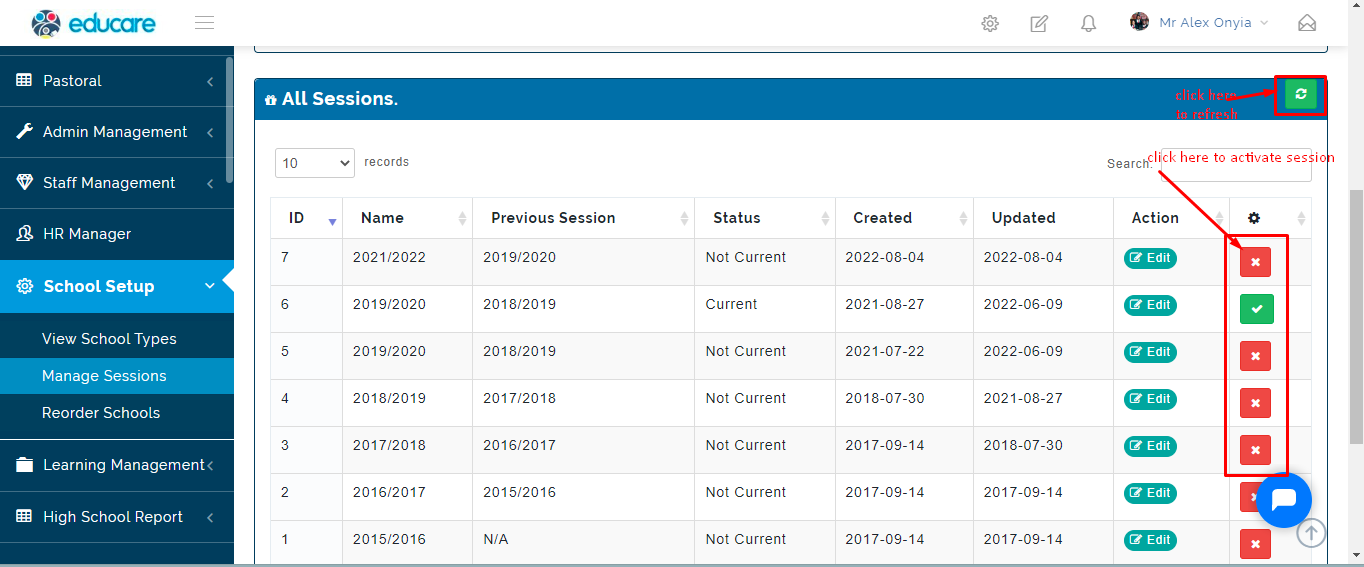
From all session list
- Go to the current session
- Toggle the red box icon to green to activate a new session
How to edit Session
To edit Session follow these steps:
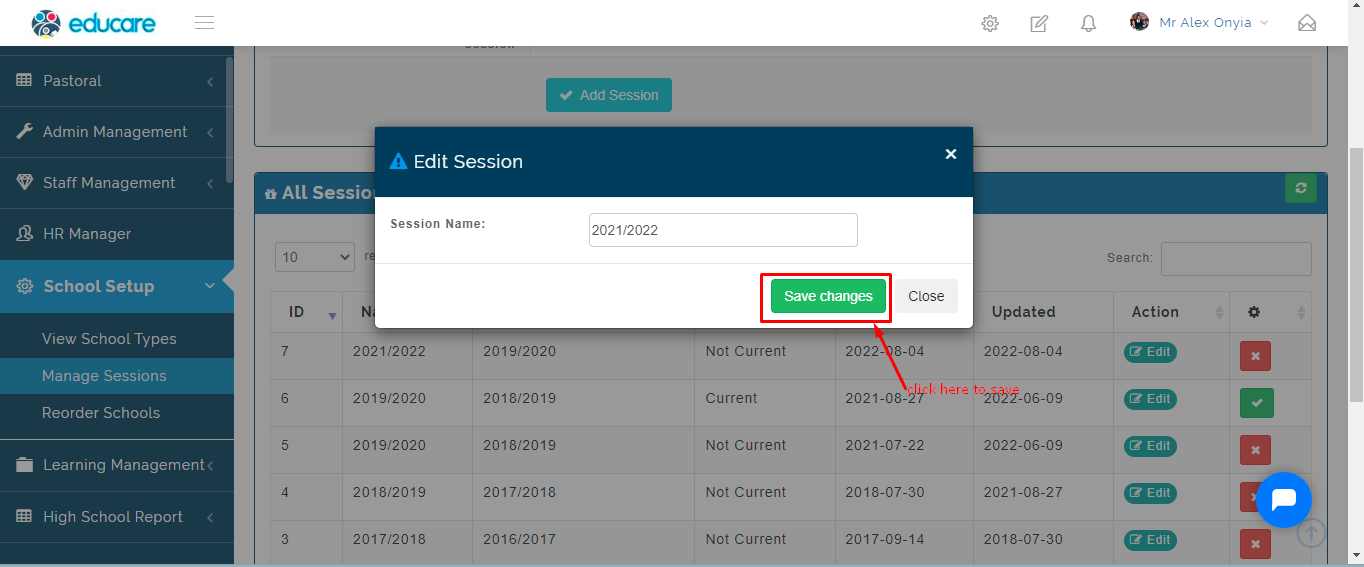
- From the list, click the edit button on the row of interest, to make changes
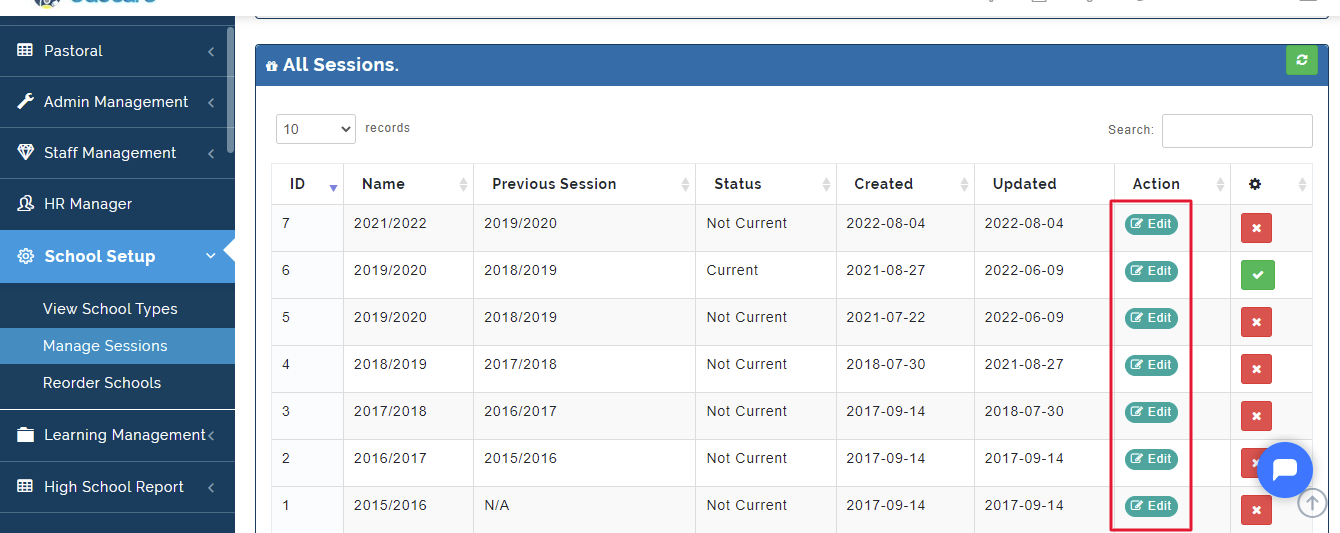
- From pop-up edit Dialog Box, edit session name and click on save changes to save
HOW TO PROMOTE STUDENTS INTO A NEW CLASS
STEPS
Go to any of the school category either HIGH, JUNIOR OR EYFS REPORT SETUP
Click on Promotion Manager
Select a year group from dropdown
A table of the students in the selected class and class to be promoted
*Click on PROMOTE to successfully move the student to a new class
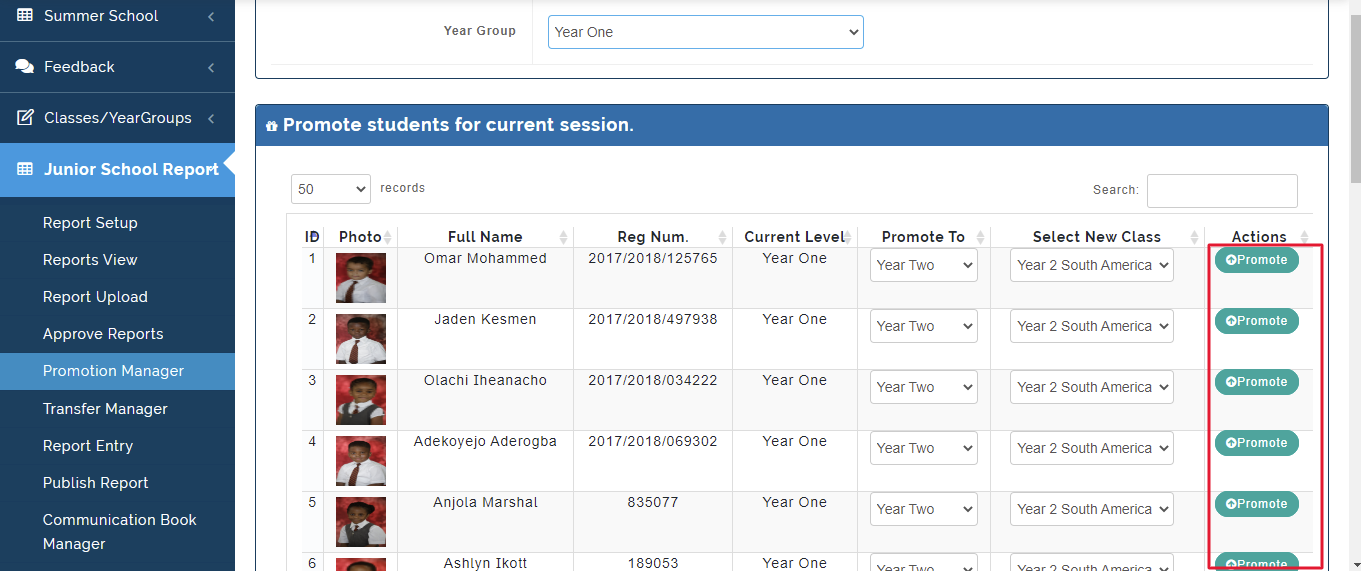
NB: Student arm of classes can be switched;
HOW TO TRANSFER STUDENTS
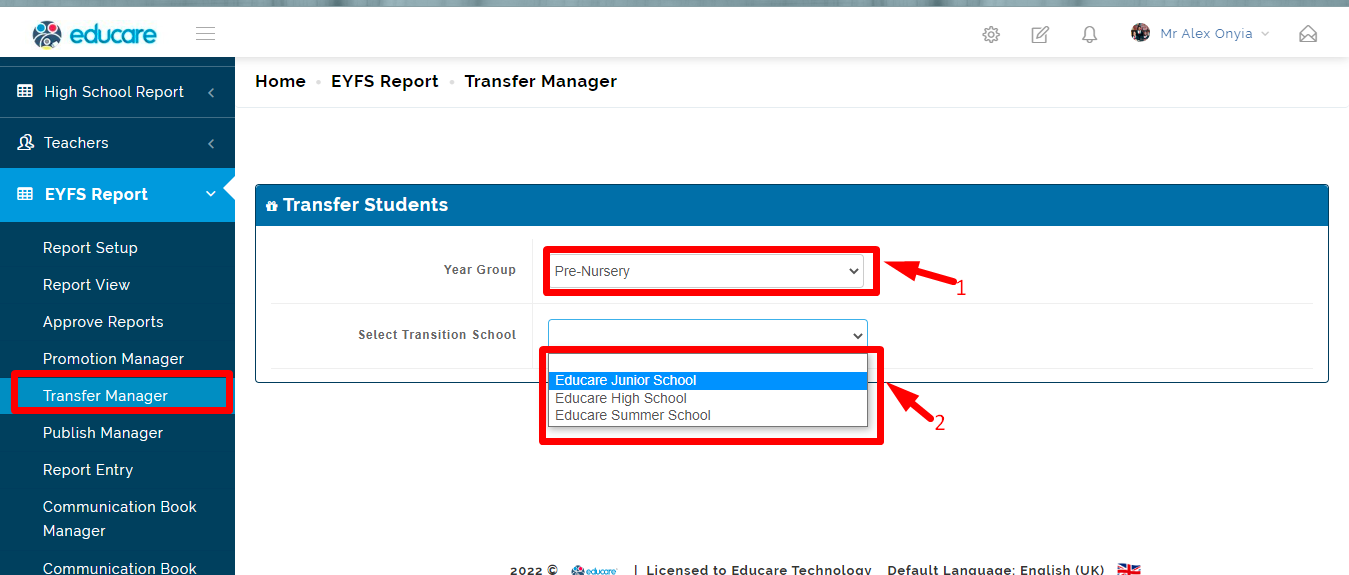
Transfer manager is used to move student from one school category to another, at the beginning of new session
Example: Move a student from Nursery to Primary
STEPS,
Go to any of the school category either JUNIOR OR EYFS REPORT SETUP
- Click on Transfer Manager
Select a year group from dropdown
Select the transition school
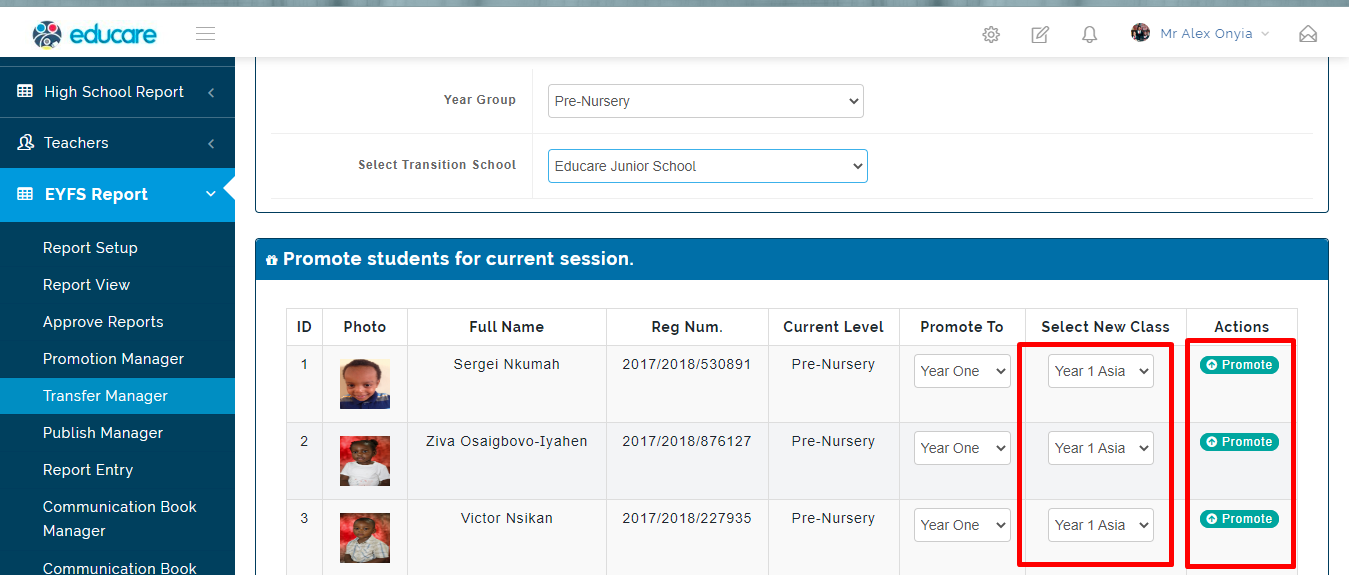
- A table of the list of students in the selected year group is shown;
*Click on PROMOTE to successfully move the student to a new class