Teachers are able to create and publish assignments for subjects assigned to them. They can also manage downloading of materials for the assignments they create, chatting with students about the assignment and, submission of assignments
How to add new Assignments
Teachers can create assignments only for subjects and classes they have been assigned to teach.
To create new assignment, follow these steps;
-
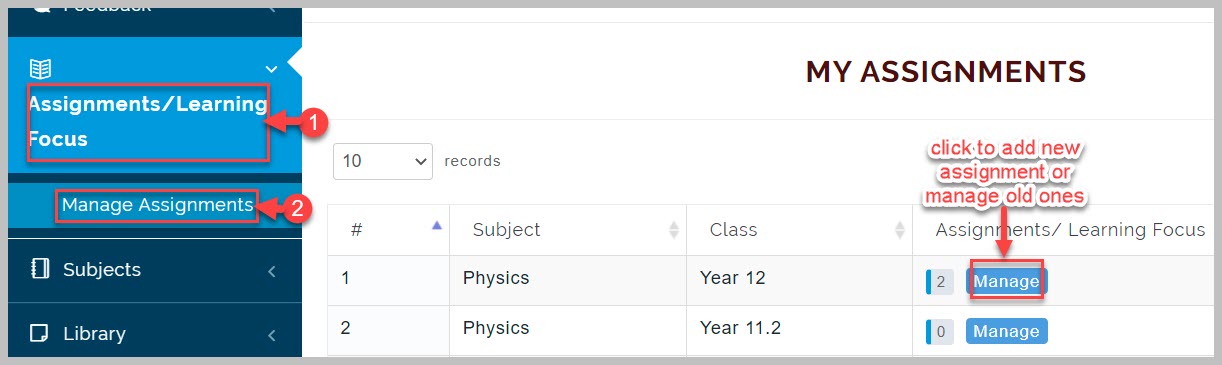
Go to Assignments/Learning focus and click on Manage Assignments beside the subject you wish to add assignment
-
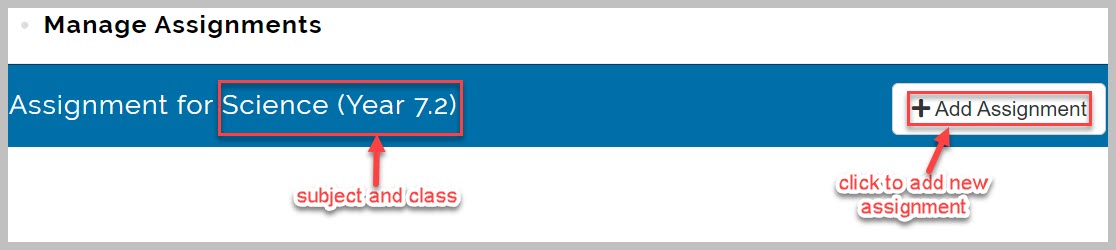
Click on Add Assignment button from the displayed page
-
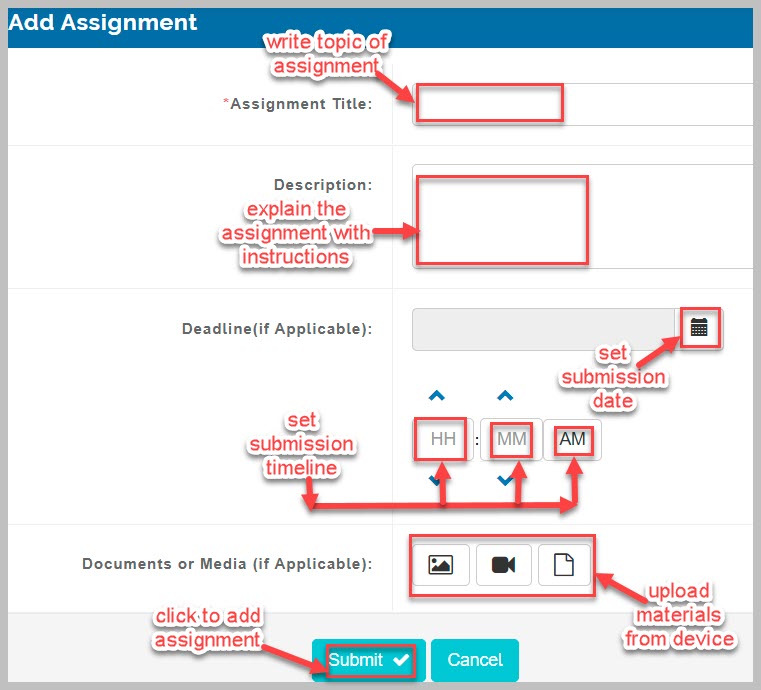
From displayed page, provide assignment topic or title
-
Describe or explain the assignment given. Instructions can be given here as well
-
Set deadline date for submission of assignment
-
Set deadline time for submission of assignment
-
Upload materials for the assignment if applicable. Materials can be in image, video or document format
-
Click on Submit button to complete creation of assignment
How to manage Assignment Submissions
-
Once an assignment is given, students download the assignment materials and follow the given instructions in doing the assignment.
-
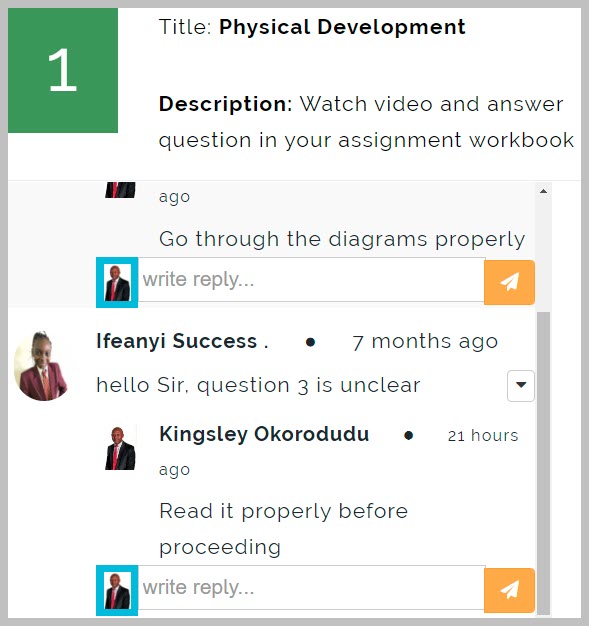
Students can ask questions about the assignment using the comment feature.
-
They submit their assignments by uploading their answer scripts according to the instructions given by the teacher.
-
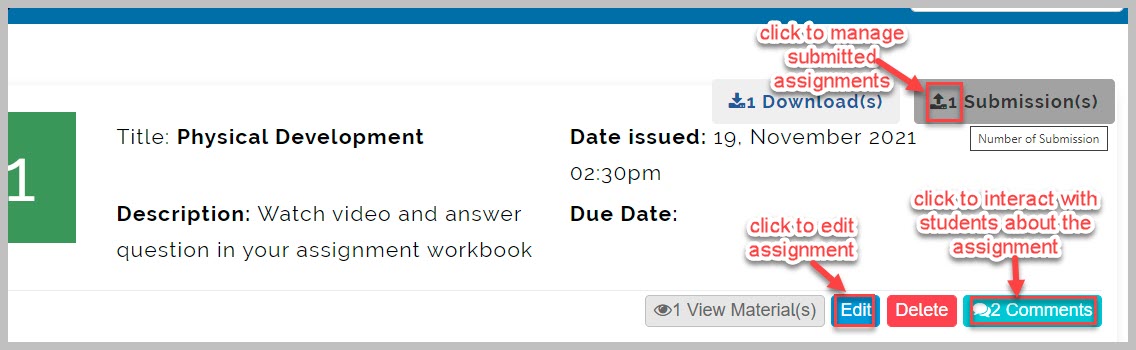
These submitted materials are downloaded, reviewed by the teacher before accepting or rejecting it.
-
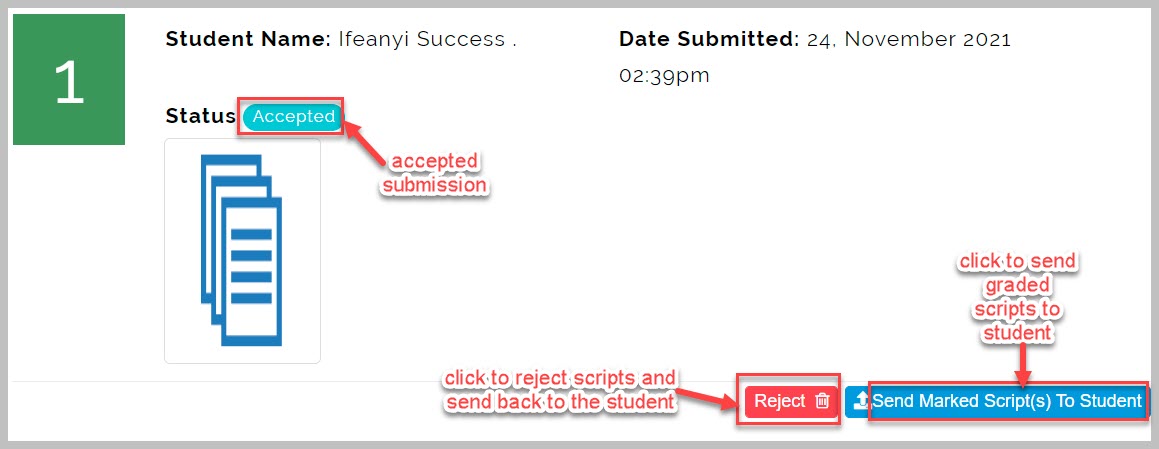
Every accepted assignment is graded by the teacher and the scores recorded.
-
Teachers can send the graded materials or scripts back to the students that submitted them.
Clone Assignment
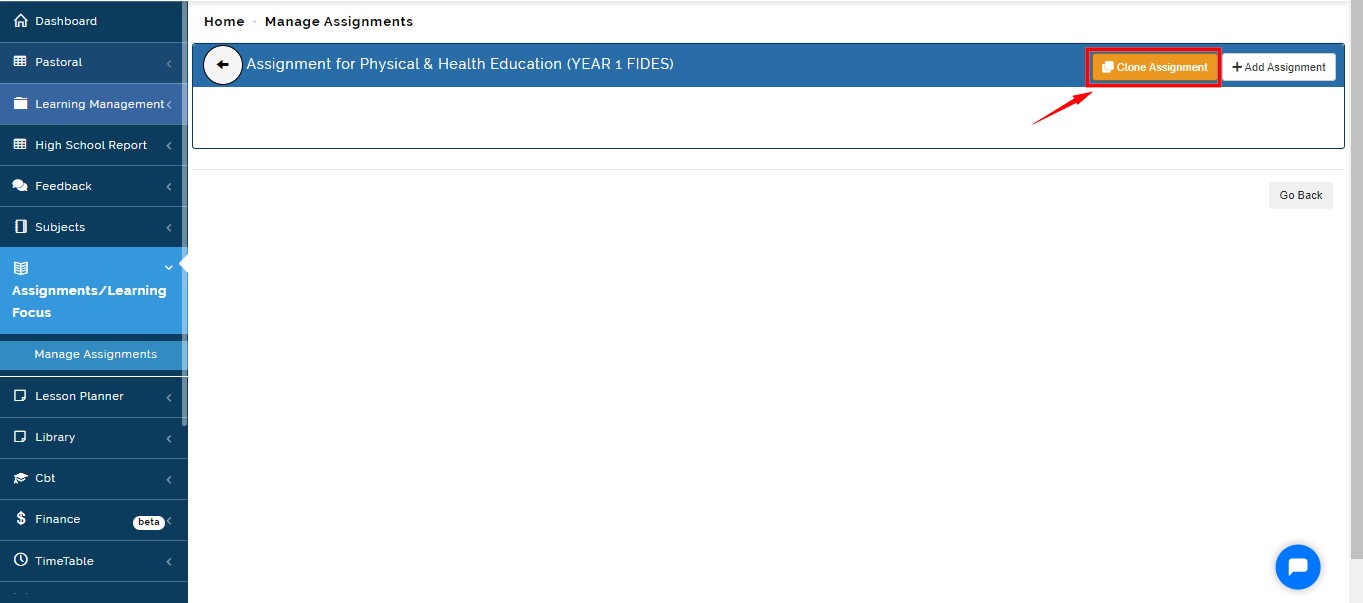
Teachers can clone assignments of the previous sessions using the "Clone Assignment" feature indicated on the image below.
Assignment cloning is used when a teacher wants to repeat the exact assignment used at the previous session in the current session.
Follow these steps to clone assignment:
After selecting the class you want to give an assignment, click on "Clone Assignment" button
A modal, where you can select the session and the particular assignment you want to clone will appear
Once you locate the assignment you want to clone, click on the "Clone" button under the "Action" title to clone the assignment
If your cloning is successful, you will see a notification flash in green colour on the top right
You can edit the content of the assignment and adjust the Submission Deadline if need be
Click on the "Update" button to save the changes you made.