
Educare request for some KYC document for account setup, to integrate your account with the payment gateway you wish to use for online transactions.
The online activation is linked to the school different banks details used for transaction.
Its is a T+1 system i.e. every transaction done, reflects in your account in the next 24hrs from when the transaction is done.
The steps below will guide you through the Account Setup process.
Step 1: Opening the Account Setup
The Account Setup has;
- Manage Payments
- Manage Account Heads
- Manage Account Periods
- Account Operations Permissions
We will be going through these various Account Setup to help you understand what you can do in each one of them.
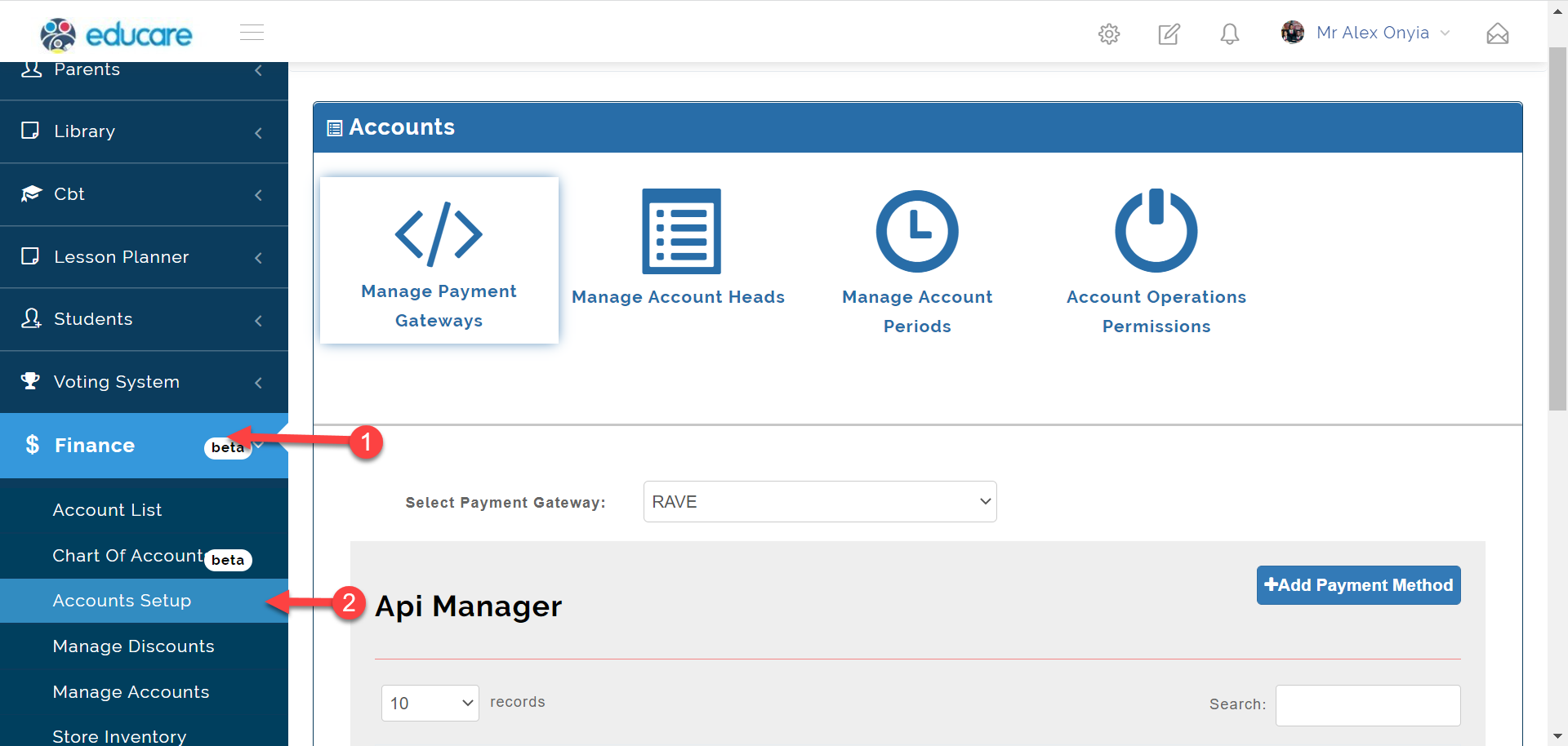
To access the Account Setup, follow these steps below;
- Click on Finance
- From the dropdown menu, select Account Setup
- By default the first tab is selected which is the Manage Payment Methods
Step 2: Manage Payment Gateways
This is where you can add, view and manage the different payment gateways you have integrated in educare.
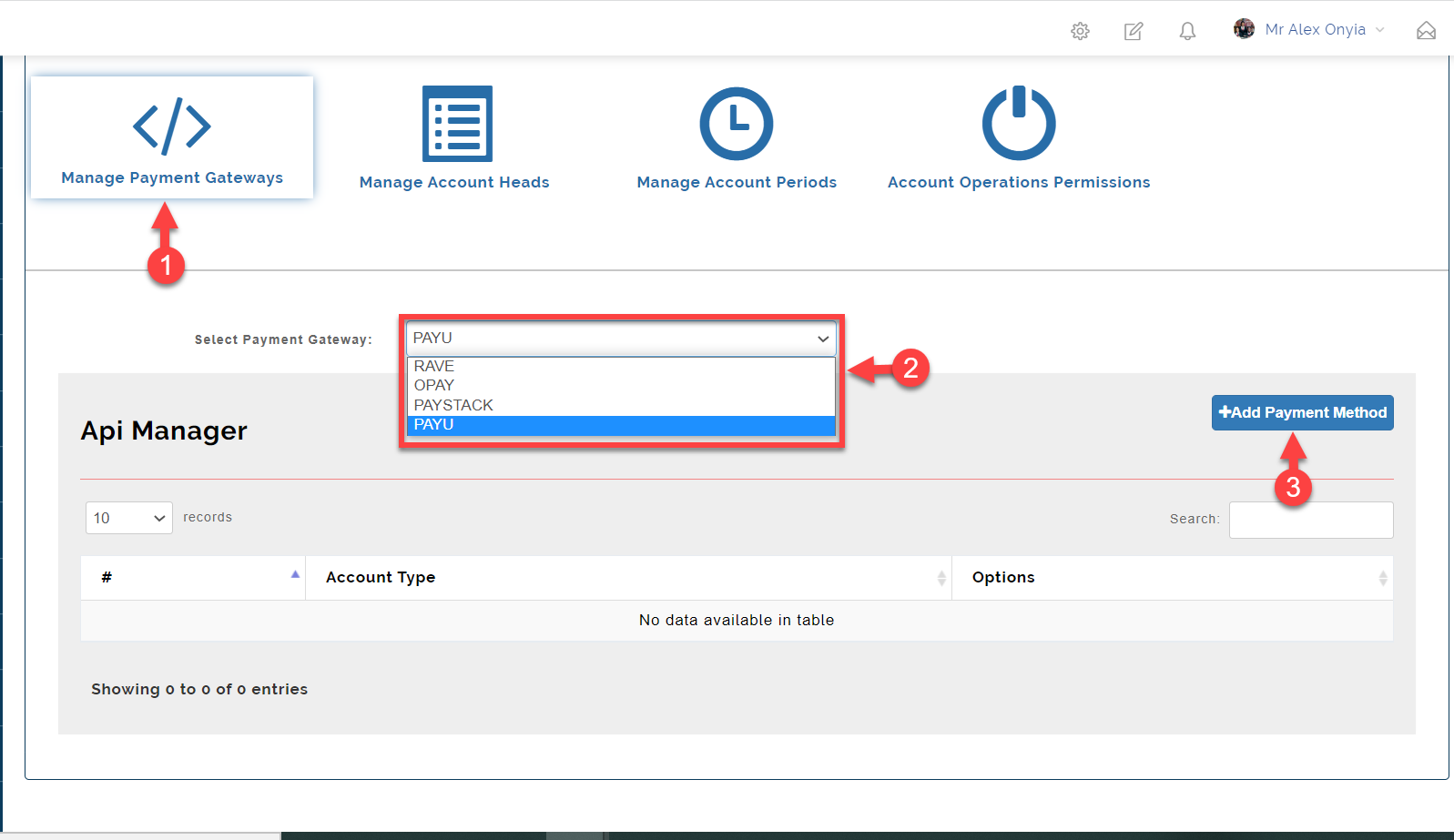
2.1 To add a payment gateway, follow the steps below.
- 1. Select the Manage Payment Methods
- 2. From the dropdown, Select the Payment Gateway you would like to use
- 3. Click on the Add Payment Method button as indicated in the picture below
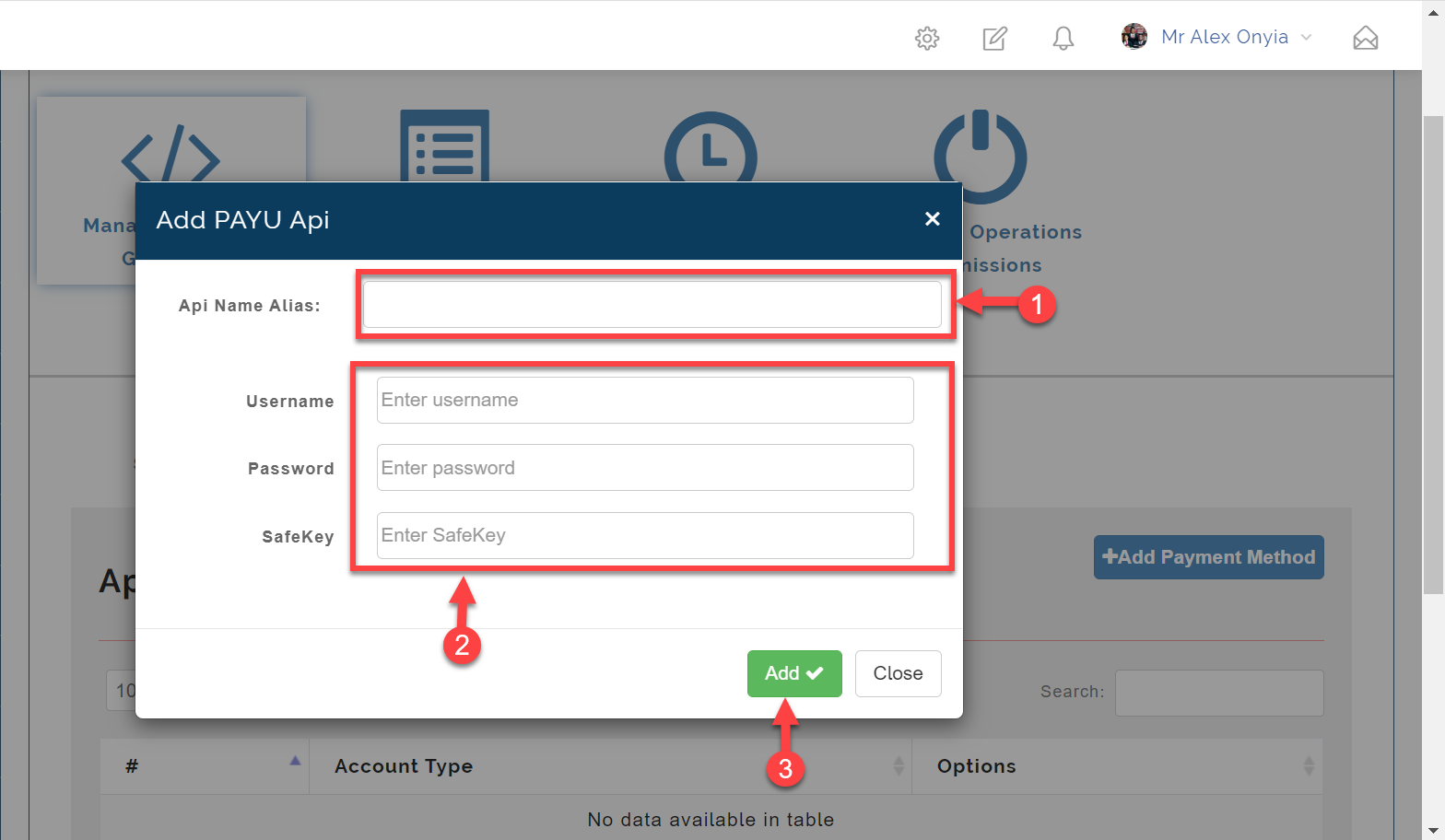
Clicking on the Add Payment Method above opens up the form below where you are to;
- 1. Enter a custom name for the Payment Gateway
- 2. Enter the Username, Password and Safekey provided to you by your payment gateway
- 3. Click on the Add button to save.
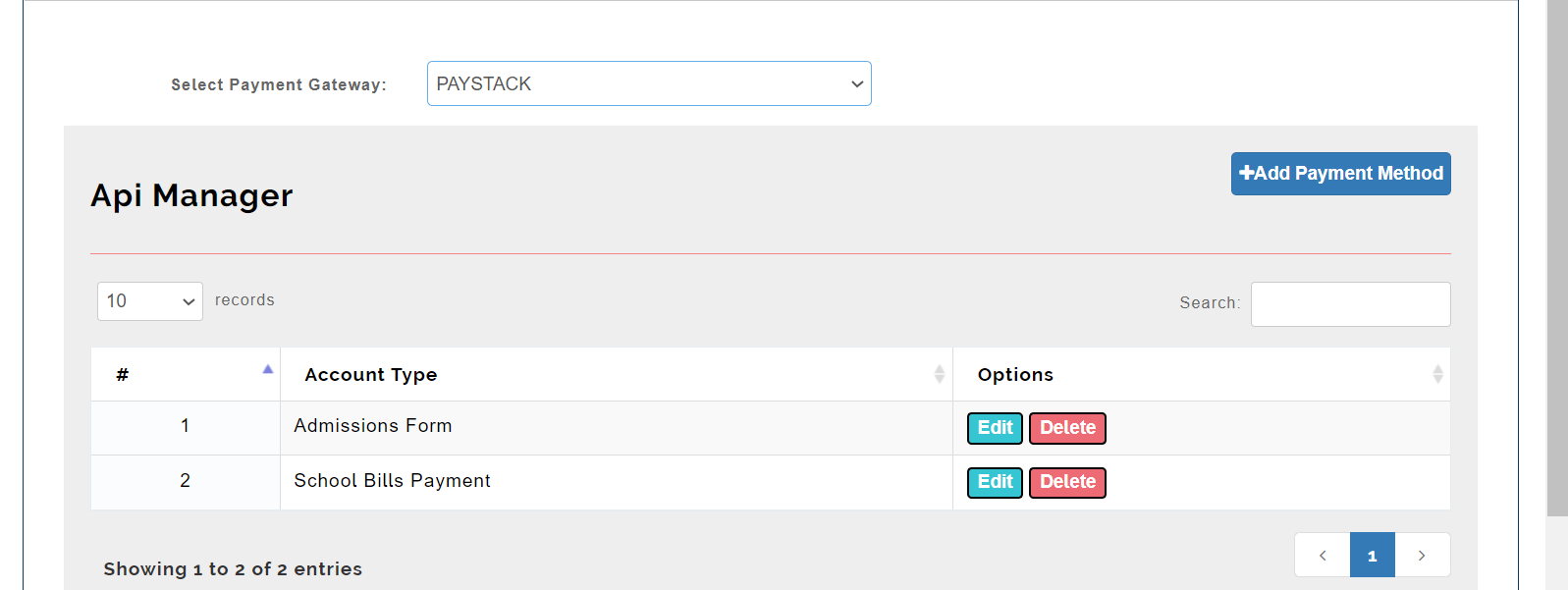
2.2 To edit an existing payment gateway;
- Click on the Edit button as indicated in the picture below.
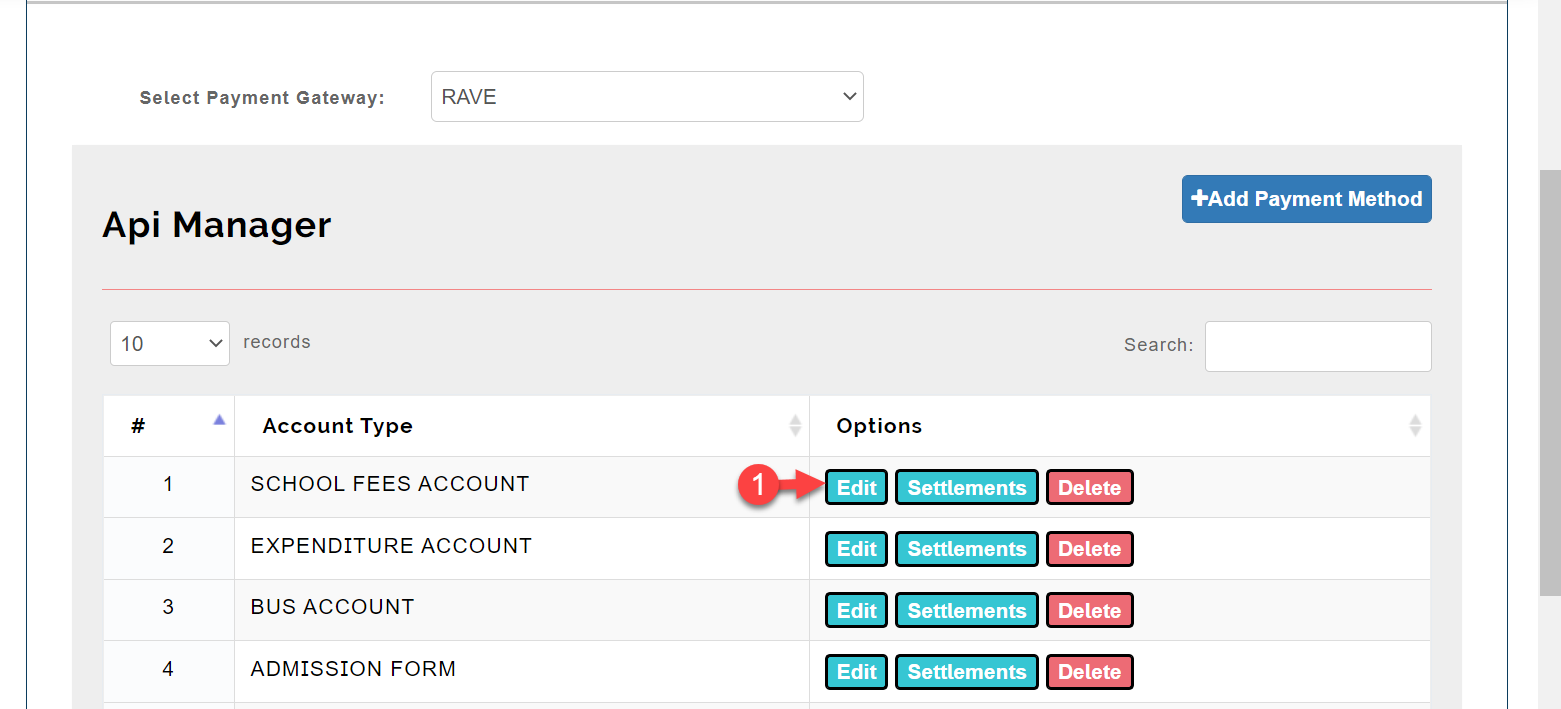
fig 1
- Enter the Username, Password and Safekey provided to you by your payment gateway
- Save changes
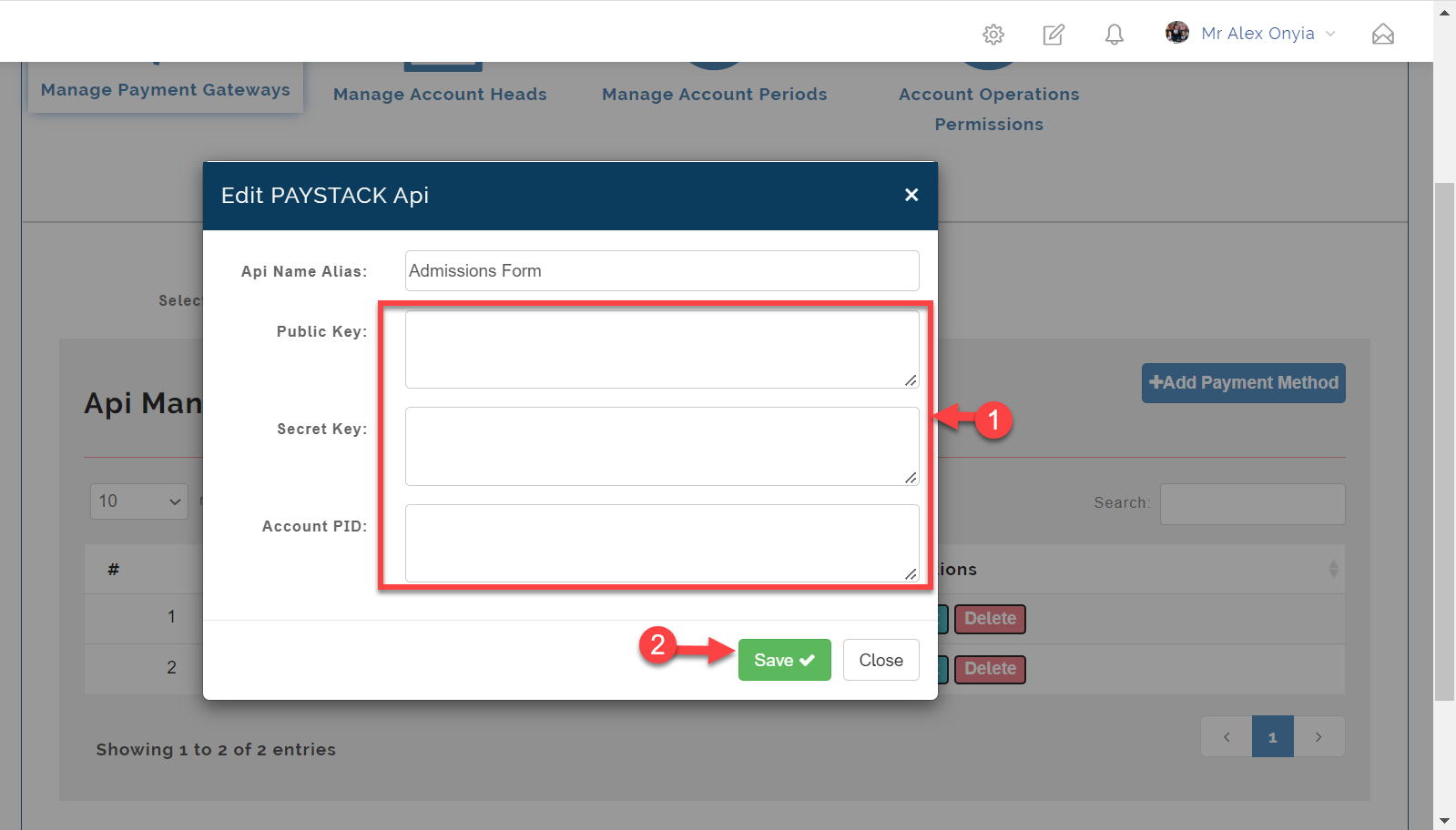
fig 2
2.3 to view the settlements for a payment gateway;
- Click on the Settlements button as indicated in the picture below.
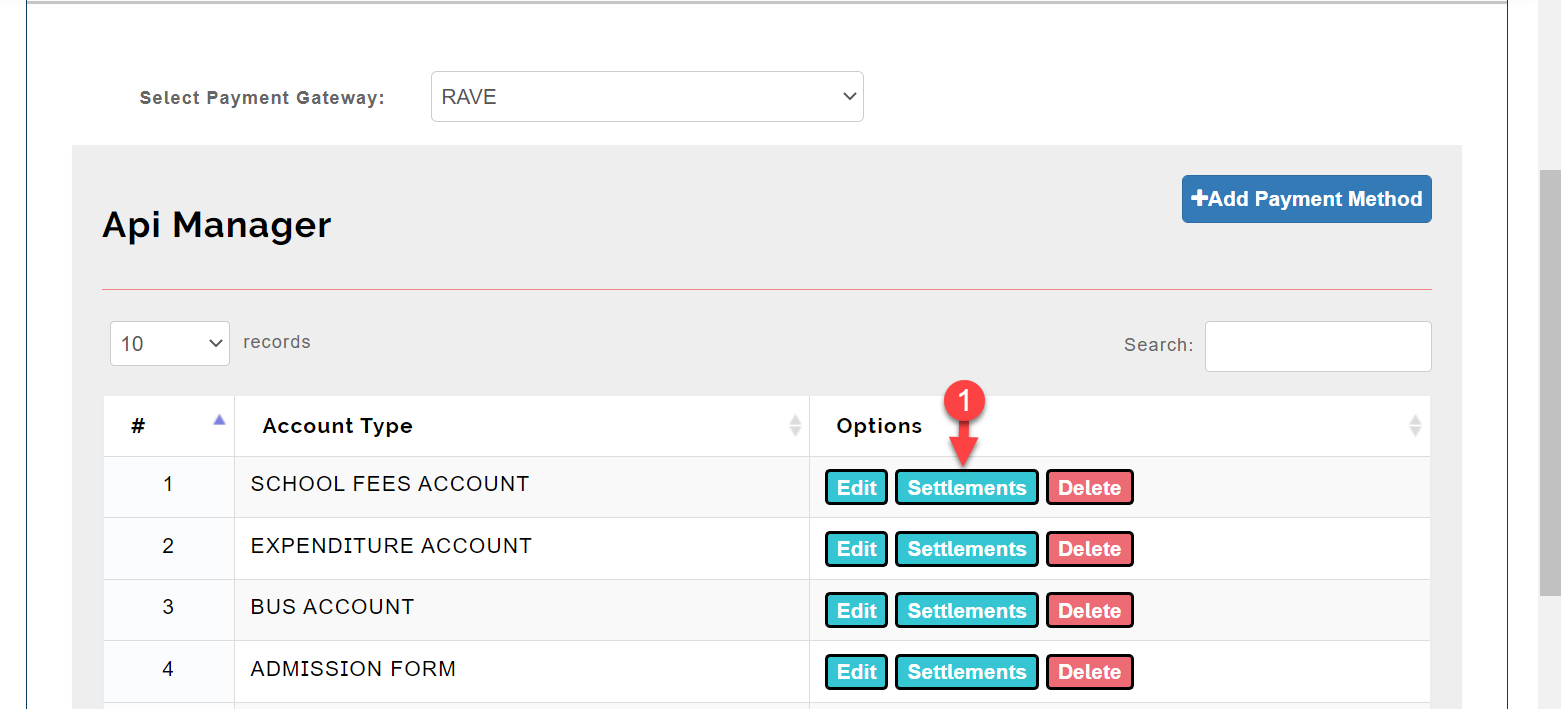
Here you see you can;
- Filter with a date or a date range to see all transactions that has been done on the selected account type.
- Download an excel format of the transactions.
- Download a pdf format of transactions.
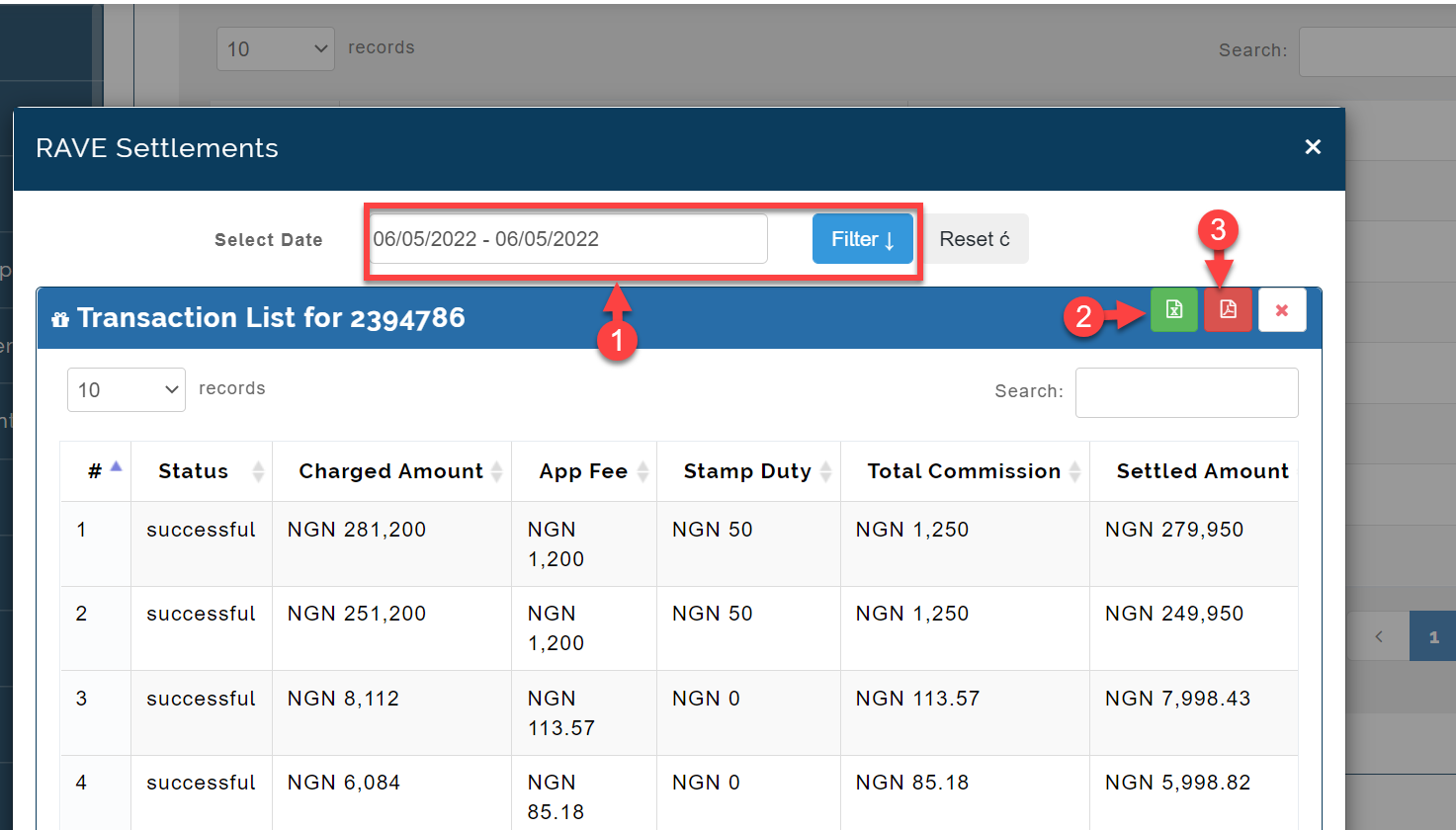
2.4 To delete a payment gateway;
- Click on the Delete button as indicated in the picture below.
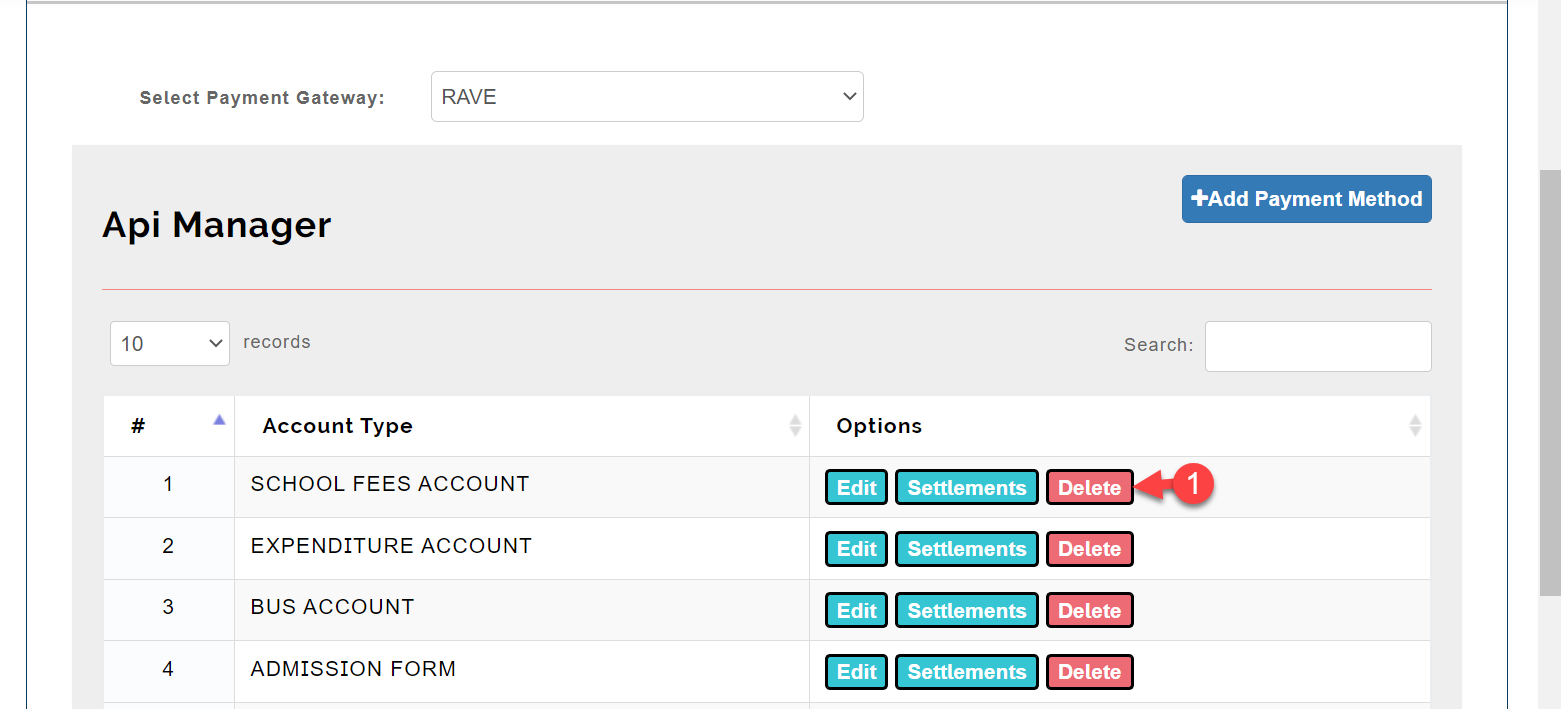
fig 3
Click on Delete to confirm request.
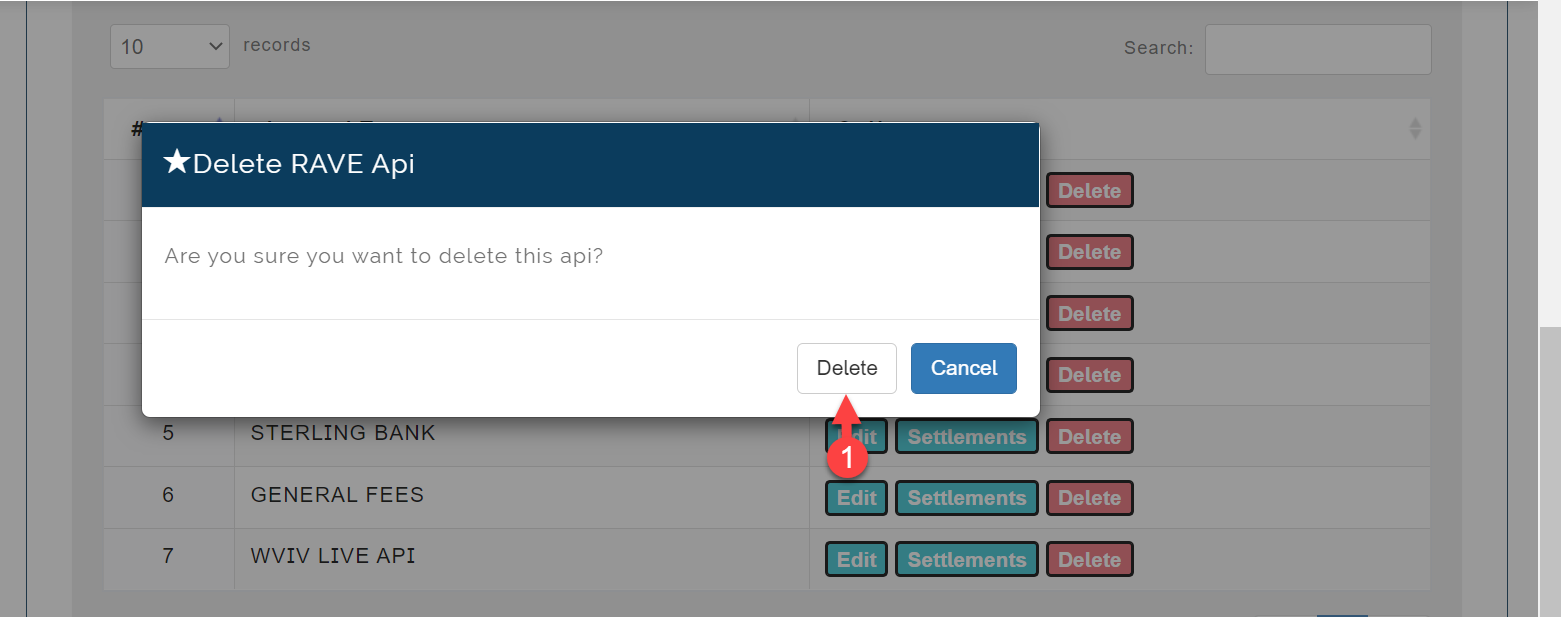
Step 3: Manage Account Heads
What is an Account Head?
Account heads is basically a name under which particular types of transactions are recorded. Suppose, if we put all expenditures under on account head i.e expenditure account and all incomes under one account head i.e. income account then it is not possible for the business man to know the detailed information of the expenditures and incomes.
To Manage Account Heads, follow these steps below;
- Click on Finance
- From the dropdown menu, select Account Setup
- Then click on Manage Account Heads tab as shown in the picture below
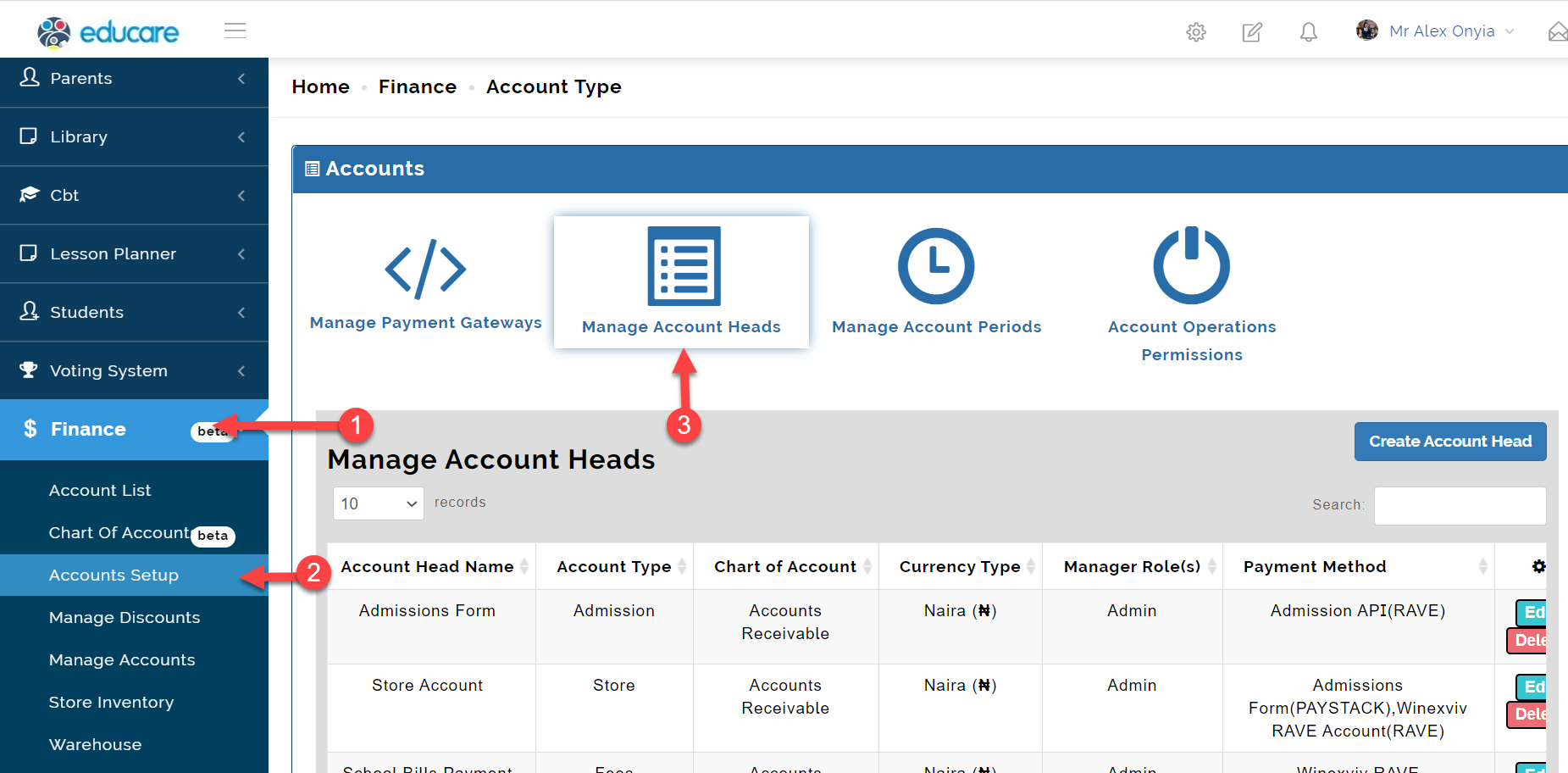
3.1 To create an Account Head,
Click the Create Account Head button on the top right as shown in the picture below.
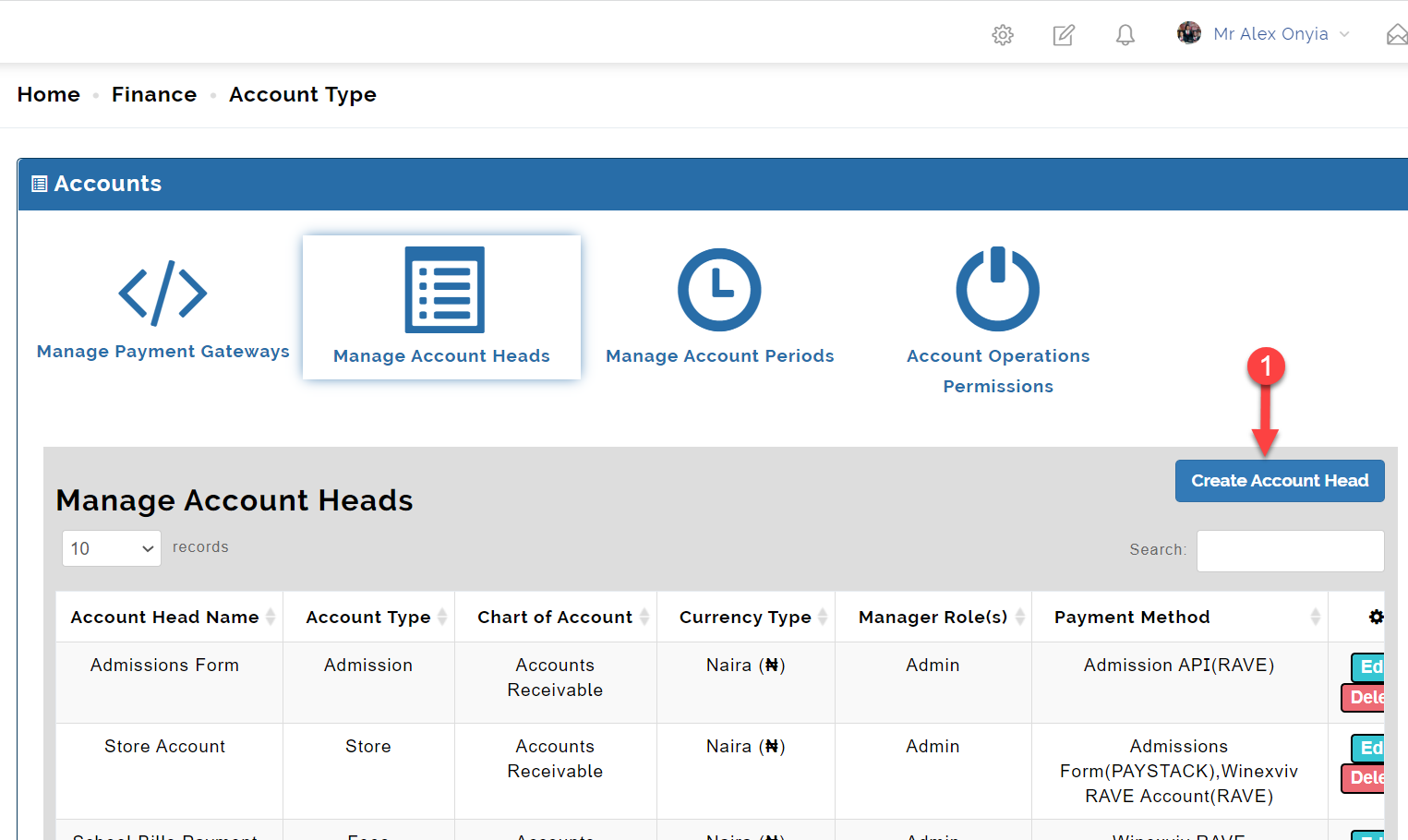
This opens up the form below
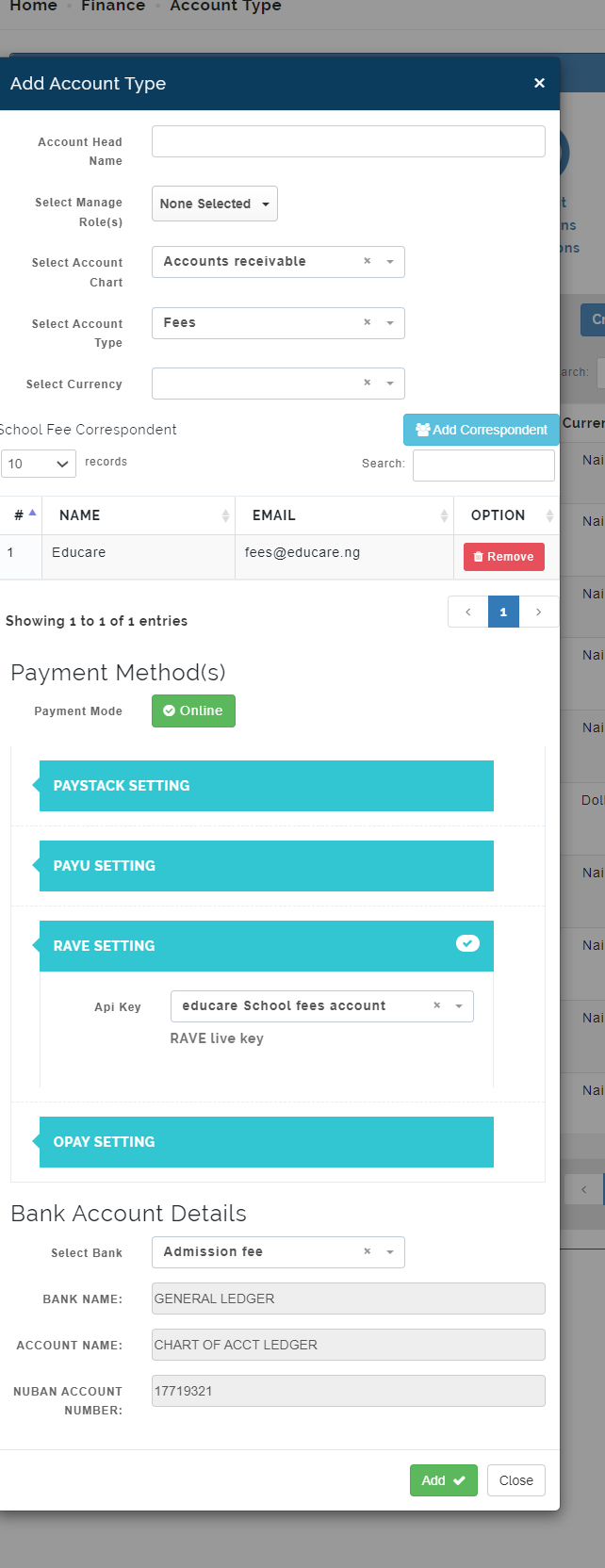
Create Account Head form
We are going to look into different sections of this form below.
*Section 1:
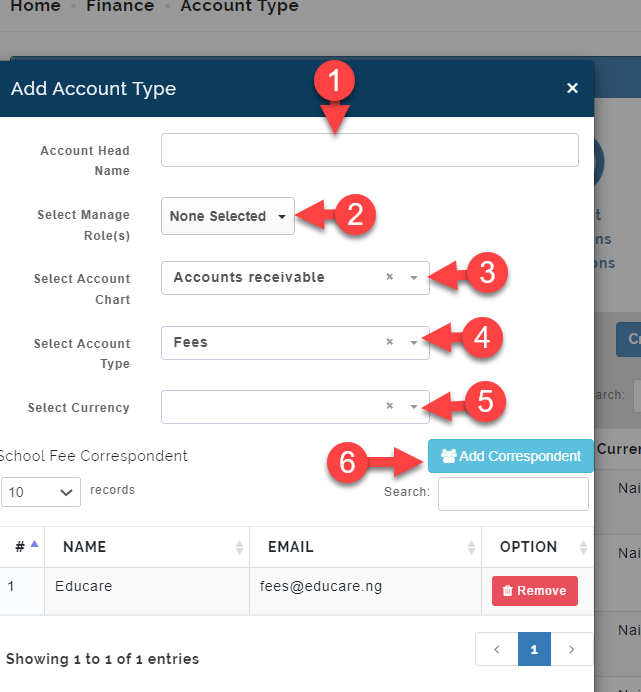
Section 1.
1. Enter the Account Name
2. Select role(s) to manage this account.
3. Select an account chart
4. Select an account type. Account type varies for different types of payment
5. Select Currency
6. The Add Correspondent button is for adding users that will be notified (by email) when payment is made under the account head and is only available for the account type Fees .
Clicking on the Add Correspondent button opens up the fields below
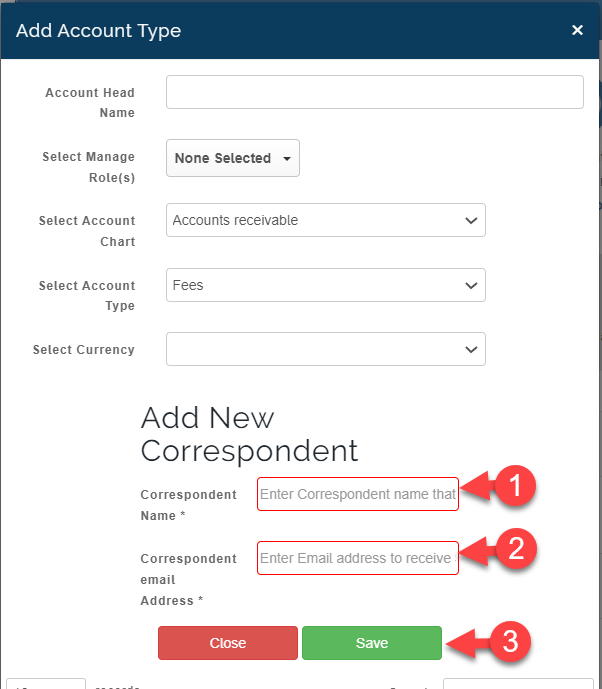
Add correspondent
Here you can enter the name and email of the correspondent and save
Section 2:
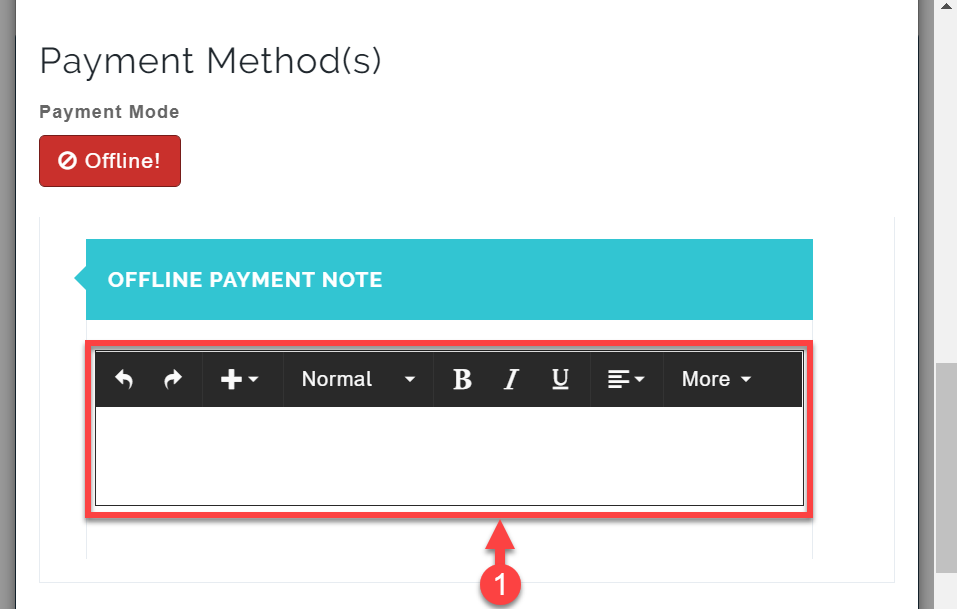
You can switch between Online and Offline payment by clicking on the Button indicated 1 below
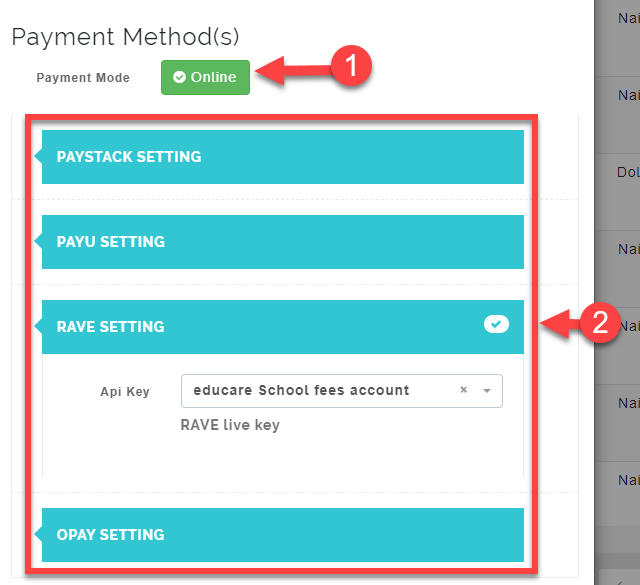
Payment Method
-
1. For Online payment, select the payment method you wish to use for the account head and select the API Key you already created in the Manage Payment Gateway
-
For Offline payment. you just need to enter the Offline Payment Note in the textbox provided.
Section 3:
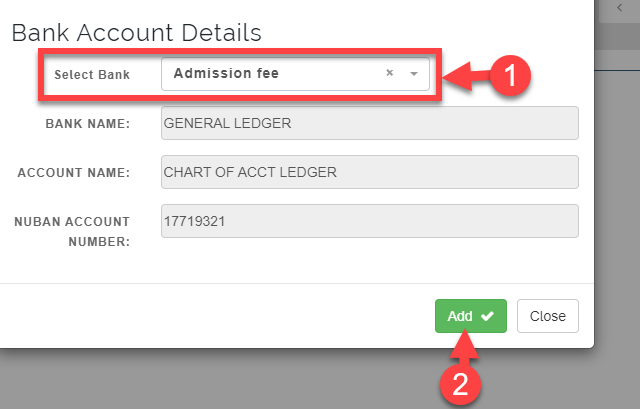
Bank Account Details
How to Create Account Head for Fees
Click on create account head button
Enter the account name as SCHOOL FEES
Select who manages the role
Select chart of account as account receivables
Select account type as FEES account
NB: Fees account is the only account type that can receive or generate manual invoices
Add correspondent name and email
NB: It's for adding people that will be notified (by email) when payment is made under that account head (School Fee)
Select Rave settings to link the API to the fees account head
Click on ADD to create fees account
How to Create Account Head for Stores
Stores account head manages and records transaction in store inventory unit.
Enter the account name as STORES
Select who manages the role
Select chart of account as account receivables because it generates revenue
Select account type as STORE account
Select Rave settings to link the api to the Stores account head
Click on add to create stores account head
How to Create Account Head for Admissions
Admission account head manages all the transaction and records of admission form sold using the system
Enter the account name as ADMISSION
Select who manages the role
Select chart of account as account receivables because its generates revenue
Select account type as ADMISSION account
Select currency
The system automatically fetch the available schools with a price tag box for the admission form
Enter the amount and check the box
when parent fills the form online, the system direct them to how to proceed to payment showing the price of the form.
Select Rave settings to link the API to the ADMISSION account head
Click on add to create admission account head
How to Create Wallet Account Head
Wallet is created for every parent on the system, the wallet can be credited, when an invoice is generated the system automatically deduct the amount from the parent wallet and clears the invoice as PAID.
The wallet is also a stand alone module, in the system. The account head for wallet is created on finance, in order to reconcile payment coming from wallet system.
DIRECT TRANSFER can be done into the school account using the wallet system.
Enter the account name as WALLET
Select who manages the role
Select chart of account as account receivables because it generates revenue
Select account type as WALLET account
Select Rave settings to link the api to the wallet account head
Click on add to create wallet account head
Step 4: Manage Account Periods
Manage Account Periods
An accounting period is the time frame for which a business prepares its financial statements and reports its financial performance and position to external stakeholders.
NB: In educare, once a new session is created, the account session is automatically created too
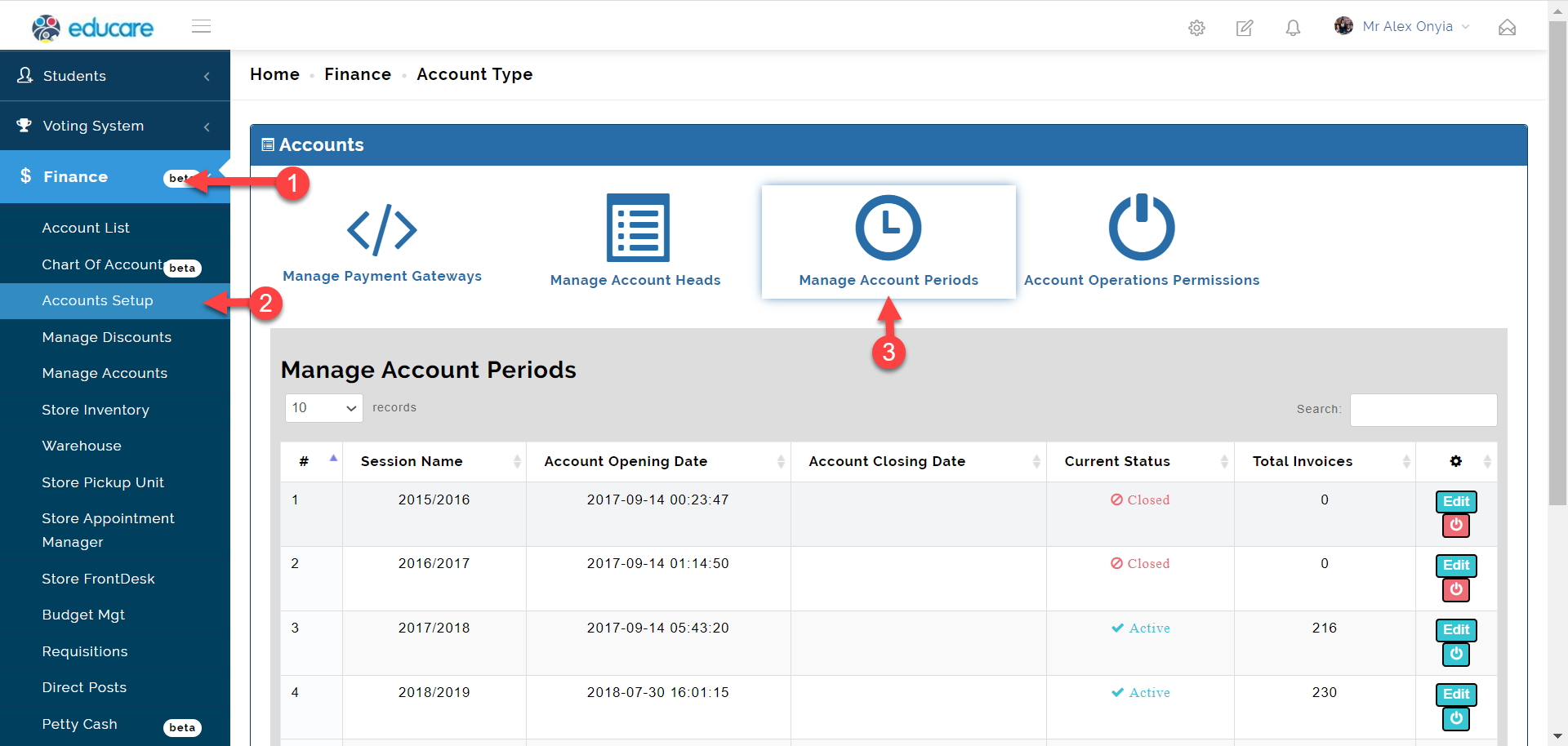
To Manage Account Period, follow these steps below;
- Click on Finance
- From the dropdown menu, select Account Setup
- Then click on Manage Account Period tab as shown in the picture below
Manage Account Periods
Icon Description
Below are the descriptions of the icon seen on the Manage Discount
1. The Edit icon is used to edit an accounting period.
To edit an accounting period, click on the edit button as see below.
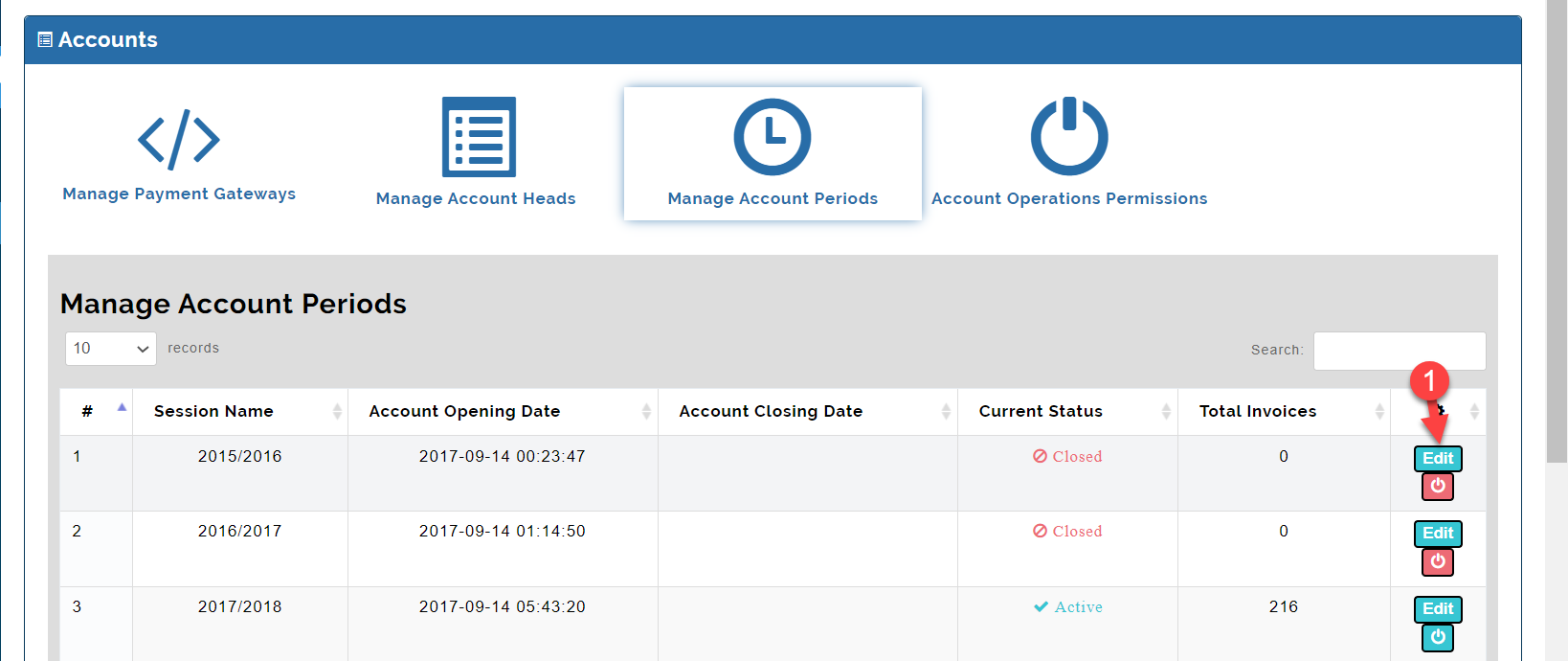
This opens up the page where you can edit the Opening and Closing date
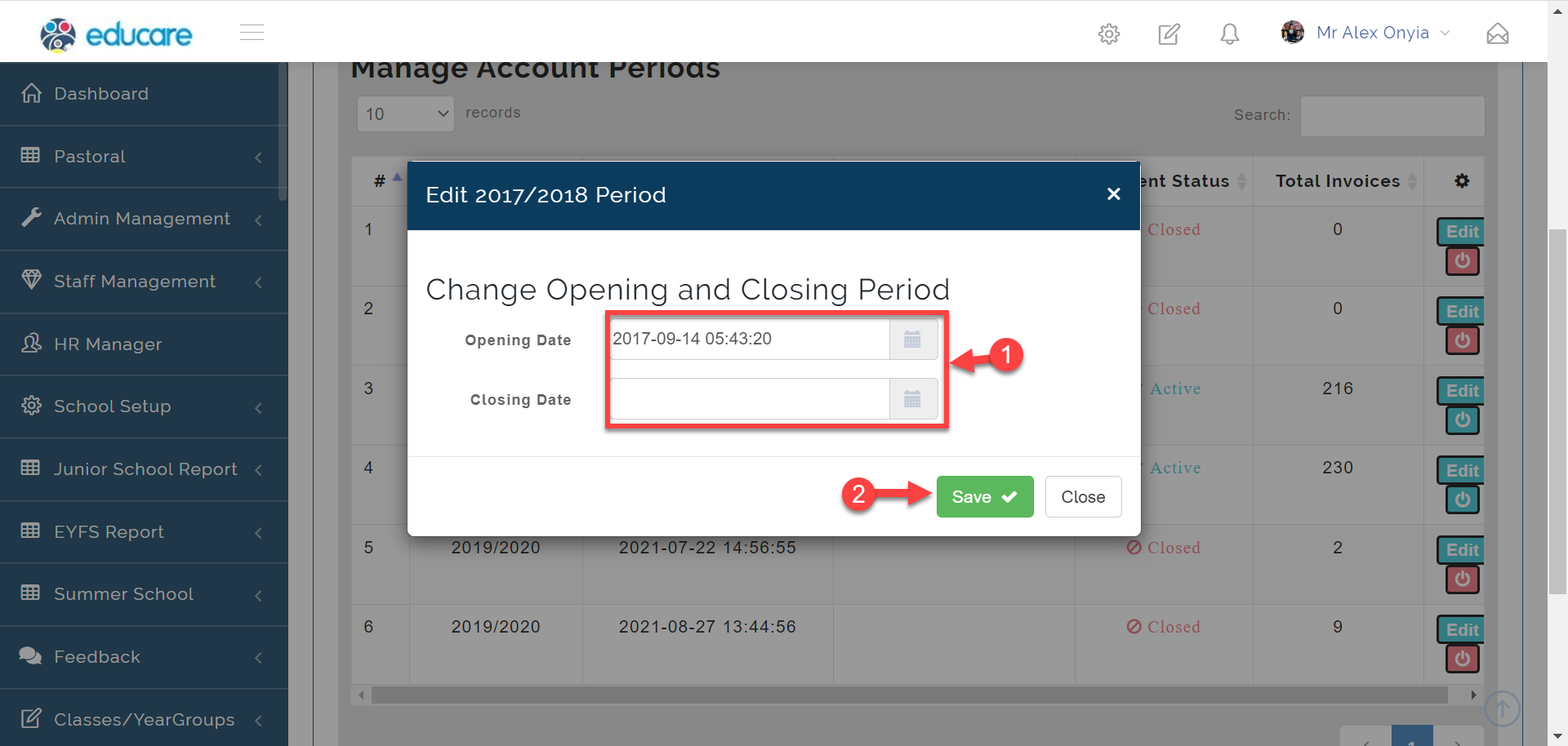
2. Toggle Account Period Status is used to turn off and turn on accounting periods.
To Toggle Account Period, click on the edit button as see below.
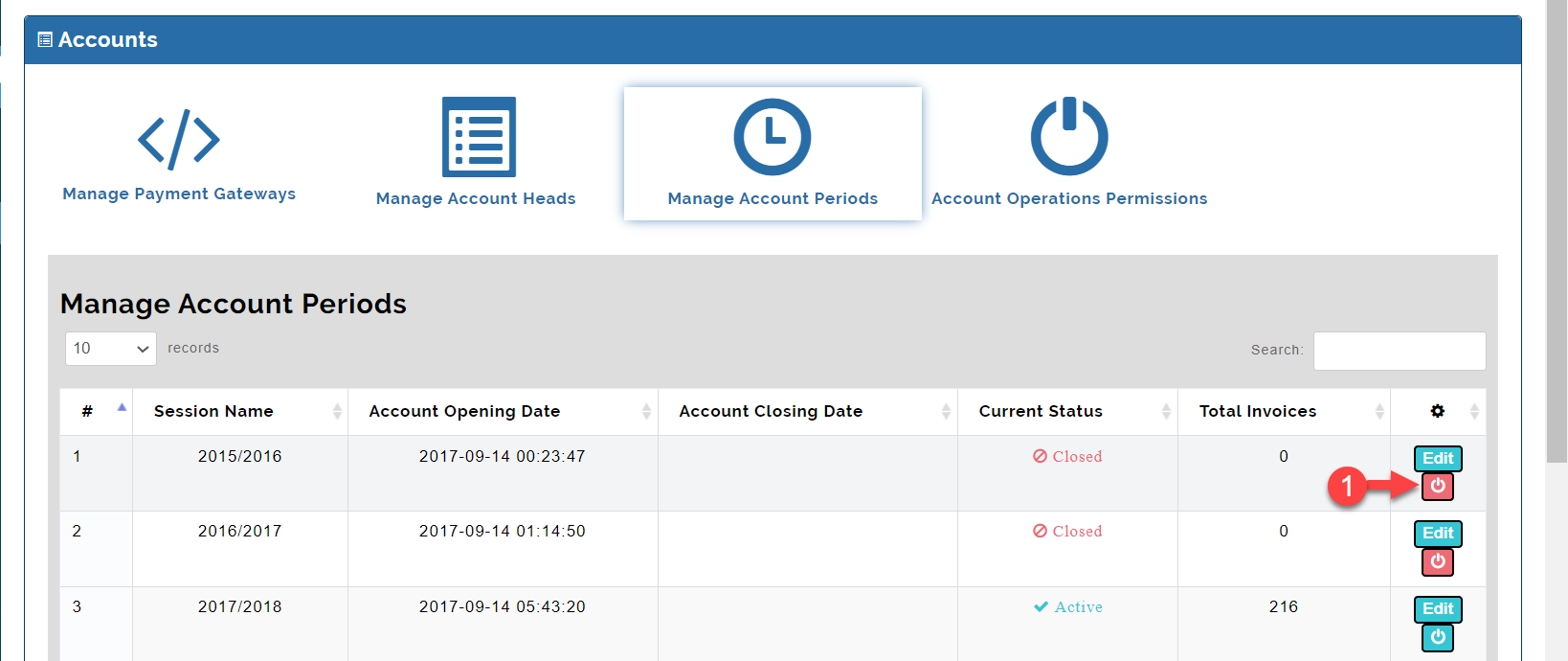
this opens up the modal below
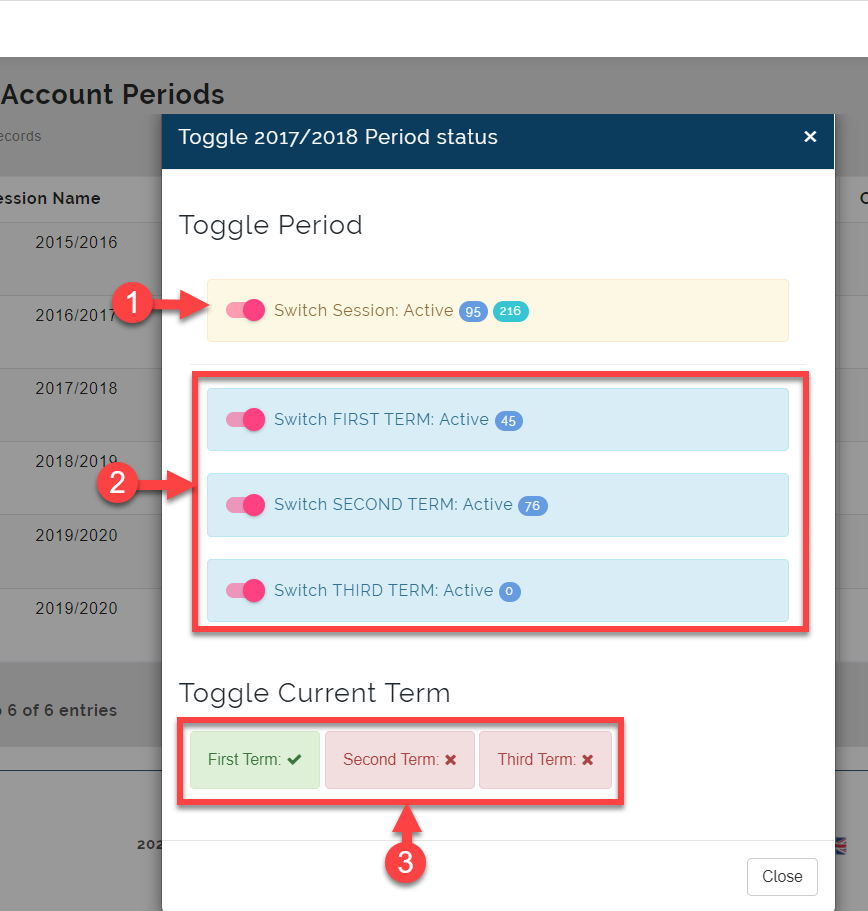
Here you can;
1. Activate or Close a session by clicking on the toggle icon. This carries out the action for all terms in the session.
2. You can Activate or Close a term by clicking on the toggle icon.
3. Use this to select the active term.
info
When a session or term is close, every pending transaction on that term/session will also be closed.
Then system automatically appends pending bills as arrears to active term or session.
Step 5: Account Operations Permissions
Account Operations Permissions
User permissions in accounting software are important to control data integrity and reduce mistakes. Account Operations Permissions is where the admin assigns users to different roles they should have access to in the accounting module.
To access the Account Operations Permissions, follow these steps below;
- Click on Finance
- From the dropdown menu, select Account Setup
- Then click on Account Operations Permissions tab as shown in the picture below
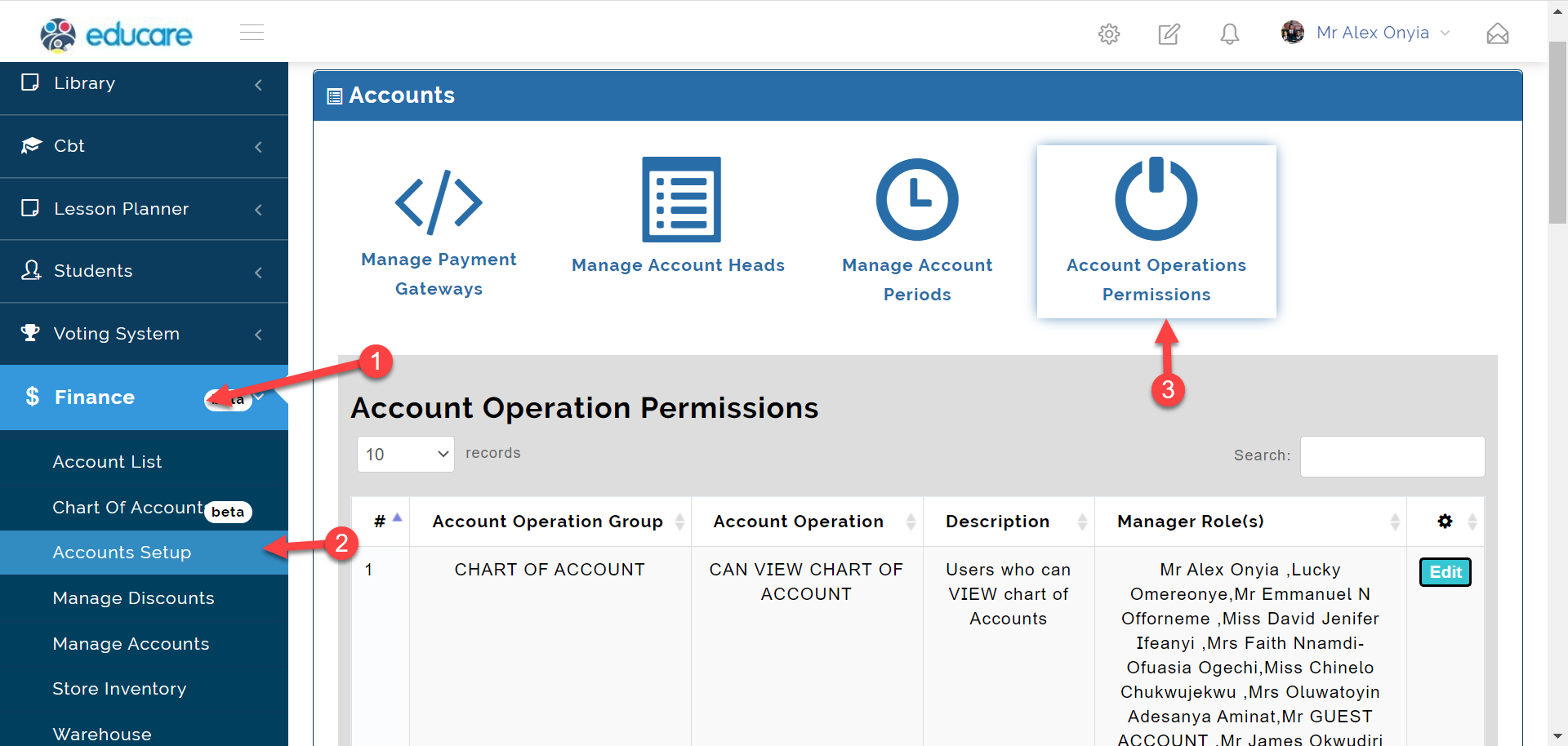
4.1 To set permission for who can view the account operations simply click on the edit button as indicated in the picture below.
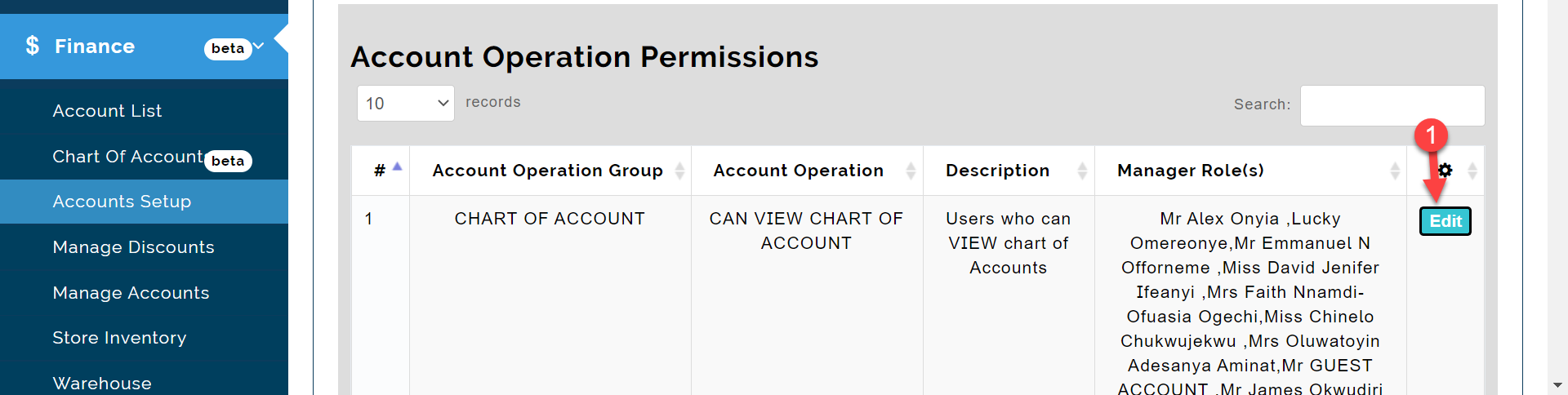
this opens up the modal below
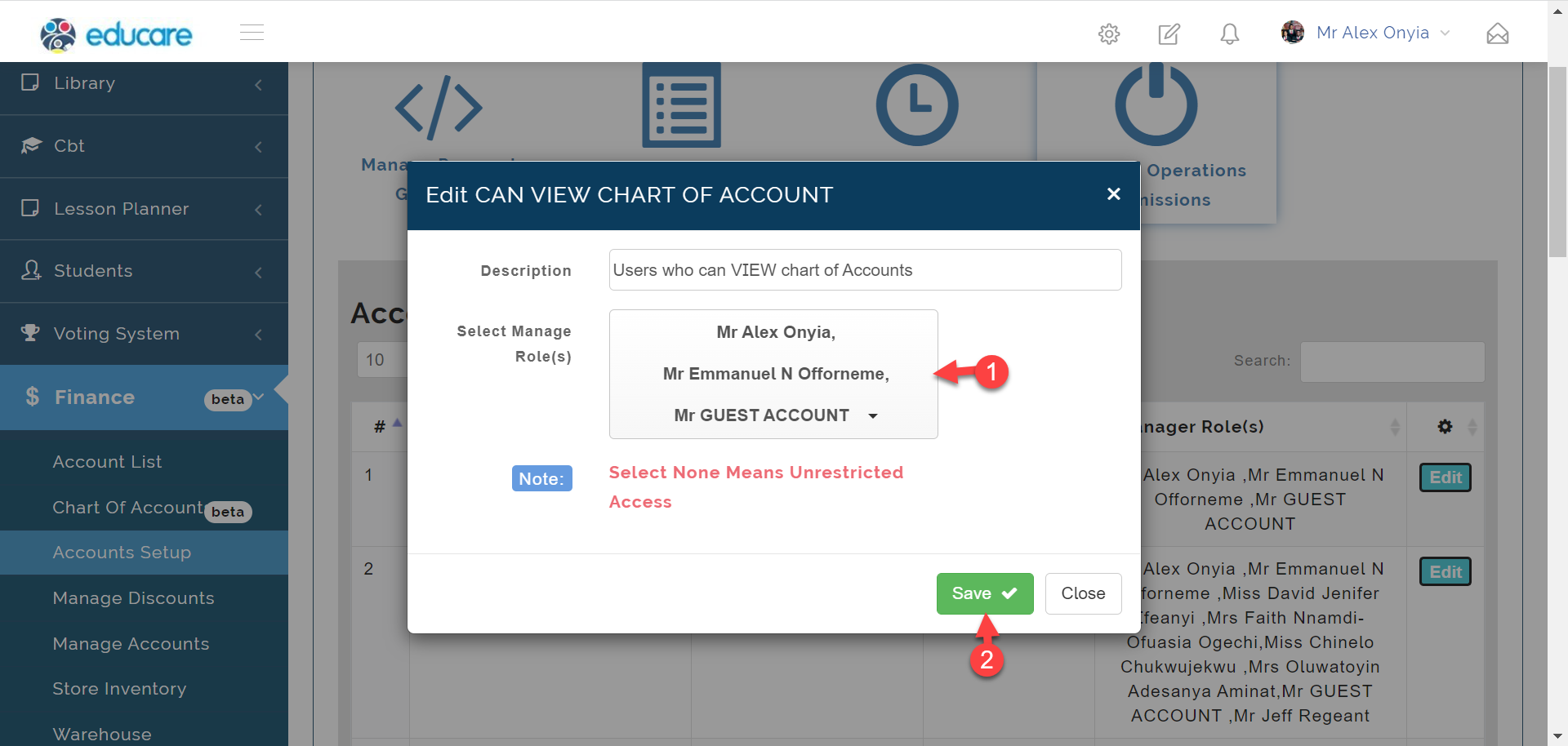
Here you can;
1. Select users who can view the selected account operations
2. Click on save to save changes.