This is a process used to plan and track expenditures. It help control fund theft in the finance department, giving school owners a more transparent financial system.
Add Budget Category
This tab allows accountant to create different budget item setup
How to create Budget Category Setup
To create budget category setup, follow these steps;
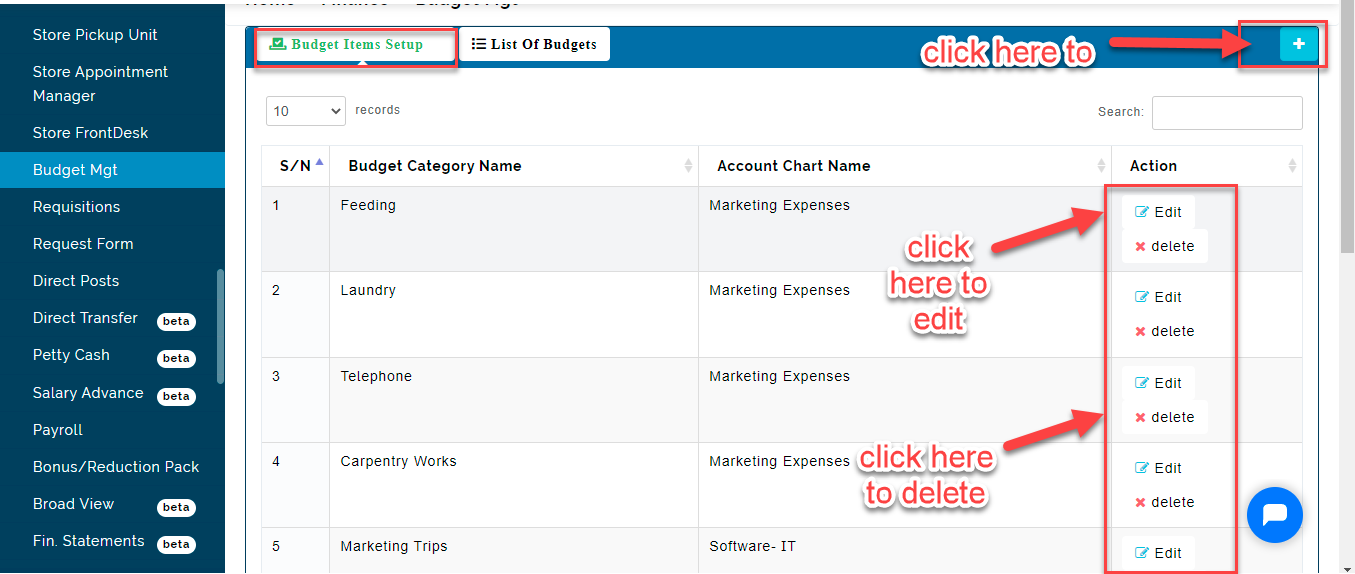
- Click on the blue (+) button
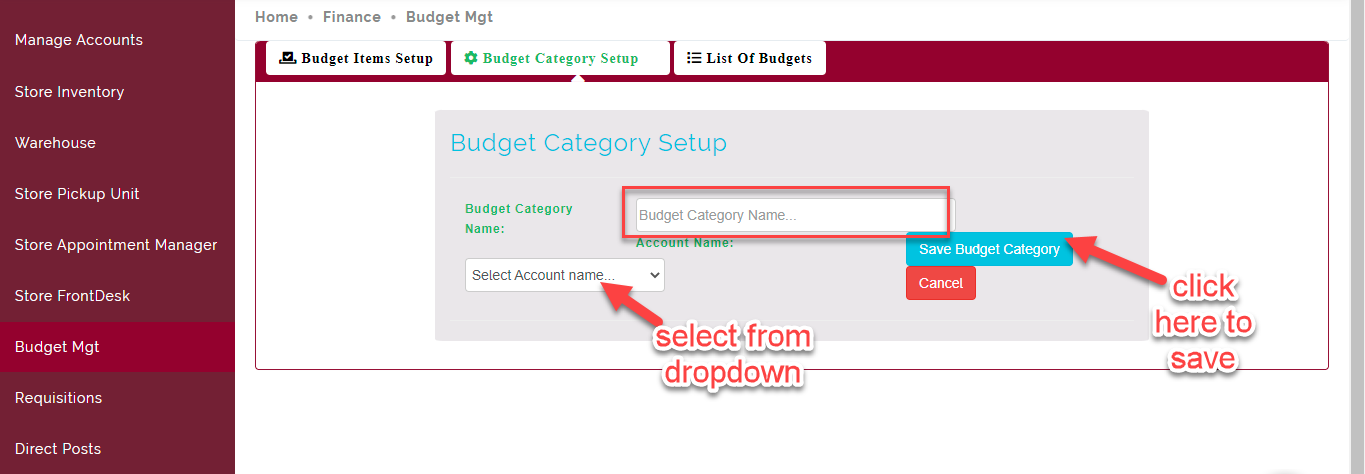
- Enter budget category name
- Select chart of account name that the category name falls under
- Click on Save budget category
To edit Budget Category, follow these steps;
- Click the edit button on the row of interest, to make changes
- In the row ( that is the Edit Dialog Box), edit the budget category name and change account name
- Click on Save button
To delete Budget category, follow these steps;
- Click the delete button to remove a category name created
- Confirm your action, by clicking the delete button again on prompt
Delete Budget Category
- This is an irreversible action. So the system requests your confirmation before this action is carried out.
View List of Budget Table
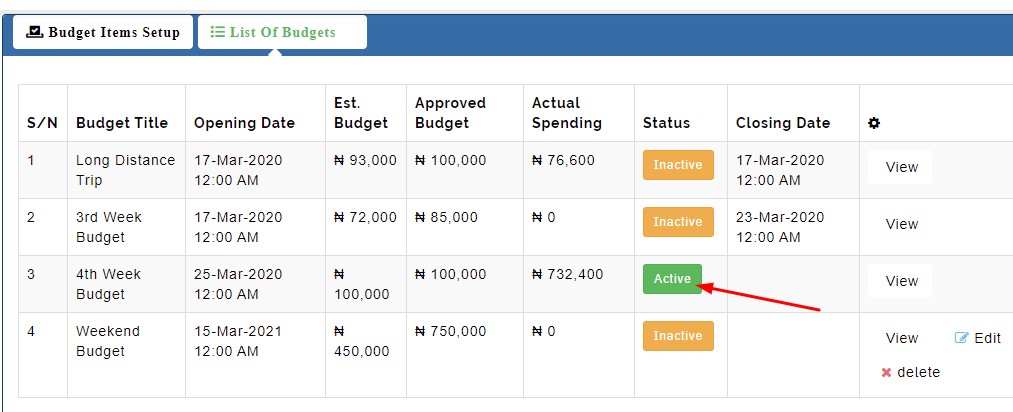
This table shows list of estimated budgets from an approved budget for an expense for a particular period of time.
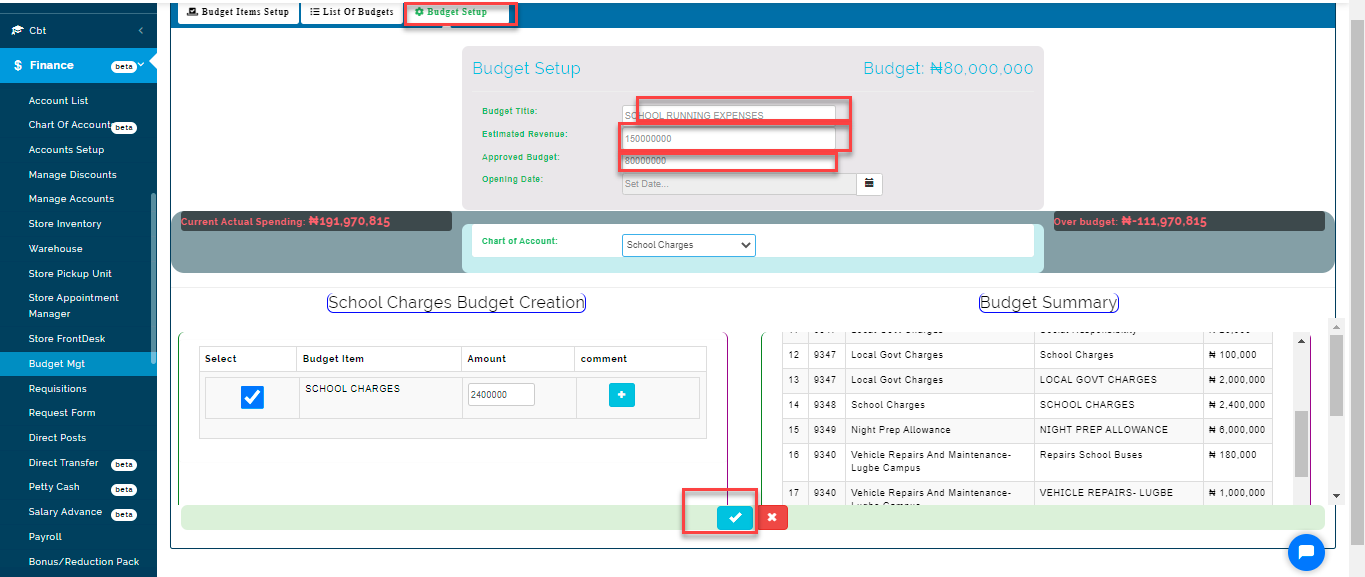
How to create Budget Setup
To create Budget Setup, follow these steps;
- Click on the blue (+) button
-
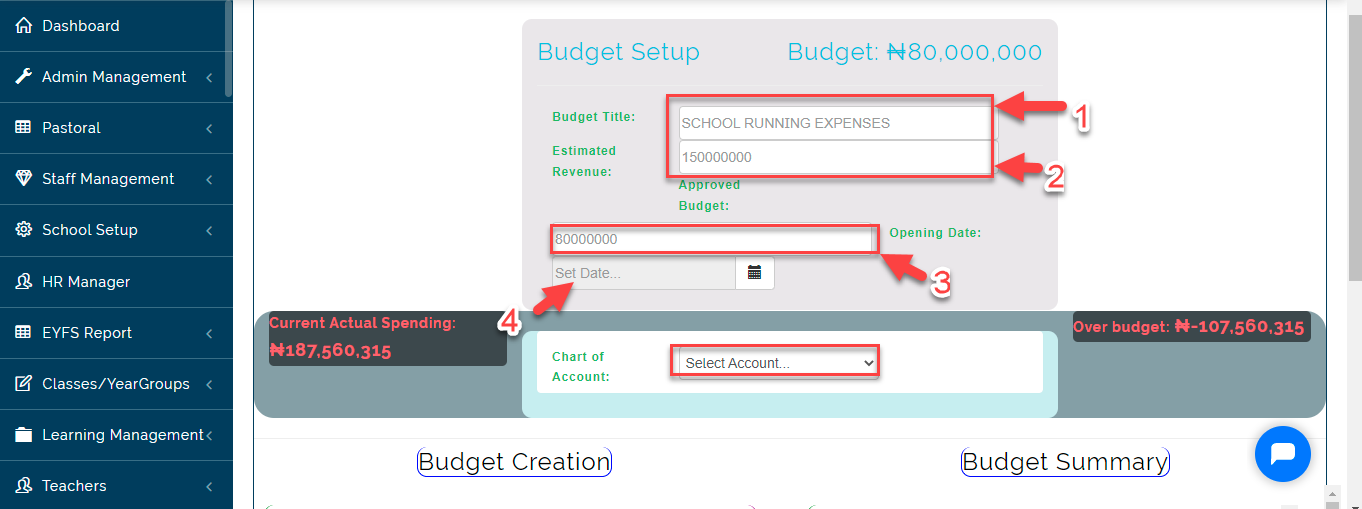
Enter the budget title for that plan
-
Enter an estimated income generated from the school
-
Enter the approved amount for that budget
-
Set a date
-
Click on save instance budget
-
Select chart of account name, to view the budget item under it
-
Enter price for the item and check the box ; it goes under the approved budget list
- Click the blue button to process the approved budget list setup
Budget Note:
Only the budget that is active that requisitions can be made on.
An activated budget cannot be deleted.