
Library catalog list is a listing of all the items within a schools library module. Here you can add new books or eBooks to the library, edit or delete, and generate barcodes.
How to add Books and eBooks
To add a book to the catalogue, follow these simple steps;
- Click on the Library Module from the list of modules on the left corner of the portal.
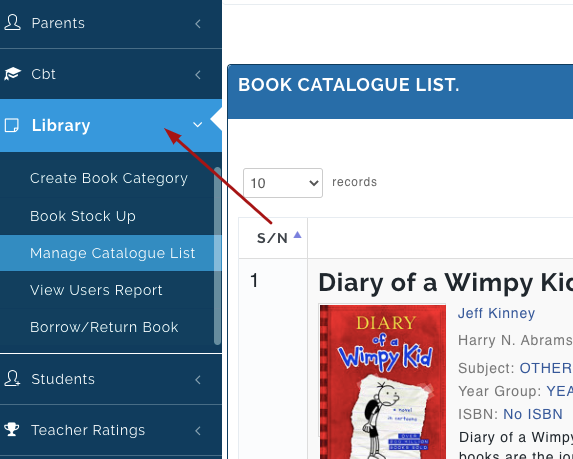
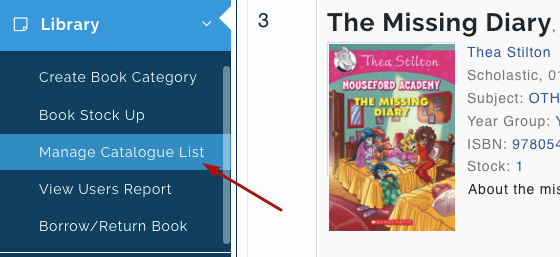
- Click on Manage Catalogue List.
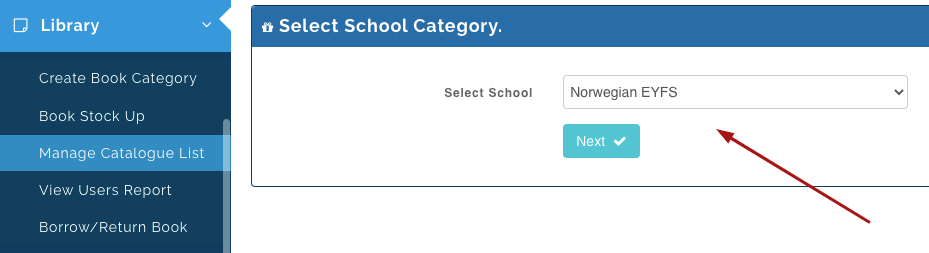
- Select the school you want to create books for (i.e. EYFS, Junior or High School) and click on Next button.
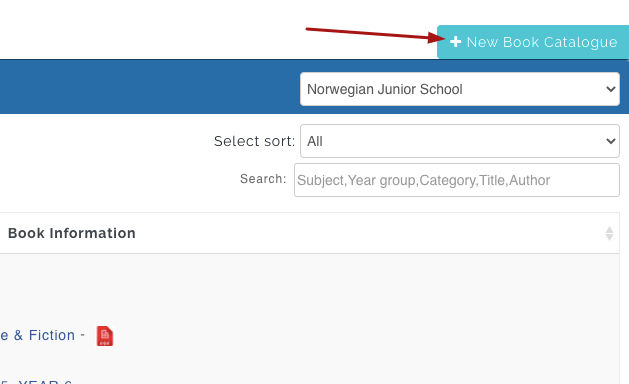
- Click on New Book catalogue
Pic. 1
- A Modal will appear, fill in the required fields with information of the book (you can find this in the book you want to upload)
- Book Picture field: You can upload the book cover from your PC or you can search for the book on your web browser and copy/paste the image address of the book cover in the space provided.
- For hard copy books, don't toggle the eBook upload button on, enter the number of available copies of the book you have in the library and the ISBN/ Barcode (can be gotten from the back of the book)
- Click on Create to save.
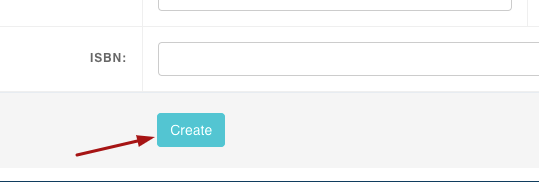
N/B: If you are uploading an eBook, toggle the button for eBook upload on to insert the pdf from your PC and click on Create
How to Edit or Delete Uploaded Books
Edit Book: To edit a book from catalogue list, click on the edit button under Manage Catalogue list
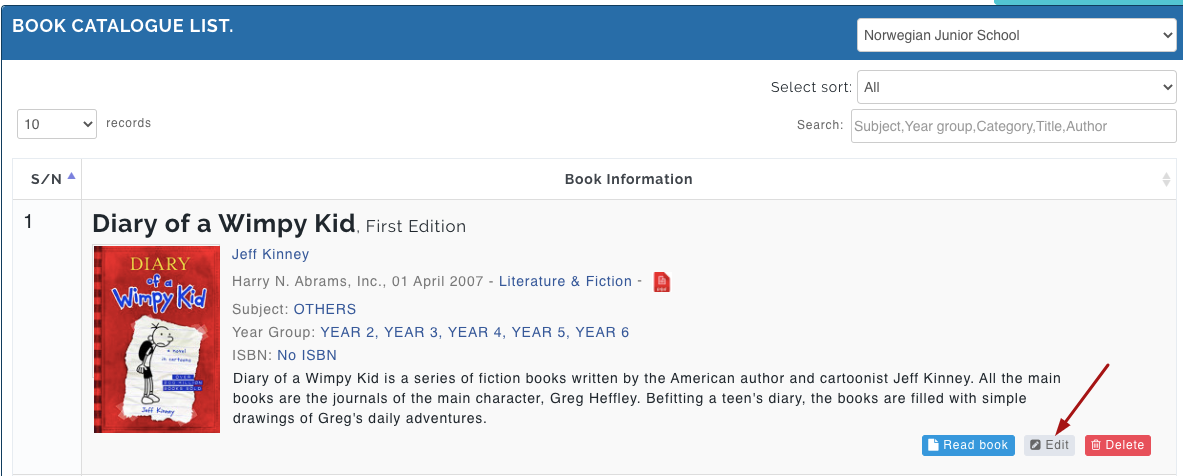
Pic. 4
Delete Book: To delete a book from the catalogue list, click on Delete
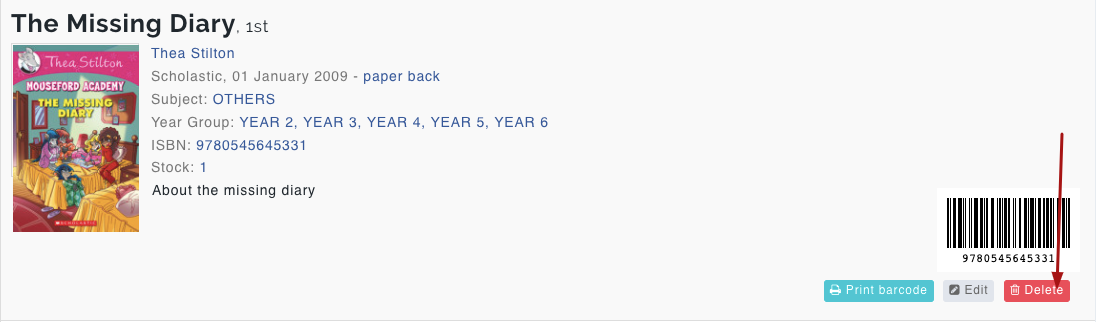
Note: For hard copy books, after you have created a book, the system generates a barcode according to the number of Available copies in the school library. This Barcode should be printed and attached to each book for identification when loaned to a User.