This is where the admin can set which role(s) should be give permission to Send and Receive Message, Change Avatar, Comment on News Feed, Give Direct Post, Birthday and edit Personal Profile on the portal. This is where the admin can set which role(s) should be give permission to Send and Receive Message, Change Avatar, Comment on News Feed, Give Direct Post, Birthday and edit Personal Profile on the portal.
Message Permissions
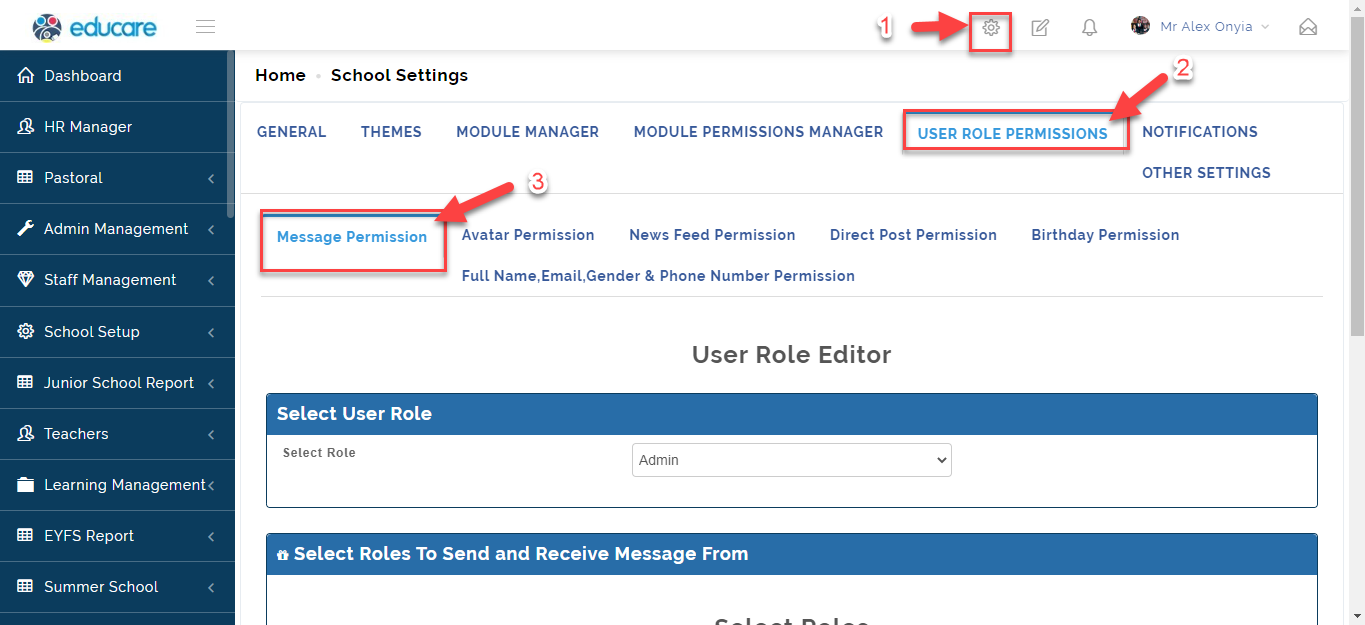
To give Message Permission to Users, Follow these Steps:
- From Settings, Click on User Role Permission then Select Message Permission.
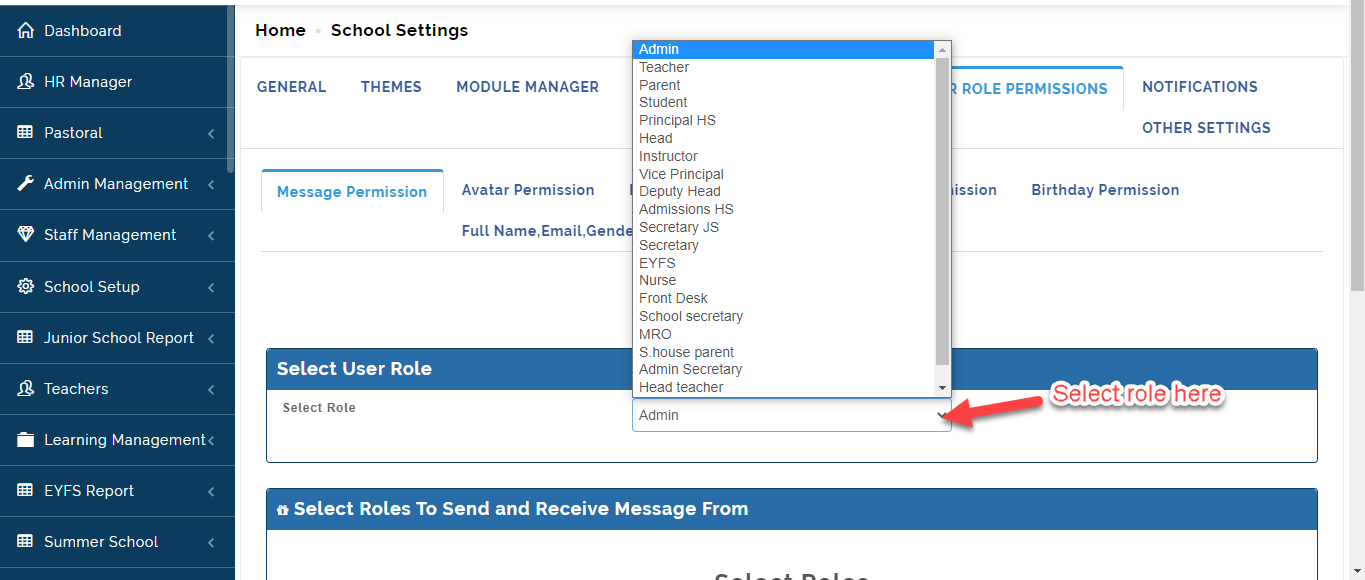
- Select the User Role you want to give Message Permission to using the drop down indicated below.
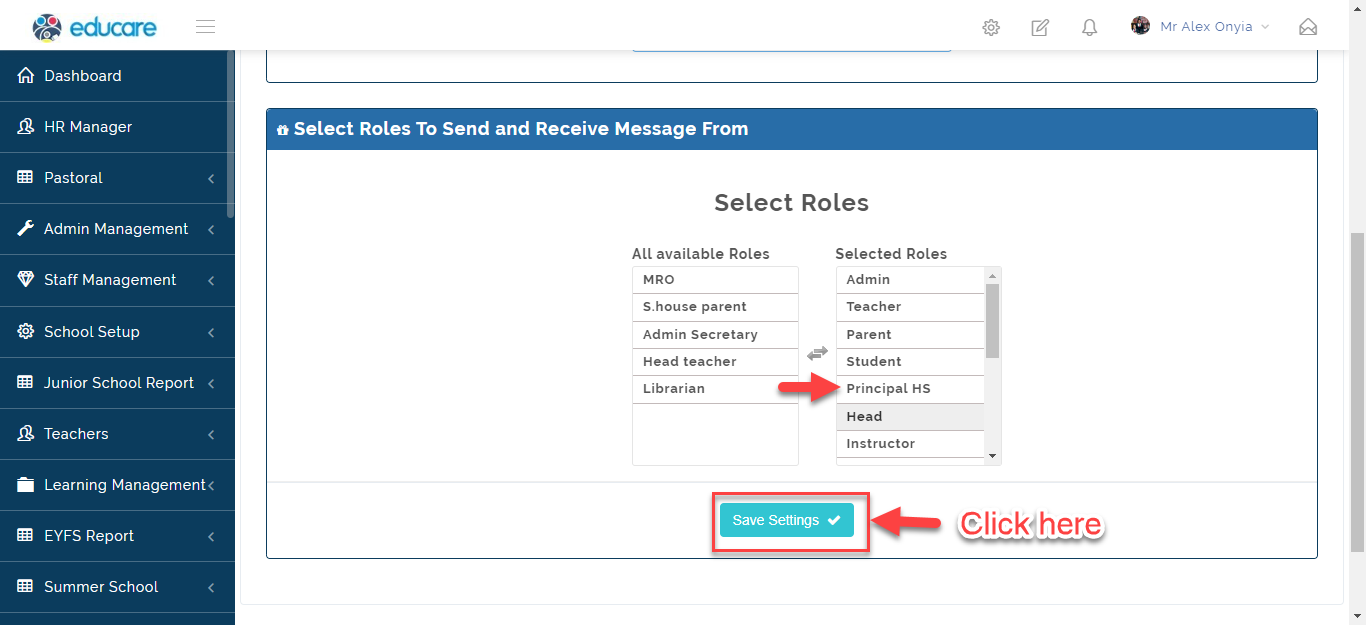
- Click on the Role name(s) under All Available Roles that should be able to send and receive Message from the Role you Selected to Selected Roles column then click on Save Settings.
Avatar Permission
To give Avatar Permission to Users who should be able to Change their Profile Display Picture , Follow these Steps:
- From Settings, Click on User Role Permission then Select Avatar Permission.
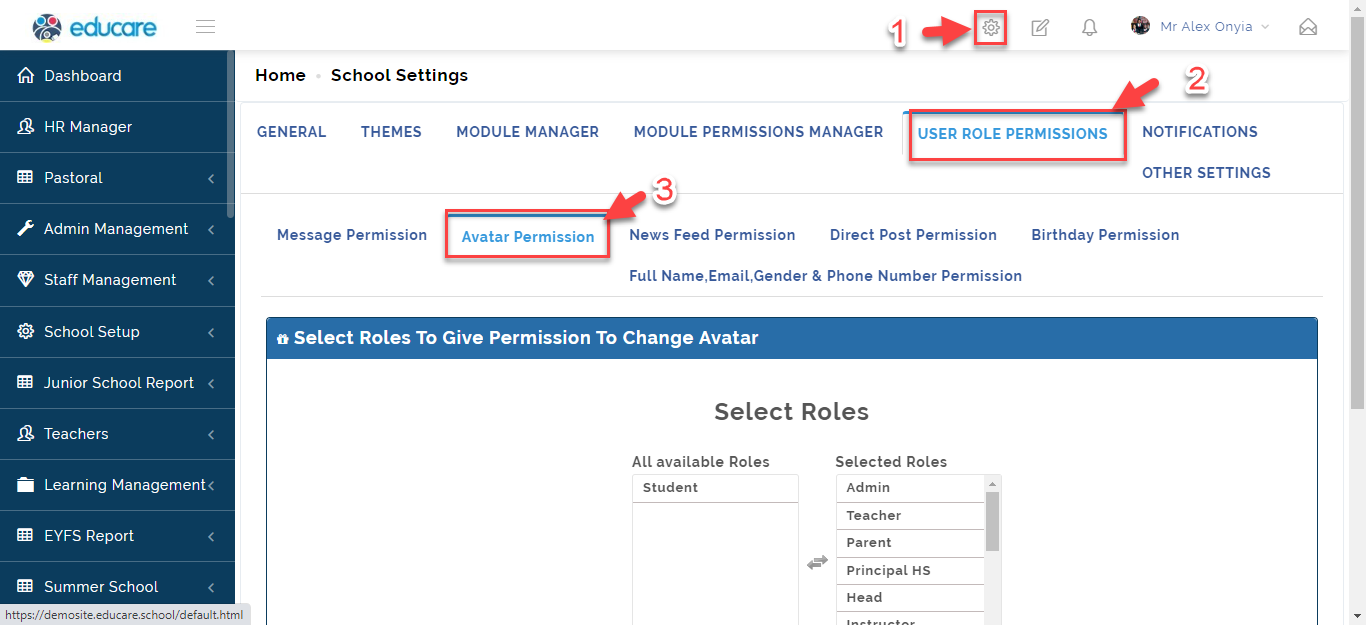
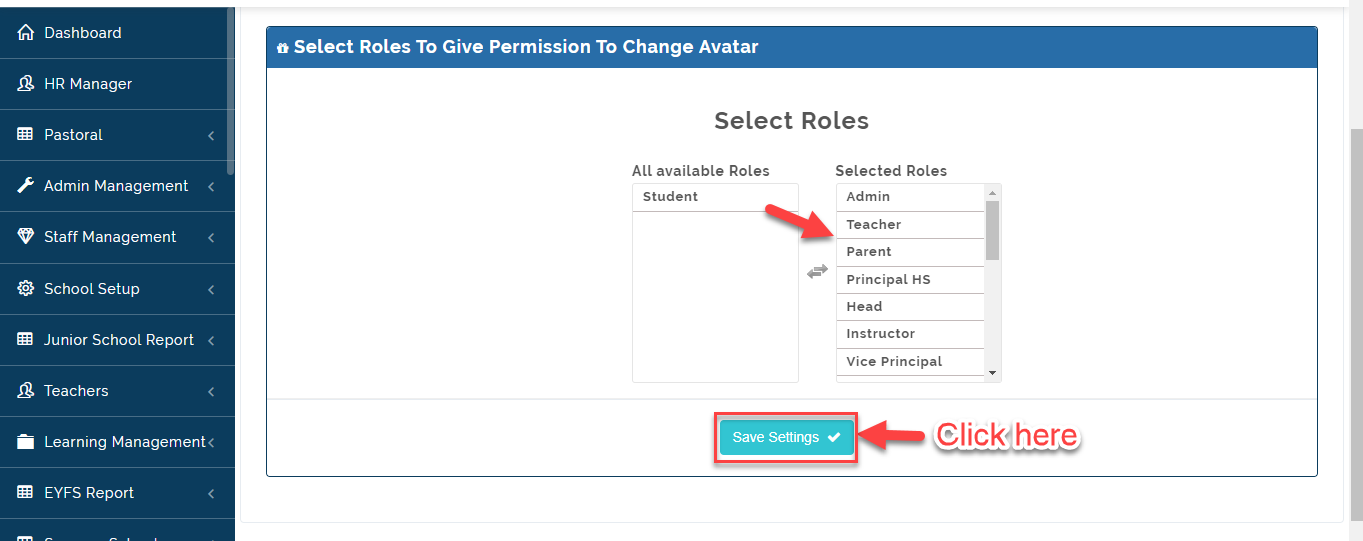
- Click on the Role name to Move the Roles that should be able to change their Avatar from All Available Users to Selected Roles then Click on Save Settings.
News Feed Permission
To give News Feed Permission to A Role , Follow these Steps:
- From Settings, Click on User Role Permission then Select News Feed Permission.
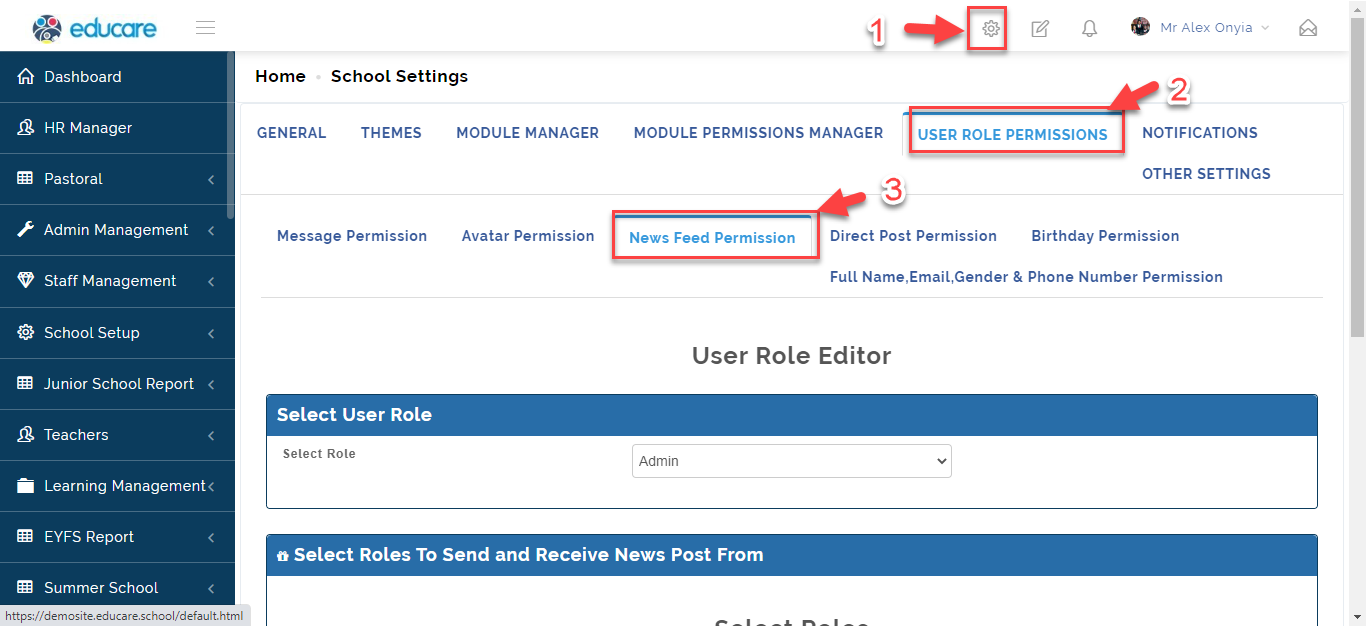
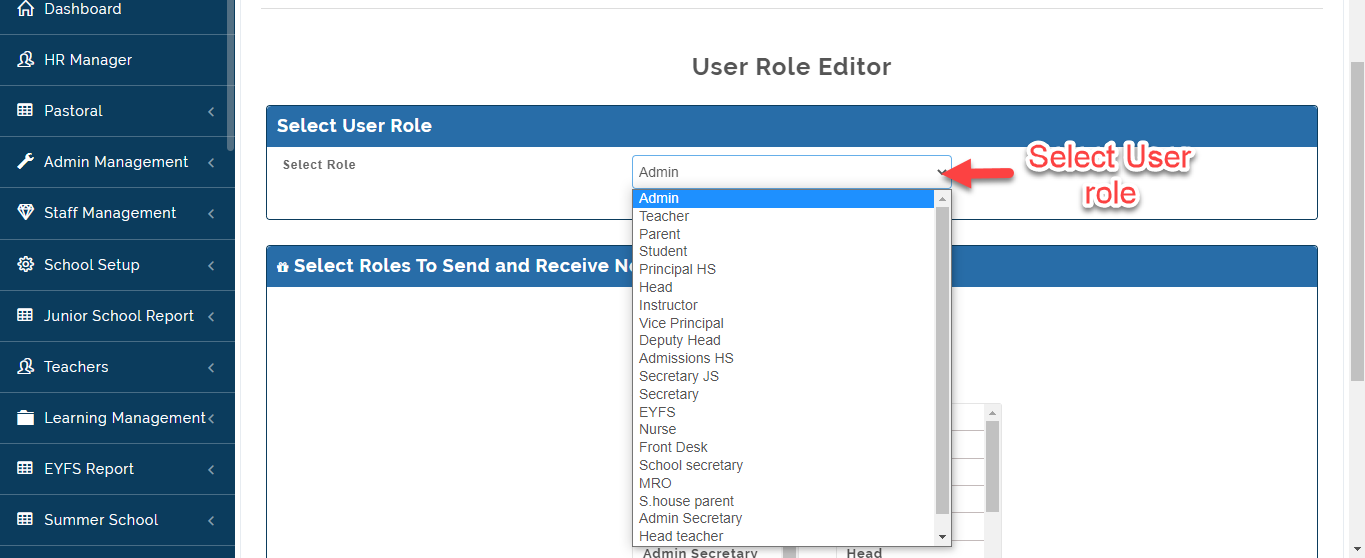
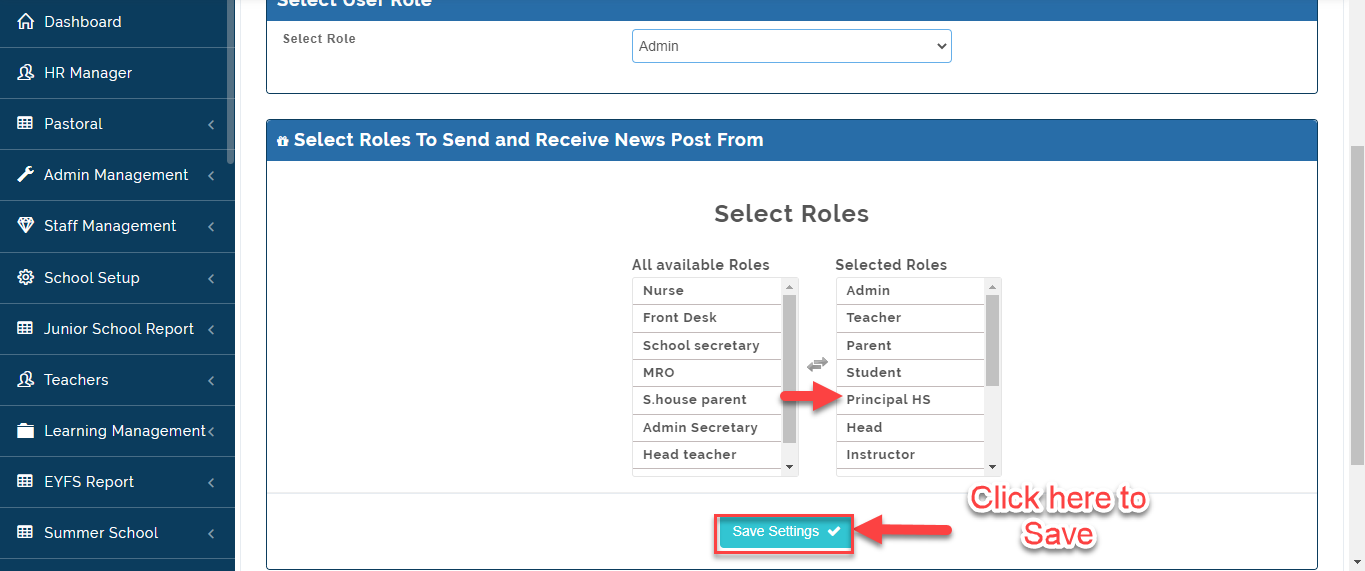
- Select the User Role you want to give News Feed Permission to using the drop down indicated below.
- Click on the Role name(s) under All Available Roles that should be able to send and receive News Feed from the Role you Selected to Selected Roles column then click on Save Settings.
Direct Post Permission
To give Direct Post Permission to Users who should be able to Post on News Feed Directly to Other Users without being vetted by the admin, Follow these Steps:
- From Settings, Click on User Role Permission then Select Direct Post Permission.
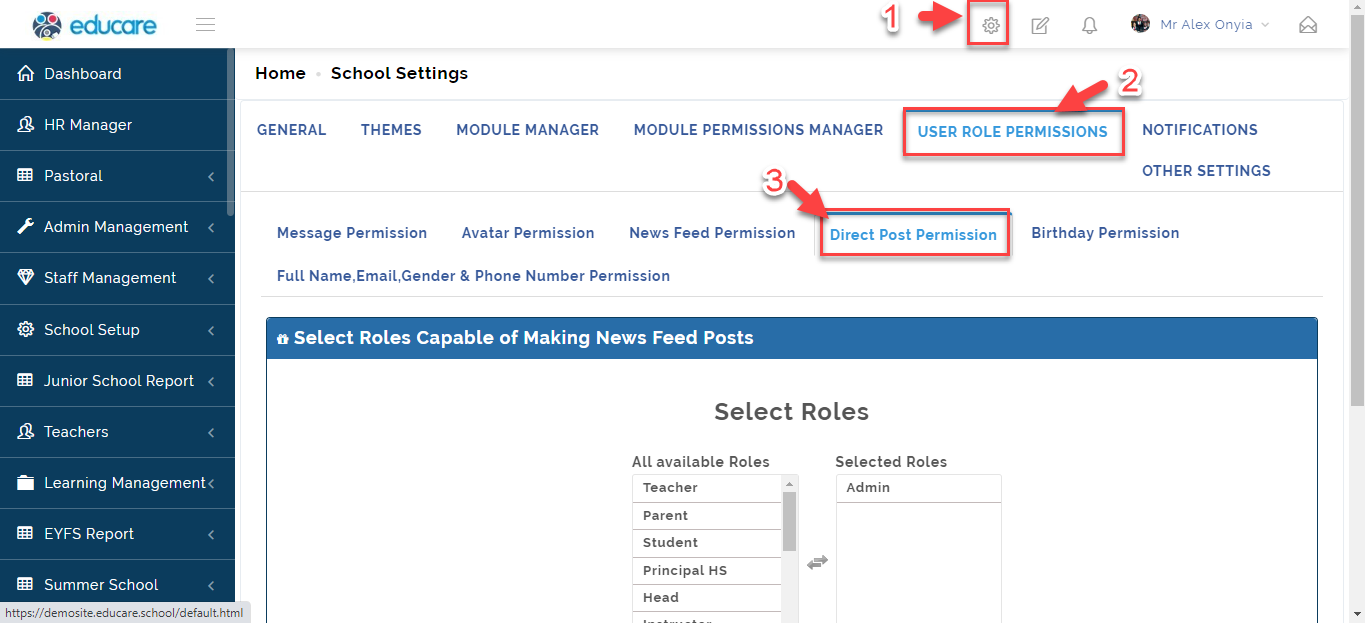
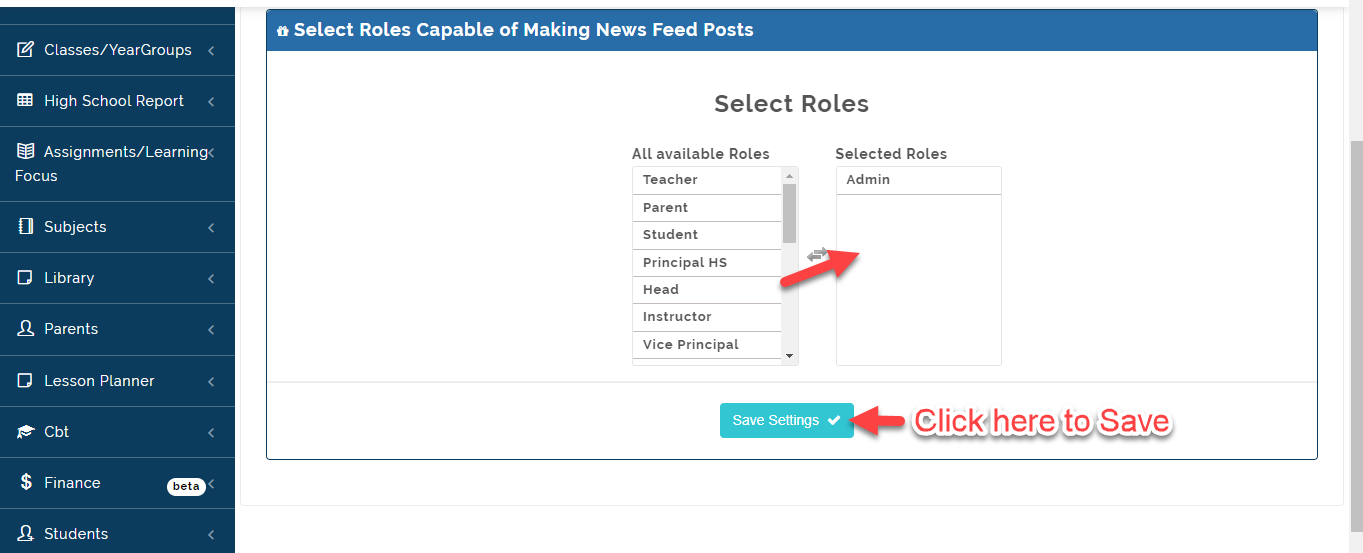
- Click on the Role name to Move the Roles that should be able to post on News Feed directly to other Users from All Available Users to Selected Roles then Click on Save Settings.
Birthday Permissions
To give permission to Roles that can see a User Birthday, follow these Steps:
- From Settings, Click on User Role Permission then Select Birthday Permission.
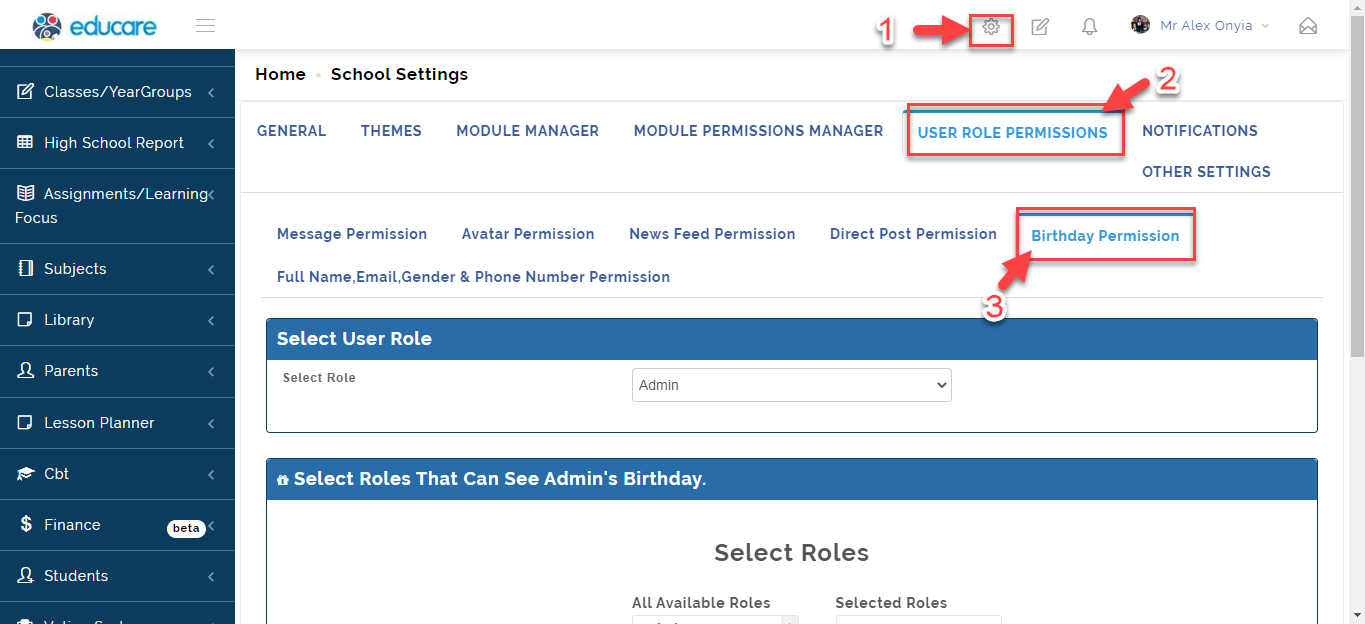
- Select the User Role you want to give others permission to see his/her birthday to using the drop down indicated below.
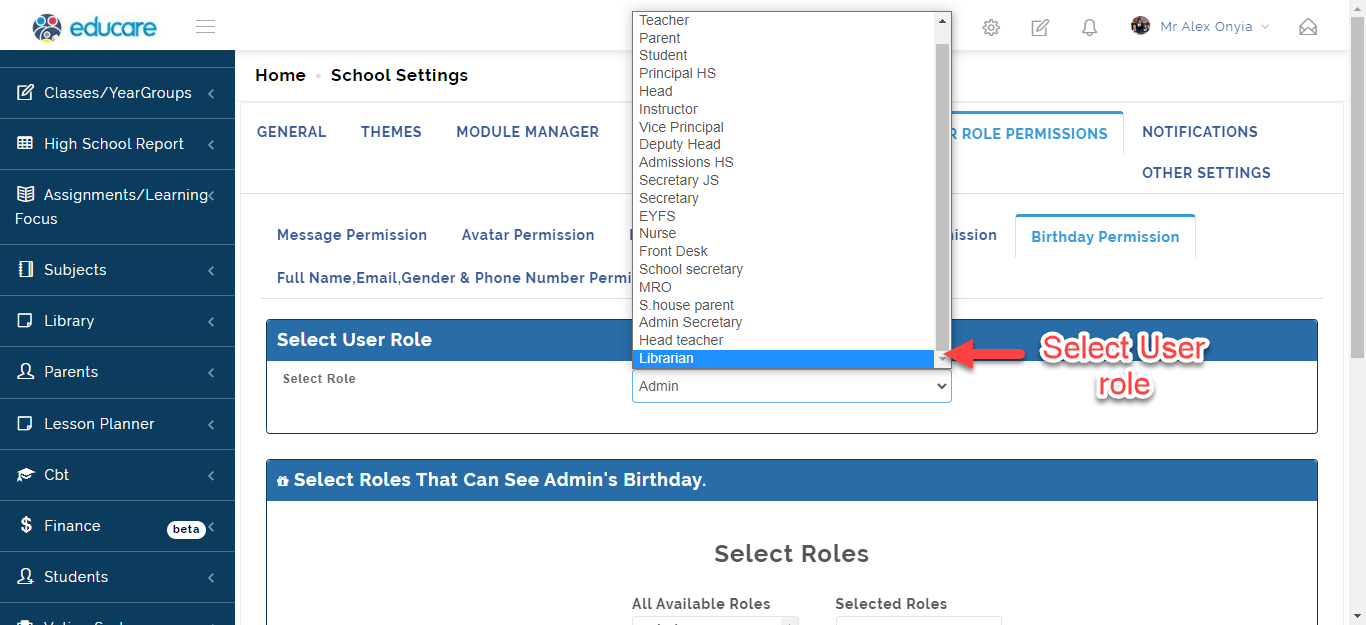
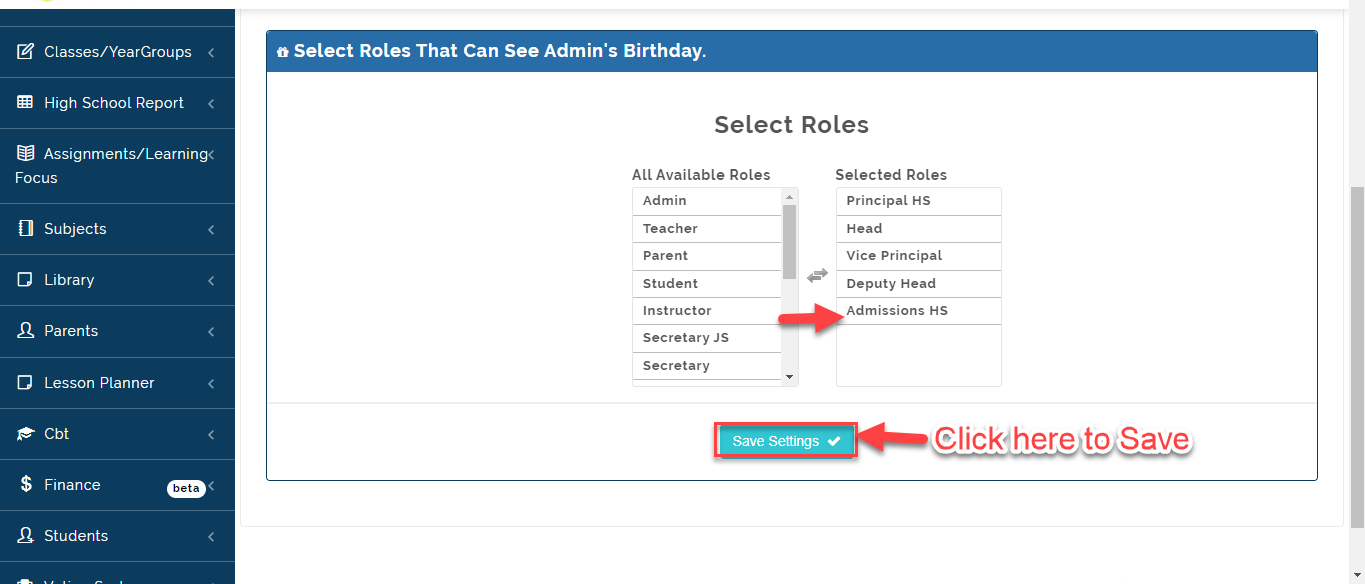
- Click on the Role name(s) under All Available Roles that should be able to See birthday of the Role you Selected to Selected Roles column then click on Save Settings.
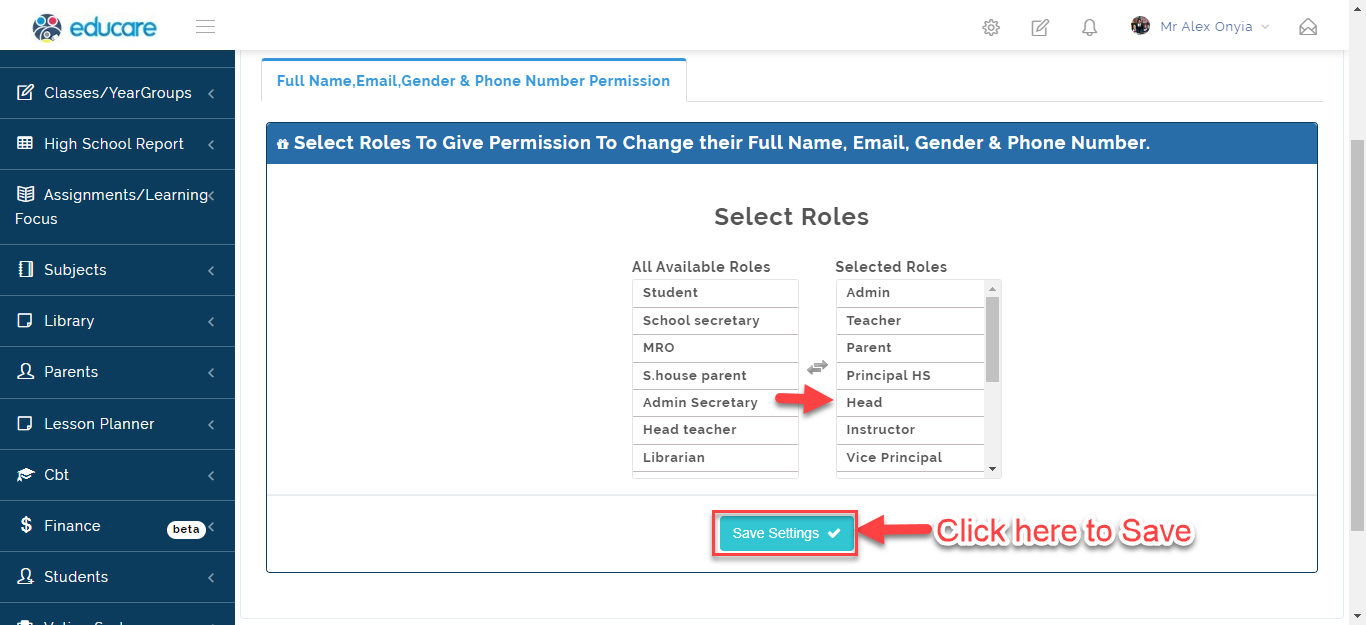
Full Name, Email, Gender & Phone Number Permission
To Give Permission to Role to change their Full name, Email, Gender and Phone Number, Follow these Steps:
- From Settings, Click on User Role Permission then Select Full name, Email, Gender and Phone Number Permission.
- Click on the Role name to Move the Roles that should be able to Change their Full name, Email, Gender and Phone Number from All Available Users to Selected Roles then Click on Save Settings.