Categories, weekly setup, settings, lesson plan schedule, lesson plan supervisor
Lesson Plan Categories
On Educare, the lesson plan attributes are broken down into categories. Under these categories is where the lesson plan attributes are added.
Follow these steps to create lesson plan categories.
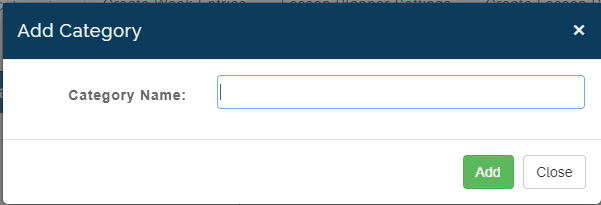
- Select lesson plan categories
- Click on add category
- Input your preferred category name.
Attributes
Attributes
Attributes are the actual contents for the lesson plan template. These attributes are added to each of the categories previously created.
Follow these steps to add lesson plan attributes.
- Click on lesson plan categories
- Click on the category created
- Click on add attributes
- Add the attribute name
- Select the attribute type
- Select the content type and save.
Do this for all the attributes of the lesson plan template.
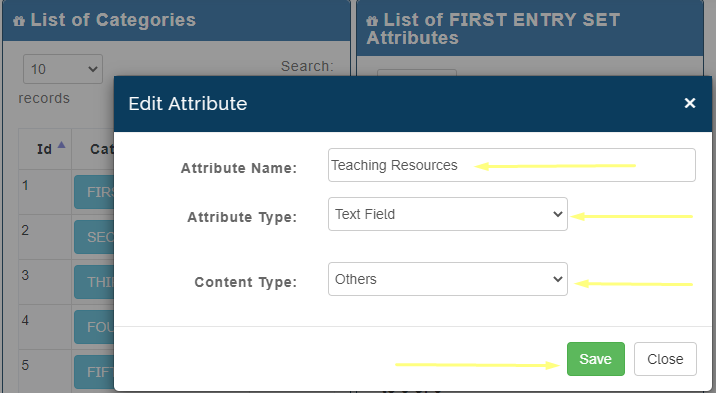
Attribute Name : Attribute name is an identifier for an attribute.
Attribute Type : The attribute type is divided into four, that is:
- Check box - The checkbox is shown as a square box on the teachers module that is ticked when activated. Checkboxes lets a user select one or more options of a limited number of choices.
- Radio button - This button allows a teacher to select one option from a set.
- Lesson Objective - Every school has objectives for each topic, therefore this option created by the admin is used specifically for the Lesson objectives for each topic made by teachers.
- Table - Allows teachers define the structure of their lesson content in rows and columns.
Content Type : After a selection has been made for the attribute type, the admin needs to select the type of content that should be displayed. This type is broken down into:
- Lesson Content - Consists of a detailed number of learning activities or teachings outlined to engage students.
- Lesson Link - This identifies the various subjects linked to a particular topic created by a teacher
- Lesson Objective - States what student should know at the end of the lesson.
- Others - Allows a teacher to add any material not defined in the options above.
Weekly Entries
Creating weekly entries
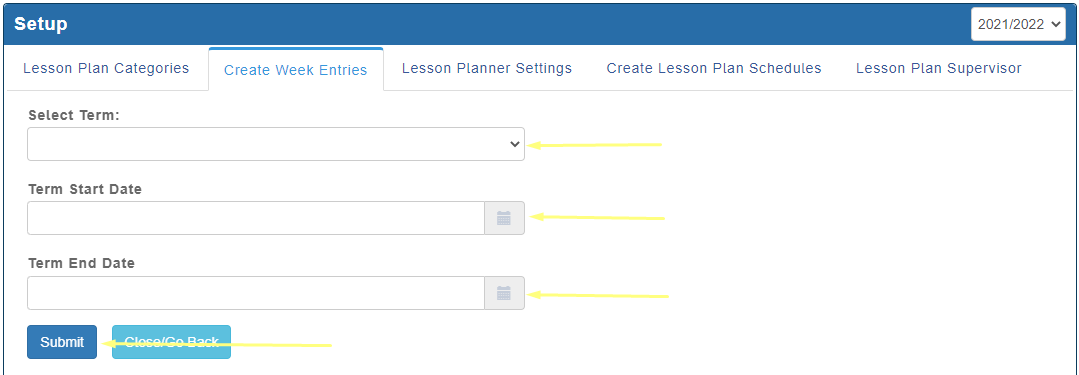
On the Educare platform, lesson plans are created weekly. This is where the weeks for the term are added based on when the term starts and when it will end and also the school Time table.
Follow these steps to create week entries.
- Click on create week entries
- Click on create entry
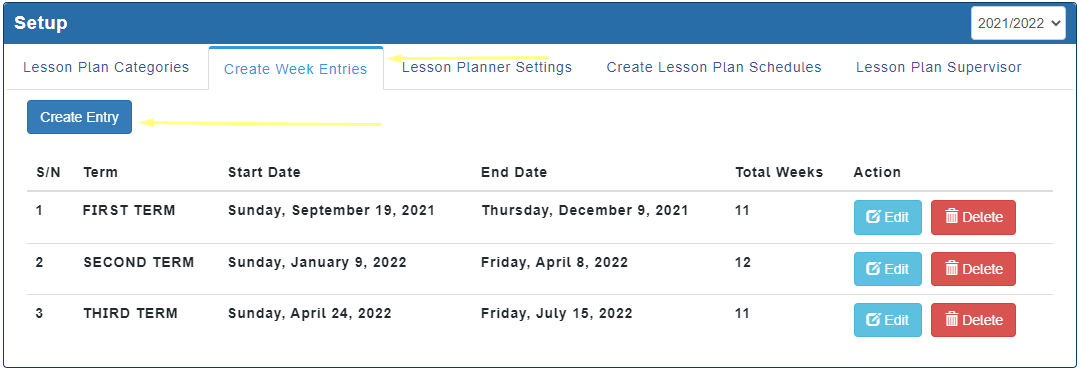
- Select term
- Add the term start date
- Add the term end date and save.
Lesson Plan Settings
Lesson planner setting.
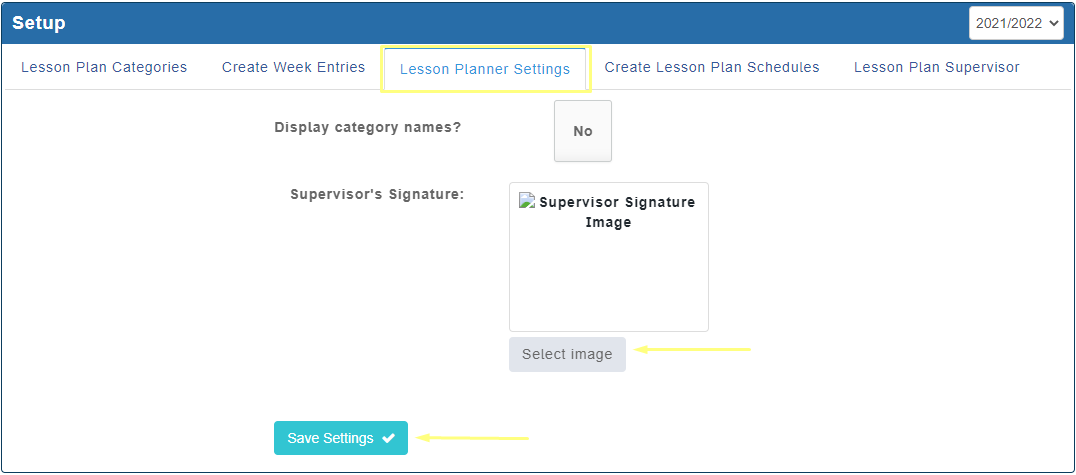
On Educare you can choose to show or hide the category name (previously created) on the lesson plan template.
You can also add the signature of the supervisor.
To do this follow the steps
- Click on lesson planner setting.
- Click on display category name NO/YES
- On supervisor’s signature, select the image of the signature from your pc.
- Save settings
Lesson Plan Schedule
Create lesson plan schedules
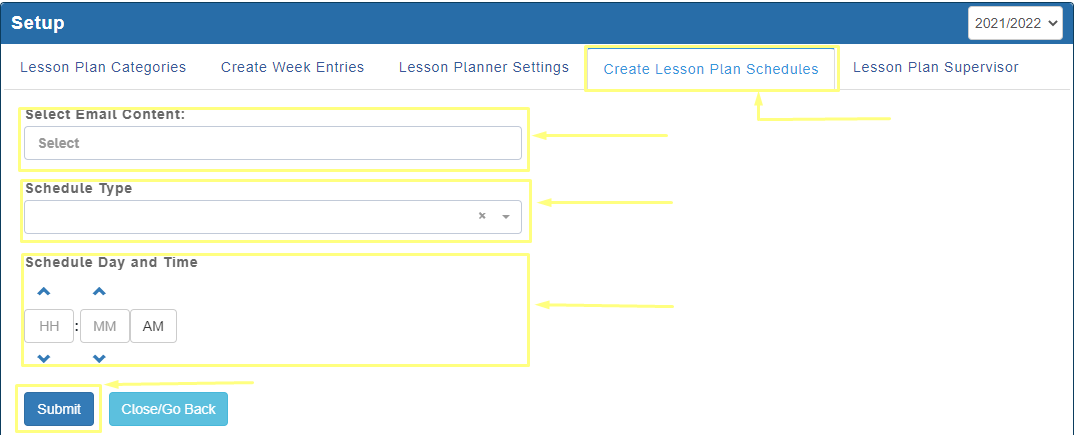
This is where email content lesson plan are being scheduled for either weekly or daily
Follow the steps to schedule email contents
- Add the content topic
- Click on schedule type to indicate if it’s a weekly or daily schedule
- Select schedule type and date
- Submit.
How to add Lesson Plan Supervisors
Follow these steps to add supervisors:
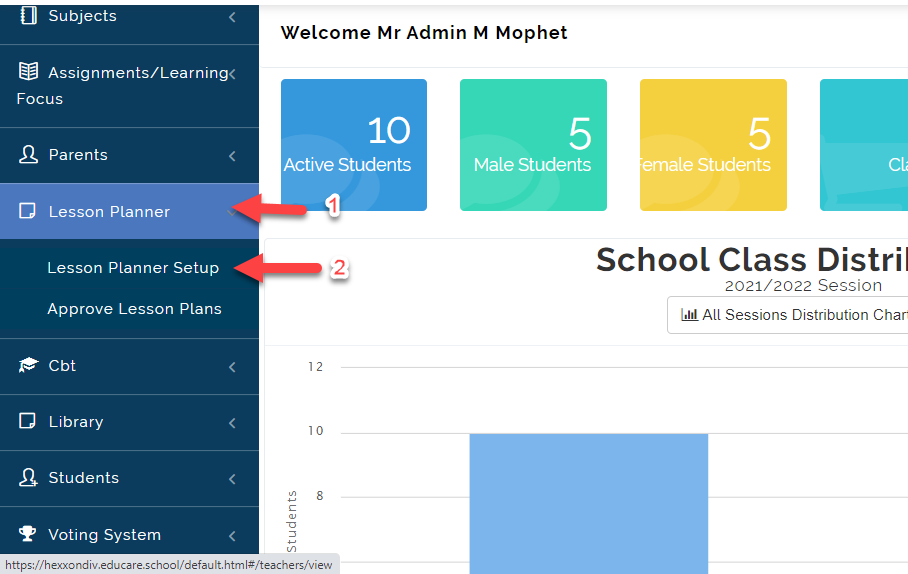
- From Lesson Planner, Select Lesson Planner Setup then Select the School you want to Setup For.
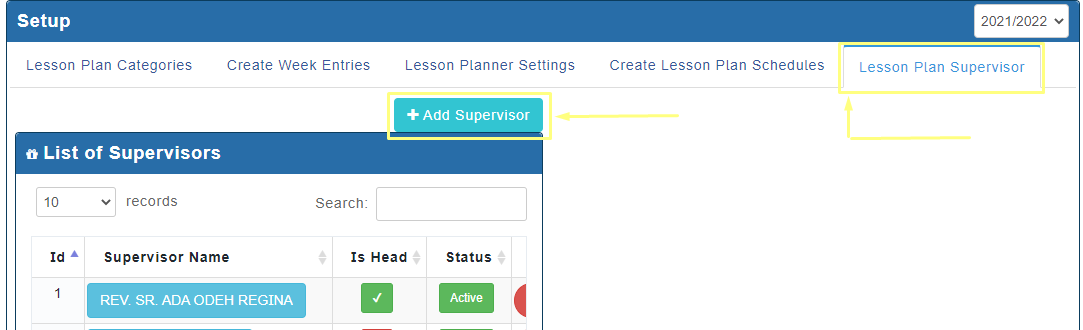
- Click on lesson plan supervisor Tab
- Click on add supervisor
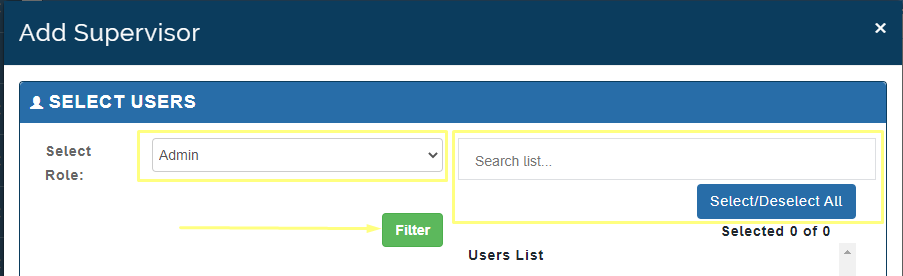
- Select the person’s Role then Click on Filter button to list out the names in the role you selected.
- Select the Supervisor (s)
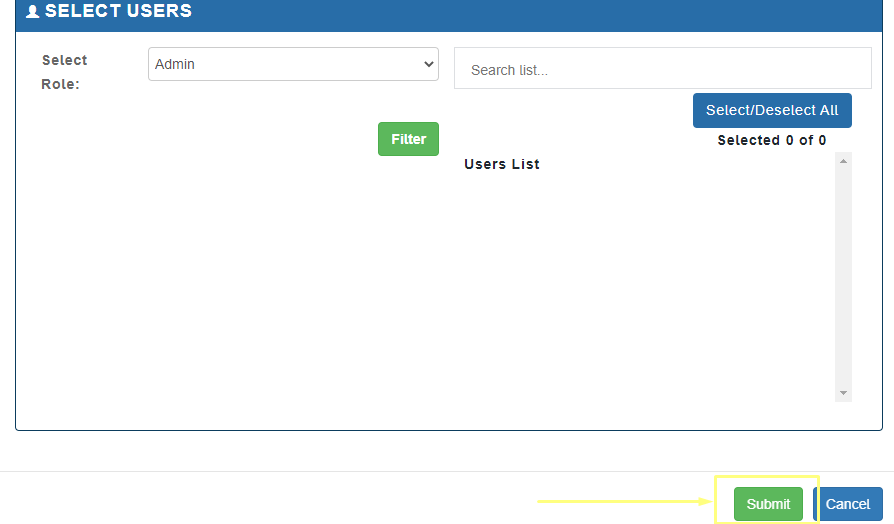
- Click on Submit
How to Assign Classes and Subjects to Supervisor(s)
If you have different person's who approves Lesson Plan in your school, This is where you assign subjects and classes they supervise to them.
Follow these Steps to Add Subjects:
- After creating Supervisors, Click on the Name of the Staff you want to Add Subjects for. A tab will appear, Click on Add Subjects
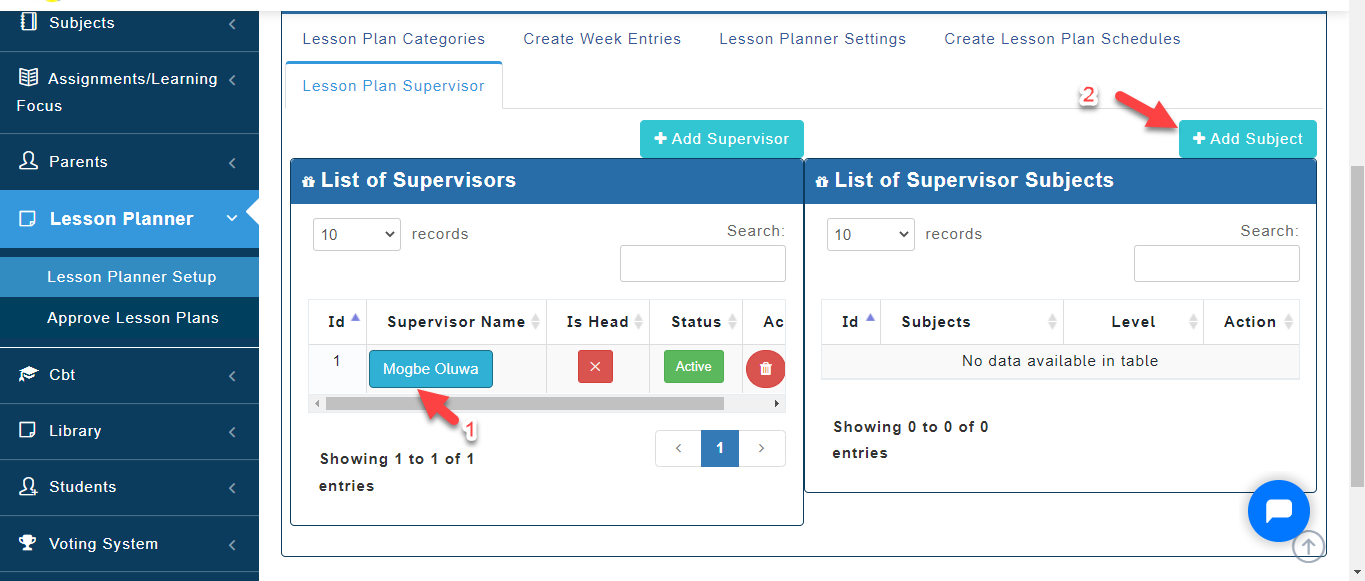
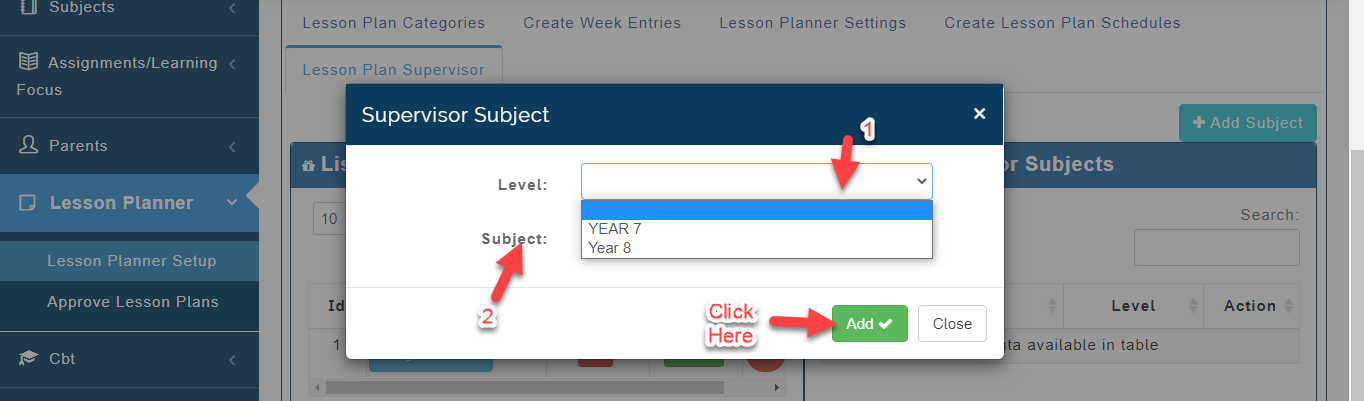
- A Modal will appear, Select the Level and the Subject the person Supervises Lesson plan for. Click on Add.