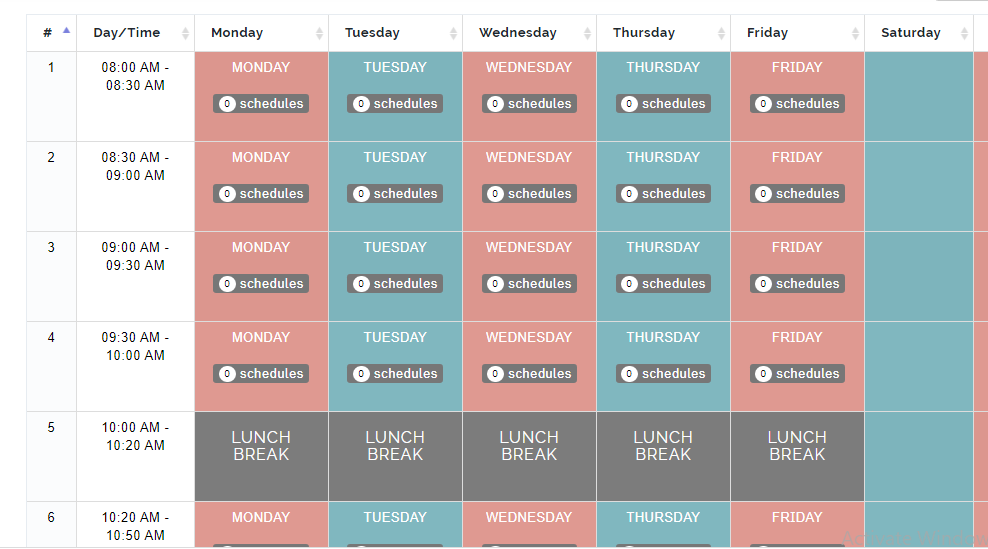
This module is used to generate periods and schedules by providing few information.
Follow these steps to use time tabler
Step 1
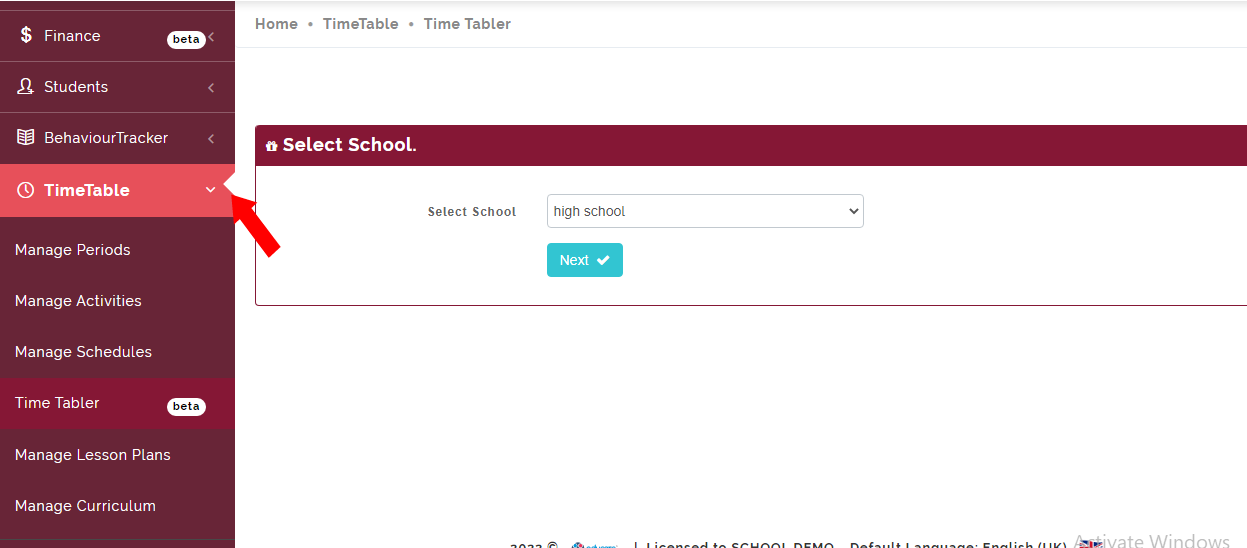
Click on Time Table on the dash board as indicated below
Step 2
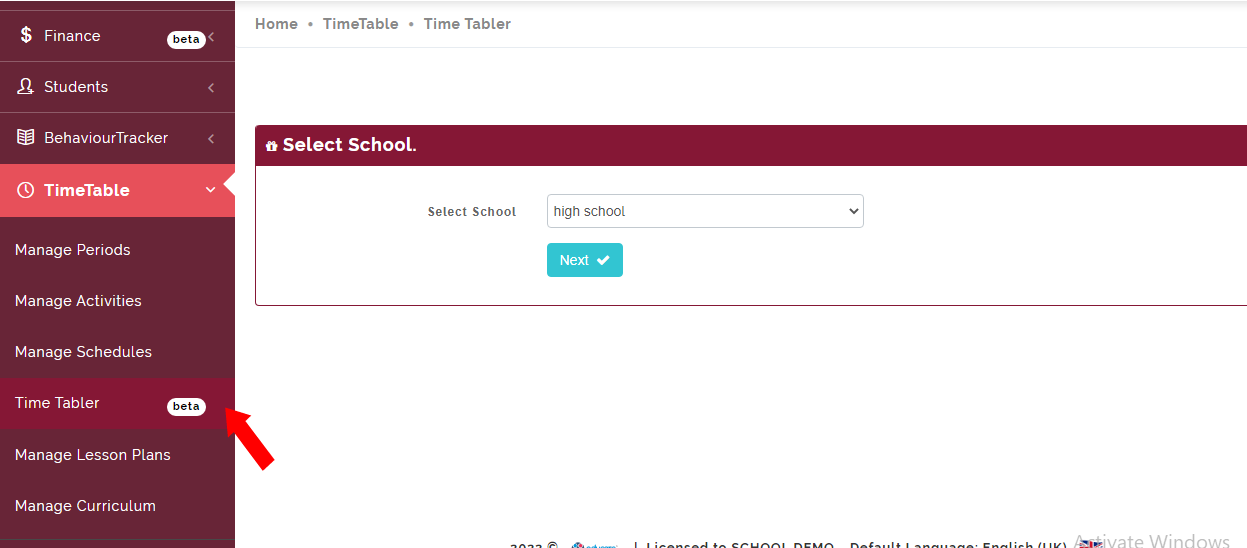
Select Time tabler as indicated below this will open the page to select school
Step 3
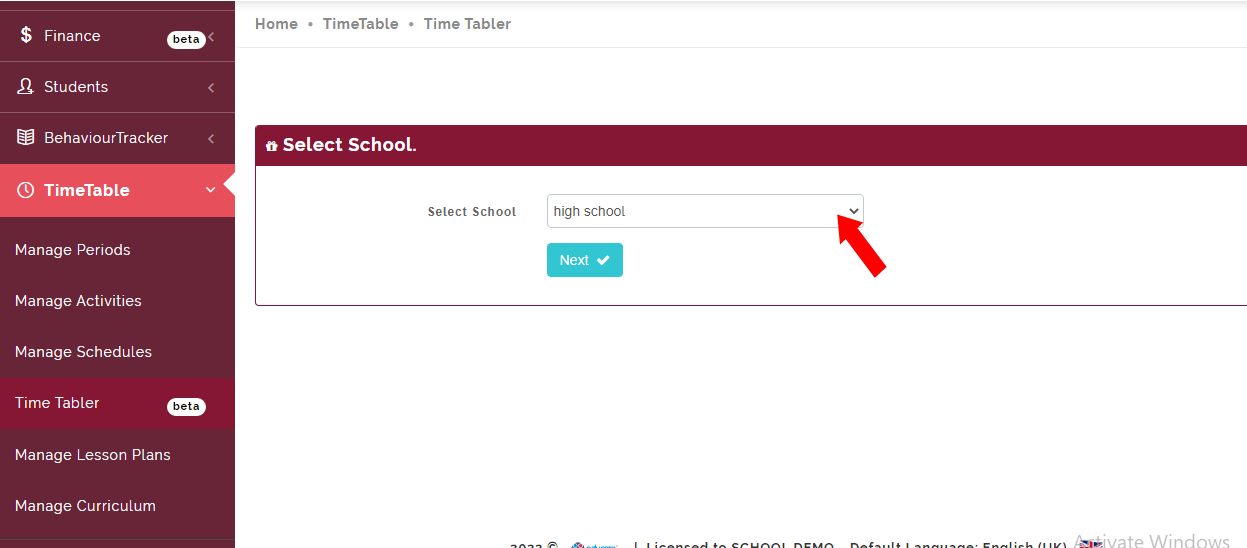
Select school and click next
This action will open the page to generate periods and schedules
Step 4
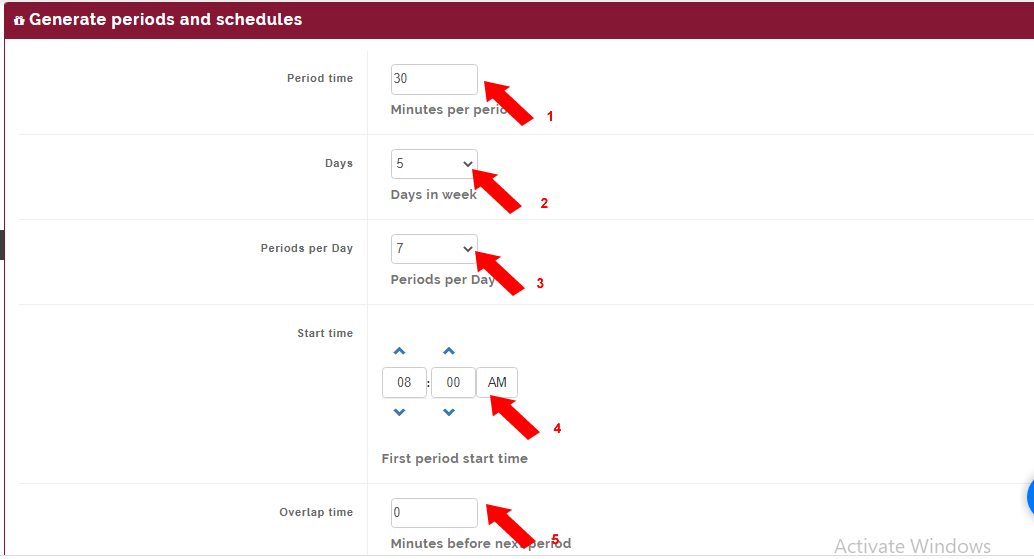
To generate periods and schedules you are required to provide the following information.
1 period time
2 days in week
3 periods per day
4 Start time( first period start time)
5 Overlap time(minutes before next period) if there is any.
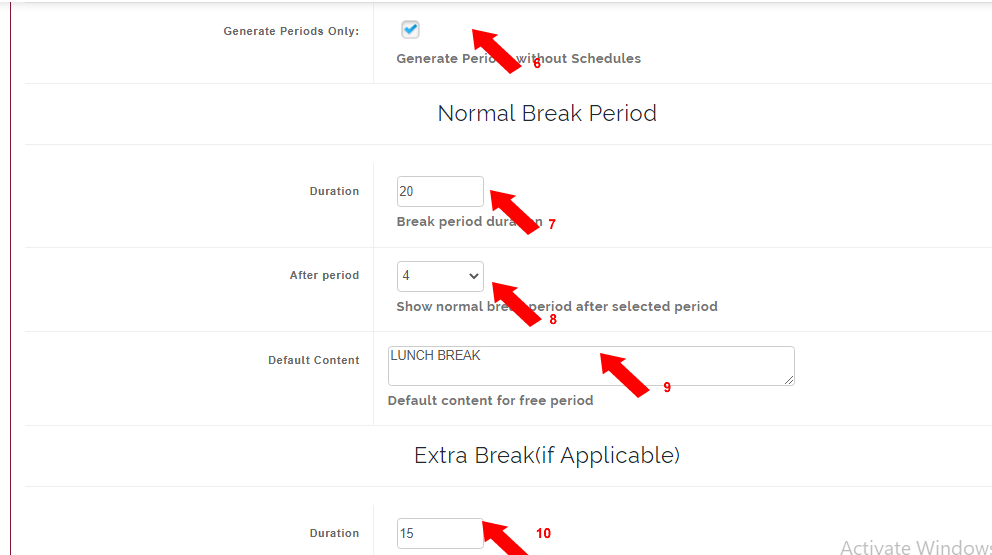
6 Tick Generate periods only if needed
7 Add break duration
8 Add period break comes after
9 Enter default content for break example: Lunch break
10 Add extra break duration if applicable
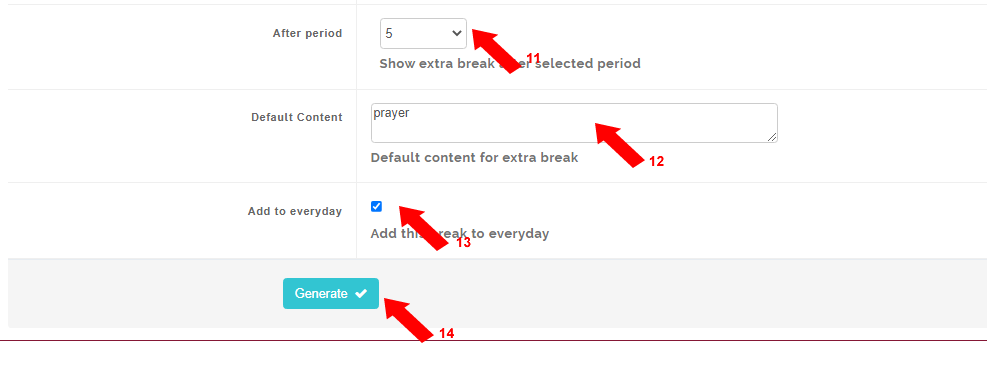
11 Add period break comes after
12 Enter default content for break
13 Tick to add extra break to every day or select specific days.
14 click generate
Step 5
Go to manage schedules to view periods and schedules generated.
follow the steps in manage schedules to add subjects.