
This is where the School Admin can access the Result of the Entrance Exam taken by Candidates.
To Access Admission Result Broadsheet, follow these Steps:
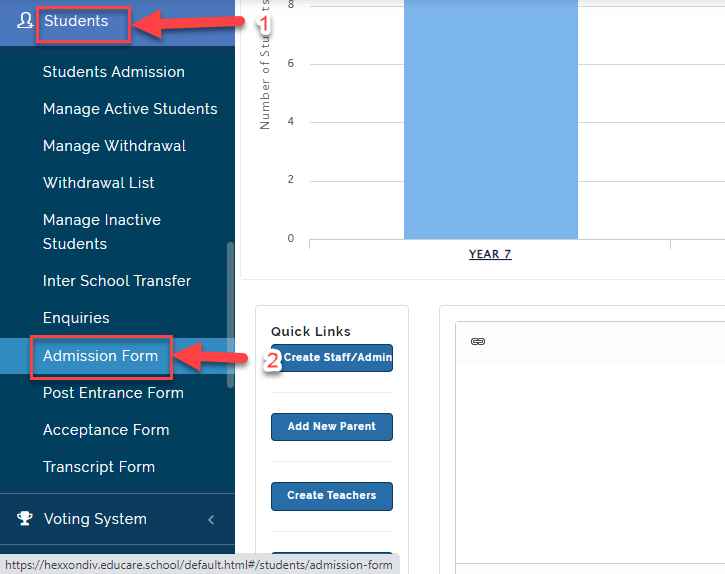
- Click on Student then Select Admission Form
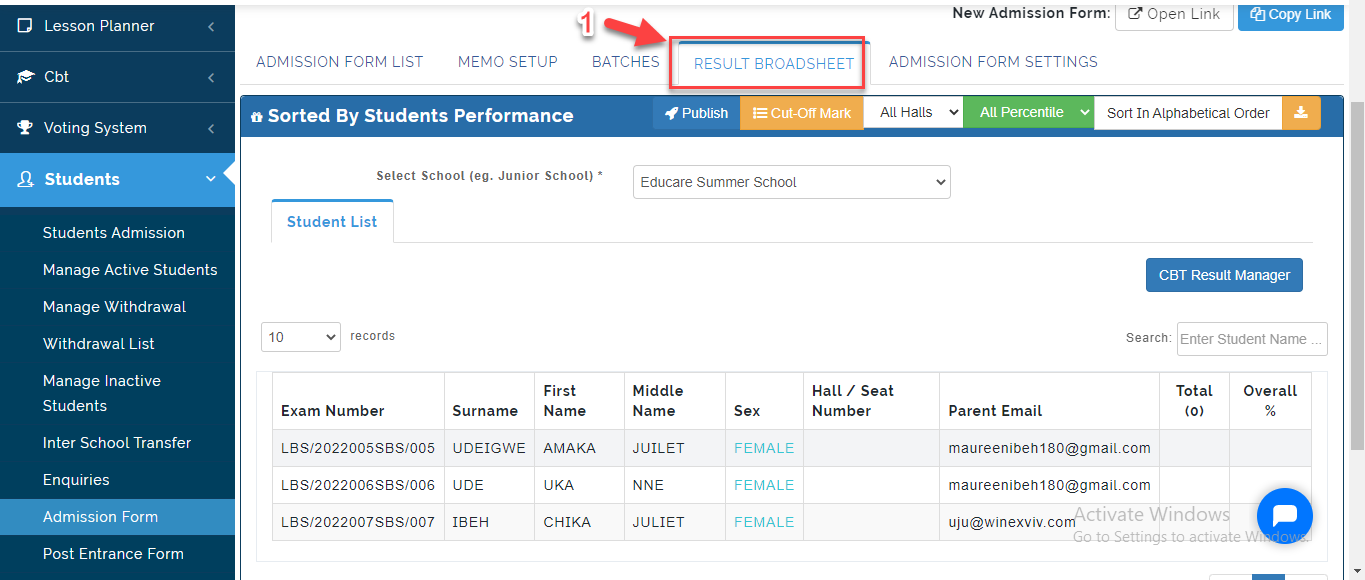
- Click on Result Broadsheet; this will bring up the list of Students and their Score details.
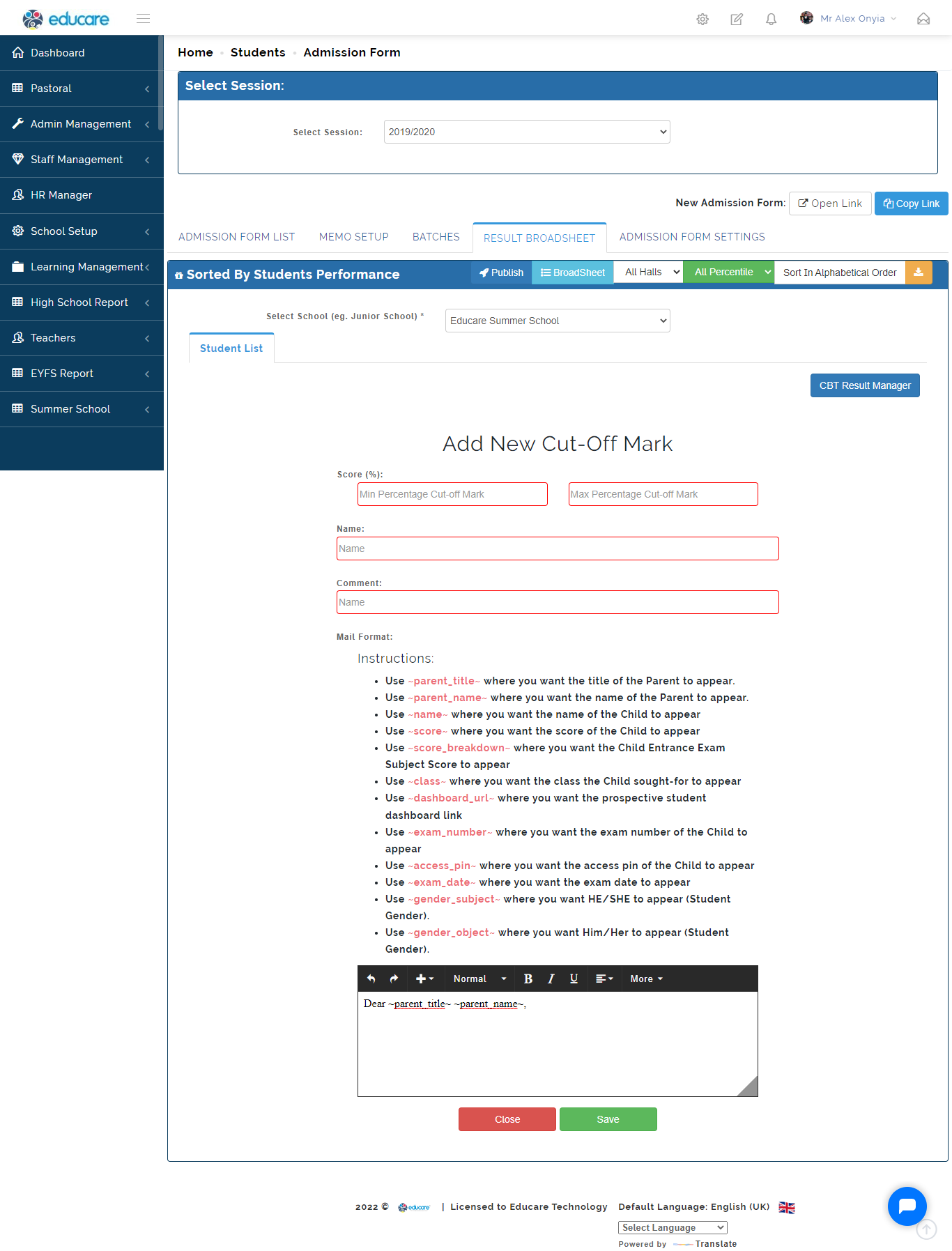
Set up Cut off Mark
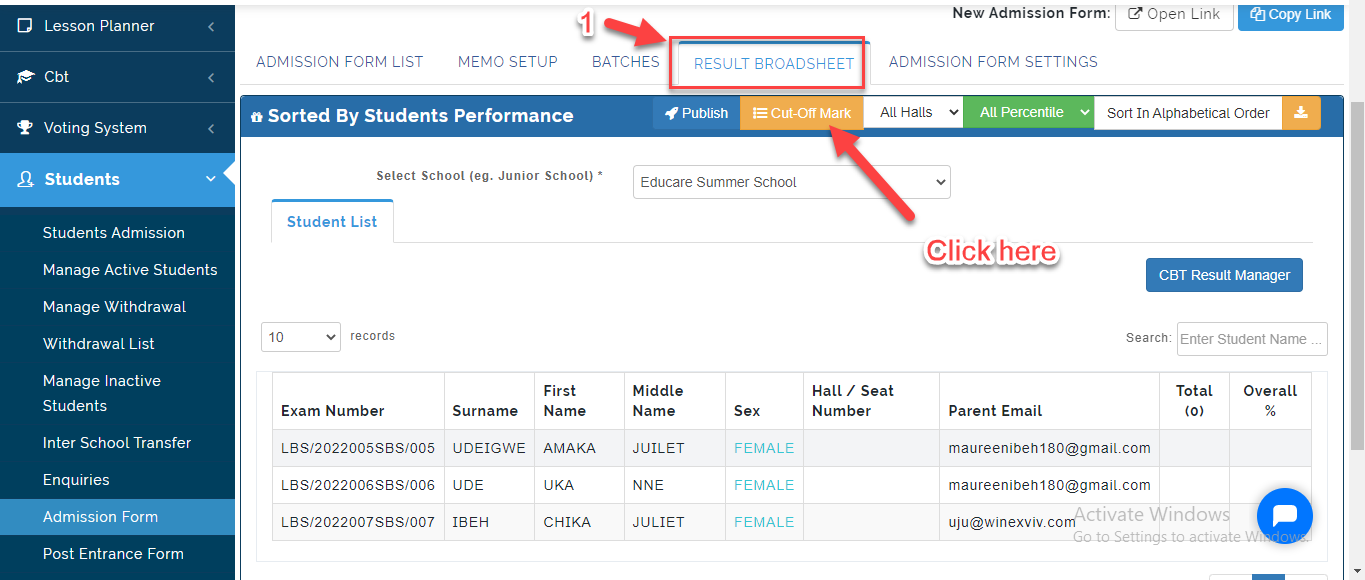
- Click on Result BroadSheet then Select Cut off Mark.
- Click on Add Cut off Mark
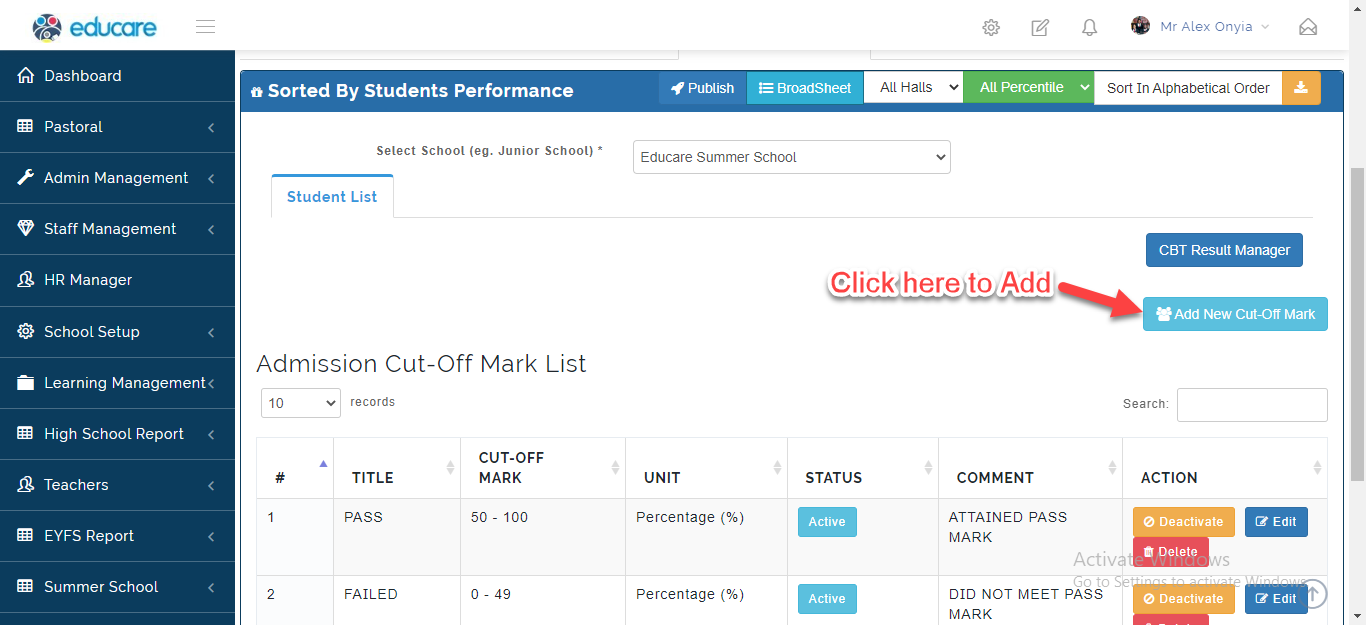
- Fill in the required text box with the minimum and Maximum cut off Score, the name and comment.
If you need to send a mail to candidates after the Exam, Type the message to be sent using the place holder instructions as seen below. Click on Save when you are done or Close to Ignore.
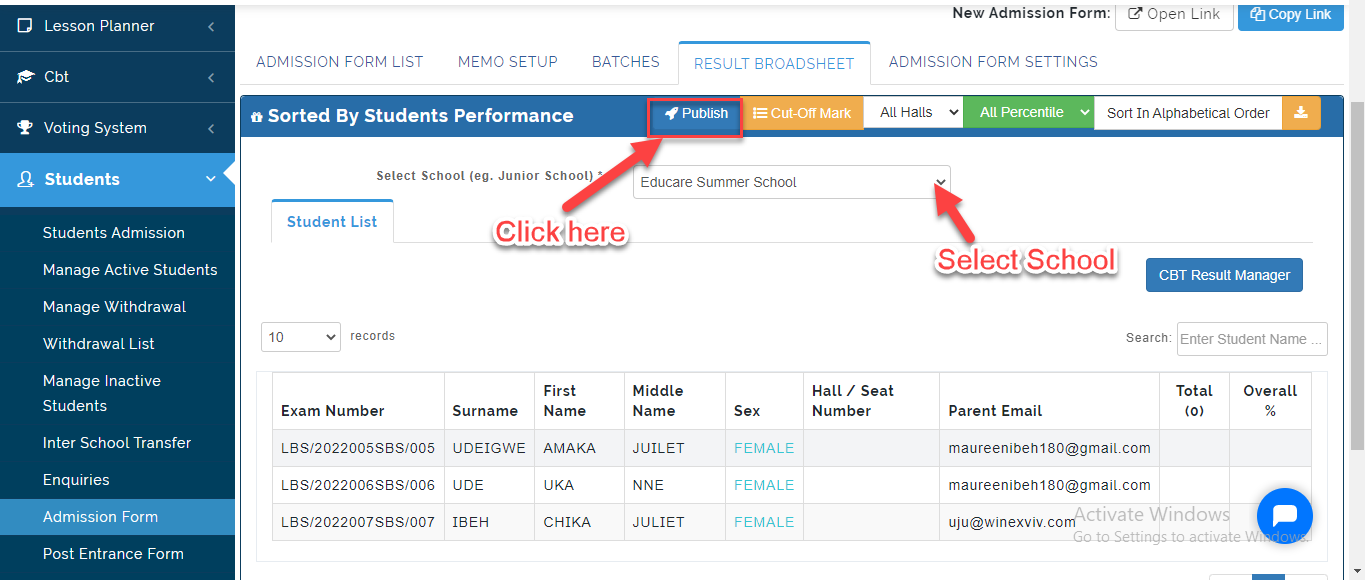
To Publish Scores, Follow these Steps:
- Click on the Publish button indicated below; Select the School you want to Publish for.
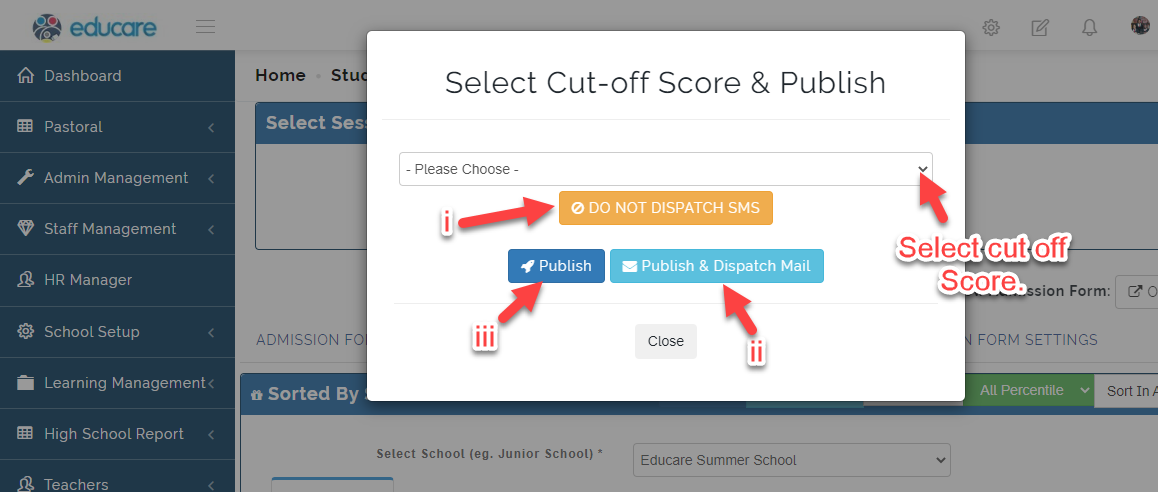
- Select the Cut Off Score
i. Toggle Do not Dispatch SMS To Green to Activate SMS Notification for the Score
ii. Click on Publish to Send Cut off mark without dispatching Message
iii. Click on Publish & Dispatch Mail to Send Mail as well as Publish Cut off Score. Click on close to Exit.
How to Import CBT Scores
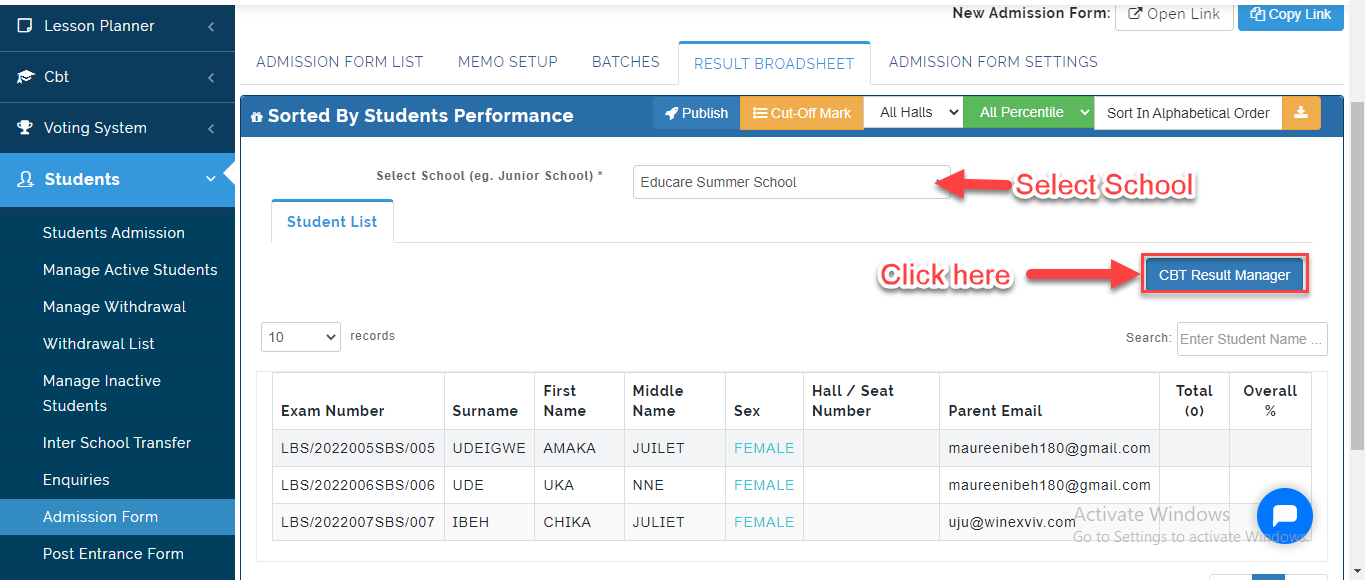
Follow these steps to Import CBT Score:
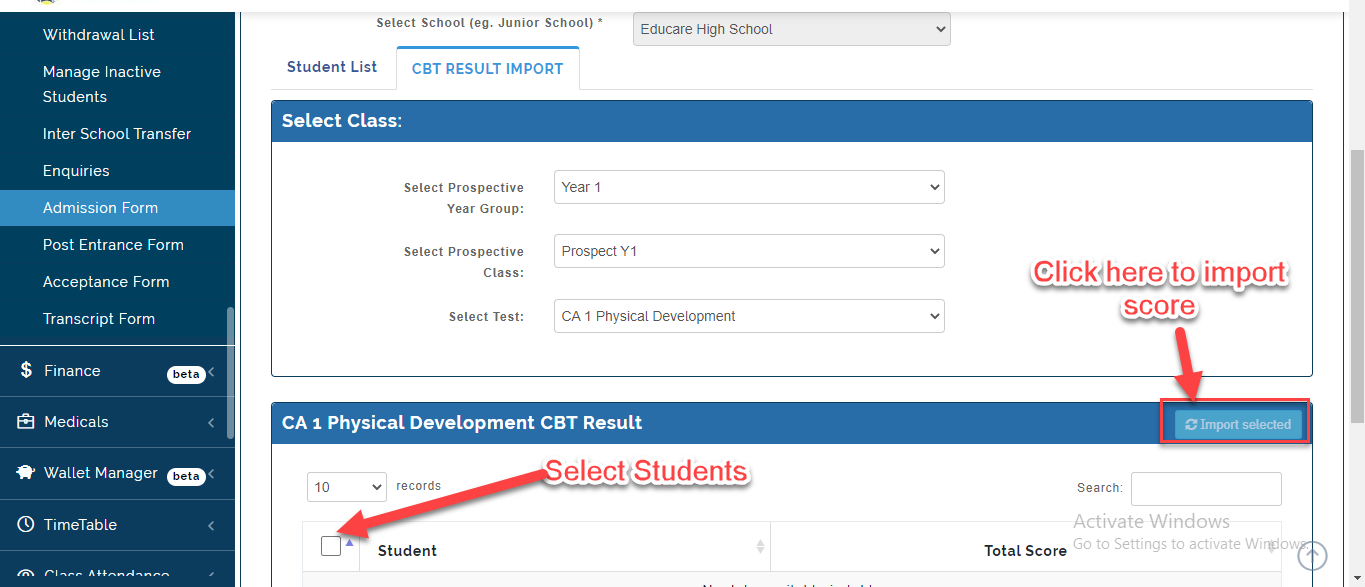
- Select the School you want to Import Cbt Scores for then Click on CBT Import Manager.
- Select the Prospective Year group, Class and Test. This list of student who have taken the test will appear.
Select the Students you want to import scores for then Click on Import Selected.
Result Broadsheet Filter Explained
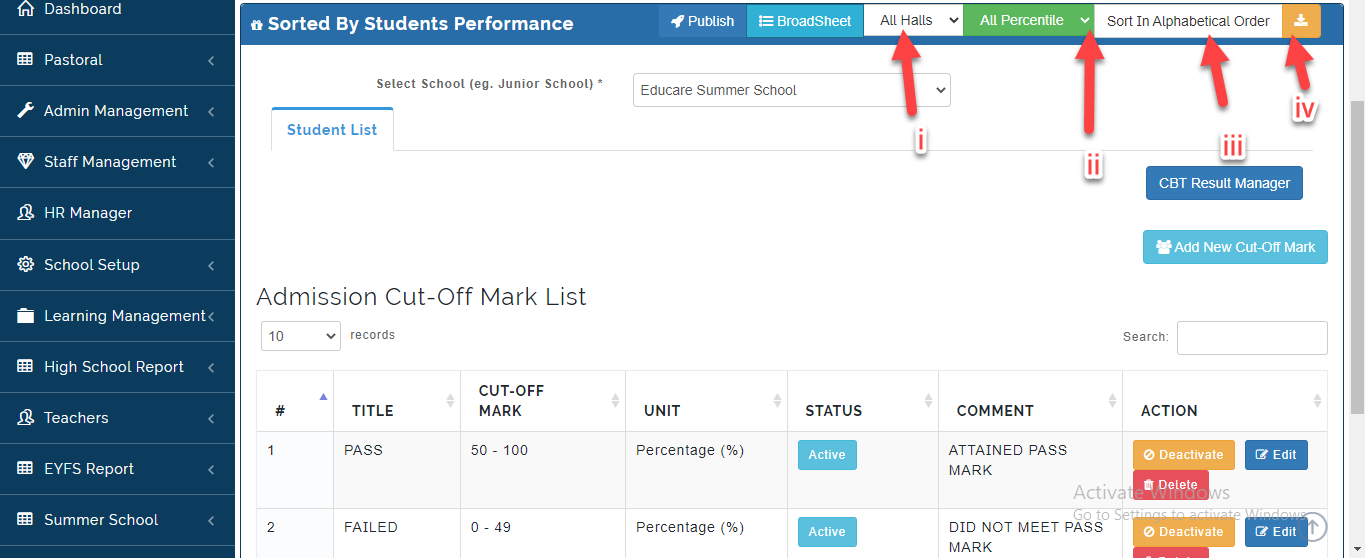
i. Click on Halls to Filter Candidate Result BroadSheet to be view according to their Halls
ii. Click on All Percentile to Filter Candidate Result BroadSheet to be view according to their Percentage Level at the Admission process Stage.
iii. Click on Sort In Alphabetical Order to Filter Candidate Result BroadSheet to be viewed in Alphabetical Order.
iv. Click the icon indicated above to download Result Broadsheet in Excel Format.