
A chart of accounts (COA) is an organizational tool that provides a digestible breakdown of all the financial transactions that a company conducted during a specific accounting period, broken down into subcategories.
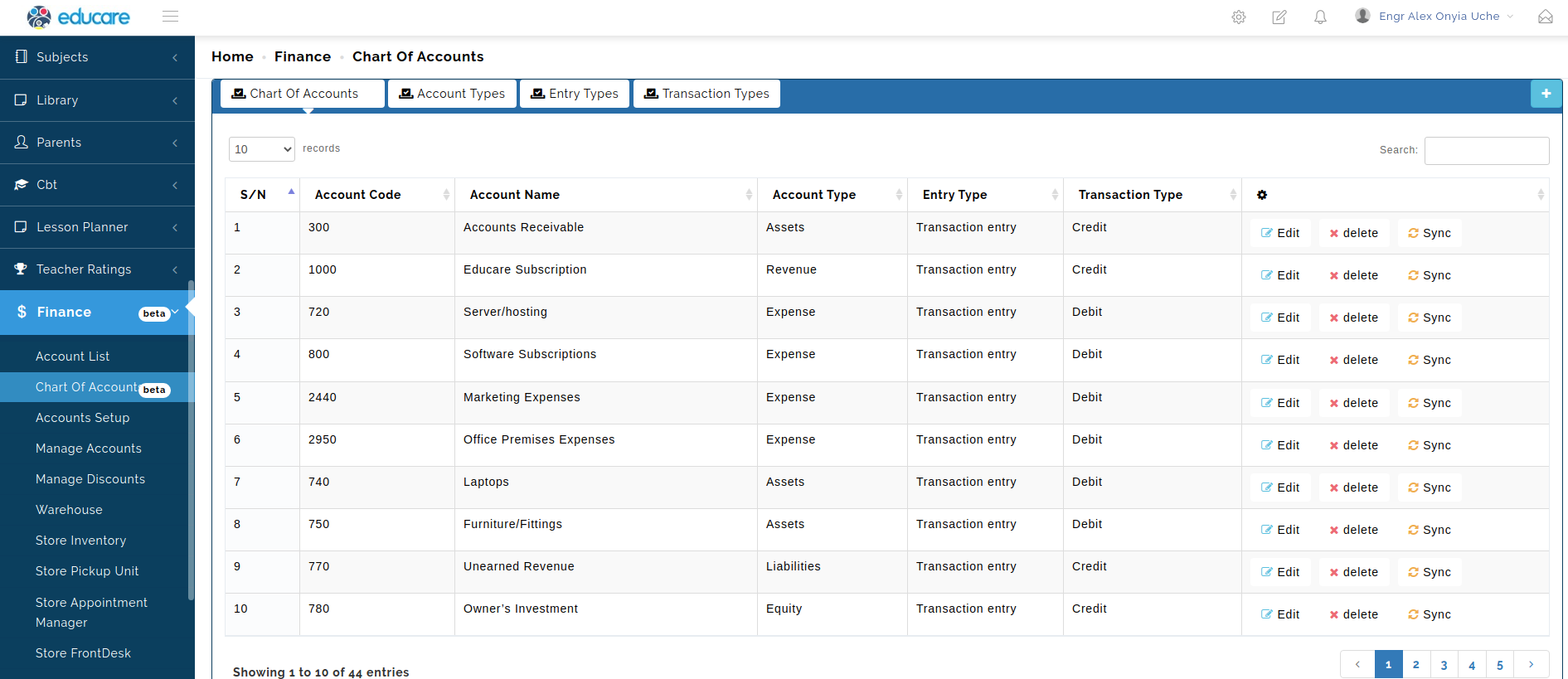
What Is a Chart of Accounts Used For?
Businesses use the chart of accounts to organize all the complex details of their company finances into an accessible format. It’s the first step you’ll take to set up your business’s accounting system. The chart of accounts clearly separates your earnings, expenditures, assets and liabilities to give an accurate overview of how your business is performing financially.
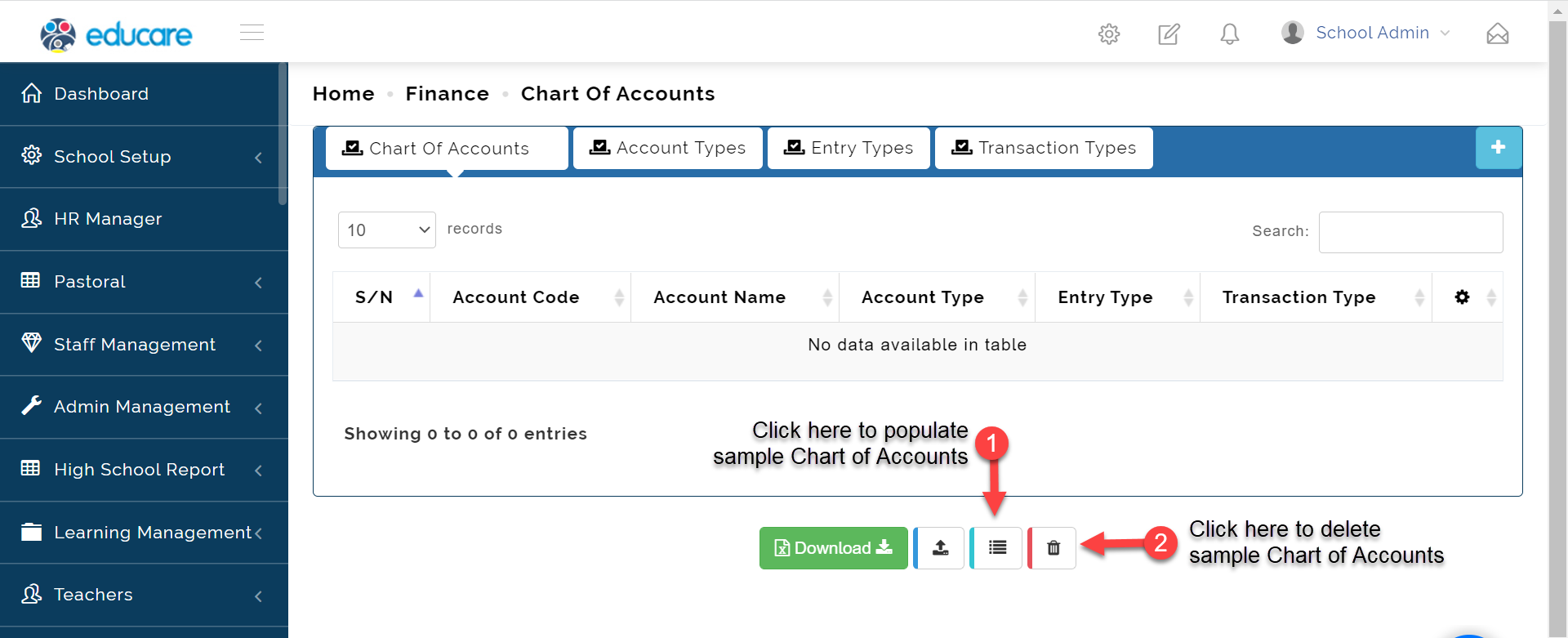
Chart of Accounts Samples Population/ Depopulation
To see what a chart of accounts looks like, on educare, you may want to populate a sample chart of accounts. This is usually advised if chart-of-accounts is a new topic for you.
Click the populate sample icon shown below to fill up about 200 samples on your system, this is just for you to see what the chart of accounts looks like.
When you have studied and gotten a grip on the topic, you can simply delete the sample Charts by clicking on the delete icon as seen below.
To create a Chart of account, follow these steps below;
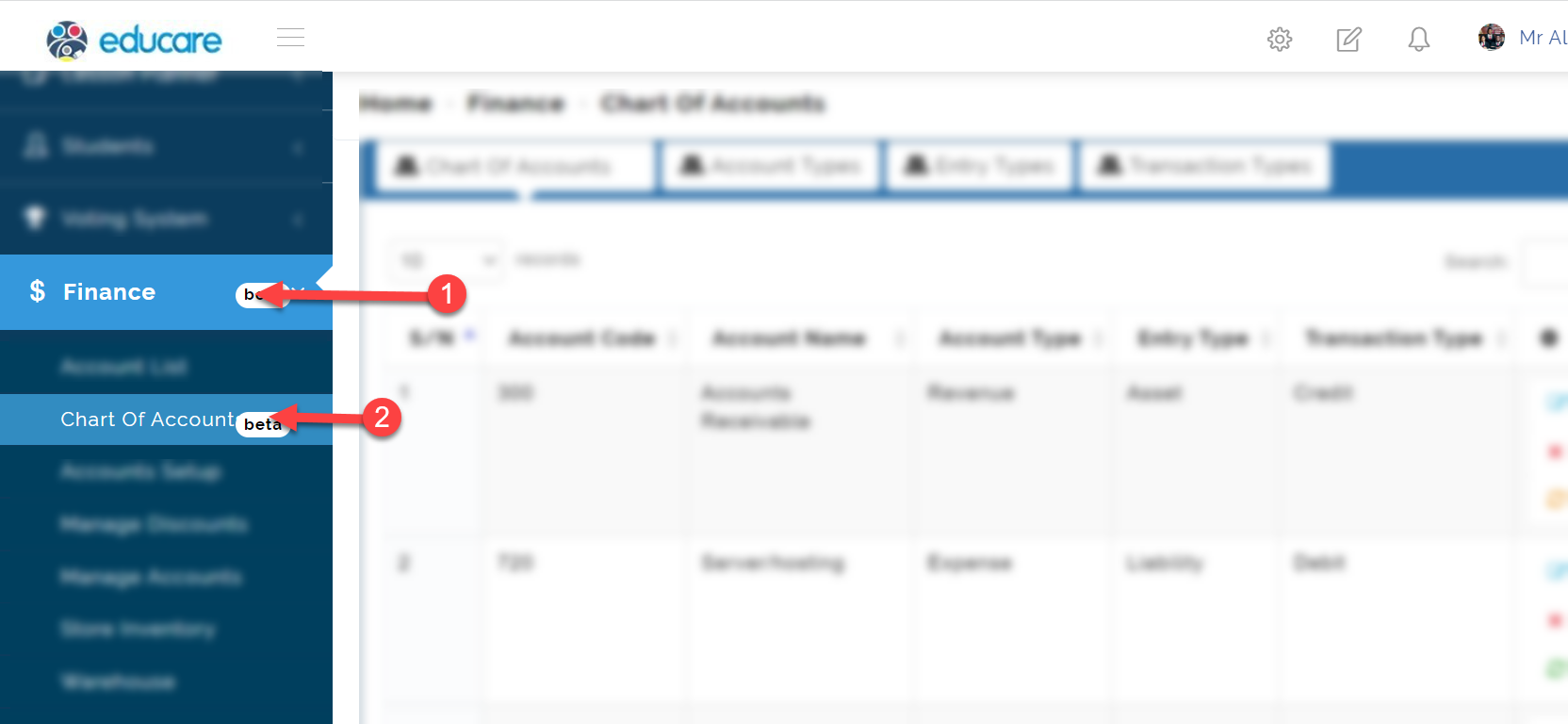
Step 1: Opening the Chart of Account
- Click on Finance
- From the dropdown menu, select Chart of Accounts
Step 2: Creating a Chart of Account Entity
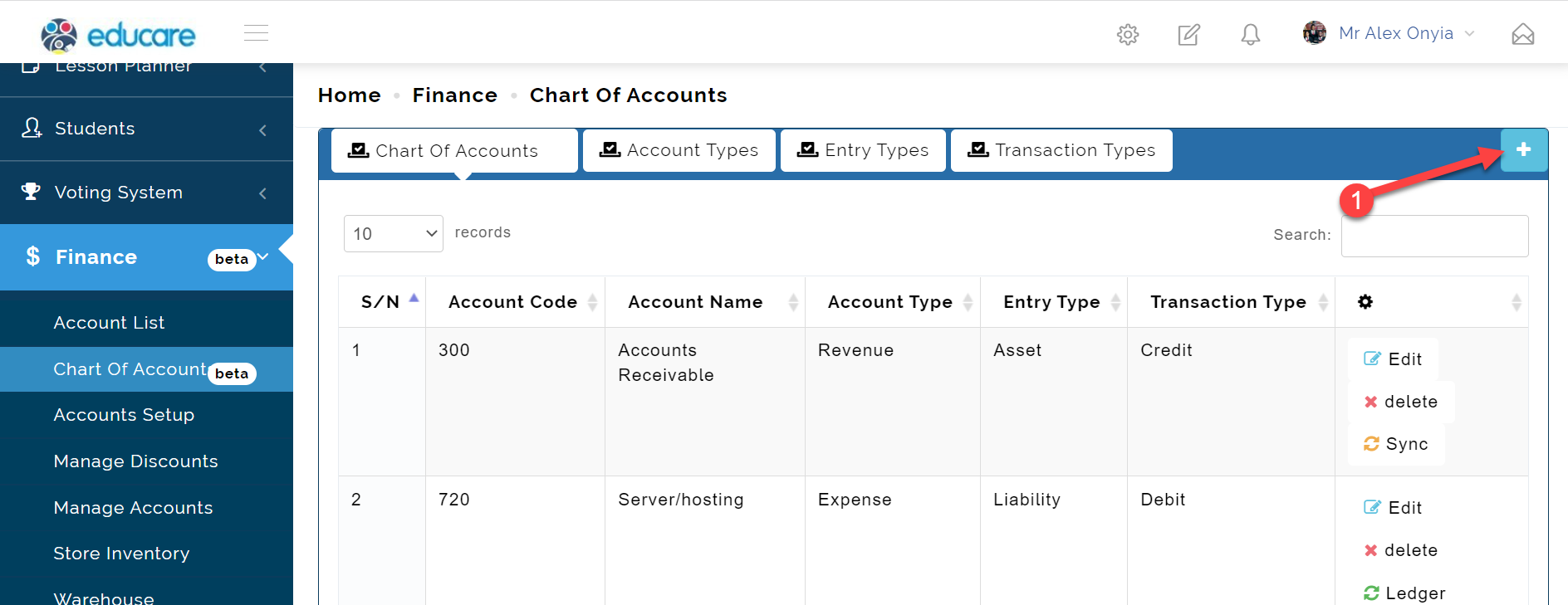
- Click on the add icon, at the top-right corner as indicated in the picture below
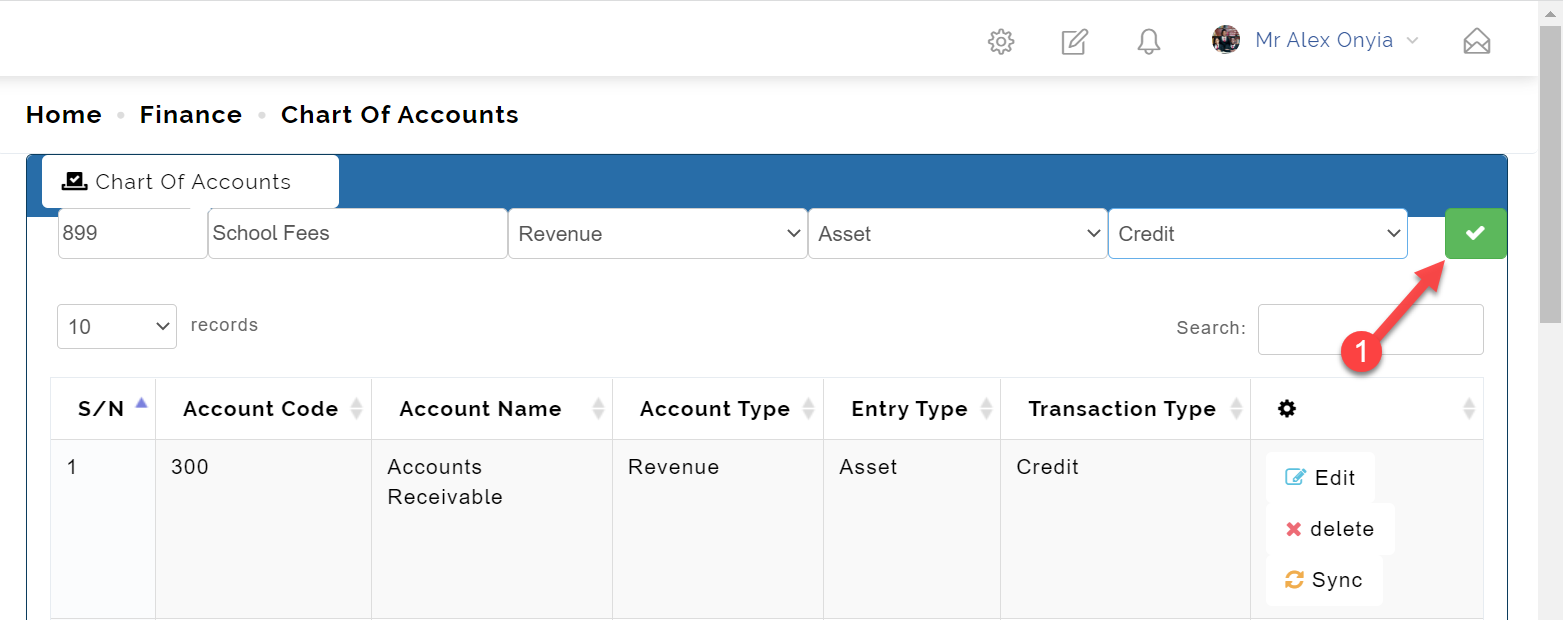
- Enter the Accounts Code, in the text box provided, and hit the enter key on your keyboard, to proceed.
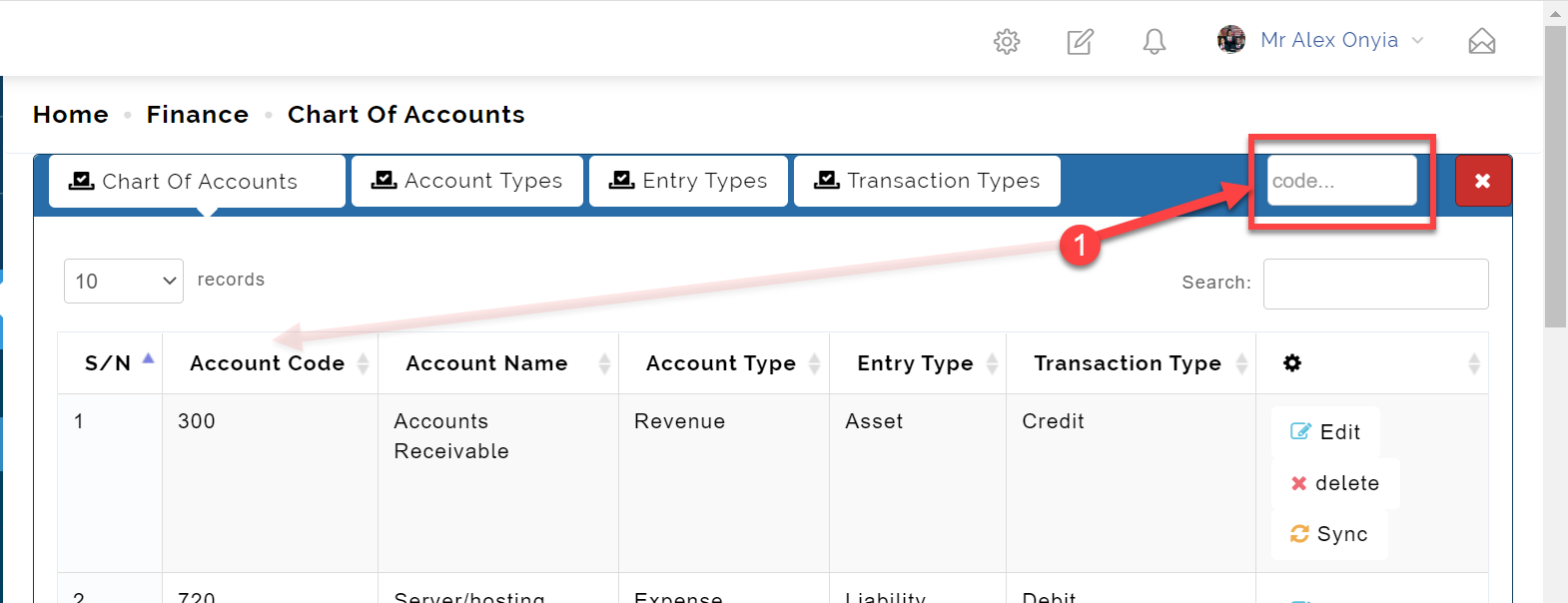
Account Code
This is usually a three-digit code that describes the type of account such as fixed assets, supplies expense or transportation expense.
- Enter the name of the accounts, and again press the enter key, to proceed.

- Select the group, the account belongs to. This can be either revenue, expense, equity, assets, or liabilities, as you have added to your group list.
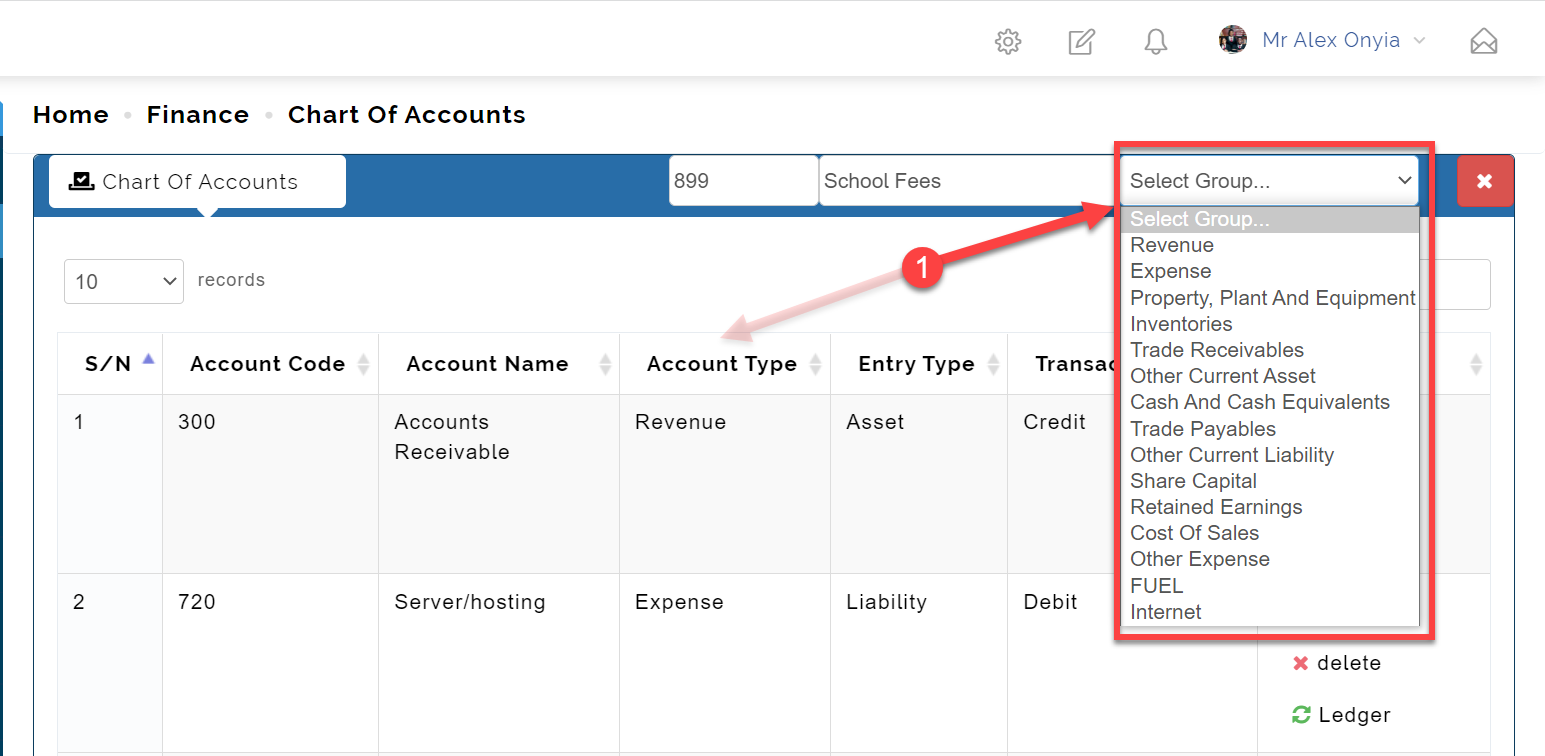
Select Group
You can add more group options in Account Types which is the tab next to the Chart of Accounts.
This will be shown in details in Step 4.
- Then in the subgroup, select if the account is an Asset or a Liability.
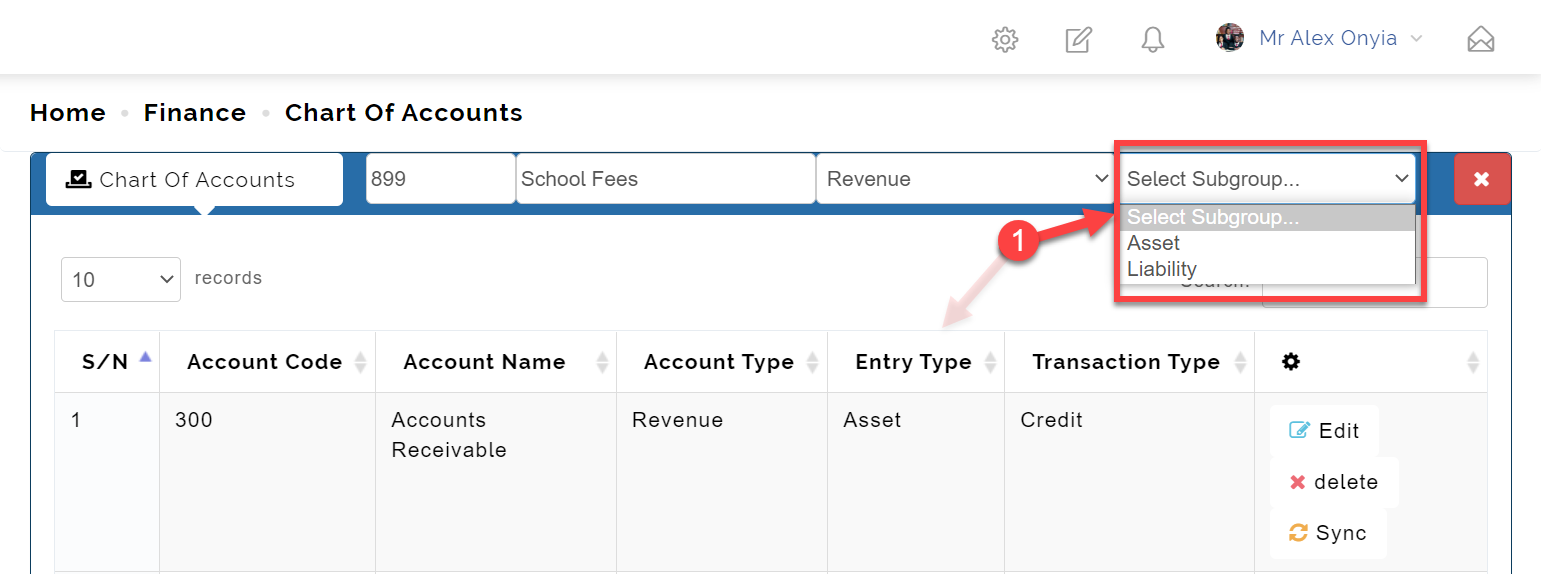
Select Subgroup
You can add more Subgroup options in Entry Types which is the tab next to the Account Types.
This will be shown in details in Step 5.
- Select the type of account; Credit or Debit
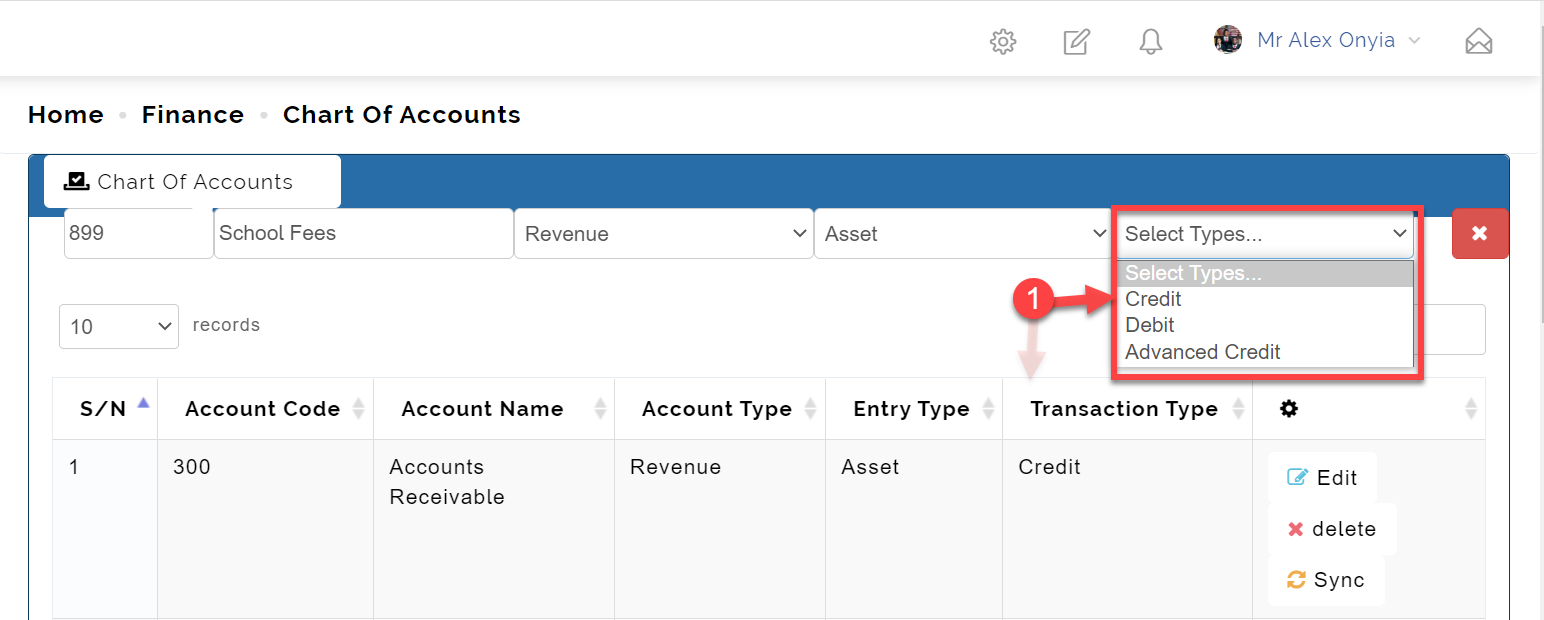
Transaction Types
You can add more Transaction Type options in Transaction Types which is the tab next to the Entry Types.
This will be shown in details in Step 6.
- Finally, click the green icon to save the new chart of accounts. as indicated in the picture below.
Step 3: Edit, Delete and Sync Chart of Account instance
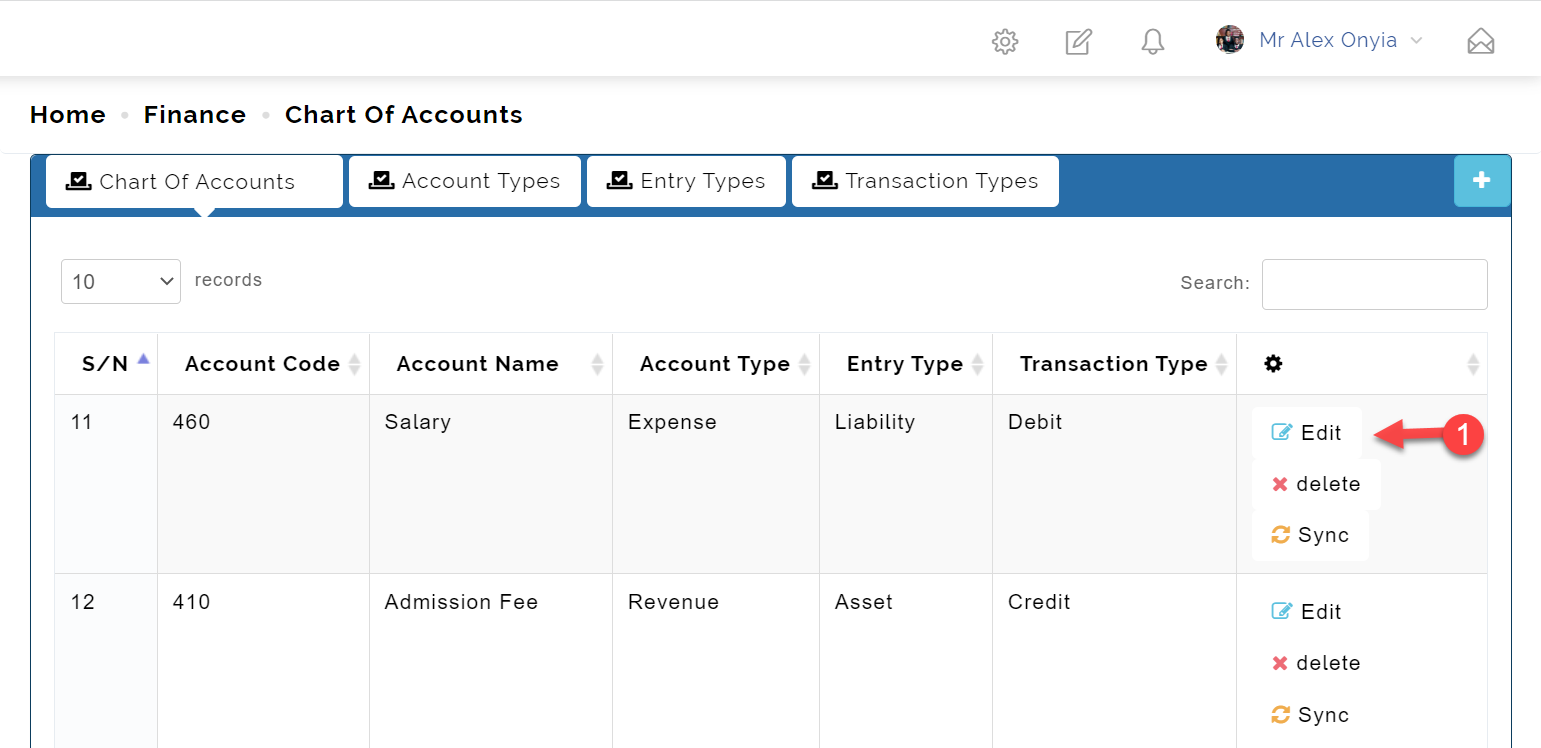
3.1 To edit a chart-of-accounts instance,
- Click the edit button on the row of interest as shown in the picture below.
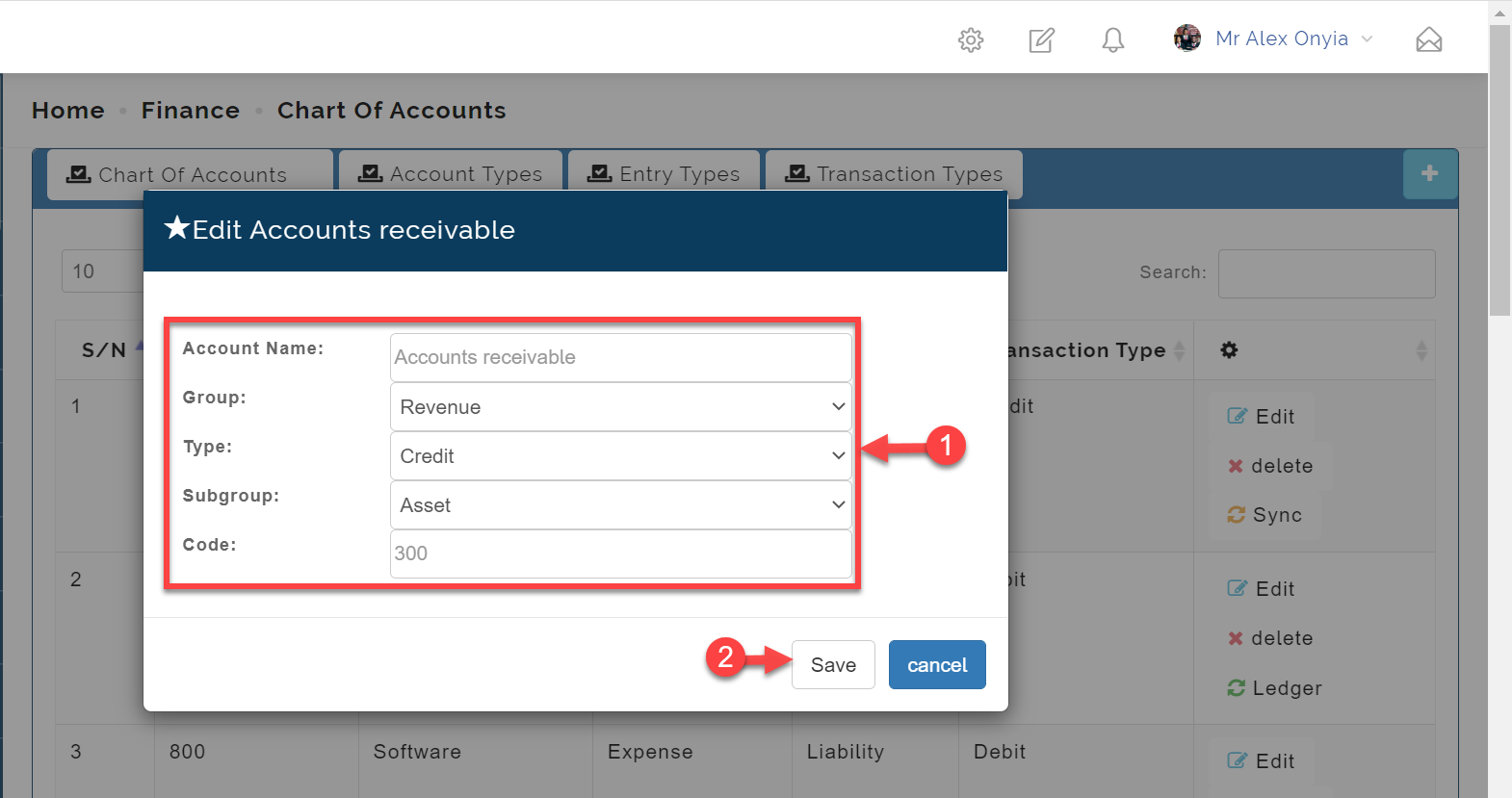
- In the Updates form, you can edit the fields you wish to.
- Click on the Save button to commit your changes.
3.2 To delete a chart-of-accounts instance,
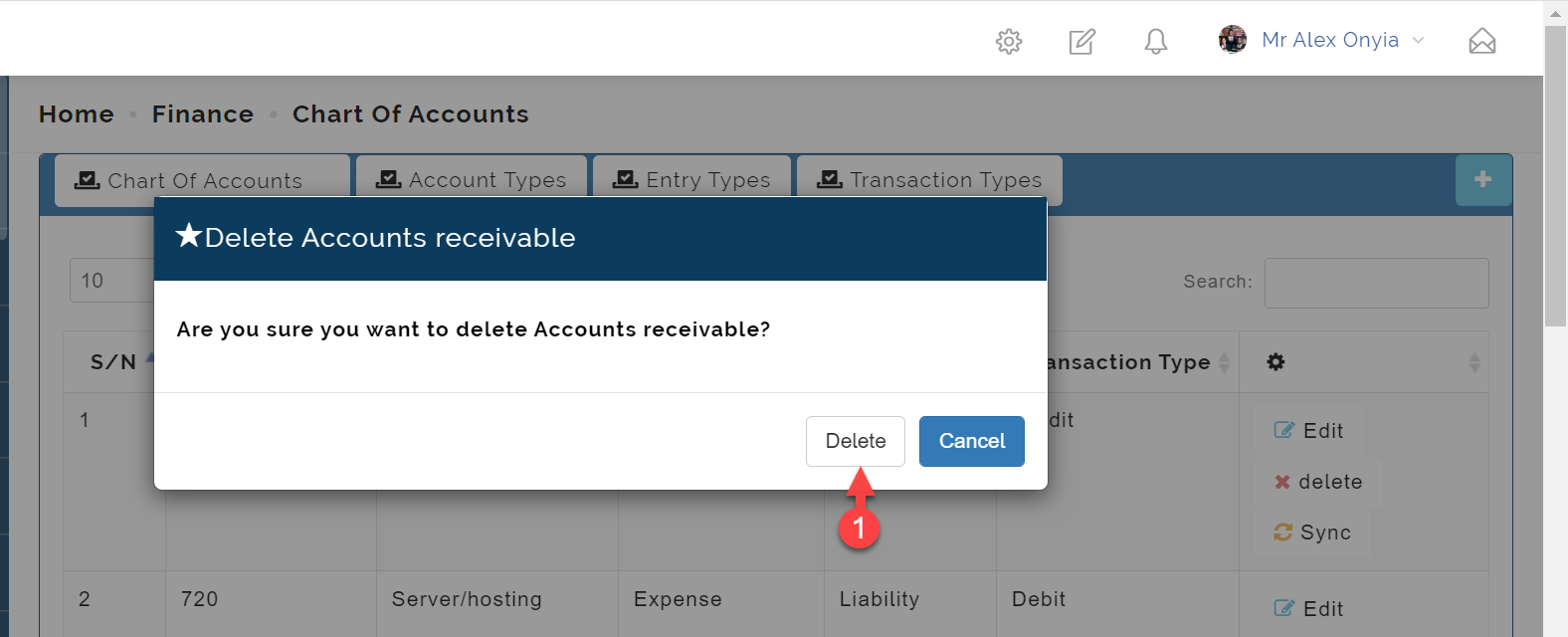
- Click the delete button on the row of interest as shown in the picture below.
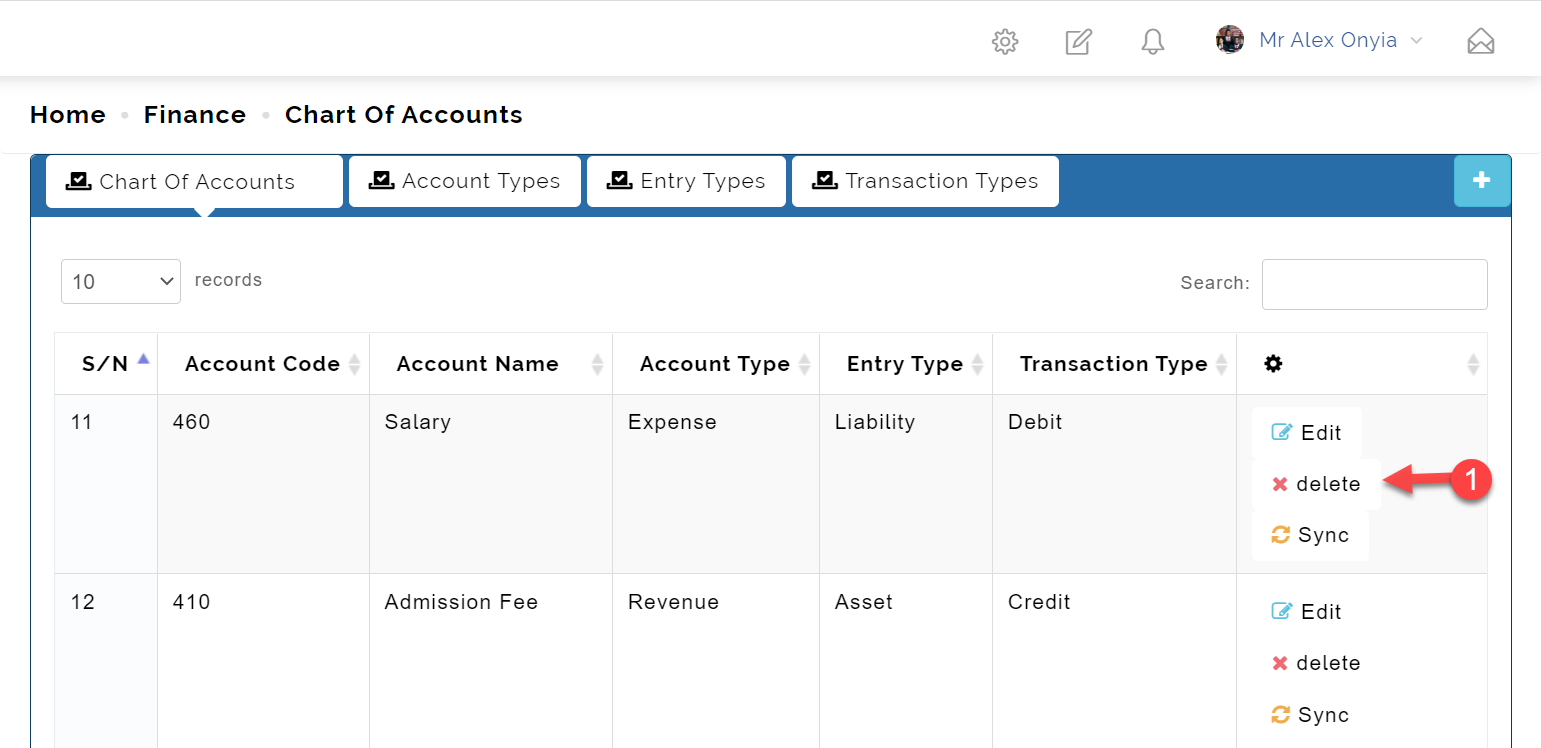
- Confirm your action, by clicking the delete button that shows on the modal window, and that is it!
3.2 To Sync a chart-of-accounts instance,
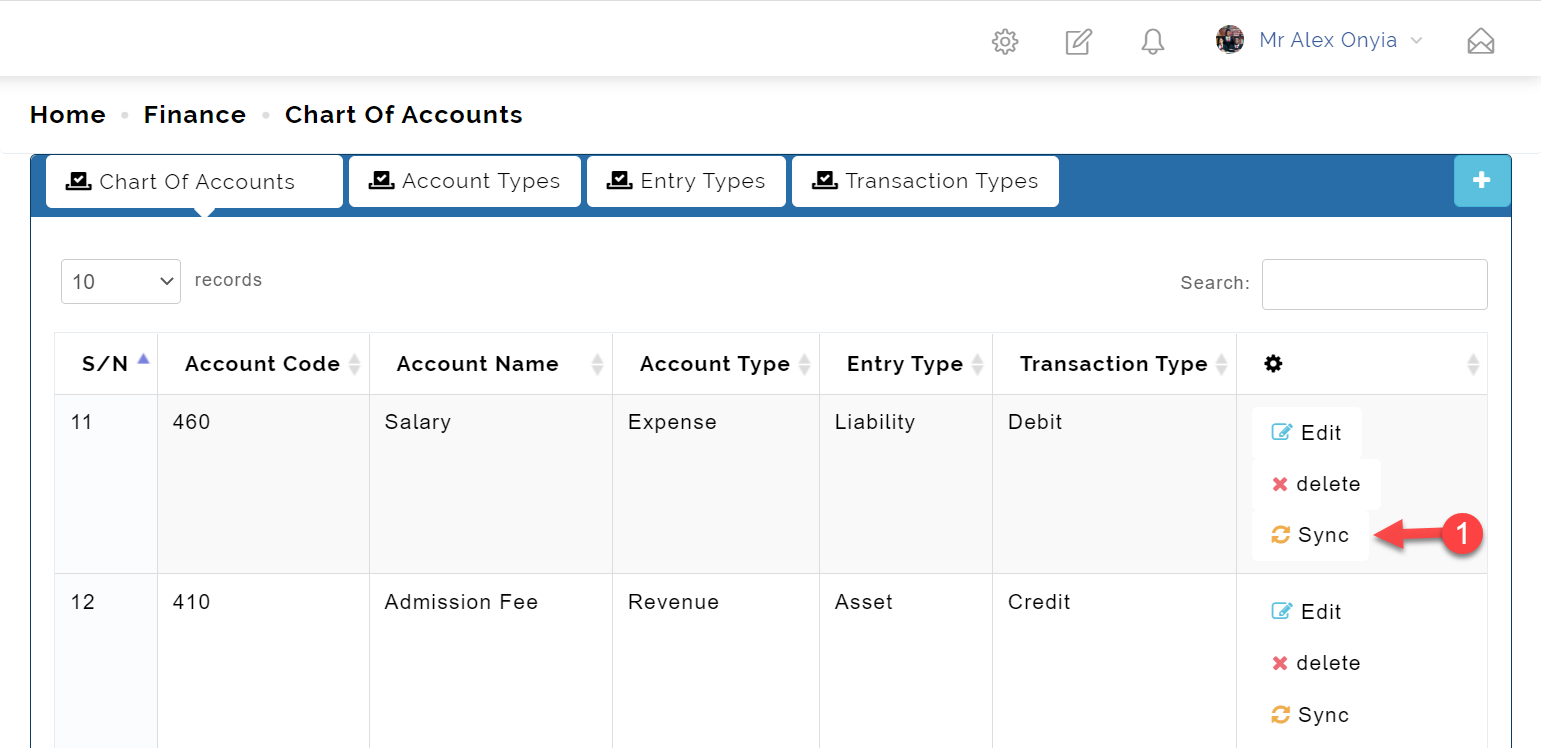
- Click the Sync button on the row of interest as shown in the picture below.
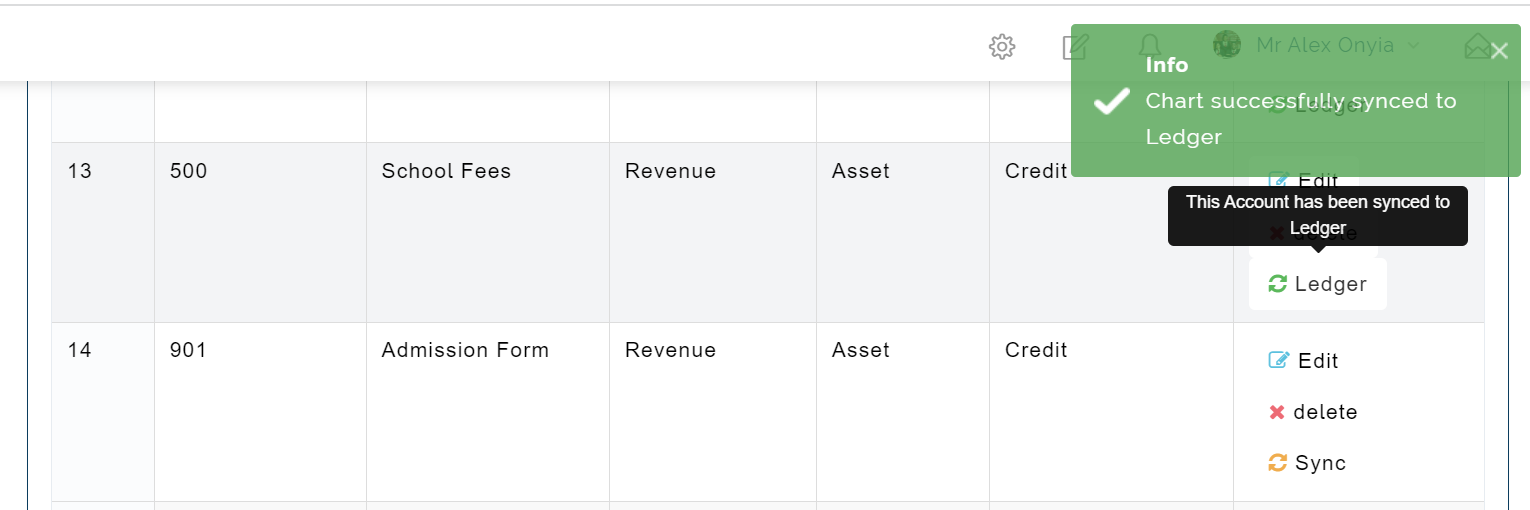
This syncs the selected account chart to ledger as shown below.
Sync
What the Sync button basically does is to Sync the selected chart to ledger.
Step 4: Account Types
The account types tab holds the list of all your account types. You can add, edit and delete account types here.
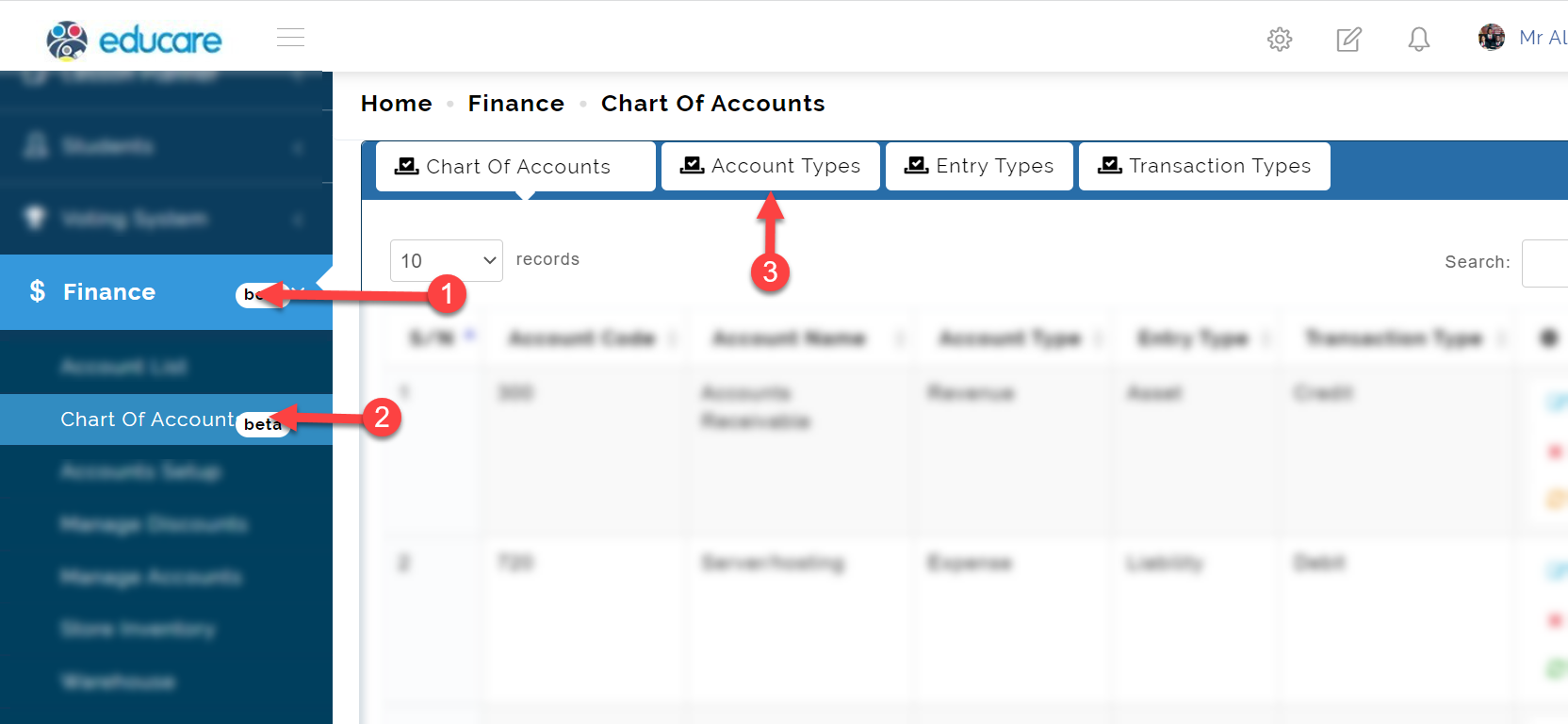
To access the Account Types,
- Click on Finance
- From the dropdown menu, select Chart of Accounts
- Then click on Account Types tab as shown in the picture below
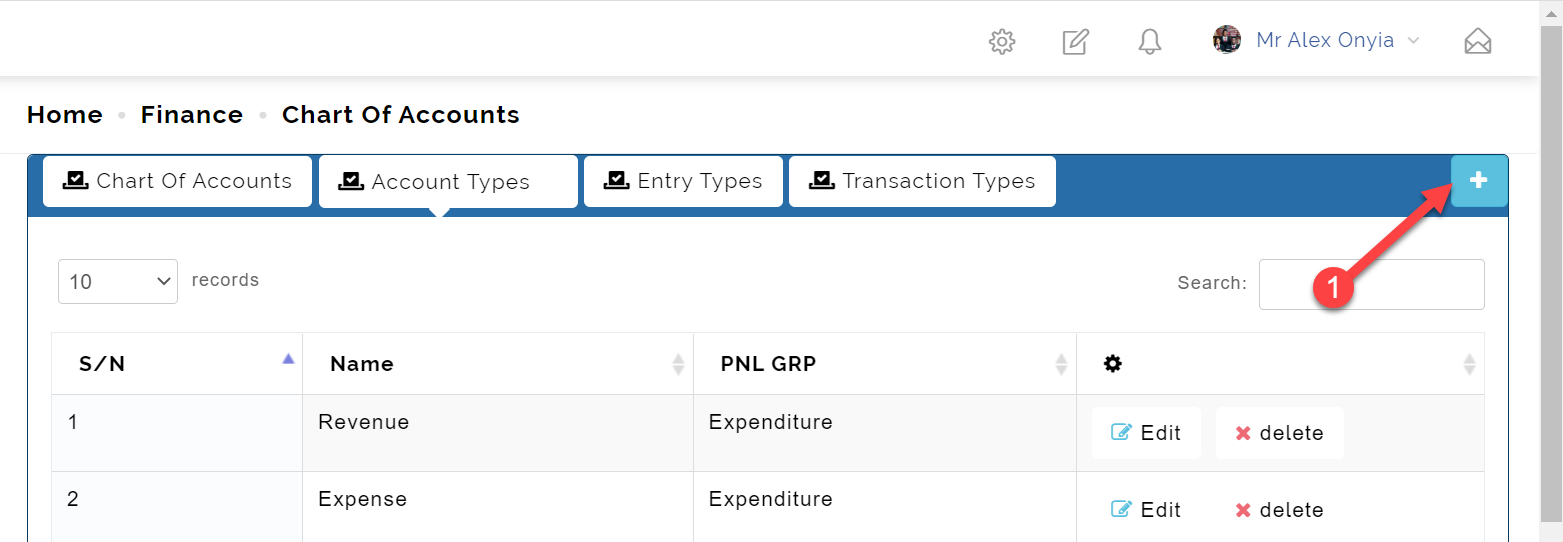
4.1 To add an account type instance,
- Click the add button on the top right as shown in the picture below.
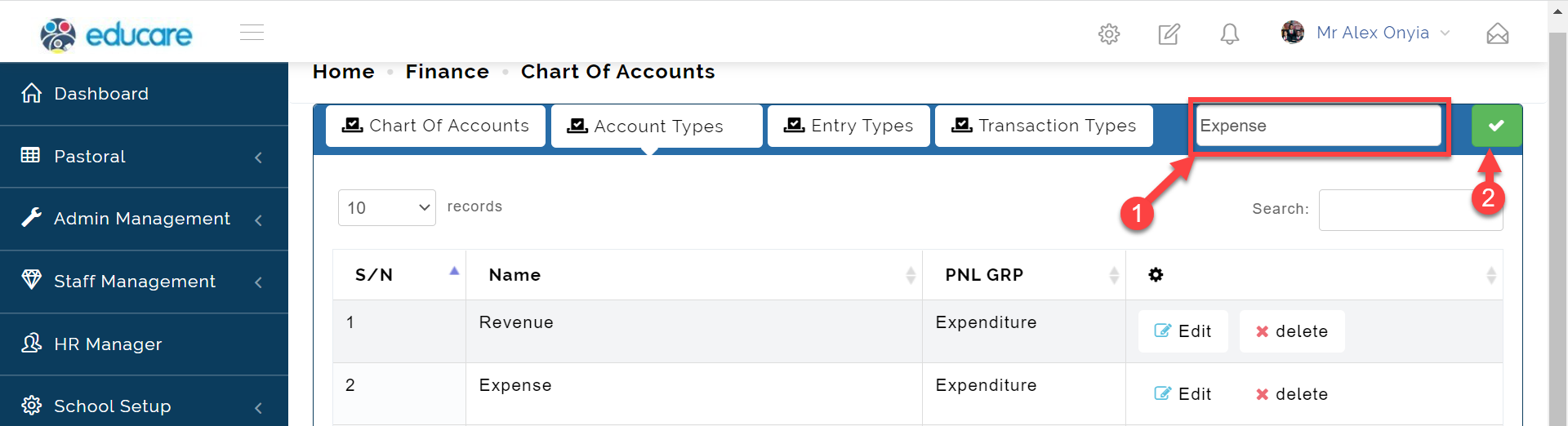
Enter the account name and hit enter to save.
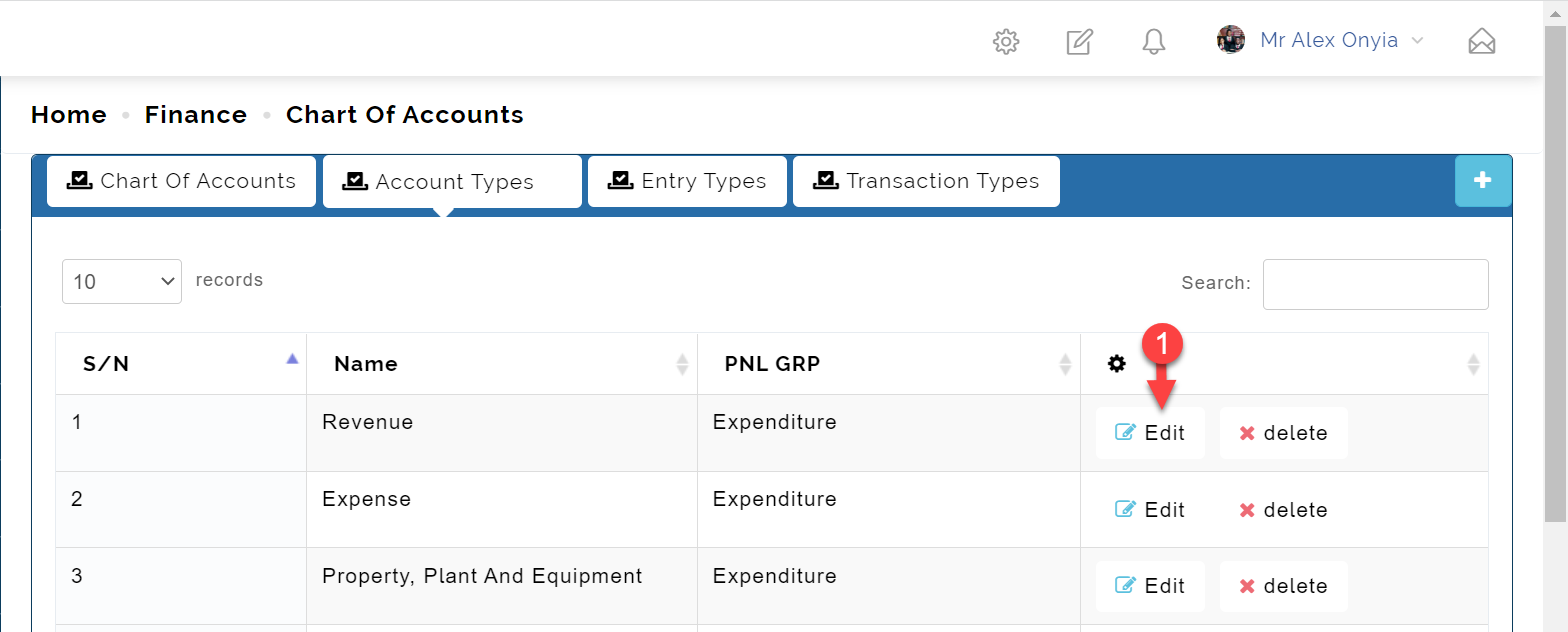
4.2 To edit an account type instance,
- Click the edit button on the row of interest as shown in the picture below.
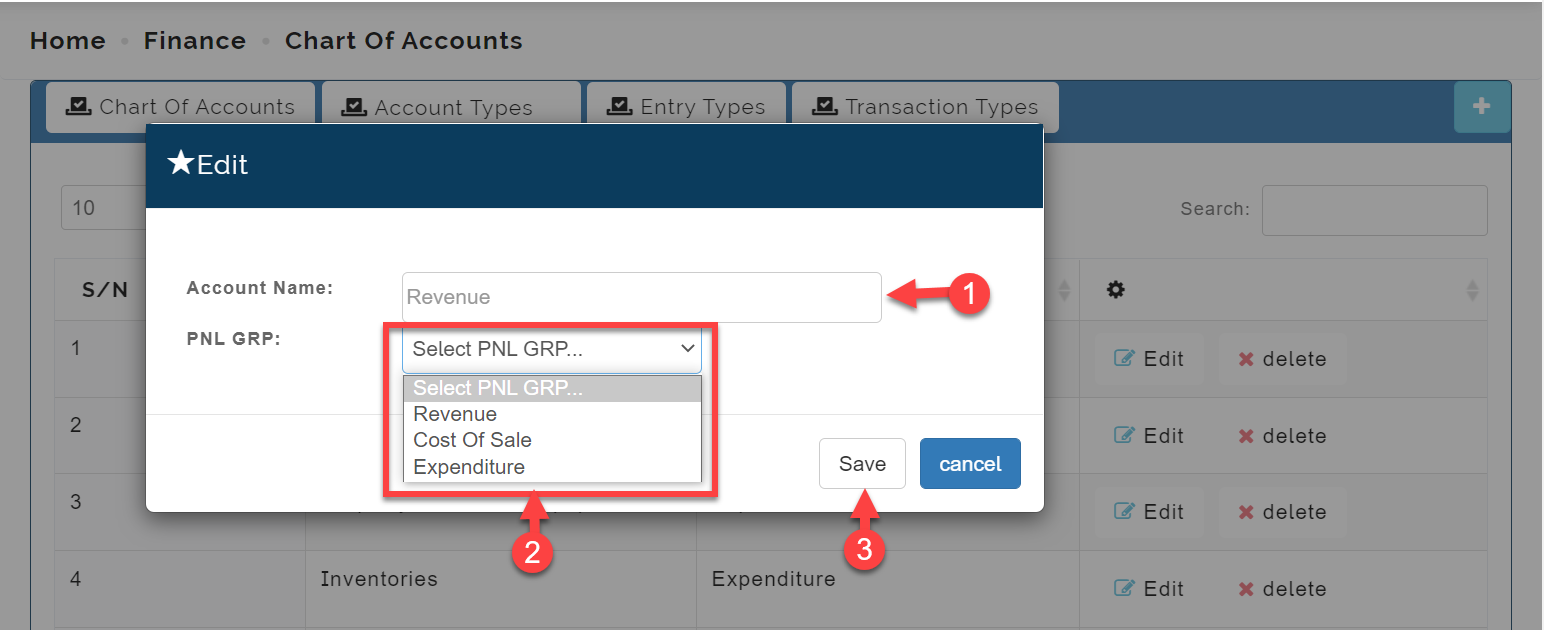
Clicking on the Edit button above opens the modal page below where you can;
- Edit the Account Name
- Edit the Profit and Loss Group(PNL GRP)
- and then click the Save button to commit your changes.
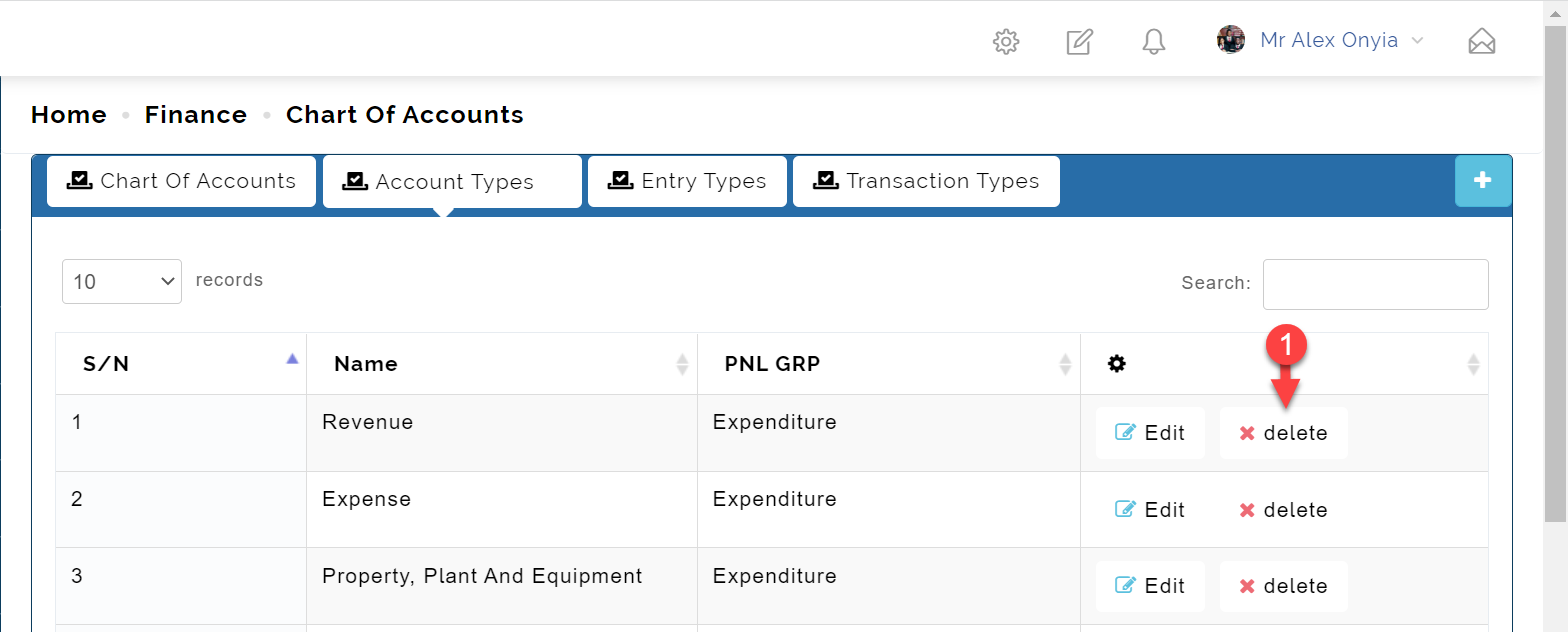
4.3 To delete an account type instance,
- Click the delete button on the row of interest as shown in the picture below.
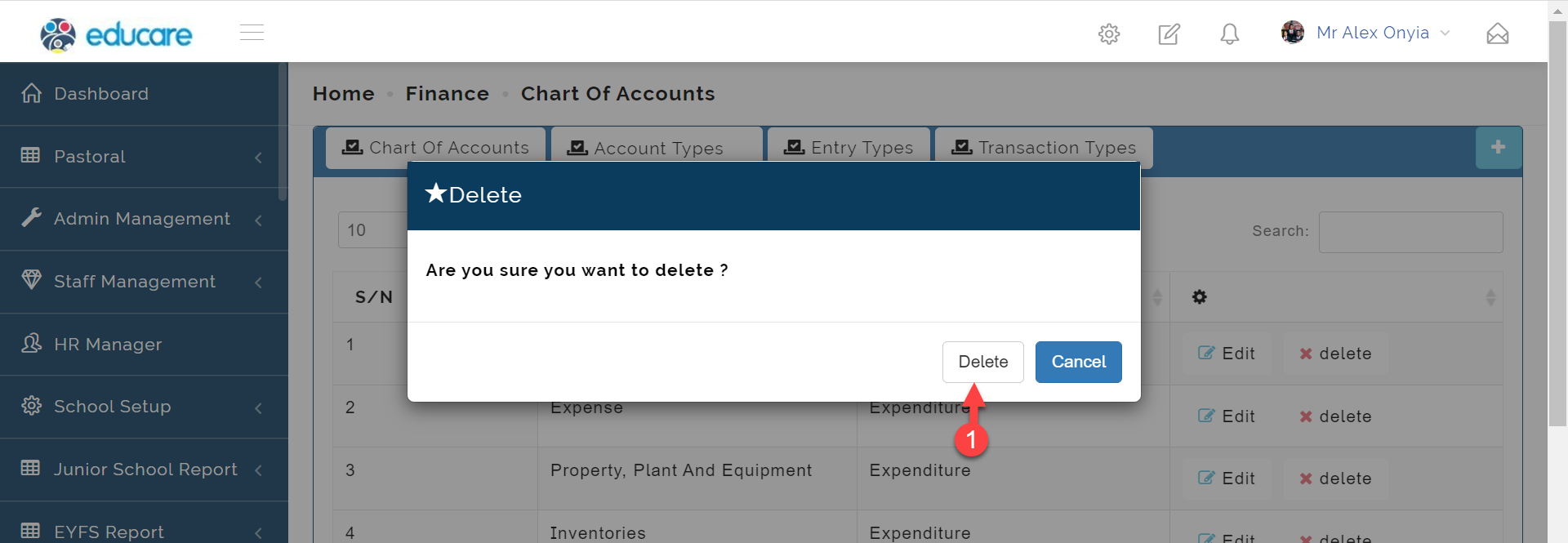
- Confirm your action, by clicking the delete button that shows on the modal window, and that is it!
Step 5: Entry Types
The Entry Types tab holds the list of all your account types. You can add, edit and delete account types here.
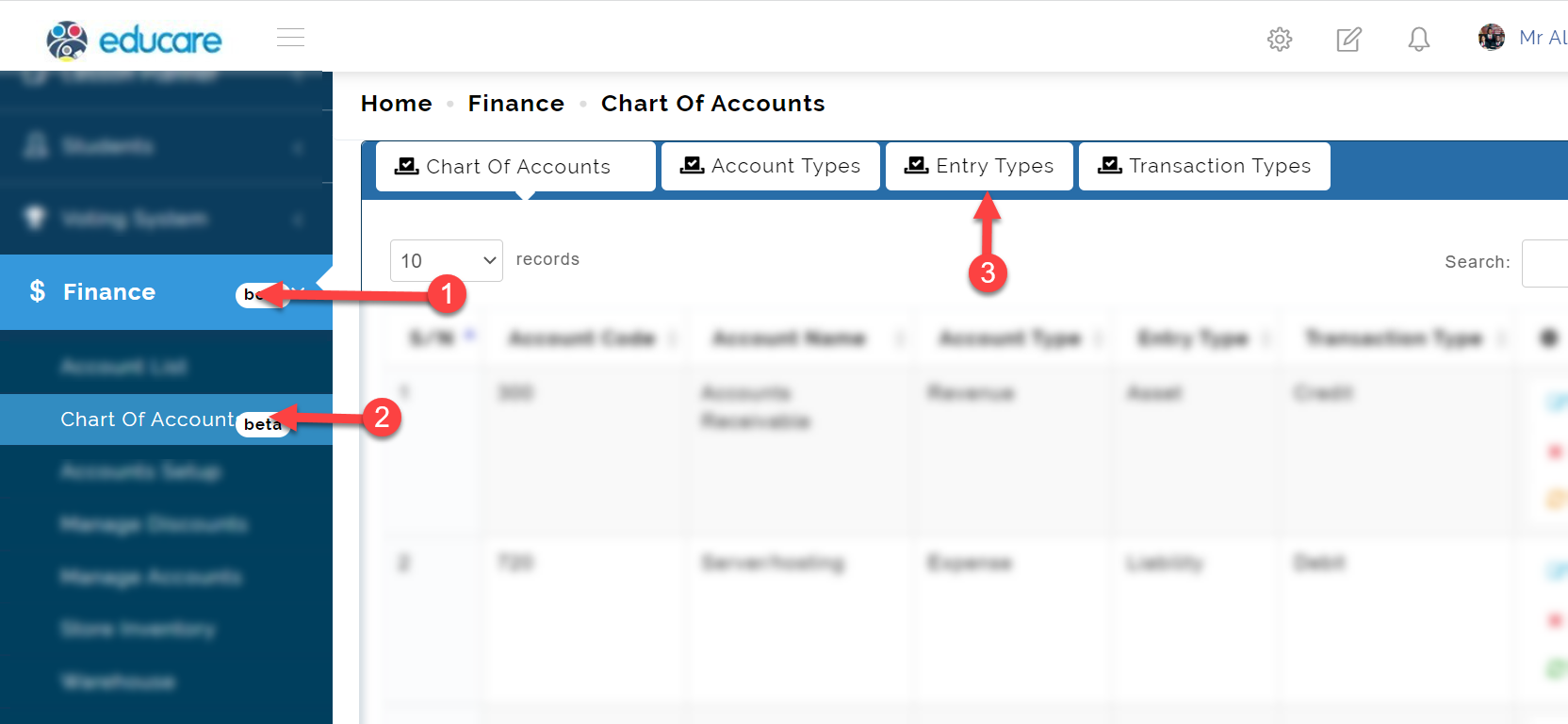
To access the Account Types,
- Click on Finance
- From the dropdown menu, select Chart of Accounts
- Then click on Entry Types tab as shown in the picture below
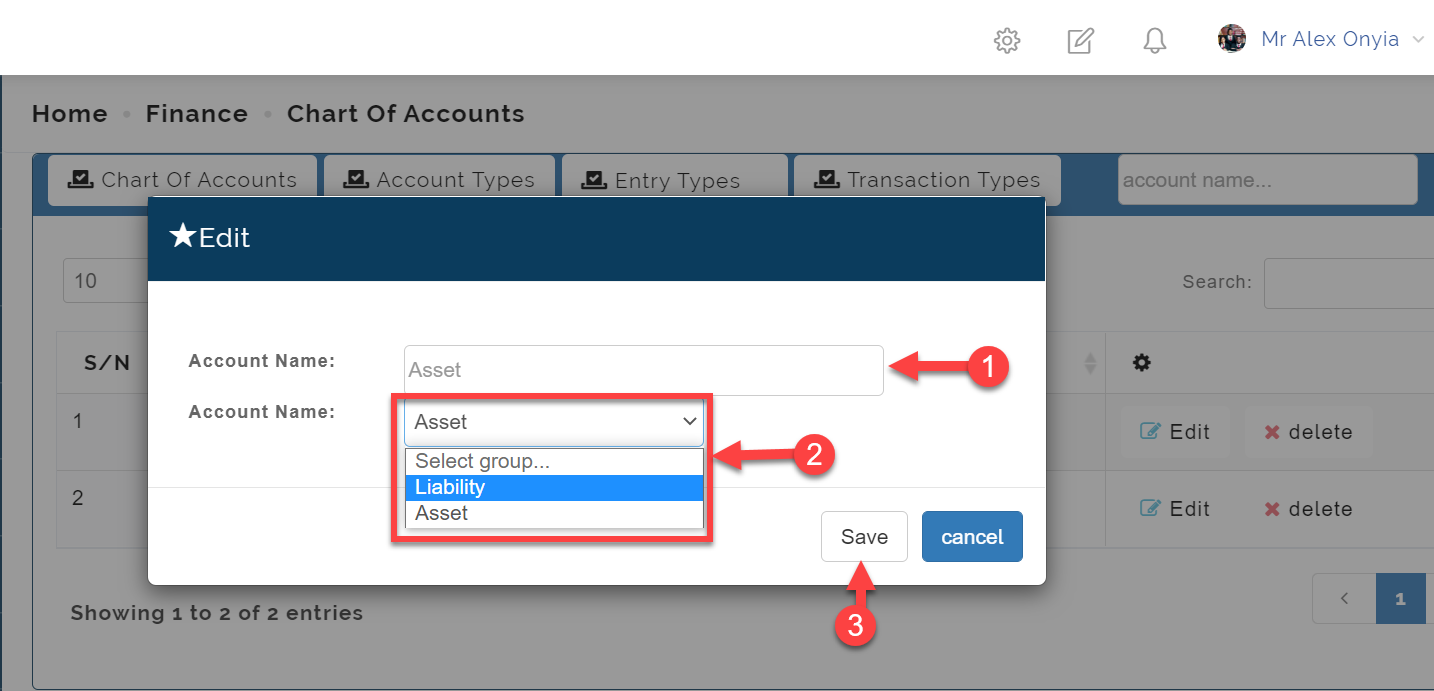
5.1 To edit an Entry Type instance,
- Click the edit button on the row of interest as shown in the picture below.
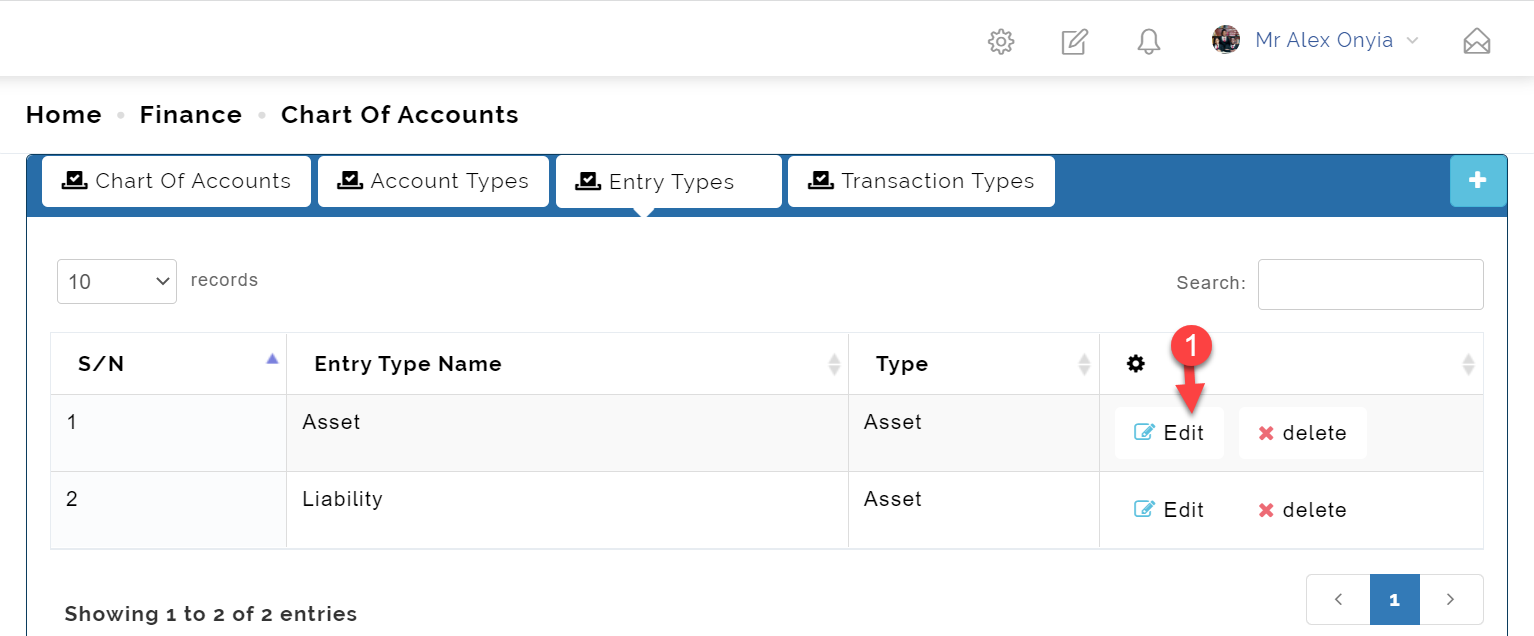
Clicking on the Edit button above opens the modal page below where you can;
- Edit the Account Name
- Select between Asset and Liability
- and then click the Save button to commit your changes.
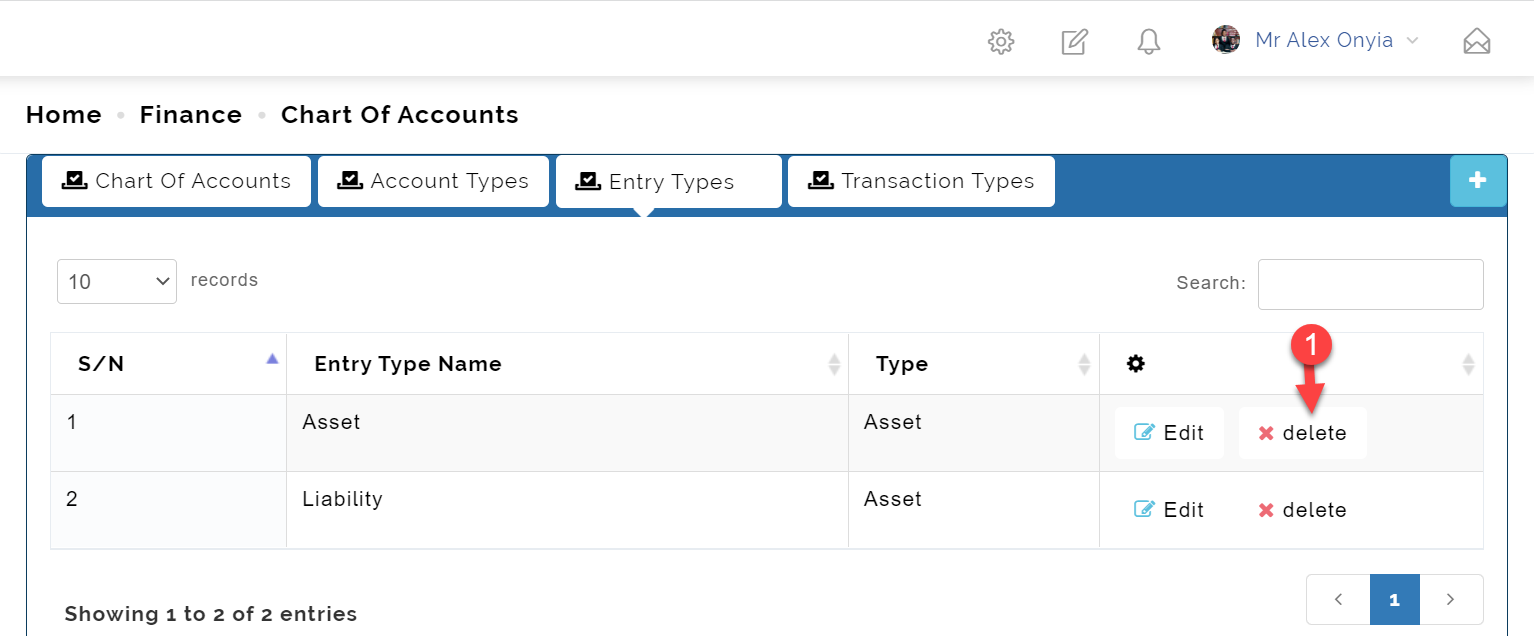
5.2 To delete an Entry Type instance,
- Click the delete button on the row of interest as shown in the picture below.
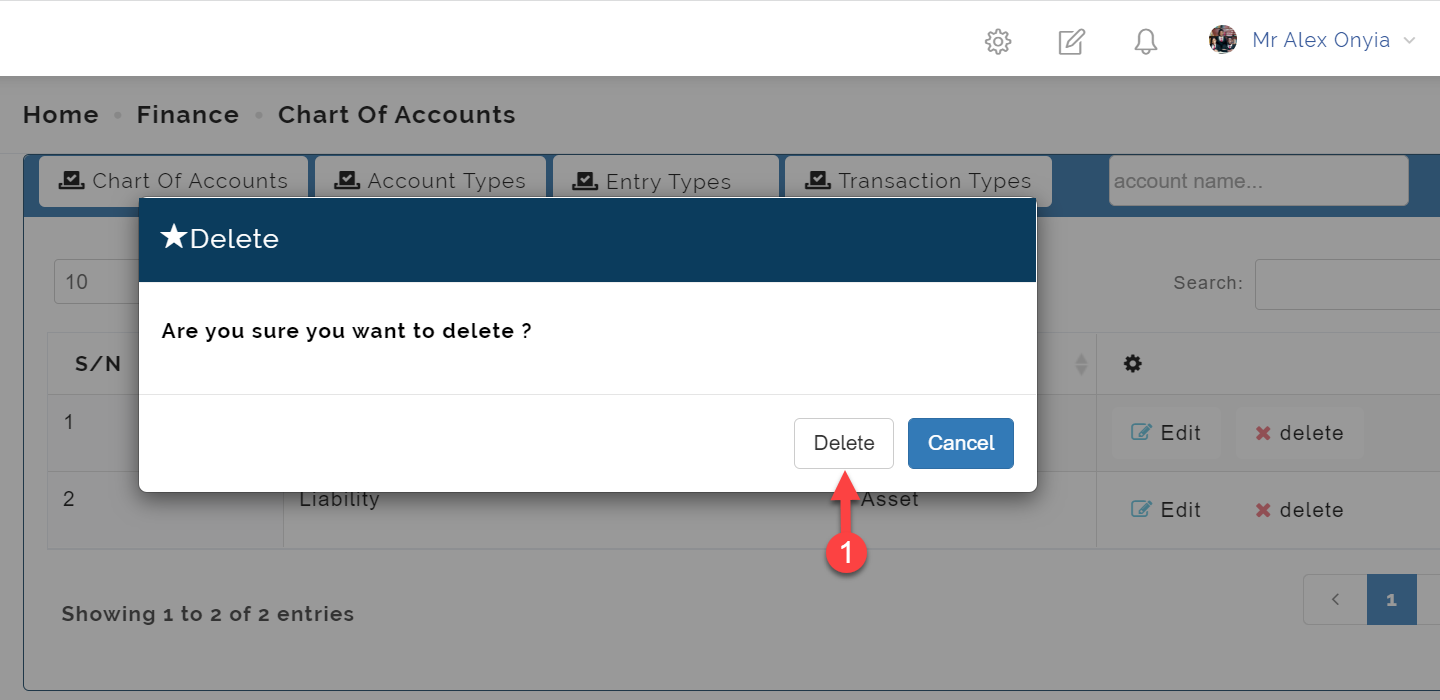
- Confirm your action, by clicking the delete button that shows on the modal window, and that is it!
Step 6: Transaction Type
The transaction types indicate whether a particular chart of accounts takes credit or debit.
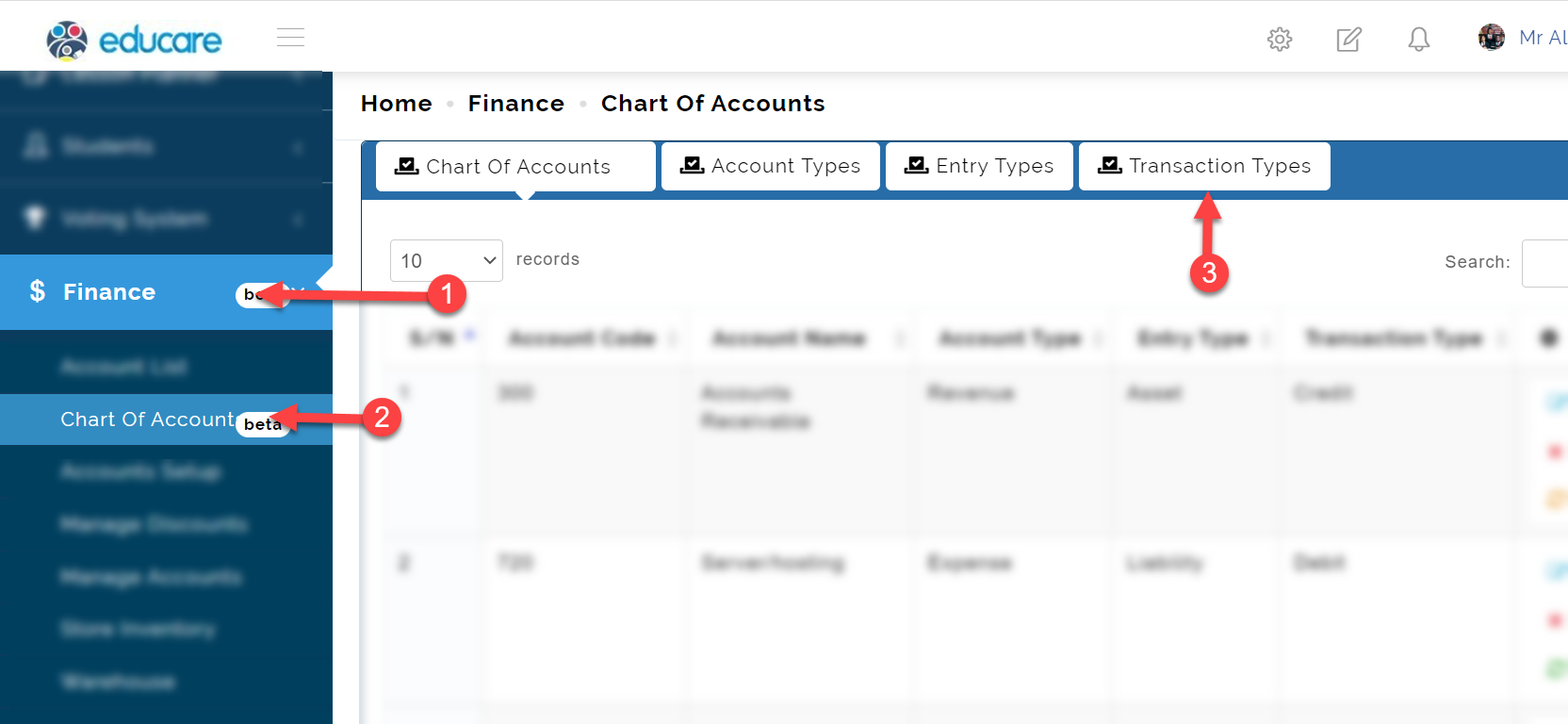
To access the Account Types,
- Click on Finance
- From the dropdown menu, select Chart of Accounts
- Then click on Transaction Types tab as shown in the picture below
6.1 To edit a Transaction Type instance,
- Click the edit button on the row of interest as shown in the picture below.
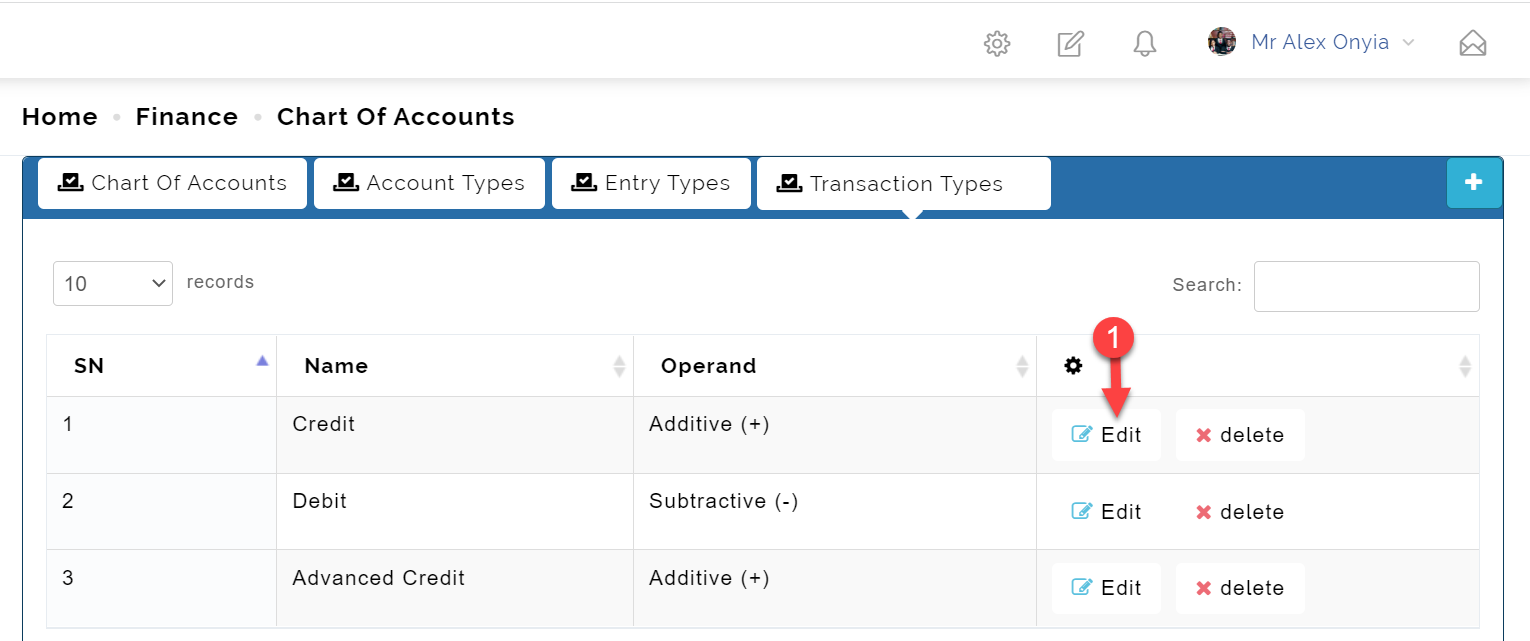
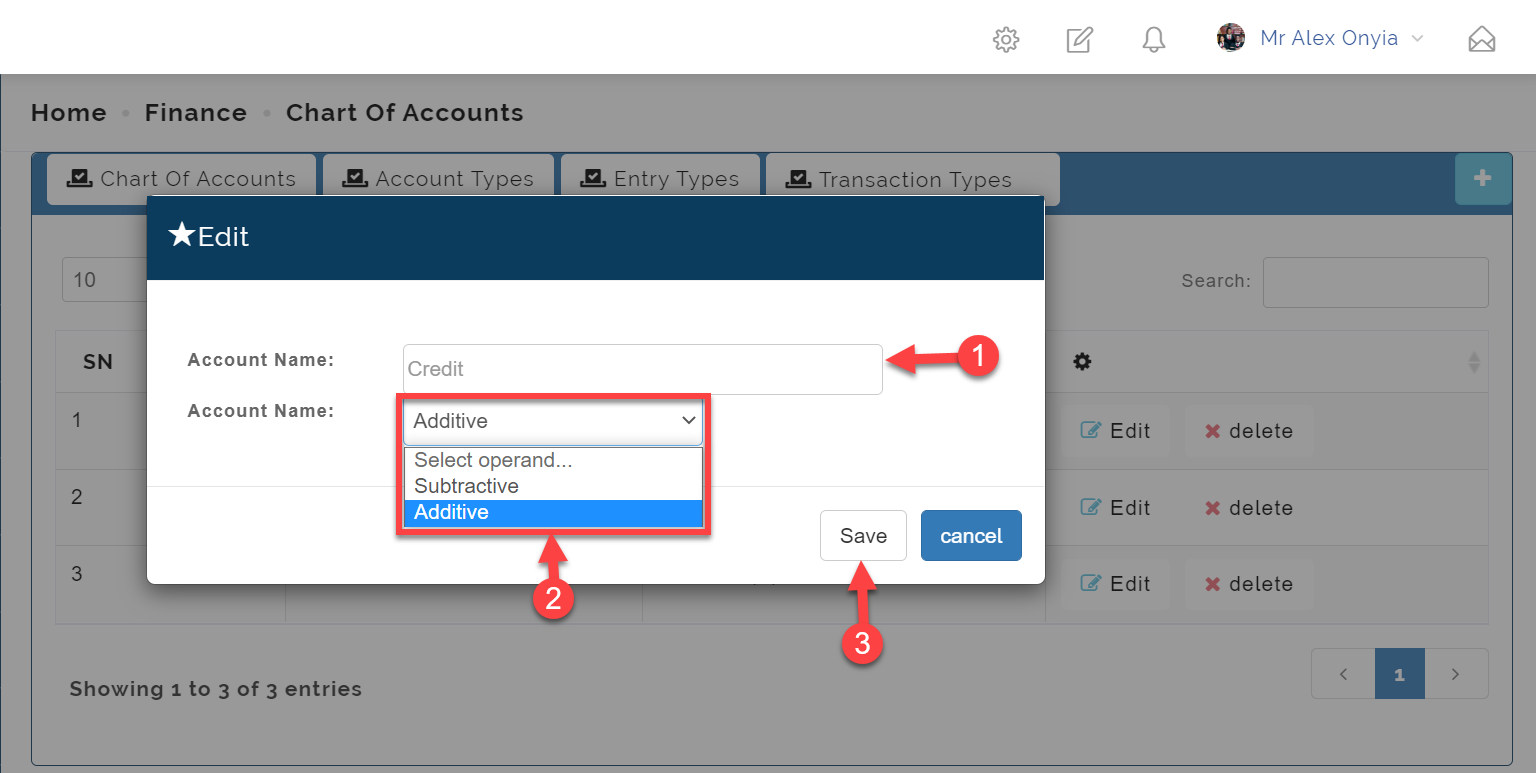
Clicking on the Edit button above opens the modal page below where you can;
- Edit the Account Name
- Select between Subtractiveand Additive
- and then click the Save button to commit your changes.
6.2 To delete a Transaction Type instance,
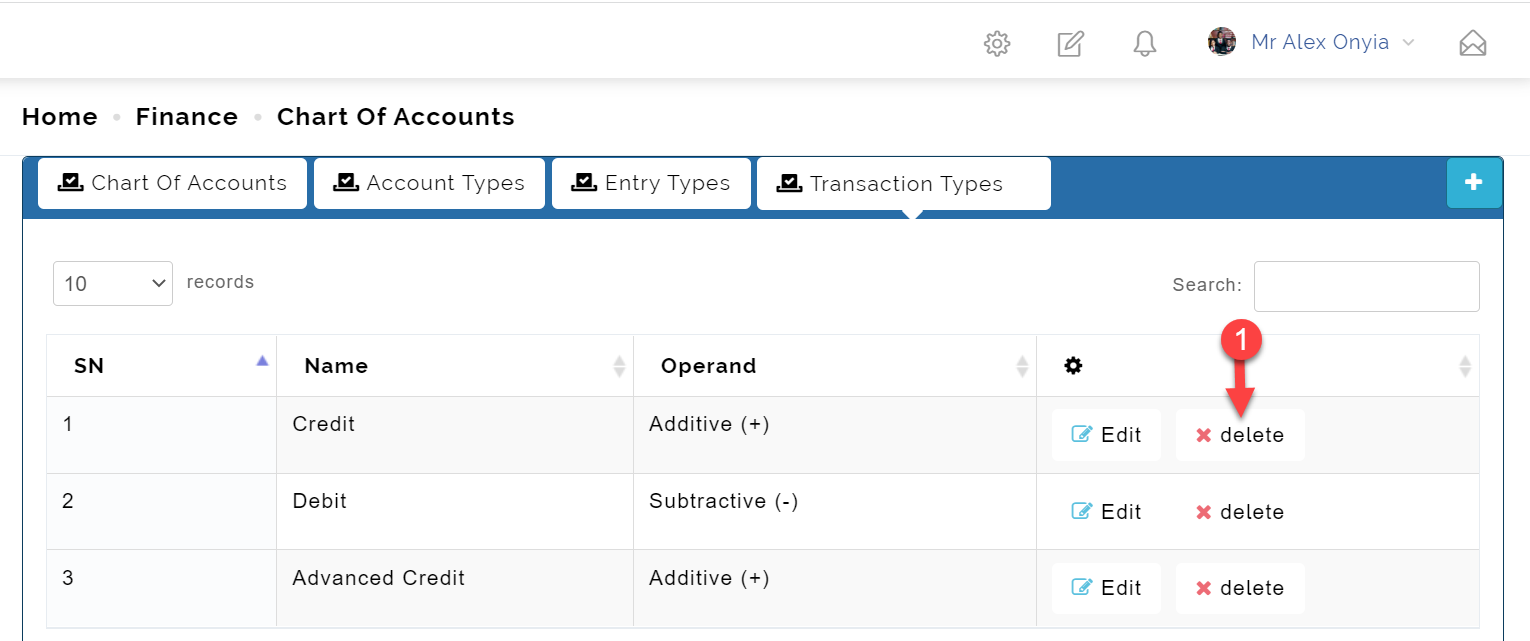
- Click the delete button on the row of interest as shown in the picture below.
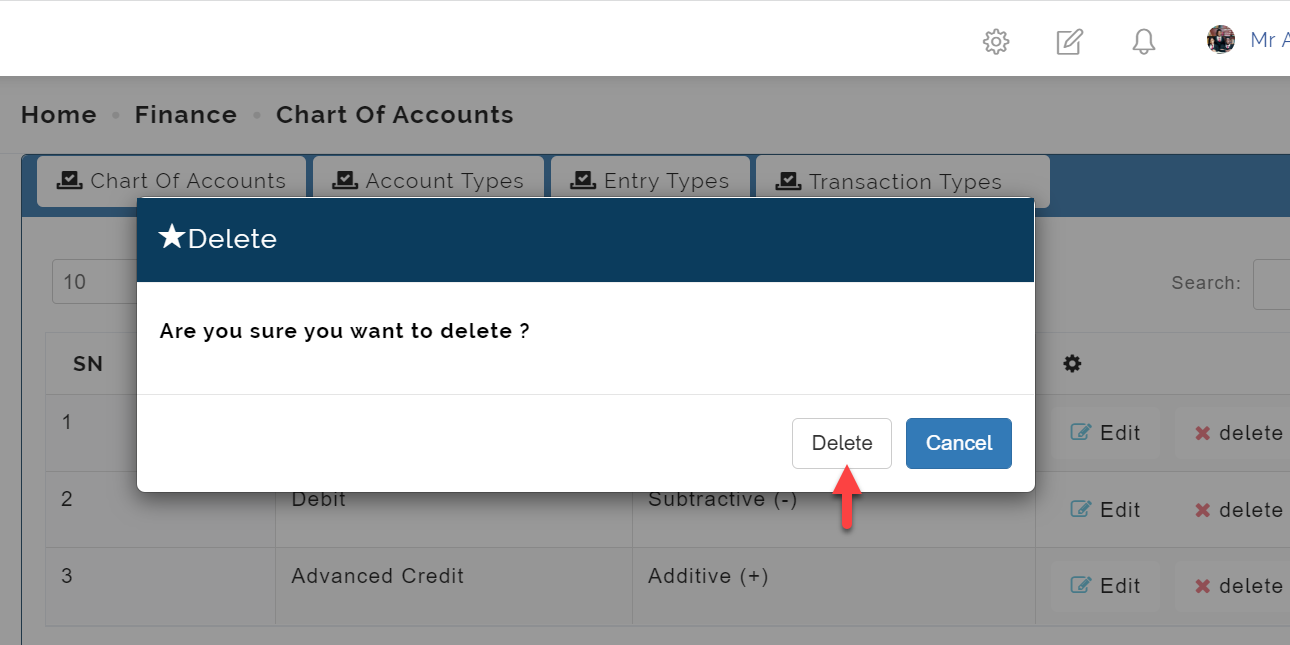
- Confirm your action, by clicking the delete button that shows on the modal window, and that is it!
Later on in the series, as we move on, we're going to see the resulting effect of a properly charted account, as they bear down on the Income Statement Reports. But for the purpose of introduction, the chart of accounts, and the account list, make up parts of the components, or dependencies of the Account Heads Setup, and we will see more of that in the next lesson.
Thank you!