
The account list menu holds the IBAN or NUBAN, as well as the General Ledger accounts.
The accounts registered here are used to run different account heads, reconcile offline payments and manage expenditure. All transactions passing through each registered account are reported in the Broadview Menu as well as the financial statements.
Here you can add your school's IBAN or NUBAN and also the General Ledger accounts in your school.
To create your school's account numbers in educare, follow these steps;
Step 1: Opening the Account List
- Click on Finance
- From the dropdown menu, select Account List
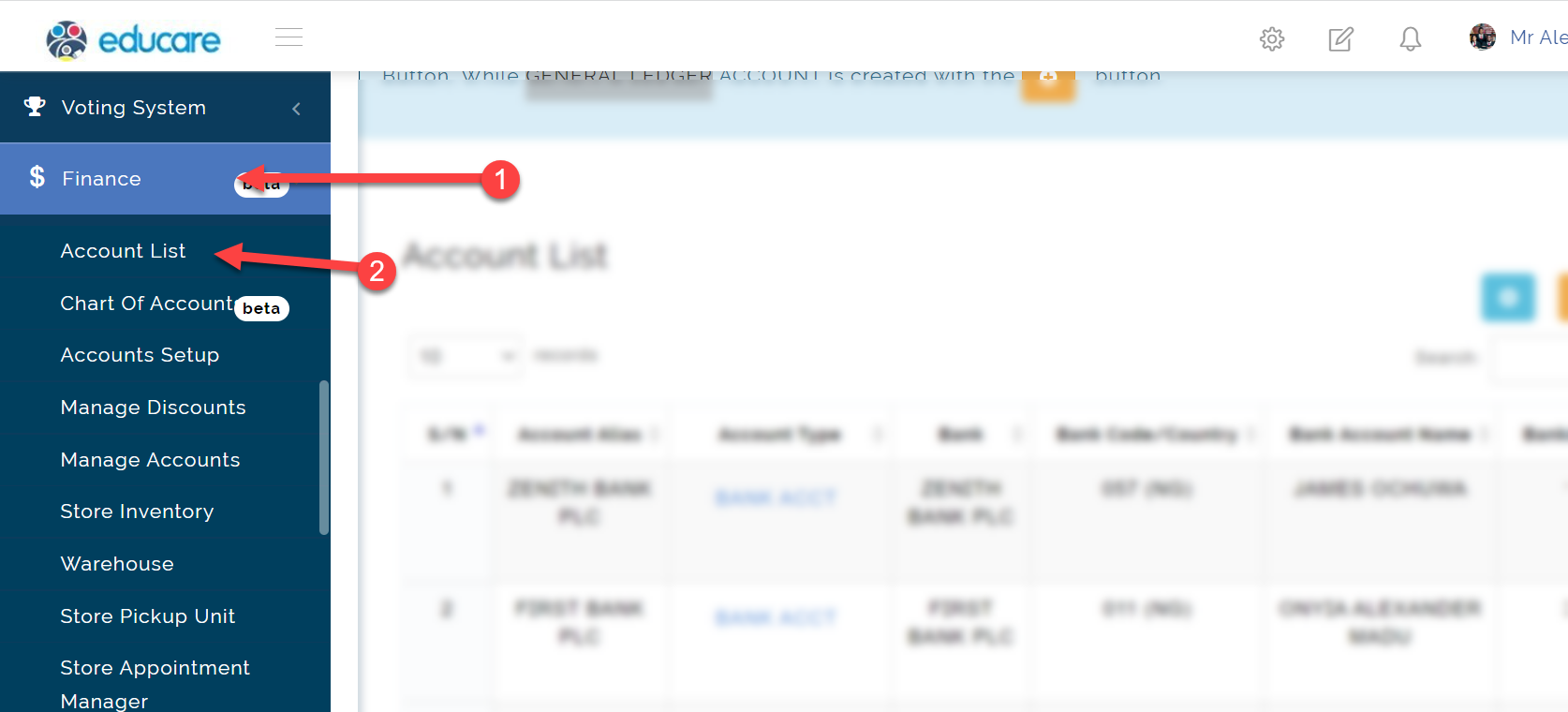
Step 2: Adding a new Account Number in Account List
Click on the blue button indicated in the picture below to add a new NUBAN account number to the Account List
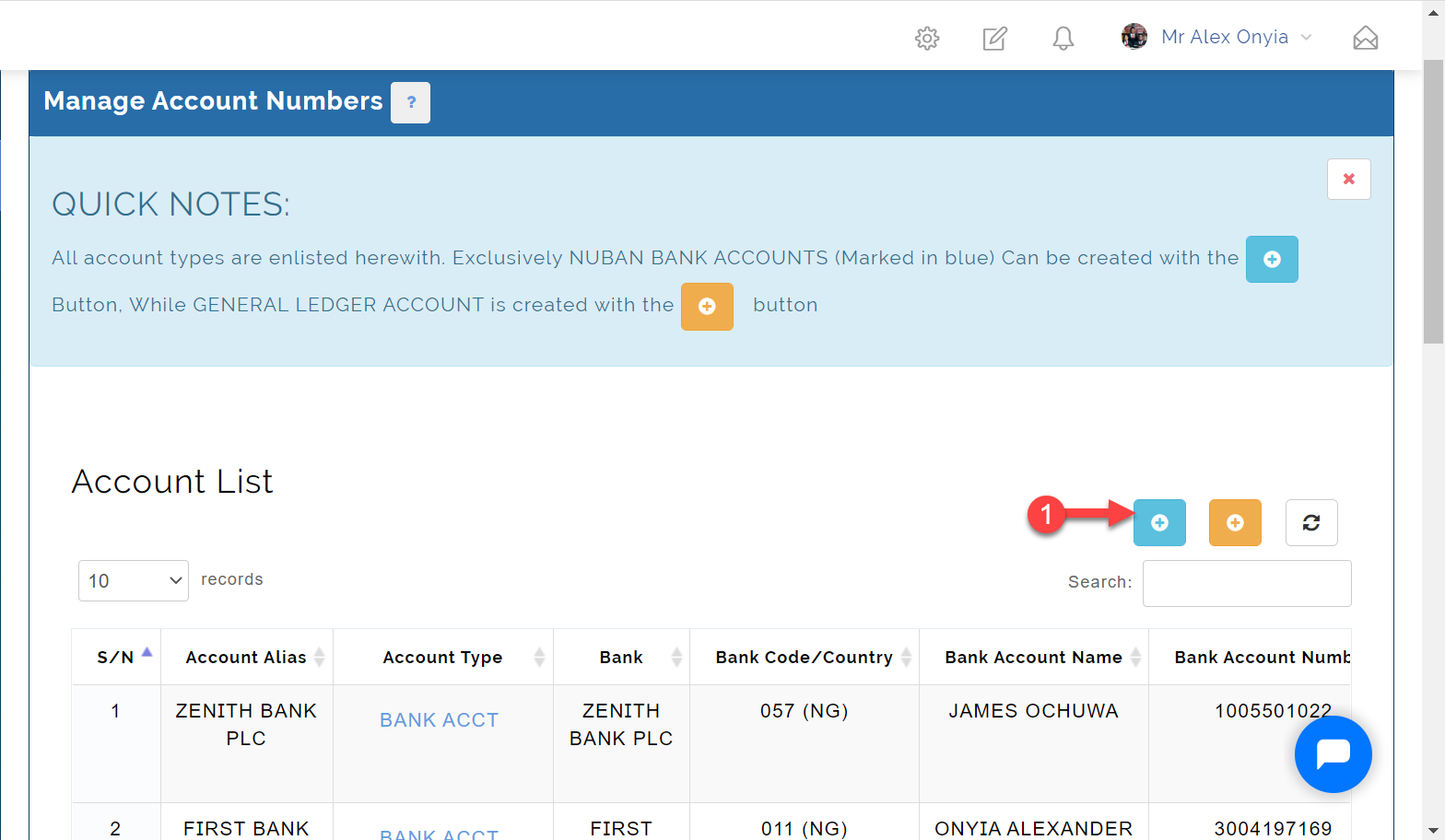
Clicking on the button above opens up the modal below where you can input your school's account details
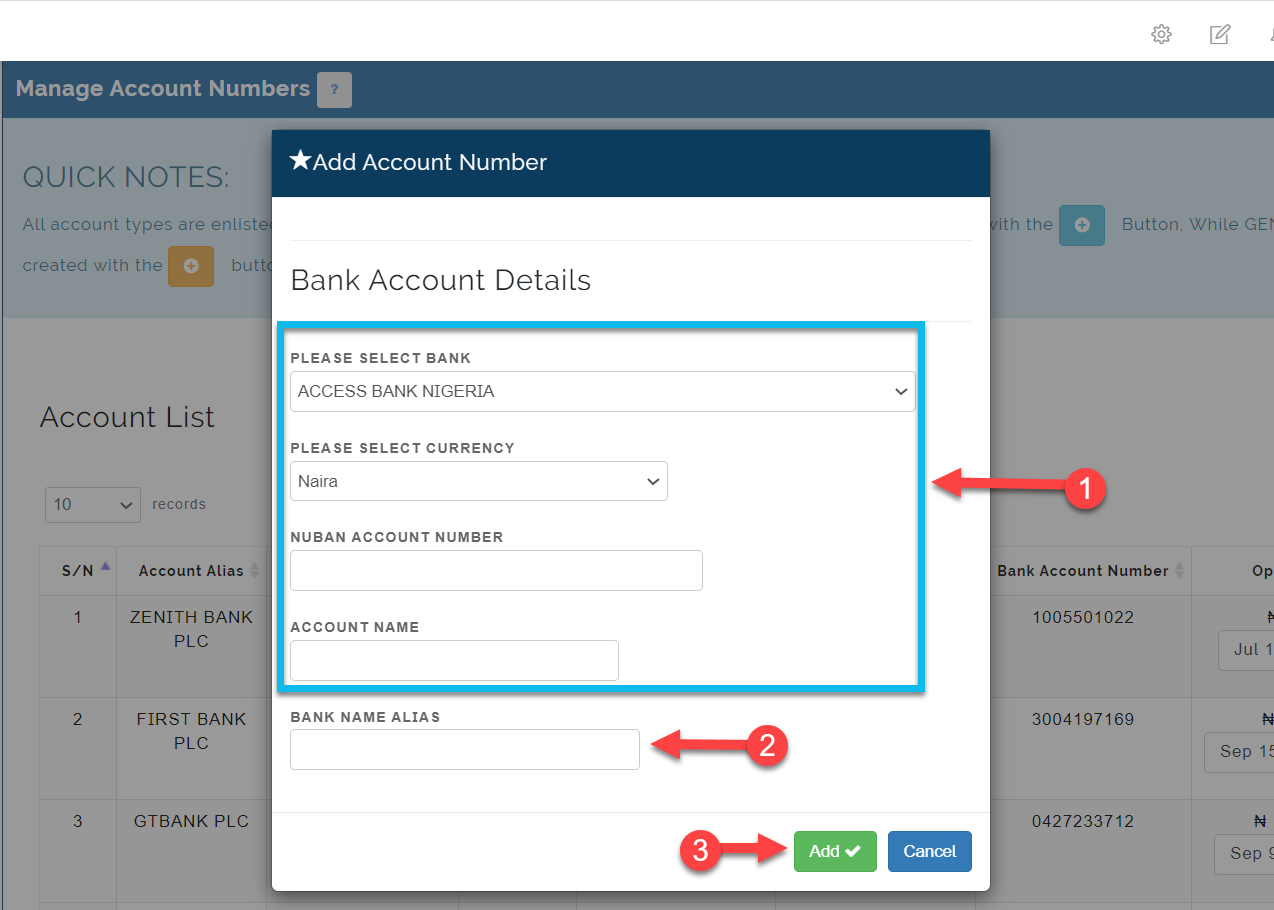
The numbers in the picture above are explained below;
1
- PLEASE SELECT BANK: Select your bank from the list of all the banks in Nigeria.
- PLEASE SELECT CURRENCY: Select your account's currency, usually naira.
- NUBAN ACCOUNT NUMBER: Enter your 10 digits NUBAN.
Immediately the account is entered, the system automatically verifies the account number, gets the name that is attached to that account number and fills it in the ACCOUNT NAME text field.
2
The Bank Name Alias is for differentiation and basically to rename a Bank Name. It is for instances where schools would want to use one bank with multiple account numbers to receive different kinds of payment(e.g. Uniform fee, bus fee, clubs fee etc.) without getting confused because the different account has the same Bank Name.
For instance if your school has four(4) account numbers in GT BANK, rather than having all 4 bank names showing as GT BANK, you can rename the Bank Names to suit their purpose using the Bank Name Alias. Example: GT Bank Uniform, GT Bank Fees, GT Bank Clubs etc.
3
Click on the Add button to save.
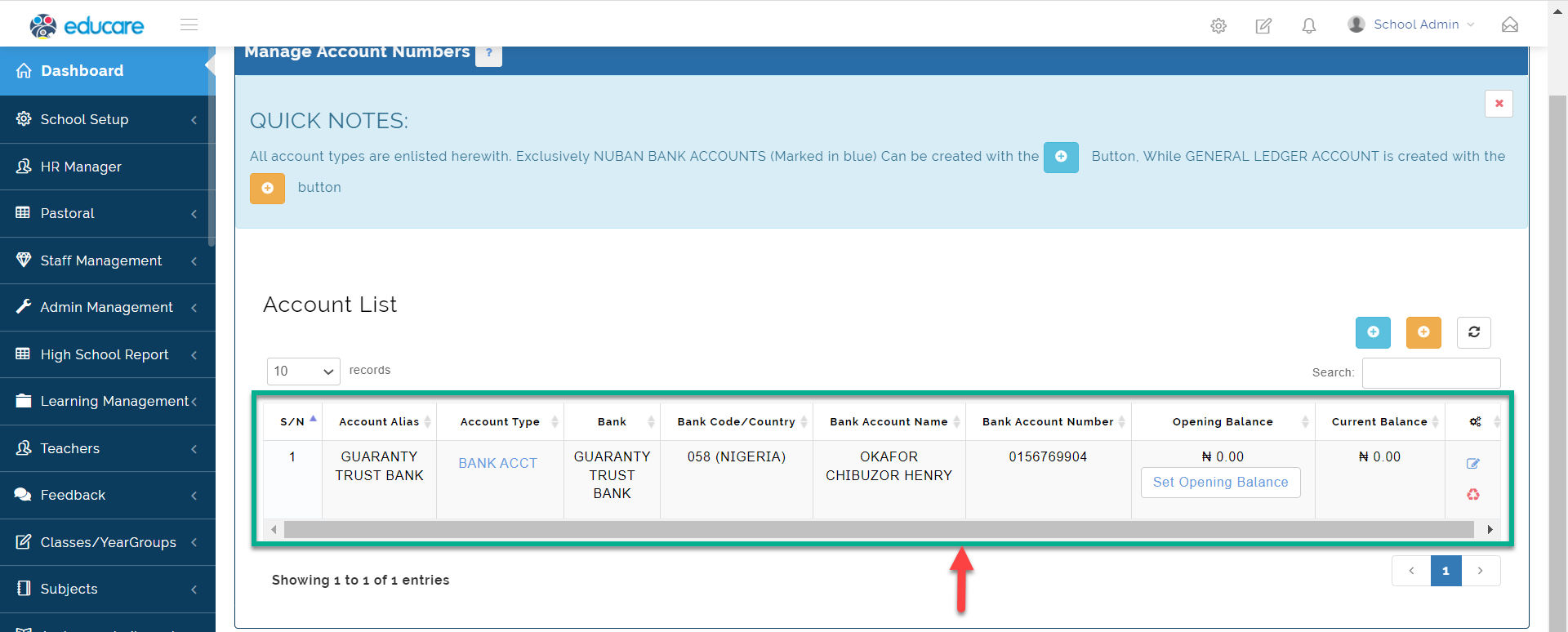
The created account
Now we know how to add a NUBAN account number on educare.
Adding a GENERAL LEDGER ACCOUNT number is basically same process as adding a NUBAN ACCOUNT NUMBER, to do this you'd need to click on the orange button which is next to the blue button.
Step 3: Setting Opening Balance
The Set Opening Balance is use when you want the actual amount in your bank to be same as the amount that shows on the account you have on educare. This is done so that both account(actual bank account balance and the newly created account) are reconciled.
To set opening balance, click on the Set Opening Balance button as indicated in the picture below
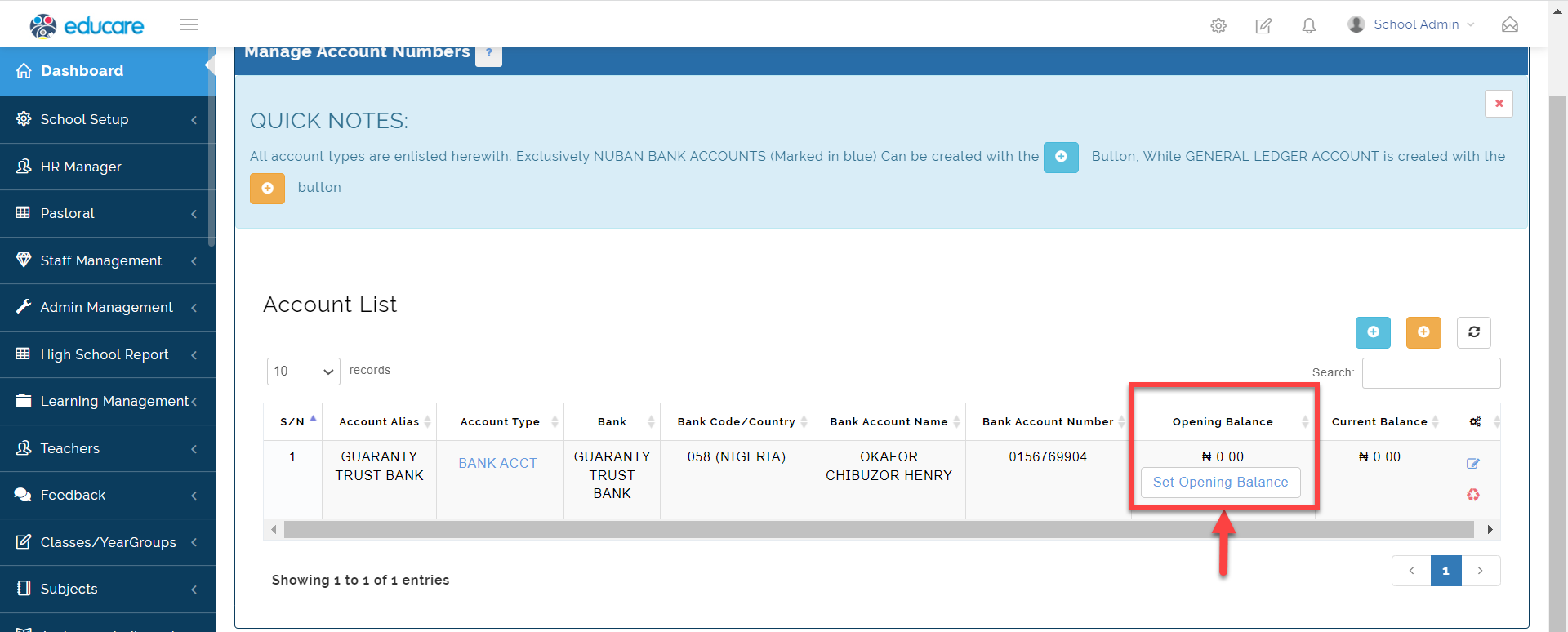
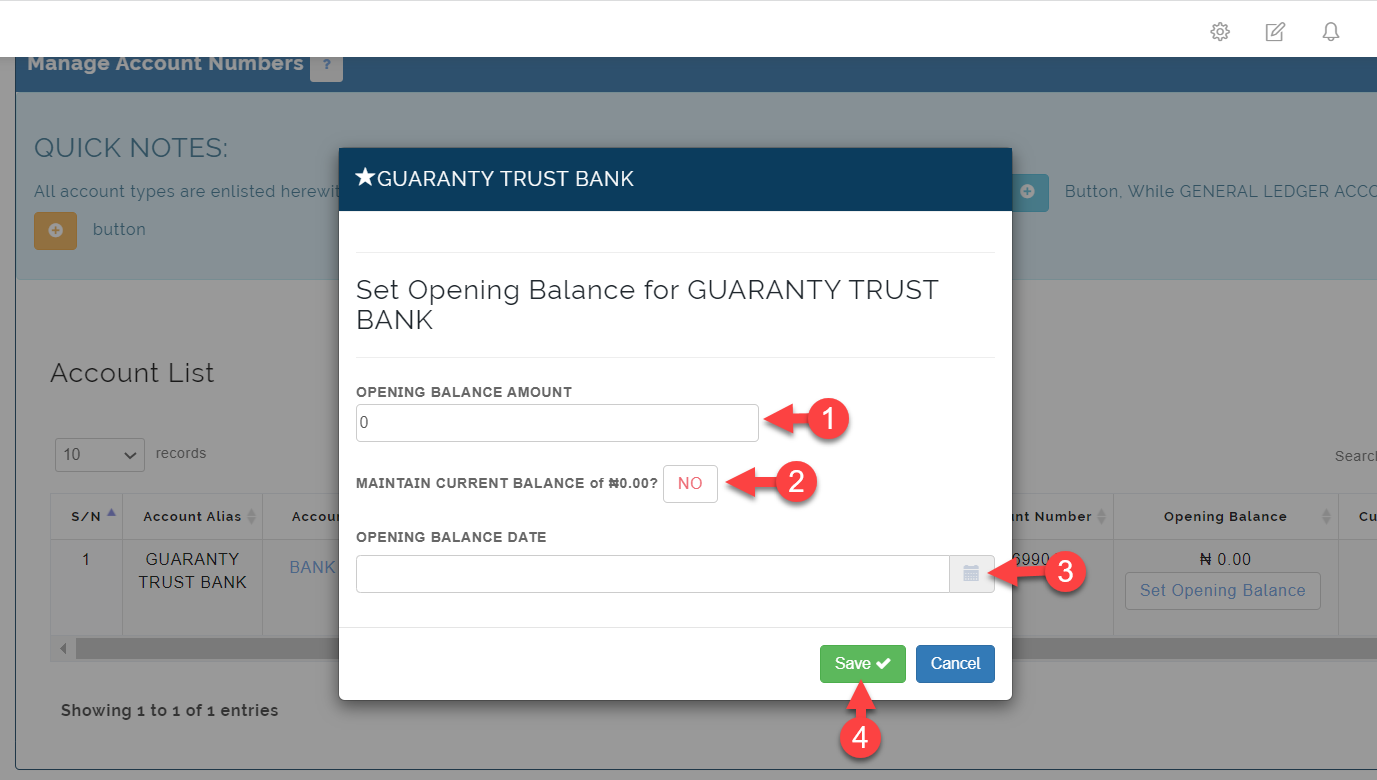
Clicking on the Set Opening Balance button above opens up the modal below where you can input'
- Enter bank account balance.
- Choose if to overwrite the existing balance on the account with the new opening Balance or Maintain the current balance. Clicking on NO toggles between YES and NO; "YES" Means, Leave the current balance as it is, do not overwrite it. "NO" means, overwrite the current balance.
- Enter your opening balance date.
- Click on the Save button.
NB:
Every Credit and Debit to this account number, using educare will reflect in the Account Statement Report Dashboard (The Broad View).
NUBAN
NUBAN simply means Nigerian Uniform Bank Account.