
This is where all discounts your school have is created and managed. This is either done as an exact amount or percentage. A discount can be applied to as many items on an invoice in one go (that is; when an invoice is created each of the items selected on the invoice will be counted automatically).
The Manage Discount is where you can create discounts and manage existing ones.
To create Create a discount, follow these steps below;
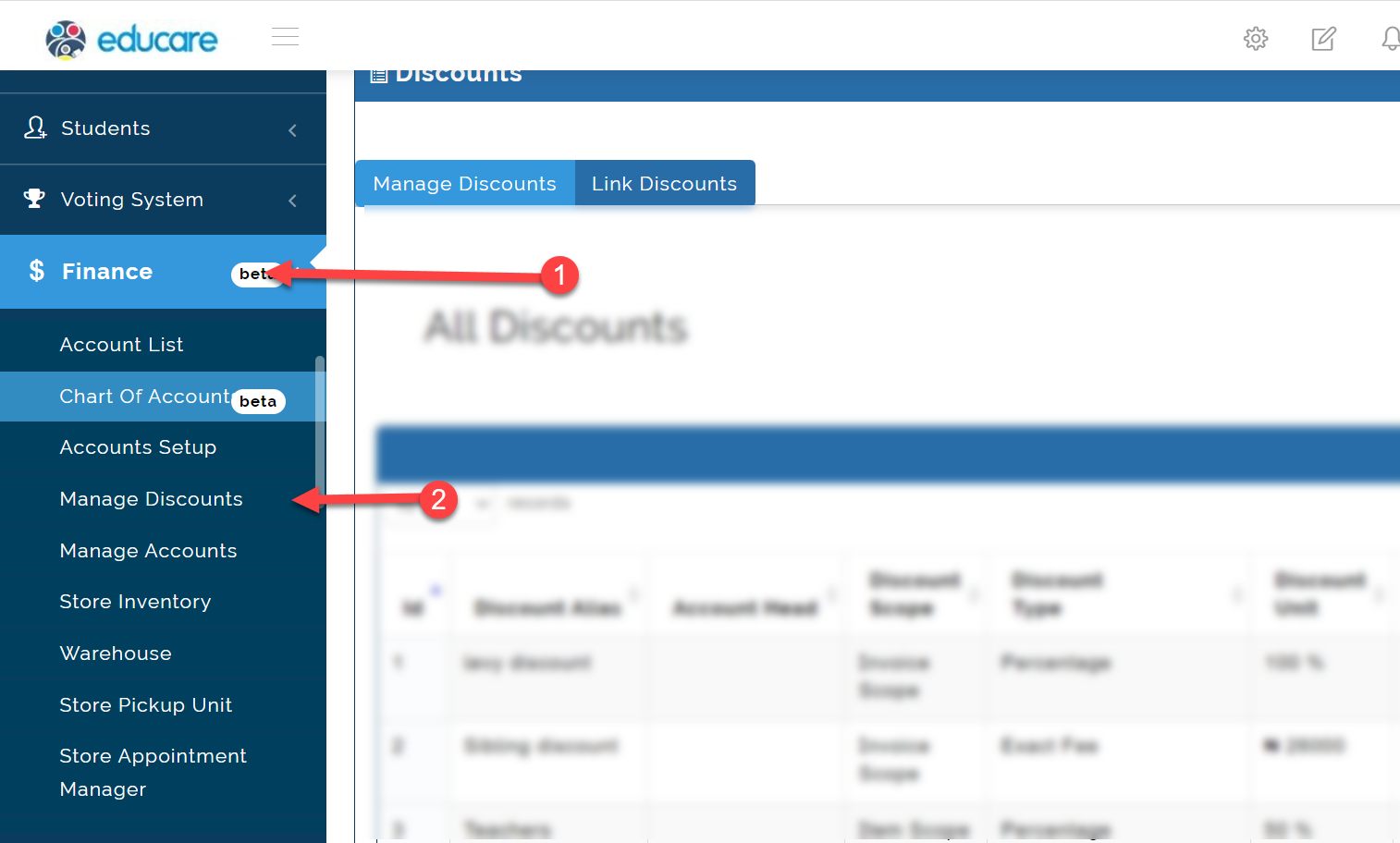
Step 1: Opening the discount table
- Click on Finance
- From the dropdown menu, select Manage Discount
Step 2: Creating a new discount
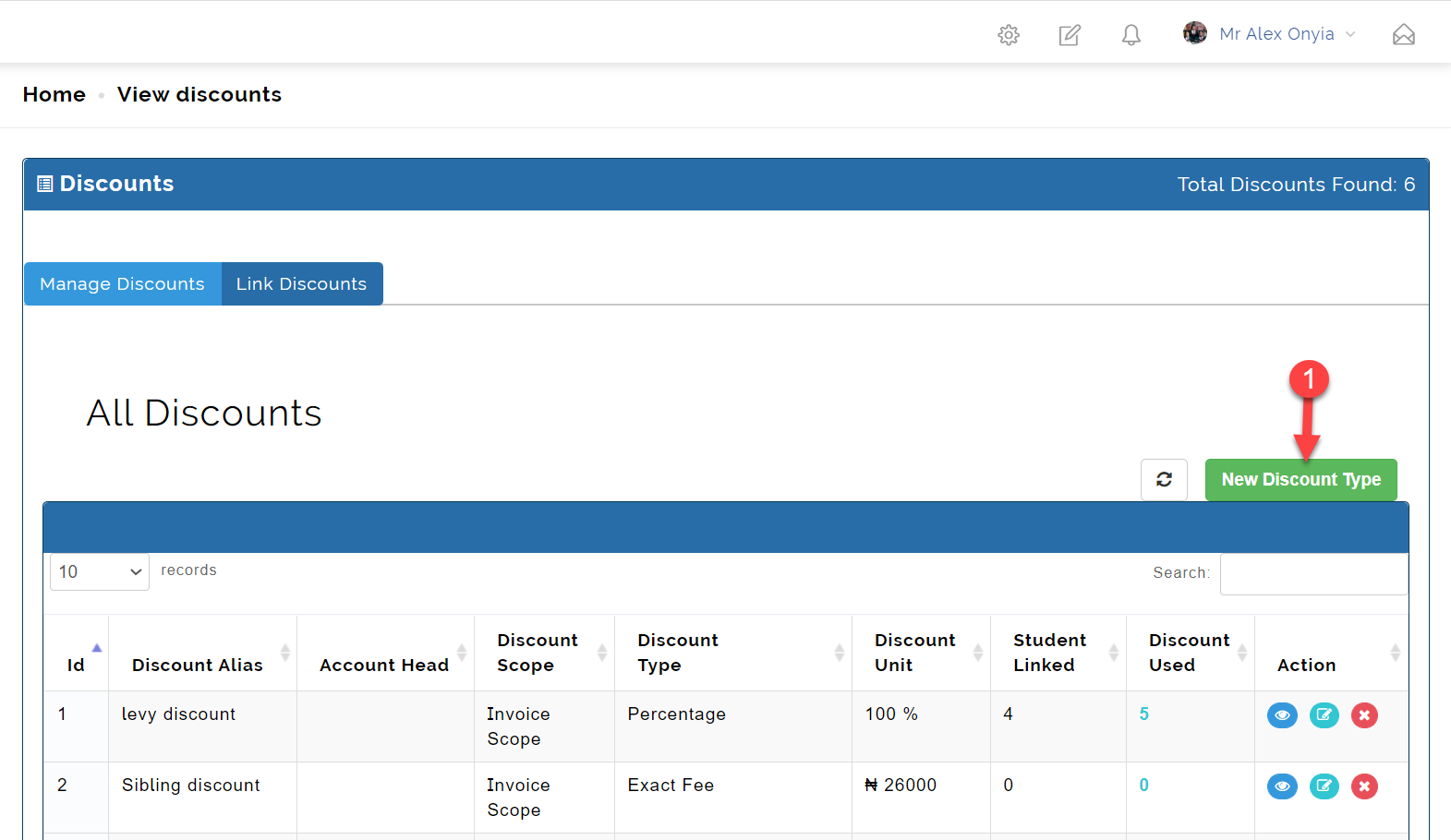
To create a new Discount, click at the New Discount Type at the top-right corner as indicated in the picture below
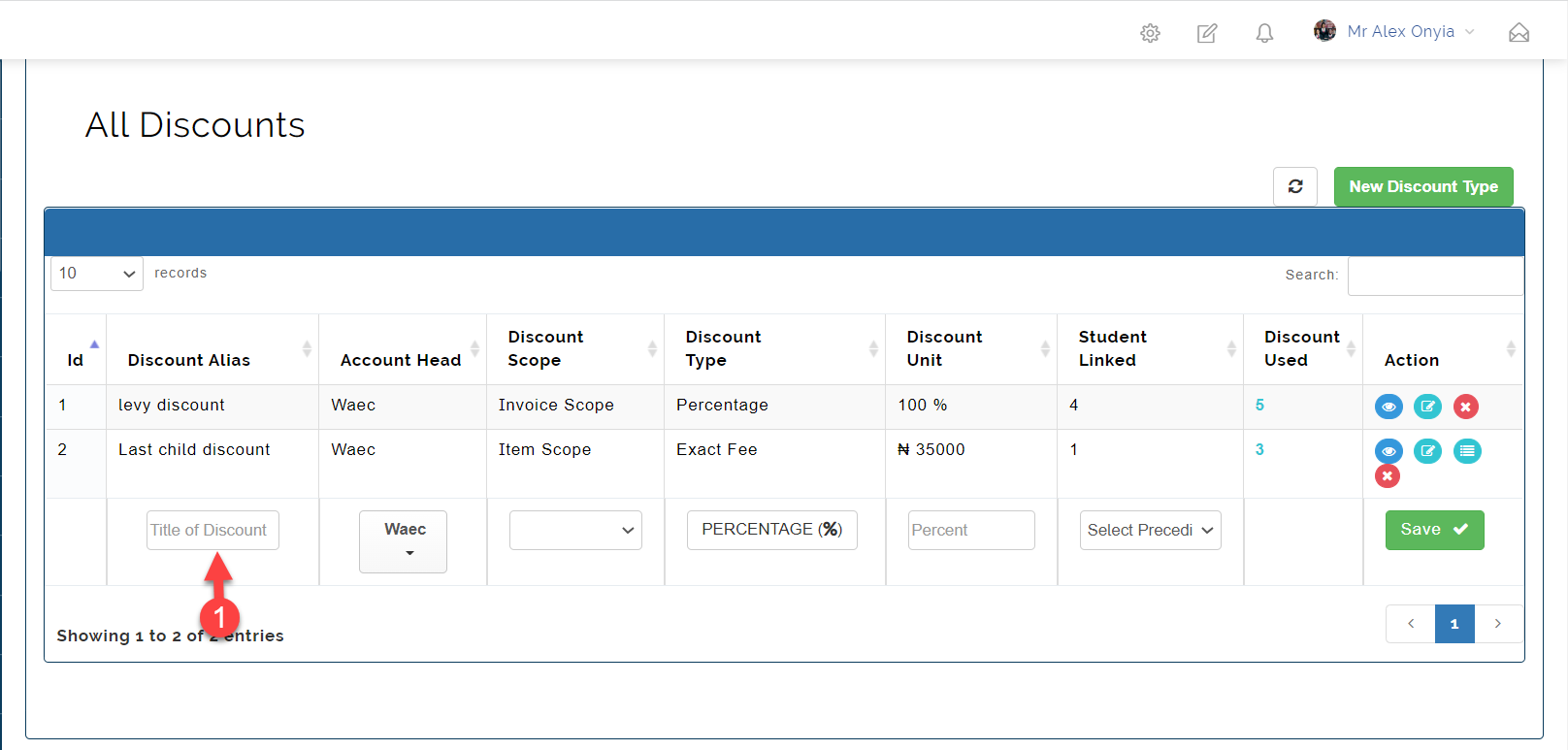
- Enter the Title of discount in the text box provided
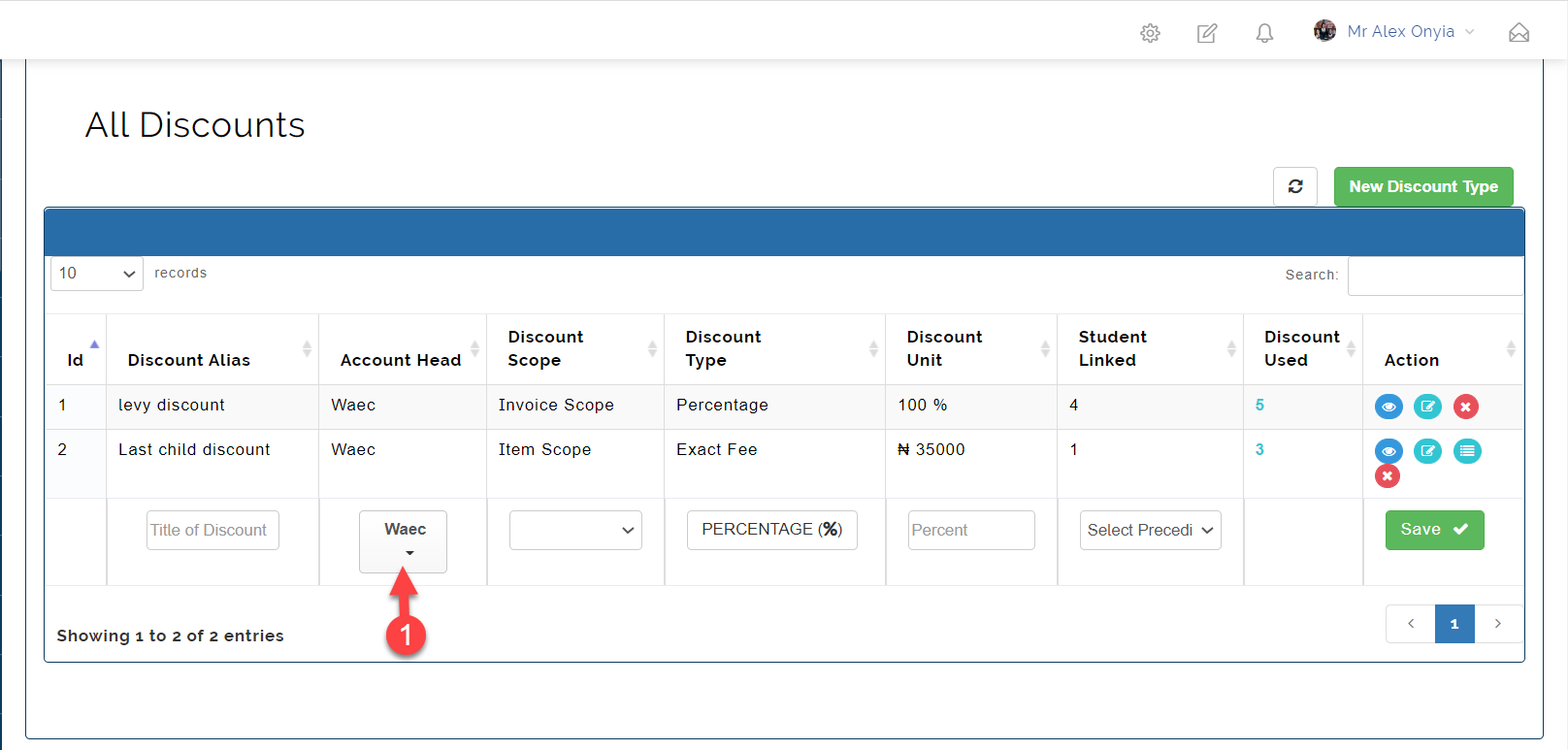
- Select an Account Head for the discount
- Select the Discount Scope
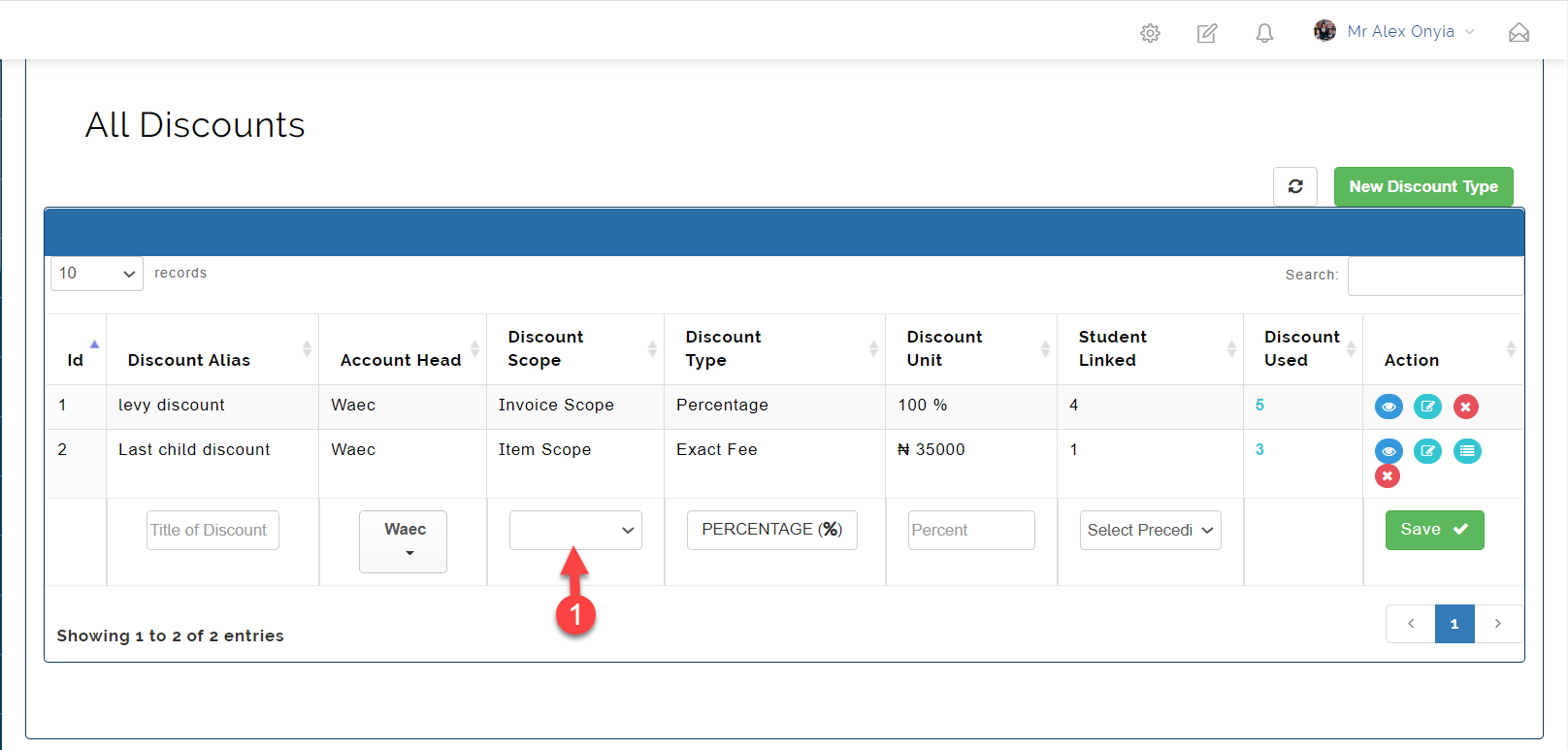
Discount Scope
The Discount Scope can either be Invoice Scope or Item Scope
Invoice Scope means applying the discount to an entire invoice
Item Scope simply means applying the discount to a specific item on the invoice
- Choose a discount type
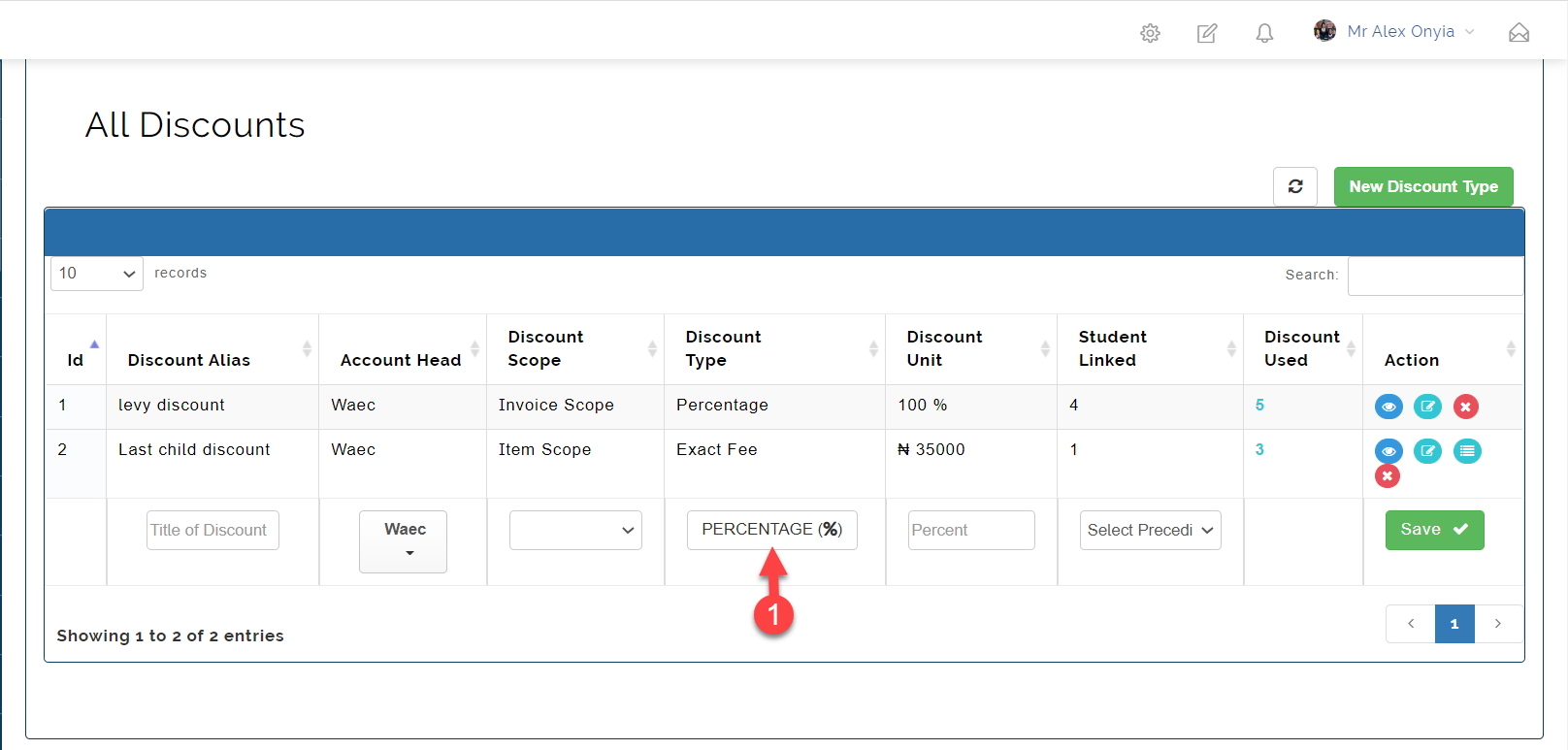
Discount Type
Discount Type can either be in Percentage (%) or Exact fee
Percentage (%) is giving out discount on a certain percentage
Exact fee is giving out discount at fixed amount.
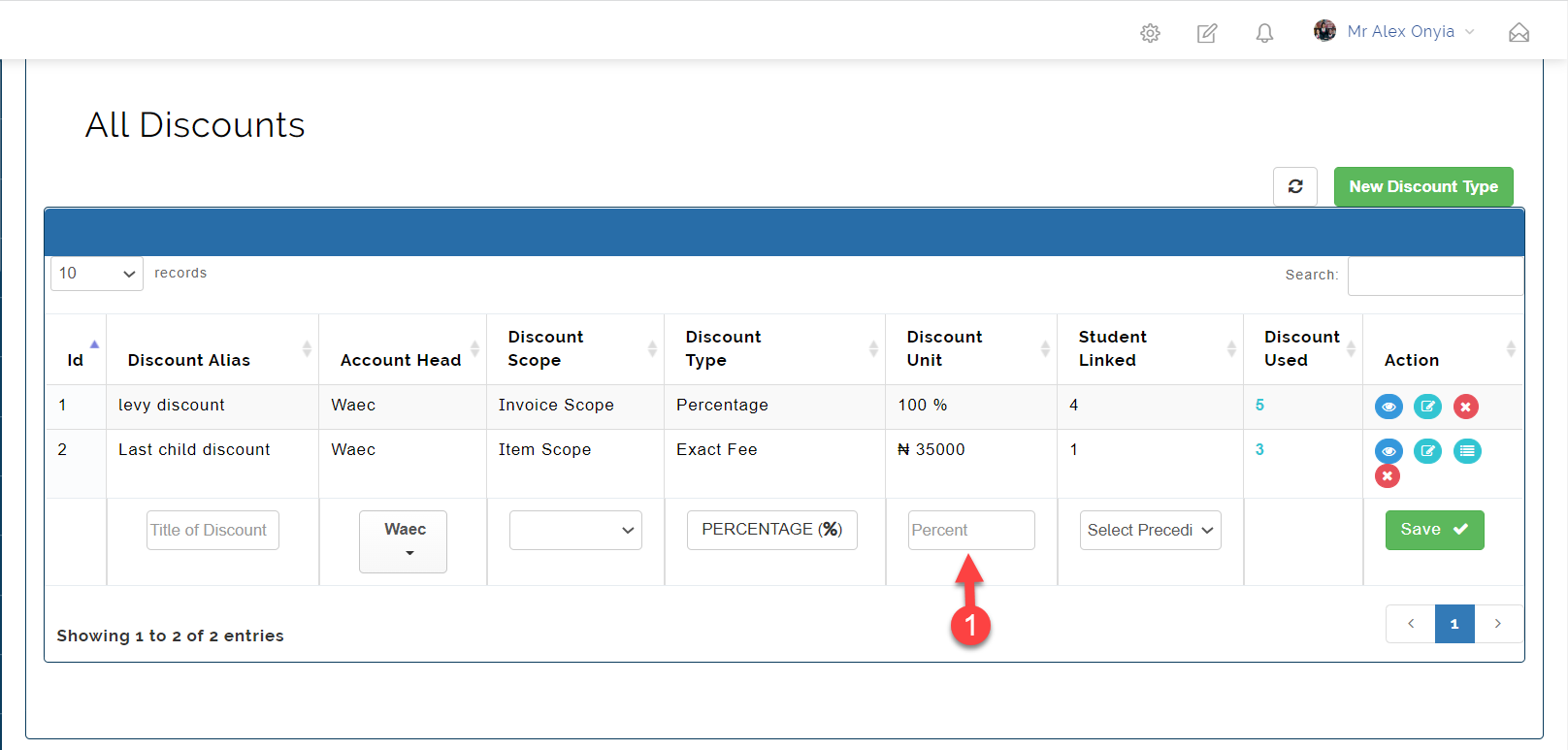
- Choose the Discount Unit
Depending on what was selected in Discount Type, you enter either the percentage or exact fee value for the discount.
-
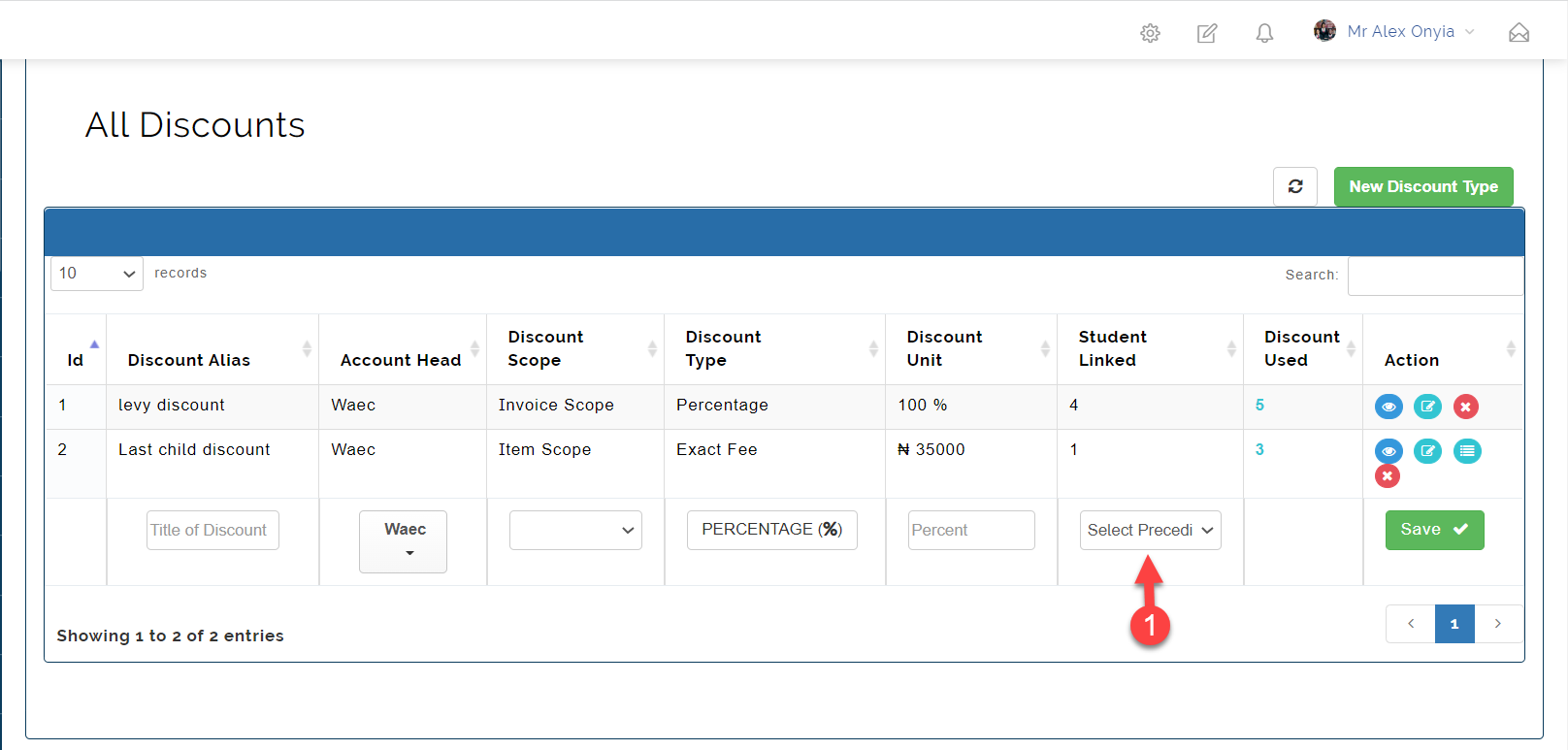
Select Preceding Discount this is used when a student has more than two discounts running, concurrently. You decide how you want the discount applied.
-
Selecting a preceding discount means adding the first discount on the invoice item/scope, then getting the new total before adding the second discount to the new total.
-
If you want the two discounts to be added up and applied at once then you do not need to select a preceding discount.
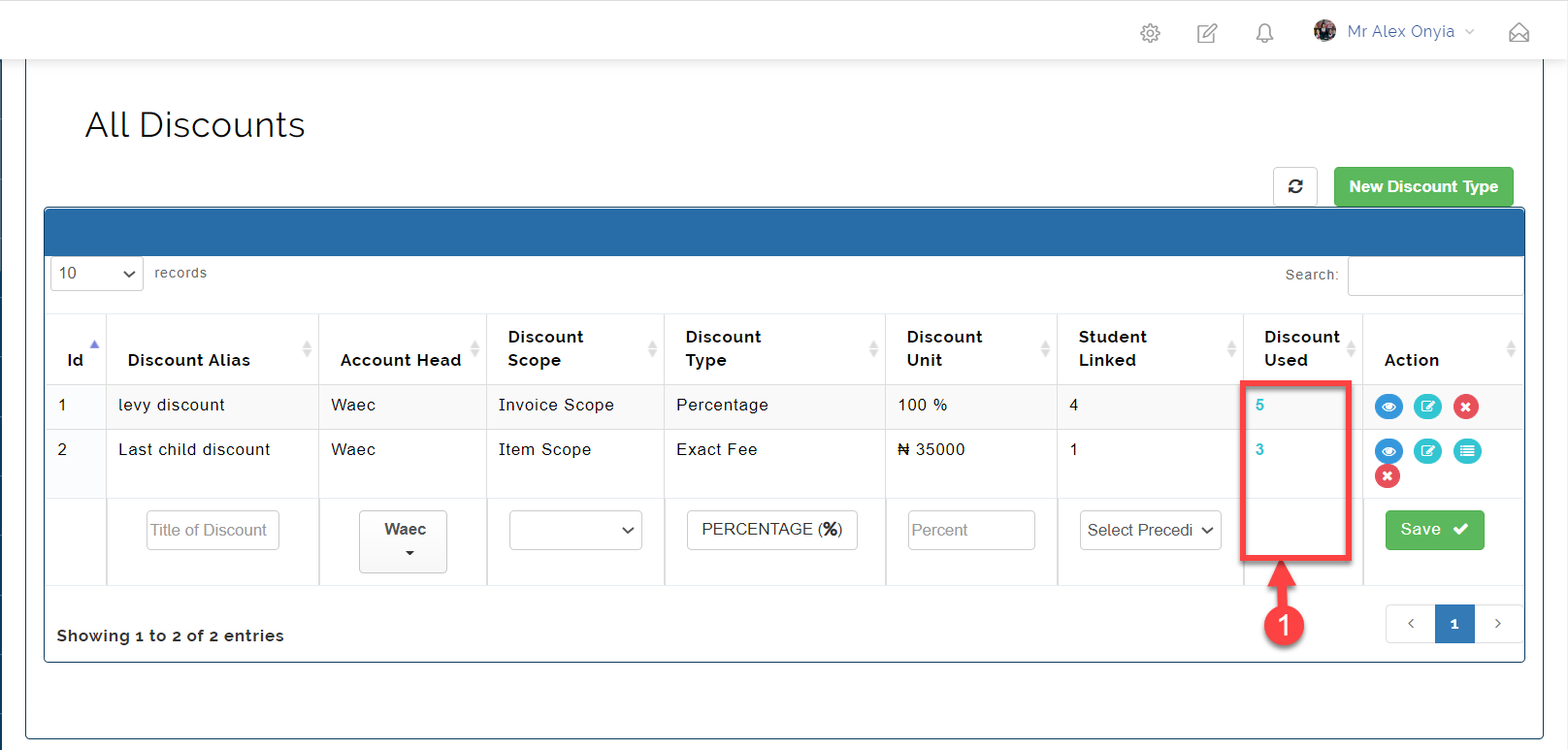
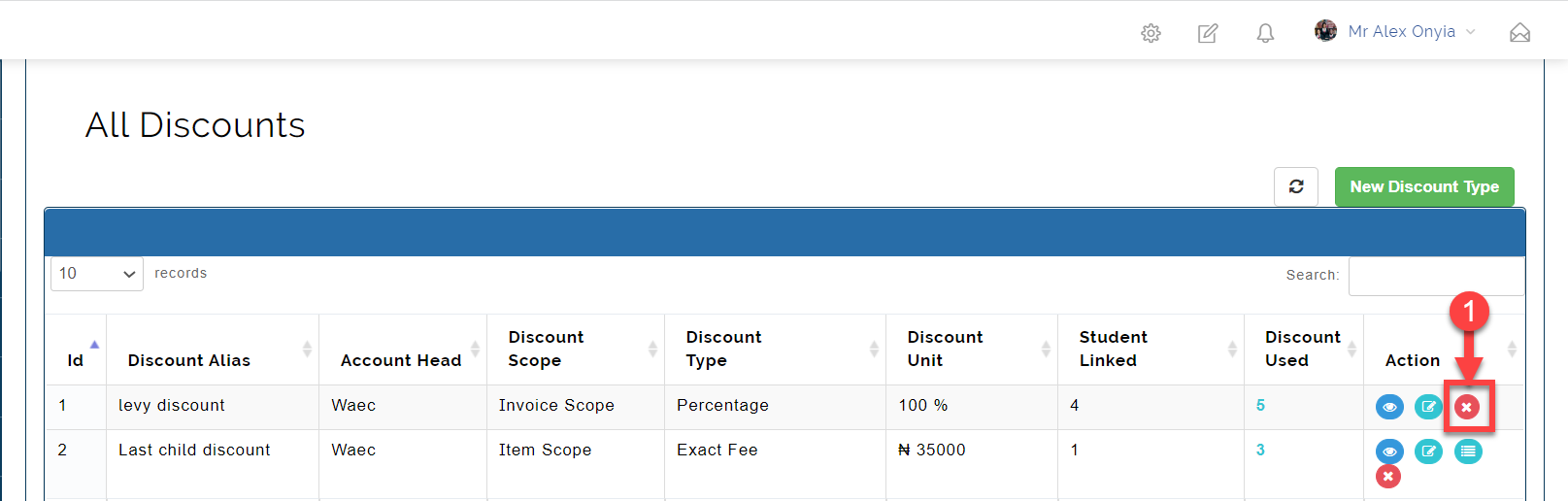
- Discount Used column shows the number of students that are currently on the discount.
Icon Description
Below are the descriptions of the icon seen on the Manage Discount
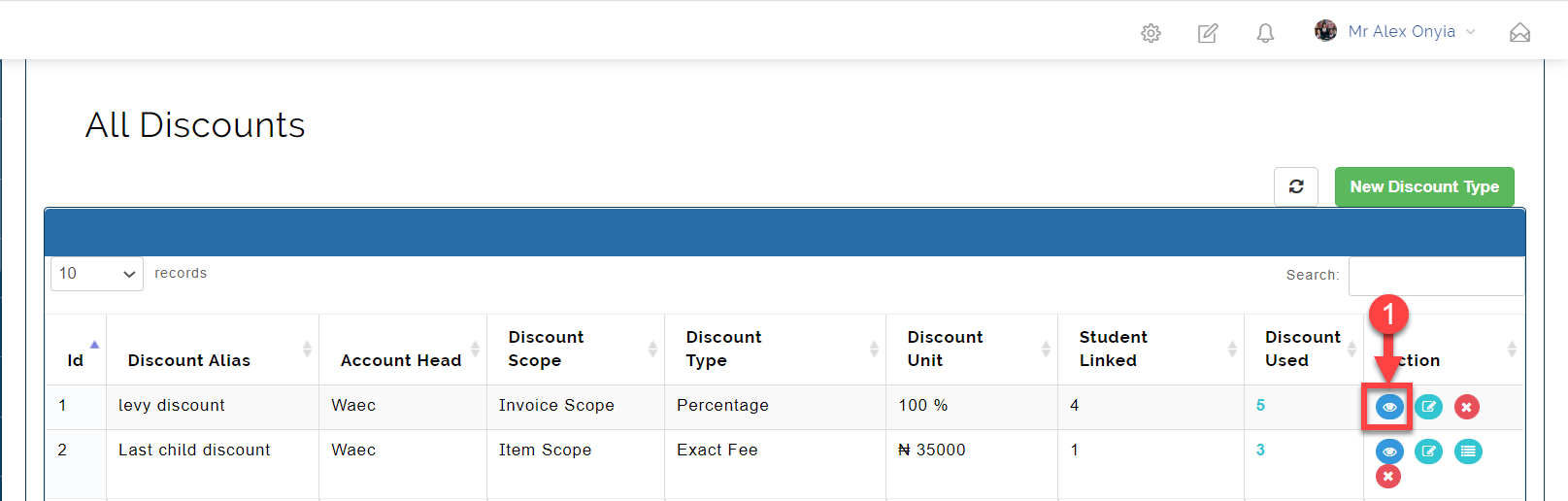
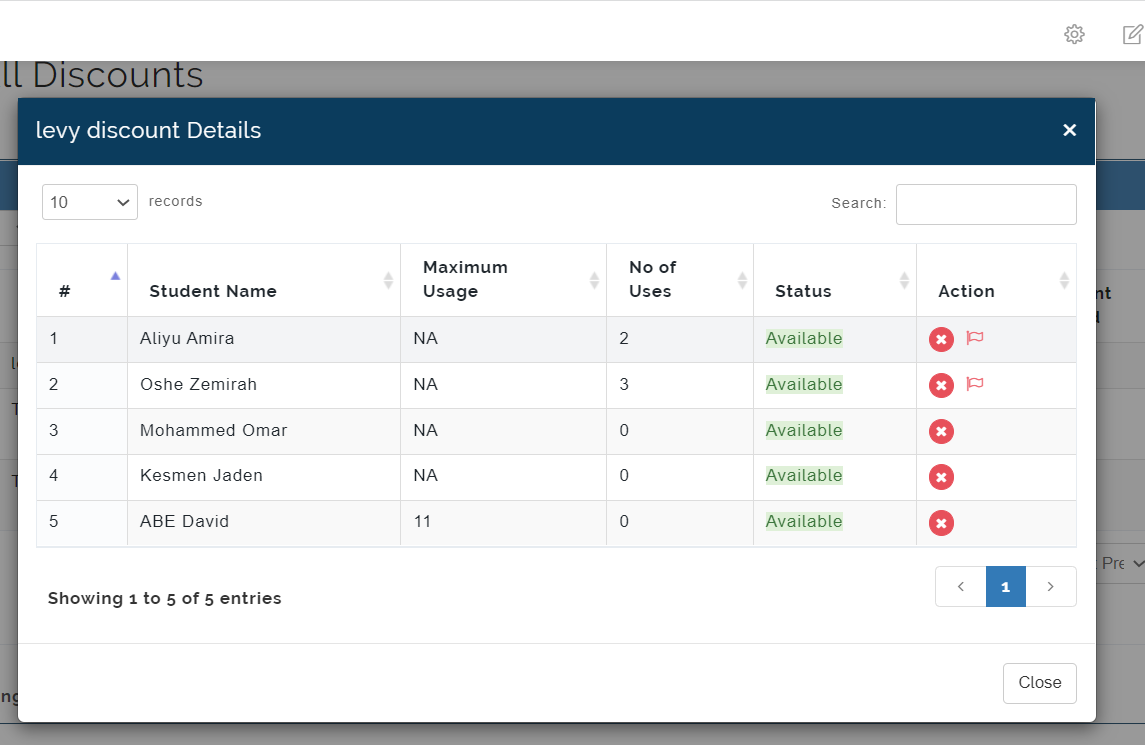
- The Details icon shown below is where you see the list of students attached to the selected discount.
Here you can see all discount information of different students and can also delete the discount linked to a student.
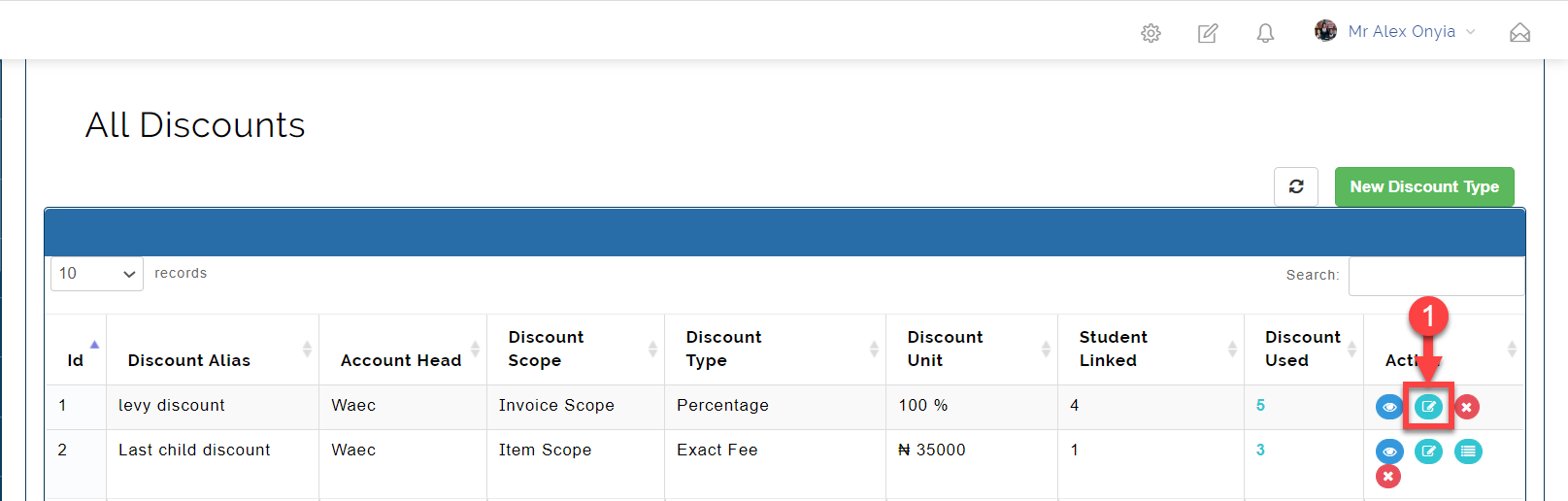
- The Edit icon is used to edit details of the selected discount
- The Delete icon is used to delete a discount
Step 3: Link Discounts
The Link Discount tab is where you can links students to created discounts.
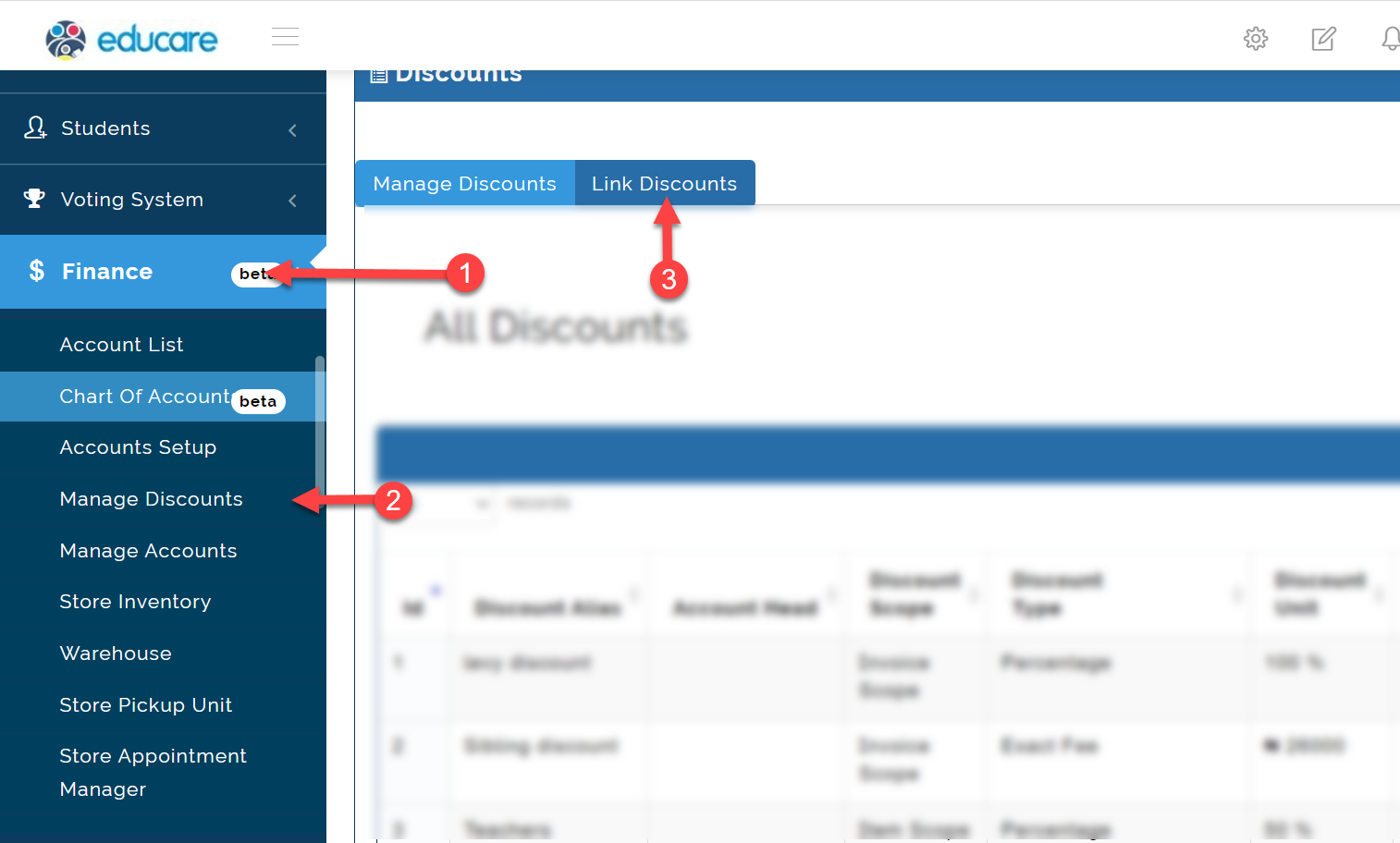
To access the Link Discounts,
- Click on Finance
- From the dropdown menu, select Manage Discounts
- Then click on Link Discounts tab as shown in the picture below
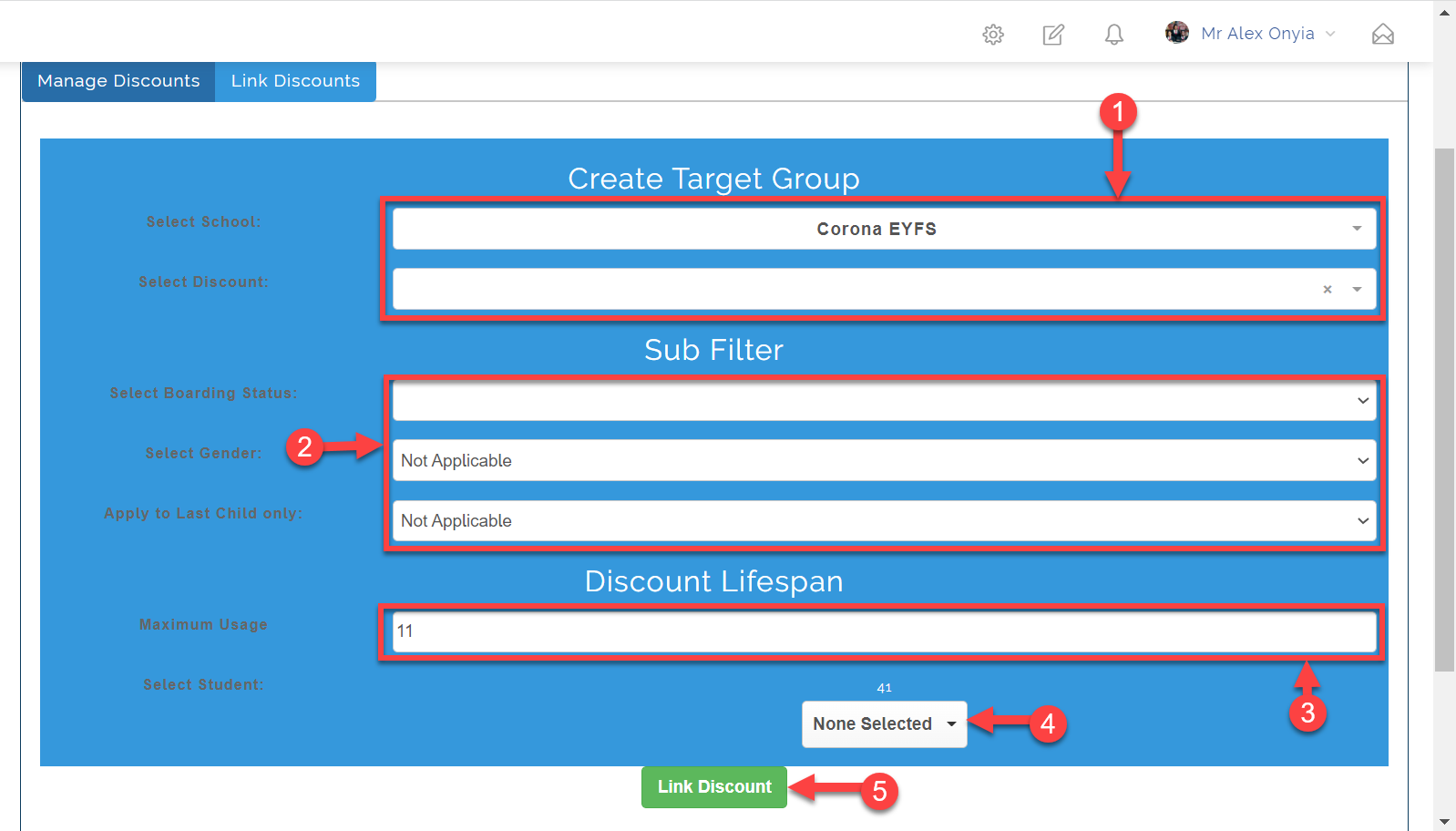
3.1 To link a discount, follow the steps as seen in the picture below.
-
- Select the school and the discount you wish to link
-
- You can use the sub filter where applicable if you are targeting the discount to a group.
-
- The Discount Lifespan is use to indicate how many times the discount can be used.
-
- This is where you select the students to be linked to the selected discount.
-
- Click on the Link Discount button to link student(s) to discount