
Here you can view the analysis into different account heads, create bills and also view transaction log for selected account head.
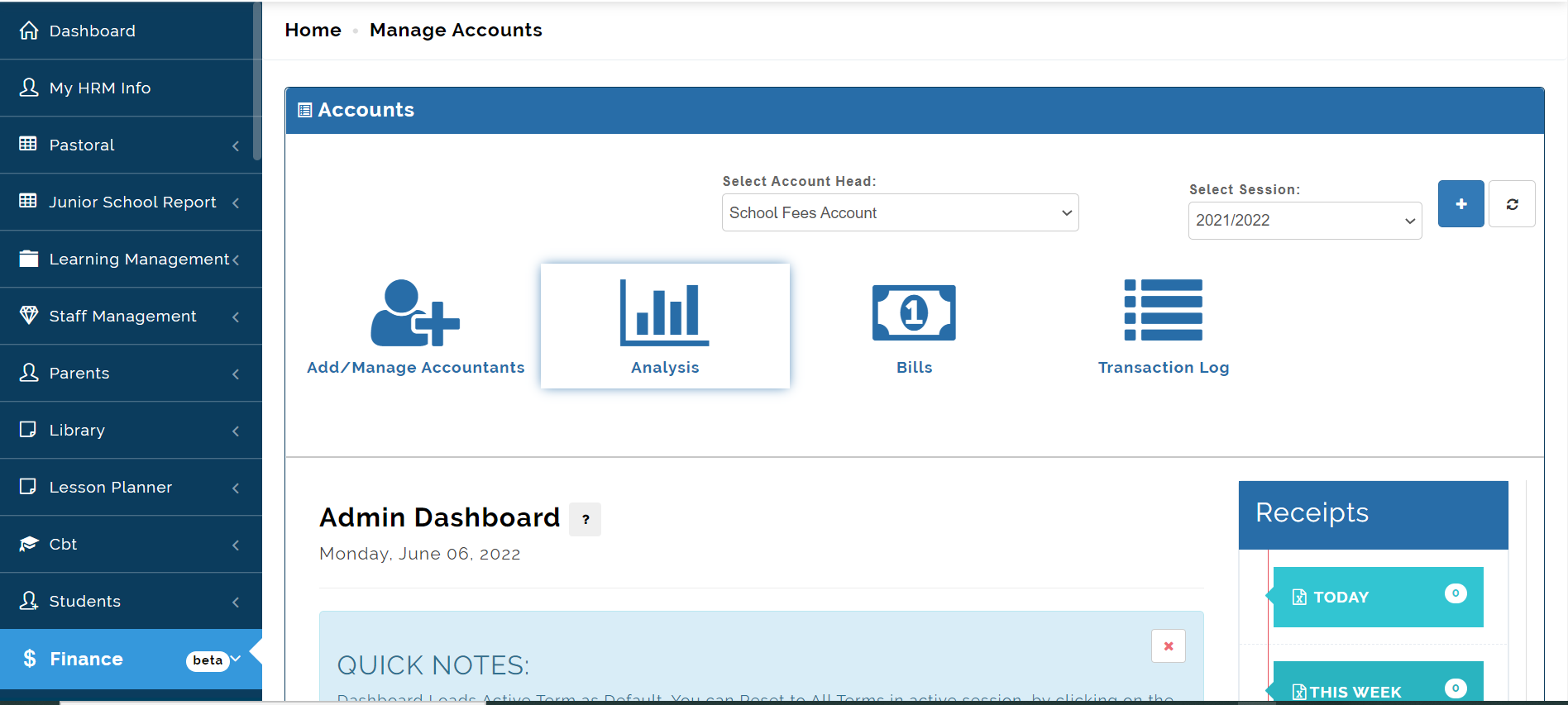
Bills
This is where you create your bills, and do all bills related setup.
Bill View Setup
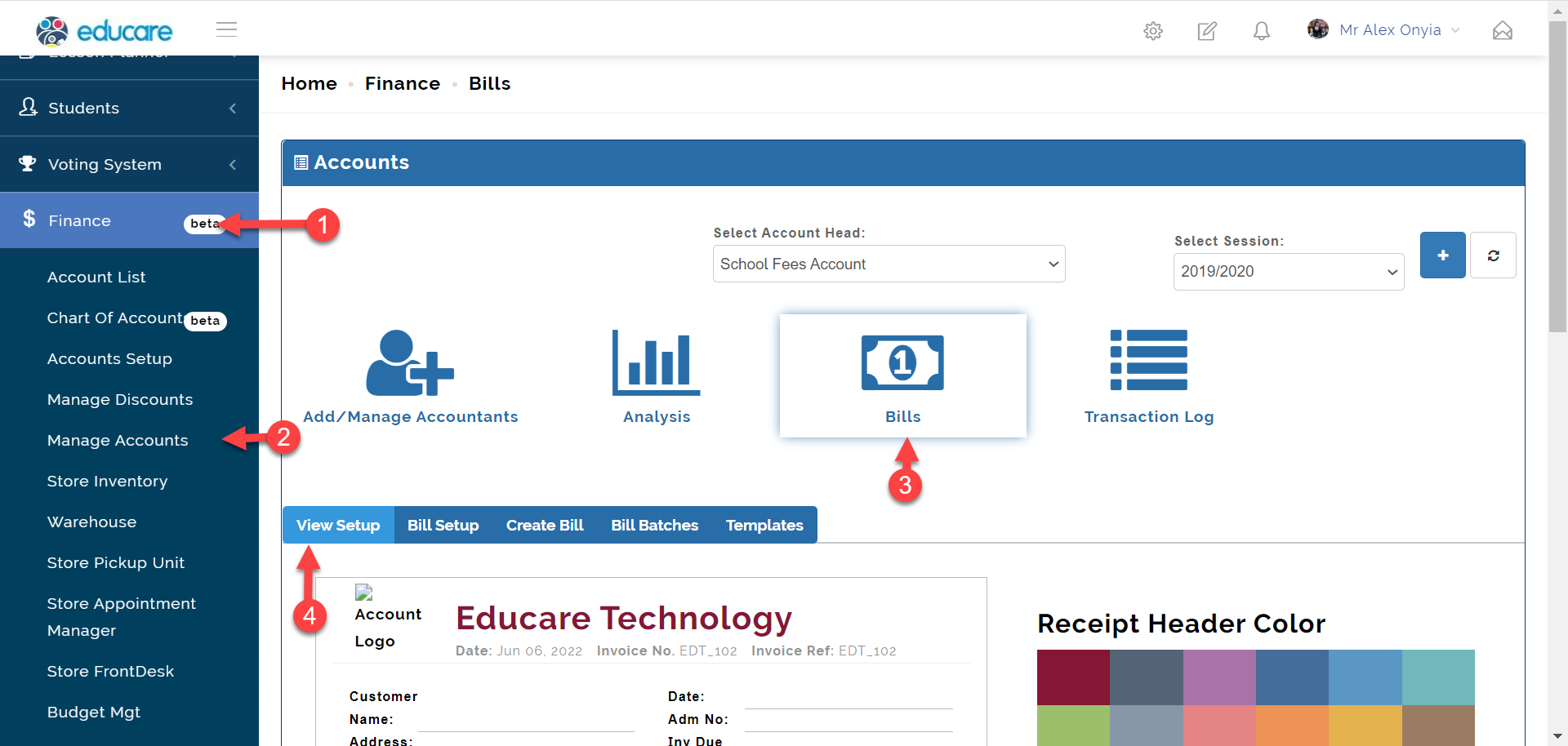
To access the Bill View Setup on educare follow the steps below;
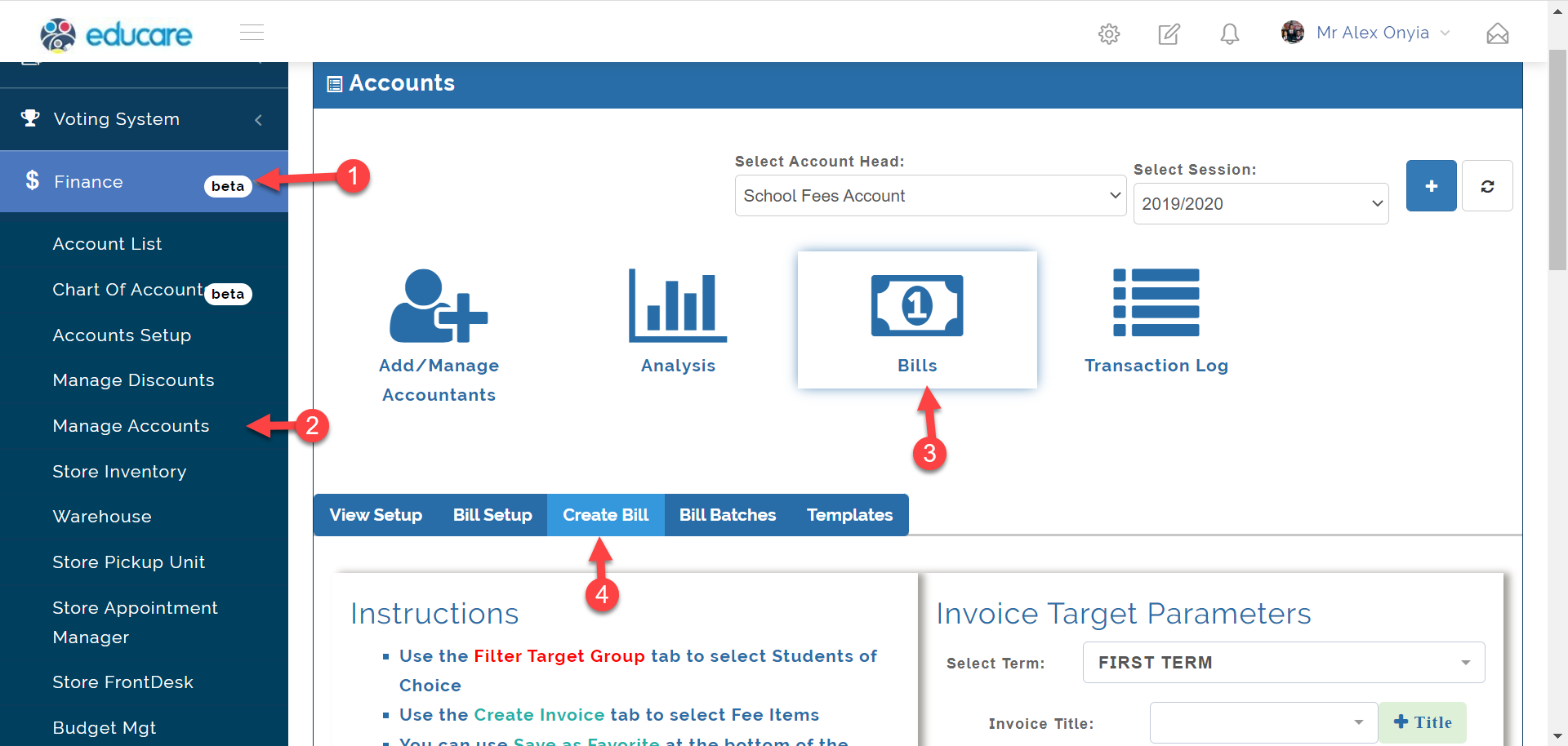
- Click on Finance
- From the dropdown menu, select Manage Account
- Click on Bills
- Then click on View Setup tab as shown in the picture below
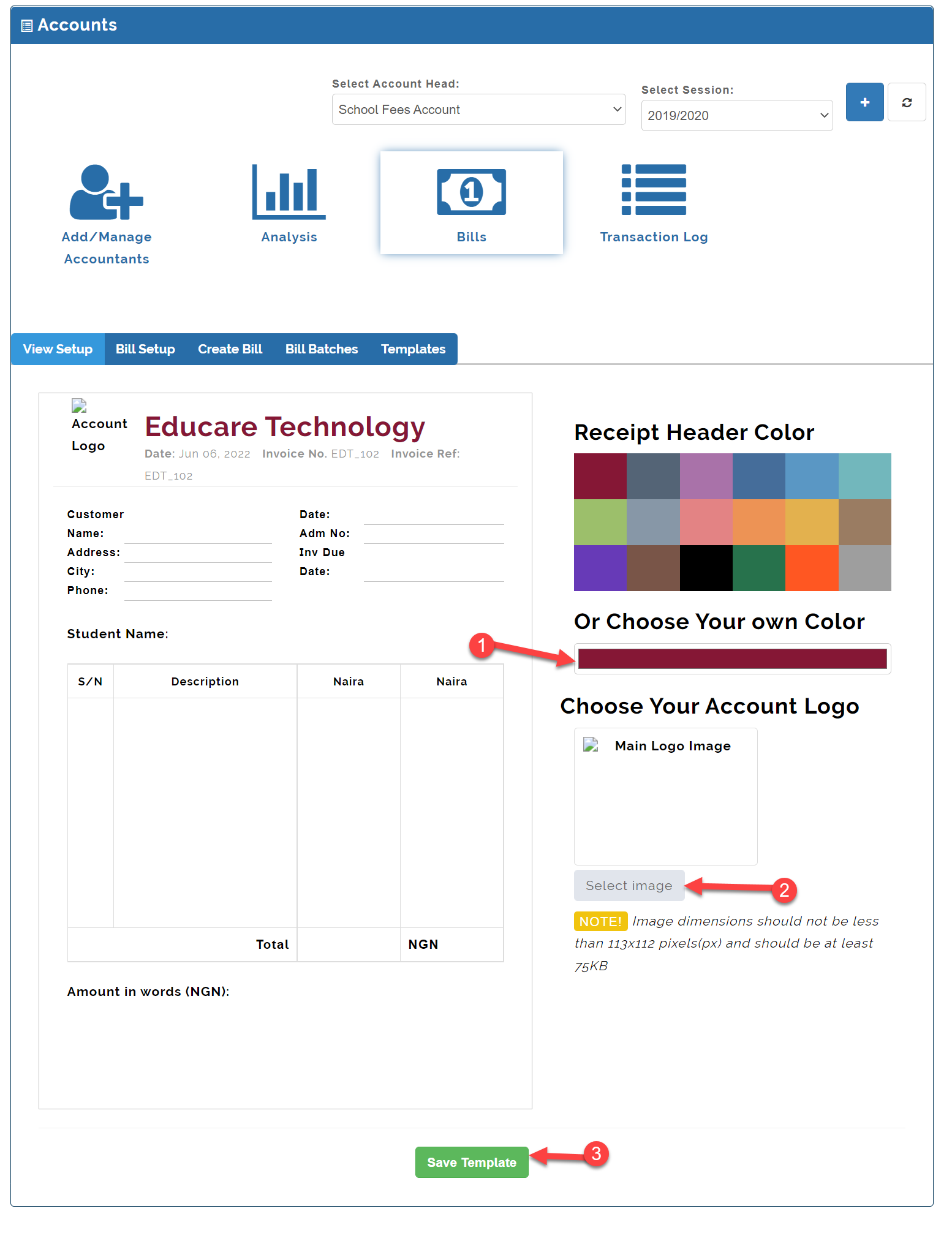
In the View Setup you can change the school's logo and also change the text color of the school name.
Bill Setup
The Bill Setup is where you create the fee item and categories
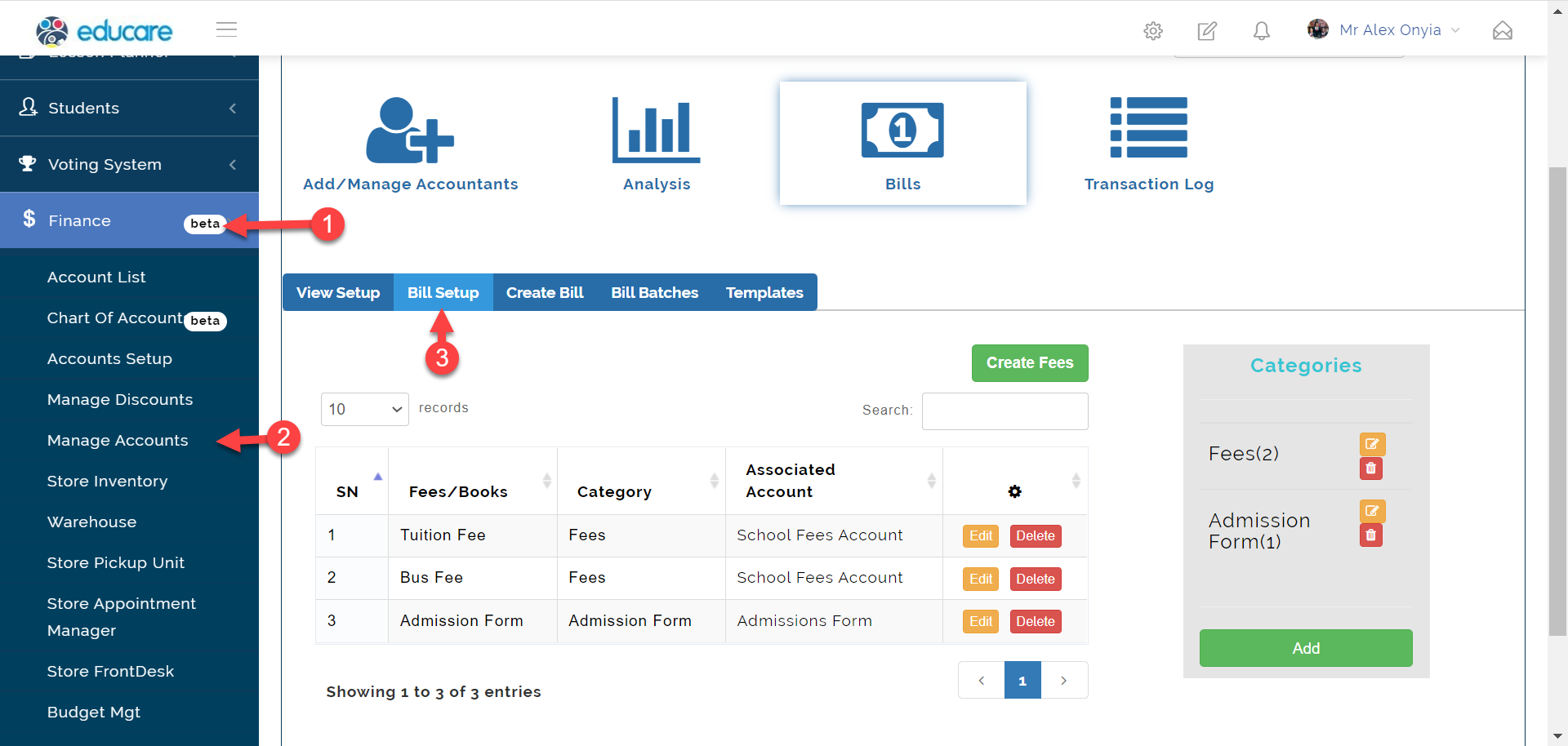
To access the Bill Setup on educare follow the steps below;
- Click on Finance
- From the dropdown menu, select Manage Account
- Click on Bills
- Then click on Bill Setup tab as shown in the picture below
To create a fee category
- Click on the Add button as indicated in the picture below
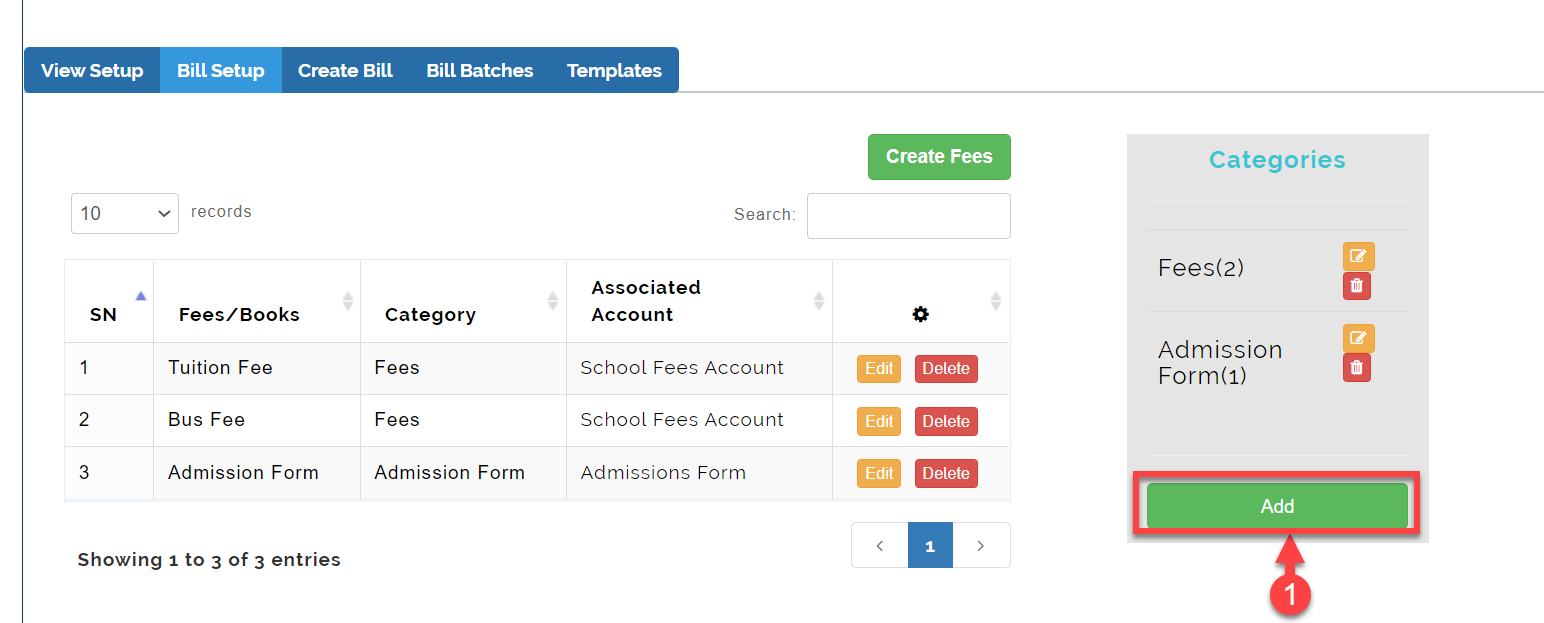
- This opens the modal below where you enter the category name and select the category type
- Click to Save button to save changes.
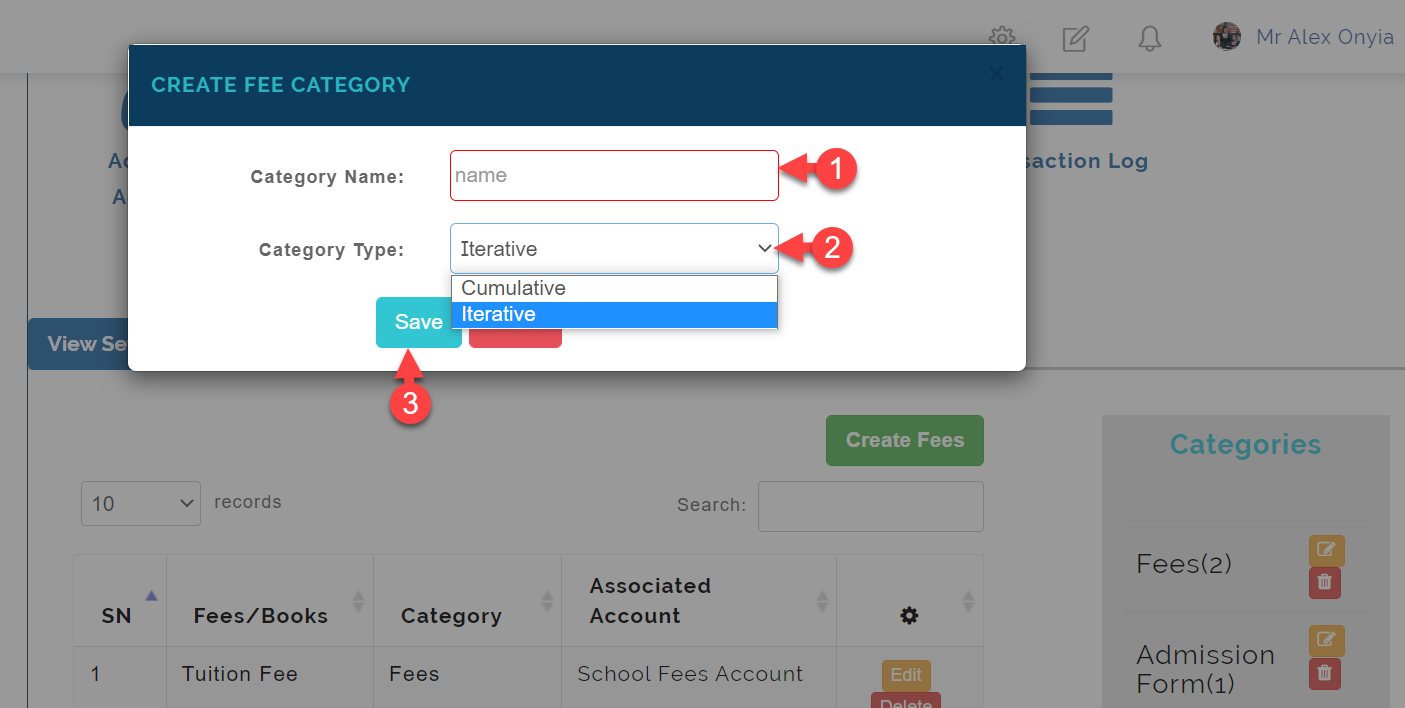
Category Type
Category Types are made up Cumulative and *Iterative
Cumulative means that fee items added its category will only show the cumulative amount and and not the fee break down.
Iterative shows both the cumulative and fee breakdown of items added to it.
To create a Create Fees
- Click on the Create Fees button as indicated in the picture below
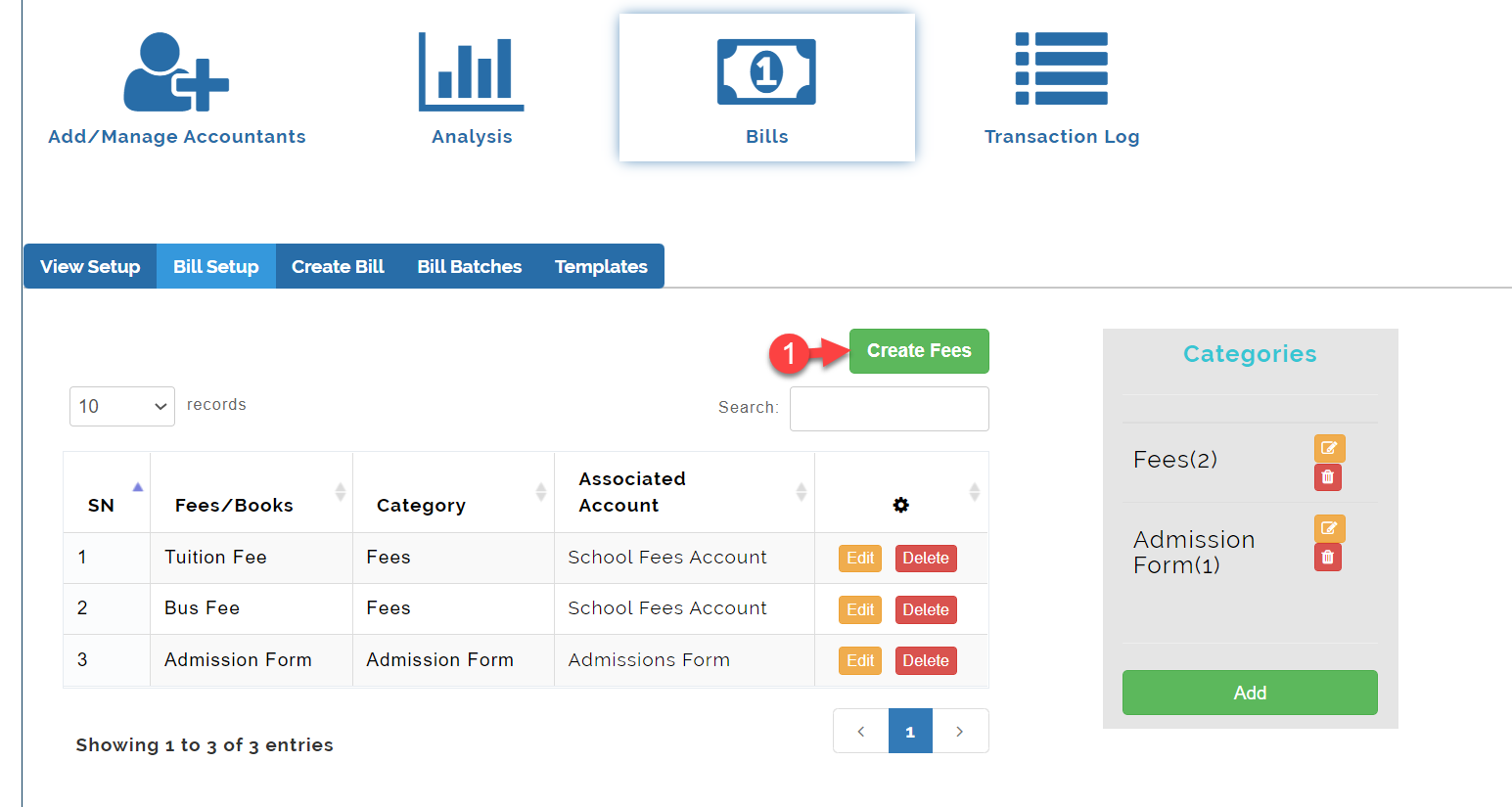
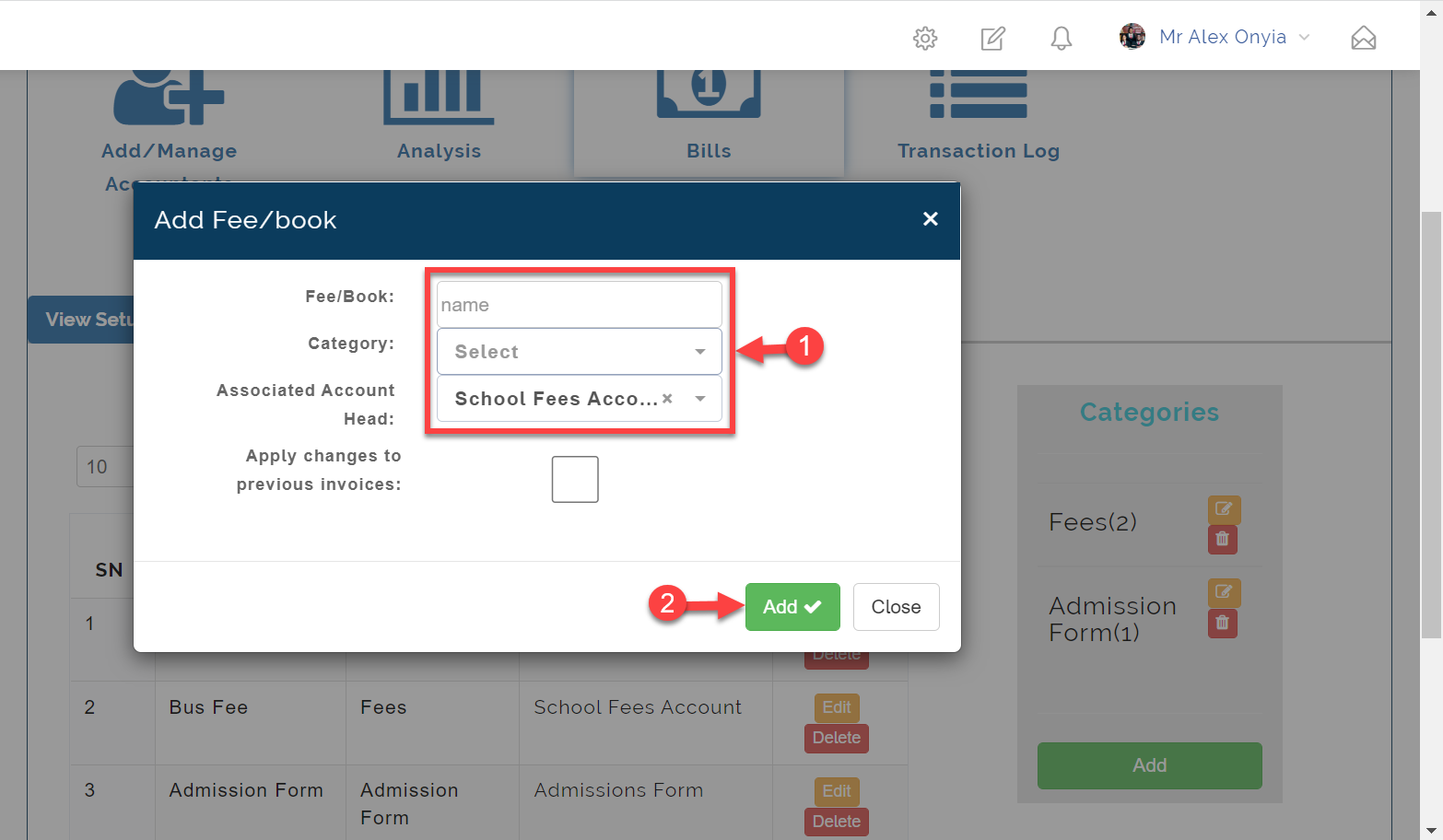
- This opens the modal below where you enter the Fee Name, select the Fee Category and Account Head
- Click to Save button to save changes.
Create Bill
The Bill Setup is where you create the fee item and categories
To access the Bill Setup on educare follow the steps below;
- Click on Finance
- From the dropdown menu, select Manage Account
- Click on Bills
- Then click on Create Bill tab as shown in the picture below
The Create Bill will be explained in 2 sections as categorized in the picture below
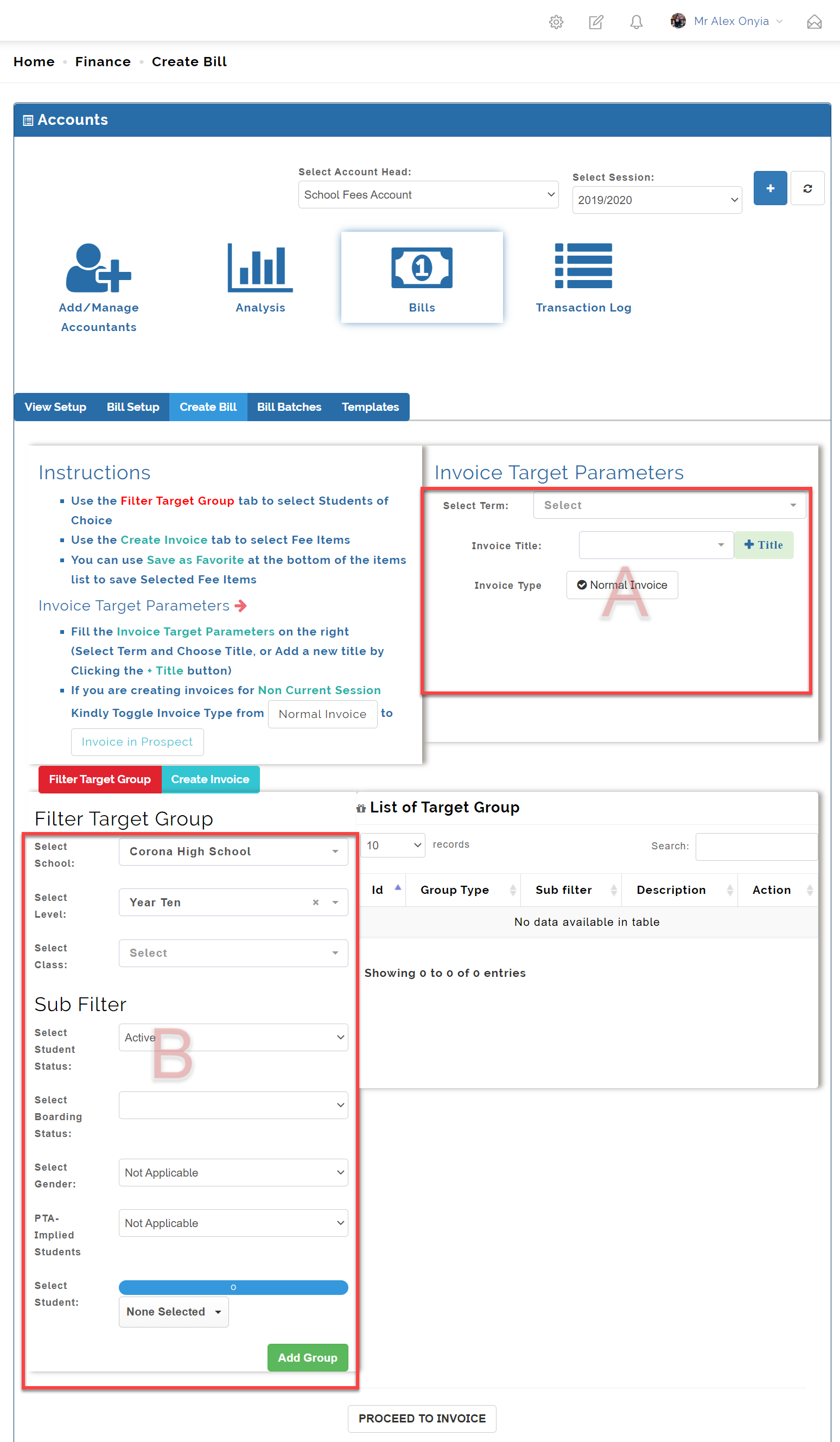
Section A:
Select Term and Invoice Title
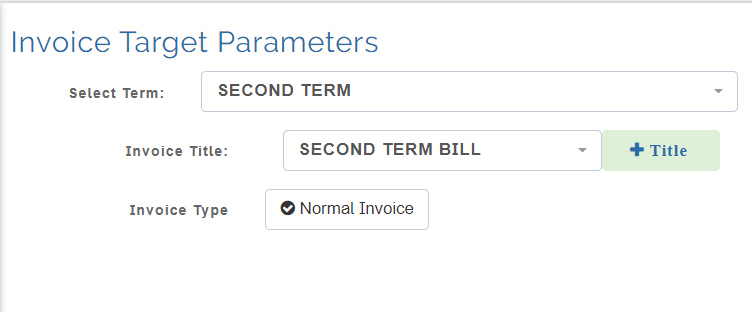
Invoice Type
There are two options of invoice type which are
- Normal Invoice
- Invoice in Prospect: If you are creating invoices for Non Current Session
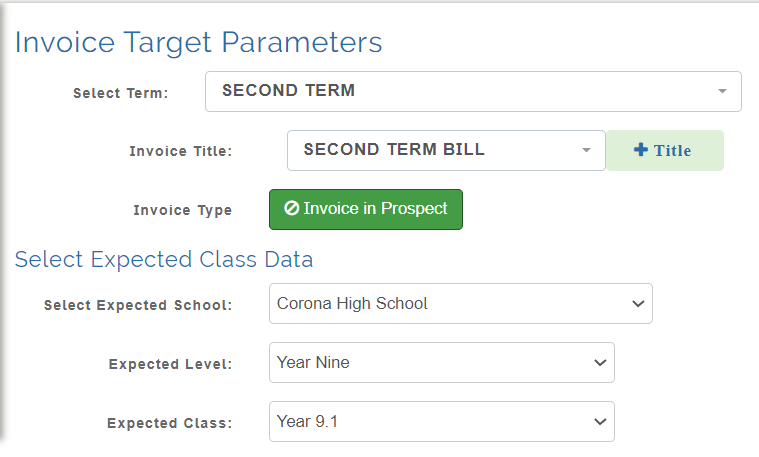
For invoice in prospect
Section B:
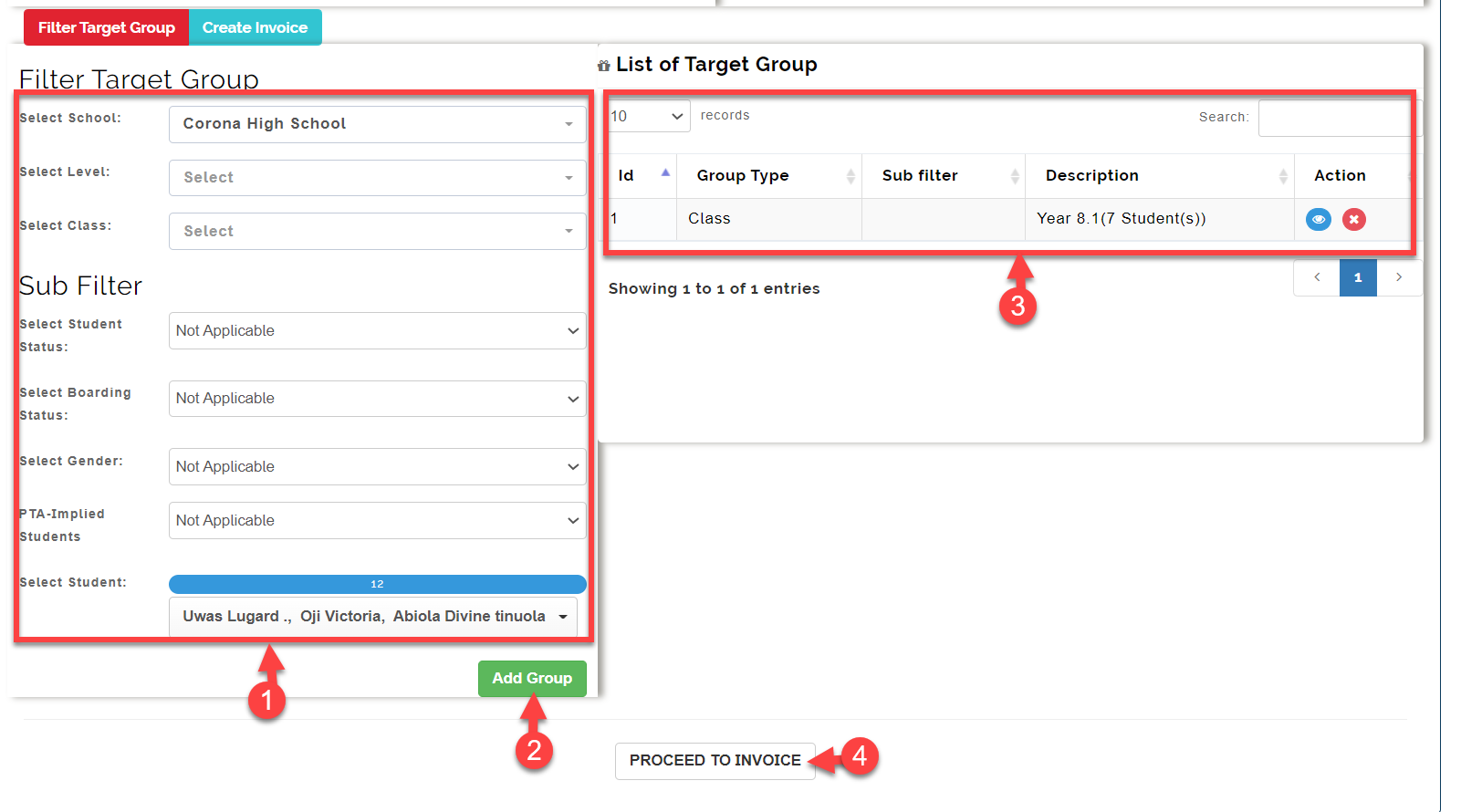
- Fill the filters where applicable and
- Click on the Add Group button as shown in the picture below.
- Clicking on the Add Group button in 2 moves the instance to List target Group where you can delete view the details
- Click on the Proceed to invoice button to continue.
Clicking on Proceed to invoice opens the page below
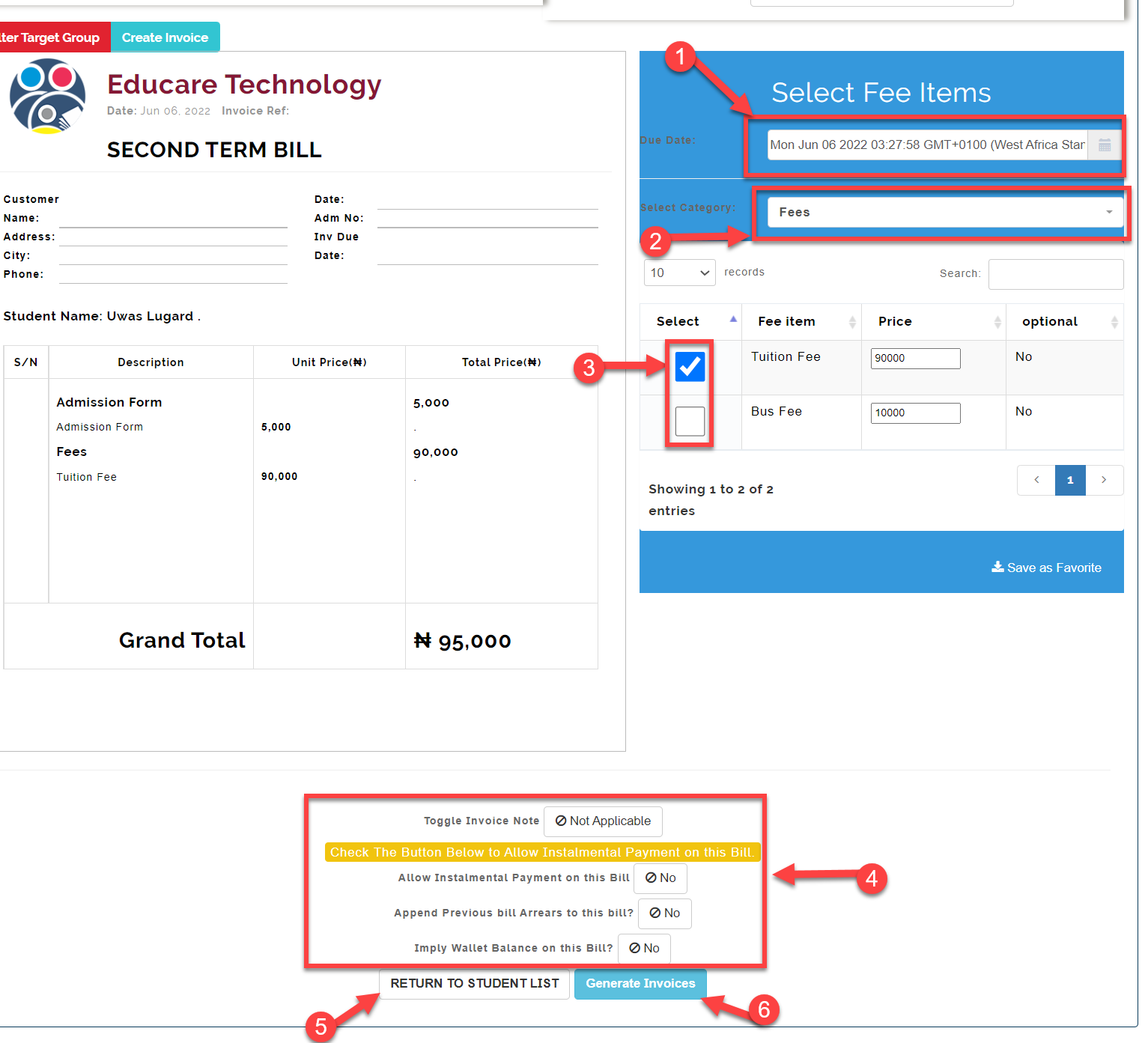
Here you can
- Enter the Due Date for the invoice
- Select different invoice Categories and add items from them to the invoice
- Add items from selected categories by entering the Price and clicking on the Checkbox
- Additional options on the bill.
- Click on the Generate Invoices to generate invoices.
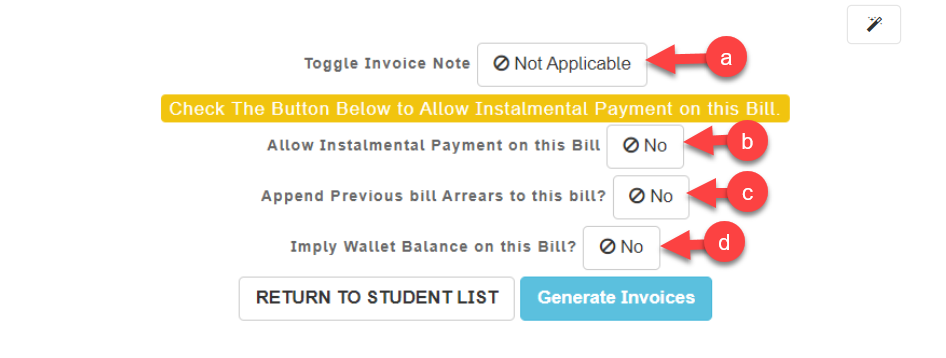
- Additional options on the bill.
a. Set the Toggle Invoice Note to “Yes” and set information on the footer note.
b. Set the Allow Installment Payment on this Bill to “Yes” and set the Maximum installment if you want the bill to allow payment in installment.
c. Set the Append Previous bill Arrears to this bill? to “Yes” if you want previously unpaid invoices to be appended to the new invoice.
d. Set the Imply Wallet Balance on this Bill? to pay fees using the parent wallet balance.
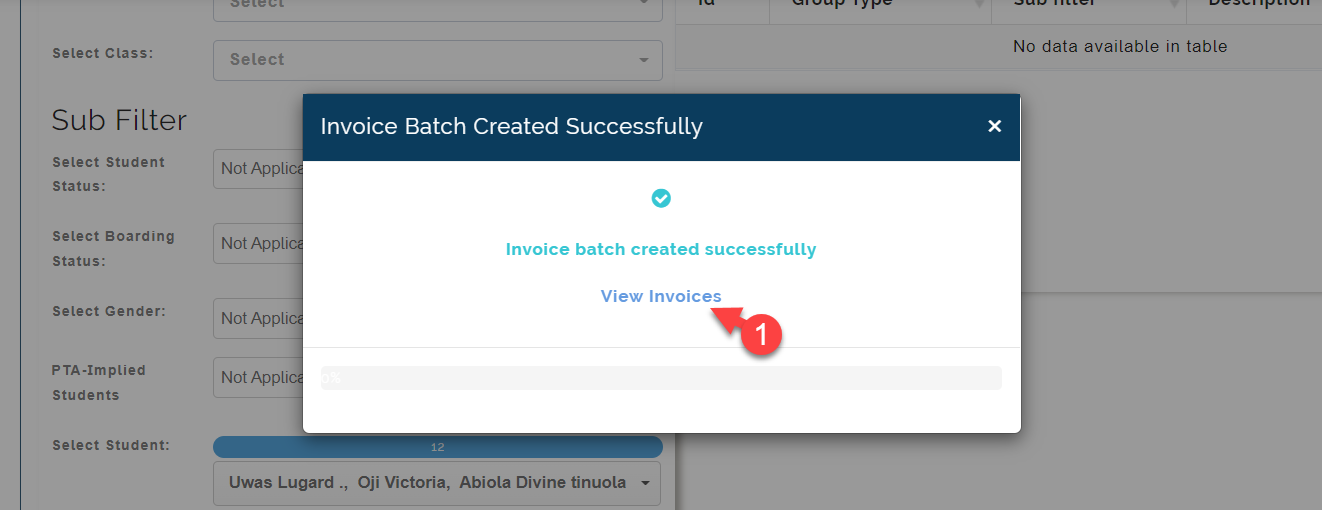
Clicking on the Generate Invoices creates the invoices.
You can view the generated invoices by clicking on View invoices as seen below.
Bill Batches
The Bill Batches is where you view and publish batches of bills you have created on the system, retrieve bills sent, edit individual student bill and see the payment status for bills.
To access the Bill Batches on educare follow the steps below;
- Click on Finance
- From the dropdown menu, select Manage Account
- Click on Bills
- Then click on Bill Batches tab as shown in the picture below
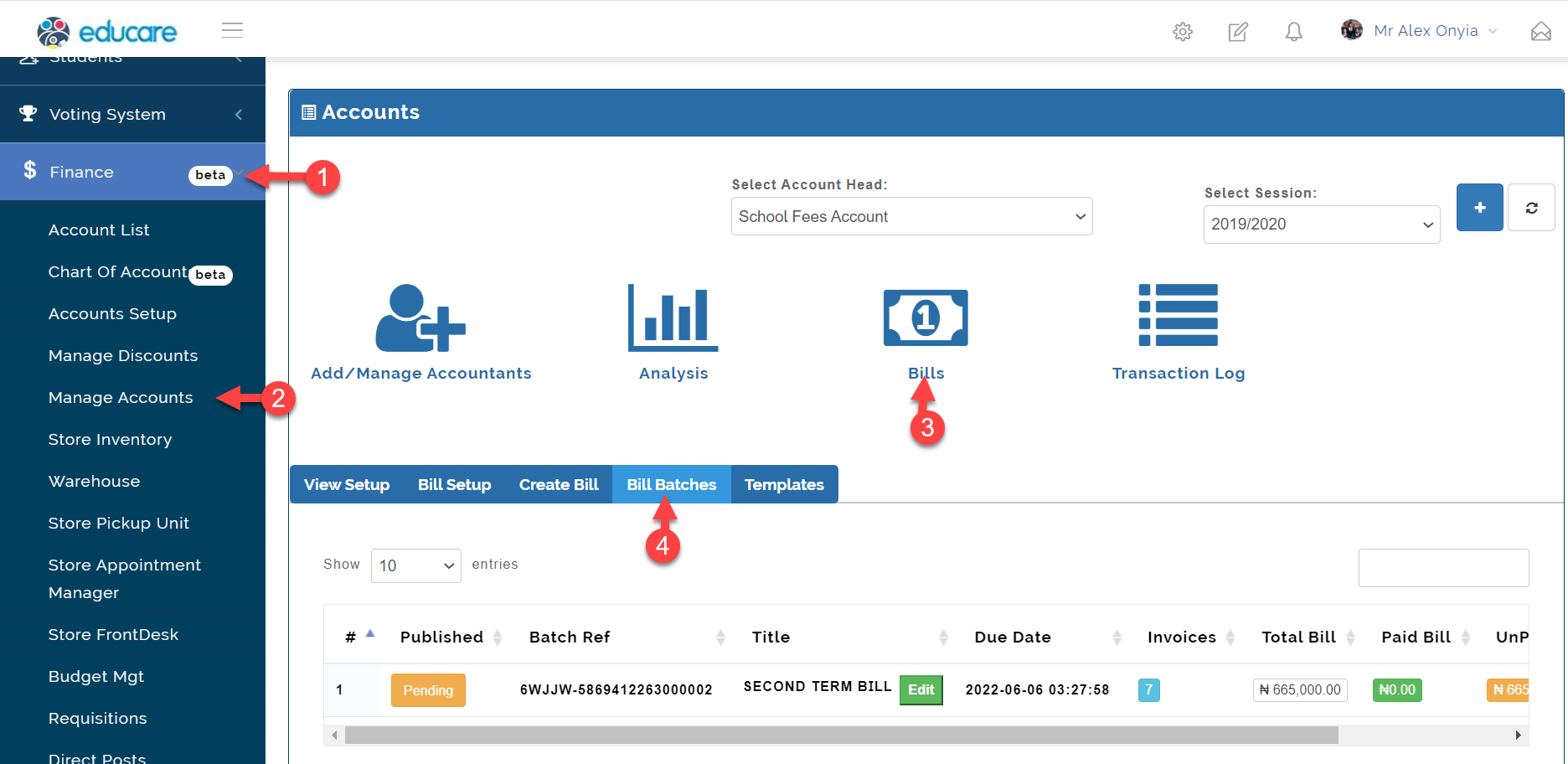
I will be explaining the different actions you can carry out in the Bill Batches below.
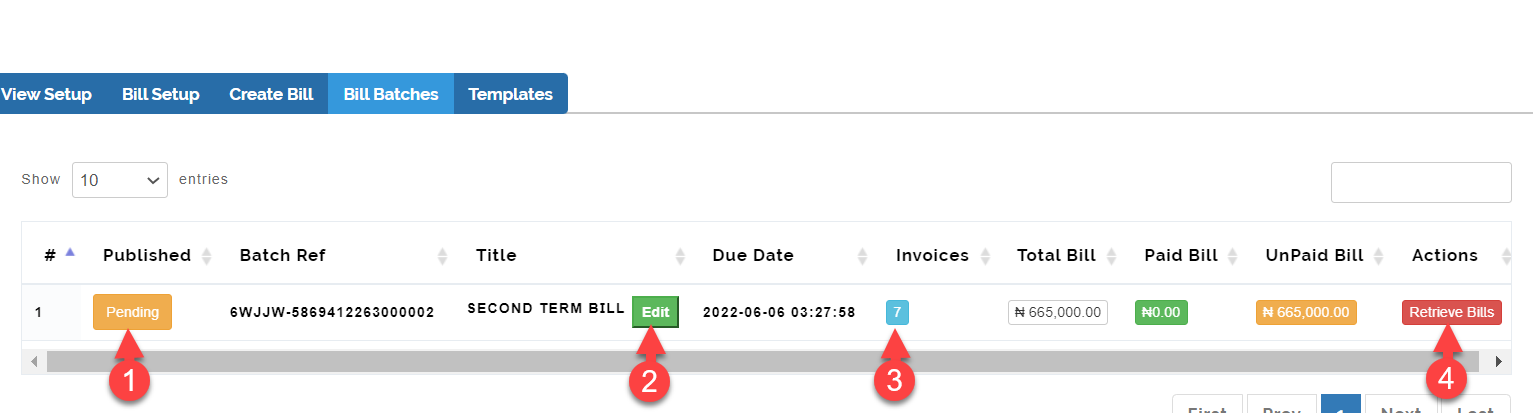
- Publish
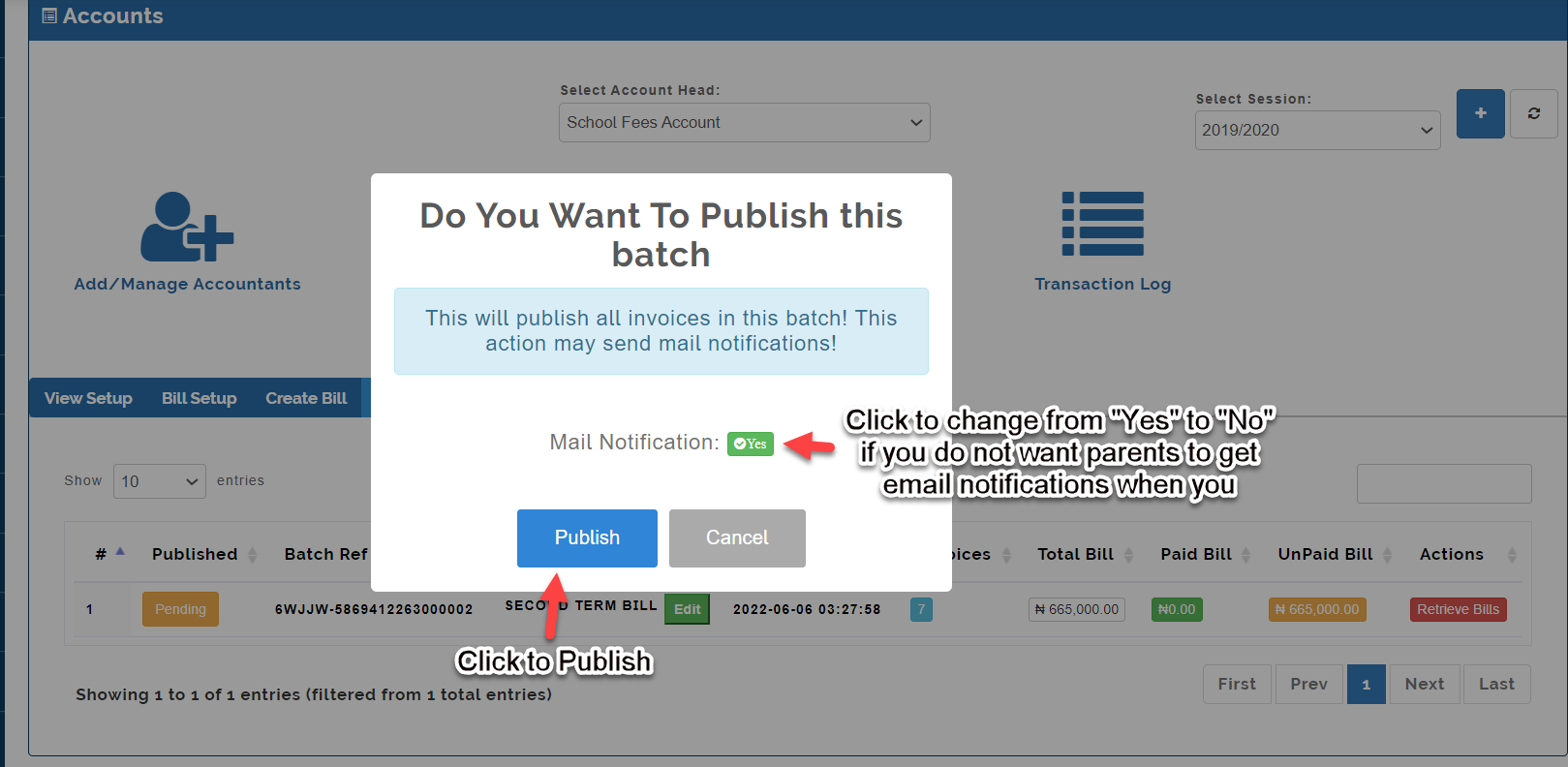
You can publish bill batches to parent by clicking on the Pending button indicated 1 in the picture above.
This opens up the modal below.
- Edit
Here you can edit the title of the bill batch, remove items form individual bill, retrieve individual bills and also the footer note to the bill batch.
Clicking on the Editbutton opens up the page below
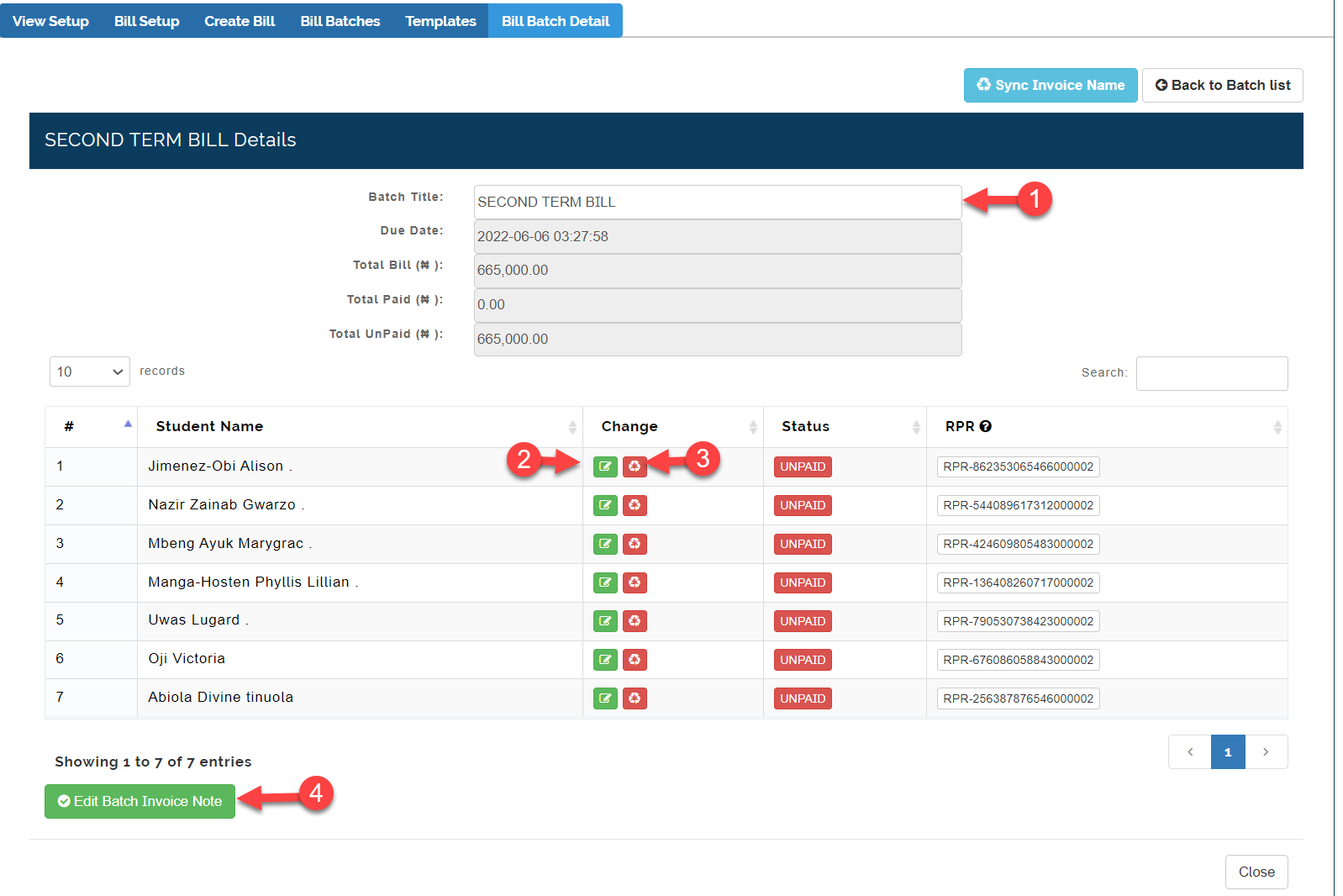
- Batch Title: You can edit the Bill Title for the Batch
- Edit Invoice icon: Here you can delete items on individual student invoice. Clicking on the Edit Invoice icon opens the selected invoice as seen below.
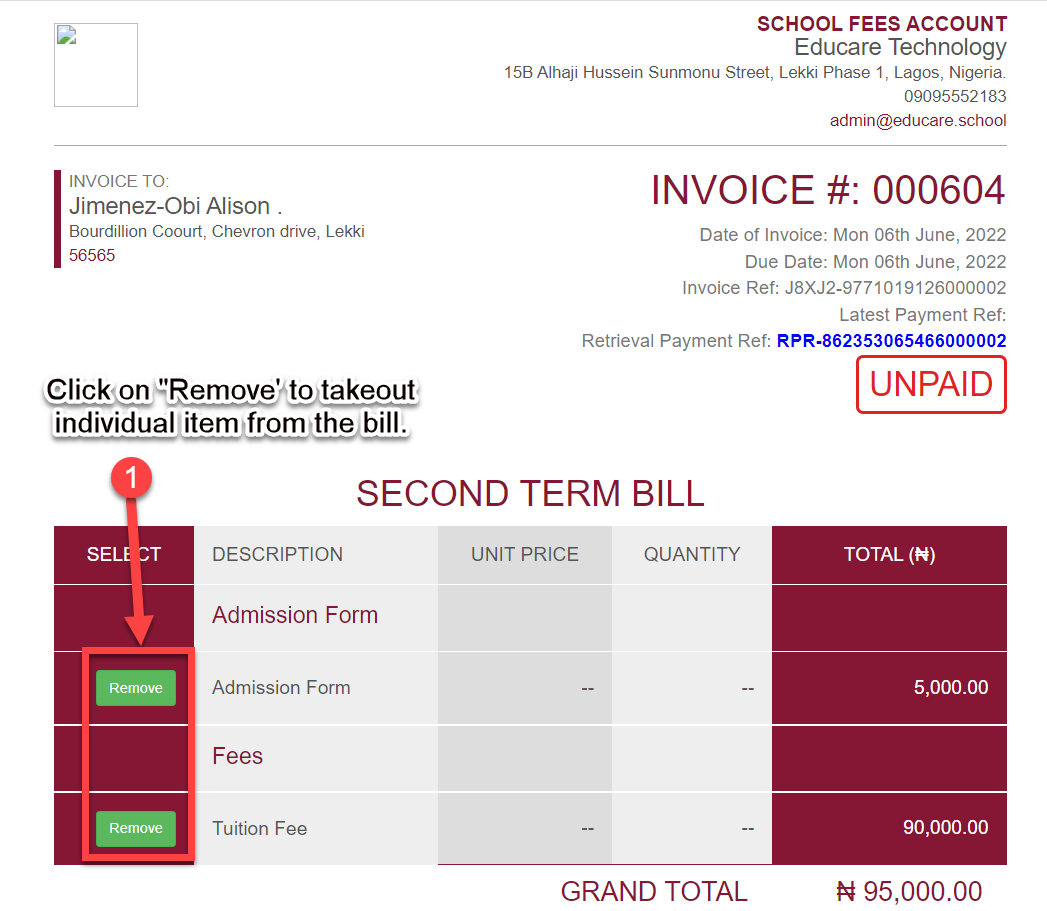
- Retrieve Invoice icon: This is to call back individual invoice. Clicking on the Retrieve Invoice icon prompts you to confirm your action.
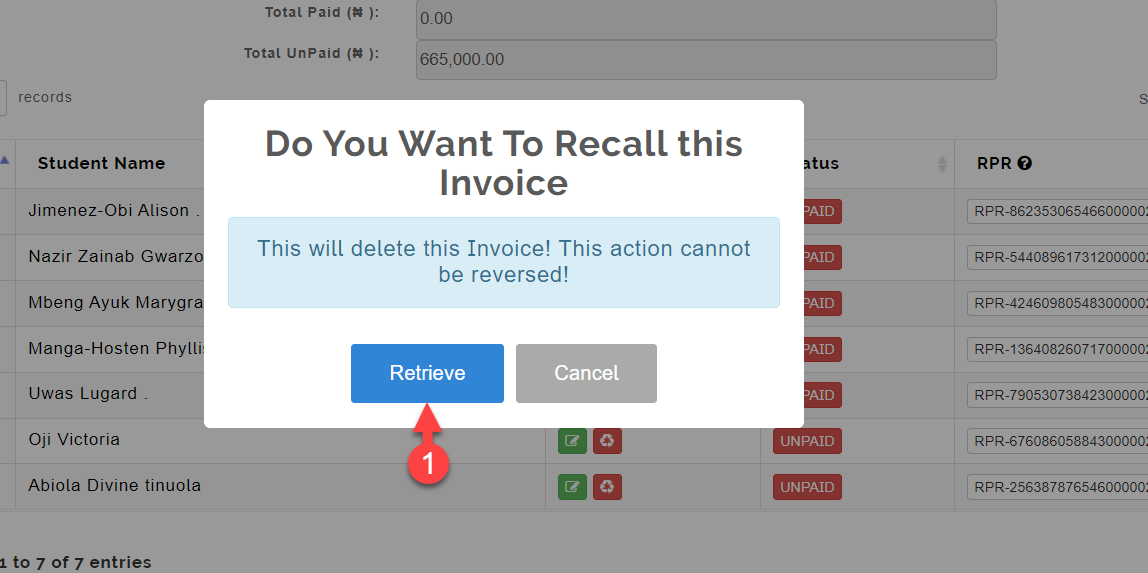
- Edit Batch Invoice Footer Note: Click on the button to edit the footer note for the batch bill created.
Invoices
Here you can view all the invoices for the selected batch and also see the status of payment. Clicking on it opens up the modal below.
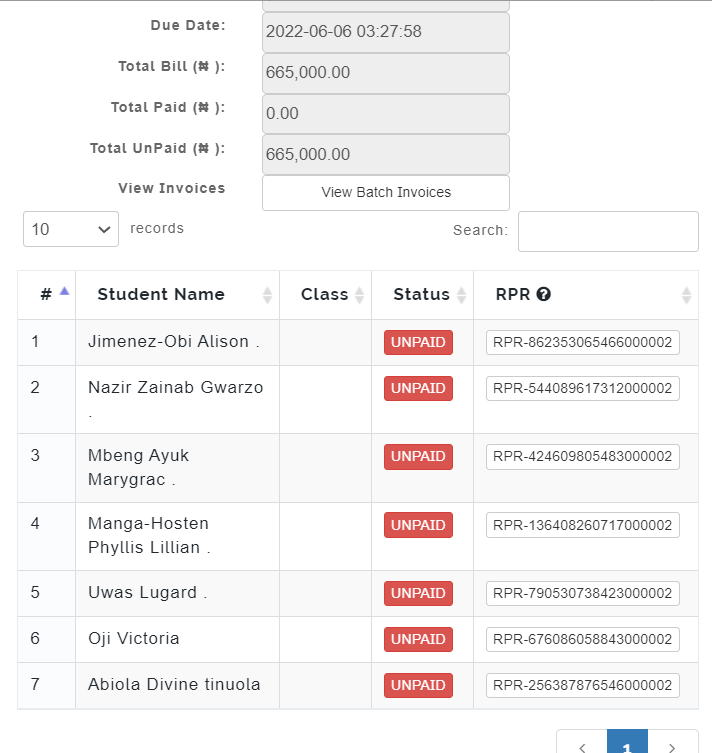
Retrieve Bills
This is used to retrieve the selected bill batch.
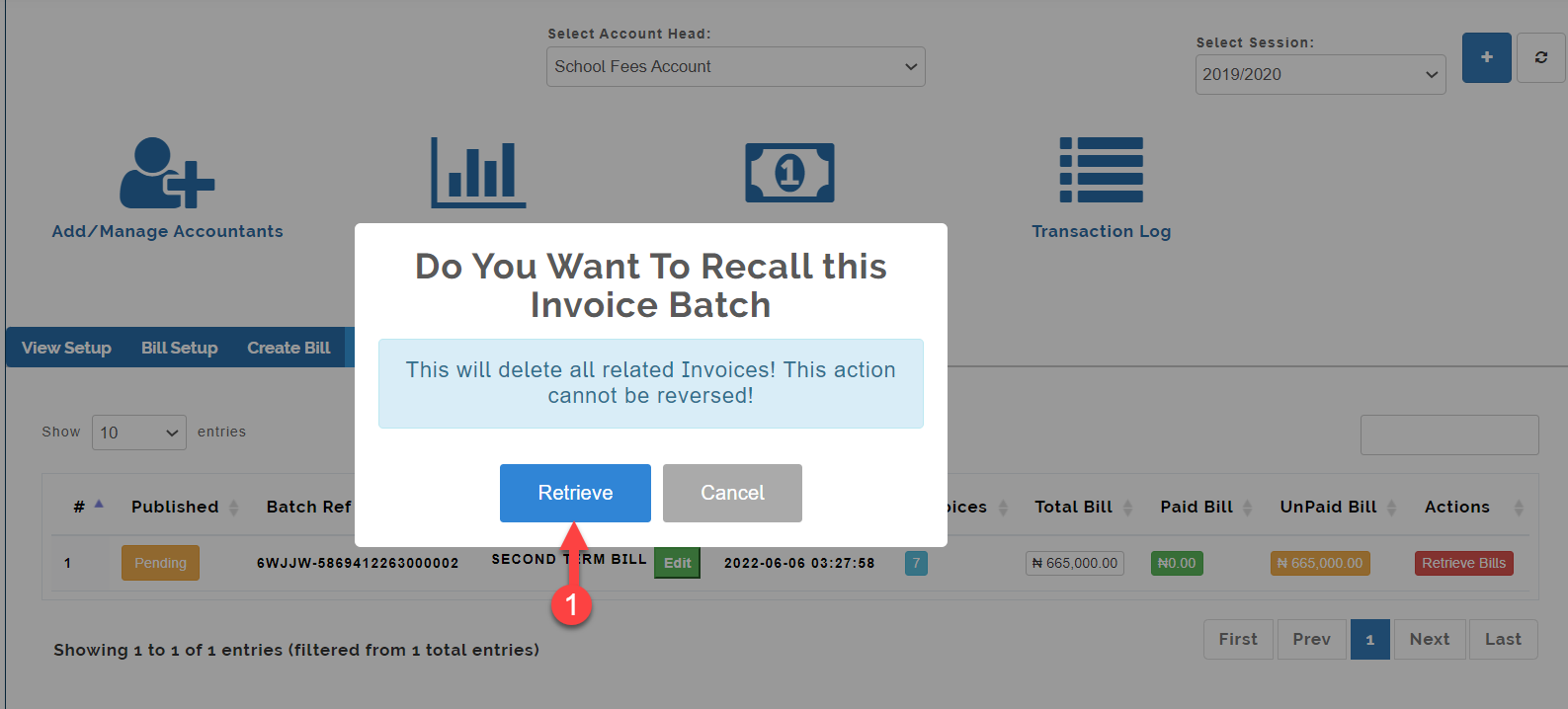
Templates
This is where you view saved templates and also create new template which you can easily call up when creating a new invoice batch.
To access the Templates on educare follow the steps below;
- Click on Finance
- From the dropdown menu, select Manage Account
- Click on Bills
- Then click on templates tab as shown in the picture below
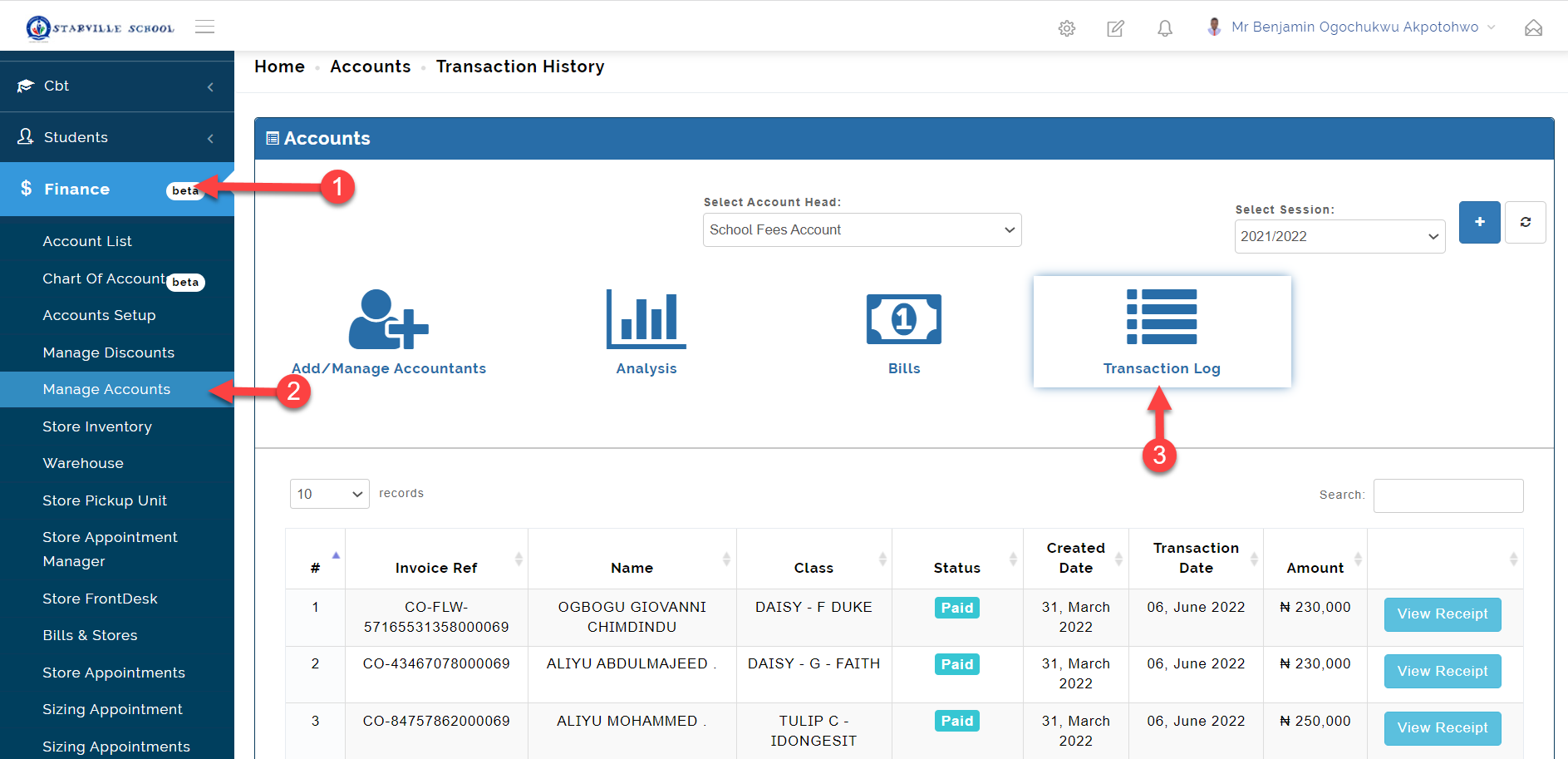
Transaction Log
This is where you view the transaction log of selected account head.
To access the Bill Transaction Log on educare follow the steps below;
- Click on Finance
- From the dropdown menu, select Manage Account
- Click on Transaction Log
Analysis
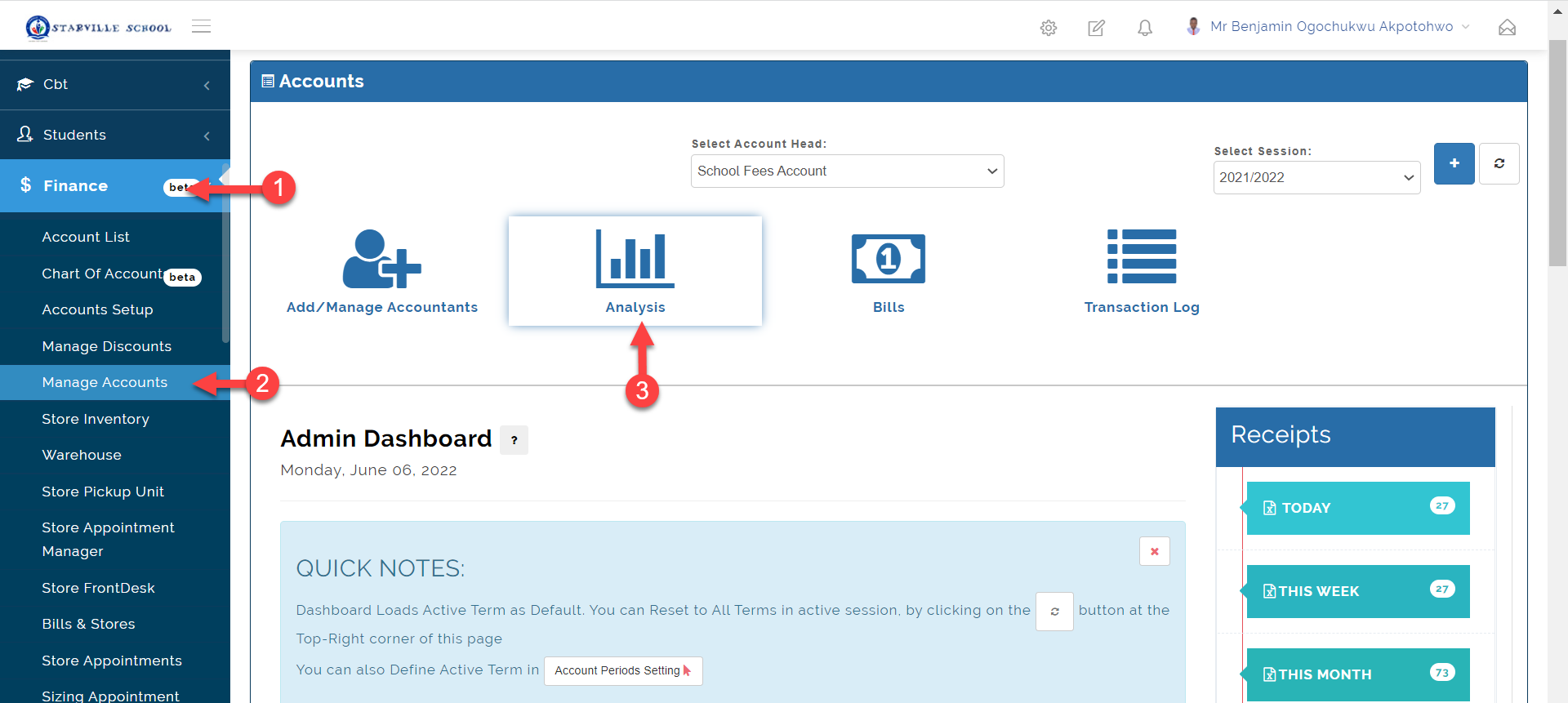
This is where you view the Analysis of selected account head.
To access the Bill Analysis on educare follow the steps below;
- Click on Finance
- From the dropdown menu, select Manage Account
- Click on Analysis
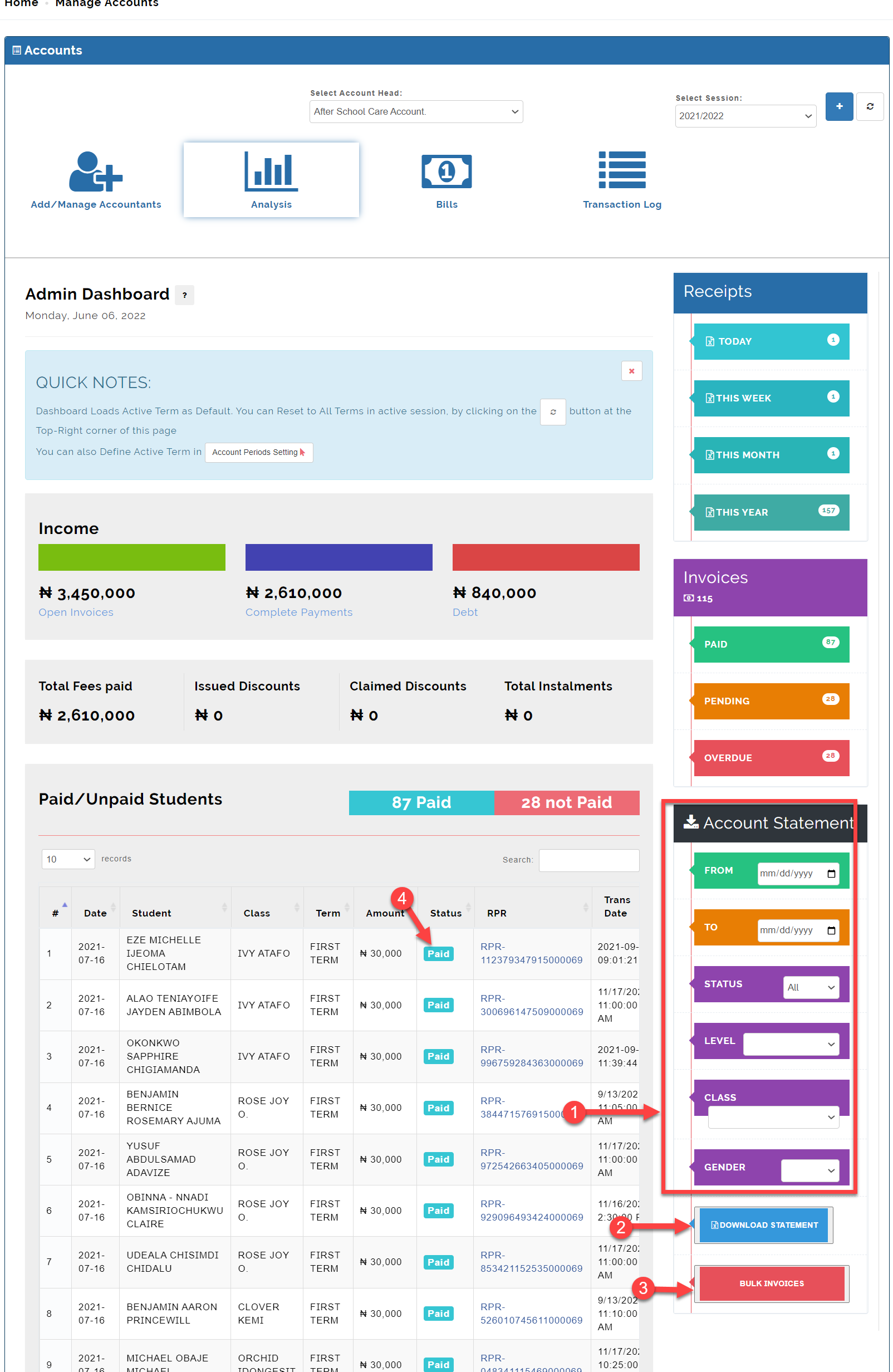
From the analysis you can download the account statement of the selected account in excel and also download the bulk invoices.
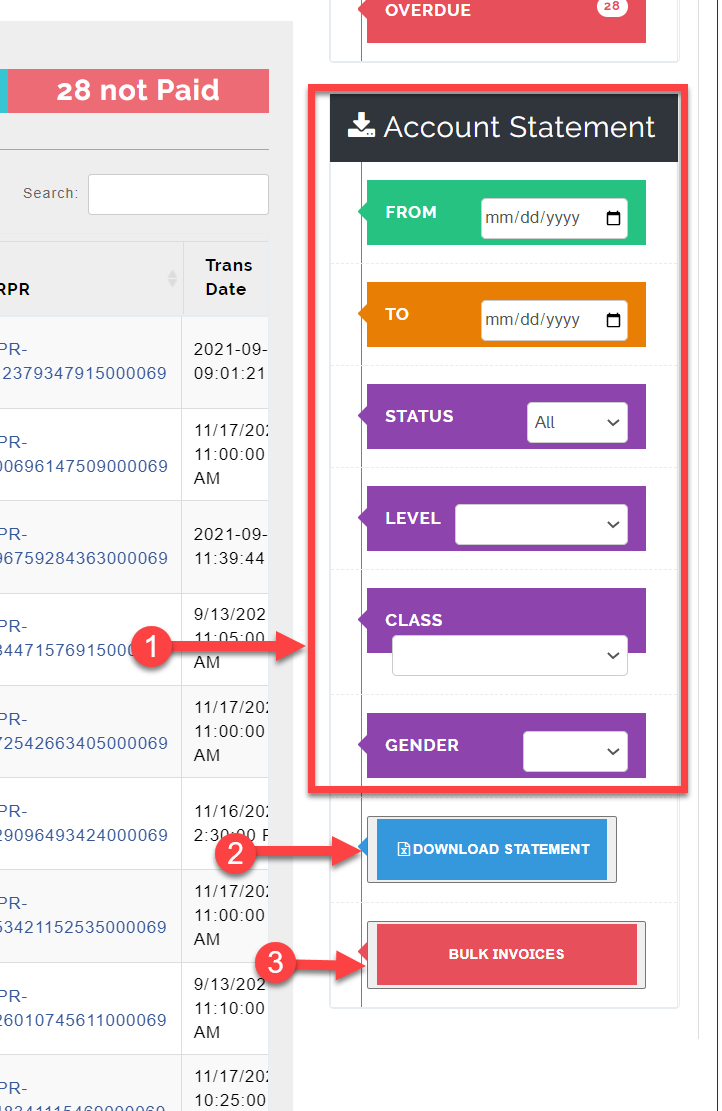
Download account statement
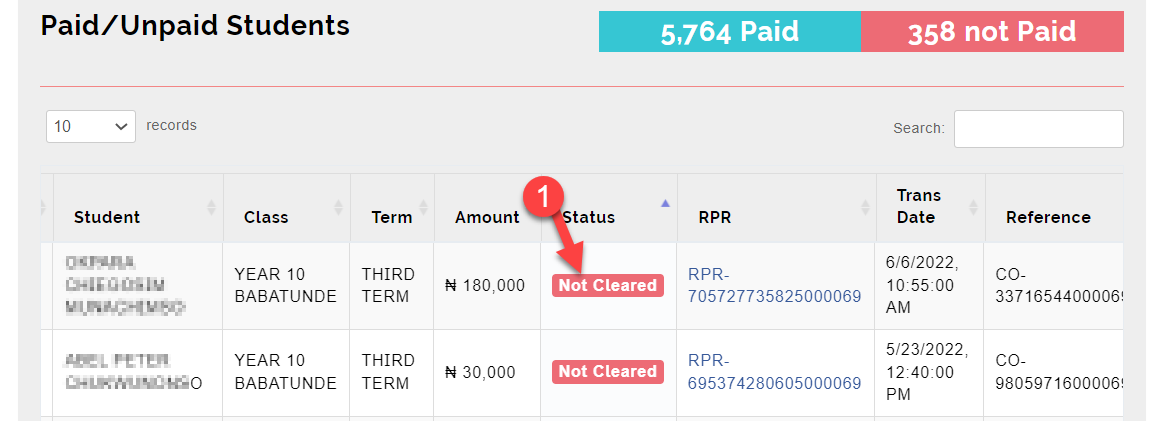
To manually clear invoices, click on Not Paid or Not Cleared as indicated in the picture below
Select the mode with which payment was made.
In the Confirm Amount Collected field, enter the amount collected and also the date of transaction.
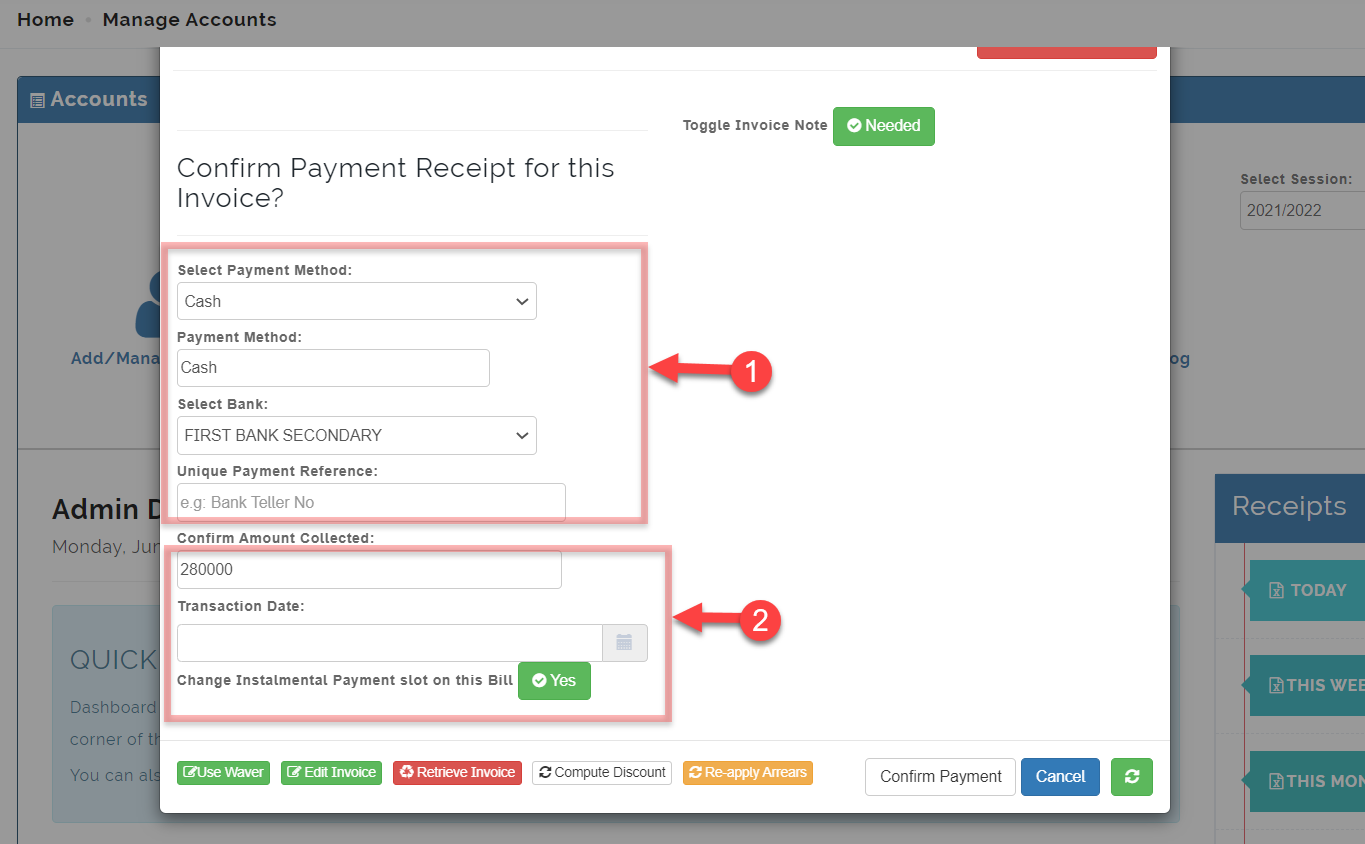
Installment payment
If the amount collected is lower than the amount on the invoice, the system will not accept the payment unless you select the option to Change Installment Payment slot on the Bill.