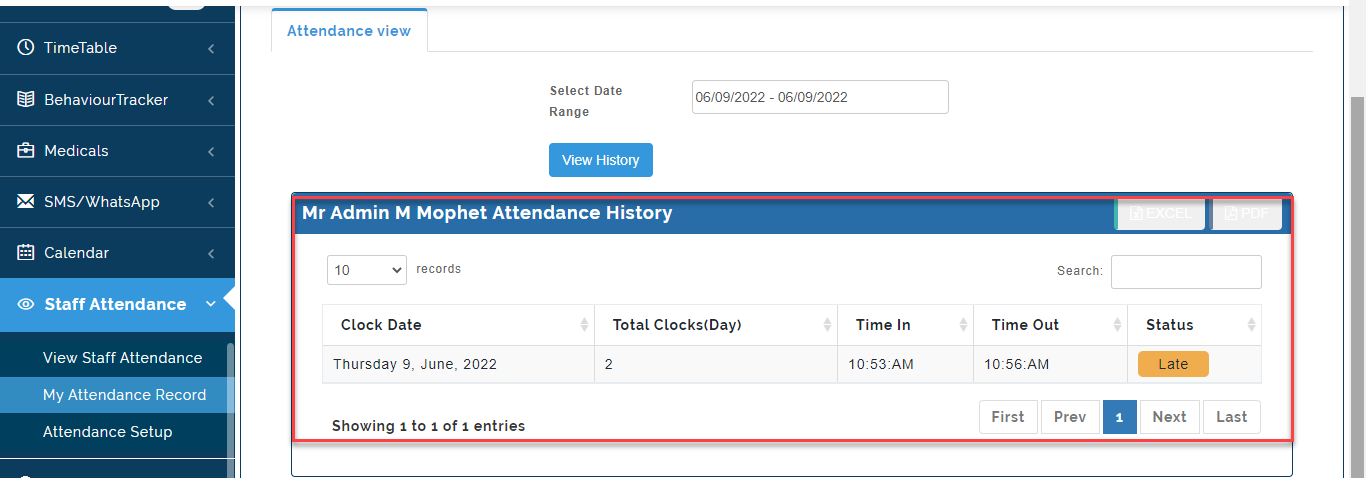
The HR Manager or Admin can manage all Staff Attendance and Monitoring. A Smart Device which has a Webcam is needed for authenticating and capturing Staff picture during Clock in/ Clock out.
To begin usage of the Staff Attendance module, the setup and configuration needs to be done. To commence setup follow the following steps:
Attendance Clock in Setup
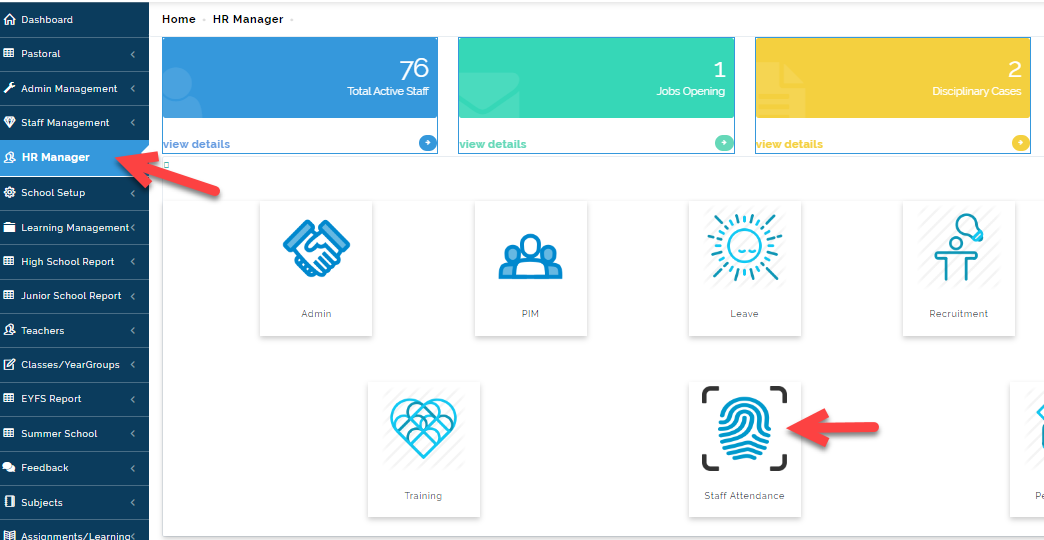
- Go to the HRM Module then click on Staff Attendance.
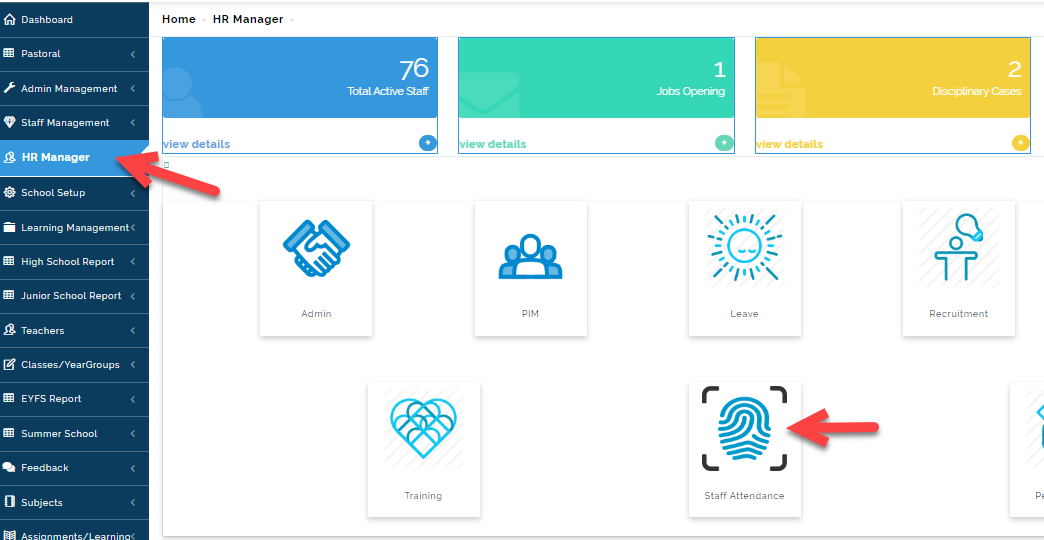
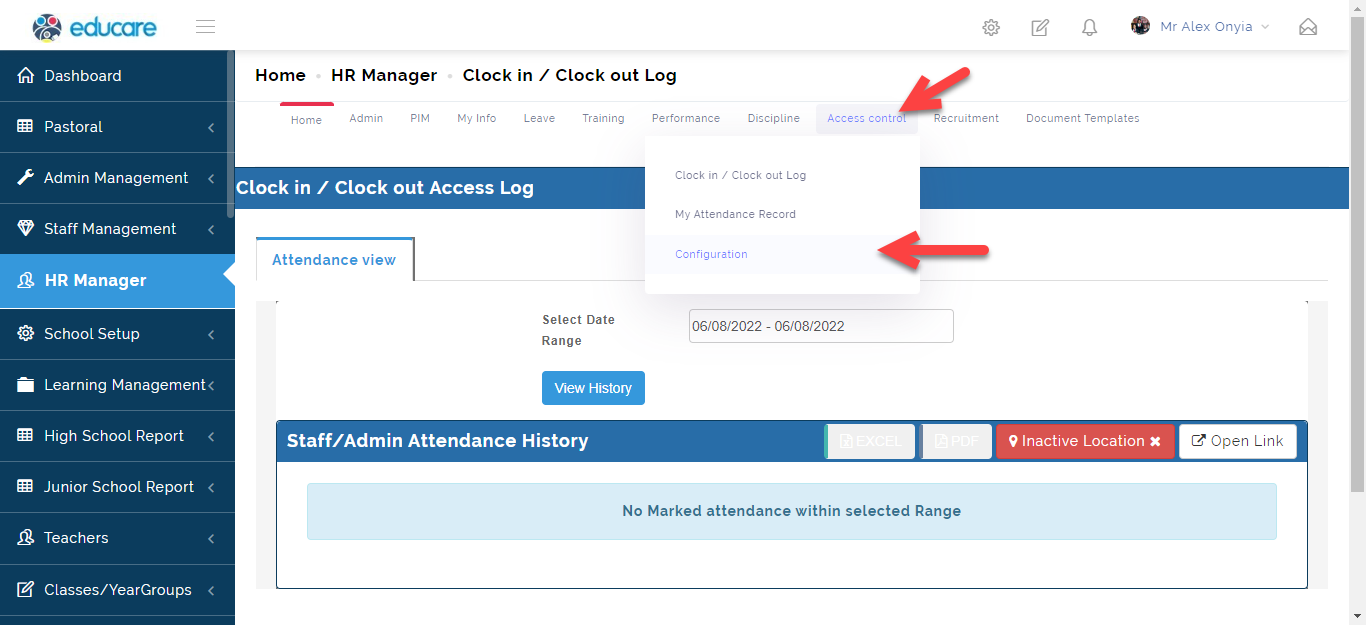
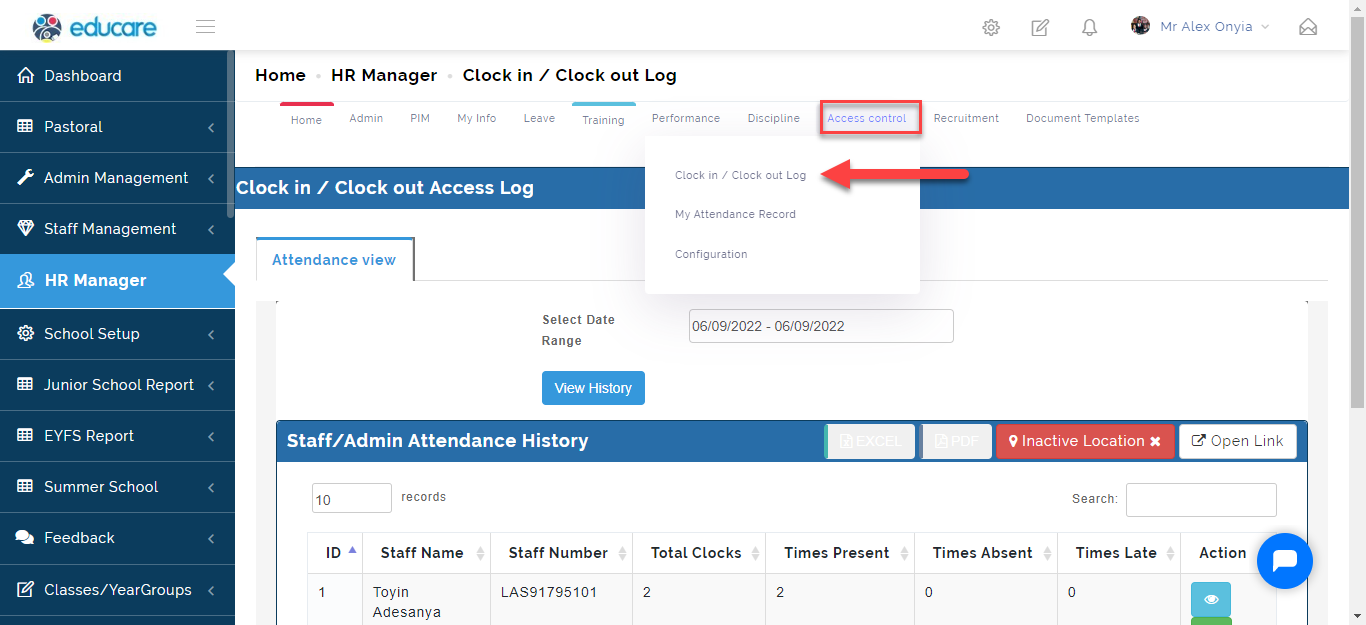
- Under the Access Control Tab, Select configuration.
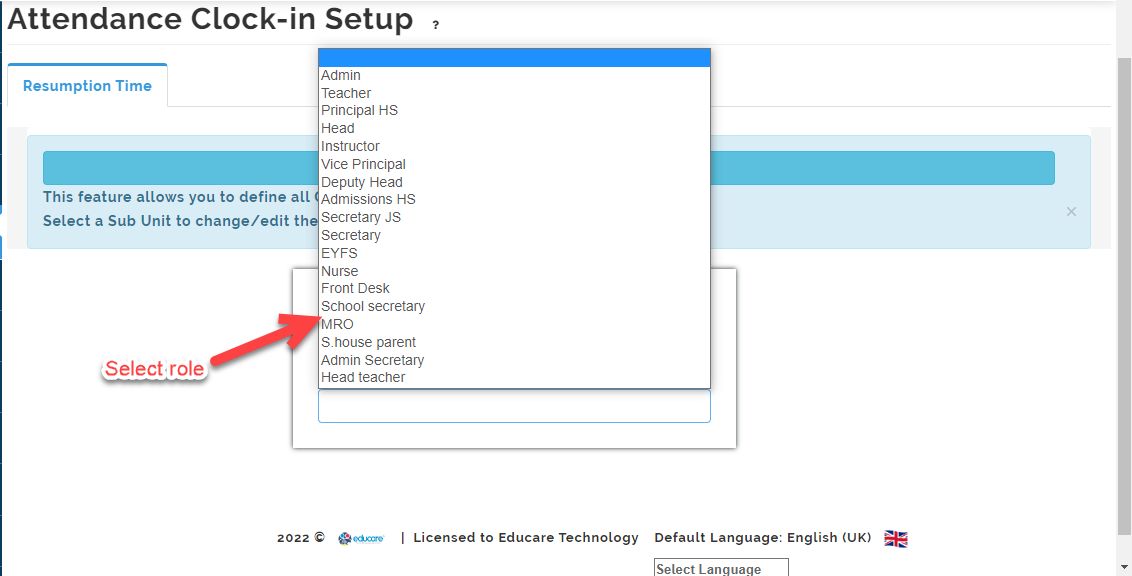
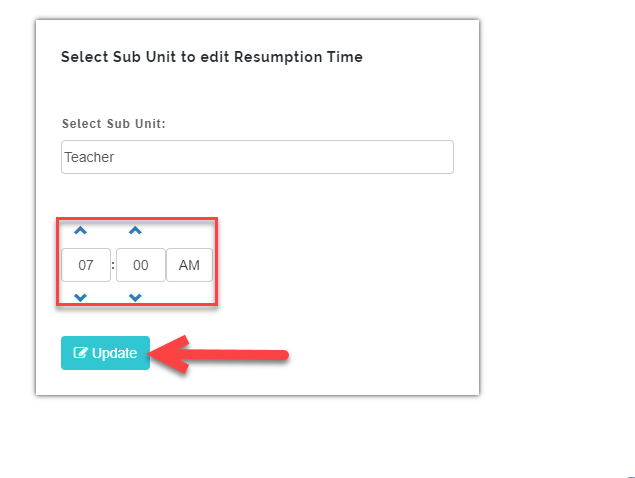
- Select the role for the different sub unit you want to create resumption time for.
b. Edit/Change the resumption time for the role you want to setup and click on Update
NOTE !!!
The admin has to edit the resumption time for each sub role that is required to clock in on a daily basis when they arrive the School premises.
Clock in/ Clock out Activation
Here, the admin has to activate the location (possibly at the school reception) on the device(s) to enable the line that will be used for clocking in and clocking out.
To activate the location on the device, follow these simply steps:
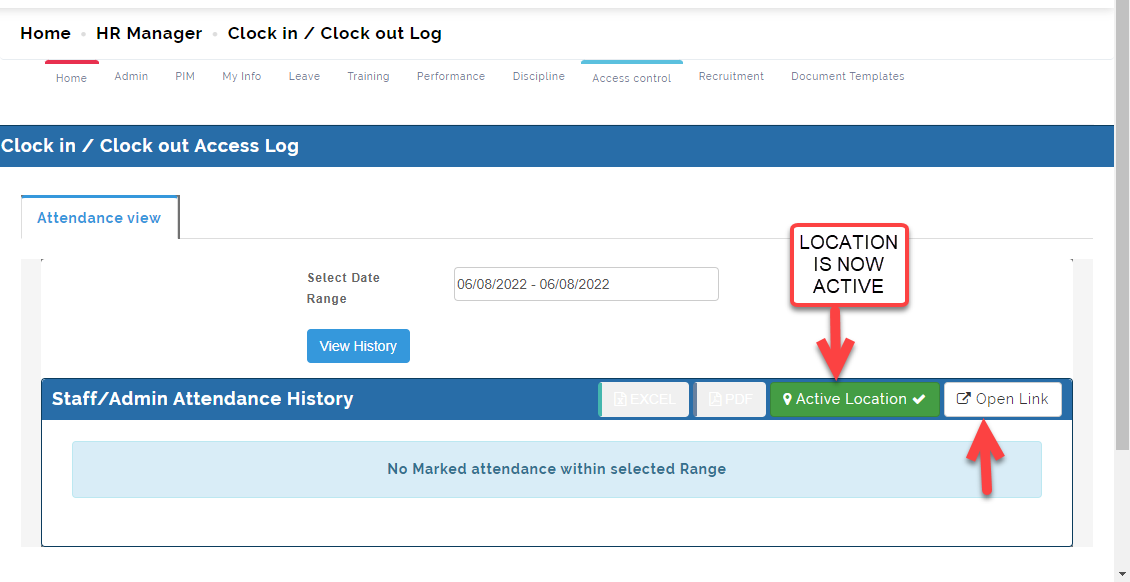
- Under the Access control Tab, Select Clock in/ Clock out Log then click on Inactive Location to activate the location for Staff Attendance. THE INACTIVE LOCATION BUTTON WILL CHANGE TO LOCATION ACTIVE.
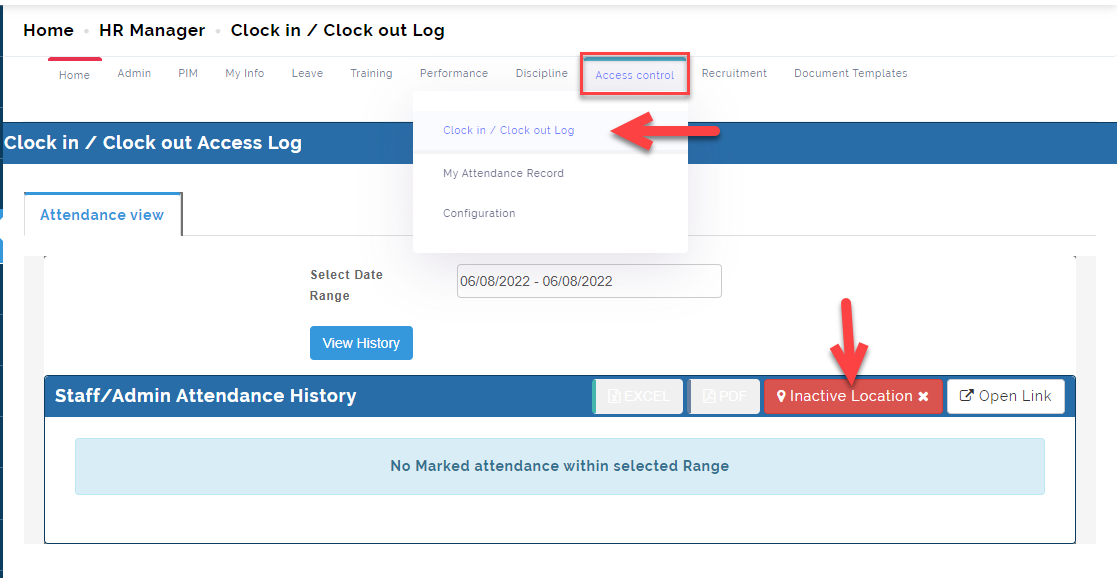
- Now the location is active, Click on Open Link to enable the Clock in/ Clock out Tab.
A set of notes for the admin will appear stating instructions for navigating the link, click on OK to Switch current page to FullScreen Mode.
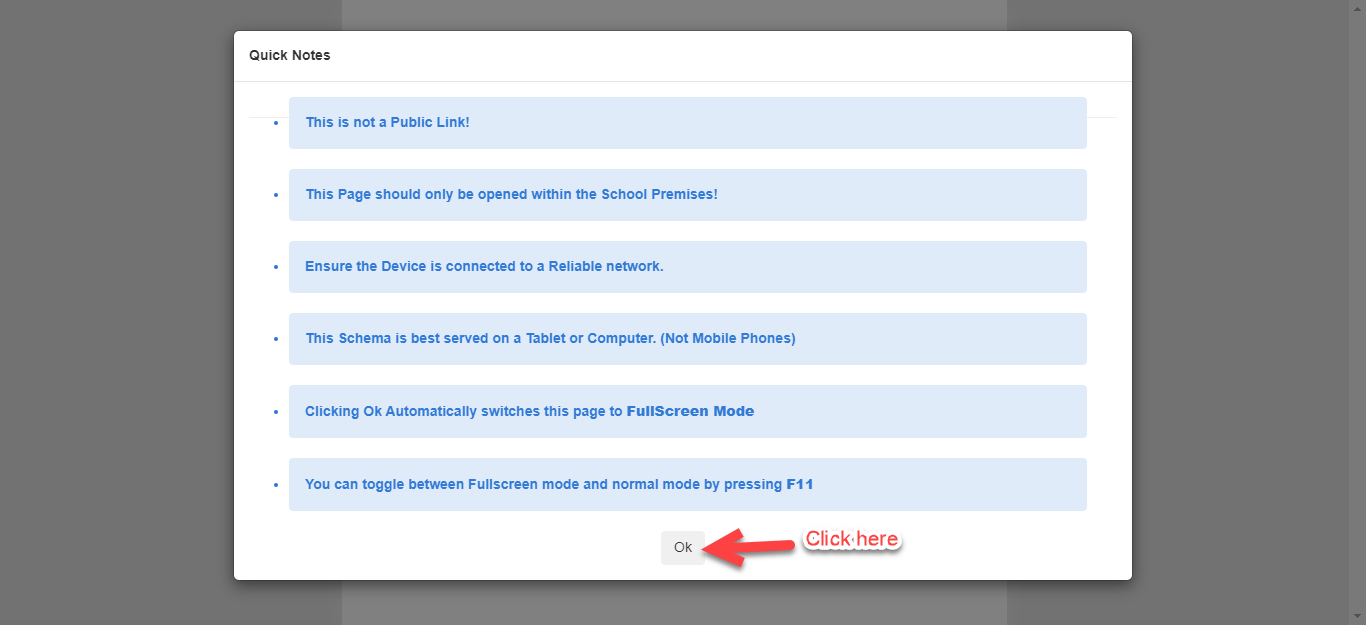
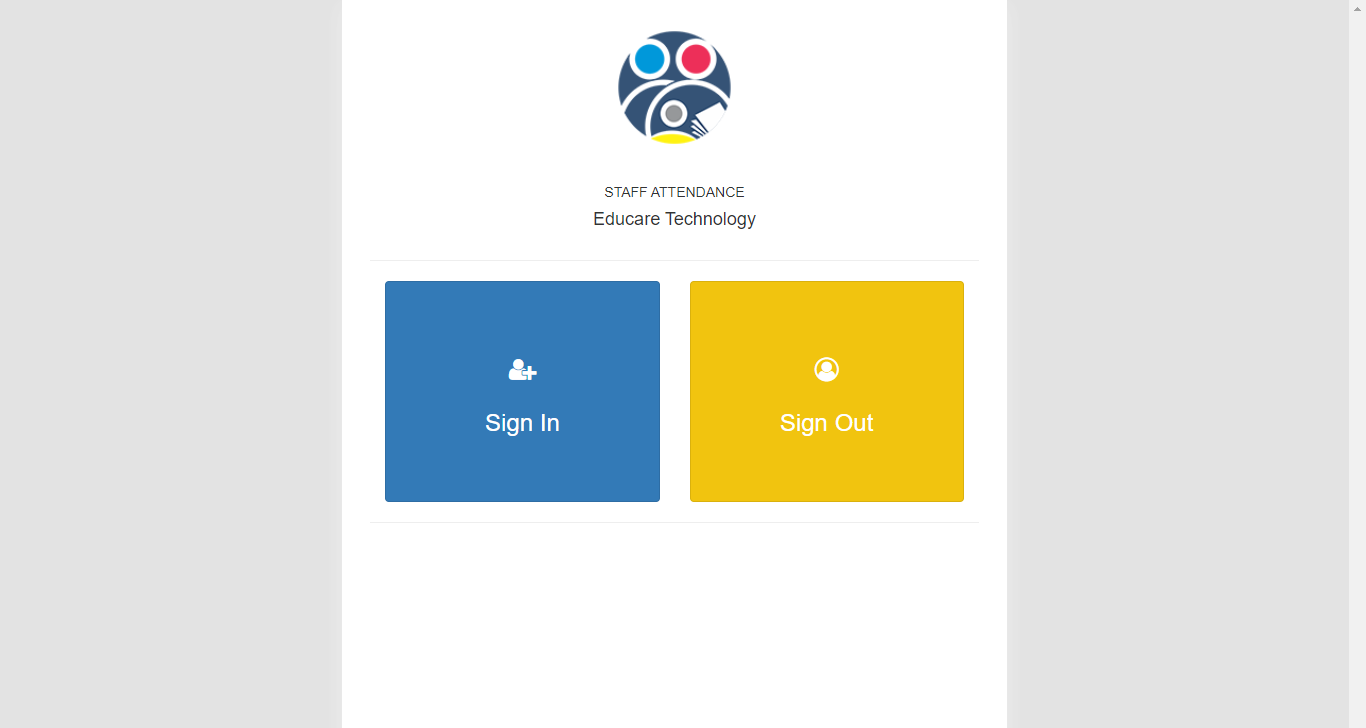
FullScreen Mode.
How to Access your Pin for Clock in/Clock out
Once the Link for Clock in/ Clock out has been set, Each Staff would be able to clock in using there personalized access code (A four digit number).
To access this number, Follow this Step:
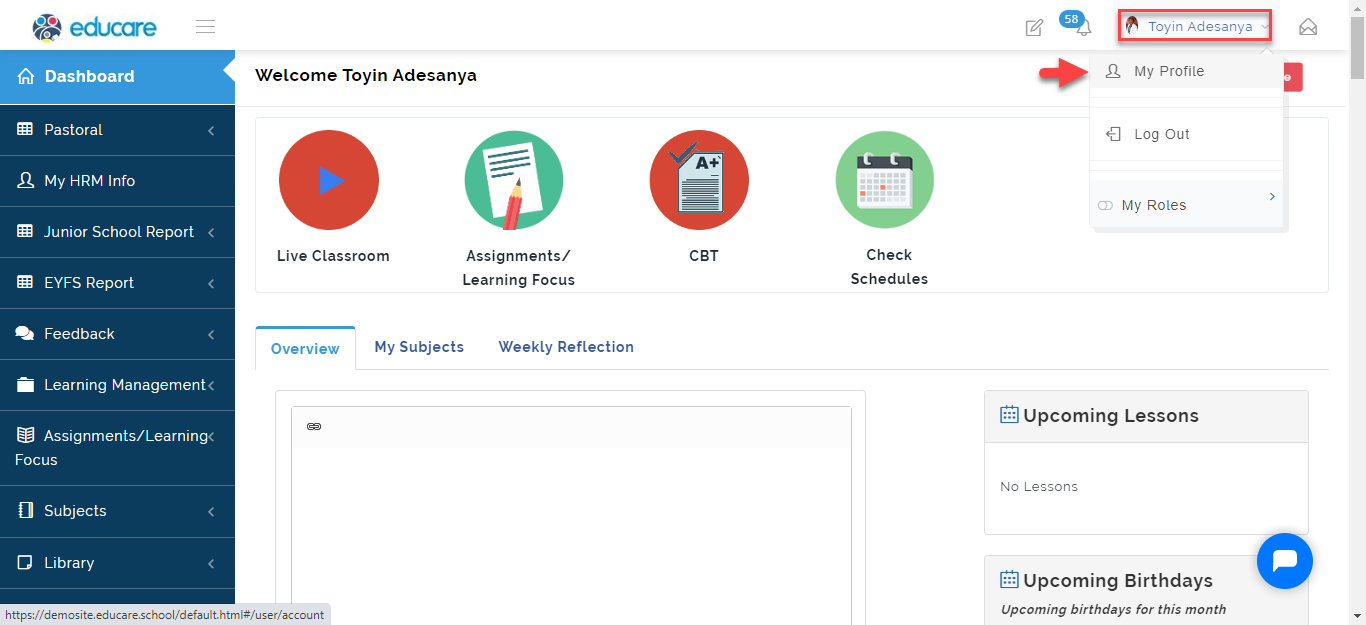
1.When the User (Teachers and other Non-academic Staff) logs in to the portal, Hover your cursor where your name appears on the top right corner of the portal; A drop will appear, Select "My Profile".
The will open up your profile, under the Access Pin, click on the eye to make your access pin Visible.
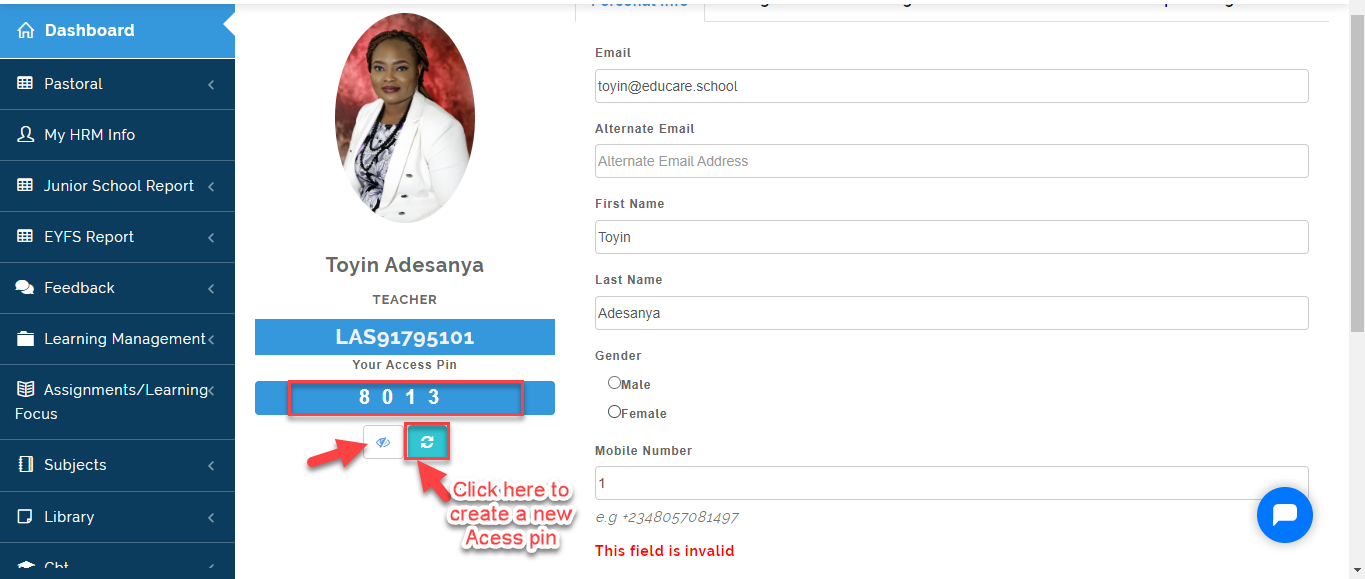
This pin will be used to clock in/ clock out.
How to Clock in/ Clock out
Now that we have all the required tools setup for Clock in/ Clock, here are the simply steps staff can record their attendance:
- With the Clock in/ Clock out Link opened, Click on Sign in.
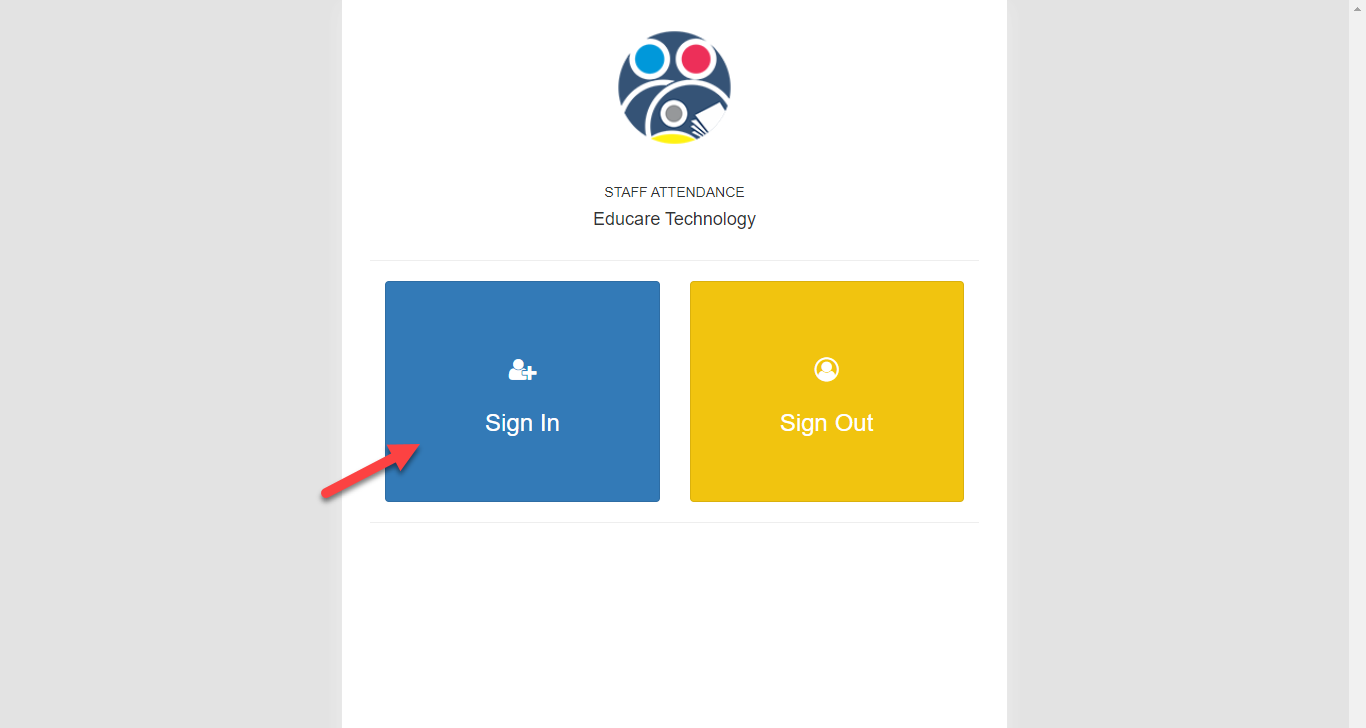
This will pull up a button to capture your face as prove that you are in the school premises.
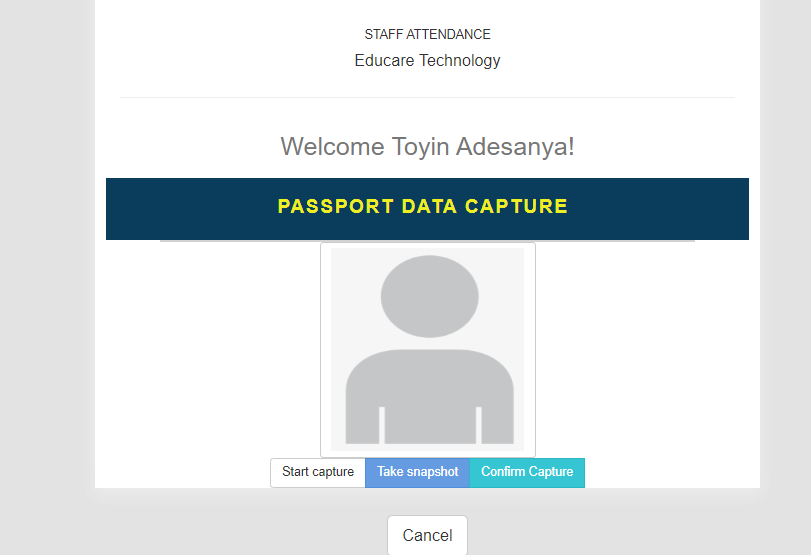
- Click on START CAPTURE to open up the Webcam for capturing your picture.
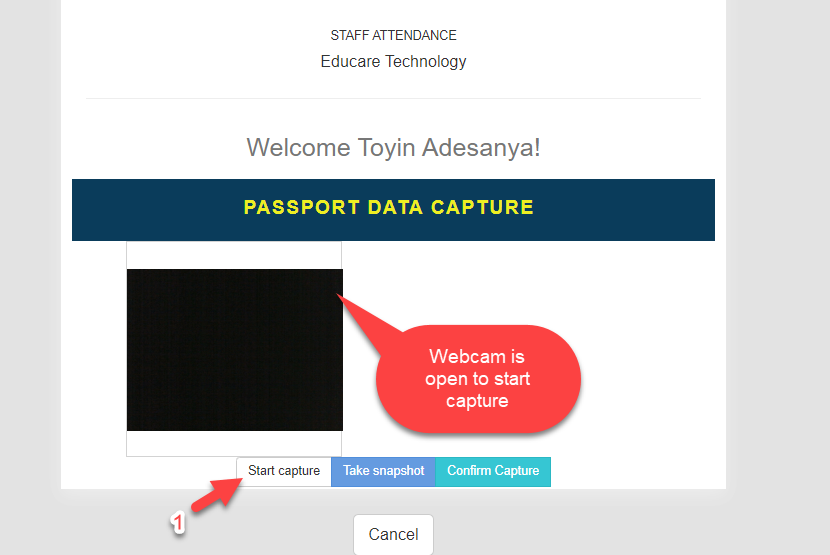
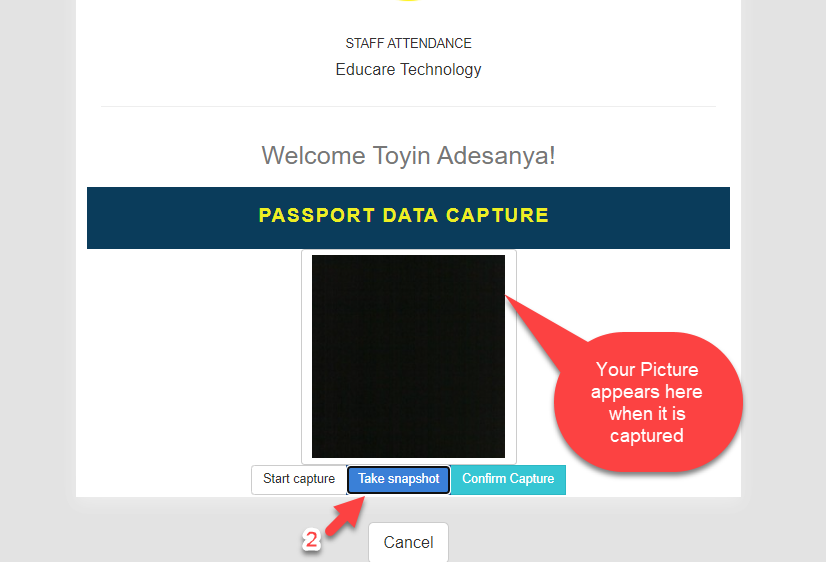
- Click on TAKE SNAPSHOT when you are set.
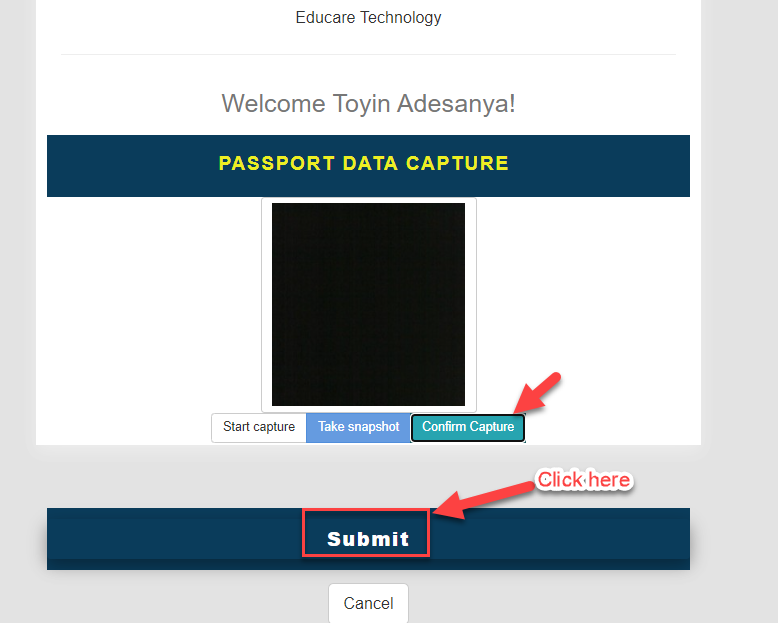
- Click on Confirm Capture and then Click on Clock in to allow the system record your entry.
A success notification will appear as seen below.

TO CLOCK OUT FOLLOW THESE STEPS:
- With the Clock in/ Clock out Link opened, Click on Sign out.
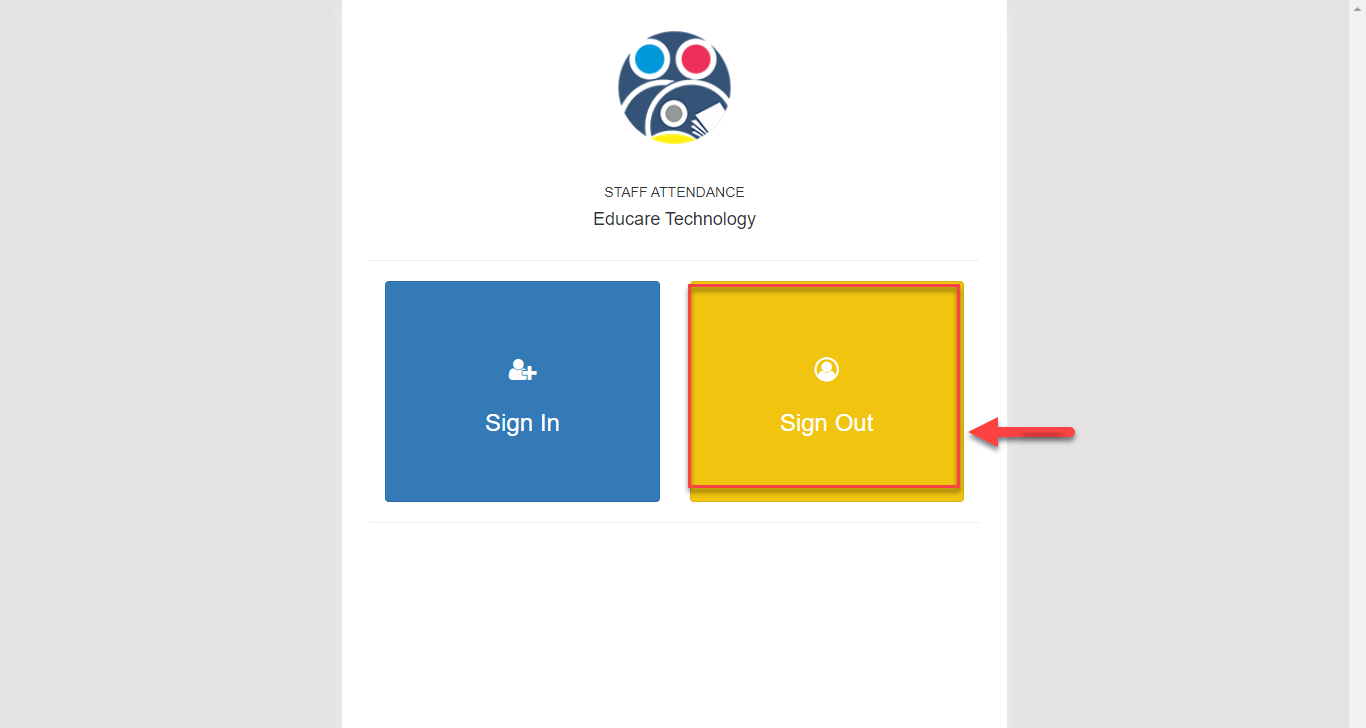
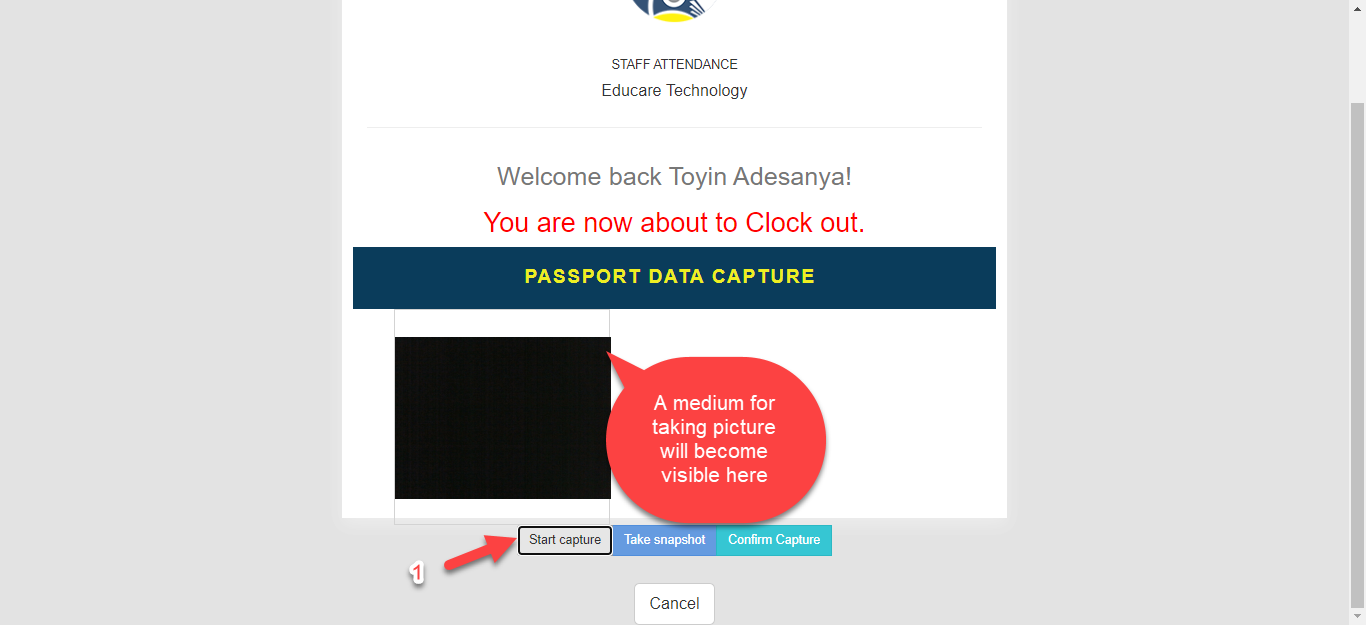
- This will pull up a button to capture your face as prove that you are exiting the school premises, click on START CAPTURE to open up the Webcam for capturing your picture.
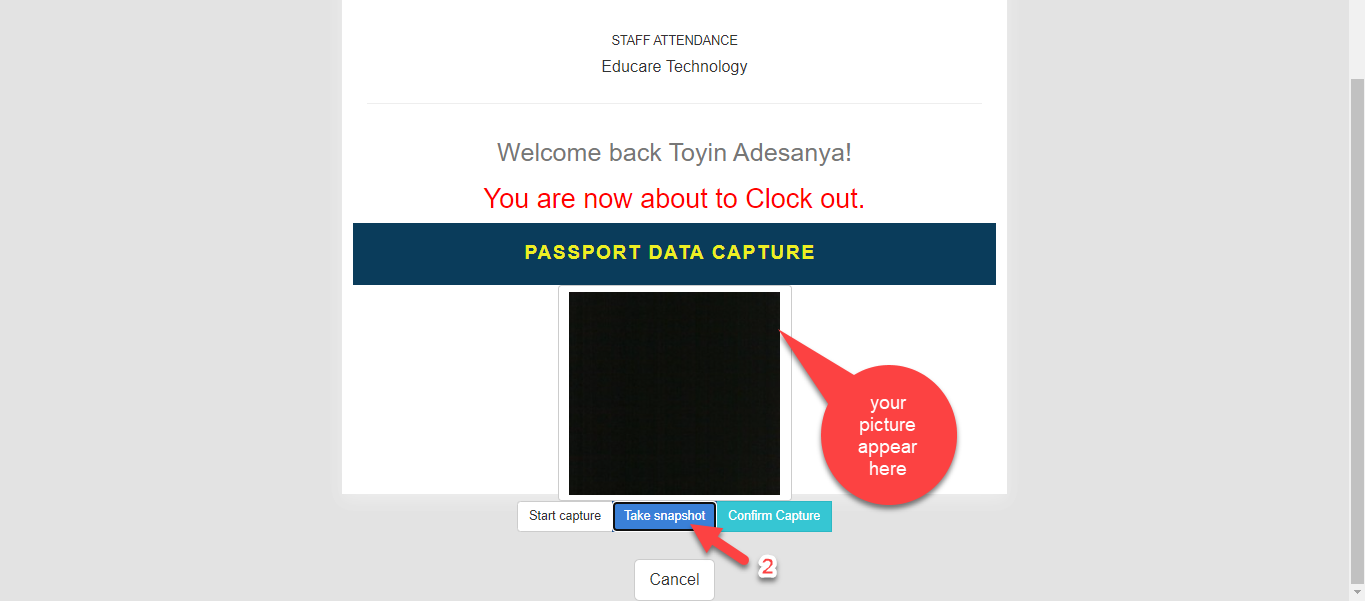
- Click on TAKE SNAPSHOT when you are set.
- Click on Confirm Capture and then Click on Clock out to allow the system record your entry or click on Cancel to Exit.
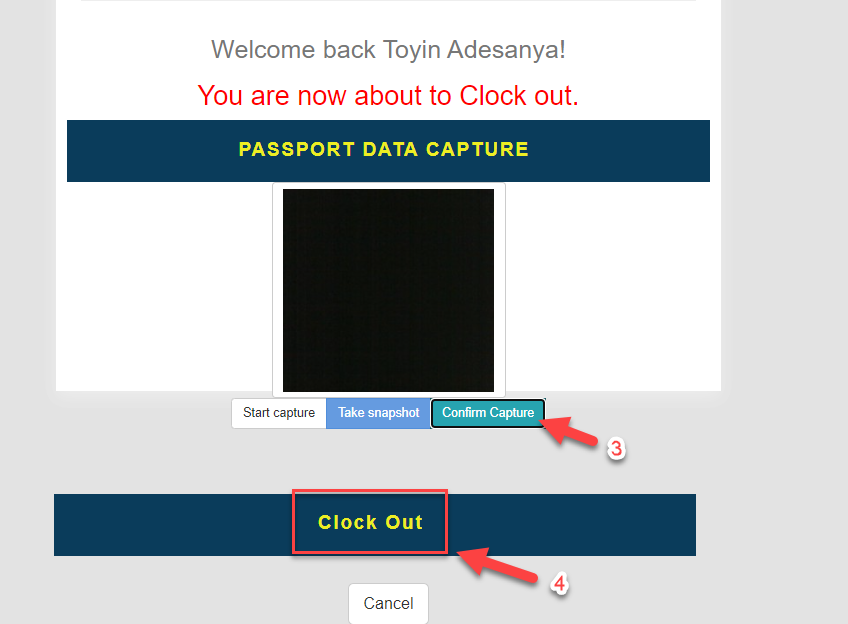
You will see a success notification as seen below

How to View Clock in/Clock out Log
Here, you will see all the details of all the staff that have Clocked in/ Clocked out, the times he or she was present and late, the picture take and resumption/departure time.
See below for steps:
- Go to the HR Manager Module, Click on Staff Attendance.
- Click on Access Control from the Tabs at the top then Select Clock in/ Clock out Log.
- If you want to View for a certain period of time, Click on Select Date range to narrow your search then Click on View History.
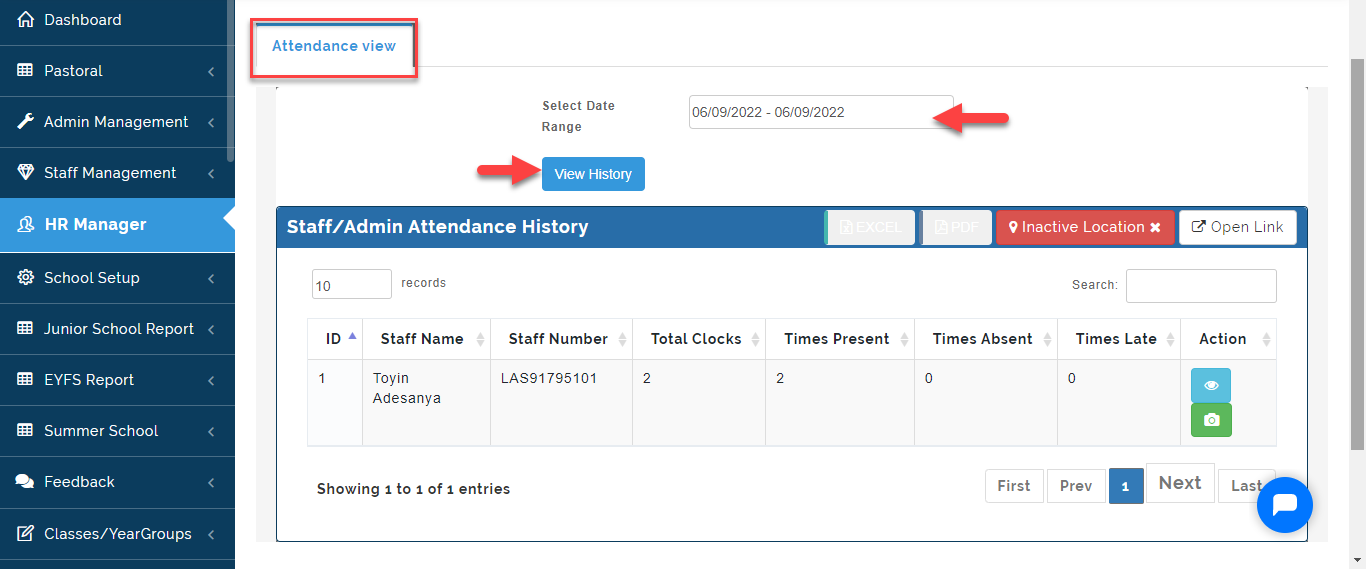
- Under Attendance view you will see the List of staff who have taken attendance in the school.
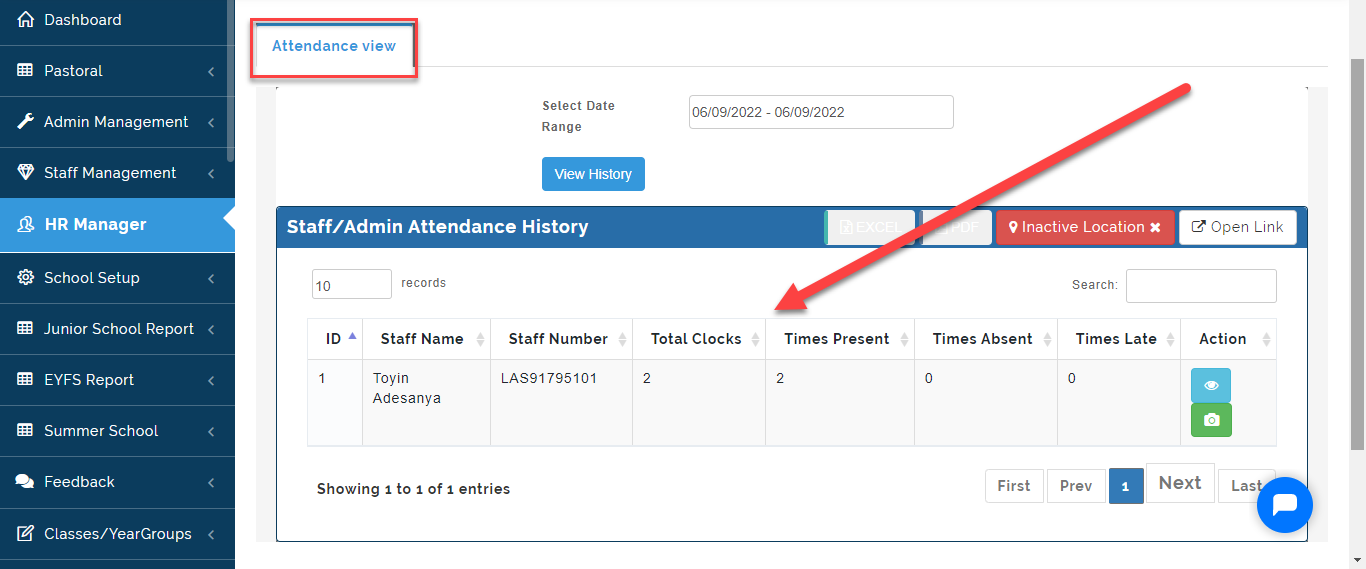
- From the Table, you will see the name of the staff, Staff number, Times Present, Absent and Late.
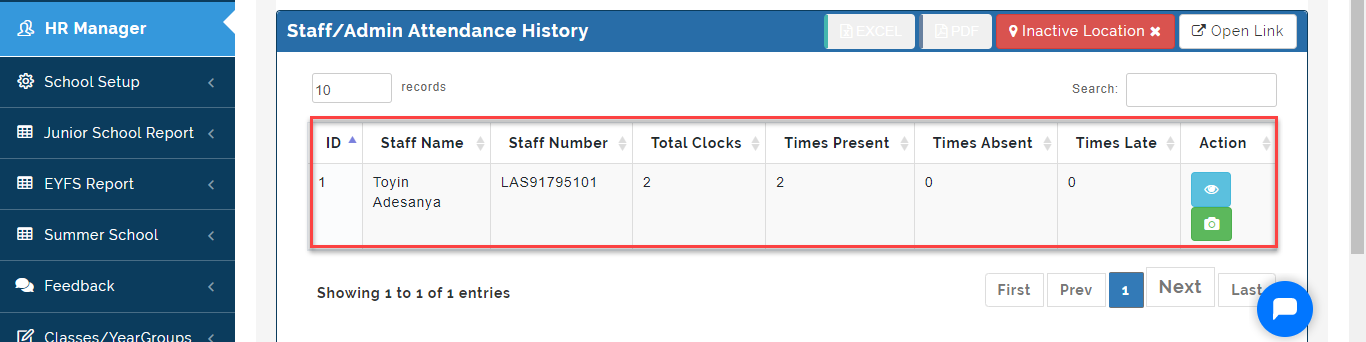
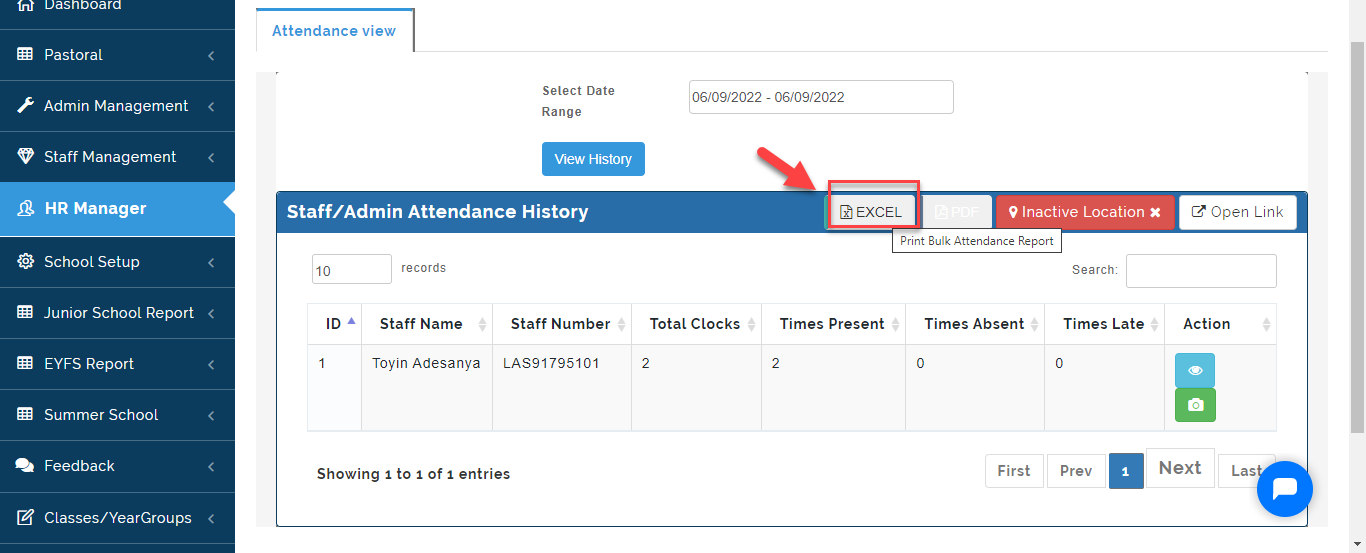
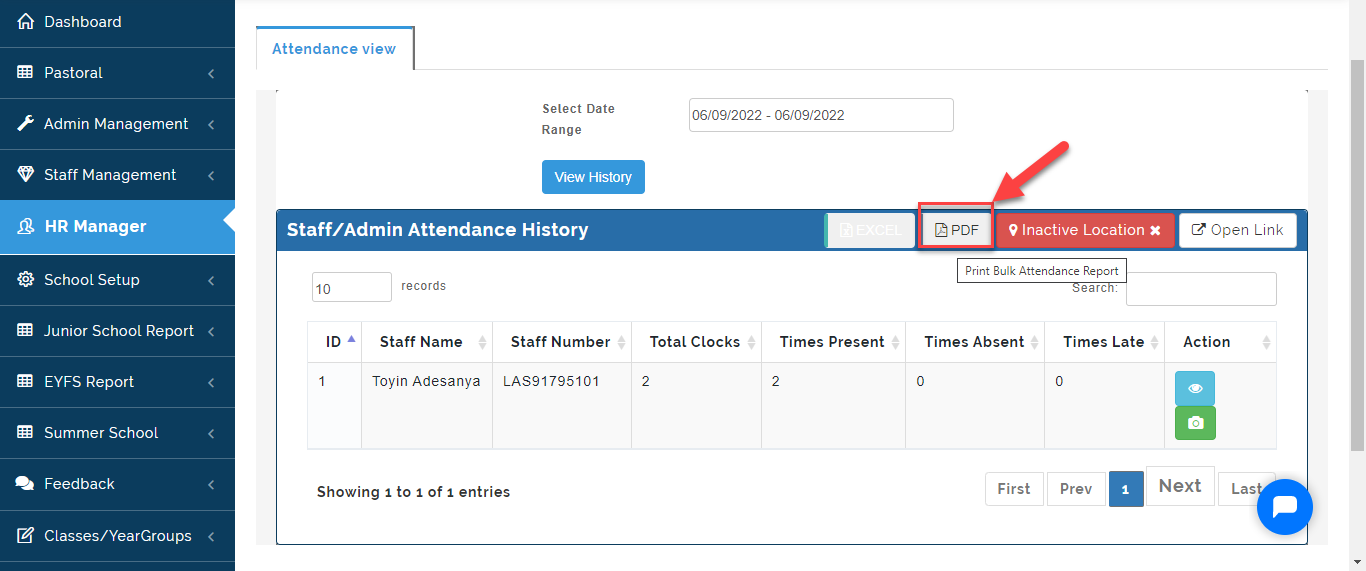
Click on the Excel button to download in Excel Format all Staff Attendance record and Click on PDF button to Download in PDF Format.
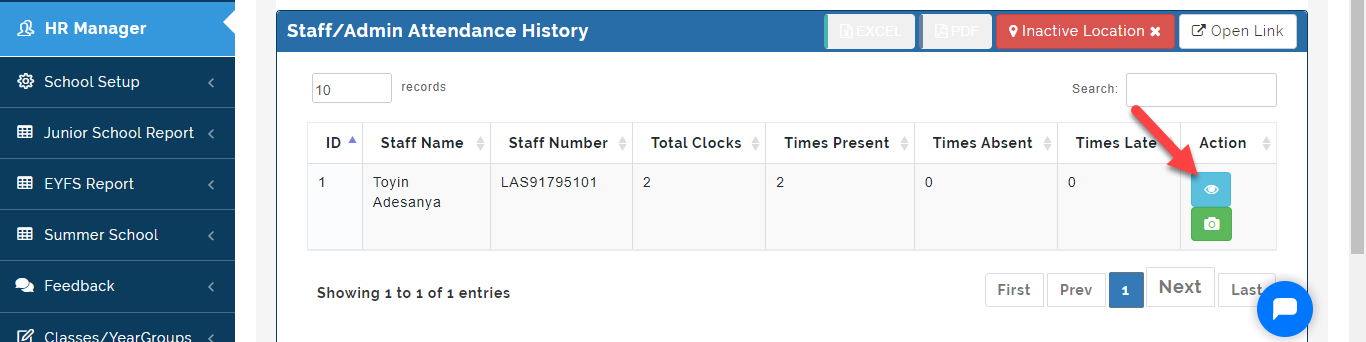
- Click on the eye button to View details of a particular Staff Attendance.
Scroll down to view the details of the attendance taken.
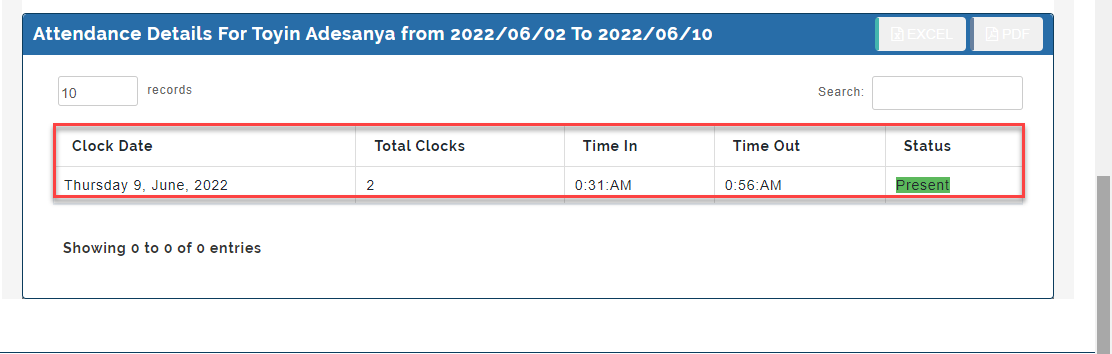
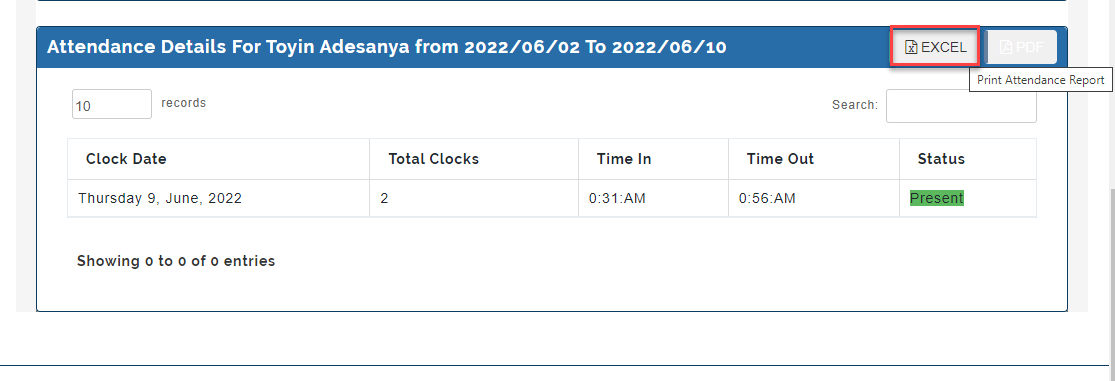
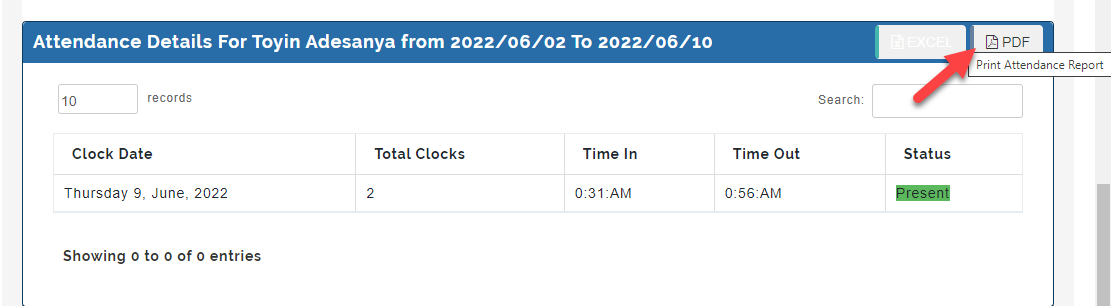
- Click on the Excel button to download in Excel Format the details of a particular staff attendance record and Click on the PDF button to download a particular Staff attendance details in PDF format.
How to View your Attendance Record
Follow these simply steps to view your attendance as an Admin or HR Manager:
- Click on Staff Attendance then Select "My Attendance Record".

- Under the Attendance View, you will see your Attendance **History**.