The HR Manager and other Heads of Disciplinary Members in the School can record and Manage all Staff Disciplinary cases.
DISCIPLINARY CASES
Here, The admin or HR Manager can create, view and manage all Disciplinary Case(s) recorded for a Staff.
When there is an offence committed by any Staff, The HR Manager can record the case here. Follow these Steps to Create Disciplinary Cases:
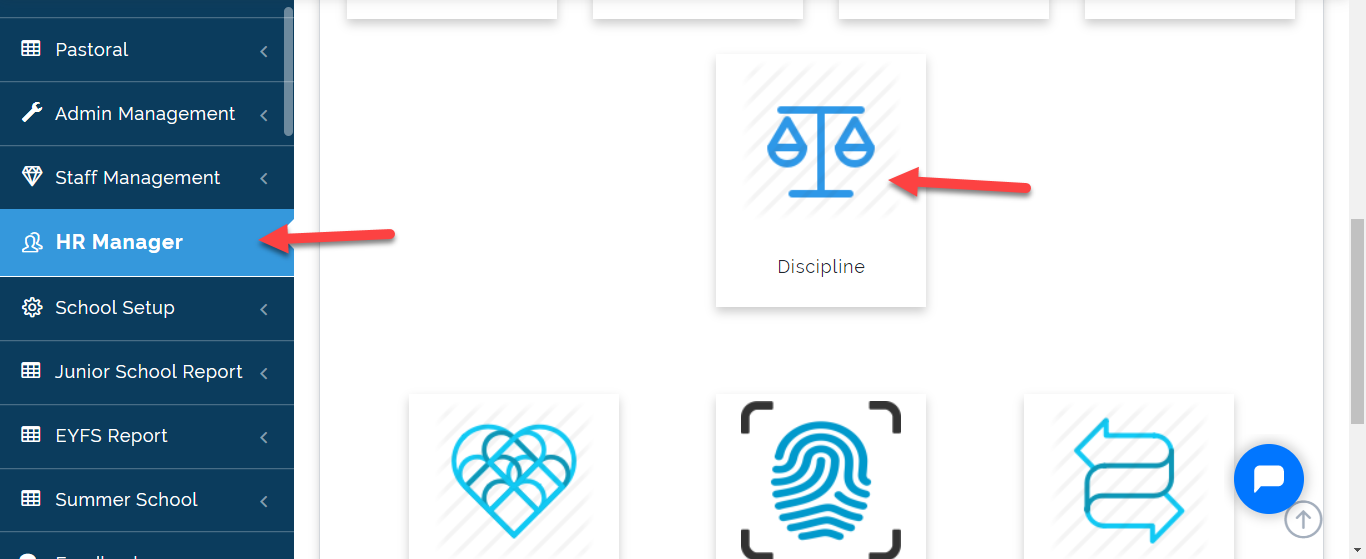
- Go to HR Manager Module then Click on Discipline .
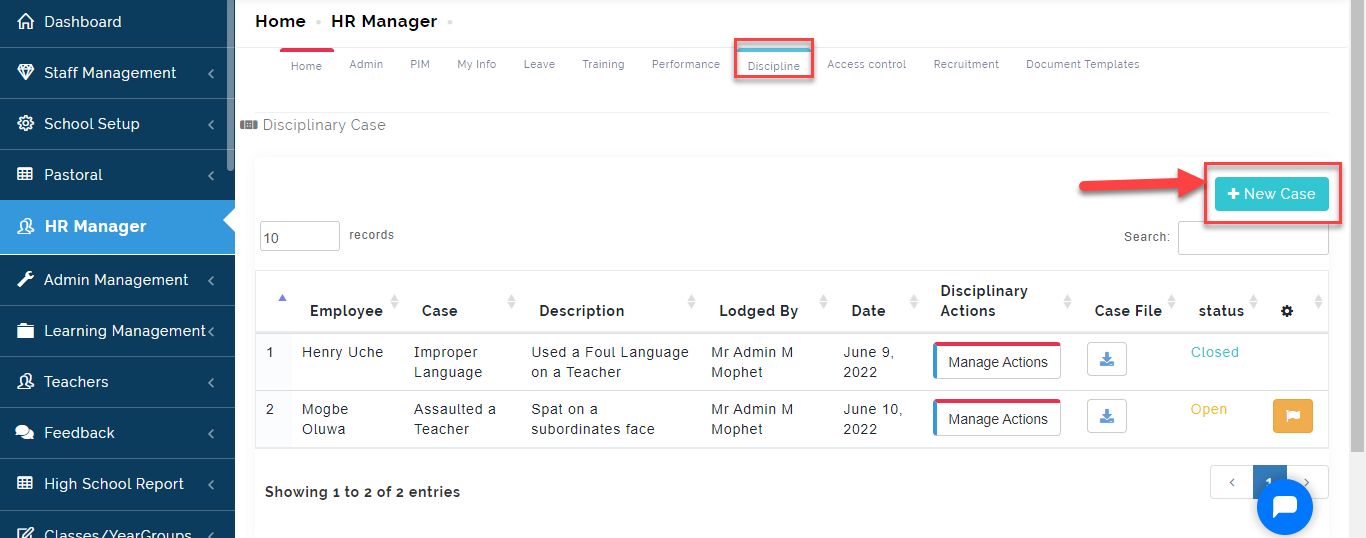
- Click on +New Case
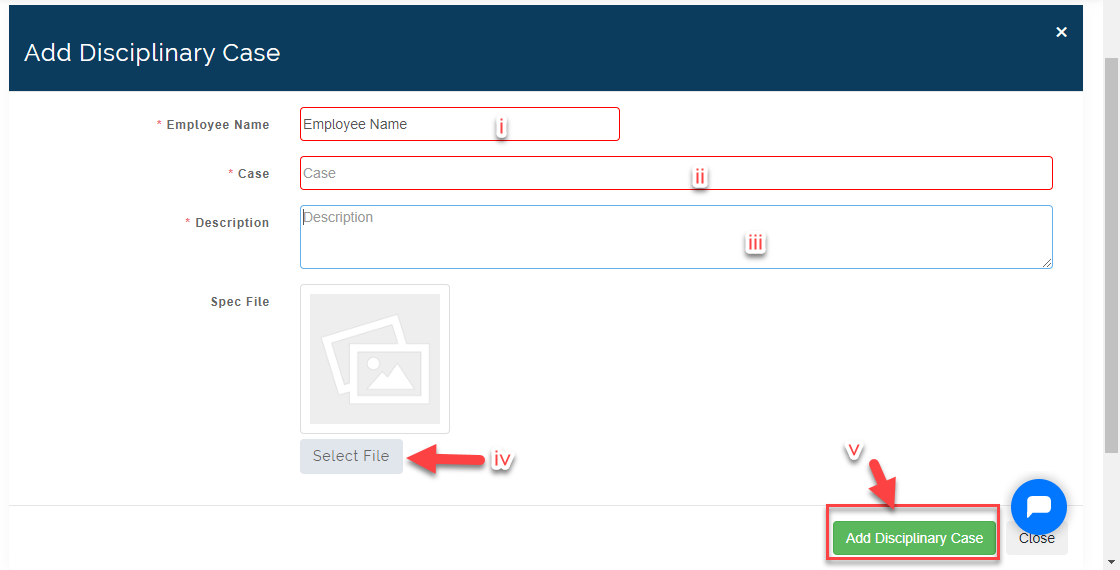
- Under Add Disciplinary Case,
i. Select the name of the Employee who committed the offence.
ii. Enter the offence committed under the Case option.
iii. Enter a Description of the Case in more details under the Description Button.
iv Click on Select File to choose a file from your PC if there is an evidence containing additional information on the case.
v. Click on Add Disciplinary Case when you are done to save entry or close to Exit.
How To Take Action on Case
After a case has been created, the HR Manager or Members of the Disciplinary Committee Member(s) who have been given access to Taking Actions on a Case can proceed with Sanctioning depending on the School rules.
Follow these Steps to give Sanction:
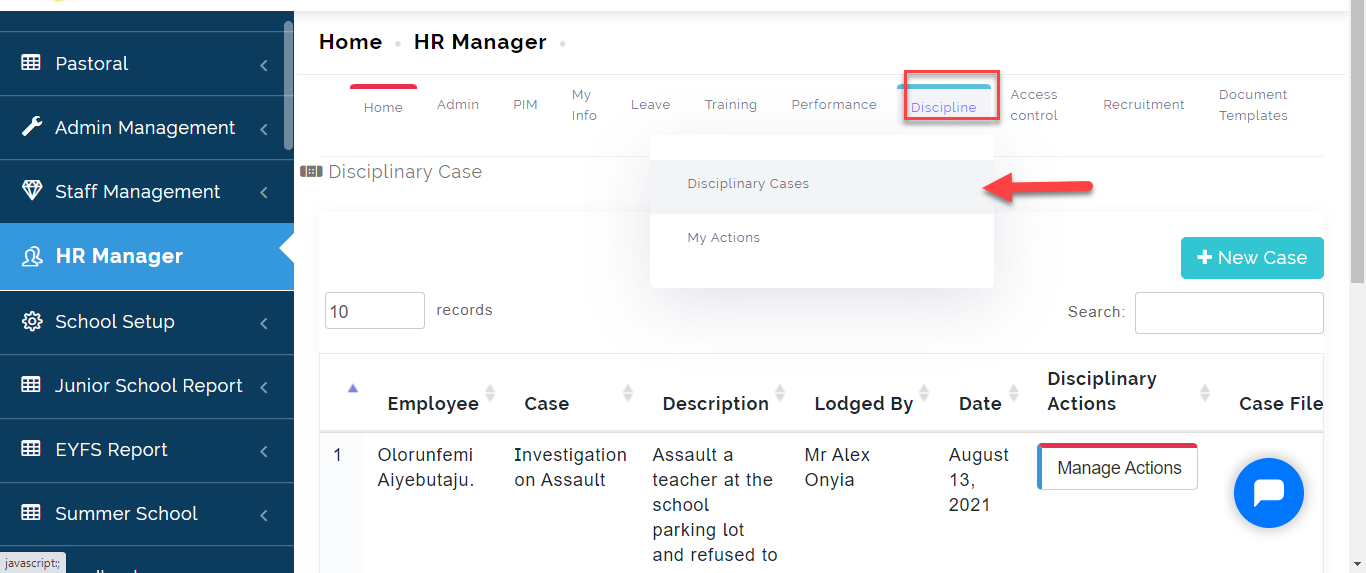
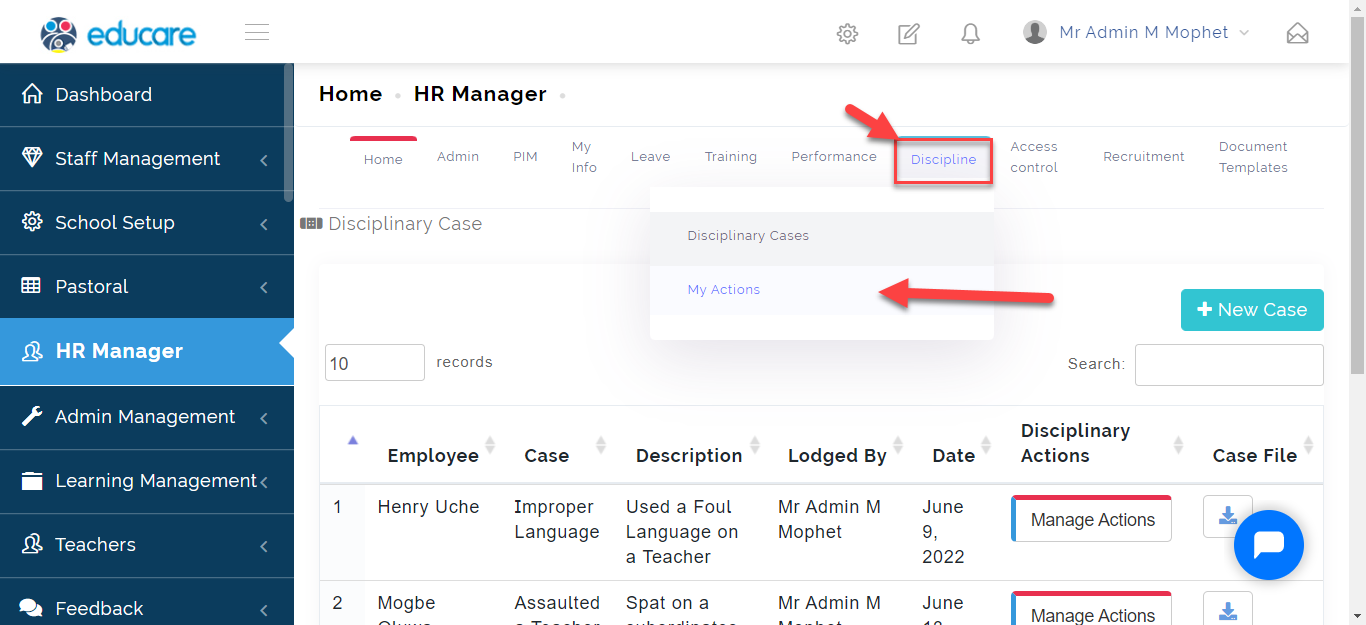
- From the Function Tabs as indicated in the image below, Click on Discipline then Select Disciplinary Cases.
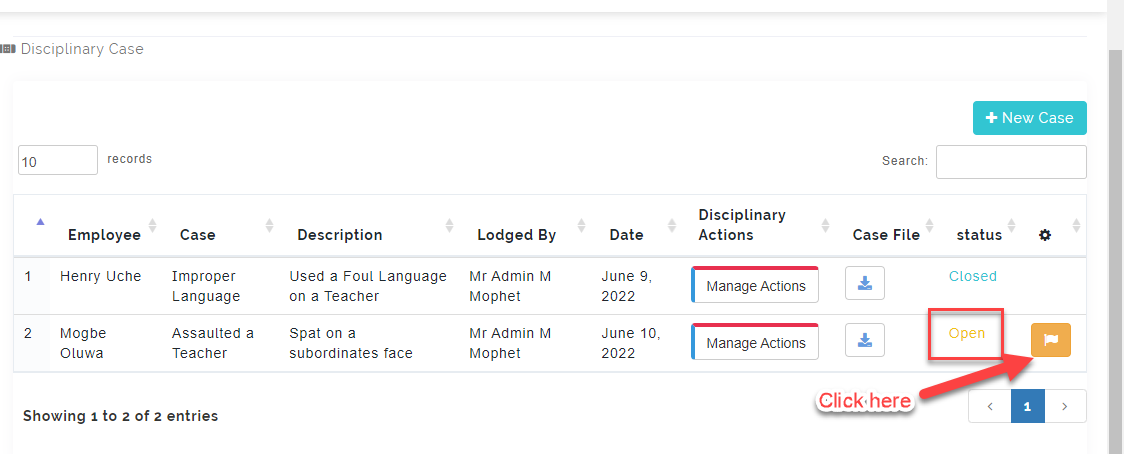
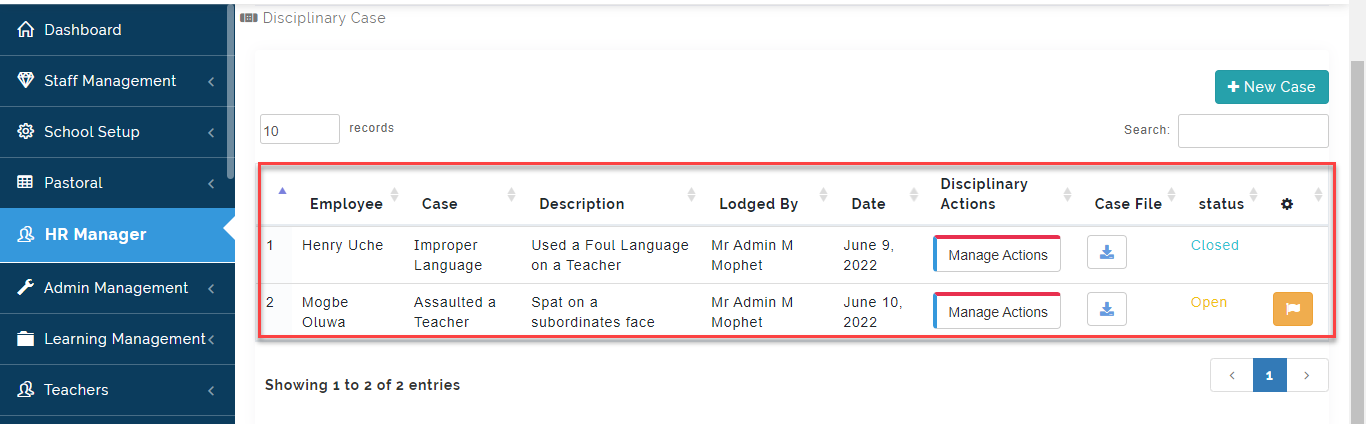
- Once a case is created for a Staff, The status of the File will read OPENED. Click on the button under the column with the Setting icon.
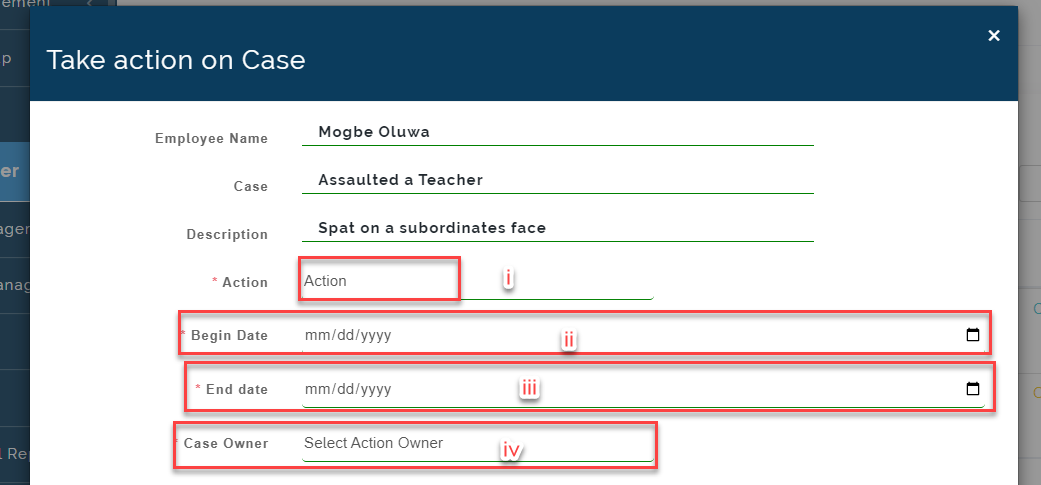
- A Modal will appear showing the case, follow these steps to take action on the case
i. Select from the list of Action(s) to be issued to the employee depending on the case.
ii. Select the date the action given should start
iii. Select the date the action given should be completed by.
iv. Select the Action Owner (this can be someone who will be in charge of the Case)
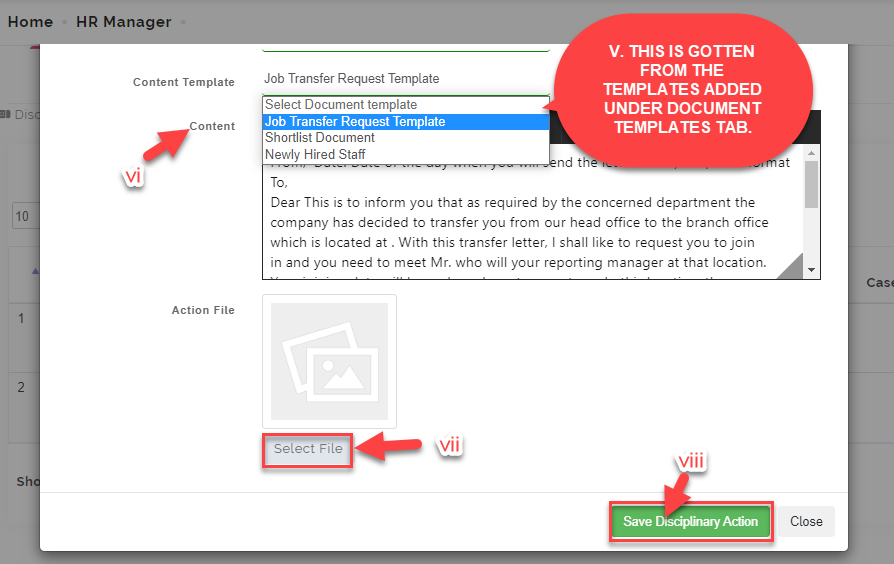
v. Select the content template from the list of templates if you have added a disciplinary template under DOCUMENT TEMPLATE for the case file you are creating.
vi. The content in the selected template you have chosen would appear inside the text box or you can simply type in the text box the content of the query if you do not have one prepared already.
vii. If there is a file containing the sanctions for the case you are creating, click on Select File to choose the file to upload from your PC. (eg. Query Letter, Dismissal letter etc.).
viii. Click on Save Disciplinary Action when you are done to Save Action or click on Close to exit.
HOW TO MANAGE AN ACTION TAKEN
Here, the HR Manager and Disciplinary members can view actions taken on a case file and monitor the progress on the case.
Follow these steps to manage action taken on a case:
- Go to the HR Manager Module then Click on Discipline.
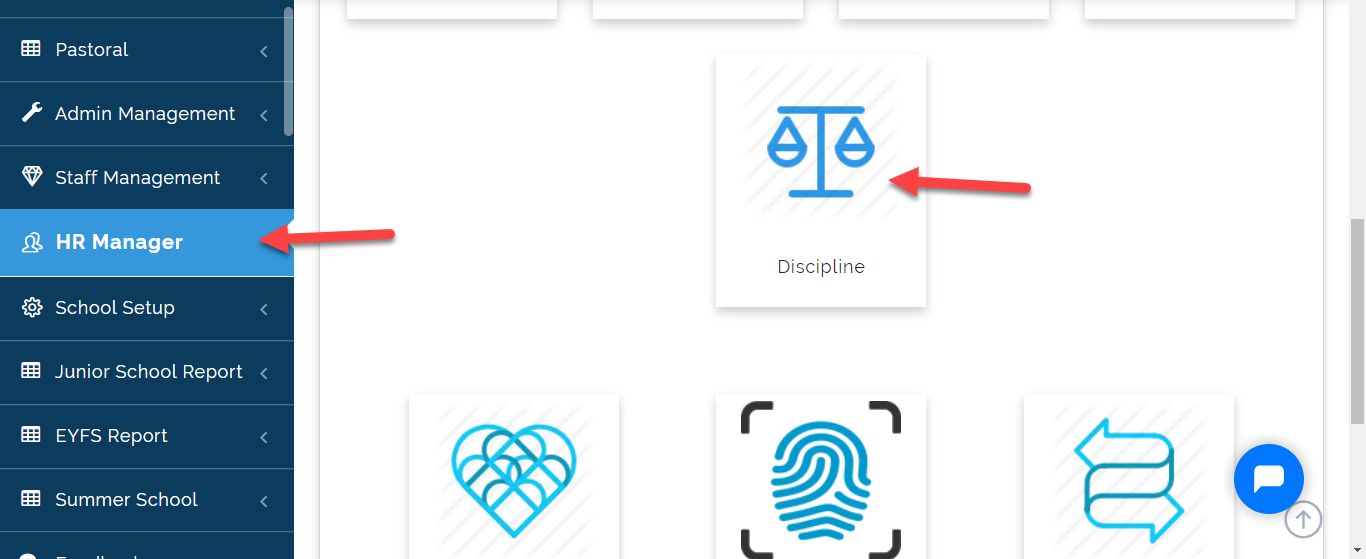
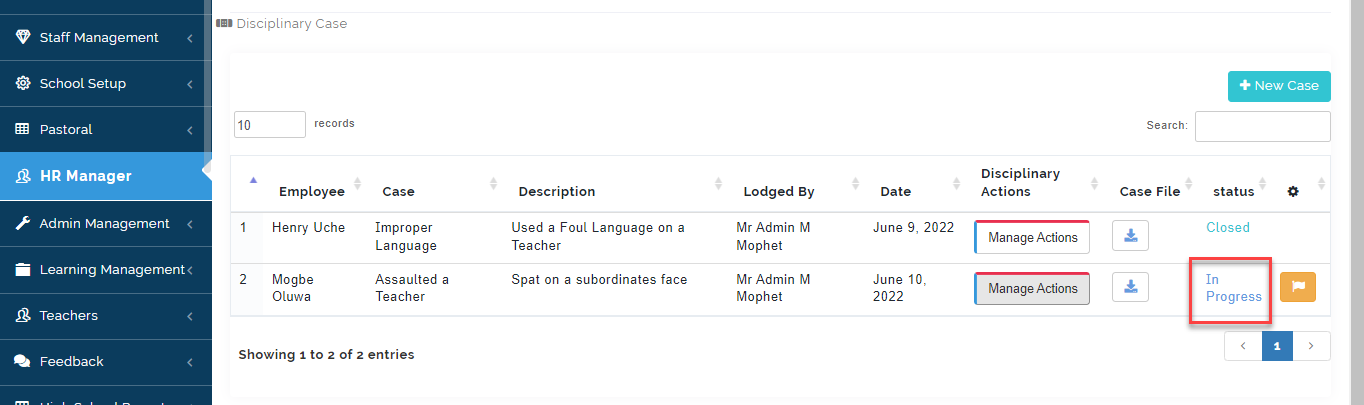
- Under Disciplinary case, you will see the list of cases entered, click on Manage Actions for the
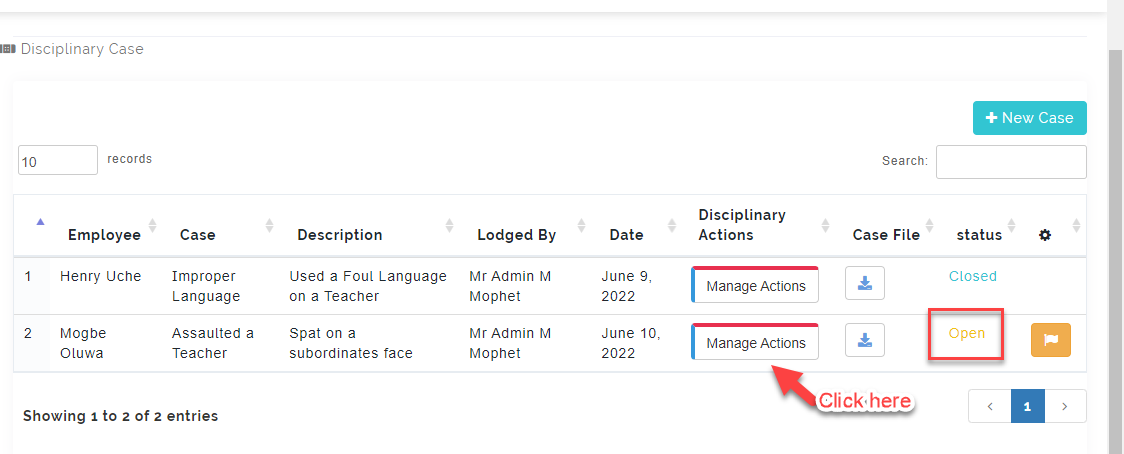
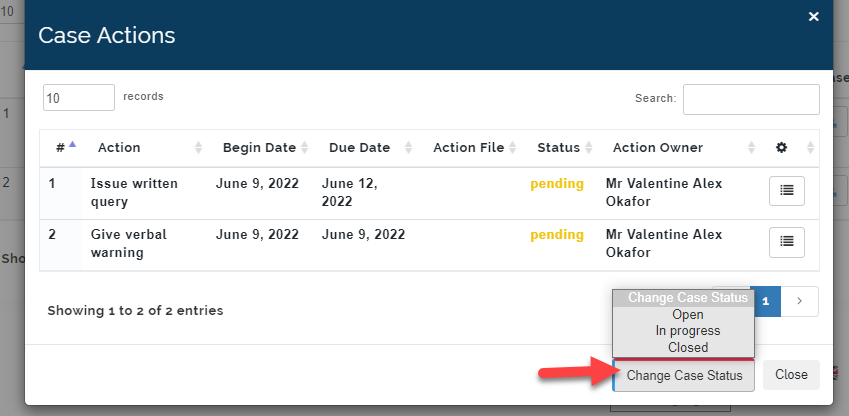
- A modal will appear, This will open up the case record and action given. The HR Manager can view and manage the case
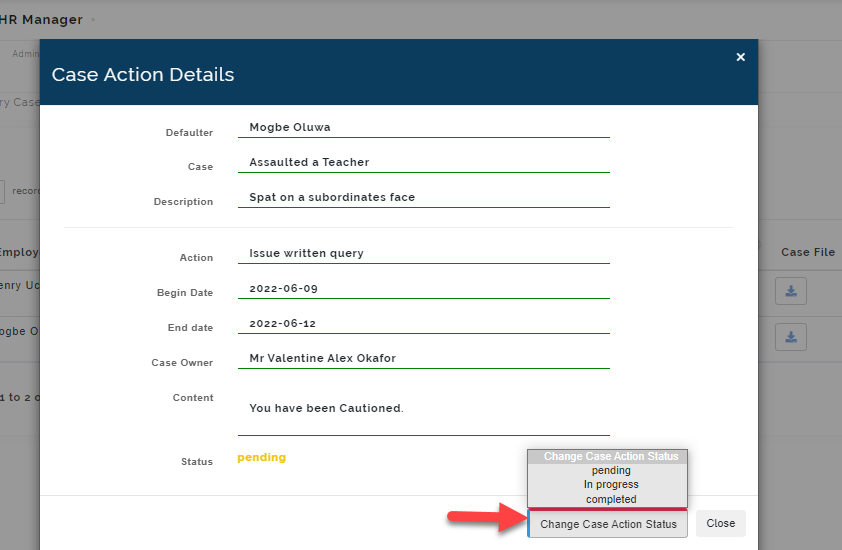
Under case action details, Change Case Action Status to mange actions given by the Case Owner.
Pending: This means action has not be issued
In Progress; Change status to In Progress to show Action given has commenced
Complete: Change Case Action to Complete when Action given have been carried out
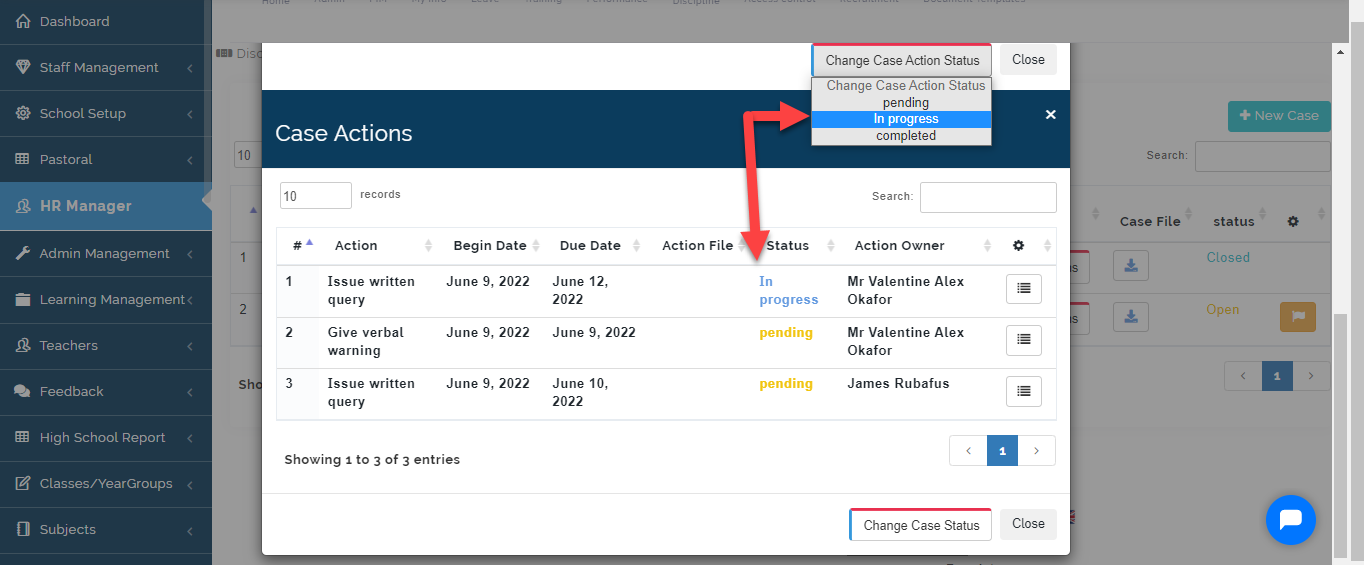
Click on the *Change Case Status to manage progress of the case.
Open: Once a case is added. The status of the case will read Open
In Progress: When the Employee has commence sanction given, Case Status would read In Progress.
Closed: When The case is concluded, status should be changed to closed.
HOW TO VIEW DISCIPLINARY CASES
Follow these steps to View all disciplinary case(s) of a Staff:
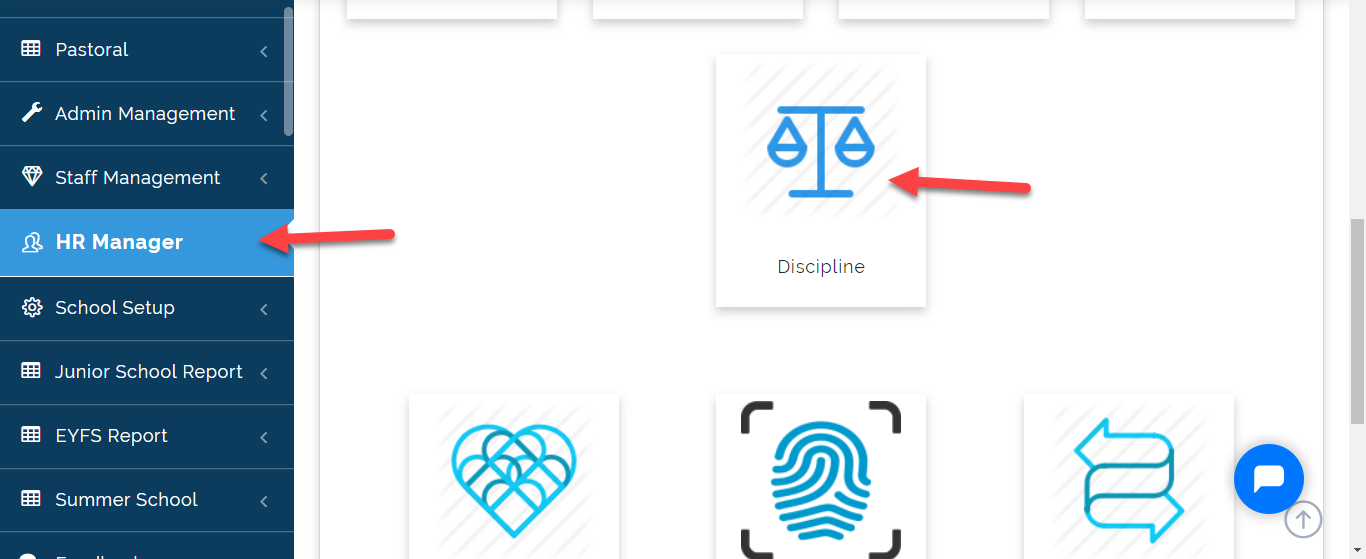
- Go to the HR Manager Module then Click on Discipline.
- From the Function Tabs as indicated in the image below, Click on Discipline then Select Disciplinary Cases.
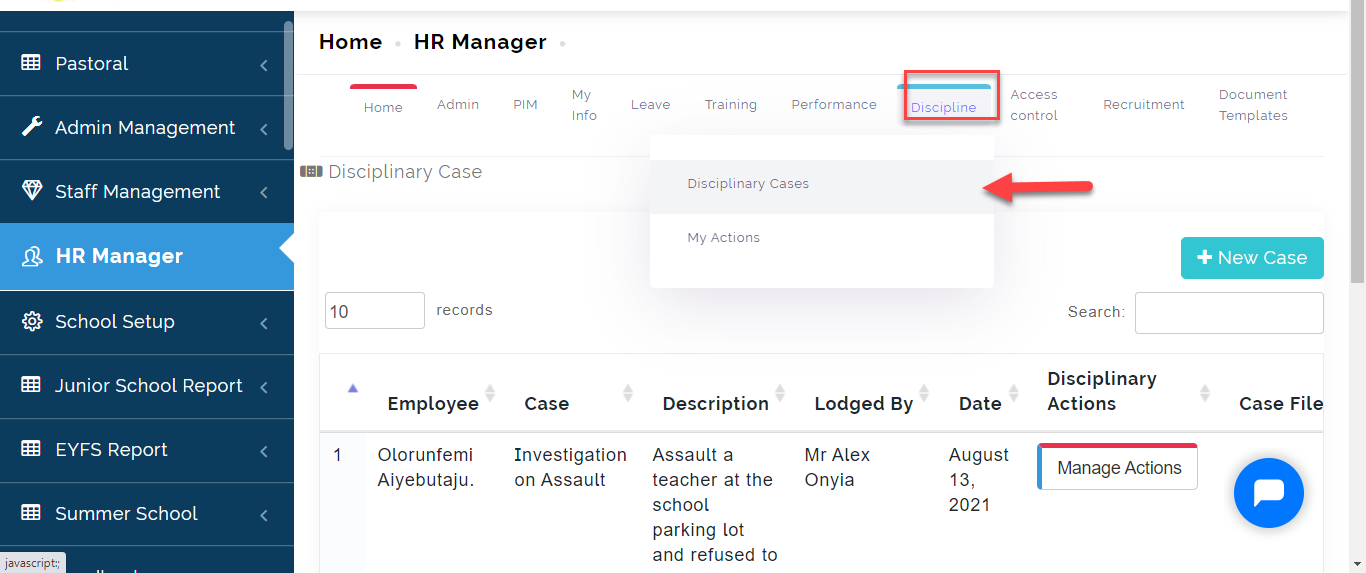
A table showing all Disciplinary Case will appear showing the names of Employees and their cases.
HOW TO VIEW YOUR ACTONS
Follow these Steps to view Actions you have given:
- Under the Discipline Tab, Select My Actions from the Drop Menu
- This will open up a table showing a list of all the actions you have given on a case.
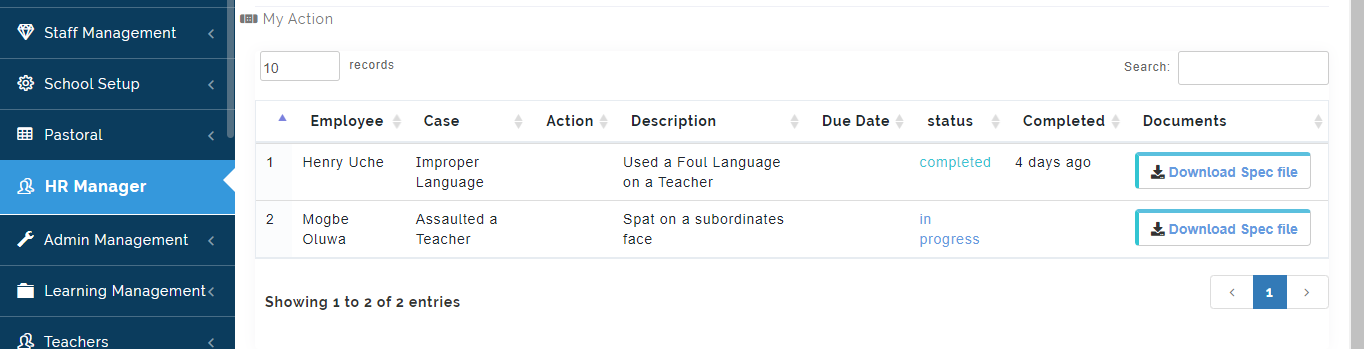
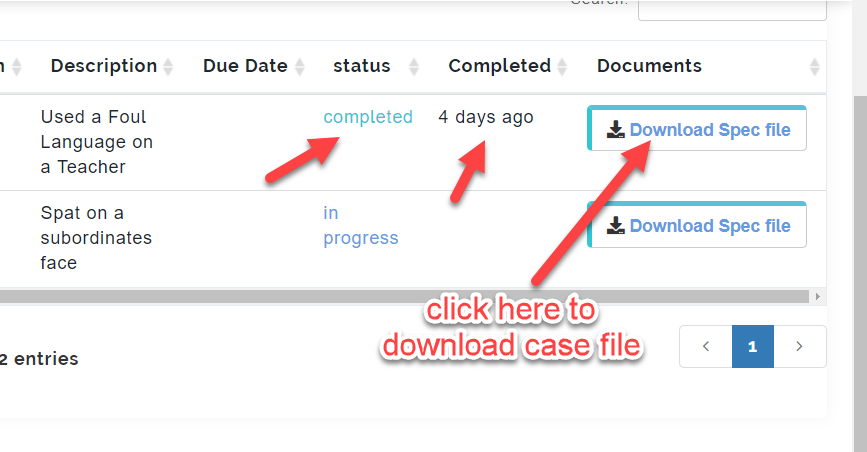
As a Case Owner, you can view at a glance all the sanctions you have given on a case, the Status and date it was completed.
Under the Documents column, Click on the download button to View the contents of the case.