
PIM is used to track and organize data about the employees within an organization. This information can include payroll records, tax documents, and records of assigned benefits such as health insurance, leave entitlements. Other employee information is often kept in PIM for periodic performance evaluations. These records are usually resumes, appraisal of key performance indices, copies of relevant industry certifications etc.
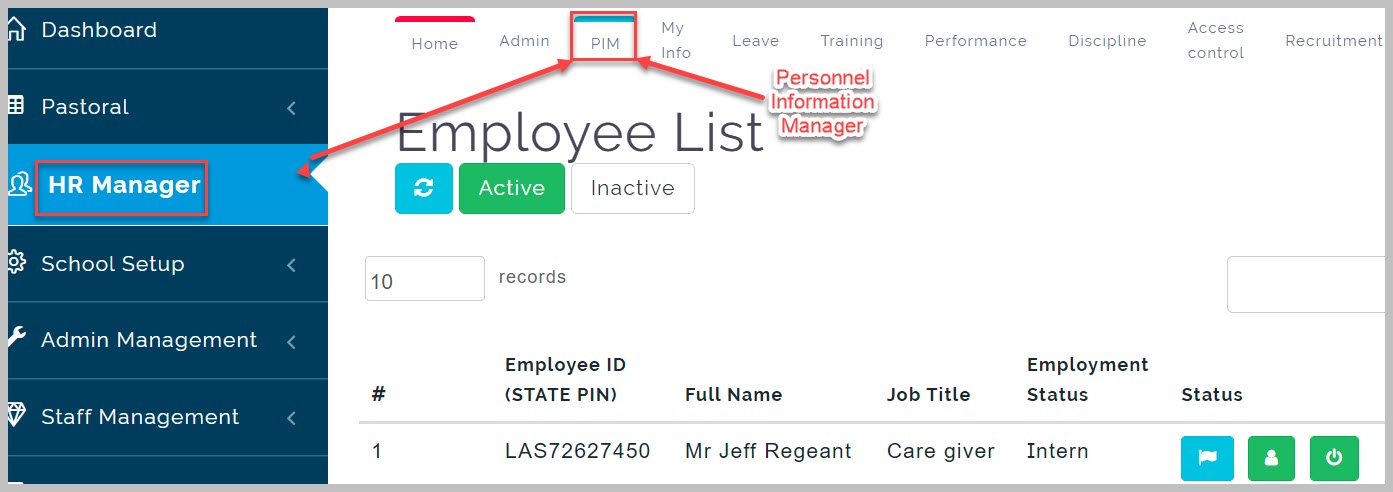
PIM
Personal Information Manager, PIM constitutes the second major part of educare HRM. It mainly serves to control and manage personnel information in organizations. The configurations in the PIM serves various purposes across the whole educare platform. There are 3 areas that make up the PIM namely;
- Employee List
- Staff Transfer Log
- PIM Configuration
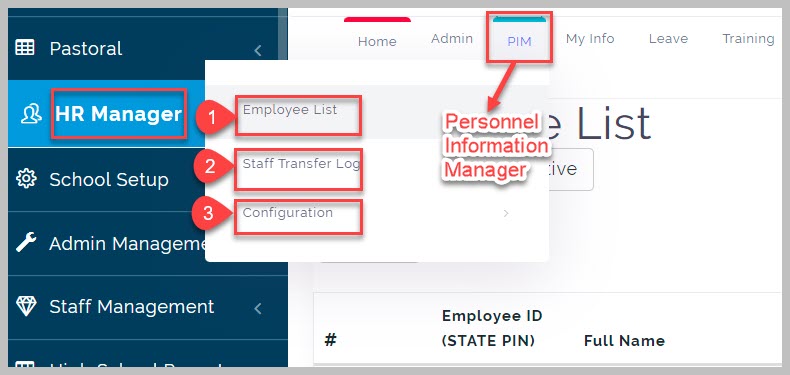
Employee List
This is the list of all employees in an organization. It contains all the information an organization has on each individual employee ranging from Bio data to performance and appraisals. From the employee List page you can perform the following actions;
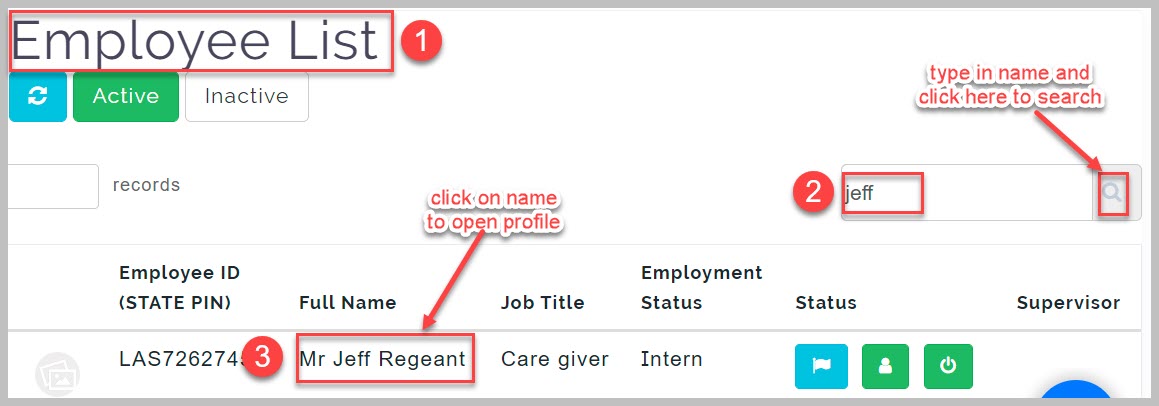
I) Filter employee list using Active/Inactive work status of an employee
II) Search employees by name, Employee ID etc using the search filter
III) Synchronise the employee list to fetch the latest updates and functions performed on it by all users
How to update employee details
To update employee details in PIM follow these steps:
Step 1
From Employee List page, search and click on desired employee name to open profile
Step 2
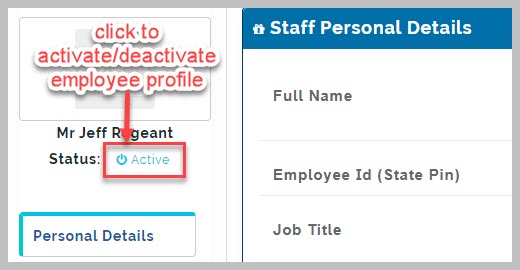
To change employee status, toggle the Active/Inactive status button on the left side of the employee profile page just below employee's name
Step 3
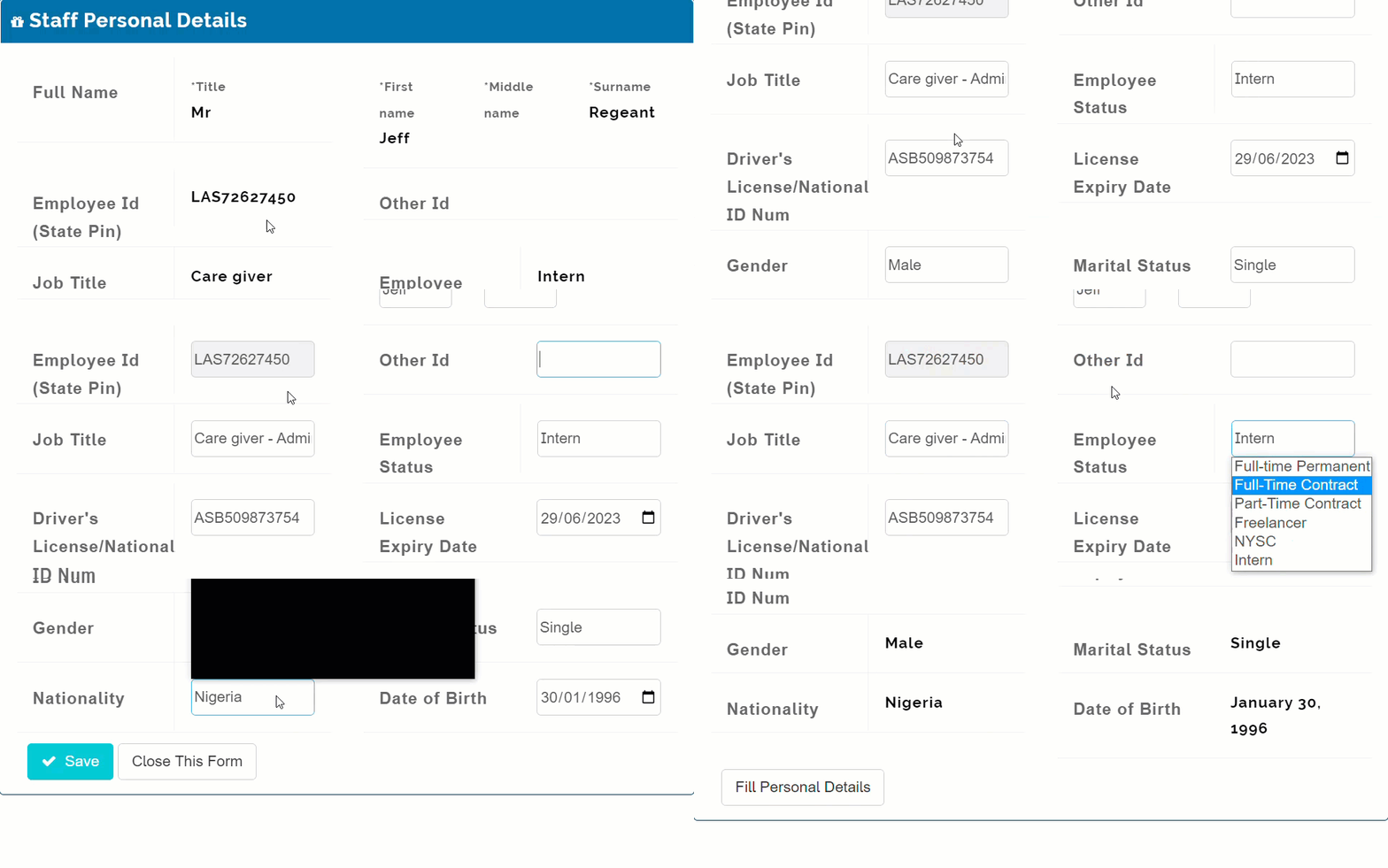
To update Employee personal details; click on "Fill Personal Details" button and fill in all appropriate information in the spaces provided
Step 4
Click "Save" to complete action.
Step 5
Click on "Close this form" to exit.
Profile Picture:
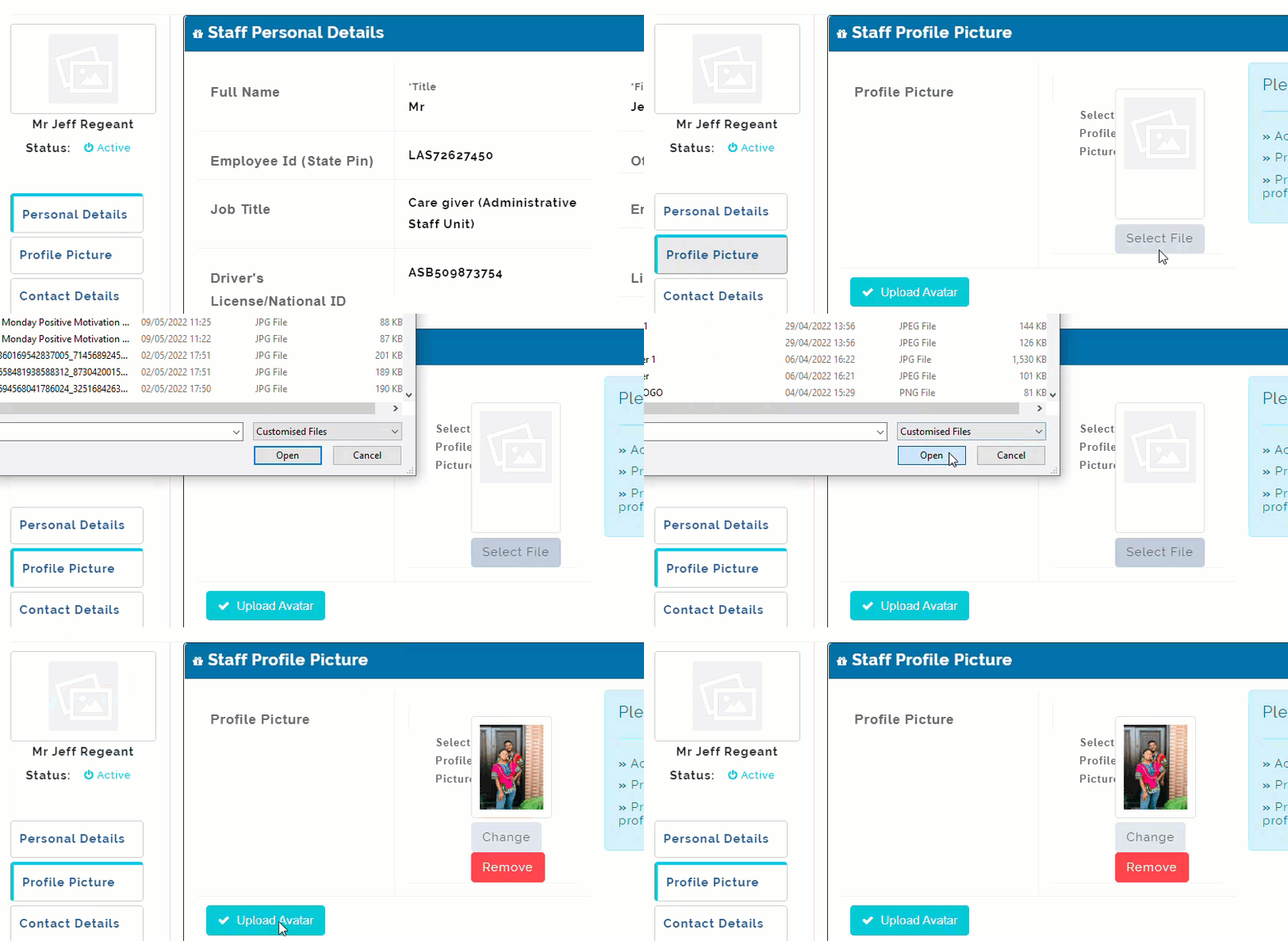
Click on profile picture tab, click on select file button and navigate through your device to select desired picture file, click on "Upload avatar" button to save profile picture. Follow instructions as directed.
Career Path:
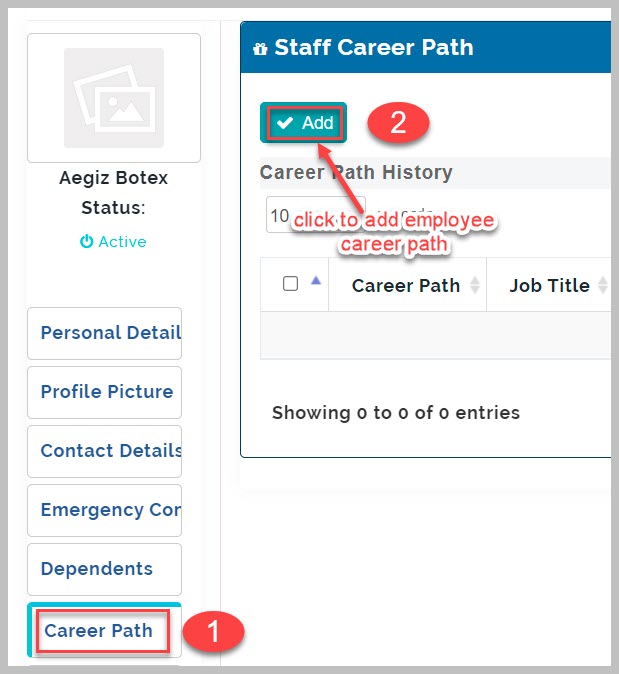
Step 1
From staff career path tab, click on "Add" button.
Step 2
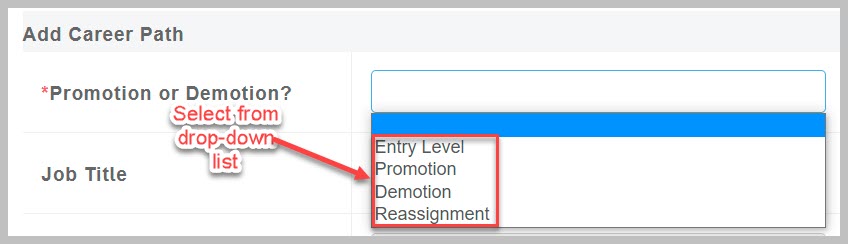
Select career path status;
1) Entry Level is selected when the employee has just been employed,
2) Promotion/Demotion is used when the employee has just been promoted/Demoted and his/her profile is being updated to reflect the recent status change.
3) Reassignment is selected when the employee role/unit of operation has been changed to another one.
Step 3
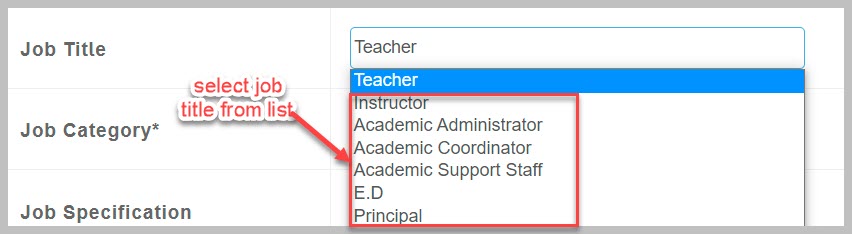
Select appropriate job title from the drop-down list.
Step 4
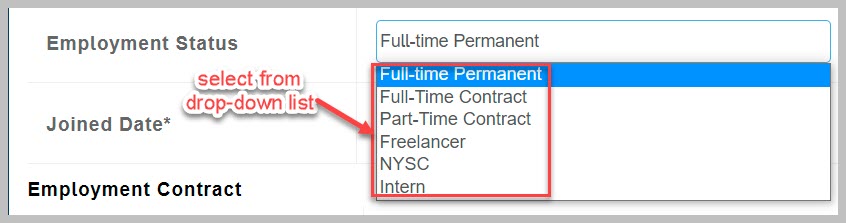
Select correct Employment Status from the drop-down list.
Step 5
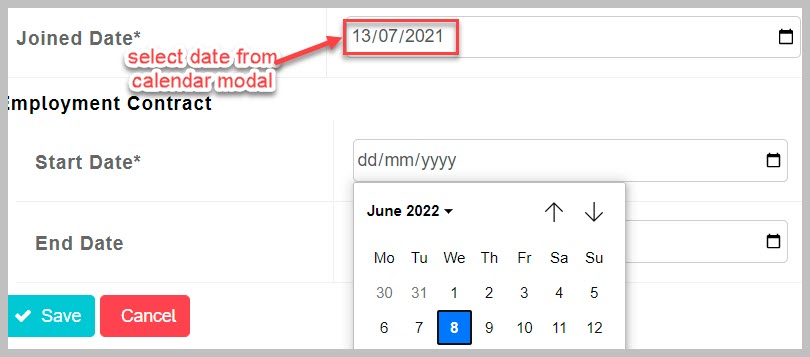
Select joined date from drop-down calendar modal
Step 6
Select start date from drop-down calendar modal. Input same date as joined date if they are the same day.
Step 7
Leave End date blank if employee is still in active service of the organization.
Contract End Date Note:
Inputting an end date puts a deadline on the employees work contract which means it will expire at a set date. This is mostly used for contract job positions like interns and NYSC Youth Corp members.
Salary Structure:
To add salary, follow these steps;
Step 1
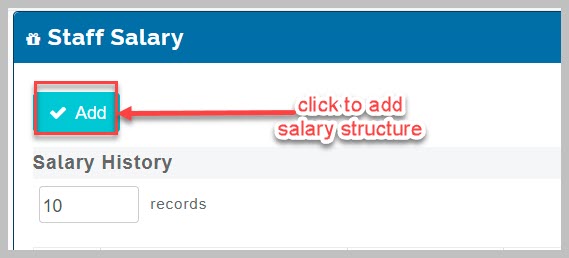
Click on Add button
Step 2
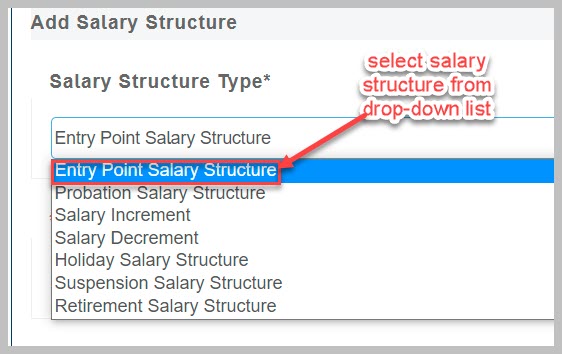
Select Salary Structure Type from drop-down list
Step 3
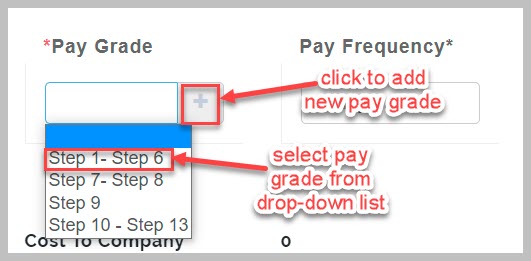
Select Pay grade from drop-down list or create desired pay grade by click on the plus (+) sign beside the Pay Grade.
Step 4
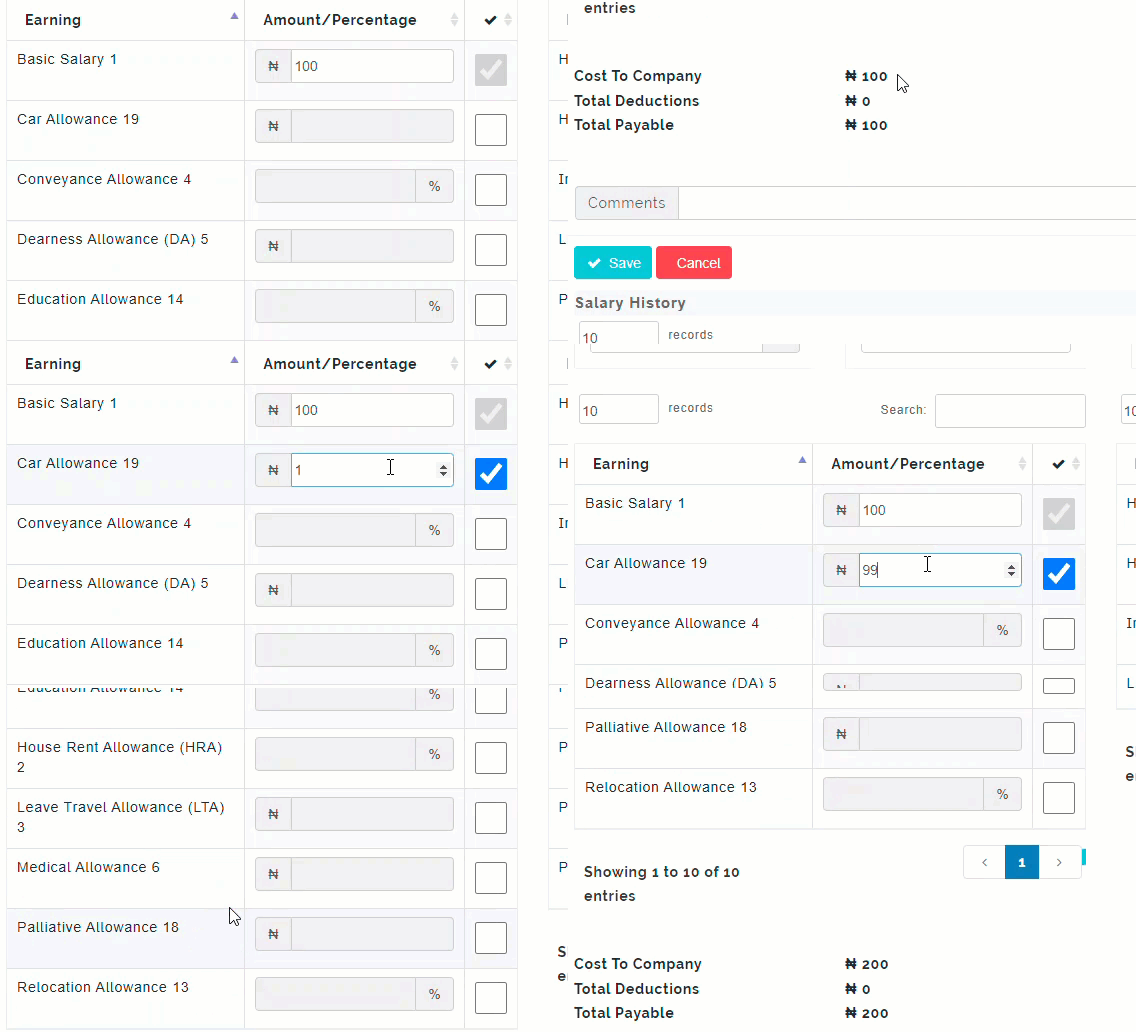
Add a salary component by selecting the checkbox next to it and inputting the correct amount or percentages.
Step 5
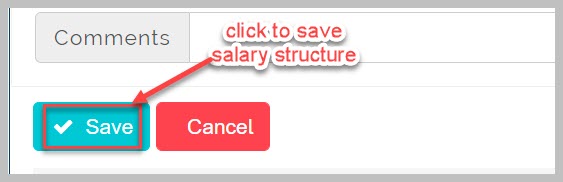
Click on Save at the bottom of the page to complete action.
Salary Structure Note:
I) The earnings salary components list is by the left-hand side while the deductions salary components list is by the right-hand side. The earnings and deductions can either be exact amounts or percentages of the basic salary.
II) Once a new salary structure type is created for an employee, the already existing one that is in-use expires.
Reporting Line:
To setup reporting line, follow these steps;
Step 1
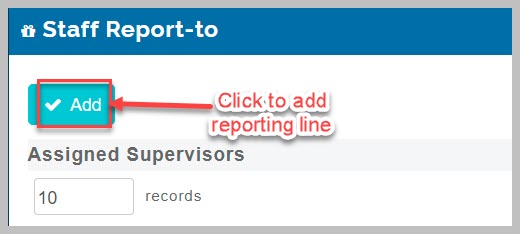
From the "Report-to" page, click on "Add" button.
Step 2
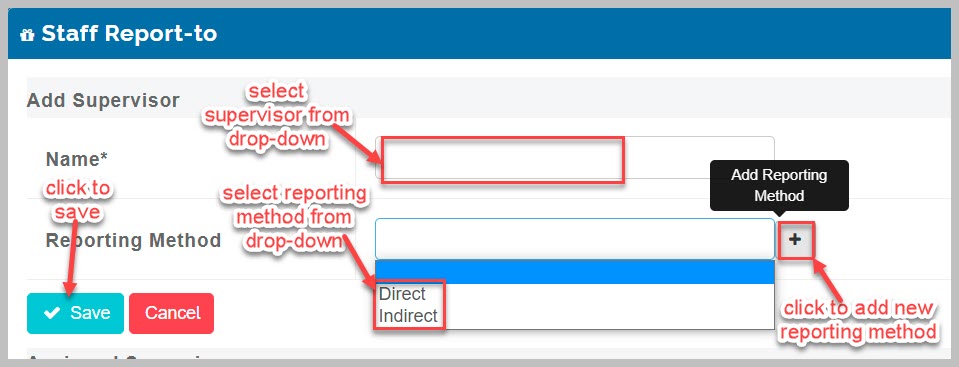
To add supervisor, select name of supervisor from drop-down list,
Step 3
Select Reporting Method from drop-down list
Step 4
Click on "save" button to complete action.
Subordinate List Note:
Any employee assigned to you to supervise becomes your subordinate and such the person's name will be seen on your Assigned Subordinates list.
Qualifications
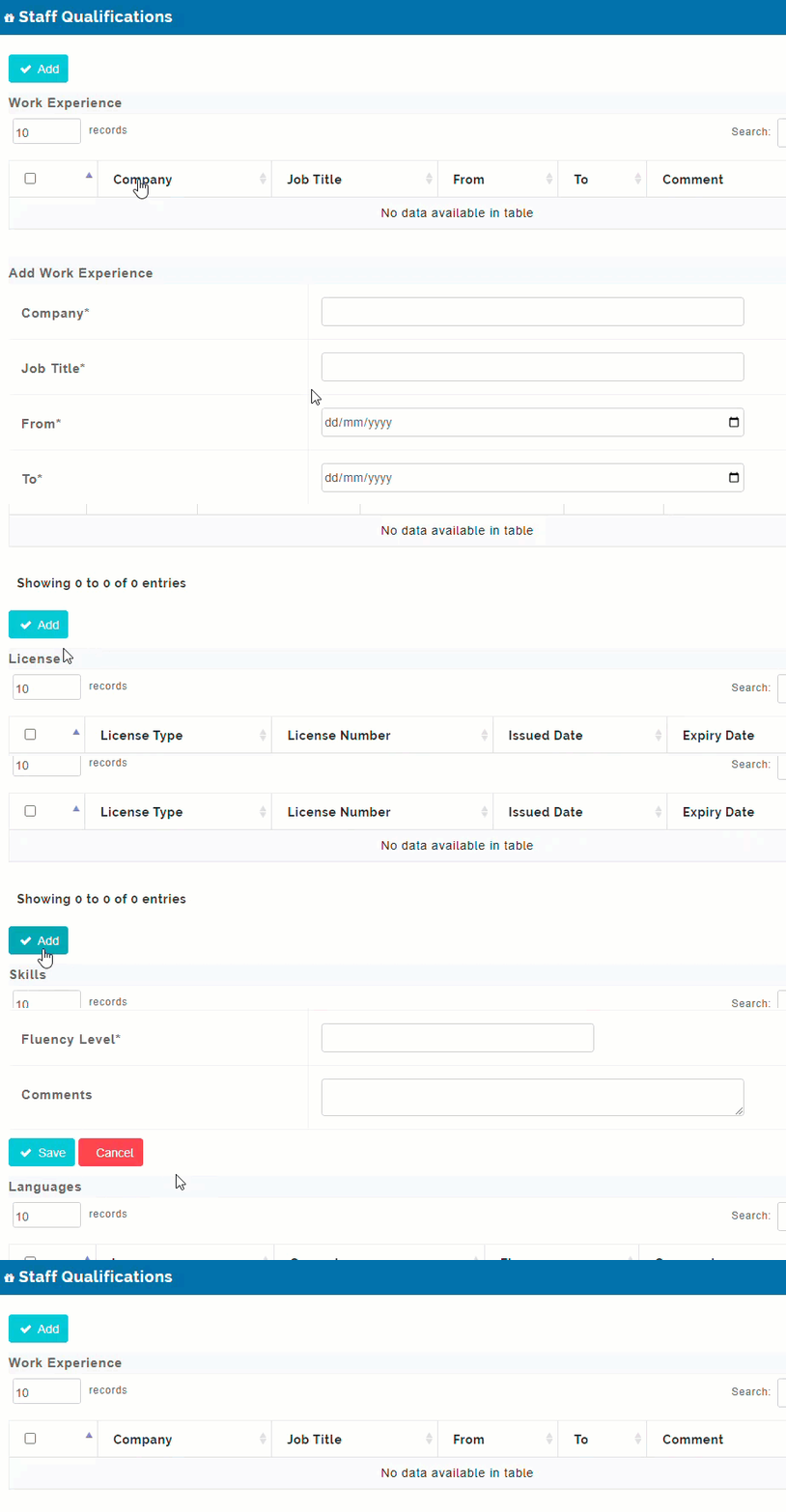
This is where each employee adds all their qualifications on the HRM platform for use by the organization. Adding the various qualifications is a self explanatory process, click "Add" in each qualification type section and follow the instructions. The qualifications to be added are;
- Work experience
- Education
- Licenses
- Skills
- Languages
Qualifications Note:
The best practice is to enable individual employee to provide their qualifications by themselves and then the responsible HRM manager will go through their submissions and approve.
Memberships
This is where all memberships acquired by the employee as a result of their career progression and employment with the organisation are catalogued and maintained. Memberships could be sponsored/paid for by the individual employee or by his/her employer.
To add memberships, follow these steps;
Step 1
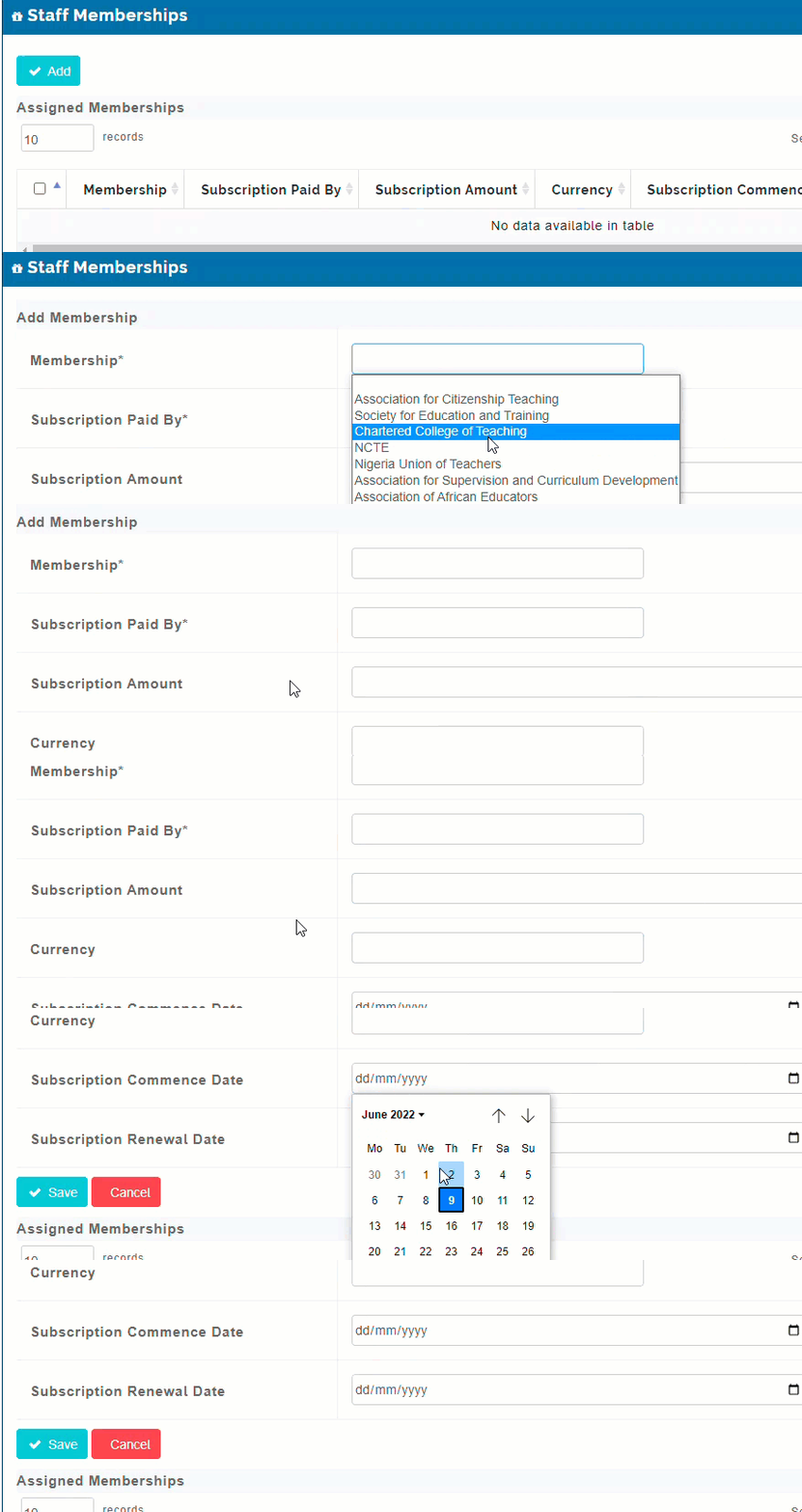
Click on "Add" button from Memberships page,
Step 2
Select desired membership from drop-down list
Step 3
Select who pays for the membership subscription from drop-down list
Step 4
Type in amount paid in space provided
Step 5
Select currency of payment
Step 6
Select Subscription Commence Date from Calendar menu
Step 7
Select Subscription Renewal Date from Calendar menu
Step 8
Click on "Save" to complete action.
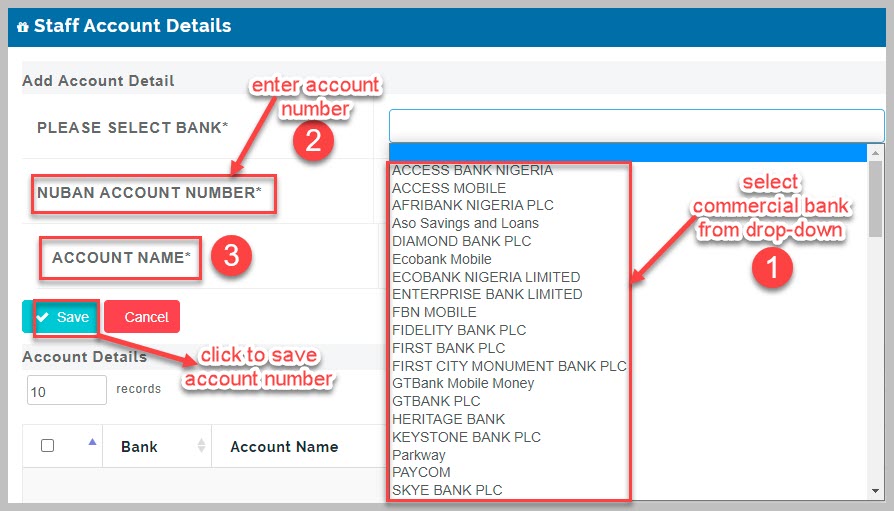
Account Number
To add employee bank account number, follow these steps
Step 1
Click on "Add" button from Staff Account details page
Step 2
Select desired bank from bank drop-down list
Step 3
Input correct NUBAN account number which is the 10 digits account number of the employee
The system searches, verifies and populates the employees account name correctly
Step 4
Click on "Save" button to complete action and the system will update employees account number and generate a Beneficiary ID number which is unique to each employee
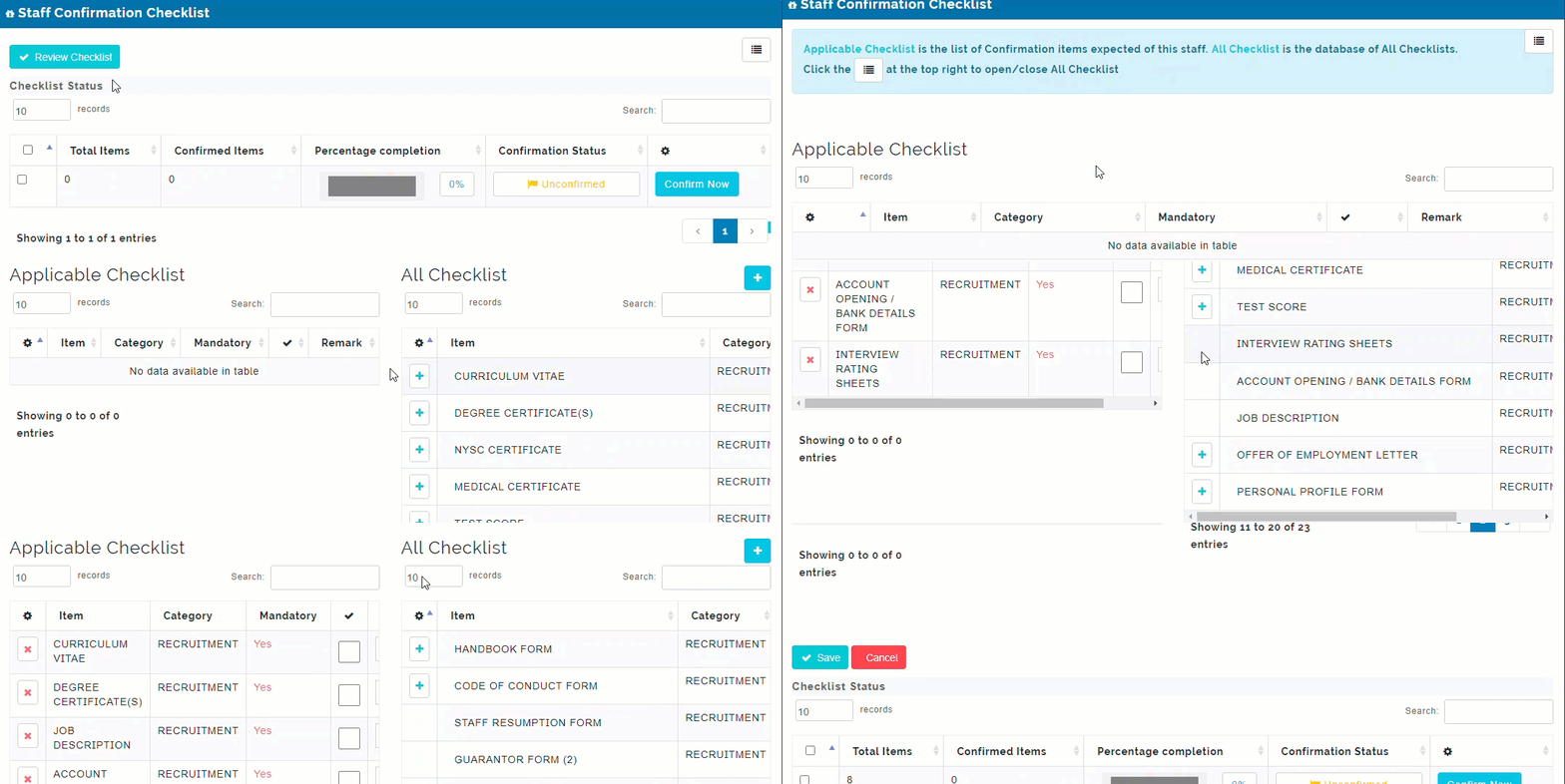
Confirmation Checklist
Features list of confirmation items expected of the employee upon being employed by an organization like Curriculum Vitae, Degree Certificate etc.
How to Create Individual employee confirmation Checklist:
To create confirmation checklist, follow these steps;
Step 1
From the Available checklist on the right-hand side of the Confirmation Checklist page,
Step 2
Click on the plus (+) sign beside each applicable checklist to move the item to the left-hand side of the page.
Step 3
Repeat this for every desired checklist item for this employee.
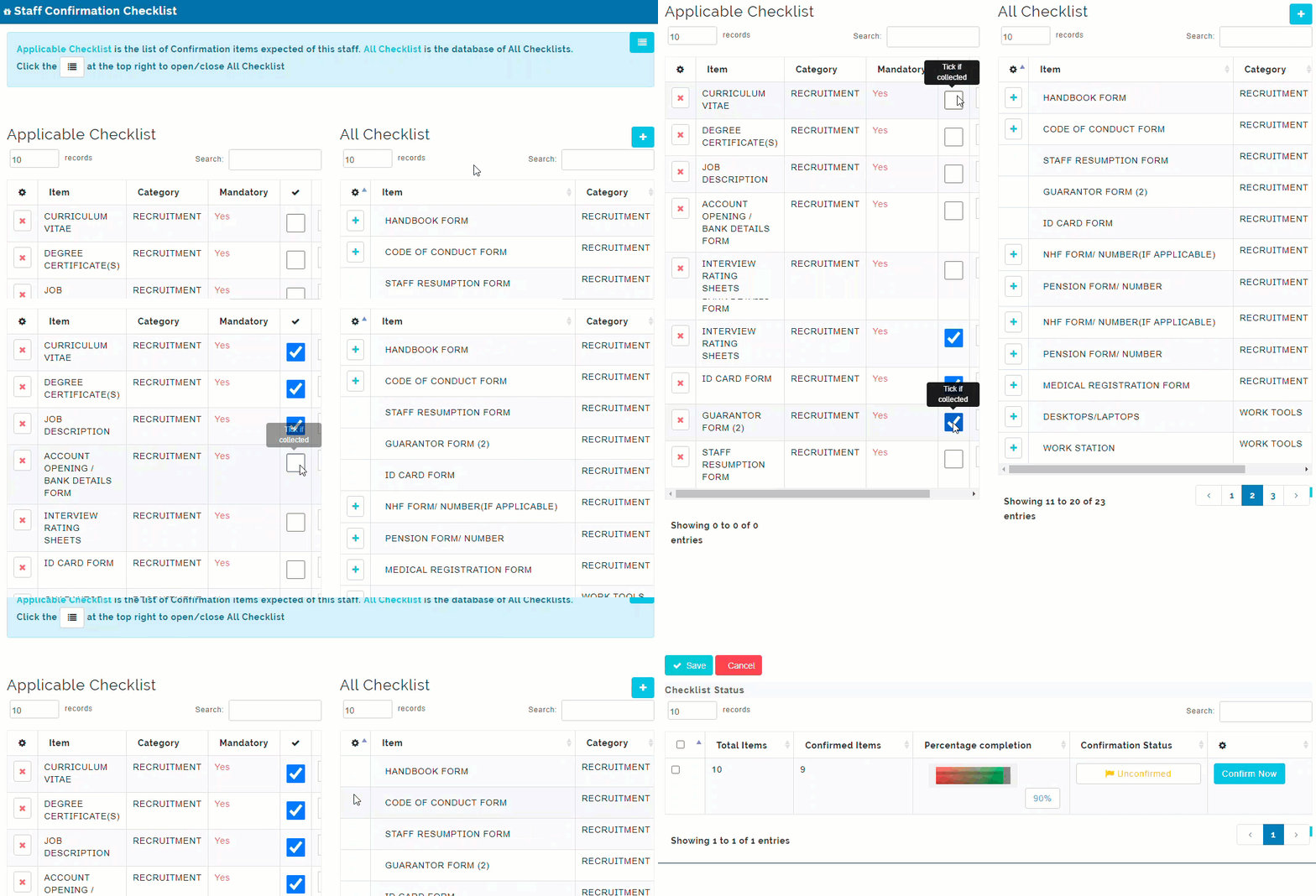
Step 4
After creating list, tick the checkbox beside each applicable item as confirmed by the HR manager
Step 5
Click on "Save" button to save confirmation checklist.
Step 6
keep saving as you collect/issue more items on the checklist to the employee until it's 100% completed.
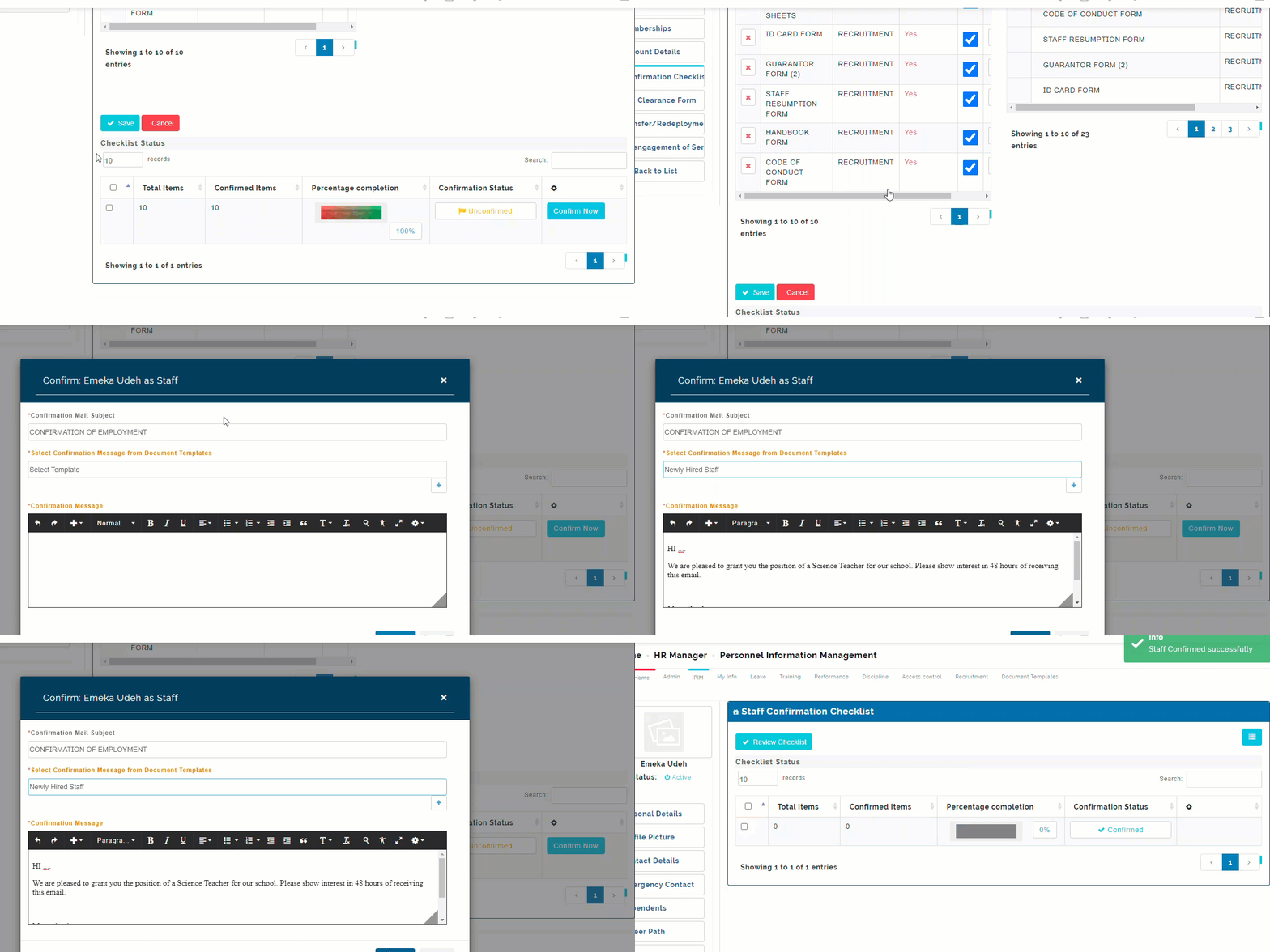
Step 7
Scroll down to the "Checklist Status" and click on "Confirm now" button on the right-hand side
Step 8
Select appropriate document template from the drop-down list or type in "Confirmation of Employment" Memo on email pop-up page detailing instructions or guide etc. and
Step 9
Click on "Confirm" at the bottom of the pop-up page to send as email to the employee.
Staff Exit Clearance Form
Exit clearance form is similar to employee confirmation checklist in the way they are used for HR operations. It is a list of items required to be recovered from an employee when their employment with the organisation has ended.
To create exit clearance form for a staff, follow these steps;
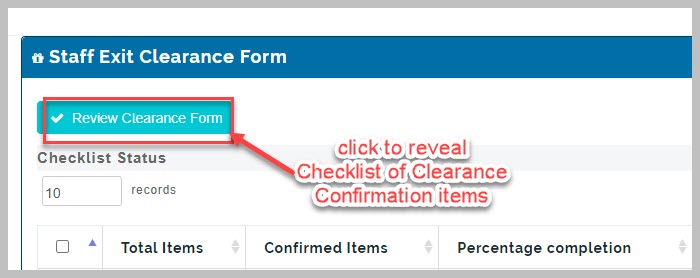
Step 1
Click on the menu button at the top left corner to reveal All Checklist available,
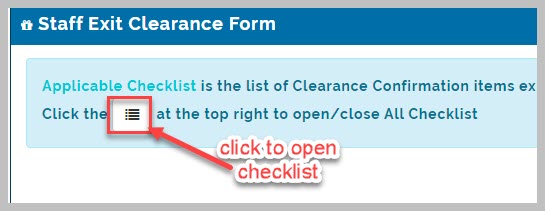
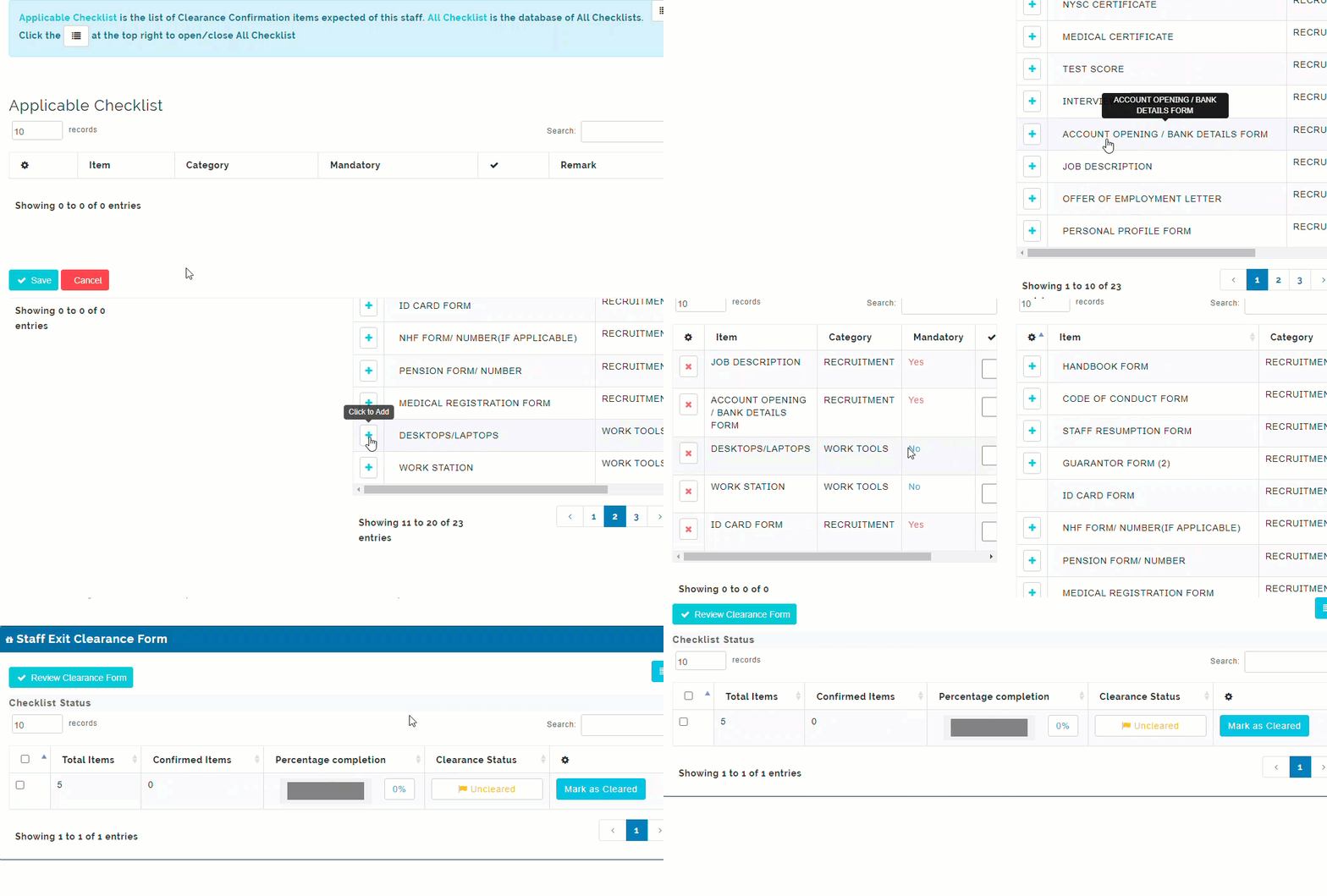
Step 2
Click on the plus (+) sign beside each desired checklist item to select it and move it over to the "Applicable Checklist"
Step 3
Repeat the above action for all desired checklist item.
Step 4
Click on save to save exit form checklist
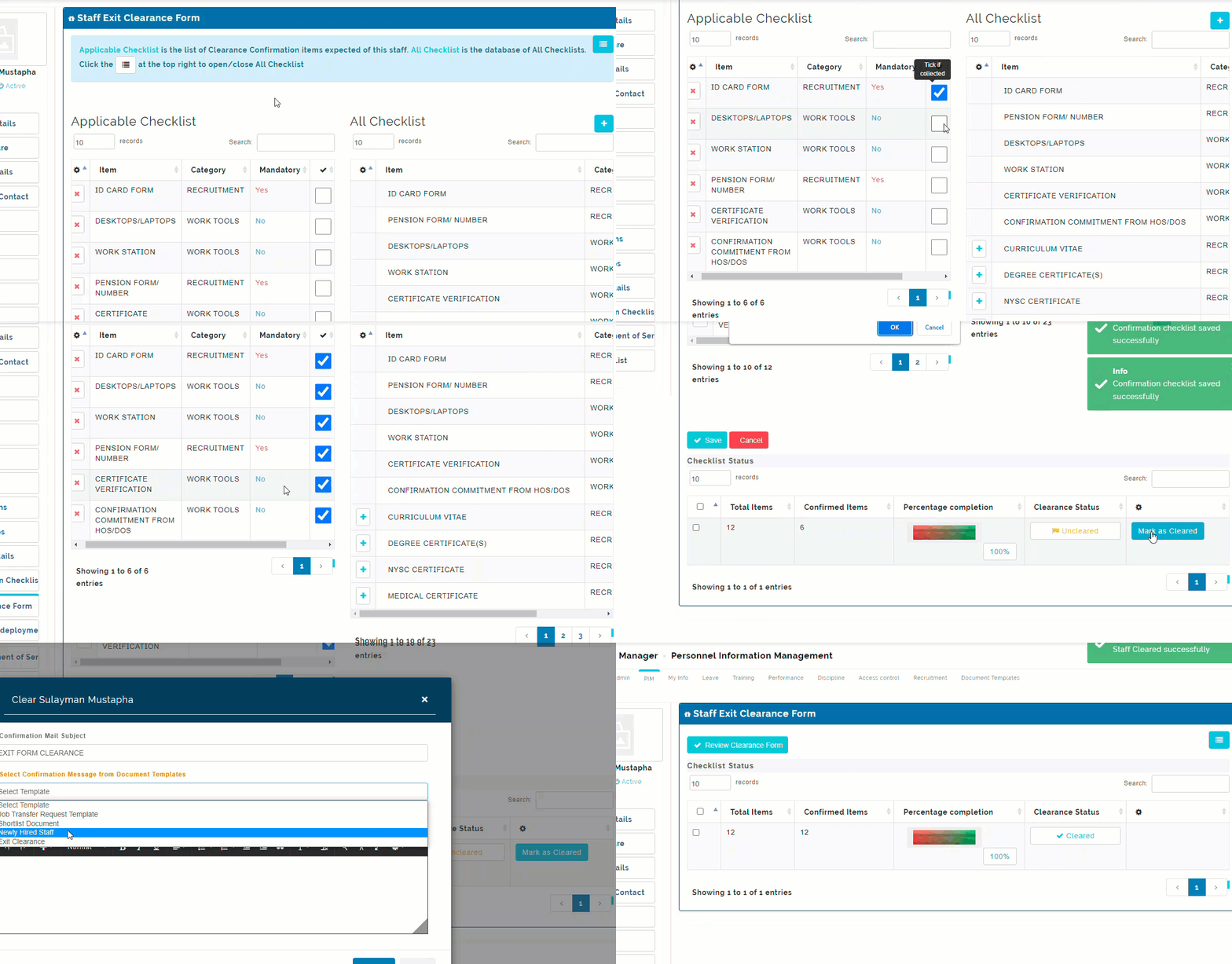
Step 5
Click on checkbox beside each Applicable Checklist item that has been collected from the employee
Step 6
Once all items have been checked as collected, Scroll to the bottom of the page and click on "Mark as Cleared"
Step 7
From the pop-up page, saying "Are you sure you want to Clear this staff for Exit?" click "Ok" to clear staff for exit from the organisation.
Step 8
From the 2nd pop-up page, select Confirmation Message from Document Templates drop-down menu
If there are no template for Exit Form Clearance Confirmation Message in Document Templates drop-down menu, Type in desired message into the box provided
Step 9
Click on "Proceed" button to complete action.
Disengagement of Service
This is used to process and disengage employees out of an organisation once their employment contract has ended.
How to process disengagement of Service for an employee
Step 1
From Staff Disengagement of Service page,
Step 2
Select Disengagement Type,
Step 3
Select Disengagement Reason,
Step 4
If applicable reason is not listed, click on the plus (+) sign and create then come back and select desired.
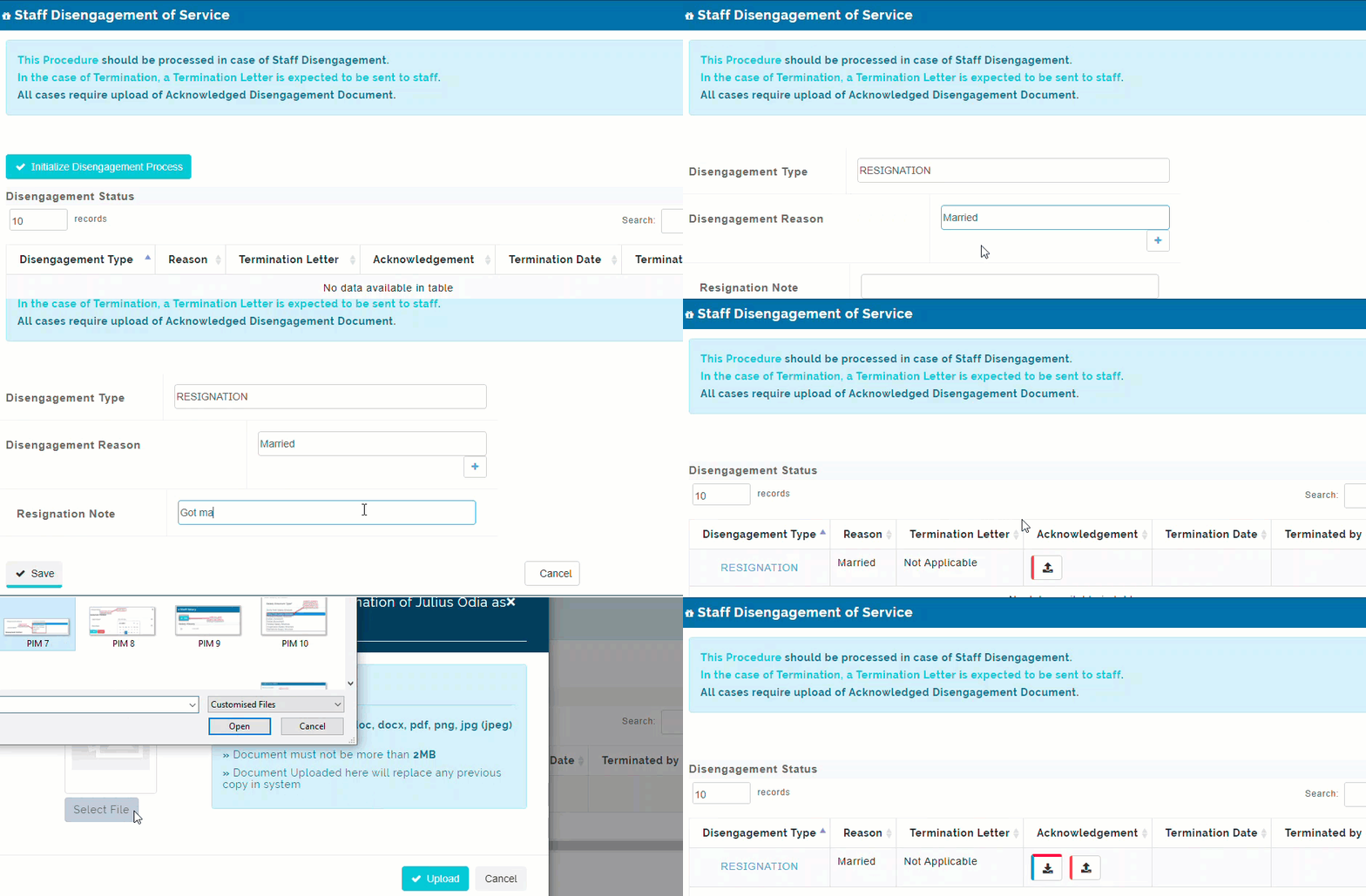
If Termination Disengagement type is selected
Step 5
Input Termination Letter Subject
Step 6
Select Termination Message from Document Templates drop-down menu
Step 7
If applicable template is not listed, click on the plus (+) sign and create then come back and select desired.
Alternatively, type in desired termination message in message box provided
Step 8
Click on "Save" button to complete action
If Resignation Disengagement type is selected;
Step 1
Input Resignation Note
Step 2
Click on "Save" button to complete action
Step 3
On Disengagement Status table, click on "upload Acknowledgement" button
Step 4
From pop-up page select, select desired document from your device and click on "upload" button to complete action
Step 5
On Disengagement Status table, click on "Continue" button
Step 6
Scroll to bottom of page and click on "Final Process" button
Step 7
Click "OK" on the pop-up confirmation page saying "Are you sure you want to COMPLETE this Termination process? This will Deactivate employee's account. This action cannot be reversed."
Staff Transfer/Redeployment
This serves to move employees from one job title to another within a department or to other department based on interests and direct requests within an organization. The HR manager can approve/reject transfer requests from employees and can also initiate such requests by themselves for employees.
Every transfer request goes through 3 key stages which are called "Active transfer Process" namely;
- Transfer Request Process,
- Request Initialization process,
- Request Approval process.
How to create Staff Transfer request/Redeployment
Step 1
From Transfer/Redeployment page of desired employee, click on "Request Transfer" button to initiate transfer request process
Step 2
Select desired Job Title from the drop-down menu
Step 3
Type in a Subject heading for the Request Memo
Step 4
Select Request Memo/Note from Document Templates drop-down menu
Step 5
In the absence of a template, type in appropriate note in the message box provided
Step 6
Click on "Submit Request" to complete transfer request process
Step 7
Under Request Initialization process, Click "Start Now" button to start
Step 8
Confirm desired Job title
Step 9
Select Initiation Memo/Note from Document Templates
If there are no templates, type in desired message into message box provided
Step 10
Select appropriate receiver from drop-down list
Step 11
Select employment status for the requested job title
Step 12
Click on "Initiate" button to complete Request Initialization process
PIM Configurations
Personnel Information manager has 4 categories of configurations;
I) Reporting Methods
II) Termination Reasons
III) Salary Scheme Import
IV) Staff Account Numbers
Reporting Methods Configurations
This is where we add or modify the various employment hierarchy reporting methods. It also helps us to define supervisor/subordinates relationships in an organisation.
Termination Reasons Configurations
This is where we add various termination reasons that are applicable to the organisation. Termination reasons are needed especially when processing terminations by resignation.
Salary Scheme Import Configurations
This is a process whereby a list (usually in an excel document format) of all the employees in an organisation, containing their names, state pin, designation, salary amount, bank name, account name and number etc. is compiled using a given template called a schematic template and brought into the HRM system of the organisation accurately without errors or mistakes.
How to setup Salary Scheme
Step 1
From PIM configurations drop-down list, select salary scheme import
Step 2
Click "Next" at the bottom-right corner of the page to start
Step 3
Following the "Upload Instruction" written on the page, download a sample format of the schematic and fill in all the required salary information.
Step 4
Tick the 2 checkboxes to confirm you have followed the instructions carefully as stated and click "Next"
Step 5
Select desired Salary schematic excel file from your device
Step 6
Click "Next" to import file
Staff Account Numbers configurations
This feature is used to import the bank account details of all employees in the organization all at the same time.
How to import Staff bank account details
Step 1
Go to PIM configurations menu list and select "Staff Account Numbers"
Step 2
From the Import Staff Bank details page, click on "Next" to commence
Step 3
Read and obey all upload Instructions
Step 4
Download the Staff Bank Details format (which is an excel document template) and fill in the information needed accurately
Step 5
At the Staff Bank Account Details page, Tick the 2 checkboxes provided you have followed the instructions accurately and click "Next"
Step 6
Select desired excel document from your device and click "Next" to complete import
HRM My Info
This is where all employees have access to view their personal information. HR manager can also give access permission for employees to make changes to their personal information from "My Info" page.