
This is where the HR admin manages recruitment process from Application received, Manage Online Test, Shortlisting, Scheduling Interview, Offering and Hiring.
When New Candidates apply for a position, the admin can view the candidates by analyzing their profile and resume. if the Candidate meets the requirement, Proceed to sending an invitation for Candidates to take Online Test. To view Candidates who have applied follow these steps:
- From the Recruitment Tab, Click on Candidates.
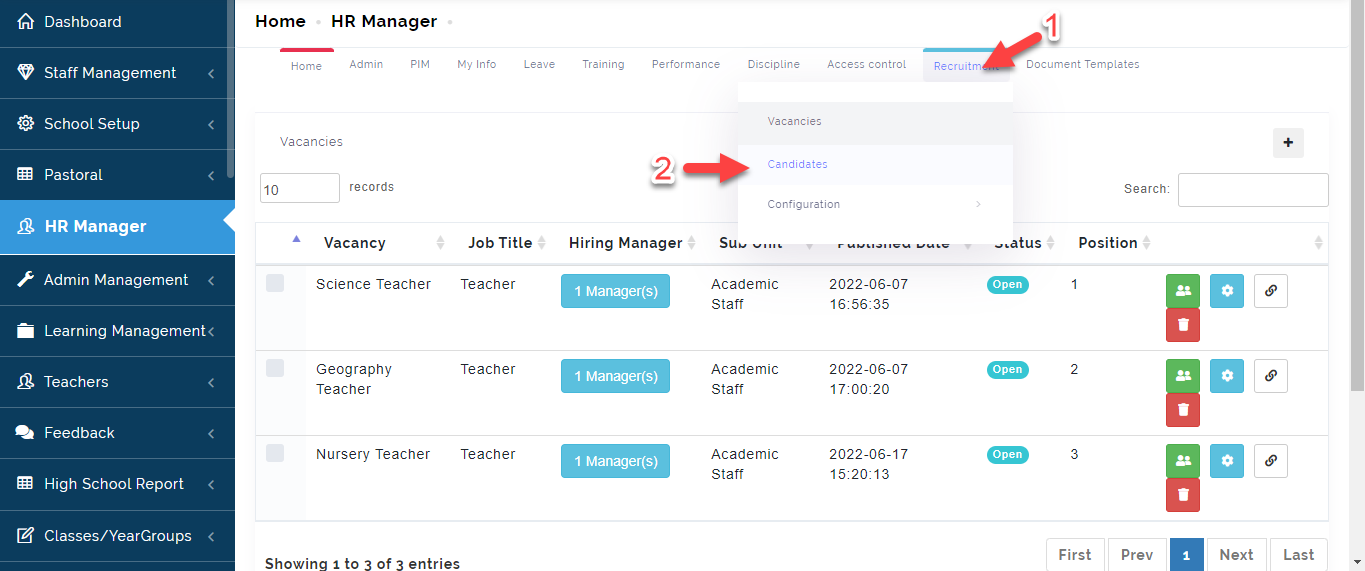
- At the initial Stage, All Candidates will be on Application Received Stage as indicated below; proceed to accessing the Candidates profile
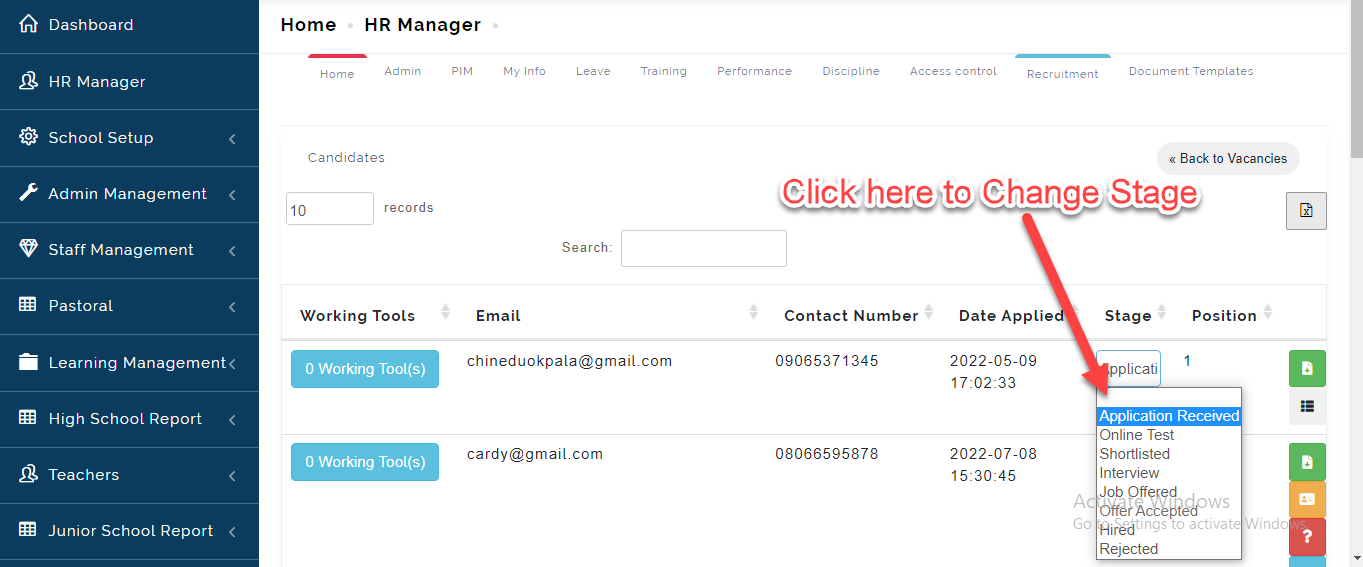
- Click on the name of the Candidate you want to view his/her profile.
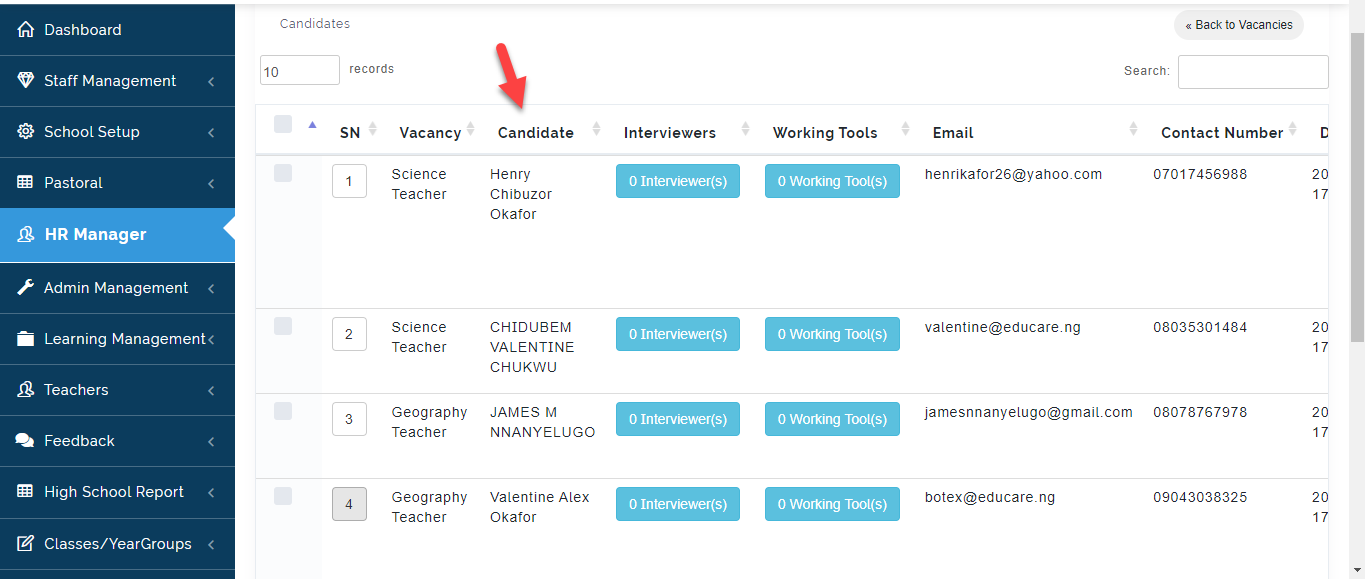
The Profile of the Candidate will appear showing the details he filled when he applied.
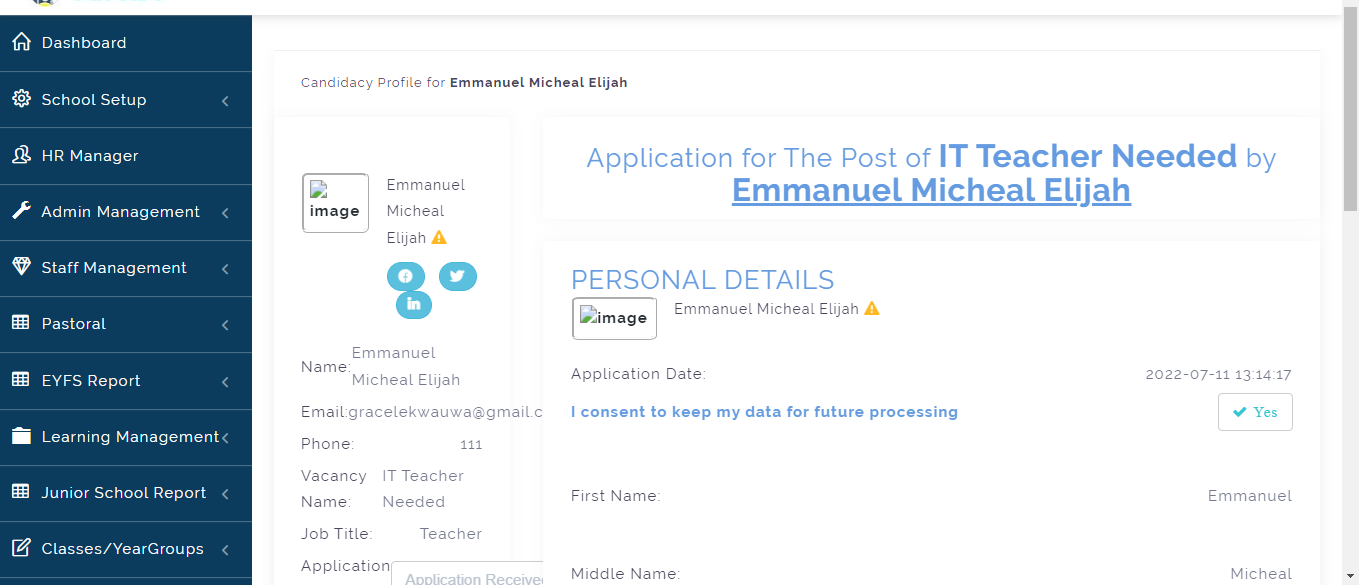
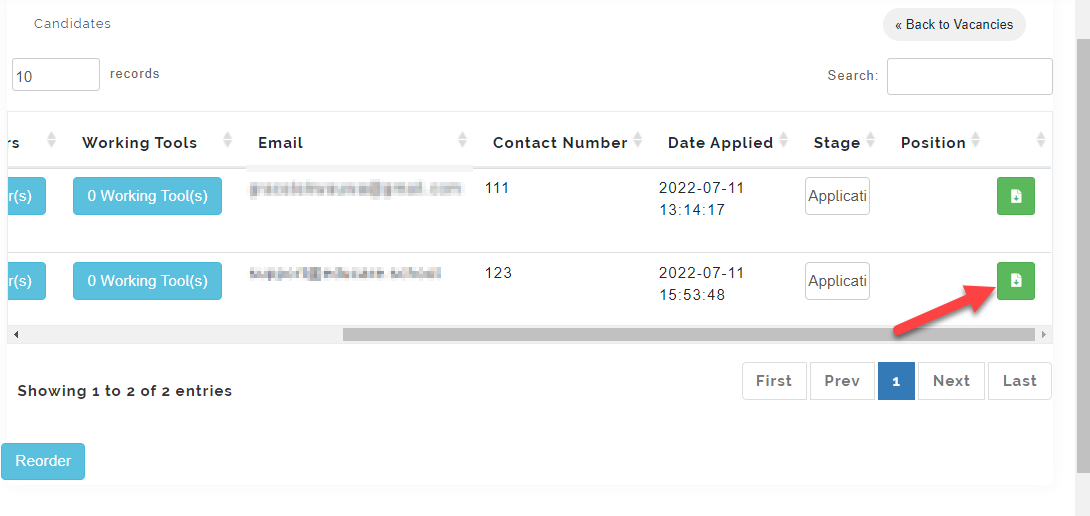
To View the Resume of the Candidate, Click on the icon as indicated below. This will download the file uploaded by the candidate.
The Next Step is Inviting the Candidate for an Online Test to Assess His/her Knowledge on the applied role.
Online Test
Here the School Admin or HR can Setup the Questions, Assign to Candidates and publish result after the exam has been take by the candidate. Follow the steps below to Create and Publish Online Test:
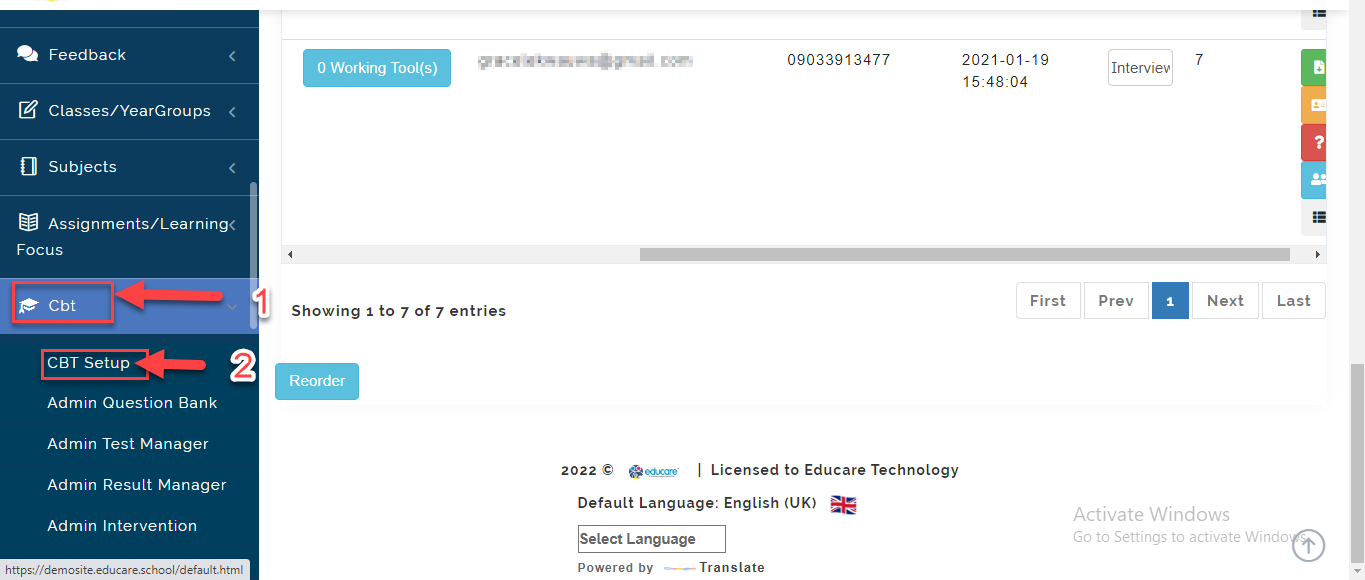
- Go to the CBT Module from the Admin Dashboard then select CBT Setup.
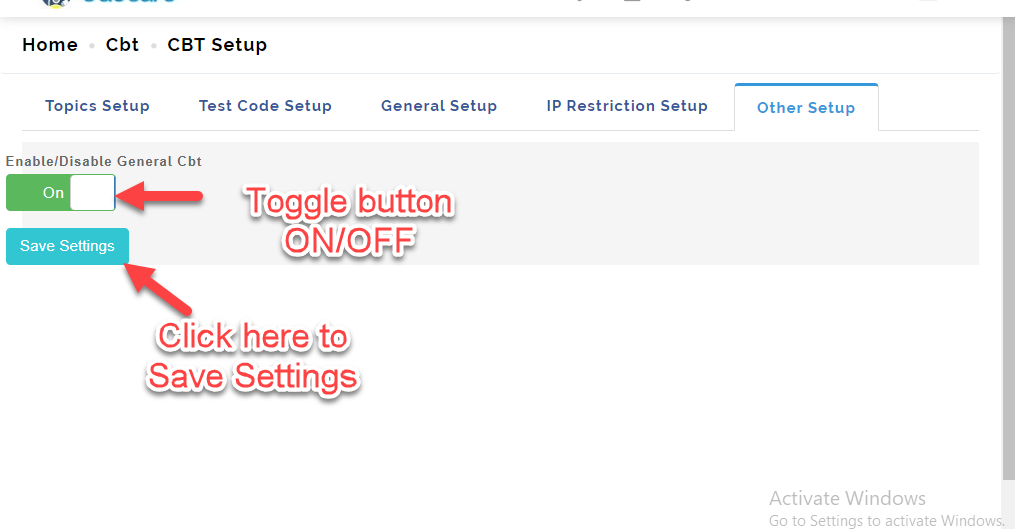
- Click on Other Setup Tab then Toggle the enable/ Disable General Cbt button On/Off to allow questions to be created for New Candidates. Click on Save Settings when done.
- Follow Demonstration below to complete online Test for New Candidate.

 wetransfer.com
Proceed to Shortlisting Candidates based on Candidates who have passed the Test successfully.
Shortlist Stage
Once you are Satisfied with Assessing the Candidates, The next stage is Shortlisting. Here, the School Admin or the HR Manager can inform the Candidate that they have been Shortlisted. To do this, Follow these Steps:
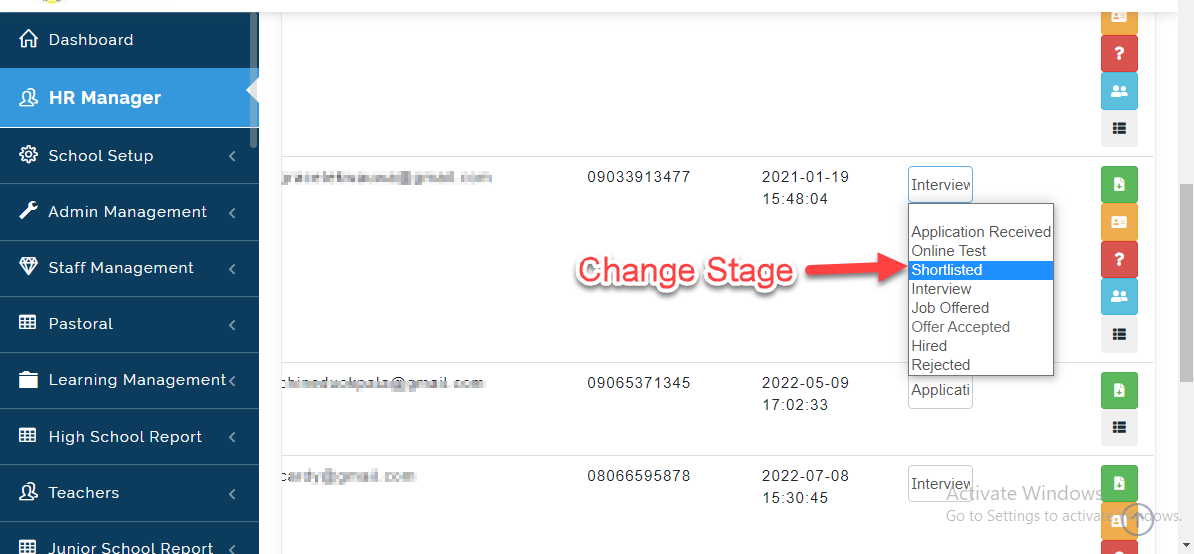
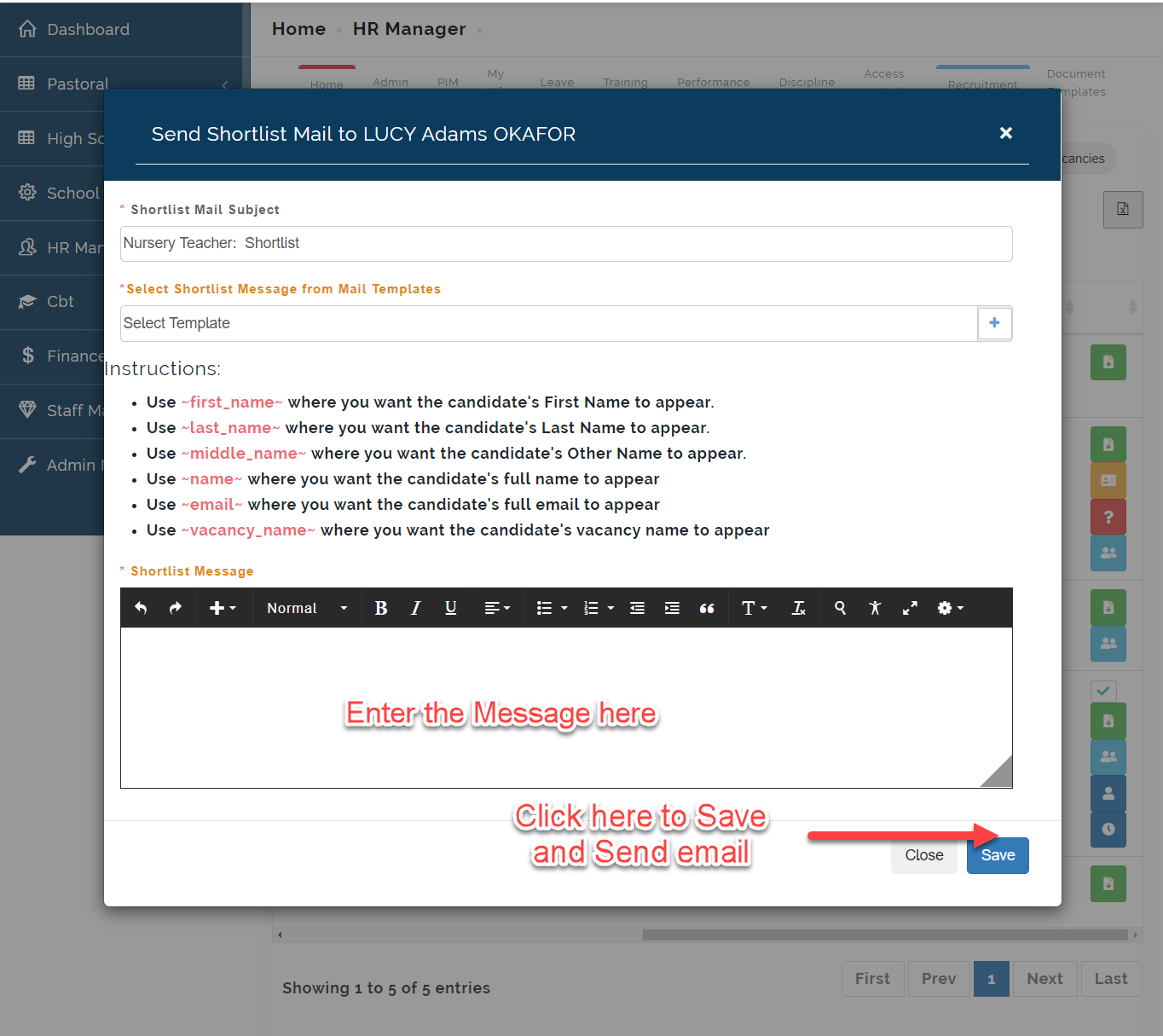
- From the Candidates Table, Move the Application Status to Shortlisted then proceed to sending an email notification to the Candidate.
- Fill in the Form using the placeholder as seen below then click on Save to Send an email to the Candidate.
Once the Candidate replies, Proceed to scheduling for Oral **Interview (You can skip the Online **Test if this does not apply to the way you carry out recruitment for Staff in your School).
Interview Stage
To Schedule Interview for Candidates, Follow these Steps:
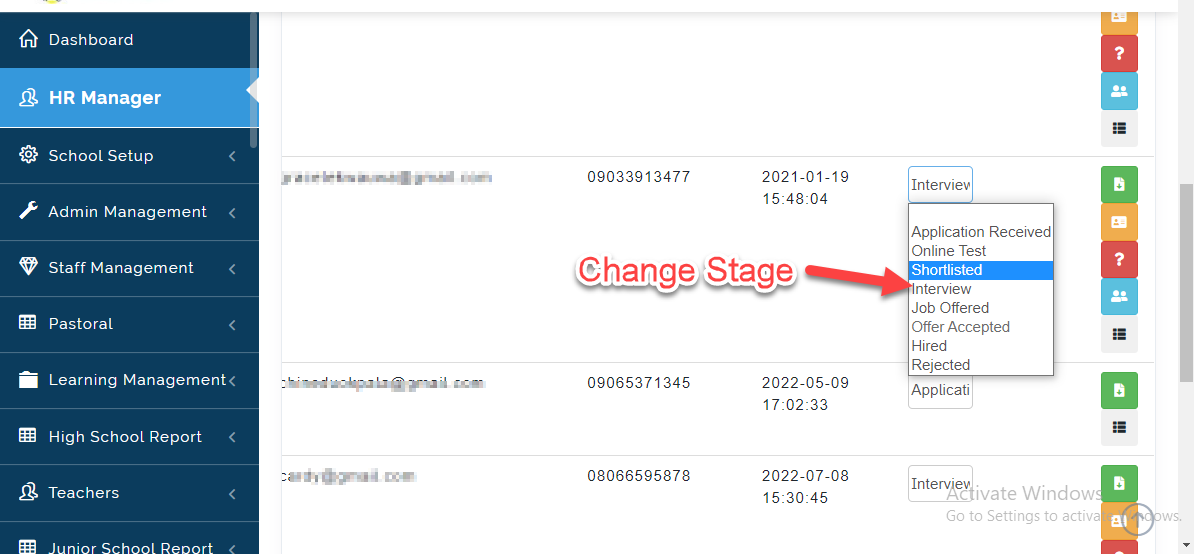
- From the Candidates Table, Move the Application Status to Interview then proceed to sending an email notification to the Candidate.
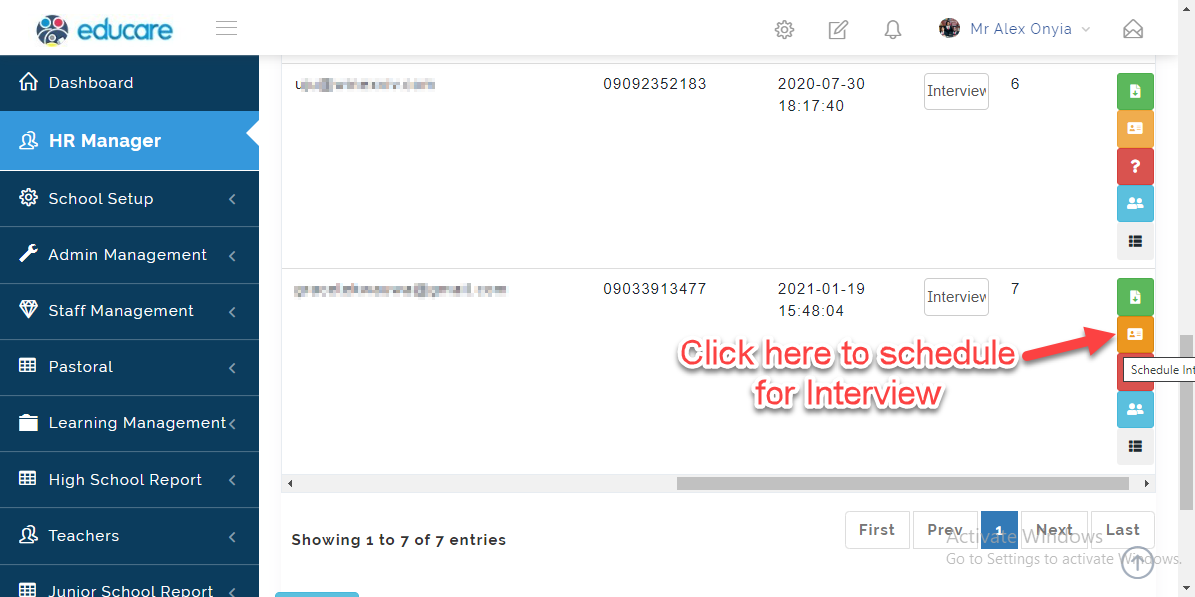
- Click on the icon indicated below to schedule Candidate for Oral Interview.
- Fill in the schedule form with the Date and letter of invitation for interview as seen below. Click on Save when you are done to send email to Candidate or Close to Ignore.
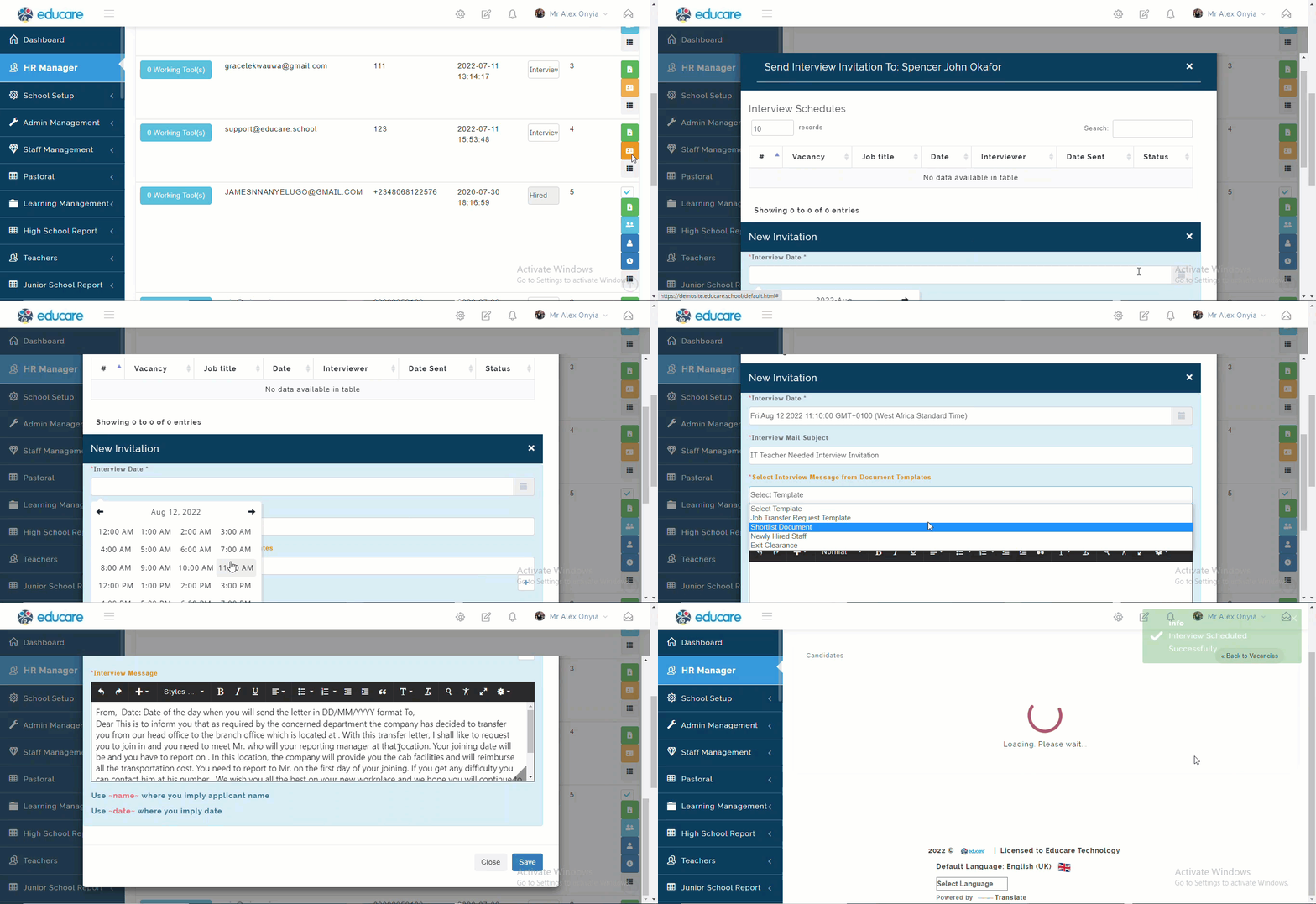
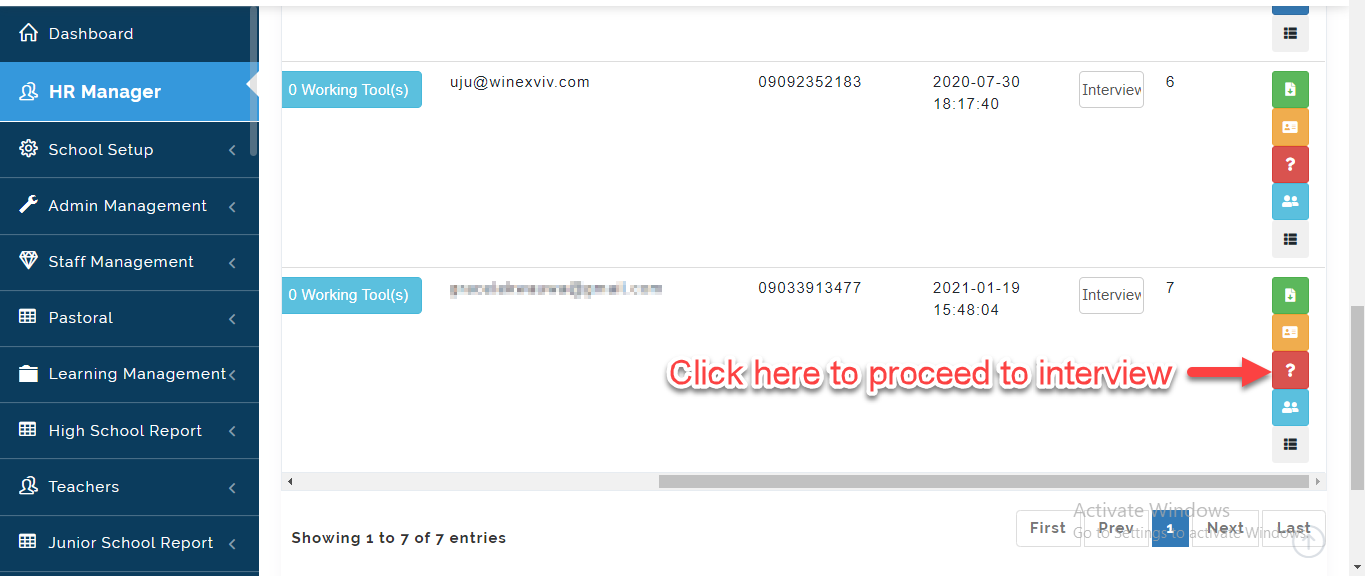
- Email will be sent to Desired candidates to confirm they would attend the Interview. Once it's time for the interview, Click on the icon as indicated below to proceed to Interview.
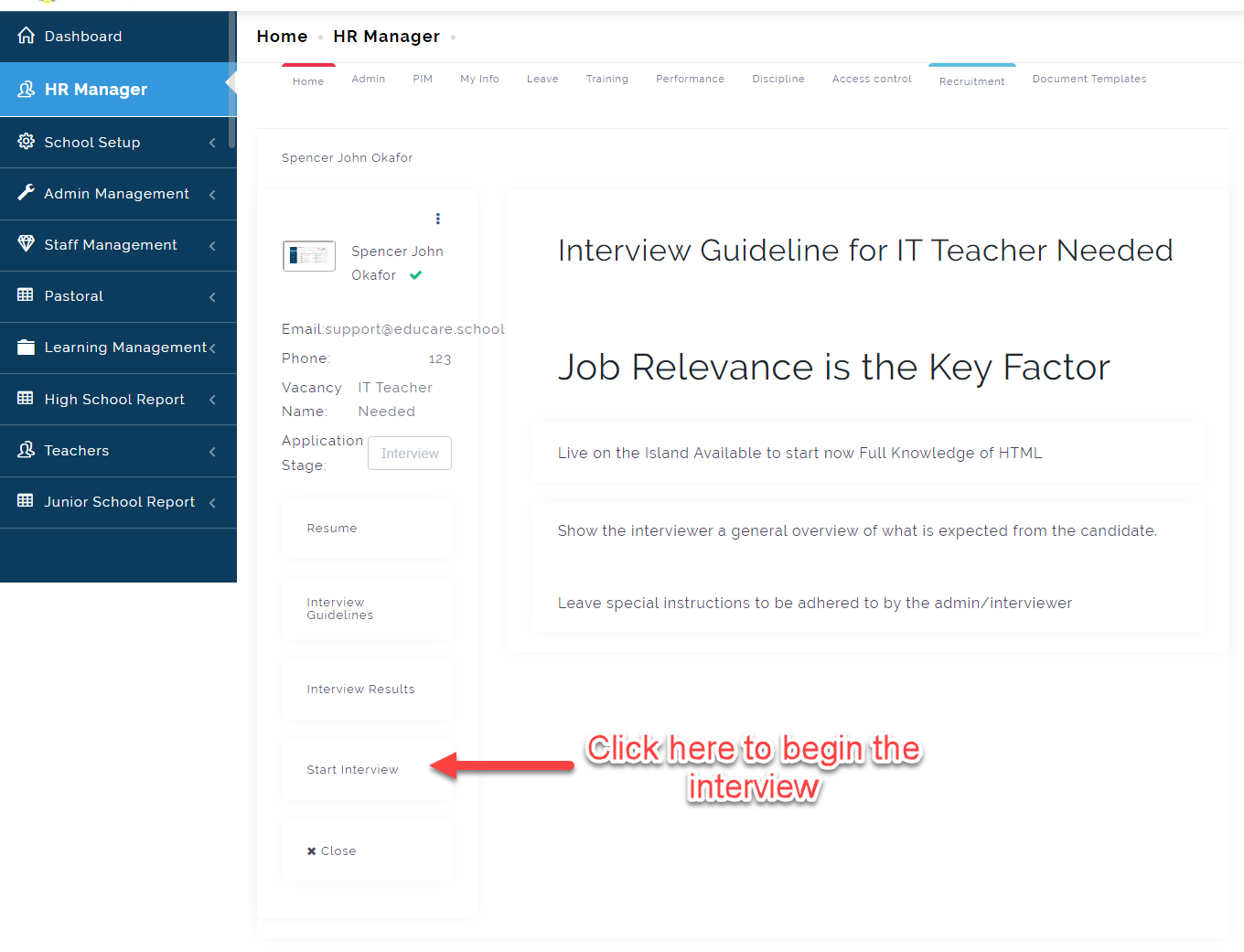
The Interviewer can see the guidelines in awarding marks to the candidates, Once he/she is ready to begin, Click on the Start Interview button as indicated below.
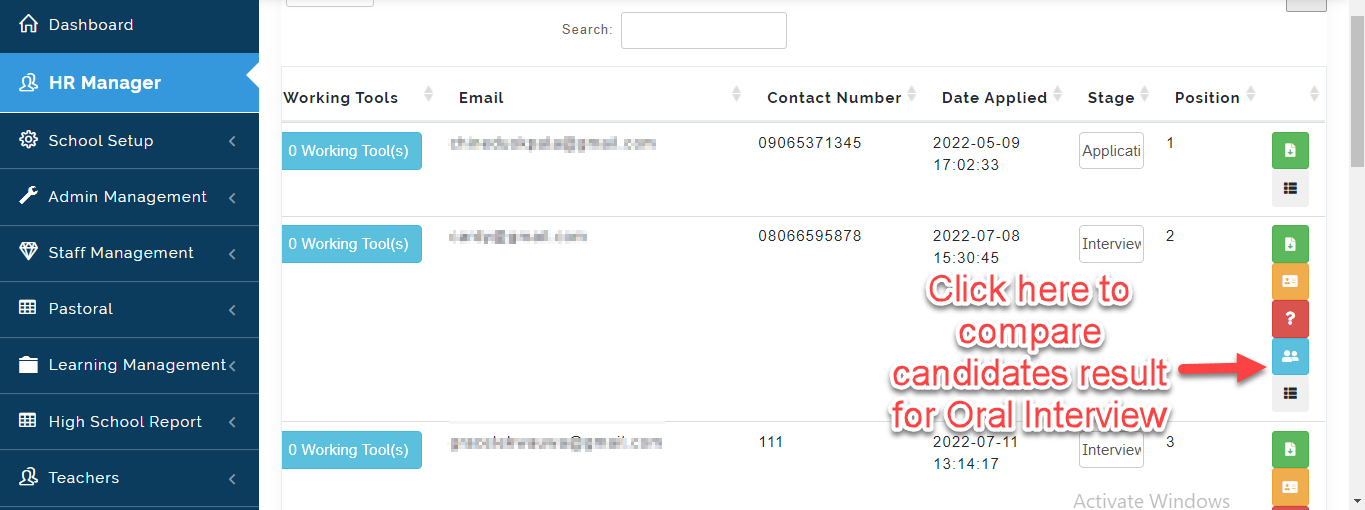
If Multiple People applied for the same Job position, Click on the Icon below to compare the results of the Candidates.
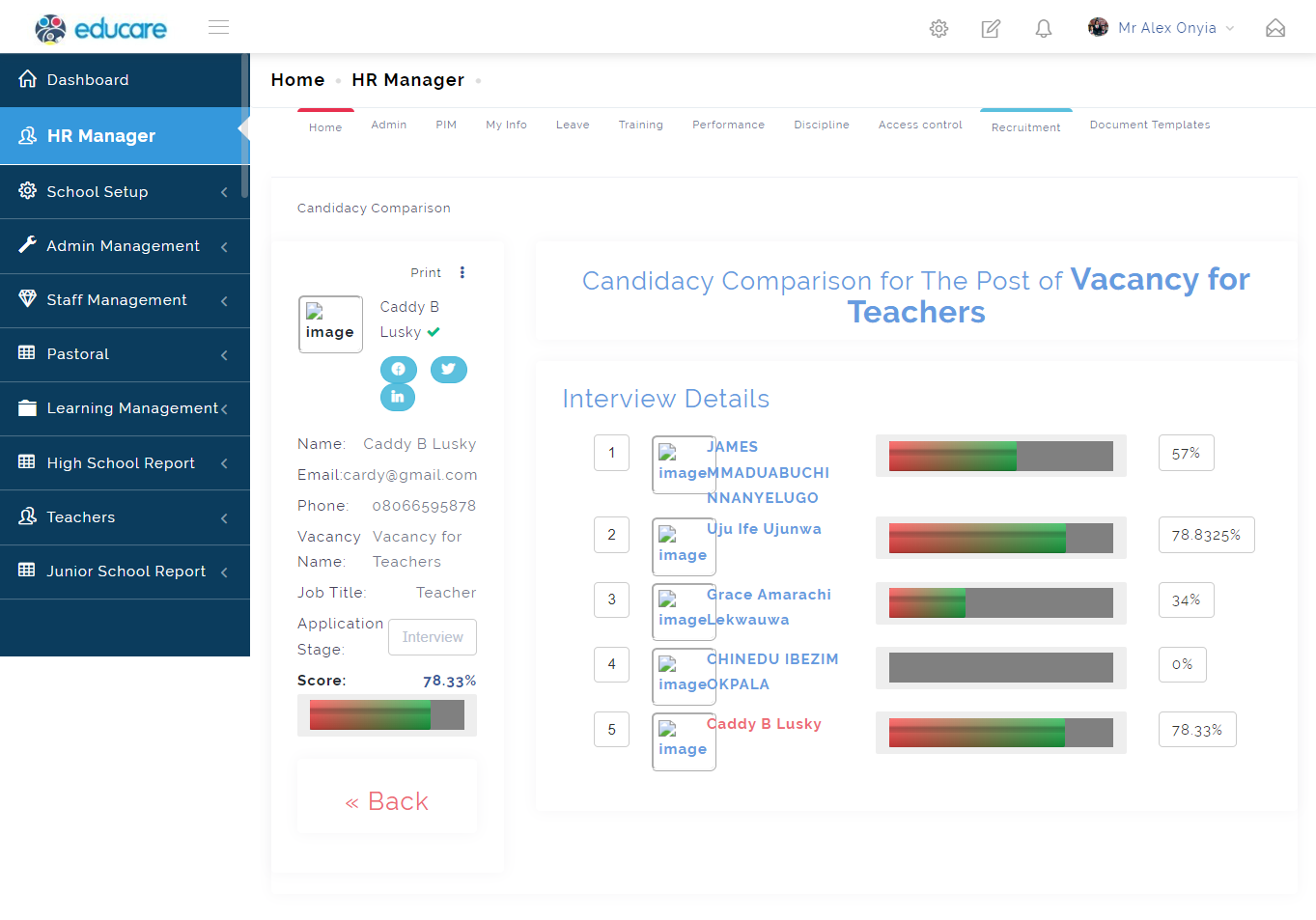
This will bring out the list of Candidates that have applied for that Job Position; From this, you can select those you want to offer the job depending on the need.
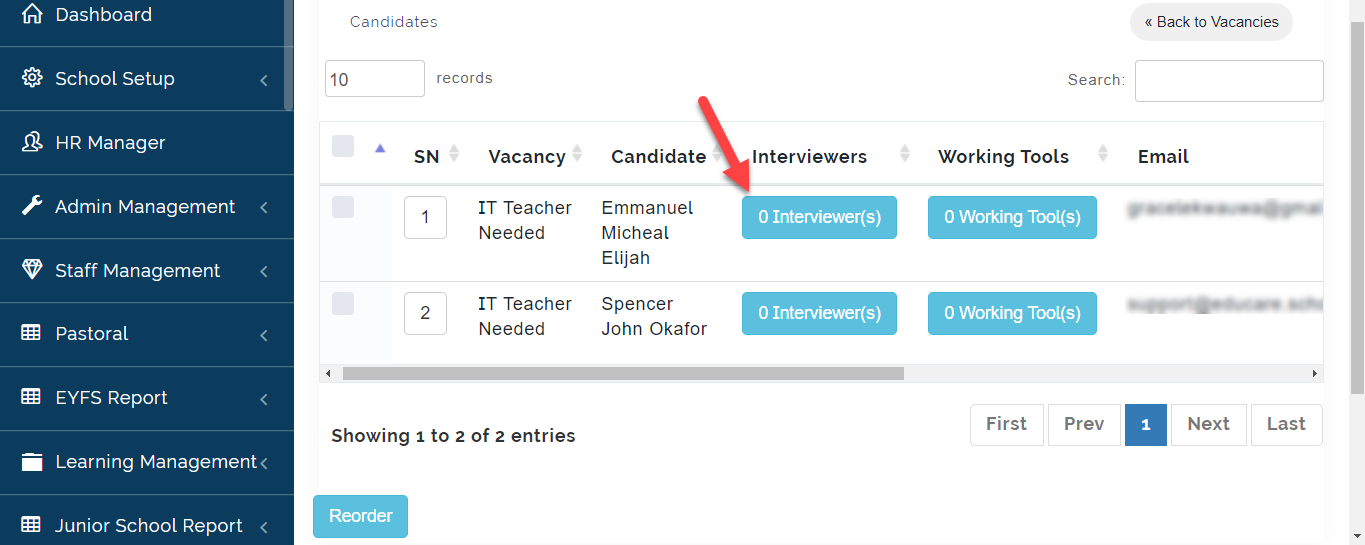
To assign an interviewer to a Candidate follow these steps:
- From the Interviewers Column, Click on Interviewer(s) *icon
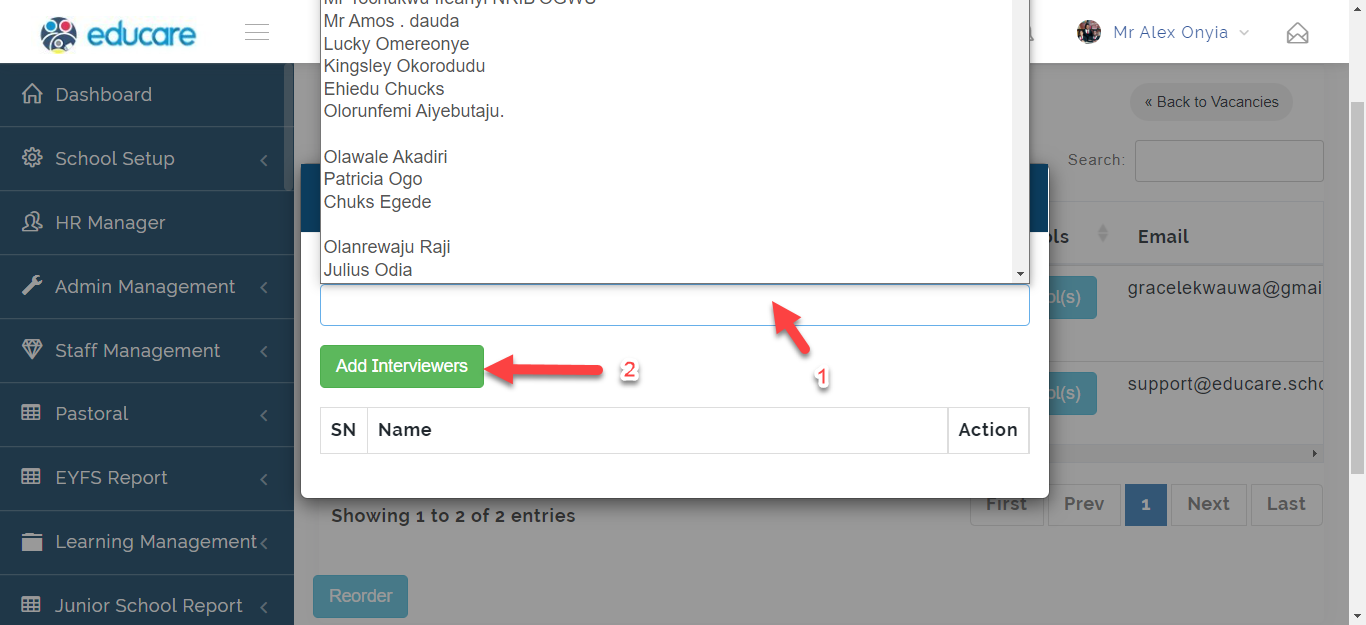
- Click on the box to select the Interviewer(s) then Click on Add Interviewers
Job Offered
Here, the School Admin or HR Manager can send out email notifications to Successful Candidates. To do this, follow these Steps:
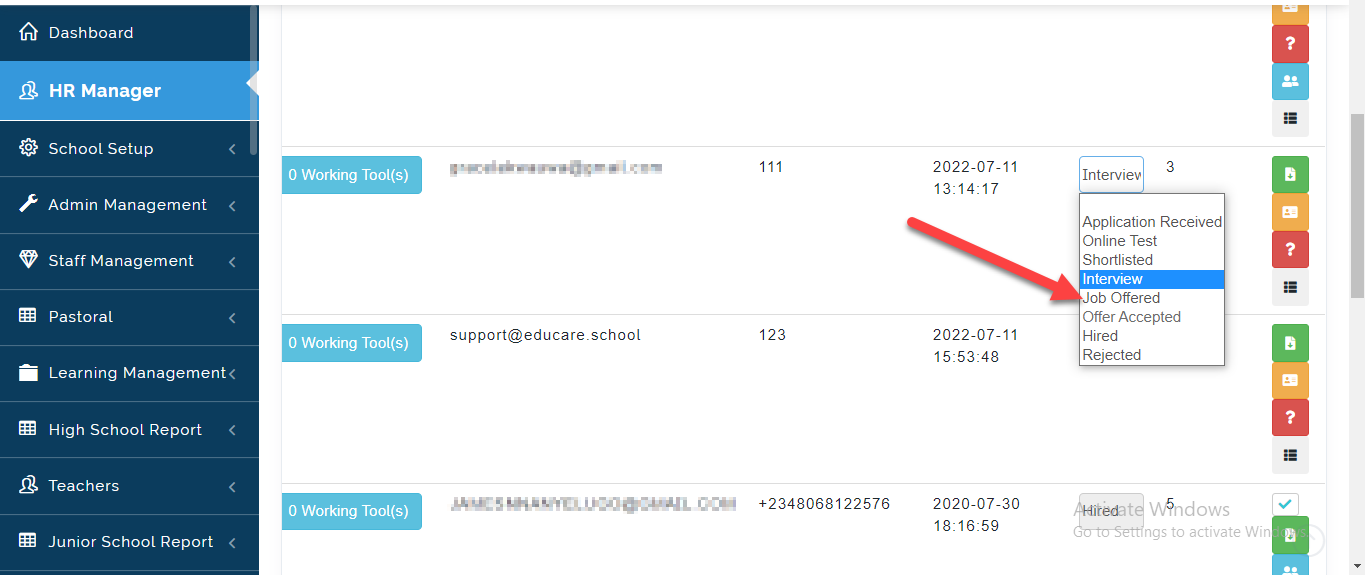
- From the Candidates Table, Move the Application Status to Job offered then proceed to sending an email notification to the Candidate.
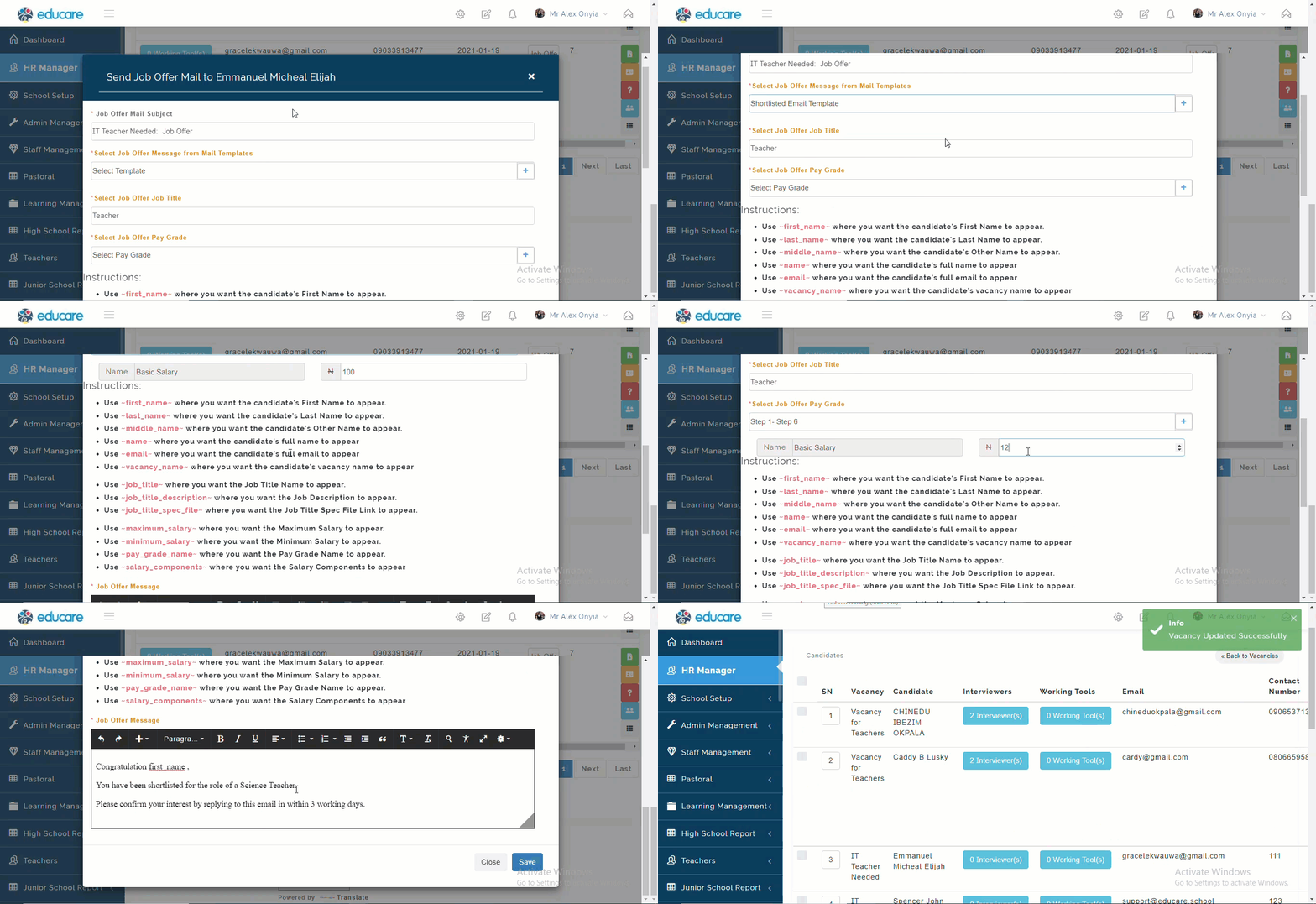
- Fill in the Form using the placeholder as seen below then click on Save to Send an email to the Candidate.
- An email will be sent to the Candidates to confirm they will be accepting the job. Click on Accept to acknowledge
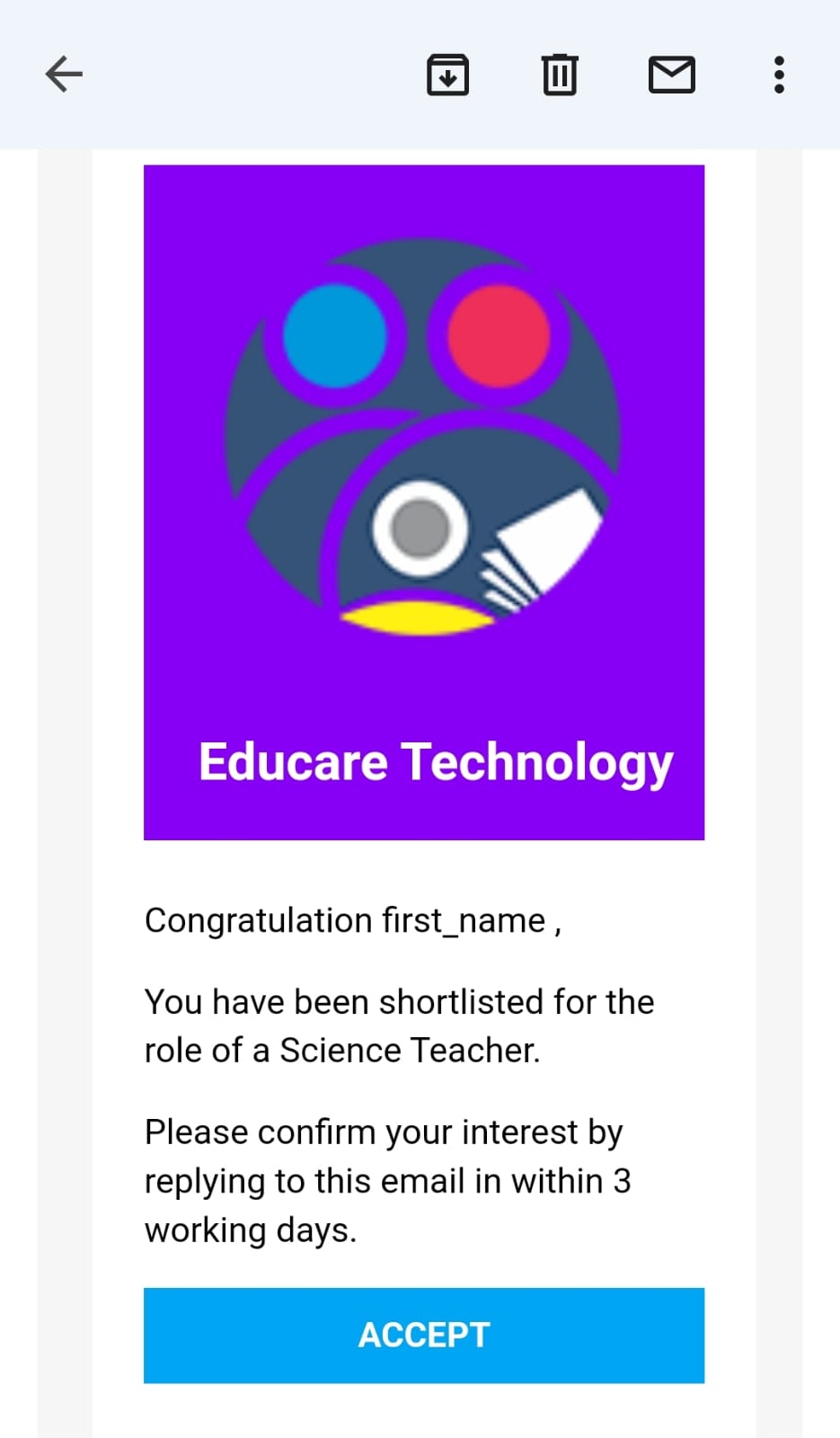
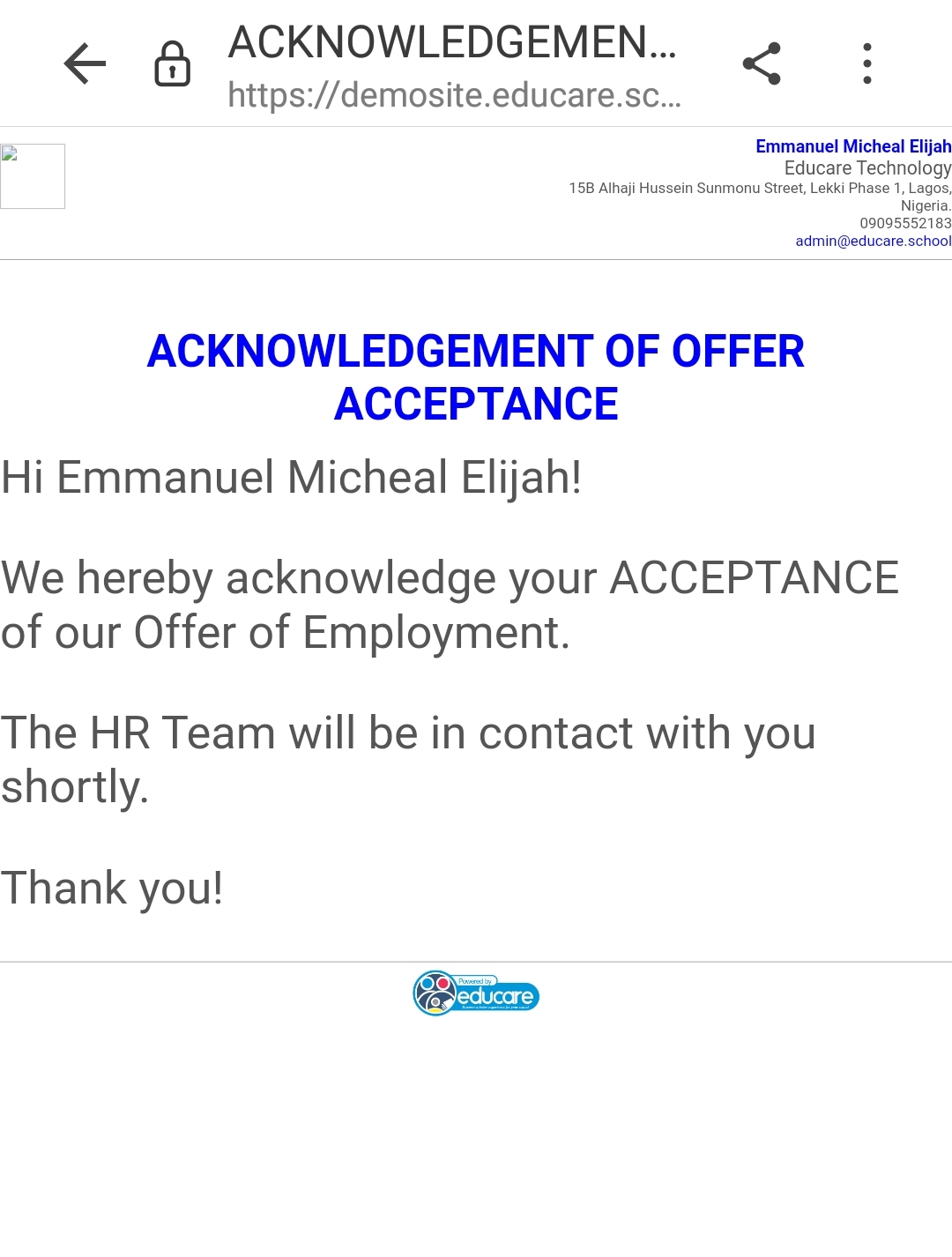
Once Candidate accepts the offer, The Acknowledgement letter will be sent as seen below.
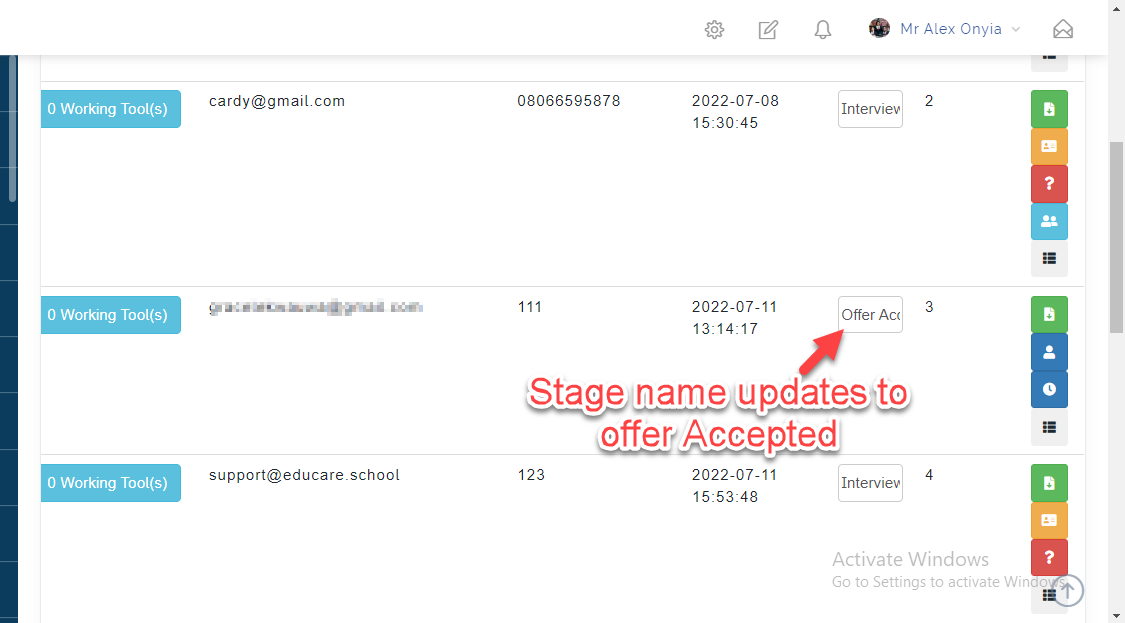
This will automatically change the Status of the Stage to Offer Accepted as seen below.
Hired
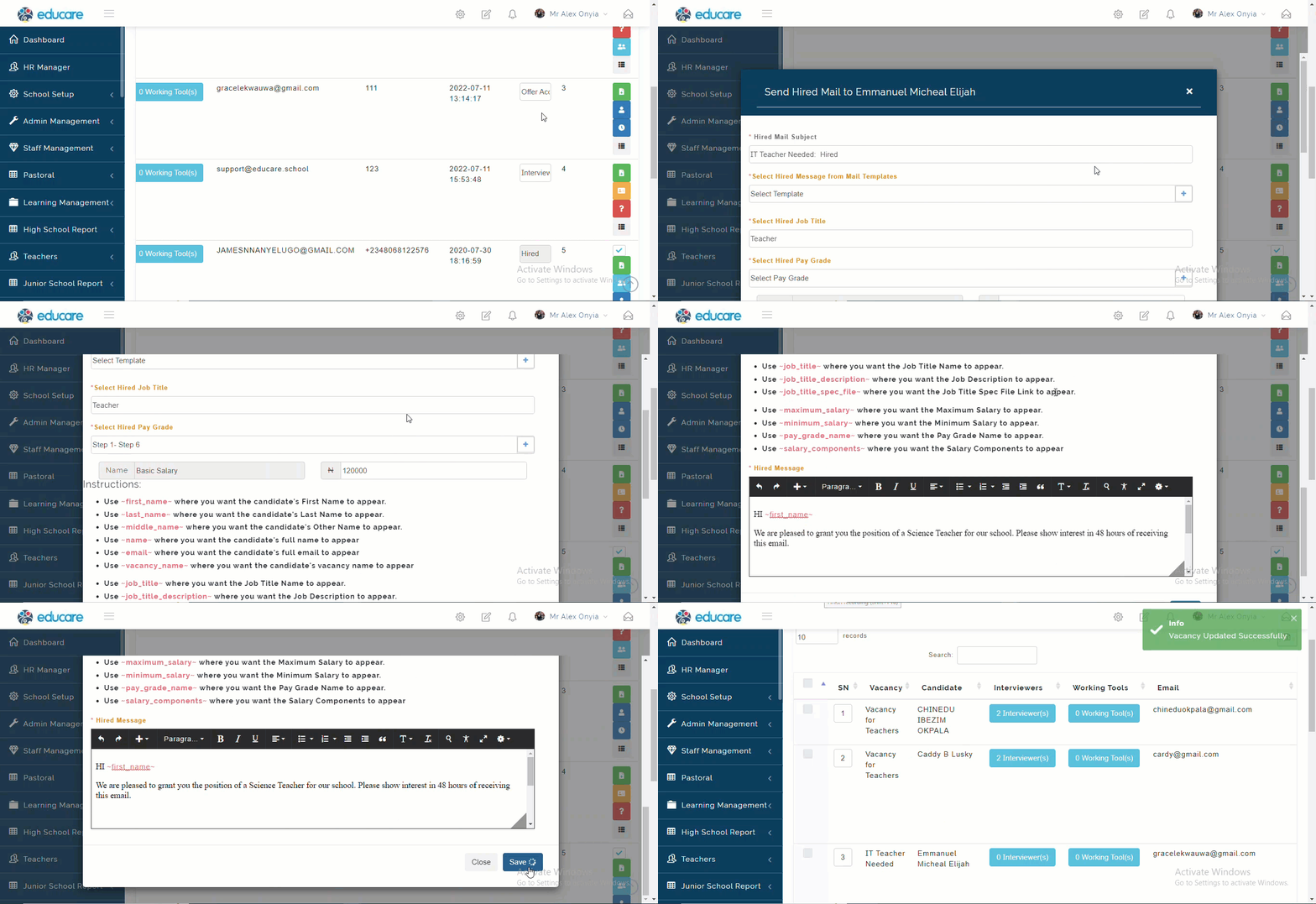
The School Admin or HR Manager can confirm the Staff by taking the following steps:
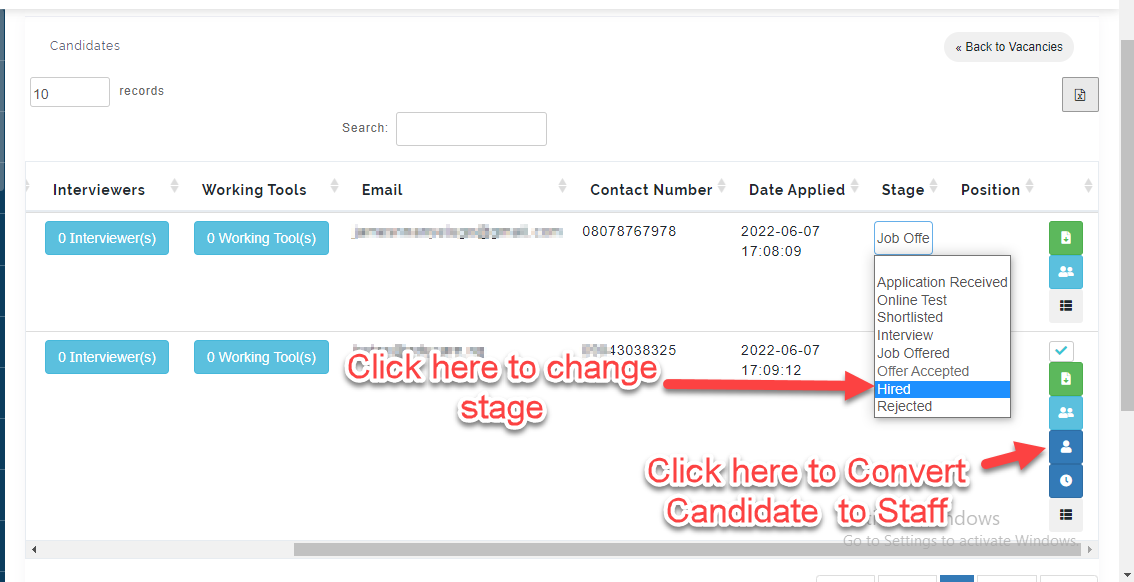
- From Stage Column under Candidates Tab, Change Status to Hired then send and email notifying the Candidate on when to resume.
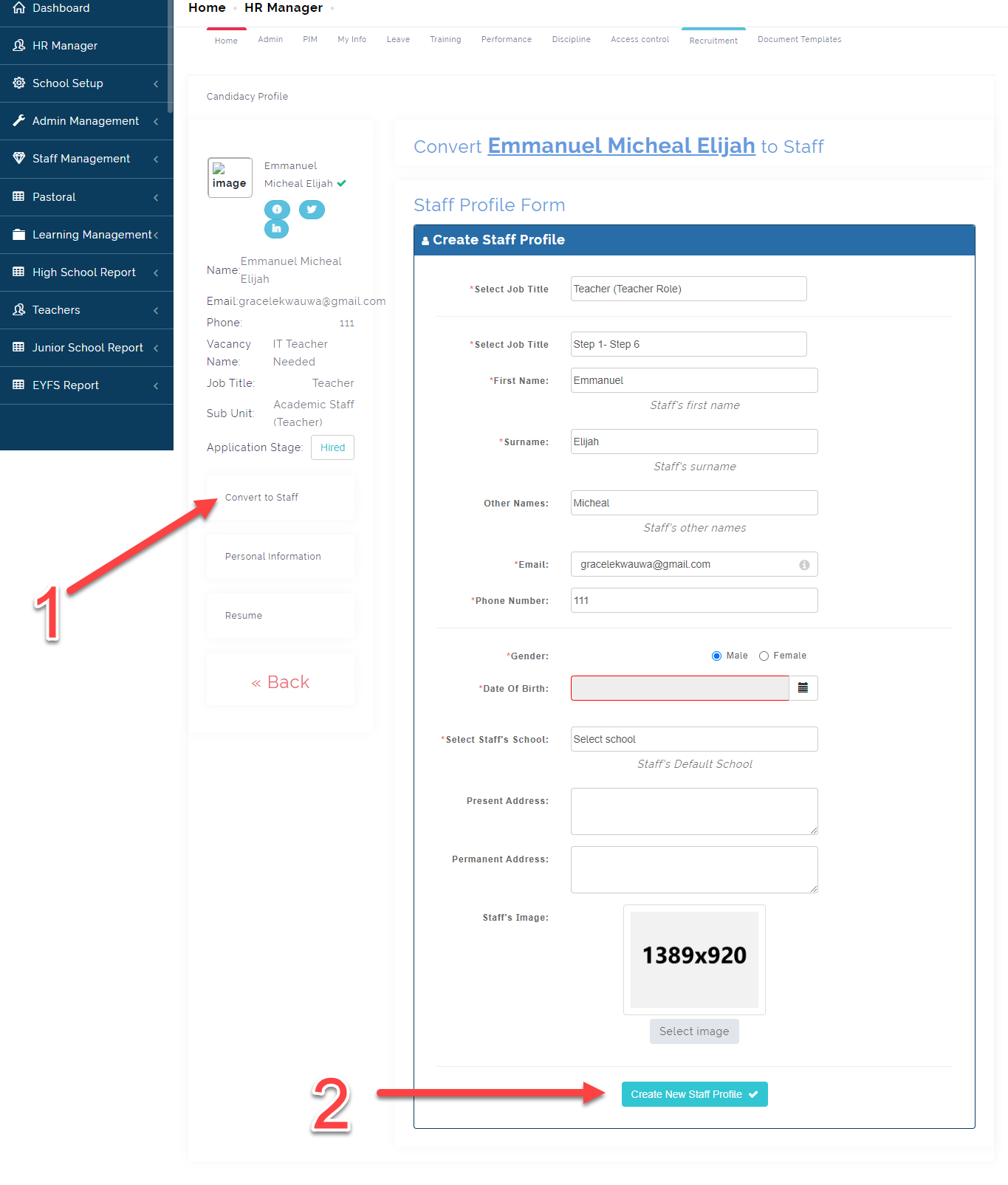
- Click on the Icon as indicated below to change Change Candidate profile to Staff.
- Fill the template with the required information then click on Save to send notification to the Candidate.
Convert Candidate to Staff, Fill in form with the Candidates details then Click on Create New Staff Profile.
Notes
If the Candidate did not get the Job, change Stage to Rejected, Complete the Email template to send Notification to Candidates Email.
These stages are flexible to suite your School Recruitment Process.