
In this Section, The Pastoral admin is able to view all Exeat Requests and tend to them
To view and mange all exeat requests, follow these simple steps:
- Click on the pastoral module
- Select Exeat Requests
- Select the session
- Select the school (i.e if your school has multiple arms on the portal)
- Select the hostel the student is in
- Click on filter.
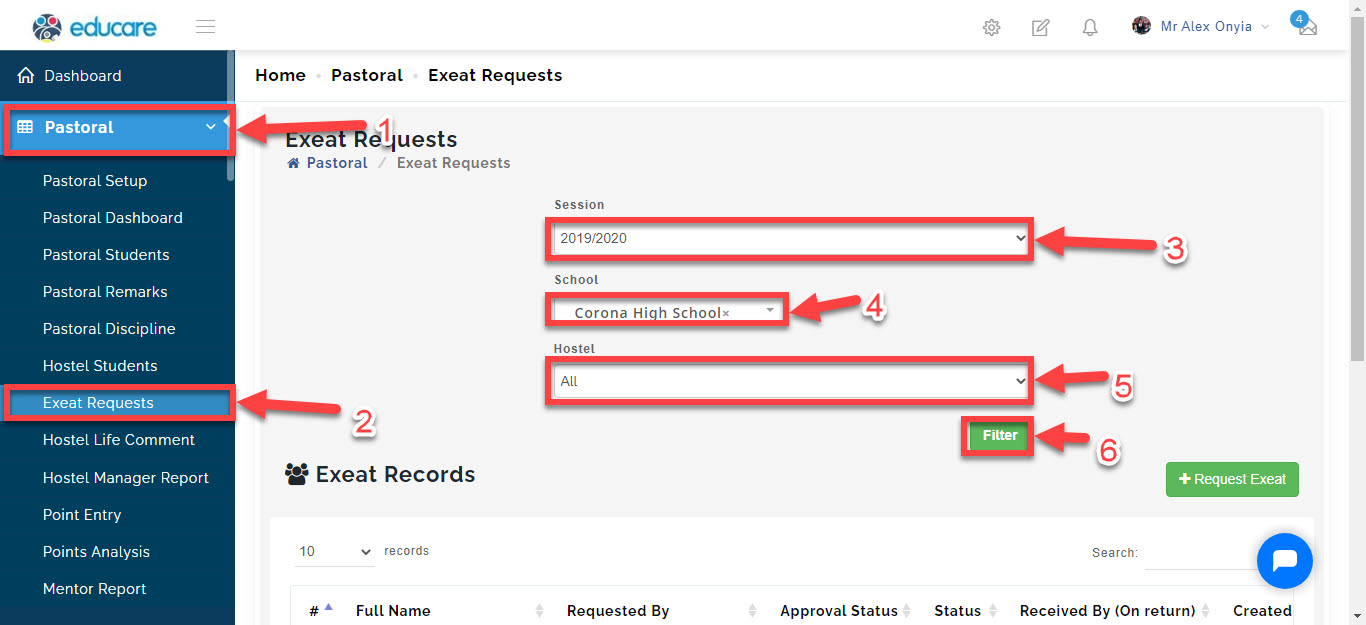
you will now be able to view and manage all exeat request
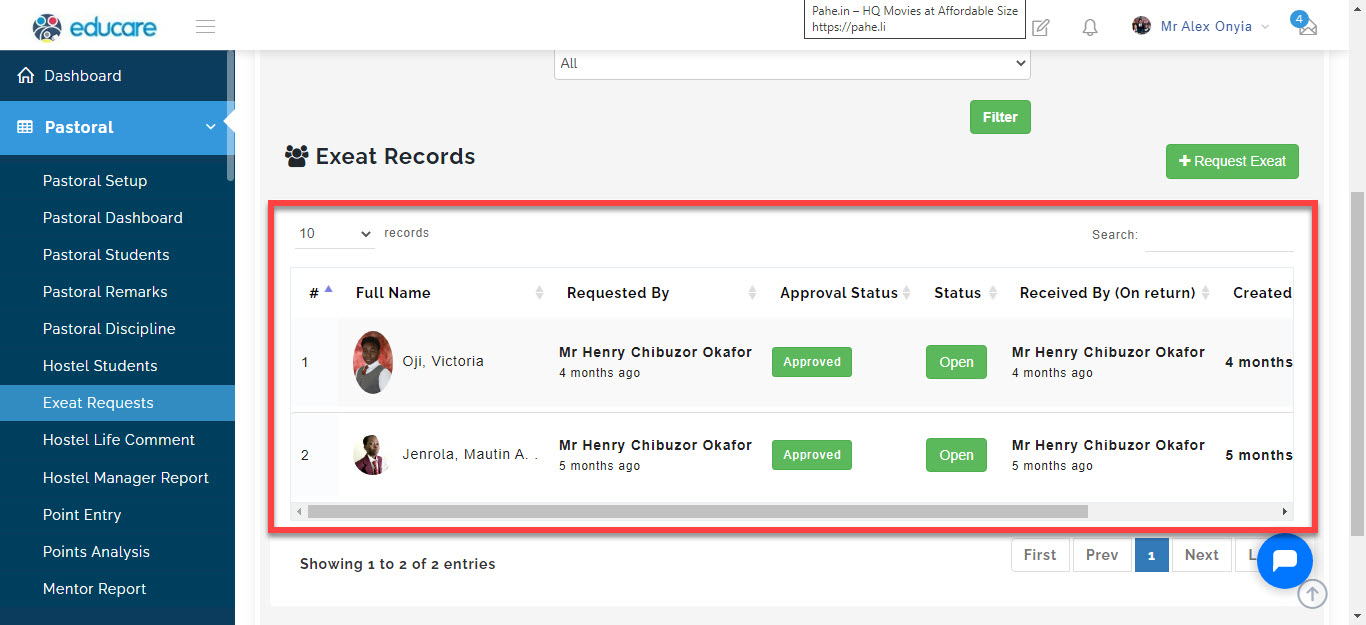
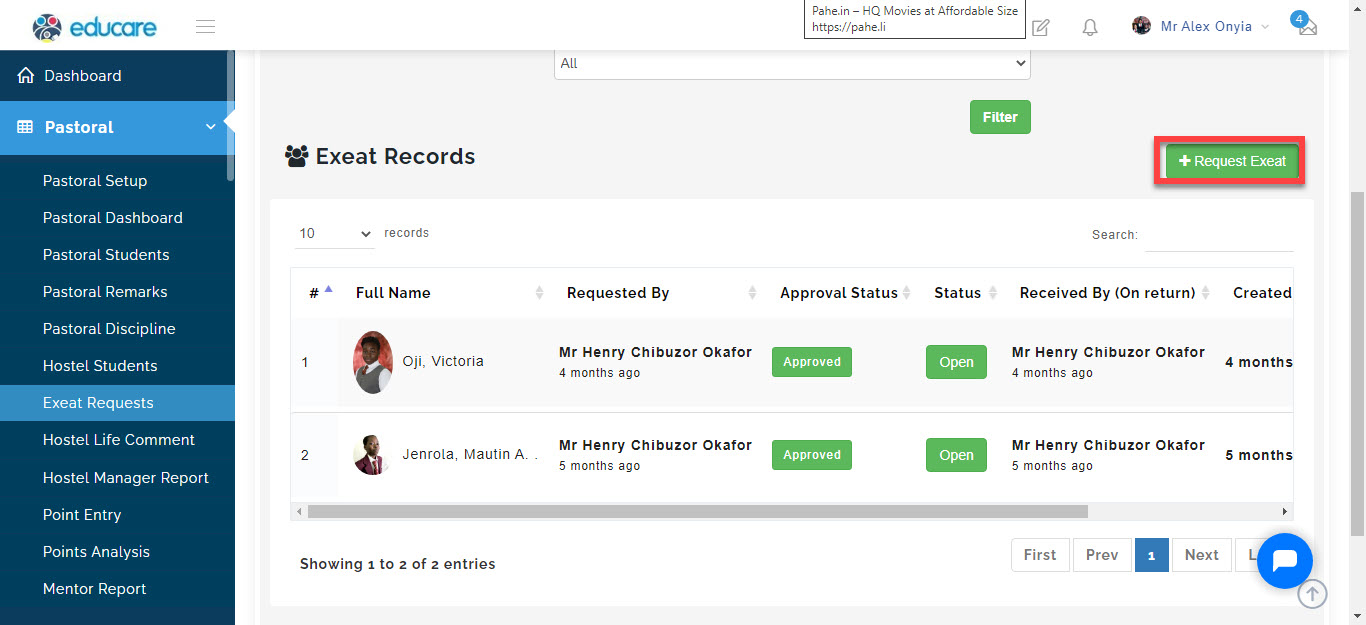
Request for Exeat
- click on Request Exeat button
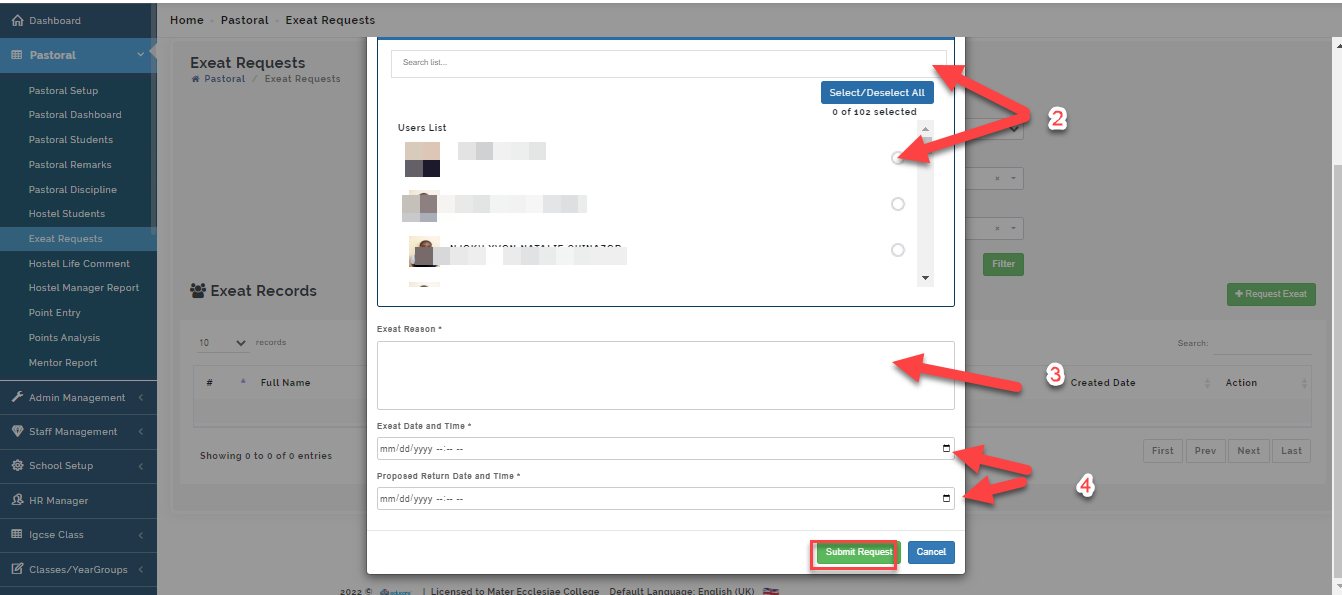
A modal will open
2. select or search for the Student that is requesting exeat
3. State the reason for the exeat
4. Set the time frame for it then click on submit to save request.
Approving Exeat Requests
Click on the pending button under the approve status column.
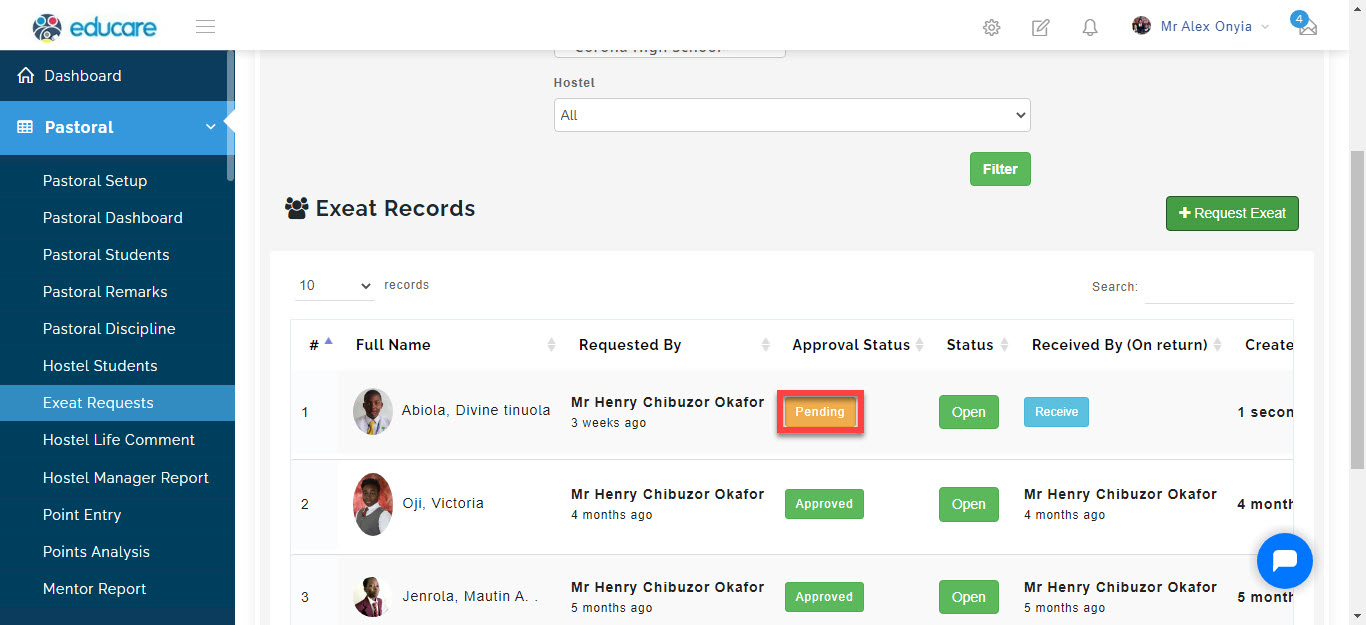
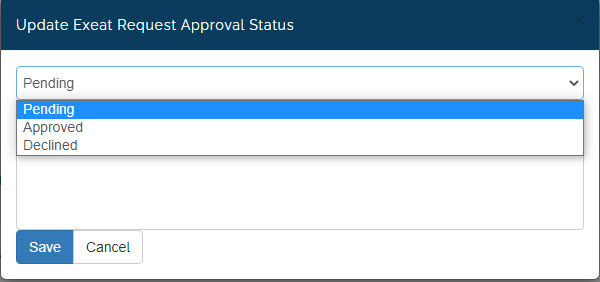
A modal will appear, select approve or decline and give reason for your chosen answer then click save
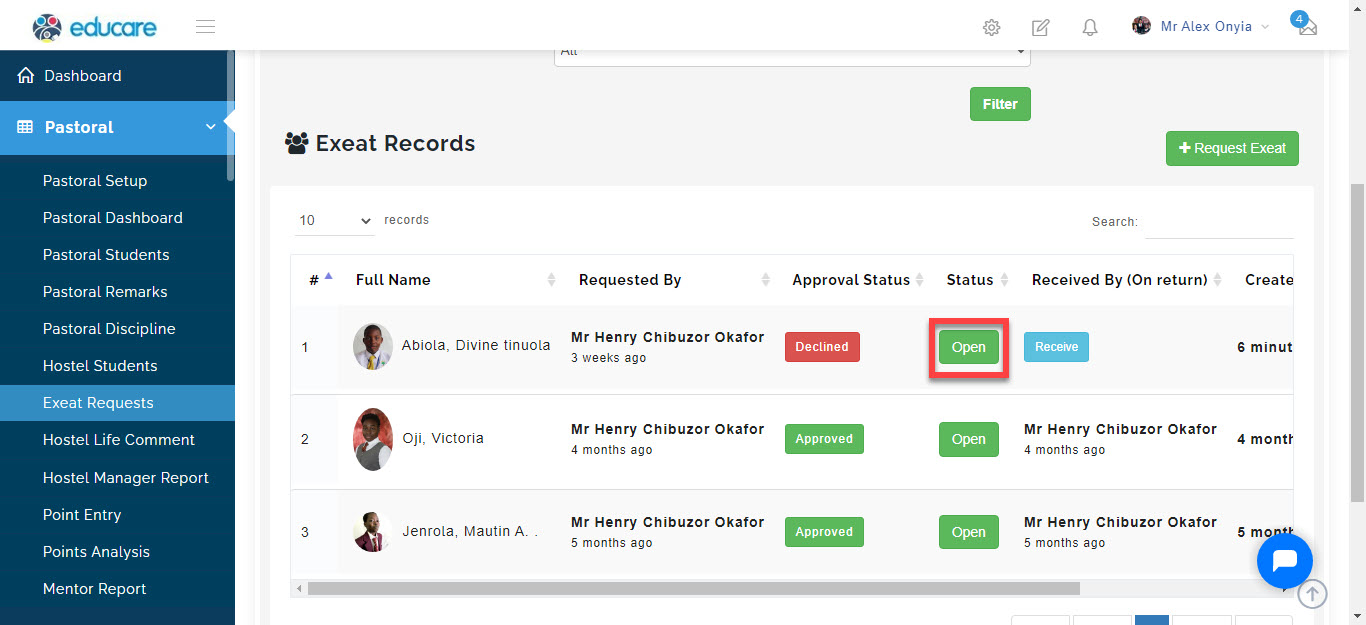
Toggle status open or closed to save status when action is taken on the exeat request.
once the student is back to the school you can click on the receive button to notify that you have received the student. The system records the name of the staff that received the student.
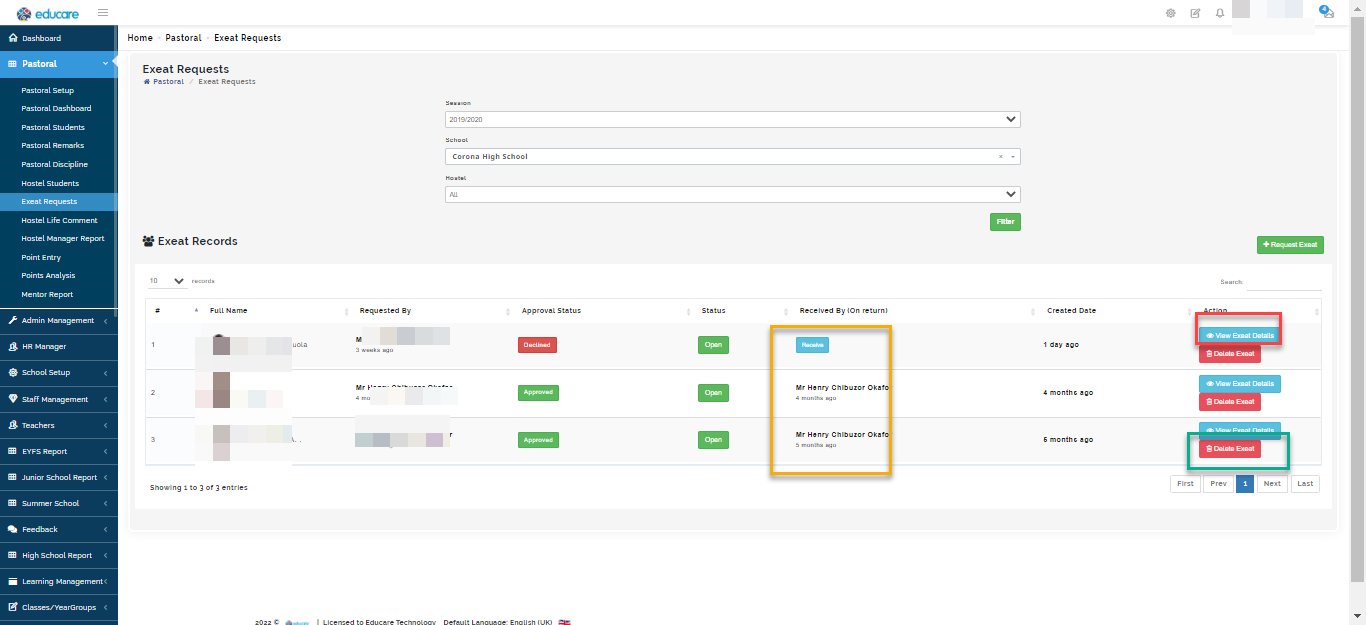
Click on View details under the action column to see a glance details of a student request request
Click on Delete to remove an exeat request created in error
Points to note:
- Parents have access to request exeat for their pupil
-All Staff who should have access to managing exeat request should be registered under Hostel Managers report- See the documentation on Hostel setup for guide on how to add Hostel Managers. - Include the security names on the list of Hostel Managers as when an exeat request is granted, The security on duty is notified and can permit the child to leave the school premises.