record and monitor sanctions given to students who broke school regulations
In this section, all staff can create a case, give recommendations if permitted; members of the disciplinary committee can also create view and sanction students who have committed an offence.
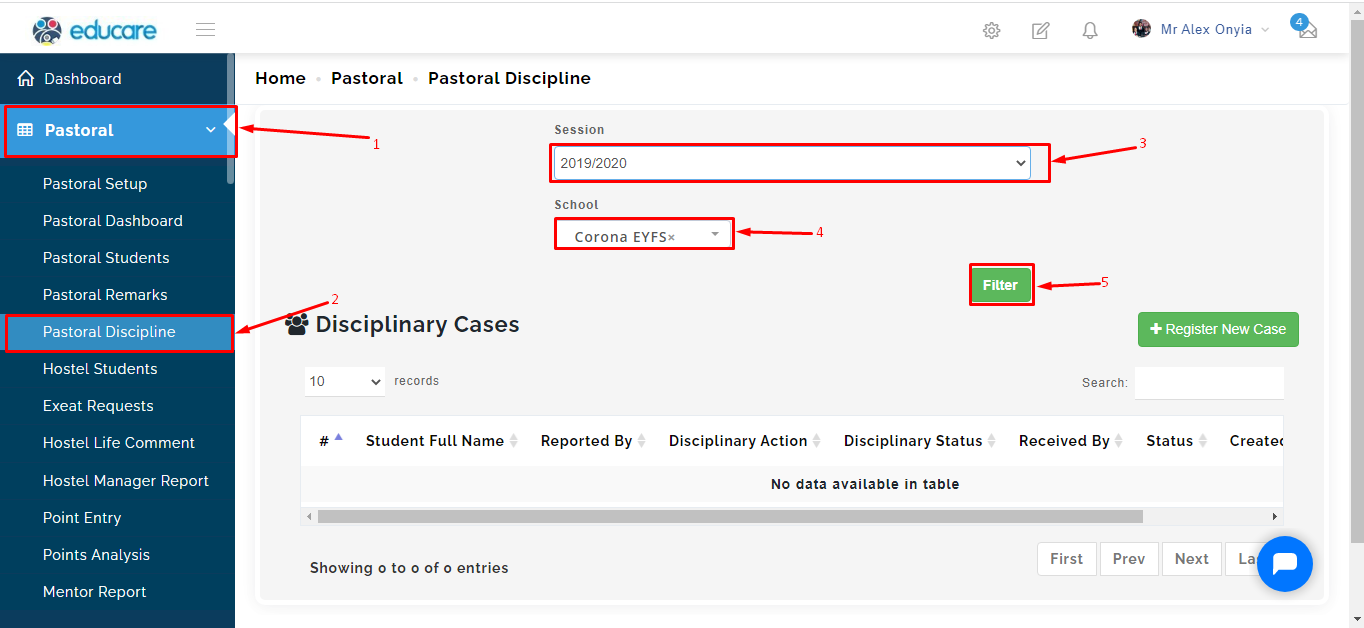
To view case(s), follow these simple steps:
- Click on the pastoral module
- Select Pastoral Discipline
- Select the session
- select the School (i.e if your school has multiple arms on the portal)
- Click on filter.
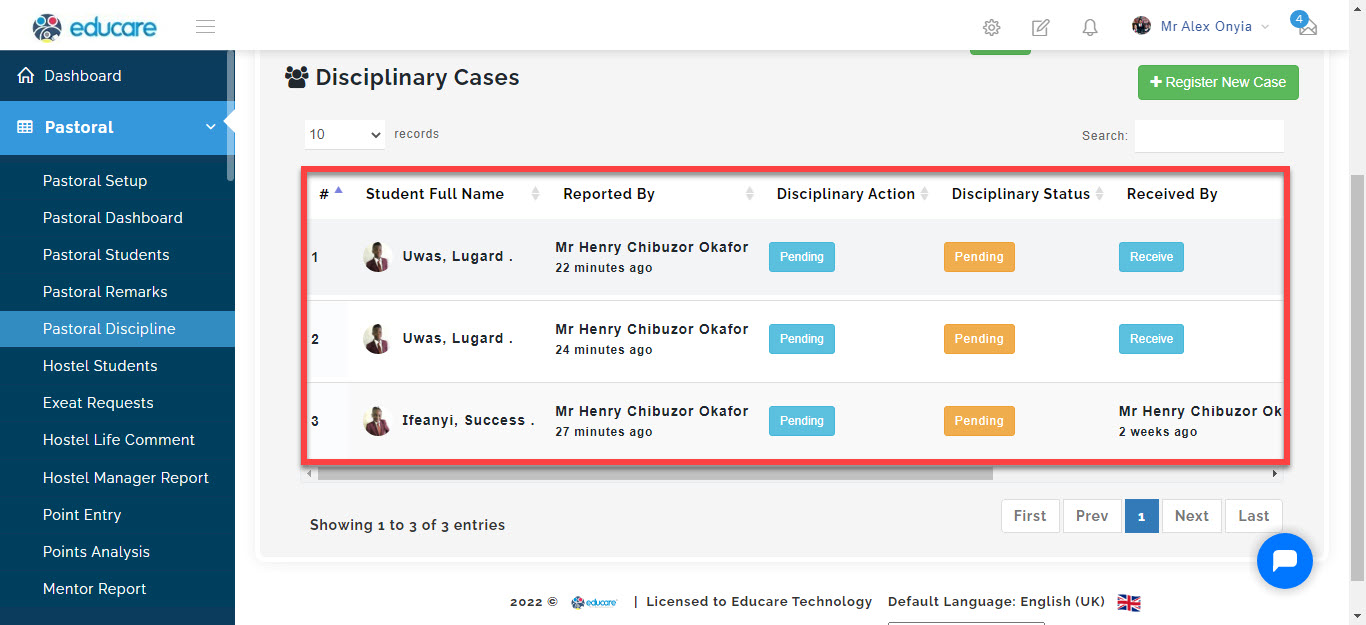
This will bring up all the case(s) created in the parameters you have selected.
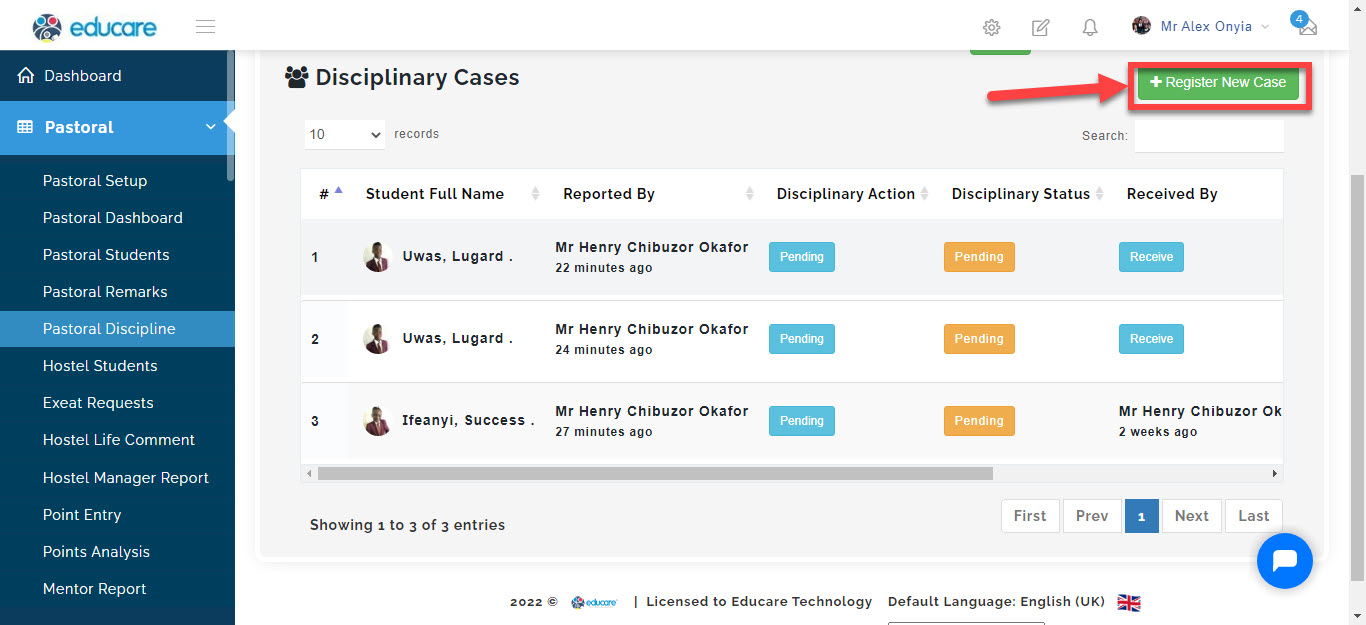
Registering a new case
To register a case click on the + register new case button
A Modal will open follow this steps to complete registration of a case
- Select the school **level**
- Select a class
- Select the gender
- Click on filter
- Once this is done, the system filters the students names based on your selected criteria, Search/ select the student in the user list section that you want to write a case on.
- Write the case statement
- If the school uses point system for disciplinary sanctions, you can enter the number of demerit point(s).
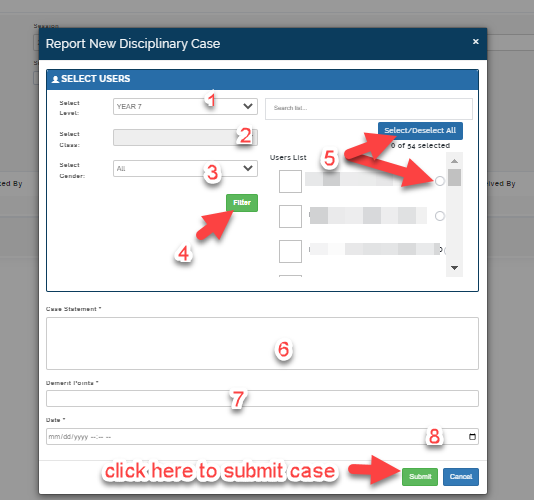
- Select the date the offence was committed and click on submit.
Reviewing a case
To review a case follow these simple steps:
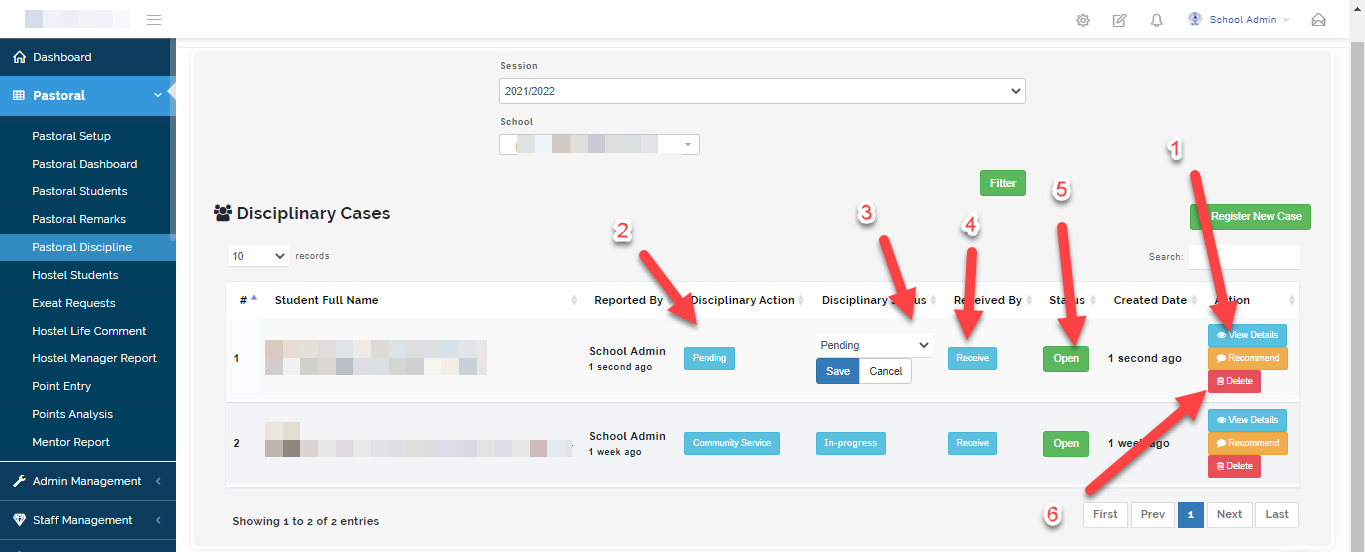
Locate the student name you want to review
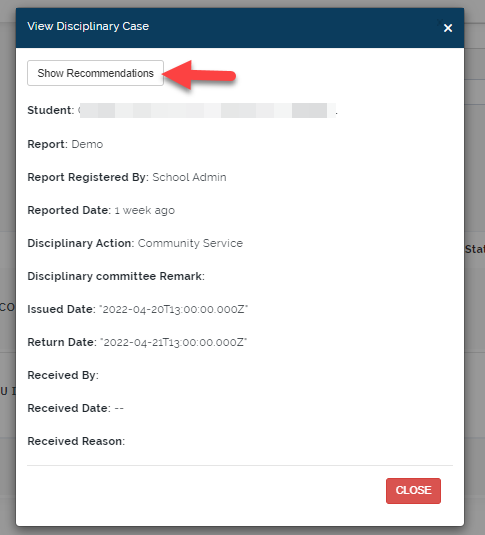
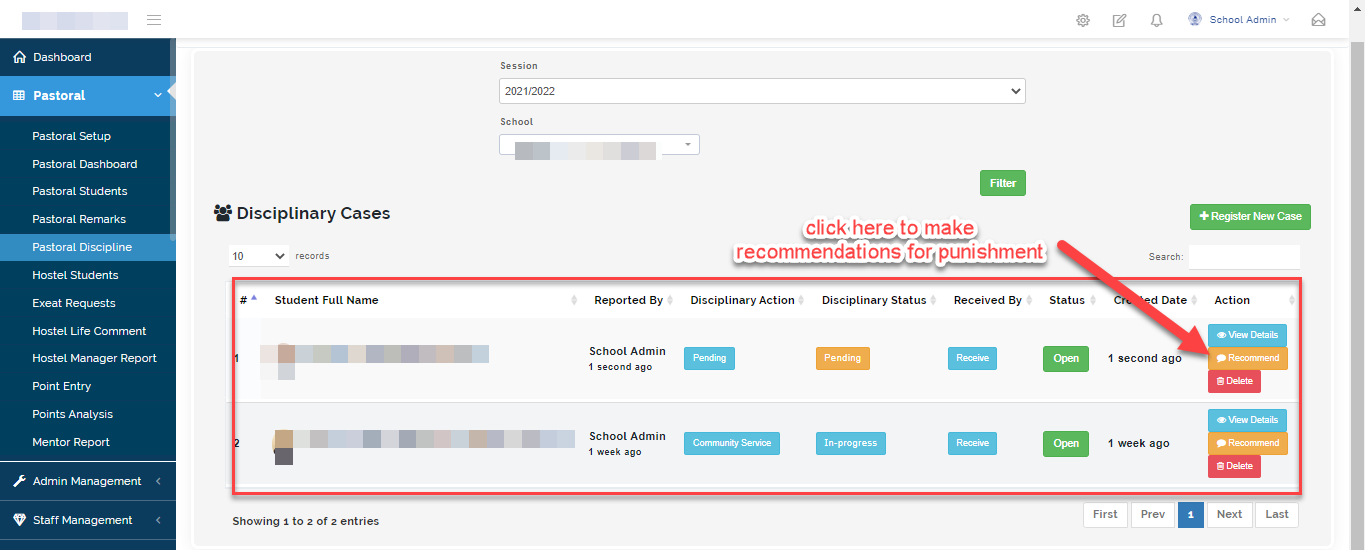
- Click on view **details **to view the case, click on see recommendations to see what other members of the disciplinary body suggest.
- After reviewing it, click on pending under the disciplinary action column.
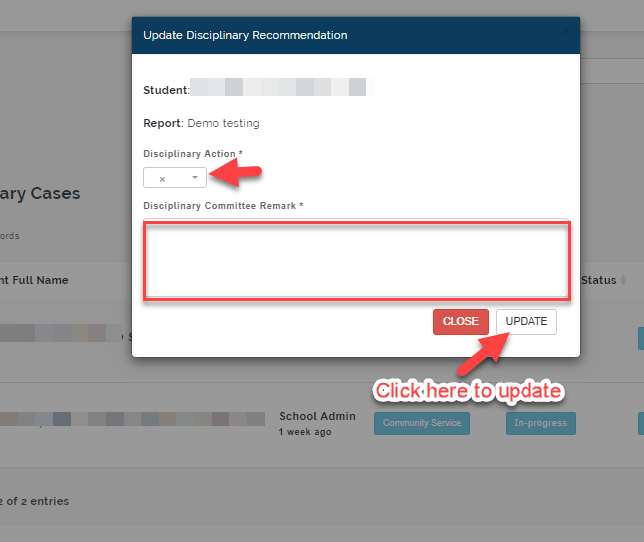
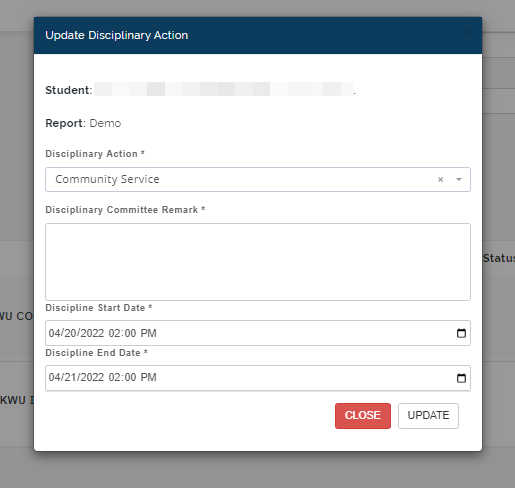
A modal will appear, select the disciplinary action depending on the schools policy and write the Disciplinary Committee Remark (e.g. cutting of grass, washing of pots etc,) then select duration date for completing sanction and click on update.
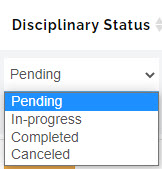
- Click on pending under disciplinary status to update status on the progress of disciplinary action carried out by the student then click on *save
- Click on received when you have verified that the student has completed his disciplinary sanction. After confirming receival, the system records the position of the person who received the student.
- Once the case has been resolved by all parties involved, you can close the case by clicking on "Open" .
- Click on Delete to erase a case created in error
How to give recommendation for disciplinary action
Click on recommend under the actions column to give recommendations on disciplinary action to be taken by the student
Select the disciplinary action depending on the schools policy and write the Disciplinary Committee Remark (e.g. cutting of grass, washing of pots etc) and then click on update