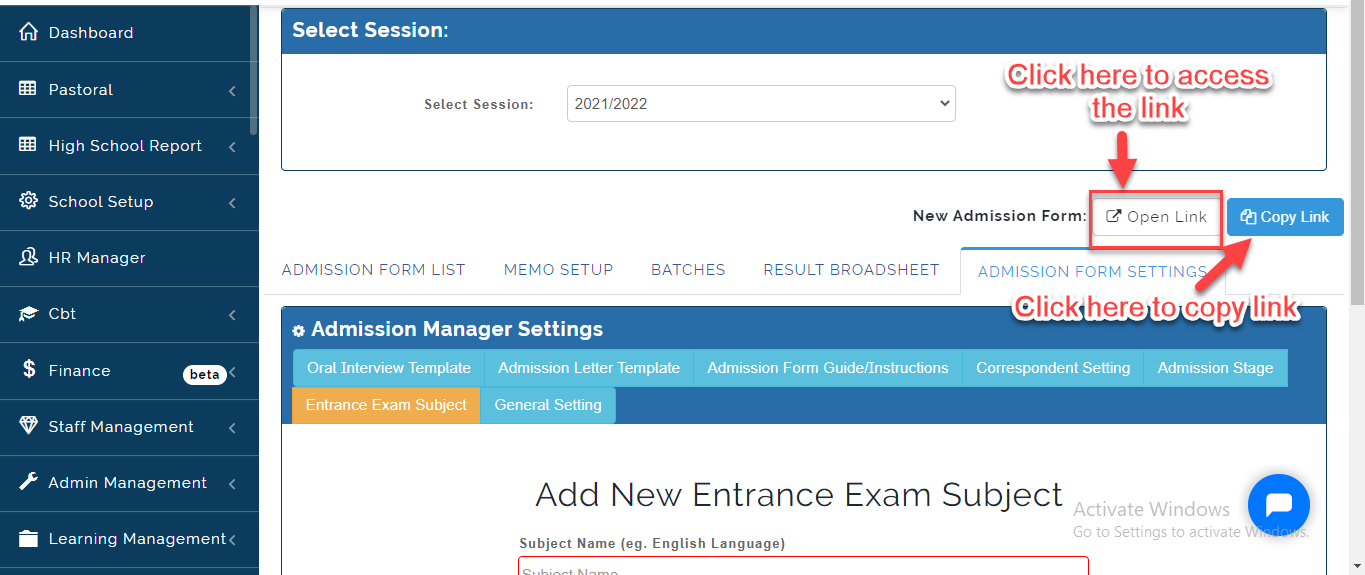
In educare, we have two types of admission form. They are; The Internal and External form Link. The Internal Admission Form is entered by the School Admin while the External Admission Form is filled by the Applicant's on the School Website.
Before you can proceed with Admission, The School Admin needs to set up Admission Head under the Finance module. Once this is done, proceed to Admission Form Settings. Follow these steps to setup Admission Form:
General Settings
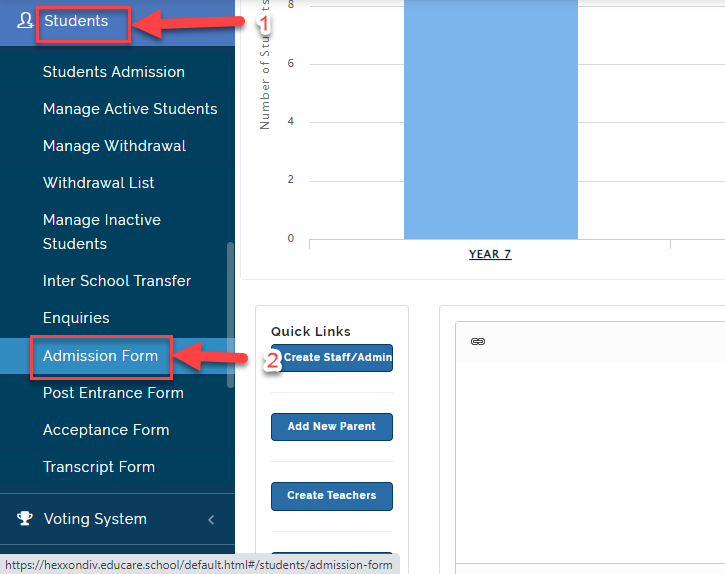
- Click on Students then Select Admission Form.
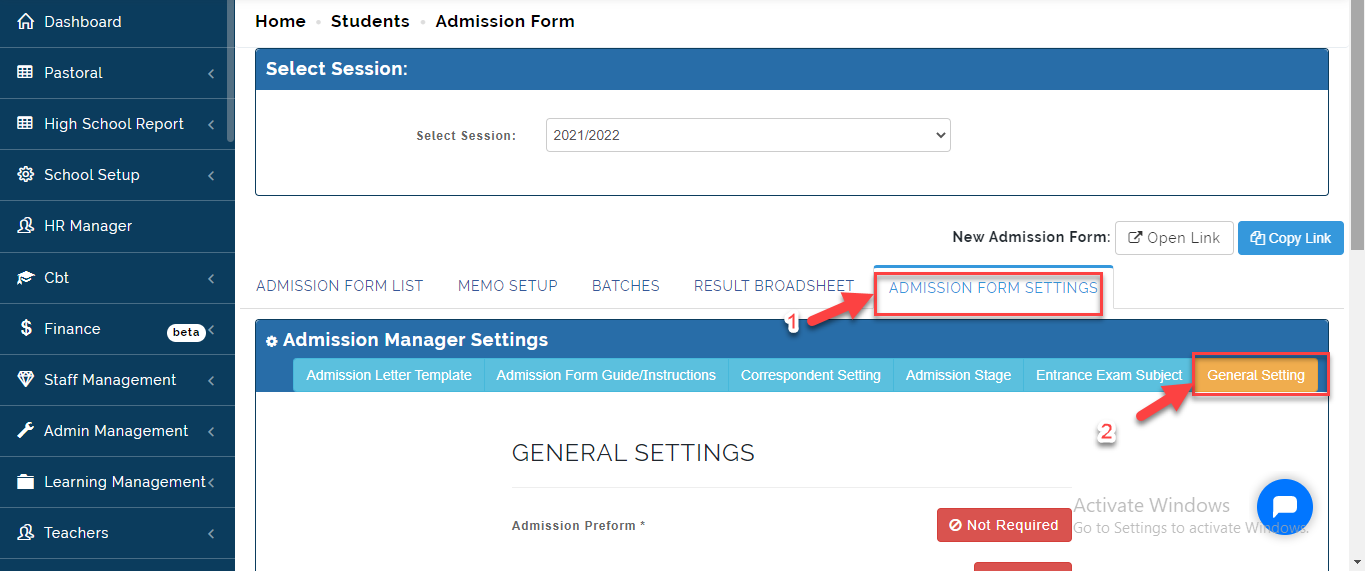
- Click on Admission Form Setting then Select General Settings.
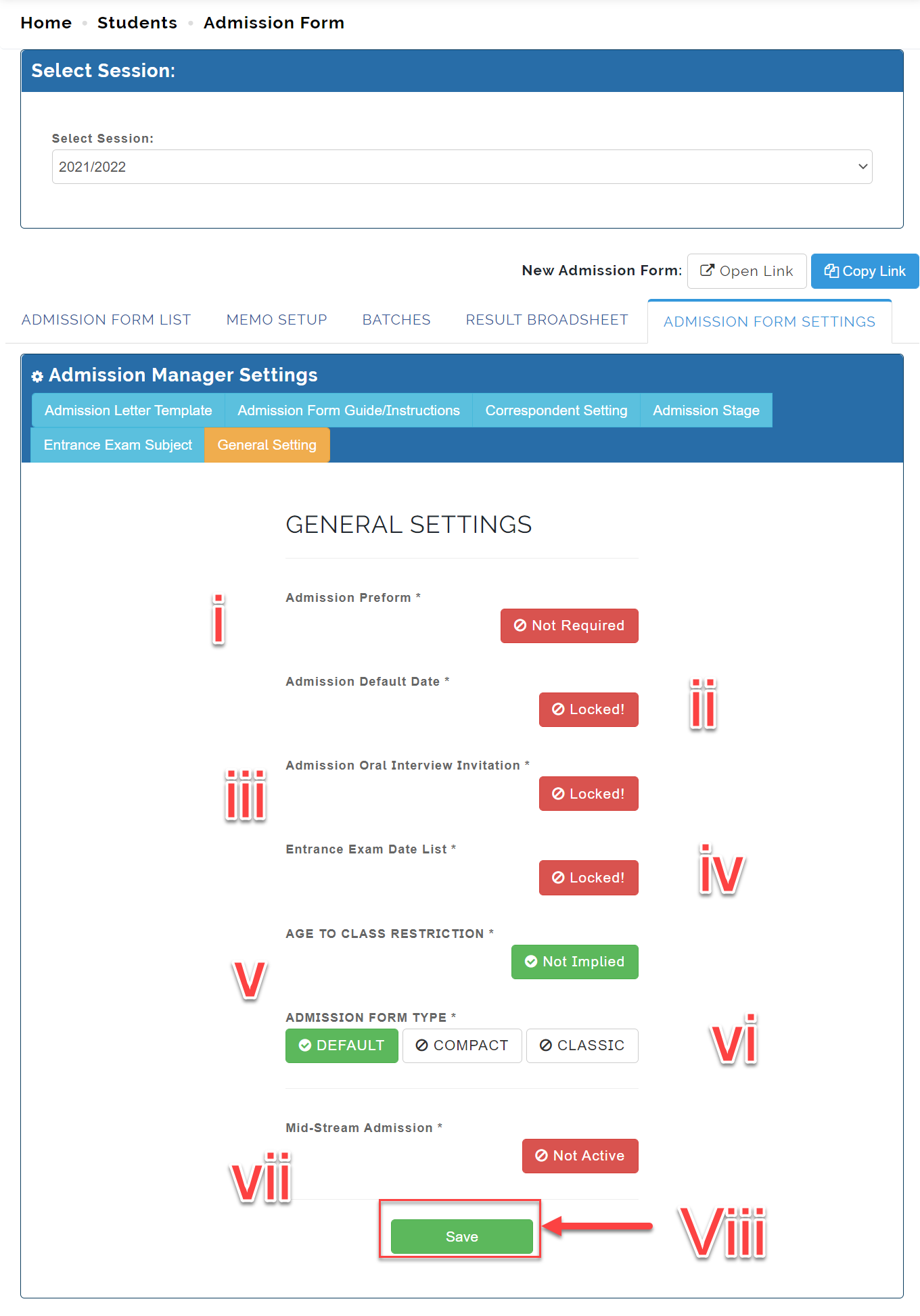
- A list of Navigation Setting will appear.
i. Toggle Admission Preform Button to Required/Not required if you need to access the eligibility of the Applicant before then can go ahead to apply to the School using the preferred Admission form type.
ii. Toggle Admission Default Date to Locked/ Unlocked if you want the Admission Default date to appear on the Admission form. When Unlocked, you will be prompted to set the Admission Default Date
iii. Toggle Admission Oral Interview Invitation to Locked/ Unlocked if you carry out Admission Oral Interview in your school. When Unlocked, you will be prompted to select the Default Interview Template that will be displayed.
iv. Toggle the Exam Date List to Locked/ Unlocked if you want the Exam Dates to appear on the Application form
v. Toggle Age To Class Restriction to Implied/ Not Implied to access the age of Applicant during Application process.
vi Select Either Default, Compact or Classic to activate the Admission Form Type of your choice.
Vii. Toggle Mid-Stream Admission Active/ Not Active if you accept Admission in 2nd or Third Term.
Viii. Click on Save when done.
Note on General Settings
- Default Form contains the Standard Application Form preinstalled in the school
- Compact Form includes more fields in addition to the Default Admission Form
- Classic Form takes a new approach to Admission process which allows Application to come fill form and pay later.
Oral Interview Template
- Click on Admission Form Settings then Select Oral Interview Template.
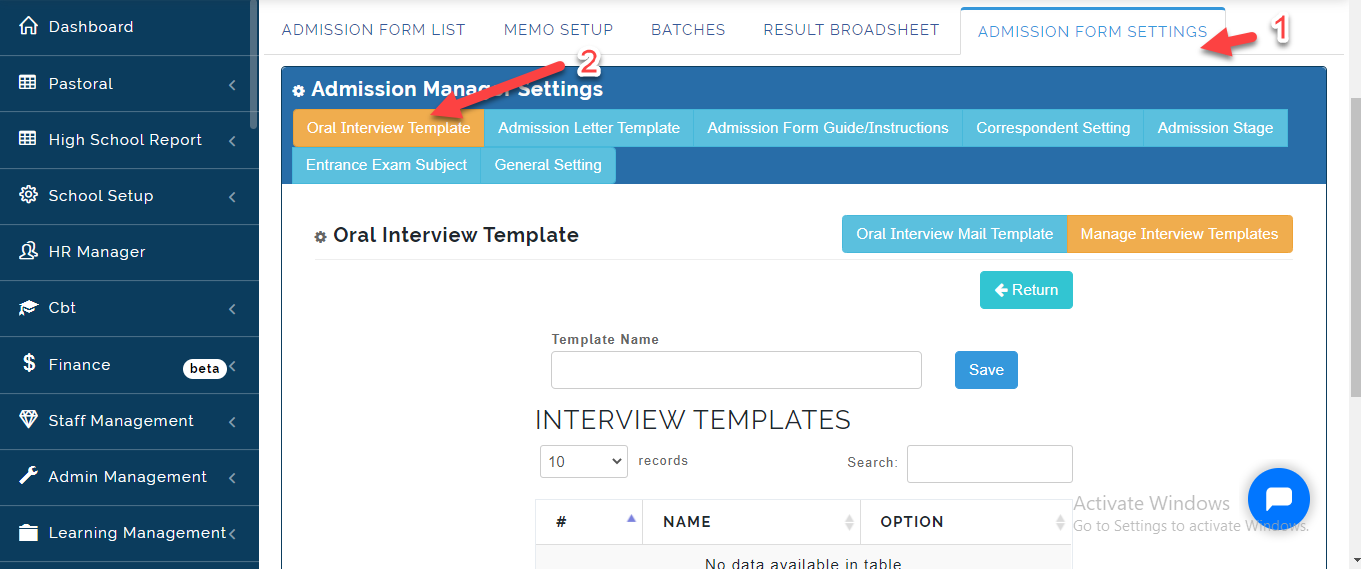
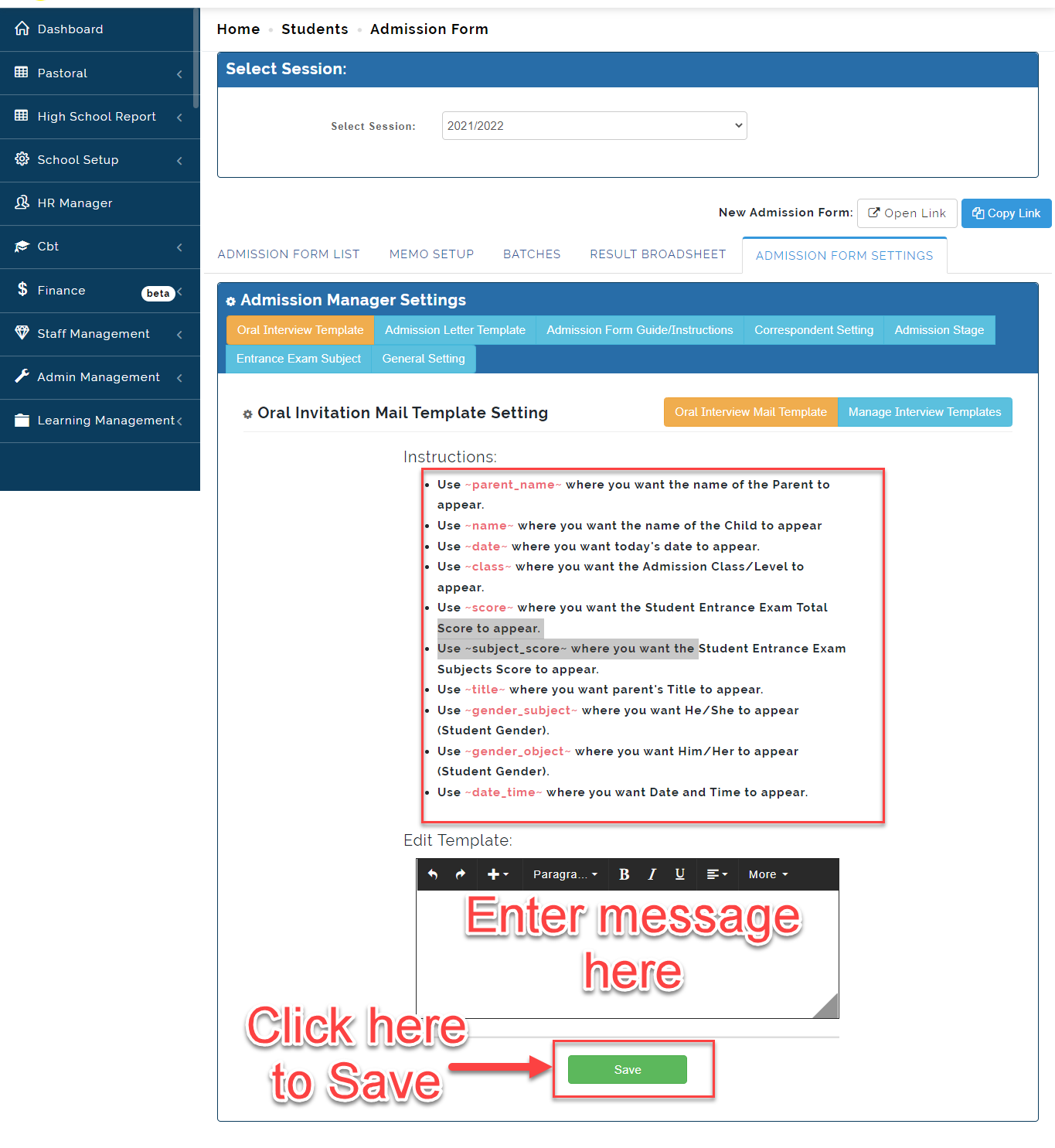
- Under Oral Interview Mail Template, Create the Message you want to send out to Applicants using placeholder as indicated below. Click on Save
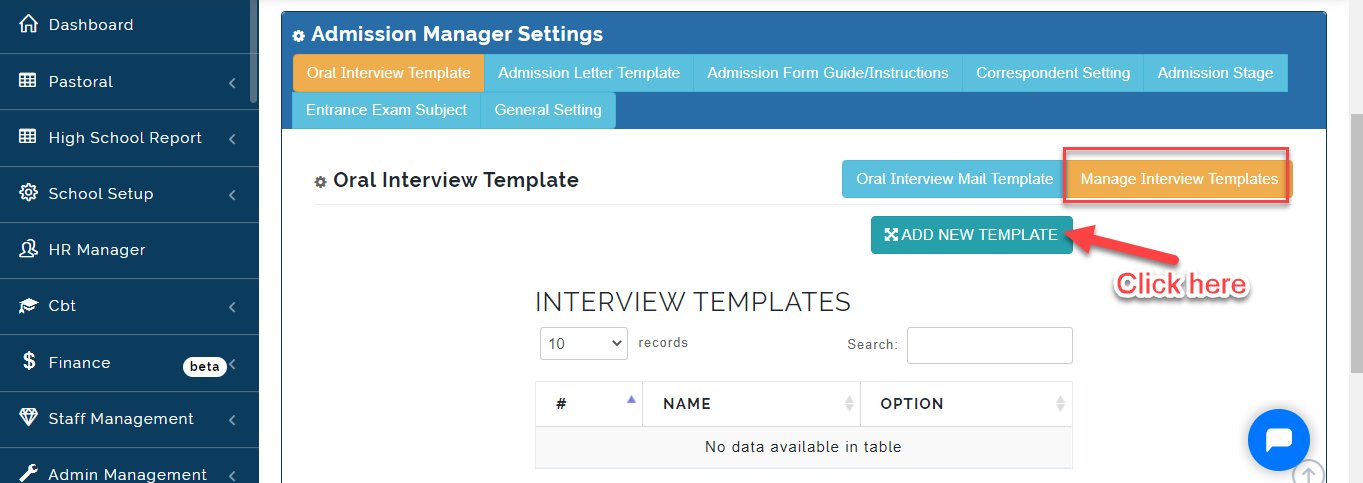
- Under Manage Interview Templates, Click on Add New Template.
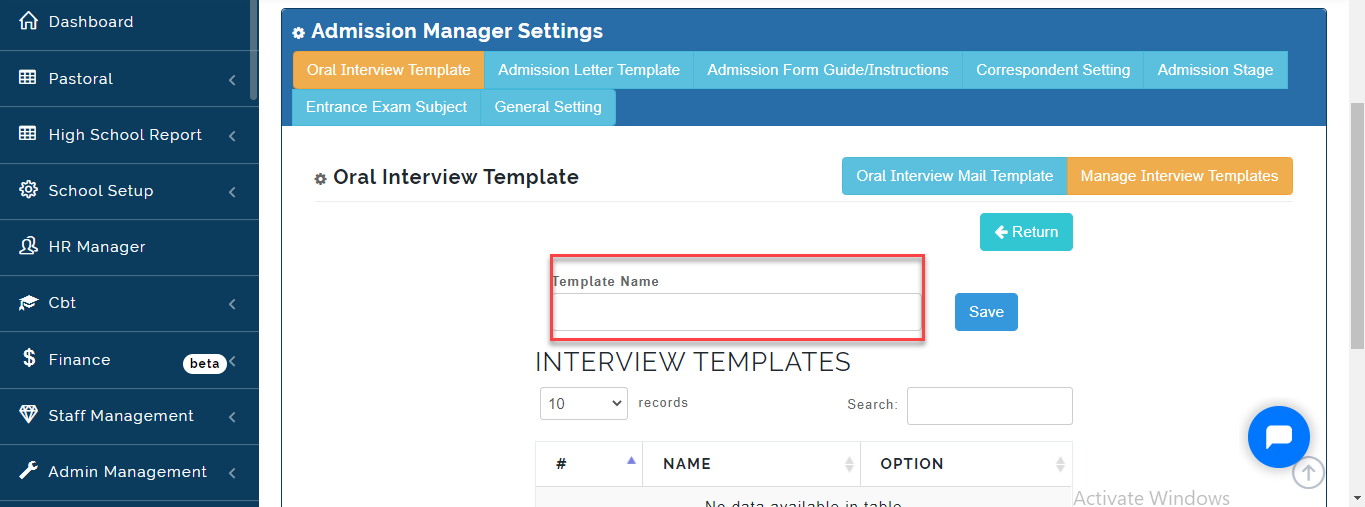
- Enter the Name for the template then Click on Save.
Admission Letter Template
This is where the Admin can create the admission letter template that will be sent to applicants who have applied to the school. follow these steps to create template:
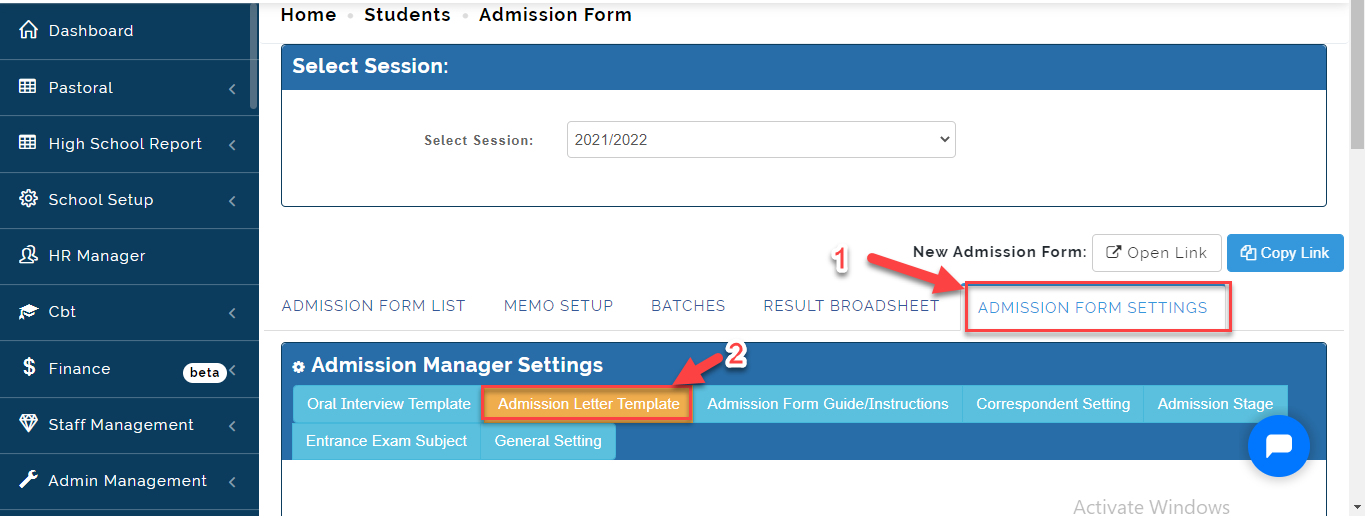
- Click on Admission Form Settings then Select Admission Letter Template.
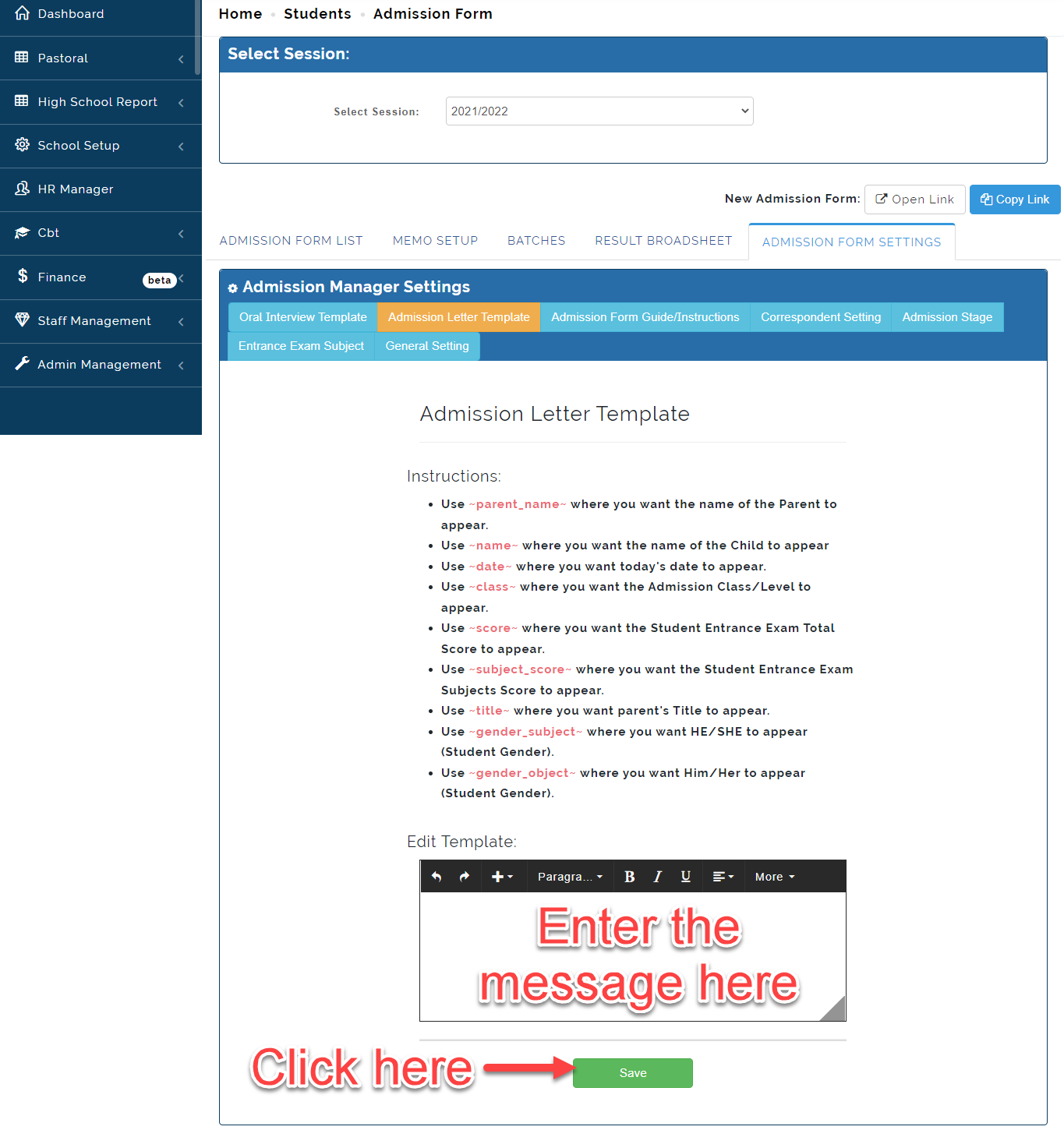
- Under Admission Letter Template, Create the Message you want to send out to Applicants using placeholder as indicated below. Click on Save
Admission Form Guide/Instruction
Here the School Admin can create Guide or Set of Instructions for the Applicants to follow. To do this, follow these steps:
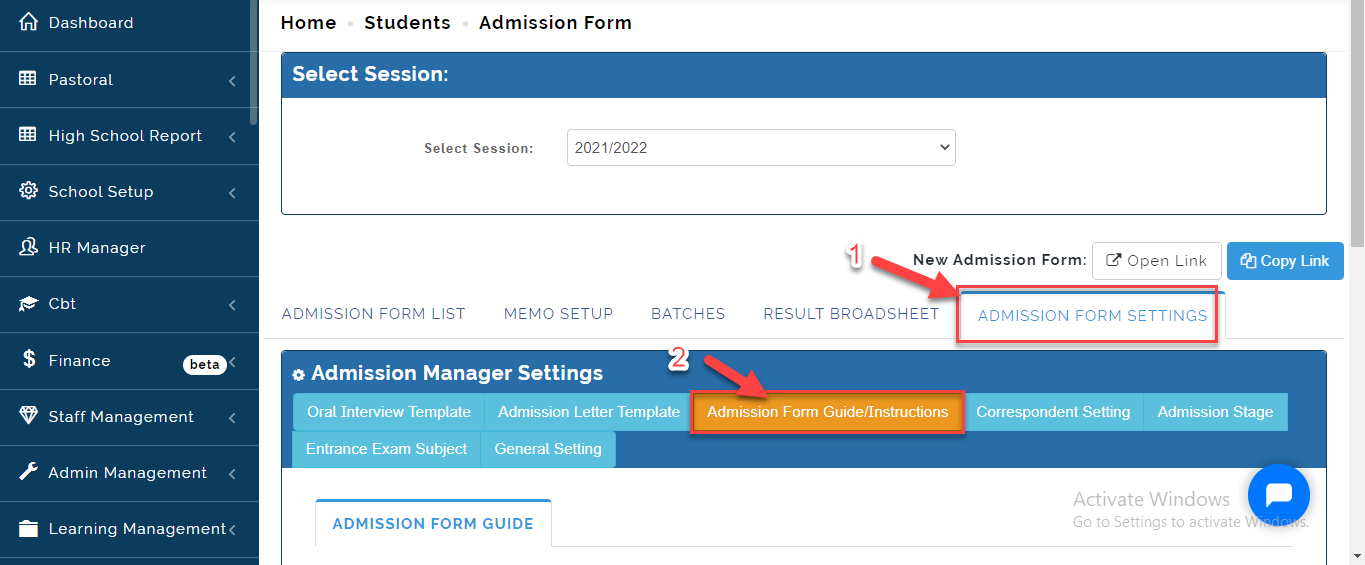
- Click on Admission Form Settings then Select Admission Form Guide/Instruction.
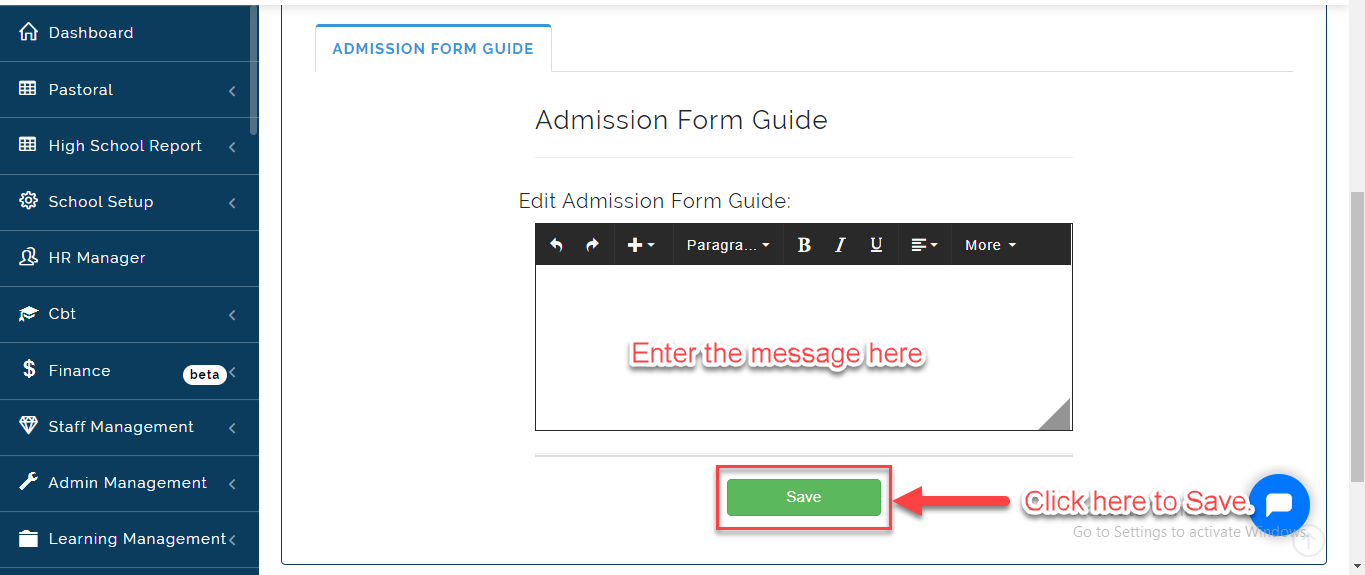
- Under the Admission Form Guide, Enter the message in the box and Click on Save.
Correspondent Settings
This is where the School Admin can add the details of Users in charge of receiving Admission form. Follow these Steps to do this:
- Click on Admission Form Settings then Select Correspondent Settings .
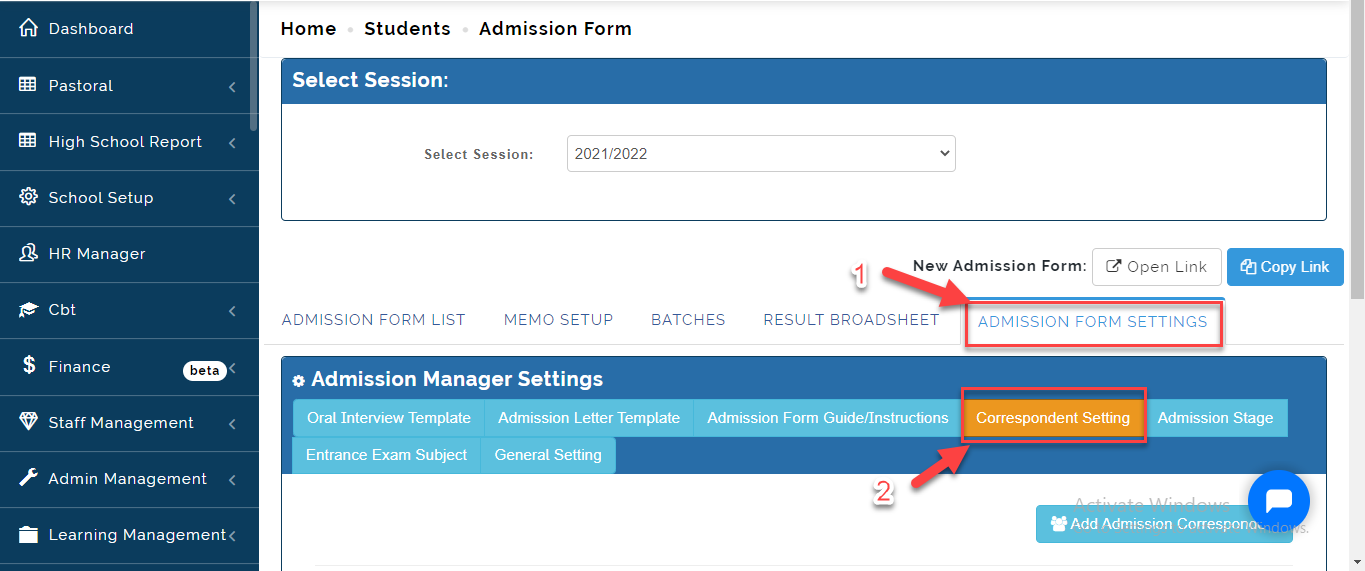
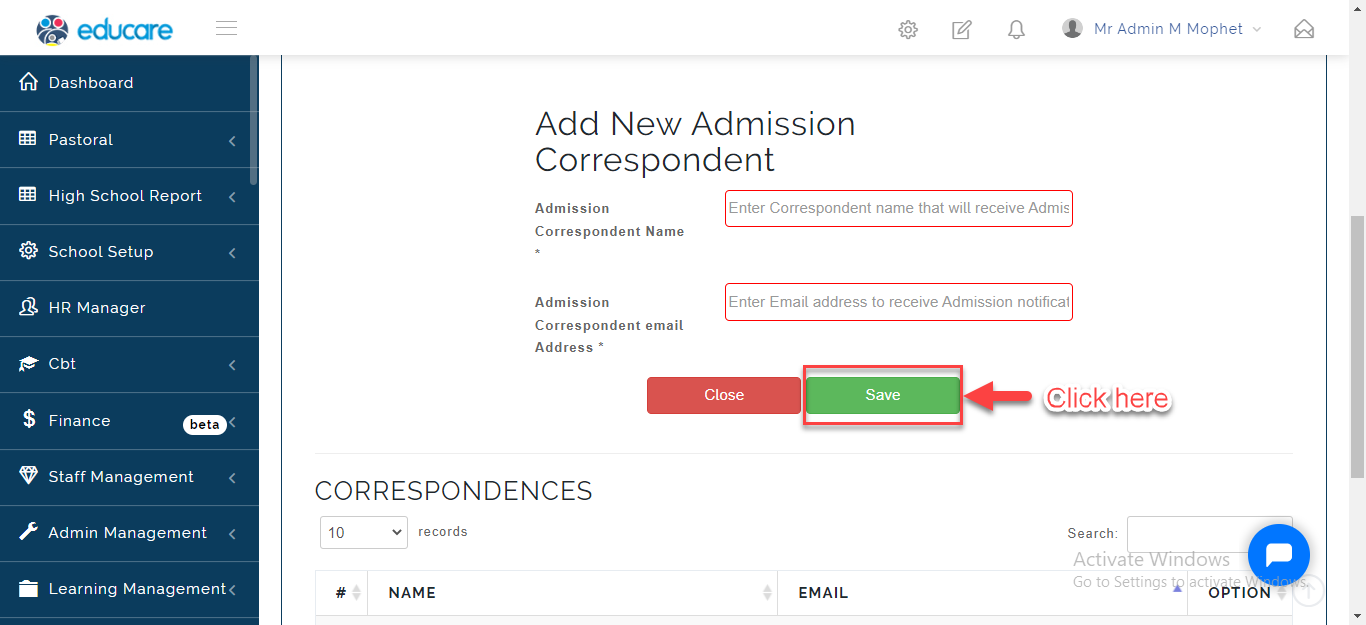
- Enter the Correspondents Name and Email in the text box provided then Click on Save.
Admission Stage
This is where the Admin can Setup the various Admission stages that Applicants follow through to complete their Admission Process. An email is sent to notify applicants on the stages they are in. To do this, follow these Steps:
- Click on Admission Form Settings then Select Admission Stage .
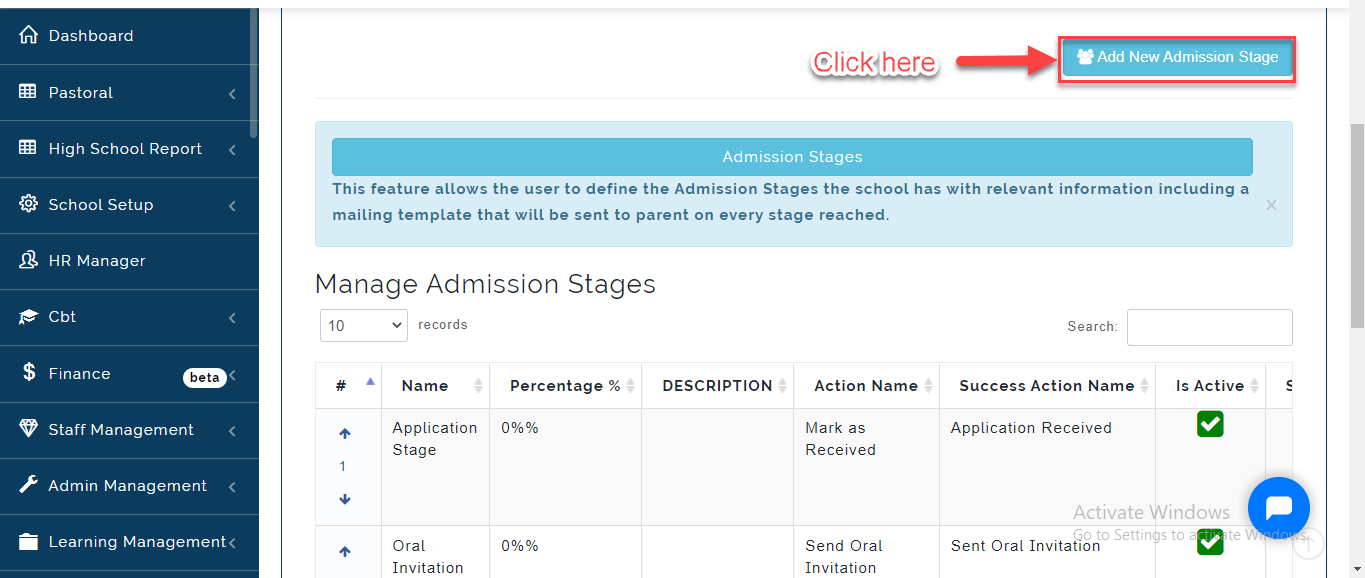
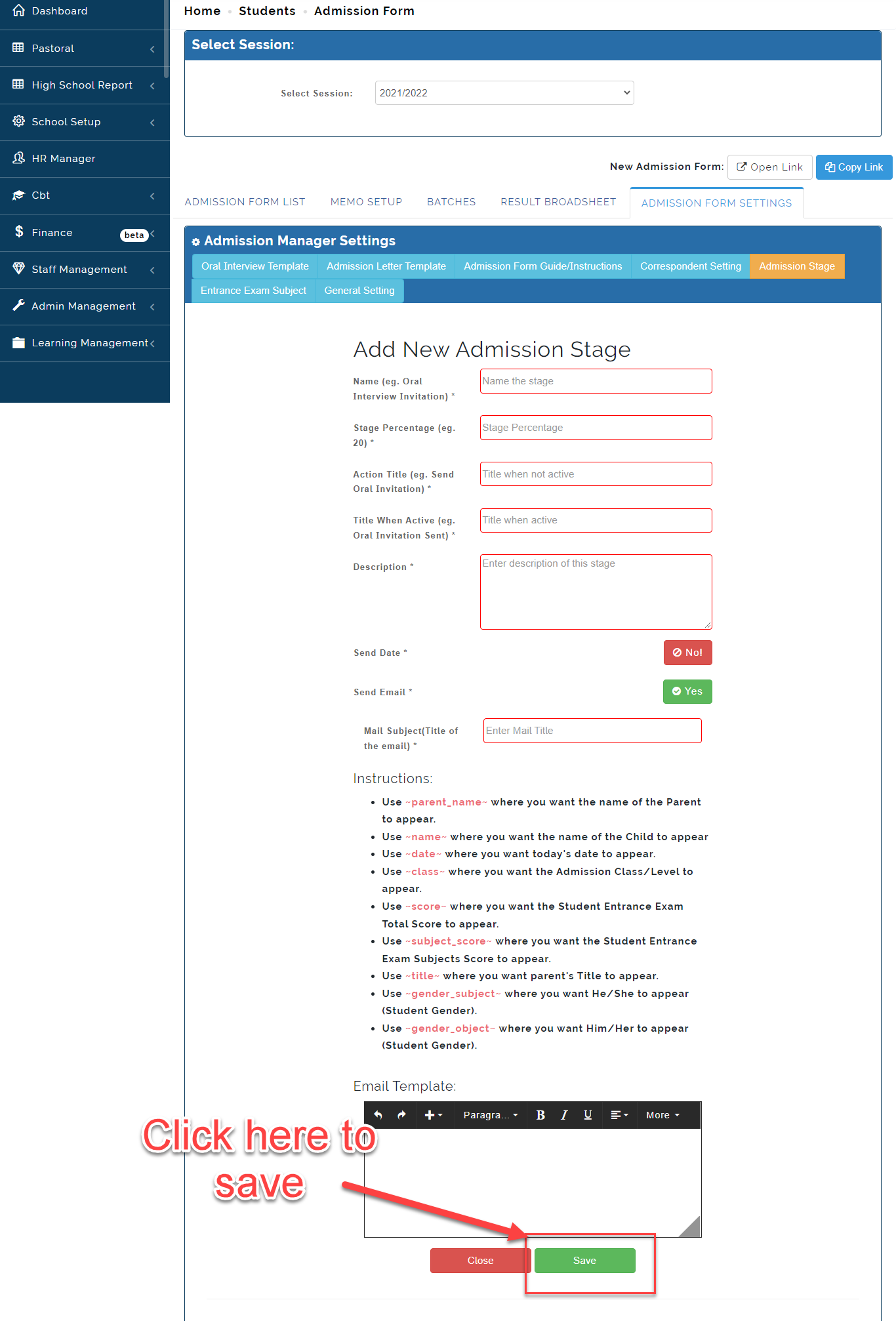
- Fill in the text box with the Name, Percentage, action Title to be seen when email is to be sent or not sent at various stage.
Using the Place holder, Create the Email you want sent, Set and Activate the date and Email notification by Toggling the button as seen in the image below.
Click on Save when done or Close to Ignore.
Exam Entrance Subject
Here the School Admin can Create the Subjects Applicants will take during the Entrance Exam. Follow these Steps to do this:
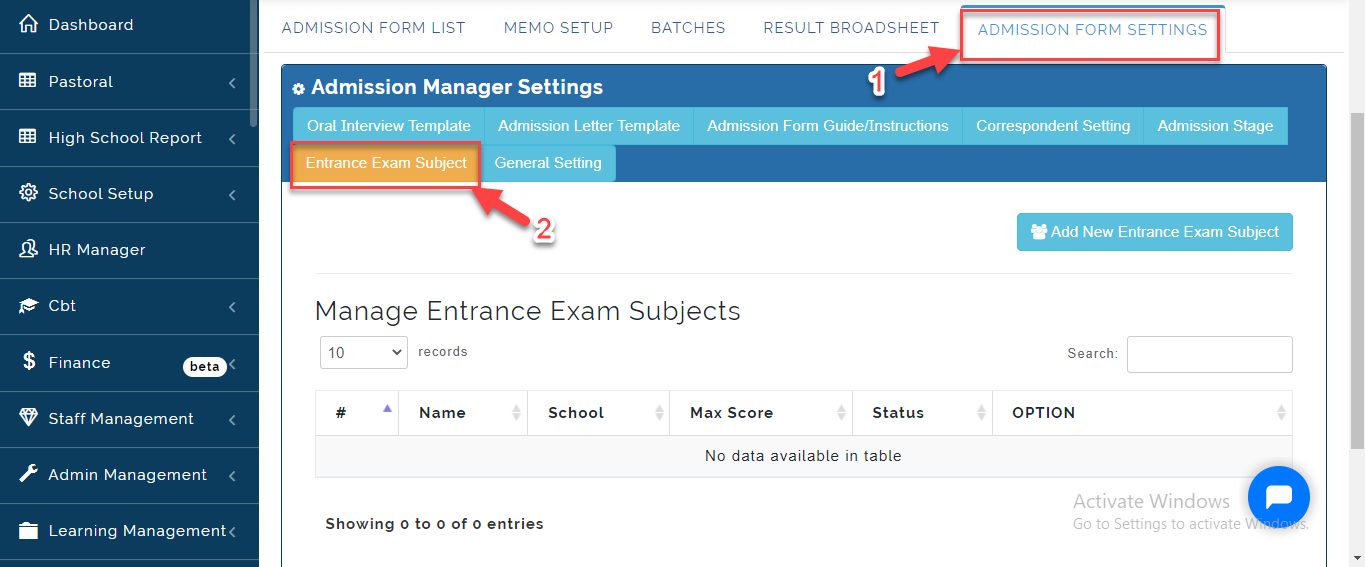
- Click on Admission Form Settings then Select Exam Entrance Subject .
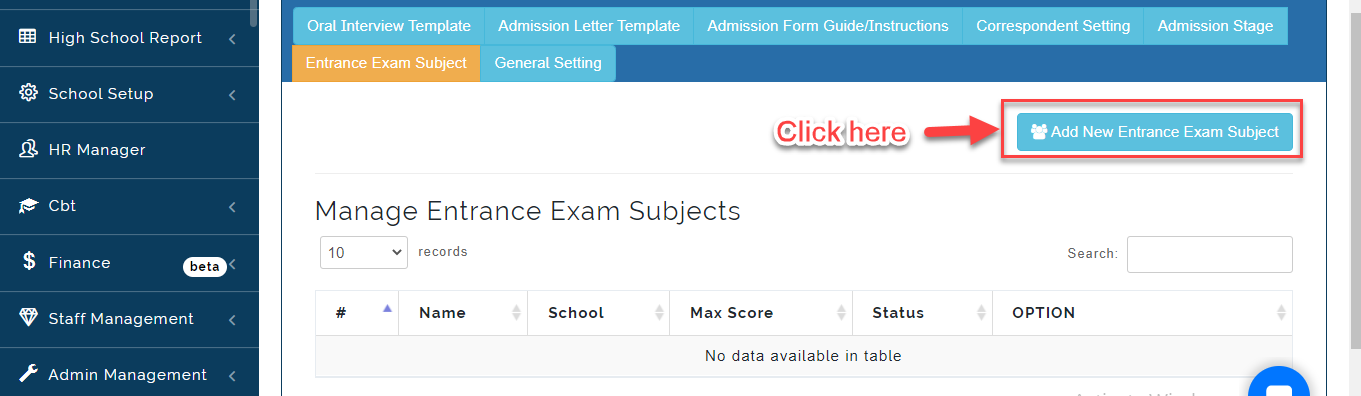
- Click on Add New Entrance Exam Subject, A Text box for entering Subject titles will appear
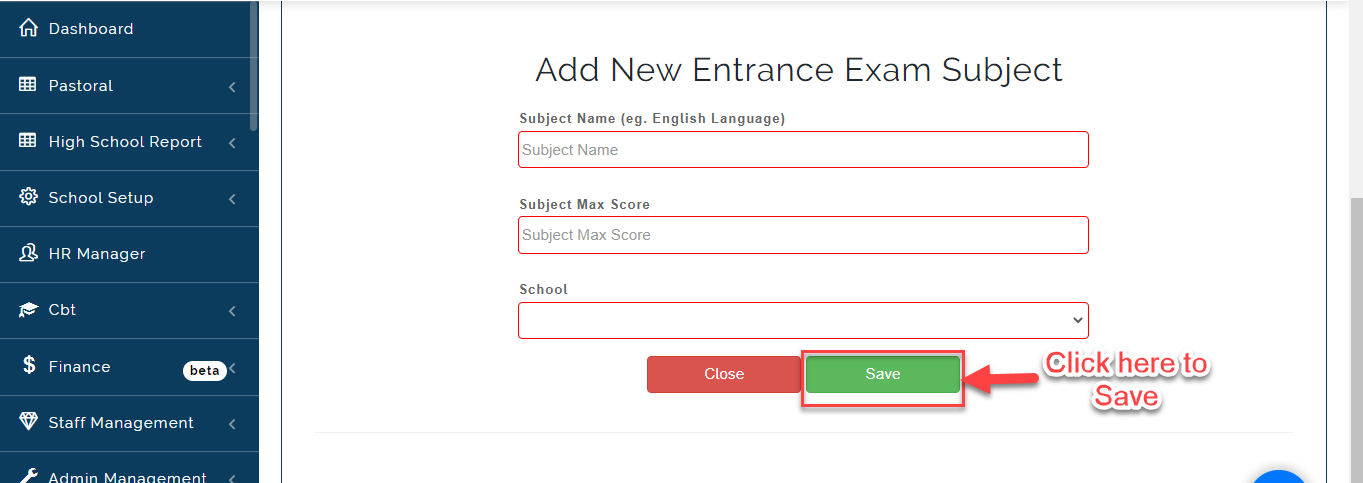
- Fill in the text box with the Subject name, Subject Maximum Score then select the school type the subject Entrance Subject is for. click on Save when done or Close to Ignore.
Click on the Link below to Access the Admission Form below.