This feature is almost the same as the "Transfer Manager", the striking difference is that while "Transfer Manager" carries out the function of transferring students in bulk from one school to another, the "Promotion Manager" is used to promote pupils/students in bulk from one class/level to another within a school.
The processes in using both features are almost similar
To promote all pupils/students in a class with just a click, follow the steps below:
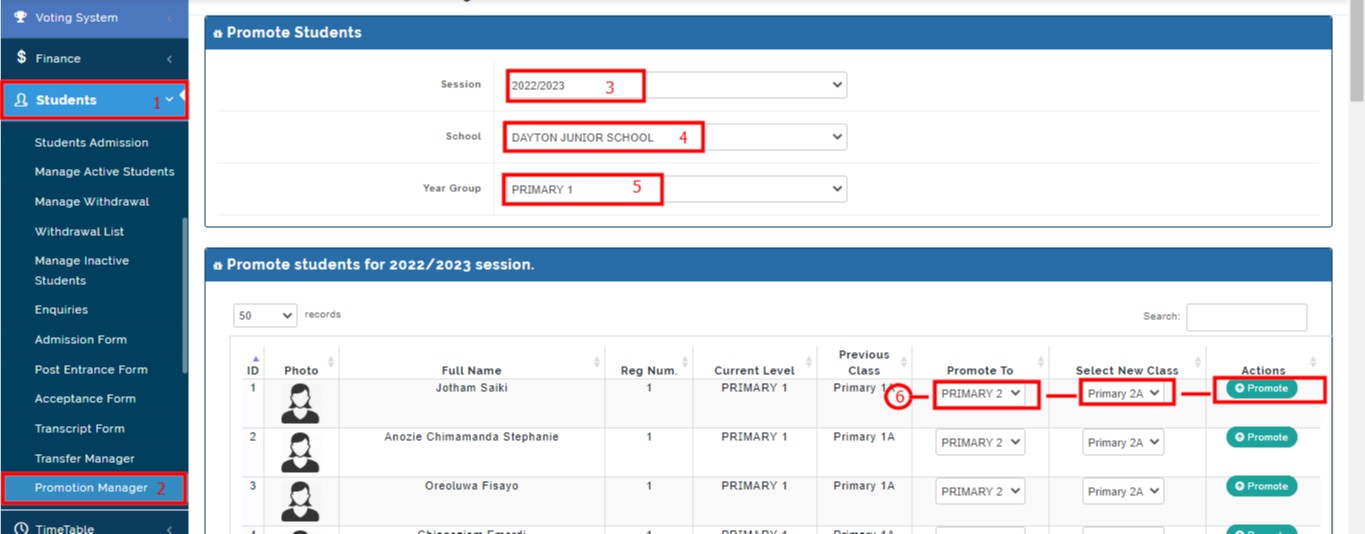
- Click on the "Student" module in the module menu section
- Select and click on the dropdown module "Promotion Manager"
- Select the session you want to carry out the promotion in (Note that a new session is created and activated as the current session before promotion)
- Select the school you want to carry out the promotion for (this applies to institutions that run more than one school e.g EYFS, Junior School, High School, and so on)
- Select the Year Group/Current Level of the students you want to promote to a higher class
- Set your desired parameter on the student list (Placement of students in their new levels and arms where applicable)
To complete the class placement, take the following steps:
- On the student list, click on the "Promote To" section to select the Level you are promoting the pupil/student to
- Click on the "Select New Class" area to select the Class Arm of the pupil/student where applicable
- Apply to all pupils/students
- Use the "Promote" button to promote them individually but the idea is to promote them all at the same time
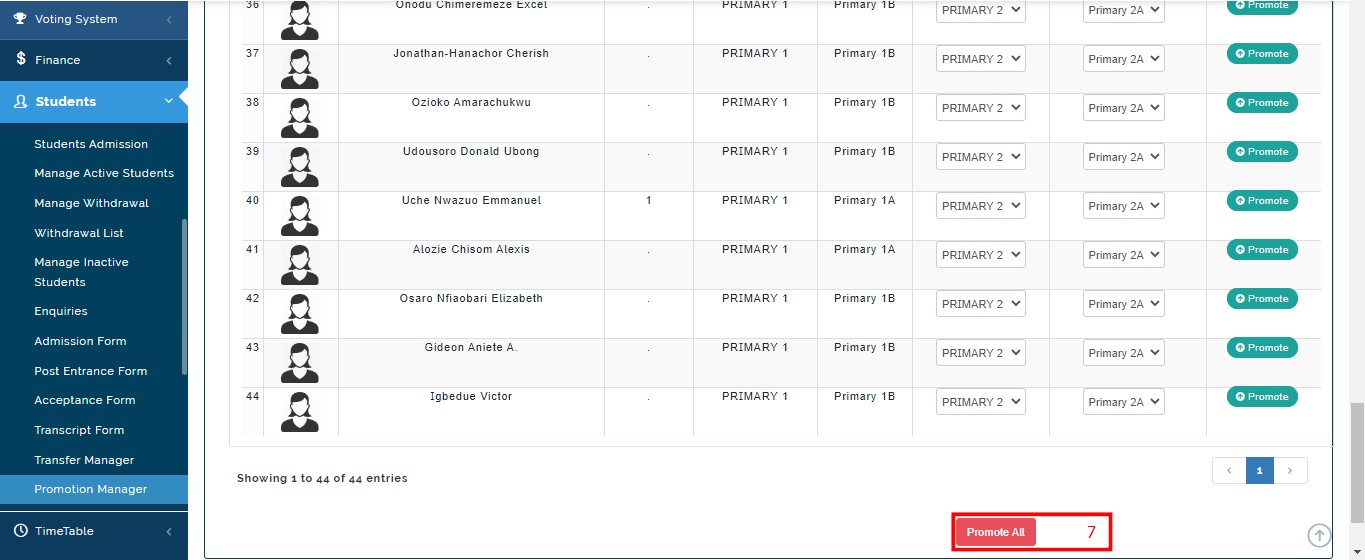
- Use the "Promote All" button at the base of the page to complete the operation.
Below is the pictorial illustration of the steps involved in the bulk promotion of pupils/students from one session/level to another