Admin in HR is where you do the basic setup required by the HR Module
To access the the admin follow the steps below;
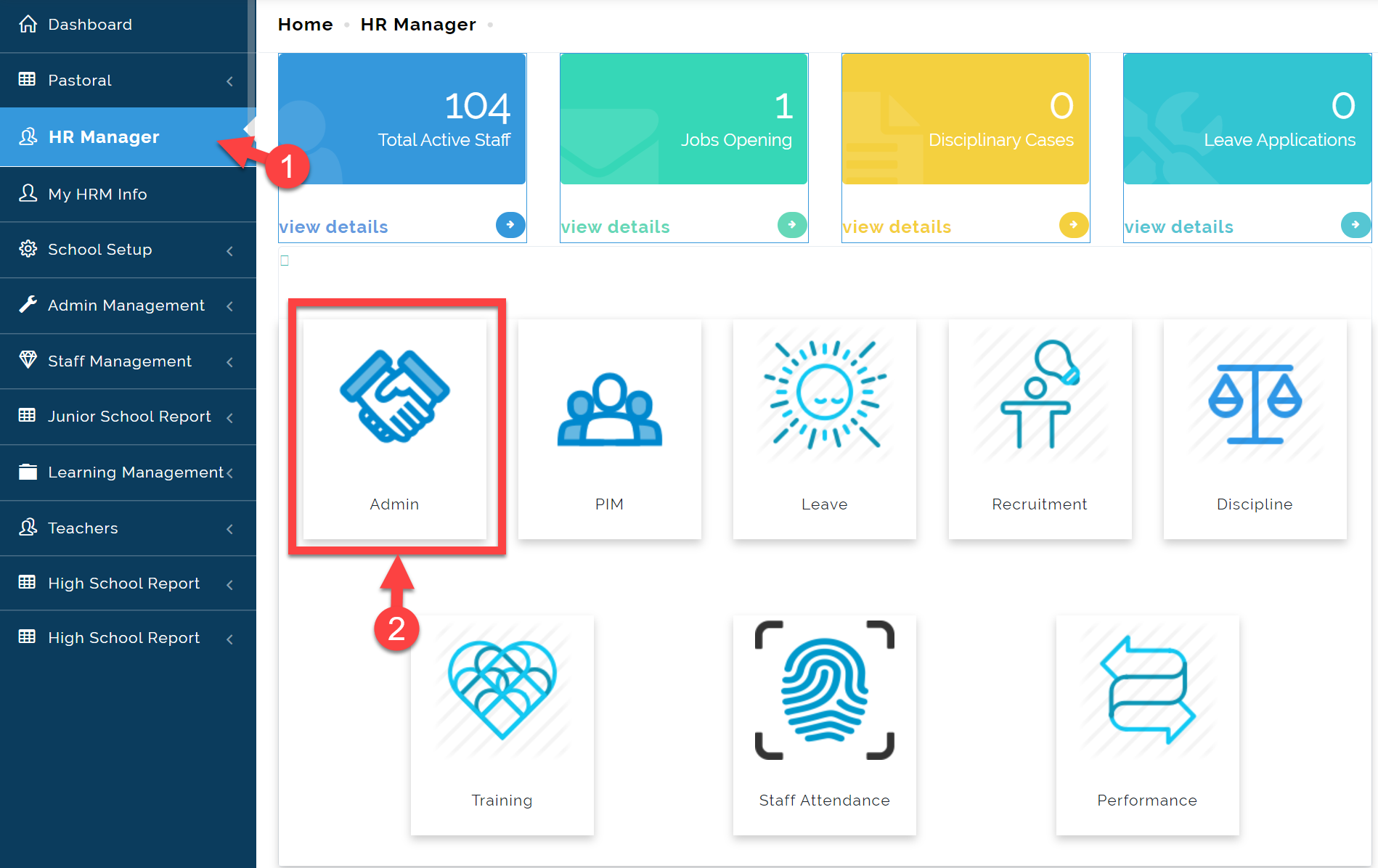
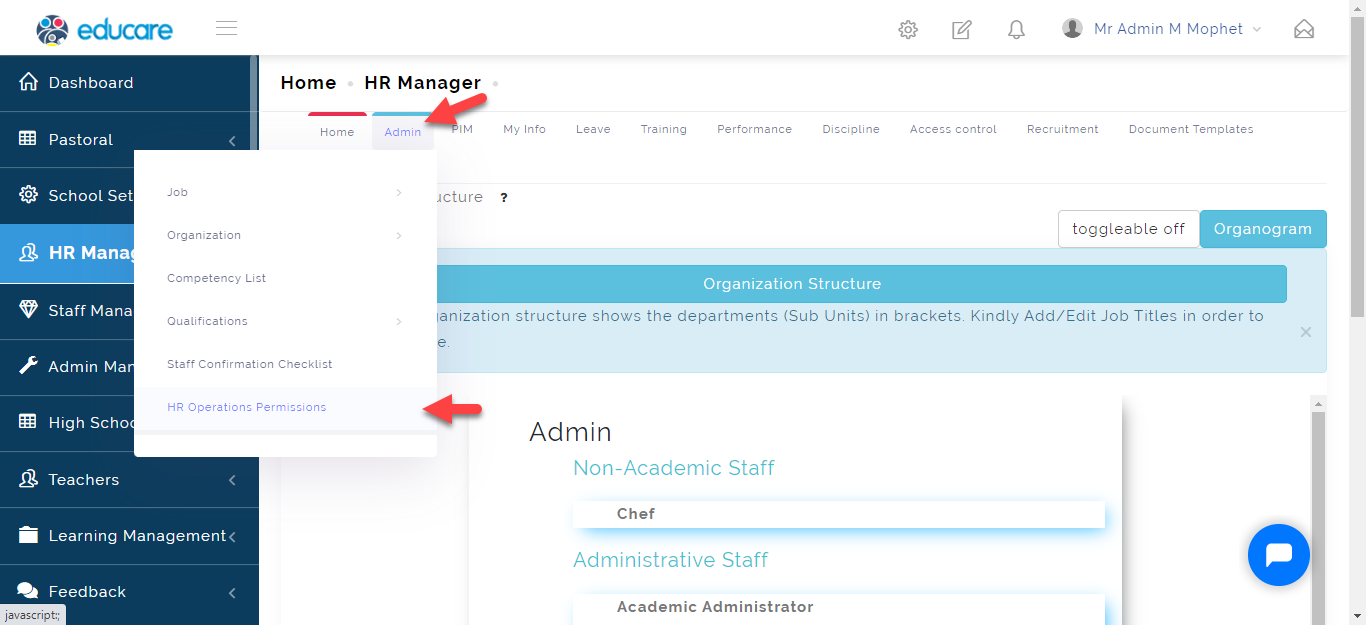
- Click on HR Manager
- Select Admin as indicated in the picture below.
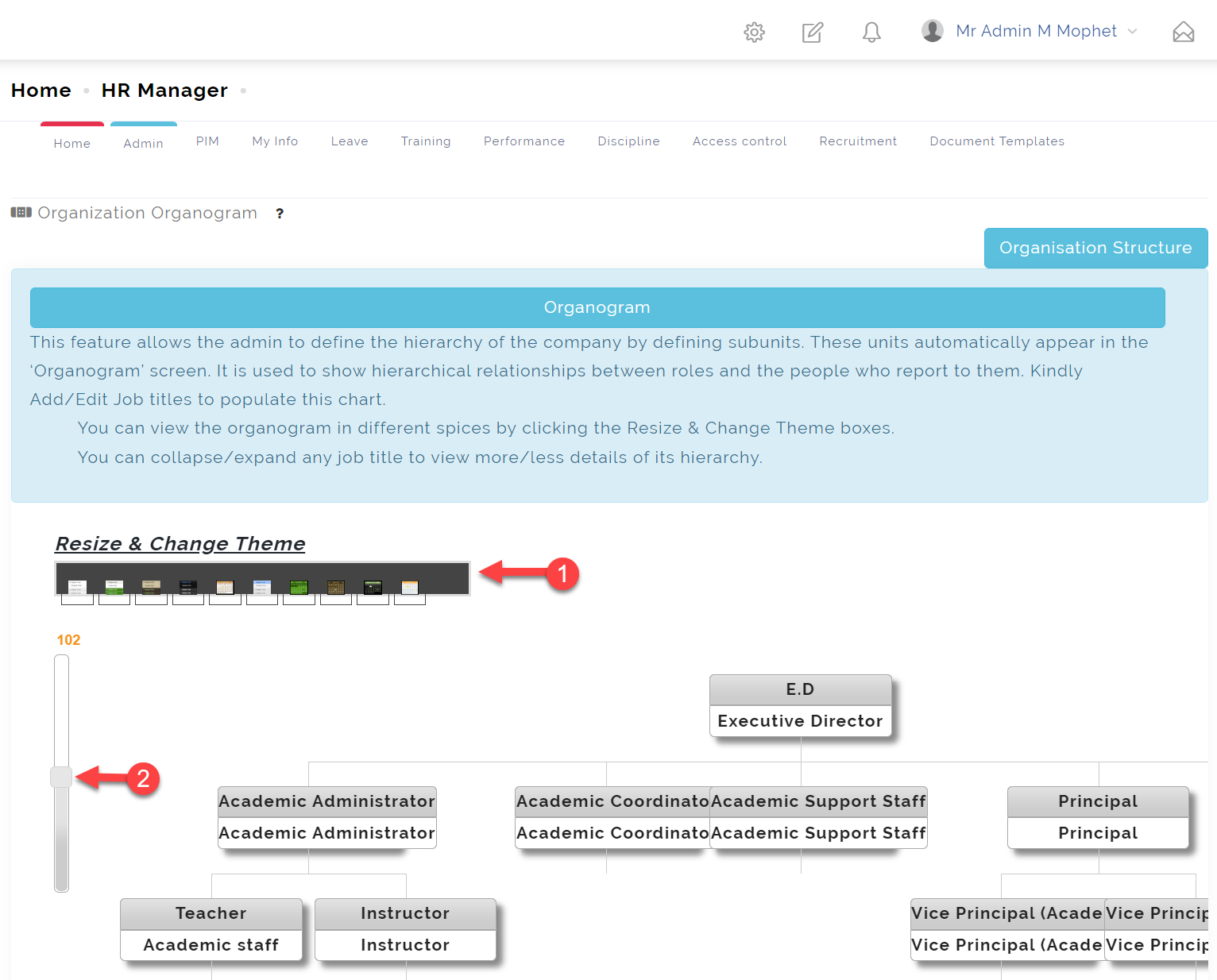
By default this opens up the Organogram as seen below
Organization: Structure
Structure describes the legal structure of a company that influences the day-to-day operations of a business.
- Structure has the Organogram which is a diagram that shows the structure of an organization and the relationships and relative ranks of its parts and positions/jobs.
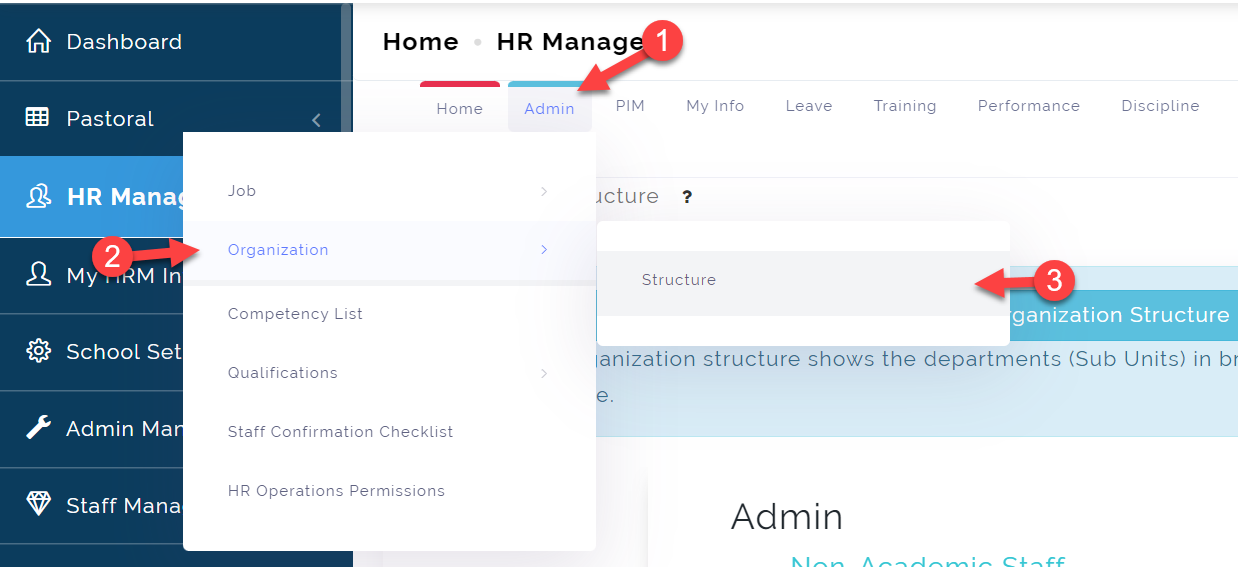
You can later access this page by clicking on Admin from the dropdown, click Organization then select Structure as shown in the picture below.
Here you can view, zoom in and out of the organogram and also select a theme you fancy.
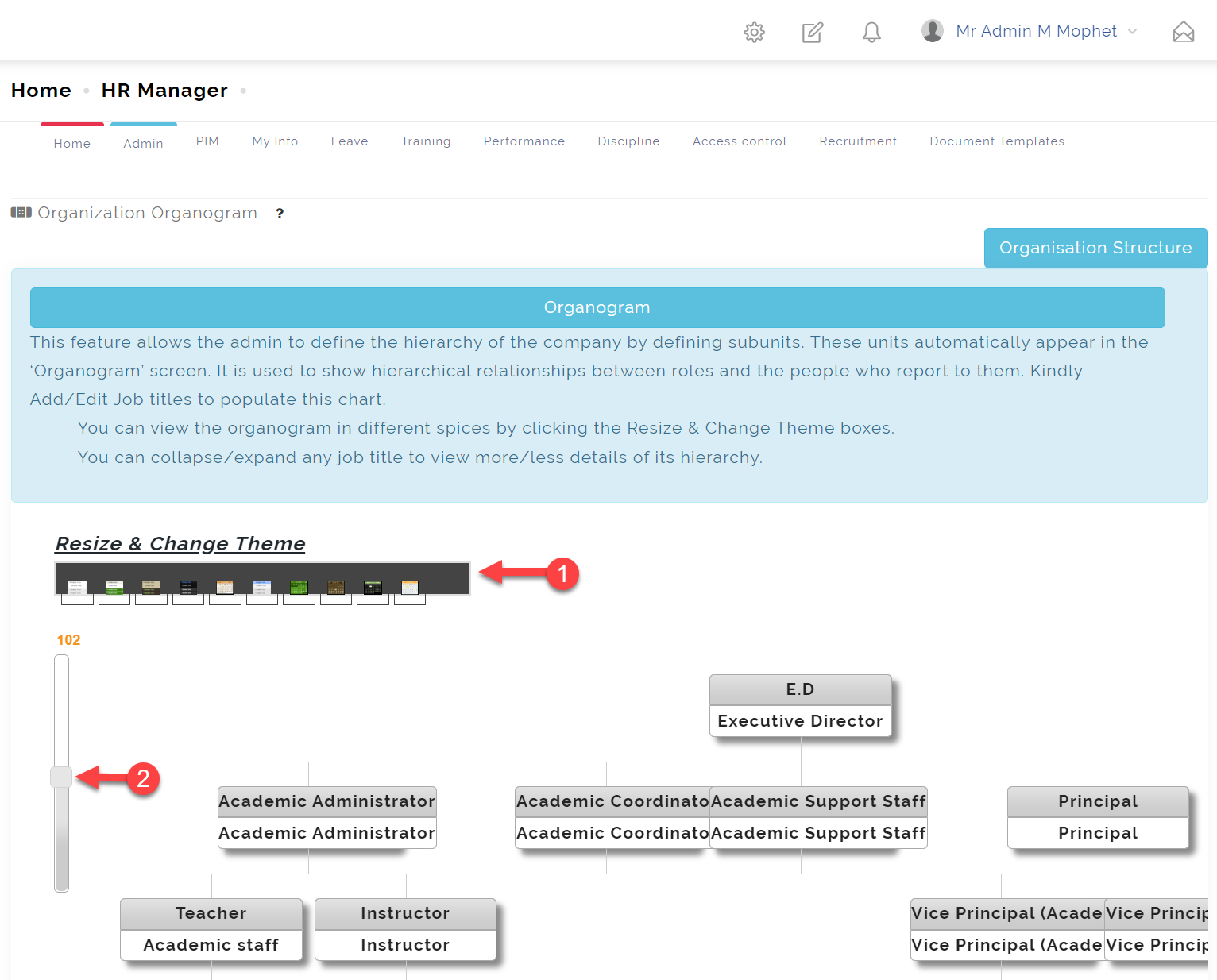
The Organogram
The organogram hierarchy is created from the Job Title which will be later explained in details as we proceed.
Job: Salary Components
This is where the HR Manager creates the Salary Components that make up the pay slip for their employees.
To access the Salary Components, follow these steps below;
Click on Admin
From the dropdown menu, select Job
Then select the Salary Component
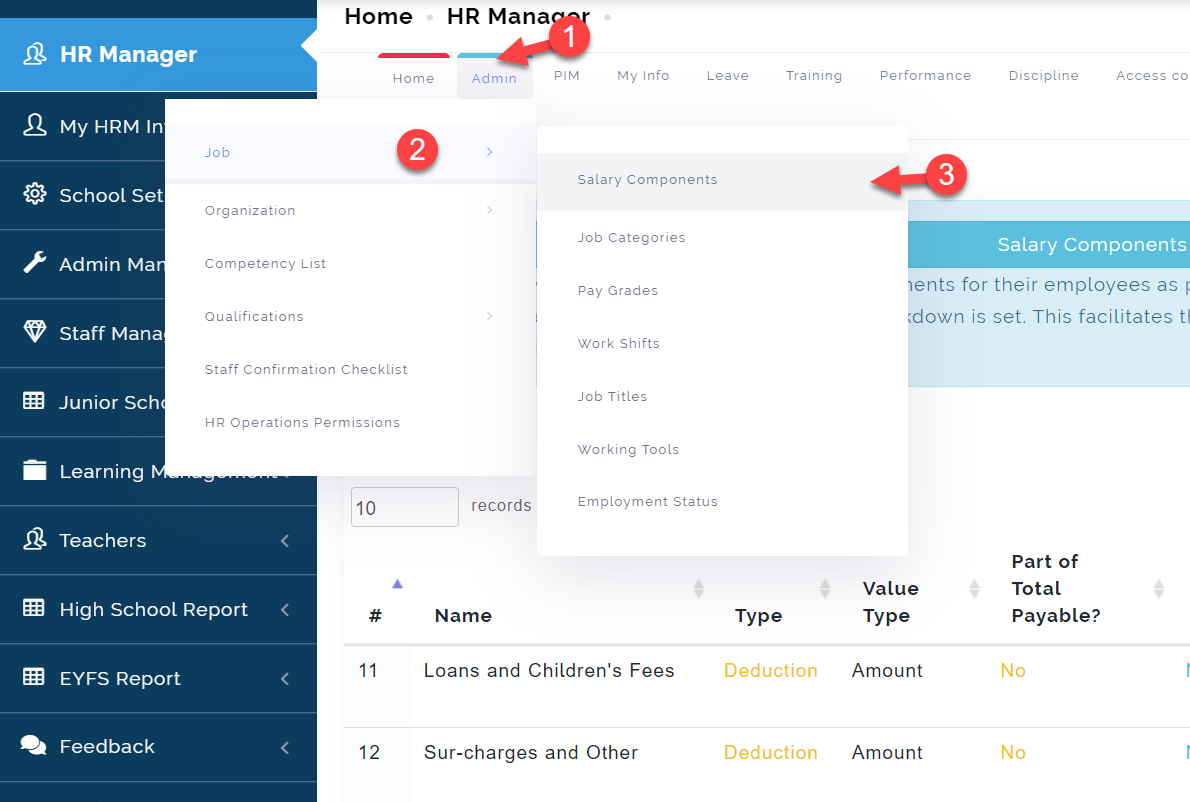
To add a Salary Component, follow these steps below;
Step 1:
Click on the Add icon as indicated in the picture below
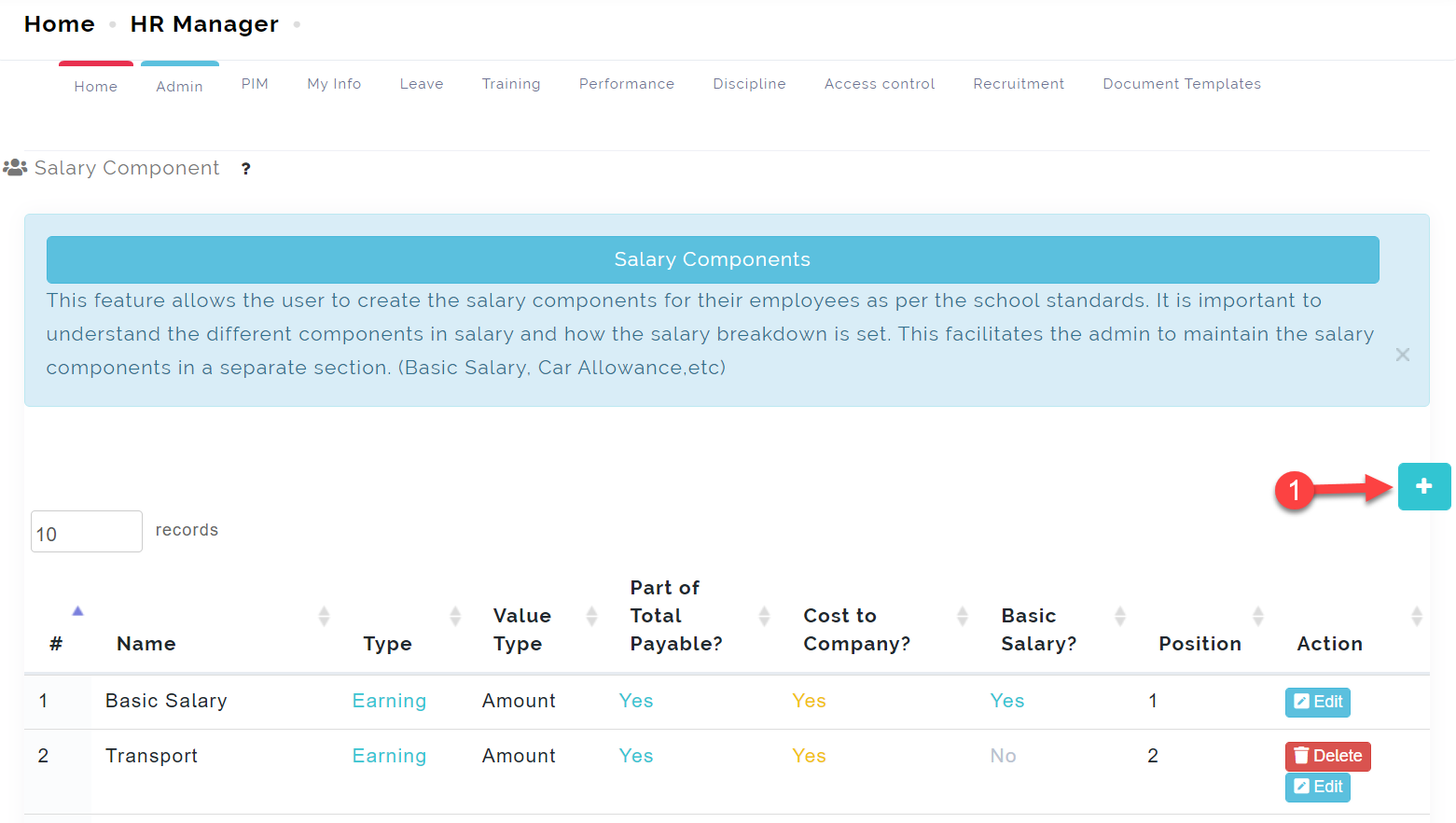
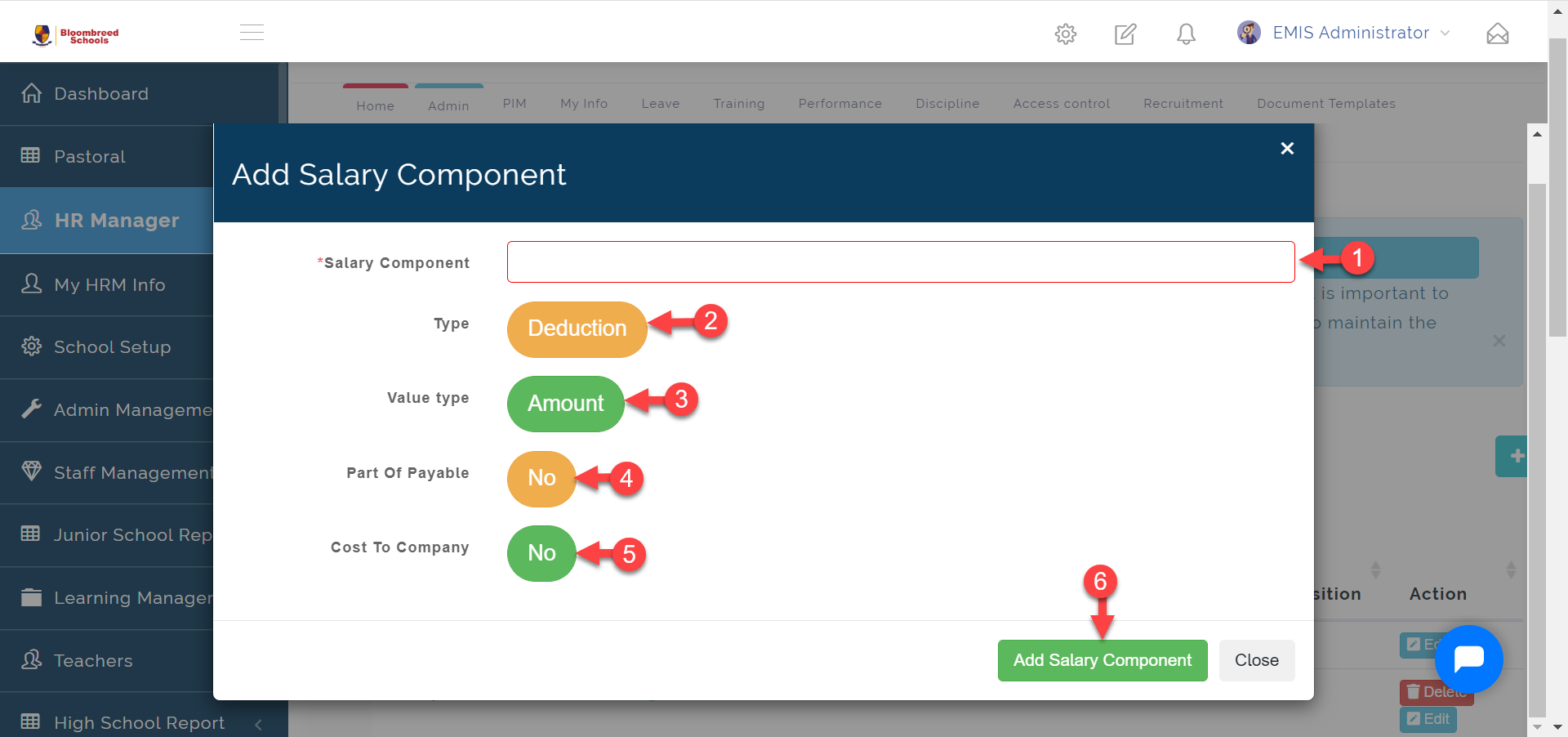
Step 2:
-
- Enter component name
-
- Choose if the component is a Deduction or an *Earning.
-
- Select the Value type if its an Amount or a Percentage
-
- Select if its a Part of Payable
-
- Select if the component is a Cost To Company.
-
- Click on Add Salary Component to save.
Part of Payable
This basically means money required to be paid. So if you select No then it means the money is not added as a take home salary but paid directly to a service rendered e.g. Medical allowance, Pension etc.
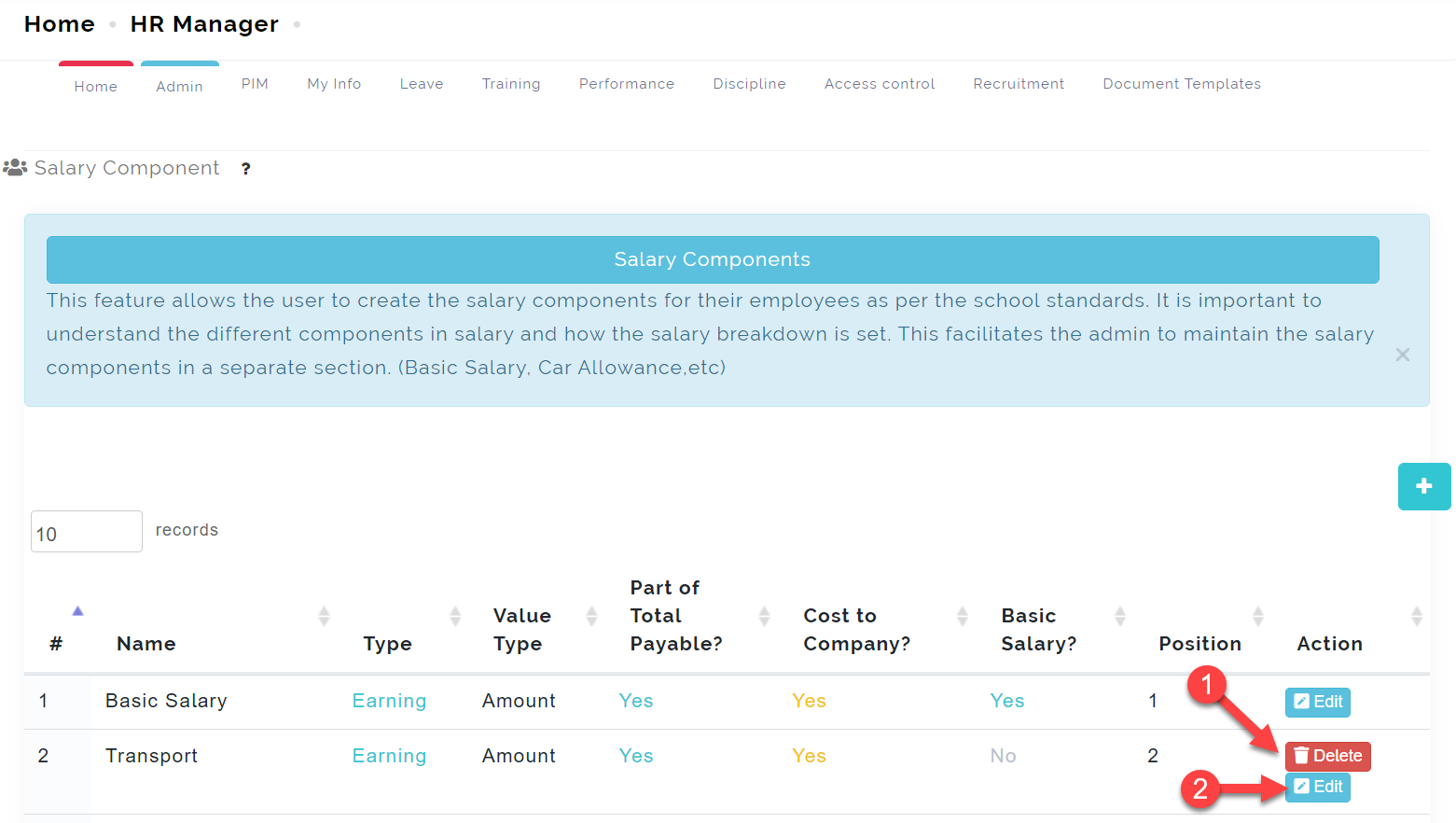
You can Edit and Delete components by clicking on the respective buttons as indicated below.
Job: Job Categories
A Job Category defines the type of work performed, as opposed to the occupation. Here you can categorize different roles in your school.
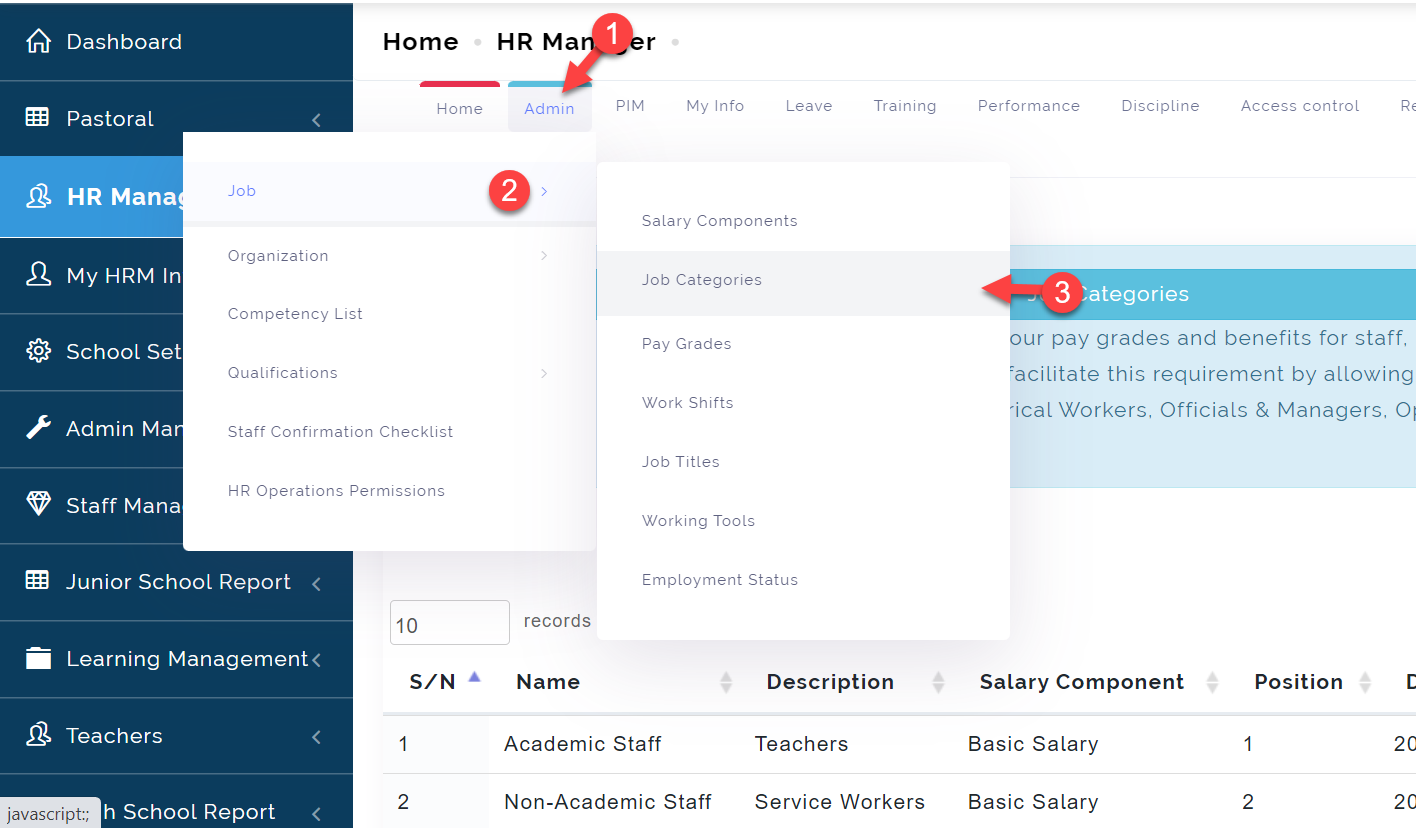
To access the Job Category, follow these steps below;
Click on Admin
From the dropdown menu, select Job
Then select the Job Category
To add a Job Category, follow these steps below;
Step 1:
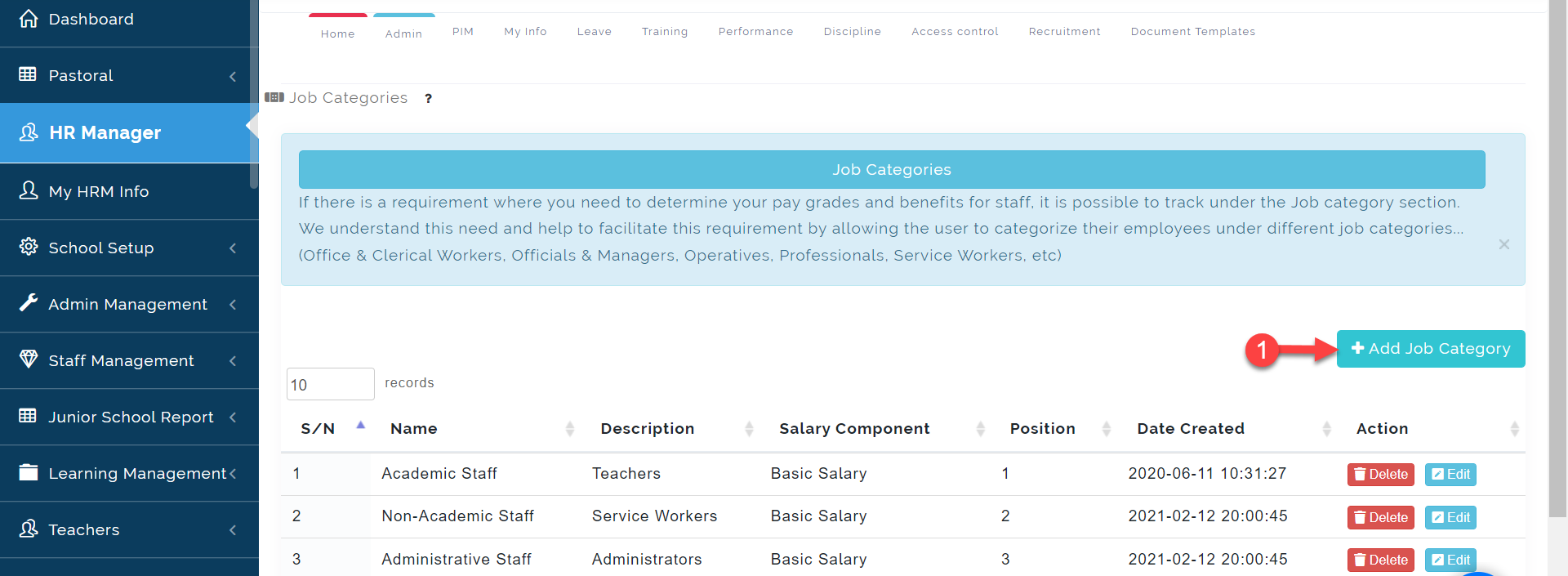
Click on the Add Job Category icon as indicated in the picture below.
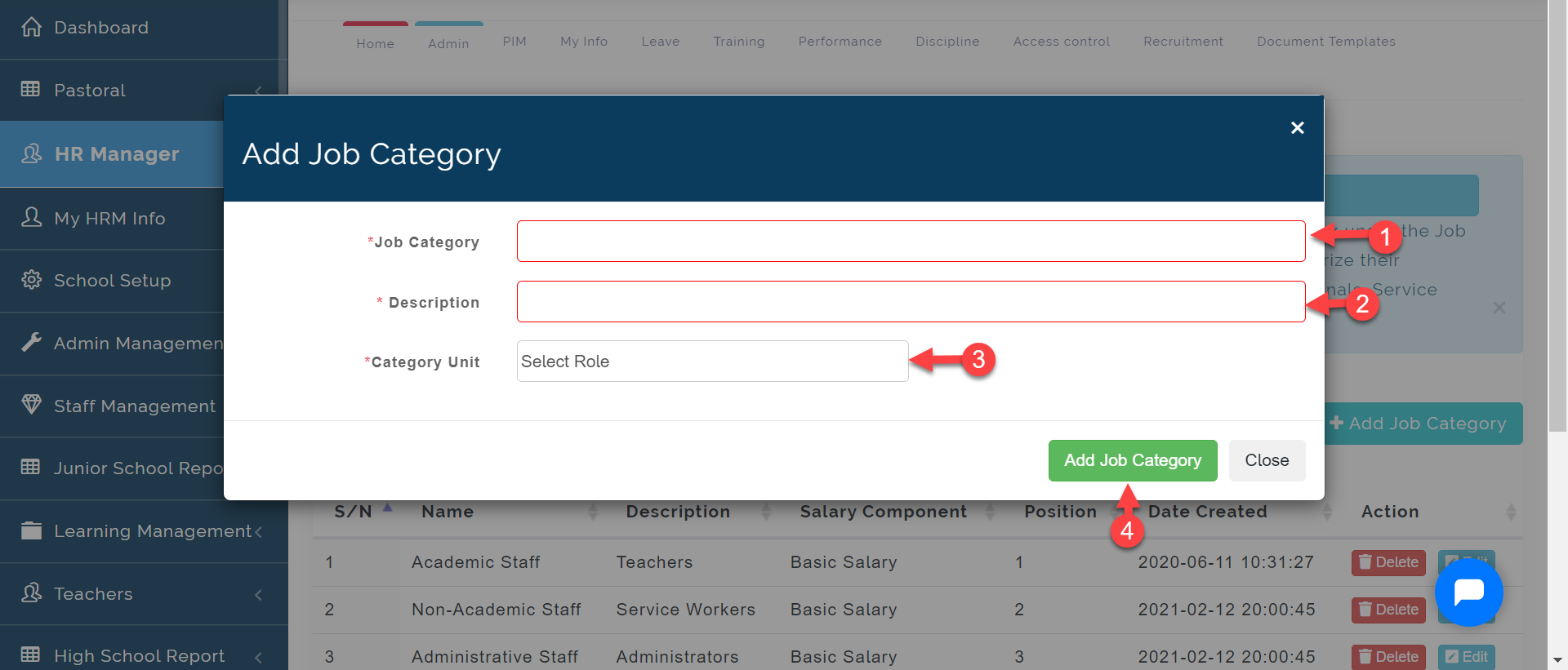
Step 2:
-
- Enter Job Category name
-
- Enter the Description of the Category
-
- Select the Category Unit from the list of roles already created on the system.
-
- Click on Add Job Category to save.
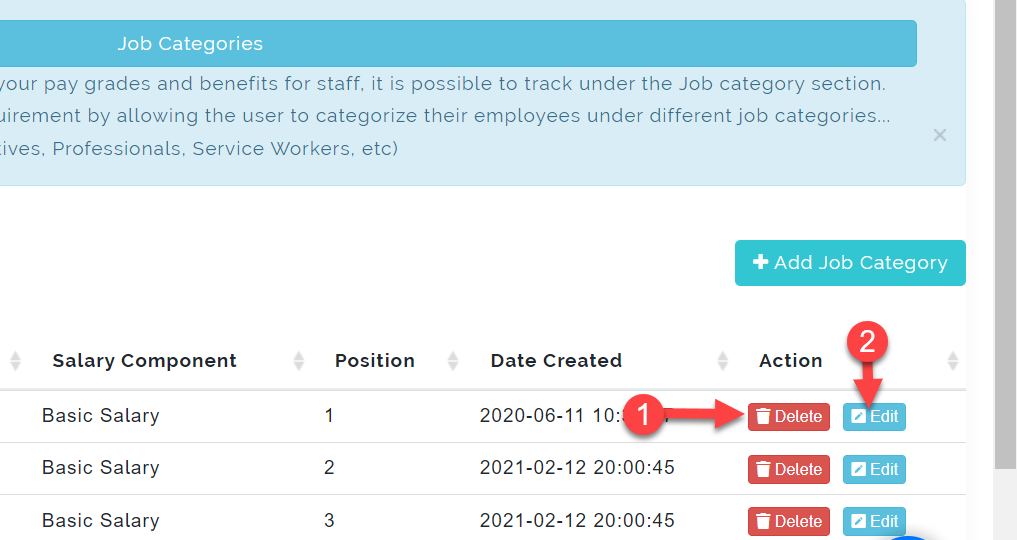
You can Edit and Delete components by clicking on the respective buttons as indicated below.
Job: Pay Grades
The Pay Grade enables organization determine the amount of pay an employee receives. Each position within an organization (Executive Director, Grade Level 4, Grade 8, etc) has a specific pay grade and new employees are compensated depending on their education and experience and keeping into account the responsibility, seniority, position, etc.
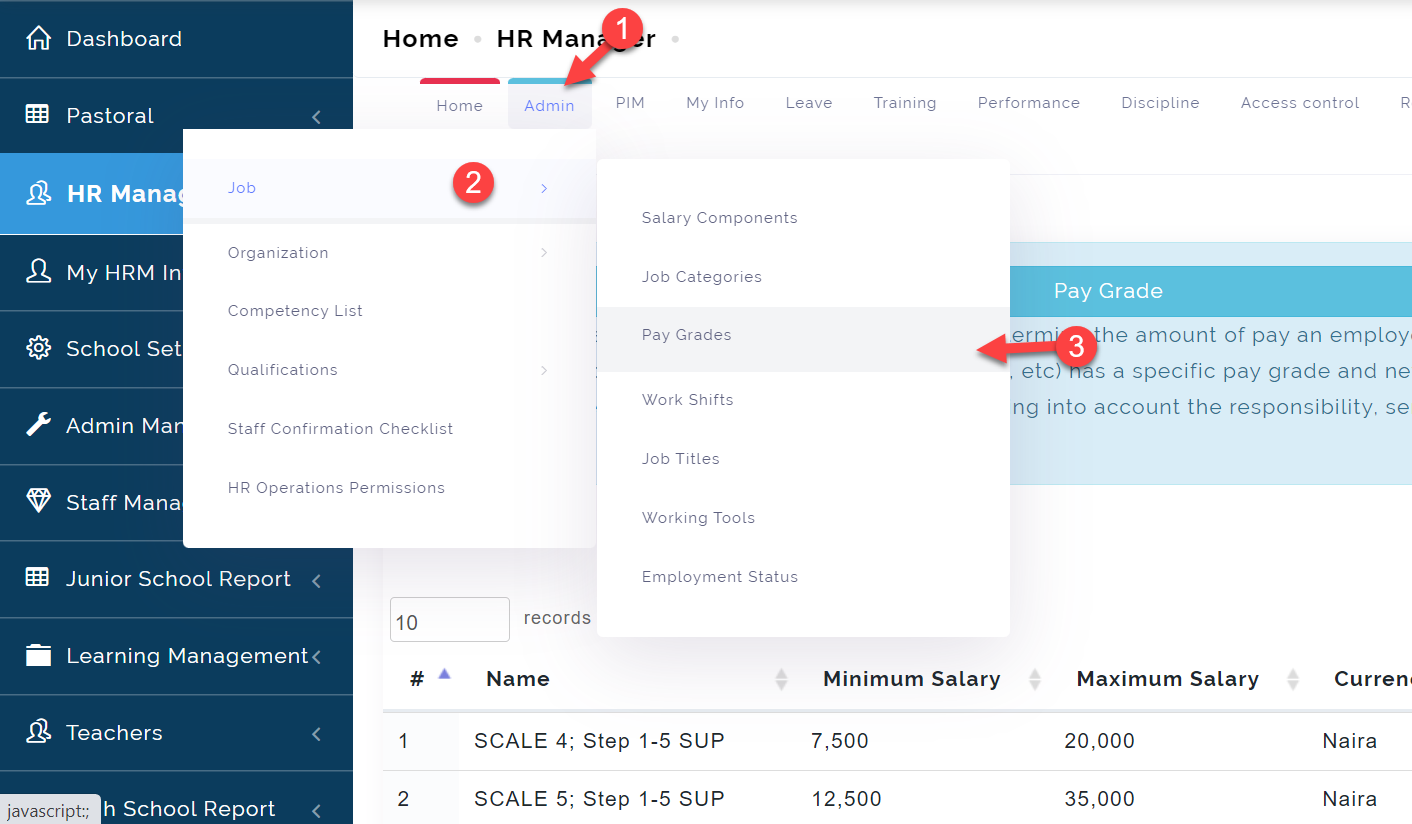
To access the Pay Grades, follow these steps below;
Click on Admin
From the dropdown menu, select Job
Then select the Pay Grades
To add a Pay Grades, follow these steps below;
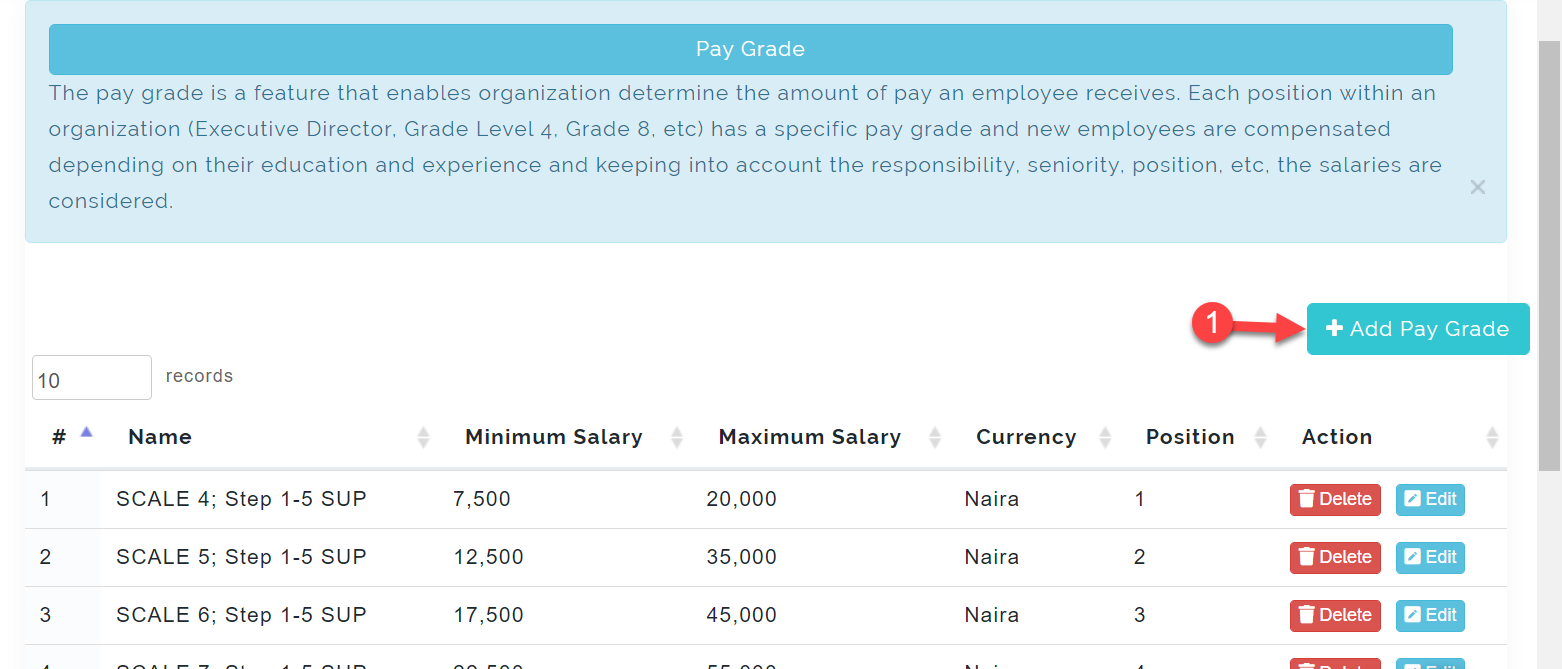
Step 1:
Click on the Add Pay Grades icon as indicated in the picture below.
Step 2:
-
- Enter Pay Grade name
-
- Enter the Minimum Salary and also the Maximum Salary for the Pay Grade.
-
- Select the Currency from the list.
-
- Enter the amount for the selected Salary Component
-
- Click on the X icon indicate 5 in the picture below to activate the Salary Component for the Pay Grade.
-
- Click on Add Pay Grade to save.'
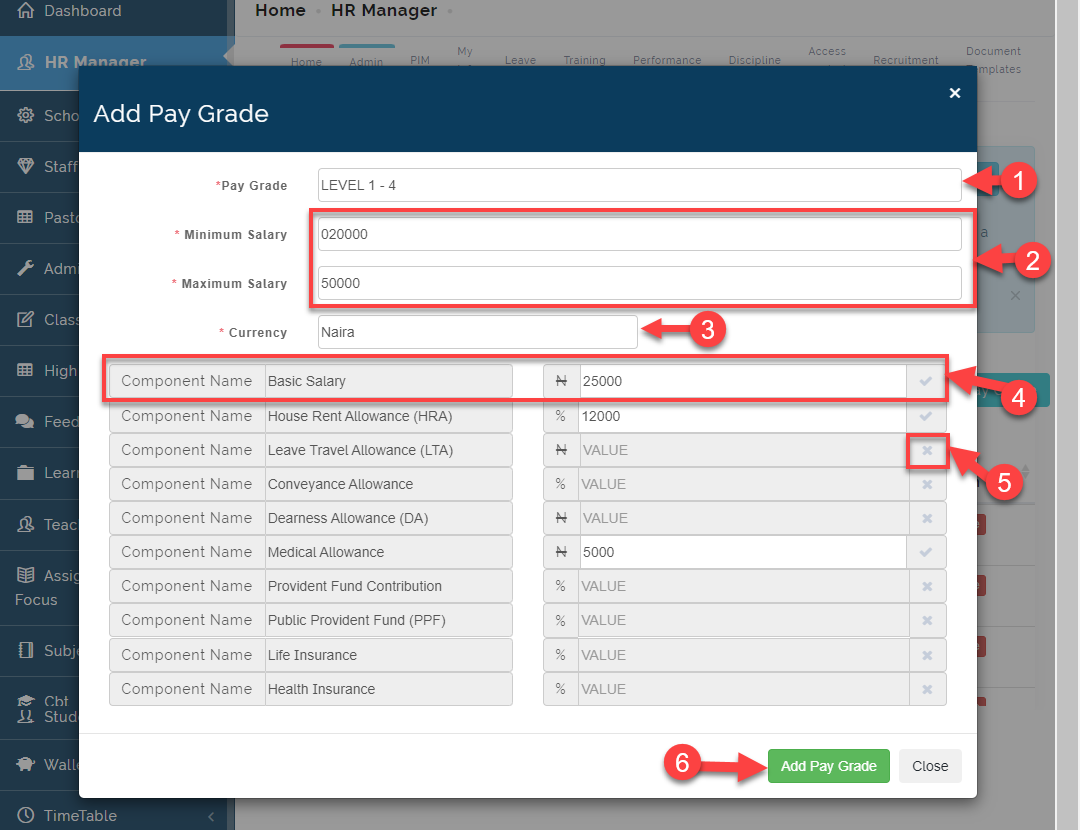
By default, Basic Salary is the only activated component in the Pay Grade. You can activate other components by clicking on the X icon indicate 5 in the picture above
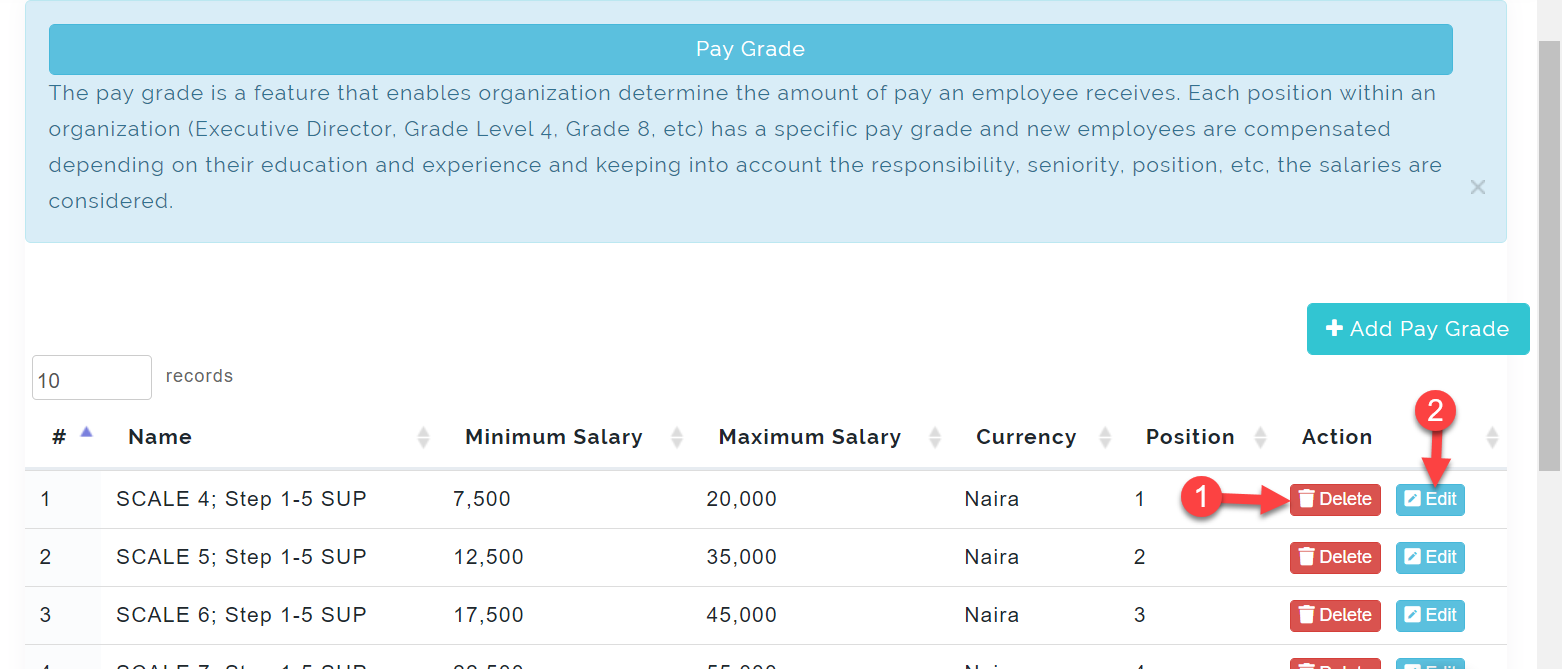
You can Edit and Delete components by clicking on the respective buttons as indicated below.
Job: Work Shift
For some organizations, they have different work shifts for different employees based on their service in the organization. Work shifts can be configured to make use of, or provide service across, all 24 hours of the clock each day of the week (often abbreviated as 24/7). The practice typically sees the day divided into shifts, set periods of time during which different groups of workers perform their duties.
To access the Work Shifts, follow these steps below;
Click on Admin
From the dropdown menu, select Job
Then select the Work Shifts
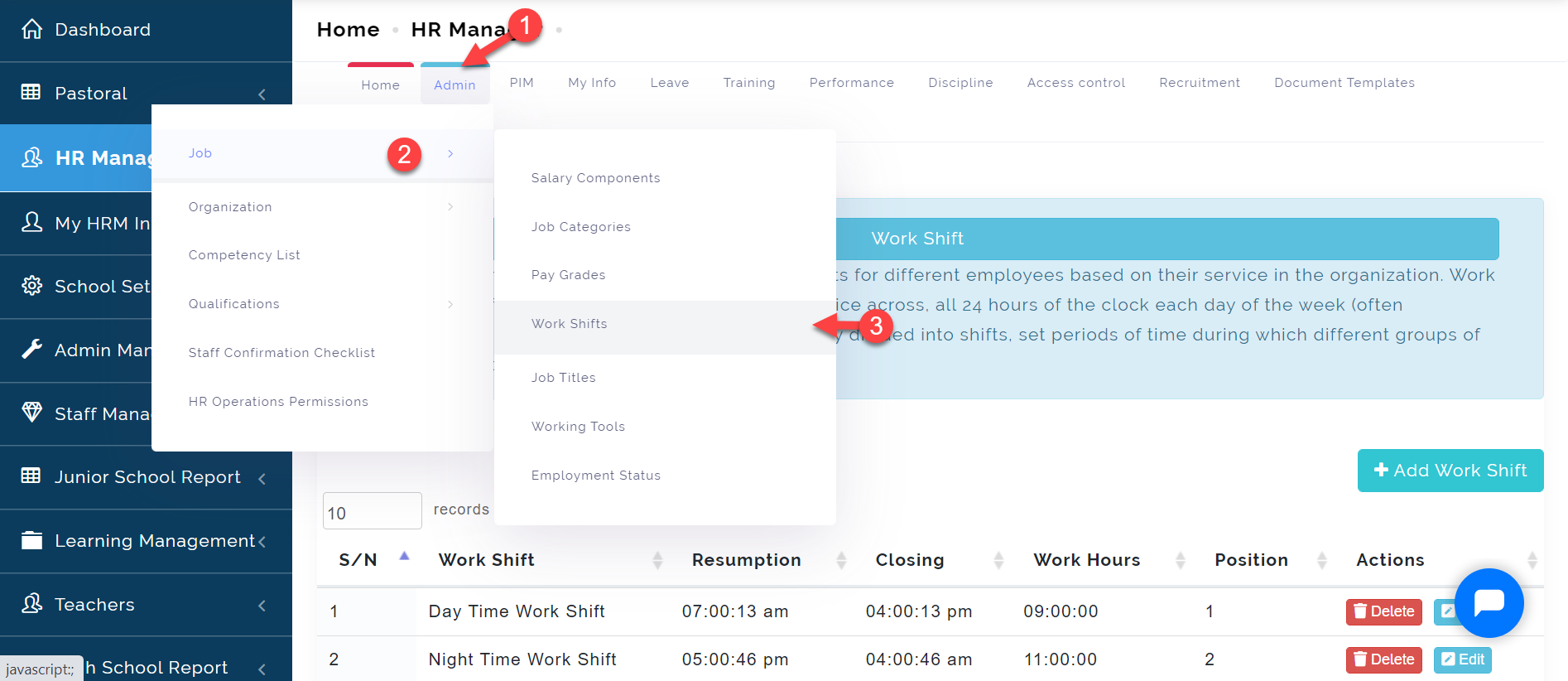
To add a Work Shifts, follow these steps below;
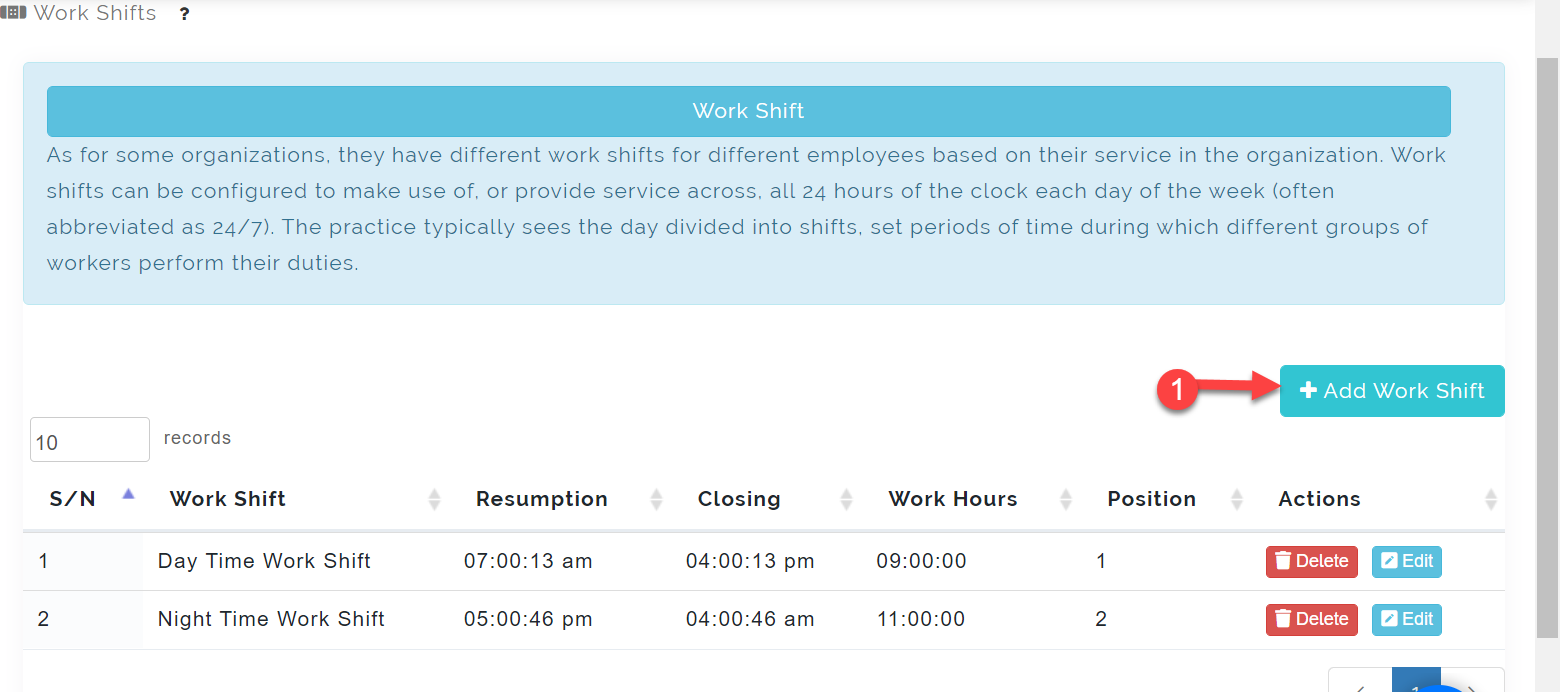
Step 1:
Click on the Add Work Shifts icon as indicated in the picture below.
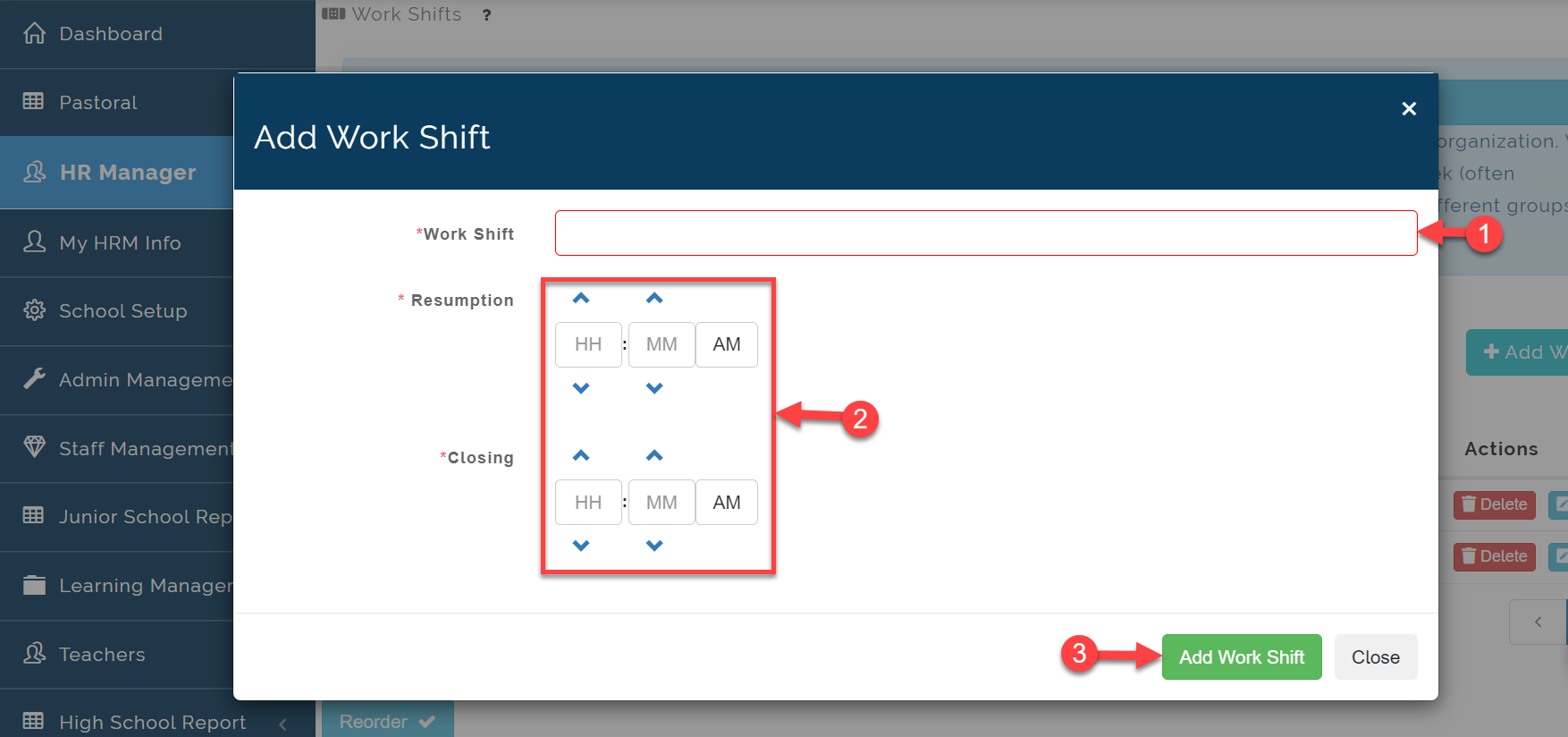
Step 2:
-
- Enter the Work Shift name
-
- Enter the Resumption and Closing time
-
- Click on Add Work Shift to save.
You can Edit and Delete components by clicking on the respective buttons as indicated below.
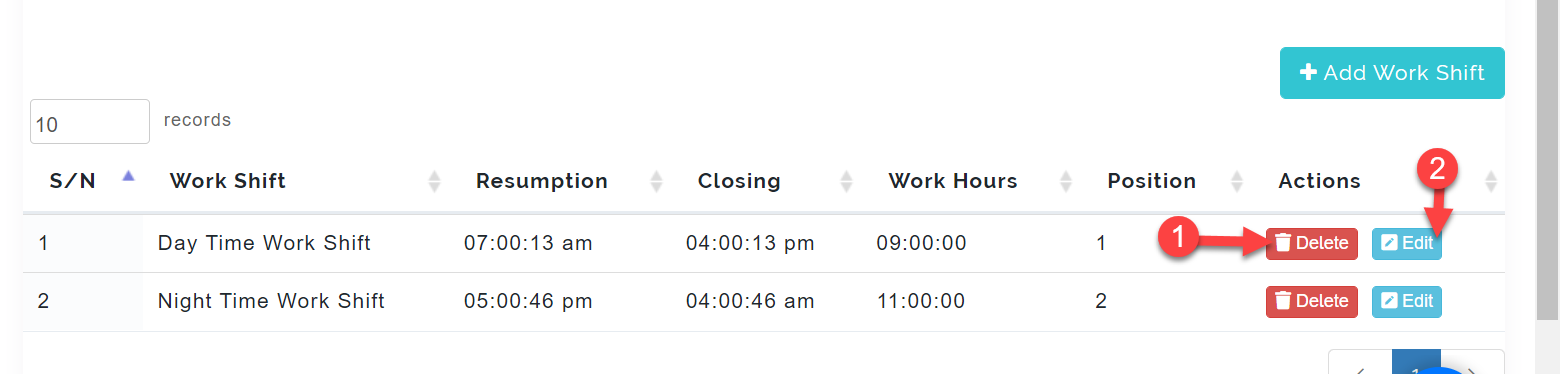
Job: Job Title
This is where you create the Job Titles with the job specification document and other relevant information needed for the Job.
This is also where the Organogram is formed from.
To access the Job Titles, follow these steps below;
Click on Admin
From the dropdown menu, select Job
Then select the Job Titles
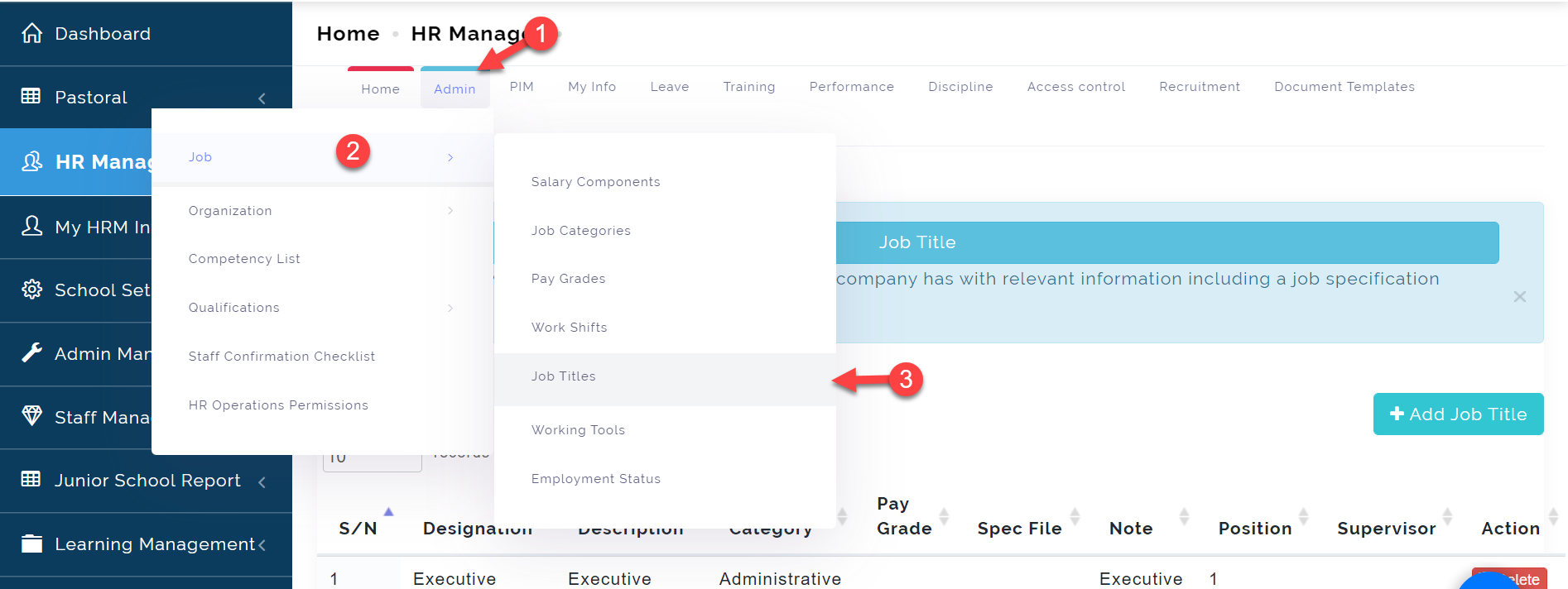
To add a Job Titles, follow these steps below;
Step 1:
Click on the Add Job Titles icon as indicated in the picture below.
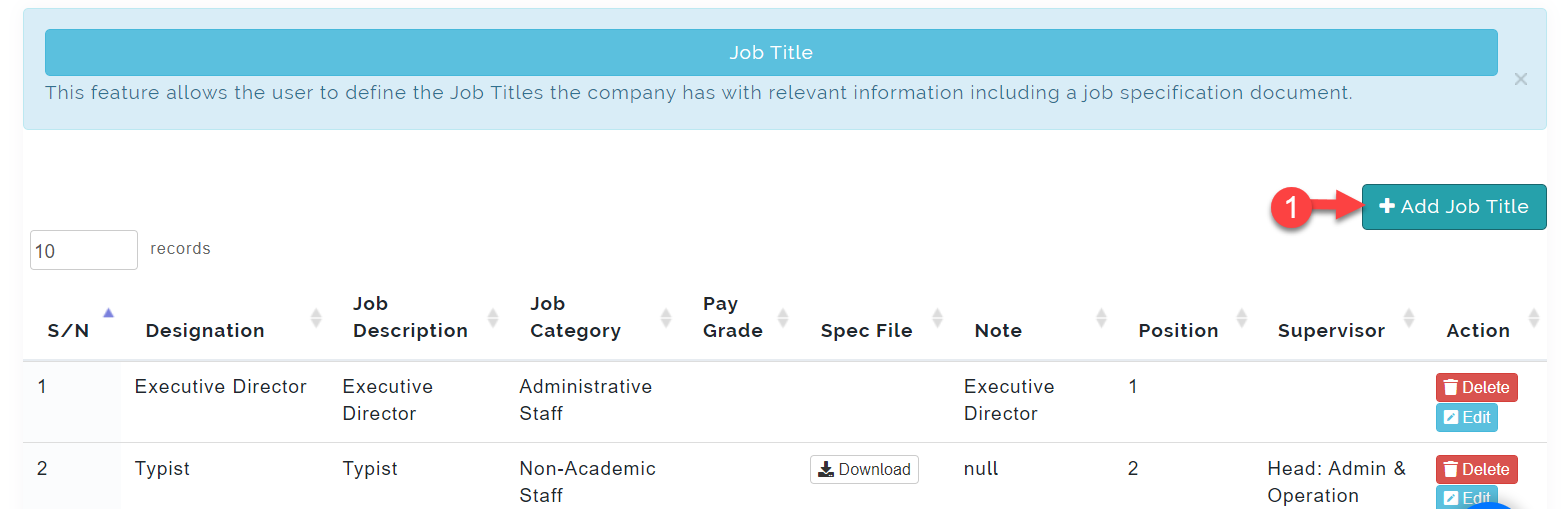
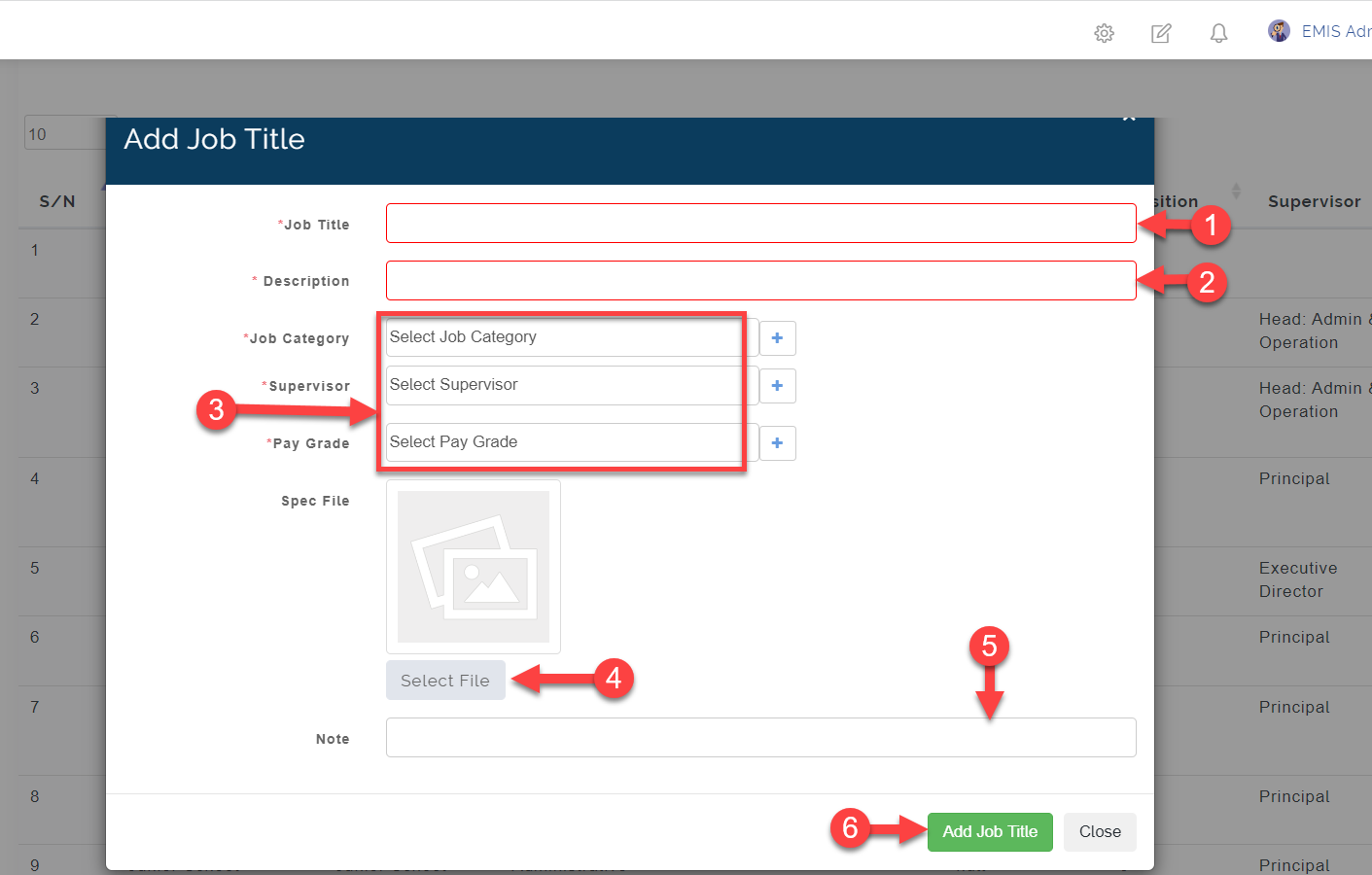
Step 2:
-
- Enter the Job Titles name
-
- Enter Description of the Title
-
- Select the Job Category, Supervisor and Pay Grade from the dropdown menu.
Supervisor
The supervisor selected here is the information used to determines the hierarchy of Job titles in the organogram.
4. Upload the Specification file for the job.
5. You can add a note to this to give more guidance to whoever accesses this information.
6. Click on Add Job Title to save.
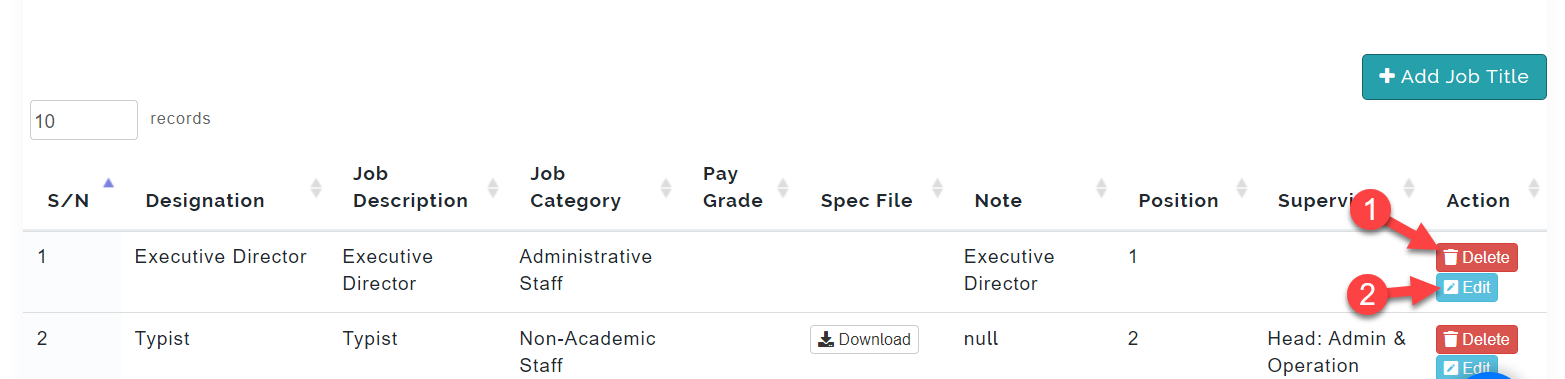
You can Edit and Delete by clicking on the respective buttons as indicated below.
Job: Working Tools
This feature allows the user to define the Working Tools the company use with relevant information.
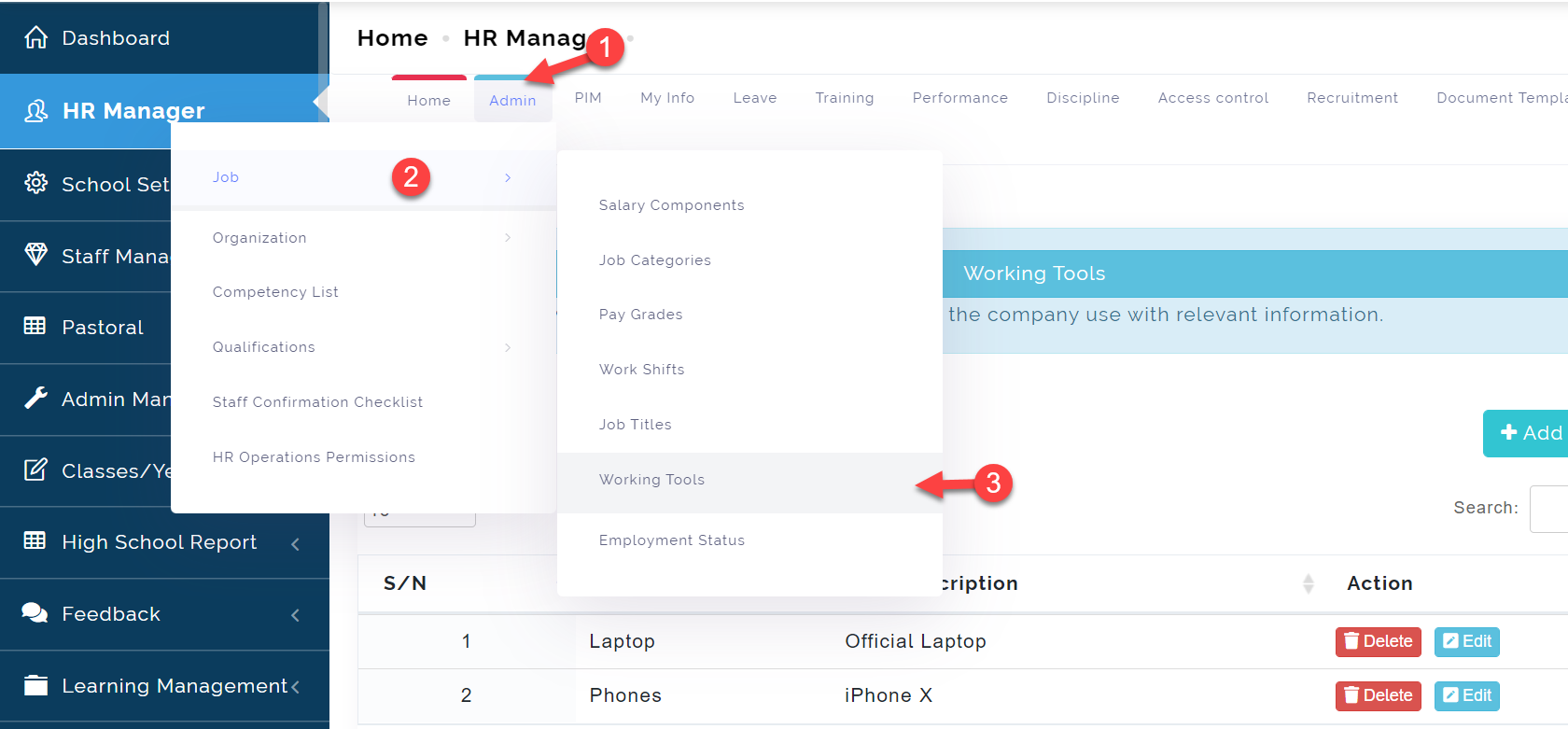
To access the Working Tools, follow these steps below;
Click on Admin
From the dropdown menu, select Job
Then select the Working Tools
To add a Working Tools, follow these steps below;
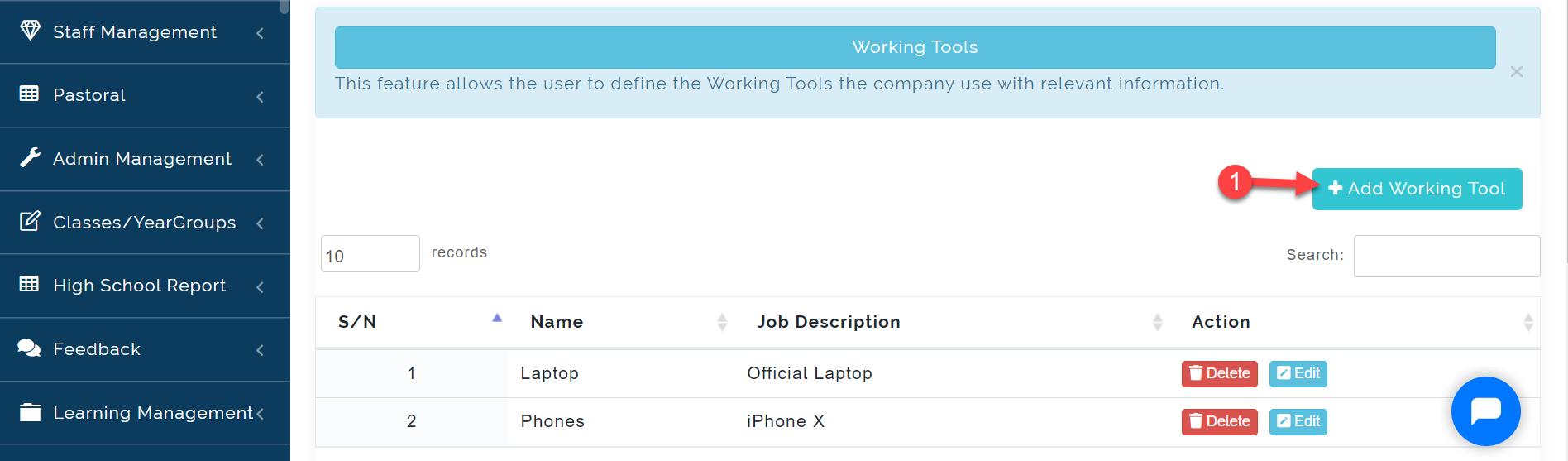
Step 1:
Click on the Add Working Tools icon as indicated in the picture below.
Step 2:
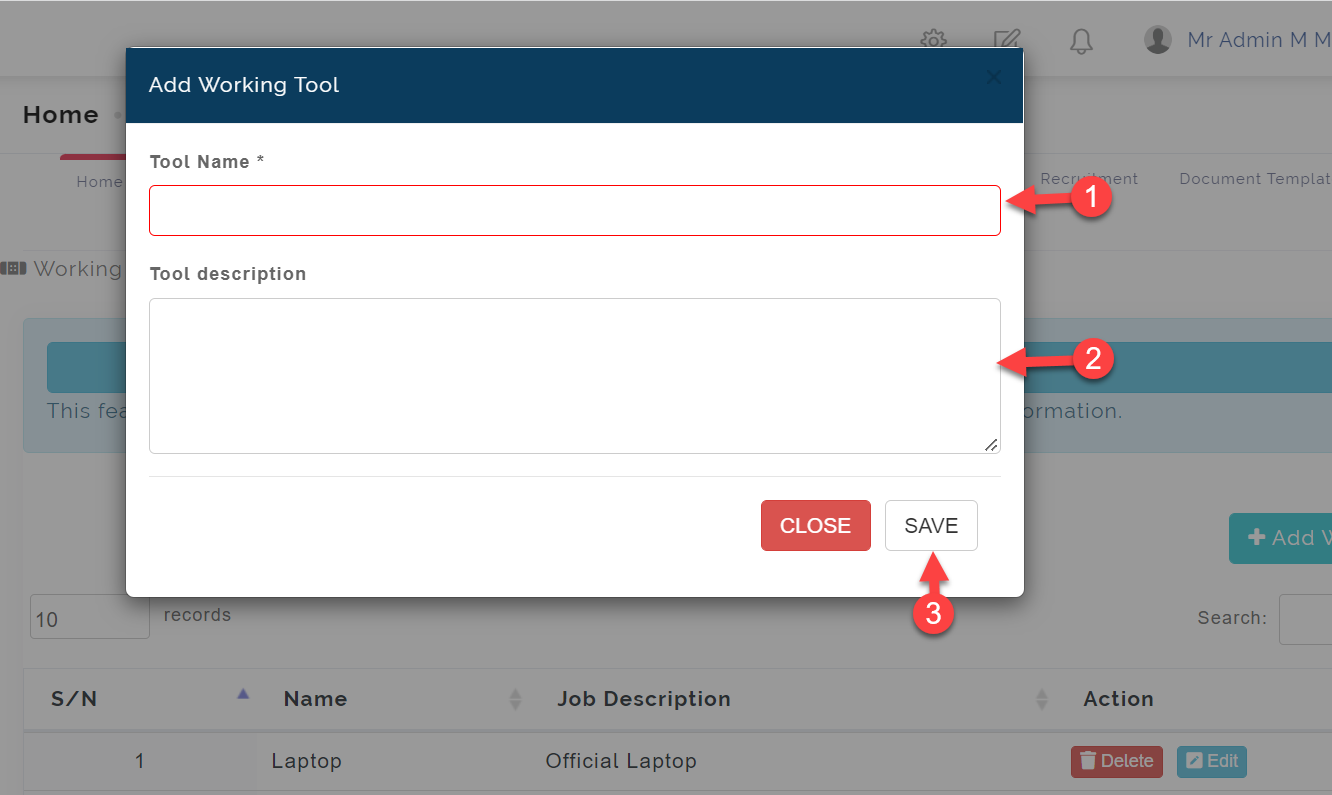
-
- Enter the *Working Tools** name
-
- Enter the Tool Description.
-
- Click on SAVE.
Job: Employment status
Employment status is the status of a worker in a company on the basis of the contract of work or duration of work to be done. When an employer hires someone it is up to them to assign their new hire with employment status. (Freelancer, Full-Time Contract, Full-time Permanent, Part-Time Contract, etc).
To access the Employment Status, follow these steps below;
Click on Admin
From the dropdown menu, select Job
Then select the Employment status
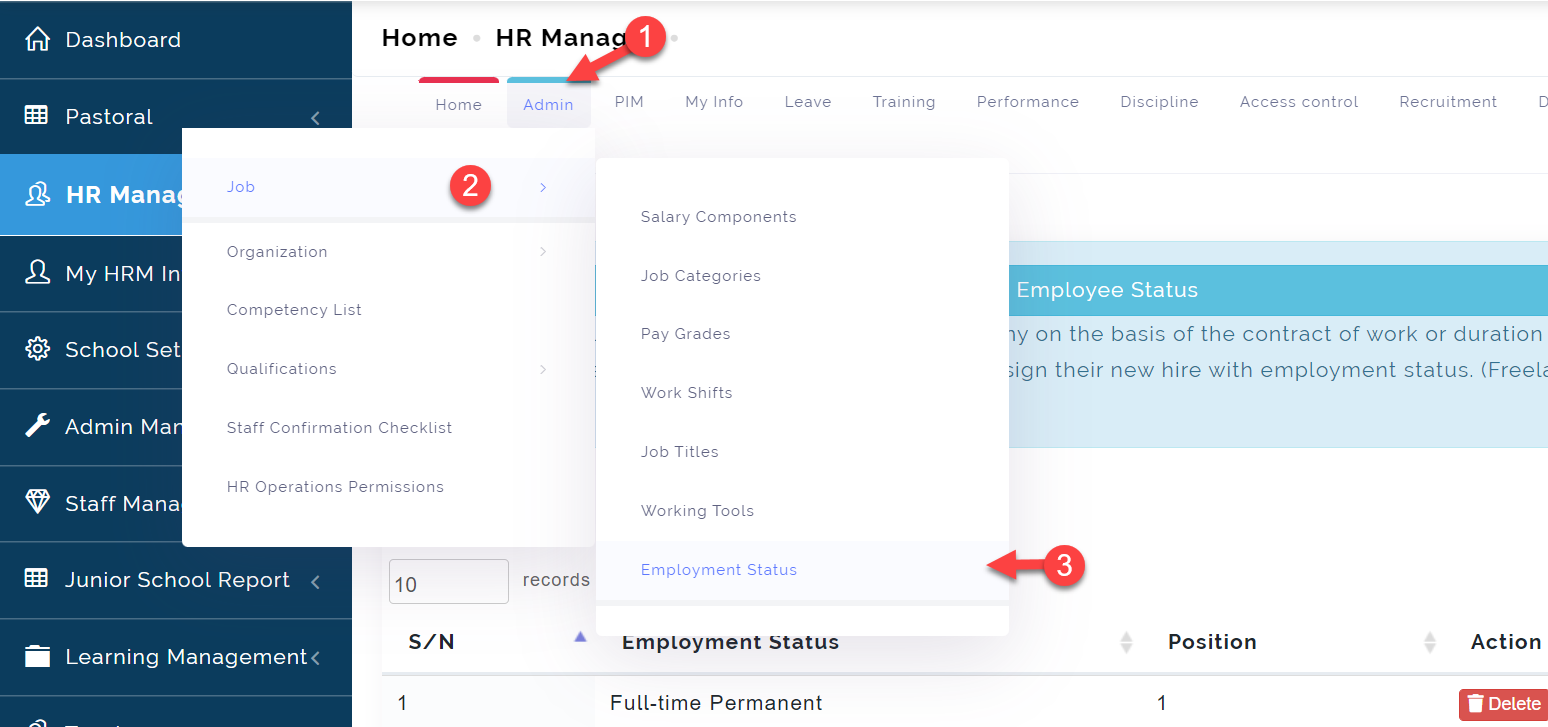
To add a Employment Status, follow these steps below;
Step 1:
Click on the Add icon as indicated in the picture below.
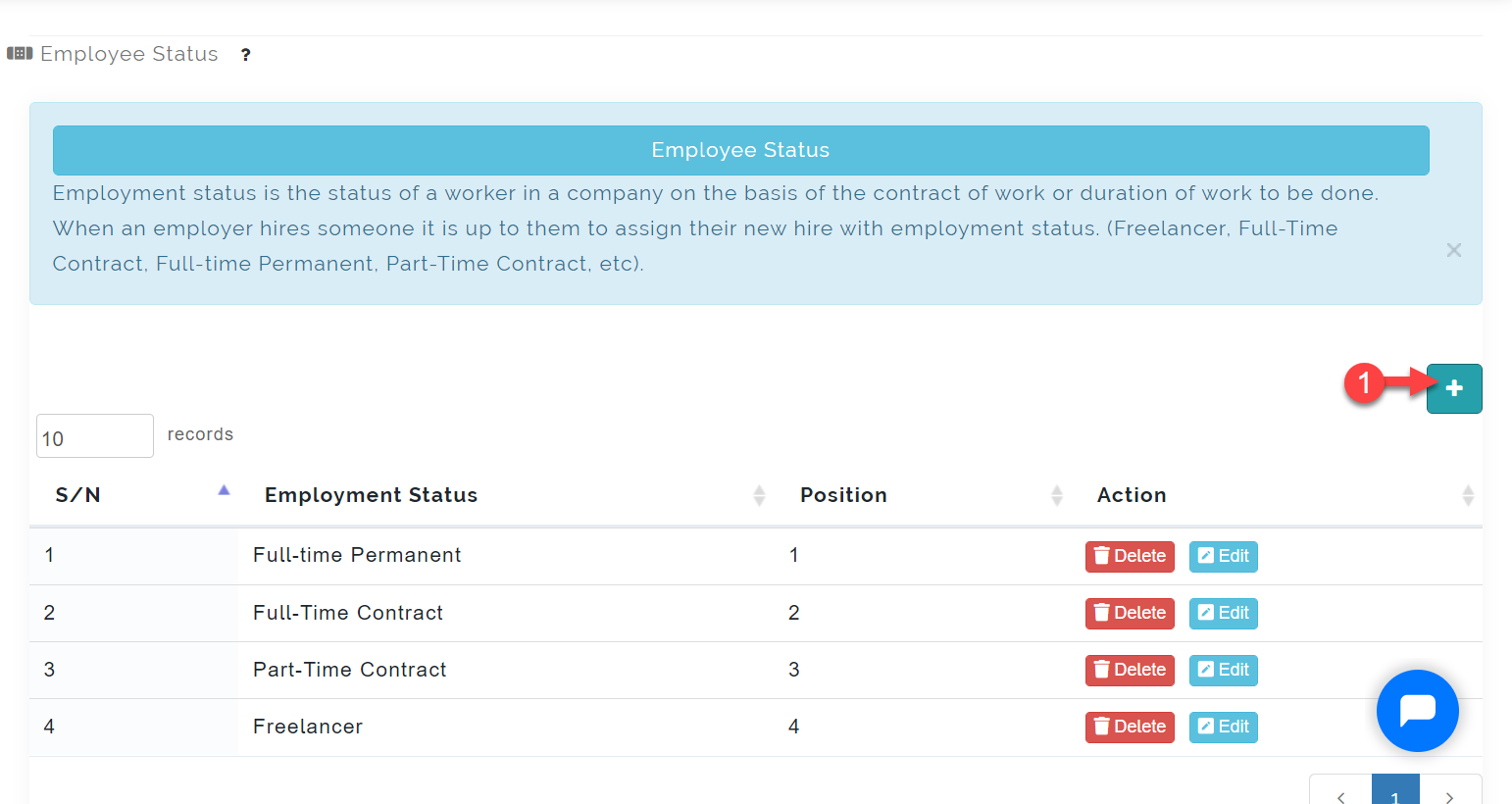
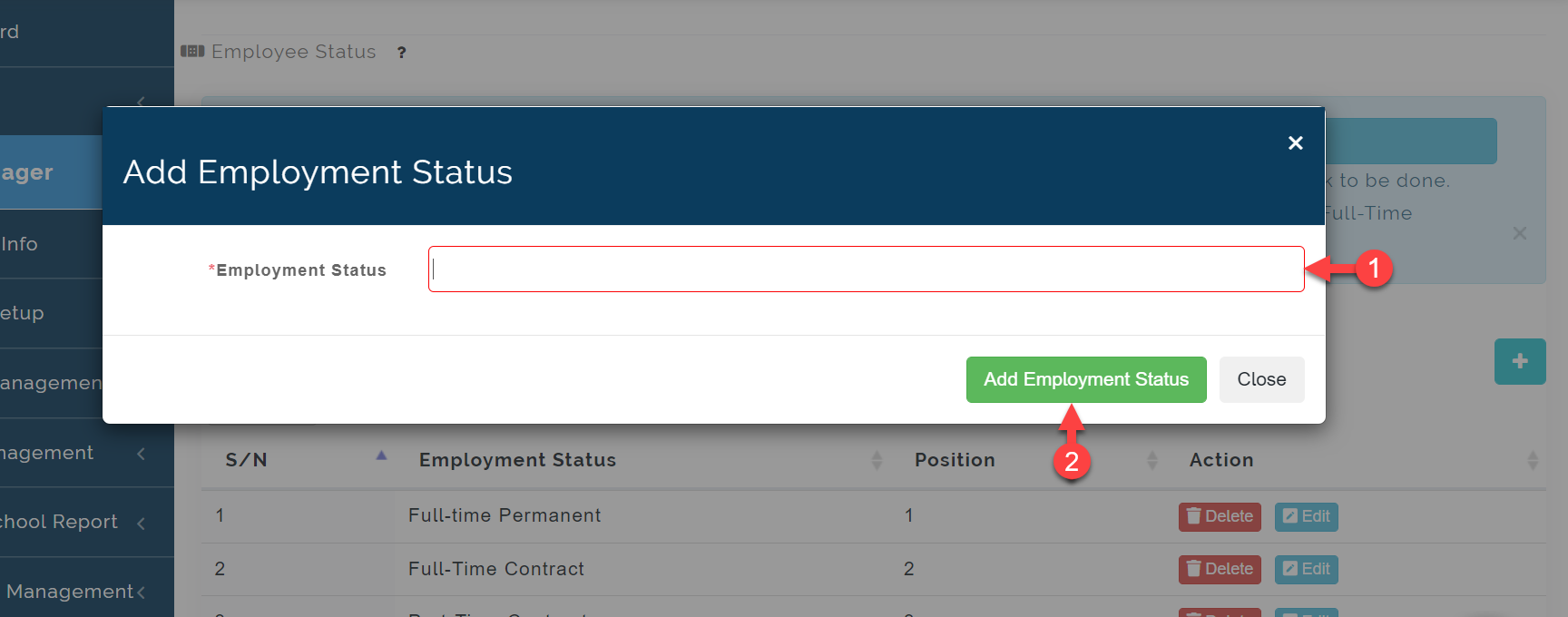
Step 2:
-
- Enter the *Employment Status** name
-
- Click on Add Employment Status.
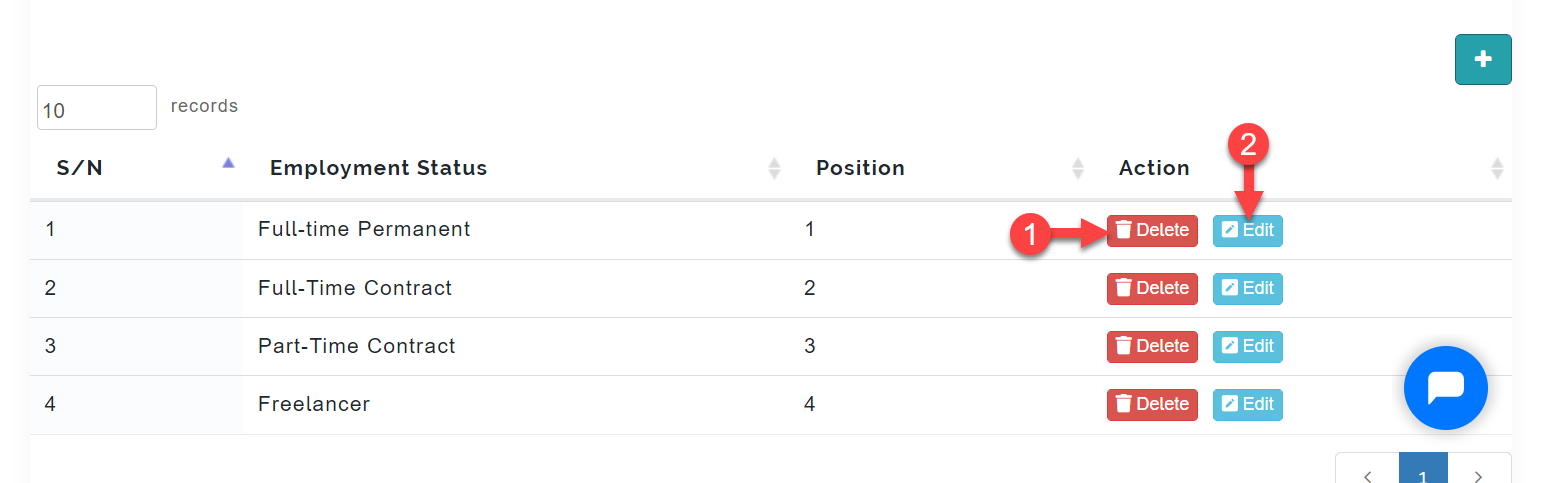
You can Edit and Delete by clicking on the respective buttons as indicated below.
Competency List
The Admin can define competencies that describe a set of skills and abilities which are required for the desired level of performance and can be grouped into competency Categories.
To access the Competency List, follow these steps below;
Click on Admin
Then select the Competency List
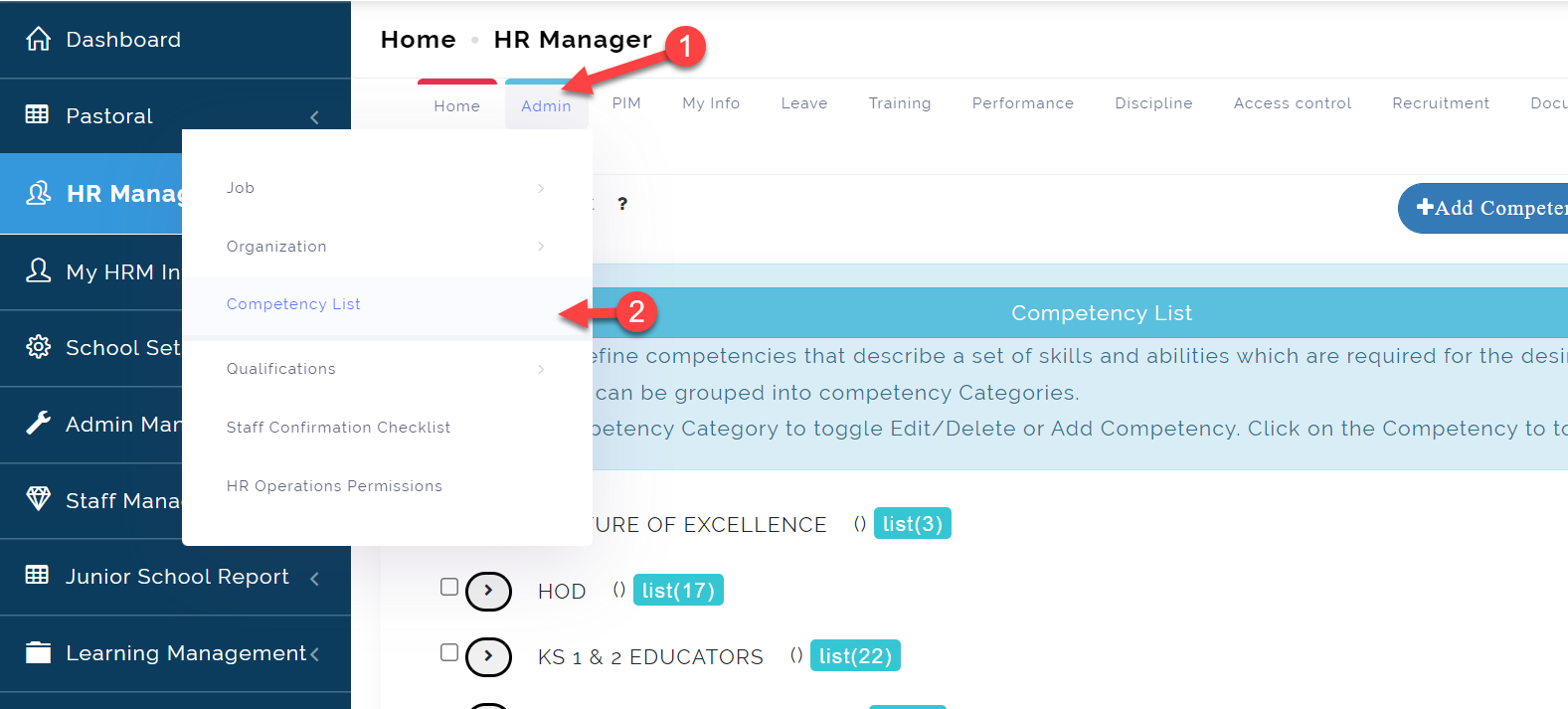
To add a Competency List, follow these steps below;
Step 1:
Click on the Add icon as indicated in the picture below.
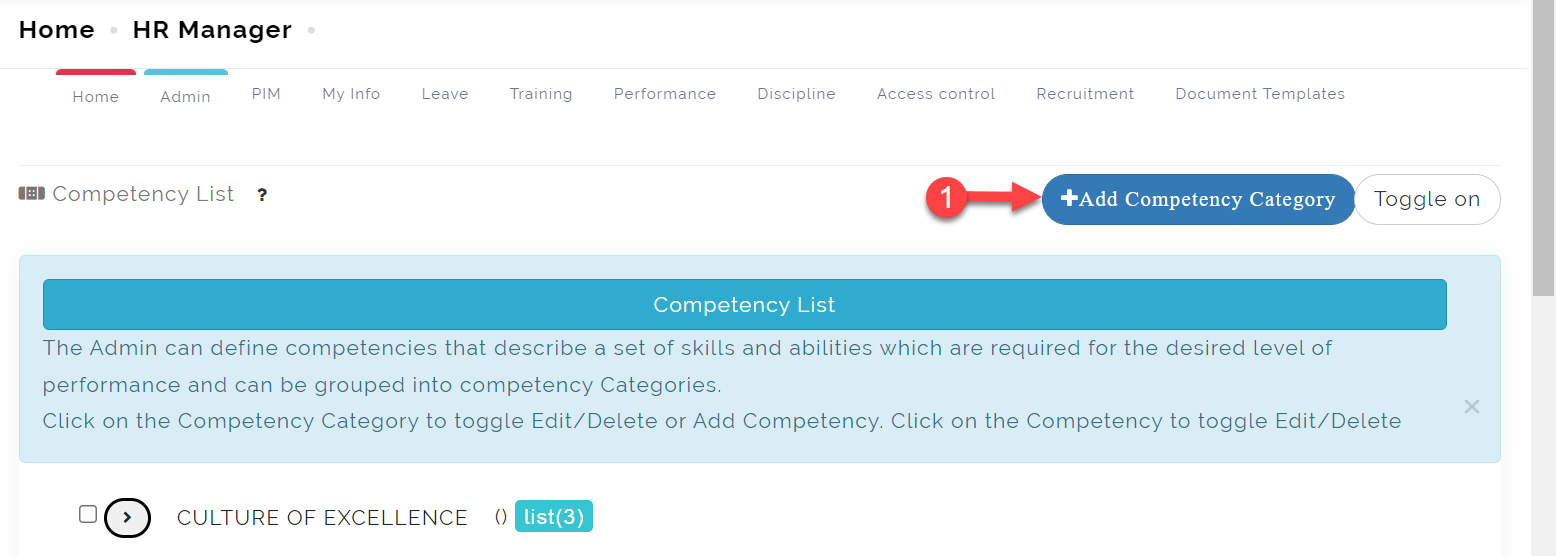
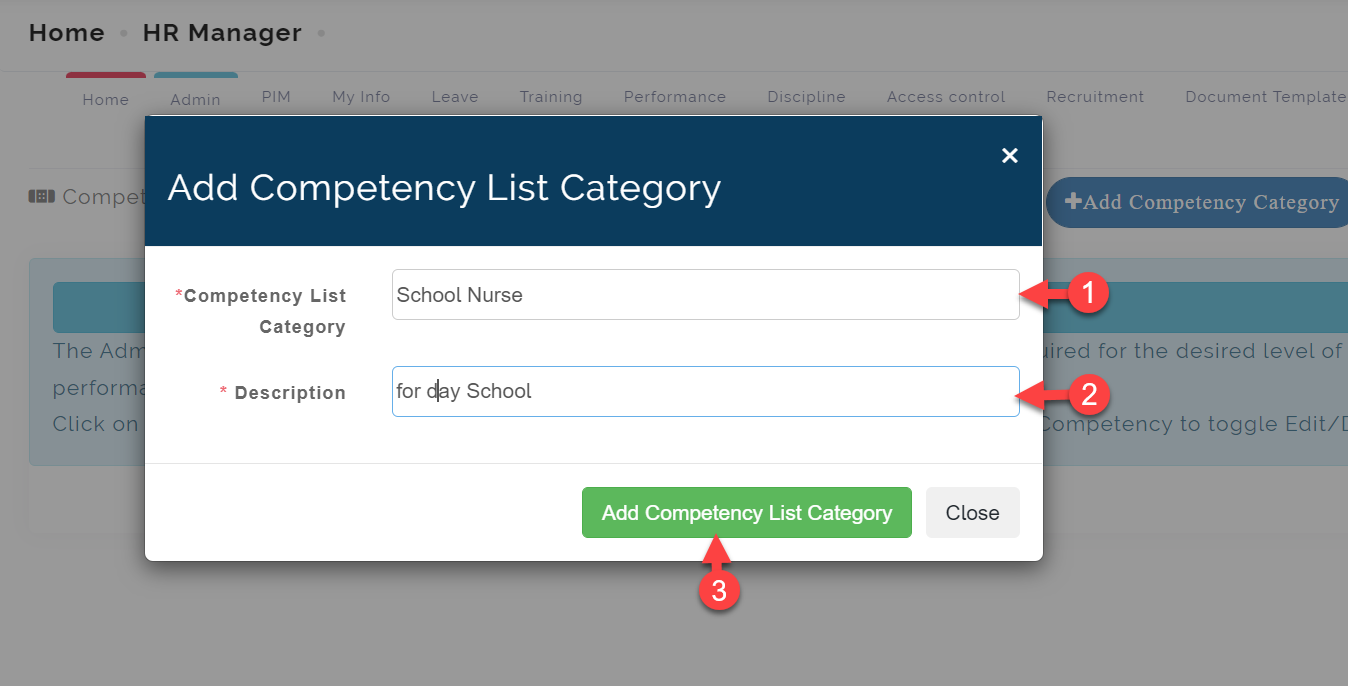
Step 2:
-
- Enter the *Competency List Category** name.
-
- Enter the Description. (This is optional)
-
- Click on Add Competency List Category to save.
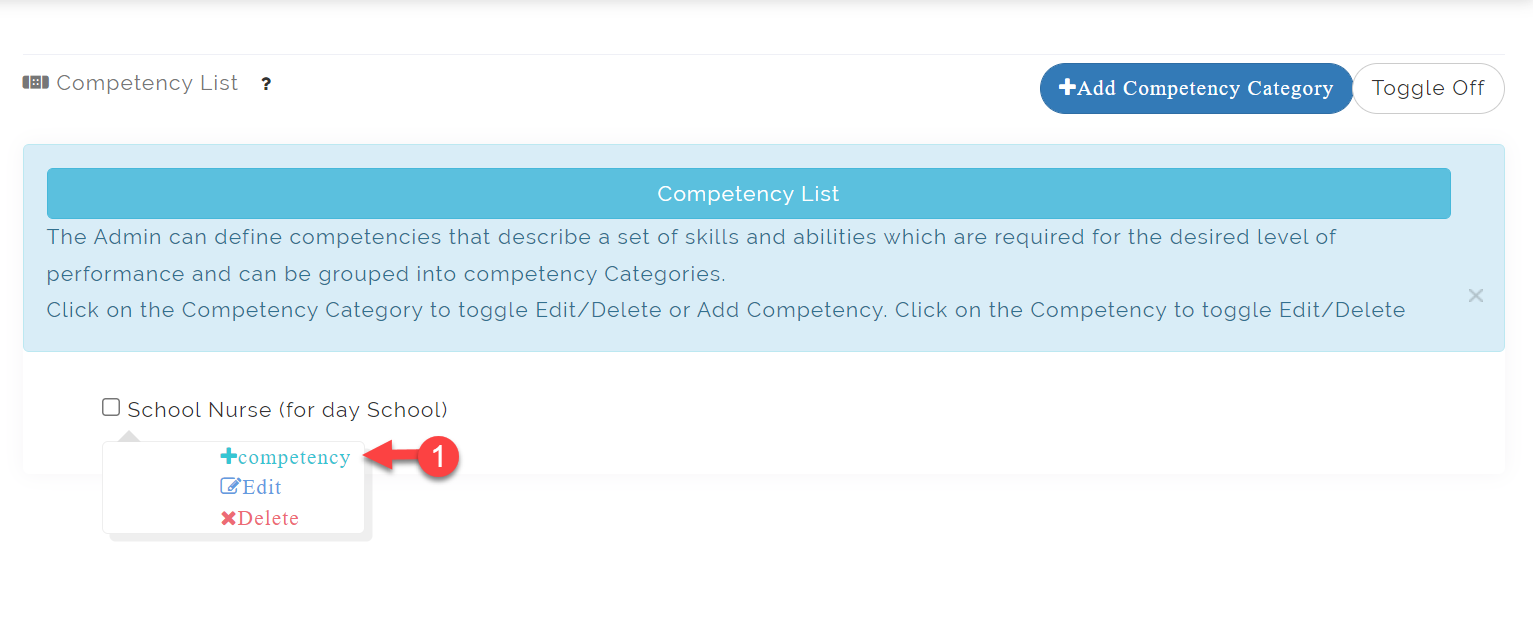
Step 3:
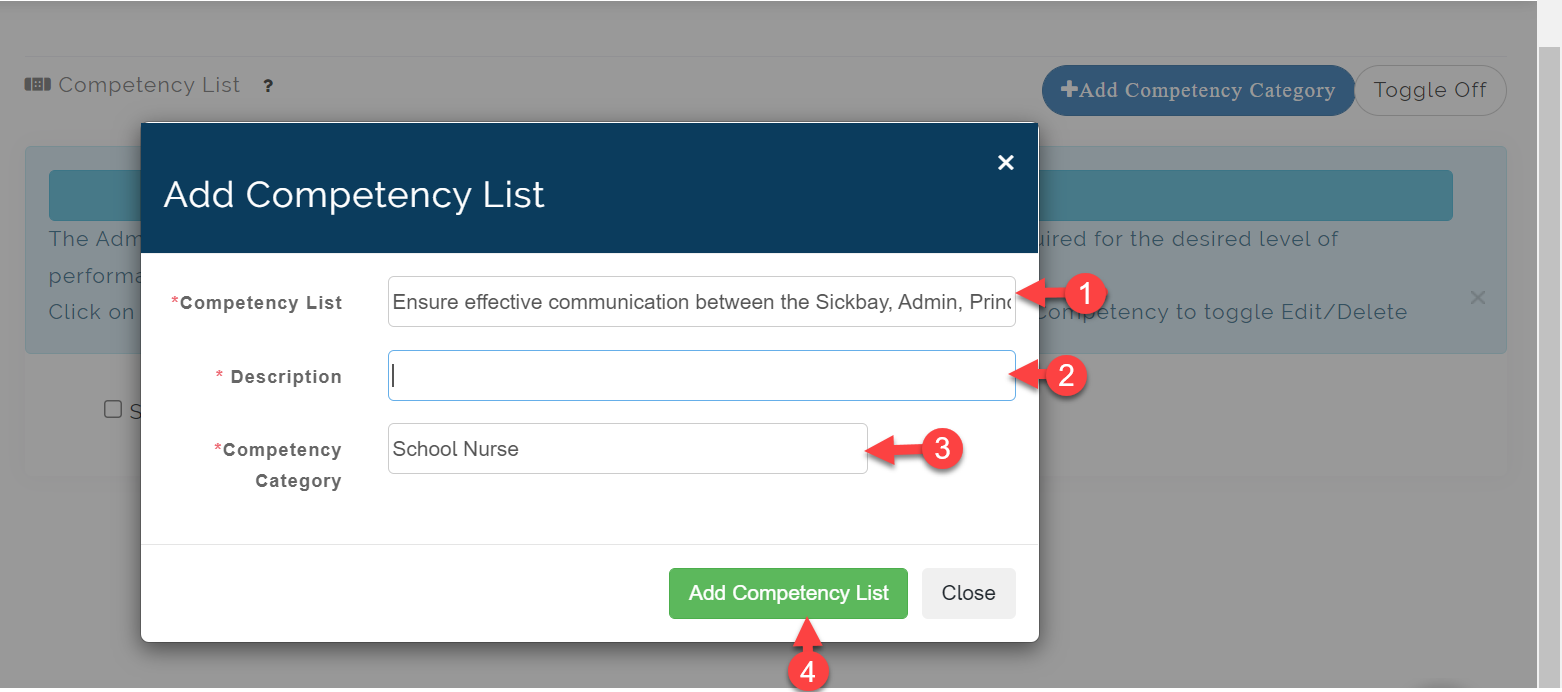
To add a competency list to a created category, click on the created category and select +Competency as seen in the picture below.
- 1. Enter the competency
- 2. Enter the description(Optional)
- 3. The Competency category is selected by default
- 4. Click on Add Competency List button to save.
info
You can add more competency list to a Competency category following the guide in step 3
Qualification: Skills
This feature allows you to define all information with regard to employees’ qualifications.
Here you can define various sets of skills that can be later used on the PIM Module.
To access the Skills, follow these steps below;
Click on Admin
Then select the Skills
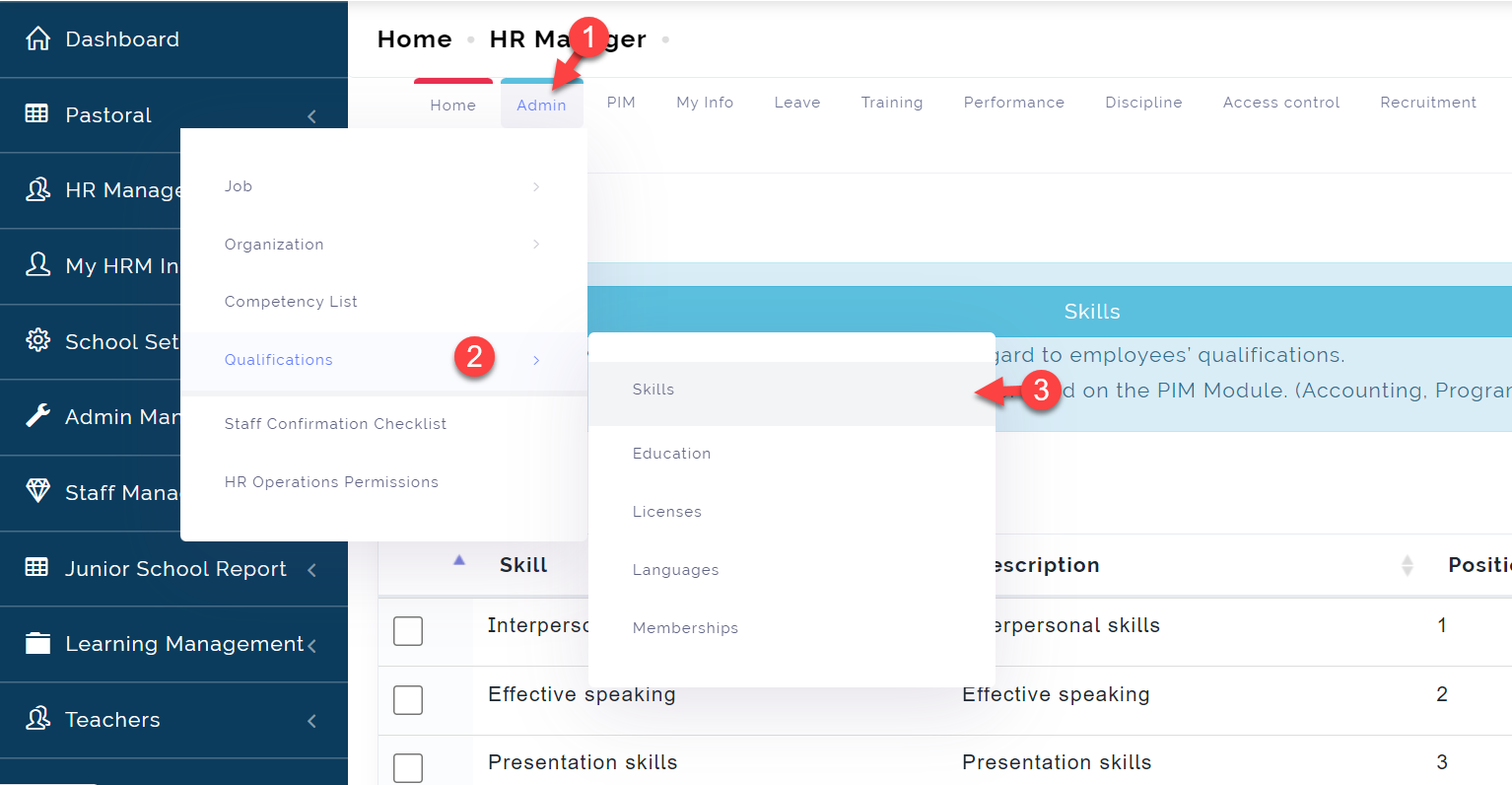
To add a Skill, follow these steps below;
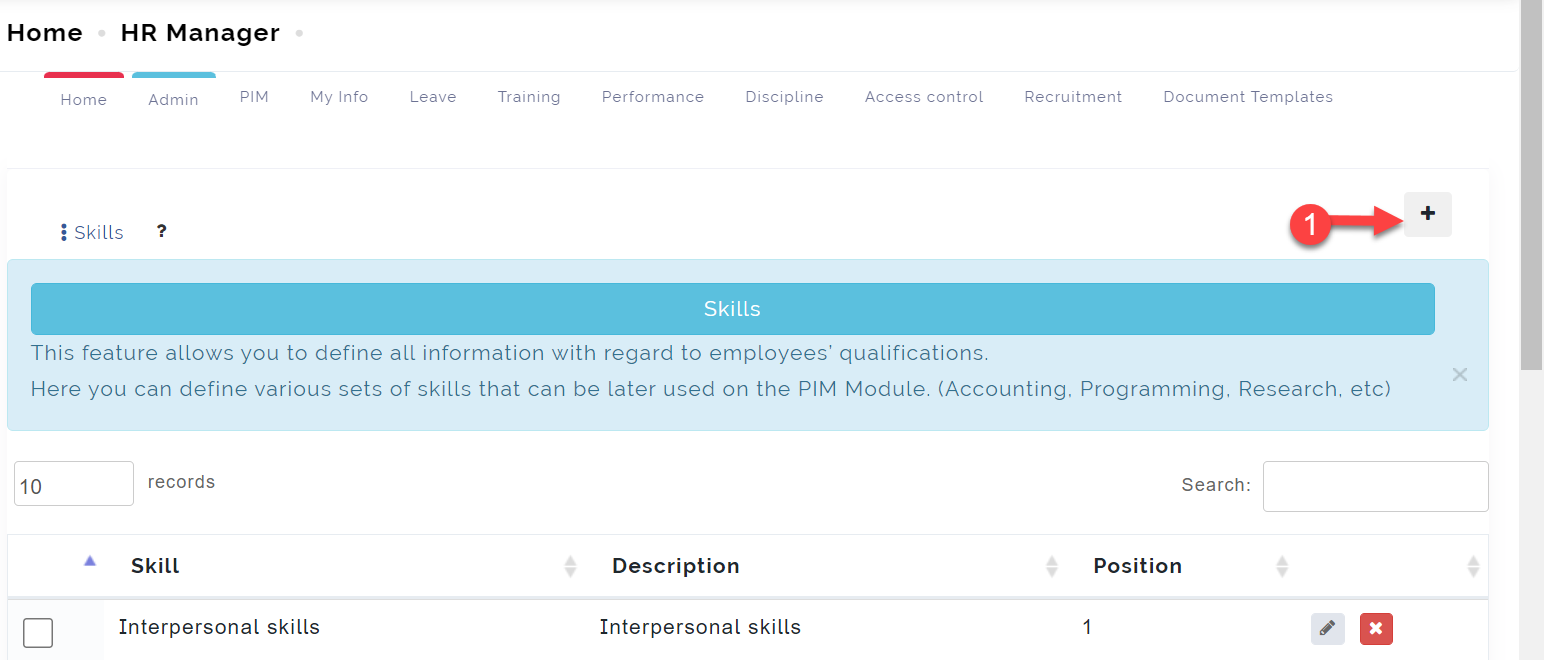
Step 1:
Click on the Add icon as indicated in the picture below.
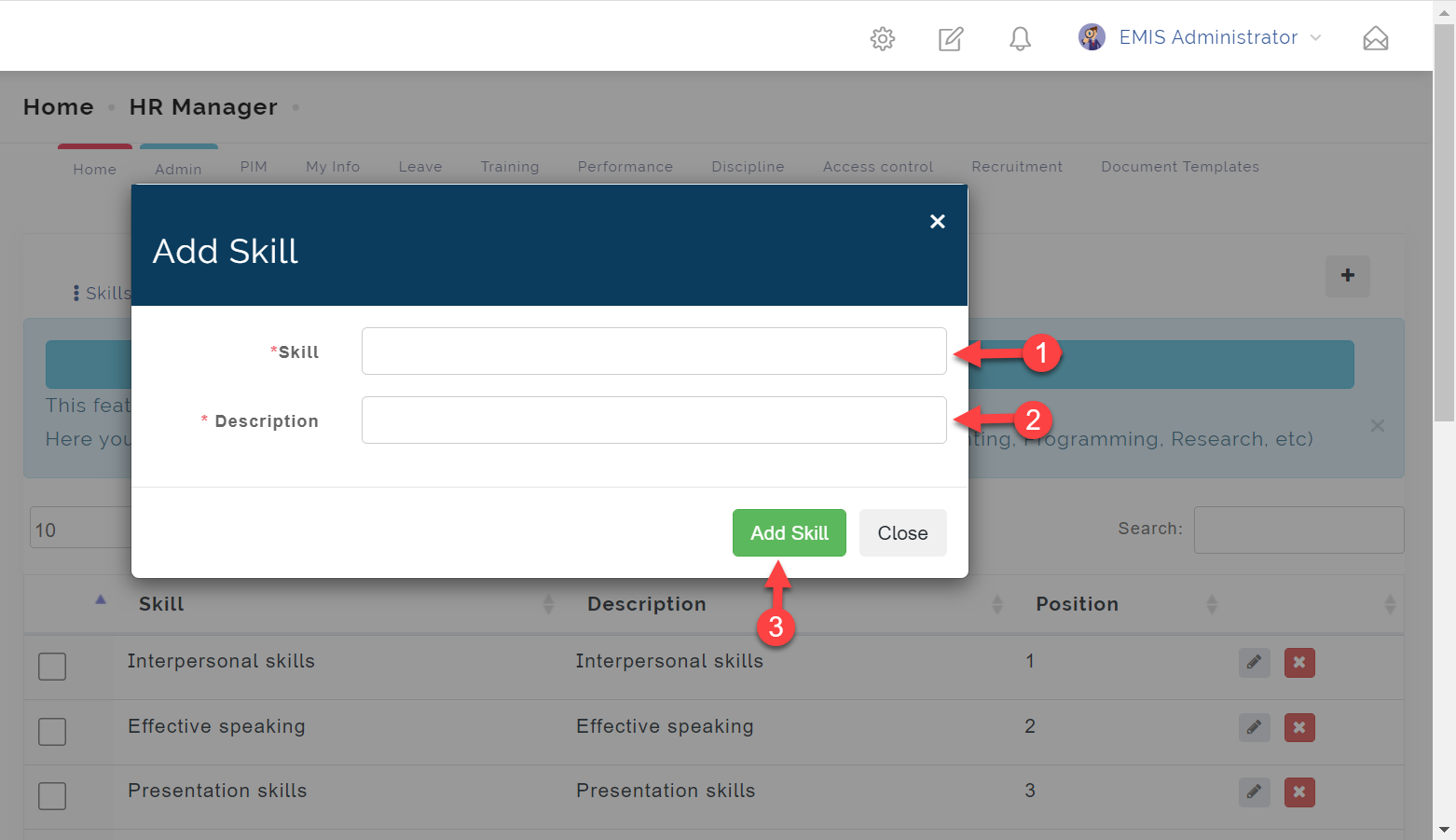
Step 2:
-
- Enter the *Skill** name.
-
- Enter the Description. (This is optional)
-
- Click on Add Skill to save.
Qualification: Education
Here you can define various types of educational qualifications which can be later used in the PIM Module. (Bachelor's Degree, Master's Degree, etc.)
To access the Education, follow these steps below;
Click on Admin
From the dropdown menu, select Qualification
Then select the Education
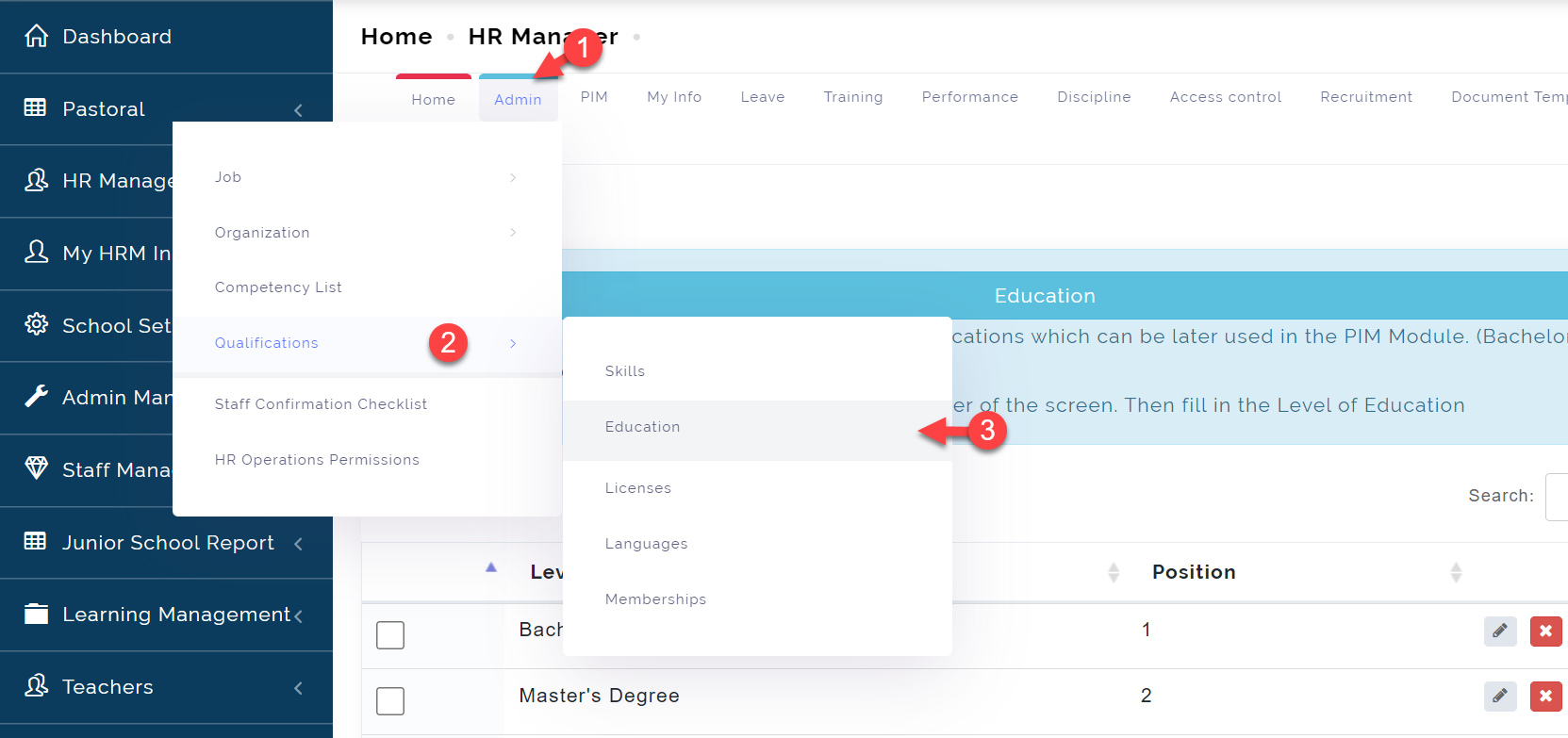
To add a Education, follow these steps below;
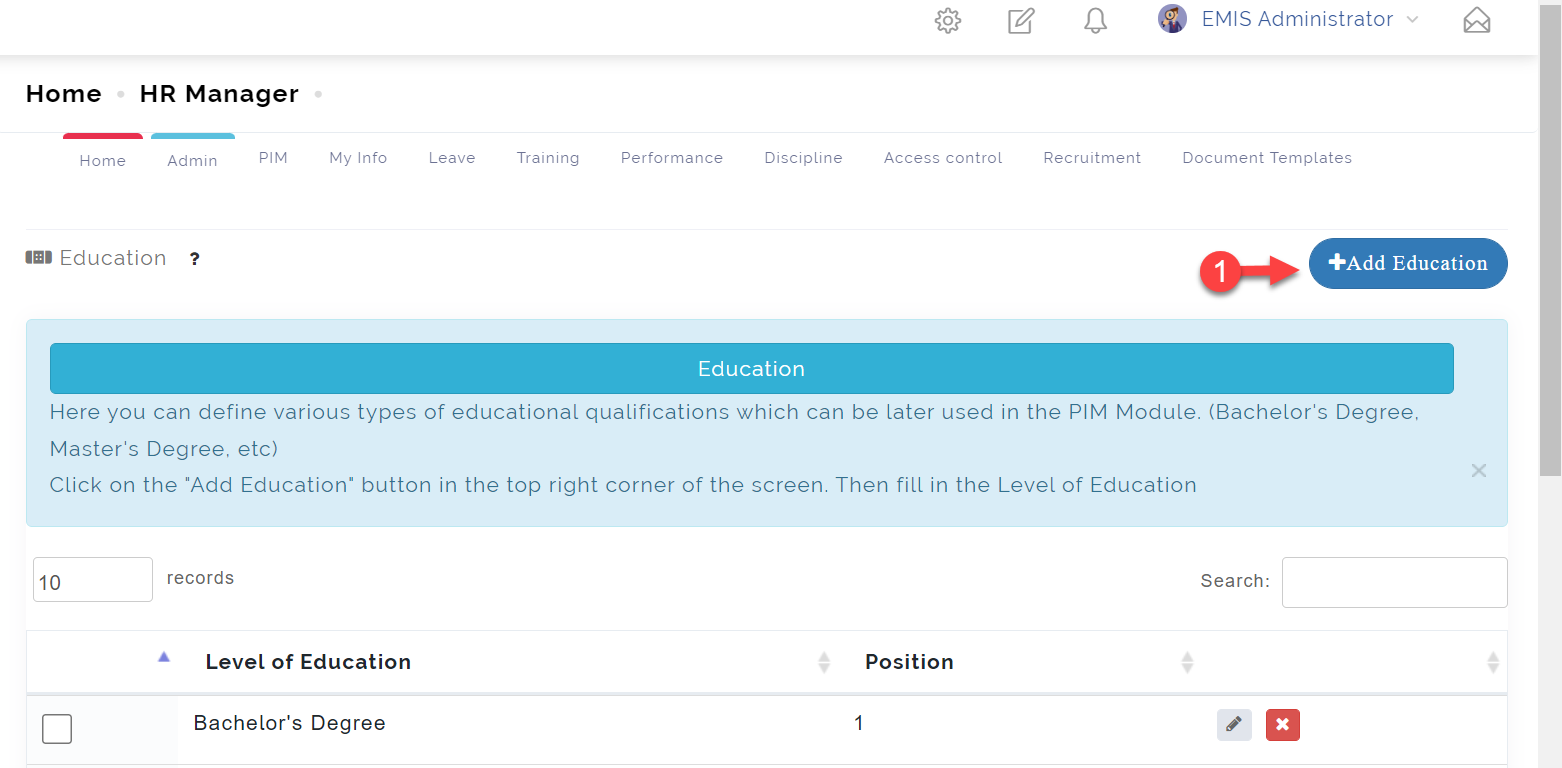
Step 1:
Click on the Add Education icon as indicated in the picture below.
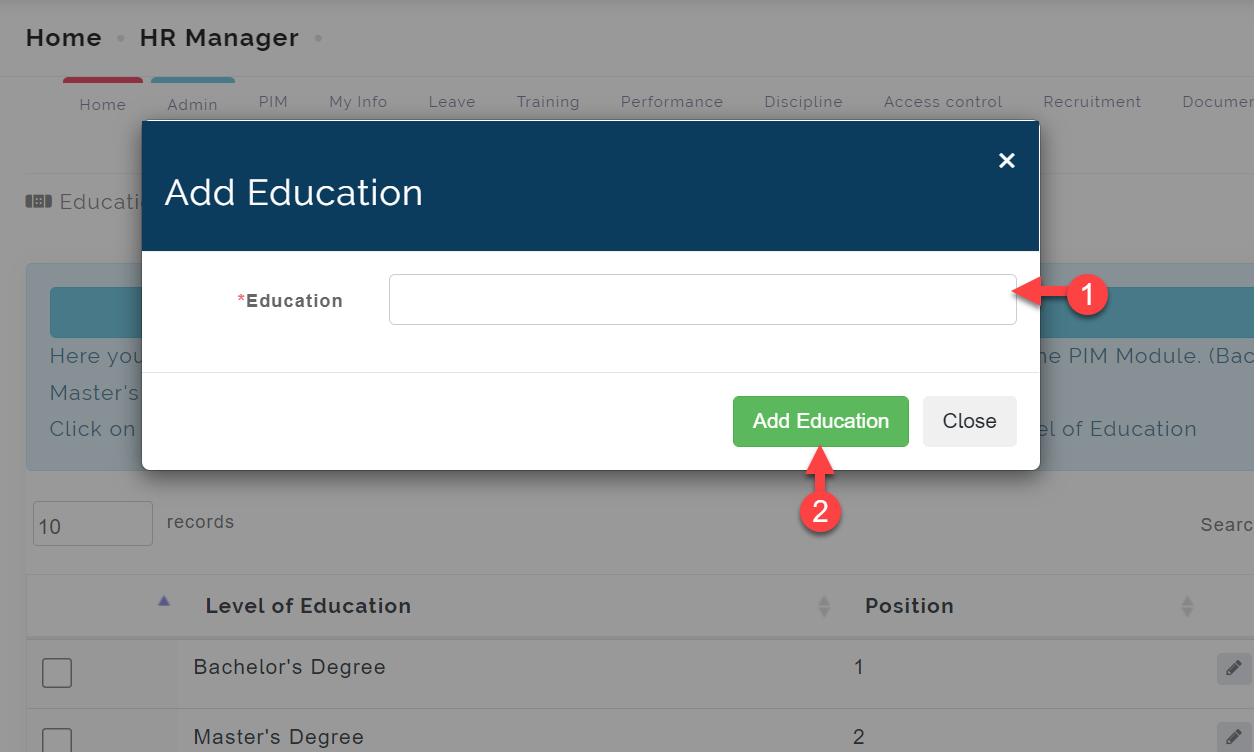
Step 2:
-
- Enter the *Education** name.
-
- Click on Add Education to save.
Qualification: Licences
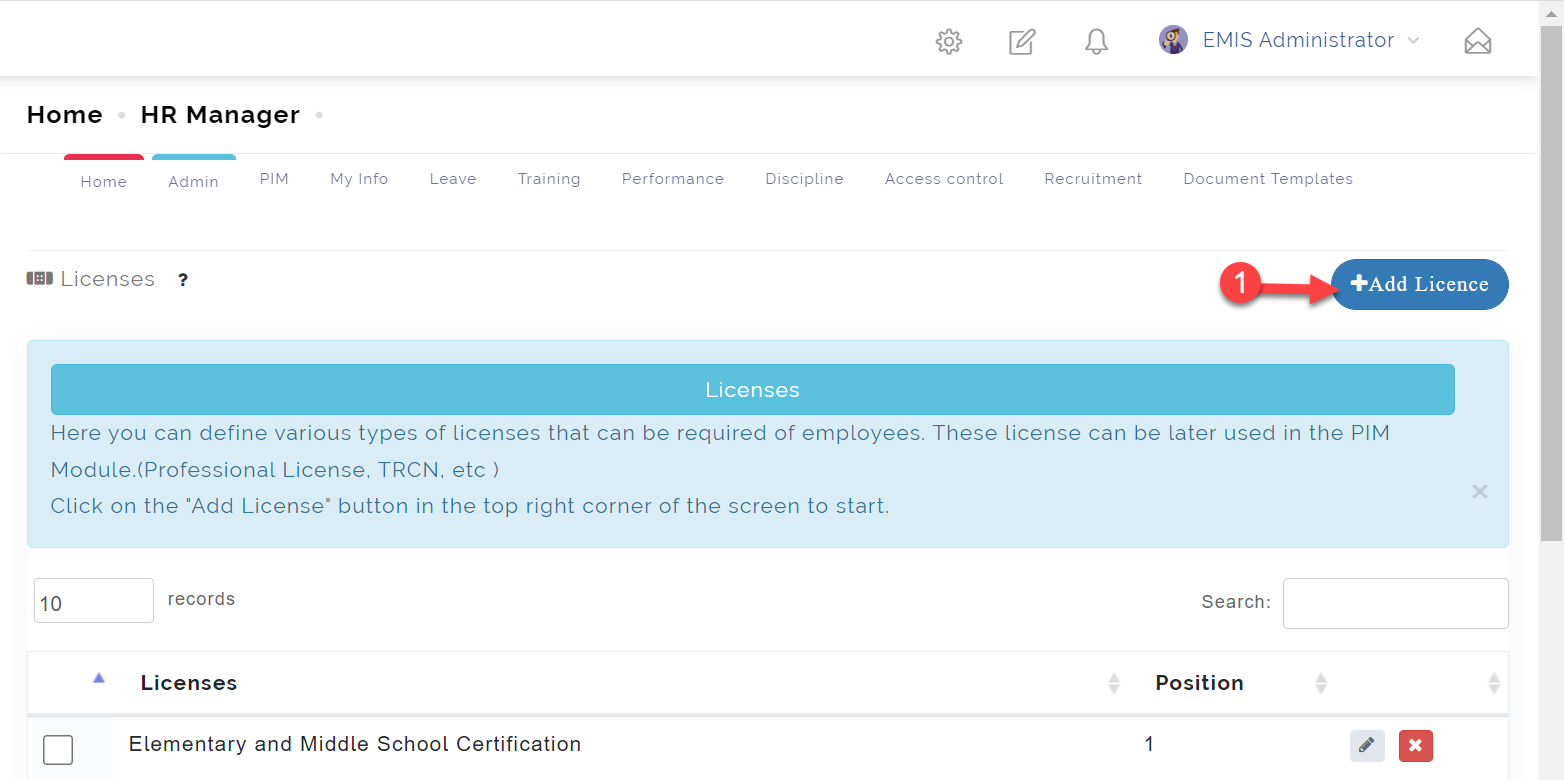
Here you can define various types of licenses that can be required of employees. These license can be later used in the PIM Module.(Professional License, TRCN, etc )
To access the Licenses, follow these steps below;
Click on Admin
From the dropdown menu, select Qualification
Then select the Licenses
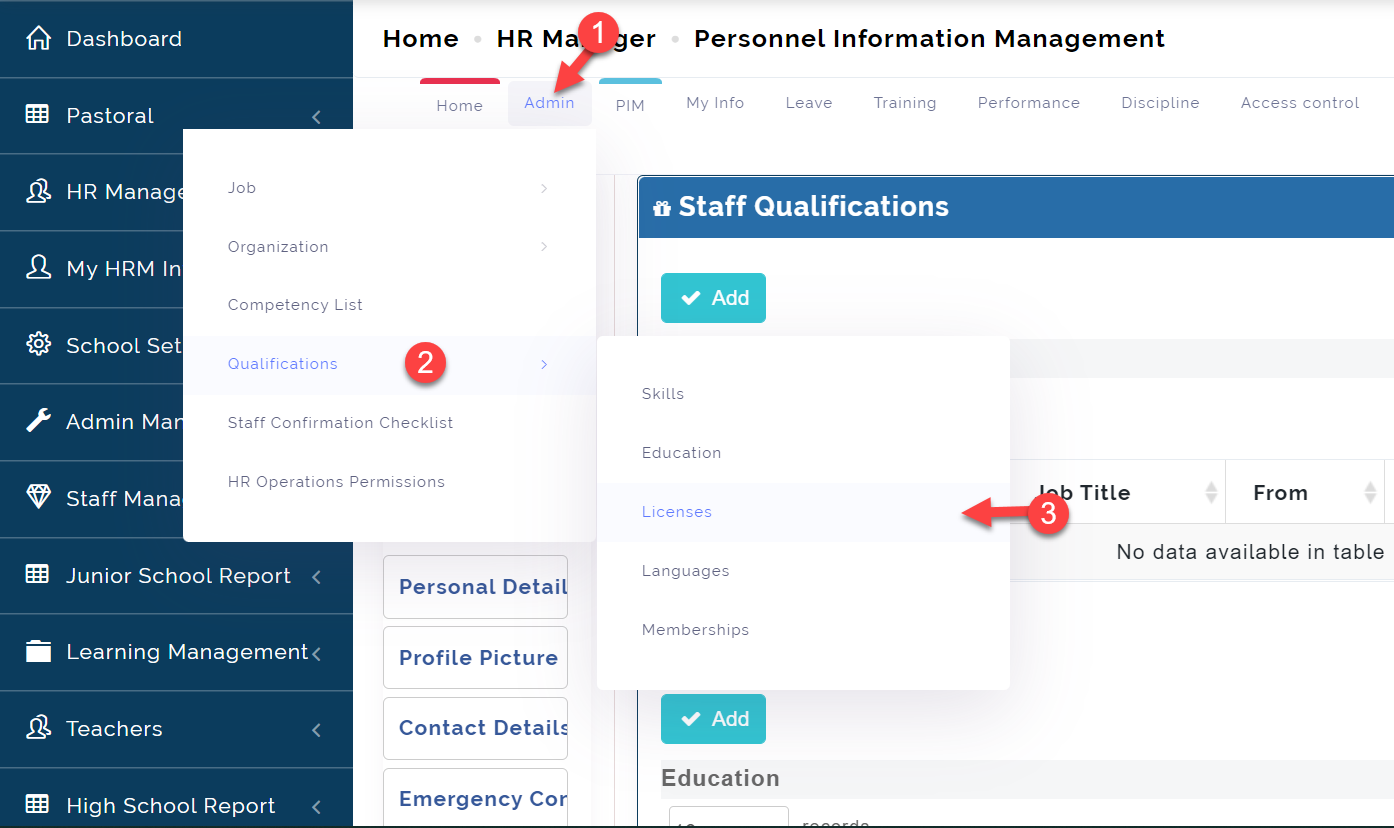
To add a Licenses, follow these steps below;
Step 1:
Click on the Add Licenses icon as indicated in the picture below.
Step 2:
-
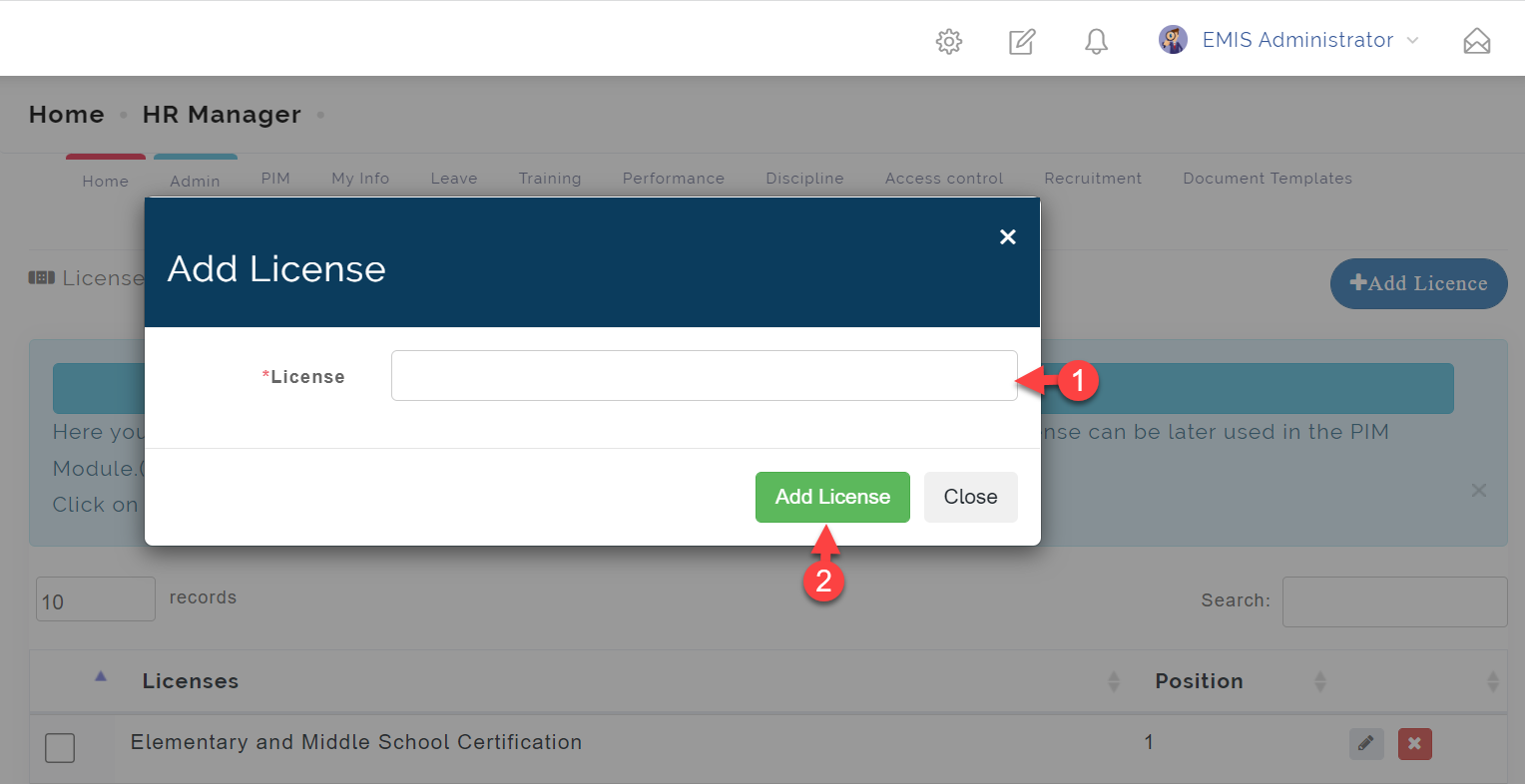
- Enter the *License** name.
-
- Click on Add License to save.
Qualification: Languages
Here you can define different types of languages that employees in your school speak, that can be used in the PIM Module later.
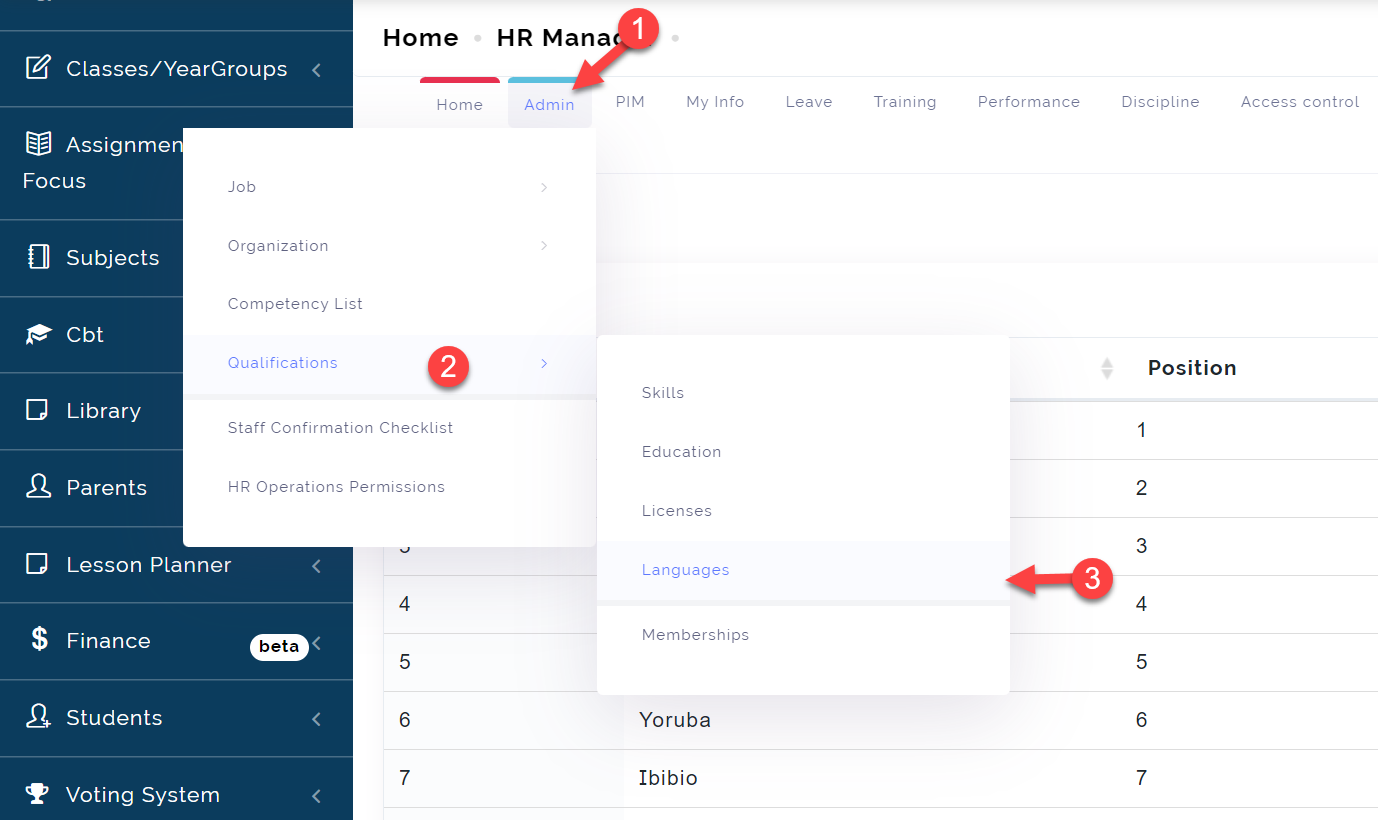
To access the Language , follow these steps below;
Click on Admin
From the dropdown menu, select Qualification
Then select the Languages
To add a Language, follow these steps below;
Step 1:
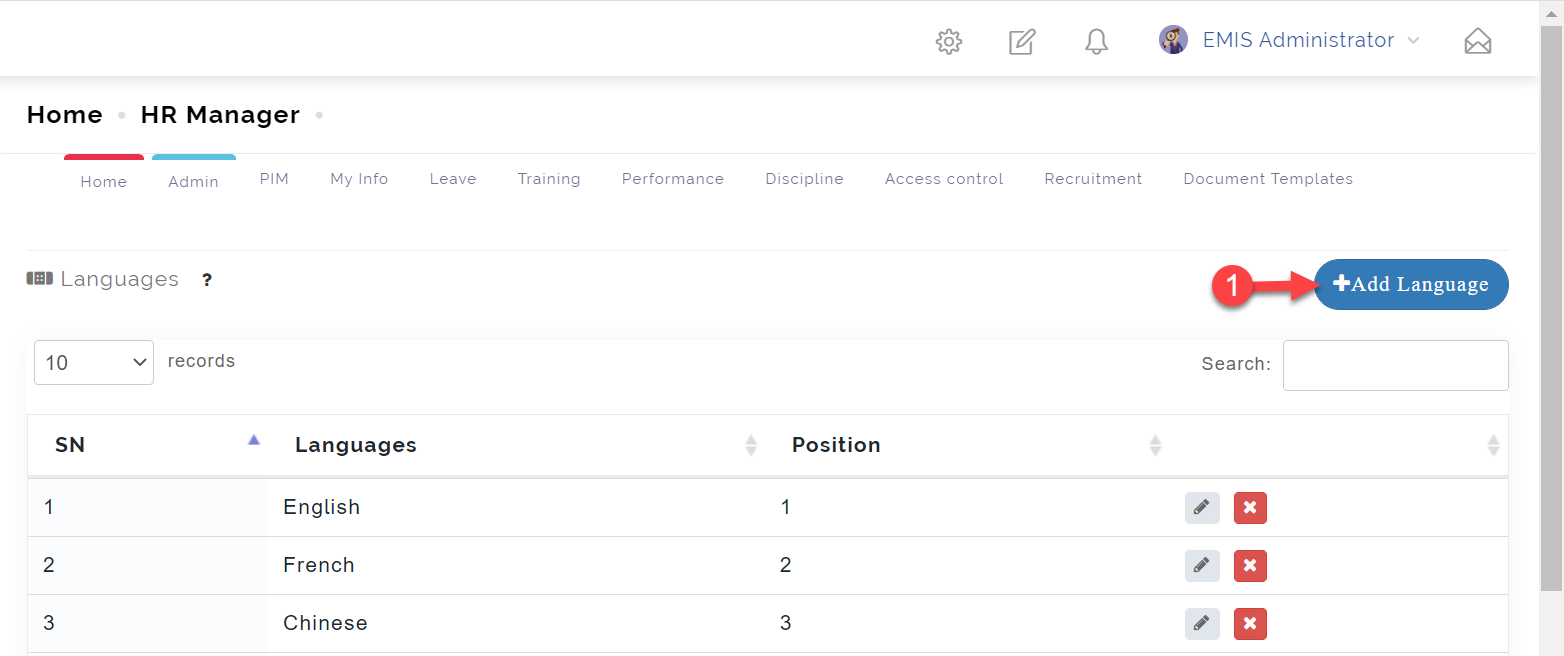
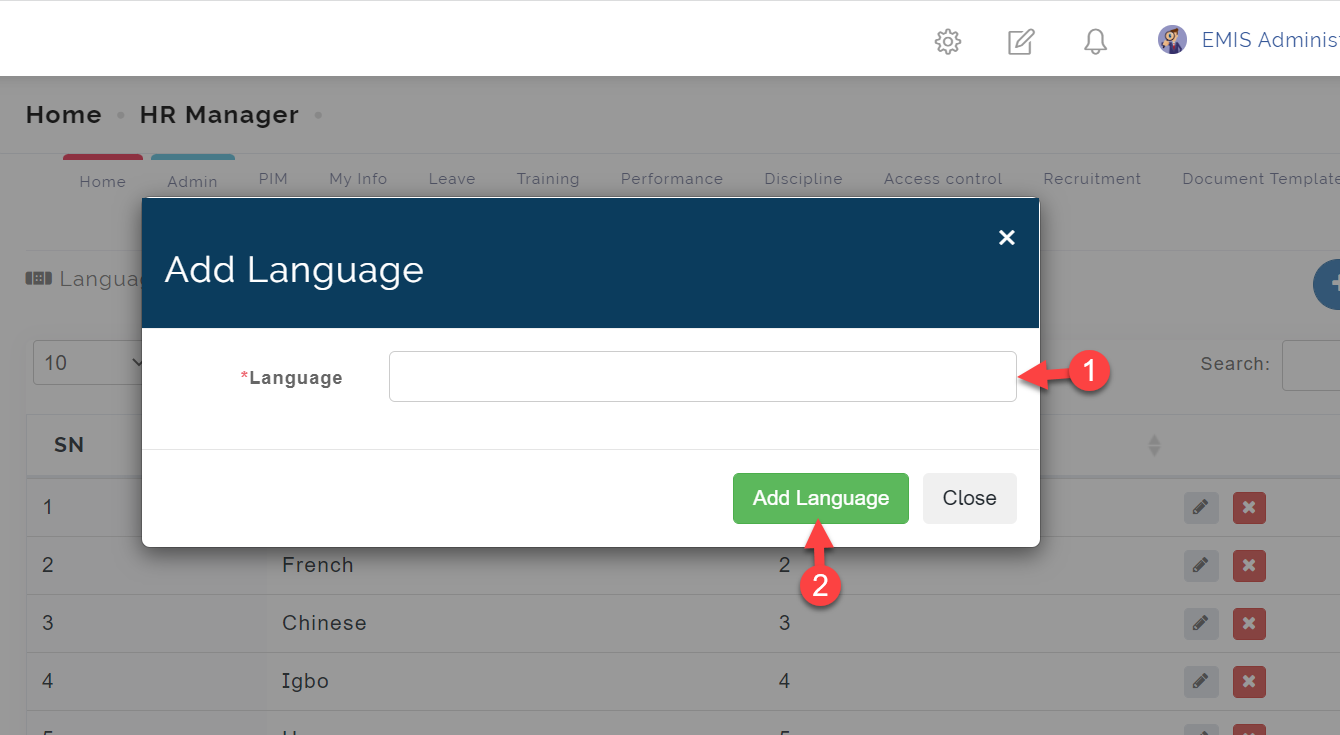
Click on the Add Language icon as indicated in the picture below.
Step 2:
-
- Enter the *Language** name.
-
- Click on Add Language to save.
Qualification: Membership
This feature allows the HR Admin to define different membership details of the employees which can be used in the PIM Module later.
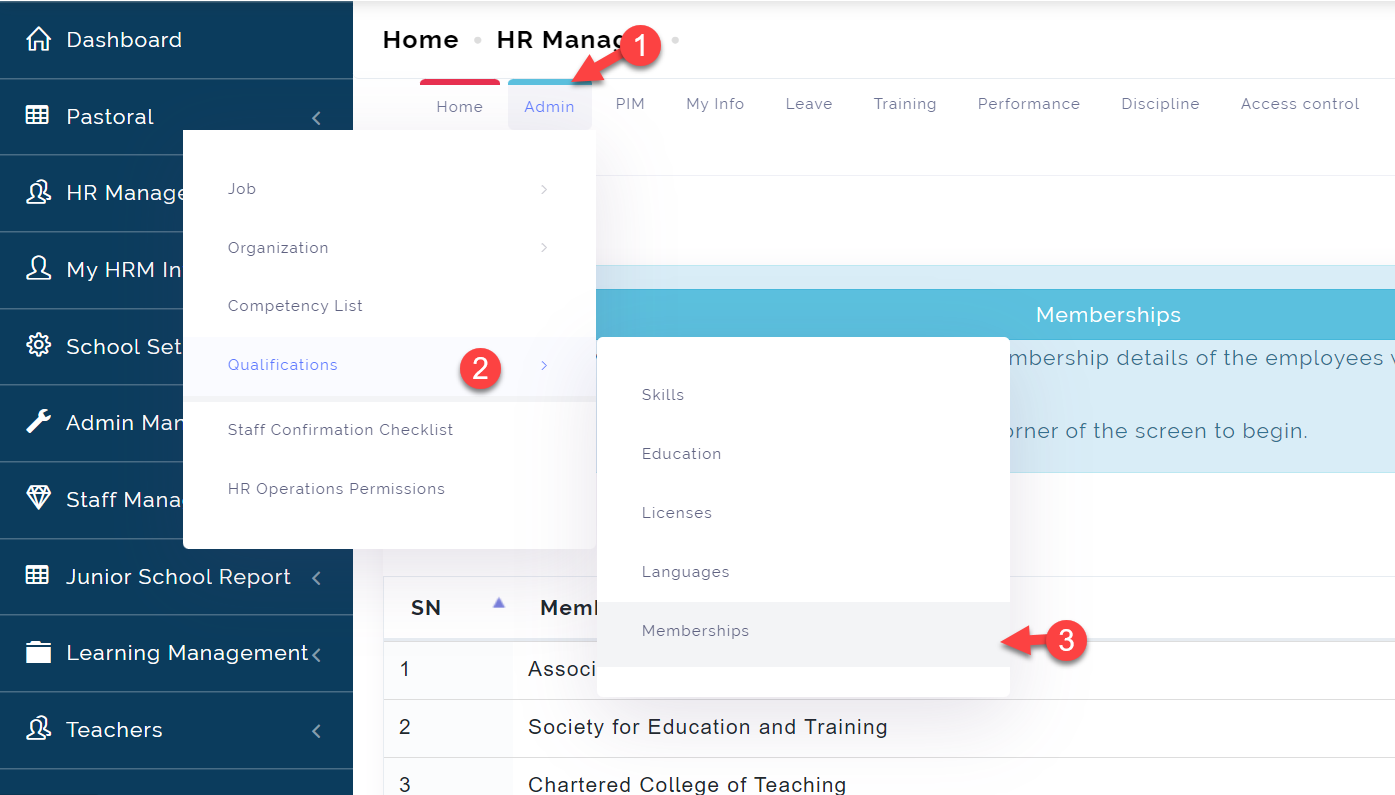
To access the Membership, follow these steps below;
Click on Admin
From the dropdown menu, select Qualification
Then select the Membership
To add a Membership, follow these steps below;
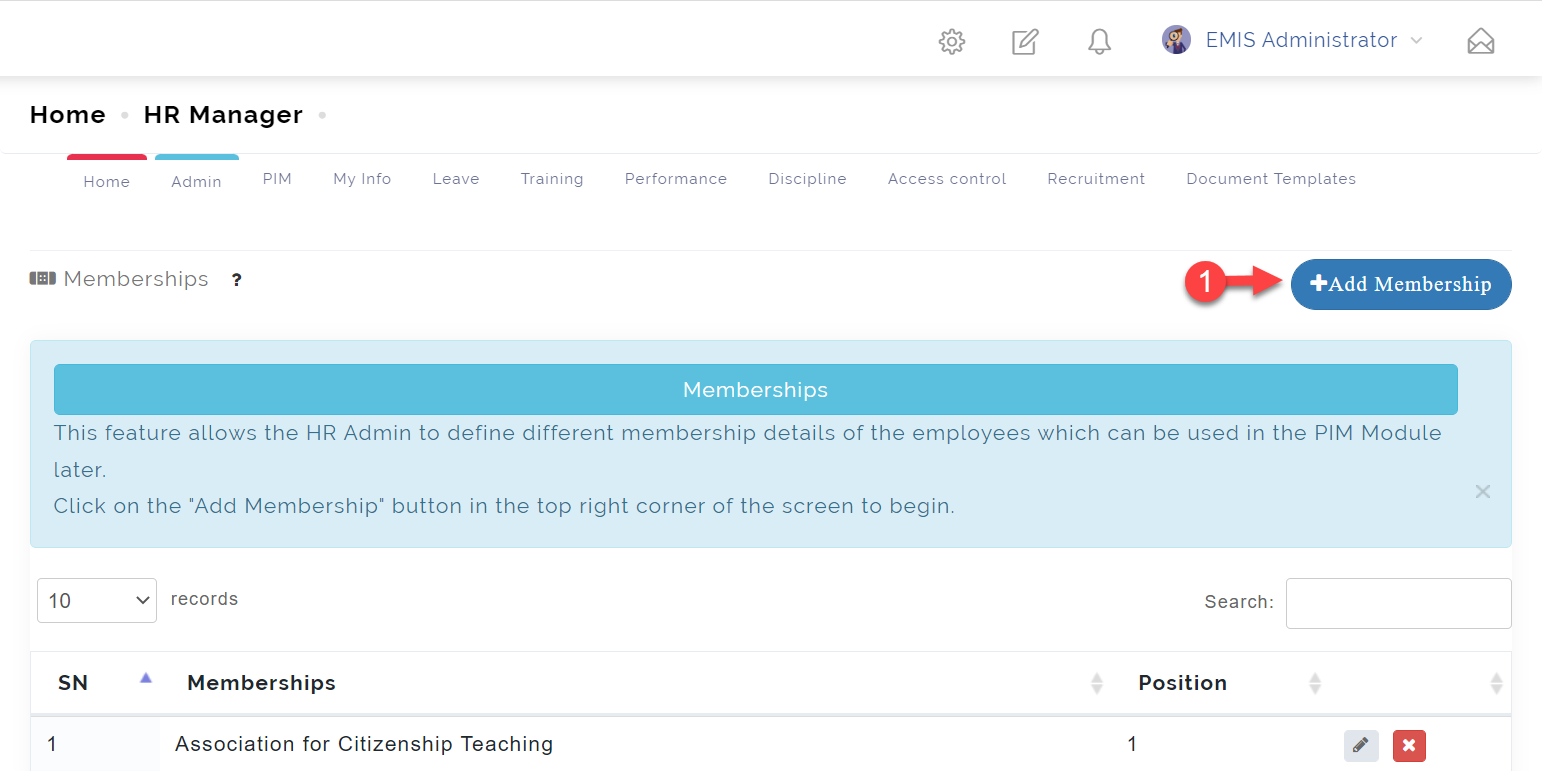
Step 1:
Click on the Add Membership icon as indicated in the picture below.
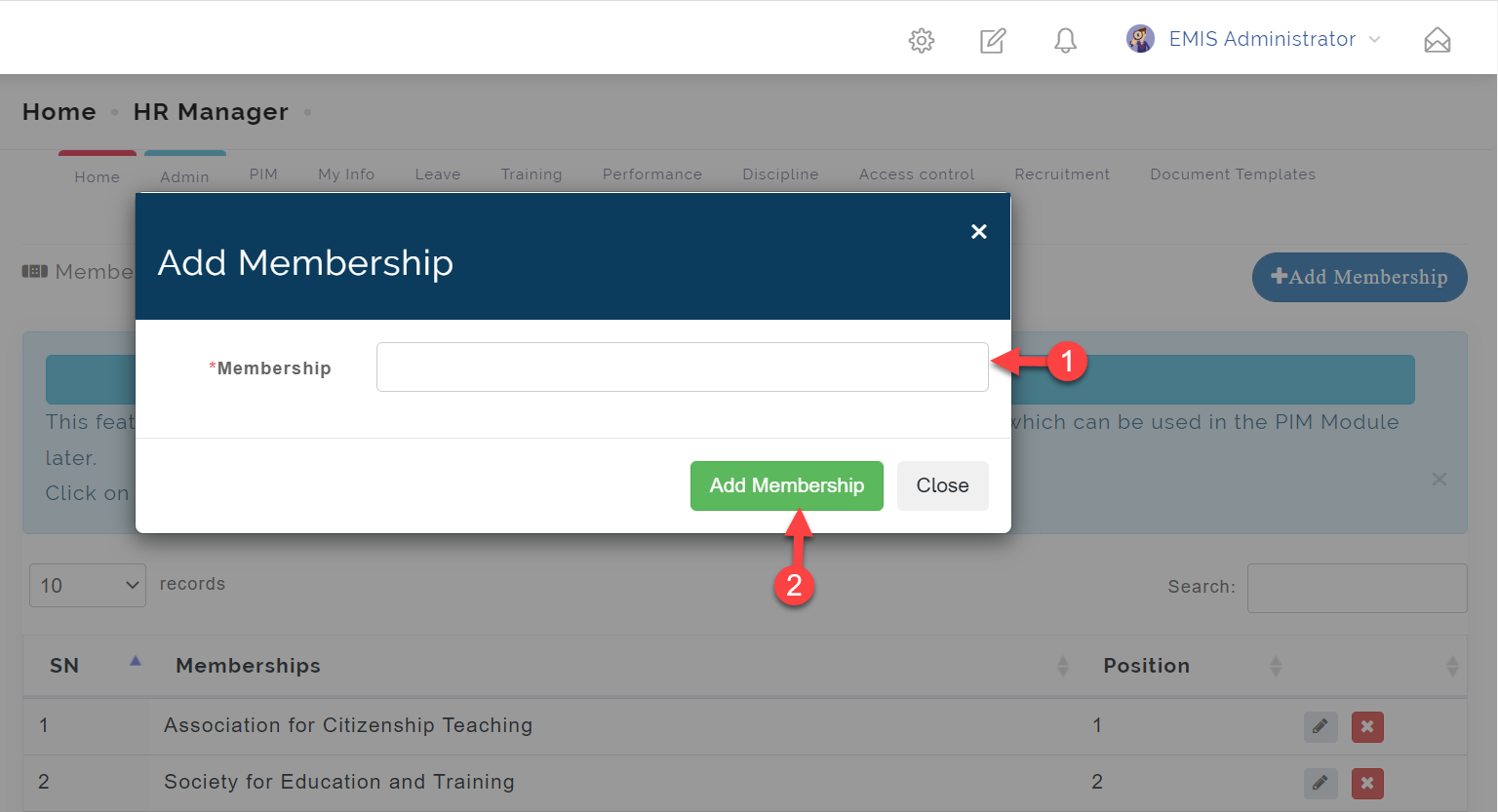
Step 2:
-
- Enter the *Membership** name.
-
- Click on Add Membership to save.
Staff Confirmation Checklist
This feature allows you to define all information with regard to employees’ recruitment confirmation.
Here you can define checklist that will be later used on the PIM Module to confirm a staff.
To access the Staff Confirmation Checklist, follow these steps below;
Click on Admin
From the dropdown menu, select Staff Confirmation Checklist
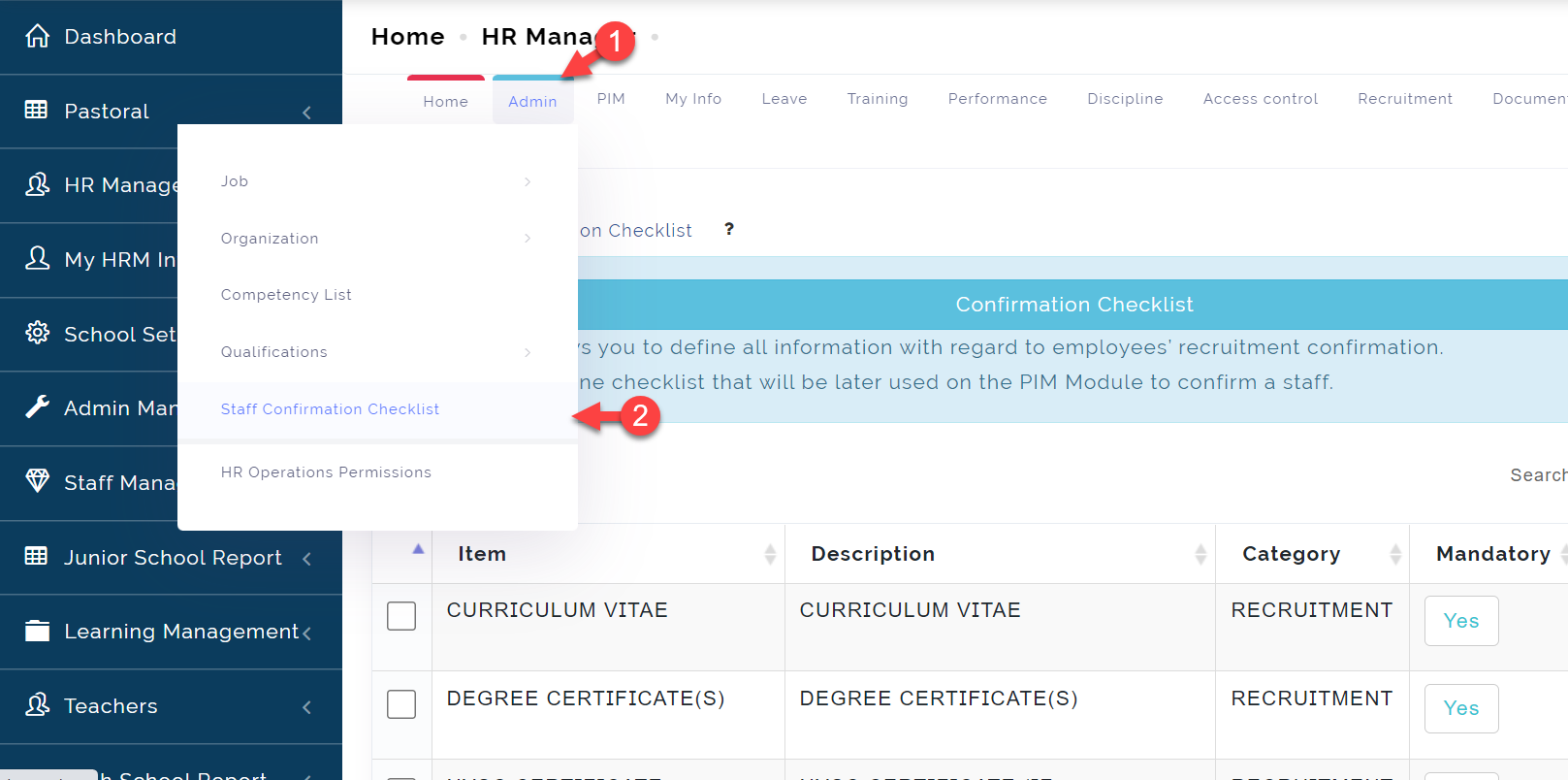
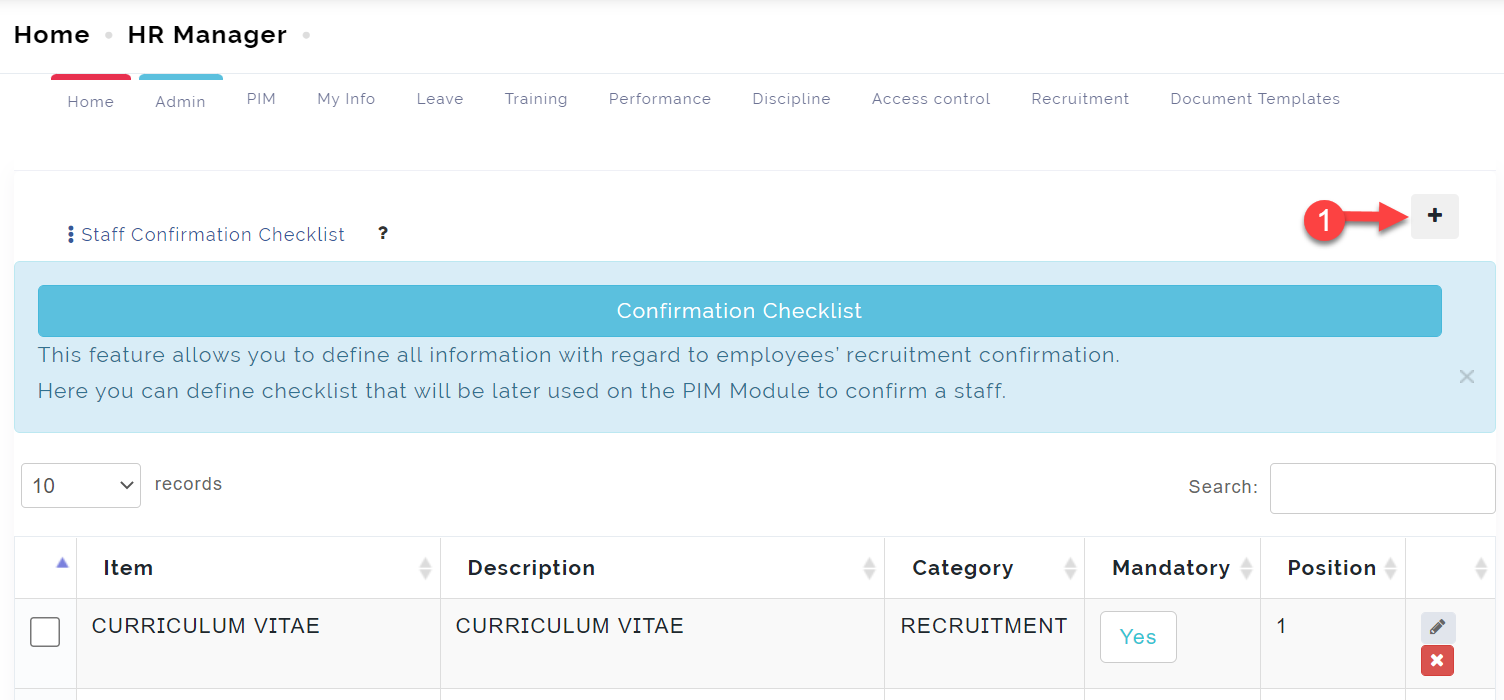
To add a Staff Confirmation Checklist, follow these steps below;
Step 1:
Click on the Add icon as indicated in the picture below.
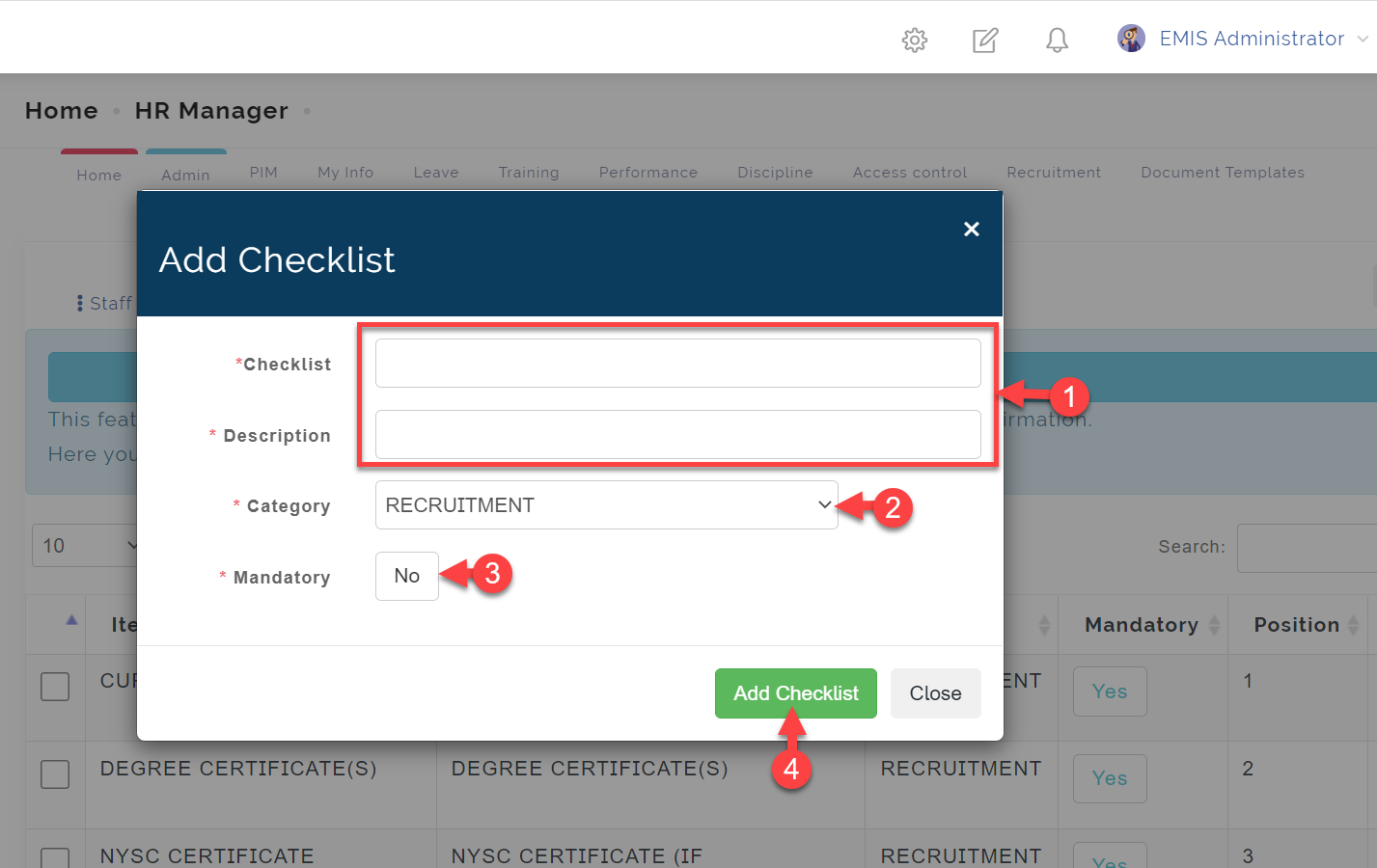
Step 2:
-
- Enter the *Checklist and Description** name.
-
- Select the Category from the dropdown.
-
- Indicate if it's mandatory
-
- Click on Add Checklist to save.
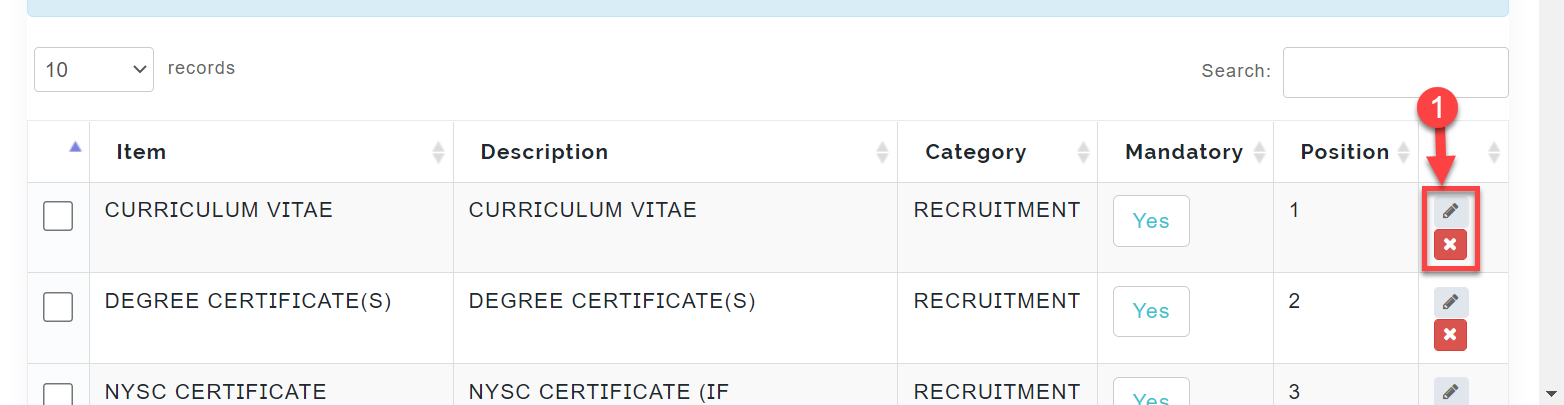
Step 2: You can edit and delete Checklist by clicking the buttons indicated below.
HR Permission Operations
User permissions in HR software are important to control data integrity and reduce mistakes. HR Permission Operations is where the admin assigns users to different roles they should have access to in the HR module.
To access the HR Permission Operations, follow these steps below;
Click on Admin
From the dropdown menu, select HR Permission Operations
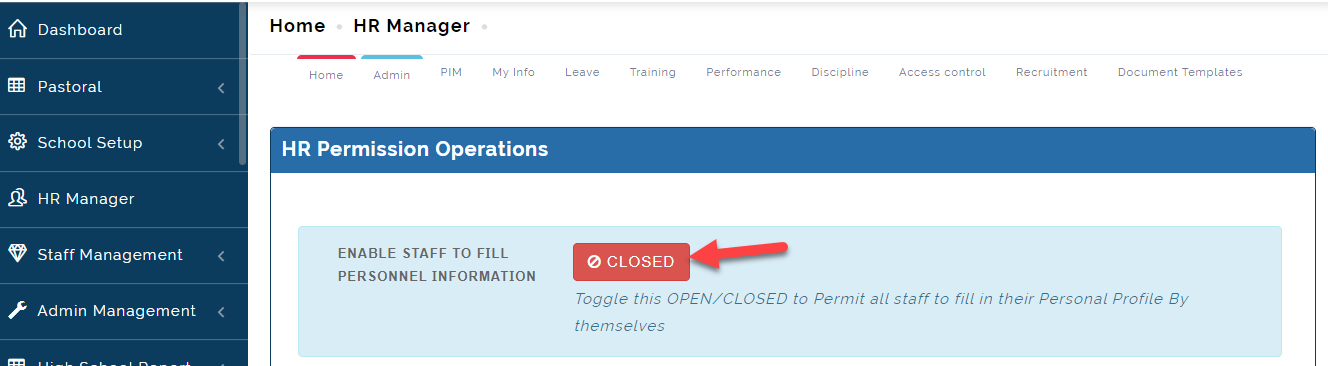
To allow all Staff fill in their personal information on their own, follow these steps below;
Step 1:
Toggle the OPEN AND CLOSED icon as indicated in the picture below to permit all staff enter their personal information themselves.
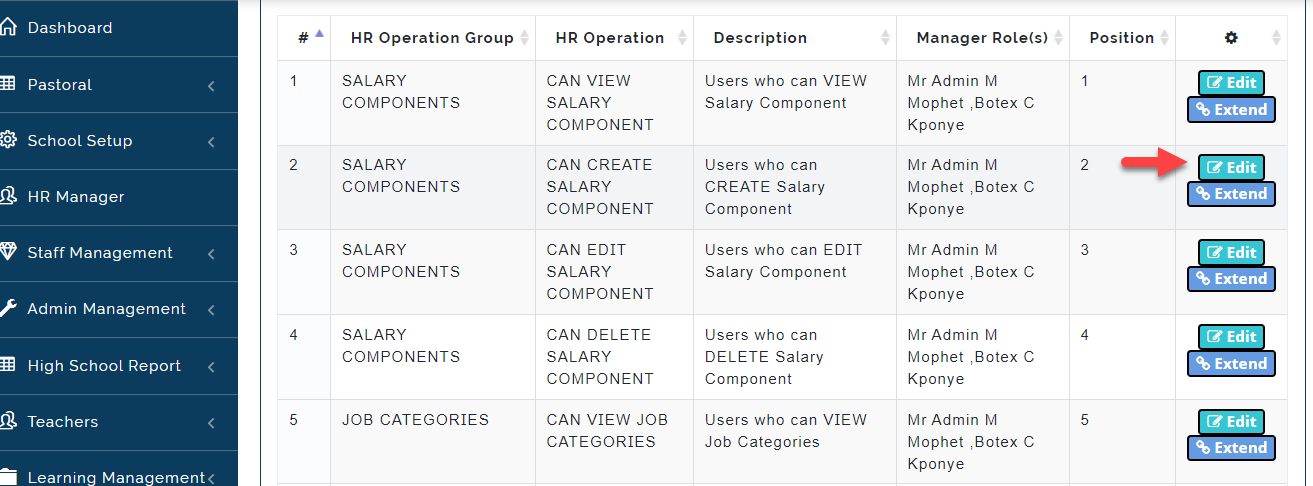
To give access to a member of Staff to operate any HR Operations listed in the table below, follow these steps below;
Step 1:
Click on the Edit icon as indicated in the picture below.
Step 2: Select individuals who should have access to the HR operation you have chosen by clicking on the names as indicated below. Click on Save or Close to Exit
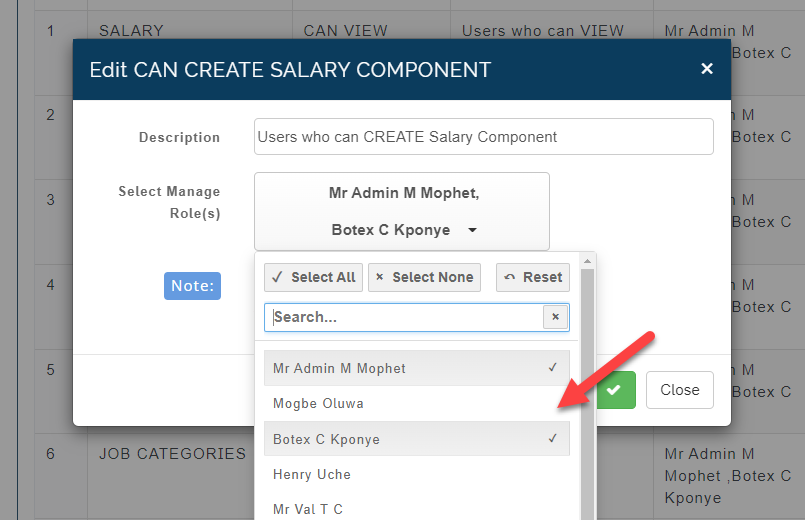
HR PERMISSIONS OPERATIONS NOTE
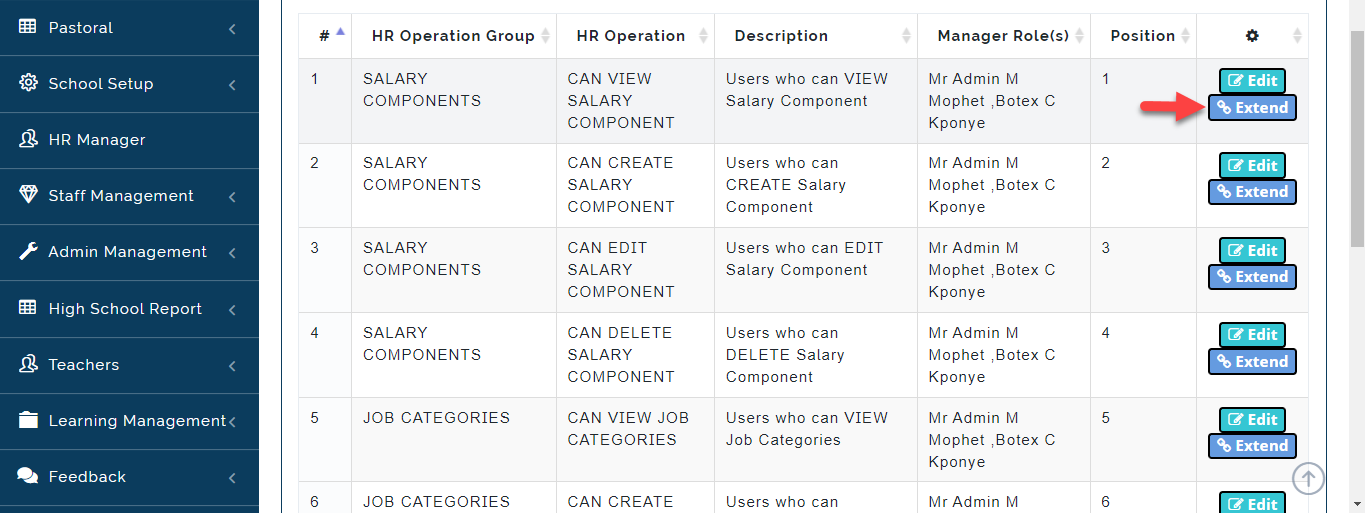
- If there is a set of individuals that have access to all the HR Operations Groupings, Add their names on one Operation then click on EXTEND (The names will b extended to all the Listings).
- Not Selecting any User under Manager roles means Any Staff who has access to HR Manager can access all the operations on HR.